Employee Management
Certification Exam
Certification Test Prerequisites
You will perform the certification test in your installed copy of Acumatica with the
“Template” DATA that is provided with the Acumatica installation package version 4.2
Prior to start the Hands-‐on Guide, make sure to activate all the features of the Application
using the Common Settings:
1. Open Enable/Disable Features form (screen ID CS100000): Configuration > Common Settings > Licensing > Enable/Disable Features
2. Click the Modify button from the tool bar
3. Confirm that the features are enable/disable as follows: (When you come to a field not specified in the table below, either populate it as you see fit or leave it as is.)
Field Value
Organization {checked}
Customer Management {checked} Project Management {checked} Time Reporting on Activity {checked}
Finance {checked}
Multi-‐Branch Support {checked} Inter-‐Branch Transactions {checked} Multi-‐currency Accounting {unchecked} Deferred Revenue Management {unchecked}
Subaccounts {checked}
Fixed Assets Management {checked} VAT Reporting {unchecked} Invoice Rounding {unchecked} Support for Expense Reclassification {unchecked} Contract Management {checked} Tax Entry from GL Module {unchecked} ROT & RUT Deduction {unchecked} Vendor Discount {unchecked} Consolidated Posting to GL {checked} Volume Pricing {unchecked}
Distribution {checked}
Inventory Subitem {unchecked} Automatic Packaging {unchecked}
Misc {checked}
Row level Security {unchecked} Field-‐Level Audit {unchecked} Avalara Tax Integration {unchecked} Address Validation {unchecked}
4. Save your changes
5. Click the Enable button from the tool bar
6. Since the Branch Accounting was enable verify that you are working in the “MAIN” branch and that MAIN branch is configured correctly:
a. Verify that you are connected to the “MAIN” branch. The information is located on the top of the screen:
b. It’s important that you always work in the MAIN branch through the course of this
certification class.
7. Also, in General Ledger, generate all necessary Financial Periods in order to be able to activate period Jan 2014 to Dec 2014.
Important Note:
Table of contents
Certification Test Prerequisites ... 2
Business Scenario: ... 5
Expense Claims Numbering ... 5
Timecard Numbering ... 6
Equipment Timecard Numbering ... 6
Set size and mask for EMPLOYEE segmented key ... 6
Define Valid values subaccount segment ... 7
Labor Item ... 8
Calendars ... 8
Employee Class ... 9
Time and Expenses Preferences ... 9
Positions ... 10
Departments ... 10
System Email Accounts ... 11
Earning Types ... 12
Create Employees ... 12
Create User Type & User Account ... 13
Create Company Tree ... 14
Assignment and Approval Map for Time Cards ... 14
Assignment and Approval Map for Expense Claim ... 14
Create an Events ... 15
Expense IDs ... 15
Expense Claims ... 15
Time Cards ... 16
As part of the Acumatica Employee Management Certification, you will be asked to perform all the necessary tasks to configure your employee management system. Please follow the instructions below in order to complete your certification test.
Business Scenario:
You have been hired as an Acumatica Business Consultant to implement all the business processes related to the Employees. Your client would like to use the expense claims, timecards, Event and Tasks feature of Acumatica. He also needs to have an approval map define to have the timecards and expense claims approved by the appropriate supervisor. Since your customer is also planning to use the Project Management Suite in a near future, he also requested to configure some of the equipment he will be using on his projects. Another approval is required for this process for the equipment timecards. Your client already has the Financial Suite implemented (General Ledger, Cash Management, Accounts Payable and Accounts Receivable).
This certification document will give you all your client’s specification for each topic and you will have to configure the system appropriately.
You will execute the necessary configurations in installed Acumatica site where the “Template Data” has been inserted. The “Template” data is provided with the Acumatica installation package version 4.11.
Expense Claims Numbering
Define your client’s Expense Claims Numbering per the requirements below
Form Section Field Value
Summary Numbering ID EPCLAIM
Summary Description EP Expense Claim Summary Manual Numbering {unchecked} Summary New Number Symbol <NEW>
Details Branch {Blank}
Details Start Number 100000 Details End Number 999999
Timecard Numbering
Define your client’s Timesheet Numbering per the requirements below
Form Section Field Value
Summary Numbering ID TIMECARD Summary Description Timecard Summary Manual Numbering {unchecked} Summary New Number Symbol <NEW>
Details Branch {Blank}
Details Start Number 0000000 Details End Number 9999999
Equipment Timecard Numbering
Define your client’s Equipment Timecards Numbering per the requirements
below
Form Section Field Value
Summary Numbering ID EQTIMECARD
Summary Description Equipment Timecards Sequence Summary Manual Numbering {unchecked}
Summary New Number Symbol <NEW>
Details Branch {Blank}
Details Start Number EQ00000001 Details End Number EQ99999999
Set size and mask for EMPLOYEE segmented key
Define the size, segmentation and edit mask for the codes that will be used to identify your client’s Employees. Configure the employee code so that it will have a maximum size of 7 characters and will only allow Unicode mask in all position and there will be no defined “segments” for the code.
Form Section Field Value
Key Definition Segmented Key ID EMPLOYEE Key Definition Parent BIZACCT Key Definition On-‐The-‐Fly Entry {unchecked} Key Definition Specific module {Blank} Key Definition Numbering ID EMPLOYEE Key Definition Description Employee Key Definition Length {keep default} Key Definition Segments {keep default}
Form Section Field Value
Segment Definition Segment ID 1
Segment Definition Description Business Account Segment Definition Override <checked> Segment Definition Length 7
Segment Definition Align Left Segment Definition Edit Mask Unicode Segment Definition Case conversion No Change Segment Definition Validate {unchecked} Segment Definition Auto-‐Number {checked} Segment Definition Separator -‐
Define Valid values subaccount segment
Define your client’s values for the 1st subaccount segment
Your client tracks revenue by Product Group. They wish to be able to code some of their accounting activity (i.e. consulting revenue, hardware, software.) for those product groups.
Value Description
000 Default
C00 Consulting
Define your client’s values for the 2nd subaccount segment
Your client tracks expenses by Department. They wish to be able to code some of their accounting activity (i.e. operations, sales, finance, administration) for those departments.
Value Description
000 Default
FIN Finance OPS Operations SAL Sales
Labor Item
Your client will assign Labor Items (also called labor categories) to each of his employees. When creating your employees in the Employee Management module, it will be necessary to assign your employees some labor items. Configure the necessary labor items for your client with the specified values below: For Project Manager:
Requirements from your client Value
Inventory ID PManager Description Project Manager
Base Unit HOUR
Sales Unit HOUR
Purchase Unit HOUR Sales Price 150.00 Expense Account Accrual 20100 Expense Accrual Sub 000-‐000 Expense Account 51200 Expense Sub 000-‐OPS Sales Account 40000 Sales Sub C00-‐000
Create the other labor items like the one above (assign the same properties unless specified below). Here is the information on the other labor items you need to create:
Inventory ID Description Pending Price Pending Price Date
SRCONSULT Senior Consultant 100.00 01/01/2013 JRCONSULT Junior Consultant 80.00 01/01/2013
Calendars
Your client is located in Seattle (Pacific Standard Time), please create a 9am to 6pm calendar for your client.
Employee Class
You will need to create an employee class for all the Seattle employees. Your client gave you his requirements:
Field Value
Class ID Seattle
Description Seattle Office
Terms NET
Payment Method Check Cash Account 10200
AP Account 20000
AP Subaccount 000-‐000 Cash Discount Account 52600 Cash Discount Subaccount 000-‐000 Prepayment Account 22200 Prepayment Subaccount 000-‐000 Expense Account 81000 Expense Subaccount 000-‐OPS Sales Account 40000 Sales Subaccount C00-‐000
Calendar PST
Tax Zone ID {blank} Regular Hours Validation Warning Only
Time and Expenses Preferences
Open Time and Expenses Preferences form (EP101000). You use this form to configure the Employee Time and Expenses Preferences. The settings of the Employee Management includes numbering sequences assigned to claims and time sheets, and assignment maps to be used to approve claims and time sheets. Also, you can choose the default employee class, which will let users save time when they enter information for new employee classes or for new employees. Please configure the Time and Expenses preferences based on your client’s requirements:
Form Section Field Value
General Settings Expense Claim Numbering Sequence EPCLAIM General Settings Time Card Numbering Sequence TIMECARD General Settings Equipment Timecard Sequence EQTIMECARD
General Settings Expense Claim Approval Map {blank – to be filled later} General Settings Time Card Approval Map {blank – to be filled later} General Settings Equipment Timesheet Approval Map {blank – to be filled later}
Form Section Field Value
General Settings Keep Transaction For 99 General Settings Automatically Release AR Documents {checked} General Settings Automatically Release AP Documents {checked} General Settings Automatically Release PM Documents {checked} General Settings Copy Notes to AR Documents {checked} General Settings Copy Files to AR Documents {checked} General Settings Copy Notes to AP Documents {checked} General Settings Copy Files to AP Documents {checked} General Settings Copy Notes to PM Documents {checked} General Settings Copy Files to PM Documents {checked} General Settings Combine Sales Sub From EEE-‐EEE General Settings Combine Expense Sub From III-‐III General Settings Hold Expense Claims on Entry {checked} General Settings Validates Document Total on Entry {unchecked} General Settings Require Time On Activity {checked} General Settings Default Time Activity Type Work Item General Settings Min Billable Time 00:00
General Settings Regular Hours Earning Type RG – Regular Hours General Settings Holiday Earning Type HL – Public Holiday General Settings Vacations Earning Types VC
General Settings Post to Off-‐Balance Account Group {unchecked} General Settings Off-‐Balance Account Group {blank} General Settings Custom Week Configuration {checked}
Generate the Custom Week Setting so your current year is configured where the Cut Off Day is “End of Month”.
Positions
Your client asked you to create the positions below in his system:
Position ID Description
JRCONSULT Junior Consultant SRCONSULT Senior Consultant PMANAGER Project Manager
ADMIN Administrative
Your client asked you to create the departments below in his system:
Department ID Description Expense Account Expense Subaccount
ADMIN Administration {blank} 000-‐ADM
CONSULTING Consulting Department {blank} 000-‐OPS
System Email Accounts
You will need to configure the System Email Account in the system. Navigate to Configuration > Email > Manage > System Email Account (SM204002) and proceed with the configuration of the system email account.
Form Section Field Value
Summary Email Account ID <NEW> Summary Account Name ADMIN
Summary Email Address {use your personal gmail account} Summary Reply Address {use your personal gmail account}
Form Section Field Value
Server Information Incoming Mail Protocol Pop3 Server Information Root Folder (on server) {blank} Server Information Incoming Mail Server {blank}
Server Information Outgoing Mail Server (SMTP) smtp.gmail.com
Logon Information Username {use your personal gmail account} Logon Information Password {your email account password}
Form Section Field Value
Security My outgoing server requires authentication {unchecked}
Security Log on using {unchecked}
Security Username {accept default}
Security Password {accept default}
Security My outgoing server validated From field {checked} Server Port Number Incoming server port (POP3/IMAP) 995 Server Port Number Incoming server requires encrypted connection (SSL) {checked} Server Port Number Outgoing server port (SMTP) 587 Server Port Number Outgoing server encrypted connection TLS
Your client asked you to make this email account the default email account as the “From” when sending emails with the system and to schedule the Send and Receive Email process to run every minute.
Earning Types
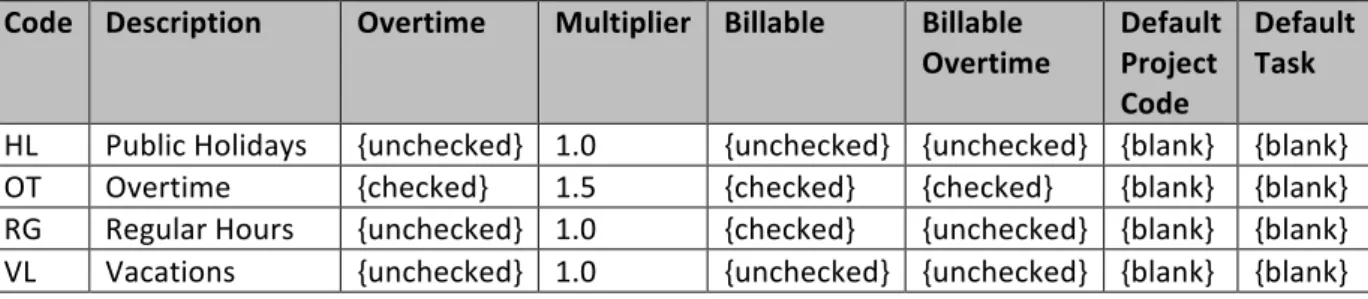
Your client has different earning types possible. He asked to confirm that the earning types below would be available in the system:
Code Description Overtime Multiplier Billable Billable
Overtime Default Project Code
Default Task
HL Public Holidays {unchecked} 1.0 {unchecked} {unchecked} {blank} {blank} OT Overtime {checked} 1.5 {checked} {checked} {blank} {blank} RG Regular Hours {unchecked} 1.0 {checked} {unchecked} {blank} {blank} VL Vacations {unchecked} 1.0 {unchecked} {unchecked} {blank} {blank}
Create Employees
Your client has requested you to create his employees in the system. Here is the employee list:
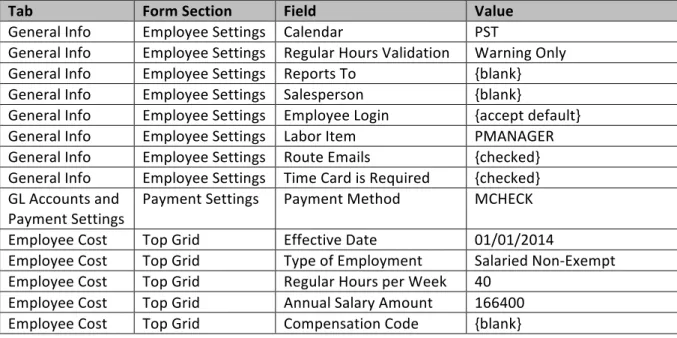
Form Section Field Value
Summary Employee ID <NEW>
Summary Status Active
Summary Employee Name {accept default}
Tab Form Section Field Value
General Info Contact Info Title Mr General Info Contact Info First Name Jay General Info Contact Info Middle Name {blank} General Info Contact Info Last Name Pritchett
General Info Contact Info Email {insert your email address}* General Info Address Info Country US
General Info Employee Settings Employee Class SEATTLE General Info Employee Settings Branch MAIN General Info Employee Settings Position PRESIDENT General Info Employee Settings Department ADMIN
Tab Form Section Field Value
General Info Employee Settings Calendar PST
General Info Employee Settings Regular Hours Validation Warning Only General Info Employee Settings Reports To {blank} General Info Employee Settings Salesperson {blank}
General Info Employee Settings Employee Login {accept default} General Info Employee Settings Labor Item PMANAGER General Info Employee Settings Route Emails {checked} General Info Employee Settings Time Card is Required {checked} GL Accounts and
Payment Settings Payment Settings Payment Method MCHECK Employee Cost Top Grid Effective Date 01/01/2014
Employee Cost Top Grid Type of Employment Salaried Non-‐Exempt Employee Cost Top Grid Regular Hours per Week 40
Employee Cost Top Grid Annual Salary Amount 166400 Employee Cost Top Grid Compensation Code {blank}
On all other tabs, accept the default values
Create other employees like done above (same settings unless specified below). Here is the information on the other employees you need to create:
Field Employee:
Gloria Delgado-‐Pritchett Employee: Cameron Tucker Employee: Claire Dunphy
Employee
Email [email protected] [email protected] om
Position FIN SRCONSULT JRCONSULT
Department ADMIN CONSULT CONSULT
Labor class {blank} SRCONSULT JRCONSULT
Type of Employment Salaried Non-‐Exempt Salaried Non-‐Exempt Hourly
Reg Hours per week 40 40 1
Annual Salary 40000 100000 {blank}
Hourly Rate {blank} {blank} 40
Create User Type & User Account
With the User Types form and the Users form you can add users to the system.
Execute all necessary steps to configure the system per your client’s requirements. Your client has requested credentials for the employees below:
Employee Name Assigned Role
Jay Pritchett Administrator & MAIN Gloria Delgado-‐Pritchett Administrator & MAIN
Employee Name Assigned Role
Cameron Tucker Administrator & MAIN Claire Dunphy Administrator & MAIN
Create Company Tree
Your client gave you his Org chart that you will need to insert in Acumatica company tree as follows:
Assignment and Approval Map for Time Cards
Your client has requested that all timecards need to be approved by Gloria and then himself, Jay Pritchett (double approval). Please create the Timecard approval map in Acumatica and make sure it is assign to the Time & Expenses Preferences.
Assignment and Approval Map for Expense Claim
Your client has requested that all expense claims need to be approved by Gloria. If the expense claim total is $300.00 or above, then the expense claim needs to be approve by Gloria and then himself, Jay Pritchett (double approval for $300 or above expense claims). Please create the Expense Claims approval map in Acumatica and make sure it is assign to the Time & Expenses Preferences.
Company XYZ Execusve team Jay Pritchet Consulsng Department Cameron Tucker Claire Dunphy Admin Gloria Delgado
Create an Events
Create 1 event. Your event should be for today’s date from 5pm to 7pm with a subject line “Acumatica EP certification Party – {your name}”. In the attendees list you should include Gloria Delgado-‐Pritchett and your Acumatica Instructor. Your instructor email address is [email protected]
Make sure you execute all necessary steps to ensure your event invitation was sent by email.
Expense IDs
Your client has requested to be able to enter 2 types of expense IDs when creating an employee expense claim. Configure the Expense ID per your client’s requirements:
Field Value 1 Value 2
Inventory ID LODGING CELLPHONE Description Lodging Expenses Cell Phone
Base Unit UNIT UNIT
Sales Unit UNIT UNIT
Purchase Unit UNIT UNIT
Expense Accrual Account 20100 20100 Expense Accrual Sub 000-‐000 000-‐000 Expense Account 63200 63100 Expense Sub 000-‐OPS 000-‐OPS PO Accrual Account 20100 20100 PO Accrual Sub 000-‐000 000-‐000 Sales Account 40000 40000 Sales Sub C00-‐000 C00-‐000
Expense Claims
1. Enter an expense claim for Cameron’s cell phone where the control total would equal $50.00. Take all the necessary steps to approved and release the expense claim. The Expense Claim Date should be April 1st, 2014.
2. Enter an expense claim for Claire’s cell phone of $65.00. Also include some lodging expenses of $300.00. Take all the necessary steps to approved and release the expense claim. The Expense Claim Date should be May 1st, 2014.
Time Cards
Your client has asked you to prove that your approval map is working for the timecards:
1. Enter a 40 hours timecard for Cameron. Your timecard should have 8 hours of each day of the week. Take all the necessary steps to approved and release the timecard.
Correct Time Cards
Your client has asked you to correct Cameron’s timecard. Cameron did not work 8 hours but 6 hours on Friday resulting in a 38 hours workweek.
1. Take all the necessary steps to correct Cameron’s timecard then approve and release the corrected time card.
Now that you have completed the Certification Exam exercises, please proceed to the course assessment section of this course on the Acumatica University.