Altiris™ Deployment Solution
6.9 SP6 from Symantec™
Altiris™ Deployment Solution 6.9 SP6 Release Notes
Legal Notice
Copyright © 2013 Symantec Corporation. All rights reserved.
Symantec, the Symantec Logo, the Checkmark Logo, Altiris, and any Altiris or Symantec trademarks used in the product are trademarks or registered trademarks of Symantec Corporation or its affiliates in the U.S. and other countries. Other names may be trademarks of their respective owners.
The product described in this document is distributed under licenses restricting its use, copying, distribution, and decompilation/reverse engineering. No part of this document may be reproduced in any form by any means without prior written authorization of Symantec Corporation and its licensors, if any.
THE DOCUMENTATION IS PROVIDED "AS IS" AND ALL EXPRESS OR IMPLIED CONDITIONS, REPRESENTATIONS AND WARRANTIES, INCLUDING ANY IMPLIED WARRANTY OF MERCHANTABILITY, FITNESS FOR A PARTICULAR PURPOSE OR NON-INFRINGEMENT, ARE DISCLAIMED, EXCEPT TO THE EXTENT THAT SUCH DISCLAIMERS ARE HELD TO BE LEGALLY INVALID. SYMANTEC CORPORATION SHALL NOT BE LIABLE FOR INCIDENTAL OR CONSEQUENTIAL DAMAGES IN CONNECTION WITH THE FURNISHING, PERFORMANCE, OR USE OF THIS DOCUMENTATION. THE INFORMATION CONTAINED IN THIS DOCUMENTATION IS SUBJECT TO CHANGE WITHOUT NOTICE.
Symantec Corporation 350 Ellis Street
Mountain View, CA 94043 http://www.symantec.com
Technical Support
Symantec Technical Support maintains support centers globally. Technical Support’s primary role is to respond to specific queries about product features and functionality. The Technical Support group also creates content for our online Knowledge Base. The Technical Support group works collaboratively with the other functional areas within Symantec to answer your questions in a timely fashion. For example, the Technical Support group works with Product Engineering and Symantec Security Response to provide alerting services and virus definition updates.
Symantec’s support offerings include the following:
■ A range of support options that give you the flexibility to select the right amount of service for any size organization
■ Telephone and/or Web-based support that provides rapid response and up-to-the-minute information
■ Upgrade assurance that delivers software upgrades
■ Global support purchased on a regional business hours or 24 hours a day, 7 days a week basis
■ Premium service offerings that include Account Management Services For information about Symantec’s support offerings, you can visit our website at the following URL:
www.symantec.com/business/support/
All support services will be delivered in accordance with your support agreement and the then-current enterprise technical support policy.
Contacting Technical Support
Customers with a current support agreement may access Technical Support information at the following URL:
www.symantec.com/business/support/
Before contacting Technical Support, make sure you have satisfied the system requirements that are listed in your product documentation. Also, you should be at the computer on which the problem occurred, in case it is necessary to replicate the problem.
When you contact Technical Support, please have the following information available:
■ Product release level ■ Hardware information
■ Available memory, disk space, and NIC information ■ Operating system
■ Version and patch level ■ Network topology
■ Router, gateway, and IP address information ■ Problem description:
■ Error messages and log files
■ Troubleshooting that was performed before contacting Symantec ■ Recent software configuration changes and network changes
Licensing and registration
If your Symantec product requires registration or a license key, access our technical support Web page at the following URL:
www.symantec.com/business/support/
Customer service
Customer service information is available at the following URL: www.symantec.com/business/support/
Customer Service is available to assist with non-technical questions, such as the following types of issues:
■ Questions regarding product licensing or serialization
■ Product registration updates, such as address or name changes
■ General product information (features, language availability, local dealers) ■ Latest information about product updates and upgrades
■ Information about upgrade assurance and support contracts ■ Information about the Symantec Buying Programs
■ Advice about Symantec's technical support options ■ Nontechnical presales questions
Support agreement resources
If you want to contact Symantec regarding an existing support agreement, please contact the support agreement administration team for your region as follows:
[email protected] Asia-Pacific and Japan
[email protected] Europe, Middle-East, and Africa
[email protected] North America and Latin America
Altiris™ Deployment
Solution 6.9 SP6 Release
Notes
This document includes the following topics: ■ About Deployment Solution 6.9 SP6 ■ What's new in Deployment Solution 6.9 SP6 ■ General installation and upgrade information ■ Known issues for Deployment Solution 6.9 SP6 ■ Fixed issues of Deployment Solution 6.9 SP6 ■ Known issues of PC Transplant
■ Fixed issues of PC Transplant ■ Documentation that is installed ■ Other information
About Deployment Solution 6.9 SP6
Deployment Solution provides a complete system to cut costs and improve IT response times for big and small jobs by increasing access and productivity. Deployment Solution provides easy-to-use graphical consoles to organize computer groups, schedule deployment jobs, distribute disk images, and update packages. Deployment Solution is part of the following suites:
■ Altiris™ Client Management Suite from Symantec ■ Altiris™ Server Management Suite from Symantec ■ Altiris™ IT Management Suite from Symantec
What's new in Deployment Solution 6.9 SP6
In Deployment Solution 6.9 SP6, following new features are introduced: Table 1-1
Description Feature
Deployment Solution 6.9 SP6 supports WinPE 4.0 preboot package for both x64 and x86 architecture computers.
To add the preboot files for WinPE 4.0 you must install the Windows Assessment and Deployment Kit (ADK 8.0) for Windows® 8. You can download the Windows Assessment and Deployment Kit (ADK 8.0) from the following URL:
http://www.microsoft.com/en-us/download/details.aspx?id=30652 Note:You must install Windows PowerShell 3 or the Windows Management Framework 3.0 that includes Windows PowerShell 3.0 on the computer on which you install the ADK.
Support for WinPE 4.0
Deployment Solution 6.9 SP6 now supports Windows 8 and Windows Server 2012 computers.
For more information refer to the following URL: http://www.symantec.com/docs/TECH212765 Support for Windows 8 and Windows Server
2012 computers
Deployment Solution 6.9 SP6 now supports the following for the UEFI client (64-bit only) computers:
■ Booting the UEFI computers in the 64-bit preboot environment using the WinPE 4.0 preboot image.
■ Imaging the UEFI computers using the Ghost imaging tool ■ Installing the Windows OS on the UEFI computers using the Scripted
OS installation task. Partial support for UEFI
Deployment Solution 6.9 SP6 now supports PowerShell v2 scripts. Support for PowerShell v2 scripts
The DAgent tray icon changes to an eye icon when a remote control session is established. The DAgent icon blinks repeatedly till the remote control session is connected.
DAgent tray icon now changes when the computer is remotely controlled
7 Altiris™ Deployment Solution 6.9 SP6 Release Notes
Table 1-1 (continued)
Description Feature
Deployment Solution 6.9 SP6 now supports LinPE update (2.6.32-358.el6 based on CentOS).
Support for LinPE update (2.6.32-358.el6 based on CentOS)
PC Transplant now supports Windows 8 client computers PCT support for Windows 8
PC Transplant now supports Microsoft Office 13 and Internet Explorer 10.
Support for Microsoft Office 13 and Internet Explorer 10
Deployment Solution 6.9 SP6 no longer supports IA-64 architecture (Intel Itanium architecture) in the preboot environment.
Support removed for IA 64 architecture (Intel Itanium architecture)
General installation and upgrade information
Deployment Solution can be installed and implemented locally as an independent deployment server system on a single LAN segment or site.
Note:Deployment Solution 6.9 SP6 does not support Windows Server 2003 for running the Deployment Server due to the incompatibilities between Windows Server 2003 and the Windows ADK for WinPE 4.0.
However, Windows Server 2003 is supported for a PXE server and an SQL server that is configured remotely.
For more information refer to the following article: HOWTO95096
For more information, see theAltiris Deployment Solution 6.9 SP5 from Symantec User Guide.
www.symantec.com/docs/DOC3961
Known issues for Deployment Solution 6.9 SP6
The following are the known issues for this release: Table 1-2 Known issues
Description Issue
Imaging with thewritefilters enabled is not supported on WES7. Imaging withwritefilters enabled is not
supported.
8 Altiris™ Deployment Solution 6.9 SP6 Release Notes
Table 1-2 Known issues (continued) Description
Issue
TheaxSchedis unable to locate a job name that has the slash character. TheaxScheddoes not support slash
character in the folder hierarchy.
A space in the database name prompts an error and the installation wizard quits the launch without successful installation.
A space in the database name causes the installation wizard to exit the launch.
TheCreate Imagetask in Windows Server 2008 with Sysprep using RDeployfails in Japanese client computer with shift JIS encode in unattended XML.
Imaging a Windows Server 2008 in Japanese with Sysprep does not work.
ThePermissionspage displays an error when the option changes from UserstoUser group.
The error is displayed when the web console is configured in .Net 4.0 framework.
ThePermissionspage in web console displays an error when configured in .Net 4.0 framework.
The MAC address is blank for the Wi-Fi network adaptor even though there is Wi-Fi connectivity.
The MAC address is not displayed for network adaptors such as Wi-Fi and FireWire.
During the installation of a web console usingComponent install, the installation ends abruptly and displays the following error message: The package terminated unexpectedly.
The installation of web console displays an error when launched using the Component installoption.
TheDAgentlists only 80 predefined computers from the list that the engine sends.
A predefined computers list that exceeds 80 is truncated in theDAgent.
The performance of the Deployment Solution web console is affected when the optionDisplay only computers and jobs the user has rights to manageis enabled for more than 1000 clients.
When the optionDisplay only computers and jobs the user has rights to manage is enabled for more than 1000 clients, the Deployment Solution web console performance is affected.
In the bootwiz, the optional Linux packages that are added to the packages folder are listed in the optional components wizard page, but are not expanded when Linux automation boots.
In the bootwiz, the optional Linux packages that are added to the packages folder are not expanded when the Linux automation boots.
The Deployment Solution installation on a Windows Server 2008 computer is interrupted as the server restarts forcefully during ADK installation. The installation of Deployment Solution on
a Windows Server 2008 is interrupted as the server restarts forcefully during ADK installation.
9 Altiris™ Deployment Solution 6.9 SP6 Release Notes
Table 1-2 Known issues (continued) Description
Issue
For UEFI-based computers, the status for automation partition installation is displayed as success when the installation of the automation partition fails on the EFI partition on which operating system is installed. The status for automation partition
installation is displayed as successful on the Server for the UEFI- based computers even if the installation fails on the client computer
The PXE menu on the client computer does not display the WinPE images that are imported.
The PXE menu on the client computer does not display the WinPE images that are imported.
Deployment Solution installation displays the following error when the ADK setup files are not provided during an upgrade installation:
Error creating PXE default images... Deployment Solution installation displays
an error if the ADK setup files are not provided during an upgrade installation.
Fixed issues of Deployment Solution 6.9 SP6
Following are the fixed issues for this release: Table 1-3 Fixed issues
Description Issue
After an undetermined period of time, theaxEnginestopped sending out WOL MAC addresses in the SendWOL= communication.
TheaxEnginesent blank MAC address to WOL proxies and the WOL stopped working.
The Windows PowerShell status displayed success for theRunscript task, even if the script execution failed on the client computer. The Windows PowerShell displayed
incorrect status in the Deployment Solution console.
TheDAgentstatus did not change even if client computer was removed from the rejected list in the Windows 32-bit console. The client computer connected back to the server but the status message on theDAgent displayed as disconnected.
TheDAgentstatus did not change.
Some of the time zones did not persist on the Windows 2003, and Windows XP client computers after theDistribute Disk Imagingtask was executed for the Sysprep imaging
TheDistribute Disk Imagetask that used the Sysprep default answer file was unable to set the time zone correctly for Windows 2003, and Windows XP client computers.
TheaxEnginestopped processing jobs once in every month or two and used 25 % of the CPU.
TheaxEngineused 25% of the CPU and stopped processing jobs.
10 Altiris™ Deployment Solution 6.9 SP6 Release Notes
Table 1-3 Fixed issues (continued) Description
Issue
The DAgent icon in the system tray did not display change in the icon for the WES 7 thin clients and Windows 7 desktops when the DAgent established a remote control session.
For the WES 7 thin clients and Windows 7 desktops, the DAgent did not display changes in the icon when the DAgent established a remote control session.
The runscript task failed to execute a PowerShell script when the option Locally on the Deployment Server was selected in the task. The runscript task failed to execute a
PowerShell script.
The PWUtil utility is now working The PWUtil utility did not work
An error, Incorrect syntax near the keyword 'and'. Statement(s) could not be prepared was displayed.
An error, Incorrect syntax near the keyword 'and'. Statement(s) could not be prepared was displayed.
Failed to install software package using software install task when package was created by an installer.
Failed to install software package using software install task when package was created by an installer.
The PowerShell script failed to execute when the optionLocally on the Deployment Serverwas selected in runscript task.
The PowerShell script failed to execute when the optionLocally on the Deployment Serverwas selected in runscript task
PowerShell scripts were not removed from eXpress\Temp folder after a job was executed.
PowerShell scripts were not removed from eXpress\Temp folder after a job was executed.
Incorrect font was used in Software license agreement. Incorrect font was used in Software license
agreement
ADLagent did not report up the DNS suffix, DNS search order, DNS IP addresses, and the bridged networks.
ADLagent did not report up the DNS suffix, DNS search order, DNS IP addresses, and the bridged networks
Remote Desktop Protocol (RDP) was not able to set the DNS and the DNS suffix to RHEL6.1 target.
Remote Desktop Protocol (RDP) was not able to set the DNS and the DNS suffix to RHEL6.1 target.
The ADLagent for Mac did not report hard disks of 2TB size in the inventory.
The ADLagent for Mac did not report 2TB hard disk in the inventory
TheModify Configurationtask that was used to rename a computer when executed after executing another job, displayed the computer name as token %Name% in the console.
TheModify Configurationtask that is used to rename a computer displayed the token in the console.
11 Altiris™ Deployment Solution 6.9 SP6 Release Notes
Table 1-3 Fixed issues (continued) Description
Issue
The DAgent reported the blade enclosure as-[UUID:none]-instead of the name that was configured in the enclosure.
The DAgent reported the blade enclosures as-[UUID:none]-.
Incorrect time was displayed against the scheduled time of the task in the task history.
The scheduled time of the task in the history displayed incorrect time.
The driver import tool did not display driver details while importing drivers. The driver import tool did not display driver
details.
The task status for the Copy file task displayed incorrect status when the task was executed.
The task status for theCopy filetask displayed incorrect status.
The Re-configure job failed to create users on the target computers. Users were not created from the
Re-configure job on the client computers
Deployment Solution was unable to connect to the target after the reconfigure Job was executed on a RHEL5.8 KVMx64.
Deployment Solution was unable to connect to the target after the reconfigure Job was executed on a RHEL5.8 KVMx64.
Known issues of PC Transplant
The following are known issues for this release: Table 1-4 Known issues
Description Issue
The.pkg file on the Windows Vista and Windows 7 client computers displays an HTTP error 404 when you try to download the package from the webstore.
The.pkg filefails to download on Windows Vista and Windows 7 client computers from the webstore.
PC Transplant does not support the cross version migration ofQuick Access Toolbarfrom Microsoft-Office 2007 to Microsoft-Office 2010. For Microsoft-Office the defaultQuick Access Toolbarsettings cannot be migrated.
PC Transplant does not capture Microsoft-Office 2007 customize Quick Access Toolbar extension files.
PC Transplant does not support the launch of applications through A2i Builder on Windows 7 and Windows Vista operating system.
The application does not launch through A2i Builder for Windows Vista and Windows 7 client computers.
PC Transplant is not able to filter theAccessedorNot Accessedusers on Windows Vista or Windows 7 computer.
TheAccessedorNot Accessedusers are not filtered on Windows Vista or Windows 7 computers.
12 Altiris™ Deployment Solution 6.9 SP6 Release Notes
Table 1-4 Known issues (continued) Description
Issue
PC Transplant is not able to push the destination agent on the destination computer using-usercontextswitch consistently.
The destination agent is not pushed on destination computer with the
-usercontextswitch.
In PC Transplant, the '-rt:network=*' switch does not work without the -userswitch.
The '-rt:network=*' switch does not work without the-user switch.
The Desktop, the Network, and the application settings that are captured in the PC Transplant package are removed if the package is edited using PCTWiz.
The settings that you capture in the PC Transplant package are removed if you open it and edit in PCTWiz
On migrating from Microsoft-Word 2003 to Microsoft-Word 2007 or Microsoft-Word 2010, PC Transplant does not let you edit the Dictionaries. On migrating from Microsoft-Word 2003 to
Microsoft-Word 2007 or Microsoft-Word 2010, you cannot edit the Dictionaries.
In Internet Explorer, the security level for all the zones under security tab are not displayed after migration.
In Internet Explorer, the security level for all the zones under the security tab are not displayed after migration.
The settings under the Advanced option for Microsoft Outlook are not migrated from Microsoft Office 2007 to Microsoft Office 2013, and from Microsoft Office 2010 to Microsoft Office 2013.
For Microsoft Outlook, the settings under the Advanced option are not migrated from the source computer to the destination computer.
In Internet Explorer, the Search Provider's settings of the programs tab are not migrated.
In Internet Explorer, the Search Provider's settings of the programs tab are not migrated.
13 Altiris™ Deployment Solution 6.9 SP6 Release Notes
Table 1-4 Known issues (continued) Description
Issue
Following settings of Microsoft Word are not migrated from Microsoft Office 2010 to Microsoft Office 2013:
■ General tab ■ Display tab ■ Save
■ Advance (Cut,copy, and Paste) ■ Advance(Image size and quality) ■ Advance(Show document content) ■ Advance(Display)
■ Advance(Print) ■ Advance(General)
14 Altiris™ Deployment Solution 6.9 SP6 Release Notes
Table 1-4 Known issues (continued) Description
Issue
The following Microsoft Word settings are not migrated from Microsoft Office 2010 to Microsoft Office 2013:
■ General tab
■ Enable live preview
■ Open email attachments in full screen reading view ■ Display tab
■ Page display options
Settings of following check boxes are not migrated: ■ Show white spaces between pages in Print Layout view ■ Show highlighter marks
■ Show document tool tips on hover
■ Always show these formatting marks on screen Settings of following check boxes are not migrated
■ Tab characters, Spaces,Paragraph marks,Hidden text,Optional hyphens,Object anchors,Show all formatting marks.
■ Printing options
Settings of following check boxes are not migrated: ■ Print drawings created in Word.
■ Print background colors and images. ■ Print document properties.
■ Print hidden text.
■ Update fields before printing. ■ Update linked data before printing. ■ Save
■ Save Auto Recover information
■ Keep the last AutoSaved version if I close without saving ■ Advance (Cut,copy, and Paste)
All Settings are not migrating under this tab ■ Advance(Image size and quality)
Following settings are not migrated: ■ Discard editing data
■ Do not compress images in file ■ Set default target output to ■ Advance(Show document content)
Following settings are not migrated:
■ Show text wrapped within the document window ■ Use draft font in Draft and outline views ■ Advance(Display)
Following settings are not migrated:
15 Altiris™ Deployment Solution 6.9 SP6 Release Notes
Table 1-4 Known issues (continued) Description
Issue
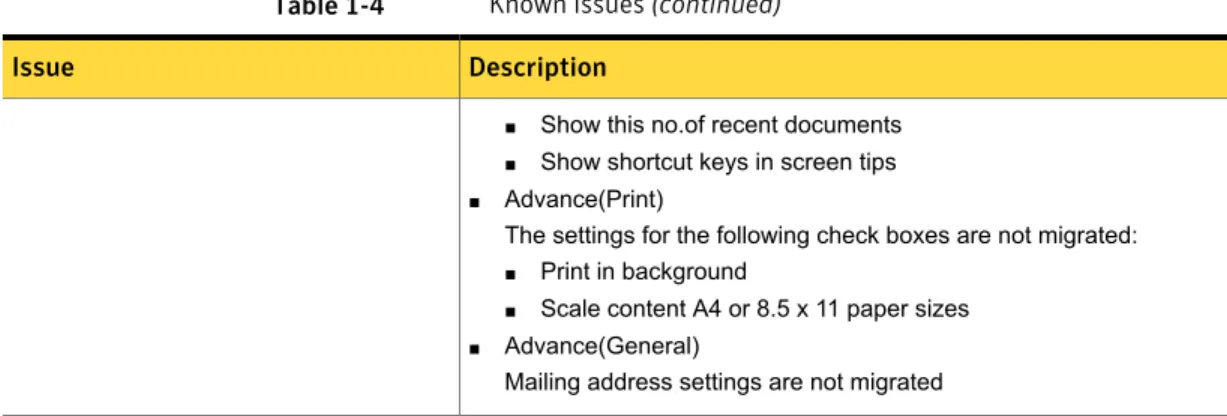
■ Show this no.of recent documents ■ Show shortcut keys in screen tips ■ Advance(Print)
The settings for the following check boxes are not migrated: ■ Print in background
■ Scale content A4 or 8.5 x 11 paper sizes ■ Advance(General)
Mailing address settings are not migrated
16 Altiris™ Deployment Solution 6.9 SP6 Release Notes
Table 1-4 Known issues (continued) Description
Issue
Following settings of Microsoft Word are not migrated from Microsoft Office 2007 to Microsoft Office 2013:
■ General tab ■ Display tab ■ Save
■ Advance (Cut,copy, and Paste) ■ Advance(Show document content) ■ Advance(Display)
■ Advance(Print) ■ Advance(General)
17 Altiris™ Deployment Solution 6.9 SP6 Release Notes
Table 1-4 Known issues (continued) Description
Issue
The following Microsoft Word settings are not migrated from Microsoft Office 2007 to Microsoft Office 2013:
■ General tab
■ Enable live preview
■ Open email attachments in full screen reading view ■ Display tab
■ Page display options
Settings of following check boxes are not migrated: ■ Show white spaces between pages in Print Layout view ■ Show highlighter marks
■ Show document tool tips on hover
■ Always show these formatting marks on screen Settings of following check boxes are not migrated
■ Tab characters, Spaces, Paragraph marks, Hidden text, Optional hyphens, Object anchors, Show all formatting marks. ■ Printing options
Settings of following check boxes are not migrated: ■ Print drawings created in Word.
■ Print background colors and images. ■ Print document properties.
■ Print hidden text.
■ Update fields before printing. ■ Update linked data before printing. ■ Save
■ Save Auto Recover information
■ Keep the last AutoSaved version if I close without saving ■ Advance (Cut,copy, and Paste)
All Settings are not migrating under this tab ■ Advance(Show document content)
Following settings are not migrated:
■ Show text wrapped within the document window ■ Use draft font in Draft and outline views ■ Advance(Display)
Following settings are not migrated: ■ Show this no.of recent documents ■ Show shortcut keys in screen tips ■ Advance(Print)
The settings for the Print in backgound check box are not migrated ■ Advance(General)
18 Altiris™ Deployment Solution 6.9 SP6 Release Notes
Table 1-4 Known issues (continued) Description
Issue
All settings are not migrated under this tab
Fixed issues of PC Transplant
Following are the fixed issues for this release: Table 1-5 Fixed issues
Description Issue
The Windows Defender required theDistribute Personalitytask in the Deployment Solution that used the local system account to migrate the Windows Defender settings.
The Windows Defender settings were not migrated using the domain administrator account.
The migration of regional settings on the destination computer caused issues with theCompareDocsprogram, if theCompareDocsprogram was installed on the destination computer.
Migrating theControl Panelsettings caused issues.
The following taskbar settings were not migrated: Windows XP to Windows Vista:
■ Taskbar and Start > Show quick launch. Windows Vista to Windows Vista:
■ Taskbar and Start > Taskbar > Show quick launch. ■ Taskbar and Start > Start > Privacy.
Both options under privacy are not migrated. ■ Taskbar and Start > Toolbars.
No toolbar is migrated. Windows Vista to Windows 7:
■ Taskbar and Start menu properties > Start > Privacy. Both options under privacy are not migrated.
■ Taskbar and Start > Toolbars. No toolbar is migrated Windows 7 to Windows 7:
■ Taskbar and Start > Taskbar > Use small icon is not migrated. ■ Taskbar and Start > Start > Privacy.
Both options under privacy are not migrated. ■ Taskbar and Start > Toolbars.
No toolbar is migrated. The taskbar settings were not migrated.
19 Altiris™ Deployment Solution 6.9 SP6 Release Notes
Table 1-5 Fixed issues (continued) Description
Issue
The Windows color settings that were migrated using a PC Transplant from a Windows Vista computer to Windows 7 or Windows 8 computer were not displayed on the Windows 7 and the Windows 8 computer The Windows color settings that were
migrated from Windows Vista to Windows 7 or Windows8 were not displayed.
The desktop scheme settings were not migrated for a Windows 8 client computer using the PC Transplant when the destination computer was set with a high contrast scheme.
For a Windows 8 client computer, the desktop scheme settings were not migrated.
The -printer switch was not working when used with the -q or -qm command line switches.
When you used the –q or –qm in the command line the printer got migrated but the used the drivers of the older printer that were present in the package instead of the drivers of the new printer
The -printer switch was not working when used with the -q or -qm command line switches.
The HKCU Shell Folders did not display correct information on the destination computer.
The HKCU Shell Folders did not display correct information on the destination computer.
After the migration process, the
HKCU\software\microsoft\office\14.0\word\internet\Fonts were added that displayed unknown fonts and was causing issues with Microsoft Outlook. After migration, unknown fonts were
displayed and caused issues with Microsoft Outlook.
Migration process was consuming a lot of time. Migration process was consuming a lot of
time.
The C:\Windows\Fonts folder was not being captured properly. The C:\Windows\Fonts folder was not
being captured properly.
Microsoft Word web Options were not migrated properly on the destination computer.
Microsoft Word web Options were not migrated properly on the destination computer.
The desktop background and Window Color was modified after migration. The desktop background and Window
Color was modified after migration.
After the migration process, the Microsoft Outlook A2I file changed settings for the configuration of read receipt and emails that expired after 180 days. Microsoft Outlook A2I file changed settings
for the configuration of read receipt and emails that expired after 180 days.
20 Altiris™ Deployment Solution 6.9 SP6 Release Notes
Documentation that is installed
Table 1-6 Documentation that is included into the product installation Location
Description Document
The Documentation Library, which is available in the Symantec Management Console on theHelpmenu.
Context-sensitive Help is available for most screens in the Symantec Management Console.
You can open context-sensitive Help in the following ways:
■ The F1 key when the page is active. ■ TheContextcommand, which is
available in the Symantec Management Console on theHelpmenu.
Information about how to use this product. Help is available at the solution level and at the suite level.
This information is available in HTML help format.
Help
■ The Documentation Library, which is available in the Symantec Management Console on theHelpmenu.
The Documentation Library provides a link to the PDF User Guide on the Symantec support Web site. ■ Supported Products page Information about how to use this product.
This information is available in PDF format. User Guide
Same as above. Information about how to use the Symantec
Management Platform Symantec Management
Platform Help
Other information
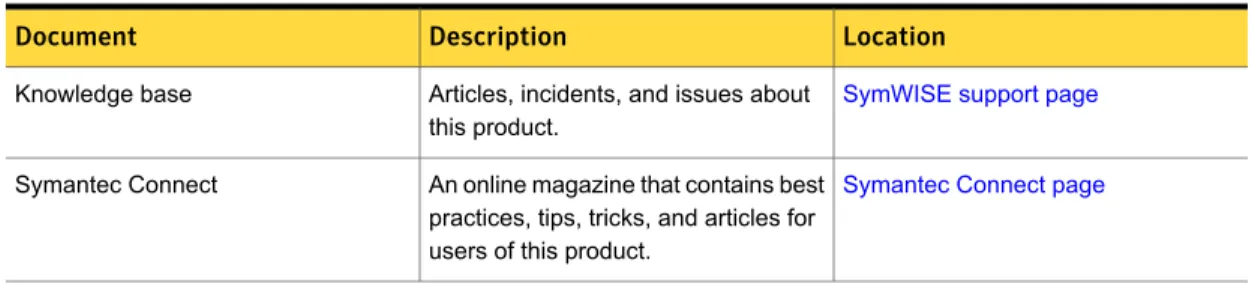
Table 1-7 Information resources that you can use to get more information Location
Description Document
SymWISE support page Articles, incidents, and issues about
this product. Knowledge base
Symantec Connect page An online magazine that contains best
practices, tips, tricks, and articles for users of this product.
Symantec Connect
21 Altiris™ Deployment Solution 6.9 SP6 Release Notes