VoIP V3 Zone Controller
4-Port Audio Out
Operations Guide
Part #
011171
Document Part #930446F
for Firmware Version 7.0.0
CyberData Corporation
3 Justin Court
Monterey, CA 93940
(831) 373-2601
COPYRIGHT NOTICE:
© 2014, CyberData Corporation, ALL RIGHTS RESERVED.
This manual and related materials are the copyrighted property of CyberData Corporation. No part of this manual or related materials may be reproduced or transmitted, in any form or by any means (except for internal use by licensed customers), without prior express written permission of CyberData Corporation. This manual, and the products, software, firmware, and/or hardware described in this manual are the property of CyberData Corporation, provided under the terms of an agreement between CyberData Corporation and recipient of this manual, and their use is subject to that agreement and its terms.
DISCLAIMER: Except as expressly and specifically stated in a written agreement executed by CyberData Corporation, CyberData Corporation makes no representation or warranty, express or implied, including any warranty or merchantability or fitness for any purpose, with respect to this manual or the products, software, firmware, and/or hardware described herein, and CyberData Corporation assumes no liability for damages or claims resulting from any use of this manual or such products, software, firmware, and/or hardware. CyberData Corporation reserves the right to make changes, without notice, to this manual and to any such product, software, firmware, and/or hardware.
OPEN SOURCE STATEMENT: Certain software components included in CyberData products are subject to the GNU General Public License (GPL) and Lesser GNU General Public License (LGPL) “open source” or “free software” licenses. Some of this Open Source Software may be owned by third parties. Open Source Software is not subject to the terms and conditions of the CyberData
COPYRIGHT NOTICE or software licenses. Your right to copy, modify, and distribute any Open Source Software is determined by the terms of the GPL, LGPL, or third party, according to who licenses that software.
Software or firmware developed by Cyberdata that is unrelated to Open Source Software is copyrighted by CyberData, subject to the terms of CyberData licenses, and may not be copied, modified, reverse-engineered, or otherwise altered without explicit written permission from CyberData Corporation.
TRADEMARK NOTICE: CyberData Corporation and the CyberData Corporation logos are
trademarks of CyberData Corporation. Other product names, trademarks, and service marks may be the trademarks or registered trademarks of their respective owners.
Technical Support
The fastest way to get technical support for your VoIP product is to submit a VoIP Technical Support form at the following website:
http://www.cyberdata.net/support/contactsupportvoip.php
Phone: (831) 373-2601, Ext. 333 Email: [email protected] The IP Endpoint Company
Operations Guide 930446F CyberData Corporation Revision 930446F, which corresponds to firmware version 7.0.0, was released on September 10, 2014 and has the following changes:
• Updates Figure 2-6, "Home Page".
• Updates Figure 2-8, "Network Setup Page". • Updates Figure 2-9, "SIP Configuration Page".
• Updates Figure 2-10, "SIP Configuration Page Set to Point-to-Point Mode". • Updates Figure 2-11, "Nightringer Configuration Setup".
• Updates Figure 2-12, "Zone Configuration Setup". • Updates Figure 2-13, "Audio Configuration Page". • Updates Figure 2-14, "Audio Configuration Page". • Updates Figure 2-15, "Audio Configuration Page". • Updates Figure 2-19, "Event Configuration Page".
• Updates Figure 2-20, "Autoprovisioning Configuration Page". • Updates Figure 2-23, "Upgrade Firmware Page".
• Updates Table 2-4, "Home Page Overview".
• Updates Table 2-6, "Network Configuration Parameters". • Updates Table 2-7, "SIP Configuration Parameters". • Updates Table 2-8, "Nightringer Configuration Parameters". • Updates Table 2-9, "Zone Configuration Parameters". • Updates Table 2-10, "Audio Configuration Parameters". • Updates Table 2-11, "Event Configuration".
• Updates Table 2-12, "Autoprovisioning Configuration Parameters". • Updates Table 2-18, "Firmware Upgrade Parameters".
Contents
Chapter 1 Product Overview
1
1.1 How to Identify this Product ...1
1.2 Product features ...2
1.3 Supported ...2
1.4 Product Specifications ...2
Chapter 2 Implementing the VoIP V3 Zone Controller
3
2.1 Parts List ...32.2 Typical Installation ...4
2.3 Setting up the VoIP Zone Controller ...5
2.3.1 Cables Used for Connecting to Legacy Analog Amplifiers ...5
2.3.2 Connect to the Power Source ...5
Poe ...5
Non-Poe ...5
Chassis Ground ...5
2.3.3 Connect to the Network ...6
2.3.4 Confirm that the VoIP Zone Controller is Up and Running ...7
Confirm Power on, Network Connectivity, and Connection Speed ...7
2.3.5 Restore the Factory Default Settings as Required ...8
2.4 Configuring the VoIP Zone Controller ...9
2.4.1 Gather the Required Configuration Information ...9
Static or DHCP Addressing? ...9
Username and Password for Configuration GUI ...9
SIP Settings ...9
2.4.2 VoIP Zone Controller Web Page Navigation ...10
2.4.3 Log in to the Configuration Home Page ...11
2.4.4 Configure the Device Parameters ...15
2.4.5 Configure the Network Parameters ...17
2.4.6 Configure the SIP Parameters ...20
Point-to-Point Configuration ...24
2.4.7 Configure the Night Ringer Parameters ...25
2.4.8 Configure the Zone Parameters ...27
Operating the VoIP Zone Controller ...28
Configuring the Multicast Parameters ...29
2.4.9 Configure the Audio Parameters ...30
User-created Audio Files ...35
2.4.10 Configure the Event Parameters ...37
Example Packets for Events ...39
2.4.11 Configure the Autoprovisioning Parameters ...41
Autoprovisioning ...43
Get Autoprovisioning Template Button ...45
Time Zone Strings ...46
2.5 Upgrading the Firmware ...49
2.5.1 Uploading the Firmware ...49
2.5.2 Reboot the Device ...51
Mounting the VoIP Zone Controller 52
A.1 Mount the VoIP Zone Controller ...52Operations Guide 930446F CyberData Corporation
Appendix A Setting Up a TFTP Server
54
A.1 Set up a TFTP Server ...54
A.1.1 In a LINUX Environment ...54
A.1.2 In a Windows Environment ...54
Appendix B Troubleshooting/Technical Support
55
B.1 Frequently Asked Questions (FAQ) ...55B.1.1 Documentation ...55
B.2 Contact Information ...56
B.3 Warranty ...57
B.3.1 Warranty & RMA Returns within the United States ...57
B.3.2 Warranty & RMA Returns outside of the United States ...58
B.3.3 Spare in the Air Policy ...58
B.3.4 Return and Restocking Policy ...58
B.3.5 Warranty and RMA Returns Page ...58
1 Product Overview
The CyberData VoIP V3 Zone Controller with Audio-Out enables access to existing paging speakers through a VoIP phone system. The interface is designed to use a standard paging amplifier with audio inputs and supports paging up to 15 zone groups from a VoIP phone.
The VoIP Zone Controller is a PoE-enabled, single SIP-endpoint, enabling user-defined paging zones through RCA line level output connections to legacy analog amplifiers to existing legacy analog speakers.
SIP compliant IP-PBX's can now interface with existing legacy analog paging speaker installations.
1.1 How to Identify this Product
To identify the VoIP Zone Controller, look for a model number label similar to the one shown in Figure 1-1. The model number on the label should be 011171.
Figure 1-1. Model Number Label
CONTROLLER,V3 VoIP ZONE,4-PORT
AU-DIO OUT, RoHS COMPLIANT
011171B / 021065B
WWW.CYBERDATA.NET
171000001
Model numberOperations Guide 930446F CyberData Corporation
1.2 Product features
• Delayed paging • Night Ringer
• Compatible with more IP/PBX servers • SIP RFC 3261 compatible
• PoE 802.3af enabled (Power-over-ethernet) • Dual-speed ethernet 10/100 Mbps
• 4 Paging zones • 15 Paging zone groups • Page all
• Web-based configuration
• Web-based firmware upgradeable • Connector for external power supply • Small footprint
1.3 Supported
• HTTP Web-based configuration
• Provides an intuitive GUI for easy system configuration and verification of speaker operations. • DHCP Client
• TFTP Client • Audio Codec • G.711 U-law • DTMF detection
1.4 Product Specifications
SpecificationsRegulatory Compliance FCC Class A, UL 60950, CE
Power Requirement PoE or 48V DC
Connection Speed 10/100 Mbps
Protocol SIP compliant
Part Number 011171
Dimensions 6.11”L x 4.05”W x 1.15” H
2 Implementing the VoIP V3 Zone Controller
The topics in this chapter provide information on setting up, configuring, and using the VoIP Zone Controller.
2.1 Parts List
The packaging for the VoIP Zone Controller includes the parts in this illustration.
Quantity Part Name Illustration
1 VoIP V3 Zone Controller
1 Installation Quick Reference Guide
1 Mounting Kit
Operations Guide 930446F CyberData Corporation
2.2 Typical Installation
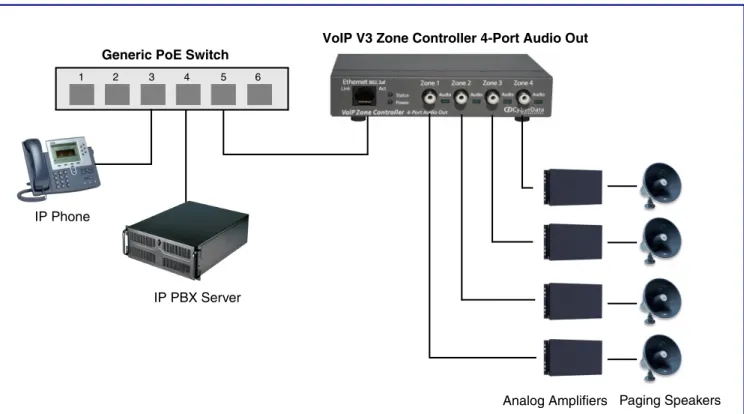
Figure 2-1 illustrates how the VoIP Zone Controller is normally installed as part of a paging system.
Generic PoE Switch
1 2 3 4 5 6
IP Phone
IP PBX Server
VoIP V3 Zone Controller 4-Port Audio Out
Analog Amplifiers Paging Speakers
2.3 Setting up the VoIP Zone Controller
Before you set up the VoIP Zone Controller, be sure that you have received all the parts described in Section 2.1, "Parts List".
2.3.1 Cables Used for Connecting to Legacy Analog Amplifiers
The VoIP Zone Controller connects to zones through RCA line level output connections to legacy analog amplifiers to existing legacy analog speakers.
2.3.2 Connect to the Power Source
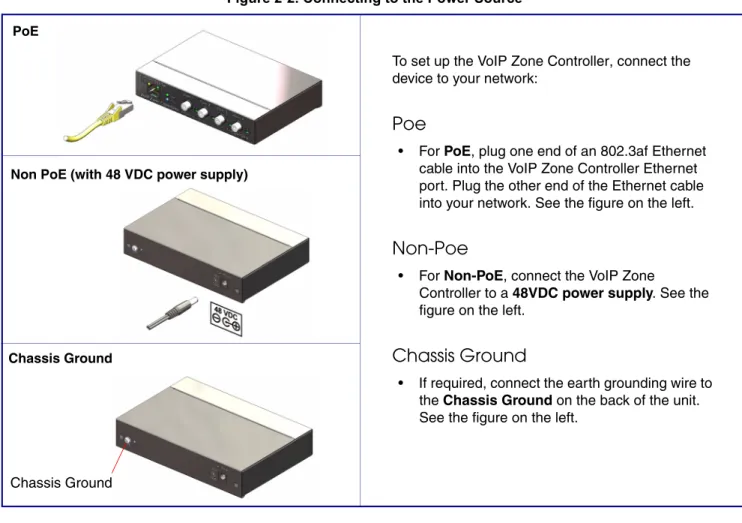
Figure 2-2. Connecting to the Power Source
Non PoE (with 48 VDC power supply)
Chassis Ground
Chassis Ground PoE
To set up the VoIP Zone Controller, connect the device to your network:
Poe
• For PoE, plug one end of an 802.3af Ethernet cable into the VoIP Zone Controller Ethernet port. Plug the other end of the Ethernet cable into your network. See the figure on the left.
Non-Poe
• For Non-PoE, connect the VoIP Zone
Controller to a 48VDCpower supply. See the figure on the left.
Chassis Ground
• If required, connect the earth grounding wire to the Chassis Ground on the back of the unit. See the figure on the left.
Operations Guide 930446F CyberData Corporation
2.3.3 Connect to the Network
Plug one end of a standard Ethernet cable into the VoIP Zone Controller Ethernet port. Plug the other end into your network.
2.3.4 Confirm that the VoIP Zone Controller is Up and Running
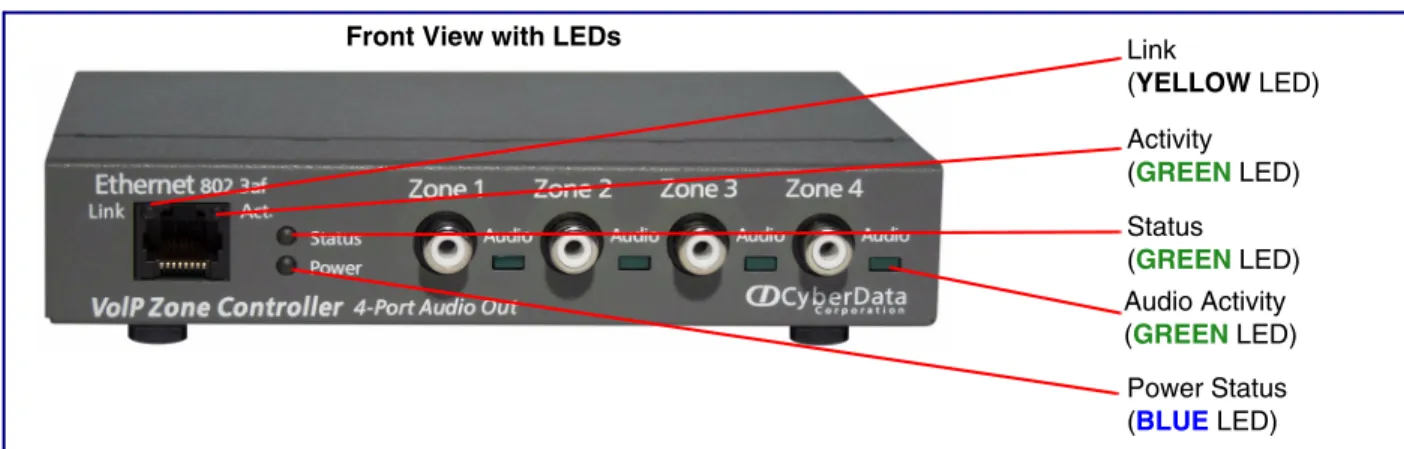
The indicator LEDs on the front of the VoIP Zone Controller verify the unit’s operations.
Figure 2-4. VoIP Zone Controller Indicator LEDs
2.3.4.1 Confirm Power on, Network Connectivity, and Connection Speed
When you plug in the Ethernet cable or power supply:
• The round, BLUEPower Status LED on the front of the VoIP Zone Controller comes on indicating that the power is on.
• The square, YELLOW Link LED above the Ethernet port indicates that the network connection has been established. The Link LED changes color to confirm the auto-negotiated connection speed:
• This LED is YELLOW at 10 Mbps. • This LED is ORANGE at 100 Mbps.
• The square, GREENActivity LED above the Ethernet port blinks when there is network activity. • The round, GREENStatus LED comes on after the device is booted and initialized. This LED
blinks when the unit is operational.
• The square, GREENAudioActivity LEDs turn on solid when a Zone is being paged.
Front View with LEDs
Status (GREEN LED)
Power Status (BLUE LED) Link
(YELLOW LED) Activity
(GREEN LED)
Audio Activity (GREEN LED)
Operations Guide 930446F CyberData Corporation
2.3.5 Restore the Factory Default Settings as Required
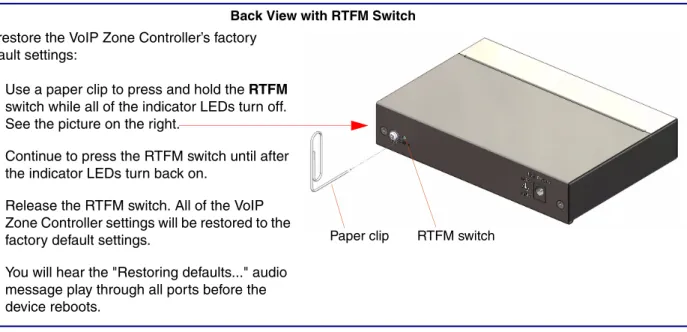
The VoIP Zone Controller is delivered with factory set default values for the following parameters. Use the RTFM switch (see Figure 2-5) on the back of the unit to restore these parameters to the factory default settings.
Figure 2-5. RTFM Switch
Note When you perform the RTFM procedure in Figure 2-5, the factory default settings are restored. The default parameters for access are shown in Table 2-2.
Parameter Factory Default Setting
IP Addressing DHCP
IP Addressa
a. Default if there is not a DHCP server present. 10.10.10.10
Web Access Username admin
Web Access Password admin
Subnet Maska 255.0.0.0
Default Gatewaya 10.0.0.1
To restore the VoIP Zone Controller’s factory default settings:
1. Use a paper clip to press and hold the RTFM
switch while all of the indicator LEDs turn off. See the picture on the right.
2. Continue to press the RTFM switch until after the indicator LEDs turn back on.
3. Release the RTFM switch. All of the VoIP Zone Controller settings will be restored to the factory default settings.
4. You will hear the "Restoring defaults..." audio message play through all ports before the device reboots.
Back View with RTFM Switch
Paper clip RTFM switch
2.4 Configuring the VoIP Zone Controller
Use this section to configure the VoIP Zone Controller.
2.4.1 Gather the Required Configuration Information
Have the following information available before you configure the VoIP Zone Controller.
2.4.1.1 Static or DHCP Addressing?
Know whether your system uses static or dynamic (DHCP) IP addressing. If it uses static addressing, you also need to know the values to assign to the following VoIP Zone Controller parameters:
• IP Address • Subnet Mask • Default Gateway
2.4.1.2 Username and Password for Configuration GUI
Determine the Username and Password that will replace the defaults after you initially log in to the configuration GUI.
• The Username is case-sensitive, and must be from four to 25 alphanumeric characters long. • The Password is case-sensitive, and must be from four to 20 alphanumeric characters long.
2.4.1.3 SIP Settings
To configure the SIP parameters, determine whether you want to register the VoIP Zone Controller. If you do, determine the number of minutes the registration lease remains valid, and whether you want to automatically unregister when you reboot. To configure the SIP parameters, you also need to determine the values for these parameters:
• SIP Server IP Address
• Remote and Local SIP Port Numbers
Operations Guide 930446F CyberData Corporation
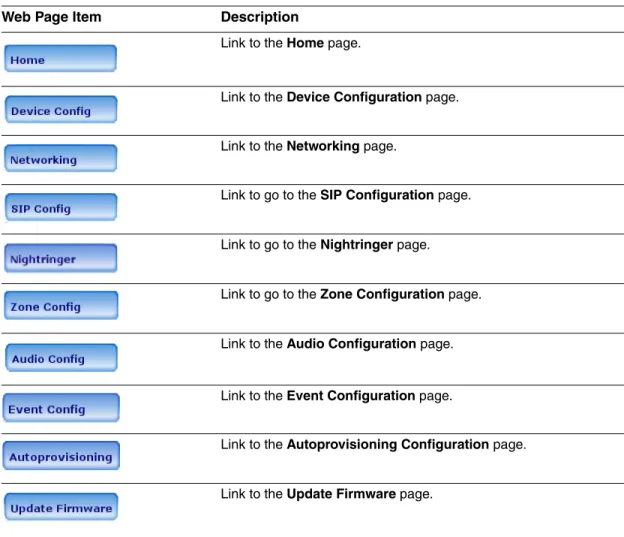
2.4.2 VoIP Zone Controller Web Page Navigation
Table 2-3 shows the navigation buttons that you will see on every VoIP Zone Controller web page.
Web Page Item Description
Link to the Home page.
Link to the Device Configuration page.
Link to the Networking page.
Link to go to the SIP Configuration page.
Link to go to the Nightringer page.
Link to go to the Zone Configuration page.
Link to the Audio Configuration page.
Link to the Event Configuration page.
Link to the Autoprovisioning Configuration page.
Link to the Update Firmware page.
2.4.3 Log in to the Configuration Home Page
1. Open your browser to the VoIP Zone Controller IP address.
Note If the network does not have access to a DHCP server, the device will default to an IP address of 10.10.10.10.
Note Make sure that the PC is on the same IP network as the VoIP Zone Controller.
Note You may also download CyberData’s VoIP Discovery Utility program which allows you to easily find and configure the default web address of the CyberData VoIP products.
CyberData’s VoIP Discovery Utility program is available at the following website address:
http://www.cyberdata.net/support/voip/discovery.html
The unit ships in DHCP mode. To get to the Home page, use the discovery utility to scan for the device on the network and open your browser from there.
Note To work with the VoIP Zone Controller configuration after the initial configuration, log in using the IP address you assign to the device. Section 2.4.5, "Configure the Network Parameters" provides instructions for entering the IP address.
2. When prompted, use the following default Username and Password to open the configuration Home page:
Username: admin
Password: admin
Change the Default Username and Password
To change the default Web access Username and Password:
1. Enter the new Username from four to 25 alphanumeric characters in the Change Username
field. The Username is case-sensitive.
2. Enter the new Password from four to 20 alphanumeric characters in the Change Password
field. The Password is case-sensitive.
3. Enter the new password again in the Re-enter New Password field. Click Save Settings.
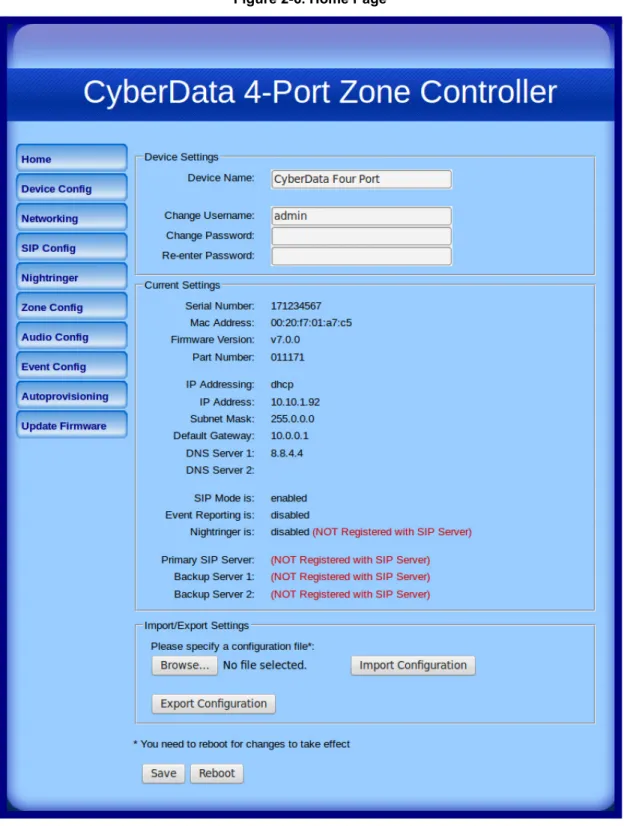
Operations Guide 930446F CyberData Corporation Figure 2-6. Home Page
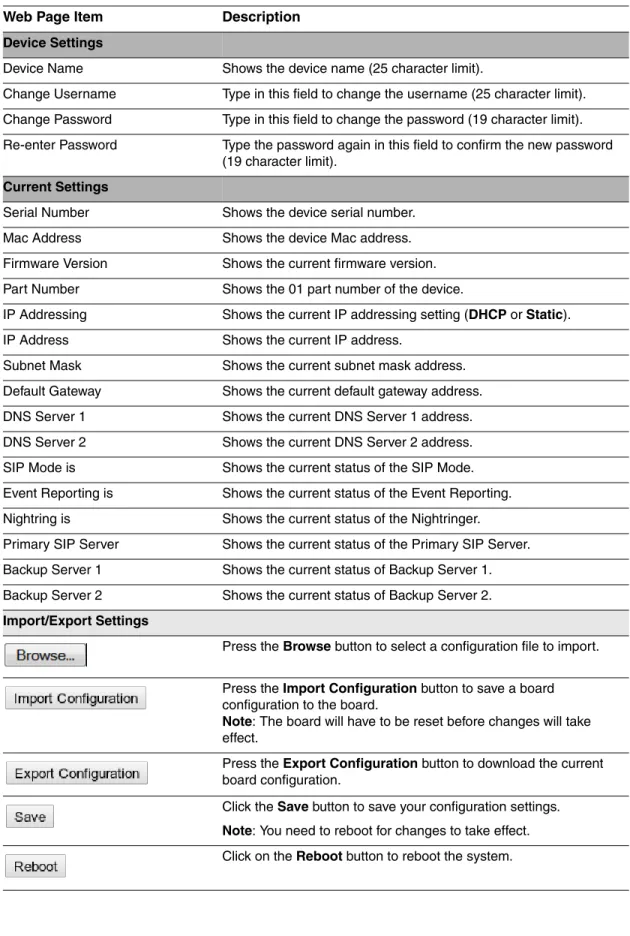
4. On the Home Page, review the setup details and navigation buttons described in Table 2-4.
Web Page Item Description
Device Settings
Device Name Shows the device name (25 character limit).
Change Username Type in this field to change the username (25 character limit). Change Password Type in this field to change the password (19 character limit). Re-enter Password Type the password again in this field to confirm the new password
(19 character limit). Current Settings
Serial Number Shows the device serial number.
Mac Address Shows the device Mac address.
Firmware Version Shows the current firmware version.
Part Number Shows the 01 part number of the device.
IP Addressing Shows the current IP addressing setting (DHCP or Static).
IP Address Shows the current IP address.
Subnet Mask Shows the current subnet mask address.
Default Gateway Shows the current default gateway address.
DNS Server 1 Shows the current DNS Server 1 address.
DNS Server 2 Shows the current DNS Server 2 address.
SIP Mode is Shows the current status of the SIP Mode.
Event Reporting is Shows the current status of the Event Reporting.
Nightring is Shows the current status of the Nightringer.
Primary SIP Server Shows the current status of the Primary SIP Server.
Backup Server 1 Shows the current status of Backup Server 1.
Backup Server 2 Shows the current status of Backup Server 2.
Import/Export Settings
Press the Browse button to select a configuration file to import.
Press the Import Configuration button to save a board configuration to the board.
Note: The board will have to be reset before changes will take effect.
Press the ExportConfiguration button to download the current board configuration.
Click the Save button to save your configuration settings. Note: You need to reboot for changes to take effect. Click on the Reboot button to reboot the system.
Operations Guide 930446F CyberData Corporation At this point you can:
• Review the VoIP Zone Controller’s Current Settings. Use the RTFM switch to restore the factory default settings. See Section 2.3.5, "Restore the Factory Default Settings as Required". • Configure the network parameters. Click the Networking buttonand refer to Section 2.4.5,
"Configure the Network Parameters" for instructions.
• Configure the SIP parameters. Click SIP Config and see Section 2.4.6, "Configure the SIP Parameters".
• Configure the Zone parameters. Click Zone Config and see Section 2.4.8, "Configure the Zone Parameters" for instructions.
Note Click the Upgrade Firmware button any time you need to upload new versions of the firmware. Refer to Section 2.5, "Upgrading the Firmware" for instructions.
2.4.4 Configure the Device Parameters
1. Click the Device Configuration button to open the Device Configuration page. See Figure 2-7.
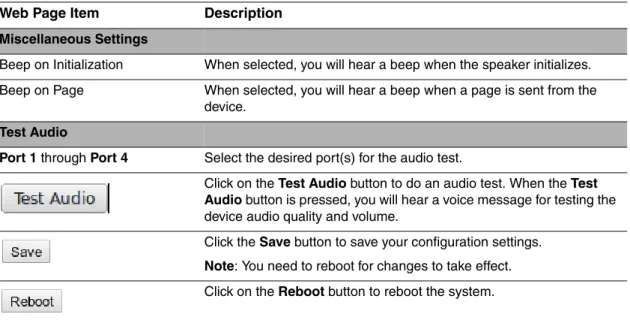
Operations Guide 930446F CyberData Corporation 2. On the Device Configuration page, you may enter values for the parameters indicated in
Table 2-5.
Web Page Item Description
Miscellaneous Settings
Beep on Initialization When selected, you will hear a beep when the speaker initializes. Beep on Page When selected, you will hear a beep when a page is sent from the
device. Test Audio
Port 1 through Port 4 Select the desired port(s) for the audio test.
Click on the Test Audio button to do an audio test. When the Test Audio button is pressed, you will hear a voice message for testing the device audio quality and volume.
Click the Save button to save your configuration settings. Note: You need to reboot for changes to take effect. Click on the Reboot button to reboot the system.
3. After changing the parameters, click the Save button.
2.4.5 Configure the Network Parameters
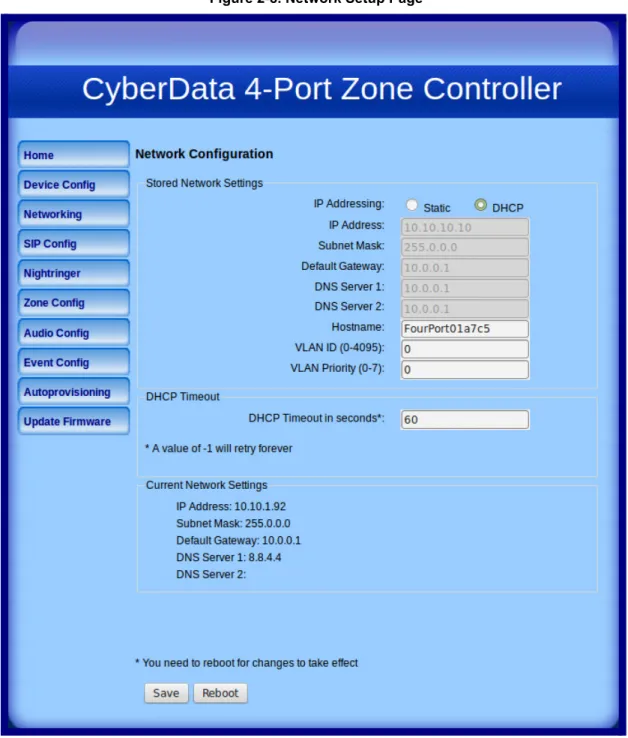
Configuring the network parameters enables your network to recognize the VoIP Zone Controller and communicate with it. Click Network Setup on the Home page to open the Network
Configuration page.
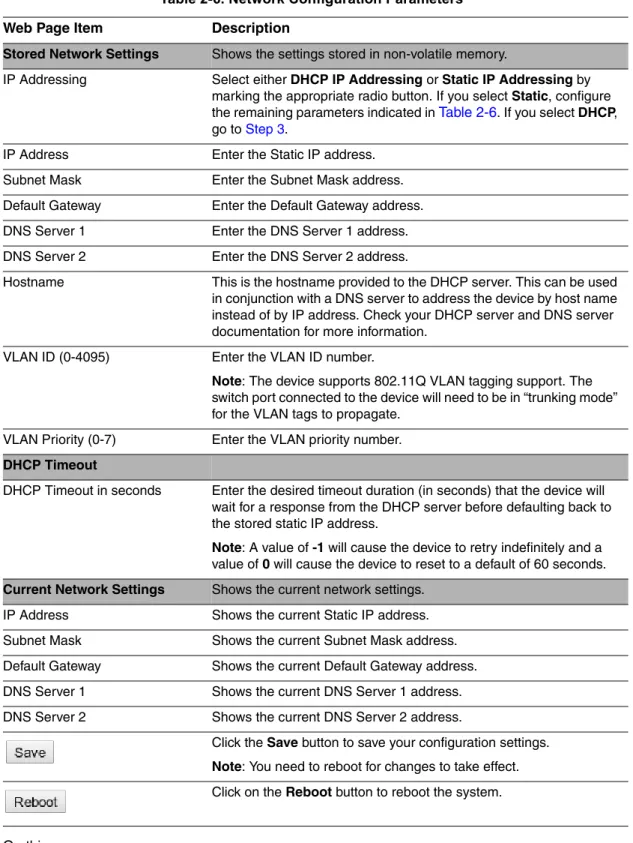
Operations Guide 930446F CyberData Corporation On the Network Setup page, enter values for the parameters indicated in Table 2-6.
On this page:
1. Specify whether you use Static or DHCPIP Addressing by marking the appropriate radio button. Then, if you select Static, go to Step 2.
Table 2-6. Network Configuration Parameters
Web Page Item Description
Stored Network Settings Shows the settings stored in non-volatile memory.
IP Addressing Select either DHCPIP Addressing or Static IP Addressing by marking the appropriate radio button. If you select Static,configure the remaining parameters indicated in Table 2-6. If you select DHCP, go to Step 3.
IP Address Enter the Static IP address.
Subnet Mask Enter the Subnet Mask address.
Default Gateway Enter the Default Gateway address.
DNS Server 1 Enter the DNS Server 1 address.
DNS Server 2 Enter the DNS Server 2 address.
Hostname This is the hostname provided to the DHCP server. This can be used
in conjunction with a DNS server to address the device by host name instead of by IP address. Check your DHCP server and DNS server documentation for more information.
VLAN ID (0-4095) Enter the VLAN ID number.
Note: The device supports 802.11Q VLAN tagging support. The switch port connected to the device will need to be in “trunking mode” for the VLAN tags to propagate.
VLAN Priority (0-7) Enter the VLAN priority number.
DHCP Timeout
DHCP Timeout in seconds Enter the desired timeout duration (in seconds) that the device will wait for a response from the DHCP server before defaulting back to the stored static IP address.
Note: A value of -1 will cause the device to retry indefinitely and a value of 0 will cause the device to reset to a default of 60 seconds. Current Network Settings Shows the current network settings.
IP Address Shows the current Static IP address.
Subnet Mask Shows the current Subnet Mask address.
Default Gateway Shows the current Default Gateway address.
DNS Server 1 Shows the current DNS Server 1 address.
DNS Server 2 Shows the current DNS Server 2 address.
Click the Save button to save your configuration settings. Note: You need to reboot for changes to take effect. Click on the Reboot button to reboot the system.
2. For Static IP Addressing, also enter values for the following parameters:
• The VoIP Zone Controller’s IP Address: The VoIP Zone Controller is delivered with a factory default IP address. Change the default address to the correct IP address for your system. • The Subnet Mask.
• The Default Gateway.
3. Click Save when you are finished.
Operations Guide 930446F CyberData Corporation
2.4.6 Configure the SIP Parameters
The SIP parameters enable the VoIP Zone Controller to contact and register with the SIP server. On the Home page, click SIP Config to open the SIP Configuration page.
5. On the SIP Setup page, enter values for the parameters indicated in Table 2-7.
Table 2-7. SIP Configuration Parameters
Web Page Item Description
Enable SIP Operation Enables or disables SIP operation.
SIP Settings
SIP Server Type the SIP server represented as either a numeric IP address
in dotted decimal notation or the fully qualified host name (255 character limit [FQDN]).
Backup SIP Server 1 Use this field to set the address (in dotted decimal notation or as a canonical name) for the first backup SIP Server. This field can accept canonical names of up to 255 characters in length. Backup SIP Server 2 Use this field to set the address (in dotted decimal notation or as
a canonical name) for the second backup SIP Server. This field can accept canonical names of up to 255 characters in length.
Use Cisco SRST When selected, the backup servers are handled according to
Cisco SRST (Survivable Remote Site Telephony).
Remote SIP Port Type the Remote SIP Port number (default 5060) (8 character limit).
Local SIP Port Type the Local SIP Port number (default 5060)
(8 character limit).
Outbound Proxy Type the Outbound Proxy as either a numeric IP address in
dotted decimal notation or the fully qualified host name (255 character limit [FQDN]).
Outbound Proxy Port Type the Outbound Proxy Port number (8 character limit).
SIP User ID Type the SIP User ID (up to 64 alphanumeric characters).
Authenticate ID Type the Authenticate ID
(up to 64 alphanumeric characters).
Authenticate Password Type the Authenticate Password (up to 64 alphanumeric characters).
Register with a SIP Server Check this box to enable SIP Registration.
For information about Point-to-Point Configuration, see Section 2.4.6.1, "Point-to-Point Configuration".
Re-registration Interval (in seconds) The Nightringer Registration lease time (30 - 3600 seconds)." Unregister on Boot Send one registration with an expiry of 0 on boot.
Disable rport Discovery Check this box prevent the device from including the public WAN IP address in the contact information that is sent to the remote SIP servers. This will generally only need to be enabled when using an SBC in conjunction with a remote SIP server. Buffer SIP Calls When this is enabled, SIP calls to the device will be stored in
memory and will play when either the call is terminated or the buffer is full. The receive buffer is 2MB in size and this is equal to about four minutes of ulaw encoded audio.
Operations Guide 930446F CyberData Corporation 1. Enter the IP address of the SIP Server.
2. Enter the port numbers used for SIP signaling:
a. Remote SIP Port b. Local SIP Port Call Disconnection
Terminate call after delay (in seconds) Type the desired number of seconds that you want to transpire after a connection delay before a call is terminated.
Note: A value of 0 will disable this function. Misc Settings
RTP Port (even) Specify the port number used for the RTP stream after
establishing a SIP call. This port number has to be an even number and defaults to 10500.
Click the Save button to save your configuration settings. Note: You need to reboot for changes to take effect. Click on the Reboot button to reboot the system.
Table 2-7. SIP Configuration Parameters (continued)
3. Enter the SIP registration parameters:
a. SIP User ID b. Authenticate ID
c. Authenticate Password
4. For SIP Registration, designate whether you want the device to register with your SIP server.
5. At Unregister on Reboot:
a. Select Yes to automatically unregister the VoIP Zone Controller when you reboot it. b. Select No to keep the VoIP Zone Controller registered when you reboot it.
6. In the Register Expiration field, enter the number of seconds the VoIP Zone Controller registration lease remains valid with the SIP Server. The VoIP Zone Controller automatically re-registers with the SIP server before the lease expiration timeout.
7. Click Save.
Operations Guide 930446F CyberData Corporation
2.4.6.1 Point-to-Point Configuration
When the board is set to not register with a SIP server, it's possible to set the device to dial out to a single endpoint. To do this, do the following:
1. On the SIP Configuration page (Figure 2-10), make sure that the Register with a SIP Server
parameter is not selected.
2. Type the IP address of the remote device that you want to contact into the Dial out Extension
field
Note The delayed DTMF functionality is available in the Point-to-Point Mode.
Note Establishing point-to-point SiP calls may not work with all phones.
Figure 2-10. SIP Configuration Page Set to Point-to-Point Mode
2.4.7 Configure the Night Ringer Parameters
GENERAL ALERT
Caution
Nightringer requires SIP Registration. Nightringer cannot be used in peer to peer mode.
1. Click on the Nightringer button to open the Nightringer Configuration page. See Figure 2-11.
Operations Guide 930446F CyberData Corporation 2. On the Nightringer Configuration page, enter values for the parameters indicated
in Table 2-8.
Web Page Item Description
Enable Nightringer When the nightringer is enabled, the unit will attempt to register a second extension with the SIP server. Any calls made to this extension will play a ringtone.
Nightringer Settings
SIP Server Type the SIP server represented as either a numeric IP address in
dotted decimal notation.
Remote SIP Port Type the Remote SIP Port number (default 5060)
(8 character limit).
Local SIP Port Type the Local SIP Port number (default 5060)
(8 character limit).
Note: This value cannot be the same as the Local SIP Port found on the SIP Configuration Page.
Outbound Proxy Type the Outbound Proxy as either a numeric IP address in dotted decimal notation or the fully qualified host name (255 character limit [FQDN]).
Outbound Proxy Port Type the Outbound Proxy Port number (8 character limit).
User ID Type the User ID (up to 64 alphanumeric characters).
Authenticate ID Type the Authenticate ID (up to 64 alphanumeric characters). Authenticate Password Type the Authenticate Password (up to 64 alphanumeric
characters).
Re-registration Interval (in seconds) The Nightringer Registration lease time (30 - 3600 seconds)." Play audio on ports When selected, a user-defined audio file is sent to the specified
port(s) when the night ringer is activated.
Click the Save button to save your configuration settings. Note: You need to reboot for changes to take effect. Click on the Reboot button to reboot the system.
3. After changing the parameters, click on the Save button.
4. Click Reboot for the new settings to take effect.
2.4.8 Configure the Zone Parameters
• Each audio output jack on the VoIP Zone Controller represents a port. • A Zone is comprised of a combination of one or more ports.
• You will need to plug any ports that are used on the VoIP Zone Controller into an analog amplifier. Any speakers attached to the amplifier will be present in the port.
1. Click on the Zone Config button to open the Zone Configuration page. See Figure 2-12.
Operations Guide 930446F CyberData Corporation 2. On the Zone Configuration page, enter values for the parameters indicated
in Table 2-9.
Web Page Item Description
Bypass SIP DTMF Entry When selected, the ports in Zone 00 will be paged without waiting for DTMF entry.
Note: Bypassing DTMF will result in all SIP calls being played to Zone 0.
Enable Multicast Operation Enables or disables multicast operation. See Section 2.4.8.2, "Configuring the Multicast Parameters" Zones
Port 1 through Port 4 Checkboxes Check the box for the port(s) that comprise the zone.
Security Code Type the security code in this field.
Multicast Address Enter the multicast IP Address for this multicast group (15 character limit).
Multicast Port Enter the port number for this multicast group (5 character
limit [range can be from 2000 to 65535]).
Note: The multicast ports have to be even values. The webpage will enforce this restriction.
Buffer Multicast When this is enabled, multicast pages to the device will be
stored in memory and will play when either the page is terminated or the buffer is full. The receive buffer is 2MB in size and this is equal to about four minutes of ulaw encoded audio.
Click the Save button to save your configuration settings. Note: You need to reboot for changes to take effect. Click on the Reboot button to reboot the system.
3. After changing the parameters, click on the Save button.
4. Click Reboot for the new settings to take effect.
2.4.8.1 Operating the VoIP Zone Controller
To operate the VoIP Zone Controller:
1. Call to make a page. The VoIP Zone Controller will generate a tone over the phone.
2. When you hear this tone, enter the two-digit code for the group that you want to page.
Note If the Bypass SIP DTMF Entry setting is enabled, go to Step 4.
3. If the zone is valid, the VoIP Zone Controller will play the user-defined "good zone" sound. Go to Step 4.
Note If the zone is invalid, the VoIP Zone Controller will play the user-defined "bad zone" sound. Repeat Step 2.
4. When you hear the "good zone" tone, you can begin speaking.
2.4.8.2 Configuring the Multicast Parameters
The Multicast configurationparameters allows the Zone Controller to join up to one paging zone for receiving a ulaw/alaw encoded RTP audio stream. A paging zone can consist of one or many CyberData multicast group-enabled products. There is no limit to how many devices can be in a given paging zone. A multicast group is defined by a multicast address and port number. Each multicast group is assigned a priority, allowing simultaneously arriving pages to be serviced based on importance. Multicast groups are compatible with IGMP through version three.
Operations Guide 930446F CyberData Corporation
2.4.9 Configure the Audio Parameters
Click the Audio Config button to open the Audio Configuration page. See Figure 2-13. The Audio Configuration page is used to add custom audio to the board. User uploaded audio will take precedence over the audio files shipped with the VoIP Zone Controller.
Operations Guide 930446F CyberData Corporation Figure 2-15. Audio Configuration Page
Note To test an audio file, first select the ports (located at the bottom of the Audio Configuration Page) that you want to play the audio file to, and then press the Play button for the desired audio file.
On the Audio Configuration page, enter values for the parameters indicated in Table 2-10.
Note Each entry on the Audio Configuration page replaces one of the stock audio files on the board. When the input box displays the word default, the VoIP Zone Controller is using the stock audio file. If that file is replaced with a user file, it will display the uploaded filename.
Table 2-10. Audio Configuration Parameters
Web Page Item Description Audio Files
0-9 The name of the audio configuration option is the same as the spoken
audio that plays on the board (24 character limit). '0' corresponds to the spoken word “zero.” '1' corresponds to the spoken word “one.” '2' corresponds to the spoken word “two.” '3' corresponds to the spoken word “three.” '4' corresponds to the spoken word “four.” '5' corresponds to the spoken word “five.” '6' corresponds to the spoken word “six.” '7' corresponds to the spoken word “seven.” '8' corresponds to the spoken word “eight.” '9' corresponds to the spoken word “nine.”
Dot Corresponds to the spoken word “dot.” (24 character limit).
Audio test Corresponds to the message “This is the CyberData IP speaker test message...” (24 character limit).
Enter Code Corresponds to the message “Enter Code” (24 character limit). Invalid Code Corresponds to the message “Invalid Code” (24 character limit). Enter Zone Corresponds to the message “Enter Zone” (24 character limit). Invalid Zone Corresponds to the message “Invalid Zone” (24 character limit).
Page tone Corresponds to a simple tone that is unused by default (24 character limit). Your IP Address is Corresponds to the message “Your IP address is...” (24 character limit). Rebooting Corresponds to the spoken word “Rebooting” (24 character limit). Restoring default Corresponds to the message “Restoring default” (24 character limit). Night Ring Specifies the ringtone for nightring. By default this parameter uses the
same audio file that is selected for the Ring Tone parameter. Ports to play test audio
Port 1 through Port 4 Select the desired port(s) for the audio test.
The Browse button will allow you to navigate to and select an audio file.
The Play button will play that audio file.
Operations Guide 930446F CyberData Corporation
The Save button will download a new user audio file to the board once you've selected the file by using the Browse button. The Save button will delete any pre-existing user-uploaded audio files.
Table 2-10. Audio Configuration Parameters (continued)
2.4.9.1 User-created Audio Files
User created audio files should be saved in the following format:
RIFF (little-endian) data, WAVE audio, Microsoft PCM, 16 bit, mono 8000 Hz
You can use the free utility Audacity to convert audio files into this format. See Figure 2-16 through Figure 2-18.
Figure 2-16. Audacity 1
Operations Guide 930446F CyberData Corporation When you export an audio file with Audacity, save the output as:
• WAV (Microsoft) signed 16 bit PCM.
Figure 2-18. WAV (Microsoft) signed 16 bit PCM
2.4.10 Configure the Event Parameters
Click the Event Config button to open the Event Configuration page (Figure 2-19). The Event Configuration page specifies a remote server that can be used to receive HTTP POST events when actions take place on the board.
Operations Guide 930446F CyberData Corporation Table 2-11 shows the web page items on the Event Configuration page.
Table 2-11. Event Configuration
Web Page Item Description
Enable Event Generation When selected, Event Generation is enabled.
Remote Event Server
Remote Event Server IP Type the Remote Event Server IP address.
(64 character limit)
Remote Event Server Port Type the Remote Event Server port number.
(8 character limit)
Remote Event Server URL Type the Remote Event Server URL.
(127 character limit) Events
Enable Call Active Events When selected, Call Active Events are enabled.
Enable Call Terminated Events When selected, Call Terminated Events are enabled. Enable Night Ring Events When selected, there is a notification when the unit
receives a night ring.
Enable Multicast Start When selected, Multicast Start Events are enabled.
Enable Multicast Stop When selected, Multicast Stop Events are enabled.
Enable Power On Events When selected, Power On Events are enabled.
Enable 60 Second Heartbeat Events When selected, 60 Second Heartbeat Events are enabled.
Click the Save button to save your configuration settings. Note: You need to reboot for changes to take effect. Click on the Test Event button to test an event.
2.4.10.1 Example Packets for Events
The server and port are used to point to the listening server and the 'Remote Event Server URL' is the destination URL (typically the script running on the remote server that's used to parse and process the POST events).
Note The XML is URL-encoded before transmission so the following examples are not completely accurate.
Here are example packets for every event:
POST xmlparse_engine HTTP/1.1 Host: 10.0.3.79
User-Agent: CyberData/1.0.0 Content-Length: 197
Content-Type: application/x-www-form-urlencoded <?xml version="1.0" encoding="ISO-8859-1"?>
<cyberdata NAME='CyberData VoIP Device' MAC='0020f70015b6'> <event>POWERON</event>
</cyberdata>
POST xmlparse_engine HTTP/1.1 Host: 10.0.3.79
User-Agent: CyberData/1.0.0 Content-Length: 199
Content-Type: application/x-www-form-urlencoded <?xml version="1.0" encoding="ISO-8859-1"?>
<cyberdata NAME='CyberData VoIP Device' MAC='0020f70015b6'> <event>HEARTBEAT</event>
</cyberdata>
POST xmlparse_engine HTTP/1.1 Host: 10.0.3.79
User-Agent: CyberData/1.0.0 Content-Length: 201
Content-Type: application/x-www-form-urlencoded <?xml version="1.0" encoding="ISO-8859-1"?>
<cyberdata NAME='CyberData VoIP Device' MAC='0020f70015b6'> <event>CALL_ACTIVE</event>
</cyberdata>
POST xmlparse_engine HTTP/1.1 Host: 10.0.3.79
User-Agent: CyberData/1.0.0 Content-Length: 205
Content-Type: application/x-www-form-urlencoded <?xml version="1.0" encoding="ISO-8859-1"?>
<cyberdata NAME='CyberData VoIP Device' MAC='0020f70015b6'> <event>CALL_TERMINATED</event>
Operations Guide 930446F CyberData Corporation
POST xmlparse_engine HTTP/1.1 Host: 10.0.3.79
User-Agent: CyberData/1.0.0 Content-Length: 234
Content-Type: application/x-www-form-urlencoded <?xml version="1.0" encoding="ISO-8859-1"?>
<cyberdata NAME='CyberData VoIP Device' MAC='0020f70015b6'> <event>MULTICAST_START</event>
<index>8</index> </cyberdata>
POST xmlparse_engine HTTP/1.1 Host: 10.0.3.79
User-Agent: CyberData/1.0.0 Content-Length: 233
Content-Type: application/x-www-form-urlencoded <?xml version="1.0" encoding="ISO-8859-1"?>
<cyberdata NAME='CyberData VoIP Device' MAC='0020f70015b6'> <event>MULTICAST_STOP</event>
<index>8</index> </cyberdata>
POST xmlparse_engine HTTP/1.1 Host: 10.0.3.79
User-Agent: CyberData/1.0.0 Content-Length: 234
Content-Type: application/x-www-form-urlencoded <?xml version="1.0" encoding="ISO-8859-1"?>
<cyberdata NAME='CyberData VoIP Device' MAC='0020f70015b6'> <event>NIGHTRINGING</event>
2.4.11 Configure the Autoprovisioning Parameters
1. Click the Autoprovisioning button to open the Autoprovisioning Configuration page. See Figure 2-20.
Operations Guide 930446F CyberData Corporation 2. On the Autoprovisioning Configuration page, you may enter values for the parameters
indicated in Table 2-12.
Table 2-12. Autoprovisioning Configuration Parameters
Web Page Item Description
Autoprovisioning
Enable Autoprovisioning See Section 2.4.11.1, "Autoprovisioning". Get Autoprovisioning from DHCP See Section 2.4.11.1, "Autoprovisioning".
Download Protocol Allows you to select whether the autoprovisioning file is acquired via TFTP or HTTP.
Autoprovisioning Server (IP Address) See Section 2.4.11.1, "Autoprovisioning" (15 character limit). Autoprovisioning Filename Type the desired name for the autoprovisioning file.
Autoprovisioning Autoupdate (in minutes)
Type the desired time (in minutes) that you want the Autoprovisioning feature to update (6 character limit). Note: A value of 0 will disable this option.
Autoprovision at time (HHMMSS) Type the desired time of day that you want the Autoprovisioning feature to update (must be 6 characters).
Note: An empty value will disable this option. Autoprovision when idle
(in minutes > 10)
Type the desired time (in minutes greater than 10) that you want the Autoprovisioning feature to update after a certain amount of idle time (6 character limit).
Note: A value of 0 will disable this option.
Press the Get Autoprovisioning Template button to create an autoprovisioning file for this unit. See Section 2.4.11.2, "Get Autoprovisioning Template Button"
Clock
NTP Server Allows you to select the NTP server (64 character limit).
Posix Timezone String See Section 2.4.11.3, "Time Zone Strings" (43 character limit).
Set Time with External NTP Server on boot
When selected, the time is set with an external NTP server when the device restarts.
Periodically update with time server When selected, the time is periodically updated with a time server.
Time update period (in hours) Allows you to select the time updated period (in hours) (4 character limit).
Allows you to set the time from the NTP server.
Current Time
Current Time in 24 hour format (HHMMSS)
Allows you to input the current time in the 24 hour format. (6 character limit)
Click on this button to set the clock after entering the current time.
Click the Save button to save your configuration settings. Note: You need to reboot for changes to take effect.
3. After changing the parameters, click the Save button.
2.4.11.1 Autoprovisioning
AutoprovisioningFile
It is not necessary to set every option found in the autoprovisioning template. As long as the XML is valid, the file can contain any subset. Options not autoprovisioned will default to the values stored in the on board memory. For example if you only wanted to modify the device name, the following would be a valid autoprovisioning file:
<?xml version="1.0" encoding="utf-8" ?> <specific> <MiscSettings> <DeviceName>auto Intercom</DeviceName> </MiscSettings> </specific> Get Autoprovisioning from DHCP
When this option is checked, the device will automatically fetch its autoprovisioning server address from the DHCP server. The device will use the address specified in OPTION 150 (TFTP-server-name) or OPTION 66. If both options are set, the device will use OPTION 150.
Refer to the documentation of your DHCP server for setting up OPTION 150.
To set up a Linux DHCPD server to serve autoprovisioning information (in this case using both option 66 and 150), here's an example dhcpd.conf:
# dhcpd.conf #
# Configuration file for ISC dhcpd (see 'man dhcpd.conf') #
ddns-update-style ad-hoc;
option option-150 code 150 = ip-address; subnet 10.0.0.0 netmask 255.0.0.0 { max-lease-time 120;
default-lease-time 120;
option routers 10.0.0.1; option subnet-mask 255.0.0.0; option domain-name "voiplab"; option domain-name-servers 10.0.0.1;
option time-offset -8; # Pacific Standard Time option tftp-server-name "10.0.0.254";
option option-150 10.0.0.254;
Click on the Reboot button to reboot the system.
Table 2-12. Autoprovisioning Configuration Parameters (continued)
Operations Guide 930446F CyberData Corporation
Autoprovisioning Server (IP Address)
Instead of using DHCP to provide the autoprovisioning tftp server address, you can specify an address manually.
Autoprovisioning Autoupdate
When the device is set to autoprovision either after a period of time, or when idle, or at a time of day, the device will do the following:
• Re-download the autoprovisioning file.
• Compare this new file to the one downloaded on boot, and if it finds differences, force a system reset.
• After rebooting, the board will configure itself according to this new file.
Autoprovisioned Firmware Upgrades
An Autoprovisioned firmware upgrade only happens after a reboot, will take roughly three minutes, and the web page will be unresponsive during this time.
The 'FirmwareVersion' value in the xml file must match the version stored in the 'FirmwareFile'.
<FirmwareVersion>v10.0.3</FirmwareVersion>
<FirmwareFile>1003-intercom-uImage</FirmwareFile>
If these values are mismatched, the board can get stuck in a loop where it goes through the following sequence of actions:
1. The board downloads and writes a new firmware file.
2. After the next reboot, the board recognizes that the firmware version does not match.
3. The board downloads and writes the firmware file again.
CyberData has timed a firmware upgrade at 140 seconds. Therefore, if you suspect the board is stuck in a loop, either remove or comment out the FirmwareVersion line in the XML file and let the board boot as it normally does.
Autoprovisioned Audio Files
Audio files are stored in non-volatile memory and an autoprovisioned audio file will only have to be downloaded once for each device. Loading many audio files to the device from the web page could cause it to appear unresponsive. If this happens, wait until the transfer is complete and then refresh the page.
The device uses the file name to determine when to download a new audio file. This means that if you used autoprovisioning to upload a file and then changed the contents of this file at the TFTP server, the device will not recognize that the file has changed (because the file name is the same).
Since audio files are stored in non-volatile memory, if autoprovisioning is disabled after they have been loaded to the board, the audio file settings will not change. You can force a change to the audio files on the board by clicking Restore Default on the Audio Configuration pageor by changing the autoprovisioning file with “default” set as the file name.
2.4.11.2 Get Autoprovisioning Template Button
The Get Autoprovisioning Template button allows the user to generate, download, edit, and then store an autoprovisioning template on the server that serves the autoprovisioning files for devices.
To generate an autoprovisioning template directly from the device, complete the following steps:
1. On the Autoprovisioning page, click on the Get Autoprovisioning Template button.
2. You will see a window prompting you to save a configuration file (.config) to a location on your computer (Figure 2-21). The configuration file is the basis for the default configuration settings for your unit).
3. Choose a location to save the configuration file and click on OK. See Figure 2-21.
Figure 2-21. Configuration File
4. At this point, you can open and edit the autoprovisioning template to change the configuration settings in the template for the unit.
5. You can then upload the autoprovisioning file to a TFTP or HTTP server where the file can be loaded onto other devices.
Operations Guide 930446F CyberData Corporation
2.4.11.3 Time Zone Strings
The posix time zone string tells the internal date and time utilities how to handle daylight savings time for different time zones. Table 2-13 shows some common strings.
Time Zone Time Zone String
US Pacific time PST8PDT,M3.2.0/2:00:00,M11.1.0/2:00:00
US Mountain time MST7MDT,M3.2.0/2:00:00,M11.1.0/2:00:00
US Eastern Time EST5EDT,M3.2.0/2:00:00,M11.1.0/2:00:00
Phoenix Arizonaa MST7
US Central Time CST6DST,M3.2.0/2:00:00,M11.1.0/2:00:00
Table 2-14 shows a breakdown of the parts that constitute the following time zone string: ● CST6DST,M3.2.0/2:00:00,M11.1.0/2:00:00
Time Zone String Part
Meaning
CST6CDT The time zone offset from GMT and three character identifiers for the time zone.
CST Central Standard Time
6 The (hour) offset from GMT/UTC
CDT Central Daylight Time
M3.2.0/2:00:00 The date and time when daylight savings begins.
M3 The third month (March)
.2 The 2nd occurrence of the day (next item) in the month
.0 Sunday
/2:00:00 Time of day to change
M11.1.0/2:00:00 The date and time when daylight savings ends.
M11 The eleventh month (November)
.1 The 1st occurrence of the day (next item) in the month
.0 Sunday
/2:00:00 Time of day to change
Table 2-13. Common Time Zone Strings
a.Phoenix, Arizona does not use daylight savings time.
Time Zone String Examples
Table 2-15 has some more examples of time zone strings.
Time Zone Time Zone String
Tokyoa IST-9
Berlinb CET-1MET,M3.5.0/1:00,M10.5.0/1:00
Time Zone IdentifierA user-definable three or four character time zone identifier (such as PST, EDT, IST, MUT, etc) is needed at the beginning of the posix time zone string to properly set the time. However, the specific letters or numbers used for the time zone identifier are not important and can be any three or four letter or number combination that is chosen by the user. However, the time zone identifier cannot be blank.
Figure 2-22. Three or Four Character Time Zone Identifier
You can also use the following URL when a certain time zone applies daylight savings time:
http://www.timeanddate.com/time/dst/2011.html
World GMT Table Table 2-16 has information about the GMT time in various time zones. Table 2-15. Time Zone String Examples
a.Tokyo does not use daylight savings time.
b.For Berlin, daylight savings time starts on the last Sunday in March at 01:00 UTC, and ends on the last Sunday in October at 01:00 UTC, and is one hour ahead of UTC.
Table 2-16. World GMT Table
Time Zone City or Area Zone Crosses
GMT-12 Eniwetok
GMT-11 Samoa
GMT-10 Hawaii
GMT-9 Alaska
GMT-8 PST, Pacific US
GMT-7 MST, Mountain US
GMT-6 CST, Central US
GMT-5 EST, Eastern US
GMT-4 Atlantic, Canada
GMT-3 Brazilia, Buenos Aries
GMT-2 Mid-Atlantic
GMT-1 Cape Verdes
GMT Greenwich Mean Time, Dublin
GMT+1 Berlin, Rome
GMT+2 Israel, Cairo
Operations Guide 930446F CyberData Corporation
GMT+5 Islamabad, Karachi
GMT+6 Almaty, Dhaka
GMT+7 Bangkok, Jakarta
GMT+8 Hong Kong, Beijing
GMT+9 Tokyo, Osaka
GMT+10 Sydney, Melbourne, Guam
GMT+11 Magadan, Soloman Is.
GMT+12 Fiji, Wellington, Auckland
Table 2-16. World GMT Table (continued)
2.5 Upgrading the Firmware
2.5.1 Uploading the Firmware
GENERAL ALERT
Caution
To upload the firmware from your computer:
1. Retrieve the latest firmware file from the Downloads page at:
http://www.cyberdata.net/products/voip/legacyanalog/pagingzonev3/downloads.html
Note Table 2-17 shows some of the available firmware file names and functions.
Firmware File Name Function
700-uImage-4port Must be used to downgrade from v7.0.1 or higher 700-uImage-4port_nosig Must be used to upgrade from v6.0.2 or lower
GENERAL ALERT
Caution
Equipment Hazard:
2. Unzip the firmware version file. This file may contain the following: • Firmware file
• Release notes
3. Log in to the home page as instructed in Section 2.4.3, "Log in to the Configuration Home Page".
4. Click the UpdateFirmware menu button to open the UpgradeFirmware page. See Figure 2-23.
Equipment Hazard: CyberData strongly recommends that you first reboot the device before attempting to upgrade the firmware of the device. See Section 2.5.2, "Reboot the Device".
Table 2-17. Firmware
Users will not be able to upgrade directly from versions older than v7.0.0 to versions greater than v7.0.0. Users will have to upgrade to v7.0.0 then move on from there.
Operations Guide 930446F CyberData Corporation Figure 2-23. Upgrade Firmware Page
5. Select Browse, and then navigate to the location of the firmware file.
6. Click Submit.
Note Do not reboot the board after pressing the Submit button.
Note This starts the upgrade process. Once the device has uploaded the file, the Uploading Firmware countdown page appears, indicating that the firmware is being written to flash. The device will automatically reboot when the upload is complete. When the countdown finishes, the Upgrade Firmware page will refresh. The uploaded firmware filename should be displayed in the system configuration (indicating successful upload and reboot).
Table 2-18 shows the web page items on the Upgrade Firmware page.
Web Page Item Description File Upload
Firmware Version Shows the current firmware version.
Use the Browse button to navigate to the location of the Intercom firmware file that you want to upload.
Click on the Submit button to automatically upload the selected firmware and reboot the system.
2.5.2 Reboot the Device
To reboot the device, log in to the web page as instructed in Section 2.4.3, "Log in to the Configuration Home Page".
1. Click Reboot (Figure 2-24). A normal restart will occur.
Figure 2-24. Reboot Button
Operations Guide 930446F CyberData Corporation
Appendix A: Mounting the VoIP Zone
Controller
A.1 Mount the VoIP Zone Controller
A.1.1 Mounting Components
Before you mount the VoIP Zone Controller, make sure that you have received all of the parts for each VoIP Zone Controller. Refer to Table A-1.
Quantity Part Name Illustration
2 #6 x 1 1/2-inch Screws
2 #6 Plastic-Ribbed Anchors
A.1.2 Mounting Procedure
To mount the VoIP Zone Controller:
1. On the mounting location, mark and then drill two 3/16-inch (0.1875-inch) holes 3.5 inches apart from and parallel to each other for the plastic-ribbed anchors and screws. See Figure A-1.
2. Insert the plastic-ribbed anchors into the prepared holes. See Figure A-1.
3. Install the #6 screws into the plastic-ribbed anchors and leave approximately 1/8-inch gap from the screw head to the wall. See Figure A-1.
4. Determine which sides of the VoIP Zone Controller will be facing up, and then slide the VoIP Zone Controller down over the screws to latch onto the screws.
Operations Guide 930446F CyberData Corporation
Appendix A: Setting Up a TFTP Server
A.1 Set up a TFTP Server
Autoprovisioning requires a TFTP server for hosting the configuration file.
A.1.1 In a LINUX Environment
To set up a TFTP server on LINUX:
1. Create a directory dedicated to the TFTP server, and move the files to be uploaded to that directory.
2. Run the following command where /tftpboot/ is the path to the directory you created in Step 1: the directory that contains the files to be uploaded. For example:
in.tftpd -l -s /tftpboot/your_directory_name
A.1.2 In a Windows Environment
You can find several options online for setting up a Windows TFTP server. This example explains how to use the Solarwinds freeware TFTP server, which you can download at:
http://www.cyberdata.net/support/voip/solarwinds.html
To set up a TFTP server on Windows:
1. Install and start the software.
2. Select File
/
Configure/
Security tab/
Transmit Only.3. Make a note of the default directory name, and then move the firmware files to be uploaded to that directory.
Appendix B: Troubleshooting/Technical
Support
B.1 Frequently Asked Questions (FAQ)
Go to the following URL to see CyberData’s list of frequently asked questions:
http://www.cyberdata.net/products/voip/legacyanalog/pagingzonev3/faqs.html
B.1.1 Documentation
The documentation for this product is released in an English language version only. You can download PDF copies of CyberData product documentation at:
Operations Guide 930446F CyberData Corporation
B.2 Contact Information
Contact CyberData Corporation3 Justin Court
Monterey, CA 93940 USA
www.CyberData.net
Phone: 800-CYBERDATA (800-292-3732) Fax: 831-373-4193
Sales Sales 831-373-2601 Extension 334
Technical Support
The fastest way to get technical support for your VoIP product is to submit a VoIP Technical Support form at the following website:
http://www.cyberdata.net/support/contactsupportvoip.php
The Support Form initiates a ticket which CyberData uses for tracking customer requests. Most importantly, the Support Form tells us which PBX system and software version that you are using, the make and model of the switch, and other important information. This information is essential for troubleshooting. Please also include as much detail as possible in the Comments
section of the Support Form. Phone: (831) 373-2601, Ext. 333 Email: [email protected]
Returned Materials Authorization
To return the product, contact the Returned Materials Authorization (RMA) department: Phone: 831-373-2601, Extension 136
Email: [email protected]
When returning a product to CyberData, an approved CyberData RMA number must be printed on the outside of the original shipping package. Also, RMA numbers require an active VoIP Technical Support ticket number. A product will not be accepted for return without an approved RMA number. Send the product, in its original package, to the following address:
CyberData Corporation 3 Justin Court
Monterey, CA 93940
Attention: RMA "your RMA number"
RMA Status Form If you need to inquire about the repair status of your product(s), please use the CyberData RMA Status form at the following web address:
B.3 Warranty
CyberData warrants its product against defects in material or workmanship for a period of two years from the date of purchase. Should the product fail Within Warranty, CyberData will repair or replace the product free of charge. This warranty includes all parts and labor.
Should the product fail Out of the Warranty period, a flat rate repair charge of one half of the purchase price of the product will be assessed. Repairs that are Within Warranty period but are damaged by improper installation, modification, or abuse are deemed Out of Warranty and will be charged at the Out of Warranty rate. A device is deemed Out of Warranty when its purchase date is longer than two years or when the device has been damaged due to human error during installation, modification, or abuse. A replacement unit will be offered at full cost if the device cannot be repaired.
End of Life Devices out of warranty are included under this policy. However, End of Life devices are not eligible for our Spare in the Air program. End of Life devices are devices that are no longer produced or sold. Therefore, we cannot offer a Spare in the Air replacement. Technical support is still available for these devices. However, no firmware revisions or updates will be scheduled. If an End of Life device cannot be repaired, a replacement of a current version of the device may be offered at MSRP.
Products shipped to CyberData, both within and out of warranty, are shipped at the expense of the customer. CyberData will pay return shipping charges for repaired products.
CyberData shall not under any circumstances be liable to any person for any special, incidental, indirect or consequential damages, including without limitation, damages resulting from use or malfunction of the products, loss of profits or revenues or costs of replacement goods, even if CyberData is informed in advance of the possibility of such damages.
B.3.1 Warranty & RMA Returns within the United States
If service is required, you must contact CyberData Technical Support prior to returning any products to CyberData. Our Technical Support staff will determine if your product should be returned to us for further inspection. If Technical Support determines that your product needs to be returned to CyberData, an RMA number will be issued to you at this point.
Your issued RMA number must be printed on the outside of the shipping box. No product will be accepted for return without an approved RMA number. The product in its original package should be sent to the following address:
CyberData Corporation 3 Justin Court.
Monterey, CA 93940 Attn: RMA "xxxxxx"
Operations Guide 930446F CyberData Corporation
B.3.2 Warranty & RMA Returns outside of the United States
If you purchased your equipment through an authorized international distributor or reseller, please contact them directly for product repairs.
B.3.3 Spare in the Air Policy
CyberData now offers a Spare in the Air no wait policy for warranty returns within the United States and Canada. More information about the Spare in the Air policy is available at the following web address:
http://www.cyberdata.net/support/warranty/spareintheair.html
B.3.4 Return and Restocking Policy
For our authorized distributors and resellers, please refer to your CyberData Service Agreement for information on our return guidelines and procedures.
For End Users, please contact the company that you purchased your equipment from for their return policy.
B.3.5 Warranty and RMA Returns Page
The most recent warranty and RMA information is available at the CyberData Warranty and RMA Returns Page at the following web address: