Supplement IV.D: Tutorial for MS Access
For Introduction to Java Programming By Y. Daniel Liang
This supplement covers the following topics:
• Creating Databases and Executing SQL
• Creating ODBC Data Source
• Accessing Database Using Java
0 Introduction
Access is a ubiquitous database running on Microsoft Windows. It is usually used by a single user. Access
provides an intuitive graphical user interface that enables you to create tables and insert, update, and delete data from the windows without using the SQL commands. However, to develop database applications using Java, you still have to learn and use SQL. This tutorial demonstrates using SQL with Access and developing Java programs for Access.
1 Creating a Database and Executing SQL
Here are the steps to create a database and execute SQL statements from Microsoft Access:
1. Launch Microsoft Access database as shown in Figure 1.1. Check Blank Access database in the Create a new database section. Click OK to display the File New Database dialog box, as shown in Figure 1.2. Create and select the directory book in the Save in field and type exampleMDB.mdb in the File name field. Click Create to create a new database. The exampleMDB database is created as shown in Figure 1.3.
Figure 1.1
You can create a new database or use an existing database.
Figure 1.2
The File New Database dialog box enables you to specify a new database.
Figure 1.3
The exampleMDB database is created in c:\book\exampleMDB.mdb.
NOTE: An Access database is contained in a single file with a .mdb extension. If you have an existing database, you can open it without having to create a new database.
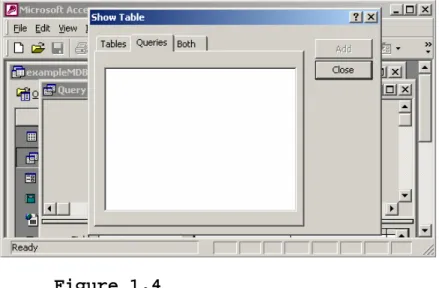
2. Choose Queries in the Objects column and click Create query in Design View (see Figure 1.3) to display the Query
Table dialog box.
Figure 1.4
The Show Table dialog box must be closed to display the SQL view.
3. Select SQL View in the SQL combo box (see Figure 1.5) to display the SQL command window, as shown in Figure 1.6. 4. Type in the statement for creating the State table (see Figure 1.7) and click the Run toolbar button to execute the statement.
Figure 1.5
The SQL command window can be displayed by choosing the SQL View command.
Figure 1.6
You can type the SQL command in the Query window and execute it.
5. Type the following SQL statements and execute them one
statement at a time to create the State table, insert data
into the table and select them from the table. The selection result is shown in Figure 1.7.
create table State(
name varchar(15) not null, capital varchar(25), population integer);
insert into State values ('Georgia', 'Atlanta', 8383915); insert into State values ('New York', 'Albany', 19011378); select * from State;
Figure 1.7
The selection result is displayed in a window on Access.
NOTE: Access cannot execute SQL commands from a script file. You have to type and execute one
2 Creating an ODBC Data Source
To use the JDBC-ODBC driver to access databases in Java, two drivers must be installed on the client machine: a universal JDBC-ODBC bridge driver and a vendor-specific ODBC driver. The JDBC-ODBC driver comes with Java 2 SDK 1.3 or higher, or any Java development tool that supports JDK 1.2 or higher. The ODBC driver is not included in JDK and is usually
provided by database vendors. To access the MS Access
database, you have to create an ODBC data source. Here are the steps to create an ODBC data source:
1. Install an MS ODBC driver for MS Access if necessary. By default the ODBC driver is installed on Windows 98, NT, 2000, and XP. If not, install MS Access to get the proper ODBC driver on your system. Upon successful
installation, you should see the icon Data Sources (ODBC) in the Administrative Tools window under the control
panel for Windows 2000. For Windows 98 and NT, you should see a "32-bit ODBC" icon appearing on the control panel. 2. From the Windows Start button, choose Setting, Control Panel to bring up the Control Panel dialog box. Double-click Administrative Tools, and then double-Double-click Data Sources (ODBC) to display the ODBC Data Source
Administrator dialog box, as shown in Figure 1.8.
Figure 1.8
The ODBC Data Source Administrator is the main dialog box to manage the data source and the drivers.
3. Click Add to bring up the "Create New Data Source" dialog box, as shown in Figure 1.9.
Figure 1.9
Select a proper driver for the data source in the "Create New Data Source" window.
4. Select Microsoft Access Driver and Press Finish to bring the ODBC Microsoft Access Setup dialog window, as shown in Figure 1.10. Type exampleMDBDataSource in the Data Source Name field, and type Liang DB Book MS Access Database in the Description filed. Click Select to bring up the Select Database dialog window, as shown in Figure 1.11.
Figure 1.10
Specify the Data Source Name to associate it with a database in the ODBC Microsoft Access Setup window.
Figure 1.11
Select the physical database file name for the data source name in the Select Database window.
5. Select exampleMDB.mdb from the directory
c:\book\exampleMDB.mdb. Press OK to close the Select Database dialog window, click OK to close the ODBC
Microsoft Access Setup window, and click OK to close the ODBC Data Source Administrator window.
3 Accessing Database Using Java
NOTE: you are not familiar with SQL and JDBC, please Chapter 25 on basics of SQL and how to write Java database programs.
The JDBC driver for MS Access is
sun.jdbc.odbc.JdbcOdbcDriver contained in JDK. The database URL for Access is jdbc:odbc:dataSource. For example, if the ODBC data source is named exampleMDB, the URL is
jdbc:odbc:exampleMDB.
The following is a sample program import java.sql.*;
public class SimpleJdbc {
public static void main(String[] args)
throws SQLException, ClassNotFoundException { // Load the JDBC driver
Class.forName("sun.jdbc.odbc.JdbcOdbcDriver"); System.out.println("Driver loaded");
// Establish a connection
Connection connection = DriverManager.getConnection ("jdbc:odbc.exampleMDB");
System.out.println("Database connected"); // Create a statement
Statement statement = connection.createStatement(); // Execute a statement
ResultSet resultSet = statement.executeQuery
("select firstName, mi, lastName from Student where lastName " + " = 'Smith'");
// Iterate through the result and print the student names while (resultSet.next())
System.out.println(resultSet.getString(1) + "\t" +
resultSet.getString(2) + "\t" + resultSet.getString(3)); // Close the connection
connection.close(); }