ONVIF
TM
Recording Control Test Specification
Version 14.12
December, 2014
2014 by ONVIF, Inc. All rights reserved.
Recipients of this document may copy, distribute, publish, or display this document so long as this copyright notice, license and disclaimer are retained with all copies of the document. No license is granted to modify this document.
THIS DOCUMENT IS PROVIDED “AS IS,” AND THE CORPORATION AND ITS MEMBERS AND THEIR AFFILIATES, MAKE NO REPRESENTATIONS OR WARRANTIES, EXPRESS OR IMPLIED, INCLUDING BUT NOT LIMITED TO, WARRANTIES OF MERCHANTABILITY, FITNESS FOR A PARTICULAR PURPOSE, NON-INFRINGEMENT, OR TITLE; THAT THE CONTENTS OF THIS DOCUMENT ARE SUITABLE FOR ANY PURPOSE; OR THAT THE IMPLEMENTATION OF SUCH CONTENTS WILL NOT INFRINGE ANY PATENTS, COPYRIGHTS, TRADEMARKS OR OTHER RIGHTS.
IN NO EVENT WILL THE CORPORATION OR ITS MEMBERS OR THEIR AFFILIATES BE LIABLE FOR ANY DIRECT, INDIRECT, SPECIAL, INCIDENTAL, PUNITIVE OR CONSEQUENTIAL
DAMAGES, ARISING OUT OF OR RELATING TO ANY USE OR DISTRIBUTION OF THIS DOCUMENT, WHETHER OR NOT (1) THE CORPORATION, MEMBERS OR THEIR AFFILIATES HAVE BEEN ADVISED OF THE POSSIBILITY OF SUCH DAMAGES, OR (2) SUCH DAMAGES WERE REASONABLY FORESEEABLE, AND ARISING OUT OF OR RELATING TO ANY USE OR DISTRIBUTION OF THIS DOCUMENT. THE FOREGOING DISCLAIMER AND LIMITATION ON LIABILITY DO NOT APPLY TO, INVALIDATE, OR LIMIT REPRESENTATIONS AND WARRANTIES MADE BY THE MEMBERS AND THEIR RESPECTIVE AFFILIATES TO THE CORPORATION AND OTHER MEMBERS IN CERTAIN WRITTEN POLICIES OF THE CORPORATION.
Revision History
Ver. Date Description
12.12 20th/Dec, 2012 First issue of Replay Control Test Specification
13.06 Jun, 2013 The following test cases were updated or added:
RECORDING JOB CONFIGURATION - DIFFERENT PRIORITIES (ON MEDIA PROFILE)
RECORDING JOB CONFIGURATION - DIFFERENT PRIORITIES (ON RECEIVER)
SET RECORDINGS CONFIGURATION (MAXIMUM LENGTH OF RECORDING SOURCE INFORMATION)
DYNAMIC RECORDINGS CONFIGURATION (MAXIMUM LENGTH OF RECORDING SOURCE INFORMATION)
RECORDING CONTROL – JOB STATE EVENT
RECORDING CONTROL – JOB STATE CHANGE EVENT
RECORDING CONTROL – RECORDING
CONFIGURATION EVENT
RECORDING CONTROL – TRACK CONFIGURATION EVENT
RECORDING CONTROL – RECORDING JOB CONFIGURATION EVENT
RECORDING CONTROL – CREATE RECORDING EVENT
RECORDING CONTROL – DELETE RECORDING EVENT
RECORDING CONTROL – CREATE TRACK EVENT RECORDING CONTROL – DELETE TRACK EVENT RECORDING CONTROL – CREATE TRACK EVENT (CREATE RECORDING)
RECORDING CONTROL – DELETE TRACK EVENT (DELETE RECORDING)
RECORDING CONTROL – CREATE TRACK EVENT (CREATE TRACK)
RECORDING CONTROL – DELETE TRACK EVENT (DELETE TRACK)
RECORDING CONTROL – DELETE TRACK DATA
EVENT
13.12 Dec, 2013 The following test cases were updated or added:
RECORDING-2-1-1 START RECORDING USING A MEDIA PROFILE was replaced with RECORDING-2-1-10 START RECORDING ON MEDIA PROFILE
RECORDING-2-1-2 START RECORDING ON
RECEIVER was replaced with RECORDING-2-1-11 START RECORDING ON RECEIVER
RECORDING-2-1-3 STOP RECORDING USING A MEDIA PROFILE - PUT JOB IN IDLE STATE was replaced with RECORDING-2-1-12 STOP RECORDING ON MEDIA PROFILE - PUT JOB IN IDLE STATE
RECORDING-2-1-4 STOP RECORDING ON RECEIVER - PUT JOB IN IDLE STATE was replaced with
RECORDING-2-1-13 STOP RECORDING ON
RECEIVER - PUT JOB IN IDLE STATE
RECORDING-2-1-5 STOP RECORDING ON RECEIVER - NEVER CONNECTED MODE was replaced with
RECORDING-2-1-14 STOP RECORDING ON
RECEIVER - NEVER CONNECTED MODE
RECORDING-2-1-6 STOP RECORDING USING A MEDIA PROFILE - DELETE JOB was replaced with RECORDING-2-1-15 STOP RECORDING ON MEDIA PROFILE - DELETE JOB
RECORDING-2-1-7 STOP RECORDING ON RECEIVER - DELETE JOB was replaced with RECORDING-2-1-16 STOP RECORDING ON RECEIVER - DELETE JOB
RECORDING-2-1-8 MODIFY MEDIA ATTRIBUTE WHILE RECORDING - MEDIA PROFILE was replaced with RECORDING-2-1-17 MODIFY MEDIA ATTRIBUTE WHILE RECORDING - MEDIA PROFILE
RECORDING-2-1-9 MODIFY MEDIA ATTRIBUTE WHILE RECORDING - RECEIVER was replaced with RECORDING-2-1-18 MODIFY MEDIA ATTRIBUTE WHILE RECORDING - RECEIVER
RECORDING-3-1-2 DYNAMIC TRACKS
CONFIGURATION was replaced with RECORDING-3-1-7 DYNAMIC TRACKS CONFIGURATION
RECORDING-3-1-5 RECORDING JOB CONFIGURATION - DIFFERENT PRIORITIES (ON
MEDIA PROFILE) was replaced with
RECORDING-3-1-8 RECORDING JOB CONFIGURATION -
DIFFERENT PRIORITIES (ON MEDIA PROFILE)
RECORDING-3-1-6 RECORDING JOB CONFIGURATION - DIFFERENT PRIORITIES (ON
RECEIVER) was replaced with RECORDING-3-1-9
RECORDING JOB CONFIGURATION -
DIFFERENT PRIORITIES (ON RECEIVER)
RECORDING-4-1-6 GET RECORDING JOB
CONFIGURATION WITH INVALID TOKEN was replaced with RECORDING-4-1-13 GET RECORDING JOB CONFIGURATION WITH INVALID TOKEN
RECORDING-4-1-8 GET RECORDING JOB STATE
WITH INVALID TOKEN was replaced with
RECORDING-4-1-14 GET RECORDING JOB STATE WITH INVALID TOKEN
RECORDING-5-1-1 RECORDING CONTROL – JOB STATE EVENT was replaced with RECORDING-5-1-18 RECORDING CONTROL – JOB STATE EVENT
RECORDING-5-1-2 RECORDING CONTROL – JOB STATE CHANGE EVENT was replaced with RECORDING-5-1-19 RECORDING CONTROL – JOB STATE CHANGE EVENT
RECORDING-5-1-5 RECORDING CONTROL –
RECORDING JOB CONFIGURATION EVENT was replaced with RECORDING-5-1-20 RECORDING CONTROL – RECORDING JOB CONFIGURATION EVENT
RECORDING-5-1-7 RECORDING CONTROL – DELETE RECORDING EVENT was replaced with
RECORDING-5-1-17 RECORDING CONTROL – DELETE
RECORDING EVENT
RECORDING-5-1-12 RECORDING CONTROL –
CREATE TRACK EVENT (CREATE TRACK) was replaced with RECORDING-5-1-15 RECORDING CONTROL – CREATE TRACK EVENT (CREATE TRACK)
RECORDING-5-1-13 RECORDING CONTROL – DELETE TRACK EVENT (DELETE TRACK) was replaced with RECORDING-5-1-16 RECORDING
CONTROL – DELETE TRACK EVENT (DELETE TRACK)
The following annexes were updated or added:
Annex A.6 was replaced with A.12 Selection or Creation of Recording for recording job creation
Annex A.9 was replaced with A.13 Auto Creation of Receiver
Annex A.14 Selection of Recording for track creation was added
Annex A.15 Selection or Creation of Recording for
recording job creation on a Media profile was added Annex A.5 was removed.
14.06 Feb, 2014 The following tests were updated with increasing of
tests IDs:
START RECORDING ON MEDIA PROFILE START RECORDING ON RECEIVER
STOP RECORDING ON MEDIA PROFILE - PUT JOB IN IDLE STATE
STOP RECORDING ON RECEIVER - PUT JOB IN IDLE STATE
STOP RECORDING ON RECEIVER - NEVER CONNECTED MODE
STOP RECORDING ON MEDIA PROFILE - DELETE JOB
STOP RECORDING ON RECEIVER - DELETE JOB MODIFY MEDIA ATTRIBUTE WHILE RECORDING - MEDIA PROFILE
MODIFY MEDIA ATTRIBUTE WHILE RECORDING – RECEIVER
DYNAMIC RECORDINGS CONFIGURATION
RECORDING JOB CONFIGURATION - DIFFERENT PRIORITIES (ON MEDIA PROFILE)
RECORDING JOB CONFIGURATION - DIFFERENT PRIORITIES (ON RECEIVER)
GET SERVICES AND GET RECORDING CONTROL SERVICE CAPABILITIES CONSISTENCY
14.12 Dec, 2014 The following annexes were updated:
A.16 PullMessages algorithm for check Recording Job State initializing
The following tests were updated with increasing of tests IDs:
START RECORDING ON MEDIA PROFILE
STOP RECORDING ON MEDIA PROFILE - PUT JOB IN IDLE STATE
STOP RECORDING ON MEDIA PROFILE - DELETE JOB
MODIFY MEDIA ATTRIBUTE WHILE RECORDING -
MEDIA PROFILE
Table of Contents
1 Introduction ... 11
1.1 Scope ... 11
1.1.1 Capabilities ... 11
1.1.2 Recording ... 12
1.1.3 Configuration ... 12
1.1.4 General ... 12
2 Terms and Definitions ... 13
2.1 Definitions ... 13
2.2 Abbreviations ... 13
3 Test Overview ... 14
3.1 Test Setup ... 14
3.1.1 Network Configuration for device under test ... 14
3.2 Prerequisites ... 15
3.3 Test Policy ... 15
3.3.1 Capabilities ... 15
3.3.2 Recording ... 15
3.3.3 Configuration ... 15
3.3.4 General ... 16
3.3.5 Authentication method selection as a testing framework ... 16
4 Recording control Test Cases ... 17
4.1 Capabilities ... 17
4.1.1 RECORDING CONTROL SERVICE CAPABILITIES ... 17
4.1.2 GET SERVICES AND GET RECORDING CONTROL SERVICE CAPABILITIES CONSISTENCY ... 18
4.2 Recording ... 20
4.2.1 START RECORDING ON RECEIVER ... 20
4.2.2 STOP RECORDING ON RECEIVER - PUT JOB IN IDLE STATE ... 24
4.2.3 STOP RECORDING ON RECEIVER - NEVER CONNECTED MODE ... 28
4.2.4 STOP RECORDING ON RECEIVER - DELETE JOB ... 33
4.2.5 MODIFY MEDIA ATTRIBUTE WHILE RECORDING - RECEIVER ... 36
4.2.6 START RECORDING ON MEDIA PROFILE ... 41
4.2.7 STOP RECORDING ON MEDIA PROFILE - PUT JOB IN IDLE STATE... 44
4.2.8 STOP RECORDING ON MEDIA PROFILE - DELETE JOB ... 48
4.2.9 MODIFY MEDIA ATTRIBUTE WHILE RECORDING - MEDIA PROFILE ... 51
4.3 Configuration ... 56
4.3.1 DYNAMIC TRACKS CONFIGURATION ... 56
4.3.2 DYNAMIC RECORDINGS CONFIGURATION ... 59
4.3.3 RECORDING JOB CONFIGURATION - DIFFERENT PRIORITIES (ON MEDIA PROFILE) 62 4.3.4 RECORDING JOB CONFIGURATION - DIFFERENT PRIORITIES (ON RECEIVER) ... 67
4.4 General ... 72
4.4.1 GET RECORDINGS ... 72
4.4.2 GET RECORDING CONFIGURATION ... 73
4.4.3 GET RECORDING CONFIGURATION WITH INVALID TOKEN ... 74
4.4.4 GET RECORDING JOBS ... 76
4.4.5 GET RECORDING JOB CONFIGURATION ... 77
4.4.6 GET RECORDING JOB STATE ... 79
4.4.7 GET TRACK CONFIGURATION ... 81
4.4.8 GET TRACK CONFIGURATION WITH INVALID TOKEN ... 83
4.4.9 SET RECORDINGS CONFIGURATION (MAXIMUM LENGTH OF RECORDING SOURCE INFORMATION) ... 85
4.4.10 DYNAMIC RECORDINGS CONFIGURATION (MAXIMUM LENGTH OF RECORDING SOURCE INFORMATION) ... 87
4.4.11 GET RECORDING JOB CONFIGURATION WITH INVALID TOKEN ... 89
4.4.12 GET RECORDING JOB STATE WITH INVALID TOKEN ... 91
4.5 Events... 94
4.5.1 RECORDING CONTROL – RECORDING CONFIGURATION EVENT ... 94
4.5.2 RECORDING CONTROL – TRACK CONFIGURATION EVENT ... 99
4.5.3 RECORDING CONTROL – CREATE RECORDING EVENT ... 103
4.5.4 RECORDING CONTROL – CREATE TRACK EVENT ... 106
4.5.5 RECORDING CONTROL – DELETE TRACK EVENT ... 107
4.5.6 RECORDING CONTROL – CREATE TRACK EVENT (CREATE RECORDING) ... 109
4.5.7 RECORDING CONTROL – DELETE TRACK EVENT (DELETE RECORDING) ... 112
4.5.8 RECORDING CONTROL – DELETE TRACK DATA EVENT ... 115
4.5.9 RECORDING CONTROL – CREATE TRACK EVENT (CREATE TRACK) ... 117
4.5.10 RECORDING CONTROL – DELETE TRACK EVENT (DELETE TRACK) ... 120
4.5.11 RECORDING CONTROL – DELETE RECORDING EVENT ... 123
4.5.12 RECORDING CONTROL – JOB STATE EVENT ... 126
4.5.13 RECORDING CONTROL – JOB STATE CHANGE EVENT ... 132
4.5.14 RECORDING CONTROL – RECORDING JOB CONFIGURATION EVENT ... 137
Annex A... 142
A.1 Comparison of parameter values for the same recording in GetRecordingsResponse message and in GetRecordingConfigurationResponse message ... 142
A.2 Comparison of parameter values for the same recording job in GetRecordingJobsResponse message and in GetRecordingJobConfigurationResponse message ... 142
A.3 Comparison of parameter values for the same recording job in GetRecordingJobsResponse message and in GetRecordingJobStateResponse message ... 143
A.4 Comparison of parameter values for the same track in GetTrackConfigurationResponse message and in GetRecordingsResponse message ... 143
A.7 PullMessages algorithm for check Recording Job State changing ... 143
A.8 PullMessages algorithm for check Receiver State changing ... 144
A.10 Creation of Recording prerequisite ... 145
A.11 Recording Source Information Parameters Maximum Length ... 145
A.12 Selection or Creation of Recording for recording job creation ... 145
A.13 Auto Creation of Receiver ... 147
A.14 Selection of Recording for track creation ... 147
A.15 Selection or Creation of Recording for recording job creation on a Media profile ... 148
A.16 PullMessages algorithm for check Recording Job State initializing ... 149
1 Introduction
The goal of the ONVIF test specification set is to make it possible to realize fully interoperable IP physical security implementation from different vendors. The set of ONVIF test specification describes the test cases need to verify the [ONVIF Network Interface Specs] and [ONVIF Conformance] requirements. Also, the test cases are to be basic inputs for some Profile specification requirements. It also describes the test framework, test setup, pre-requisites, test policies needed for the execution of the described test cases.
This ONVIF Recording Control Test Specification acts as a supplementary document to the [ONVIF Network Interface Specs], illustrating test cases need to be executed and passed. Also, this
specification acts as an input document to the development of test tool which will be used to test the ONVIF device implementation conformance towards ONVIF standard. This test tool is referred as ONVIF Client hereafter.
1.1 Scope
This ONVIF Recording Control Test Specification defines and regulates the conformance testing procedure for the ONVIF conformant devices. Conformance testing is meant to be functional black-box testing. The objective of this specification is to provide the test cases to test individual
requirements of ONVIF devices according to ONVIF core services which are defined in [ONVIF Network Interface Specs].
The principal intended purposes are:
• To provide self-assessment tool for implementations.
• To provide comprehensive test suite coverage for [ONVIF Network Interface Specs].
This specification does not address the following.
• Product use cases and non-functional (performance and regression) testing.
• SOAP Implementation Interoperability test i.e. Web Services Interoperability Basic Profile
version 2.0 (WS-I BP2.0).
• Network protocol implementation Conformance test for HTTPS, HTTP, RTP and RTSP
protocols.
• Wi-Fi Conformance test
The set of ONVIF Test Specification will not cover the complete set of requirements as defined in [ONVIF Network Interface Specs]; instead it would cover its subset.
This ONVIF Recording Control Test Specification covers ONVIF Recording Control service which is a functional block of [ONVIF Network Interface Specs]. The following sections describe the brief overview and scope of each functional block.
1.1.1 Capabilities
Capabilities test cases are covered for verification to get Recording Control Service capabilities. It means that GetServices and GetServiceCapabilities commands are covered by this test case.
1.1.2 Recording
Recording covers the test cases needed for the verification of recording process as mentioned in [ONVIF Network Interface Specs]. Recording section defines different recording control tests for starting and stopping recording.
1.1.3 Configuration
Configuration covers the test cases needed for the verification of recording configuration features as mentioned in [ONVIF Network Interface Specs]. Configuration section defines different recording, track and recording job configuration features.
1.1.4 General
General covers the test cases needed for the verification of recording control features as mentioned in [ONVIF Network Interface Specs]. General section defines different recording control for getting information about current configuration.
2 Terms and Definitions
2.1 Definitions
This section defines terms that are specific to the ONVIF Recording Control Service and tests. For the list of applicable general terms and definitions, please see [ONVIF Base Test].
Metadata All streaming data except video and audio, including video analytics results, PTZ position data and other metadata (such as textual data from POS
applications).
Recording A container for a set of audio, video and metadata tracks. A recording can hold one or more tracks. A track is viewed as an infinite timeline that holds data at
certain times.
Recording Event An event associated with a Recording, represented by a notification message in the APIs
Recording Job A job performs the transfer of data from a data source to a particular recording using a particular configuration
Track An individual data channel consisting of video, audio, or metadata. This definition is consistent with the definition of track in [RFC 2326]
Video Analytics Algorithms or programs used to analyze video data and to generate data describing object location and behavior.
2.2 Abbreviations
This section describes abbreviations used in this document.
DUT Device Under Test
HTTP Hyper Text Transport Protocol RTCP RTP Control Protocol
RTSP Real Time Streaming Protocol RTP Real-time Transport Protocol SDP Session Description Protocol
TCP Transport Control Protocol
UTC Coordinated Universal Time
UDP User Datagram Protocol
URI Uniform Resource Identifier
WSDL Web Services Description Language
WS-I BP 2.0 Web Services Interoperability Basic Profile version 2.0
XML eXtensible Markup Language
3 Test Overview
This section describes the test setup and prerequisites needed, and the test policies that should be followed for test case execution.
3.1 Test Setup
3.1.1 Network Configuration for device under test
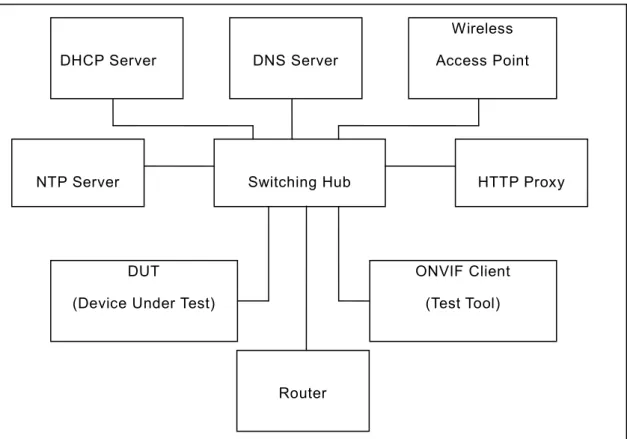
The generic test configuration for the execution of test cases defined in this document is as shown below (Figure 1)
Based on the individual test case requirements, some of the entities in the below setup may not be needed for the execution of those corresponding test cases.
Figure 1: Test Configuration for DUT
DUT: ONVIF device to be tested. Hereafter, this is referred to as DUT (Device Under Test).
ONVIF Client (Test Tool): Tests are executed by this system and it controls the behaviour of the DUT. It handles both expected and unexpected behaviour.
HTTP Proxy: provides facilitation in case of RTP and RTSP tunnelling over HTTP.
Wireless Access Point: provides wireless connectivity to the devices that support wireless connection.
DNS Server: provides DNS related information to the connected devices.
DHCP Server: provides IPv4 Address to the connected devices. Switching Hub
Wireless Access Point
DUT
(Device Under Test)
ONVIF Client (Test Tool)
DHCP Server DNS Server
NTP Server HTTP Proxy
Router
NTP Server: provides time synchronization between ONVIF Client and DUT.
Switching Hub: provides network connectivity among all the test equipments in the test environment. All devices should be connected to the Switching Hub.
Router: provides router advertisements for IPv6 configuration.
3.2 Prerequisites
The pre-requisites for executing the test cases described in this Test Specification are
• The DUT shall be configured with an IPv4 address.
• The DUT shall be IP reachable [in the test configuration].
• The DUT shall be able to be discovered by the ONVIF Client Test Tool.
• The DUT shall be configured with the time i.e. manual configuration of UTC time and if NTP
is supported by DUT then NTP time shall be synchronized with NTP Server.
• The DUT time and client Test tool time shall be synchronized with each other either
manually or by common NTP server.
3.3 Test Policy
This section describes the test policies specific to the test case execution of each functional block. The DUT shall adhere to the test policies defined in this section.
3.3.1 Capabilities
The device under test shall demonstrate recording control service capability in GetServices and GetServiceCapabilities responses. A DUT that does not display recording control service capability constitutes failure of test procedure.
Please refer to Section 4.1 for Capabilities Test Cases.
3.3.2 Recording
The DUT shall give the Recording Control Service entry point by GetServices command. Please refer to Section 4.2 for Recording Test Cases.
3.3.3 Configuration
The DUT shall give the Recording Control Service entry point by GetServices command. Please refer to Section 4.3 for Configuration Test Cases.
3.3.4 General
The DUT shall give the Recording Control Service entry point by GetServices command. Please refer to Section 4.4 for Recording Test Cases.
3.3.5 Authentication method selection as a testing framework
According to later version of [ONVIF Network Interface Specs], it requires ONVIF client to support both HTTP digest and WS-UsernameToken functionality as authentication functionality. Therefore, ONVIF Client (ONVIF Device Test Tool in this context) as a testing framework shall properly select authentication method between the two based on the response from DUT toward specific request. The following is the deterministic procedure on which authentication method is to be selected.
Procedure:
1. ONVIF Client invokes a specific command which is under testing without any user credentials (no WS-UsernameToken, no HTTP digest authentication header).
2. If the DUT returns a correct response, then ONVIF Client determines that the DUT does not require any user authentication toward the command according to the configured security policy.
3. If the DUT returns HTTP 401 Unauthorized error along with WWW-Authentication: Digest header, then ONVIF Client determines that the DUT supports HTTP digest authentication. ONVIF Client shall provide with the proper level of user credential to continue the test procedure.
4. If the DUT returns SOAP fault (Sender/NotAuthorized) message, then ONVIF Client determines that WS-UsernameToken is supported by the DUT. ONVIF Client shall provide with the proper level of user credential to continue the test procedure.
4 Recording control Test Cases
4.1 Capabilities
4.1.1 RECORDING CONTROL SERVICE CAPABILITIES Test Label: Recording Control Capabilities Verification.
Test Case ID: RECORDING-1-1-1
ONVIF Core Specification Coverage: Capability exchange (ONVIF Core Specification), GetServiceCapabilities (ONVIF Recording Control Service Specification)
Command under test: GetServiceCapabilities (for Recording Control Service)
WSDL Reference: recording.wsdl
Test Purpose: To verify Recording Control Service Capabilities of the DUT.
Pre-Requisite: ONVIF Client gets the Recording Control Service entry point by GetServices/GetCapabilities command.
Test Configuration: ONVIF Client and DUT
Test Sequence:
Test Procedure:
1. Start an ONVIF Client. 2. Start the DUT.
3. ONVIF Client will invoke GetServiceCapabilitiesRequest message to retrieve recording control service capabilities of the DUT.
4. Verify the GetServiceCapabilitiesResponse from the DUT.
Test Result: PASS –
The DUT passed all assertions.
DUT GetServiceCapabilitiesRequest
(empty)
Receive and validate GetServiceCapabilities Response message
GetServiceCapabilitiesResponse (recording control service capabilities)
Start DUT
Send capabilities of DUT recording control service
ONVIF Client
FAIL –
The DUT did not send a valid GetServiceCapabilitiesResponse. The DUT sent Capabilities.MaxRate zero or less.
The DUT sent Capabilities.MaxTotalRate zero or less. The DUT sent Capabilities.MaxRecordings less than 1. The DUT sent an empty Capabilities.Encoding list.
4.1.2 GET SERVICES AND GET RECORDING CONTROL SERVICE CAPABILITIES CONSISTENCY
Test Label: Get Services and Recording Control Service Capabilities Consistency Verification.
Test Case ID: RECORDING-1-1-3
ONVIF Core Specification Coverage: Capability exchange (ONVIF Core Specification), GetServiceCapabilities (ONVIF Recording Control Service Specification)
Command under test: GetServices, GetServiceCapabilities (for Recording Control Service)
WSDL Reference: devicemgmt.wsdl, recording.wsdl
Test Purpose: To verify Get Services and Recording Control Service Capabilities consistency.
Pre-Requisite: None.
Test Configuration: ONVIF Client and DUT
Test Sequence:
Test Procedure:
1. Start an ONVIF Client. 2. Start the DUT.
3. ONVIF Client will invoke GetServicesRequest message (IncludeCapability = true) to retrieve all services of the DUT with service capabilities.
4. Verify the GetServicesResponse message from the DUT.
5. ONVIF Client will invoke GetServiceCapabilitiesRequest message to retrieve Recording Control service capabilities of the DUT.
6. Verify the GetServiceCapabilitiesResponse message from the DUT.
Test Result: PASS –
The DUT passed all assertions.
FAIL –
The DUT did not send a valid GetServicesResponse message.
The DUT did not send a valid GetServiceCapabilitiesResponse message.
The DUT sent different Capabilities in GetServicesResponse message and in GetServiceCapabilitiesResponse message.
Note: Service will be defined as Recording Control service if it has Namespace element that is equal to “http://www.onvif.org/ver10/recording/wsdl”.
DUT
GetServiceCapabilitiesRequest (empty)
Receive and validate GetServiceCapabilities Response message
GetServiceCapabilitiesResponse (recording control service capabilities)
Start DUT
Send capabilities of DUT recording control service ONVIF Client
GetServicesRequest (IncludeCapability = true)
GetServicesResponse (supported services with
capabilities)
Send all DUT services with capabilities Receive and validate
GetServicesResponse message
Note: Capabilities in GetServicesResponse message and in GetServiceCapabilitiesResponse message will be assumed as different in the following cases:
DynamicRecordings attribute is skipped only for GetServicesResponse message or only for GetServiceCapabilitiesResponse message.
DynamicRecordings attribute values are different.
DynamicTracks attribute is skipped only for GetServicesResponse message or only for GetServiceCapabilitiesResponse message.
DynamicTracks attribute values are different.
Encoding attribute is skipped only for GetServicesResponse message or only for GetServiceCapabilitiesResponse message.
Encoding attribute values are different.
MaxRate attribute is skipped only for GetServicesResponse message or only for GetServiceCapabilitiesResponse message.
MaxRate attribute values are different.
MaxTotalRate attribute is skipped only for GetServicesResponse message or only for GetServiceCapabilitiesResponse message.
MaxTotalRate attribute values are different.
MaxRecordings attribute is skipped only for GetServicesResponse message or only for GetServiceCapabilitiesResponse message.
MaxRecordings attribute values are different.
MetadataRecording attribute is skipped only for GetServicesResponse message or only for GetServiceCapabilitiesResponse message.
MetadataRecording attribute values are different.
Options attribute is skipped only for GetServicesResponse message or only for GetServiceCapabilitiesResponse message.
Options attribute values are different.
4.2 Recording
4.2.1 START RECORDING ON RECEIVER
Test Label: Start Recording on Receiver Verification.
Test Case ID: RECORDING-2-1-20
ONVIF Core Specification Coverage: Creation of Recording Job with Active mode on receiver. Event generation when the state field of the RecordingJobStateInformation structure is changing (ONVIF Recording Control Service Specification)
Command under test: CreateRecordingJob
WSDL Reference: recording.wsdl, receiver.wsdl, event.wsdl
Test Purpose: To verify Start Recording on Receiver.
Pre-Requisite: ONVIF Client gets the entry points for Recording Control Service and Receiver Service by GetServices command. All recording jobs were stopped. Options are supported by DUT.
Test Configuration: ONVIF Client and DUT
Test Sequence:
DUT Annex A.12
Annex A.13
Start DUT
CreatePullPointSubscriptionResponse (endpoint of event service) ONVIF Client
Create RecordingJob with Idle Mode and auto creation of receiver Create or select Recording
Receive and Validate CreatePullPointSubscri
ptionResponse ConfigureReceiverRequest message
(ReceiverToken = ReceiverToken1,
Configuration.Mode = “AlwaysConnect”,
Configuration.MediaUri as stream_uri of RTSP Simulator,
Configuration.StreamSetup.Stream = “RTP-Unicast”,
StreamSetup.Transport.Tunnel.Protocol =
“UDP”, no
StreamSetup.Transport.Tunnel.Tunnel)
Configure receiver and send response ConfigureReceiverResponse
(empty) Receive and Validate
ConfigureReceiverResp
onse GetReceiverRequest (ReceiverToken =
ReceiverToken1) GetReceiverResponse
(receiver details) Send receiver
Receive and validate GetReceiverResponse
SetRecordingJobModeRequest
(JobToken = JobToken1,
Mode = Active)
SetRecordingJobModeResponse (empty)
Set mode of
RecordingJob to Active and send response Receive and validate
SetRecordingJobModeRe sponse
Annex A.7 Receiving event
with Active or PartiallyActive
t t
GetRecordingJobStateRequest
(JobToken = JobToken1)
GetRecordingJobStateResponse
(RecordingJobState parameters) Send RecordingJobState
CreatePullPointSubscriptionRequest (tns1:RecordingConfig/JobState, InitialTerminationTime = TerminationTime1)
Send the subscription endpoint
Receive and validate GetRecordingJobStateRes ponse
Test Procedure:
1. Start an ONVIF Client. 2. Start the DUT.
3. Execute Annex A.12 with RequiredSpareJobs=0 to create or select Recording to make sure that 1 recording job can be created.
4. Execute Annex A.13 for auto creation of receiver by create recording job with Idle mode.
5. ONVIF Client will invoke CreatePullPointSubscriptionRequest message with
tns1:RecordingConfig/JobState Topic as Filter and an InitialTerminationTime = TerminationTime1 to check Recording Job State changing.
6. Verify that the DUT sends a CreatePullPointSubscriptionResponse message.
7. ONVIF Client will invoke ConfigureReceiverRequest message (ReceiverToken =
ReceiverToken1, Configuration.Mode = “AlwaysConnect”, Configuration.MediaUri as
stream_uri of RTSP Simulator, Configuration.StreamSetup.Stream = “RTP-Unicast”,
StreamSetup.Transport.Tunnel.Protocol = “UDP”, no StreamSetup.Transport.Tunnel.Tunnel)
to configure the receiver to receive media from RTSP Simulator. 8. Verify ConfigureReceiverResponse message from the DUT.
9. ONVIF Client will invoke GetReceiverRequest message with ReceiverToken =
ReceiverToken1.
10. Verify GetReceiverResponse message from the DUT. Check that GetReceiverResponse message contains the same parameters values as the ones changed in ConfigureReceiverRequest message.
11. ONVIF Client will invoke SetRecordingJobModeRequest message (JobToken = “JobToken1”,
Mode = “Active”) to start recording.
12. Verify SetRecordingJobModeResponse message from the DUT. Mark time of CreateRecordingJobResponse as T1.
13. Execute Annex A.7 for receiving event with “Active” or “PartiallyActive” Recording job state. 14. ONVIF Client will invoke GetRecordingJobStateRequest message with JobToken =
“JobToken1 “.
15. Verify the GetRecordingJobStateResponse message from the DUT. 16. Check that State.State is equal to “Active” or “PartiallyActive”. 17. Check that State.Sources.State is equal to “Active”.
18. Check that State.State value in the GetRecordingJobStateResponse message equals to State.State value in the notification message.
Test Result: PASS –
The DUT passed all assertions.
FAIL –
The DUT did not send a valid CreatePullPointSubscriptionRequest message The DUT did not send a valid ConfigureReceiverResponse message.
The DUT did not send a valid GetReceiverResponse message.
The DUT did not send a valid SetRecordingJobModeResponse message. The DUT did not send a valid GetRecordingJobStateResponse message.
The DUT sent GetReceiverResponse message with parameters values differ from sent in ConfigureReceiverRequest message.
The DUT sent GetRecordingJobStateResponse message with State.State parameter value not equal to “Active” or “PartiallyActive”.
The DUT sent GetRecordingJobStateResponse message with State.Sources.State parameter value not equal to “Active”.
The DUT sent GetRecordingJobStateResponse message with State.RecordingToken parameter value not equal to “RecordingToken1”.
The DUT sent different values for State.State in the notification message and in GetRecordingJobStateResponse message.
4.2.2 STOP RECORDING ON RECEIVER - PUT JOB IN IDLE STATE
Test Label: Stop Recording on Receiver by Putting It in Idle State Verification.
Test Case ID: RECORDING-2-1-22
ONVIF Core Specification Coverage: SetRecordingJobMode, event generation when the state field of the RecordingJobStateInformation structure is changing (ONVIF Recording Control Service Specification).
Command under test: SetRecordingJobMode
WSDL Reference: recording.wsdl, receiver.wsdl, event.wsdl
Test Purpose: To verify Stop Recording on Receiver by Putting It in Idle State.
Pre-Requisite: ONVIF Client gets the entry points for Recording Control Service and Receiver Service by GetServices command. All recording jobs were stopped. Options are supported by the DUT.
Test Configuration: ONVIF Client and DUT
Test Sequence:
DUT Annex A.12
Annex A.13
Start DUT
CreatePullPointSubscriptionResponse (endpoint of event service)
Send the subscription endpoint
ONVIF Client
Create RecordingJob with Idle Mode and auto creation of receiver Create or select Recording
Receive and Validate CreatePullPointSubscri
ptionResponse ConfigureReceiverRequest message
(ReceiverToken = ReceiverToken1,
Configuration.Mode = “AlwaysConnect”,
Configuration.MediaUri as stream_uri of RTSP Simulator,
Configuration.StreamSetup.Stream = “RTP-Unicast”,
StreamSetup.Transport.Tunnel.Protocol =
“UDP”, no
StreamSetup.Transport.Tunnel.Tunnel)
Configure receiver and send response ConfigureReceiverResponse
(empty) Receive and Validate
ConfigureReceiverResp
onse GetReceiverRequest (ReceiverToken =
ReceiverToken1) GetReceiverResponse
(receiver details) Send receiver
Receive and validate GetReceiverResponse
SetRecordingJobModeRequest
(JobToken = JobToken1,
Mode = Active)
SetRecordingJobModeResponse (empty)
Set mode of
RecordingJob to Active and send response Receive and validate
SetRecordingJobModeRe sponse
Annex A.7 Receiving event
with Active or PartiallyActive state
CreatePullPointSubscriptionRequest (tns1:RecordingConfig/JobState, InitialTerminationTime = TerminationTime1)
Test Procedure:
1. Start an ONVIF Client. 2. Start the DUT.
3. Execute Annex A.12 with RequiredSpareJobs=0 to create or select Recording to make sure that 1 recording job can be created.
4. Execute Annex A.13 for Auto creation of receiver by create recording job with Idle mode.
5. ONVIF Client will invoke CreatePullPointSubscriptionRequest message with tns1:RecordingConfig/JobState Topic as Filter and an InitialTerminationTime = TerminationTime1 to check Recording Job State changing.
6. Verify that the DUT sends a CreatePullPointSubscriptionResponse message. DUT
CreatePullPointSubscriptionResponse
(endpoint of event service) Send the subscription endpoint
ONVIF Client
Receive and Validate CreatePullPointSubscri ptionResponse
Receiving event with Idle state
GetRecordingJobStateRequest
(JobToken = JobToken1)
GetRecordingJobStateResponse
(RecordingJobState parameters) Send RecordingJobState
CreatePullPointSubscriptionRequest (tns1:RecordingConfig/JobState, InitialTerminationTime = TerminationTime1) GetRecordingJobStateRequest
(JobToken = JobToken1)
GetRecordingJobStateResponse
(RecordingJobState parameters) Send RecordingJobState
Receive and validate GetRecordingJobStateRes ponse
SetRecordingJobModeResponse (empty)
Set mode of
RecordingJob to Idle and send response
Receive and validate SetRecordingJobModeRe sponse
Annex A.7
SetRecordingJobModeRequest
(JobToken = JobToken1,
Mode = Idle)
Receive and validate GetRecordingJobState Response
7. ONVIF Client will invoke ConfigureReceiverRequest message (ReceiverToken = ReceiverToken1, Configuration.Mode = “AlwaysConnect”, Configuration.MediaUri as stream_uri of RTSP Simulator, Configuration.StreamSetup.Stream = “RTP-Unicast”, StreamSetup.Transport.Tunnel.Protocol = “UDP”, no StreamSetup.Transport.Tunnel.Tunnel) to configure the receiver to receive media from RTSP Simulator.
8. Verify ConfigureReceiverResponse message from the DUT.
9. ONVIF Client will invoke GetReceiverRequest message with ReceiverToken = ReceiverToken1.
10. Verify GetReceiverResponse message from the DUT. Check that GetReceiverResponse message contains the same parameters values as were changed in ConfigureReceiverRequest message.
11. ONVIF Client will invoke SetRecordingJobModeRequest message (JobToken = “JobToken1”, Mode = “Active”) to start recording.
12. Verify SetRecordingJobModeResponse message from the DUT. Mark time of CreateRecordingJobResponse as T1.
13. Execute Annex A.7 for receiving event with “Active” or “PartiallyActive” Recording job state. 14. ONVIF Client will invoke GetRecordingJobStateRequest message with JobToken =
“JobToken1 “.
15. Verify the GetRecordingJobStateResponse message from the DUT. Check that State.State = “Active” or “PartiallyActive”.
16. ONVIF Client will invoke CreatePullPointSubscriptionRequest message with tns1:RecordingConfig/JobState Topic as Filter and an InitialTerminationTime = TerminationTime1 to check Recording Job State changing.
17. Verify that the DUT sends a CreatePullPointSubscriptionResponse message.
18. ONVIF Client will invoke SetRecordingJobModeRequest message (JobToken = “JobToken1”,
Mode = “Idle”) to stop recording.
19. Verify SetRecordingJobModeResponse message from the DUT. Remark T1 as time of SetRecordingJobModeResponse message.
20. Execute Annex A.7 for receiving event with Idle state.
21. ONVIF Client will invoke GetRecordingJobStateRequest message with JobToken = “JobToken1 “.
22. Verify the GetRecordingJobStateResponse message from the DUT. Check that State.State and State.Sources.State parameter values are equal to “Idle”.
Test Result: PASS –
The DUT passed all assertions.
FAIL –
The DUT did not send a valid CreatePullPointSubscriptionRequest message The DUT did not send a valid ConfigureReceiverResponse message.
The DUT did not send a valid GetReceiverResponse message.
The DUT did not send a valid SetRecordingJobModeResponse message. The DUT did not send a valid GetRecordingJobStateResponse message. The DUT did not send a valid DeleteRecordingJobResponse message.
The DUT sent GetReceiverResponse message with parameters values differerent from sent in ConfigureReceiverRequest message.
The DUT returned GetRecordingJobStateResponse State.State different from “Active” or “PartailActive” at step 15.
The DUT sent GetRecordingJobStateResponse message with State.State parameter value not equal to “Idle” at step 22.
The DUT sent GetRecordingJobStateResponse message with State.Sources.State parameter value not equal to “Idle” at step 22.
The DUT sent GetRecordingJobStateResponse message with State.RecordingToken parameter value not equal to “RecordingToken1”.
4.2.3 STOP RECORDING ON RECEIVER - NEVER CONNECTED MODE
Test Label: Stop Recording on Receiver by Putting Receiver in NeverConnect Mode Verification.
Test Case ID: RECORDING-2-1-23
ONVIF Core Specification Coverage: Event generation when the receiver state is changing (ONVIF Receiver Service Specification).
Command under test: None
WSDL Reference: recording.wsdl, receiver.wsdl, event.wsdl
Test Purpose: To verify Stop Recording on Receiver by Putting Receiver in NeverConnect Mode.
Pre-Requisite: ONVIF Client gets the entry points for Recording Control Service and Receiver Service by GetServices command. All recording jobs were stopped. Options are supported by the DUT.
Test Configuration: ONVIF Client and DUT
Test Sequence:
DUT Annex A.12
Annex A.13
Start DUT
CreatePullPointSubscriptionResponse
(endpoint of event service) Send the subscription endpoint
ONVIF Client
Create RecordingJob with Idle Mode and auto creation of receiver Create or select Recording
Receive and Validate CreatePullPointSubscri
ptionResponse ConfigureReceiverRequest message
(ReceiverToken = ReceiverToken1,
Configuration.Mode = “AlwaysConnect”,
Configuration.MediaUri as stream_uri of RTSP Simulator,
Configuration.StreamSetup.Stream = “RTP-Unicast”,
StreamSetup.Transport.Tunnel.Protocol =
“UDP”, no
StreamSetup.Transport.Tunnel.Tunnel)
Configure receiver and send response ConfigureReceiverResponse
(empty) Receive and Validate
ConfigureReceiverResp
onse GetReceiverRequest (ReceiverToken =
ReceiverToken1) GetReceiverResponse
(receiver details) Send receiver
Receive and validate GetReceiverResponse
SetRecordingJobModeRequest
(JobToken = JobToken1,
Mode = Active)
SetRecordingJobModeResponse (empty)
Set mode of
RecordingJob to Active and send response Receive and validate
SetRecordingJobModeRe sponse
Annex A.8 Receiving event with
Connected state
CreatePullPointSubscriptionRequest (tns1:Receiver/ChangeState,
InitialTerminationTime = TerminationTime1)
DUT
CreatePullPointSubscriptionResponse (endpoint of event service)
Send the subscription endpoint
ONVIF Client
Receive and Validate CreatePullPoint SubscriptionResponse
Receiving event with NotConnected state
GetRecordingJobStateRequest
(JobToken = JobToken1)
GetRecordingJobStateResponse
(RecordingJobState parameters) Send RecordingJobState
CreatePullPointSubscriptionRequest (tns1:Receiver/ChangeState, InitialTerminationTime = TerminationTime1) GetRecordingJobStateRequest
(JobToken = JobToken1)
GetRecordingJobStateResponse
(RecordingJobState parameters) Send RecordingJobState
Receive and validate GetRecordingJobState Response
SetReceiverModeResponse (empty)
Set mode of Receiver Mode to NeverConnect and send response Receive and validate
SetReceiverMode Response
Annex A.8
SetReceiverModeRequest
(ReceiverToken = ReceiverToken1,
Mode = NeverConnect)
Receive and validate GetRecordingJobState Response
GetReceiverStateRequest
(ReceiverToken = ReceiverToken1)
GetReceiverStateResponse
(ReceiverState parameters) Send ReceiverState
Receive and validate GetReceiverState Response
GetReceiverStateRequest
(ReceiverToken = ReceiverToken1)
GetReceiverStateResponse
(ReceiverState parameters) Send ReceiverState
Receive and validate GetReceiverState Response
Test Procedure:
1. Start an ONVIF Client. 2. Start the DUT.
3. Execute Annex A.12 with RequiredSpareJobs=0 to create or select Recording to make sure that 1 recording job can be created.
4. Execute Annex A.13 for Auto creation of receiver by create recording job with Idle mode.
5. ONVIF Client will invoke CreatePullPointSubscriptionRequest message with tns1:Receiver/ChangeState Topic as Filter and an InitialTerminationTime = Time1 to check Receiver state.
6. Verify that the DUT sends a CreatePullPointSubscriptionResponse message.
7. ONVIF Client will invoke ConfigureReceiverRequest message with ReceiverToken = ReceiverToken1 (Configuration.Mode = “AlwaysConnect”, Configuration.MediaUri as stream_uri of RTSP Simulator, Configuration.StreamSetup.Stream = “RTP-Unicast”, StreamSetup.Transport.Tunnel.Protocol = “UDP”, no StreamSetup.Transport.Tunnel.Tunnel) to configure the receiver to receive media from RTSP Simulator.
8. Verify ConfigureReceiverResponse message from the DUT.
9. ONVIF Client will invoke GetReceiverRequest message with ReceiverToken = ReceiverToken1.
10. Verify GetReceiverResponse message from the DUT. Check that GetReceiverResponse message contains the same parameters values as were changed in ConfigureReceiverRequest message.
11. ONVIF Client will invoke SetRecordingJobModeRequest message (JobToken = “JobToken1”, Mode = “Active”) to start the recording.
12. Verify SetRecordingJobModeResponse message from the DUT. Mark the time of SetRecordingJobModeRequest message as T1.
13. Execute Annex A.8 for receiving event with Connected state of the receiver.
14. ONVIF Client will invoke GetReceiverStateRequest message to check Receiver State.
15. Verify GetReceiverStateResponse message from the DUT. Check that ReceiverState.State = “Connected”.
16. ONVIF Client will invoke GetRecordingJobStateRequest message with JobToken = “JobToken1 “.
17. Verify the GetRecordingJobStateResponse message from the DUT. 18. Check that State.State is equal to “Active” or “PartiallyActive”. 19. Check that State.Sources.State is equal to “Active”.
20. Check that State.State value in the GetRecordingJobStateResponse message equals to State.State value in the notification message.
21. ONVIF Client will invoke CreatePullPointSubscriptionRequest message with tns1:Receiver/ChangeState Topic as Filter and an InitialTerminationTime = Time1 to check Receiver state.
22. Verify that the DUT sends a CreatePullPointSubscriptionResponse message.
23. ONVIF Client will invoke SetReceiverModeRequest message (ReceiverToken = “ReceiverToken1”, Mode = “NeverConnect”) to stop recording.
24. Verify SetReceiverModeResponse message from the DUT.
25. Execute Annex A.8 for receiving event with NotConnected state of the receiver. 26. ONVIF Client will invoke GetReceiverStateRequest message to check Receiver State.
27. Verify GetReceiverStateResponse message from the DUT. Check that ReceiverState.State = “NotConnected”.
28. ONVIF Client will invoke GetRecordingJobStateRequest message with JobToken = “JobToken1”.
29. Verify the GetRecordingJobStateResponse message from the DUT. Check that State.State and State.Sources.State parameter values are equal to “Idle”.
Test Result: PASS –
The DUT passed all assertions.
FAIL –
The DUT did not send a valid CreatePullPointSubscriptionRequest message The DUT did not send a valid ConfigureReceiverResponse message.
The DUT did not send a valid GetReceiverResponse message.
The DUT did not send a valid SetRecordingJobModeResponse message. The DUT did not send a valid GetReceiverStateResponse message. The DUT did not send a valid SetReceiverModeResponse message.
The DUT sent GetReceiverResponse message with parameters values differ from sent in ConfigureReceiverRequest message.
The DUT sent GetReceiverStateResponse with ReceiverState.State not equal to “Connected” at step 15.
The DUT returned GetRecordingJobStateResponse State.State different from “Active” or “PartailActive” at step 18.
The DUT sent GetRecordingJobStateResponse message with State.Sources.State parameter value not equal to “Active” at step 19.
The DUT sent GetReceiverStateResponse with ReceiverState.State not equal to “NotConnected” at step 27.
The DUT sent GetRecordingJobStateResponse message with State.RecordingToken parameter value not equal to “RecordingToken1”.
The DUT sent GetRecordingJobStateResponse message with State.State and State.Sources.State parameters values not equal to “Idle” at step 29.
4.2.4 STOP RECORDING ON RECEIVER - DELETE JOB
Test Label: Stop Recording on Receiver by Job Deletion Verification.
Test Case ID: RECORDING-2-1-25
ONVIF Core Specification Coverage: DeleteRecordingJob (ONVIF Recording Control Service Specification)
Command under test: DeleteRecordingJob
WSDL Reference: recording.wsdl, receiver.wsdl, event.wsdl
Test Purpose: To verify Stop Recording on Receiver by Job Deletion.
Pre-Requisite: ONVIF Client gets the entry points for Recording Control Service and Receiver Service by GetServices command. All recording jobs were stopped. Options are supported by the DUT.
Test Configuration: ONVIF Client and DUT
Test Sequence:
DUT Annex A.12
Annex A.13
Start DUT
CreatePullPointSubscriptionResponse (endpoint of event service) ONVIF Client
Create RecordingJob with Idle Mode and auto creation of receiver Create or select Recording
Receive and Validate CreatePullPointSubscri
ptionResponse ConfigureReceiverRequest message
(ReceiverToken = ReceiverToken1,
Configuration.Mode = “AlwaysConnect”,
Configuration.MediaUri as stream_uri of RTSP Simulator,
Configuration.StreamSetup.Stream = “RTP-Unicast”,
StreamSetup.Transport.Tunnel.Protocol =
“UDP”, no
StreamSetup.Transport.Tunnel.Tunnel)
Configure receiver and send response ConfigureReceiverResponse
(empty) Receive and Validate
ConfigureReceiverResp
onse GetReceiverRequest (ReceiverToken =
ReceiverToken1) GetReceiverResponse
(receiver details)
Send receiver Receive and validate
GetReceiverResponse
SetRecordingJobModeRequest
(JobToken = JobToken1,
Mode = Active)
SetRecordingJobModeResponse (empty)
Set mode of
RecordingJob to Active and send response Receive and validate
SetRecordingJobModeRe sponse
Annex A.7 Receiving event
with Active or PartiallyActive state
GetRecordingJobStateRequest
(JobToken = JobToken1)
GetRecordingJobStateResponse
(RecordingJobState parameters) Send RecordingJobState
CreatePullPointSubscriptionRequest (tns1:RecordingConfig/JobState, InitialTerminationTime = TerminationTime1)
Send the subscription endpoint
Receive and validate GetRecordingJobStateRe sponse
Test Procedure:
1. Start an ONVIF Client. 2. Start the DUT.
3. Execute Annex A.12 with RequiredSpareJobs=0 to create or select Recording to make sure that 1 recording job can be created.
4. Execute Annex A.13 for auto creation of receiver by create recording job with Idle mode.
5. ONVIF Client will invoke CreatePullPointSubscriptionRequest message with tns1:RecordingConfig/JobState Topic as Filter and an InitialTerminationTime = TerminationTime1 to check Recording Job State changing.
6. Verify that the DUT sends a CreatePullPointSubscriptionResponse message.
7. ONVIF Client will invoke ConfigureReceiverRequest message (ReceiverToken = ReceiverToken1, Configuration.Mode = “AlwaysConnect”, Configuration.MediaUri as stream_uri of RTSP Simulator, Configuration.StreamSetup.Stream = “RTP-Unicast”, StreamSetup.Transport.Tunnel.Protocol = “UDP”, no StreamSetup.Transport.Tunnel.Tunnel) to configure the receiver to receive media from RTSP Simulator.
8. Verify ConfigureReceiverResponse message from the DUT.
9. ONVIF Client will invoke GetReceiverRequest message with ReceiverToken = ReceiverToken1.
10. Verify GetReceiverResponse message from the DUT. Check that GetReceiverResponse message contains the same parameters values as were changed in ConfigureReceiverRequest message.
11. ONVIF Client will invoke SetRecordingJobModeRequest message (JobToken = “JobToken1”, Mode = “Active”) to start recording.
12. Verify SetRecordingJobModeResponse message from the DUT. Mark time of CreateRecordingJobResponse as T1.
13. Execute Annex A.7 for receiving event with “Active” or “PartiallyActive” Recording job state. DUT
ONVIF Client
DeleteRecordingJobRequest
(JobToken = JobToken1)
DeleteRecordingJobResponse (empty)
Delete RecordingJobs and send response Receive and validate
DeleteRecordingJobResp
onse GetRecordingJobsRequest
(empty)
GetRecordingJobsResponse
(full RecordingJob list) Send all RecordingJobs
Receive and validate GetRecordingJobsRespon se
14. ONVIF Client will invoke GetRecordingJobStateRequest message with JobToken = “JobToken1 “.
15. Verify the GetRecordingJobStateResponse message from the DUT. Check that State.State = “Active” or “PartiallyActive”.
16. ONVIF Client will invoke DeleteRecordingJobRequest with JobToken = JobToken1 to delete recording job.
17. Verify DeleteRecordingJobResponse from the DUT.
18. ONVIF Client will invoke GetRecordingJobsRequest to get full list of the recording jobs. 19. Verify the GetRecordingJobsResponse from the DUT.
20. Check that there is no JobItem with JobToken1 in the GetRecordingJobsResponse.
Test Result: PASS –
The DUT passed all assertions.
FAIL –
The DUT did not send a valid CreatePullPointSubscriptionRequest message The DUT did not send a valid ConfigureReceiverResponse message.
The DUT did not send a valid GetReceiverResponse message.
The DUT did not send a valid SetRecordingJobModeResponse message. The DUT did not send a valid GetRecordingJobStateResponse message. The DUT did not send a valid DeleteRecordingJobResponse message. The DUT did not send a valid GetRecordingJobsResponse message.
The DUT sent GetReceiverResponse message with parameters values different from the ones sent in ConfigureReceiverRequest message.
The DUT sent GetRecordingJobStateResponse message with State.State parameter value not equal to “Active” or “PartiallyActive” at step 15.
The DUT returned the JobToken1 in GetRecordingJobsResponse message after deleting.
4.2.5 MODIFY MEDIA ATTRIBUTE WHILE RECORDING - RECEIVER
Test Label: Media Attributes Modification for Remote Recordings while Recording Verification.
Test Case ID: RECORDING-2-1-27
ONVIF Core Specification Coverage: Event generation when the receiver state is changing (ONVIF Receiver Service Specification).
Command under test: None
WSDL Reference: recording.wsdl, receiver.wsdl, event.wsdl
Test Purpose: To verify Media Attributes Modification for Remote Recordings while Recording.
Pre-Requisite: ONVIF Client gets the entry points for Recording Control Service and Receiver Service by GetServices command. All recording jobs were stopped. Options are supported by the DUT.
Test Configuration: ONVIF Client and DUT
Test Sequence:
DUT Annex A.12
Annex A.13
Start DUT
CreatePullPointSubscriptionResponse (endpoint of event service) ONVIF Client
Create RecordingJob with Idle Mode and auto creation of receiver Create or select Recording
Receive and Validate CreatePullPointSubscri
ptionResponse ConfigureReceiverRequest message
(ReceiverToken = ReceiverToken1,
Configuration.Mode = “AlwaysConnect”,
Configuration.MediaUri as stream_uri of RTSP Simulator,
Configuration.StreamSetup.Stream = “RTP-Unicast”,
StreamSetup.Transport.Tunnel.Protocol =
“UDP”, no
StreamSetup.Transport.Tunnel.Tunnel)
Configure receiver and send response ConfigureReceiverResponse
(empty) Receive and Validate
ConfigureReceiverResp
onse GetReceiverRequest (ReceiverToken =
ReceiverToken1) GetReceiverResponse
(receiver details) Send receiver
Receive and validate GetReceiverResponse
SetRecordingJobModeRequest
(JobToken = JobToken1,
Mode = Active)
SetRecordingJobModeResponse (empty)
Set mode of
RecordingJob to Active and send response Receive and validate
SetRecordingJobModeRe sponse
Annex A.7 Receiving event
with Active or PartiallyActive state
GetRecordingJobStateRequest
(JobToken = JobToken1)
GetRecordingJobStateResponse
(RecordingJobState parameters) Send RecordingJobState
CreatePullPointSubscriptionRequest (tns1:RecordingConfig/JobState, InitialTerminationTime = TerminationTime1)
Send the subscription endpoint
Receive and validate GetRecordingJobStateRes ponse
Test Procedure:
1. Start an ONVIF Client. 2. Start the DUT.
3. Execute Annex A.12 with RequiredSpareJobs=0 to create or select Recording to make sure that 1 recording job can be created.
4. Execute Annex A.13 for auto creation of receiver by create recording job with Idle mode.
5. ONVIF Client will invoke CreatePullPointSubscriptionRequest message with tns1:RecordingConfig/JobState Topic as Filter and an InitialTerminationTime = TerminationTime1 to check Recording Job State changing.
6. Verify that the DUT sends a CreatePullPointSubscriptionResponse message.
7. ONVIF Client will invoke ConfigureReceiverRequest message (ReceiverToken = ReceiverToken1, Configuration.Mode = “AlwaysConnect”, Configuration.MediaUri = stream_uri1, (stream_uri1 from RTSP Simulator), Configuration.StreamSetup.Stream =
“RTP-Unicast”, StreamSetup.Transport.Tunnel.Protocol = “UDP”, no
StreamSetup.Transport.Tunnel.Tunnel) to configure the receiver to receive media from RTSP Simulator.
DUT ONVIF Client
Configure receiver and send response
GetRecordingJobStateRequest
(JobToken = JobToken1)
GetRecordingJobStateResponse
(RecordingJobState parameters) Send RecordingJobState
Receive and validate GetRecordingJobStateR esponse
ConfigureReceiverRequest message
(ReceiverToken = ReceiverToken1,
Configuration.Mode = “AlwaysConnect”, Configuration.MediaUri = stream_uri2, (where stream_uri2 is streaming of RTSP Simulator with resolution, bitrate, framerate and quality are different from stream_uri1),
Configuration.StreamSetup.Stream = “RTP-Unicast”,
StreamSetup.Transport.Tunnel.Protocol = “UDP”, no
StreamSetup.Transport.Tunnel.Tunnel)
Receive and validate ConfigureReceiver Response
ConfigureReceiverResponse (empty)
8. Verify ConfigureReceiverResponse message from the DUT.
9. ONVIF Client will invoke GetReceiverRequest message with ReceiverToken = ReceiverToken1.
10. Verify GetReceiverResponse message from the DUT. Check that GetReceiverResponse message contains the same parameters values as were changed in ConfigureReceiverRequest message.
11. ONVIF Client will invoke SetRecordingJobModeRequest message (JobToken = “JobToken1”, Mode = “Active”) to start recording.
12. Verify SetRecordingJobModeResponse message from the DUT. Mark time of CreateRecordingJobResponse as T1.
13. Execute Annex A.7 for receiving event with “Active” or “PartiallyActive” Recording job state. 14. ONVIF Client will invoke GetRecordingJobStateRequest message with JobToken =
“JobToken1 “.
15. Verify the GetRecordingJobStateResponse message from the DUT. Check that State.State = “Active” or “PartiallyActive”.
16. ONVIF Client will invoke ConfigureReceiverRequest message (ReceiverToken = ReceiverToken1, Configuration.Mode = “AlwaysConnect”, Configuration.MediaUri = stream_uri2, (where stream_uri2 is streaming of RTSP Simulator with resolution, bitrate, framerate and quality are different from stream_uri1), Configuration.StreamSetup.Stream =
“RTP-Unicast”, StreamSetup.Transport.Tunnel.Protocol = “UDP”, no
StreamSetup.Transport.Tunnel.Tunnel) to modify stream settings of the RTSP simulator. 17. Verify ConfigureReceiverResponse message from the DUT.
18. ONVIF Client will invoke GetRecordingJobStateRequest message with JobToken = “JobToken1”.
19. Verify the GetRecordingJobStateResponse message from the DUT. Check that State.State = “Active” or “PartiallyActive”.
Test Result: PASS –
The DUT passed all assertions.
FAIL –
The DUT did not send a valid CreatePullPointSubscriptionRequest message The DUT did not send a valid ConfigureReceiverResponse message.
The DUT did not send a valid GetReceiverResponse message.
The DUT did not send a valid SetRecordingJobModeResponse message. The DUT did not send a valid GetRecordingJobStateResponse message. The DUT did not send a valid GetRecordingJobStateResponse message.
The DUT returned Recording parameters in GetRecordingsResponse message that differ from specified during Recording changing.
The DUT sent GetRecordingJobStateResponse message with State.State parameter value not equal to “Active” or “PartiallyActive” at step 15 or 19.
The DUT sent GetRecordingJobStateResponse message with State.RecordingToken parameter value not equal to “RecordingToken1”.
4.2.6 START RECORDING ON MEDIA PROFILE
Test Label: Start Recording Using Media Profile Verification.
Test Case ID: DRAFT-RECORDING-2-1-28
ONVIF Core Specification Coverage: Creation of a Recording Job with Active mode on local storage. Event generation when the state field of the RecordingJobStateInformation structure is changing (ONVIF Recording Control Service Specification).
Command under test: CreateRecordingJob
WSDL Reference: recording.wsdl, media.wsdl, event.wsdl
Test Purpose: To verify Start Recording using a Media Profile.
Pre-Requisite: ONVIF Client gets the entry points for Recording Control Service and Media Service by GetServices command. At least one media profile compatible with at least one existing or created recording exists on the DUT. All recording jobs were stopped. Options are supported by the DUT.
Test Configuration: ONVIF Client and DUT
Test Sequence:
Test Procedure:
1. Start an ONVIF Client. 2. Start the DUT.
3. Execute Annex A.15 with RequiredSpareJobs=0 to create or select Recording (RecordingToken = RecordingToken1) to make sure that 1 recording job can be created and to get the compatible media profile tokens list.
DUT
Annex A.15 Start DUT
CreatePullPointSubscriptionRequest (tns1:RecordingConfig/JobState) CreatePullPointSubscriptionResponse
(endpoint of event service)
Send the endpoint of event service ONVIF Client
Create or select Recording
Receive and Validate CreatePullPointSubscri
ptionResponse CreateRecordingJobRequest
(JobConfiguration.RecordingToken = RecordingToken1, JobConfiguration.Mode =
Active, JobConfiguration.Priority = 1, JobConfiguration.Source.SourceToken.Toke
n = “ProfileToken1”, where ProfileToken1 is token of MediaProfile from Compatible
Sources list,
JobConfiguration.Source.SourceToken.Type =
“http://www.onvif.org/ver10/schema/Profile”)
Create RecordingJob and send response CreateRecordingJobResponse
(RecordingJob parameters) Receive and Validate
CreateRecordingJobRe sponse
Annex A.16 Receiving event
with Active or
PartiallyActive GetRecordingJobStateRequest (JobToken = JobToken1)
GetRecordingJobStateResponse
(RecordingJobState parameters) Send RecordingJobState
Receive and validate GetRecordingJobState Response
4. ONVIF Client will invoke CreatePullPointSubscriptionRequest message with tns1:RecordingConfig/JobState Topic as Filter and an InitialTerminationTime = TerminationTime1 to check Recording Job State changing.
5. Verify that the DUT sends a CreatePullPointSubscriptionResponse message.
6. ONVIF Client will invoke CreateRecordingJobRequest message (JobConfiguration.RecordingToken = RecordingToken1, JobConfiguration.Mode = Active,
JobConfiguration.Priority = 1, JobConfiguration.Source.SourceToken.Token =
“ProfileToken1”, where ProfileToken1 is token of MediaProfile from Compatible Sources list, JobConfiguration.Source.SourceToken.Type = ”http://www.onvif.org/ver10/schema/Profile”, JobConfiguration.Source.AutoCreateReceiver is not present) to create a recording job for configured recording with Active mode.
7. Verify the CreateRecordingJobResponse message (JobToken = JobToken1).
8. Verify that JobConfiguration in CreateRecordingJobResponse message contains the same parameters values as was sent in CreateRecordingJobRequest message.
9. Execute Annex A.16 for receiving Initialized event with “Active” or “PartiallyActive” Recording job state.
10. ONVIF Client will invoke GetRecordingJobStateRequest message with JobToken = “JobToken1”.
11. Verify the GetRecordingJobStateResponse message from the DUT. 12. Check that State.State is equal to “Active” or “PartiallyActive”. 13. Check that State.Sources.State is equal to “Active”.
14. Check that State.State value in the GetRecordingJobStateResponse message equals to State.State value in the notification message.
Test Result: PASS –
The DUT passed all assertions.
FAIL –
The DUT did not send a valid CreatePullPointSubscriptionResponse message. The DUT did not send a valid CreateRecordingJobResponse message.
The DUT did not send a valid GetRecordingJobStateResponse message.
The DUT sent CreateRecordingJobResponse message with JobConfiguration parameters values differ from sent in CreateRecordingJobRequest message.
The DUT sent GetRecordingJobStateResponse message with State.State parameter value not equal to “Active” or “PartiallyActive”.
The DUT sent GetRecordingJobStateResponse message with State.Sources.State parameter value not equal to “Active”.
The DUT sent GetRecordingJobStateResponse message with State.RecordingToken parameter value not equal to “RecordingToken1”.
The DUT sent different values for State.State in the notification message and in GetRecordingJobStateResponse message.
4.2.7 STOP RECORDING ON MEDIA PROFILE - PUT JOB IN IDLE STATE
Test Label: Stop Recording Using a Media Profile by Putting It in Idle State Verification.
Test Case ID: DRAFT-RECORDING-2-1-29
ONVIF Core Specification Coverage: SetRecordingJobMode, event generation when the state field of the RecordingJobStateInformation structure is changing (ONVIF Recording Control Service Specification).
Command under test: SetRecordingJobMode
WSDL Reference: recording.wsdl, media.wsdl, event.wsdl
Test Purpose: To verify Stop Recording using a Media Profile by Putting It in Idle State.
Pre-Requisite: ONVIF Client gets the entry points for Recording Control Service and Media Service by GetServices command. At least one media profileis compatible with at least one existing or created recording exists on the DUT. All recording jobs were stopped. Options are supported by the DUT.
Test Configuration: ONVIF Client and DUT
Test Sequence: