PRACTICAL-1: INTRODUCTION TO WWW
What is WWW?
The World Wide Web, abbreviated as WWW and commonly known as the Web, is a system
of interlinked hypertext documents accessed via the Internet. With a web browser, one can view web pages that may contain text, images, videos, and other multimedia and navigate between them via hyperlinks.
The World-Wide Web (W3) was developed to be a pool of human knowledge, and human
culture, which would allow collaborators in remote sites to share their ideas and all aspects of a common project.
Internet and WWW
The terms Internet and World Wide Web are often used in every-day speech without much
distinction. However, the Internet and the World Wide Web are not one and the same. The Internet is a global system of interconnected computer networks. In contrast, the Web is one of the services that runs on the Internet. It is a collection of interconnected documents and other resources, linked by hyperlinks and URLs. In short, the Web is an application running on the Internet.
Accessing the Web over the Internet
Viewing a web page on the World Wide Web normally begins either by typing the URL of
the page into a web browser, or by following a hyperlink to that page or resource. The web browser then initiates a series of communication messages, behind the scenes, in order to fetch and display it.
First, the server-name portion of the URL is resolved into an IP address using the global,
While receiving these files from the web server, browsers may progressively render the page onto the screen as specified by its HTML, Cascading Style Sheets (CSS), or other page composition languages. Any images and other resources are incorporated to produce the on-screen web page that the user sees. Most web pages contain hyperlinks to other related pages and perhaps to downloadable files, source documents, definitions and other web resources. Such a collection of useful, related resources, interconnected via hypertext links is dubbed a web of information. Publication on the Internet created what Tim Berners-Lee first called the WorldWideWeb (in its original CamelCase, which was subsequently discarded) in November 1990.
WWW prefix
Many domain names used for the World Wide Web begin with www because of the
long-standing practice of naming Internet hosts (servers) according to the services they provide. The hostname for a web server is often www, in the same way that it may be ftp for an FTP server, and news or nntp for a USENET news server. These host names appear as Domain Name System (DNS) subdomain names, as in www.example.com. The use of 'www' as a sub domain name is not required by any technical or policy standard; indeed, the first ever web server was called nxoc01.cern.ch,and many web sites exist without it. Many established websites still use 'www', or they invent other sub domain names such as 'www2', 'secure', etc. Many such web servers are set up such that both the domain root (e.g., example.com) and the www subdomain (e.g., www.example.com) refer to the same site; others require one form or the other, or they may map to different web sites.
The use of a subdomain name is useful for load balancing incoming web traffic by creating
a CNAME record that points to a cluster of web servers. Since, currently, only a subdomain can be cname'ed the same result cannot be achieved by using the bare domain root.
When a user submits an incomplete website address to a web browser in its address bar
The scheme specifier (http:// or https://) in URIs refers to the Hypertext Transfer Protocol and to HTTP Secure respectively and so defines the communication protocol to be used for the request and response. The HTTP protocol is fundamental to the operation of the World Wide Web, and the encryption involved in HTTPS adds an essential layer if confidential information such as passwords or banking information are to be exchanged over the public Internet.
EXERCISES:
1. What is a client-server computing?
2. What is WWW?
3. What is HTTP?
PRACTICAL-2 : Introduction to HTML and XHTML
HTML Introduction
What is HTML?
HTML is a language for describing web pages.
HTML stands for Hyper Text Markup Language
HTML is not a programming language, it is a markup language
A markup language is a set of markup tags
HTML uses markup tags to describe web pages
HTML Tags
HTML markup tags are usually called HTML tags
HTML tags are keywords surrounded by angle brackets like <html>
HTML tags normally come in pairs like <b> and </b>
The first tag in a pair is the start tag, the second tag is the end tag
Start and end tags are also called opening tags and closing tags
The purpose of a web browser (like Internet Explorer or Firefox) is to read HTML documents and display them as web pages. The browser does not display the HTML tags, but uses the tags to interpret the content of the page:
<html> <body>
<h1>My First Heading</h1> <p>My first paragraph.</p> </body>
</html>
Example Explained
The text between <html> and </html> describes the web page The text between <body> and </body> is the visible page content The text between <h1> and </h1> is displayed as a heading The text between <p> and </p> is displayed as a paragraph
.HTM or .HTML File Extension?
When you save an HTML file, you can use either the .htm or the .html file extension. We use .htm in our examples. It is a habit from the past, when the software only allowed three letters in file extensions.
HTML Headings
HTML headings are defined with the <h1> to <h6> tags.
Example
<h1>This is a heading</h1> <h2>This is a heading</h2> <h3>This is a heading</h3>
HTML Paragraphs
HTML paragraphs are defined with the <p> tag.
Example
<p>This is a paragraph.</p> <p>This is another paragraph.</p>
HTML Elements
An HTML element is everything from the start tag to the end tag:
Start tag * Element content End tag *
<p> This is a paragraph </p>
<a href="default.htm" > This is a link </a>
<br />
* The start tag is often called the opening tag. The end tag is often called the closing tag.
HTML Element Syntax
An HTML element starts with a start tag / opening tag
An HTML element ends with an end tag / closing tag
The element content is everything between the start and the end tag
Some HTML elements have empty content
Empty elements are closed in the start tag
Most HTML elements can have attributes
Nested HTML Elements
Most HTML elements can be nested (can contain other HTML elements). HTML documents consist of nested HTML elements.
Empty HTML Elements
HTML elements with no content are called empty elements. Empty elements can be closed in the start tag.
HTML Attributes
HTML elements can have attributes
Attributes provide additional information about an element
Attributes are always specified in the start tag
Attributes come in name/value pairs like: name="value"
Attribute Example
HTML links are defined with the <a> tag. The link address is specified in the href attribute:
Example
<a href="http://www.sites.google.com/site/csnsit">This is a link</a>
HTML Lines
The <hr /> tag creates a horizontal line in an HTML page.
HTML Comments
Comments can be inserted into the HTML code to make it more readable and understandable. Comments are ignored by the browser and are not displayed.
Comments are written like this:
Example
<!-- This is a comment -->
HTML Line Breaks
Use the <br /> tag if you want a line break (a new line) without starting a new paragraph:
Example
<p>This is<br />a para<br />graph with line breaks</p>
<br> or <br />
In XHTML, XML, and future versions of HTML, HTML elements with no end tag (closing tag) are not allowed.
Even if <br> works in all browsers, writing <br /> instead is more future proof.
HTML Formatting Tags
HTML uses tags like <b> and <i> for formatting output, like bold or italic text.
These HTML tags are called formatting tags (look at the bottom of this page for a complete reference).
HTML Text Formatting Tags
Tag Description
<b> Defines bold text
<em> Defines emphasized text
<i> Defines italic text
<small> Defines small text
<strong> Defines strong text
<sub> Defines subscripted text
<sup> Defines superscripted text
<ins> Defines inserted text
<del> Defines deleted text
HTML Hyperlinks (Links)
A hyperlink (or link) is a word, group of words, or image that you can click on to jump to a new document or a new section within the current document.
When you move the cursor over a link in a Web page, the arrow will turn into a little hand. Links are specified in HTML using the <a> tag.
The <a> tag can be used in two ways:
1. To create a link to another document, by using the href attribute
2. To create a bookmark inside a document, by using the name attribute
HTML Link Syntax
The HTML code for a link is simple. It looks like this: <a href="url">Link text</a>
The href attribute specifies the destination of a link.
Example
<a href="http://www.sites.google.com/site/csnsit">Visit csnsit</a> which will display like this: Visit csnit
Clicking on this hyperlink will send the user to csnsit' homepage.
HTML Links - The target Attribute
The target attribute specifies where to open the linked document.
The example below will open the linked document in a new browser window:
Example
HTML Tables
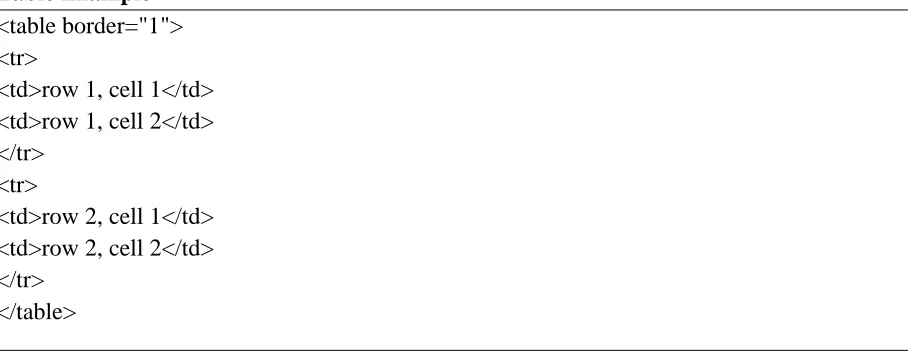
Tables are defined with the <table> tag.
[image:8.612.74.528.182.358.2]A table is divided into rows (with the <tr> tag), and each row is divided into data cells (with the <td> tag). td stands for "table data," and holds the content of a data cell. A <td> tag can contain text, links, images, lists, forms, other tables, etc.
Table Example
<table border="1"> <tr>
<td>row 1, cell 1</td> <td>row 1, cell 2</td> </tr>
<tr>
<td>row 2, cell 1</td> <td>row 2, cell 2</td> </tr>
</table>
How the HTML code above looks in a browser:
row 1, cell 1 row 1, cell 2
row 2, cell 1 row 2, cell 2
HTML Tables and the Border Attribute
If you do not specify a border attribute, the table will be displayed without borders. Sometimes this can be useful, but most of the time, we want the borders to show.
To display a table with borders, specify the border attribute:
<table border="1"> <tr>
<td>Row 1, cell 1</td> <td>Row 1, cell 2</td> </tr>
HTML Table Headers
Header information in a table are defined with the <th> tag.
The text in a th element will be bold and centered.
<table border="1"> <tr>
<th>Header 1</th> <th>Header 2</th> </tr>
<tr>
<td>row 1, cell 1</td> <td>row 1, cell 2</td> </tr>
<tr>
<td>row 2, cell 1</td> <td>row 2, cell 2</td> </tr>
</table>
How the HTML code above looks in a browser:
Header 1 Header 2
row 1, cell 1 row 1, cell 2
row 2, cell 1 row 2, cell 2
HTML Table Tags
Tag Description
<table> Defines a table
<th> Defines a table header
<tr> Defines a table row
<caption> Defines a table caption
<colgroup> Defines a group of columns in a table, for formatting
<col /> Defines attribute values for one or more columns in a table
<thead> Groups the header content in a table
<tbody> Groups the body content in a table
<tfoot> Groups the footer content in a table
HTML Lists
The most common HTML lists are ordered and unordered lists:
An ordered list:
1. The first list item
2. The second list item
3. The third list item
An unordered list:
List item
List item
List item
HTML Unordered Lists
An unordered list starts with the <ul> tag. Each list item starts with the <li> tag. The list items are marked with bullets (typically small black circles).
<ul>
<li>Coffee</li> <li>Milk</li> </ul>
How the HTML code above looks in a browser:
Coffee
Milk
HTML Ordered Lists
An ordered list starts with the <ol> tag. Each list item starts with the <li> tag. The list items are marked with numbers.
<ol>
How the HTML code above looks in a browser:
1. Coffee
2. Milk
HTML Definition Lists
A definition list is a list of items, with a description of each item. The <dl> tag defines a definition list.
The <dl> tag is used in conjunction with <dt> (defines the item in the list) and <dd> (describes the item in the list):
<dl>
<dt>Coffee</dt>
<dd>- black hot drink</dd> <dt>Milk</dt>
<dd>- white cold drink</dd> </dl>
How the HTML code above looks in a browser:
Coffee
- black hot drink
Milk
- white cold drink
HTML List Tags
Tag Description
<ol> Defines an ordered list
<ul> Defines an unordered list
<li> Defines a list item
<dl> Defines a definition list
<dt> Defines an item in a definition list
HTML Forms
HTML forms are used to pass data to a server.
A form can contain input elements like text fields, checkboxes, radio-buttons, submit buttons and more. A form can also contain select lists, textarea, fieldset, legend, and label elements.
The <form> tag is used to create an HTML form:
<form> .
input elements
.
</form>
HTML Forms - The Input Element
The most important form element is the input element. The input element is used to select user information.
An input element can vary in many ways, depending on the type attribute. An input element can be of type text field, checkbox, password, radio button, submit button, and more.
The most used input types are described below.
Text Fields
<input type="text" /> defines a one-line input field that a user can enter text into:
<form>
First name: <input type="text" name="firstname" /><br /> Last name: <input type="text" name="lastname" />
</form>
How the HTML code above looks in a browser:
First name: Last name:
Note: The form itself is not visible. Also note that the default width of a text field is 20
characters.
Password Field
<input type="password" /> defines a password field:
Password: <input type="password" name="pwd" /> </form>
How the HTML code above looks in a browser:
Password:
Note: The characters in a password field are masked (shown as asterisks or circles).
Radio Buttons
<input type="radio" /> defines a radio button. Radio buttons let a user select ONLY ONE one of a limited number of choices:
<form>
<input type="radio" name="sex" value="male" /> Male<br /> <input type="radio" name="sex" value="female" /> Female </form>
How the HTML code above looks in a browser:
Male Female
Checkboxes
<input type="checkbox" /> defines a checkbox. Checkboxes let a user select ONE or MORE options of a limited number of choices.
<form>
<input type="checkbox" name="vehicle" value="Bike" /> I have a bike<br /> <input type="checkbox" name="vehicle" value="Car" /> I have a car
</form>
How the HTML code above looks in a browser:
Submit Button
<input type="submit" /> defines a submit button.
A submit button is used to send form data to a server. The data is sent to the page specified in the form's action attribute. The file defined in the action attribute usually does something with the received input:
<form name="input" action="html_form_action.asp" method="get"> Username: <input type="text" name="user" />
<input type="submit" value="Submit" /> </form>
How the HTML code above looks in a browser:
Username: Submit
If you type some characters in the text field above, and click the "Submit" button, the browser will send your input to a page called "html_form_action.asp". The page will show you the received input.
HTML Form Tags
Tag Description
<form> Defines an HTML form for user input
<input /> Defines an input control
<textarea> Defines a multi-line text input control
<label> Defines a label for an input element
<fieldset> Defines a border around elements in a form
<legend> Defines a caption for a fieldset element
<select> Defines a select list (drop-down list)
<optgroup> Defines a group of related options in a select list
<button> Defines a push button
HTML Frames
With frames, you can display more than one HTML document in the same browser window. Each HTML document is called a frame, and each frame is independent of the others.
The disadvantages of using frames are:
The web developer must keep track of more HTML documents
It is difficult to print the entire page
The HTML frameset Element
The frameset element holds two or more frame elements. Each frame element holds a separate document.
The frameset element states only HOW MANY columns or rows there will be in the frameset.
The HTML frame Element
The <frame> tag defines one particular window (frame) within a frameset. In the example below we have a frameset with two columns.
The first column is set to 25% of the width of the browser window. The second column is set to 75% of the width of the browser window. The document "frame_a.htm" is put into the first column, and the document "frame_b.htm" is put into the second column:
<frameset cols="25%,75%"> <frame src="frame_a.htm" /> <frame src="frame_b.htm" /> </frameset>
Note: The frameset column size can also be set in pixels (cols="200,500"), and one of the
columns can be set to use the remaining space, with an asterisk (cols="25%,*").
HTML Frame Tags
Tag Description
<frameset> Defines a set of frames
<frame /> Defines a sub window (a frame)
<noframes> Defines a noframe section for browsers that do not handle frames
HTML Styles How to Use Styles
When a browser reads a style sheet, it will format the document according to it. There are three ways of inserting a style sheet:
External style sheet
Internal style sheet
Inline styles
External Style Sheet
An external style sheet is ideal when the style is applied to many pages. With an external style sheet, you can change the look of an entire Web site by changing one file. Each page must link to the style sheet using the <link> tag. The <link> tag goes inside the <head> section:
<head>
<link rel="stylesheet" type="text/css" href="mystyle.css" /> </head>
Internal Style Sheet
An internal style sheet can be used if one single document has a unique style. Internal styles are defined in the <head> section of an HTML page, by using the <style> tag, like this:
<head>
<style type="text/css">
body {background-color:yellow} p {color:blue}
</style> </head>
Inline Styles
An inline style can be used if a unique style is to be applied to one single occurrence of an element.
To use inline styles, use the style attribute in the relevant tag. The style attribute can contain any CSS property. The example below shows how to change the text color and the left margin of a paragraph:
<p style="color:blue;margin-left:20px">This is a paragraph.</p>
HTML Style Tags
Tag Description
<style> Defines style information for a document
The HTML head Element
The head element is a container for all the head elements. Elements inside <head> can include scripts, instruct the browser where to find style sheets, provide meta information, and more. The following tags can be added to the head section: <title>, <base>, <link>, <meta>, <script>, and <style>.
The HTML title Element
The <title> tag defines the title of the document.
The title element is required in all HTML/XHTML documents. The title element:
defines a title in the browser toolbar
provides a title for the page when it is added to favorites displays a title for the page in search-engine results
A simple HTML document, with the minimum of required tags:
<html> <head>
<title>Title of the document</title> </head>
<body>
The content of the document... </body>
</html>
The HTML base Element
The <base> tag specifies a default address or a default target for all links on a page: <head>
<base href="http://www.w3schools.com/images/" /> <base target="_blank" />
</head>
The HTML link Element
The <link> tag defines the relationship between a document and an external resource. The <link> tag is most used to link to style sheets:
<head>
The HTML style Element
The <style> tag is used to define style information for an HTML document.
Inside the style element you specify how HTML elements should render in a browser:
<head>
<style type="text/css">
body {background-color:yellow} p {color:blue}
</style> </head>
HTML head Elements
Tag Description
<head> Defines information about the document
<title> Defines the title of a document
<base /> Defines a default address or a default target for all links on a page
<link /> Defines the relationship between a document and an external resource
<meta /> Defines metadata about an HTML document
<script> Defines a client-side script
<style> Defines style information for a document
EXERCISES:
1. Write an HTML code using paragraph and headings.
2. Write an HTML code using radio buttons and check boxes.
3. Write an HTML code using lists and hyperlinks.
4. Write an HTML code to create following table.
5. Write an HTML code to build a timetable.
6. Write an HTML code to design a web page within use of frame tag.
PRACTICAL-3 : INTRODUCTION TO JAVASCRIPT
What is JavaScript?
JavaScript was designed to add interactivity to HTML pages
JavaScript is a scripting language
A scripting language is a lightweight programming language
JavaScript is usually embedded directly into HTML pages
JavaScript is an interpreted language (means that scripts execute without preliminary
compilation)
Everyone can use JavaScript without purchasing a license
Are Java and JavaScript the Same?
NO!
Java and JavaScript are two completely different languages in both concept and design! Java (developed by Sun Microsystems) is a powerful and much more complex programming language - in the same category as C and C++.
What can a JavaScript Do?
JavaScript gives HTML designers a programming tool - HTML authors are normally
not programmers, but JavaScript is a scripting language with a very simple syntax! Almost anyone can put small "snippets" of code into their HTML pages
JavaScript can put dynamic text into an HTML page - A JavaScript statement like
this: document.write("<h1>" + name + "</h1>") can write a variable text into an HTML page
JavaScript can react to events - A JavaScript can be set to execute when something
happens, like when a page has finished loading or when a user clicks on an HTML element
JavaScript can read and write HTML elements - A JavaScript can read and change the
content of an HTML element
JavaScript can be used to validate data - A JavaScript can be used to validate form
data before it is submitted to a server. This saves the server from extra processing
JavaScript can be used to detect the visitor's browser - A JavaScript can be used to
detect the visitor's browser, and - depending on the browser - load another page specifically designed for that browser
JavaScript can be used to create cookies - A JavaScript can be used to store and
TRY…..CATCH STATEMENT
The try...catch statement allows you to test a block of code for errors.
JavaScript - Catching ErrorsWhen browsing Web pages on the internet, we all have seen a
JavaScript alert box telling us there is a runtime error and asking "Do you wish to debug?".
Error message like this may be useful for developers but not for users. When users see errors, they often leave the Web page.
This chapter will teach you how to trap and handle JavaScript error messages, so you don't lose your audience.
There are two ways of catching errors in a Web page:
By using the try...catch statement (available in IE5+, Mozilla 1.0, and Netscape 6)
By using the onerror event. This is the old standard solution to catch errors (available since Netscape 3)
Try...Catch Statement
The try...catch statement allows you to test a block of code for errors. The try block
contains the code to be run, and the catch block contains the code to be executed if an error occurs.
Syntax
try {
//Run some code here }
catch(err) {
//Handle errors here }
Note that try...catch is written in lowercase letters. Using uppercase letters will generate a JavaScript error!
The Throw Statement
The throw statement allows you to create an exception. If you use this statement together
with the try...catch statement, you can control program flow and generate accurate error messages.
throw(exception)
The exception can be a string, integer, Boolean or an object.
Note that throw is written in lowercase letters. Using uppercase letters will generate a JavaScript error!
The onerror Event
We have just explained how to use the try...catch statement to catch errors in a web page.
Now we are going to explain how to use the onerror event for the same purpose. The onerror event is fired whenever there is a script error in the page.
To use the onerror event, you must create a function to handle the errors. Then you call
the function with the onerror event handler. The event handler is called with three arguments: msg (error message), url (the url of the page that caused the error) and line (the line where the error occurred).
Syntax
onerror=handleErr
function handleErr(msg,url,l) {
//Handle the error here return true or false }
The value returned by onerror determines whether the browser displays a standard error
message. If you return false, the browser displays the standard error message in the JavaScript console. If you return true, the browser does not display the standard error message.
In JavaScript you can add special characters to a text string by using the backslash sign.
Insert Special Characters
The backslash (\) is used to insert apostrophes, new lines, quotes, and other special characters into a text string.
Look at the following JavaScript code:
var txt="We are the so-called "Vikings" from the north."; document.write(txt);
To solve this problem, you must place a backslash (\) before each double quote in "Viking". This turns each double quote into a string literal:
var txt="We are the so-called \"Vikings\" from the north."; document.write(txt);
JavaScript will now output the proper text string: We are the so-called "Vikings" from the north.
Here is another example:
document.write ("You \& I are singing!");
The example above will produce the following output:
You & I are singing!
The table below lists other special characters that can be added to a text string with the backslash sign:
Code Outputs
\' single quote
\" double quote
\& ampersand
\\ backslash
\n new line
\r carriage return
\t tab
\b backspace
\f form feed
Javascript popup boxes:
Alert Box
An alert box is often used if you want to make sure information comes through to the user.
When an alert box pops up, the user will have to click "OK" to proceed.
Syntax:
Confirm Box
A confirm box is often used if you want the user to verify or accept something.
When a confirm box pops up, the user will have to click either "OK" or "Cancel" to proceed.
If the user clicks "OK", the box returns true. If the user clicks "Cancel", the box returns false.
Syntax:
confirm("sometext");
Prompt Box
A prompt box is often used if you want the user to input a value before entering a page.
When a prompt box pops up, the user will have to click either "OK" or "Cancel" to proceed after entering an input value.
If the user clicks "OK" the box returns the input value. If the user clicks "Cancel" the box returns null.
Syntax:
prompt("sometext","defaultvalue");
JavaScript Functions
To keep the browser from executing a script when the page loads, you can put your script into a function.
A function contains code that will be executed by an event or by a call to that function.
You may call a function from anywhere within the page (or even from other pages if the function is embedded in an external .js file).
Functions can be defined both in the <head> and in the <body> section of a document. However, to assure that the function is read/loaded by the browser before it is called, it could be wise to put it in the <head> section.
Example
<html> <head>
{
alert("Hello World!"); }
</script> </head> <body> <form>
<input type="button" value="Click me!" onclick="displaymessage()" >
</form> </body> </html>
If the line: alert("Hello world!!") in the example above had not been put within a function, it would have been executed as soon as the line was loaded. Now, the script is not executed before the user hits the button. We have added an onClick event to the button that will execute the function displaymessage() when the button is clicked.
You will learn more about JavaScript events in the JS Events chapter.
How to Define a Function
The syntax for creating a function is:
function functionname(var1,var2,...,varX) {
some code
}
var1, var2, etc are variables or values passed into the function. The { and the } defines the start and end of the function.
Note: A function with no parameters must include the parentheses () after the function name:
function functionname() {
some code
}
Note: Do not forget about the importance of capitals in JavaScript! The word function must be
written in lowercase letters, otherwise a JavaScript error occurs! Also note that you must call a function with the exact same capitals as in the function name.
The return statement is used to specify the value that is returned from the function.
So, functions that are going to return a value must use the return statement.
Example
The function below should return the product of two numbers (a and b):
function prod(a,b) {
x=a*b; return x; }
When you call the function above, you must pass along two parameters:
product=prod(2,3);
The returned value from the prod() function is 6, and it will be stored in the variable called product.
The Lifetime of JavaScript Variables
When you declare a variable within a function, the variable can only be accessed within that function. When you exit the function, the variable is destroyed. These variables are called local variables. You can have local variables with the same name in different functions, because each is recognized only by the function in which it is declared.
If you declare a variable outside a function, all the functions on your page can access it. The lifetime of these variables starts when they are declared, and ends when the page is closed.
JavaScript Loops
Very often when you write code, you want the same block of code to run over and over again in a row. Instead of adding several almost equal lines in a script we can use loops to perform a task like this.
In JavaScript there are two different kind of loops:
for - loops through a block of code a specified number of times
while - loops through a block of code while a specified condition is true
The for Loop
The for loop is used when you know in advance how many times the script should run.
for (var=startvalue;var<=endvalue;var=var+increment) {
code to be executed
}
Example
Explanation: The example below defines a loop that starts with i=0. The loop will continue to run as long as i is less than, or equal to 10. i will increase by 1 each time the loop runs.
Note: The increment parameter could also be negative, and the <= could be any comparing
statement.
<html> <body>
<script type="text/javascript"> var i=0;
for (i=0;i<=10;i++) {
document.write("The number is " + i); document.write("<br />");
}
</script> </body> </html>
Result
The number is 0 The number is 1 The number is 2 The number is 3 The number is 4 The number is 5 The number is 6 The number is 7 The number is 8 The number is 9 The number is 10
The while loop
The while loop will be explained in the next chapter.
The while loop is used when you want the loop to execute and continue executing while the specified condition is true.
while (var<=endvalue) {
code to be executed
}
Note: The <= could be any comparing statement.
Example
Explanation: The example below defines a loop that starts with i=0. The loop will continue to run as long as i is less than, or equal to 10. i will increase by 1 each time the loop runs.
<html> <body>
<script type="text/javascript"> var i=0;
while (i<=10) {
document.write("The number is " + i); document.write("<br />");
i=i+1; }
</script> </body> </html>
Result
The number is 0 The number is 1 The number is 2 The number is 3 The number is 4 The number is 5 The number is 6 The number is 7 The number is 8 The number is 9 The number is 10
The do...while loop is a variant of the while loop. This loop will always execute a block of code ONCE, and then it will repeat the loop as long as the specified condition is true. This loop will always be executed at least once, even if the condition is false, because the code is executed before the condition is tested.
do {
code to be executed
}
while (var<=endvalue);
Example
<html> <body>
<script type="text/javascript"> var i=0;
do {
document.write("The number is " + i); document.write("<br />");
i=i+1; }
while (i<0); </script> </body> </html>
Result
The number is 0
Events are actions that can be detected by JavaScript.
EVENTS
By using JavaScript, we have the ability to create dynamic web pages. Events are actions that can be detected by JavaScript.
Every element on a web page has certain events which can trigger JavaScript functions. For example, we can use the onClick event of a button element to indicate that a function will run when a user clicks on the button. We define the events in the HTML tags.
A mouse click
A web page or an image loading
Mousing over a hot spot on the web page
Selecting an input box in an HTML form
Submitting an HTML form
A keystroke
Note: Events are normally used in combination with functions, and the function will not be
executed before the event occurs!
onload and onUnload
The onload and onUnload events are triggered when the user enters or leaves the page.
The onload event is often used to check the visitor's browser type and browser version, and load the proper version of the web page based on the information.
Both the onload and onUnload events are also often used to deal with cookies that should be set when a user enters or leaves a page. For example, you could have a popup asking for the user's name upon his first arrival to your page. The name is then stored in a cookie. Next time the visitor arrives at your page, you could have another popup saying something like: "Welcome John Doe!".
onFocus, onBlur and onChange
The onFocus, onBlur and onChange events are often used in combination with validation of form fields.
Below is an example of how to use the onChange event. The checkEmail() function will be called whenever the user changes the content of the field:
<input type="text" size="30"
id="email" onchange="checkEmail()">
onSubmit
The onSubmit event is used to validate ALL form fields before submitting it.
Below is an example of how to use the onSubmit event. The checkForm() function will be called when the user clicks the submit button in the form. If the field values are not accepted, the submit should be cancelled. The function checkForm() returns either true or false. If it returns true the form will be submitted, otherwise the submit will be cancelled:
onMouseOver and onMouseOut
onMouseOver and onMouseOut are often used to create "animated" buttons.
Below is an example of an onMouseOver event. An alert box appears when an onMouseOver event is detected:
<a href="http://www.w3schools.com"
onmouseover="alert('An onMouseOver event');return false"> <img src="w3schools.gif" width="100" height="30">
</a>
Javascript Objects Overview
JavaScript is an Object Oriented Programming (OOP) language. A programming language can be called object-oriented if it provides four basic capabilities to developers:
Encapsulation . the capability to store related information, whether data or methods,
together in an object
Aggregation . the capability to store one object inside of another object
Inheritance . the capability of a class to rely upon another class (or number of classes)
for some of its properties and methods
Polymorphism . the capability to write one function or method that works in a variety of
different ways
Objects are composed of attributes. If an attribute contains a function, it is considered to be a method of the object otherwise, the attribute is considered a property.
Object Properties:
Object properties can be any of the three primitive data types, or any of the abstract data types, such as another object. Object properties are usually variables that are used internally in the object's methods, but can also be globally visible variables that are used throughout the page.
The syntax for adding a property to an object is:
objectName.objectProperty = propertyValue;
Example:
var str = document.title;
Object Methods:
The methods are functions that let the object do something or let something be done to it. There is little difference between a function and a method, except that a function is a standalone unit of statements and a method is attached to an object and can be referenced by the this keyword.
Methods are useful for everything from displaying the contents of the object to the screen to performing complex mathematical operations on a group of local properties and parameters.
Example:
Following is a simple example to show how to use write() method of document object to write
any content on the document:
document.write("This is test");
User-Defined Objects:
All user-defined objects and built-in objects are descendants of an object called Object.
The new Operator:
The new operator is used to create an instance of an object. To create an object, the new operator is followed by the constructor method.
In the following example, the constructor methods are Object(), Array(), and Date(). These constructors are built-in JavaScript functions.
var employee = new Object();
var books = new Array("C++", "Perl", "Java"); var day = new Date("August 15, 1947");
The Object() Constructor:
A constructor is a function that creates and initializes an object. JavaScript provides a special constructor function called Object() to build the object. The return value of the Object() constructor is assigned to a variable.
Example 1:
This example demonstrates how to create an object:
<html> <head>
<title>User-defined objects</title> <script type="text/javascript">
var book = new Object(); // Create the object
book.subject = "Perl"; // Assign properties to the object book.author = "Mohtashim";
</script> </head> <body>
<script type="text/javascript">
document.write("Book name is : " + book.subject + "<br>"); document.write("Book author is : " + book.author + "<br>"); </script>
</body> </html>
To understand it in better way you can Try it yourself.
Example 2:
This example demonstrates how to create an object with a User-Defined Function. Here this
keyword is used to refer to the object that has been passed to a function:
<html> <head>
<title>User-defined objects</title> <script type="text/javascript"> function book(title, author){ this.title = title;
this.author = author; }
</script> </head> <body>
<script type="text/javascript">
var myBook = new book("Perl", "Mohtashim");
</body> </html>
To understand it in better way you can Try it yourself.
Defining Methods for an Object:
The previous examples demonstrate how the constructor creates the object and assigns properties. But we need to complete the definition of an object by assigning methods to it.
Example:
Here is a simple example to show how to add a function along with an object:
<html> <head>
<title>User-defined objects</title> <script type="text/javascript">
// Define a function which will work as a method function addPrice(amount){
this.price = amount; }
function book(title, author){ this.title = title;
this.author = author;
this.addPrice = addPrice; // Assign that method as property. }
</script> </head> <body>
<script type="text/javascript">
var myBook = new book("Perl", "Mohtashim"); myBook.addPrice(100);
document.write("Book title is : " + myBook.title + "<br>"); document.write("Book author is : " + myBook.author + "<br>"); document.write("Book price is : " + myBook.price + "<br>"); </script>
</body> </html>
The with Keyword:
The with keyword is used as a kind of shorthand for referencing an object's properties or methods.
The object specified as an argument to with becomes the default object for the duration of the block that follows. The properties and methods for the object can be used without naming the object.
Syntax:
with (object){
properties used without the object name and dot }
Example:
<html> <head>
<title>User-defined objects</title> <script type="text/javascript">
// Define a function which will work as a method function addPrice(amount){
with(this){
price = amount; }
}
function book(title, author){ this.title = title;
this.author = author; this.price = 0;
this.addPrice = addPrice; // Assign that method as property. }
</script> </head> <body>
<script type="text/javascript">
var myBook = new book("Perl", "Mohtashim"); myBook.addPrice(100);
document.write("Book title is : " + myBook.title + "<br>"); document.write("Book author is : " + myBook.author + "<br>"); document.write("Book price is : " + myBook.price + "<br>"); </script>
To understand it in better way you can Try it yourself.
JavaScript Native Objects:
JavaScript has several built-in or native objects. These objects are accessible anywhere in your program and will work the same way in any browser running in any operating system.
Here is the list of all important JavaScript Native Objects:
JavaScript Number Object
JavaScript Boolean Object
JavaScript String Object
JavaScript Array Object
JavaScript Date Object
JavaScript Math Object
JavaScript RegExp Object
Javascript - The Number Object
The Number object represents numerical date, either integers or floating-point numbers. In
general, you do not need to worry about Number objects because the browser automatically
converts number literals to instances of the number class.
Syntax:
Creating a number object:
var val = new Number(number);
If the argument cannot be converted into a number, it returns NaN (Not-a-Number).
Number Properties:
Here is a list of each property and its description.
Property Description
MAX_VALUE The largest possible value a number in JavaScript can have
1.7976931348623157E+308
MIN_VALUE The smallest possible value a number in JavaScript can have 5E-324
NaN Equal to a value that is not a number.
POSITIVE_INFINITY A value that is greater than MAX_VALUE
prototype
A static property of the Number object. Use the prototype property to assign new properties and methods to the Number object in the current document
Number Methods
The Number object contains only the default methods that are part of every object's definition.
Method Description
constructor() Returns the function that created this object's instance. By default this is the
Number object.
toExponential() Forces a number to display in exponential notation, even if the number is in
the range in which JavaScript normally uses standard notation.
toFixed() Formats a number with a specific number of digits to the right of the
decimal.
toLocaleString() Returns a string value version of the current number in a format that may
vary according to a browser's locale settings.
toPrecision() Defines how many total digits (including digits to the left and right of the
decimal) to display of a number.
toString() Returns the string representation of the number's value.
valueOf() Returns the number's value.
EXERCISES:
1. Write an application using JavaScript to display 3 types of dialogue box. 2. Write a JavaScript program which will validate E-mail address.
PRACTICAL-4: INTRODUCTION TO XML
What is XML?
XML is a markup language for documents containing structured information.
Structured information contains both content (words, pictures, etc.) and some indication of what role that content plays (for example, content in a section heading has a different meaning from content in a footnote, which means something different than content in a figure caption or content in a database table, etc.). Almost all documents have some structure.A markup language is a mechanism to identify structures in a document. The XML specification defines a standard way to add markup to documents.
So XML is Just like HTML?
No. In HTML, both the tag semantics and the tag set are fixed. An <h1> is always a first level heading and the tag <ati.product.code> is meaningless. The W3C, in conjunction with browser vendors and the WWW community, is constantly working to extend the definition of HTML to allow new tags to keep pace with changing technology and to bring variations in presentation (stylesheets) to the Web. However, these changes are always rigidly confined by what the browser vendors have implemented and by the fact that backward compatibility is paramount. And for people who want to disseminate information widely, features supported by only the latest releases of Netscape and Internet Explorer are not useful.
XML specifies neither semantics nor a tag set. In fact XML is really a meta-language for describing markup languages. In other words, XML provides a facility to define tags and the structural relationships between them. Since there's no predefined tag set, there can't be any preconceived semantics. All of the semantics of an XML document will either be defined by the applications that process them or by stylesheets.
Why XML?
In order to appreciate XML, it is important to understand why it was created. XML was created so that richly structured documents could be used over the web. The only viable alternatives, HTML and SGML, are not practical for this purpose.
HTML, as we've already discussed, comes bound with a set of semantics and does not provide arbitrary structure.
SGML provides arbitrary structure, but is too difficult to implement just for a web browser. Full SGML systems solve large, complex problems that justify their expense. Viewing structured documents sent over the web rarely carries such justification.
This is not to say that XML can be expected to completely replace SGML. While XML is being designed to deliver structured content over the web, some of the very features it lacks to make this practical, make SGML a more satisfactory solution for the creation and long-time storage of complex documents. In many organizations, filtering SGML to XML will be the standard procedure for web delivery.
XML is Used to Create New Internet Languages
A lot of new Internet languages are created with XML. XHTML
WSDL for describing available web services
WAP and WML as markup languages for handheld devices
RSS languages for news feeds
RDF and OWL for describing resources and ontology
SMIL for describing multimedia for the web
An Example XML Document
XML documents use a self-describing and simple syntax:
<?xml version="1.0" encoding="ISO-8859-1"?> <note>
<to>Tove</to> <from>Jani</from>
<heading>Reminder</heading>
<body>Don't forget me this weekend!</body> </note>
The first line is the XML declaration. It defines the XML version (1.0) and the encoding
used (ISO-8859-1 = Latin-1/West European character set).
The next line describes the root element of the document (like saying: "this document is a note"):
<note>
The next 4 lines describe 4 child elements of the root (to, from, heading, and body):
And finally the last line de
<to>Tove</to> <from>Jani</from>
<heading>Reminder</heading>
<body>Don't forget me this weekend!</body>
fines the end of the root element:
</note>
Exercises:
1. Create one document on XMl.