Hello World!
Computer Programming for Kids
and Other Beginners
WARREN SANDE
CARTER SANDE
M A N N I N G
www.manning.com. The publisher offers discounts on this book when ordered in quantity. For more information, please contact:
Special Sales Department Manning Publications Co.
Sound View Court 3B fax: (609) 877-8256
Greenwich, CT 06830 email: [email protected]
©2009 by Manning Publications Co. All rights reserved.
No part of this publication may be reproduced, stored in a retrieval system, or transmitted, in any form or by means electronic, mechanical, photocopying, or otherwise, without prior written permission of the publisher.
Many of the designations used by manufacturers and sellers to distinguish their products are claimed as trademarks. Where those designations appear in the book, and Manning
Publications was aware of a trademark claim, the designations have been printed in initial caps or all caps.
Recognizing the importance of preserving what has been written, it is Manning’s policy to have the books we publish printed on acid-free paper, and we exert our best efforts to that end. Recognizing also our responsibility to conserve the resources of our planet, Manning books are printed on paper that is at least 15% recycled and processed without elemental chlorine.
Manning Publications Co. Development editor: Cynthia Kane
Sound View Court 3B Copyeditors: Andy Carroll, Anna Welles Greenwich, CT 06830 Technical proofreader: Ignacio Beltran-Torres
Typesetter: Marija Tudor Illustrator: Martin Murtonen Cover designer: Leslie Haimes
Fourth, corrected printing August 2009 ISBN 978-1-933988-49-8
Printed in the United States of America
vii
Contents
Preface
xiii
Acknowledgments
xix
About this book
xxi
1
Getting Started
1
Installing Python
1
■Starting Python with IDLE
2
■Instructions,
please
3
■Interacting with Python
5
■Time to program
7
Running your first program
8
■If something goes wrong
9
Your second program
11
2
Remember This—Memory and Variables
14
Input, processing, output
14
■Names
16
■What’s in a name?
20
Numbers and strings
21
■How “variable” are they?
22
■The new
me
23
3
Basic Math
26
The four basic operations
27
■Operators
28
■Order of
operations
29
■Two more operators
30
■Really big and really
4
Types of Data
38
Changing types
38
■Getting more information:
type()41
Type-conversion errors
42
■Using type conversions
42
5
Input
44
raw_input()
45
■The
printcommand and the comma
45
Inputting numbers
47
■Input from the Web
49
6
GUIs—Graphical User Interfaces
52
What’s a GUI?
52
■Our first GUI
53
■GUI input
54
Pick your flavor
55
■The number-guessing game . . . again
59
Other GUI pieces
60
7
Decisions, Decisions
62
Testing, testing
62
■Indenting
65
■Am I seeing double?
65
Other kinds of tests
66
■What happens if the test is false?
67
Testing for more than one condition
69
■Using “and”
69
Using “or”
70
■Using “not”
70
8
Loop the Loop
74
Counting loops
75
■Using a counting loop
77
■A shortcut—
range()78
■A matter of style—loop variable names
80
Counting by steps
82
■Counting without numbers
84
While we’re on the subject . . .
84
■Bailing out of a loop—
breakand
continue
85
9
Just for You—Comments
89
Adding comments
89
■Single-line comments
90
■End-of-line
comments
90
■Multiline comments
90
■Commenting style
91
Commenting out
92
10
Game Time
94
Skier
94
11
Nested and Variable Loops
99
Nested loops
99
■Variable loops
101
■Variable nested loops
102
12
Collecting Things Together—Lists
112
What’s a list?
112
■Creating a list
113
■Adding things to a
list
113
■What’s the dot?
114
■Lists can hold anything
114
Getting items from a list
115
■“Slicing” a list
116
■Modifying
items
118
■Other ways of adding to a list
118
■Deleting from a
list
120
■Searching a list
121
■Looping through a list
122
Sorting lists
123
■Mutable and immutable
126
■Lists of lists: tables
of data
126
13
Functions
131
Functions—the building blocks
131
■Calling a function
133
Passing arguments to a function
134
■Functions with more than
one argument
137
■Functions that return a value
139
■Variable
scope 140
■Forcing a global
143
■A bit of advice on naming
variables 144
14
Objects
146
Objects in the real world
147
■Objects in Python
147
Object = attributes + methods
148
■What’s the dot?
149
Creating objects
149
■An example class—HotDog
154
Hiding the data
159
■Polymorphism and inheritance
159
Thinking ahead
162
15
Modules
164
What’s a module?
164
■Why use modules?
164
■Buckets of
blocks
165
■How do we create modules?
165
■How do we use
modules? 166
■Namespaces
167
■Standard modules
170
16
Graphics
174
Getting some help—Pygame
174
■A Pygame window
175
Drawing in the window
178
■Individual pixels
186
Images
190
■Let’s get moving!
192
■Animation
193
Smoother animation
194
■Bouncing the ball
196
Wrapping the ball
198
17
Sprites and Collision Detection
202
Sprites
202
■Bump! Collision detection
208
18
A New Kind of Input—Events
217
Events
217
■Keyboard events
219
■Mouse events
223
Timer events
225
■Time for another game—PyPong
227
19
Sound
239
More help from Pygame—
mixer239
■Making sounds versus playing
sounds
240
■Playing sounds
240
■Controlling volume
243
Repeating music
245
■Adding sounds to PyPong
245
■More wacky
sounds
246
■Adding music to PyPong
250
20
More GUIs
254
Working with PythonCard
254
■Components
255
■Making our GUI
do something
258
■The return of event handlers
259
■Moving the
button
260
■More useful GUIs
260
■TempGUI
261
■What’s on the
menu?
266
21
Print Formatting and Strings
273
New lines
274
■Horizontal spacing—tabs
275
■Inserting variables in
strings
277
■Number formatting
278
■Strings ’n’ things
282
22
File Input and Output
290
What’s a file?
291
■Filenames
291
■File locations
292
Opening a file
296
■Reading a file
297
■Text files and binary
files
299
■Writing to a file
300
■Saving your stuff in files:
pickle
303
■Game time again—Hangman
305
23
Take a Chance—Randomness
313
What’s randomness?
313
■Rolling the dice
314
■Creating a deck of
cards
319
■Crazy Eights
323
24
Computer Simulations
336
Modeling the real world
336
■Lunar Lander
337
■Keeping
time
342
■Time objects
343
■Saving time to a file
347
25
What’s Next?
358
General programming
358
■Python 359
■Game programming
and Pygame
359
■Other Python stuff
360
■Look around
362
Appendix A Variable Naming Rules
363
Answers to Self-Test Questions
365
Chapter 1: Getting Started
365
■Chapter 2: Remember This—
Memory and Variables
366
■Chapter 3: Basic Math
367
Chapter 4: Types of Data
368
■Chapter 5: Input
369
Chapter 6: GUIs—Graphical User Interfaces
371
■Chapter 7:
Decisions, Decisions
372
■Chapter 8: Loop the Loop
374
Chapter 9: Just for You—Comments
375
■Chapter 10: Game
Time
376
■Chapter 11: Nested and Variable Loops
376
Chapter 12: Collecting Things Together—Lists
377
■Chapter 13:
Functions
379
■Chapter 14: Objects
380
■Chapter 15:
Modules
382
■Chapter 16: Graphics
383
■Chapter 17: Sprites
and Collision Detection
385
■Chapter 18: A New Kind of Input—
Events
385
■Chapter 19: Sound
386
■Chapter 20: More
GUIs
386
■Chapter 21: Print Formatting and Strings
387
Chapter 22: File Input and Output
388
■Chapter 23: Take a
Chance—Randomness
390
■Chapter 24: Computer Simulations
391
xiii
Preface
The preface is that part at the beginning of a book that you skip over to get to the good stuff, right? Sure, you can skip over it if you want (hey, you’re the one turning the pages), but who knows what you might miss. . . . It’s not very long, so maybe you should give it a look, just in case.
What is programming?
Very simply, programming means telling a computer to do something. Computers are dumb machines. They don’t know how to do anything. You have to tell them everything, and you have to get all the details right.
But if you give them the right instructions, they can do many wonderful and amazing things.
A computer program is made up of a number of instructions. Computers do all the great things they do today because a lot of smart programmers wrote programs or software to tell them how. Software just means a program or collection of programs that run on your com-puter, or sometimes on another computer yours is connected to, like a web server.
Python—a language for us and the computer
All computers use binary inside. But most people don’t speak binary very well. We need an easier way to tell the computer what we want it to do. So people invented programming languages. A computer programming language lets us write things in a way we can under-stand, and then translates that into binary for the computer to use.
An instruction is a basic command you give to a computer, usually to do a single, very specific thing.
Computers “think” using lots and lots and LOTS of electrical circuits. At the most basic level, these circuits are switches that are either ON or OFF.
Engineers and computer scientists use 1 and 0 to stand for ON and OFF. All these 1s and 0s are a kind of code called binary. Binary really just means “two states.” The two states are ON and OFF, or 1 and 0.
There are many different programming languages. This book will teach you how to use one of those languages—one called Python—to tell the computer what to do.
Why learn programming?
Even if you don’t become a professional programmer (most people don’t), there are lots of reasons to learn programming:
■ The most important is because you want to! Programming can be very interesting and rewarding, as a hobby or a profession.
■ If you’re interested in computers and want to know more about how they work and how you can make them do what you want, that’s a good reason to learn about programming.
■ Maybe you want to make your own games, or maybe you can’t find a program that does exactly what you want or need it to do, so you want to write your own.
No, no, no!
I only speak
human-ese!
1110001101
0001110011
0100101000
>>> print “Hello” Ah! Now I get it! Hello!
Hello
AboutThe fun stuff
There’s just one other thing I need to mention now. . . .
xix
Acknowledgments
This book would never have been started, much less finished, without the inspiration, initia-tive, and support of my wonderful wife, Patricia. When we couldn’t find a suitable book to feed Carter’s keen interest in learning about programming, she said, “You should write one. It would be a great project for you two to work on together.” As is often the case, she was right. Patricia has a way of bringing out the best in people. So Carter and I started thinking about what would be in such a book, writing chapter outlines and sample programs, and finding ways to make it fun and interesting. Once we got started, Carter and Patricia made sure we finished. Carter would give up bedtime stories to work on the book. And if we didn’t work on it for a while, I would be reminded, “Daddy, we haven’t worked on the book for days!” Carter and Patricia reminded me that, if you put your mind to it, you can do any-thing. And all members of the family, including our daughter Kyra, gave up many hours of family time while the book was in progress. I thank all of them for their patience and loving support, which made this book possible.
This book would not be the same without Martin Murtonen’s lively and fun illustrations. His work speaks for itself about Martin’s creativity and talent. But what doesn’t show is how great he is to work with. It was a pleasure.
One day, I asked my friend and colleague Sean Cavanagh, “How would you do this in Perl?” Sean said, “I wouldn’t. I would use Python.” So I took the plunge to learn a new program-ming language. Sean answered many questions when I was learning Python and reviewed early drafts. He also created and maintains the installer. His help is much appreciated. I would also like to thank the many people who reviewed the book during its development and helped prepare the manuscript: Vibhu Chandreshekar, Pam Colquhoun, Gordon Colquhoun, Dr. Tim Couper, Josh Cronemeyer, Simon Cronemeyer, Kevin Driscoll, Jeffrey Elkner, Ted Felix, David Goodger, Lisa L. Goodyear, Dr. John Grayson, Michelle Hutton, Horst Jens, Andy Judkis, Caiden Kumar, Anthony Linfante, Shannon Madison, Kenneth McDonald, Evan Morris, Prof. Alexander Repenning, André Roberge, Kari J. Stellpflug, Kirby Urner, and Bryan Weingarten
The final result is much better for their efforts.
W
ARRENS
ANDEI would like to thank Martin Murtonen for his exceptional caricature of me, my mom for let-ting me go on the computer when I was two years old and for coming up with the idea of writing a book, and, most importantly, my dad for all of the effort he put into this book with me and showing me how to program.
xxi
About this book
This book teaches the basics of computer programming. It’s meant for kids, but anyone who wants to learn how to program a computer can use it.
You don’t need to know anything about programming to use this book, but you should know the basics of using your computer. Maybe you use it for email, surfing the Web, listen-ing to music, playlisten-ing games, or writlisten-ing reports for school. If you can do the basic thlisten-ings on your computer, like starting a program and opening and saving files, you should have no trouble using this book.
What you need
This book teaches programming using a computer language called Python. Python is free, and you can download it from several places, including this book’s web site. To learn pro-gramming using this book, all you need are
■ this book (of course!).
■ a computer, with Windows, Mac OS X, or Linux on it. The examples in this book are done in Windows. (There is some help for Mac and Linux users on the book’s web site:
www.helloworldbook.com.)
■ basic knowledge of how to use your computer (starting programs, saving files, and so on). If you have trouble with this, maybe you can get someone to help you.
■ permission to install Python on your computer (from your parent, teacher, or whoever is responsible for your computer).
What you don’t need
To learn programming with this book, you don’t need
■ to buy any software. Everything you need is free, and a copy is available on the book’s web site, www.helloworldbook.com.
■ any knowledge of computer programming. This book is for beginners.
Using this book
If you’re going to use this book to help you learn programming, here are a few pointers that will help you get more out of it:
■ follow along with the examples ■ type in the programs
■ do the quiz questions ■ don’t worry, be happy!
Follow along with the examples
When you see examples in the book, they’ll look like this:
Always try to follow along and type the programs in yourself. (I’ll tell you exactly how to do it.) You could just sit in a big, comfy chair and read through this whole book, and you’d probably learn something about programming. But you’ll learn a whole lot more by doing some programming.
Type in the programs
The installer program that goes with this book will copy all the example programs to your hard drive (if you want). The installer is on the book’s web site: www.helloworldbook.com. You can also view and download individual examples from the web site, but I encourage you to type as many of them yourself as possible. Just by typing the programs, you’ll get a “feel” for programming and for Python in particular. (And we can all use more typing practice!)
I’m Carter. I haven't noticed anything unusual... yet!
Just wanted to say hi!
Do the quiz questions
At the end of every chapter, there are some questions to practice what you’ve learned. Do as many as you can. If you’re stuck, try to find someone who knows about programming to help you. Work through them together—you’ll learn a lot by doing that. Don’t peek at the answers until you’re done, unless you’re really, really stuck. (Yes, some of the answers are in the back of the book and on the web site, but like I said, don’t peek.)
Carter says
I wanted to make sure this book was good for kids—fun and easy to understand.
Luckily, I had some help. Carter is a kid who loves computers and wants to learn
more about them. So he helped me to make sure I got this book right. When Carter noticed something funny or unusual, or something that didn’t make sense, we show it like this:
Don't worry about making mistakes. In fact, make lots of them! I think making mistakes and figuring out how to find them and fix them is one of the best ways to learn.
In programming, your mistakes don't usually cost you anything except a bit of time. So make lots of them, learn lots from them, and have fun.
Hey, mon! Chill. You can’t break the
Note to parents and teachers
Python is a free, open source software, and there is no danger installing and using it on your computers. You can get the Python software—and everything else you need to use this book—for free at www.manning.com/helloworld.
The download files are simple to install and use and are free of viruses and spyware.
Books like this used to come with CDs with all the software on them, but now most readers (and publishers) prefer to use the Internet. If you can’t download the software from the book’s web site, Manning can send you a CD containing the same files available on the web site. There’s no cost for the CD, but you’ll have to pay the shipping and handling fee based on your address.
To get the CD, send an email to [email protected] with subject line “Hello World! CD.” If you don’t have email, you can send a fax (609-877-8256), or a good, old-fashioned letter to:
Hello World CD Request Manning Publications Co. Planetarium Station PO Box 347
1
Getting Started
We will be using the Python computer language to learn programming. To get started, you first need to have Python installed on your computer. After that, you can start learning how to use it. We will begin by giving Python some instructions, and then we will put a few instructions together to make a program.
Installing Python
The first thing you need to do is install Python on the computer you are going to use. It’s possible that Python is already installed on your computer, but for most people, that’s not the case. So let’s look at how to install it.
In the early days of personal computers (PCs), people had it easy. With a lot of the first PCs, a programming language called BASIC was built in to the computer. They didn’t have to install anything. All they did was turn on the computer, and the screen would say “READY”, and they could start typing BASIC programs. Sounds great, huh?
Installing Python is pretty easy. In the Resources section of this book’s web site
(www.helloworldbook.com), find the version
of the installer that matches your computer’s operating system. There are versions for Win-dows, Mac OS X, and Linux. All the examples in this book use Windows, but using Python in Mac OS X or Linux is very similar. Just follow the instructions on the web site to run the right installer for your system.
The version of Python that we use in this book is version 2.5. If you use the installer on the book’s web site, that’s the version you
will get. By the time you read this, there might be newer versions of Python out there. All the examples in this book have been tested using Python 2.5. They are likely to work with later versions as well, but I can’t see into the future, so there are no guarantees.
Starting Python with IDLE
There are a couple of ways to start using Python. One is called IDLE, and that’s the one we will use for now.
In the Start menu, under Python 2.5, you will see IDLE (Python GUI). Click this option, and you will see the IDLE window open up. It should look something like the window below.
If Python is already installed on your computer, and you are not going to use the installer, you will need to make sure that some “extras” that you’ll need for this book are also installed. Have a look at the Installation section of the web site (www.helloworldb
IDLE is a Python shell. A shell is basically a way of interacting with a program by typing text, and this shell lets you interact with Python. (That’s why you see “Python Shell” in the title bar of the window.) IDLE also happens to be a GUI, which is why it says
Python GUI in the Start menu. IDLE has some other things besides the shell, but we’ll get to all that in a minute.
The “>>>” in the previous figure is the Python prompt. A prompt is what a program displays when it is waiting for you to type something. The “>>>” prompt tells you that Python is ready for you to start typing Python instructions.
Instructions, please
Let’s give Python our first instruction.
With the cursor at the end of the “>>>” prompt, type
and press the Enter key. (On some keyboards this is called the Return key.) You need to press the Enter key after every line you type.
After you press the Enter key, you should get this response:
The figure below shows how that looks in the IDLE window.
GUI stands for graphical user interface. This means something with windows, menus, buttons, scrollbars, etc. Programs that don’t have a GUI are called text-mode programs,
console programs, or
command-line programs.
print "Hello World!"
Why are there all those fancy colors
in IDLE? You are
now under my
command! >>> YES MASTERRRRR...
Python did what you told it: it printed your mes-sage. (In programming,
print often means to
dis-play text on the screen, instead of printing it on a piece of paper using your printer.) That one line is a Python instruction. You’re
on your way to programming! The com-puter is under your command!
By the way, in learning to program, there is a tradition that the first thing you make the computer do is display “Hello World!” That’s where the title of this book comes from. You are following that tradition. Welcome to the world of programming!
Good question! IDLE is trying to help us understand things a bit better. It’s showing things in different colors to help us tell different parts of the code apart. (Code is just another term for the instructions you give to the com-puter in a language like Python.) I will explain what the different parts are as we go through the rest of this book.
If it doesn’t work
If you made a mistake, you might see something like this:
That error message means you typed something that Python didn’t understand. In the example above, print is misspelled pront, and Python doesn’t know what to do with that. If that happens to you, try it again and make sure you type it exactly like in the example.
Hey, I didn't see the orange color on
prontlike I did
on print. Тhat’s right. That’s because
print is a Python keyword,
and pront is not.
Interacting with Python
What you just did was use Python in interactive mode. You typed a command (an instruction) and Python executed it immediately.
Let’s try something else in
interactive mode. Type this at the prompt:
You should get this:
So Python can do addition! That shouldn’t be surprising, because computers are good at arithmetic.
Let’s try one more:
In pretty much all computer programs and languages, the * symbol is used for multiplica-tion. That character is called an asterisk or star.
A keyword is a special word that is part of the Python language (also known as a reserved word).
Executing a command, instruction, or program is just a fancy way of saying “running” it, or “making it happen.”
>>> print 5 + 3
8 >>>
>>> print 5 * 3 15
Well, I can do that with my
calculator... I can do 5 * 3
in my head. I don't need Python or a computer
for that!
Hey, those numbers don't fit on my calculator!
If you are used to writing “5 times 3” as “5 x 3” in math class, you’ll have to get used to using
* for multiplication in Python instead. (It’s the symbol above the number 8 on most key-boards.)
Okay, how about this one:
Okay, how about this one:
That’s right. With the computer, you can do math on really, really big numbers.
Here’s something else you can do:
Or try this:
>>> print 2345 * 6789 15920205
>>>
>>> print 1234567898765432123456789 * 9876543212345678987654321 12193263200731596000609652202408166072245112635269
>>>
>>> print "cat" + "dog" catdog
>>>
>>> print "Hello " * 20
Besides math, another thing computers are good at is doing things over and over again. Here we told Python to print “Hello” twenty times.
We’ll do more in interactive mode later, but right now it’s ...
Time to program
The examples we’ve looked at so far are single Python instructions (in interactive mode). While that’s great for checking out some of the things Python can do, those examples are not really programs. As I mentioned before, a
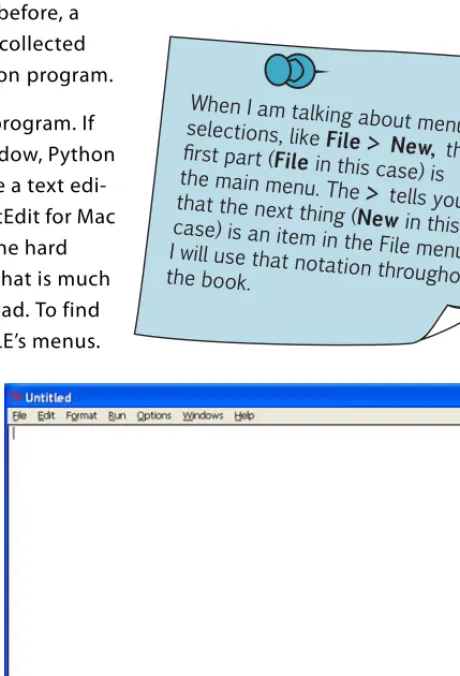
program is a number of instructions collected together. So let’s make our first Python program. First, you need a way to type in our program. If you just type it in the interactive window, Python won’t “remember” it. You need to use a text edi-tor (like Notepad for Windows or TextEdit for Mac OS X) that can save the program to the hard drive. IDLE comes with a text editor that is much better for what you need than Notepad. To find it, select File > New Window from IDLE’s menus. You will see a window like in the
figure below. The title bar says “Untitled” because you haven’t given it a name yet.
Now, type the program in listing 1.1 below into the editor.
print "I love pizza!" print "pizza " * 20 print "yum " * 40 print "I'm full."
Listing 1.1
Our first real program
When I am talking about menu selections, like File > New,
the first part (File in this case) is
the main menu. The > tells you
that the next thing (New in this case) is an item in the File menu. I will use that notation
When you are done, save the program using the
File > Save or File > Save As menu option. Call the file pizza.py. You can save it wherever you like (as long as you remember where it is, so you can find it later). You might want to create a new folder for saving your Python programs. The “.py” part at the end is important, because it tells your computer that this is a Python program, and not just any old text file.
You might have noticed that the editor used some differ-ent colors in the program. Some words are in orange and others are in green. This is because the IDLE editor assumed that you would be typing in a Python program. For Python programs, the IDLE editor shows Python key-words in orange and anything in quotation marks in green. This is meant to help you read your Python code more easily.
Running your first program
Once you have saved your program, go to the Run menu (still in the IDLE editor), and pick
Run Module (as shown in the next figure). This will run your program.
Some versions of IDLE might not show the colors until you save the program as a .py
file, like pizza.py.
Notice the title that says “Listing 1.1”? When the example code makes a complete Python program, I will number it like this, so you can easily find it in the \examples
You will see that the Python shell window (the one that first came up when you started IDLE) becomes active again, and you will see something like the following:
The RESTART part tells you that you started running a program. (This will be helpful when
you are running your programs over and over again to test them.)
Then the program runs. Okay, so it doesn’t do very much. But you got the computer to do what you told it to do. Our programs will get more interesting as we go along.
If something goes wrong
What happens if you have an error in your program, and it doesn’t run? There are two different kinds of errors that can happen. Let’s look at both kinds, so you will know what to do if either one happens to you.
Syntax errors
IDLE does some checking of your program before it even tries to run it. If IDLE finds an error, it is usually a syntax error. Syntax is the spelling and grammar rules for a programming lan-guage, so a syntax error means that you have typed something that is not proper Python code. Here is an example:
We missed a quote mark between print and Bye for now!"
If you tried to run this program, IDLE would pop up a message saying “There’s an error in your program: invalid syntax.” Then you would have to look at your code to see what’s wrong. IDLE will highlight (in red) the place where it found the error. It might not be exactly where the problem is, but it should be close.
print "Hello, and welcome to Python!"
print "I hope you will enjoy learning to program." print Bye for now!"
if guess == secret:
print "Avast! Ye got it! Found my secret, ye did!" else:
print "No more guesses! Better luck next time, matey!" print "The secret number was", secret
When you are typing it in, notice the indenting of the lines after the while instruction, and the extra indenting of the lines after if and elif. Also notice the colons at the ends of some of the lines. If you type the colon in the correct place, the editor will help you by indenting the next line for you.
Once you’ve saved it, run it using Run > Run Module, just like you did for the first program. Try playing it and see what happens. Here is a sample of when I ran it:
It took me five guesses to get the secret number, which turned out to be 12. We will be learning all about the while, if, else, elif, and
input instructions in the next few chapters. But you can
probably already get the basic idea of how this program works:
■ The secret number is randomly picked by the program. ■ The user inputs his guesses.
■ The program keeps checking the guess against the secret number: is it higher or lower?
■ The user keeps trying until he guesses the number or runs out of turns.
■ When the guess matches the secret number, the player wins.
>>> ======================= RESTART ======================= >>>
AHOY! I'm the Dread Pirate Roberts, and I have a secret! It is a number from 1 to 99. I'll give you 6 tries. What's yer guess? 40
Too high, landlubber! What's yer guess? 20 Too high, landlubber! What's yer guess? 10 Too low, ye scurvy dog! What's yer guess? 11 Too low, ye scurvy dog! What's yer guess? 12
Avast! Ye got it! Found my secret, ye did! >>>
What did you learn?
Whew! We covered quite a lot. In this chapter, you ■ installed Python.
■ learned how to start IDLE. ■ learned about interactive mode.
■ gave Python some instructions, and it executed them.
■ saw that Python knows how to do arithmetic (including really big numbers!) ■ started the IDLE text editor to type in your first program.
■ ran your first Python program! ■ learned about error messages.
■ ran your second Python program: the number-guessing game.
Test your knowledge
1 How do you start IDLE? 2 What does print do?
3 What is the symbol for multiplication in Python?
4 What does IDLE display when you start to run a program? 5 What is another word for running a program?
Try it out
1 In interactive mode, use Python to calculate the number of minutes in a week. 2 Write a short program to print three lines: your name, your birth date, and your
favorite color. The output should look something like this:
Save the program and run it. If the program doesn’t do what you expect, or you get any error messages, try to fix it and make it work.
14
Remember This—
Memory and Variables
What is a program? Hey, wait a minute, I thought we answered that in chapter 1! We said a program was a series of instructions to the computer.
Well, that’s true. But almost all programs that do anything useful or fun have some other qualities:
■ They get input.
■ They process the input. ■ They produce output.
Input, processing, output
Your first program (listing 1.1) didn’t have any input or processing. That’s one reason why it wasn’t very interesting. The output was the messages the program printed on the screen. Your second program, the number-guessing game (listing 1.2), had all three of the basic elements:
■ The input was the guesses the player typed in.
■ The processing was the program checking the guesses and counting the turns. ■ The output was the messages the program printed.
Input, processing, output. Remember that.
Okay, so the computer needs input. But what does it do with it? In order to do something with the input, the computer has to remember it or keep it somewhere. The computer keeps things, including input (and the program itself ), in its memory.
But how do we tell Python where in the memory to put something? And once it’s there, how do we find it again?
In Python, if you want your program to remember something so you can use it later, all you have to do is give that “thing” a name. Python will make a place for the “thing” in the com-puter’s memory, whether the thing is a number, some text, a picture, or a piece of music. When you want to refer to that thing again, you just use the same name.
Let’s use Python in interactive mode again and find out more about names.
Input
Output
Processing
You can write to the memory (set the switches), or read from the
memory (look at how the switches are set, without changing them).
You’ve probably heard of computer memory, but
what does it really mean?
We said that computers were just a bunch of switches turning on and off. Well, memory is like a group of switches that stay in the same position for a while. Once you set the switches a certain way, they stay that way
until you change them. They remember where
I typed >>> print Teacher So, why didn't it print
"Teacher"?
It printed
"Mr. Morton"
instead.
S
Names
Go back to the Python Shell window. (If you closed IDLE since doing the example in chapter 1, open it again.)
At the prompt, type:
(Remember, the >>> is the prompt that Python displays. You just type what is after it, and press Enter.) You should see this:
You just created a thing that is made up of the letters “Mr. Morton”, and you gave it the name Teacher. The equal sign (=) tells Python to assign or “make equal to.” You assigned the name Teacher to the series of let-ters “Mr. Morton”.
Somewhere in a chunk of your computer’s memory, the letters “Mr. Morton” exist. You don’t need to know exactly where. You told Python that the name for that series of letters is
Teacher, and that’s how you will refer to it from now on. A name is like a label or tag or
sticky note that you attach to something to identify what it is.
When you put quotes around something, Python takes it literally. It prints exactly what is in the quotes. When you don’t put quotes around the thing, Python has
to figure out what the thing is. It could be a number (like 5), an expression (like
5 + 3), or a name (like Teacher).
Because we made a name, Teacher, Python prints the thing that belongs to
that name, which happens to be the series of letters “Mr. Morton”.
It’s just like if someone said, “Write down your address.” You wouldn’t write this:
>>> Teacher = "Mr. Morton" >>> print Teacher
(Well, maybe Carter would, because he likes to kid around. . . .)
You would write something like this:
If you wrote “Your Address”, you would be taking the statement literally. Python doesn’t take things literally unless you use
quote marks. Here’s another example:
With quote marks, Python printed exactly what you told it: 53 + 28.
Without quote marks, Python treated the 53 + 28 as an arithmetic expression, and it evaluated that expression. In this case, it was an expression for adding two numbers together, so Python gave us the sum.
Python takes care of figuring out how much memory it needs to store the letters, and what part of the memory it will use. To retrieve your information (get it back), you just need to use the same name again. We used the name along with the print keyword, which displays things (like numbers or text) on the screen.
>>> print "53 + 28" 53 + 28
>>> print 53 + 28 81
An arithmetic expression is a combination of numbers
and symbols that Python can figure out the value of.
Evaluate just means “figure out the value of.”
You can create variables for other things besides letters. You can name numeric values. Remember our example from before:
Let’s try that one with variables:
Here, we created two names, First and Second. The number 5 was assigned to First, and the number 3 was assigned to Second. Then we printed the sum of the two.
There’s another way to do this. Try this:
Notice what we did here. In interactive mode, we can display the value of a variable just by typing its name, without using print. (This doesn’t work in a program.)
In this example, instead of doing the sum in the print instruction, we took the thing named
First and the thing named Second and added them together, creating a new thing, called
Third. Third is the sum of First and Second.
5 + 3 = 8
You can have more than one name
for the same thing. Try this in interactive mode:
This is like sticking two tags on the same thing. One tag says YourTeacher and one tag says MyTeacher, but they are both stuck on “Mrs. Goodyear”.
>>> 5 + 3 8
>>> First = 5 >>> Second = 3
>>> print First + Second 8
>>> Third = First + Second >>> Third
8
>>> MyTeacher = "Mrs. Goodyear"
>>> YourTeacher = MyTeacher >>> MyTeacher
"Mrs. Goodyear"
If we changed MyTeacher
to“Mrs. Tysick”,
would YourTeacheralso
be changed to “Mrs. Tysick”?
S
That’s a very good question, Carter. The answer is, no. What would happen is that a new thing,
“Mrs. Tysick”, would be created. The tag
MyTeacher would get pulled off “Mrs.
Good-year” and stuck on “Mrs. Tysick”. You still have two different names (two tags), but now they are stuck on two different things instead of being stuck on the same thing.
What’s in a name?
You can call a variable anything you want (well, almost). The name can be as long as you want, and it can have letters and numbers in it, as well as the underscore character (_). But there are a few rules about variable names. The most important one is that they are case-sensitive, which means that uppercase and lowercase matter. So, teacher and TEACHER
are two different names. So are first and First.
Another rule is that a variable name has to start with a letter or the underscore character. It can’t start with a number. So 4fun is not allowed.
One more rule is that a variable name can’t have any spaces in it.
If you want to know all the rules for variable names in Python, you can look in the appendix, at the back of the book.
In some of the early programming languages, variable names could only be one letter
long. And some of the computers only had uppercase letters, which meant
Numbers and strings
So far, we have made variables for both letters (text) and numbers. But in our addition example, how did Python know that we meant the numbers 5 and 3, and not the characters “5” and “3”? Well, just like in the last sentence, the quote marks make all the difference. A character, or series of characters (letters, numbers, or punctuation), is called a string. The way you tell Python that you are making a string is to put quotes around the characters. Python is not too fussy about whether you use single or double quotes.
Either of these will work:
But you do have to use the same kind of quotes at the start and the end of the string. If we type in a number without quotes, Python knows we mean the numerical value, not the character. Try this to see the difference:
Without the quotes, the 5 and 3 were treated as numbers, so we got the sum. With quotes, the ‘5’ and ‘3’ were treated as strings, so we got the two characters “added” together, or ‘53’. You can also add strings of letters
together, like we saw in chapter 1:
Notice that, when you add two strings together like this, there is no space between them. They get jammed right together.
>>> teacher = "Mr. Morton"
>>> teacher = 'Mr. Morton'
Double quotes
Single quotes
>>> first = 5 >>> second = 3 >>> first + second 8
>>> first = '5' >>> second = '3' >>> first + second '53'
>>> print "cat" + "dog" catdog
Concatenate
It’s not really correct to say “added” when talking about strings (like we just did). When you put characters or strings together to make a longer string, there is a special name for it. Instead of “adding” (which is only
for numbers), it is called concatenation. This sounds
like kon-kat-en-ay-shun.
Long strings
If you want to have a string that spans more than one line, you have to use a special kind of string called a triple-quoted string. Here is what it looks like:
This kind of string starts and ends with three quote marks. The quote marks can be double or single quotes, so you could also do it this way:
Triple-quoted strings can be very useful when you have several lines of text that you want to display together, and you don’t want to use a separate string for each line.
How “variable” are they?
Variables are called “variables” for a reason. It’s because they are . . . well . . . variable! That means you can vary, or change, the value that is assigned to them. In Python, you do this by creating a new thing that is different from the old thing, and sticking the old label (the name) on the new thing. We did that with MyTeacher in the last section. We took the tag
MyTeacher off “Mrs. Goodyear” and attached it to a new thing, “Mrs. Tysick”. We assigned a
new value to MyTeacher.
Let’s try another one. Remember the variable
Teacher that you created before? Well, if you
haven’t closed IDLE, it’s still there. Check and see:
Yup, still there. But you can
change it to something else instead:
We created a new thing, “Mr. Smith,” and named it Teacher. Our tag got moved from the old thing to the new thing. But what happened to the old thing, “Mr. Morton”?
long_string = """Sing a song of sixpence, a pocket full of rye, Four and twenty black birds baked in a pie.
When the pie was opened the birds began to sing. Wasn't that a dainty dish to set before the king?"""
long_string = '''Sing a song of sixpence, a pocket full of rye, Four and twenty black birds baked in a pie.
When the pie was opened the birds began to sing. Wasn't that a dainty dish to set before the king?'''
>>> Teacher 'Mr. Morton'
>>> Teacher = 'Mr. Smith' >>> Teacher
Remember that things can have more than one name (more than one tag stuck on them). If “Mr. Morton” still has another tag on it, then it stays in the computer’s memory. But if it no longer has any tags, Python figures that no one needs it anymore, so it gets deleted from memory.
That way, the memory doesn’t fill up with things that nobody is using. Python does all this cleanup auto-matically, and you don’t have to worry about it.
An important thing to know is that we didn’t actually change “Mr. Morton” into “Mr. Smith”. We just moved the tag (reassigned the name) from one thing to the other. Some kinds of things in Python (like numbers and strings) cannot be changed. You can reassign their names to something else (like we just did), but you can’t change the original thing. There are other kinds of things in Python that can be changed. We will learn more about this in chapter 12, when we talk about lists.
The new me
You can also make a variable equal to itself:
I bet you’re thinking, “Well, that’s pretty useless!” And you’d be right. It’s kind of like saying “I am me.” But with a small change, you can
become a whole new you! Try this:
What happened here? In the first line, the Score tag was stuck on the value 7. We made a new thing, which was Score + 1, or 7 + 1. That new thing is 8. Then we took the Score tag off the old thing (7) and stuck it on the new thing (8). So Score has been reassigned from 7 to 8.
Whenever we make a variable equal something, the variable always appears on the left side of the equal sign (=). The trick is that the variable can also appear on the right. This turns out to be quite useful, and you’ll see it in a lot of programs. The most common use is to increment a variable (increase it by a certain amount), like we just did, or the opposite, to decrement a variable (decrease it by a certain amount).
Tag Moved
>>> Score = 7
>>> Score = Score
>>> Score = Score + 1 >>> print Score 8
Changes Score
What did you learn?
In this chapter, you learned
■ how to “remember” or keep things in the computer’s memory using variables. ■ that variables are also called “names” or “variable names.”
■ that variables can be different kinds of things, such as numbers and strings.
Test your knowledge
1 How do you tell Python that a variable is a string (characters) instead of a number? 2 Once you have created a variable, can you change the value that is assigned to it? 3 With variable names, is TEACHER the same as TEACHEr?
4 Is 'Blah' the same as "Blah" to Python?
5 Is '4' the same as 4 to Python?
6 Which of the following is not a correct variable name? Why?
a) Teacher2
b)2Teacher
c) teacher_25
d)TeaCher
7 Is "10" a number or a string?
Try it out
1 Make a variable and assign a number to it (any number you like). Then display your
variable using print.
2 Modify your variable, either by replacing the old value with a new value, or by adding
something to the old value. Display the new value using print.
3 Make another variable and assign a string (some text) to it. Then display it using
print.
4 Just like in the last chapter, in interactive mode, get Python to calculate the number of
minutes in a week. But this time, use variables. Make a variable for DaysPerWeek,
HoursPerDay, and MinutesPerHour (or make up your own names), and then multiply
them together.
5 People are always saying there’s not enough time to get everything done. How many
minutes would there be in a week if there were 26 hours in a day? (Hint: Change the
26
z = (a +3) ** 2 + 30
speed = 2.853197e-15
(2+5)*37
Basic Math
When we first tried using Python in interactive mode, we saw that it can do simple arithme-tic. Now we’re going to see what else Python can do with numbers and math. You might not realize it, but math is everywhere! Especially in programming, math is used all the time. That doesn’t mean you have to be a math whiz to learn
program-ming, but think about it. . . . Every game has a score of some kind that has to be added up. Graphics are drawn on the screen using numbers to figure out the positions and colors. Moving objects have a direction and
speed, which are described with numbers. Almost any interesting program is
going to use numbers and math in some way. So let’s
learn some basics about math and numbers in Python.
The four basic operations
We already saw Python do a little math in chapter 1: addition, using the plus (+) sign, and multiplication, using the asterisk (*) sign.
Python uses the hyphen (-) (which is also called the minus sign) for subtraction, as you would expect:
Because computer keyboards don’t have a division (
_.
. ) symbol, all programs use the for-ward slash (/) for division.That worked. But sometimes Python does something you might not expect with division:
Huh? I thought computers were good at math! Everyone knows that 3 / 2 = 1.5
What happened?
Well, although it seems to be acting dopey, Python is really trying to be smart. To explain this one, you need to know about integers and decimal numbers. If you don’t know the dif-ference, check out the word box for a quick explanation.
Because you entered both the 3 and the 2 as integers, Python thinks you want an integer for the answer, too. So it rounded the answer 1.5 down to the nearest integer, which is 1. To put it another way, Python is doing division without the remainder.
>>> print 8 – 5 3
>>> print 6/2 3
>>> print 3/2
1
Integers are the numbers you can easily count, like 1, 2, 3, as
well as 0 and the negative numbers, like –1, –2, –3.
Decimal numbers (also called real numbers) are the numbers with
a decimal point and some digits after it, like 1.25, 0.3752, and –101.2.
In computer programming, decimal numbers are also called
floating-point numbers, or sometimes floats for short (or float
To fix it, try this:
That’s better! If you enter either of the two numbers as a decimal number, Python knows you want the answer as a decimal number.
Operators
The +, -, *, and / symbols are called operators. That’s because they “operate on,” or work with, the numbers we put around them. The = sign is also an operator, and it is called the assignment operator, because we use it to assign a value to a variable.
>>> print 3.0 / 2 1.5
THE GOTCHAS WILL GETCHA!
You’ll want to remember Python’s integer-division behavior. It’s impor-tant, and lots of Python programmers (including me!) have been tripped up by forgetting it at one time or another.
That’s just one of many ways bugs or errors can creep into your code.
An operator is something that has an effect on, or “operates on,” the things around it. The effect can be to assign a value to, test, or change one or more of those things.
myNumber + yourNumber
operand
Operator
operandThe +, -, *, and / symbols we use for doing arithmetic are operators.
Order of operations
Which one of these is correct? 2 + 3 * 4 = 20
or
2 + 3 * 4 = 14
That depends what order you do things in. If you do the addition first, you get 2 + 3 = 5, so then 5 * 4 = 20
If you do the multiplication first, you get 3 * 4 = 12, so then 2 + 12 = 14
The correct order is the second one, so the correct answer is 14. In math, there is something called the order of operations that tells you which operators should be done before others, even if they are written down after them.
In our example, even though the + sign comes before the * sign, the multiplication is done first. Python follows proper math rules, so it does multiplication before addition. You can try this in interactive mode to make sure:
The order that Python uses is the same one you learned (or will learn) in math class. Expo-nents come first, then multiplication and division, and then addition and subtraction.
I learned in school that the so-called operands
in addition are also called
addends.
But what if I want the 2 + 3
to go first?
S
If you want to change the order of operations and makesomething go first, you just put parentheses (round brackets) around it, like this:
This time, Python did the 2 + 3 first (because of the parenthe-ses) to get 5, and then multiplied 5 * 4 to get 20.
Again, this is exactly the same as in math class. Python (and all other programming lan-guages) follow proper math rules and the order of operations.
Two more operators
There are two more math operators I want to show you. These two plus the four basic ones we just saw are all you will need for 99 percent of your programs.
Exponentiation—raising to a power
If you wanted to multiply
3 by itself 5 times, you could write
>>> print (2 + 3) * 4 20
You with the brackets! Come to
the front. I’ll take you first. Me Next!
Me Next!
But this is the same as 35, or “three exponent five,” or “three to the power of five.” Python
uses a double star (asterisk) for
exponents or raising a number to a power.
One reason for using an exponent instead of just multiplying several times is that it is easier to type. But a more important reason is that with ** you can have exponents that are not integers, like this:
There is no easy way to do that using just multiplication.
Modulus—getting the remainder
When we first tried division in Python, we saw that, if you divide two integers, Python gives you the answer as an integer. It is doing integer division. But in integer division, the answer really has two parts.
Do you remember when you first learned about division? If the numbers didn’t divide evenly, you ended up with a remainder:
7 / 2 = 3, with a remainder of 1
The answer for 7 / 2 has a quotient (3, in this case) and a remainder (1, in this case). If you divide two integers in Python, it gives you the quotient. But what about the remainder?
>>> print 3 ** 5 243
Many languages and programs use other symbols for raising to a power. A common one is ^ (for example 3^5). If you use this with Python, you won’t get an error message; you’ll just get the wrong answer. (That’s because ^ does mean some-thing in Python—it’s just not what we want!) This can be very hard to debug. Make sure you use the ** operator for raising to a power (also
called exponentiation).
THE GOTCHAS WILL GETCHA!
I know of one more operator -
a telephone operator!
S
S
Python has a special operator for calculating the remainder for integer division. It is called the modulus operator, and the symbol is the percent symbol (%).
You use it like this:
So if you use / and % together, you can get the full answer for integer division problems:
So the answer to 7 divided by 2 is 3, remainder 1. If you do floating-point division, you will get the decimal answer:
Actually, now that you mention it, they are similar. . . . An arithmetic operator connects numbers together the way an old-fashioned telephone operator used to connect phones together.
There are another two operators I’d like to tell you about. I know, I said just two more, but these are really easy!
>>> print 7 % 2 1
>>> print 7 / 2 3
>>> print 7 % 2 1
What's that letter ‘e’ doing in the middle of
the number?
S
Increment and decrement
Remember the example from the last chapter: score = score + 1? We said that was called incrementing. A similar thing is score = score - 1, which is called decrementing. These are done so often in programming that they have their own operators: += (increment) and -=
(decrement).
You use them like this:
or
The first one adds one to the number. (It changes from 7 to 8.) The second one subtracts one from the number. (It changes from 7 to 6.)
Really
big
and really
small
Remember, in chapter 1, when we multiplied those two really big numbers together? We got a very big number for the answer. Sometimes, Python shows you big numbers a bit differently. Try this
in interactive mode:
(It doesn’t matter exactly what numbers you type in—any big numbers with decimals will do.)
The e is one way of displaying really big or really small numbers on a computer. It’s called E-notation. When we’re working with really big (or really small) numbers, showing all the digits and decimal places can be kind of a pain. These kinds of numbers show up a lot in math and science.
>>> number = 7 >>> number += 1 >>> print number 8
number increased by 1
>>> number = 7 >>> number -= 1 >>> print number 6
number decreased by 1
>>> print 9938712345656.34 * 4823459023067.456 4.79389717413e+025
For example, if an astronomy program was displaying the number of kilometers from Earth to the star Alpha Centauri, it could show 38000000000000000 or 38,000,000,000,000,000 or 38 000 000 000 000 000. (That’s 38 quintillion kilometers!) But either way, you would get tired of counting all those zeros.
Another way to display this number is to use scientific notation, which uses powers of 10 along with decimal numbers. In scientific notation, the distance to Alpha Centauri would be written like this: 3.8 x 10¹⁶. (See how the 16 is raised above the line, and is smaller?) This
reads as “three point eight times ten to the power of sixteen” or “three point eight times ten to the sixteenth.” What it means is you take 3.8 and move the decimal point sixteen places to the right, adding zeros as needed.
Scientific notation is great if you can write the 16 as an exponent, raised above the line and smaller, like we did here. If you are working with pencil and paper, or a program that sup-ports superscripts, then you can use scientific notation.
But you can’t always use superscripts, so another way to show the same thing is E-notation. E-notation is just another way of writing scientific notation.
E-notation
In E-notation, our number would be 3.8E16 or 3.8e16. This reads as “three point eight expo-nent sixteen” or “three point eight e sixteen” for short. It is assumed that the expoexpo-nent is a power of 10. That’s the same as writing 3.8x10¹⁶.
3.800000000000000000000
380000000000000000.0 = 3.8 x 10
16Move the decimal right 16 places.
Superscript means a character or characters that are raised above the rest of the text, like this: 1013. The 13 here is the superscript. Usually, superscripts are also smaller than the main text.
Most programs and computer languages, including Python, let you use either an uppercase or lowercase E.
For very small numbers, like 0.0000000000001752, a negative exponent is used. The scien-tific notation would be 1.752x10⁻¹³, and the E-notation would be 1.752e-13. A negative
exponent means to move the decimal place to the left instead of the right.
You can use E-notation to enter very big and very small numbers (or any number, for that matter) into Python. Later we will see how to make Python print numbers using E-notation. Try entering some numbers in E-notation:
Although we entered the numbers in E-notation, the answer came out as a regular decimal number. That’s because Python won’t display numbers in E-notation unless you specifically tell it to, or the numbers are really big or really small (lots of zeros).
Try this:
This time, Python displayed the answer in E-notation automatically, because it wouldn’t make sense to display a number with 73 zeros!
If you want numbers like 14,500,000 to display in E-notation, you need to give Python spe-cial instructions. We’ll learn more about that later in the book (in chapter 21).
00000000000000001.752
0.0000000000001752 = 1.752e-13
Move the decimal left 13 places.>>> a = 2.5e6 >>> b = 1.2e7 >>> print a + b 14500000.0 >>>
Exponents vs. E-notation
Don’t get confused between raising a number to a power (also called exponentiation) and E-notation.
■ 3**5 means 35, or “three to the fifth power” or 3 * 3 * 3 * 3 * 3, which is equal to 243.
■ 3e5 means 3 * 105 or “three times ten to the fifth power,” or 3 * 10 * 10 * 10 * 10 *10,
which is equal to 300,000.
Raising to a power means you are raising the number itself to that power. E-notation means you are multiplying by a power of 10.
Some people would read both 3e5 and 3**5 as “three exponent five,” but they are two dif-ferent things. It doesn’t matter so much how you say it, as long as you understand what each one means.
What did you learn?
In this chapter, you learned
■ how to do basic math operations in Python. ■ about integers and floats.
■ about exponentiation (raising numbers to a power). If you don’t quite understand how
E-notation works, don’t worry. It’s not used for the programs in the rest of this book. I just wanted to show you how it works in case you ever need it.
At least now, if you use Python to do some math and you get a number like
5.673745e16 for an answer, you will know that it is a really big number, and not some kind of error.
Yeah, Mon! No worries, eh? This programming thing is
■ how to calculate the modulus (the remainder). ■ all about E-notation.
Test your knowledge
1 What symbol does Python use for multiplication? 2 What answer would Python give for 8 / 3?
3 How would you get the remainder for 8 / 3? 4 How would you get the decimal answer for 8 / 3?
5 What’s another way of calculating 6 * 6 * 6 * 6 in Python? 6 How would you write 17,000,000 in E-notation?
7 What would 4.56e-5 look like in regular notation (not E-notation)?
Try it out
1 Solve the following problems either using interactive mode or by writing a small
program:
a) Three people ate dinner at a restaurant and want to split the bill. The total is $35.27, and they want to leave a 15 percent tip. How much should each person pay? b) Calculate the area and perimeter of a rectangular room, 12.5 meters by 16.7 meters.
2 Write a program to convert temperatures from Fahrenheit to Celsius. The formula for
that is: C = 5 / 9 * (F - 32). (Hint: Watch out for the integer-division gotcha!)
3 Do you know how to figure out how long it will take to get somewhere in a car? The
38
Types of Data
We have seen that there are at least three different types of things we can assign to a vari-able (to keep in the computer’s memory): integers, floating-point numbers, and strings. There are other types of data in Python, which we will learn about later, but for now these three will do. In this chapter, we’re going to learn how you can tell what type something is. We will also see how to make one type from another.
Changing types
Quite often we nee