Telekol Intelligent Applications
TVM-2000 (MiniTel-128 & TMP Version 3.95)
Preface
TVM-2000 3.95.0001 Release Notes
The TVM-2000 3.95.0000 release enhances features and fixes problems found in earlier TVM-2000 releases.
Problems Solved
Build 3.95.0001
• Record Greeting by Number – Bug fixed to allow single digit number to be entered here to record greetings. Previously entering a single digit, such as 1, would cause the TVM to record message 1.msg rather than 01.msg that it looks for when playing greetings. This prevented the TVM from playing or recording the correct greeting.
• Reports Screen – Report screen was updated for ease of use.
Preface
This manual is the property of Telekol Corporation. Information in this document is subject to change without notice and does not represent any commitment on the part of Telekol Corporation. The product described in this document, as well as all information hereto included, may only be used in accordance to the terms of the agreements signed prior to the purchase of this equipment. No part of this manual may be reproduced or transmitted in any form or by any means electronic or
mechanical, including photocopying and recording, for any purpose, without the express written consent of Telekol
Corporation. This material is copyrighted by Telekol Corporation. Any unauthorized reproduction, use or disclosure of this material, or any part thereof, is strictly forbidden and is a violation of the copyright laws of the United States of America (17 U.S.C. Section 101 et seq.).
Its use is restricted, and neither this document, nor its contents can be disclosed in whole or in part, without written
authorization from Telekol Corporation. Telekol Corporation reserves the right to change the specifications anytime without notice. The information furnished by Telekol Corporation in this material is believed to be accurate and reliable at the time of printing, but is not warranted to be correct in all cases.
Copyright © Telekol Corporation, 1998-2005. All Rights Reserved.
TMP, MiniTel-128, and TVM-2000 are trademarks of Telekol Corporation. All other product, brand and trade names are trademarks of their respective owners.
Printed in the United States of America, 2005.
SKU # SCL-8312
Preface
FCC Notice
This equipment complies with Part 68 of the FCC rules. On the left side of this equipment is a label that contains FCC information for this equipment. You must, upon request, provide this information to your telephone company.
The REN is useful to determine the quantity of devices you may connect to your telephone line and still have all of those devices ring when your telephone number is called. In most, but not all areas, the sum of the REN’s of all devices connected to one line should not exceed five (5.0). To be certain of the number of devices you may connect to your line, as determined by the REN, you should contact your local telephone company to determine the maximum REN for your calling area.
If your telephone equipment causes harm to the telephone network, the Telephone Company may discontinue your service temporarily. If possible, they will notify you in advance to give you an opportunity to maintain uninterrupted telephone service. If advance notice is not practical, you will be notified as soon as possible.
If you experience trouble with this telephone equipment, the telephone company may ask that you disconnect this equipment from the network until the problem has been corrected or until you are sure that the equipment is not malfunctioning.
This equipment may not be used on coin service provided by the telephone company. Connection to party lines is subject to state tariffs.
WARNING: This equipment generates, uses, and can radiate radio frequency energy and if not installed and used in accordance with the Operating Manual, may cause interference to radio communications. It has been tested and found to comply with the limits for a Class A computing device pursuant to Part 15 of FCC Rules, which are designed to provide reasonable protection against such interference when operated in a commercial environment. Operation of this equipment in a residential area is likely to cause interference in which case the user at their own expense will be required to take whatever measures may be required to correct the interference.
Preface
Distribution
The TVM-2000 line of voice mail systems is distributed to Telekol Authorized Dealers by NETXUSA, INC.
Installation Precautions
The following list provides basic safety precautions that should be followed whenever using or installing this equipment:
1. Read and understand all instructions.
2. Follow all warnings and instructions marked on the product.
3. Unplug telephone and power connections before cleaning or opening the unit. 4. This product should only be serviced by qualified repair personnel.
5. DO NOT use this product near water (i.e.: in a wet basement.) 6. DO NOT place this product on an unstable surface.
7. Never push objects of any kind into slots or openings as they may come in contact
with
dangerous voltage points or short out parts, causing a risk of fire or electrical
shock. Never spill liquid of any kind on the unit.8. This equipment is provided with a three-wire g rounding power cord. This is a safety feature. DO NOT defeat the safety purpose of the grounding type plug.
9. DO NOT staple or otherwise attach the AC power cord to building surf aces.
10. DO NOT block or cover the ventilation slots and openings. They prevent the unit from overheating. DO NOT place the product in a separate enclosure unless proper ventilation is provided.
To Comment on This Manual
Please send any comments and recommendations for changes to:
Technical Documentation Department NETXUSA, INC
P.O. Box 2206 Greenville, SC 29602 Fax: (864) 233-4344 Email: [email protected]
Table of Contents
Preface ...i
TVM-2000 3.95.0001 Release Notes ...i
Problems Solved ...i
Build 3.95.0001 ...i
FCC Notice ... iii
Distribution... iv
Installation Precautions ... iv
To Comment on This Manual ... iv
Table of Contents...vii
Welcome ...1
How to Use This Manual ...1
Notation ...1
Overview of Features...3
Introduction to the TVM-2000...3
Automated Attendant...3
Voice Mail ...3
Fax Capabilities ...4
Fax Module...4
Fax Mail...4
Fax On Demand...4
International/Localized Software ...5
Hospitality/PMS Module ...5
New Features ...5
Telekol Product Commitment ...5
Figure 1: Administrative Menu Tree (Console) for the TVM-2000 Call Processing System ...6
Figure 2: Administrative Options Menu ...6
Figure 2: Administrative Options Menu ...7
Section 1: Express Install ...9
Hardware Installation...9
Overview ...9
Installation Considerations...9
Planning...10
Connecting to the Telephone System ...11
Enabling Remote Maintenance (Optional)...12
Configuring the Terminal (Optional)...12
Configuring the Modem (Optional)...12
Connecting to Remote Maintenance (Optional)...12
Powering Up ...13
Quitting the TVM-2000 ...13
Modifying Screen Parameters ...13
Main Menu ...14
Loading Switch Defaults ...16
TVM-2000 and Switch Integration...16
System Greetings ...17
Recording System Greetings (Telephone Interface) ...18
Setting Operation Modes ...19
Setting Up Operator (General Delivery) Mailboxes...20
Fax Detection ...20
Table of Contents
Section 2: Mailbox Setup... 25
Setting Up User Mailboxes ... 25
Assigning a Personal Operator for an Individual Mailbox ... 26
Setting up Hold Options for Each Mailbox ... 27
Activating Optional Mailbox Features ... 29
Notification Options ... 29
Beeper Notification Option ... 29
Outbound Message Notification ... 30
Outbound “Follow-Me” (Call Forwarding)... 32
Call Recording and Call Screening ... 33
Group Mailboxes... 34
Group Types ... 35
Broadcast Groups ... 35
Dispatch Groups... 35
Retrieval Groups ... 35
Automatic Call Distribution (ACD) Only Groups... 35
Call Distribution Types... 36
Top Down ... 36
Uniform... 36
None... 36
Setting Up Audiotext Mailboxes... 37
Setting Up Q&A Mailboxes ... 39
Section 3: Using TVM-2000 Features ... 41
Enabling Announcement Only ... 41
Fax On Demand Setup ... 41
To Set Up an Audiotext Mailbox ... 42
How An Audiotext Tree Works... 43
Enabling Message Forwarding ... 44
Enabling Multi-Tenant Applications ... 45
Using Port Specific Options ... 45
Using Line ID Mapping... 46
Setting Up Multi-tenant & Multilingual Operator (General Delivery) Mailboxes... 47
Creating Call Screening within the Voice Mail... 48
Creating Paging within the Voice Mail ... 49
Section 4: Optional Equipment Installation & Configuration ... 51
Fax Module ... 52
Configuring the Fax Module ... 52
Overflow to Fax Mailbox... 53
SMDI Integrations ... 54
Advanced SMDI Setup... 56
Processing Rules in SMDI ... 57
Call Analysis Rules screen... 58
Other Rules Screen... 59
Voice Mail Port IDs Screen ... 60
Serial Port Configuration Screen... 61
Beginning Marks Screen ... 62
Ending Marks Screen... 63
Hospitality Module ... 64
Installation ... 64
Front Desk Operations ... 65
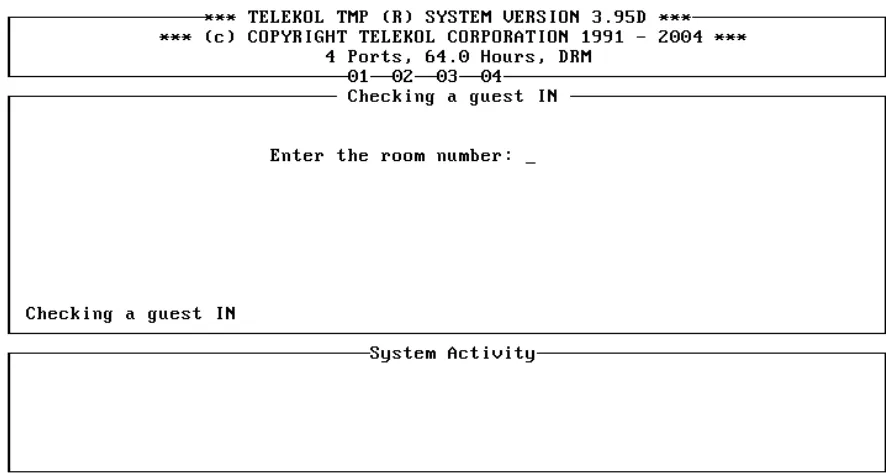
Check in a Guest ... 65
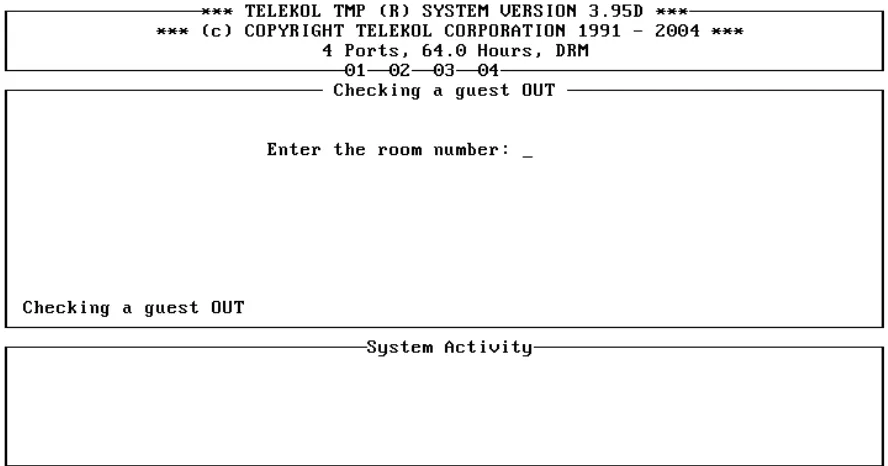
Check out a Guest ... 66
Guest Operation Guide ... 67
Template Mailboxes ... 68
Using the Fax Module with the Hospitality Option ... 70
Wake Up Calls... 71
To Add a Wake Up Call Request From the Front Desk ... 71
To Add a Wake Up Call Request From Guest Extension... 71
Table of Contents
To Remove a Wake Up Call From the Front Desk...71
To Remove a Wake Up Call From a Guest Extension...71
To Enable/Disable Wake Up Calls (System Wide)...72
To Enable/Disable Wake Up Calls (Per Mailbox)...72
To View Scheduled Wake Up Calls...72
Wake Up Call Reports ...72
Notes about wake up calls...72
Advanced Hotel Parameters ...73
Transfer to Guests...74
Administrative Extensions ...74
Property Management System (PMS)...75
Supported PMS systems ...75
System Upgrades ...76
Multilingual Software (MLS)...76
To Use the Multilingual Option...76
Foreign Language Support (FLS) modules ...76
Section 5: System Testing ...79
Test Procedure ...79
Troubleshooting...80
How to Troubleshoot...80
System Trouble ...81
Calling Technical Support...83
Section 6: System Reference...85
Administrative Main Menu ...85
Enter Security Level Screen ...86
Operations Screen...87
Holiday Setup Screen...89
Add Holiday Screen...90
Set Business Hours ...91
Load Switch Defaults...93
Loading Preset Switch Configurations...94
Change Switch Name ...94
Writing New Switch Defaults...94
Configuration Screen...95
System Hold Options Screen ...98
Hold Attempts ...98
Name Search Screen ...99
Port Specific Options Screen...100
VM Extensions Screen ...101
Single Digit Menu ...102
Mailbox Setup/Editing...104
Activating Mailboxes ...104
Mailbox Editing Screen ...105
Names Screen ...107
Personal Operator Screen ...108
Hold Options Screen/Call Queuing Application ...109
Mailbox Attributes...111
Group Setup...115
Audiotext Mailboxes ...116
Reports ...117
System Configuration Report...117
Mailbox Report ...117
Activity Report ...117
Delete Activity Log ...117
Turn Activity Log On/Off...117
View Log File...118
Table of Contents
Get Mailbox Message Status ... 118
Utilities Menu ... 119
Backing Up the TVM-2000 ... 120
Restoring the TVM-2000 System ... 120
Upgrading TVM-2000 System... 120
Disk Defragment and Repair... 120
Enable Remote Maintenance... 120
Advanced Settings... 121
Switch Configuration Menu... 122
Line ID Mapping Screen ... 124
More Switch Configuration... 125
Call Record Screen... 127
Edit CP DTMFs... 128
Rules... 129
Misc. Advanced Parameters (Other) ... 132
Digital Integrations ... 134
Digital Rules Screen... 134
Digital Options Screen... 136
Advanced Switch Configuration Menu... 137
Standard Parameters Menu... 138
Call Progress Parameters... 140
Tone Definition Screen... 141
Video Options ... 142
Appendix A: Worksheets... 145
Planning ... 145
Worksheet Overview... 146
System Overview ... 146
Mailbox Owner/Attributes Information ... 146
Business Hour Information... 146
Greeting Scripts, Part One ... 146
Greeting Scripts, Part Two ... 146
Single Digit Menu Worksheets, Part 1 ... 146
Single Digit Menu Worksheets, Part 2 ... 146
System Overview... 147
Mailbox Owner/Attributes Information ... 150
Mailbox Owner/Attributes Information, Cont... 151
Business Hour Information ... 152
Greeting Scripts, Part 1 ... 154
Greeting Scripts, Part 2 ... 155
Single Digit Menu Worksheets, Part 1... 156
Single Digit Menu Worksheets, Part 2... 157
Appendix B: Glossary... 159
Appendix C: Languages and Codes... 165
Dialing Codes... 165
In-Band Rule Processing Codes... 165
SMDI Rule Processing Codes ... 165
TVM-2000 PMS Interface ... 166
Telekol Basic ... 167
Telekol Advanced... 169
Integrating a PMS System with the TVM-2000 ... 170
Message Format... 171
Message Action ... 171
Message Response Format... 172
Message ID Length... 173
PMS.ini File Section Example ... 174
Communications Example ... 177
Table of Contents
Appendix D: System Prompts ... 179
General System Prompts ...179
User Recorded Prompts ...179
Caller Side Prompts...180
Mailbox Owner’s Side Prompts ...185
System Administrator’s Side Prompts ...189
Numbers and Fillers ...192
Index... 197
Welcome
How to Use This Manual
This manual explains how to install, configure, and administer TVM-2000 systems and utilities. It also contains switch integration information, application instructions, TVM-2000 specifications, and a glossary of related terms. This manual should be studied before attempting to install or maintain the TVM-2000. The complete manual set includes this material, User Guides, and Quick Reference Cards.
Notation
Throughout this manual, numbers in brackets, e.g., [0] to [9], [*], and [#] refer to the touch-tone keypad button(s). The [*] key is called the “star” key and the [#] key is called the “pound” key. [ESC], [ENTER], [BACKSPACE], etc. denote corresponding keys on the keyboard.
User entries typeface Entries made by the user, be they administrators, callers, or mailbox
owners, are indicated by this typeface.
Overview of Features
Introduction to the TVM-2000
The TVM-2000 is a call processing system designed to improve employee productivity and enhance customer service. The TVM-2000 platform is modular and scalable to accommodate the changing needs of growing businesses. The base system handles full-featured voice mail, automated attendant, Automatic Call Distribution (ACD), and audiotext functionality. Optional modules include fax mail and fax on demand capabilities, a multilingual module created for international companies, and a PMS/Hospitality module created for use by the Hotel/Motel industry. TVM-2000 Version 3.95 runs on DOS 6.22.
Automated Attendant
The TVM-2000 integrates with most Private Branch eXchanges (PBXs) to provide a smooth and simple messaging interface for callers. The TVM-2000 can be programmed to answer, route, and screen calls, provide information, hold callers in queue, and even service multiple businesses at once.
Voice Mail
The TVM-2000 supports up to 1,000 voice mailboxes, each of which can be configured with a variety of features, including (but not limited to); group mailboxes, flexible personal passwords, multiple greeting messages, and live call recording capabilities. The TVM-2000 answers mailbox extensions, plays personal greetings, and receives and delivers confidential messages at any time of the day or night. Once a message is received in a mailbox, the system can turn on a message waiting light, call the mailbox extension, make an announcement through an overhead page, or call an off-site telephone or beeper. These features assure users of timely receipt of messages regardless of their location.
Overview of Features
Fax Capabilities
The TVM-2000 base unit can be used to detect CNG tones and transfer calls to fax machines.
Fax Module
The optional Fax module allows the TVM-2000 to become a complete fax-processing platform. Each mailbox owner can receive faxes through their existing voice mailbox or through a separate fax mailbox. Fax mail can be sent to any fax machine at any time of the day. The Fax Module includes both fax mail and fax on demand capabilities.
Fax Mail
Fax mail confidentially receives and stores incoming faxes. All messages are time and date stamped and can be retrieved from any telephone, forwarded to another fax mailbox, appended to with a voice message, or forwarded to on-site and remote fax machines.
Fax On Demand
TVM-2000’s fax-on-demand capability offers a self-service information library to users. Callers can retrieve company or product information around the clock by listening to simple voice instructions and selecting numbered documents. Packed with useful features such as support for multiple calls, same-call or callback fax transmission, and automatic cover page, the TVM-2000 is a highly flexible information delivery tool. The Fax Module also enhances business marketing and customer support by providing detailed inquiry reports and recordings of caller information, such as name, phone number and interests.
Fax on Demand features include:
• Automatic cover pages • Unlimited menu levels
• Definable number of documents allowed per call • Call back, or same call fax transmission
• Local area code recognition
• International dialing enabling or disabling
Overview of Features
International/Localized Software
TVM-2000’s multilingual modules facilitate multilingual communication by supporting up to nine languages. This feature gives businesses an advantage in today’s global marketplace. International support consists of two modules described below:
• Multilingual Support (MLS) – Multilingual communication capabilities for global companies.
Enables the TVM-2000 to speak multiple languages (up to nine languages supported per system), use multiple greetings and prompts.
• Foreign Language Software (FLS) – Pre-recorded greetings and prompts.
Hospitality/PMS Module
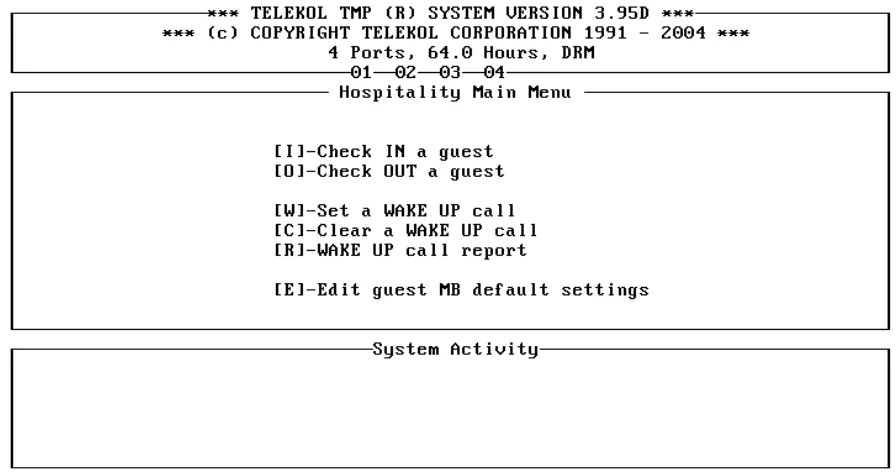
The Hospitality/PMS (Property Management System) Module was developed exclusively for the Hotel/Motel industry. The simple interface allows front desk personnel to check in and check out guest mailboxes. The auto-attendant can be programmed to answer calls for both guests and hotel administrators, or for administrators only. The guest mailboxes can be password protected to secure private access to messages from outside the room. This module also features a quick automatic wake-up call scheduling function, and integrates fully with most Property Management Systems.
New Features
• Version 3.95 includes the following new features: • Support for Dialogic Boards
• Wake Up Call Reports
• Holiday Scheduling and Greetings
• Personal Operators assignable for each mailbox • Auto message purge
• Emergency purge
• Multiple greetings per mailbox
Telekol Product Commitment
Overview of Features
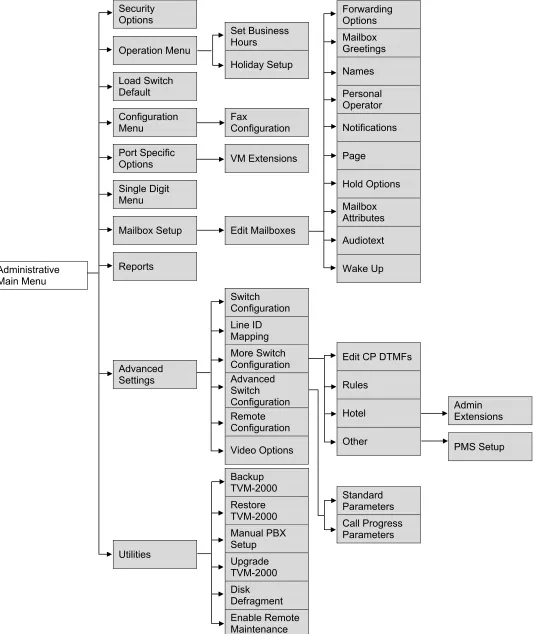
Figure 1: Administrative Menu Tree (Console) for the TVM-2000 Call Processing System
Forwarding Options Mailbox Greetings Names Personal Operator Notifications Page Hold Options Mailbox Attributes Audiotext Wake Up Advanced Settings Set Business Hours Holiday Setup Security Options Administrative Main Menu Operation Menu Load Switch Default Configuration Menu Port Specific Options Single Digit Menu Mailbox Setup Reports Utilities Fax Configuration VM Extensions Edit Mailboxes Switch Configuration Line ID Mapping More Switch Configuration Advanced Switch Configuration Remote Configuration Video Options Backup TVM-2000 Restore TVM-2000 Manual PBX Setup Upgrade TVM-2000 Disk Defragment Enable Remote Maintenance
Edit CP DTMFs
Rules Hotel Other Standard Parameters Call Progress Parameters Admin Extensions PMS Setup
Overview of Features
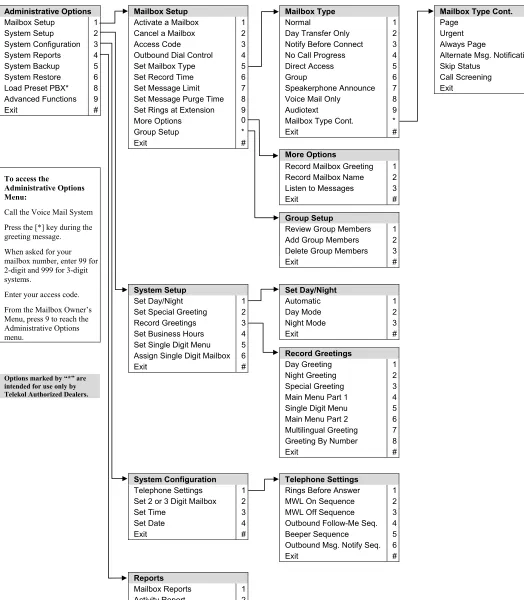
Figure 2: Administrative Options Menu
Record Greetings
Day Greeting 1
Night Greeting 2
Special Greeting 3
Main Menu Part 1 4
Single Digit Menu 5
Main Menu Part 2 6
Multilingual Greeting 7
Greeting By Number 8
Exit #
To access the
Administrative Options Menu:
Call the Voice Mail System
Press the [*] key during the greeting message.
When asked for your mailbox number, enter 99 for 2-digit and 999 for 3-digit systems.
Enter your access code.
From the Mailbox Owner’s Menu, press 9 to reach the Administrative Options menu.
Set Day/Night
Automatic 1
Day Mode 2
Night Mode 3
Exit #
More Options
Record Mailbox Greeting 1 Record Mailbox Name 2
Listen to Messages 3
Exit #
Mailbox Type
Normal 1
Day Transfer Only 2
Notify Before Connect 3
No Call Progress 4
Direct Access 5
Group 6 Speakerphone Announce 7
Voice Mail Only 8
Audiotext 9
Mailbox Type Cont. *
Exit #
Mailbox Type Cont.
Page 1 Urgent 2
Always Page 3
Alternate Msg. Notification 4
Skip Status 5
Call Screening 6
Exit #
Mailbox Setup
Activate a Mailbox 1
Cancel a Mailbox 2
Access Code 3
Outbound Dial Control 4
Set Mailbox Type 5
Set Record Time 6
Set Message Limit 7
Set Message Purge Time 8 Set Rings at Extension 9
More Options 0
Group Setup *
Exit #
Administrative Options
Mailbox Setup 1
System Setup 2
System Configuration 3
System Reports 4
System Backup 5
System Restore 6
Load Preset PBX* 8 Advanced Functions 9
Exit #
Group Setup
Review Group Members 1
Add Group Members 2
Delete Group Members 3
Exit #
System Setup
Set Day/Night 1
Set Special Greeting 2
Record Greetings 3
Set Business Hours 4
Set Single Digit Menu 5 Assign Single Digit Mailbox 6 Exit #
System Configuration
Telephone Settings 1
Set 2 or 3 Digit Mailbox 2
Set Time 3
Set Date 4
Exit #
Reports
Mailbox Reports 1
Activity Report 2
System Reports 3
Exit #
Telephone Settings
Rings Before Answer 1
MWL On Sequence 2
MWL Off Sequence 3
Outbound Follow-Me Seq. 4
Beeper Sequence 5
Outbound Msg. Notify Seq. 6
Exit #
Section 1:
Express Install
Hardware Installation
Overview
Installation of the TVM-2000 call processing system requires careful planning and execution. Remove the unit from its packaging. The unit was fully inspected at NETXUSA before shipping. If you find any damage, please save all original packaging materials and notify NETXUSA and the shipper immediately. The following items are packed with each unit:
ITEM QUANTITY
System Unit 1
AC Power Cord 1
TVM-2000 Quick Reference Cards 5 per port
TVM-2000 System Administrator & Technical
Reference Manual 1 for first time buyers
TVM-2000 User Guides 10 per every 4 ports
Installation Considerations
Use the following guidelines to choose a suitable location for your TVM-2000 unit:
• Avoid direct sunlight and extremely hot, cold or humid locations. Environment temperature should be between 40 and 90 degrees Fahrenheit, and relative humidity between 10 and 90 percent.
• Avoid excessive dust and vibration.
• Avoid locations with abrupt temperature swings.
• Avoid power circuits with thermostat-controlled equipment or other equipment that draws large currents.
Section 1: Express Install
Planning
Follow the steps below to plan the elements and features of the voice mail system.
1. Review the Integration Notes for your particular telephone switch to determine the parameter limits and features available. If it appears that your switch does not support a desirable feature, the TVM-2000 may provide you with the ability to configure an alternate method by utilizing its own internal hardware and software systems. See “Section 3: Using TVM-2000 Features” on page 41 for more information on activating features using non-compliant switches.
2. Develop a list of existing extensions.
3. Ascertain the relationship(s) among extensions, e.g., John Smith is one of 25 extensions in the Customer Service Department.
4. Work with the client to establish parameters and system-wide preferences.
5. Develop a call progress work flow diagram to find any possible “dead-ends” in your system. Ensure that all caller options either end in a voice response or a voice mailbox, fax or fax mailbox, or return the caller to the main menu.
Using “Appendix A: Worksheets” on page 145 will expedite the planning process.
Section 1: Express Install
Connecting to the Telephone System
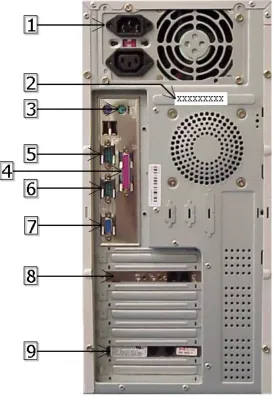
The following figure illustrates the physical connections in the tower required to set up the TVM-2000 unit.
Key:
1. Power Connector 2. TVM Serial Number 3. Keyboard Connector 4. Parallel Printer 5. Serial Port 1 (COM 2) 6. Serial Port 2 (COM 1) 7. Monitor
8. Modem
9. 4-Port Voice Board
(2 RJ-14 port model shown)
Section 1: Express Install
Enabling Remote Maintenance (Optional)
Telekol recommends enabling the remote maintenance software that is shipped with your TVM-2000 unit. Follow the steps below to enable remote maintenance:
1. Refer to Figure 1-1 on page 11 to connect the modem or terminal. 2. Call the TVM from any touch-tone phone.
3. Press [*] at the TVM welcome message.
4. Enter [999], or [99] when asked for a mailbox number. 5. Enter [9876] (default) when asked for the access code. 6. Enter [9] when the Mailbox Owner’s Main Menu is listed. 7. From administrator’s Main Menu, enter [9].
8. Enter [1786] when asked for the default access code. 9. After the tone,
a. Select [841] for serial port if using a terminal or an external modem b. Select [842] for internal modem.
10. Repeat steps 7 and 8 and press [9*] to activate the remote maintenance software.
11. Allow the TVM-2000 reset itself.
Configuring the Terminal (Optional)
If a terminal or terminal emulator from a laptop is being used, set the emulation to either VT-100 or VT-102. Set the serial port for No parity, 8 data bits, 1 stop bit, and 19,200 baud.
Configuring the Modem (Optional)
Set the remote terminal to either VT-100 or VT-102 emulation. Dial the phone number of the line connected to the TVM remote maintenance modem.
Connecting to Remote Maintenance (Optional)
After the connection has been established, press <Ctrl><A> four times (for null modem
connections only).
1. At the password prompt, enter JORDAN (default) 2. The TVM main menu will appear.
3. For security purposes, the system will automatically log off if no activity is detected after five minutes. To re-access the system, press <CTRL><A> four times, and then enter the password
(for terminal only).
Section 1: Express Install
Powering Up
The TVM-2000 will run the following diagnostic programs during power up to optimize and verify its disks, data, and directories:
1. ScanDisk checks for disk errors and automatically repairs them. 2. MDXCHK analyzes the databases.
Several LEDs will light as the system is booting up, and after about 30-50 seconds, the system will sound three “beeps” indicating it is ready to accept calls.
Quitting the TVM-2000
Should powering down the TVM-2000 voice mail server ever become necessary, press <CTRL><q>
at the main menu then once at the “C:\TM\PROD>” prompt, turn the power off.
Modifying Screen Parameters
Section 1: Express Install
Main Menu
Your TVM-2000 voice mail software is loaded automatically whenever the TVM-2000 unit is booted up. When the software has completely booted up, the TVM-2000 Main Menu screen will appear. (If the optional Hospitality Module is installed, the Hospitality Main Menu screen will appear instead.)
Figure 1-2: TVM-2000 Main Menu
The Main Menu is divided into three sections: System Information, System Setup/Options and System ctivity.
he System Information Window is at the top of the screen. It displays general system information cluding the software version number, number of ports, and the maximum storage capacity
urchased (the storage capacity is the number of hours available for recording messages and ber indicates that the port is processing a call.
The System Setup/Option ns
f nt screen. To
T nd
each port. This allows revi n
P at E
BAR] he
A
T in p
greetings). Inverse video surrounding a port num
s Window is in the middle of the screen. It describes the available optio rom the curre choose a particular option, type in the first letter of the option name.
he System Activity Wi ow is at the bottom of the screen. It shows the activity associated with ew of current system activities such as call progress, voice mail, otification, etc.
ressing [SPACE BAR] again will return t
the main menu will enlarge the System Activity screen, pressing [SPAC screen to its original state.
Section 1: Express Install
FIELD DESCRIPTION
[E]nter Security Code Allows access to the administrative functions. It is recommended that only authorized dealers change this parameter. The default is Level 2. [O]peration Sets the system-wide parameters, e.g. Date, Time, Operator Mailbox
ID, Business Hours and Holidays
[L]oad Switch Defaults Enables automatic default parameter settings for individual telephone switches through the entry of a switch default code found in the Preset Switch Default Table.
[C]onfiguration Settings
Sets Voice Mail specific system configuration options.
[P]ort Specific Options Enables and configures parameters and functions for individual Voice Mail ports or port groups, e.g., multi-tenant switch configurations. [S]ingle Digit Screen Assigns and enables settings for the single digit Screen.
[M]ailbox Setup/Editing Activates, edits and deletes individual mailbox settings for all mailbox types.
[R]eports Lists the available reports about the system and its mailboxes and enables requests to be sent to printer or text file.
[A]dvanced Settings Details advanced settings for entire TVM-2000 system.
Section 1: Express Install
Loading Switch Defaults
Select a preset switch default that will integrate the TVM-2000 with your Private Branch Exchange (PBX or “Switch”).
Figure 1-3: Load Switch Defaults Menu — To access from the Main Menu, press [L].
Use the Load Switch Defaults Menu to access the Load Switch Defaults screen. Select [L]oad Preset Switch, and enter the Switch default number listed in the second to last column of the “Preset Switch Settings Table”. (In cases where different switches share the same integration notes, you may have to refer to the integration notes in order to find the correct switch default number.) Upon returning to the Main Menu, you will notice that at the top of the System Setup/Options Window, the switch name will have changed to the name of the switch selected.
The default switch settings are tailor-made to combine the TVM-2000 with each switch in the most effective manner. Telekol recommends against changing any of the preset switch defaults.
Warning – Loading a switch default removes all Mailboxes and Settings.
TVM-2000 and Switch Integration
After loading the switch defaults using the switch number provided in the Preset Switch Defaults Table, complete the integration as detailed in the Switch Integration Manual.
Section 1: Express Install
System Greetings
System Greetings are the initial greetings callers hear when they reach the TVM-2000. System Greetings are composed from the Welcome Message, Main Menu Part 1, Single Digit Menu, and
Main Menu Part 2. Each of these greetings can be customized, numbered, and programmed to play on different days or at different times of the day. The TVM-2000 concatenates these greetings and plays them to the caller as if they were a single greeting.
Typical System Greeting structures use a total of 6 greetings and arrange them depending on the day and time the call comes into the system. The order in which the messages are played are configured via the Operations screen.
Section 1: Express Install
Example:
ABC Corporation wants to greet callers with 3 different greetings depending on the time of day. During the day, callers will hear:
Welcome to ABC Corporation. If you know your party’s extension number, you may dial it at any time. For a company directory, dial 411. For sales, press 1, for technical support press 2, for fax on demand press 3. If you need further assistance, please press 0 or stay on the line for the operator.
After hours, callers will hear:
Welcome to ABC Corporation, our hours of operation are from 8:30 AM to 7:30 PM. If you know your party’s extension number, you may dial it at any time. For a company directory, dial 411.
During lunch, callers will hear:
Welcome to ABC Corporation, from 12 p.m. to 1 p.m. we are closed for lunch. If you know your party’s extension number, you may dial it at any time. For a company directory, dial 411. For emergency technical support, press 7.
In order to do this, the administrator would record and label 6 greetings as shown below: 1. “Welcome to ABC Corporation”
2. “Welcome to ABC Corporation, our hours of operation are from 8:30 a.m. to 7:30 p.m.” 3. “Welcome to ABC Corporation, from 12 p.m. to 1 p.m. we are closed for lunch.”
4. “If you know your party’s extension number, you may dial it at any time. For a company directory, dial 411.”
5. “For sales, press 1; for technical support, press 2; for fax on demand, press 3.” 6. “If you need further assistance, please press 0 or stay on the line for the operator.” The greetings could then be arranged as shown in the matrix in figure 1-4. The greeting for each mode is the concatenated greetings in the column for that time of day. The TVM-2000 allows for the same greeting number to be used during different times of the day thereby increasing
flexibility in rearranging and recording greetings.
Note: If only one greeting is recorded, the greeting number should be put in the “Main Menu Part 1” row on the Operations screen.
Recording System Greetings (Telephone Interface)
Record your greetings from the TVM-2000’s Administrative menus. The administration mailbox number is 99 or 999. (“Greeting Scripts” on page 154 can be used to plan your greetings before you record them.)
To access the Administrative Options Menu, perform the following steps: 1. Call the TVM-2000 from any touch-tone phone.
2. Press [*] at the TVM-2000 welcome message.
3. Dial [9]+[9]+[9] (for 3 digit dialing plan) when asked for a mailbox number. 4. Enter [9]+[8]+[7]+[6] (default) when asked for the access code.
5. Enter [9] when the Mailbox Owners Main Menu is played.
After you access the administration side, the Administration Options Menu will play. Press [2], [3] to access the Record System Greetings menu. Select option 8 if you are recording by number. After recording, the TVM-2000 will offer you four options:
• To listen to your greeting, press [1]
• To save your greeting, press [2]
• To record your greeting again, press [3] • To exit without saving, press [4]
Section 1: Express Install
Using Pre-Recorded Greetings
Some dealers and customers prefer using professionally recorded greetings instead of recording System Greetings through the telephone. If you wish to have your greetings professionally recorded, first make sure that your vendor can digitize recordings into 8 bit, 8 kilohertz PCM mu-law files. The files can then be labeled according to the numbers used in the matrix on the operations screen (01.msg, 02.msg, etc.). Once the greetings are labeled, shut down the TVM-2000 and place the files in the c:\tm\msg\ directory. The new greetings will be used once the TVM-2000 is re-started.
Setting Operation Modes
The next step in setting up the initial system greetings is to tell the TVM-2000 when to play day, night and special messages.
1. On the Operations screen, make sure the Day/Night Mode field is set to “Auto” (default).
2. From the Operations screen, access the Set Business Hours screen.
3. Use the Set Business Hours screen to configure Day, Night, and Special time ranges.
Section 1: Express Install
Setting Up Operator (General Delivery) Mailboxes
The first mailboxes to set up are the Operator, or General Delivery mailboxes. These are the default mailboxes used, for example, when the caller selects no options or the mode of operation dictates a transfer to a general delivery mailbox, such as during holidays.
Before working on a mailbox, it must be created via the Mailbox/Setup Editing screen.
Set the mailbox number for Day or Night mode by entering the operator’s mailbox in the Day General Delivery MB and the Night General Delivery MB fields on the Operations Screen.
Fax Detection
The TVM-2000 base unit includes the ability to detect Fax calls (CNG tones) and transfer them to a fax machine. (For information on setting up the additional features included with the Optional Fax Module, see “Fax Module” on page 52.)
1. From the Main Menu, select [M]ailbox Setup/Editing.
2. Select a MB to which Fax calls will be transferred. 3. Access the Mailbox Attributes screen.
4. Activate (put a “*” next to) the NoCallProgress field. 5. From the Main Menu, select [O]perations.
6. Enter the number of the fax mailbox in the Fax Mailbox field.
Section 1: Express Install
Company Directory Options
The last step in your express setup is to specify your company directory options. The TVM-2000 can be configured to allow callers to access a directory of telephone extensions through the Name Search
screen, and can be further configured to perform special functions if there is more than one person at a company with the same first or last name.
Figure 1-6: Name Search Screen — To access from the Main Menu, press [C], «NameSearch».
The Company directory allows callers to find their party by name. There are five fields that control the behavior of the Directory feature:
Disable Name Search Name Search screen
Toggles on or off (activating or deactivating) the Directory Option.
Hide Extension Number Name Search screen
Section 1: Express Install
List Names on Search Name Search screen
This parameter overrides the Operations screen’s Name Search Msg field and works in two separate ways after more than one name in the Corporate Directory is identified as matching the caller’s entry:
“Yes”: (default) After the caller is instructed to enter the first three letters of the name of the person she/he is trying to reach, the TVM-2000 announces if the person you are trying to reach is <recorded name>, press [1]. If the name identified is incorrect, the caller is asked to press [2]. If there is more than one person with a last name that matches the caller’s entry, the TVM-2000 system then plays the next person’s name, until no additional names are identified. At that point, the Voice Mail plays a message that no match was found, and the caller is returned to the main menu to review the other options.
“No”: The caller is instructed to enter the first three letters of the last name of the person she/he is trying to reach. If more than one person is identified by the caller’s entry, the Voice Mail then asks for the first three letters of the first name, and then the middle initial until no additional names are identified. At that point, the Voice Mail plays a message that no match was found.
Follow the following steps to complete the setup of the Company Directory: 1. Enter the Configuration Settings screen by pressing [C] from the Main Menu.
2. Set the Directory MB field to the digits the caller needs to enter in order to access the directory. By default this field is set to 002.
3. Enter the Operations screen by pressing [O] from the main menu.
4. Highlight the Name Search Msg field. This field controls the message that is played when the caller reaches the directory.
5. Instruct each Mailbox Owner to enter his or her name in the corporate directory by following the directions in the TVM-2000 User’s Guide.
Warning — Names will not show up in the name search unless they are entered and recorded.
Directory MB Configuration screen
This field determines the digits the caller needs to enter to access the company directory.
Name Search Msg Operations screen
This field controls the message that is played when the caller reaches the directory. This field may be set as follows:
1. “General”: Prompts the caller to enter up to the first three letters of the first or last name of the person they are trying to reach.
2. “First”: Prompts the caller to enter up to the first three letters of the first name of the person they are trying to reach.
3. “Last”: Prompts the caller to enter up to the first three letters of the last name of the person they are trying to reach.
Section 2:
Mailbox Setup
The TVM-2000 uses three types of mailboxes: User Mailboxes, Audiotext Mailboxes, and Group mailboxes. User Mailboxes are set up to serve as separate, private answering machines for each company employee. Audiotext Mailboxes can be set up to play recorded announcements or information to callers. Group mailboxes are used to route calls and messages to specific groups of employees.
Setting Up User Mailboxes
Each preset switch default comes with a usable range of Mailbox numbers. Use “
Mailbox
Owner/Attributes Information
” on page 150 to assign each employee a mailbox. The mailbox number can, but does not necessarily have to be, the same as the extension number. Once mailbox and extension numbers have been assigned, follow the steps below to activate mailboxes for each employee:1. Enter the [M]ailbox Setup/Editing screen from the Main Menu.
Section 2: Mailbox Setup
2. Enter the [E]dit Mailboxes screen, shown below:
Figure 2-2: Mailbox Editing Screen — To access from the Main Menu press [M], [E], mailbox
. Enter the employee’s extension number in the Extn: field at the top of the left column on the
5. Access the Names screen
6. Enter the employee’s last and first name in the Last Name and First Name fields, respectively.
Changing the rest of the fields on Mailbox Editing screen is optional. Which fields will require changing depends primarily on the specific application you are setting up. Contact your Telekol Authorized Dealer for details.
Assigning a Personal Operator for an Individual Mailbox
A personal operator can be assigned for any mailbox. To assign a personal operator to a mailbox:
1. From the Main Menu, press [M] for Mailbox Setup/Editing. 2. Press [E] to Edit Mailboxes.
3. Enter the number of the mailbox for which you want to assign a Personal Operator. 4. Access the Personal Operator screen from the Mailbox Editing screen
5. In the Personal Operator field, enter “Yes”.
6. In the Personal Operator MB field, enter the Personal Operator’s MB number.
TVM-2000 will not allow you to assign a non-active mailbox as a personal operator.
#, [ENTER].
3. Enter the mailbox number that you wish to edit. 4
screen.
Section 2: Mailbox Setup
Setting up Hold Options for Each Mailbox
The Hold Options screen controls whether or not callers to a particular mailbox are allowed to hold in queue.
The first caller on hold in queue is on hold in the switch. All other callers are held in the Voice Mail.
To enable hold options for a particular mailbox, follow the steps below: 1. Type [M] from the Main Menu to enter the Mailbox Editing screen. 2. Type [E] from the Mailbox Editing screen.
3. Enter the number of the mailbox that will use Hold Options. 4. Access the «Mailbox Attr.»screen.
5. If there is a star to the left of NoCallProgress, deactivate it. You must have supervised transfers enabled for hold options to work on this mailbox. Consult the Switch Integration Manual to determine how to enable supervised transfers for your PBX.
6. Press [ESC] and then enter the «Hold Options»screen from the Mailbox Setup/Editing screen.
Figure 2-3: Hold Options Screen — To access from the Main Menu press [M], [E], mailbox #, «Hold Options».
Section 2: Mailbox Setup
9. From the Main Screen, enter the Configuration screen by typing [C].
10. Enter «Hold Options».
Figure 2-4: System Hold Options Screen — To access from the Main Menu press [C], «Hold Options».
FIELD DESCRIPTION
Max System Hold The maximum number of callers allowed to hold in the system queue at the same time. Limited to the number of ports.
Hold Attempts Sets the number of times the TVM-2000 attempts to transfer the caller to a busy extension before prompting the caller with an option to continue holding.
Hold Secs. When using hold options, this field sets the length of time the system waits before retrying a busy extension. Do not set higher than the default value of 10.
11. In the phone switch, disable call forwarding on all stations which have hold options enabled in order to prevent callers on hold from being forwarded to another extension.
For a complete explanation of all the fields listed on the Hold Options and Configuration screens, see “System Hold Options Screen” on page 98 and “Configuration screen” on page 95.
Telekol ships “Hold Music” with every TVM-2000 unit. The Hold Music is stored in message numbers 5000 through 5009.
Section 2: Mailbox Setup
Activating Optional Mailbox Features
Notification Options
The TVM-2000 can be set up to notify mailbox owners of incoming calls and waiting messages using a variety of options.
Beeper Notification Option
The Beeper Notification Option programs the TVM-2000 to beep Mailbox Owners whenever messages are left for them. Follow the steps below to configure the Beeper Notification Option:
1. Enter the Configuration screen by pressing [C] from the Main Menu.
2. In the Beeper Seq field, enter the appropriate string of dialing codes. For a list of dialing codes, see “Dialing Codes” on page 173.
3. From the Main Menu, enter the Mailbox Editing screen by pressing [M], [E]. 4. Enter the number of the mailbox that will be given beeper notification. 5. Access the «FWD Options»screen.
6. Set the Outbd Fwd Ok field to “Yes”. 7. Set the Fwd field to “Beeper”.
8. Enter the phone number of the beeper in the Fwd Num field. Please note that this number should be entered as it would be dialed. Do not include any digits required for an outside line by the switch.
9. (Optional) At this point, the mailbox is configured to notify the mailbox owner on all messages. To configure the mailbox to perform beeper notification on urgent messages only, enter the
«Mailbox Attr.»screen and activate (place a “*” next to) the Urgent OK field.
There are several fields that affect beeper notification and its behavior. Review each of the following fields to ensure efficient processing:
[M]ailbox Setup/Editing screen
Beeper Seq.: The individual mailbox owner’s beeper number sequence. If it is blank, the value entered in the Beeper Seq. field on the Configuration screen is used.
Play Capture: When set to “Yes,” Voice Mail will play the captured DTMFs as the message.
«Notifications»
Not. Del.: The number of minutes the Voice Mail waits before performing the beeper notification procedure.
Num Notifys: The number of times the Voice Mail performs the beeper notification procedure if the message is not retrieved.
Notify Mins: The amount of time the Voice Mail waits before initiating another beeper notification procedure if the message is not retrieved.
«Mailbox Attr» screen
Capture Digits: When enabled, allows callers to enter the DTMFs that will appear as the number to call in the beeper window.
Section 2: Mailbox Setup
[C]onfiguration screen
Notification Cycle: Global Parameter-Number of minutes the Voice Mail waits before performing beeper notification, outbound message notification, call forwarding procedures, etc.
Beeper Seq.: Global Parameter-The default beeper number sequence.
Outbound Message Notification
When outbound message notification is enabled, the mailbox owner receives calls to the outside line specified in the Fwd Num field. If the call connects, two methods of notification can occur. If “*4” is the last part of the sequence string in the Outbound Dialing Seq., the call connects, the Voice Mail hears the connection, and the recorded prompts instruct the mailbox owner how to retrieve the message on the same call. If “*6” is the last part of the sequence, the call connects, the Voice Mail notifies the mailbox owner that she/he has a message waiting, and hangs up.
1. Enter the Advanced Settings menu by pressing [A] from the Main Menu.
2. Enter the Switch Configuration screen by pressing [S] from the Advanced Settings menu. 3. In the Outbd Dialing Seq. field, enter the appropriate string of dialing codes. For a list of
Dialing Codes, see “Dialing Codes” on page 165.
4. Press [Esc] to go back to the Main Menu.
5. From the Main Menu, press [M] for Mailbox Setup/Editing. 6. Press [E] from the Mailbox Setup/Editing screen.
7. Enter the number of the mailbox that will be given Outbound Message notification functionality. 8. Access the «FWD Options»screen.
9. Set the Outbd Fwd Ok field to “Yes.” 10. Set the Fwd field to “Out-Msg Notif.”
11. Enter the phone number of the external location in the Fwd Num field. Please note that this number should be entered as it would be dialed. Do not include any digits required for an outside line by the switch.
12. (Optional) At this point, the mailbox is configured to notify the mailbox owner on all messages. To configure the mailbox to perform out bound message notification on urgent messages only, highlight «Mailbox Attr.»and press [ENTER].
13. (Optional) Highlight Urgent OK and press [ENTER] to activate this attribute.
Section 2: Mailbox Setup
There are several options that affect outbound message notification and its behavior. Review each of the following fields to ensure efficient processing:
«FWD Options»screen
Outbd Fwd Ok: When set to “Yes,” Voice Mail is enabled to deliver messages and transfer calls to off-site telephone numbers and beepers.
Fwd: Indicates the type of forwarding enabled for this particular mailbox. It should be set to “Out-Msg Notif”.
Fwd Num: The off-site telephone number to which the message notification is being sent.
«Notifications»screen
Not. Del.: The number of minutes the Voice Mail waits before performing the outbound message notification procedure.
Num Notifys: The number of times the Voice Mail performs the outbound message notification procedure if the message is not retrieved.
Notify Mins: The amount of time the Voice Mail waits before initiating another beeper notification procedure if the message is not retrieved.
[M]ailbox Editing Screen
Play Capture: When set to “Yes,” Voice Mail will play the captured DTMFs as the message.
«Mailbox Attr»
Urgent Ok: When enabled, mailbox owners will only be notified of messages left in their mailbox that are marked “Urgent”.
[C]onfiguration screen
Section 2: Mailbox Setup
Outbound “Follow-Me” (Call Forwarding)
Outbound Follow-Me allows the TVM-2000 to put an incoming call on hold, dial an outside line and connect to a telephone off-site, verify the connection and connect the caller to that outside telephone. To properly configure the TVM-2000 to initiate an out bound message notification session, the Switch and CO line must support unsupervised trunk-to-trunk transfers (such as Centrex).
1. Enter the Advanced Settings screen by pressing [A] from the Main Menu.
2. Enter the Switch Configuration screen by pressing [S] from the Advanced Settings menu. 3. In the Outbd Follow-Me Seq. field, enter the appropriate string of dialing codes. For example,
the Outbd Follow-Me Sequence may look like: 9*1*9*4*3. The first 9 in this example is used to secure a CO line. For a list of Dialing Codes, see “Dialing Codes” on page 165.
4. From the main menu, press [M] for Mailbox Setup/Editing.
5. Press [E] to access the Mailbox Editing Screen.
6. Enter the number of the mailbox that will be given Outbound Follow-me functionality. 7. Access the «FWD Options»screen
8. Set the Outbd Fwd Ok field to “Yes” by highlighting the field and pressing [ENTER]. 9. Set the Fwd field to “Out-Follow.”
10. Enter the phone number of the external location in the Fwd Num field. This number should be entered as it would be dialed. Do not include any digits required for an outside line by the switch.
There are several options that affect Outbound Follow-Me and its behavior. Review each of the following fields to ensure efficient processing:
«FWD Options»screen
Outbd Fwd Ok: When set to “Yes”, Voice Mail is enabled to deliver messages and transfer calls to off-site telephone numbers and beepers.
Fwd: Indicates the type of forwarding enabled for this particular mailbox. It should be set to “Out-Follow”.
Fwd Num: The sequence string matching the off-site telephone number to which the calls are being transferred.
[S]witch Configuration screen
Outbd Follow-Me Seq: Sequence string matching the off-site telephone number to which the call is to be transferred.
Outbd Port: Port assigned for automatic call forwarding, message, and beeper notification.
«Other»screen
Outbd Recall: Sequence string for retrieving a caller on hold in the Voice Mail when the outbound call fails to connect.
Outbd Connect: Sequence string for connecting a caller on hold in the Voice Mail when the outbound call connects.
Section 2: Mailbox Setup
Call Recording and Call Screening
Call Recording is most effective when combined with Speakerphone Announce and Call Screening. The caller dials the desired extension and is prompted to speak his/her name. When the incoming call is picked up by the extension, the Voice Mail will prompt the called party with: “Call from (caller’s name). To save a recording of this call, press [1]. To tentatively record this call, press [2]. To not record this call, press the [#] key.” If [1] or [2] is selected, the TVM-2000 will record both sides of the conversation.
Enabling Call Recording requires switches that support “Supervised Transfers”. Check the Switch Integration Notes for each switch that doesn’t support Supervised Transfers for additional
instructions on enabling Call Recording.
1. From the Main Menu screen, press [M].
2. Type [E] from the [M]ailbox Setup/Editing menu. 3. Enter the number of the mailbox that will be used. 4. Highlight «Mailbox Attr»and press [ENTER]. 5. Activate (put a “*” next to) the Speakerphone field. 6. Activate (put a “*” next to) the Call Screening field. 7. Activate (put a “*” next to) the Call Recording field.
There are several options that effect two-way call recording and its behavior. Review each of the following fields to ensure efficient processing: Refer to your telephone switch manual for the specific DTMFs to use for the following parameters.
• Conference Seq.: This field indicates the digits the system automatically dials to initiate a
two-way call recording session. If left blank (default), the Voice Mail interprets this to mean a flash- hook.
• Drop Conf. Seq.: This field indicates the digits the system automatically dials to disconnect
from a two-way call recording session. The Voice Mail stops recording, e.g., due to reaching the maximum number of seconds of silence, but the call progresses. The two parties continue the conversation. If left blank (default), the Voice Mail hangs up.
• Disc./Conf Seq.: This field indicates the digits the system automatically dials to abandon all
parties in a two-way call recording session. If left blank (default), the Voice Mail hangs up.
• RSilCallRec: ([A]dvanced Settings, [A]dvanced Switch Configuration, [S]tandard Parameters)
Section 2: Mailbox Setup
Group Mailboxes
Group Mailboxes are set up to allow several people to handle calls from a single mailbox. To set up a group mailbox, follow the steps below:
1. Access an existing or create a new mailbox. For information on accessing or creating mailboxes, see “Setting Up User Mailboxes” on page 25.
2. Access the «Mailbox Attr.»screen.
3. Activate (put a “*” next to) the Group field. 4. Press [Esc] to return to the Mailbox Editing screen.
5. Access the «Group Setup» screen, shown below. There are three fields on the Group Setup screen that configure your group mailbox. The first, Type, controls the type of distribution of calls or messages. The second, Call Distribution, controls how the calls or messages are distributed to the group’s members. The third, Num Members, sets the number of members in the group.
Figure 2-5: Group Setup Screen — To access from the Main Menu press [M], [E], mailbox #, «Group Setup» for a mailbox with Groups enabled.
To access the Group Setup screen, the mailbox must first have “groups” enabled. The group field is enabled via the «Mailbox Attr.» screen, which is also accessed through the mailbox editing screen.
Section 2: Mailbox Setup
Group Types
Broadcast Groups
Messages left in Broadcast Group mailboxes are sent (broadcast) to every member within the group. When a member of the group listens to the message, the message remains in all other mailboxes in the group.
1. From the Mailbox Editing screen, highlight «Group Setup»and press [ENTER]. 2. Enter “Broadcast” in the Type field.
3. Change the Num Members field to reflect the number of members in the group. TVM-2000 systems have a maximum of 40 members per group.
4. Enter the group members in the corresponding fields.
Dispatch Groups
Messages left in a dispatch group mailbox are sent to every member within the group. Once a member of the group listens to the message, the message is removed from all other mailboxes in the group.
1. From the Mailbox Editing Screen, highlight «Group Setup»and press [ENTER]. 2. Enter “Dispatch” in the Type field.
3. Change the Num Members field to reflect the number of members in the group.
4. Enter the group members in the corresponding fields. Enter the members in the order in which you wish to have them notified of a caller.
Retrieval Groups
Retrieval Groups are used to retrieve messages from several mailboxes in one step. Accessing the owner’s side of the mailbox will allow the listener to hear all messages left for all the members of the group. While accessing messages from one mailbox, the mailbox owner can press the star (*) key to go to the next mailbox in the group.
1. From the Mailbox Editing Screen highlight «Group Setup» and press [ENTER]. 2. Enter “Retrieval” in the Type field.
3. Change the Num Members field to reflect the number of members in the group. 4. Enter the group members in the corresponding fields.
Automatic Call Distribution (ACD) Only Groups
ACD Only groups distribute calls to the members of its group. These mailboxes handle messages as a non-Group mailbox would. This type of mailbox has Group Mailbox functionality only insofar as the Call Distribution field specifies.
1. From the Mailbox Editing Screen, highlight «Group Setup»and press [ENTER]. 2. Enter “ACD Only” in the Type field.
3. Select the type of Call Distribution. See Call Distribution Types below.
Section 2: Mailbox Setup
Call Distribution Types
The Call Distribution field handles how group mailboxes distribute calls.
Top Down
Calls to group mailboxes with “Top Down” call distribution are distributed to the same extension in the group in the same order. Each new call that comes in is routed to the same first extension each time.
Uniform
Calls to group mailboxes with “Uniform” call distribution are distributed to group members in sequential order. For each new call that comes in, the mailbox checks the last place to which it transferred a call and begins hunting at the next Group Mailbox member.
Example: Top Down vs. Uniform
A mailbox group has members A, B, C, and D. If the group were set up as a “Top Down” mailbox, incoming calls would always be first routed to mailbox A. If mailbox A was busy, the call would be routed to B, then C, and finally D. The next incoming call would again be routed first to extension A. If the group were set up as a “Uniform” mailbox, the first incoming call routed to A. If mailbox A was busy, the call would be routed to B, then C, and finally D. The NEXT incoming call would be routed to B. If B was busy, the call would be routed to C, D, and finally A. The next incoming call would start off with C, etc.
Make sure NoCallProgress is NOT activated (there is no “*” next to NoCallProgress) if either Top Down or Uniform groups are used.
None
Calls to ACD Only mailboxes with “None” selected route calls as any other non-Group mailbox would.
Section 2: Mailbox Setup
Setting Up Audiotext Mailboxes
Audiotext Mailboxes can be used as part of a fax on demand or ordering application, to provide announcements to callers, or to present a series of options for routing incoming calls.
Example:
ABC Corporation wishes to have callers who enter “200” to be routed to a menu of options. The menu will say, “For widget sales, press 1. For computer sales, press 2. For software sales, press 3.” The call will then be routed to the appropriate extension based upon what the caller chooses. If the caller presses 1, she/he will be transferred to extension 110. If the caller presses 2, she/he will be transferred to extension 111. If the caller presses 3, she/ he will be transferred to extension 112.
1. From the Main Menu, enter the Mailbox Setup/Editing screen by pressing [M]. 2. Edit a new mailbox by entering [E] from the Mailbox Setup/Editing screen.
3. Enter the number of the mailbox that will be configured as the menu or audiotext mailbox. Using the above application example, enter 200.
4. Move the highlight to «Audiotext»and press [ENTER]. The screen will display a message stating that this process is irreversible and will remove all messages from this mailbox. Press [Y] and then [ENTER].
5. The Audiotext screen will be displayed as shown below:
F [Y].
igure 2-6: Audiotext Screen — To access from the Main Menu press [M], [E], «Audiotext»,
6. Enter the mailbox which callers will be transferred to when they press “1” in the ‘1’ MB field. Using the application example, enter 110 in this field.
7. Repeat step 6 for any remaining digits. In our application example, enter 111 in the ‘2’ MB field and 112 in the ‘3’ MB field.
Section 2: Mailbox Setup
An Audiotext mailbox co limit on the number of Au
uld lead to another Audiotext Box or to a regular extension. There is no diotext levels in the system. Plan your Audiotext trees before
unctionality to a mailbox, ensure that the mailbox is empty. The warning whether or not there are any messages and faxes outstanding.
implementing them.
Before assigning audiotext f dialog will appear
Section 2: Mailbox Setup
Setting Up Q&A Mailboxes
The Question and Answer Audiotext mailbox allows the TVM-2000 to gather and process information automatically.
Example:
An advertising company wishes to automate the process of the placement of magazine ads. The questions that need to be answered are as follows:
1. Name & billing address of the company 2. Telephone number
3. Size of the ad
4. Number of publications to run the ad 5. Credit Card Type
6. Credit card number & expiration date
After the information is recorded and stored in the specified Q&A Mailbox, the advertising firm wants the TVM-2000 to say, “Thank you for you order. If we experience any difficulties while processing your order, we will contact you immediately. Please submit all relevant artwork to ABC Advertising 1234 Main Street, Anytown, Massachusetts 01234.”
1. From the Main Menu, enter the Mailbox Editing screen by pressing [M]. 2. Type [E] from the Mailbox Setup/Editing screen.
3. Enter the number of the mailbox that will be configured as the first question. 4. Move the highlight to «Audiotext»and press [ENTER].
5. Activate (put a “*” next to) the Record Response field.
6. Enter the number of the second question in the Next Mailbox field.
7. Enter the number of the mailbox in which all answers will be stored in the Store in MB field. 8. If the answer to this question is required, enter “1” in the Required field. If the answer is not
required, enter a “0” in the Required field. 9. Repeat steps 1 through 8 for the other questions.
10. For the “Thank you for your order...” follow steps 1 through 9 and then activate (put a “*” next to) the Hang Up When Played field.
11. Record all of the questions by performing the following steps: a. Call into the TVM-2000 and press [*]+[Mailbox Number].
b. When prompted, enter the access code. The default access code is 9876.
![Figure 1-3: Load Switch Defaults Menu — To access from the Main Menu, press [L].](https://thumb-us.123doks.com/thumbv2/123dok_us/1304062.1163028/30.612.130.574.143.378/figure-load-switch-defaults-menu-access-main-menu.webp)
![Figure 1-5: Set Business Hours Menu — To access from the Main Menu, press [O], «Set Business Hours»](https://thumb-us.123doks.com/thumbv2/123dok_us/1304062.1163028/33.612.142.586.307.542/figure-business-hours-menu-access-main-business-hours.webp)
![Figure 1-6: Name Search Screen — To access from the Main Menu, press [C], «NameSearch»](https://thumb-us.123doks.com/thumbv2/123dok_us/1304062.1163028/35.612.140.586.165.400/figure-search-screen-access-main-menu-press-namesearch.webp)
![Figure 3-2: Port Specific Options Screen — To access from the Main Menu, press [P].](https://thumb-us.123doks.com/thumbv2/123dok_us/1304062.1163028/59.612.143.582.209.444/figure-port-specific-options-screen-access-main-menu.webp)