MODEL
UX-465L
OPERATION MANUAL
FACSIMILE
1. Installation
2. Setting Up and Using OpenLCR 3. Using the Answering Machine 4. Sending Documents 5. Receiving Documents 6. Making Copies
7. Making Telephone Calls 8. Special Functions
These limits are designed to provide reasonable protection against harmful interference in a residential installation.
This equipment generates, uses and can radiate radio frequency energy and, if not installed and used in accordance with the instructions, may cause harmful interference to radio communications. However, there is no guarantee that interference will not occur in a particular installation. If this equipment does cause harmful interference to radio or television reception, which can be determined by turning the equipment off and on, the user is encouraged to try to correct the interference by one or more of the following measures: - Reorient or relocate the receiving antenna.
- Increase the separation between the equipment and the receiver.
- Connect the equipment into an outlet on a circuit different from that to which the receiver is connected.
- Consult the dealer or an experienced radio/TV technician for help.
ABOUT THE TELEPHONE CONSUMER PROTECTION ACT OF 1991
"The Telephone Consumer Protection Act of 1991 makes it unlawful for any person to use a computer or other electronic device to send any message via a telephone facsimile machine unless such message clearly contains in a margin at the top or bottom of each transmitted page or on the first page of the transmission the following information:
(1) The date and time of transmission.
(2) Identification of either the business, business entity or individual sending the message. (3) Telephone number of either the sending machine, business, business entity or individual. In order to program this information into your facsimile machine, please refer to the appropriate instructions in the operation manual."
As an ENERGY STAR partner, SHARP has determined that this product meets the ENERGY STAR guidelines for energy efficiency.
FOR YOUR RECORDS
Please record the model number and serial number below, for easy reference, in case of loss or theft. These numbers are located on the rear side of the unit.Space is also provided for other relevant
information.
Introduction
*Based on ITU-T Test Chart #1 at standard resolution, excluding time for protocol signals (i.e., ITU-T phase C time only).
Automatic dialing Rapid Key Dialing: 4 numbers
Speed Dialing: 40 numbers
Imaging film Initial starter roll (included with machine):
32 ft. (10 m) (approx. 30 letter-size pages)
Replacement roll:
UX-3CR 98 ft. (30 m) (two rolls in
package, one roll yields approx. 100 letter-size pages)
Memory size* 512 KB (approx. 30 pages with no voice
messages recorded and ECM turned off, or 24 minutes of voice messages (including OGMs) with no documents in memory)
Modem speed 14,400 bps with automatic fallback to lower
speeds.
Transmission time* Approx. 6 seconds (only when ECM is on)
Resolution Horizontal: 203 pels/inch (8 pels/mm)
Vertical:
Standard: 98 lines/inch (3.85 lines/mm) Fine /Halftone:
196 lines/inch (7.7 lines/mm) Super fine:
391 lines/inch (15.4 lines/mm)
Automatic document feeder
10 pages max. (20 lb paper)
Recording system Thermal transfer recording
Paper tray capacity (16- to 20-lb. paper)
Letter: 60 sheets Legal: 30 sheets
Compression scheme MR, MH, MMR
Applicable telephone line Public switched telephone network
Compatibility ITU-T (CCITT) G3 mode
Input document size Automatic feeding:
Width: 5.8 to 8.5" (148 to 216 mm) Length: 5.5 to 11" (140 to 279 mm) Manual feeding:
Width: 5.8 to 8.5" (148 to 216 mm) Length: 5.5 to 23.6" (140 to 600 mm)
Effective scanning width 8.3" (210 mm) max.
Effective printing width 8.3" (210 mm) max.
Contrast control Automatic/Dark selectable
Reception modes TEL/FAX/TAD
Copy function Single/Multi/Sort (99 copies/page)
Telephone function Yes (cannot be used if power fails)
Power requirements 120 V AC, 60 Hz
Operating temperature 41 - 95°F (5 - 35°C)
Humidity Maximum: 85% RH
Power consumption Standby: 4.0 W
As a part of our policy of continuous improvement, SHARP reserves the right to make design and specification changes for product improvement without prior notice. The performance specification figures indicated are nominal values of production units. There may be some deviations from these values in individual units.
Dimensions Width: 13.5" (343 mm)
Depth: 10.1" (256 mm) Height: 7.2" (182 mm)
Weight Approx. 7.7 lbs. (3.5 kg)
Important safety information
Do not disassemble this machine or attempt any procedures not described in this manual. Refer all servicing to qualified service personnel.
Do not install or use the machine near water, or when you are wet. For example, do not use the machine near a bath tub, wash bowl, kitchen sink or laundry tub, in a wet basement, or near a swimming pool. Take care not to spill any liquids on the machine.
Unplug the machine from the power outlet and telephone jack and consult a qualified service representative if any of the following situations occur: - Liquid has been spilled into the machine or the machine has been exposed to rain or water.
- The machine produces odors, smoke, or unusual noises. - The power cord is frayed or damaged.
- The machine has been dropped or the housing damaged.
Do not allow anything to rest on the power cord, and do not install the machine where people may walk on the power cord.
This machine must only be connected to a 120 V, 60 Hz, grounded (3-prong) outlet. Connecting it to any other kind of outlet will damage the machine and invalidate the warranty.
Never insert objects of any kind into slots or openings on the machine. This could create a risk of fire or electric shock. If an object falls into the machine that you cannot remove, unplug the machine and consult a qualified service representative.
Do not place this machine on an unstable cart, stand or table. The machine could be seriously damaged if it falls.
disconnected at the network interface.
Use caution when installing or modifying telephone lines.
Avoid using a telephone (other than a cordless type) during an electrical storm. There may be a remote risk of electric shock from lightning.
Do not use a telephone to report a gas leak in the vicinity of the leak.
The power outlet must be installed near the equipment and must be easily accessible.
Important:
♦
This facsimile machine is not designed for use on a line which has call waiting, call forwarding, or certain other special services offered by your telephone company. If you attempt to use the fax machine in conjunction with any of these services, you may experience errors during transmission and reception of facsimile messages.Table of Contents
Introduction
1
Important safety information . . . 3
Table of Contents
5
A Look at the Operation Panel
7
1. Installation
9
Unpacking Checklist . . . 9
Connections . . . 10
Loading the Imaging Film . . . 13
Loading Printing Paper . . . 17
Entering Your Name and Fax Number . . . 20
Setting the Date and Time . . . 22
Setting the Reception Mode . . . 24
Volume Adjustment . . . 25
2. Setting Up and Using OpenLCR
27
3. Using the Answering Machine
37
Recording an Outgoing Message . . . 37
Operating the Answering Machine . . . 39
Optional Answering Machine Settings . . . 42
Transfer Function . . . 45
Override Ringing. . . 47
Remote Operations . . . 49
4. Sending Documents
55
Transmittable Documents. . . 55
Loading the Document . . . 56
Adjusting the Resolution and Contrast . . . 58
Sending a Fax by Normal Dialing . . . 60
5. Receiving Documents
71
Using FAX Mode . . . 71
Using TEL Mode . . . 73
Substitute Reception to Memory . . . 78
6. Making Copies
79
7. Making Telephone Calls
81
8. Special Functions
83
Caller ID (Requires Subscription to Service) . . . 83
Distinctive Ring (Requires Subscription to Service) . . . 87
Broadcasting . . . 89
Cover Sheet . . . 90
Batch Page Numbering . . . 92
Blocking Reception of Unwanted Faxes . . . 93
Sending Documents From Memory . . . 95
Polling (Requesting a Fax Transmission) . . . 97
Timer Operations . . . 100
9. Printing Lists
102
10. Maintenance
106
11. Troubleshooting
109
Problems and Solutions . . . 109
Messages and Signals . . . 114
Clearing Paper Jams . . . 117
Ordering Parts. . . 120
FCC Regulatory Information . . . 121
Quick Reference Guide
122
RECEPTION MODE key
Press this key to select the reception mode. An arrow in the display will point to the currently selected reception mode.
RESOLUTION key
Press this key to adjust the resolution for faxing or copying.
VOLUME key
Press this key to adjust the volume of the speaker when the
SPEAKER key has been pressed,
the volume of the handset when the handset is lifted, or the volume of the ringer at all other times.
FUNCTION key
Press this key to select various special functions.
SPEED DIAL key
Press this key to dial a fax or voice number using an abbreviated 2-digit Speed Dial number.
REDIAL key
Press this key to automatically redial the last number dialed.
REPEAT key
Press this key to repeat playback of a message.
Display
This displays messages and prompts during operation and programming.
PLAY/SKIP key
Press this key to play recorded messages. During playback, press it to skip forward to the next message.
A Look at the Operation Panel
FACE DOWN (MAX 10 SHEETS)
JKL SPEED DIAL REDIAL SPEAKER HOLD/ SEARCH
REPEATREC/MEMO PLAY/SKIP
DELETE
STOP COPY/HELP
START/MEMORY
VOLUME DOWN UP RECEPTION
MODE
RESOLUTION FUNCTION
TEL FAX
TAD ABC 2 1 DEF 3 WXYZ 9 GHI 4 5 MNO 6 PQRS 7 TUV 8 0
1 2 3 4 7 8 9
11 12 13 15 16 18 19 20
panel.
Number keys
Use these keys to dial numbers, and enter numbers and letters when storing auto-dial numbers.
HOLD/SEARCH key
When dialing, press this key to search for an auto-dial fax number. During a phone conversation, press this key to put the other party on hold.
SPEAKER key
Press this key to listen to the line and fax tones through the speaker when faxing a document.
Note: This is not a
speakerphone. You must pick up
the handset to talk with the other party.
REC/MEMO key
Press this key to record a phone conversation or a message.
Rapid Dial Keys
Press one of these keys to dial a fax number automatically.
OpenLCR key
Press this key to register for OpenLCR service and receive carrier rate data to your fax.
DELETE key
Press this key to erase recorded messages.
15
16 14 13 12 11
START/MEMORY key
Press this key to begin
transmission when using Speed Dialing, Direct Keypad Dialing, or Normal Dialing.
COPY/HELP key
When a document is in the feeder, press this key to make a copy of a document. At any other time, press this key to print out the Help List, a quick reference guide to the operation of your fax machine.
17
19
1. Ins
tall
ation
1. Installation
Unpacking Checklist
If any are missing, contact your dealer or retailer.
Before setting up, make sure you have all of the following items.
Original document support
Handset Handset cord
Gears (4) Imaging film (initial starter roll) Paper tray
extension
Rapid key labels
Operation manual
Telephone line cord
Imaging film cartridge
Points to keep in mind when setting up
Do not place the machine in direct sunlight.
Do not place the machine near heaters or air conditioners.
Keep dust away from the machine.
Keep the area around the machine clear.
About condensation
Connections
Make sure the handset cord goes into the jack marked with a handset symbol on the side of the machine!
Use the handset to make ordinary phone calls, or to transmit and receive faxes manually.
Connecting the power cord
Plug the power cord into a 120 V, 60 Hz, grounded AC (3-prong) outlet.
Caution!
Do not plug the power cord into any other kind of outlet. This will damage the machine and is not covered under the warranty.
The machine does not have a power on/off switch, so the power is turned on and off by simply plugging in or unplugging the power cord.
Note: If your area experiences a high
incidence of lightning or power surges, we recommend that you install surge protectors for the power and telephone lines. Surge protectors can be purchased at most telephone specialty stores.
Connecting the Handset
Connect the handset as shown and place it on the handset rest.
Connections
1. Ins
tall
ation
Connecting the telephone
line cord
Insert one end of the line cord into the jack on the back of the machine marked TEL. LINE. Insert the other end into a standard (RJ11C) single-line wall telephone jack.
Note: The fax machine is set for tone
dialing. If you are on a pulse dial line, you must set the fax machine for pulse dialing. Press the keys on the operation panel as follows:
4
DIAL MODE
1
Press these keys:1
or2
TONE PULSE
2
Press 1 to select tone dialing, or 2 to select pulse dialing.FUNCTION
STOP
Be sure to insert the line into the TEL. LINE jack. Do not insert it into the TEL. SET jack.
TEL. SETTEL.
LINE
Press 8 times
Attaching the tray extension
and document support
Attach the paper tray extension.
♦
Pull the paper release plate forward. Insert the paper tray extension horizontally into the notches in the paper tray. Rotate the paper tray extension up until it snaps into place.Note: The original document support
has a top side and a bottom side. If you cannot insert the tabs on the Attach the original document support.
Extension phone (optional)
If desired, you can connect an extension phone to the TEL. SET jack on the fax.
1
Remove the seal covering the TEL.SET jack.
2
Connect the extension phone line to the TEL. SET jack.TEL. SETTEL.
Loading the Imaging Film
1. Ins
tall
ation
Loading the Imaging Film
Your fax uses a roll of imaging film to create printed text and images. The print head in the fax applies heat to the imaging film to transfer ink to the paper. Follow the steps below to load or replace the film.
Note: If there is paper in the paper
tray, pull the paper release plate forward and remove the paper before loading the imaging film.
When replacing the film, use a roll of Sharp UX-3CR imaging film. One roll can print about 100 letter-size pages. The initial starter roll of imaging film
included with your fax can print about 30 letter-size pages.
1
Open the operation panel by grasping the finger hold and pulling up.2
Pull the green release on the right side of the machine forward, and open the print compartment cover.6
Remove the new roll of imaging film from its packaging.•
Do not yet remove the band that holds the rolls together.7
Insert the large gear into the green end of the empty spool. Make sure the two protrusions on the large gear fit firmly into the slots in the end of the spool.Insert the remaining three gears into the spools, making sure the protrusion on each gear fits firmly into one of the slots in the end of each spool.
•
If needed, pull the spools apart slightly to allow the gears to fit (the band will stretch).Slot Protrusion
Large gear
4
Remove the used film from the cartridge.5
Remove the four green gears from the used film.DO NOT DISCARD THE FOUR GREEN GEARS!
Loading the Imaging Film
1. Ins
tall
ation
11
Rotate the large gear toward you until the film is taut.12
Close the print compartment cover (press down on both sides to make sure it clicks into place), and then close the operation panel.Click!
9
Cut the band that holds the two spools together. Unroll the film slightly and insert the small gears into their holders.10
Turn the cartridge over, grasp the handle, and insert the cartridge into the print compartment.When to replace the imaging
film
Replace the imaging film when the display shows:
Use the following imaging film, which is available from your dealer or retailer:
Sharp UX-3CR Imaging Film
Caution!
Be sure to use only genuine Sharp supplies with the following logo:
FILM END
UX-3CR
IMAGING FILM
ROULEAU D’ IMPRESSION
13
Load paper in the paper tray and then press the following keys to initialize the film.Note: Paper must be loaded before
the film can be initialized. To load paper, see Loading the Printing Paper on page page 17.
6
INITIALIZE FILM
START/MEMORY
Loading Printing Paper
1. Ins
tall
ation
Loading Printing Paper
You can load letter or legal size paper in the paper tray. The maximum number of sheets depends on the weight and size of the paper you are loading.
♦
Paper from 16 to 20 lbs. (60 to 75 g/m2): Letter size: 60 sheets Legal size: 30 sheets♦
Paper from 20 to 24 lbs. (75 to 90 g/m2): Letter size: 50 sheets Legal size: 25 sheets2
Pull the paper release plate toward you.1
Fan the paper, and then tap the edge against a flat surface to even the stack.3
Insert the stack of paper into the tray, PRINT SIDE DOWN.•
If paper remains in the tray, take it out and combine it into a single stack with the new paper before adding the new paper.Important:
5
The fax has been set at the factory to scale the size of received faxes to letter size paper. If you have loaded legal paper, you must change the paper size setting to legal. Press these keys:SET PAPER &
PRESS START KEY
FUNCTION
6
PAPER SIZE SET
4
Push the paper release plate back down.•
If the paper release plate is not pushed down, paper feed errors will result.Note: When receiving faxes or
copying documents, do not allow a large number of pages to accumulate in the output tray. This may obstruct the outlet and cause paper jams.
Note: If the display shows the
following alternating messages when making a copy or receiving a fax, check the paper tray. If the tray is empty, add paper and then press the
START/MEMORY key. If there is
paper, make sure it is inserted correctly and then press the START/
MEMORY key.
Press twice
Press 1 to select LETTER or 2 to select LEGAL.
1
or2
LETTER LEGAL
Press the STOP key to return to the date and time display.
COPY CUT-OFF
Loading Printing Paper
1. Ins
tall
ation
6
Your fax has been set at the factory to print at normal contrast. Depending on the type of paper you have loaded, you may find that you obtain better print quality by changing the setting to LIGHT. Press these keys:FUNCTION
6
Press 3 times PRINT CONTRAST
Press 1 to select NORMAL or 2 to select LIGHT.
1
or2
NORMAL LIGHT
PAPER SIZE SET
Press the STOP key to return to the date and time display.
Once you enter this information, it will automatically appear at the top of each fax page you send.
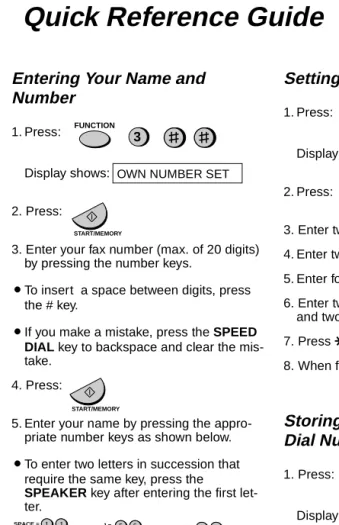
Entering Your Name and Fax Number
3 key
Before you can begin using your fax, you must enter your name and fax (telephone) number. You also need to set the date and time.
# key
FUNCTION key
STOP key START/
MEMORY key 2
1 3
9
4 5 6
7 8
0
open
LCR
Important!
FCC regulations require that your name, telephone/fax number, and the date and time appear on each fax message you send. Enter your name and fax number here and set the date and time as explained in the following section to have the fax machine include this information automatically at the top of your fax messages.
Note: The imaging film and printing
paper must be loaded before your name and fax number can be entered.
1
Press these keys:3
FUNCTION
Press twice OWN NUMBER SET
2
Press the START/MEMORY key.START/MEMORY
The display will show:
Entering Your Name and Fax Number
1. Ins
tall
ation
•
To insert a space between digits, press the # key.•
If you make a mistake, press theSPEED DIAL key to backspace
and clear the mistake.
3
Enter your fax number by pressing the number keys (max. of 20 digits).(Example)
3
1
2
4
4
1
1
4
4
2
4
Press the START/MEMORY key to enter the fax number in memory.ENTER YOUR NAME
START/MEMORY
5
Enter your name by pressing number keys for each letter as shown in the chart below. Up to 24 characters can be entered.Example:
SHARP = 77777 444 22 7777 77 SPEAKER A = B = C = D = E = F = G = H = I = J = K = L = M = N = O = P = Q = R = S = T = U = V = W = X = Y = Z = SPACE = SPEAKER HOLD/ SEARCH = = move move
♦
To enter two letters in succession that require the same key, press the SPEAKER key after entering the first letter.(The SPEAKER key moves the cursor forward, and the HOLD/
SEARCH key moves the cursor
backward.)
♦
To clear a mistake, press theSPEED DIAL key.
♦
To change case, press theREDIAL key.
♦
To enter one of the following symbols, press the # key or the * key repeatedly:. / ! " # $ % & ’ ( ) + + , - : ; < = > ? @ [ ¥ ] ^ _ ' { | } → ←
Cursor: A dark square mark in the
display that indicates where a number or letter will be entered.
6
Press the START/MEMORY key.START/MEMORY
SECURITY SELECT
7
Press the STOP key to return to the date and time display.STOP
The display will show:
Setting the Date and Time
1
Press these keys: Set the date and time by pressing thekeys on the operation panel as shown below.
The date and time appear in the display and are printed at the top of every page you fax.
3 key
* **
* key
FUNCTION key
STOP key START/
MEMORY key 2
1 3
9
4 5 6
7 8
0
open
LCR
Note: The imaging film and printing
paper must be loaded before the date and time can be set.
Do not set the date and time if you are using OpenLCR!
OpenLCR automatically sets the date and time each time your fax calls OpenLCR and receives rate data. To ensure accurate use of the rate data, do not change the date and time setting yourself. OpenLCR also sets the date and time for you if you perform the fax transmission test (see page page 30).
3
FUNCTION
Press 4 times DATE & TIME SET
2
Press the START/MEMORY key.START/MEMORY
•
The currently set date will appear in the display.3
Enter a two-digit number for the month (“01” for January, “02” for February, “12” for December, etc.).Example: January
0
1
•
To correct a mistake, press theSPEED DIAL key to move the
Setting the Date and Time
1. Ins
tall
ation
7
Press the * key to select A.M. or the # key to select P.M.Example: 9:25
4
Enter a two-digit number for the day (“01” to “31”).5
Enter the year (four digits). Example: the 5th6
Enter a two-digit number for the hour (“01” to “12”) and a two-digit number for the minute (“00” to “59”).Example: 2001
0
5
9
0
2
5
0
2
0
or A.M. P.M.
8
Press the START/MEMORY key to start the clock.DAY LIGHT SAVING
START/MEMORY
9
Press the STOP key to return to the date and time display.STOP
Daylight Saving Time
If desired, you can set the clock to move forward and backward automatically at the beginning and end of Daylight Saving Time. To turn on this function, press the panel keys as follows:
1
Press these keys:3
FUNCTION
Press 3 times DAY LIGHT SAVING
2
Press 1 to turn on the Daylight Saving Time function, or 2 to turn it off.or YES NO
1
2
3
Press the STOP key to return to the date and time display.STOP
The display will show:
Setting the Reception Mode
Your fax has three modes for receiving incoming calls and faxes:
RECEPTION MODE key TEL mode:
Select this mode when you want to receive both phone calls and faxes on the line connected to the fax machine.
All calls, including faxes, must be answered by picking up the fax machine's handset or an extension
phone connected to the same line.
FAX mode:
Select this mode when you only want to receive faxes on your line. The fax machine will automatically answer all calls on four rings and receive incoming faxes.
TAD mode:
Select this mode when you are out and want the built-in answerig machine to answer all calls. Voice messages will be recorded, and fax messages will be receive
automatically ("TAD" is an acronym for "Telephone Answering Device".)
2
1 3
9 4 5 6
7 8
0
open
LCR
FAX TEL
TAD
FAX TEL
TAD
FAX TEL
TAD
FEB 1 10:30
FEB 1 10:30
FEB 1 10:30
RECEPTION MODE
Setting the reception mode
Press the RECEPTION MODE key until the arrow in the display points to the desired mode.
Note: TAD mode cannot be selected
unless a general outgoing message has been record as explained in Chapter 3 (see page 37).
Volume Adjustment
1. Ins
tall
ation
Volume Adjustment
You can adjust the volume of the speaker, handset, and ringer using the UP and
DOWN keys.
Speaker
1
Press the SPEAKER key.or
2
Press the UP or DOWN key.DOWN key UP key
SPEAKER
SPEAKER
DOWN UP
2
1 3
9
4 5 6
7 8
0
3
When the display shows the desired volume level, press theSPEAKER key to turn off the
speaker.
Handset
1
Lift the handset.2
Press the UP or DOWN key.or
DOWN UP
RECEIVER: HIGH
RECEIVER: MIDDLE
RECEIVER: LOW
RINGER: HIGH
RINGER: MIDDLE
RINGER: LOW
RINGER: OFF OK?
Ringer
1
Press the UP or DOWN key. (Make sure the SPEAKER key has not been pressed and the handset is not lifted.)START/MEMORY
or
DOWN UP
The ringer will ring once at the selected level, then the date and time will reappear in the display.
2. S
e
tting Up
O
penLCR
2. Setting Up and Using OpenLCR
Your fax machine features OpenLCR technology, which helps you save money on long distance and international phone calls (both fax and voice) by automatically routing each call for the best available rate.
♦
OpenLCR service is free of charge. The only cost to you is that of a periodic call (usually once every three months) to OpenLCR to receive the latest rate data. (Once you have registered with OpenLCR, your fax machine automatically makes this call.)♦
All calls routed by OpenLCR are consolidated on your monthly phone bill.You can register with OpenLCR by fax, phone, or through OpenLCR’s Web site (www.OpenLCR.com).
♦
Before registering, be sure to read the information on the Fax TransmissionTest and OpenLCR Line Activation Form and Terms of Service sheet
included with your fax machine. If you have any questions, call OpenLCR at 970-206-1207.
♦
OpenLCR uses Caller ID for identification purposes when your fax calls OpenLCR to receive rate information. Even if you have requested your telephone company to withhold your Caller ID information when you place calls, your fax will still automatically transmit this information only when it calls OpenLCR.♦
It is possible to register for and use OpenLCR if you do not subscribe to a Caller ID service; however, in some instances where rate data must be changed on an emergency basis, your fax may not be able to respond automatically toOpenLCR’s call to notify your fax that it must receive new rate data. If this occurs, old, incorrect data will continue to be used.
♦
Please note that the agreement you enter into by registering is between you and OpenLCR; it is not between you and any carriers. OpenLCR service is only available in the U.S.A.1
Place the form with the side you wrote on face down, and push it gently into the document feeder of the fax machine.READY TO SEND
2
Press the OpenLCR key, the 5 key, and then the START/MEMORY key.OpenLCR START/MEMORY
5
Registering by fax
To register by fax, fill in the Fax
Transmission Test and OpenLCR Line Activation Form, and then fax
the form as follows:
•
Your fax automatically calls OpenLCR and sends the form. After the form is sent, your fax will automatically receive the rate data. This lasts one or two minutes. When downloading is completed, the display will briefly show DOWNLOAD OK!! and then revert to the date and time. Your fax will print out the registration form to confirm that it was received.•
OpenLCR will also program the date and time and your fax numberRegistering by phone
To register by phone, follow these steps:
1
Pick up the handset on the fax machine.2
Press the OpenLCR key and then the 1 key.1
OpenLCR
3
If the display shows the alternating messages at right, press the number keys to enter your fax/ phone number, including the area code (the number must be 10 digits long). When finished, press theSTART/MEMORY key.
(If the message at right doesn’t appear, this step is not necessary.)
SET OWN NUMBER
10 DIGITS
START/MEMORY
Enter your phone number (with area code)
Important!
Setting Up and Using OpenLCR 2. S e tting Up O penLCR
4
Follow the instructions you hear.Note: If you are on a pulse dial line,
press the * key before pressing the number keys to respond. (This makes your fax temporarily issue tone signals when you press the number keys.)
•
When registration is completed, your fax machine will receive the rate data from OpenLCR. This will last one or two minutes. When downloading is completed, the display will briefly showDOWNLOAD OK!! and then revert to the date and time.
•
OpenLCR will also program the date and time and your fax number in your fax machine.Registering through
OpenLCR’s Web site
You can also register at OpenLCR’s Web site, www.OpenLCR.com. After registering you will need to receive the rate data manually (service is not activated until your fax receives the rate data). See Downloading (receiving) the rate data manually on the following page.
If you move, you must re-register!
The rate data that you receive is based on the address you provide when registering with OpenLCR. If you move, the rate data will not be correct for your new location. In this case, repeat the registration procedure to give OpenLCR your new address.
Note: If you wish to connect more
than one OpenLCR-enabled device to the same line, please call OpenLCR at 970-206-1207. If you replace an old OpenLCR-enabled device with a new one, you must re-register with OpenLCR to use the new device.
Note: OpenLCR cannot be used if
your fax machine is connected to a Private Branch Exchange (PBX).
Downloading (receiving) the
rate data manually
Your fax machine will automatically call OpenLCR and download updated rate data about once every three months. Normally you will not need to download the rate data manually.
♦
If you register through OpenLCR’s Web site, you must manually download the rate data to activate service.♦
If the fax machine is unplugged or some other interruption occurs in the power, you will need to manually download the rate data.Press these keys to call OpenLCR and initiate downloading:
2
Downloading lasts one or two minutes. During this time the display will show:
When downloading is completed, the display will briefly show DOWNLOAD OK!! and then revert to the date and time. OpenLCR will also program the date and time and your fax number in your fax machine.
LCR DOWNLOADING
Fax transmission test
Even if you are not ready to register for OpenLCR service, we recommend that you test your fax setup by filling out Section A of the Fax
Transmission Test and OpenLCR Line Activation Form and faxing it to
OpenLCR as shown below. The test is free of charge and does not place you under any obligation to register with OpenLCR.
♦
If the test sheet is successfully transmitted, it will be faxed back to you on the same connection. This lets you confirm that your setup is okay.♦
After receiving the test sheet, the current date and time will automatically be programmed in your fax machine. This saves you the trouble of setting the date and time in the fax yourself.1
Place the form with Section A face down, and push it gently into the document feeder of the fax machine.READY TO SEND
2
Press the OpenLCR key, the 5 key, and then the START/MEMORY key.
START/MEMORY
5
•
Your fax machine will automatically call OpenLCR and send the form. The form will then be faxed back to you, and the current date and time programmed in your fax machine.Using OpenLCR
When you have registered with OpenLCR and downloaded the rate data to your fax machine, a
highlighted “C” will appear in the date and time display to indicate that the OpenLCR feature is activated.
“C” indicates that
FAX TEL
TAD
JAN-19 02:16
Setting Up and Using OpenLCR 2. S e tting Up O penLCR
Don’t unplug the fax, or the rate data will be lost!
Caution!
If you unplug the fax machine or an interruption occurs in your power supply, the rate data will be erased. If this happens, the highlighted “C” in the display will blink to alert you.
The fax machine will automatically call OpenLCR within the next 24 hours to receive new rate data; however, if you want to use OpenLCR service before that time, you should download the rate table manually as explained on page 29.
♦
We recommend that you do not unplug the fax machine on a regular basis (for example at night or on the weekends), as this will result in a large number of calls to OpenLCR and a higher phone bill depending on where you live. Each time you make a long distance phone or fax call, the fax machine will automatically route the call through the least expensive carrier based on the downloaded rate information.The following table shows marks related to OpenLCR that may appear in the display.
Mark Meaning
OpenLCR has been activated and is ready for use.
(Blinking)
OpenLCR cannot be used because the rate data has been erased. Your fax will automatically call OpenLCR within the next 24 hours to receive new data, or you can download the data manually if you need to use OpenLCR immediately. See Downloading (receiving) the rate data manually on page 29.
The rate data in the fax is no longer correct and the fax cannot connect to OpenLCR to obtain new data. See What to do if “E” appears in the display on page 33.
OpenLCR has been temporarily turned off. See Temporarily turning off OpenLCR below.
(Blinking)
Your fax will automatically call OpenLCR within the next 24 hours to learn when correct rate data will be available.
Your fax did not receive rate data because OpenLCR was unable to identify it by Caller ID. To remove the “H” display, press the OpenLCR key followed by #, 1, 8, 4, and #. To receive OpenLCR service, you will need to contact your phone company and allow it to send your Caller ID information when you place calls. After this, register once again with OpenLCR.
Temporarily turning off
OpenLCR
If needed, you can temporarily turn off OpenLCR.
♦
When you temporarily turn off OpenLCR, long distance and international calls will not be routed by OpenLCR. However, your fax will still call OpenLCR periodically to receive rate data.1
Press these keys:7
FUNCTION
LCR DIAL SELECT
2
Press 2 (NO) to turn off OpenLCR. (Press 1 (YES) to turn it back on.)2
•
When you turn off OpenLCR, the highlighted “C” in the display will change to “-”.3
Press the STOP key to return to the date and time display.STOP
To stop using OpenLCR
Press the following sequence of keys if you want to stop using the Open LCR feature.
8
1
4
OpenLCR
♦
Calls will not be routed byOpenLCR and the fax machine will not call OpenLCR to update data.
To resume use of OpenLCR, press these keys:
8
1
Setting Up and Using OpenLCR 2. S e tting Up O penLCR
2
Press the OpenLCR key and then the 3 key.3
If the display shows the alternating messages at right, press the number keys to enter your fax/ phone number, including the area code (the number must be 10 digits long). When finished, press theSTART/MEMORY key.
(Note: If the message at right doesn’t appear, this step is not necessary.)
SET OWN NUMBER
10 DIGITS
3
4
Follow the instructions you hear.♦
Note: If you are on a pulse dial line,press the * key before pressing the number keys to respond. (This makes your fax temporarily issue tone signals when you press the number keys.)
Important!
Be sure that you enter your correct area code and fax number. If not, your fax may not dial the correct number to connect to OpenLCR.
OpenLCR
START/MEMORY
Enter your phone number (with area code)
What to do if “E” appears in
the display
A highlighted “E” will appear in the display in place of “C” if the rate data in the fax is out-of-date and the fax is unable to obtain new data. When this happens, OpenLCR routing will not take place.
“E” indicates that the rate data is out-of-date.
FAX TEL
TAD
JAN-19 02:16
This will only occur if the fax machine is unable for some reason to make its periodic call to OpenLCR to receive new rate data.
First try downloading the rate data manually by pressing the OpenLCR key and 2 key as explained in Downloading (receiving) the rate data manually on page 29. If this doesn’t work, proceed to the following section, What to do if you cannot connect to OpenLCR.
Changing your user profile
To call OpenLCR to change your user profile, follow these steps:
What to do if you cannot
connect to OpenLCR
If you are unable to connect to OpenLCR when you use the
OpenLCR key to register or manually download data, it is likely that the phone number that the fax machine dials when you press the OpenLCR key is no longer correct.
To obtain the correct phone number, call OpenLCR at 970-206-1207, and then program the number into the fax machine as explained on the following page.
Note: The number that you will obtain
is the number for manually downloading rate data (dialed by pressing the OpenLCR key and 2). When you manually download the rate data, the new numbers for registering (dialed by pressing the
OpenLCR key and 1, 3, or 5) will also
be programmed in your fax machine.
1
Press these keys:7
FUNCTION
CENTER # MODE
2
Press 1 (SET) to set the new phone number.Note: If you want to restore the
factory-set number, press 2 for CLEAR and then go to Step 4.
3
Press the number keys to enter the new phone number.4
Press the START/MEMORY key to store the number.START/MEMORY
5
Press the STOP key to return to the date and time display.STOP
6
Press the OpenLCR key and 2 to download new rate data.2
OpenLCR
•
If you have not yet registered with OpenLCR, your fax will receive new phone numbers that will allow you to connect to OpenLCR. Register using one of the procedures described at the beginning of this chapter.Note: The following settings are not required as of the printing
of this manual. OpenLCR will inform you through its Web site
Setting Up and Using OpenLCR 2. S e tting Up O penLCR
LCR TABLE SELECT
1=02MIN, 2=04MIN Your fax needs to know whether the call will be long or short to route it for the best rate.
1
Press these keys:FUNCTION
2
Press 1 to select the SHORT TIME setting, or 2 to select the LONG TIME setting.1
or2
SHORT LONG Note: If the display shows TABLE NOT EXIST, you must first download the rate data.
Selecting a long or short call
Before you make a long distance or international phone/fax call, select whether the call will be a long call or a short call.
OpenLCR
•
The initial SHORT TIME setting is 2 minutes, and the initial LONG TIME setting is 4 minutes. If desired, you can change these settings as explained on the following page.•
The short/long time selection will remain in effect for all calls until you change it.Changing the SHORT TIME
and LONG TIME settings
The initial SHORT TIME setting is 2 minutes, and the initial LONG TIME setting is 4 minutes. If the typical durations of your short and long calls are different, you should change the time settings to ensure that OpenLCR routes your calls for the best rate.
♦
For example, if your faxtransmissions normally last about 3 minutes and your phone calls last about 5 minutes, set 03 for the SHORT TIME and 05 for the LONG TIME. Before sending a fax, select the SHORT TIME setting (03MIN) in the procedure on the preceding page. Before making a phone call, select the LONG TIME setting (05MIN).
♦
When you change the SHORT TIME and/or LONG TIME setting, the fax machine will automatically call OpenLCR and receive rate data for the new times.1
Press these keys:7
FUNCTION
Press twice LCR TIME SELECT
2
Press the START/MEMORY key.START/MEMORY
The current setting appears here. SHORT TIME
ENTER (01-29) 02
3
Enter a 2-digit number (01 to 29) for the number of minutes of the SHORT TIME setting. (If the number is less than 10, enter a 0 before the number.)Example: 3 minutes
0
3
The display will show your selection and then show:
4
Enter a 2-digit number for the number of minutes of the LONG TIME setting. (The number must be greater than the SHORT TIME setting and no more than 30.)0
Example: 5 minutes
5
Note: If the display shows NO
SERVICE, you must first download the rate data.
The display will show your selection. If the settings were changed, it will then show:
5
Press the START/MEMORY key to begin receiving the rate data for the new settings.START/MEMORY
•
Your fax calls OpenLCR and receives the data. This lasts one or two minutes.•
Note: If you do not press the START/MEMORY key to receivenew data, the settings will revert to their previous state.
LONG TIME
ENTER (03-30) 04
START: DOWNLOAD
3. Ans
w
e
ri
ng
Machi
ne
3. Using the Answering Machine
The UX-465L's built-in answering machine allows you to receive both voice messages and fax transmissions while you are out.
Recording an Outgoing Message
The outgoing message (OGM) is the greeting that the machine plays after answering a call to inform callers that they can leave a message or send a fax.
Example:
"Hello. You've reached ______ . No one is available to take your call right now. Please leave a message after the beep or press your facsimile Start key to send a fax. Thank you for calling."
1
Press these keys:To use the answering machine, record an outgoing message and then set the reception mode to TAD when you go out.
2
Press the START/MEMORY key.3
Press 1 to select GENERAL. (If you are recording a message for the Transfer function explained later in this chapter (see page 45), press 2 for TRANSFER.)4
Pick up the handset, press theSTART/MEMORY key, and speak
into the handset.
OGM RECORDING
FUNCTION
0
START/MEMORY
1
or2
GENERAL TRANSFER
START/MEMORY
•
The outgoing message can be up to 60 seconds long. The outgoing message for the Transfer function can be up to 15 seconds long.To listen to the outgoing
message
To listen to the outgoing message, follow Steps 1 through 4 of the above procedure to select the message, and then press the PLAY/SKIP key to listen to it. To return to the date and time display, press the STOP key twice. Note that the general outgoing message cannot be erased. If you need to change it, simply repeat the recording procedure. (The Transfer message can be deleted by pressing the DELETE key after selecting it as explained above.)
Note: If an extension phone is
connected to the UX-465L, an outgoing message cannot be recorded, played, or deleted while the extension phone is being used (while LINE IS IN USE appers in the display).
6
Press the STOP key twice to return to the date and time display.5
When finished, press the STOP key and then replace the handset.STOP
Operating the Answering Machine 3. Ans w e ri ng Machi ne
Operating the Answering Machine
FAX TEL
TAD
RECEPTION MODE
Activating the answering
machine
Activate the answering machine before you go out as follows:
Press the RECEPTION MODE key until the arrow in the display points to
TAD.
♦
The outgoing message will play (you can stop playback by pressing the STOP key).♦
It will not be possible to set the reception mode to TAD if a general outgoing message has not been recorded.When the reception mode is set to TAD, the UX-465L will answer incoming calls after two rings if it has received at least one incoming message, or after four rings if no messages have been received. (For more information, see Toll Saver in Remote Operations on page 49.)
Note: If the memory is full from
messages previously recorded, MEMORY IS FULL will appear in the display. To set the reception mode to TAD, you must first erase some or all of the stored messages.
Note: In TAD mode, the machine will
automatically switch to fax reception if it detects a period of silence longer than six seconds after answering a call. For this reason, if a caller pauses for this length of time while leaving a message, they will be cut off.
Listening to received
messages
When you return, the display will show the number of messages recorded. Listen to the messages as follows:
1
Press the PLAY/SKIP key.PLAY/SKIP
•
If you only want to listen to new messages (messages not previously listened to), continue to hold the PLAY/SKIP key down for at least two seconds.2
The messages will play.•
As each message plays, the date and time of recording will appear briefly in the display. If no messages were received, NO MESSAGES will appear.•
To listen to a message a second time, press the REPEAT key before playback of that message ends.•
To move back to the previous message, press the REPEAT key within 3 seconds of the beginning of the current message.•
To skip forward to the next message, press the PLAY/SKIP key.REPEAT
PLAY/SKIP
Note: Playback will stop if you
receive a call, lift the handset, or press the STOP key.
Erasing received messages
It is important to erase received messages after you listen to them to ensure that the memory does not become full.
•
Erasing all messages: To eraseall messages, press and hold down the DELETE key for at least 2 seconds.
•
Erasing a single message: Toerase only a single message, press the DELETE key while the
message is being played.
DELETE
Using the REC/MEMO key
You can use the REC/MEMO key to record telephone conversations and messages for other users of the UX-465L. These will be played back together with any incoming
messages when the PLAY/SKIP key is pressed.
•
Recording messages: To record a message, press the REC/MEMO key and then pick up the handset, press the START/MEMORY key, and speak into the handset. When you have finished speaking, replace the handset or press theSTOP key.
•
Recording phone conversations: To record a phone conversation, hold down the REC/MEMO key during the conversation you want to record. When you are finished, release the key.Operating the Answering Machine
3. Ans
w
e
ri
ng
Machi
ne
Date and time of ICMs
You can check the date and time of your received messages by pressing the panel keys as shown below.
♦
The dates and times are also shown in the Message List, which can be printed out as described in Chapter 9 (see page 104).1
Press these keys:FUNCTION
0
Press 4 times ICM CONFIRMATION
2
Press the START/MEMORY key. The number of messages recorded will appear in the display.START/MEMORY
3
Press # or * one or more times to show the date and time of each of the messages.or
•
The message number will appear first, and then the date and time several seconds later.4
Press the STOP key.Note: The recorded dates and times
are cleared each time you erase the messages.
Optional Answering Machine Settings
Setting ICM time
Incoming messages (ICMs) are the messages which callers leave for you on the built-in answering machine. The answering machine is set at the factory to allow each caller a maximum of 4 minutes to leave a message. If desired, you can change this setting to 15, 30, or 60 seconds.
1
Press these keys:ICM RECORD TIME
2
Press a numeric key to select the desired ICM recording time:•
1: 15 seconds•
2: 30 seconds•
3: 60 seconds•
4: 4 minutes1
3
2
4
3
Press the STOP key.STOP
FUNCTION
0
Press 3 times
Fax reception on TAD failure
If the memory for recording incoming messages becomes full while you are out, the answering machine will no longer be able to record messages. The ON TAD FAILURE setting is used to choose the response of the machine to incoming calls when this happens:
♦
Automatic fax reception NO: The UX-465L will answer after 20 rings, after which it will wait to receive a remote command. Most callers will hang up before it answers; however, when you call the UX-465L from a remote location, you can wait until it answers, listen to your messages, and then erase them (see Remote Operations on page 49).♦
Automatic fax reception YES: The reception mode will switch to FAX mode, allowing the UX-465L to continue to receive faxesautomatically. With this setting, you can still use the remote commands to listen to your messages and erase the message memory (see Remote Operations on page 52).
Optional Answering Machine Settings
3. Ans
w
e
ri
ng
Machi
ne
1
Press these keys:ON TAD FAILURE
2
Press 1 to turn automatic fax reception on, or 2 to turn it off.1
or2
3
Press the STOP key.STOP
YES NO
FUNCTION
0
Press 3 times
Calling Party Control
detection
When a caller hangs up, the cenral telephone exchange will issue a signal called a Calling Party Control (CPC) signal. The built-in answering machine has been set to detet this signal, and this allows it to
immediately stop recording when a caller hangs up, thereby saving memory space and freeing you from having to listen to long periods of silence when you play back your messages.
However, if you are a subscriber to such telephone services as Call Waiting or Call Forwarding, signals used by these services may be mistaken for a CPC signal, causing the machine to hang up during a call. In this case, follow the steps below turn off CPC detection.
Note: CPC detection may not operate
properly in some telephone
exchanges. For this reason, periods of silence and/or telephone company signals may be recorded even if CPC detection is turned on.
1
Press these keys:CPC DETECTION
FUNCTION
0
Press twice
2
Press 1 to turn CPC detection on, or 2 to turn it off.3
Press the STOP key.1
2
YES NO
STOP
OGM only mode
If needed, you can turn off recording of incoming messages. In this case, your outgoing message will play, but callers will not be able to leave a message. (The machine will still receive faxes sent by automatic dialing.)
1
Press these keys:2
Press 1 to turn on OGM only mode, or 2 to turn it off.3
Press the STOP key. OGM ONLY MODEFUNCTION
0
1
2
YES NO
STOP
Transfer Function
3. Ans
w
e
ri
ng
Machi
ne
Transfer Function
The Transfer function is used to make the UX-465L automatically call you at a specified number every time it receives an incoming message. This lets you hear your messages immediately after they come in, even when you are at a remote location.
When you answer the telephone, you will hear your recorded message telling you that the call is a transfer call. Enter "#", your remote code number, and "#". The answering machine will then play back your messages. You can also perform any of the remote operations described in Remote operations later in this chapter (see page 49).
Note: When you hang up after a transfer call, the UX-465L will not immediately
resume normal operation. If you want the UX-465L to accept calls immediately after a transfer call, enter "****" twice before hanging up (if you want to hang up during message playback, first enter " 0" and " #" to stop playback, then enter "****" twice).
Programming the transfer
number
To use the Transfer function, you must first give the UX-465L the number to call (the transfer number). This is done by pressing the panel keys as follows:
1
Press these keys:TRANSFER # ENTRY
FUNCTION
0
Press 6 times
2
Press the START/MEMORY key.START/MEMORY
3
Enter a transfer number (max. of 32 digits including pauses) by pressing the number keys.2
5
8 GHI JKL MNO
TUV WXYZ PQRS
ABC DEF 1
4
7
3
6
9
•
To insert a pause between any two digits of the number, pressREDIAL key.
4
Press the START/MEMORY key and then the STOP key.START/MEMORY
Recording the transfer
message
The transfer message plays when you answer the telephone, and informs you that the call is a transfer call. It can be up to 15 seconds long. To record a transfer message, follow the steps described in Recording an Outgoing Message in this chapter (see page 37). The following is an example:
"Hello. This is a transfer call for (YOUR NAME). Enter your remote code number now."
Turning the Transfer function
on and off
1
Press these keys:TRANSFER FUNC
FUNCTION
0
Press 5 times
2
Press 1 to turn the Transfer function on, or 2 to turn it off.1
2
YES NO
or
3
Press the STOP key.Override Ringing
3. Ans
w
e
ri
ng
Machi
ne
Programming the override
code
To override the answering machine, your callers must enter a 3-digit override code from their telephone. This code has been set to "009" at the factory. If you want to change it, press the panel keys as shown below.
Important!
♦
Make sure the override code is different from the remote code used for remote operations.1
Press these keys:Override Ringing
This function allows selected callers using a touch-tone telephone to override the answering machine's outgoing message and cause the UX-465L to make a special ringing sound, alerting you that they are calling. This is useful when you are near the machine but only want to talk with certain callers, taking all other calls on the answering machine.
2
Enter a 3-digit code number by pressing the number keys.4
5
5
(Example)
3
Press the START/MEMORY key and then the STOP key.ICM RECORD TIME
FUNCTION
0
Press 5 times
START/MEMORY
STOP
Overriding the answering
machine
Your callers should follow the steps below to override the answering machine.
1
Your caller calls the UX-465L from a touch-tone telephone. When the outgoing message begins, they should press the "#" key on their telephone.2
The caller should enter the override code and "#" by pressing the appropriate keys on their telephone.(Example)
4
5
5
•
If an incorrect code is entered, the caller will hear four beeps. He or she must re-enter the correct code within 10 seconds or the line will be disconnected.3
The UX-465L will make a special ringing sound. Pick up the handset to answer the call.Remote Operations
3. Ans
w
e
ri
ng
Machi
ne
Remote Operations
You can call the UX-465L from any touch-tone telephone and play back your messages using the remote commands. You can also use these commands to change the reception mode and other settings.
Remote code number
To perform remote operations, you must first program a remote code number. This number is used to prevent unauthorized people from listening to your messages or changing the settings of your machine.
The remote code number has been set to "001" at the factory. If you want to change it, press the panel keys as shown below.
REMOTE CODE
FUNCTION
0
Press 4 times
1
Press these keys:2
Enter a 3-digit number by pressing the number keys.3
Press the START/MEMORY key and then the STOP key.(Example)
2
2
2
START/MEMORY
STOP
Toll Saver
When you call the UX-465L to listen to your messages, it will answer after two rings if it has received at least one message, or after four rings if it has not received any messages.
This allows you to save money on telephone charges, particularly if you are calling long distance. If the machine does not answer after the second ring, you can simply hang up before it answers, saving yourself the cost of that call.
If you do not want to use the Toll Saver function, you can turn it off by following the steps below. In this case, the UX-465L will answer after the number of rings set in Changing the number of rings (see page 49), the ring setting for FAX reception mode.
1
Press these keys:TOLL SAVER
FUNCTION
0
2
Press 1 to turn Toll Saver on, or 2 to turn it off.1
or2
YES NO
3
Press the STOP key.STOP
Retrieving your messages
Note: You can also access the
UX-465L for remote operation when the reception mode is set to FAX. In this case, call the UX-465L, press the "#" key immediately after it answers (before you hear the fax tone), and then continue from Step 2 below.
1
Call the UX-465L from a touch-tone telephone. When your outgoing message begins, press the "#" key on the telephone.•
You will hear a short beep, and the outgoing message will stop.2
Enter your remote code number and then # by pressing the keys on the telephone.(Example)