Centre for Electr onics Design and Technology of India
An Autonomous Scientific Society under Department of Electronics, Govt. of India,
New Delhi.
First Edition: 1999
TRADEMARKS: All brand name and product names mentioned in this book are trademarks or registered trademark of their respective companies.
Ever y effort has been made to supply complete and accurate information. However, CEDTI assumes no responsibility for its use, nor for any infringement of the intellectual property rights of third par ties which would result from such use.
No part of this publication may be stored in a retrieval system, transmitted or reproduced in any for ms or by any means, electronic, photocopy, photograph, magnetic or otherwise, without written permission of CEDTI.
The information technology and telecom sectors have suddenly opened up avenues, which require a very large specially trained manpower. These sectors are highly dynamic and need training and re-training of manpower at a rapid rate. The growing gap of requirement of the industr y and its fulfillment has created a challenging situation before manpower training institutes of the country. To meet this challenge most effectively, Centre for Electronics Design and Technology of India (CEDTI) has launched its nation-wide franchising scheme.
Centre for Electronics Design and Technology of India (CEDTI) is an Autonomous Scientific Society under the Govt. of India, Depar tment of Electronics with its Headquarters at New Delhi. It oper ates seven centres located at Aurangabad, Calicut, Gorakhpur, Imphal, Mohali, Jammu and Tezpur. The scheme will be implemented and coordinated by these centres.
The scheme endeavours to promote high quality computer and information technology education in the country at an affordable cost while ensur ing uniform standards in order to build a national resource of tr ained manpower. Low course fees will make this education available to people in relatively small, semi urban and rural areas. State-of-the-art tr aining will be provided keeping in view the existing and emerging needs of the industrial and Govt. sectors. The examinations will be conducted by CEDTI and certificates will also be awarded by CEDTI. The scheme will be operated through all the seven centres of CEDTI.
The CEDTI functions under the overall control and guidance of the Governing Council with Secretary, Depar tment of Electronics as its Chairman. The members of the council are drawn from scientific, government and industrial sectors. The Centres have separate executive committees headed by Director General, CEDTI. The members of these committees are from academic/professional institutes, state governments, industry and department of electronics.
CEDTI is a quality conscious organisation and has taken steps to formally get recognition of the quality and standards in various activities. CEDTI, Mohali was granted the prestigious ISO 9002 certificate in 1997. The other centres have taken steps to obtain the cer tification as early as possible. This quality consciousness will assist CEDTI in globalizing some of its activities. In keeping with its philosophy of ‘Quality in every Activity’, CEDTI will endeavour to impar t state of the art – computer and IT training through its fr anchising scheme.
levels is to train the students to diagnose the faults and carry out repairs at card level in computers, instr uments, EPABX, Fax etc. and other office equipment. At Engineer and Netw ork Engineer levels the thrust is to train them as System Engineers to install and supervise the Window NT, Netware and Unix Networking Systems and repair Microcontrollers / Microprocessor based electronic applications.
An Advisor y Committee comprising eminent and expert personalities from the Information Technology field have been constituted to advise CEDTI on introduction of new courses and revising the syllabus of existing courses to meet the changing IT needs of the trade, industry and service sectors. The ultimate objective is to provide industry-specific quality education in modular form to supplement the formal education.
The study material has been prepared by the CEDTI, document centre . It is based on the vast and rich instructional exper ience of all the CEDTI centres. Any suggestions on the improvement of the study material will be most welcome.
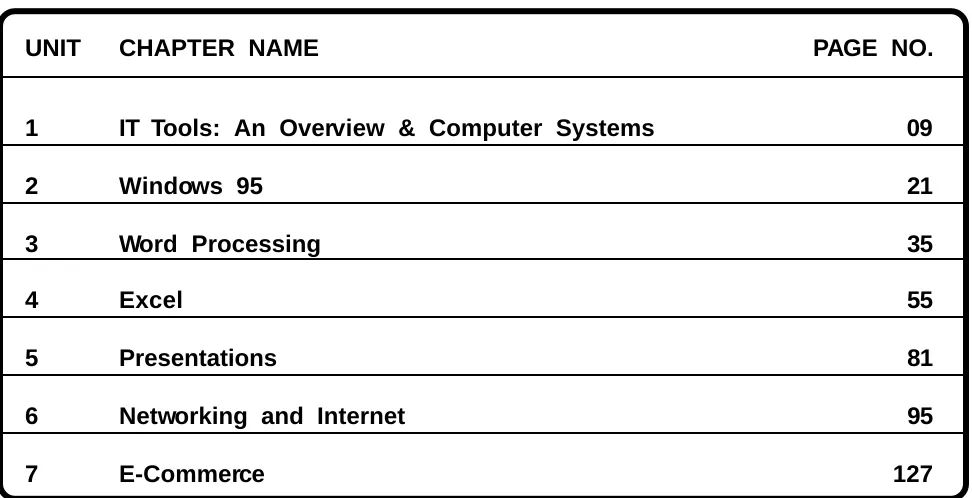
TABLE OF CONTENTS
UNIT CHAPTER NAME PAGE NO.
1 IT Tools: An Overview & Computer Systems 09
2 Windows 95 21
3 Word Processing 35
4 Excel 55
5 Presentations 81
6 Networking and Internet 95
PREFACE
Generation of high quality skilled manpower in computer software area assumed great signifi-cance in the context of the changed global scenario. In India, the 1980s withnessed a rapid growth and transformation of Information Technology generating tremendous career opportu-nities in its wake.
Obsolescence in the computer field is an accepted fact. In this context, the need for updating syllabus, keeping the requirements of the industry, assumes significance.
IT TOOLS : AN OVERVIEW
COMPETENCY OBJECTIVES
The objective of this Section is to make students aware of the basics tools involved in the Information Technology. At the end of the course, a student should be able to
:-v Understand the importance of computers in personal and professional fields. v Understand and relate the concepts of Software and Hardware.
v Understand the basics of Operating Systems.
WHAT IS A COMPUTER?
A computer is a general-purpose machine that processes input according to a set of instructions. A personal computer refers to a small electronic data processing machine meant for Individual use. The computer as a machine and all other equipment associated with it constitutes hardware. The instructions that tell the computer what to do are called software.
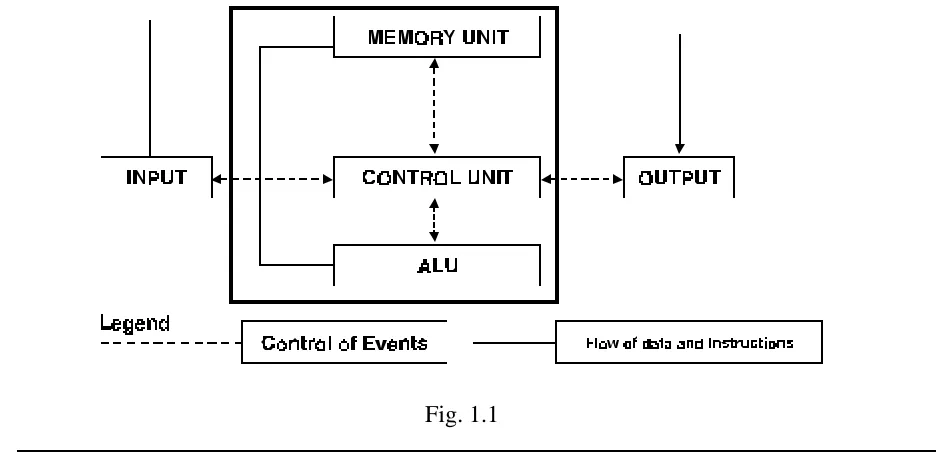
The main components of a computer are 1. Central Processing Unit
2. Input Devices/media 3. Output Devices/media
Some special purpose devices and media are also available.
Central Processing Unit (CPU)
1. Is the brain of the computer.
2. Its basic function is to perform calculations and various logical functions 3. It consists of three parts: Control Unit, ALU, Memory Unit.
CHAPTER - 1
[image:9.595.76.544.542.770.2]Control Unit
- Consists of electronic circuits.
- Selects interprets and executes instructions.
- Governs Input/Output(I/O) operations, data transfer to and from storage and guides the routing of data between storage location and the arithmetic and logic unit.
Arithmetic and Logic Unit (ALU)
- Consists of electronic circuits.
- Performs calculations and comparisons.
- Works at tremendous speed and executes millions of instructions per second.
Memory or Storage
- Also called internal storage or main memory or random access memory (RAM). - Consists of very fast memories like magnetic core memory or semiconductor memory. - Stores program instructions or part of data for immediate need.
- Data is stored in a computer memory of words, bytes and bits.
Memory is divided into small parts called locations. Each location has a unique address.
Location is further subdivided into bits. Different computers have a different location size varying from 8 to 64 bits.
0 2 3 4 5 6 7 8 9 10 11 12 13 14 -pppppppppppppppppppp
The smallest unit of memory measurement is known as bit. Each bit is represented by 0 or 1.
Bytes
Number of consecutive bits combine to make a byte. Most commonly used combination is of 8 bits. Size of main memory is given in KB or MB.
Kilobyte ( KB) = 1024 bytes = 2 10 bytes
Megabyte ( MB) = 1024 KB = 1024 x 1024 bytes = 2 20 bytes
Gigabyte (GB) = 1024 MB = 1024 x 1024 KB = 1024x1024x1024 bytes
Data
Data is a general term used to denote any or all facts number letter, symbols etc. that can be processed or manipulated or produced by a computer.
Data is divided into two categories · Numeric
· Alphanumeric
Alpha Numeric data are those represented by the computer of 0-9, A-Z and special character ( -, $, 1 etc).
Examples of Alphanumeric data are A25 – 001, Ram Kumar
DATA PROCESSING CYCLE
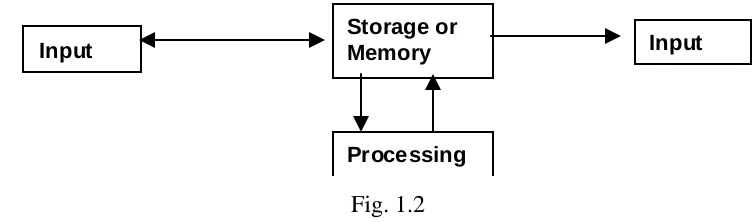
All computer systems perform the following five basic operations :
1. Input process : Data is collected and entered into the computer. This is called input process. 2. Storage process : What is entered into the computer is stored in its main memory. This storage
is temporary i.e. the contents of the memory are lost when the power is s witched off. Another memory, called secondary memory, is used to store the information of the main memory permanently.
3. Processing : The sequence of actions that are performed on the data stored in the main memory, to get results is called processing. Results are stored in the main memory till they are transferred to an output device.
4. Output Process : Stored results are taken out of the main memory. This process is known as output.
Input
Storage or
Memory Input
[image:11.595.113.490.352.463.2]Processing
Fig. 1.2
5. Controlling : Directing the manner and sequence in which all of the above operations are performed is called controlling
HARDWARE
Hardware refers to the physical components of a data processing system. Input, storage, processing and control devices are hardware professionals deal with the manufacturing and maintenance of computers
SOFTWARE
It consists of a set of operations (add, subtract, multiply, divide, move, compare etc.) to be performed by the computer on the data to produce necessary results.
Programming is done in one of the computer languages.
Persons doing this job, called programmers, should have the knowledge of the instruction set required for solving the problem and the computer language(s) required to be used to write these instructions.
There are two broad categories of software: - Application software
- System software.
Application Software
Refer to programs or sets of programs that perform a specific processing application. For example, an application package for processing examination results produces mark sheets as the major output, along with other reports such a merit lists, total number of students passed etc. Other examples are payroll packages, inventory control etc.
System Software
Consists of sets of general programs designed to control the operation of a computer system. Without system software, application packages cannot be executed. Examples are control program, processing programs etc.
OPERATING SYSTEM (OS)
Operating system is a set of programs written specially to manage all the resources and operations of a computer. Operating System manages automatically all the application programs, special programs needed in between the application programs and the data needed by these application programs, by calling them whenever needed. It also takes care of hardware functioning.
On the basis of functioning and facilities provided by them, Operating System can be classified as follows :
Single User Operating System
These Operating Systems allow only one user to work on a computer at a time. For example: MS-DOS
Multi User Operating System
PROCESSING PROGRAMS
Processing programs are the programs which take care of application programs running on the computer. These programs work under the supervision of control programs. They help the application program to do the actual data processing. These are basically of two types :
- Language Translators are system programs that translate program written by the user in high level language to machine language. Examples are compilers and assemblers.
- Service Programs Or Utility Programs are a set of programs which execute tasks frequently required in data processing. Those tasks are of a routine nature that all computer users require their machine to perform from time to time (storing, copying etc.) Examples are sort/merge programs to arrange unsequenced data into specified sequence, debugging tools to help the user to locate and correct logical errors in the program etc.
SOME PROCESSING PROGRAMS
Linker
A program that links the separately translated modules to form an absolute load module to be run as a unit.
Loader
A program that loads the absolute load module into main memory.
Interpreter
A program that translated each instruction of high level language and also executes instructions before passing on to the next instruction.
BASIC COMPONENTS OF A COMPUTER SYSTEM
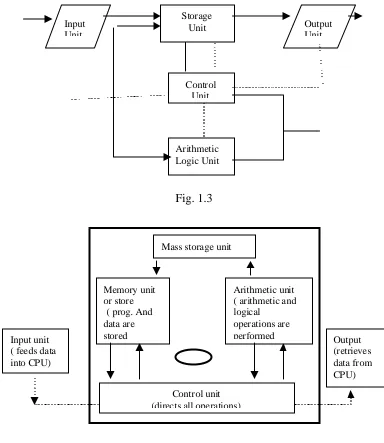
The five major functional units of a digital computer are :
· CPU
· Peripherals · Storage Devices
· Media
· Communication interface
Central Processing Unit (CPU)
Input Unit Output Unit Storage Unit Control Unit Arithmetic Logic Unit Fig. 1.3
Mass storage unit
Memory unit or store ( prog. And data are stored
Arithmetic unit ( arithmetic and logical
operations are performed
Control unit (directs all operations) Input unit
( feeds data into CPU) Output (retrieves data from CPU) Fig. 1.4
The CPU of a small computer has a single microprocessor. The CPU of a large computer may contain a number of microprocessors on one or more circuit boards. Each microprocessor in a large CPU performs a specific task. A microprocessor contains a control unit and an arithmetic and logic unit (ALU). When main memory is added to a microprocessor, it forms a CPU.
The major sections of a CPU are: a) Primary Memory
Primary Memory
Memory is the computer’s working storage. It is one of the most important parts of the computer, as it determines the size and number of programs that can be simultaneously held within the computer, as well as the amount of data that can be processed immediately. Primary memory is a fast random access memory (RAM). It also stores the necessary programs of system software, which are required to execute user programs. The main memory is directly addressed by the CPU. There are two types of memories from technology point of view:
a) Analog memory or magnetic core memory b) Digital memory or IC memory
Analog Memory
This types of memory was used in computers built during 1960s. The basic storage device in this type of memory consists of a small toroidal (ring shaped) piece of magnetic material called a magnetic core. Each magnetic core in a memory is capable of storing one binary digit of digital information. Depending on the direction of the current through the input winding, the core will become magnetized in either clockwise or counter-clockwise direction. The retentivity of the core material is such that when the magnetizing force is removed, the core remains magnetized, retaining a large part of its flux. These memory devices are now obsolete and have been taken over by digital memory devices which consume very little power.
Digital Memory or Semiconductor Memory
Semiconductor memories are static, lighter, cheaper than magnetic core memories. These are volatile and data stored in them is lost when power supply to the machine is switched off.
Digital memory can be divided into the following two types : · RAM ( random access memory)
· ROM ( read only memory)
RAM (Read/Write)
RAM is a read/write memory. Information can be written into and read from a RAM. It is a volatile memory. It retains the stored information as long as it is supplied with power. When power supply is switched off or interrupted the stored information in the RAM is lost. RAMs of various capacities are available, for example, 1K 4K,16K, 64K, 1M, 4M, and so on. Intel 21019 is a dynamic RAM of 1 MB x 9-bit capacity.
Static and Dynamic RAM
refreshing circuitry. They have higher speeds than dynamic RAMs. Static RAM and dynamic RAM are also written as SRAM and DRAM respectively.
ROM
ROM is a permanent type memory. Its contents are not lost when power supply is switched off. The user cannot write into a ROM. Its contents are written into at manufacturing time. ROMs store permanent programs and other types of information which are needed by the computer to execute user programs. ROMs store functions such as sine, cosine, logarithm, square root, exponential and code conversion tables, etc. An example of a ROM is Toshiba Mask ROM, TCS 534000, 512K x 8 bits.
PROM
Programmable ROMs called PROMs are also available. Further, different types of PROMs such as erasable PROM called EPROM, electrically erasable PROM called E2 PROM are available. Users can write information in PROMs, EPROMS and E2PROMs. Once programmed the recorded information into an EPROM or E2PROM can be erased to record different information, whereas in a PROM thee information once written by the user cannot be changed. Such information is required while executing user programs. An example of PROM is 74S287.
Volatility of Memory
Volatile memory is memory whose contents are lost when power is switched off. A computer’s main memory, made up of dynamic RAM or static RAM chips, loses its contents immediately upon interruption of power. A random access memory (RAM) is volatile but core memory containing magnetic elements is not volatile.
Arithmetic Logic Unit (ALU)
The arithmetic logic unit of computer system is the place where the actual execution of instruments place during the processing operation. To be more precise, all calculations are performed and all comparisons decisions are made in the ALU. The date and instructions, stored in the primary storage prior to processing, are transferred, as and when needed, to the ALU where processing takes place. No processing is done in the primary storage unit. Intermediate results generated in the ALU are temporarily stored in the primary storage until needed again at a take time.
INPUT – OUTPUT DEVICES
Keyboard
Computer keyboard is an electromechanical component designed to create special standardized electronic codes when a key is pressed. The codes are transmitted along the cable that connects the keyboard to the computer system unit or terminal, where the incoming code is analysed and converted into the appropriate computer usable code.
Keyboards come in a variety of sized and shapes having a number of features in common : 1. Standard Type Writer keys
2. Function keys
3. Special purpose keys 4. Cursor movement keys 5. Numeric keys
Mouse
The mouse is an input device that is much in use nowadays in graphics as well as when working with a GUI (Graphical User Interface). A mouse is also a pointing device. It is held in one hand and mouse access a flat surface. Its movement and the direction of the permanent is detected by two wheels on the underside of the mouse
Video Display Units(VDU)
Video display units are the most popular I/O Devices used today in direct access processing application. A typewriter like keyboard is used to enter date into the computer, and a cathod ray tube ( CRT) that looks like a television screen is used to display the input data as well as the messages and processed output from the computer.
Printers
Printers are the most popular output devices. They provide information in a permanent readable form. They produce printed outputs of results, programs and data. A character printer prints one character of the text at a time. They are low-speed printers. Their printing speed lies in the range of 30-600 characters per second. The character printers can be classified as :
a) Impact printers b) Non-impact printers
[image:17.595.66.550.606.768.2]WINDOWS 95
COMPETENCY OBJECTIVES
The objective of this Section is to make students understand the MicrosoftWindows 95 Operating system and the easy-to-use features of Graphics User Interface. At the end of the course, a student should be able to
:-v Boot up and Shut down in Windows v Appreciate various Windows features
v Work effectively in various applications and Accessories available with Windows v Handle various Files format
CHAPTER - 2
W
indows - 95
Microsoft Windows 95 is a powerful operating environment that enables you to access the power of computers without memorizing operational commands and their syntax. Windows 95 uses Graphical User Interface(GUI) so that you can easily see on screen the tools that you need to complete specific file and program management tasks.
[image:21.595.63.554.76.219.2]As soon as the booting is done through a Windows 95 Operating system you get the following screen.
Fig. 2-1 : Microsoft Windows Desktop Screen
Depending on how your computer is set up, various items appear on your desktop when you start Windows. Here are four important
ones:-My Computer
Recycle Bin
The Recycle Bin is a temporary storage place for deleted files. So whatever is to be omitted can be sent to the Recycle Bin. Even after sending the unwanted files to Recycle Bin, if you feel at some later stages that you need the same files again, you can always restore the files by entering the Bin and giving the Restore command. You can also use this property to retrieve the files deleted in error.
Start Button
You can click the Start button on the taskbar to start a program, open a document, change system settings, get Help, find items on your computer, and much more.
TO START AND SHUTDOWN WINDOWS’ 95
The first thing you need to known about Windows 95 is how to start the software. However, before you can start Windows 95, it must be installed on your computer.
To Start Windows 95
In most cases, Windows starts automatically when you turn on your computer.
When you start the Windows program, a Microsoft Windows 95 banner displays for a few seconds; then a desktop appears(see figure 2.1)
Program icons that were created during installation (such as My Computer, Recycle Bin) are displayed on the desktop. Other icons may also appear, depending on how your system is set up. Shortcuts to frequently used objects (documents, printers and networks) can be placed on the desktop. The taskbar appears along the bottom edge of the desktop. The Start button appears at the left end of the taskbar.
To Shutdown Windows 95
You need to shut down Windows before you turn off or restart your computer. That way you can be sure your work is saved to your hard disk.
To avoid damaging files, always shut down Windows before you turn off your computer.
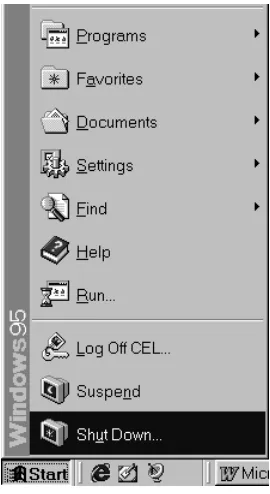
1. Click on the Start button, and then click on the Shut Down option.
Fig. 2-2 : Shutdown Windows
A screen message lets you know when you can safely turn off your computer.
Fig. 2-3 : Shutdown Dialog Box Options
WINDOWS EXPLORER
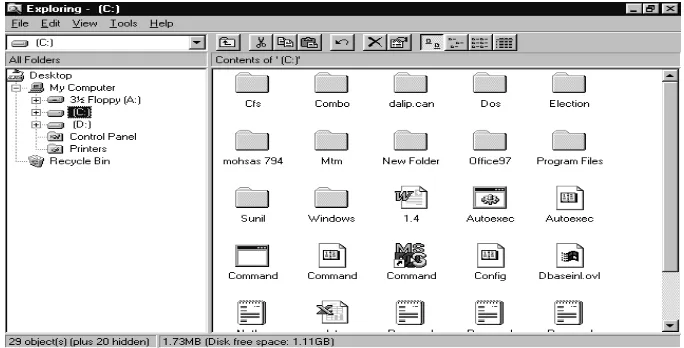
A Windows Explorer is a Windows 95 based package for File Management and Program Management.
To start Windows Explorer, follows the below steps:
[image:23.595.188.425.426.531.2]Fig.2-4: To start Windows Explorer
Windows displays Explorer window. The left portion of the screen is known is Folders span and the right side portion is known as Files and Folders span.
Fig. 2-5 : Windows Explorer
Creating A Folder
1. In My Computer or Windows Explorer, open the folder in which you want to create a new folder.
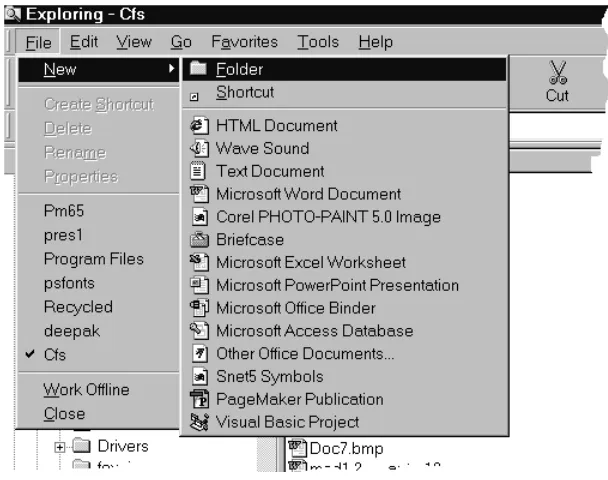
2. On the File menu, point towards New, and then click Folder. The new folder appears with a temporary name.
[image:24.595.117.459.342.516.2]Fig 2-6 : Create a Folder
Changing the Name of a File or Folder
1. In My Computer or Windows Explorer, click the file or folder you want to rename. You need not open it.
2. On the File menu, click Rename.
[image:25.595.168.443.502.695.2]Copy A File or Folder
1. Select the file or folder (that you want to copy) inside My Computer or Windows Explorer. 2. Click on Copy from the Edit Menu (or press Ctrl+C)
3. Open the destination folder or disk (by double clicking the icon) where are you want to put the copy.
[image:26.595.169.405.204.376.2]4. Click Paste from the Edit menu.
Fig. 2-8 : Copy a File or Folder
If you want to select more than one file or folder to copy, hold down the CTRL key, and then click your desired items (one by one).
Moving A File or Folder
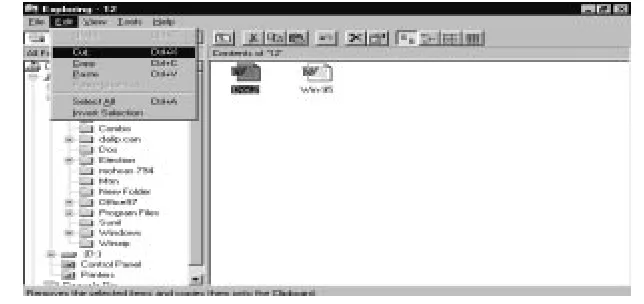
1. Select the file or folder (which you want to move) from My Computer or Windows Explorer. 2. Select Cut option or press Ctrl+X from the Edit menu.
3. Open the destination folder or disk where you want to put the file or folder. 4. Click Paste from the Edit menu.
[image:26.595.124.446.548.700.2]Deleting A File or Folder
1. Locate the file or folder (which you want to delete) from My Computer or Windows Explorer. 2. Select the file or folder.
3. Select Delete from the File menu.
Fig.2-10 : Deleting a File or Folder
Note : If you want to retrieve a deleted file, check inside the Recycle Bin. Your deleted file remains in the Recycle Bin until you empty it.
You can also drag the file or folder icons onto the Recycle Bin icon. If you press SHIFT while dragging, the item will be deleted from your computer without being stored in the Recycle Bin.
Retrieving Deleted Files or Folders
1. Double-click the Recycle Bin icon on the desktop.
2. Select the file or folders or shortcut you want to retrieve. To retrieve more than one item, hold down the CTRL key while clicking each one.
Note : If you delete a folder, only the files within that folder appar in the Recycle Bin. If you restore a file that was originally located in a deleted folder, Windows recreates the folder and then restores the file to it.
Copying A File to Floppy Disk
1. Insert the floppy disk inside the floppy disk drive.
2. Select the file (you want to copy) inside My Computer or Windows Explorer.
[image:28.595.110.466.217.400.2]3. On the File menu, point to Send To, and then click the drive you want to copy the file to.
Fig. 2-12 : Copy a File to Floppy Disk
FINDING A FILE OR FOLDER
For locating the name of a File/Folder or path of a File/Folder the following steps are to be followed. Even if you forget the path, you’ll learn in this chapter how to use this feature for finding files.
1. Click on the Start button, and then point towards Find. 2. Click Files or Folders.
3. In the Named box, type all or part of the file’s name.
Fig. 2-13 : Find window
If you want to specify where the Windows should begin its search, click the option Browse.
USING HELP
Online help is very useful tool when you are learning and using Windows as Operating System. There are two kinds of Help; Help about a specific procedure and Help that gives you information about what you see on the screen.
Click on the Start button, and select the Help option.
The list of the help topics appears as shown below. You can use tabs in Help to search information in many ways.
[image:29.595.249.362.485.643.2]Fig. 2-15 : Help Topics Window
SETTING DATE AND TIME
To set a date & time, click on the Setting option and goto the Control Panel.
1. Select Date/Time option and double click on it.
[image:30.595.129.451.443.695.2]USING THE NETWORK
A network is a group of computers connected to each other or to a central server so they can share resources such as documents and printers.
Your connection to a network can change the way you work:
1. You can use programs and documents from another computer without passing floppy disk back and forth.
2. You can print documents on a printer attached to another computer, or use another computer’s fax modem, just as if they were connected to your computer.
3. You can gain access to the Internet.
4. You may also be able to send and receive messages by using electronic-mail, or connect to your work computer from home.
If your computer is setup to use a network, the Network Neighborhood icon appears on the Desktop.
When you double-click Network Neighborhood, you might see the computers in your workgroup or any Netware servers you are connected to.
You can see other computers on the Network- those not in your workgroup- by double-clicking the Entire Network icon, which appears in Network neighborhood.
1. Click the Start button, point to Setting, and then click Control Panel. 2. Double-click Network.
3. Click Add
4. Click Adapter and then click Add.
5. Follows the instructions on your screen. If you don’t known what kind of adapter you have, check the documentation that came with it.
To Share a Folder
1. Locate the folder you want to share and then click it.
2. On the File menu, click Sharing.(If sharing is not on the menu, you need to install file and printer sharing)
3. Click the options you want.
To Share your Printer
1. Click the Start button, point to Setting, and then click Printers. 2. In the Printers window, click the printer you want to share. 3. On the File menu, click Sharing.
4. Click the options you want.
To use a Share Folder
1. Double-click Network Neighborhood.
2. Double-click the Icon for the computer that contains the folder you want. 3. Double-click the folder that contains the document or program you want.
ASSIMILATION EXERCISE
1. Compare the various features of (i) DOS and WINDOWS 95
(ii) WINDOWS 3.1 and WINDOWS 95
WORD PROCESSING
COMPETENCY OBJECTIVES
The objective of this Section is to introduce the students to the basic principles of MS-Office and the salient features of the Microsoft Word. At the end of the course, a student should be able to
:-v Appreciate the requirement of MS-Word for the Office Documentation work. v Understand & implement salient features involved for using Mail-Merge. v Carry out the printing jobs efficiently.
CHAPTER - 3
W
ord Processing
WHAT IS MICROSOFT WORD‘97?
MS Word 97 is the most full-featured word processing program in use today. Word 97 makes use of all of the featured available to programs designed specially to run under Windows 95 and Windows NT.
To start MS Word 97, go to the Start > Program > Microsoft Word.
ANATOMY OF THE WORD SCREEN
When you start Word two Windows appears on the screen, one nested within the other. The larger of the two is called Application windows, while the smaller one is the document window.
Text Area
When you start Word, a new document window automatically opens, providing you with a blank text area, in which you can type your document.
Typing Text
Typing the following quotation. Do’t worry if you also make other typing mistakes; you will learn how to fix them in a moment.
The difference between the right word and the almost right word is the difference between lighting and the lighting bug.
Watch the screen as you type. Notics that Word automatically moves text down to the next line when it runs out of room near the right edge of the screen. This is called automatic word wrap, a common and useful word-processing feature.
Selecting Text
Word lets you do a lot with text after you have typed it. You can change its appearance, move it arround, delete it, and copy it. The first step is always to tell Word which text you want to work with. This is done by selecting it. You can select text in many, many ways in Word. For instance, you can drag your mouse pointer over the text whilc holding down the primary mouse button. There are shortcuts for selecting individual words, lines, sentances, and paragraphs, which you will read about in a moment.
Deleting Text
To delete unwanted text, there are several ways. If you had spotted your mistake right after typing it, pressing Backspace key to delete it.
Even if you did not make the correction earliar, it is easy to go back now, select the undesired text, and remove it. Follow these steps:
1. Double-click one the word to be deleted. The entire word and the space following it become highlighted.
2. Press the Delete key once.
3. You can use Undo Clear if you accidentaly delete something of value.
Inserting Text
Word offers several ways to insert new text into an existing document. The most straightforward approach is to move the insertion point to the desired location and start typing. Word accomodates the new text by pushing the exiting text to the right and down as necessary.
Replacing Text
CREATING AND SAVING A NEW DOCUMENT
1. Select File menu, and click on New menu item.
2. Select Blank Document from the displayed dialog box. 3. Type the desired document text.
4. Save the document with File>Save command.
OPEN A DOCUMENT
1. Click Open from the File menu.
2. In the Look in box, click the drive, folder that contain the document.
3. Locate your folder from the folder list, double click folders until you open the folder that contains the document you want.
4. Double click the file name to open the file or type file name into file name text box and Click
COPYING AND MOVING TEXT
Word supports all the usual Windows techniques for copying and moving information. It also provides a feature called drag-and drop, a handy one-step, mouse assited mover.
Cut, Copy and Paste
The traditional way to move or dublicating things in Windows programs is to select the item, cut or copy it to the Clipboard, move the insertion point to the new location, and psate in the item.
Here are the steps :
1. Start by selecting the desired text.
2. Choose Edit > Cut or Press Ctrl+X. You can also click on the Cut button on the toolbar. 3. The selected text will disappear from the screen and will be placed on the Clipboard. 4. Now place the insertion point at the desired location(point and click).
5. Choose Edit->Paste or press Ctrl+V, or click on the Paste button to insert the word. The text will flow to the right and down as the Clipboard’s contents move into place.
PRINTING
Printing option is used to print your document on printer. To print an open document, choose File>
Print command or Ctrl+P as the shortcut command.
PRINT PREVIEW
Before we can take final hard-copies of a document, it is necessary to have an idea of how the document will appear in print. The Print Preview command from the file menu gives us a bird’s eye-view of the document. This feature of Word can save us a lot of paper and time. The preview shows us exactly how the document will get printed on paper. Moreover, the print preview is fully editable and allows us to see multiple pages on the screen. On executing the Print Preview… command of the File menu, the appearance of the screen changes. The screen shows a white page on which the entire document appears in fine print. In the single page view we get to see only one page at a time. But, the multiple page button allows us to specify as many pages as we want to fit on the screen.
The Zoom percentage list box allows us to view a page in different sizes.
FORMATTING CHARACTERS AND PARAGRAPHS
There are following steps to format selected characters or paragraphs.
Changing the Font
For example, here, we are changing the font size of My Document text to Times New Roman, size 20 and Bold face.
My Document
Text Alignment
The set the text alignment. Alignment can be set by using the following buttons on the formatting Toolbar. The buttons stand for Left, Center, Right and Justified alignment respectively. We can achieve the effect of using these buttons by using the following keystrokes :
Short-cut key Purpose
Ctrl+Shift+F Change Font
Ctrl+Shift+P Change Point Size
Ctrl+B Bold
Ctrl+I Italics
Ctrl+U Underline
Ctrl+L Left Align
Ctrl+E Centre Align
Ctrl+R Right Align
Ctrl+J Justify
Shift+F3 Change Case
Changing Case
Very often we need to change the case of text. This can be done through the Change Case command. On executing it the following dialog box gets displayed:
Pargraph Setting
Adjust paragraph spacing:
1. Select the paragraphs whose spacing you want to change.
2. On the Format menu, click Paragraph, and then click the Indents and Spacing tab.
3. To add spacing before or after each paragraph, enter the spacing you want in the Before and After boxes under Spacing.
Working With Columns
To sets the how many columns into your document.
The Format > Colums menu selection to specify the number of columns, the space between columns, and whether or not the column setting should apply to the entire document, from the current point forward, or the current section.
You can also insert a line between columns by picking the Line between check box.
SPELL CHECKER
Checks spelling in the active document, including text in headers, footers, footnotes etc.
FIND AND REPLACE
Find Text
Searches for specified text. Choose Find from the Edit menu
Dialog Box Options
Find What
Type, or insert the information you want to find, or click the down arrow, and then select from the last four entries. For information on searching for formatted text, see Finding text and formatting.
Search
Set the direction of the search.
Match Case
Finds only those occurrences with the exact combination of uppercase and lowercase letters specified in the Find What box. Word considers only the case of letters as they were originally typed, even if they have been capitalized with the Small Caps or All Caps character format.
Find Next
Finds and selects the next occurrence of the text or formatting specified in the Find What box.
Replace
Opens the Replace dialog box, retaining any information typed in the Find What box. In the Replace With box, type the replacement text, and then specify any formatting you want to apply.
Replace Text
From the Edit menu, choose Replace. or
In the Find dialog box, choose Replace button. After typing the search text, do one of the following:
Description Button
Replace text and find the next occurrence. Replace All Change all occurrence without confirmation. Replace All Leave the text unchanged and search for the next occurrence. Find Next
WORKING WITH TABLES
A table is simply information arranged in rows and columns. In Word, to create a table, draw a table into your document a Table menu is available.
To insert a new table into your document; select Insert Table from Table menu or insert Table button from the toolbar.
To use the Insert Table button; drag the desired number of rows and columns, and release the button. A blank table is inserted at the cursor position.
Using the Insert Table Dialog box; lets you specify how many columns and rows you want. You can also define the table outlook by AutoFormat button.
Change the Column Width
1. Select the columns whose width you want to adjust.
2. Select Cell Height and Width from Table menu, and then click the Column tab. 3. To specify an exact measurement, enter a number in the Width of column box.
To make the column width fit the contents, click AutoFit.
Sum a Rows or Columns of Numbers
1. Click the cell in which you want the sum to appear. 2. On the Table menu, click Formula.
If the cell you selected is at the bottom of a column of numbers. Word proposes the formula=SUM(ABOVE). Click OK if this is correct.
If the cell you selected is at the right end of numbers. Word proposes the formula=SUM(LEFT). Click OK if this is correct.
Rakesh Soni 100
Sohan 10
Total 110
Emp No Name of Employee Designation
ITD01 Rakesh Soni S/w Engineer
ITD02 Ram Naresh Mahapatra H/w Engineer
WORKING WITH CHARTS AND GRAPHS
This section introduces you of Microsoft Graph 97 Chart, or simply “Graph”, which is an easy-to-use Office 97 add-in that gives you the ability to create and insert charts into your documents.
The Graph program displays a datasheet table and graph when first launched.
Creating a Chart
1. In Microsoft Word, click Insert|Object command, and click the Create New tab. 2. In the Object dialog box, click Microsoft Graph 97.
3. To place the object in the drawing layer, where you can position it by using commands on the Draw menu on the Drawing toolbar, select Float over text check box.
4. Click OK.
5. To replace the sample data, click a cell on the datasheet, and then type the information you want.
1st Qtr
2nd Qtr
3rd Qtr
4th Qtr 0
100 200 300 400
Quantity
1st Qtr
2nd Qtr
3rd Qtr
4th Qtr
Quartely Sales
Su re sh Ram es h Nar esh
Add a Title to a Chart or Axis
1. In Word, double click the chart to which you want to add a title. 2. On the Chart menu, click Chart Options, and then click the Title tab.
3. To add a chart title, click in the Chart Title box, and then type the text you want.
To add one or more axis titles, click in the appropriate box for each title, and then type the text you want.
4. To return to Word, click the Word document.
Select a different Chart Type
1. In Word, double click the chart you want to change.
2. To change the chart type of a data series, click the data series.
To change the chart type of the entire chart, don’t anything in the chart. 3. On the Chart menu, click Chart Type.
4. To return to Word, click the Word document.
VIEWS
Views allow us to see the same document in many different forms. Changing the view does not change the document in any way. The document just gets displayed differently. We can change the view using the View menu or by clicking on the view button along the horizontal scroll bar. The illustrations given below will make the point clear.
The Normal View
This is the view in which we work normally. It is in this view that all the typing and editing is done. It just shows the text which has been typed with the applied formatting. The text runs from one end of the screen to the other. No margins, headers/footers will be shown in this view. Only the Horizontal Ruler is available in the normal view.
The Page Layout View
The Page Layout view shows the document in the way it will be printed. It shows the page in the background and also shows all the headers, footers, margins and frames at the positions they will appear.
The Outline View
In the outline view, we can collapse a document to see only the main headings or expand it to see the entire document. This makes it easy to move and copy text and to recognize long documents.
The Full Screen View
This allows us to see only a document on the screen. There are no rulers, toolbars, and other screen elements. In full screen view, we can choose commands with shortcut keys and display shortcut menus while we work. If we want to return to the previous view, we can click the Full Screen button in the bottom-right corner of the screen or press ESC.
The Print Preview
Print preview shows us entire pages at a reduced size so that we can view one or more pages at a time, check page breaks, and make changes to text and formatting.
HEADER AND FOOTERS
The View>Header and Footer menu selection is used to create header and footer. A header is displayed and printed at the top of your page, while a footer is positioned at the bottom.
When a document is viewed in the Normal mode, the Header|Footer text is not displayed. In the Page Layout mode, Header|Footer text is displayed in light gray. You can double click on header or footer text to activate and edit it. Click Close to return to the document.
Inserting Date and Time
To insert a date and time, use the Insert > Date & Time… command.
After appearance of Date and Time dialog box, select the date or time format style and click OK. The desired date or time will appear at the current cursor position.
Inserting Page Number
To insert a page number, use Insert > Page Numbers command.
Define the Position, where do you want to insert page number and their alignment from the available list.
Removing Page Numbers
To remove page numbers.
1. Open a Header and Footers contating page numbers. 2. Choose Edit-> Select All or Press Ctrl+A.
SETTING TABS
To set tabs with the dialog box:
1. Select Format > Tabs to display the Tabs dialog box.
2. To set tab, type its position in the Tab Set Position box and Select Set.
WORKING WITH PICTURES/GRAPHICS
Word can import graphics in a wide variety of formats, position the insertion point where you want the graphic then choose Picture from the Insert menu. Select a File and then choose OK button.
Microsoft Office actually comes with some clipart gallery. Different drawing files created by another packages, scanners, and other graphics tools can also import into your documents.
1. Place the insertion point, where you want the picture to appear. Choose Insert > Picture menu selection.
2. Click the desired file to import, click to OK button to insert it.
WORKING WITH DRAWING
Add a border or a line to a Drawing Objects
1. Select the drawing object you want to change. 2. Click Drawing to display the drawing toolbar.
3. To add a color to the line or border, click the arrow next to Line Color, and then click the color you want.
Add or change gradient, patterned, textured, or picture fill in a Drawing Objects
1. Select the drawing object you want to change.
2. On the drawing toolbar, click the arrow next to Fill Color, click Fill Effects, and then click the Gradient, Texture, Pattern, or Picture tab.
3. Select the options you want.
Change a fill color ing a Drawing Objects
1. Select the drawing object you want to change.
2. On the Drawing toolbar, click the arrow next to Fill Color. 3. Click the color you want.
Add or Change the 3-D effect of a Drawing Objects
1. Select the drawing object you want to change. 2. On the Drawing toolbar, click 3-D.
MAIL MERGE
In many kinds of business documents, we find that the same matter is sent, possibly with some minor modifications, to different recipients. A classic example is the letter that Reader’s Digest keeps sending to its half-million subscribers.
MS-Word provide a feature exclusively created to cater to such needs – Mail Merge. To use Mail Merge, we have to create two files - the Data source and Main document. The data source contains the details that differ from person to person, while the main document contains the body text which is constant. Placeholders in the main document indicate where the variable details are to appear. In word terminology, these placeholders are known as Fields.
Create a Data File
1. Open a new blank document.
2. Create your data by either typing it into a table, worksheet,or importing from a database. 3. Save your document.
Merge Data File in a Document
1. Click the New Document.
2. Select Tools>Mail Merge to display the Mail Merge Helper dialog box. 3. Click the Create button to display a list of Mail Merge choices.
4. Pick Form Letters.
5. Use the Get Data button of the Mail Merge Helper dialog box to specify the data resources you want to use.
6. Now create a main document that resembles the following one, using the Insert Merge Fields button to pick the Insert the merge field names at the cursor position.
If you wish to print your document, Press Merge to Printer button to print it.
7. Save the document.
8. Use the View Merged Data, Next Record, Previous Record buttons to see how the data loads when merged.
Dear <<Fname>>,
Refer to your quotation number <<number>> dated <<date>>. We are sending our PO as follows:
Item Quantity Rate
Pen 10
3.50/-PRINTING ENVELOPES & LABELS
Printing Envelopes
> Print envelopes containing one-time addresses that you type into the dialog box itself. > Copy and address from your document for envelope printing.
> Type envelope addresses and then insert them into your letters or other Word documents. > Ready indexes
> Rotary cards > Shipping labels > Videotape labels > WordSaver tabs
Printing Labels
Simple label printing is a lot like envelope printing. Here are the steps:
1. Select the address in your document if it has one.
2. To open the Envelopes and Labels dialog box, choose Tools-> Envelopes and labels.
[image:51.595.178.438.380.556.2]3. Click on the Labels tab if it is not already foremost. You will see the options illustrated in the figure below.
4. If you selected and address in step 1 or if Word finds one on its own, you will see it in the dialog box; if not, type an address in the big box.
5. Choose the desired options in the main Labels tab. To print a single label on a multilabel sheet, click on Single Label and specify the row and column location of the label. Choose to print or not print the bar code and return address.
6. To select different label sizes, click either on the picture of a label or on the Options button. 7. Select the Label maker, label product number, and printer type.
ASSIMILATION EXERCISE
Q.1 What do you mean by ‘Word Wrap’ ?
Q.2 How do you add the Borders Toolbar in the screen area ?
Q.3 How do you convert a document file into a Template ?
Q.4 You are on the top of the document which is 30 pages long. How do you reach at the end of the document without using the normal down arrows or the vertical scroll bar?
Q.5 How do you open a memorandum which comes as a complimentary part of MS-WORD ’97 ?
COMPETENCY OBJECTIVES
The objective of this Section is to make students understand the basics of Spreadsheet and to implement it in the practical applications effectively using the mathematical Functions & Charts, wherever necessary. At the end of the course, a student should be able to understand
:-v The essentials of Spreadsheet.
v Outlining & Editing of the Spreadsheet.
“India can be fully competitive in the area of IT with tremendous payoffs in terms of wealth creation and generation of high quality employment.”
WHAT IS A SPREADSHEET ?
The term spreadsheet was coined from an old financial accounting practice. Huge calculations, including those which could have major effects on other values, were manually performed on large sheets of paper to ease the process of erasing, changing and recalculating. These sheets were ruled into rows and columns. Huge collections of figures were set up in these “spread” sheets, and every time one of the variables changed, the entire set had to be recalculated and rewritten. This was obviously a very tedious process.
In 1976, Dan Bricklin developed a revolutionary computer program called VisiCalc. VisiCalc was an electronic spreadsheet: a collection of rows and columns that were displayed on the screen of a computer (the Apple computer, in those pre-PC days), into which figures and words could be typed. What made VisiCalc so popular was the fact that, unlike in manual spreadsheets, you could write formulae which were dependent on variable values. The advantage was that you did not have to do a single calculation! You just typed in the formula, and the computer did the calculating for you, that too, with great speed and accuracy. Most amazingly, if any of the values were changed, you did not have to rewrite everything. The computer automatically recalculated all the formulae for you.
The IBM-PC was launched in August 1981. Many applications, including VisiCalc, were ported over to this new computer. At this point of time, a new spreadsheet program, Lotus 1-2-3, was launched. Through the entire ‘80’s, the name “Lotus 1-2-3” was synonymous with the word spreadsheet. The ‘90’s, however, will be ruled by the Spreadsheet Supreme… Microsoft Excel.
WHAT DOES A SPREADSHEET DO ?
Basically, a spreadsheet is useful to work with numbers, any work you would want to do with numbers, a spreadsheet is more oriented towards the application of numbers for business purposes, rather than scientific or mathematical applications. Activities like financial forecasting, budgeting, and performing financial analyses would be ideally done through a spreadsheet. On the other hand, a spreadsheet is not too good at solving differential equations, calculating integrals, and so on.
CHAPTER - 4
effect on Net Profit. This is something that is done quite often in real life, and Spreadsheeters worldwide have come up with the right term for it : “What-if Analysis”.
SPREADSHEET BASICS
A spreadsheet is a collection of text, numbers, formulae divided into horizontal rows and vertical columns. The intersection of a row and a column is called a cell. From this, it is evident that spreadsheets are extremely useful for Tabulating data.
A typical spreadsheet may look as follows :
Apr-Jun Jul-Sep Oct-Dec Jan-Mar
Sales 6,000.00 5,000.00 6,000.00 7,000.00
Costs 3,500.00 4,000.00 2,000.00 4,500.00
Profit 2,500.00 1,000.00 4,000.00 2,500.00
Here, the horizontal series of items indicating Sales is contained in a row, the vertical one showing data for Jul-Sep is contained in a column, and the value 5,000.00 at the intersection of the row and column (The Sales for the period Jul-Sep) is contained in a cell.
WHAT IS EXCEL ?
Microsoft Excel revolutionized the concept of spreadsheets from the moment it entered the market. First and foremost, it was written for the Microsoft Windows operating environment, which made it easier to use, and visually appealing. It actually made spreadsheeting fun. Then, it was WYSIWYG (What You See Is What You Get). You could actually see effects like bold, underline and italics to items directly on screen, combine figures and graphs on the same page, annotate with comments or pictures, and do just about anything else you could think of. The entire thing that you see on your monitor, will print out exactly as shown on paper. Being a Windows application, it made efficient use of computer memory and could handle huge amounts of data.
Subsequent releases of Excel have all introduced radical new concepts to the spreadsheet universe. The most widely used Microsoft Excel offers several additional tools to help in analyzing, arranging, and otherwise manipulating Worksheets. In addition to this, the excel file which is called a Workbook can contain more than one Worksheets or charts, and even switching between these Worksheets or charts is just a click of a mouse button.
STARTING EXCEL
Since Excel is Microsoft Windows application, Windows has to be active to run Excel. Generally, Excel is found in a Program Manager group called Microsoft Excel 5.0 Double-click the group to open it up. Among other icons, you will see the Microsoft Excel icon.
Double-click the icon to start Excel.
THE EXCEL SCREEN
On starting Excel, the opening screen is displayed. It consists of two distinct parts : The Application
Window, which is the outer window, and the Workbook Window, which is labeled “Book 1”. Both
(Most applications work with multiple data files. In such cases, the data files can be opened in several sub-Windows within the main Application Window. These sub-Windows are called Document Windows).
THE ANATOMY OF THE EXCEL SCREEN :
In the Application Window :
The Menu Bar The Menu bar contains various Menus that help us to control Excel’s actions and functions.
The Toolbar The Toolbar contains graphical buttons to represent simple, one-step actions.
The Formula Bar The Formula bar is divided into three sections, and is useful for editing a Worksheet. The first section shows you where you are in the Worksheet. The second and the third sections come into use when you are typing information into the Worksheet.
The Gridlines The lines running down and across the document window are Gridlines. They separate the rows and the columns.
The cells The rectangular boxes formed by intersecting Gridlines are the cells. A cell is the basic data unit in a Worksheet. Data is entered into a cell.
The cell The dark rectangle around the first cell is the cell selector. It indicates Selector which cell we are on currently.
The Sheet Tabs The Tabs located at the bottom of a workbook window indicating the Worksheets. When you click a sheet Tab, that sheet becomes the active sheet. The name on the active sheet Tab is always bold.
The Tab Scrolling All Worksheet Tabs are not visible on the Sheet Tab scroll bar. The
Buttons Worksheet Tab Scrolling buttons are used to scroll the Sheet Tabs one by one on the Sheet Tabs scroll bar. Tab Scrolling buttons just allow you to scroll through the Tabs to view them but they do not make that particular Worksheet active.
A workbook window dominates the Excel workspace. A new workbook originally consists of 16 individual Worksheets. Workbooks are great organizational tools. All Worksheets related to a specific project or maintained by an individual can be kept together in the same Workbook.
CELL ADDRESSING
You would have noticed that the Frame is marked with letters for columns, and numbers for rows. The Frame helps us to arrive at the address for a particular cell.
A cell is essentially an intersection of a row and a column. Since the cell is the basic data item in a spreadsheet, there ought to be a way to distinguish one cell from another. This is achieved using the cell address. Each cell has a unique address, which depends on its position in the Worksheet. A cell’s address is a combination of its column letter and its row number. Thus, the very first cell in the Worksheet is called cell A1. The one immediately to its right is B1, the one below it is A2, and so on.
How many cells can a Worksheet have? The row numbering starts at 1 and goes down to 65536. What about columns? The first twenty-six columns are marked with the letters A to Z. Columns thereafter proceed as follows : AA, AB, AC, AD….AZ, BA, BB, BC…and so on upto IV. This makes a total of 256 columns. The total number of cells in a Worksheet therefore, amount to 65536 × 256, which should be enough for most people.
MOVING AROUND IN THE WORKSHEET
At any given point of time, a user can work on only one cell. The cell selector always indicates this cell. Its address is also shown on the first section of the formula bar. There are several methods of moving the cell selector around in a Worksheet. Let us examine these methods.
Using the Keyboard
The Left, Up and Down arrows move the cursor one step in the indicated direction. The Ctrl-Home key is a handy shortcut to make the cursor jump from wherever it is to the first cell of the Worksheet which is the cell A1. The Home key will make the cursor jump to the first cell of the current row. The Pgdn key makes the Worksheet move up to display the next screenful of cells and the Pgup key shows you the previous screenful of cells.
To move to the upper-left cell of the current window, press the Scroll Lock key to prevent the Worksheet from Scrolling and then press the Home key. To move to the lower-right cell of the current window, turn on the Scroll Lock and press the End key. Ctrl-Right and Ctrl-down move the cell-selector to the last cell in the current row or current column respectively. Similarly Ctrl-Left and Ctrl-up move it to the first cell in the current row or current column respectively.
Using The Go To Key
If you know the exact address of the cell you want, you can rush there by using the “Go To” key which is the F5 function key. For example, to jump to the cell Z25, press F5. Now type the address Z25 in the Go To Dialog Box that appears on the screen and press Enter.
Using The Mouse :
In the Worksheet area the mouse pointer appears as a stout, shadowed Plus sign, which you can move over the Worksheet. Using the scroll bars you can go to any part of the Worksheet. Clicking on any cell, move the cell-selector to that cell.
Note : In addition to clicking with the mouse and using key combinations to select cells, you can use
the name box to quickly select cells in the active sheet. The name box (located on the left end of the formula bar) displays the cell reference of the currently selected cell. Click in the name box, enter a cell reference, and press the Enter key, Microsoft Excel selects the specified cell.
ENTERING DATA
In an EXCEL Worksheet you can enter two types of data, namely :
l Labels
l Values (which can be of three types)
l Numbers
l Functions
l Formulae
The keyboard has to be used to enter the data. The general process involved is as follows: 1. Move the cell-selector to the cell in which you want to enter data.
NOTE : The moment you type something, the formula bar gets activated. The typed characters are shown in the current
cell as well as on the formula bar. Also, a thin vertical blinking line called the formula bar cursor is shown in the formula bar. Three symbols in little boxes [X] [ü] [fx] also pop up at the left of the formula bar. The formula bar cursor is active till you confirm the data entered. The entry can be cancelled either by pressing Esc or by clicking the [X] symbol.
ENTERING LABELS
Any text item in the Worksheet is referred to as a label. All labels are by default left-aligned i.e. displayed starting from the extreme left of the cell. If the label entered is bigger than the size of the cell, only part of it will be displayed in the cell (but the formula bar will show the entire label. If the cells on the right of a long label are empty, the label gets displayed across the cells. A label entry can be up to 32000 characters in a cell. (It is possible to change the size of a column and also to make text wrap-around in a cell. We will see how to do that later on.)
ENTERING NUMBERS
Numbers are the “raw material” for spreadsheets. They are often referred to as constant values or simply values. You can type numbers into the current cell by using either the number keys above the letter keys on the keyboard or by using the numeric keypad in the Num Lock mode. In addition to the numerals 0-9, you can enter the following symbols: + ( ), $%Ee. Excel ignores an equal to or plus sign at beginning of a number, as well as commas embedded in the number. A number is considered to be negative if it is preceded with a minus sign or if it is enclosed in parentheses. It also accepts numbers typed in scientific format (1.2E+10). If an entry contains any character other than numbers and the special characters listed earlier, Excel treats it as text. Thus, the address 16 Janpath is a text entry. If you want to enter a number but have Excel treat it as text, simply precede it with an equal to (=) sign and enclose it in quotes, or precede it with an apostrophe (‘). (e.g. = “1998” or ‘1998’)
ENTERING FORMULAE
They are made up of numbers and mathematical operators. You can enter a formula just like you enter any other item of data. The point to be kept in mind is that a formula must begin with an equal to (=) sign. The formula should define the calculation to be made. Let us assume that the cells C1 and C2 contain the numbers 100 and 10 respectively. An example of a formula would be = 100-10 in cell A3. The formula bar as well as the cell shows the formula exactly as typed. But, after confirming, the result (i.e. 90) is shown in the cell, while the actual formula continues to be shown in the formula bar.
The formula we have seen is a simple numeric one. A formula can also contain cell addresses. In fact, formulae containing addresses are most used in a Worksheet because of their convenience. cell addresses being used in formulae also make typing mistakes less probable. In the above example, suppose we needed the difference between the contents of C1 and C2 to be displayed in C4, the following formula would have to be entered in C4: = C1-C2. This formula is self-explanatory. It means that cell C4 must contain the contents of C1 minus the contents of C2. Thus, C4 will also display the value 90.
The above formula can be generated without typing the cell-addresses in the following way:
> Move to the cell which should contain the formula > Start the formula with the equal to (=) sign.
> Use either the keyboard or the mouse to move the cell-selector to cell A1. > Press the plus sign (+).
> Move the cell-selector again, this time to cell A2. > Press the plus sign (+)
> Move the cell selector to A3. > Press the plus sign (+) and so on.
> Finish by Confirming the generated formula.
The advantage of such a formula is its ease in entry and recalculation on change.
CREATING A WORKSHEET
Creating a Worksheet involves entering data – both numeric as well as labels. Appropriate formulae should be entered using functions and cell-addresses. Various formats and styles should be used to improve the appearance and readability of the spreadsheet. Special care should be taken while creating the formulae. Labels and headings should be descriptive and should aid understanding. Important totals, subtotals and calculations should be made prominent by underlining, italicizing. Various techniques involved in creating good working spreadsheets will be covered as we continue.
BEST FIT
Many a time, you may have to enter a label which is longer than the standard columnwidth. When you type a long label, it gets displayed on the current cell as well as the adjacent cell. To accommodate this long label in a single column, we have to change the width of the column.
Excel offers an excellent feature called Best Fit. This feature changes the size of the chosen column to exactly accommodate the longest entry present in that column. Best Fit is very simple to use. All you have to do is double-click the right edge of the column marker in the Frame area. On the edge of any column marker, the mouse pointer looks like a double-headed arrow with a thick line bisecting it.
USING THE SUM FUNCTION
Another method for performing calculations is to use functions. Excel provides a huge collection of functions to facilitate calculation. One of the simple functions is the SUM function. We could use = SUM (A1,A3,A4) in a cell to add the values contained in the cells listed in the parentheses. Here, the word SUM is the name of the function, the cell-addresses are the arguments and the result obtained is the returned value.