1.
Component#2 File Management System
1.1
Part1: Use case diagram
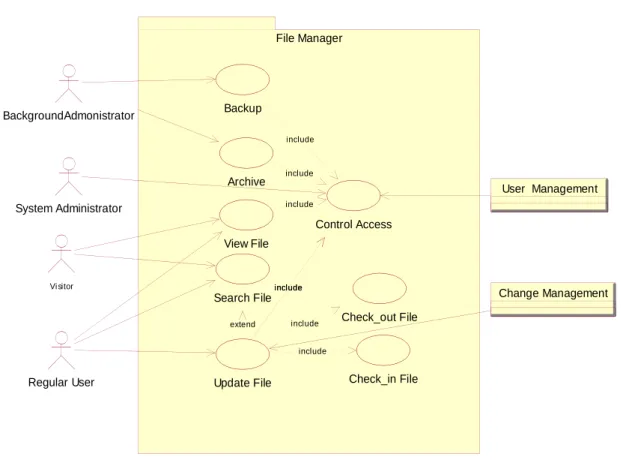
Figure 1 illustrates the use case diagram of File Management System.
Figure 1:File Management user case diagram File Manager Check_in File Check_out File Change Management Update File Regular User Archive Backup BackgroundAdmonistrator User Management Control Access include include System Administrator include include include include View File include Search File extend Vi sitor
1.2
Description of Actors
File management have two types of actors, Primary actors and supporting actors, Primary actors are system administrator, background administrator and regular user. Supporting actors are User management and change management.
1.2.1 System Administrator
System administrator are one of the key actors of the system whose interaction with the system is beyond regular user, in file management system administrator is in charge to give access to files/ folders to users .
1.2.2 Background Administrator
Another group of File management actors are Background administrator that have
supporting role in the system and are in charge for Backup and archiving and manage the file system, to be sure that enough space available in the server to support user activity.
1.2.3 Regular User
Regular Users of the system should be registered trough user management and have user id and password, users depends on their access right level can perform different filling actions. Such as upload, edit, checkout, check in, view the files, create folder, move file.
1.2.4 Regular User
Visitors are another group of primary actors that are using File management, this actor is interested in search file based on keyword, title or author and view the retrieved file to read the file information, these actors will not be able to change content of the files, only they can view files that have access right to it.
1.2.5 User Management
User Management considered as supporting actor witch provides file management
information about users and their role in the system so that File management access control can use this information to control user access to files and folders.
1.2.6 Change Management
Change management is also considered as another supporting actor for file management, file management use change management information in check in time to give user appropriate hint in case there is change in original file and merge is needed.
1.3
Brief Description of use cases
1.3.1 Use Case UC1 :Backup
System Administrators want to get the backup, This action take place on collection of existing file, Based on configuration, this action traverse the file system and gathers files to be backed up. There are three supported collected modes: daily, weekly, and incremental After the back up job is ran base on collect mode: if it is regular so backup from entire directory will be available, or if it is incremental only backup on updated file is taken.
1.3.2 Use Case UC2 :Archive
Administrator wants to archive the unused files that are taking up disk space on source host machine. Administrator is going to schedule a remote data archive job .the job will run in regular basis( every two week) and archive the applicable files from the source host machine .the archive job will Archive files that have not been modified in the last 90 days.
1.3.3 Use Case UC3 :Search
User usually need to search for files with specific keywords, File management is responsible For providing an effective search system that can help user retrieve the information that they needed, this search can be based on keywords or based on author or base on title.
System store keywords provided by user in upload time and use this information to perform search more effectively.
1.4
Fully dressed description of main use case
1.4.1 Use case UC5 : Update Document
Scope:File Management
Level:User goal
Stakeholders and Interest: Owner of file:
Project Manager: Wants to know the progress of the project and additions and effort that each member of the team makes in the file.
System Administartor: Wants to know user activities on the system.
User: Wants their changes saved in the system securely.
User Management: Wants to be sure only authorized users can access the files
Changemanagement: Wants to keep track of change in files and create new version if necesssary
Precondition:User Log in to the system successfully and have access right to filling
Success Guarantee(or Postcondition):Document successfully saved in the system and new version is created(if necessary)
Main Success Scenario(or Basic Flow):
1- user search for file
2- access to the file will be checked 3- user checkout document
4- user choose path
5- user download document in selected path 6- user can make desired changes
7- user check-in the document
8- system will create new version and save the file
Extensions (or Alternative Flows):
*a) at any time if connection to the server fails 1- User has to reconnect to the system
2-login in to system and start the process again
*b) at any time if system need special maintenance, data base upgrade …. 1- System alert user to save the changes and logout
2- User log out from system
3- User login in the system after system maintenance task completed and start process again
1- System check share configuration on the folder 2- If share configuration is on then check out the file
3- If share configuration is off then prompt the user that file checked out by other person
4a) If the folder does not exist
1- System will ask user if he/she wants the path to be created a. User says ‘Yes’
1- The folder will be created. b. User says ‘No’
1- System ask for new path.
2- System will ask user to enter new path. 5 a) If download was not possible because of
a) user don’t have write access to the path identified 1- System prompt user that can not save the file. 2 – Back to step 4 and ask for new path.
b) Identified path don’t have enough space
1- System prompt that there is not enough space 2- Back to step 4 and ask for new path.
7a) If the original document that was checked out have changed and new version created 1- Prompt to user that original document change, you should merge before check_in
a) User wants to merge.
1- System shows updated version and user selected file
2- User select desire part from each of the document in another document
3- User check in merged file
b) User cancel the check in process and decide to merge and check in later c) User do undo checkout
7 b) If the selected document and the original one are the same
1- System prompt that document is the same do you want to create new version Anyway
a) User answer ‘Yes’
1- System will create new version and save the file b) User answer ‘No’
1- System suspend check in
Special Requirements: N/A
Technology and Data Variations List:
An automatic alert system to alert users of identified changes
Frequency of Occurrence:could be nearly continuous
1.5
Component Consistency
File Management is heart of WME , it is in charge of main peace of information in the WME system witch is files. Since main purpose of WME is to provide environment to share files and manage publication almost every component have interaction with file management.File management collaborate with user management to manage security in the system and prevent unauthorized users to access files/folders, file management also
provide services such backup and archive so that system have the recovery ability in case of any hardware failure, In order to keep track of changes in file, file system in check_in
time, when user wants to upload updated file, uses change management services to identify secure update of the files ,so that users don’t loose their changes and still have ability to work concurrently. And also give information about the action that user perform on the component to activity management so that activity management be able to lock user interactive with the system. File management also store version information that provided by change management.