TECHNOLOGY BRIEF:CA THREAT MANAGER
Protecting Endpoint Systems Using
Threat Management Solutions
Table of Contents
Executive Summary
SECTION 1: CHALLENGE 2
Issues Surrounding Multiple Threat Vectors
SECTION 2: OPPORTUNITY 2
Requirements for Integrated Threat Management CA Threat Manager — The Right Solution CA Threat Manager Components
Deploying CA Threat Manager Supporting CA Threat Manager Managing CA Threat Manager CA Threat Manager Servers
SECTION 3: BENEFITS 12
CA Threat Manager Provides Real-Time Threat Protection While Streamlining Administration and Managing Costs
SECTION 4: CONCLUSIONS 14
SECTION 5: REFERENCES 15
Executive Summary
Challenge
Viruses and spyware are the main threats to computer security and user productivity. These types of threats are distributed in different ways and have different effects. For these reasons, effective malware protection requires integrated tools that include technologies to counter both viral and non-viral attacks.
Opportunity
One single tool cannot protect computers against all types of malware. What is needed is an integrated threat management solution that provides reliable, effective and comprehensive protection against viral and non-viral malware. An integrated threat management
application must provide easy-to-use unified management tools, and be deployed and managed from a single central location.
Benefits
CA Threat Manager combines CA Anti-Spyware with CA Anti-Virus and extends the anti-virus and anti-spyware functionality with a central, web-based management console and a common threat management agent, event reporting and alerting tools, and content updating. CA Threat Manager can be hosted on a single threat management server, or can be deployed by using multiple servers for larger enterprises.
Issues Surrounding Multiple Threat Vectors
A recent IDC study1found that the top computer threats are viruses, then spyware and then
unsolicited email, or spam. For this reason, anti-virus and anti-spyware protection are fundamental to enterprise threat defence.
A computer virus is a program that includes code so that it can replicate itself. Viruses spread by attaching themselves to a host program, document or boot sector. When the host is executed or opened, the virus code also runs and starts the process of infecting new hosts. The other common type of viral malware is a worm. Worms are similar to viruses, but use network connections as the distribution vector. Some viruses and worms can execute code and cause additional damage, such as deleting or renaming particular system files. Spyware is a program that is installed, with or without the user's permission that can monitor computer activity while broadcasting the information back to an outside party that controls the program. Malware developers create viral and non-viral malware to exploit gaps in existing threat protection. The challenge for threat management applications is to protect computers against existing threats and minimise the opportunity for new threats to infect computers before the protection can be updated. Viral and non-viral malware use different distribution vectors and affect computers in very different ways. Computer viruses are usually designed to cause harm but can also be intended to take control of your PC. By contrast, spyware is designed to monitor what you are doing on your PC. Spyware can range from annoying pests like adware, which displays unwanted advertising and tracks Web surfing habits, to sophisticated backdoor hacker tools that can cause serious security problems. The result of spyware infection can be serious, particularly if a computer is running multiple types of spyware simultaneously. Even adware can slow your PC to a crawl by bombarding it with unwanted ads. The sophistication of these threats and the rate at which they are evolving is now so great that a unified and
integrated threat management solution is required.
Requirements for Integrated Threat Management
Threat management tools must be able to counter all security and productivity threats and protect computers against all forms of malware. The wide ranges of threats — viral and non-viral — mean that specific technologies and tools must be used against viruses and spyware. One single tool cannot protect computers against all types of malware. What is needed is an integrated threat management solution that provides:
• The ability to manage the whole anti-malware toolset in a unified way, by using common management tools, consoles and dashboards.
• A comprehensive toolset, so that other non-integrated applications are not required as well. • Best-of-breed components, so that administrators can rely on the integrated solution to
protect all computers against all malware.
1 Source: IDC, “Worldwide Secure Content Management 2006-2010 Forecast Update and 2005 Vendor Shares: “The Convergence of Secure Content and Threat Management,” #203550, September, 2006
SECTION 1:CHALLENGE
SECTION 2:OPPORTUNITY
For more information about
types of malicious software,
or malware, see “Technology
Brief — The CA Threat
Management Solutions”.
Effective integrated threat management must also provide a good end user and administrator experience, through:
• An easy-to-use end user interface, with control of local settings that can be turned on and off by administrators. Power users should be able to manage aspects of their own threat protection, while other users do not have to do anything at all to be completely protected. • A clear and comprehensive management console, which provides quick and simple access
to all of the information that is likely to be needed to answer common support calls. This should include the current status of anti-virus and anti-spyware protection on client computers and reports on current infections.
• Simple tools to deploy threat protection to all computers in an enterprise, by using automation as much as possible. Control of client settings should come from a central location and settings should be distributed to clients by using policies that can be customised for different types of users.
• Procedures to enable rapid responses to new types of attack, such as, the ability to push schedule scanning jobs to client computers or to configure signature and software updates from the management server.
CA Threat Manager — The Right Solution
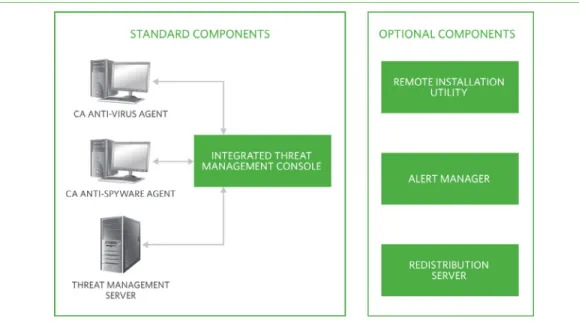
CA Threat Manager r8.1 combines CA Anti-Spyware r8.1 with CA Anti-Virus r8.1, and extends the functionality of both products by using a central, web-based management console and by increasing administrative efficiency through a common agent, logging facilities and updating tools. Figure A shows the standard and optional components of CA Threat Manager.
CA THREAT MANAGER COMPONENTS FIGURE A
CA Threat Manager consists of standard and optional components.
For detailed information
about CA Anti-Spyware,
see “Technology Brief —
Protecting Endpoint Systems
Against Spyware”.
CA Threat Manager Components
CA Threat Manager includes anti-virus, anti-spyware and management components. • CA Anti-Virus CA Anti-Virus is a client (endpoint) protection tool, which protects
computers against viral malware; viruses and worms. A computer virus is a program that includes code so that it can replicate itself and spreads by attaching itself to a host program, document or boot sector. Worms are similar to viruses, but use network connections as the distribution vector. The CA Anti-Virus client is available for Windows computers and a range of non-Windows platforms, including Linux and Apple. CA Anti-Virus is also available for Windows and non-Windows Personal Digital Assistants (PDAs).
• CA Anti-Spyware CA Anti-Spyware is a client (endpoint) protection tool that protects computers against all types of non-viral malware. Spyware is a program that is installed on a computer, with or without the user's permission, and can monitor computer activity while broadcasting the information back to an outside party who controls the program. The CA Anti-Spyware client is a Windows-only application.
• Threat Manager Server The threat manager server hosts the signature database and coordinates policy distribution and content updates across the network. The server is also the web host for the threat manager console that is used to manage the threat manager server and clients. In larger enterprises, the functions of the threat manager server can be assigned to separate servers. More information about these server roles is given later in this brief.
• Threat Manager Console The threat manager console provides information about the server, software versions and the clients that are managed from the server. The console is also the tool that you use to manage clients and client policies and receive reports on threat activity. The console provides a complete view of the anti-virus and anti-spyware situation in your enterprise.
Deploying CA Threat Manager
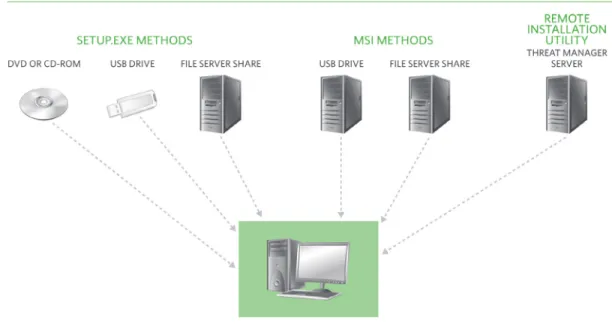
There are several ways to deploy the client components of CA Threat Manager across an enterprise. If you have a small number of client computers you can use the CA Threat Manager CD-ROM and run setup on each computer. You could also copy the installation files to other removable media, such as DVD or USB flash drive, and use these sources. However, for most enterprises some form of automated deployment is required and CA Threat Manager can be deployed by using several automated deployment tools:
• Remote Installation Utility This utility can be installed on the threat manager server and is used to configure client installation options. The installation options are saved in an Installation Control File (ICF). The Remote Installation Utility can then push client installations to any computer on the network.
• Command-line Installation You can use the ICF with a command-line installation tool to install CA Threat Manager from a network share point. If you wish, you can configure the installation to be silent, so that users are unaware that CA Threat Manager is being installed on their computers.
• Software Delivery You can use an automated software delivery tool, such as CA Unicenter® Software Delivery or Microsoft SMS, to deliver CA Threat Manager application packages to client computers.
For detailed information
about CA Anti-Virus, see
“Technology Brief —
Protecting Endpoint Systems
Against Viral Malware”.
• Login Scripts You can use a login script, together with any of the silent installation command-lines, to deliver silent installations across the network.
Figure B shows the various deployment options for CA Threat Manager.
CA THREAT MANAGER DEPLOYMENT OPTIONS
The Installation Control File There are several automated deployment methods, which all use an ICF to control the client installation. There are a large number of options which can be set in the ICF, such as defaults for virus scanning, spyware scanning and installation paths. You also use settings in the ICF if you wish to install the threat manager client without a user interface, so that users are not aware that the client is running and cannot see its settings or status. The critical options in the ICF that must always be configured are the address of the Phone Home server (which is used during discovery and is explained later in this brief), and the address of the License server. The ICF can be edited by using the Remote Install Utility, or any text editor. ICF can be used in any of the following types of deployment:
• Remote Install Utility Deployments The CA Remote Install Utility is run from the threat manager server and can use multiple ICF files, so that you can create different sets of configuration settings for different types of users. Installations are driven from the server and the server requires that Windows firewall port and application exceptions are enabled. If these exceptions are not enabled by default, you can run a separate utility to set the required exceptions.
FIGURE B
The threat manager client can be deployed by using a variety of methods.
• Silent Installation Deployments To hide the installation progress from users, silent
installations use a command line that is driven from the client together with a parameter. All CA Threat family products, including CA Threat Manager, include the install.exe command-line utility, which uses a “/s” switch to make the installation silent. Versions of this utility are available for Windows, Mac and UNIX platforms, so you can install the CA Anti-Virus component of CA Threat Manager on any supported platform; the CA Anti-Spyware component is only supported on Windows computers. The install utility has options for selecting a particular ICF file, so it is easy to deploy to different types of client by simply selecting a different ICF file. For example, for some users you might not wish the client user interface to be displayed so you would use an ICF without this option.
On Windows computers, an alternative utility for silent command-line driven installations is the msiexec.exe, which controls the installation of the CA Threat Manager MSI file. The msiexec utility uses the “/q” switch for a silent installation, but there is no option for selecting an ICF file, so the default ICF file is always used.
• Software Delivery Deployments You can use an automated software delivery tool, such as CA Unicenter® Software Delivery or Microsoft SMS. Although the application packages that are used by tools always refer to the default ICF file, you can create multiple MSI packages that each use their own ICF file to customise installations for particular types of client. CA Unicenter Software Delivery can be used to deliver CA Threat Manager components to all supported client platforms. Microsoft SMS can only be used to deliver components to Windows clients.
• Login Script Deployments You can use a login script together with any of the silent installation command-lines to deliver silent installations across the network. As with the software delivery deployments, you can use multiple installation images, for example, where each image is designated for a specific operating system. However, it is usually more
complex for login script-driven installations to test for the operating system before switching to the appropriate installation image or directory than it is to use specialist deployment tools, such as CA Unicenter Software Delivery.
Supporting CA Threat Manager
CA Threat Manager provides an optional policy-based configurable user interface for the client. As an administrator, you can choose to deploy the agent without a user interface, such as, for computers where there is no requirement for users to manage their own virus or anti-spyware. For computers which do have the interface installed, you can use policies to customise the interface for particular groups of users. This approach makes it easy to support the inte-grated CA products across diverse, multi-site and multi-server environments.
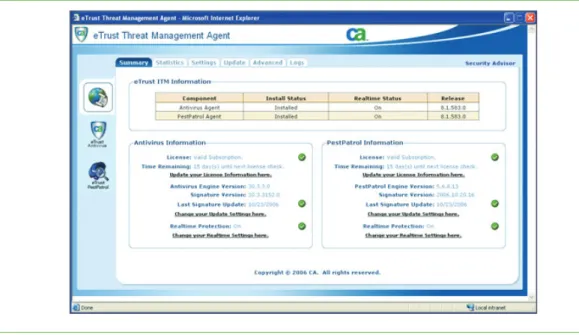
Figure C shows the CA Threat Manager user interface.
USER INTERFACE
On Windows computers the client user interface includes both anti-virus and anti-spyware tabs (anti-spyware is not available for non-Windows computers). There are six tabs:
• The Dashboard tab provides the user with a summary of the current status of the anti-virus and spyware agents, including signature and engine versions, and virus and anti-spyware activity.
• The Scan tab enables the user to set up and configure scans of local disks. • The Settings tab enables the user to configure options such as alerts and logging.
• The Update tab enables the user to specify signature update frequency and which servers should be contacted for updates.
• The Advanced tab enables the user to manage quarantine activity and inspect the job queue, such as pending scanning or update jobs.
• The Logs tab enables the user to view activity logs.
The interface can be used to find out the status of the agent and view details of any infections. However, depending on the policies that have been set at the threat manager server, the user may not be able to modify any of the settings.
Managing CA Threat Manager
The threat manager console makes it is easy to manage and administer the CA products across multi-site, multi-server environments. The console is used to manage clients by using policies to configure signature and software updates and to generate reports.
FIGURE C
The threat manager agent can be installed with a user interface.
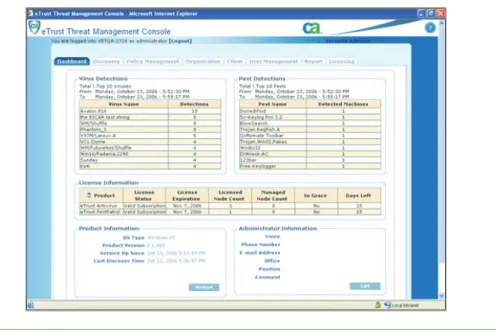
Figure D shows the console.
CA THREAT MANAGER CONSOLE
• Dashboard The Dashboard tab shows a summary of the CA Threat Manager environment that is managed from this server. This includes the current top 10 virus and pest detections for the last 10 days, across all managed clients, and the currently deployed license count. • Discovery The Discovery tab enables you to search specific subnets to find computers that
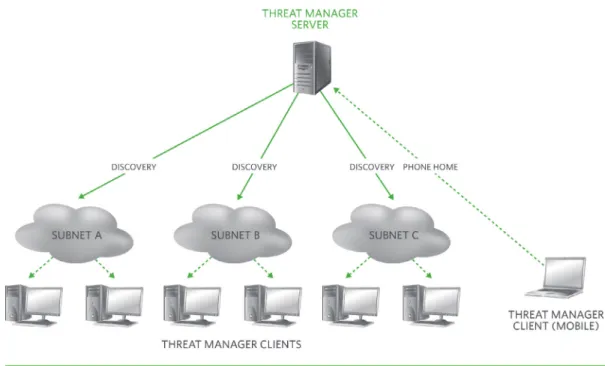
are running CA threat applications and add them to the list of computers that are managed by this server. You can configure new client deployments to automatically enrol themselves with the server; however, the discovery process can be used to add previously installed clients, including those that may have been installed manually. The normal process is regular client discovery, where discovery packets are sent out by the threat manager server. There is also another method, phone home, which is used by computers that cannot be contacted by discovery because they are remote or connected through a virtual private network (VPN). Phone home is also referred to as “self-discovery”.
FIGURE D
The web console is used to manage CA Threat Manager.
Figure E shows the discovery process.
THE DISCOVERY PROCESS
• Policy Management The Policy Management tab is used to manage virus and anti-spyware policies. Policies are used to configure agent settings and replace any settings that may have been configured manually at the client. Policies, therefore, include settings for signature update schedules, file scanning, exclusion lists and alerts. Policies can be locked down, so that users cannot change any of the settings that have been set at the server; all policy-based settings are locked by default. Policies can be assigned to specific computers in your business network by using your organization structure.
• Organization The Organization tab is used to create an Organization tree that represents the structure of your business. This structure could be based on location, business function, or any other criteria you choose. When you have defined an Organization tree, you can assign clients to any branch of the tree. You can use the Properties sub-tab to assign policies to or remove policies from a branch of the tree.
• Client The Client tab is used to view and manage a specific computer. You can use the Properties sub-tab to view product information, assign policies to the computer and start or stop CA Anti-Virus and CA Anti-Spyware services. The Logs sub-tab enables you view all of the logs that are associated with the computer.
• User Management The User Management tab is used to manage user access to the threat manager console and the level of access that users have to specific configuration options.
FIGURE E
The CA Threat Manager uses discovery to collect information about client computers.
• Report Reports are generated by using the event information that is sent by each threat manager client. For events to be included in reports, you must configure Alert Forwarding from the client computers to the threat manager server. The Alert Forwarding can either be configured from the client, or by using an Alert Forwarding policy. Although event data is collected in real time, reports are generated every 24 hours, by default. This setting can be changed if you want to have reports generated more frequently and if you have sufficient processing power on the threat manager server. Reports can be used to answer common status questions, such as:
– When was the last anti-virus update? – What viruses are we protected against?
– Are we currently protected against a particular malware? – What computers are not up-to-date?
• Licensing Threat manager clients are usually licensed through the server and the server keeps track of licences that are in use. The Licensing tab displays the current licensing for the server and all of the clients that report to this server. For mobile users, who do not often connect to the corporate network, you can configure the client to check license information directly with CA Licensing servers.
CA Threat Manager Servers
There are several server roles that are used in a CA Threat Manager implementation. These roles can all be assigned to a single physical server, or can be assigned to different servers. These assignments depend on organization size. For example, a small organization with fewer than 500 users should have a dedicated server to function as the threat manager server and at least one additional server to act as both a CA Threat Manager policy proxy server and as a redistribution server. In small environments, the Alert Manager role should be assigned to the threat manager server.
Alert Forwarding is not
available on Linux, Solaris
or Mac OS X. On these
platforms, alerts can be sent
to a user-defined shell script
for further processing.
FIGURE F
CA Threat Manager uses several server roles.
Figure F shows all the server roles.
CA THREAT MANAGER SERVERS
• CA Threat Manager Server In smaller enterprises the threat manager server usually carries out all the threat management functions. In larger networks, this server may act in a coordination role while other servers carry out specific roles.
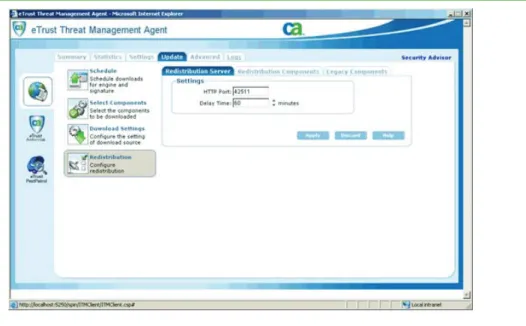
• Redistribution Server This is installed as part of the threat manager server setup and can also be installed on its own for a computer that only acts as a redistribution server. By default the main threat manager server is always designated as a redistribution server. For large organizations with more than 1,000 clients, you should use additional redistribution servers at lower levels of the organization. For remote locations, you should configure at least one redistribution server at each location to provide updates for all computers at that location. Client computers then contact the appropriate redistribution server, as specified in their Content Update policy Source list, to obtain the updates. When the redistribution server component is installed, you get the standard agent components and user interface, together with an extra item on the Update tab, to configure the Redistribution. This server role is sometimes referred to as a Content Update server.
Figure G shows the Redistribution Server interface.
REDISTRIBUTION SERVER
• Alert Manager The Alert Manager is automatically installed as a separate application when you install the threat manager server on a Windows computer (the Alert Manager is a Windows-only application). You use the Alert Manager to configure how alerts are sent to people or devices in your organization. For example, alerts can be sent to an email address, a pager, the Windows event log, an SNMP trap or CA Unicenter®. The Alert Manager receives alerts based on Alert Forwarding policies.
• Alert Forwarding Server By default the main threat manager server is also used to receive alerts directly from all clients. However, if you implement CA Threat Manager in a large multi-tiered hierarchy, you can forward the alerts to another server first, which in turn forwards them to the threat manager server. This makes it possible to scale a CA Threat Manager implementation for larger networks. An Alert Forwarding server is set up by installing the Alert Manager on another Windows server computer to off-load the additional processing.
• Policy Proxy Server By default, the threat manager server is designated as a policy proxy server for the subnet in which it resides. This means that the policy proxy server always distributes policies to clients on that subnet. For performance reasons, you should use one policy proxy server per subnet. To serve as a policy proxy server, a computer simply needs to be running the threat manager agent. The threat manager server then distributes policies to all policy proxies on the network. When the server finds a policy proxy server it enlists the help of that computer to distribute policies to the rest of the computers that are located on that branch and any subordinate branches, and then skips over the rest of the computers in that branch until it finds the next proxy server. The server then passes the policies to that proxy, and so on throughout the network.
FIGURE G
The Redistribution Server role is an extra option on the Agent interface.
Under Linux, Solaris and Mac
OS X, you may use the Local
Alert Manager setting to
send notification information
to a shell script that you
write yourself.
CA Threat Manager Provides Real-Time Threat Protection While
Streamlining Administration and Managing Costs
To help businesses respond to threats, CA Threat Manager contains features that are designed to prevent attacks from affecting user productivity, data confidentiality and customer
confidence:
• Comprehensive Scanning Comprehensive virus and spyware scanning, detection and removal capabilities mean that enterprises can rely on CA Threat Manager as their primary defence against all viral and non-viral threats.
• Central Web-based Management A single web-based management console for managing any size diverse environment is important, because:
– It provides a complete view of the anti-virus situation within your enterprise.
– You can use Windows, UNIX, Linux and Macintosh platforms as the core platforms for managing all threat manager clients.
• Bandwidth Savings for Signature Updates MicroDAT signature updates (less than 100KB for CA Anti-Virus and less than 500KB for CA Anti-Spyware) help to ensure up-to-the-minute virus and spyware protection, because their small size speeds up distribution with minimal effect on network traffic.
Independant Industry Certifications
CA Anti-Virus is certified by industry experts and has received detection and removal
certifications from ICSA Labs, West Coast Labs and Virus Bulletin. CA Anti-Virus consistently receives the "100% Award" from Virus Bulletin. CA has also received Checkmark certifications from West Coast Labs for malware detection and removal (Antivirus Level 1, Antivirus Level 2 and Trojan). CA Anti-Virus is certified by ICSA Labs for detecting and cleaning 100%
of "in-the-wild" viruses.
These certifications provide businesses with independent verification that CA Anti-Virus is effective in protecting computers against current viral threats.
Platform Support
CA Threat Manager has multi-language support, and the CA Anti-Virus component can be run on a wide range of computer platforms:
• Language Support Depending on the operating system, CA Threat Manager supports English, French, Italian, German, Spanish, Japanese, Brazilian Portuguese, Traditional Chinese and Simplified Chinese. If your business is multi-lingual or global, you can select the best language for your users.
• Supported Environments for CA Anti-Virus Agent CA Anti-Virus is available for a range of operating system and application environments. Wide platform support means you can use one product across your whole network. The following lists show the environments that are supported by CA Anti-Virus r8.1, but legacy clients, such as Windows 9.x computers, can still use CA Anti-Virus r7, and the management tools support environments where both these versions are in use. On Windows computers CA Anti-Virus r8.1 supports the following SECTION 3:BENEFITS
Windows versions for the client: – Windows NT 4.0 SP6a
– Windows 2000 Workstation and Windows 2000 Server – Windows XP (32/64-bit)
– Windows Server 2003 (32/64-bit) – Windows Vista (32-bit)
The following non-Windows operating systems are supported for the client:
– Linux (32-bit): Red Hat Enterprise Linux 3 and greater, SuSE Linux Enterprise Server 8 and greater, SuSE 9.0 and greater
– UNIX: Sun Solaris 8 and greater; HP-UX 11.0 and 11.11
– Apple: Macintosh OS X 10.3 and greater for Power PC; Macintosh OS X 10.4 and greater for Intel
– Novell: NetWare 5.1 and greater
CA Anti-Virus also protects PDAs. The following platforms are supported for the PDA client: – Palm
– Microsoft Windows Mobile 2002/2003/2005 – Microsoft Smartphone 2005
– Pocket PC 2003
There are versions of CA Anti-Virus which protect application platforms and network appliances. The following platforms are supported:
– Microsoft Exchange 2000 and 2003 – Lotus Notes/Domino 4.6.2 and greater – Citrix Presentation Server 4 for Windows – NetApp Filer NAS Appliance
• Supported Environments for CA Anti-Spyware Agent CA Anti-Spyware is available for Windows computers only. CA Anti-Spyware r8.1 supports the following Windows versions for the client:
– Windows NT 4.0 SP6a
– Windows 2000 Workstation and Windows 2000 Server – Windows XP (32-bit)
– Windows Server 2003 (32-bit) – Windows Vista (32-bit)
• Supported Environments for CA Threat Manager — Management Server The threat manager server can be installed on Windows or other operating systems. The following operating systems are supported for the management server component:
– Windows: Windows NT 4.0 Server (SP6a or later), Windows 2000 Server and Windows Server 2003
– Linux (32-bit): Red Hat Enterprise Linux 3 and greater, SuSE Linux Enterprise Server 8 and greater, SuSE 9.0 and greater
– UNIX: Sun Solaris 8 and greater
– Apple: Macintosh OS X 10.3 and greater for Power PC; Macintosh OS X 10.4 and greater for Intel
The anti-virus server is managed by using a web console, and can be accessed from any platform that supports any of the following browsers:
– Internet Explorer 6 SP1 and above – Mozilla Firefox 1.5 and above
CA Threat Manager is compatible with, and complementary to, other security initiatives, including CA Host-Based Intrusion Prevention System, which blends standalone firewall and intrusion detection and prevention capabilities to provide centrally managed proactive threat protection. CA Threat Manager also works with CA Secure Content Manager, which is a gateway solution that safeguards enterprises from data confidentiality breaches, and against Web and messaging threats.
Viruses and spyware are the main threats to computer security and user productivity. Effective malware protection requires specialist technologies that can counter both viral and non-viral attacks. One single tool cannot provide all these technologies. Integrated threat management solutions are required to provide comprehensive protection against viral and non-viral malware. CA Threat Manager combines CA Anti-Spyware with CA Anti-Virus, together with a central, web-based management console. CA Threat Manager uses a common threat manager agent, event reporting and alerting tools, together with content updating managed from a central server. For smaller businesses CA Threat Manager can be hosted on a single threat manager server; for larger enterprises CA Threat Manager can be deployed by using multiple
linked servers.
“CA Security Advisor”:
http://www3.ca.com/securityadvisor
To learn more about the CA Threat Manager architecture and technical approach, visit CA Threat Manager product Page.
SECTION 5:REFERENCES