1
AskMN Training Manual
Created by Carla Pfahl, AskMN Coordinator
Minitex Reference Outreach & Instruction
March, 2014
2 Table of Contents
Introduction……….3
Important URLs………....4
Import Virtual Reference Listservs……….5
Training Module: Introduction to QuestionPoint Chat...6
Software Requirements……….6
Logging in to QuestionPoint / The My QuestionPoint Page……….7
Launching Chat and Selecting a Queue(s) to Monitor……….9
Recommended Settings………10
Navigating the Chat Monitor Console……….11
Accepting a Request……….11
Patron Information………..……….13
Moving Between Your Active Sessions………15
Instant Messaging with Other Librarians………16
Transferring an Active Session to Another Librarian……….18
Ending a Session………..21
A Quality Chat, Step by Step………22
Training Module: Chat Follow Up and Referral...25
Overview………25
Resolution Codes: A Guide………26
Question Lists……….27
Chat Scenarios and the Question Lists in Which the Transcript Appears………..30
Following up on a Chat Session or Referring the Question to Others………..31
Adding an Email to Patron Information on a Transcript………..31
Scripts………..34
Training Module: Statistical Reports...36
Introduction to Statistical Reports……….36
AskMN Mission Statement/Quality Statement/Goals……….38
Policies and Procedures...39
3
Introduction: Updates to AskMN
The QuestionPoint software is updated and enhanced every six months or so, usually in June and December. Major upgrades up the software take place on a less frequent basis.
QuestionPoint provides documentation and release notes for all updates on their website at: http://www.questionpoint.org/
As a member of AskMN, you are expected to be aware of software updates as they come out and to modify your workflow according to the enhancements to the software. For any software updates that cause a major change in workflow procedures, training will be provided to you either in person or virtually via webinar and updated guides available on the staff resources page at
http://www.wiki.askmn.org/ on the Procedure Documents webpage.
4
IMPORTANT URLs
AskMN Librarian Login:
o http://questionpoint.org/
AskMN Statewide Portal: o http://askmn.org/
AskMN Staff Resources:
o http://wiki.askmn.org/ or
o https://sites.google.com/a/umn.edu/askmn/
QuestionPoint Resources:
o Training and videos at http://questionpoint.org/education/index.html o Documentation page at
http://questionpoint.org/support/documentation/gettingstarted/index.html o Features and modules at
http://www.oclc.org/support/services/questionpoint/documentation.en.html
Reference and User Services Association (RUSA):
o “Guidelines for Behavioral Performance of Reference and Information Service Providers” (2013) at http://www.ala.org/rusa/resources/guidelines/guidelinesbehavioral
5
IMPORTANT VIRTUAL REFERENCE LISTSERVS AND BLOGS
AskMN Listservs:
As a library joins AskMN, their participating librarians will be added to the AskMN All Staff Listserv by the AskMN Coordinator. To send messages to the list, use this address:
As a library joins AskMN, the librarian(s) coordinating AskMN for that library will be added to the AskMN Group Administrators Listserv by the AskMN Coordinator. To send messages to the list, use this address: [email protected].
To request additions/updates/deletions to either list, contact Carla Pfahl: [email protected]
QuestionPoint-L:
QuestionPoint –L is an email listserv dedicated to the discussion of the QuestionPoint service. The list is open to current QuestionPoint subscribers and QuestionPoint team members from OCLC and the Library of Congress.
Subscribe to QuestionPoint-L
All QuestionPoint users associated with an active QuestionPoint account are welcome to subscribe to this list. To request a subscription, send an email message to David Leslie and [email protected] with the subject of “QuestionPoint list request”. In the body of your message, include your name, email address, library name, and institution ID (or name of institution). Once your subscription is activated, you will receive two email messages:
A confirmation of your subscription, with information about sending a message to the list, options for receiving a message, and removing yourself from the list. Save this confirmation so you can refer to it later if needed!
Usage guidelines for the list.
QuestionPoint Blog:
Keep up on new events and developments via: http://questionpoint.blogs.com/
This is also an excellent place to voice your opinions and discuss various issues with your QuestionPoint colleagues.
Digital Reference Listserv (Syracuse): [email protected]
6
Software Requirements:
Chat Librarians
A web browser with JavaScript turned on: MicroSoft Internet Explorer 6 +, Netscape 6+, Firefox 1.5+, Chrome, Opera, and Safari
A high speed internet connection
Adobe Flash Player: Version 10
Tablets and other mobile devices do not currently work with the chatting software (flash is required)
Patrons
A web browser with JavaScript turned on: MicroSoft Internet Explorer 6+, Netscape, Firefox, Chrome, Opera, and Safari
7
Logging on to QuestionPoint:
1. Clear the browser cache of temporary internet files and cookies. 2. Go to http://www.questionpoint.org/
3. Click Librarian Login
4. Type your QuestionPoint authorization (User ID). 5. Type your QuestionPoint password.
6. Click the Login button. The My QuestionPoint page is the home page. The My QuestionPoint page is:
The starting point for every QuestionPoint session
Your access point to the QuestionPoint areas that you use most often
8 The work area of the My QuestionPoint page contains the following elements:
Welcome Your account name
Institution Your library and its QuestionPoint ID number OCLC Symbol Your library’s OCLC symbol
Select Language Select the language in which to use QuestionPoint in the drop-down list and click the arrow
My Questions All questions that are assigned to you
Can also be accessed by clicking the “Questions” tab in the Ask Module
Quick Links Links and search boxes for quick access to frequently used areas of QuestionPoint. The links and boxes that you see are appropriate to your account privileges QuestionPoint
Announcements Announcements from the QuestionPoint team at OCLC Subscription
Group
Announcements
Announcements from the manager of your subscription group, AskMN
Institution
9
Launch Chat and Select the Queue to Monitor:
1. In order to launch your chat session, you will need to click on the “Launch Chat” link found on your My QuestionPoint page in the Quick Links pane on the left side.
2. The Chat Monitor window will open with the QuestionPoint Queues popup window on top. Use the popup window to select the queues to monitor.
Monitoring the Queue for your own patrons (non-AskMN shifts)
The queues that are listed vary by library. You will want to select the appropriate AskMN Queue, depending on what type of library you are and type of QuestionPoint account. For Public
Libraries without an institution-level queue select Primary Queue: A Minn Public. For Public Libraries with an institution-level queue select Primary Queue: A [Your Library]. For Academic Libraries without an institution-level queue select Primary Queue: B Minn Academic. For Academic Libraries with an institution-level queue select Primary Queue: B [Your Library].
Monitoring the Queue for your AskMN shift
You will also need to select one of the 24/7 Reference Cooperative queues: 24/7 Reference: Public Cooperative for the public queue and 24/7 Reference: Academic Cooperative for the academic queue. Libraries with an institution-level queue will also need to select the AskMN queue listed in the BME Queues for both Public and Academic queues.
Monitoring for your AskMN shift:
Without an institution-level queue With an institution-level queue
3. Click “Save.”
10
Recommended Settings – Chat Monitor Window
Once you’ve logged in and choosen your queue, click on “Settings” at the top.
By adjusting the settings it will help you to more easily navigate the software. You can change the font size to increase the size of the wording on the screen as well as set how you want to be notified when a new patron enters the service.
We recommend that first-time users turn off the flash-based popup alert because otherwise you will get a popup dialogue box each time a patron enters, forcing you to click “OK” to get rid of it, even if you are already chatting with someone.
If you choose “Browser based alerts”, your alert type will depend upon the Browser you use. IE users will see ***New patron*** appear in the task bar at the bottom of your monitor and in the IE title bar at the top. If you use “tabbed” browsing in your IE window, it will also flash in the tab. Firefox users will also see the QP icons flash in address bar and tabbed view.
We recommend that you have the sound alert turned on, so that you will hear a single beep when a patron enters. This allows you to multitask, working on something else while the chat runs in the background. This may be used in conjunction with the browser-based alerts.
11
Navigating the Chat Monitor Console
Chat Monitor Illustration
In the chat monitor shown below, the librarian has just arrived and is waiting for a patron to come in with a question. Since the librarian is not yet chatting with anyone she has no active sessions.
Accepting a Request:
The patron will appear under the New tab.
You can hover the mouse over the patron’s information to view a pop-up window showing their full question, institution, referring website, and browser. This same information will also be viewable in the Info tab when you start chatting.
12
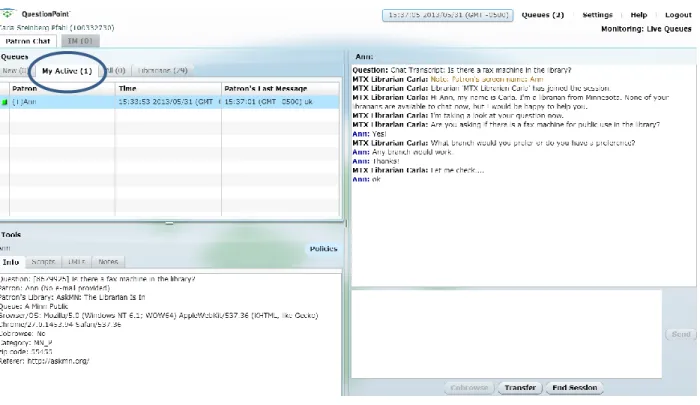
The session is moved to the list under the My Active tab, and the transcript and communication tools for the session appear in your Chat Monitor.
Tabs and lists for information and selection:
Click the New tab to view patrons who have entered and have not yet been picked up by a librarian.
Click the My Active tab to view and move between your active sessions (ie, the patrons you are currently chatting with). The list shows each patron’s most recent message, the time that it was sent, and the time when the patron requested the session.
Click the All tab to view and select active session of librarians chatting with your patrons. This tab appears only for Administrators.
Click the Librarians tab to view all the librarians who are currently in the same queue(s) as you.
13
Patron Information:
Click the Info tab to view the patron’s institution, referring website, browser type, and ability to co-browse.
Click the Scripts tab to view your personal scripts, institution scripts and shared scripts, as well as the institution scripts and shared scripts for the patron’s library.
Click the URLs tab to view your URL scripts (same as the scripts tab).
Click the Notes tab to add a “librarian-only note,” which will only be viewable to librarians viewing the transcript. The patron will not see it, either during the chat or when reviewing the emailed transcript. (You can add a note after the chat has ended, as well.)
Click Policies to view the policy page for the patron’s home library.
How to determine a patron’s public library branch/location:
The information listed next to “Patron’s Library” will tell you the library that the patron is part of. The Queue will identify if the library has an institution-level queue.
A patron coming in using a chat form via a non-institution-level queue (Minnesota queue):
14
Scrollable chat transcript with the most recent message at the bottom includes:
Messages between the patron and the librarian
Librarian notes (added and seen ONLY by librarians)
15
Moving Between your Active Sessions:
You are in a session with Patron A and want to move to your session with Patron B.
Click on the patron names in the My Active tab to toggle between patrons.
16
Instant Messaging with other Librarians:
You want to send an IM to a librarian who is monitoring the same queue as you are.
Click the IM tab at the top of your Chat Monitor.
Click on the librarian that you want to IM.
An IM transcript, message box, and Active IM session list appears in the Chat Monitor.
17
Receiving an Instant Message:
The librarian receiving the IM will see an alert:
The librarian clicks the IM tab at the top of the Chat Monitor, then clicks on your name in the My Active IM Session box.
18
Transferring a Patron to Another Librarian:
Important note about transfer
Before you transfer a session to another librarian, you should:
• View the list of monitoring librarians to see who is available to receive the session, and • Send an IM or Transfer Request to ask an available librarian to take the session.
Transfer the session after a librarian agrees to take it. If you transfer the session without asking first, the receiving librarian may not be able to provide prompt attention to the session.
You need to transfer one of your active sessions to another librarian who is monitoring the same queue that you are.
Click on the Transfer link.
A list of other librarians in your queues will appear. Click on a librarian’s name to transfer the patron to them.
The words “Transfer Request” will appear. If you have not already sent the librarian an IM asking if you can transfer a patron to them, do so now. Wait for them to reply before clicking
20
Receiving a Patron from a Librarian:
The librarian receiving the patron will see an alert:
The librarian should 1) click on the Patron Chat tab to go back to the chat area, 2) then the My Active tab, 3) and then click on the new patron’s name.
1
2
21
Ending a Session
A session can be terminated by either the librarian or the patron.
A patron can end the session by clicking Exit Chat:
If the patron closes the chat window or goes to another screen without clicking Exit Chat, the session will remain in the librarian’s active session list, until they are timed out by the system (usually after a minute or two).
The librarian must end the session in the Chat Monitor to remove it from the active sessions list.
Click on End Session.
The session is removed from your My Active list.
You are able to do four things after ending the session: add a Librarian Note; add a Patron Note; set the Resolution Code; and set the Description Code. Do not set the description code unless you are chatting with a patron from your library.
You must set the Resolution Code before you close the session.
Click on one of the resolution codes and click Add.
Then you can close the session by clicking Close.
Optionally, you can add a Librarian Note (visible only to the librarians viewing the transcript), or a Patron Note(visible to the patron when they receive the transcript in their email).
Logging Off from Chat
Once you have ended all active sessions, you may log out from chat.
Click the Logout link at the top of your Chat Monitor.
22
A Quality Chat, Step By Step
1. Make sure that you’ve checked your settings (See page 12). When a new patron arrives, go to the New tab to review their question and information by hovering your mouse over the patron. Click the patron to pick up the chat.
2. If more than one patron is waiting, pick up the patron waiting the longest. (Or, if there is an AskMN patron, pick them up first.)
3. Check the Info tab to see where they are from. What’s their library? Are they from Minnesota? Did they provide their email address?
a. Also look at the Referer information. This will indicate from where the patron is coming from (or what webpage they are on if using the Qwidget). Many libraries now embed the Qwidget within proprietary databases and other key point of need places. Look for a vendor URL here if coming from a database:
i. http://web.ebscohost.com.proxy.elm4you.org/ehost/ImportWidget/ImportWid getContent?wdgtId=15186
23 4. Greet patron, using a script if needed. If the patron is from an AskMN library, you may want to
use a different script than a patron from the 24/7 Reference Cooperative.
5. Conduct a reference interview. If needed, clarify and/or rephrase the question.
6. Check the library’s policy page. Always check the policy page before you attempt to answer, or before you assume that it’s something you can’t answer.
7. If the policy page doesn’t answer the question, try checking the library’s webpage, or ELM databases if from Minnesota. Sweetsearch.com is a great search engine to use with K12 students.
8. When pushing pages, ask if they’ve been received. Note that pages must begin with the http:// in order to get pushed to the patron, and even then, there are occasions where the page may not come through. If the patron is using the Qwidget the URL will be displayed as a hot link but will not open in the patron’s browser unless they click on the link.
9. Chat frequently. If you are taking time to do research, send periodic updates to the patron. (Usually once every 2 minutes.)
10. Don’t paste large chunks of text into the chat window. Send the patron the URL so they can view the whole document themselves, and/or just paste the most important sentence or two into the chat.
11. Before exiting, ask if their question has been answered and if you can help them with anything else.
12. Close the session, using a script if desired – either a generic script or one from the patron’s library. Do not use a script that refers to your library or AskMN if the patron is from the 24/7 Reference Cooperative.
24 14. Do not set a descriptive code, unless the patron was from your own library.
Summarized from QuestionPoint’s Best Practices, located at: http://wiki.questionpoint.org/247-Best-Practices
and QuestionPoint’s 24/7 Reference Cooperative Policies, located at: http://wiki.questionpoint.org/247-Policies
25
Chat Follow Up and Referral
Overview: Resolution Codes and Question Routing
At the end of every chat session, you will select a Resolution Code for that session.
There are five resolution codes that you can choose from:
o Answered – use this code when you feel that you have answered the patron’s question, and that no follow up is needed by the patron’s library.
o Follow Up by Me – use this code when you would like to follow up with the patron yourself, rather than referring the question to the patron’s library.
o Follow Up by Patron’s Library – use this code when the patron’s library needs to follow up on the question.
o Lost Call – use this code when the patron becomes disconnected after typing their intitial question (meaning, no conversation took place between the patron and librarian)
and the patron did not leave an email address.
o Pratice – use this code during your training when you are practicing your chat skills. Do not use this code when chatting with real patrons.
Click Add and the Resolution Code will be added to the chat transcript.
Once you close the session, a copy of the transcript will be sent to the patron’s email address.
QuestionPoint also creates a Question ID for the session and places it in the QuestionPoint system. The question contains the chat transcript and information about the patron, such as: his or her name; email address; and the URL for the referring library.
Based on the Resolution Code assigned to the transcript, QuestionPoint will route the question into the appropriate question list.
27
Question Lists
Once a chat has been completed, the transcript ends up in one or more lists described on this page and the next page. You can use these lists to review chats. Please note: most transcripts will end up in multiple lists simultaneously.
Each librarian has a set of lists know as My Questions, which is unique to his or her account.
Each library as a whole has a set of lists knows as Questions or Question Lists. All librarians at that library have access to the lists.
Both sets of lists are either accessible from the Ask Module or from the left column of the My QuestionPoint homepage.
My Questions – Contain 2 types of transcripts:
1. Chats that I participated in.2. Chats that I need to personally follow up on.
(Access this list from the left column of the My QuestionPoint page, or by going to the Ask module and then selecting My Questions.)
New – Chats that I need to personally follow up on. Contains 2 types of transcripts:
1. Chats that I participated in, and gave the chat the resolution code Follow Up by Me. 2. Chats that were referred to my library for follow up, which also appear in the library’s New
28 Pending – Chats that I participated in or transcripts assigned to me, which were referred to another library, subject expert or partner, and they have not yet answered it.
Answered – Chats that I participated in, where I either answered the question during the chat and coded it as answered, or where I sent an answer to the patron later via follow up.
Active – Includes everything in New, Pending, and Answered.
Referred – Chats in which I chatted with a patron of another library.
Closed – Any chat transcript that I closed. Once a question is closed, it is removed from all the other previously-mentioned lists (from the Active lists).
All – Includes all of the above transcripts.
Questions – Contains chats that a patron from my library participated in, even if they were chatting
with a librarian from somewhere else.(Access this list from the left column of the My QuestionPoint page, or by going to the Ask module and then selecting Questions.)
New – Chats referred to my library for follow up. Questions can be answered by anyone at my library directly from this folder, or they can be claimed by an individual librarian, or assigned to an individual librarian.
A question in the library’s New folder that has not been claimed or assigned will be listed as
“unassigned.” Claiming or assigning a question copies it to that individual librarian’s New folder, but it also remains in the library’s New folder, with the individual librarian’s name listed as “assigned.”
[Please see your library’s group leader for your library’s policy on answering questions from the library’s “New” folder.]
Pending – The chat was referred to a subject expert or partner, or a follow up question was asked of the patron and they have not yet answered it. Note that this does not include chats coded as “Follow Up by Patron’s Library” at the end of the session.
29 Active – Includes everything in New, Pending, and Answered.
Referred – Chats where one of our librarians chatted with a patron from somewhere else. Or, chats where one of our patrons chatted with a librarian from somewhere else. In other words, any chat where the librarian and patron were from different libraries.
Closed – Any chat that a librarian or patron in my library participated in, which has been closed. Once a question is closed, it is removed from all the other previously-mentioned lists.
30
Chat Scenarios and the Question Lists in Which the Transcript Appears with Status
1. Chat with own patron. Resolution code: Answered
Chatting Library Patron’s Library
Active Answered
N/A
2. Chat with another library’s patron. Resolution code: Answered
Chatting Library Patron’s Library
Active
Referred (down arrow) Answered
Active
Referred (up arrow) Answered
3. Chat with own patron. Resolution code: Follow Up by Me
Chatting Library Patron’s Library
Active
New (assigned to chat librarian)
N/A
4. Chat with another library’s patron. Resolution code: Follow Up by Me
Chatting Library Patron’s Library
Active
New (assigned to chat librarian) Referred
Active Pending Referred
5. Chat with another library’s patron. Resolution code: Follow Up by Patron’s Library
Chatting Library Patron’s Library
Active Pending Referred Active New (Unassigned) Referred
Incomplete Chat Sessions:
1. Chat with any patron. Session ends before a librarian picks up.
Chatting Library Patron’s Library
N/A Active
New (Unassigned) – before follow up make sure the patron supplied an email address.
2. Chat with own patrons. Session ends after librarian picks up.
Chatting Library Patron’s Library
Active
Referred (down arrow) Answered
Active
Referred (up arrow) Answered
3. Chat with another library’s patron. Session ends after librarian picks up.
Chatting Library Patron’s Library
Active
Referred (down arrow) Answered
Active
31
Following up on a Chat Session or Referring the Question to Others
On the left side of the My QuestionPoint screen, you will see your My Questions list and the Question List for your library.
To follow up on your new questions, click the New link under the My Questions list.
QuestionPoint will display a list of our new questions.
Click on a question to view the transcript and to follow up.
Adding an Email to Patron Information on a Transcript
Verify that the Patron field at the top of the question contains a valid email address. If it does not, you will not be able to send a message to the patron.
32
Enter the patron’s email address in the form. QuestionPoint will create a copy (duplicate) of the full question (with a new ID number), and the new patron email , and put the copy in the same question list as the original unless you choose Close Question for the Old Question. Then click Change Patron Email. This will leave only the new (duplicate) full question with the patron’s email address in the Question List.
At the new version of the question with the patron’s email address, click on the Answer button to send a response to the patron.
QuestionPoint displays the Answer Question page.
Type your answer in the box.
33
When you are finished with your message, you can click either of the following buttons: o Send Answer – click this if you believe that you have provided enough information to
answer the patron’s question. This changes the status of the question to Answered. o Request Clarification – click this if you need more information from the patron in order
to answer his or her question. This changes the status of the question to Pending. o Send Message – click this if you just want to send a message to the patron. This
question will remain in your New questions list.
o Save Draft – click this if you want to save your answer and return to it later to add more information.
o Cancel – this will cancel the answer and your response will not be saved or sent to the patron.
Referring Questions to another library or subject expert
If the patron’s question can best be answered by another library or by a subject expert, you may refer the question.
When you are viewing the full question, you can refer it to another library or subject expert by using the Refer To drop-down:
There are four options for referring questions:
o Email Partner – selecting this option will send the question to either an email partner from your My Address Book (see Ask > Settings) or enter the email address of who you want to send the question to.
34 o Partner (Subscription) – selecting this option will allow you to refer the question
directly to one of the libraries from our subscription group (AskMN).
o Global Network – selecting this option will allow you to refer the question to another library in the QuestionPoint 24/7 Reference Cooperative best matched based on subject, demographic, and language supplied by the referring library.
Once you refer a question to one of the Refer To options, QuestionPoint will change the status of the question to Pending for your library, and will move the question to your Referred Questions list.
The library or subject expert receiving the question will see the question in their New questions list.
Once the library or subject expert answers the question, QuestionPoint will change the status of the question to Answered for both your library and the library/expert that answered the question.
About Scripts
Scripts are designed to make communication easier during chat. Librarians can create personalized scripts for the messages they use most frequently. Scripts also help to promote consistency across the cooperative. There are several types of scripts available for use with the QuestionPoint software:
Personal scripts (My Scripts) are made by you, and should include common messages used with patrons to make communication easier. These are available only on your own account.
Institution scripts are created by you and your colleagues with a librarian account for your QuestionPoint account. These are available to all librarians at your institution.
Shared scripts are created by the AskMN coordinator. These are available to all librarians participating in AskMN.
35 In the example below, the librarian is from Minnesota and the patron is from Pennsylvania’s Ask Here PA. These are the scripts available to the librarian:
Patron Library My Library
Institution Scripts for Ask Here PA Personal Scripts for my account
Shared Scripts for Ask Here PA Institution Scripts for my library
Shared Scripts for AskMN
When chatting with a patron from a different library, or a different state service, you should check the Patron Library for appropriate scripts to greet the patron or end the chat, if possible. Do not use a script that mentions AskMN if the patron is out of state. In the example above, the patron is part of the Ask Here PA service, so the name “AskMN” is meaningless to them.
Creating Scripts
Begin by logging into QuestionPoint and going to the My QuestionPoint screen.
In the right-hand corner of the My QuestionPoint screen click on the “Select Service” drop-down menu, and choose the “Ask” module.
Click on “Settings” in the grey toolbar. Options for scripts will appear in the blue toolbar below the grey one. Click on “My Scripts”:
36
An Introduction to Statistical Reports
Who can view statistical reports?
From the My QuestionPoint screen, click on the Reports tab located at the top left corner. Librarians (logged in with a 6 digit QP ID) can access their own usage statistics and institution-wide usage. An Institution Administrator (logged in with a 9 digit QP ID) can access their own usage
statistics, institution-wide usage, and each librarian from their institution’s usage. The Group Administrator can view reports of their groups’, libraries’, and librarians’ QuestionPoint activity.
What kinds of statistical reports can administrators view?
A variety of reports are available to institution and group administrators.
Reports cover various levels of activity: a single librarian, a single library or institution, a group, all of QuestionPoint.
Reports provide historical information and current status information.
Reports cover many activities. For information about the fields in reports and the activities they cover, see Glossary for Statistical Reports at:
http://www.oclc.org/support/services/questionpoint/documentation.en.html > Reports Module and "Ask" transcript Reviews > Glossary for Statistical Reports
What time periods do the history reports (Activity Statistics) cover? The history reports provide:
Monthly data for the previous calendar year.
Monthly data for the completed months of the current calendar year.
Daily data for the previous month.
Daily data for the completed days of the current month.
Hourly data by month and by day, for some activities.
Why are reports important?
Quality control – The site supervisor can review patron sessions to determine whether they were handled by a local librarian or a librarian across the country.
Performance standards – Librarians and supervisors can view hold time and service time for each librarian plus his or her average hold and service times. The reports function makes it easy to evaluate staff.
Local usage – With reports, it is easy to see how many questions are being generated from your local patrons regardless of who serviced them. Are your local statistics low? Maybe you need to do more marketing or place your chat widget in key point-of-need webpages and databases.
37 technical difficulties. This is important because it patrons experience too many technical
difficulties they are unlikely to use the service again.
Surveys – You can view the completed surveys plus access a chart of how well you did in meeting your patrons’ needs.
38 AskMN Mission Statement
No patron is turned away based on his/her question or library affiliation.
AskMN Quality Statement AskMN librarians will adhere to:
The 24/7 Reference Cooperative Policies and Procedures: http://wiki.questionpoint.org/w/page/13839422/247-Policies
The 24/7 Reference Cooperative Best Practices:
http://wiki.questionpoint.org/w/page/13839421/247-Best-Practices
The Reference and User Services Association’s Guidelines for Behavioral Performance of Reference and Information Service Providers:
http://www.ala.org/rusa/resources/guidelines/guidelinesbehavioral
AskMN Goals
Create a cooperative network for libraries to more easily contribute and participate in an online referernce service for the benefit of its communities.
Provide a cooperative statewide digital reference service that is of benefit to all Minnesota residents allowing 24/7 access to resources and information assistance by trained and experienced librarians.
39
AskMN: The Librarian Is In! Policies and Procedures
Contacting the AskMN Coordinator
Carla Steinberg Pfahl
Reference Outreach & Instruction Minitex
[email protected] (612) 626-6845
Notification and Staffing
Policy #1A:Arranging coverage when you know in advance that you will miss a shift.
If you know you are going to miss a shift due to vacation, meetings, or illness, but the library is still open, the shift must be covered by another librarian, or made up later.
Libraries with more than one staff member participating in AskMN will fill the shift first from their own staff members. If a staff member cannot fill in for the shift, follow the next step.
Send a request to the AskMN listserv at [email protected], asking if anyone is will to cover your shift. You may also contact other virtual reference librarians directly. You are advised to put out a request for a sub well in advance in order to have the best chance of finding a sub. If you are unable to find a sub for your shift, follow the steps for missed shifts in policy #1B.
Policy #1B:Making up a missed shift.
If your library was open, but you missed a shift due to illness or forgetfulness, or were not able to arrange a substitute for a shift that you knew about in advance, you are required to make up that shift.
Contact Carla Pfahl as soon as possible, to let her know that you missed (or will miss) the shift.
Select a makeup time.
Include your selected time in the email to Carla.
Policy #1C:Free hours
Each library is entitled to 5 “free” hours per calendar year, in which they can miss a shift without being required to find a substitute or make it up. If a librarian is unable to makeup a missed shift, his/her site supervisor may request that their library use some of their allotted free hours. This request can only be made by the institution administrator, and can be made by contacting Carla Pfahl.
40 Policy #1D:Notifying for closings.
If your library is closed due to inclement weather or holidays, you are not required to find a sub for or make up your virtual reference shift.
In cases of inclement weather, call or send an email to Carla Pfahl regarding your library’s closing. She will notify the 24/7 Reference Cooperative scheduler that your shift will not be covered. If your library remains open, but you are unable to go to work due to bad weather, notify Carla by phone or email that your shift will not be covered.
A week or two prior to federal holidays, Carla will email libraries to find out if they will be open. If you know that you will be closed soon for a holiday and have not received an email from Carla asking about it, please email her to let her know.
Policy #1E:Libraries with one or less MLS on staff
If a single library that does not have an MLS librarian on staff wishes to participate in AskMN that library may do so and the library’s staffing requirement will be waived. It is expected that most libraries without an MLS on staff are small and will not greatly increase traffic to the AskMN queue. Even if a library’s staffing requirement is waived, that library is still required to answer follow up and referral questions for their library’s patrons. It is also expected that academic or public library systems joining AskMN will be required to contribute a minimum set of hours per week of staffing (based on FTE or population served), even though some of their member libraries may not have an MLS on staff. If a single library has only one MLS on staff and wishes to participate, the AskMN Administrator may waive or reduce that library’s staffing requirement on a case by case basis. Please contact the administrators with questions about staffing.
Policy #1F:Notification of technical problems
Please notify Carla Pfahl immediately if you experience technical problems that prevent you from chatting with patrons. Carla will help you troubleshoot the problems so you can return to the chat and finish your virtual reference shift. If Carla is not available, contact Elizabeth Staats. If Elizabeth is not available, contact QuestionPoint Support for troubleshooting help through your MyQuestionPoint home page or at (800) 848-5800.
Quality of Service
Policy #2A: Always greet the patron.
Greet the patron as you enter the chat or use a Welcome/Greeting script to greet the patron.
41
Check the patron information to find out where the patron came from and if they have entered an email address.
Policy #2B:Conduct a reference interview/engage in conversation.
Conduct a reference interview/engage in a conversation as you would at the traditional reference desk by clarifying the patron’s request, gathering additional information, etc. Be succinct, but be friendly.
Use question negotiation to ensure you understand what type of information the patron needs. Use open-ended questions when appropriate.
Ask the patron if the information is needed for an assignment, and what type of resources they are looking for (peer-reviewed journals; books; web sites; etc.).
Policy #2C:Keep the patron in the session.
Inform the patron of your progress as you search for information. Use scripted messages as necessary, or send the patron a simple message such as “still searching.” Don’t let more than 60 seconds elapse between your messages to the patron.
Don’t use library jargon or acronyms that might confuse the patron. Keep your language simple and easy to understand.
Policy #2D:Provide the information.
Provide the answer/information first by sending the URL to the patron. Always ask if they can see the web page.
Use the Policy Pages in QuestionPoint to assist with answering questions. You should also check the local library’s scripts for often-used answers to questions.
Give the patron a chance to determine if the information you sent is useful, and always cite the resources so the patron knows where the information came from.
Don’t automatically tell the patron to call the local library. If the patron does not need the information right away, you may be able to answer the question on your own by choosing Follow Up by Me or Follow Up by Patron’s Library. If the patron needs the information right away, then they should call their local library.
Always provide phone numbers and contact information for the library that the patron should contact.
Always ask the patron if they need any additional information before you end the session.
Policy #2E:End the session.
Ask the patron if the information you found answers his/her question. Use scripts as necessary, but make sure to personalize the service by using the patron’s name, if applicable.
42
When ending the session, use the patron library’s closing script(s), if available and thank the patron for using the service.
Responsibilities for Participating Libraries
Policy #3A:Notify the group administrator of scheduling changes.
Advance notice is critical to the success of the program. When requesting a substitute, notify the group administrator at least 2 weeks prior to your scheduled absence for the best chance of finding a substitute. Each librarian is responsible for covering his/her shifts. Work within your institution first, then request coverage through the group using the listserv
([email protected]). See Policy #1A – E for more details.
Policy #3B:Ensure that the library’s weekly shift requirement is being met.
Each library has a requirement for the number of shifts per week that must be covered. The site administrator is responsible for ensuring that this requirement is being met. The group
administrator will monitor weekly shifts to ensure each institution’s requirement is being met. If a library does not meet their requirement for 2 consecutive weeks, with no effort being made to make up shifts or arrange substitutes, the group administrator will contact the site
administrator to schedule make up shifts.
Policy #3C:Provide quality service to the 24/7 Reference Cooperative.
As part of the 24/7 Reference Cooperative, it is imperative that AskMN meet its requirements by logging in on time or even a few minutes early to accommodate the inconsistencies in clocks and other time keepers.
For scheduled AskMN chat shifts, librarians are required to select both the AskMN queue and the 24/7 Reference queue for their library type (public and academic).
Policy #3D:Respond to transcripts needing follow up.
Answer questions submitted for follow up in a timely manner, so that questions are answered in a timely manner as determined by your institution. Site administrators should check for
questions requiring follow up each working day.
Policy #3E:Keep your library’s Policy Page accurate and up to date.
Periodically check your library’s Policy Page for accuracy and completion. If you need to add information to or change information on your Policy Page, access your QuestionPoint account, and follow the instructions for at: http://wiki.questionpoint.org/Policy+Page+Guidelines
Privileges of Libraries Participating in the Service
43 Participating libraries should link directly to the service using the URL provided upon joining the service. Non-participating libraries may not link directly to an AskMN chat form, although they may direct patrons to the service via the AskMN statewide portal: http://www.askmn.org/
Policy #4B:Attend free, ongoing training.
Participating libraries receive free, ongoing training.
Training opportunities will be provided throughout the year, and may also include site visits by the AskMN administrator.
Policy #4C:Free access to AskMN promotional items.
Participating libraries have access to promotional items and logos.
Access downloadable promotional items: http://minitex.umn.edu/Reference/AskMn.aspx
Order promotional items: https://www.minitex.umn.edu/Contact/MnKnows.aspx
Download AskMN Logos: https://www.minitex.umn.edu/Communications/Logos/