Cisco TelePresence
Server on Virtual Machine
Installation Guide
4.1(2.29)
Contents
General information
4
About the Cisco TelePresence Server on Virtual Machine 4
Licensing 4
Co-residency support 4
Related documents 4
Platform licensing comparison 5
Prerequisites
7
Recommended platform 7
CPU requirements 8
Other requirements 8
Specifications-based system minimum requirements 9
Before installing Cisco TelePresence Server on Virtual Machine 9
Installing the TelePresence Server
10
(Optional) Configuring initial IP details 10
Configuring the VM host 11
Deploying OVA to host 11
Configuring the TelePresence Server
15
Task 1: Assign an IP address 15
Task 2: Log in to the Cisco TelePresence Server on Virtual Machine 15
Task 3: Apply license or feature keys 15
Task 4: (Optional) Configure DNS settings 16
Configuring the TelePresence Server for administration by TelePresence Conductor
17
Task 5: Create an administrator account for TelePresence Conductor 17
Task 6: Enable encryption and encrypted SIP (TLS) 18
Task 7: Configure SIP settings 19
(Optional) Migrating the TelePresence Server to a new host
20
(Optional) Change the number of vCPUs
21
(Optional) Change the RAM allocation
23
Checking for updates
24
Upgrade instructions 24
Security
25
Changing the admin account password 25
Note about existing privileged account 25
Security hardening 25
Troubleshooting and technical support information
26
Using the event log to help solve a problem 26
Getting more help 26
Checking VMware compatibility 26
VMware checklist 26
VM Image Fails to Boot 27 Guest console in vSphere 5 fails to run on some Microsoft platforms 28
Raid Controller Synchronization 28
TelePresence Server Displays Different Serial Number/MAC address on Reboot 28
Collecting logs from the host 28
General information
About the Cisco TelePresence Server on Virtual Machine
You can deploy the Cisco TelePresence Server on Virtual Machine on these platforms:
n 8 vCPUs (co-residency supported).
n 30 vCPUs (co-residency not supported). 30 vCPUs is supported on any server with 16 physical cores and
hyperthreading enabled.
n 46 vCPUs deployment requiring the Multiparty Media 410v platform (co-residency not supported). These deployments have different processing capacities and licensing requirements. For more information seeRecommended platform [p.7].
Cisco TelePresence Conductor is required to manage the Cisco TelePresence Server on Virtual Machine.
Licensing
For software licensing information, refer to theCisco TelePresence Server datasheet.
For information on the open source software used in Cisco TelePresence on Virtual Machine, refer to the appropriate version of the Open Source documentation at
http://www.cisco.com/en/US/products/ps11339/products_licensing_information_listing.html.
Co-residency support
Co-residency with Cisco TelePresence Conductor is supported on 8 vCPU platforms.
The TelePresence Server can co-reside with other VMs occupying the same host, subject to the following conditions:
n No oversubscription of CPU. 1:1 allocation of vCPUs to physical cores must be used
n No oversubscription of RAM. 1:1 allocation of vRAM to physical memory
n Sharing disk storage subsystem is supported, subject to correct performance characteristics (latency, BW)
Related documents
For information on configuring TelePresence Conductor for your deployment, refer to the appropriate TelePresence Conductor deployment guide on theConductor installation and configuration guides page.
n In networks where the TelePresence Conductor is trunked to Cisco Unified CM, refer toCisco
TelePresence Conductor with Cisco Unified Communications Manager Deployment Guide, XC2.4, Unified CM 10.x.
n In networks where the TelePresence Conductor is trunked to Cisco VCS refer toCisco TelePresence
Conductor with Cisco TelePresence Video Communication Server Deployment Guide, XC2.0, X6.0 and later.
Platform licensing comparison
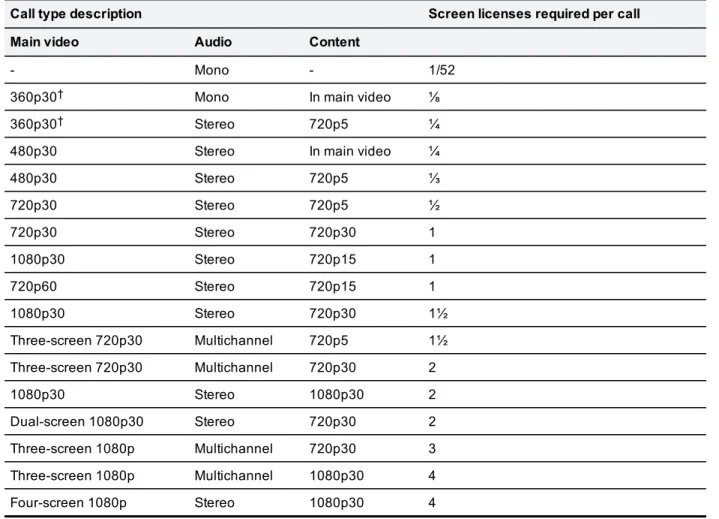
Call type description Screen licenses required per call
Main video Audio Content
- Mono - 1/52
360p30† Mono In main video ⅛
360p30† Stereo 720p5 ¼
480p30 Stereo In main video ¼
480p30 Stereo 720p5 ⅓ 720p30 Stereo 720p5 ½ 720p30 Stereo 720p30 1 1080p30 Stereo 720p15 1 720p60 Stereo 720p15 1 1080p30 Stereo 720p30 1½ Three-screen 720p30 Multichannel 720p5 1½ Three-screen 720p30 Multichannel 720p30 2 1080p30 Stereo 1080p30 2 Dual-screen 1080p30 Stereo 720p30 2 Three-screen 1080p Multichannel 720p30 3 Three-screen 1080p Multichannel 1080p30 4 Four-screen 1080p Stereo 1080p30 4 Table 1: TelePresence Server screen licenses per call for each call type General information
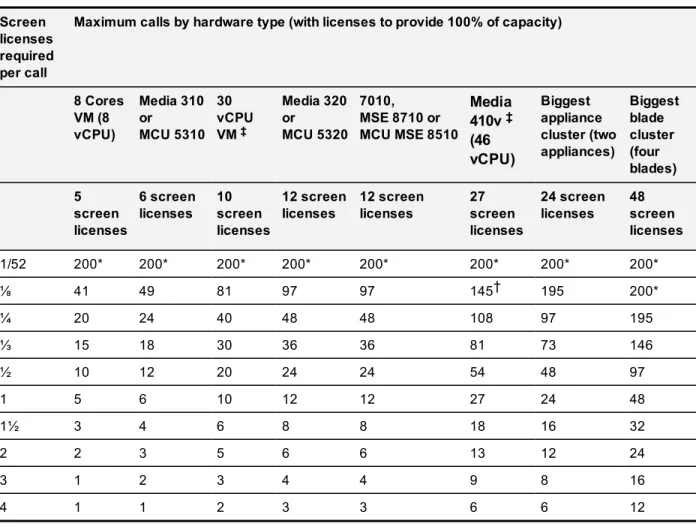
Screen licenses required per call
Maximum calls by hardware type (with licenses to provide 100% of capacity)
8 Cores VM (8 vCPU) Media 310 or MCU 5310 30 vCPU VM‡ Media 320 or MCU 5320 7010, MSE 8710 or MCU MSE 8510 Media 410v‡ (46 vCPU) Biggest appliance cluster (two appliances) Biggest blade cluster (four blades) 5 screen licenses 6 screen licenses 10 screen licenses 12 screen licenses 12 screen licenses 27 screen licenses 24 screen licenses 48 screen licenses 1/52 200* 200* 200* 200* 200* 200* 200* 200* ⅛ 41 49 81 97 97 145† 195 200* ¼ 20 24 40 48 48 108 97 195 ⅓ 15 18 30 36 36 81 73 146 ½ 10 12 20 24 24 54 48 97 1 5 6 10 12 12 27 24 48 1½ 3 4 6 8 8 18 16 32 2 2 3 5 6 6 13 12 24 3 1 2 3 4 4 9 8 16 4 1 1 2 3 3 6 6 12
Table 2: TelePresence Server conferencing capacity on various platforms for current products
* 200 is the maximum number of calls that is possible on a TelePresence Server. Requires Cisco TelePresence Conductor XC2.3.
† If you place more than 145 calls of this screen license fraction on the device it may result in degraded performance.
‡ To achieve the maximum number of calls, Cisco TelePresence Server on Virtual Machine must be the only VM hosted on the Multiparty Media 400v, 410v or 30 vCPU VM. It cannot be co-resident with any other UC application (unlike the 8-core option that runs at 2.4GHz minimum and can be co-resident).
Note:The table above assumes that calls of one type are being used to reach these maximum values. To calculate the total number of licenses required for a variety of concurrent calls, sum the screen licenses required for each concurrent call.
Note:The following have not had any capacity changes since 4.1(1.79): BE6K, Media 400v.
Note:This table is for current products only. For a comprehensive list including older products please see the licensing capacity table in the online help.
Prerequisites
Recommended platform
Recommended hardware on which to run Cisco TelePresence Server on Virtual Machine:
n Cisco Multiparty Media 410v: this is a Cisco UCS M4 and is available as both a server (C220) and a blade
server (B200) with the following configurations:
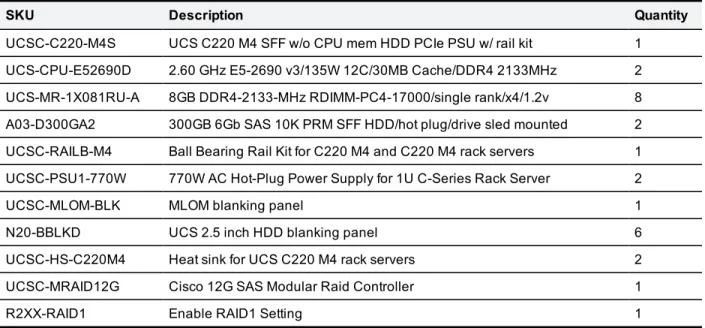
SKU Description Quantity
UCSC-C220-M4S UCS C220 M4 SFF w/o CPU mem HDD PCIe PSU w/ rail kit 1 UCS-CPU-E52690D 2.60 GHz E5-2690 v3/135W 12C/30MB Cache/DDR4 2133MHz 2 UCS-MR-1X081RU-A 8GB DDR4-2133-MHz RDIMM-PC4-17000/single rank/x4/1.2v 8 A03-D300GA2 300GB 6Gb SAS 10K PRM SFF HDD/hot plug/drive sled mounted 2 UCSC-RAILB-M4 Ball Bearing Rail Kit for C220 M4 and C220 M4 rack servers 1 UCSC-PSU1-770W 770W AC Hot-Plug Power Supply for 1U C-Series Rack Server 2
UCSC-MLOM-BLK MLOM blanking panel 1
N20-BBLKD UCS 2.5 inch HDD blanking panel 6
UCSC-HS-C220M4 Heat sink for UCS C220 M4 rack servers 2 UCSC-MRAID12G Cisco 12G SAS Modular Raid Controller 1
R2XX-RAID1 Enable RAID1 Setting 1
Table 3: Cisco Multiparty Media 410v platform configuration (Server C220)
SKU Description Quantity
UCSB-B200-M4-U UCS B200 M4 w/o CPU mem drive bays HDD mezz (UPG) 1 UCS-CPU-E52690D 2.60 GHz E5-2690 v3/135W 12C/30MB Cache/DDR4 2133MHz 2 UCS-MR-1X081RU-A 8GB DDR4-2133-MHz RDIMM-PC4-17000/single rank/x4/1.2v 8 UCSB-MRAID12G Cisco FlexStorage 12G SAS RAID controller with Drive bays 1 A03-D300GA2 300GB 6Gb SAS 10K PRM SFF HDD/hot plug/drive sled mounted 2 UCSB-MLOM-40G-01 Cisco UCS VIC 1240 modular LOM for M3 blade servers 1 UCSB-LSTOR-BK FlexStorage blanking panels w/o controller w/o drive bays 2 UCSB-HS-EP-M4-F CPU Heat Sink for UCS B200 M4 Socket 1 (Front) 1 UCSB-HS-EP-M4-R CPU Heat Sink for UCS B200 M4 Socket 2 (Rear) 1 Table 4: Cisco Multiparty Media 410v platform configuration (Blade Server B200)
Note: The Cisco Multiparty Media 410v requires Hypervisor version ESXi 5.5 Update 2.
n Cisco BE6kHD (UCS C220 M4S) running the tested reference configuration (TRC#2) as specified at the
following location:http://docwiki.cisco.com/wiki/UC_Virtualization_Supported_
Hardware#BE6000H.C2.A0Servers_and_Small_Plus_UConUCS_Tested.C2.A0Reference_ Configurations
n BE7KMD (UCS C240 M4S2) running the tested reference configuration (TRC#1) as specified at the
following location:http://docwiki.cisco.com/wiki/UC_Virtualization_Supported_Hardware#BE7000M_ Servers_and.C2.A0Medium_UConUCS_Tested_Reference.C2.A0Configurations
n BE7KHD (UCS C240 M4SX) running the tested reference configuration (TRC#1) as specified at the
following location:http://docwiki.cisco.com/wiki/UC_Virtualization_Supported_
Hardware#BE7000H.C2.A0Servers_and_Large_UConUCS_Tested.C2.A0Reference_Configurations
CPU requirements
There are three deployment configurations for Cisco TelePresence Server on Virtual Machine:
n 8 Cores Cisco TelePresence Server
n 30 Hyperthread Core Cisco TelePresence Server
n 46 Hyperthread Core Cisco TelePresence Server
The number of cores in the first option refers to the number of physical cores required, that is, the 8 Cores option requires 8 physical CPU cores (preferably with hyperthreading enabled, but not required). The
TelePresence Server on Virtual Machine must have exclusive access to all the processing capacity provided by these physical cores, even when hyperthreading is enabled.
Note: We recommend that you enable hyperthreading where possible as it gives the TelePresence Server a small performance advantage. Additionally, the TelePresence Server must have exclusive access to the stated number of physical cores and you may not share them with other virtual machines.
The 30 Hyperthread Core deployment configuration uses 30 virtual CPUs and can be deployed on servers with at least 16 physical CPU cores with Hyperthreading enabled. The 46 Hyperthread Core deployment configuration uses 46 virtual CPUs and can be deployed on servers with at least 24 physical CPU cores with Hyperthreading enabled. These platforms should be exclusively dedicated for the Cisco TelePresence Server on Virtual Machine.
Example with 8 physical CPU cores and hyperthreading enabled: You may deploy the 8 Cores option but not the 30 Hyperthread Core option. In this example, the 8 Cores TelePresence Server is using all 16 logical cores and you may not use any of them for other applications.
Examples with 16 physical CPU cores and hyperthreading enabled:You may deploy either the 30 Hyperthread Core option or the 8 Cores option. In the 30 Hyperthread Core case, you may not share the CPU capacity with other applications. In the 8 Cores case, you must dedicate half the CPU capacity (8 physical = 16 logical CPUs) to the TelePresence Server VM, but you can use the other half for other VMs.
Other requirements
n VT is enabled in the BIOS before installing VMware ESXi.
n Check theCluster on DieBIOS setting is disabled viaBIOS > Advanced > QPI Configuration >
Cluster on Die.
n VMware version is ESXi 5.1 Update 2 or ESXi 5.5 Update 2.
n The VM host “Virtual Machine Startup/Shutdown” is configured to “Allow Virtual machines to start and stop
automatically with the system”, and that the TelePresence Server on Virtual Machine has been moved to the Automatic startup section.
n Only one network interface is configured.
Note: The Cisco Multiparty Media 410v requires Hypervisor version ESXi 5.5 Update 2.
Note: We recommend RAID for backing up.
Specifications-based system minimum requirements
If using a specifications-based system the Cisco TelePresence Server on Virtual Machine supports up to:
n 5 screen licenses with the 8 vCPU version (some older processors such as the E5-2609 are only capable
of up to 4 screen licenses)
n 10 screen licenses with the 30 vCPU version
If using a specifications-based system, the requirements are:
n 2 x Intel Xeon processor E5-2600 series with 2.4GHz or faster processor.
n At least 12 GB RAM to be dedicated to Cisco TelePresence Server on Virtual Machine. (Minimum of two
memory chips (one per processor).
n At least 53 GB of local storage.
n IOPS (input/output operations per second) and storage performance must meet or exceed the following
requirements:
Mean # IOPS Mean read latency Mean write latency Peak read latency Peak write latency
6 4ms 10ms 15ms 15ms
Table 5: Storage performance requirements
n 1 GigE NIC.
n The OVA is pre-configured to have 12GB of RAM, and 8, 30, or 46 vCPUs. (Only the 8 vCPU and 30 vCPU
options are relevant to the specification-based system.)
n Cisco TelePresence Server on Virtual Machine must be the only VM hosted on the specifications-based system when using the 30 vCPU VM. It cannot be co-resident with other any other UC application (unlike the 8-core option).
n VMware version is ESXi 5.1 Update 2 or ESXi 5.5 Update 2.
n VMware client to access Hypervisor directly or through Virtual Center to deploy the OVA.
Before installing Cisco TelePresence Server on Virtual
Machine
Before deploying the Cisco TelePresence Server on Virtual Machine OVA, make sure your environment meets the following conditions:
n Your server is powered up.
n Your server is connected to the network. n VMware is installed and running on your server.
n Cisco_ts_VirtualMachine_<version>.ovais downloaded.
Installing the TelePresence Server
This process guides you through installing the virtual machine (VM); it assumes that you are using vSphere client, but you could use vCenter.
(Optional) Configuring initial IP details
Note: This feature requires ESXi hosts managed via a vCenter Server. For deployments with many Cisco TelePresence Server on Virtual Machines you can use this feature to configure initial IP address details to save time. See thevTS Software download pageto obtain the OVA file that supports this option.
When deploying a Cisco TelePresence Server on Virtual Machine for the first time, you can optionally configure initial IP details for the Cisco TelePresence Server on Virtual Machine (IPv4 only) when prompted by the following screen:
These IP details will only be used on the very first boot of the Cisco TelePresence Server on Virtual Machine, and are entirely optional. The Cisco TelePresence Server on Virtual Machine will attempt to configure its IP details with these parameters if entered. If left blank or entered incorrectly, you will need to use the console to configure network details (seeTask 1: Assign an IP address [p.15]).
Configuring the VM host
Ensure that the VM host is configured with a valid NTP server – the same NTP server that will be specified in Cisco TelePresence Server on Virtual Machine.
1. Select the host.
2. Go to theConfigurationtab. 3. SelectTime configuration. 4. SelectProperties.
If the date and time were red on the previous page, then set the date and time manually to the current time.
5. ClickOptions. 6. SelectNTP Settings. 7. ClickAdd.
8. Enter the IP address of the NTP server. 9. ClickOK.
10. Select theRestart NTP service to apply changescheck box. 11. Click OK.
12. Click OK.
Deploying OVA to host
These instructions represent a typical installation; not all of the steps listed may be necessary, depending on your deployment environment. The Deploy OVF Template wizard dynamically changes to reflect the host configuration.
Note: The same process is used to deploy the 8 Cores, 30 vCPU or 46 vCPU options, except for the
Configurationoption on theDeployment Configurationscreen of the wizard (step 7 below). 1. Log in to vSphere to access the ESXi Host.
2. SelectFile > Deploy OVF Template.
3. ClickBrowse, find the location of the.ovafile, clickOpenand then clickNext. 4. On theOVF Template Detailspage, clickNext.
5. If anEnd User License Agreementpage appears, read the EULA, clickAcceptand then clickNext. 6. On theName and Locationpage, enter aNamefor this Cisco TelePresence Server on Virtual Machine
guest, for example "Cisco_ts_VirtualMachine", and select theInventory Locationwhere the virtual machine will reside.
7. On theDeployment Configurationpage, for an 8 vCPU virtual machine select8 Cores Cisco TelePresence Server,for a 30 vCPU virtual machine select30 Hyperthread Core Cisco TelePresence Server, for a Media 410v select46 Hyperthread Core Cisco TelePresence Serverand then clickNext. Installing the TelePresence Server
8. On theHost / Clusterpage, select which host or cluster will run the deployed virtual machine and click
Next.
9. On theResource Poolpage, select the resource pool in which you want to run the deployed virtual machine and clickNext.
10. On theStoragepage, select the datastore onto which the TelePresence Server files will be deployed and then clickNext.
11. On theDisk Formatpage, selectThick Provision Lazy Zeroedand clickNext.
Thin Provision is not supported as VM performance may degrade during resizing of a partition.
12. On theNetwork Mappingpage, select the network mapping that applies to your infrastructure and then clickNext(default isVM Network).
13. On theReady to Completepage, confirm the deployment settings. 14. Select thePower on after deploymentcheck box.
15. ClickFinish.
A progress indicator shows the deployment progress. When it has finished, the TelePresence Server is deployed as a guest on the VM Host.
Configuring the TelePresence Server
Task 1: Assign an IP address
Note: If an IP address was entered during the task(Optional) Configuring initial IP details [p.10], this task can be ignored.
1. Open the TelePresence Server's console in one of the following ways:
l Select the VM guest, eg. "Cisco_ts_VirtualMachine", and then select theConsoletab l Right-click the VM guest and selectOpen Consolefrom the context menu
The VM guest will take some time to boot, create its second hard disk partition, and then reboot before displaying the TelePresence Server console. The console is ready for input when you see the
TS:> prompt.
2. Enter the commandhelp static
3. Enter astaticcommand, using the syntax described in the console help, to configure a static IP address.
For example,static 192.168.1.2 255.255.255.0 192.168.1.1assigns the address 192.168.1.2 to the TelePresence Server, with subnet mask 255.255.255.0 and default gateway 192.168.1.1.
4. Restart the TelePresence Server.
Task 2: Log in to the Cisco TelePresence Server on Virtual
Machine
To log in to the web interface of the device:
1. Use your browser to navigate to the IP address or hostname of the unit. 2. Enter the user nameadminwith no password, and clickLog in.
TheStatuspage is displayed.
Note:We recommend that you change the admin account to use a password as soon as possible. To do that, go toConfiguration > Change password.
Task 3: Apply license or feature keys
Repeat the following procedure for your license key and any feature keys you wish to install. The procedure is license key specific but is exactly the same for feature keys.
1. Go toConfiguration > Upgrade. 2. Locate theFeature managementarea.
3. Type the license key exactly as you received it, including any dashes. 4. ClickAdd key.
The key is verified against the device serial number, and then appears in the "License keys" list in the web interface.
5. Keep a record of the license key in case you need it again. For example, if you get locked out of the device and do not have a configuration backup. (Keys are stored in the configuration.xml file, but the file does not contain the names of the keys.)
Task 4: (Optional) Configure DNS settings
1. Go toNetwork > DNS. 2. Enter aHost nameif required.
3. Add the details of yourName server(s). 4. ClickUpdate DNS configuration. Configuring the TelePresence Server
Configuring the TelePresence Server for
administration by TelePresence Conductor
Task 5: Create an administrator account for TelePresence
Conductor
For the TelePresence Conductor to communicate with the TelePresence Server it must use credentials for a user that has administrator rights. We recommend that you create a dedicated administrator level user for this task.
1. Go to the web interface of the TelePresence Server you want to configure and log in as an administrator. 2. Go toUser > Add New User.
3. Enter the following in the relevant fields:
User ID Enter a username for the TelePresence Conductor to use. Name Enter a name for this user.
Password Enter a password for the TelePresence Conductor to use. Access rights SelectAdministrator.
4. ClickAdd user.
Task 6: Enable encryption and encrypted SIP (TLS)
To verify that theEncryptionkey is installed or to install the key, perform the following tasks: 1. Go toConfiguration > Upgrade.
2. Go to theFeature managementsection and verify that theEncryptionkey is installed. If the key is not installed, enter the key into theAdd keyfield and clickAdd key.
To verify that TLS is enabled on the TelePresence Server: 1. Go toNetwork > Services.
2. Ensure thatEncrypted SIP (TLS)is checked.
3. Ensure thatSIP (TCP)andSIP (UDP) are not checked. 4. Ensure thatHTTPSis enabled on port 443.
5. ClickApply changes.
Task 7: Configure SIP settings
1. Go toConfiguration > SIP Settings.
2. Enter the following values into the relevant fields:
Outbound call configuration SelectCall directfrom the drop-down list.
Call directis required for cascading between TelePresence Servers to be supported.
Outbound address Leave blank.
This field must be left blank for cascading between TelePresence Servers to be supported.
Outbound domain Leave blank.
This field must be left blank for cascading between TelePresence Servers to be supported.
Username Leave blank.
Password Leave blank.
Outbound transport SelectTLSfrom the drop-down list.
Advertise Dual IPv4/IPv6 Leave asDisabled, unless your deployment uses both IP addressing schemes.
Negotiate SRTP using SDES SelectFor Secure Transport (TLS) onlyfrom the drop-down list. Use local certificate for outgoing
connections and registrations
Check the box.
This checkbox is not on all TelePresence Server models: it only appears on the 7010 and MSE 8710 models.
3. ClickApply changes.
(Optional) Migrating the TelePresence Server to a
new host
Note: You may wish to carry out this task if you have an 8 core machine and want to upgrade to a Media 410v. If so, you will need to move the VM (as explained below) before upgrading the vCPU (see(Optional) Change the number of vCPUs [p.21]). If you need to change the memory size see(Optional) Change the RAM allocation [p.23]. Then add any additional licenses for the additional capacity.
If you need to move TelePresence Server to a new host you must perform a host migration via vMotion. We recommend that a vMotion move is carried out when the VM is powered off.
(Optional) Change the number of vCPUs
Note: You may wish to carry out this task if you have an 8 core machine and want to upgrade to a Media 410v. If so, you will need to move the VM (see(Optional) Migrating the TelePresence Server to a new host [p.20]) before upgrading the vCPU as explained below. If you need to change the memory size see(Optional) Change the RAM allocation [p.23]. Then add any additional licenses for the additional capacity.
Note: You need to be running VMware hardware version 9 to enable you to assign more than 32 cores to a machine. If you need to upgrade to Version 9, please see:
http://kb.vmware.com/selfservice/microsites/search.do?language=en_
US&cmd=displayKC&externalId=1003746for more information on VMware, version compatibility, and Upgrading the virtual hardware.
1. Open your VMware client and access the ESXi host.
2. Right-click the TelePresence Server virtual machine and selectPower > Power Off. 3. Right-click the TelePresence Server virtual machine and selectEdit Settings…. 4. On theHardwaretab, clickCPUs.
5. From theNumber of cores per socketlist, select the required number of virtual CPUs (vCPUs). Ensure that theNumber of virtual socketsstays at 1.
6. ClickOK.
7. Right-click the TelePresence Server virtual machine and selectPower > Power On. (Optional) Change the number of vCPUs
(Optional) Change the RAM allocation
1. Open your VMware client and access the ESXi host.2. Right-click the TelePresence Server virtual machine and selectPower > Power Off. 3. Right-click the TelePresence Server virtual machine and selectEdit Settings…. 4. On theHardwaretab, clickMemory.
5. In theMemory Sizefield, select the required amount of memory; the minimum requirement is 12 GB.
Note:12 GB vRAM should map to 12 GB physical RAM since oversubscription is not supported. 6. ClickOK.
7. Right-click the TelePresence Server virtual machine and selectPower > Power On. (Optional) Change the RAM allocation
Checking for updates
It is a good idea to regularly check for updates to the device's main software image on the Cisco web site. This section describes how to upgrade the device using the web interface.
To check for, and download, updates:
1. Log in to the web interface and go toStatus > Status. 2. Make a note of the software version that is currently installed.
3. Go to the support section of the web site and check if a more recent release is available.
Note: the upgrade file for Cisco TelePresence Server on Virtual Machine has a.tgzextension, while the original install file has a.ovaextension
4. If a more recent release is available, download it and save it locally.
Upgrade instructions
1. In a web browser, navigate to the web interface of the device. 2. Sign in as an administrator.
The username isadminand there is no password on a new unit. 3. Go toConfiguration > Upgrade.
4. In theMain software imagesection, locate theNew image filefield. Browse to and select the new image file.
5. ClickUpload software image.
The web browser uploads the file to the device, which may take a few minutes.
Note:Do not browse away from theUpgradepage, or refresh the page, during the upload process – this will cause the upload to fail.
A pop-up window displays to show upload progress. When complete, close the message. The web browser refreshes automatically and displays the messageMain image upload completed.
6. ClickShut down TelePresence Server. This option will now change toConfirm TelePresence Server shutdown. Click to confirm.
7. ClickRestart TelePresence Server and upgrade.
The unit will reboot and upgrade itself; this can take up to 25 minutes.
Note:You may be logged out due to inactivity. If this happens, log in again, go toConfiguration >
Shutdownand clickRestart TelePresence Server and upgrade.
8. Go to theStatuspage to verify that your device is using the new version. 9. If necessary, restore your configuration; refer to the online help for details. Checking for updates
Security
Changing the admin account password
To change the password for the admin account using the web interface: 1. Go toUsers > Users.
2. Selectadminuser. 3. ClickChange password.
4. Enter a new password in thePasswordandRe-enter passwordfields. 5. ClickChange password.
Note about existing privileged account
Cisco TelePresence Server on Virtual Machine releases contain a password-protected privileged shell login over virtual console. This account can be accessed via vSphere administration console.
Cisco TelePresence Server Software 4.1(1.85) and later have this account disabled by default. Privileged Shell account password can be changed by contacting Cisco TAC.
Security hardening
Information on how to deploy and operate VMware products in a secure manner is available from theVMware Security Hardening Guides.
Troubleshooting and technical support
information
Using the event log to help solve a problem
You can use the event log to produce debugging information to assist technical support in solving any problems. Event logging capture filter topics are set by default toErrors, warnings and information. Do not change the capture filter topic level without the guidance of technical support.
Getting more help
If you experience any problems when configuring or using the TelePresence Server, consult the online help available from the user interface.
If you cannot find the answer you need in the documentation, check the web site at
http://www.cisco.com/cisco/web/support/index.htmlwhere you will be able to:
n Make sure that you are running the most up-to-date software. n Get help from the Cisco Technical Support team.
Make sure you have the following information ready before raising a case:
n Identifying information for your product, such as model number, firmware version, and software version
(where applicable).
n Your contact email address or telephone number. n A full description of the problem.
To view a list of Cisco TelePresence products that are no longer being sold and might not be supported, visit
http://www.cisco.com/en/US/products/prod_end_of_life.htmland scroll down to the TelePresence section.
Checking VMware compatibility
If you are using third party hardware for hosting the Cisco TelePresence Server on Virtual Machine application, check the hardware compatibility. This can be done using the VMware compatibility guide tool available fromhttp://www.vmware.com/resources/compatibility/search.php.
VMware checklist
1. Check the accessibility to the VM host server (by ping, physical console access, ssh remote access, KVM-over-IP console, and so on)
2. Check the network connectivity of the VMkernel (by executing the vmkping command using Tech Support Mode to verify network connectivity from the VMkernel NIC level)
3. If you are having problems connecting to the vSphere Client management console, execute the command
/sbin/services.shfrom an SSH session to restart the ESXi management agent
4. Check the utilization of the VM host server (CPU utilization, memory utilization, disk access speed, storage access speed, network access status, power utilization, and so on). If any specific application causes high utilization, stop or restart this application to isolate the overall VM host performance level. Troubleshooting and technical support information
Alternatively execute the command esxtop from Tech Support Mode to list all system processes running on the ESXi host application
5. Check the ESXi server file log (hostd.logs) under the folder /var/log/vmware
This log contains common error logs such as iSCSI naming error, authentication error, host convertibility error, and so on.
6. Verify that there is adequate disk space available on the volume that is storing the database files to ensure correct operation of the database. If there is not adequate space available on the physical volume that stores the database files, free up disk space
7. Validate the authentication to the vCenter Server database. The vCenter Server service may not be able to authenticate with the database in the following circumstances:
l There are permission issues with the database when importing from one instance to another l The password on the account you are using to authenticate to the database has changed but the
password in the registry has not changed as well
l The vCenter Server database user is not granted correct permissions
Analyzing the cause of VMware issues
Potential source of issue
Symptoms to look for
Storage Look for the VM store application image stored either on the local drive, SAN or NFS. VMs often freeze or hang up if the application failed to access the storage.
Possible error messages are:
n vCenter Server does not start n vCenter Server is slow to respond
n vCenter Server fails after an indefinite amount of time
Network Any network failure or locking causes a connection failure between the VM and the virtual network. Also, if using NFS or iSCSI, storage may cause application failures because the application cannot access the file system.
DNS DNS server failures or communication failures between DNS and the VM server may cause the VMware application or the Cisco TelePresence Server on Virtual Machine application to fail. vCenter
Server
If vCenter is not operating properly, even though the Cisco TelePresence Server on Virtual Machine application is still up and running, you may lose connection to the application from the network. Host
application
Check any critical alarms on the VM application for events on the host or application level (check the event information from vSphere Client).
Table 6: VMware issues and possible root causes
Known sources of issues with Cisco TelePresence Server on
Virtual Machine
VM Image Fails to Boot
If the VM image fails to boot, check the VT (Virtualization Technology) setting in BIOS. This needs to be enabled for hosting VMs. If it is not set, set it and re-install ESXi then load the .ova file.
Guest console in vSphere 5 fails to run on some Microsoft platforms
When attempting to open a console screen from vSphere for the VM:n Error message: “The VMRC console has disconnected...attempting to reconnect.” n Screen remains black
The following operating systems are at risk:
n Windows 7 64 bit – reported on VMware forum (http://communities.vmware.com/thread/333026) n Windows Server 2008 R2 (64-bit)
Raid Controller Synchronization
If the VMware system is synchronizing its RAID disks, disk performance is seriously degraded. We strongly recommend that you do not install Cisco TelePresence Server on Virtual Machine on VM platforms where RAID disks are in a degraded or synchronizing state.
TelePresence Server Displays Different Serial Number/MAC address on
Reboot
This situation can occur if multiple network interfaces are configured. Only one network interface is supported.
Collecting logs from the host
If VMware is causing problems on a Cisco TelePresence Server on Virtual Machine host, we recommend that you collect logs from the host for analysis:
1. Using the vSphere client (or the vCenter Server managing this ESXi host) connect to the ESXi host on which the Cisco TelePresence Server on Virtual Machine is running.
2. Go toFile > Export > Export System logs, choose the appropriate ESXi host and go with the default settings.
After you have downloaded the logs analyze them, or have them analyzed to determine the issue.
More information on exporting logs can be found atCollecting diagnostic information for VMware ESX/ESXi using the vSphere Client (653).
Restoring default configuration (factory reset)
Very rarely, it may become necessary to run thereset_configcommand on a TelePresence Server. This resets the configuration of the TelePresence Server to its original default settings.
Note:This command removes the IP address and other network configurations, the installed licenses and the configured users.
To restore the default configuration: 1. Restart the TelePresence Server.
2. Within 30 seconds after reboot, enter at the console. Troubleshooting and technical support information
The configuration reset is complete. Troubleshooting and technical support information
THE SPECIFICATIONS AND INFORMATION REGARDING THE PRODUCTS IN THIS MANUAL ARE SUBJECT TO CHANGE WITHOUT NOTICE. ALL STATEMENTS, INFORMATION, AND
RECOMMENDATIONS IN THIS MANUAL ARE BELIEVED TO BE ACCURATE BUT ARE PRESENTED WITHOUT WARRANTY OF ANY KIND, EXPRESS OR IMPLIED. USERS MUST TAKE FULL
RESPONSIBILITY FOR THEIR APPLICATION OF ANY PRODUCTS.
THE SOFTWARE LICENSE AND LIMITED WARRANTY FOR THE ACCOMPANYING PRODUCT ARE SET FORTH IN THE INFORMATION PACKET THAT SHIPPED WITH THE PRODUCT AND ARE INCORPORATED HEREIN BY THIS REFERENCE. IF YOU ARE UNABLE TO LOCATE THE
SOFTWARE LICENSE OR LIMITED WARRANTY, CONTACT YOUR CISCO REPRESENTATIVE FOR A COPY.
The Cisco implementation of TCP header compression is an adaptation of a program developed by the University of California, Berkeley (UCB) as part of UCB's public domain version of the UNIX operating system. All rights reserved. Copyright © 1981, Regents of the University of California.
NOTWITHSTANDING ANY OTHER WARRANTY HEREIN, ALL DOCUMENT FILES AND SOFTWARE OF THESE SUPPLIERS ARE PROVIDED "AS IS" WITH ALL FAULTS. CISCO AND THE ABOVE-NAMED SUPPLIERS DISCLAIM ALL WARRANTIES, EXPRESSED OR IMPLIED, INCLUDING, WITHOUT LIMITATION, THOSE OF MERCHANTABILITY, FITNESS FOR A PARTICULAR PURPOSE AND NONINFRINGEMENT OR ARISING FROM A COURSE OF DEALING, USAGE, OR TRADE PRACTICE.
IN NO EVENT SHALL CISCO OR ITS SUPPLIERS BE LIABLE FOR ANY INDIRECT, SPECIAL, CONSEQUENTIAL, OR INCIDENTAL DAMAGES, INCLUDING, WITHOUT LIMITATION, LOST PROFITS OR LOSS OR DAMAGE TO DATA ARISING OUT OF THE USE OR INABILITY TO USE THIS MANUAL, EVEN IF CISCO OR ITS SUPPLIERS HAVE BEEN ADVISED OF THE POSSIBILITY OF SUCH DAMAGES.
Cisco and the Cisco Logo are trademarks of Cisco Systems, Inc. and/or its affiliates in the U.S. and other countries. A listing of Cisco's trademarks can be found at www.cisco.com/go/trademarks. Third party trademarks mentioned are the property of their respective owners. The use of the word partner does not imply a partnership relationship between Cisco and any other company. (1005R)
Any Internet Protocol (IP) addresses and phone numbers used in this document are not intended to be actual addresses and phone numbers. Any examples, command display output, network topology diagrams, and other figures included in the document are shown for illustrative purposes only. Any use of actual IP addresses or phone numbers in illustrative content is unintentional and coincidental.