Worcester Polytechnic Institute
Digital WPI
Interactive Qualifying Projects (All Years) Interactive Qualifying Projects
March 2019
ASSISTments Cross-Platform Mobile App
Adam Sullivan Goldsmith
Worcester Polytechnic Institute
Benjamin Conner Emrick
Worcester Polytechnic Institute
Follow this and additional works at:https://digitalcommons.wpi.edu/iqp-all
This Unrestricted is brought to you for free and open access by the Interactive Qualifying Projects at Digital WPI. It has been accepted for inclusion in Interactive Qualifying Projects (All Years) by an authorized administrator of Digital WPI. For more information, please [email protected]. Repository Citation
Goldsmith, A. S., & Emrick, B. C. (2019).ASSISTments Cross-Platform Mobile App. Retrieved fromhttps://digitalcommons.wpi.edu/ iqp-all/5348
ASSISTments Cross-Platform Mobile
Application
An Interactive Qualifying Project Submitted to the Faculty of
WORCESTER POLYTECHNIC INSTITUTE in partial fulfillment of the requirements for the
Degree of Bachelor of Science
by
Ben Emrick and Adam Goldsmith
Date: March 1, 2019
Submitted to:
Professor Neil Heffernan Worcester Polytechnic Institute
Abstract
This Interactive Qualifying Project (IQP) delivers the ASSISTments web-based system to a mobile context through the creation of a cross-platform mobile application available for both Android and iOS devices. This improved mobile app serves as a replacement to the existing native ASSISTments apps that currently exist in the respective application distribution services. This cross-platform mobile solution significantly consolidates the size of the app by providing a single code base that deploys to both Android and iOS. While written utilizing an intermediary framework, the app maintains truly native app components in order to maintain user interface (UI) familiarity and deliver a seamless experience. Furthermore, this project structure unifies the mobile experience across different operating systems. The improved ASSISTments app includes a feature set in parallel with the existing applications while fixing prominent issues and making notable enhancements to UI appearance and user experience (UX) work flows.
Acknowledgments
We would like the thank Professor Neil Heffernan for offering the opportunity to build a revised ASSISTments mobile application. As the advisor of this IQP, he offered insight and guidance into the design and functionality of the application. Professor Heffernan orches-trated a collaboration with Oak Middle School in Shrewsbury, Massachusetts, in order to conduct user testing to evaluate the effectiveness of the system.
Thank you to Anthony Botelho, a PhD Candidate at WPI, who worked supervised this project and worked very closely with us throughout the IQP to offer feedback and ensure that the application follow ASSISTments standards. Anthony performed numerous admin-istrative tasks such as granting us access to existing source code, distribution platforms, and connecting us with valuable development resources.
Cristina Heffernan and Cindy Starks were crucial in defining the user experience and providing direction for the overall UI.
Thank you to Chris Donnelly and David Magid for their contributions consisting of software development advice related to web technologies, and best practices within the AS-SISTments system.
Thank you to Courtney Mulcahy, a teacher at Oak Middle School, for allowing us to visit and conduct user testing with her students.
Authorship
The sole authorship of this paper and the associated ASSISTments mobile app belong to Adam Goldsmith and Benjamin Emrick. The development of this application was completed exclusively at Worcester Polytechnic Institute (WPI) for ASSISTments, a free public service of Worcester Polytechnic Institute created by Neil and Cristina Heffernan.
List of Figures
1 Navigation Flow . . . 8 2 Fabric Dashboard . . . 23 3 Firebase Dashboard . . . 24 4 Firebase Crashlytics . . . 25 5 Stack Trace . . . 26 6 Firebase Device . . . 26 7 Firebase Events . . . 278 Comparison of Old and New Android Apps . . . 28
9 Comparison of Old and New iOS Apps . . . 29
10 Comparison of Login Screens . . . 32
11 Settings . . . 33
12 Comparison of Login Screens . . . 33
List of Tables
1 Comparison of Cross-Platform Mobile Frameworks . . . 32 LoC of Old Android App (client/android/assistments/app/src) . . . 27
3 LoC of Old iOS App (client/iOS/ASSISTments/current/{Assistments,*.swift}) 28 4 LoC of Unified App (all tracked files except package-lock.json) . . . 29
5 LoC of Unified App (just app folder) . . . 29
List of Listings
1 Project Structure . . . 72 IconButton Definition . . . 9
3 IconButton as a Template Component . . . 10
4 Login with Injected JS . . . 11
5 Login with Cookie Syncing . . . 12
6 Cookie Syncing on Android . . . 13
7 Cookie Syncing Code on iOS with patch . . . 14
8 Cookie Syncing Code on iOS . . . 14
9 Android Application Cache Configuration . . . 15
10 Network Connectivity Mixin . . . 16
11 Getting Stored Credentials with SecureStorage . . . 17
12 Saving Login Information with SecureStorage . . . 17
13 Android JS Dialogs . . . 18
14 iOS JS Dialogs . . . 19
15 Android Zoom Settings . . . 19
16 Disabling viewport injection in WebViewExt on iOS with patch . . . 20
17 Webview Navigation Buttons . . . 20
20 Firebase Initialization . . . 24
21 Tutor Event . . . 26
Contents
1 Introduction 1 1.1 Existing Apps and Infrastructure . . . 11.2 Features . . . 2
1.3 Tools and Technology . . . 2
2 Methodology 4 2.1 Version Control . . . 4
2.2 Development Life Cycle . . . 4
2.3 User Testing Procedure . . . 4
3 Implementation 6 3.1 Overall Structure . . . 6
3.1.1 Single File Components . . . 6
3.1.2 Code Style . . . 8
3.2 Login and Cookie Syncing . . . 11
3.2.1 Offline . . . 15
3.2.2 Login Saving . . . 15
3.3 Webview Specifics . . . 17
3.3.1 JS Dialogs . . . 17
3.3.2 Page Scaling . . . 17
3.3.3 Webview Navigation Buttons . . . 18
3.4 SideDrawer . . . 18
3.5 Firebase and Crashlytics . . . 21
4 Results and Discussion 27 4.1 Code size . . . 27
4.2 User Test Analysis . . . 27
4.2.1 Oak Middle School . . . 31
4.3 NativeScript . . . 33 5 Conclusion 34 6 Future Work 35 6.1 Known Issues . . . 35 7 References 36 Appendices 37
A User Tests 37
A.1 User Interview 1 on 02/19 . . . 37
A.1.1 Round 1 . . . 37
A.1.2 Round 2 . . . 37
A.1.3 Round 3 . . . 39
A.2 Oak Middle School 2/25 . . . 39
A.2.1 Tasks . . . 39
A.2.2 User Interview 1 . . . 40
A.2.3 User Interview 2 . . . 40
A.2.4 Other students . . . 41
B User Survey 41 C User Survey Results 43 D User Guide 62 E GitHub Project Task Management 68 E.1 Wontfix . . . 68
E.2 TODO . . . 70
E.3 In Progress . . . 70
E.4 Needs Testing . . . 70
E.5 Done . . . 70
F README 73 G Building/Development 73 G.1 Building for Distribution . . . 73
G.1.1 Setting the version . . . 73
G.1.2 Build/Publish for iOS . . . 74
G.1.3 Build/Publish for Android . . . 74
H Code structure 74
1
Introduction
ASSISTments is a free homework and student tutoring service offered by WPI, primarily tar-geted at elementary and middle school students. It is primarily accessed via a web interface that that aims to intelligently replicate the behavior of human tutors in assisting student comprehension. The ASSISTments Tutor utilizes immediate feedback on assessments and other features to promote timely and calculated student-teacher interactions. This informa-tion streamlines the decision making process for teachers interested in adjusting educainforma-tional strategies in order to accelerate student learning. ASSISTments leverages data and advanced metrics to equip teachers with actionable intelligence about the classroom environment. This computerized approach to education allows teachers and administrators to perform highly granular analysis that increases the efficiency and accuracy of instructional methodologies and assessment techniques. ASSISTments continues to research how emerging technologies and computing advancements can benefit the modern academic system.
Due to the increasing prominence of mobile devices in a highly digital society, ASSIST-ments plans to increase the accessibility of their platform through the delivery of an app. Several iterations of mobile apps were written in previous years to allow for several “na-tive” features that could not be implemented entirely in the web interface. Features that are well-suited for mobile devices include a drawing pad for work submission, auto-login with stored credentials, and “offline mode”. Offline mode enables students to download as-signments within the Tutor and complete them without network connectivity. Optimizing ASSISTments for the mobile domain increases the potential of this educational tool through the platform’s ability to garner attention and engagement.
1.1
Existing Apps and Infrastructure
Prior to this project, there were two separate apps for each platform, with different codebases but similar features. Each app was written using native iOS and Android development stacks, respectively. However, the Android app had been de-listed from the app store due to updated policies, while the iOS app had not been updated for approximately a year. After correcting the violation of the Google Developer Program Policy, the Android version was reinstated on the Play Store. The previously active Android app possesses several shortcomings. The login functionality is broken and always displays a ”Login failed” alert with valid credentials. Therefore, the only method to enter the app includes circumventing the proper login work flow by selecting the ”Register” label while already logged in. This will grant access to within the app with the desired account. Furthermore, Offline Mode, which allows students to download assignments to their device, complete them offline and then submit them once they regain connectivity, is non-functional. Once Offline mode is invoked on Android the app enters a seemingly infinite hanging phase that persists throughout the session. This loading state, which prevents user activity, often extends beyond the immediate session and interferes with successive app launches. Offline Mode renders the entire ASSISTments app deadlocked.
iOS app is the inability to save the user’s login credentials. While both apps contain a UI element for remembering the account credentials on the login screen, this feature continuously fails. Due to this defect, users must enter their username and password every time the app launches, which significantly thwarts a positive user experience.
After completing a discovery of the existing ASSISTments apps, we identified multiple areas of improvement. Through a series of consultations with Professor Heffernan and An-thony Botelho, we collectively defined a direction for design and development. The foremost priority was to enhance the general performance of the app through minimizing crashes and unexpected conditions that renders the interface inoperative. This requires an emphasis on reliability and stability. Additionally, we aim to develop a more reactive system that behaves faster and reduces latency. A major benefit of a cross-platform app is the improvement in maintainability. A single codebase requires far fewer resources and knowledge to service and than independent native applications. These non-functional requirements guided the UX design process and directly impacted the implementation of presentation and backend logic.
1.2
Features
The designated feature set for the cross-platform app parallels that of the existing app. Ad-justments to previous logic will be necessary in order to achieve a more performant and stable foundation. We will introduce complementary features to support the primary functionality. There were several high-level features that were required for the app to be useful:
• basic webview functionality • login credential saving
• offline mode: There must be an interface for users to download a problem, access the tutor while offline, and submit assignments once they return online
• image upload: submit images from the device photo library on assignment questions with a show work option
• scratch pad: upload work from an in-app scratch pad on assignment questions with a show work option
• crash and custom event logging with notifications
1.3
Tools and Technology
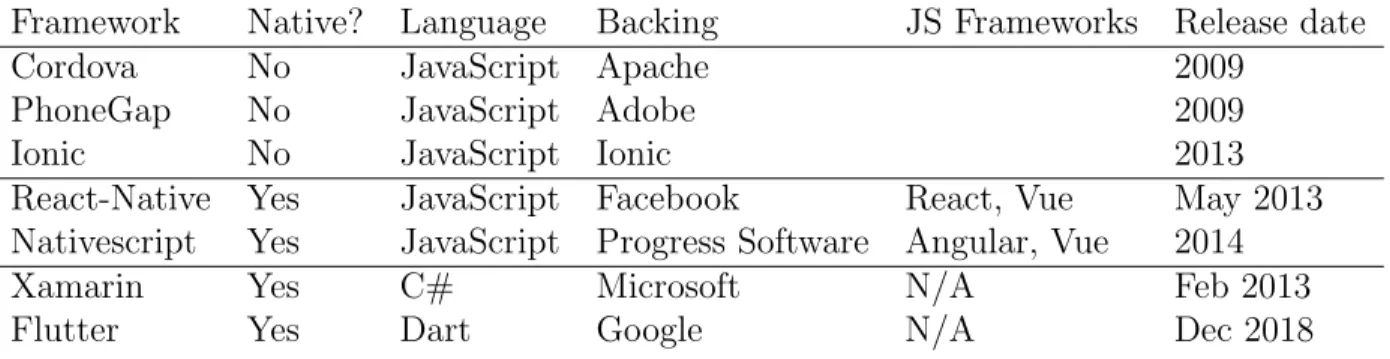
There are a number of cross platform mobile frameworks available. These can generally be separated into three categories: JavaScript in a WebView (ie non-Native JavaScript), Native JavaScript, and other languages. The most popular options are shown in Table 1.
The considered cross-platform frameworks featured a variety of different base languages. Since JavaScript is used throughout the web app, we contend that consistency with existing technologies is preferable. Through a JavaScript framework, we are also able to utilize the robust set of non-browser dependent JavaScript libraries. Therefore, Xamarin and Flutter
Framework Native? Language Backing JS Frameworks Release date
Cordova No JavaScript Apache 2009
PhoneGap No JavaScript Adobe 2009
Ionic No JavaScript Ionic 2013
React-Native Yes JavaScript Facebook React, Vue May 2013
Nativescript Yes JavaScript Progress Software Angular, Vue 2014
Xamarin Yes C# Microsoft N/A Feb 2013
Flutter Yes Dart Google N/A Dec 2018
Table 1: Comparison of Cross-Platform Mobile Frameworks
pursuit of cross-platform development should not come at the expense of form and function. From the remaining options, React-Native and NativeScript are the only frameworks built on native Android and iOS ecosystems (“Xamarin vs React Native”, 2018)[3]. This allows these frameworks to avoid using a WebView-based wrapper, which frameworks such as Cordova and its derivatives PhoneGap and Ionic require. Thus, Cordova, PhoneGap, and Ionic were ruled out due to the complexity of the ecosystem, and the fact that they merely recreate native behavior. While native rendering frameworks require more knowledge of iOS and An-droid systems, the ability to implement platform specific UIs with familiar visual components significantly increases user comfort and overall satisfaction of the app (Stoychev, 2017)[[1]. Native visual elements are also optimized for the mobile operating system. Through an ex-pansive set of custom UI widgets, NativeScript aims to achieve full cross-platform code reuse. NativeScript projects share roughly 90% of the source code across platforms compared to 70% in React-Native projects (“Xamarin vs React Native”, 2018)[3]. This, in turn, demands more effort to fashion independent visual layout’s across unique platforms. However, unison is a priority in the ASSISTments cross-platform app. This deems a framework that advocates for platform-specific interface generation undesirable relative to a streamlined UI implemen-tation. NativeScript is a rapidly growing framework with an expanding community and open-source presence. Despite its lack of maturity compared to React-Native, NativeScript maintains a robust collection of plugins. These additives greatly facilitate development and increase the capabilities of the app. There are several available plugins that are relevant to the ASSISTments feature set including crashlytics support, media file picker for image upload and secure storage for account credential security.
Lastly, we analyzed React-Native and NativeScript’s support of front-end frameworks. Due to time constraints in a 7-week development period, we favored a lightweight framework. Vue.js is a progressive framework that offers a powerful engine for building complex systems. Vue.js supports single-file components, which reduces the division of code and facilitates a simple and clean syntax that will reduce the size and complexity of the source code. This is imperative for sustaining high readability and a serviceable application (Torkut, n.d)[2]. NativeScript includes a nativescript-vue plugin which serves as an intermediary between Nativescript components and the Vue.js virtual DOM. This support is unparalleled in the cross-platform mobile application community. Furthermore, this plugin permits NativeScript
native ecosystem render it the most practical framework for development.
2
Methodology
Initially, development was planned to be done in a agile-like manner, with weekly sprints resulting in a testable demo app. However, due to somewhat optimistic expectations about the times to get a prototype functional and in the two app stores, there was not a testable beta for Android in the Google Play Store until the fourth week.
2.1
Version Control
Git was used for version control as it allowed us to use a distributed branching development strategy while still being able to commit back to the ASSISTments Subversion server using ‘git-svn’. Due to this, we could develop features independently while maintaining functional code for further development. For example, this allowed us to keep the “work offline” feature in a separate branch until it was stable enough to merge, as it required some changes that broke other core functionality to function. A private GitHub repository was used to aid in synchronization of the code between developers.
2.2
Development Life Cycle
We structured the requirements into GitHub “issues” and used a GitHub Project for Kanban-style project tracking. Each of us would pick tasks to work on, ranked by perceived impor-tance and difficulty. The tasks can be seen in Appendix E.
2.3
User Testing Procedure
User testing is a valuable component of the software development lifecycle. This process allows for developers to gauge user experience and better understand the performance and compatibility of the application in a realistic context. This procedure aims to uncover information that is vital to user acceptance and likeability that may otherwise be unapparent. It is critical to define a standardized testing procedure in order to and prevent variability and optimize the results.
User testing will be conducted through an in-person session including a test subject, fa-cilitator and an observer. Both the observer and fafa-cilitator assume administrative roles as individuals with significant insight into the functionality and design of the featured applica-tion. If there is only one administrator present for the testing session, then they may serve as both the facilitator and observer. The test subject must possess limited knowledge of the applications capabilities relative to the administrators. Furthermore, the subject should be unaffiliated with the direct development and/or design of the software. The test will utilize the subject’s preferred personal mobile device. If the subject does not possess a personal device then they will be provided with a suitable iPad Mini with the application installed. A beta version of the application must be downloaded to the subject’s personal device via the
conduct the testing session with their personal account. The Teacher overseeing the class is responsible for assigning a sample assignment that will be upgraded for the students to complete. If the subject does not have a previously created account they will proceed with the ASSISTments test account. The ASSISTments test account assumes the Student role within the platform and will contain simple assignments for testing purposes.
It is the facilitator’s duty to first present a brief introduction of the application. They will continuously prompt the test subject to complete desired tasks throughout the expe-rience. Upon issuing the introductory description of the app and the testing environment, the facilitator should encourage the subject to think aloud through the experience. This requires the test subject to verbally announce their thought process underlying each deci-sion and express their perception. In order to maintain the integrity and genuine nature of the test, the facilitator must not influence or coerce the subject in any manner. The facilitator must avoid providing explicit instructions on how to complete the assigned task. They must refrain from offering direction concerning how to navigate or operate any aspect of the application. They may not offer help or interfere with the test subjects instinctual usage of the application. The facilitator’s role is to merely prompt action without offering any form of guidance. If the administrators of the test have not selected any specific tasks for the subject to complete, the facilitator may instead instruct the user to use the app as freely as possible.
The role of the observer is to collect information throughout the entire duration of the testing session. The observer is responsible for recording the sequence of clicks, movements, and interactions with the user interface. They must take detailed notes of the overall ex-perience and any record any alarming tendencies or behaviors. They may record comments on the usability and general satisfaction of the application inferred from certain behaviors or audible feedback. They are not responsible for interacting with the test subject in any capacity. It is necessary that they are positioned such that both the device screen and user are visible. This is crucial for understanding in-app actions and allows for analysis of the user’s expressions, which serve as subtle indicators of judgment.
Prior to the testing session, the administrators may select specific components, features, and/or workflows that they wish to collect information about. The granularity of such tasks may range from testing the effect of a layout orientation to the design of an entire in-app pro-cess. The pre-selected features of the ASSISTments mobile app that were evaluated during user tests include login, remember user credentials, web view navigation, offline assignment completion and submitting a bug report.
To initiate the test the observer will record the usage conditions including the mobile phone operating system, manufacturer and the user’s ASSISTments role if the subject is an existing ASSISTments user. The facilitator will then describe the format of the testing session, offer a brief explanation of the platform for those unfamiliar. The facilitator will then inform the user that they are encouraged to communicate their thought process and internal reactions in a clear and honest manner throughout the testing. Once the user has agreed to the conditions and understands the format, they will be asked to complete a series of pre-determined tasks or requested to use the app freely. Meanwhile, the observer will record
1. On first open of the app - login with your account credentials and select for the app to remember your username and password
2. On successful login and load of web view - force close the application 3. Re-open the app
4. Complete an assignment and explore/navigate the web view 5. Complete an assignment in offline mode
6. Upload an image for show work 7. Logout
8. Clear the username and password fields
After the completion of the assigned tasks and any other operations deemed necessary by the administrators, the subject will be requested to share immediate feedback, although this is not required. At the conclusion of the session, the subject will be presented with an opportunity to complete a survey. The survey is not mandated and may be completed outside of the testing environment at the subject’s convenience. It is suggested that the survey is submitted within two (2) days of the testing session in order to preserve an accurate recollection of the event.
3
Implementation
3.1
Overall Structure
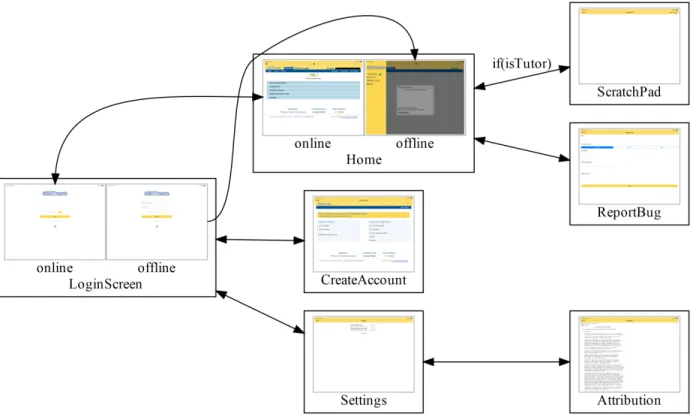
The project’s structure, shown in Listing 1 All of the code for the app is found in the app directory. The entry point for the app is app.js, which contains Nativescript plugin registration and setup for Vue’s Devtools. Most of the app is contained in Vue single file components (SFCs) in the components directory. There is also a mixins folder which contains code that is used across multiple SFCs. There is a constants file at constants.js that currently just contains a mapping of URLs. All of the code injected into the webview can be found at local.js. Most of the common style in the app can be found in _app-common.scss, and the style’s colors can be set in _app_variables.scss. Each SFC can also contain its own style.
3.1.1 Single File Components
The use of single-file components was in line with the goal of a more concise code base with a simple logical structure. Vue offers the ability to couple related information in a single location in order to maximize development efficiency. Through coupling an entity’s struc-ture, style and behavior in a single location it becomes transportable across the system and contributes to a modular project structure. This is exemplified in the implementation of
./ .editorconfig .gitignore .prettierrc README.md app App Resources [omitted] ... app-common.scss app-variables.scss app.js app.scss attribution.txt components App.vue Attribution.vue CreateAccount.vue Home.vue IconButton.vue LoginScreen.vue ReportBug.vue ScratchPad.vue Settings.vue WebViewWrapper.vue constants.js fonts FontAwesome.ttf local.js mixins networkConnected.js package.json firebase.nativescript.json jsconfig.json package-lock.json package.json patches @nota nativescript-webview-ext+5.0.3.patch webpack.config.js
Figure 1: Navigation Flow
of data from an external source that impacts the presentation of the icon determined in <template>. The appearance is set in <style> which applies a default style that icons will inherit. Appearance can be overridden elsewhere in the app depending on design require-ments.
The IconButton component can now be used for templating in other components. The icons nested in the RadSideDrawer in Home.vue assume the same form so they can be efficiently implemented with individualized parameters as shown. Abstracting reusable por-tions of code enforces consistency, limits redundancy and yields an easy to manage adaptive structure.
The IconButton component can now be used for templating in other components. The icons nested in the <RadSideDrawer> in Home.vue assume the same form so they can be efficiently implemented with individualized parameters as shown Listing 3. Abstracting reusable portions of code enforces consistency, limits redundancy and yields an easy to manage adaptive structure.
3.1.2 Code Style
The project includes .editorconfig and .prettierrc files to define the style of code. This aided in merging code, as it reduced the possible differences in representation of the code,
1 <template> 2 <Button
3 v-on="$listeners" 4 class="fa iconButton"
5 v-bind="{ 'text.decode': text }" 6 :isEnabled="!!isEnabled" 7 /> 8 </template> 9 10 <script> 11 export default {
12 props: { text: String, isEnabled: { type: Boolean, default: true } }, 13 };
14 </script>
15
16 <style scoped lang="scss"> 17 @import '../app-variables'; 18 .iconButton { 19 font-size: 25%; 20 horizontal-align: left; 21 vertical-align: center; 22 background-color: transparent;
23 z-index: 0; // fix for android button shadow 24 25 &[isEnabled='false'] { 26 color: $disabled; 27 } 28 } 29 </style>
1 <portal to="sidedrawer" tag="ScrollView"> 2 <StackLayout>
3 <StackLayout class="sidedrawer-list-item hstack"> 4 <Label class="label" text="Offline Mode" />
5 <Switch :isEnabled="networkConnected === offline" v-model="offline" /> 6 </StackLayout>
7
8 <IconButton
9 class="sidedrawer-list-item" 10 @tap="logout"
11 text=" Log Out"
12 />
13 <IconButton
14 class="sidedrawer-list-item" 15 @tap="report"
16 text=" Report a Bug"
17 />
18 <IconButton
19 class="sidedrawer-list-item" 20 @tap="help"
21 text=" Help"
22 />
23 </StackLayout> 24 </portal>
3.2
Login and Cookie Syncing
The first version of the login code, shown in Listing 4 tried to login by injecting code into the login page, filling out the login form, and submitting it.
1 assistments_login(event) { 2 let webview = event.object; 3
4 // TODO: handle cases where analytics fails to load (ie adblocker)
5 webview 6 .loadUrl('https://www.assistments.org/account/login') 7 .then(e => { 8 if (e.url === 'https://www.assistments.org/account/login') { 9 // try to login 10 e.object.executeJavaScript(
11 `login.value = ${JSON.stringify(this.username)};
12 password.value = ${JSON.stringify(this.password)};
13 remember_me.checked = true;
14 document.querySelector('.login_window form').submit()`
15 );
16 }
17 })
18 .catch(err => console.error(err)); 19 },
Listing 4: Login with Injected JS [from components/Home.vue]
That code is ugly and slow, as it requires loading and rendering the login page. Addi-tionally, the only way it can detect a successful/failed login is by checking the next page navigated to in the webview, which requires keeping track of more state in Home, which was not ideal. This was therefore replaced with the code in Listing 5. This version is located in LoginScreen, leading to better code organization and readability, as well as more consistent user experience. This solution is also faster and allows much better detection of failure states (network error vs incorrect credentials, etc). Additionally, it does the login outside of the webview, which would allow us to interact with the webapp from the same session without injecting js, as the same session and auth cookies are set in both places. However, it does require syncing cookies into the webview, as they are separate on both platforms.
On Android this was relatively easy, and can be seen in Listing 6. This can be done right after first initialization of the webview, and works perfectly.
On iOS, however, there is a bug affecting cookie synchronization into a WKWebView. Generally speaking, the bug seems to cause the callbacks of the WKWebsiteDataStore’s cookie storage to either return early or never return after the data store is associated with a web-view. This manifests itself in the current code as the inability to login more than once in a single session on iOS. The first implementation of a workaround for this bug was imple-mented in a patch to the @nota/nativescript-webview-ext package shown in Listing 7. This
1 // ... lines reformatted for readability 2 let login_response;
3 try {
4 login_response = await httpRequest({
5 url: URLS.login,
6 method: 'POST',
7 dontFollowRedirects: true, // allow us to capture the redirect
8 timeout: 2000,
9 headers: { 'Content-Type': 'application/x-www-form-urlencoded;charset=UTF-8' }, 10 content: this.encodeFormBody({
11 login: this.username,
12 password: this.password,
13 remember_me: 1,
14 commit: 'Log+in',
15 }), 16 });
17 } catch (err) {
18 this.logging_in = false;
19 alert({ title: 'Login Failed!', message: err.toString(), okButtonText: 'OK' }); 20 return;
21 } 22
23 // a redirect = probably sucessful login
24 // TODO: check if this assumtion always holds true. We 25 // could also check cookies instead
26 if (login_response.statusCode !== 302) { 27 this.logging_in = false;
28 alert({ title: 'Login Failed!', message: 'Username or password incorrect',
okButtonText: 'OK' });
← -,→
29 return; 30 }
31 // ... some code omitted
32 this.$navigateTo(Home, {
33 clearHistory: true,
34 props: { initialURL: login_response.headers.Location, username: this.username }, 35 });
1 // allow 3rd party cookies
2 const cookieMgr = android.webkit.CookieManager.getInstance(); 3 cookieMgr.setAcceptThirdPartyCookies(webview.android, true); 4
5 // manually sync cookies
6 const cookieHandler = java.net.CookieHandler.getDefault();
7 if (cookieHandler) {
8 const cookies = cookieHandler.getCookieStore().getCookies();
9 Array.from(cookies.toArray()).forEach(c =>
10 cookieMgr.setCookie('www.assistments.org', String(c)) 11 );
12 cookieMgr.flush(); 13 }
Listing 6: Cookie Syncing on Android [from components/WebViewWrapper.vue]
was quite incompatible with offline mode, as offline mode needs to save to the app cache and localstorage to function.
The current implementation moves the code into the attemptLogin method of LoginScreen, and is shown in Listing 8. This implementation tries to force setting the cookies using JavaScript’s Promise and async/await features to wait until all of the cookies are set, as defaultDataStore seems to be slower than nonPersistentDataStore, probably because it needs to save the data to the phones storage instead of just RAM. However, due to the bug the setCookieCompletionHandler function will not ever call its callback, causing the login to hang. This is currently “worked around” by popping up an alert on the second login, informing users that they must close the app to login again.
1 --- a/node_modules/@nota/nativescript-webview-ext/webview-ext.wkwebview.js 2 +++ b/node_modules/@nota/nativescript-webview-ext/webview-ext.wkwebview.js 3 @@ -162,6 +162,20 @@ var WKWebViewWrapper = (function () {
4 configuration.setValueForKey(true, "allowUniversalAccessFromFileURLs"); 5 this.wkCustomUrlSchemeHandler = new CustomUrlSchemeHandler();
6 configuration.setURLSchemeHandlerForURLScheme(this.wkCustomUrlSchemeHandler, owner.interceptScheme); ← -,→ ← -,→ 7 + 8 + configuration.websiteDataStore = WKWebsiteDataStore.nonPersistentDataStore(); 9 + let cookies = NSHTTPCookieStorage.sharedHTTPCookieStorage.cookies;
10 +
11 + function setCookie(cookie) { 12 + return new Promise(resolve => {
13 + configuration.websiteDataStore.httpCookieStore.setCookieCompletionHandler( 14 + cookie, 15 + resolve 16 + ); 17 + }); 18 + } 19 + Promise.all(Array.from(cookies).map(c => setCookie(c))); 20 +
21 var webview = new WKWebView({
22 frame: CGRectZero,
23 configuration: configuration,
Listing 7: Cookie Syncing Code on iOS with patch [from patches/@nota/nativescript-webview-ext+5.0.2.patch]
1 // Sync iOS cookies must be done before webview is created to 2 // work around a bug introduced in 11.3
3 let cookieStore = WKWebsiteDataStore.defaultDataStore().httpCookieStore;
4 let cookies = NSHTTPCookieStorage.sharedHTTPCookieStorage.cookies; 5 await Promise.all(
6 Array.from(cookies).map(
7 c => new Promise(res => cookieStore.setCookieCompletionHandler(c, res))
8 )
9 );
3.2.1 Offline
Initially, the support for offline mode was just a button on the login screen and a toggle that would bring you to the offline assignments listing page (https://www.assistments. org/assistments/student/index.html#offlineUserAssignmentList/). After our first user test, we decided that it would be better for it to automatically detect the network state, and prompt the user to switch into offline mode. To this end, we wrote a mixin (Listing 10) that provided the network state, as the Nativescript connectivity module did not allow for multiple handlers. With this mixin in place, we could just react to changes in the networkConnected variable. On the login screen, losing network connection disables the login fields, and switches the “Login” button to an “Offline” button. On the Home screen this prompts the user to switch to offline mode immediately. If the user does not switch, they can then later switch with the toggle in the side drawer. The toggle is disabled when the states match (ie offline with no network connection or online with a network connection) as it otherwise seemed to only add confusion.
The other part of offline support is enabling localstorage and app cache support. On iOS, this is enabled by default, as long as the you are using the default datastore. On Android, this is done by setting domStorage="true" on the WebViewExt, and the code in Listing 9.
1 settings.setAppCacheEnabled(true);
2 settings.setAppCachePath(androidApp.context.getCacheDir().getAbsolutePath());
Listing 9: Android Application Cache Configuration [from components/WebViewWrapper.vue]
3.2.2 Login Saving
To save login information across app starts, we used the nativescript-secure-storage plu-gin, which provides an abstraction around the native secure storage methods on the two platforms. The code for this can be seen in Listing 12 and Listing 11
1 import * as connectivity from 'tns-core-modules/connectivity'; 2
3 const callbacks = []; 4
5 connectivity.startMonitoring(connection => { 6 for (let callback of callbacks) {
7 callback(connection); 8 } 9 }); 10 11 export default { 12 data() { 13 return { 14 networkConnected: false, 15 }; 16 }, 17 18 created() {
19 callbacks.push(this.checkConnected);
20 this.checkConnected(connectivity.getConnectionType()); 21 },
22
23 destroyed() {
24 let index = callbacks.indexOf(this.checkConnected); 25 if (index > -1) callbacks.splice(index, 1); 26 }, 27 28 methods: { 29 checkConnected(connection) { 30 switch (connection) { 31 case connectivity.connectionType.none:
32 console.error('No connection');
33 this.networkConnected = false;
34 break;
35 case connectivity.connectionType.mobile:
36 console.error('Mobile connection');
37 this.networkConnected = true;
38 break;
39 default:
40 console.error('Non-mobile connection');
41 this.networkConnected = true;
42 break;
43 }
44 },
45 }, 46 };
1 // in created()
2 this.username = this.secureStorage.getSync({ key: 'username' }) || ''; 3 this.password = this.secureStorage.getSync({ key: 'password' }) || ''; 4
5 if (this.username && this.password) { 6 this.remember = true;
7 if (!this.dont_autologin && this.networkConnected) this.attemptLogin(); 8 }
Listing 11: Getting Stored Credentials with SecureStorage [from LoginScreen.vue]
1 // after successful login 2 if (this.remember) {
3 this.secureStorage.setSync({ key: 'username', value: this.username }); 4 this.secureStorage.setSync({ key: 'password', value: this.password }); 5 }
Listing 12: Saving Login Information with SecureStorage [from LoginScreen.vue]
3.3
Webview Specifics
There are a number of things that any web browser will have, but must be implemented manually in a webview-based app.
3.3.1 JS Dialogs
First is the JavaScript dialogs: alert(), confirm(), and prompt(). These turned out to be relatively easy, but just another thing to implement. Additionally, Nativescript did not provide a wrapper, so this had to be done per platform. The iOS code is shown in Listing 14, and the Android code is shown at Listing 13.
3.3.2 Page Scaling
Another issue that is typically solved automatically is the scaling of the webpage. ASSIST-ments’ website is very much designed for desktop use, and is not terribly reactive, with lots of absolutely positioned elements and other elements that flow poorly.
On Android, the WebView has a number of settings that were set, as seen in Listing 15, which set it to load zoomed out to fit all content, use a “wide” viewport instead of the website’s viewport, and try to expand text a bit to improve readability.
On iOS, a similar setup is actually enabled by default, but was not working due to an issue with the WebViewExt plugin. The plugin, by default, sets a viewport on every page. This would normally be helpful, but in this case it made the site behave poorly. This was fixed by patching the package, as shown in Listing 16.
1 // ... lines reformatted for readability
2 let myWebChromeClient = android.webkit.WebChromeClient.extend({ 3 onJsAlert(view, url, message, result) {
4 alert({title: 'Alert', message: message, okButtonText: 'OK'}) 5 .then(r => (r ? result.confirm() : result.cancel())); 6 return true;
7 }, 8
9 onJsConfirm(view, url, message, result) { 10 confirm({title: 'Confirm', message: message,
11 okButtonText: 'OK', cancelButtonText: 'Cancel'})
12 .then(r => (r ? result.confirm() : result.cancel())); 13 return true;
14 }, 15
16 onJsPrompt(view, url, message, defaultValue, result) { 17 prompt({message: message, okButtonText: 'OK',
18 cancelButtonText: 'Cancel', defaultText: defaultValue})
19 .then(r => (r.result ? result.confirm(r.text) : result.cancel())); 20 return true;
21 },
22 });
23 webview.android.setWebChromeClient(new myWebChromeClient());
Listing 13: Android JS Dialogs [from components/WebViewWrapper.vue]
3.3.3 Webview Navigation Buttons
The navigation buttons were originally placed in the sidedrawer, but moved into the action bar after our first user test, as the user did not find the sidedrawer. The functions for this were provided by Nativescript’s WebView, so this was just a matter of binding buttons (Listing 17).
3.4
SideDrawer
A sidedrawer was implemented early on in the project due to a desire to consume less of the screen space with buttons than the previous app. The previous app had a bottom tab bar that switched between screens, but consumed rather a lot of space for something that was rarely used. To this end, we put much of the functionality there, as well as some aditional functions, into a sidedrawer that would only be present in in the Home screen. However, due to a somewhat odd structuring requirement, it had to be present at the top level of the app. NativeScript’s navigation is based around Frames and Pages. A call to vm.$navigateTo switches the Page displayed in the current Frame. Pages also contain ActionBars and set the statusbar’s color. A Frame can only contain Pages.
The official sidedrawer component, RadSideDrawer, displays above its children, so the Page needs to be inside the sidedrawer. However, since Frames can only be navigated to Pages, there would need to be a Page both around and inside the RadSideDrawer. This
1 // ... lines reformatted for readability 2 let myWKUIDelegate = NSObject.extend(
3 {
4 webViewRunJavaScriptAlertPanelWithMessageInitiatedByFrameCompletionHandler( 5 webView, message, frame, completionHandler) {
6 alert({title: 'Alert', message: message, okButtonText: 'OK', b})
7 .then(() => completionHandler());
8 },
9 webViewRunJavaScriptConfirmPanelWithMessageInitiatedByFrameCompletionHandler( 10 webView, message, frame, completionHandler) {
11 confirm({title: 'Confirm', message: message,
12 okButtonText: 'OK', cancelButtonText: 'Cancel'})
13 .then(completionHandler); 14 }, 15 webViewRunJavaScriptTextInputPanelWithPromptDefaultTextInitiatedByFramec CompletionHandler( ← -,→
16 webView, prompt, defaultText, frame, completionHandler) {
17 prompt({message: prompt, okButtonText: 'OK',
18 cancelButtonText: 'Cancel', defaultText: defaultText})
19 .then(result => completionHandler(result.result ? result.text : null)
20 ); 21 }, 22 }, 23 { protocols: [WKUIDelegate] } 24 ); 25
26 webview.ios.UIDelegate = new myWKUIDelegate();
Listing 14: iOS JS Dialogs [from components/WebViewWrapper.vue]
1 // force loading page zoomed out 2 webview.android.setInitialScale(1);
3 const settings = webview.android.getSettings(); 4 settings.setLoadWithOverviewMode(true);
5 settings.setUseWideViewPort(true); 6 settings.setLayoutAlgorithm(
7 android.webkit.WebSettings.LayoutAlgorithm.TEXT_AUTOSIZING 8 );
9 // disable zoom controls
1 --- a/node_modules/@nota/nativescript-webview-ext/webview-ext.wkwebview.js 2 +++ b/node_modules/@nota/nativescript-webview-ext/webview-ext.wkwebview.js 3 @@ -346,12 +360,7 @@ var WKWebViewWrapper = (function () {
4 };
5 WKWebViewWrapper.prototype.loadWKUserScripts = function (autoInjectJSBridge) {
6 if (autoInjectJSBridge === void 0) { autoInjectJSBridge =
this.autoInjectJSBridge; } ← -,→ 7 - if (!this.wkUserScriptViewPortCode) { 8 - this.wkUserScriptViewPortCode = this.makeWKUserScriptPromise(nativescript_webview_bridge_loader_1.metadataViewPort); ← -,→ 9 - } 10 this.wkUserContentController.removeAllUserScripts();
11 - var wkUserScriptViewPortCode = this.wkUserScriptViewPortCode;
12 - this.addUserScriptFromPromise(wkUserScriptViewPortCode);
13 if (!autoInjectJSBridge) {
14 return;
15 }
Listing 16: Disabling viewport injection in WebViewExt on iOS with patch [from patches/@nota/nativescript-webview-ext+5.0.2.patch]
1 <IconButton
2 @tap="webview.goBack()"
3 :isEnabled="webview && webview.canGoBack" 4 text=""
5 />
6 <IconButton @tap="webview.reload()" text="" />
7 <IconButton
8 @tap="webview.goForward()"
9 :isEnabled="webview && webview.canGoForward" 10 text=""
11 />
Page elements. Since the top level ActionBar had to be disabled, it broke the coloring of the statusbar, as well as causing other bugs, especially on newer iphone models without a home button. Additionally, it meant that reusing the sidedrawer in other screens was impossible without reimplementing large parts of it or moving things into separate but very tightly coupled components.
The solution to this was to use a Vue plugin called Portal-Vue. This provides the ability to render parts of the DOM elsewhere from where they were defined. In this case, it allows the RadSideDrawer to be at the top level of the app in App.vue, as seen in Listing 18, while the things in the sidedrawer could be placed in Home.vue, as shown in Listing 19. Since these controls are now all in the same place as where they are used, bindings can be made directly, which greatly simplified the code.
1 <template>
2 <RadSideDrawer ref="drawer" gesturesEnabled="false"> 3 <StackLayout ~drawerContent class="sidedrawer-left">
4 <Image class="sidedrawer-header" src="res://logo" stretch="aspectFit" /> 5 <portal-target name="sidedrawer" tag="ScrollView" />
6 </StackLayout> 7 8 <Frame ~mainContent> 9 <LoginScreen /> 10 </Frame> 11 </RadSideDrawer> 12 </template> 13 14 <script>
15 import Vue from 'vue';
16 import LoginScreen from './LoginScreen.vue'; 17
18 export default {
19 components: { LoginScreen },
20 mounted() {
21 Vue.prototype.$drawer = this.$refs.drawer.nativeView;
22 }, 23 };
24 </script>
Listing 18: RadSideDrawer Implementation [from App.vue]
3.5
Firebase and Crashlytics
Crashlytics is a software development kit for crash reporting, statistical analysis and appli-cation event logging. Insight into the status and performance of an app at a highly granular level equips ASSISTments personnel with the necessary information to address deficiencies
1 <portal to="sidedrawer" tag="ScrollView"> 2 <StackLayout>
3 <StackLayout class="sidedrawer-list-item hstack"> 4 <Label class="label" text="Offline Mode" />
5 <Switch :isEnabled="networkConnected === offline" v-model="offline" /> 6 </StackLayout>
7
8 <IconButton
9 class="sidedrawer-list-item" 10 @tap="logout"
11 text=" Log Out"
12 />
13 <IconButton
14 class="sidedrawer-list-item" 15 @tap="report"
16 text=" Report a Bug"
17 />
18 <IconButton
19 class="sidedrawer-list-item" 20 @tap="help"
21 text=" Help"
22 />
23 </StackLayout> 24 </portal>
of business and technological decisions and delivers meaningful knowledge about the exist-ing strategy. A communicative system with accurate status reportexist-ing is crucial in buildexist-ing maintainable software that engenders a knowledgeable surrounding team.
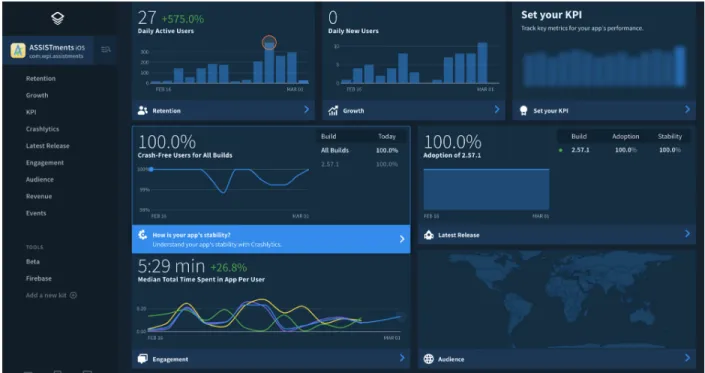
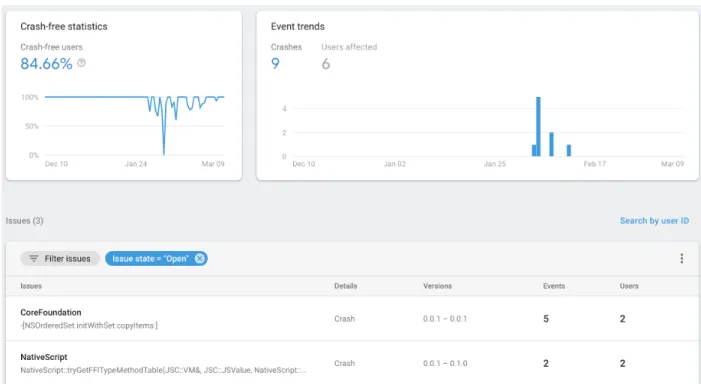
In the previous iOS app, Crashlytics was integrated and managed through Fabric, a platform that houses a suite of tools designed to assist mobile app development teams. The Fabric dashboard for the previous iOS app is visible in Figure 2. The old Android app was not configured with Crashlytics or Fabric and thus possessed no external statistics reporting mechanism. This inconsistency was addressed during the project.
Figure 2: Fabric Dashboard
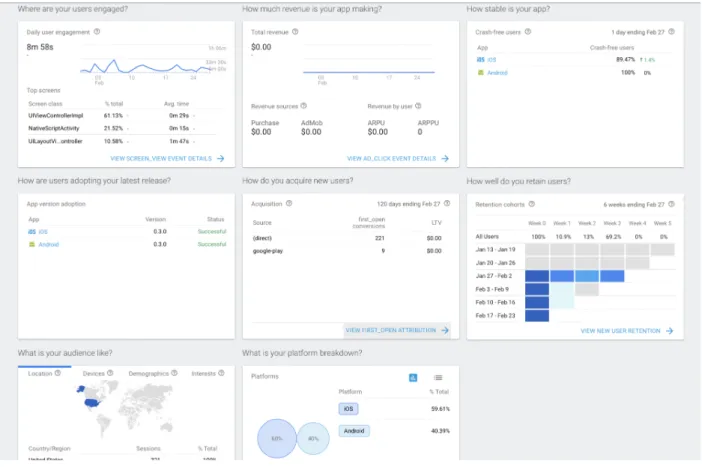
Initially, Crashlytics would be configured through Fabric for both the Android and iOS. However, at the time of implementation Google announced the eventual deprecation of Fabric. Instead, Google encourages adopting Firebase, an updated toolset for application metric tracking. The Firebase Spark plan is free for general commercial use and provides a more complete analytics package than the antiquated solution, Fabric. Therefore, the nativescript-firebase plugin was used within the cross-platform app to set up Crashlytics and custom event logging for both Android and iOS. Firebase integration also includes de-fault monitoring and statistical generation that is present in the Firebase Console dashboard in Figure 3
Prior to configuring the nativescript-firebase plugin, a Firebase account was created with a map the platform-specific AppIDs. Next, Firebase generated downloadable configu-ration files to be imported to the project structure. Upon installing the plugin, a script was executed that prompted user input for the setup of the initial environment parameters.
Fi-Figure 3: Firebase Dashboard
1 import * as firebase from 'nativescript-plugin-firebase'; 2 firebase
3 .init()
4 .then(
5 () => console.log('firebase.init done'),
6 error => console.log('firebase.init error: ' + error);
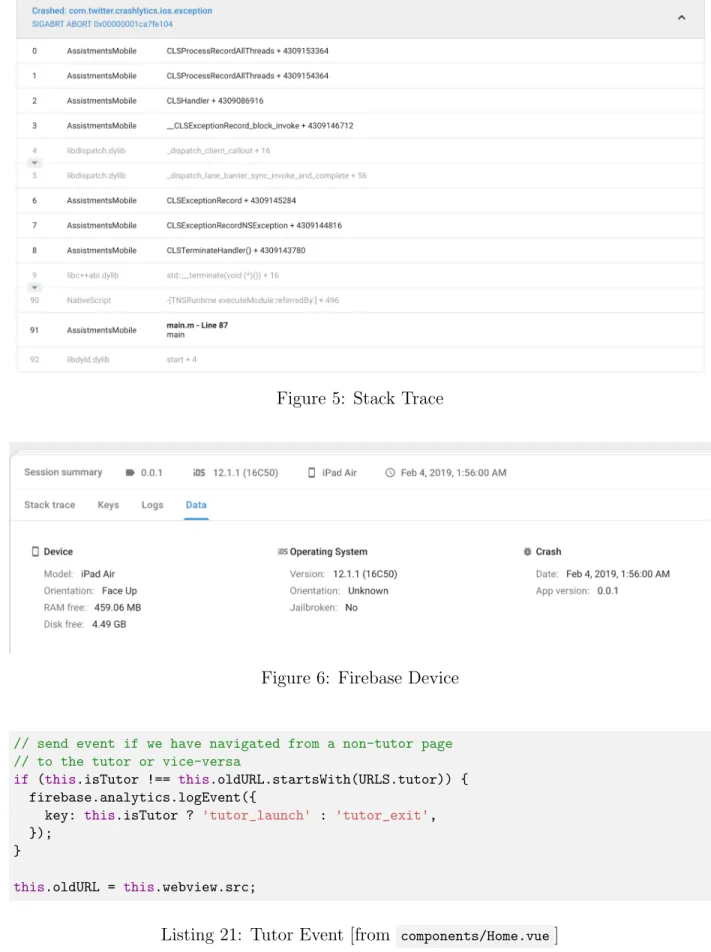
is no further installation needed to inform the system to begin monitoring both fatal and non-fatal app crashes. Firebase automatically collects crash information and reports data to the developer console. This communication is not real-time but instead updates every 3-4 hours. Figure 4 shows the Crashlytics dashboard within Firebase with several reported crashes. These crashes can be investigated further to uncover pertinent information such as the stack trace shown in the Figure 5 and device data in Figure 6.
Figure 4: Firebase Crashlytics
In order to enhance user analytics, each screen within the app is recorded with a set screen name (ie. “Login Screen”, “Report a Bug”, etc.). Screen information is attached to several metrics involving activity, user engagement, and retention. Furthermore, Fire-base automatically collects data about user events such as “screen view,” “session start,” and “app open” where screen information is critical. An extensive list of events that are automatically tracked by the app is visible in Figure 7.
Coupling the generic user events monitored, Firebase supports customization of unique events that can be manually triggered throughout the app. The ASSISTments cross-platform app is configured to report when a user enters and launches an assignment within the Tutor. This is done examining the webview URL on page load. Every time a page loads the current URL is checked against the previous URL. If the current URL resembles an assignment in the tutor and the previous URL represents a page outside of the Tutor, then atutor launch event is emitted. Atutor exit event is triggered in the opposite scenario. The corresponding logic is displayed in Listing 21 The event is logged with a call to LogEvent() passing the custom event key tutor_launch or tutor_exit depending on the state of the current and
Figure 5: Stack Trace
Figure 6: Firebase Device
1 // send event if we have navigated from a non-tutor page 2 // to the tutor or vice-versa
3 if (this.isTutor !== this.oldURL.startsWith(URLS.tutor)) { 4 firebase.analytics.logEvent({
5 key: this.isTutor ? 'tutor_launch' : 'tutor_exit', 6 });
7 } 8
Figure 7: Firebase Events
4
Results and Discussion
4.1
Code size
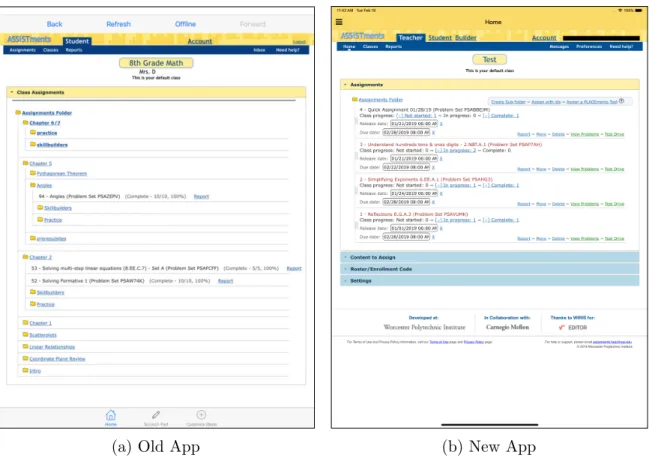
The unified app is uses significantly less code, with both old apps around 4K lines each compared to around 1K lines in the new unified app. This can be seen in Table 2, Table 3, Table 4, and Table 5. This means that it should be easier to read the code, as there is less of it and it is less spread out.
Language files blank comment code
Java 21 858 631 3836
XML 32 138 12 866
SUM: 53 996 643 4702
Table 2: LoC of Old Android App (client/android/assistments/app/src)
4.2
User Test Analysis
We conducted the first round of user testing with a tentative feature-complete app. At this stage, all of the desired high-level features were integrated into a single build. While we were aware of the potential shortcoming and instability, we opted to include unpolished features in
(a) Old App (b) New App
Figure 8: Comparison of Old and New Android Apps
Language files blank comment code
Objective C 21 1301 674 3109
Swift 30 274 317 1005
C/C++ Header 21 204 194 404
JSON 7 0 0 290
SUM: 79 1779 1185 4808
Table 3: LoC of Old iOS App
(a) Old App (b) New App
Figure 9: Comparison of Old and New iOS Apps
Language files blank comment code
Vuejs Component 10 136 27 1101 JSON 11 0 0 519 JavaScript 5 46 39 423 XML 8 14 6 94 Markdown 1 31 0 77 Sass 3 23 17 66 Gradle 2 18 8 59 SUM: 40 268 97 2339
Table 4: LoC of Unified App (all tracked files except package-lock.json)
Language files blank comment code
Vuejs Component 10 136 27 1101 JSON 8 0 0 435 JavaScript 4 27 11 175 XML 8 14 6 94 Sass 3 23 17 66 Gradle 2 18 8 59
and uninvolved in any aspect of the design or development of the product. Both a facilitator and observer were present and served as administrative figures. The subject tested the iOS version on an iPad and the Android version on a Google Pixel.
There were several issues uncovered through the perspective of a new user. Most no-tably, the existing Offline Mode workflow proved unintuitive and difficult to follow. The user located an Offline switch in the SideDrawer of the UI and immediately assumed to interact with this component when prompted to invoke Offline Mode. However, this feature is ineffective without the prior download of an assignment. The user struggled to determine how to download an assignment for offline access. Instead, the subject entered Offline Mode without any viewable assignments and continued to toggle between online and offline. The user closed the app and attempted to log in with immediate entrance into Offline Mode. Due to this inability, they suggested an option to enter Offline Mode from the login screen if the device is disconnected from a network. Completion of the Offline Mode process re-quired significant interference and instruction from the administrators. This suggested that the workflow was not optimized for satisfactory user experience and proved too complex to navigate.
In consideration of the noted flaws with Offline Mode, we initiated a process to re-design the experience. We contended that the system should possess a higher level of intelligence and interact with the user through a series of prompts based on the app’s state. Since Offline Mode is intended exclusively for use when the device lacks a network connection, we reasoned that monitoring and communicative device connectivity to the user is appropriate behavior. The updated Offline Mode experience includes UI confirm dialogs informing the user of a change in the device’s connectivity state and prompting them to enter the mode that reflects the current state. Furthermore, the Offline Mode toggle in the SideDrawer is disabled if a a connectivity change has not been registered by the app. If the app is online and has not lost fallen off of the network, then the user will not be able to enter Offline Mode. It is only until the app enters a disconnected state that the user can accept to enter Offline Mode via the confirm dialog or toggling on the enable switch. Lastly, when the device is disconnected and the app is launched, the Login Screen will be altered to only allow for entrance into the app through Offline Mode. The standard login fields and button are disabled as login will fail to complete successfully in this state.
Another alarming concern with the current design is the seemingly unrelated nature of the native UI components of the app, such as the Action Bar and the webview. When the user was prompted to Logout they had immense difficulty identifying the correct UI element to invoke this action. The subject’s immediate tendency was to search the containerized webview for a Logout element. The user neglected the hamburger icon in the top left corner of the Action Bar to open the SideDrawer where the Logout button existed. We considered possible re-designs to avoid this perception, yet several options involved flooding the UI with an excess of visible icons and buttons. In order to avoid an overwhelming visual experience, we concluded that the SideDrawer and its items should remain unchanged at the moment. If future tests corroborated this user’s judgment and revealed similar concerns, then we would introduce changes to correct the apparently confusing SideDrawer layout. In order to combat this issue while maintaining a minimalistic UI layout, we replaced the title in the Action Bar of the “Home” Screen with the webview navigation icons from the SideDrawer. This
embedded ASSISTments webview.
Next, we observed the subject’s frustration with multiple unresponsive icon and button taps. There appeared to be significant delays between action requests and fulfillment. Also, the active region surrounding the area of several icons was too small. Therefore, we increased the sensitivity of UI items with an associated tap event and incorporated an animation that signals a registered interaction.
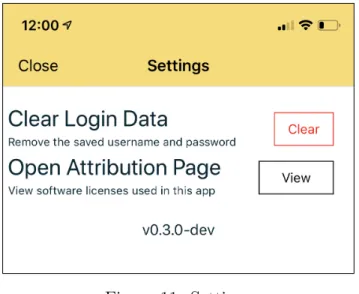
During the testing session, the subject was prompted the clear the username and password fields on the on the Login Screen. Despite the presence of a single icon to perform that task, the user failed to recognize its value and proceeded to manually erase the contents of each text field individually. Furthermore, the subject communicated the expectation of a small icon inside the text field position on the rightmost side to clear the respective text field contents. From this information, we redesigned the entire Login Screen UI seen in Figure 10 in order to add a icon that routes to a Settings Screen. Within the Settings page there is an option to clear the saved login credentials for the app. We figured that this feature should be farther removed from the Login Screen because it should only be invoked in the case of a shared device that should not always auto login with a single account. Since this will be a seldom-used feature its visibility is reduced in order to avoid confusion. Furthermore, the action button seen in Figure 11 on the Settings Screen features descriptive text and a confirmation dialog in order to explicitly communicate its purpose.
4.2.1 Oak Middle School
In another round of user testing, we visited an 8th grade class of existing ASSISTments users at Oak Middle School in Shrewsbury, Massachusetts. While we strived to adhere to user testing procedure, the environment stimulated disorganized evaluation. Rather than observing the usage of a single subject at a time, multiple user sessions had to be monitored simultaneously due to the volume of concurrent tests. Much of the feedback generated from this experience was received from in-class discussions and individual responses to the user survey. A combination of observations, active vocal feedback and general questions gave us actionable information from this interaction.
A common tendency among the students was to utilize Landscape Mode. Several subjects conveyed their displeasure with the minimized text in portrait orientation. They reacted to this visibility limitation by zooming in or continuing in landscape orientation. Due to the expected high frequency of Landscape Mode we decided to make the Action Bar dynamic and manipulate the device’s status bar. With a quick swipe up gesture the Action Bar will hide giving rise to more available screen space for the webview to occupy. Furthermore, when the Action Bar is hidden the webview can extend into the status bar to further utilize available screen space. The Action Bar will return with a quick swipe down on the screen. During the test, an incidental trigger of this event was observed. A user encountered a state where the Action Bar disappeared unexpectedly and they were unaware of how to enforce its visibility. Therefore, we added a Toast when the Action Bar is hidden. The Toast will appear at the bottom of the screen for a short period of time with direction pertaining to
(a) Old Login Screen (b) New Login Screen
Figure 11: Settings
editor with a black background. We corrected the performance of this feature to only allow the upload of Scratch Pad work with a white canvas background. We fixed a bug that allowed the Scratch Pad to open when the icon was disabled on the UI. Lastly, we changed the wording on the alert dialog that pops up on Login during the same session as a Logout event. The user test revealed that the original phasing was too technical. This was evident through a student interpretation of the message as requiring because a student interpreted the directions as a necessity to uninstall the app. The wording was changed to better appeal to a young audience as shown in Figure 12.
(a) Old Login Screen (b) New Login Screen
Figure 12: Comparison of Login Screens
4.3
NativeScript
natively implemented professional UI components. This allowed for template components such as <ActionBar> and <RadSideDrawer> to conform to the design practices of each mobile operating system. Therefore the app follows platform-specific design paradigms through a single codebase. Furthermore, NativeScript’s engine provides flexible development options. The integration with Vue.js allowed for development with web technologies, which remains consistent with the the remainder of ASSISTments software. With JavaScript support on top of the Node.js runtime environment, we utilized the npm package manager to equip the app with relevant plugins. Numerous plugins were integrated to extend the functionality of the app and deliver a more performant system supported by the rapidly growing NativeScript community.
5
Conclusion
The conclusion of the development phase of the ASSISTments app resulted in build version 1.0.0 available on both the Play Store and App Store. There were several incremental builds (0.2.3 and 0.3.0) published to the respective distribution services throughout the duration of the project. These builds were utilized for internal testing and established the presence of the new app in the marketplace. This was helpful in navigating the review process mandated for distribution approval prior to the final release. Once the initial new app request was submitted, successive version pushes required significantly less overhead to become publicly listed.
Despite ultimately completing multiple rounds of publication, we failed to satisfy the intended goal of weekly app updates. We intended to operate under an agile framework and follow an iterative regimen with rigidly defined weekly priorities. However, we adopted a more flexible strategy due to frequent modification of expectations, functionality, and design. While high-level features remained constant throughout the project, incoming requests im-pacted the priority of tasks. The original development lifecycle was hindered by the inability to gain proper access and permission to the Apple Developer Program until week 4 of the project. This significantly delayed the app’s entrance into the App Store in any viable capac-ity. Therefore, we were unable to properly assess the app through incremental user testing sessions. Since official user testing was only performed within the final two weeks of the project, some of the actionable knowledge from these experiences was not manifested in the final version of the app. Instead of relying on validated user concerns to guide incremental revisions, we utilized our best judgment to provide seemingly meaningful updates. Iterations of the app were governed largely by the overall feature list determined early in the term in combination with periodic feedback from informal internal testing.
Version 1.0.0 of the cross-platform ASSISTments mobile app includes implementation of all the features outlined in Section 1.2 in a functional capacity. The ASSISTments cross-platform app achieved feature parody with the previous mobile software. Additionally, the app corrected several existing bugs and removed defects that interrupted the user experi-ence. Furthermore, several abnormal screen navigation routines were corrected. Overlaying the technical details of the system is a heightened sense of aesthetic appeal for the UI. Con-structing a visually pleasing interface was a high priority. Effective design compliments the
ciation. This translates to a more favorable application that users are likely to visit and frequently engage with.
The app in abundant with technological advances compared to the former ASSISTments mobile solution. The app now successfully remembers the user’s account information and will perform an automatic login every time the app launches. Coupling this feature is an added option to clear the saved account data and reset the app’s user recognition protocol. Numerous UI components are now located in a collapsable RadSideDrawer. This serves to declutter the interface and compartmentalize related items, which emphasizes the role of the embedded webview. Offline Mode, is optimized for the mobile domain through systemic recognition of network connectivity. The offline procedure is streamlined through more in-telligent state management communication. This replaces the previous pressure to execute a complex sequence of decisions with an intuitive course of action. This is a major advance-ment in the latest version of the app because Offline Mode is better suited for the mobile context is than in the web platform. The support for image and scratch pad upload for show work is also preferred through the use of a mobile device. Also, subtle adjustments such as hiding the Action Bar, presenting a form for reporting a bug, allowing access to the user guide from within the app and analytics logging increase the power of ASSISTments. An exhaustive account of the completed work is marked as ”Done” in Appendix E.
The ASSISTments cross-platform app was built to create value by producing a highly accessible learning assistant. The prevalence of digital consumption among the ASSISTments target demographic substantiates the need for a mobile presence. Through correcting poor aspects of the previous app and inserting positive additions, the mobile app now serves as a practical complement to the the web platform. The cross-platform nature of this app extends the scope of the project and significantly increases the reach of the technology. This effort coincides with the ASSISTments mission to be an instrumental tool in the educational community through the use of applied technology and research findings.
6
Future Work
This project laid the foundation for a cross-platform app, but there remains areas to improve. The app relies heavily on interacting with the site in a way that is not well defined, or likely to be stable. Some features require injection of JavaScript into the webview which interacts with DOM elements. These elements are also not well defined (with classes or ids), and so the injected JS relies on the DOM hierarchy to pick them. This is extremely fragile, as any change in how GWT creates this hierarchy will cause the selector to fail. In the future, it would be better to write this in a more defined, stable way so that components of the app are are entirely dependent on the web architecture.
6.1
Known Issues
Image and scratch pad submission doesn’t work on free response, TinyMCE will break the viewport and render the in-app webview compressed.
sentation it diminishes the presentation.
As explained in Section 3.2, you cannot login more than once per app launch on iOS, due to a bug in cookie syncing.
7
References
[1] Stoychev, E. (2017, December 22). NativeScript/NativeScript. Retrieved February 28, 2019, from https://github.com/NativeScript/NativeScript/wiki/Why-NativeScript? [2] Torkut, D. (n.d.). Choosing Between Vue.js and ReactJS in 2019: What’s Best for Your
Project? Retrieved February 28, 2019, from https://www.codica.com/blog/react-vs-vue-2019/
[3] Xamarin vs React Native vs Ionic vs NativeScript: Cross-platform Mobile Frameworks Comparison. (2018, October 04). Retrieved February 28, 2019, from https://www.altexsoft.com/blog/engineering/xamarin-vs-react-native-vs-ionic-vs-nativescript-cross-platform-mobile-frameworks-comparison/
Appendices
A
User Tests
A.1
User Interview 1 on 02/19
A.1.1 Round 1 OS Android Version 8.1 Device Pixel 2
Account Used Test Student 1. Observational Notes:
• Failed Login with Test Student account
– javax.net.ssl.SSLPeerUnverifiedException: hostname www.assistments.org not verified
– Turns out to be that he was on the guest wifi 2. Immediate Feedback
• none A.1.2 Round 2 OS iOS
Version
Device iPad Mini
Account Used Test Student 1. Observational Notes:
• Screwed up autologin? Logged is asgoldsmith instead? How even?
– Logged in with test →force close app→reopen autologged in as asgoldsmith → logout and logout screen displays test credentials. . . ???
• Log out: tried account, couldn’t find logout
• Noticed scroll was buggy in submit work box
• Tried to use the built-in image submission for show image work, didn’t notice the app one
• Progress sidedrawer a bit hard to find, might be just due to being unfamiliar with normal webapp
– Tried to navigate to assignment listing when prompted to find progress • Tried to login offline, then saw the offline button
– Suggested offline button should be login offline (and corresponding login on-line)
– Saw download button earlier – Offline broken again, whoops – Still can’t logout offline
• Did see button for report bug earlier
– Role selector not obvious (is this who I am or who I am reporting to?) – Did note that he can edit the bug email
• Thought the clear ‘x’ might be to prevent remember me, just cleared the text fields manually
• Scratchpad missing back button, can “submit” always, even when show work is not present
– Thought it was weird that two things in top right are disconnected from rest of app
– No feedback on adding an image
• “Home” title not representative of content of app • Have to draw something to cancel scratchpad • Never discovered the hide actionbar swipe
– Tried to swipe on the actionbar itself when swipe
– Felt like it should be much more responsive and require less of a flick gesture (a) Pt 2 - with offline!
• Sidebar Switch seems intuitive ish • Offline doesn’t show correctness
• Tried to enter username password when going offfline from login screen • Buttons sometimes not registering clicks, but show animations when pressed
quickly
• Did not see submit button on assignments page
– Brings you to the wrong place after submission anyway (back to offline screen), hard to get out