for business
Cocoa is the programming environment for Apple development, and this information-packed
developer’s guide is your key to the Cocoa libraries and the Apple developer tools. Written for
developers by an experienced Mac expert and iPhone developer, this book shows you how to
learn and use Xcode and Objective-C, design user interfaces, optimize your code, manage data,
create animations and special eff ects, and package apps for the App Store.
• Master and understand the Xcode
®
SDK, Objective-C
®
, and the Cocoa API
• Create, use, profi le, and debug custom objects and subclasses
• Design user interfaces with Interface Builder
• Streamline your code with design patterns such as Model-View-Controller (MVC)
• Work with text, PDFs, Web data, and Apple’s Core Data API
• Create simple and advanced animation eff ects with Core Animation and Core Image
• Learn to develop apps for Mac OS
®
X and Apple devices
Access the latest information on Apple development
Visit www.wileydevreference.com for the latest on tools and techniques for Apple development,
and download source code for the projects in this book.
Richard Wentk is a developer with more than fi fteen years of experience in publishing, and is one of the UK’s most reliable technology writers. He covers Apple products and developments for MacWorld and MacFormat magazines, and also writes about technology and business strategy for publications such as Computer Arts and BBC Focus.
Reader Level: Intermediate to Advanced
Shelving Category: COMPUTERS / Programming /
Developer
Reference
Cocoa
®
Developer Reference
Co
co
a
Indianapolis, IN 46256
www.wiley.com
Copyright © 2010 by Wiley Publishing, Inc., Indianapolis, Indiana
Published by Wiley Publishing, Inc., Indianapolis, Indiana
Published simultaneously in Canada
ISBN: 978-0-470-49589-6
Manufactured in the United States of America
10 9 8 7 6 5 4 3 2 1
No part of this publication may be reproduced, stored in a retrieval system or transmitted in any form or by any means, electronic, mechanical, photocopying, recording, scanning or otherwise, except as permitted under Sections 107 or 108 of the 1976 United States Copyright Act, without either the prior written permission of the Publisher, or authorization through payment of the appropriate per-copy fee to the Copyright Clearance Center, 222 Rosewood Drive, Danvers, MA 01923, (978) 750-8400, fax (978) 646-8600. Requests to the Publisher for permission should be addressed to the Permissions Department, John Wiley & Sons, Inc., 111 River Street, Hoboken, NJ 07030, 201-748-6011, fax 201-748-6008, or online at http://www.wiley.com/go/permissions.
LIMIT OF LIABILITY/DISCLAIMER OF WARRANTY: THE PUBLISHER AND THE AUTHOR MAKE NO REPRESENTATIONS OR WARRANTIES WITH RESPECT TO THE ACCURACY OR COMPLETENESS OF THE CONTENTS OF THIS WORK AND SPECIFICALLY DISCLAIM ALL WARRANTIES, INCLUDING WITHOUT LIMITATION WARRANTIES OF FITNESS FOR A PARTICULAR PURPOSE. NO WARRANTY MAY BE CREATED OR EXTENDED BY SALES OR PROMOTIONAL MATERIALS. THE ADVICE AND STRATEGIES CONTAINED HEREIN MAY NOT BE SUITABLE FOR EVERY SITUATION. THIS WORK IS SOLD WITH THE UNDERSTANDING THAT THE PUBLISHER IS NOT ENGAGED IN RENDERING LEGAL, ACCOUNTING, OR OTHER PROFESSIONAL SERVICES. IF PROFESSIONAL ASSISTANCE IS REQUIRED, THE SERVICES OF A COMPETENT PROFESSIONAL PERSON SHOULD BE SOUGHT. NEITHER THE PUBLISHER NOR THE AUTHOR SHALL BE LIABLE FOR DAMAGES ARISING HEREFROM. THE FACT THAT AN ORGANIZATION OR WEBSITE IS REFERRED TO IN THIS WORK AS A CITATION AND/OR A POTENTIAL SOURCE OF FURTHER INFORMATION DOES NOT MEAN THAT THE AUTHOR OR THE PUBLISHER ENDORSES THE INFORMATION THE ORGANIZATION OR WEBSITE MAY PROVIDE OR RECOMMENDATIONS IT MAY MAKE. FURTHER, READERS SHOULD BE AWARE THAT INTERNET WEBSITES LISTED IN THIS WORK MAY HAVE CHANGED OR DISAPPEARED BETWEEN WHEN THIS WORK WAS WRITTEN AND WHEN IT IS READ.
For general information on our other products and services or to obtain technical support, please contact our Customer Care Department within the U.S. at (877) 762-2974, outside the U.S. at (317) 572-3993 or fax (317) 572-4002.
Library of Congress Control Number: 2010935569
Trademarks: Wiley and the Wiley logo are registered trademarks of John Wiley & Sons, Inc. and/or its affiliates, in the
United States and other countries, and may not be used without written permission. Cocoa is a registered trademark of Apple, Inc. All other trademarks are the property of their respective owners. Wiley Publishing, Inc., is not associated with any product or vendor mentioned in this book.
Project Editor
Martin V. Minner
Technical Editor
Benjamin Schupak
Copy Editor
Lauren Kennedy
Editorial Director
Robyn Siesky
Editorial Manager
Rosemarie Graham
Business Manager
Amy Knies
Senior Marketing Manager
Sandy Smith
Vice President and Executive Group Publisher
Richard Swadley
Vice President and Executive Publisher
Barry Pruett
Graphics and Production Specialists
Joyce Haughey Jennifer Henry
Quality Control Technician
John Greenough
Proofreading
Laura Bowman
Indexing
BIM Indexing & Proofreading Services
Media Development Project Manager
Laura Moss
Media Development Assistant Project Manager
Jenny Swisher
Media Development Associate Producer
Acknowledgments. . . . xvi
Introduction . . . xvii
Part I: Getting Started ... 1
Chapter 1: Introducing Cocoa . . . 3
Introducing Cocoa ...3
Understanding Cocoa’s history ...3
Moving from NeXTStep to Cocoa ...7
Profiting from Cocoa ...9
Profiting from the iPhone ...12
Developing for fun ...14
Introducing Xcode and the Apple Developer Programs...15
Working with Xcode and Interface Builder ...16
Working with Safari...17
Summary ...18
Chapter 2: Think Cocoa! . . . . 19
Designing for Cocoa ...19
Understanding Aqua ...20
Using Aqua with Cocoa ...21
Creating Cocoa Applications ...22
Understanding layers and frameworks ...22
Developing features across layers ...27
Moving to Cocoa and Objective-C from Other Platforms ...31
Working with Objective-C objects and messages ...31
Managing data in Cocoa and Objective-C ...38
Exploring other Cocoa features ...45
Comparing Cocoa to other platforms ...48
Summary ...55
Chapter 3: Introducing the Cocoa and OS X Documentation . . . . 57
Getting Started with the Documentation ...59
Understanding resource types ...61
Understanding Topics ...69
Using the Documentation ...71
Sorting the documentation ...71
Working with source code ...72
Chapter 4: Getting Started with Xcode . . . . 75
Getting Ready for Xcode ...75
Registering as a developer...77
Joining the Mac Developer and iPhone Developer programs ...80
Installing Xcode ...82
Creating a New OS X Project ...84
Exploring Xcode’s Windows ...90
Understanding Groups & Files ...90
Selecting items for editing ...92
Customizing the toolbar ...93
Summary ...94
Chapter 5: Introducing Classes and Objects in Objective-C . . . . 95
Understanding Objects ...95
Understanding classes ...97
Designing objects ...100
Creating classes ...107
Defining a class interface ...107
Defining accessors: setters and getters ...109
Using self ...110
Defining a class implementation ...110
Defining public properties ...111
Defining public methods ...111
Using Objects in Objective-C ...113
Summary ...114
Chapter 6: Getting Started With Classes and Messages
in Application Design . . . .115
Understanding the Cocoa Development Process ...115
Understanding Applications ...116
Exploring standard application elements ...118
Introducing the application delegate ...118
Discovering Object Methods and Properties ...121
Finding and using class references ...121
Introducing Code Sense ...126
Working with multiple classes ...128
Receiving messages from OS X with a delegate ...134
Receiving messages from OS X with NSResponder ...142
Subclassing NSWindow ...144
Creating a category on NSWindow ...149
Chapter 7: Introducing Interface Builder . . . .151
Introducing Nib Files ...151
Loading objects from nib files...153
Editing nib files...154
Getting Started with Interface Builder ...154
Introducing IB’s windows ...155
Introducing First Responder and File’s Owner ...168
Setting Classes and Subclasses ...170
Summary ...172
Chapter 8: Building an Application with Interface Builder . . . .173
Designing a Project in Interface Builder ...173
Introducing the Interface Builder workflow ...174
Adding objects to a nib ...176
Understanding links, outlets, and actions ...184
Creating links in Interface Builder ...189
Using NSTimer to create a simple seconds counter ...195
Using Advanced UI Techniques ...199
Using loose typing and (id) sender ...200
Placing outlets and actions ...202
Summary ...205
Part II: Going Deeper ... 207
Chapter 9: Using Cocoa Design Patterns and Advanced Messaging . . . .209
Understanding Model-View-Controller ...209
Using MVC with Cocoa controller objects ...212
Creating custom controllers ...213
Defining the data model ...214
Understanding Target-Action ...214
Defining selectors ...215
Using selectors in code ...216
Understanding the limitations of selectors ...216
Defining selectors in Interface Builder ...217
Creating an example application ...219
Other applications of selectors...221
Using Key-Value Coding ...222
“Objectifying” values ...222
Using Key-Value Observing ...224
Making assignments KVO compliant ...226
Using Notifications ...228
Posting notifications...230
Using notifications and delegates ...230
Handling Errors and Exceptions ...232
Using NSError ...232
Handling errors with NSException ...233
Summary ...234
Chapter 10: Working with Files, URLs, and Web Data . . . .235
Creating and Using File Paths ...236
Creating paths with NSString ...236
Getting the application bundle path ...236
Finding other standard directories ...237
Using autocompletion ...237
Using paths ...238
Using file handles ...238
Using the File Manager ...239
Creating and Using URLs...240
Understanding paths and references ...240
Using URLs to read and write data ...240
Using Open and Save Panes ...241
Using Web APIs ...247
Getting started with bit.ly ...248
Using the bit.ly API ...251
Creating XML requests ...255
Creating asynchronous Web requests ...258
Using Cocoa’s XML classes ...260
Using WebView ...261
Summary ...264
Chapter 11: Using Timers, Threads, and Blocks . . . .267
Using NSTimer ...267
Using performSelector: ...268
Implementing a pause method ...269
Running the selector in a separate thread ...269
Messaging across threads ...269
Working with NSThread ...270
Pausing a thread ...270
Managing thread memory ...271
Handling UI and thread interactions ...271
Using NSOperation ...271
Creating an NSOperation object...272
Getting Started with Blocks ...277
Understanding block syntax ...277
Using NSBlockOperation ...279
Passing parameters to NSBlockOperation ...280
Introducing Grand Central Dispatch ...281
Using NSTask ...281
Summary ...283
Chapter 12: Managing Data and Memory in Cocoa . . . .285
Introducing Data Collection Objects ...286
Using objects, keys, and values...287
Implementing Key-Value Observing ...288
Using NSValue and NSNumber ...290
Using NSArray...291
Using NSDictionary ...296
Using NSSet and NSMutableSet ...297
Enumerating items ...297
Archiving and de-archiving collection objects ...299
Using NSCoder and NSData ...300
Introducing archiving and coding ...300
Creating a class with NSCoder ...302
Archiving and de-archiving an object ...304
Managing Memory ...307
Using garbage collection ...307
Implementing manual memory management ...308
Summary ...311
Chapter 13: Using Preferences and Bindings . . . .313
Understanding Bindings ...313
Getting started with bindings...314
Using bindings to manage interactivity ...323
Using KVO to manage bindings ...326
Using formatters ...328
Using Bindings with Controllers ...330
Adding a controller object ...332
Setting up the controller’s data source ...334
Reading data from the controller into a view ...335
Implementing Preferences with Bindings ...340
Understanding preferences ...341
Creating an application with preferences ...343
Creating and Using Value Transformers ...346
Chapter 14: Using Core Data . . . .351
Creating a Core Data Application Visually ...352
Adding an entity ...354
Adding properties ...355
Creating relationships ...356
Generating a user interface ...359
Building the application ...361
Exploring and Extending a Core Data Application ...363
Understanding Core Data’s objects and programming model ...365
Displaying search results ...370
Summary ...374
Chapter 15: Working with Text and Documents . . . .375
Using NSString ...375
Using NSRange ...376
Working with encodings ...377
Using NSAttributedString ...378
Drawing and using attributed strings ...380
Creating Nanopad: A Rich Text Editor ...381
Using NSFontManager ...381
Saving and loading rich text ...383
Implementing the Open Recent menu ...384
Creating, Saving, and Loading Documents ...385
Creating a default nib file ...387
Setting document types ...388
Implementing save and open code...391
Printing documents ...393
Using NSUndoManager ...394
Localizing Applications ...395
Summary ...400
Part III: Expanding the Possibilities ... 401
Chapter 16: Managing Views and Creating 2D Graphics . . . .403
Understanding Windows and Views ...404
Understanding the view hierarchy ...406
Subclassing the root view ...406
Adding and removing views from the view hierarchy ...409
Handling mouse events in views ...414
Understanding the Cocoa Graphics System...415
Understanding and defining basic geometry ...416
Creating shapes and colors in drawRect: ...418
Using CoreImage Filters ...429
Adding CoreImage effects in Interface Builder...430
Setting up filters for processing ...432
Applying filters to an image ...436
Summary ...438
Chapter 17: Creating Animations and 3D Graphics . . . .439
Using Direct Property Animation ...440
Creating a timer for animation ...441
Creating property animation code ...442
Using drawRect: ...443
Using Animators ...443
Creating a simple proxy animation ...443
Setting the animation duration ...446
Customizing the animation object ...446
Creating and using animation paths ...449
Creating Animations with CALayer ...452
Using layers for animation ...452
Creating an animatable filter ...453
Animating the filter ...456
Using OpenGL ...458
Introducing OpenGL ...459
Creating an OpenGL animation ...459
Controlling an OpenGL animation ...462
Summary ...464
Chapter 18: Debugging, Optimizing, and Managing Code . . . .465
Using the Console and NSLog ...466
Getting started with NSLog ...466
Selectively enabling NSLog ...471
Debugging with Breakpoints and the Debugger Window ...473
Enabling debugging ...474
Using the Debugger window ...478
Using Instruments ...481
Using Shark ...485
Managing Code with Snapshots and Source Control ...486
Copying projects and creating snapshot versions manually ...487
Using Snapshots ...489
Using SVN source control ...491
Chapter 19: Developing for the iPhone and iPad . . . .493
Introducing the iPhone, iPod touch, and iPad ...494
Comparing iOS and OS X applications ...495
Understanding the mobile app business model ...498
Moving to iOS from OS X ...502
Getting started with the iPhone SDK ...502
Understanding iOS app design goals ...503
Understanding key iOS coding differences...505
Considering iOS and hardware compatibility ...505
Understanding iOS Views and UI Design ...505
Working with Windows and views on the iPhone ...505
Managing orientation ...509
Adding navigation and control features ...511
Handling touch events ...514
Working with windows and views on the iPad ...515
Developing for iOS in Xcode ...516
Using the Xcode Simulator ...516
Introducing the Xcode templates ...517
Building a Simple Application ...524
Adding view controller subclasses ...526
Implementing the view controllers ...526
Creating views ...528
Handling events with protocol messaging ...532
Creating an animated view swap ...534
Selling in the App Store ...536
Understanding certificates, provisioning profiles, and permissions ...538
Packaging an app for the App Store ...541
Uploading an app to the App Store...542
Summary ...543
Part IV: Appendixes ... 545
Appendix A: Building Dashboard Widgets . . . .547
Appendix B: Maximizing Productivity and Avoiding Errors . . . .565
W
some experience with earlier versions of Mac OS. It soon became obvious that Cocoa Touch was doing clever things behind the scenes, and that my apps were supposed to be exchanging information with those clever things.Unfortunately, neither the official documentation nor unofficial sources of help were making it clear what those things were.
With enough persistence, it’s possible for almost any developer to reverse-engineer the docu-mentation and answer the “What is going on here?” question for himself or herself. But it’s more productive to have that information before starting out. So my first goal for this book is to equip you, as a developer, with the key concepts you need to build Cocoa projects efficiently and productively.
Understanding Cocoa means more than being able to name-check concepts like delegation and Model-View-Controller; it means learning how Cocoa applies these concepts, how they influence the design of Cocoa’s classes, and how your code can leverage the features built into Cocoa to simplify projects and minimize development time. In short, it means discovering how to think Cocoa. New features will begin to feel intuitive once you understand the reasoning behind them.
My second goal for the book is to give readers the skills they need to answer Cocoa questions for themselves, without handholding. OS X is vast and complex, and a full printed guide of every feature would have to be delivered on a truck. Books always sell better when readers can pick them up and take them home without stalling traffic, so this book doesn’t try to detail every Cocoa feature. It also doesn’t try to build complex sample projects that are unlikely to match your specific needs. Instead, it gives you the skills you need to find answers to questions for yourself, using the official documentation and other sources of insight.
One feature you won’t find in this book is cheerleading. Like any other development environ-ment, Cocoa is a mix of excellence and unpredictability. Cocoa’s best features are almost super-naturally productive and take you where you want to go with almost no code at all. Other elements offer a more scenic journey through less intuitive class relationships. Instead of a sales pitch, this book gives you a guided tour of the highlights but also warns you about some of the more dangerous parts of town.
Finally, software is as much an art as a science. Art is about creating captivating, enjoyable, and colorful experiences for an audience. In common with the Apple ethic, this book is deliberately less formal and more creative than a pure software reference. You’ll find the rules here. And sometimes you’ll also find suggestions for breaking the rules.
B
I’d like to thank acquisitions editor Aaron Black for enthusiastically suggesting the projectand project editor Marty Minner for his support and for taking the manuscript and producing a book from it. Sincere thanks are also due to the rest of the team at Wiley for their hard work behind the scenes.
Software development has become a communal activity, and particular appreciation is due to the countless bloggers, experimenters, developers, and problem-solvers on the Web whose generosity and creativity have made so much possible in so many ways.
T
his book is about developing Cocoa projects for OS X using the Xcode SDK. The theoreti-cal elements of Cocoa are similar to those in Cocoa Touch and apply equally to both OS X and iOS. The more practical elements were written to describe OS X but with significant overlap with the equivalent features in iOS.You’ll find this book useful if you’re a newcomer to Cocoa at the beginner or intermediate level and have experience with C/C++/C#, Java, Flash, Python, or a Web language such as PHP. If you’re ambitious and feel up to a challenge, you can start with no experience at all. If you do, you’ll find it helpful to use Objective-C (Wiley, 2010) as a companion title.
Cocoa isn’t a synonym for OS X, and for practical reasons this book says little about the low-level Mach/POSIX features that underpin OS X. It mentions some of the C-low-level frameworks that Cocoa is built on but doesn’t detail them, although it does give you enough information to explore them for yourself if you choose to.
Chapter 1 is an introduction to the history of Cocoa and OS X and explains how Cocoa evolved from Smalltalk and from the Objective-C development environment introduced by NeXT in the late 1980s. It also includes some strategic hints about the OS X and iOS application markets and how to research the current state of both so that you can target your applications for maximum return.
Chapter 2 is an informal introduction to the features that make Cocoa unique. Whether you’re starting programming from scratch, or have a background in some other environment, this is one of the most critical chapters in the book. Reading it will save you time later.
Chapter 3 is a guide to the Apple documentation. It may not be obvious why this needs a guide, but Apple has structured the documentation in specific ways, and you’ll progress more quickly and with less effort if you understand what this means in practice. Understanding and using the documentation is a key skill. Don’t skip this chapter, even if you already have experience in other environments.
Chapter 4 explains how to join Apple’s Developer Programs, and how to download and install Xcode. It also introduces the key features of Xcode 3.2.3, including the windows, menu items, and customizable toolbar. This chapter explains how to create a new sample project — an essential skill that’s used repeatedly later in the book.
Chapter 5 introduces objects and classes and describes how they’re implemented in Objective-C. If you have experience in other object-oriented environments, you’ll need this chapter to reorient yourself to Objective-C. If you haven’t, you’ll find an explanation of object-oriented development that’s a fundamental requirement for understanding Cocoa.
Chapter 6 explores objects in Cocoa in a more hands-on way, with very simple projects that illustrate how to use objects and their features in real Cocoa applications.
Chapter 8 demonstrates how to use IB to build a working application with a custom interface assembled using Cocoa library objects and how to connect a UI created in IB to code written in Xcode. This is another essential chapter. You’ll need this information to build Cocoa successful applications.
Chapter 9 introduces some of the standard Cocoa design patterns and their supporting fea-tures, including target-action, Model-View-Controller, and selectors. It also looks more closely at Cocoa key-value technologies such as Key-Value Coding and Key-Value Observing and explains how to work with them effectively.
Chapter 10 introduces the Cocoa file interface and explains how it’s built into many Cocoa objects, making a file manager unnecessary. For completeness, this chapter also introduces the file manager and explains how to add open and save panes to an application.
Chapter 11 explains how to manage timing, threads, and tasks in Cocoa. It also introduces the new block syntax, which is slated to replace delegation and other design patterns in future ver-sions of OS X.
Chapter 12 introduces Cocoa’s data collection classes, including NSArray, NSDictionary, and NSSet, and explores some of their features. It explains how to use NSCoder to serialize data when saving it or reloading it and introduces the essentials of both manual memory man-agement and automated garbage collection.
Chapter 13 explores bindings, which are often seen as one of Cocoa’s more challenging fea-tures but which are explained here in an unusually straightforward and practical way.
Chapter 14 follows from the previous chapter with an introduction to Core Data. It explains how to build a working card index application with no code at all and also how to customize it to make it more useful and flexible.
Chapter 15 introduces Cocoa’s attributed — styled — text features and explains how to create applications with multiple document windows. You’ll also find information about printing, undoing, and localizing text for foreign markets.
Chapter 16 explains how to create 2D graphics, using Cocoa’s path, fill, and stroke features and also gives a low-level example of creating effects with Cocoa’s Core Image filters.
Chapter 17 expands on the techniques of the previous chapter and demonstrates various ani-mation techniques, including a simplified but animated Core Image filter. You can also find an introduction to OpenGL in Cocoa, with a sample animated teapot application.
Chapter 18 introduces various tools and strategies for debugging and profiling code and opti-mizing performance.
Appendix A is about building dashboard widgets, which use JavaScript instead of Objective-C and are a quick and easy way to get started with Mac development.
Appendix B lists some of the common errors that appear in Cocoa code and introduces some possible bug-busting strategies.
Code appears in a monospaced font. Items you type appear in bold.
Getting Started
I
Chapter 1 Introducing Cocoa
Chapter 2 Think Cocoa!
Chapter 3 Introducing the Cocoa and OS Documentation
Chapter 4 Getting Started
with Xcode
Chapter 5 Introducing Classes and Objects in Objective-C
Chapter 6 Getting Started With Classes and Messages in Application Design
Chapter 7 Introducing Interface Builder
Chapter 8 Building an Application with Interface Builder
In This Part
In This Chapter
Introducing Cocoa
Understanding Cocoa’s history
Profiting from Cocoa
Introducing Xcode and the Apple developer programs
A
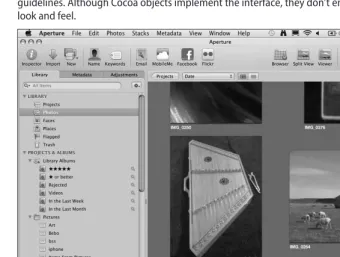
pple’s Cocoa technology is one of computing’s success sto-ries. When OS X 10.0 was released in 2001, it immediately revolutionized the look and feel of desktop applications. Since then, other operating systems have borrowed freely from Cocoa’s innovations. Apple has continued to innovate with the iPhone and iPad, introducing Cocoa Touch for mobile devices. Cocoa Touch offers a simplified and more tactile user experience, and is the first popular and successful attempt to move beyond a traditional window, mouse, and menu interface. Future versions of Cocoa on the Mac are likely to blend the iPhone’s tactile technol-ogy with the sophisticated data handling, 64-bit memory manage-ment, and rich user interface options that are already available to Cocoa developers. Cocoa is widely used in Apple’s own projects, and it determines the look and feel of an application such as Aperture, shown in Figure 1.1.Introducing Cocoa
Cocoa is the collection of libraries and design principles used to build skeleton Mac applications, create and display a user interface, and manage data. Cocoa is also a design philosophy based on unique ideas about application design and development that you can find throughout the rest of this book. You don’t need to under-stand Cocoa’s history to use the Cocoa libraries, but their features may be easier to work with if you do.
Understanding Cocoa’s history
Cocoa’s origins can be traced to the mid-1970s and are closely tied to the history of the Objective-C programming language. Cocoa and Objective-C are used at different levels. Cocoa is a code library and a set of interface and development guidelines. Objective-C is the language that implements them.
Figure 1.1
Apple’s Aperture application uses Cocoa technology and follows Apple’s user interface design guidelines. Although Cocoa objects implement the interface, they don’t enforce a standard look and feel.
Objective-C, developed by Brad Cox and Tom Love when they worked at ITT Corporation in the early 1980s, began as a mix of C and features copied from the Smalltalk experimental language. Smalltalk had been created — originally as a bet — by Alan Kay at the Xerox Palo Alto Research Center (PARC). PARC’s famous graphical user interface (GUI) experiments inspired much of the visual design of both Mac OS and Windows. Smalltalk influenced those experiments by imple-menting a development environment in which independent objects communicated by sending and receiving messages.
At a time when most software was still procedural — it started at the beginning of a computer run and continued to the end, with occasional branches and subroutine calls — Smalltalk’s model suggested a new and less rigid approach to software development. It enabled program-mers to build applications from a library of “copy-able” but distinct interactive parts, connected by a messaging system that made the parts responsive and controllable.
and so on — that can be remotely controlled by messages. When a window receives a message, it not only stores the value, but also it can automatically redraw itself. Messaging makes it possi-ble for objects to control each other remotely. Objects can update themselves or trigger behav-iors in other objects because changing an object’s properties can trigger a much more complex response.
Objects are opaque; that is, an object’s internal code can be hidden and the object can be shared with other developers who see an interface — a set of properties and behaviors they can access remotely — but they don’t need to think about the details of the implementation code behind these features. This enhances security and simplifies application design. Developers can use objects as functional building blocks without being distracted by the code that implements them.
Because objects can send and receive messages and respond to them in programmable ways, they’re more powerful than conventional data structures and functions. Developers not only find objects simpler to use, but they also find it easier to invent new and more complex kinds of interactions. Updating a single property in a single object can automatically trigger a cascade of responses across an application.
From Smalltalk to Objective-C
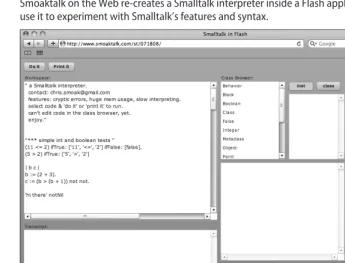
Although Smalltalk’s ideas were powerful, its syntax was cumbersome and it never evolved into a mainstream language. It is only rarely used now by professional developers, though it contin-ues to be available in hobby projects. For example, experimenters can explore the Smoaktalk interpreter shown in Figure 1.2, which runs on the Web as a Flash application at www.smoak talk.com/st/071808.
Smalltalk’s influence is evident in other languages, including Ruby, Perl, and Objective-C. Objective-C is closest in spirit and implementation to the original Smalltalk design ideals. It blends them with the features of standard C to create a very powerful and productive environ-ment. Objective-C can run C code without changes, but it adds features and concepts imported from Smalltalk. Specifically it supports objects and messaging using some of Smalltalk’s syntax and conventions.
From Objective-C to NeXTStep
Figure 1.2
Smoaktalk on the Web re-creates a Smalltalk interpreter inside a Flash application. You can use it to experiment with Smalltalk’s features and syntax.
As NeXTStep became more popular and influential, it evolved into OpenStep, an open industry standard based on NeXTStep’s features and design goals. The NeXT desktop became a bench-mark for innovative interface development, supporting arbitrary fonts using Display PostScript, at a time when most PCs still displayed generic blocky text.
N O T E
Moving from NeXTStep to Cocoa
In 1996 Steve Jobs returned to Apple, bringing NeXTStep with him. In the preceding years Apple had tried and failed to create a successor to Mac OS 9. Buying NeXTStep and re-hiring its creator was an obvious solution. After numerous false starts, Apple eventually released OS X 10.0 in 2001. Codenamed Cheetah, OS X 10.0 was built from a blend of OpenStep features and existing OS 9 code. Apple’s new interpretation of NeXTStep was named Cocoa. Internally, Cocoa objects still use the letters NS as a prefix — for example, Cocoa’s window object is called
NSWindow.
Although OS X 10.0 was famously unstable — Apple released a free update to OS X 10.1 almost immediately — the NeXTStep-inspired look and feel of OS X was an immediate success with users and developers. Apple aggressively promoted OS X development by offering a free SDK. Since then Cocoa has developed further. In 2005 Apple dropped support for G series processors and moved OS to Intel Mac technology. Currently Cocoa and OS X are moving toward full 64-bit support with touch-based user interface extensions. But the SDK continues to be free. A version is bundled with all Macs, while the most recent update can be downloaded from Apple’s Web site.
C R O S S R E F
For more information about the Xcode SDK, see Chapters 3 and 4.
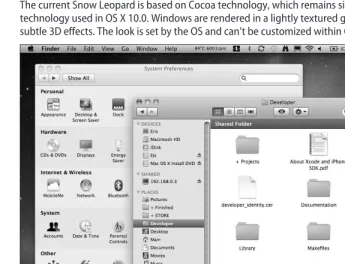
Recent versions of Cocoa remain compatible with NeXTStep code, which often compiles and runs on OS X with minimal changes. But Cocoa is no longer identical to OpenStep or NeXTStep. With each OS X update, new features are added and old features are changed or removed. Figure 1.3 shows Snow Leopard, the most recent version of OS X and Cocoa. Internally the NeXTStep legacy remains, both in the code and in the Cocoa design philosophy that influenced
NeXTStep may have been directly responsible for the World Wide Web. The original hypertext browser and server sys-tem were developed by Tim Berners-Lee on a NeXT syssys-tem at the European CERN particle accelerator. The Web isn’t truly object-oriented or message-based, and HTML remains a simple mark-up language and not a programming lan-guage. But hints of Objective-C and NeXTStep are visible in the way that links and HTML fields are specified as objects with specific subproperties.
NeXTStep and Cocoa have certainly been influenced by the Web. Many Cocoa data objects make no distinction between local and remote data. Where most operating systems assume that all data is on a local disk or on a network, Cocoa enables data to be specified and downloaded with a URL. Some Cocoa objects use URLs for all data. Local file paths must be converted into a URL before the data can be loaded.
the OS X user experience. Cocoa remains entirely object-oriented, and Cocoa code still uses a recognizable version of the messaging and object model that originated in Smalltalk in the late 1970s.
Figure 1.3
The current Snow Leopard is based on Cocoa technology, which remains similar to the technology used in OS X 10.0. Windows are rendered in a lightly textured gray finish with subtle 3D effects. The look is set by the OS and can’t be customized within Cocoa.
Today Cocoa is the most popular framework for application development. Many Mac applica-tions use other OS X libraries to implement media features and manage application data. But these mixed applications are still considered “Cocoa applications,” as long as they create a Cocoa look and feel, and are organized around interacting objects and events.
N O T E
Profiting from Cocoa
Developers can learn Cocoa for both fun and profit. The Mac application market is very much smaller than the Windows market, but is also much less saturated, making it potentially easier to reach. Mac market share typically oscillates between 3 and 7 percent of total desktop and laptop sales, and is currently on an upswing because of the influence of the iPhone. Web statis-tics suggest that around 5 percent of pages are served to users of Safari or the Mac version of Firefox.
Sales of Windows PCs are partly determined by bulk corporate purchases, and this can distort user statistics. In reality, Macs continue to be a disproportionally popular choice for domestic and small business buyers. Even so, the market is limited and prospects for volume sales of niche applications are not good.
The Mac is also a relatively poor choice for games development. Macs are more expensive than performance PCs and more difficult to customize, so high-profile game developers have concentrated on the PC market, but there are exceptions outside of the prestigious high-performance games market. Simple Flash games are popular on the Web, and some developers have done well from straight PC and Mac ports, using Web gaming to market the stand-alone versions. These games have a much smaller development cost than full-scale theatrical 3D gaming experiences, but can be unexpectedly profitable.
In the creative application market, Apple’s own music, video, and photographic products domi-nate audio and video, supported by a number of other established software products.
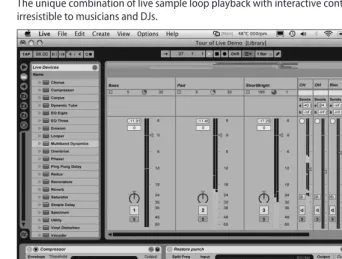
Elsewhere Adobe’s Creative Suite series has become an industry standard for graphic design, photography, and animation. These markets are now mature, leaving little room for competing new products. Occasionally a new product can carve a niche for itself if its features are unusual and appealing enough. For example, Ableton’s Live audio sequencer, shown in Figure 1.4, is a popular seller with both Mac and PC users. When it arrived it offered new performance features that weren’t available in existing products.
Competing head-on with existing creative products is a poor strategy unless you have a truly market-changing idea. Competing on price is unlikely to be any more profitable. Various bud-get clones and reinterpretations of Adobe Photoshop have been released on the Mac, but none have successfully taken market share from the original, even when priced much more cheaply. Solo developers should keep in mind that even when products are useful and well crafted, mar-keting costs can be much higher than development costs.
Figure 1.4
Ableton’s Live is one of the few media applications to successfully invent a new application niche. The unique combination of live sample loop playback with interactive control has proved irresistible to musicians and DJs.
Utility applications are another steady market. Apple’s own Finder application has barely been updated since OS X 10.0, and users may welcome a convincing alternative. The standard Mac Mail application lacks refinement and offers a minimal feature set. Automation is another underexplored market. OS X includes Automator, but it is difficult to use and users may appreci-ate alternative productivity-enhancing options.
Figure 1.5
Growl is a unique and popular accessory that enhances inter-application communication. Growl is donationware, but it is so popular that donations have successfully funded development.
As a prospective developer, online software sales aren’t the only possible market — you can also hire out your services on a freelance basis, developing bespoke applications that may never be sold commercially. Business owners and development houses support a small but significant market for experienced Mac developers and consultants. To succeed in this market you’ll need to be fluent in OS X and Cocoa, as well as willing and able to use APIs for popular Web services such as Amazon, Twitter, Google, and Facebook. The Twitterrific application shown in Figure 1.6 is one example of this approach.
Figure 1.6
The Icon Factory’s Twitterrific application is a good example of successful and accessible development. It’s small, simple, and cheap, and it aims for volume sales by targeting a very popular market.
Profiting from the iPhone
Sometimes iPhone development can be even more profitable. There’s a small but non-negligible chance that an iPhone hit will make you very successful. It’s unwise to be too optimistic about the prospects of overnight success, but some developers have done extremely well by selling relatively simple iPhone apps. For more information, see Chapter 19, which looks at the iPhone’s development model and business strategy in more detail.
Figure 1.7
DigiDNA’s range of utilities uses a related model, targeting existing popular Apple applications and creating solutions for some of their shortcomings.
A key difference between Mac and iPhone applications is that Apple has a monopoly on iPhone app sales. Anyone can develop a Mac application and sell it from a Web site without Apple’s per-mission. Apple can only block sales of OS X applications if they break the law in an obvious way.
While iPhone development includes an extra element of risk, it also offers access to a huge potential market. Listing in the App Store is a potentially valuable form of free marketing. However, it’s not a viable get-rich-quick scheme for developers — a few developers will profit enormously; most won’t. But it can provide a significant extra income stream.
Combining Mac, PC, and iPhone/iPad development is an increasingly popular strategy. Applications built from elements across multiple platforms can sell for a higher price, and they also cross-promote each other.
Developing for fun
Not everyone develops professionally, and Cocoa is a rewarding environment for creative media projects. Its features include powerful support for graphics, video, and sound.
Adventurous developers who are familiar with accessible Web-centric languages such as Flash and JavaScript are finding Cocoa and Objective-C a natural next step.
Cocoa applications can only run on a Mac. There is no Web-based version of Cocoa, so you can’t use Cocoa to create Web graphics. But you can use it to create custom plug-ins for professional media applications; to process graphic, video, and sound files in imaginative ways; and to pro-duce printable ultrahigh-resolution graphics that would be difficult to create in other environ-ments.
Cocoa isn’t as accessible as Flash, Java, or a simplified “toy” language like Processing. It’s also not as easy to master as a media construction kit such as Cycling 74’s Max/MSP/Jitter product or the Pure Data open-source equivalent, shown in Figure 1.8. If you need a simple and clean but limited environment, Cocoa may not be ideal for you.
Cocoa and Objective-C come into their own when you reach the limits of these environments and begin to explore more complex possibilities. Objective-C is ideal for structured program-ming of all kinds, including media applications, and the distance between coding in
ActionScript and coding in Objective-C and Cocoa is much smaller than the distance between writing code and not coding at all.
Figure 1.8
Developers and users of nonmainstream applications like the Pure Data audio synthesizer often find that Objective-C and Cocoa development are a natural progression for them once they reach the limitations of these simpler environments.
Introducing Xcode and the Apple
Developer Programs
Figure 1.9
Apple’s developer centers are open to everyone. Free entry-level registration offers access to the combined Mac and iPhone SDK.
Working with Xcode and Interface Builder
Xcode, shown in Figure 1.10, is a complete suite of development tools; it is described in more detail in Chapter 3. In addition to an editor and compiler, it also includes Interface Builder (IB), shown in Figure 1.11.
Figure 1.10
The Mac and iPhone SDK are built around the Xcode code editor and compiler. Xcode can be used in a simple one-click-to-build way by beginners, or it can be customized and extended almost indefinitely by more experienced developers.
Working with Safari
Figure 1.11
Interface Builder includes a complete list of objects that you can add to an application. It also includes an object hierarchy view, an interface preview, and an Inspector window used to display and edit objects and their settings.
Summary
This chapter introduced the history of Smalltalk and Objective-C and explained how the devel-opment process that created Cocoa began with Smalltalk, moved to Objective-C and NeXTStep, and culminated in the integration of the Cocoa libraries into Mac OS with the release of OS X.
In This Chapter
Designing with Cocoa
Creating Cocoa applications
Moving to Cocoa and Objective-C from other platforms
A
lthough it’s possible to learn Cocoa by rote, laboriously listing its objects and trying to memorize their key properties and code interfaces, Cocoa comes alive when you understand its design principles in a more open way. Some of these principles derive from Objective-C. Others are related to Aqua — the OS X look and feel built on top of Cocoa — and are described in more detail later in this chapter. It’s much easier to master Cocoa by understand-ing its design philosophy and fillunderstand-ing in codunderstand-ing details, as needed, than by working backward from Cocoa code examples.Designing for Cocoa
Apple products emphasize creative design; a successful design includes the following three elements:
Outstanding aesthetics. Applications should look inspir-ing and attractive, and users should feel curious and fasci-nated as soon as they see the interface. But design should enhance features without overpowering them.
A sense of fun and creative possibility. This element isn’t always appropriate — for example, it’s not usually emphasized in office applications — but even the sim-plest or most straightforward applications can include ele-ments that inspire users.
T I P
Applications sometimes try to fake fun and creativity by including templates and canned content. This can be popular with users, but it’s more rewarding — and more difficult — to create an application that empowers users to be completely original.
A clean and intuitive mental model. Users should be able to understand the application’s features with as little conscious effort as possible. The application should be invisible; users should never have to think about how to perform an operation.
C A U T I O N
Applications with complex features always require a learning curve. But it’s important to think about these goals and allow them to shape the design of every Cocoa application, even if the result isn’t perfect or ideal.
It’s easier to approach these aims when creating simple applications, so Cocoa’s design philoso-phy is particularly important on the iPhone and iPad. These devices are optimized for stripped-down and streamlined applications with simple, beautiful, clear interfaces. The mainstream Cocoa environment is likely to trend in this direction in the future, so it’s useful to consider mobile aesthetics when designing desktop applications.
Understanding Aqua
Cocoa is part of Aqua. Aqua implements the visual styling of Cocoa applications, including the glassy buttons and gray window borders. Aqua also defines some specific expectations and requirements, as shown in the list that follows.
T I P
You can find the guidelines online by searching for “Apple Human Interface Guidelines.” The URL occasionally changes, so it’s better to run a search than look for a specific URL.
Applications use multiple windows. Windows typically float over the desktop and not inside a separate application window. There is a single menu bar at the top of the screen. Different windows do not have different menus.
Applications should start and quit quickly.
Applications must support the OS X Dock. Full-screen modes are allowed, and users are responsible for arranging windows on top of the Dock.
OS X supports multiple users. Users should be able to use the same application on the same machine in different sessions without conflicts. OS X supports fast user switching, so users should be able to log out and log in again without losing data or settings.
Applications should support internationalization. Cocoa includes features that sim-plify multi-language and multi-alphabet support.
OS X includes standard features such as preset keyboard shortcuts, color pickers, mouse actions, menu options, drag-and-drop options, and file selectors. Cocoa applications should use these features.
Windows are designed with standard elements. These elements include a data source at the left, a toolbar at the top, scroll bars at the right, further options at the bottom, and so on. Applications should follow the same outline design.
N O T E
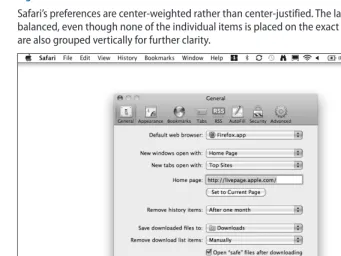
The spacing of elements within windows is also standardized. Standards for mar-gins, positioning, grouping, and justification are listed in the Apple Human Interface Guidelines. For example, preferences panes, such as Safari’s preferences shown in Figure 2.1, are weighted so that they appear centered in the window, but aren’t simply center-justified in a mechanical way.
Fonts are partly standardized. Most applications use the system font, but you can allow users to select other fonts in certain circumstances.
[image:43.639.102.444.251.507.2]Applications should include help files, with topic browsing and open searches.
Figure 2.1
Safari’s preferences are center-weighted rather than center-justified. The layout as a whole appears balanced, even though none of the individual items is placed on the exact vertical center line. Items are also grouped vertically for further clarity.
Using Aqua with Cocoa
Aqua is an ideal choice for mainstream productivity and lifestyle applications, but creative and media applications sometimes take a more individual approach to interface design and feature access. Although parts of Cocoa are closely tied to Aqua, it’s possible to use Cocoa to create a completely individual look and feel. Aqua is a set of a guidelines, but Cocoa only enforces them to the extent that it includes a library of standard objects that can be included in an interface. You can customize the appearance of most of these objects if you choose to, and still use Cocoa to define how they respond to user actions.
Creating Cocoa Applications
Cocoa is one library among many others in OS X and isn’t a synonym for the OS as a whole. Technically, Cocoa is a layer in OS X — a group of libraries that can be used to implement related features. Some care is needed when discussing layers because Apple’s documentation describes layers in different ways. For example, in parts of the documentation, Cocoa is described as an element of the Application Framework layer — a set of four libraries that can be used to build applications. Elsewhere Cocoa is described as a complete layer in itself. Elsewhere again it’s described as a group of separate frameworks — code libraries.
Understanding layers and frameworks
You’ll find it helpful to understand that some parts of the documentation sketch a functional outline of OS X, while others refer to groups of actual code libraries. Confusingly, the functional outline is only loosely related to the structure of the code. The functional view is best used as an OS X orientation summary and jargon buster, not as a development aid.
Table 2.1 illustrates a functional summary of the layers in OS X. It’s an extended version of Apple’s own overview, with added comments.
Table
2.1
Functional OS X Layers — An Outline View
Layer Elements Comments
User Experience Aqua Spotlight Accessibility
These elements implement or define the most visible parts of OS X in a high-level way. They are either APIs (Spotlight, Accessibility) or concepts and guidelines (Aqua). Simpler applications can ignore the APIs. More advanced applications can use them to add certain standard Mac features. Application Frameworks Cocoa
Carbon
Dashboard & WebKit POSIX and X11
Layer Elements Comments
Graphics and Media Core Animation Core Image Core Video QuickTime OpenGL Quartz Core Audio
These elements include still image, animation, and video and audio support. This list is a shortened summary, and the names listed here don’t map exactly to the names of the frameworks that implement these features. But these names are often used as generic descriptions for groups of related libraries.
Data and Data Management Core Data Address Book Calendar
Use these elements to manage data within an application and to exchange data with Apple’s own built-in applications. The Application Frameworks have their own separate internal data management features. Many applications use both kinds of data management.
Darwin, Kernel and Driver UNIX system calls Driver libraries
OS X is built on the BSD (Berkeley System Distribution) variant of UNIX and includes all the usual low-level UNIX system calls. This level handles direct — high risk — access to hardware features, such as disk hardware or the temperature sensor. It also handles calls to the underlying Darwin version of the UNIX OS.
Figure 2.2 shows how these elements are related to each other graphically. The most sophisticated and abstract layers are at the top of the diagram. As you travel away from the User Experience layer, you move into the internals of OS X, eventually reaching the underlying UNIX code.
Figure 2.2
This simplified functional view is useful to orient you, but a code-level view of frameworks and layers is more relevant in practice.
User Experience
OS X
Application Frameworks Darwin Kernel/Drivers
Data Media
Cocoa, Aqua, and the user experience
application, it appears as an Aqua button. In theory, Apple could replace Aqua with a different look in a future version of OS X without breaking any existing Cocoa code.
C A U T I O N
You can replace the default Aqua graphics features with custom graphics if you choose to. But Aqua is popular with users, and if you’re planning to customize the look of an app with your own graphics, you may find it difficult to create a look with equal or greater user-appeal.
Aqua is much more than a set of glassy graphics. As a layer, Aqua also defines a set of explicit design guidelines, and an Aqua-compliant application must meet these guidelines. This is cov-ered in more detail later in this chapter.
The other parts of the user experience layer are built into OS X. Spotlight implements speedy searches. Dashboard displays mini-applications called widgets, and is described in Appendix A. Accessibility is used to create accessible applications for partially-abled users. Support for Spotlight and Accessibility is recommended but not obligatory. Depending on their functions and user interface, applications can sometimes leave out Spotlight features without disappoint-ing or frustratdisappoint-ing users.
Cocoa and the application frameworks
As Table 2.2 shows, Cocoa is not the only application framework included in OS X. Developers can also use low-level POSIX calls and X11 window management to create Unix-compatible applications; a framework called Carbon to create and manage OS X windows and interface features through C function calls; and Java and JavaScript to create Web-based or Web-like applications.
Table
2.2
OS X Application Frameworks
Framework Interface Application Type
Cocoa Objective-C objects and methods Mac-style windowed desktop applications and command line applications that use Cocoa data types.
Carbon C functions and data structures Mac-style windowed desktop applications and command line applications using C language data types, structs, and functions. This layer includes a number of special libraries, for example, speech synthesis and speech recognition.
POSIX and X11 C functions and data structures UNIX-style applications with X11 windowing and low-level command line input. Use this framework to create cross-platform UNIX applications that can run on a Mac and on a different UNIX platform with minimal changes. Dashboard and WebKit Java and JavaScript functions and
data types
Although most new Mac applications are Cocoa applications, the other frameworks are still in use; for example, the iTunes application is built with Carbon rather than Cocoa. This book con-centrates on Cocoa and includes very little on POSIX and X11 development. Dashboard applica-tions are described in Appendix A.
N O T E
As with the functional overview, this information is only included to explain some of the terms you’ll see in the docu-mentation. You don’t usually need to refer to it while creating a Cocoa application.
Cocoa and Carbon
Carbon is a special case because it competes directly with Cocoa and is still widely used. Carbon was originally included in OS X to simplify the move from Mac OS 9, making it possible to rewrite older OS 9 applications with updated but compatible OS X code — a process called
Carbonization.
Carbon is arguably more difficult to work with than Cocoa and is programmed via a legacy C language interface. While Carbon is still officially supported, its status is becoming ambiguous. Apple has withdrawn a full 64-bit port of Carbon from future versions of OS X, leaving a patch-work of support that makes it difficult for Carbon developers to move to the new 64-bit applica-tion model. New developers should use Cocoa almost exclusively.
Cocoa and code layers
Table 2.3 is a code-oriented overview of OS X, showing the relationship between Cocoa and the other OS X frameworks. This view is closer to the organization of the OS X code libraries. It also illustrates how each layer is broken down into specific named frameworks that solve imple-ment-related features.
You’ll find these frameworks listed in the developer documentation, with information about adding their features to your applications. A complete list of the frameworks in each code layer would cover many pages. Table 2.3 shows selected key frameworks that represent the most use-ful elements in each layer.
Table
2.3
OS X Application Layers — Code Frameworks
Layer Selected Key Frameworks Applications
Cocoa Layer Application Kit NSAnimation Preference Panes Security Interface
Drawing and managing application windows and user interface elements; applying animations; working with supporting data such as strings and enumerators; managing application preferences; implementing basic Web and application security.
Graphics and Media Layer Quartz and Quartz Core OpenGL and OpenAL AudioUnit QuickTime Core Animation
Table 2.3
Continued
Layer Selected Key Frameworks Applications
Core Services Address Book Application Services Calendar Store Core Data Core Foundation Core Graphics Scripting Bridge Automator
Accessing user data, including Mac Calendar and Contacts; creating and managing application-specific databases; managing scripting and automation events; drawing text and graphics with low-level primitives.
Core OS System configuration OpenCL
Exception Handling
Managing network access; managing device-independent multiprocessing; handling errors and exceptions. Kernel and Driver Kernel
System CoreWLA IOBluetooth I/O Kit
Using low-level access to the underlying Darwin OS Kernel via a Unix interface; managing Bluetooth, WiFi, and FireWire drivers and data transfers; high-risk direct control of hard-ware features such as disk controllers; access to the values of various hardware sensors via BSD’s ioreg.
Figure 2.3 illustrates the code overview graphically. A “Cocoa application” is usually a mix of fea-tures and code from different layers.
Figure 2.3
This code-level overview of the layers in OS X summarizes how the layers work in practice. Most applications use features from most of the layers.
Cocoa
User interface, interface media effects, “objectified” data
OS X - Code layers Graphics and Media
Audio, video, 3D and 2D animation
Core Services
Mac application data, low-level data, low-level 2D graphics and text, scripting and automation
Core OS
Low-level network access, errors and exceptions
Kernel and Driver
Developing features across layers
Divisions between layers aren’t clean or simple — there’s no discrete “‘graphics framework” or “animation framework.” Instead, animation features are spread across the Cocoa layer, the Media Layer, and Core Graphics. Similarly, you might expect Core Graphics to be in the Media Layer, but for historical reasons it’s included in the Application Services framework in the Core Services Layer.
So adding a feature to an application usually means mixing code and features from different frameworks. It’s not unusual to use Cocoa to create a user interface, Core Graphics to draw dynamic elements in the interface, and Core Animation to animate the graphics.
There is also some duplication between layers; for example, you can play sound using the Core Audio or Audio Toolbox layers. This may seem redundant, but these layers offer different fea-tures. Audio Toolbox implements simple file player objects with limited features, while Core Audio includes more complex objects that are more difficult to work with, but can be used for more challenging applications such as real-time sound synthesis.
T I P
The organization of the frameworks would be very confusing if you had to use all of them all the time. In fact you only need to master a handful of frameworks. Once you know how to create and control a window, add controls, manage mouse clicks and keyboard events, and draw graphics and perhaps add sound, you’ve covered the basics — and they’re not difficult. The rest is useful and interesting, but optional.
“Toll-free bridged” layers
Some of the layers offer more fundamental duplication. For example, NSString in Cocoa is closely related to CFString in the Core Foundation framework. Some objects are explicitly described as toll-free bridged — Apple’s way of indicating that objects and their interfaces are largely interchangeable, even though they exist in different layers.
In fact, many Cocoa objects are simply wrappers for lower-level functions that are listed in other frameworks. You can ignore this if you develop exclusively in Cocoa, and you can also ignore the lower-level functions unless you need to work with them. But it’s useful to be aware of the relation-ship because even when class features are duplicated, they’re rarely duplicated exactly. Related frameworks always offer a different balance of features and accessibility, and it’s sometimes possible to use a lower-level framework to solve a problem that can’t easily be solved in Cocoa.
Using frameworks and layers successfully
T I P
It’s easy for new developers to feel overwhelmed by the number of frameworks and objects. No one with a normal human IQ can remember the entire OS X documentation set. A more practical learning strategy is to master an outline of the relationships between the most useful frameworks in OS X, and then find the rest of their details in the docu-mentation when necessary. You don’t need to remember everything — but it’s helpful to remember where to look when you need to find something.
Table 2.4 shows a simplified view of the OS X layers that strips them down to essentials. This model doesn’t match Apple’s own classification scheme, but it does match how you’re likely to work with layers in practice. In a typical application you’ll use the Cocoa Layer to build an appli-cation skeleton and to manage key appliappli-cation events and data, and you’ll use the Services Layer to manage media and data. Many applications ignore the OS Layer completely, or they hardly ever access it. You’ll need to work with it if you create or manage drivers or access the Mac’s hardware features. Otherwise, you can ignore most of its features.
Table
2.4
Simplifi ed OS X LAYERS
Framework Interface Applications and Elements
“Cocoa Layer” Objective-C objects and methods Window, interface, and application management; high-level media features; packaged animation effects; object-oriented data; high-level Web and network access; high-high-level timer and thread control. “Services Layer” C functions and data structures Low-level media features, including basic graphic primitives and
customized animations; C-type data structures; low-level Web and network access. This layer duplicates some of Cocoa’s features with an alternative C function interface.
“OS Layer” C functions and data structures Useful functions that aren’t included in the other layers, such as ran-dom number generation. Socket-level Web and network access; sys-tem and hardware access; low-level process and thread control.
Figure 2.4
There’s no single standardized way to create an OS X application, but this outline workflow format is widely used. In practice, most projects iterate around at least some of the steps.
Create a Cocoa application skeleton
Add animations and special effects Design and lay out the user interface
following the Aqua guidelines
Connect the interface to the Cocoa code objects
Add data management and processing features using Cocoa data objects and
other data frameworks
If the organization of the frameworks seems less than streamlined, that’s because it is. The OS X frameworks are a combination of new development and ancient history. In the same way that Carbon was included to simplify back-ward compatibility, other frameworks were added at various stages in the NeXTStep/OS X development story for reasons that were relevant at the time but may be less pressing now.
Like most operating systems, OS X is an example of comput-ing archaeology. Not only are the legacy layers less complex and less abstracted than Cocoa, but they’re also older. If you’re finding it hard to understand which frameworks are essential and which are optional, you’ll find this information in the rest of this book, which highlights the key elements of Cocoa and OS X.
Occasionally you may use a specialized framework to add a very specialized feature such as speech synthesis to your application. Generally, you can ignore the more specialized frameworks. You can also ignore many of the older frame-works because their features have been duplicated and sim-plified in Cocoa.
In outline, you’ll use the Cocoa Layer constantly, the Services Layer regularly — some elements are essential, while oth-ers are barely used — and the OS Layer only occasionally. As you gain more experience, you’ll find the older layers become simpler to understand and easier to work with.
Cocoa on the iPhone and iPad
The iPhone and iPad use Cocoa Touch, which is a development and reinvention of Cocoa. Compared to OS X, iPhone OS offers a drastically simplified collection of frameworks. Cocoa Touch is less complex than Cocoa, with a smaller library of objects, simpler windowing, and fewer data objects, as shown in Figure 2.5.
However, both platforms make similar assumptions about application design and use the same concepts and design ideals. Cocoa Touch applications are less complex and more limited than Mac applications, but they’re not fundamentally different. If you’re familiar with one environ-ment, you can move easily to the other. Instead of learning a new language, you can make the change by extending or modifying your vocabulary.
Figure 2.5
Moving to Cocoa and Objective-C from
Other Platforms
The Web has created an explosion of interest in software development. There are many scripted and programmed environments to choose from, but historically, most are object-oriented. Developers are finding that competing platforms use related coding principles and that existing skills are transferable. If you have experience with another object-oriented language, you should find Objective-C rewarding and relatively straightforward.
But Cocoa’s code libraries are the result of some unusual ideas about OS design. Cocoa code is easy to follow, but the ideas that inspired the syntax are unique, with no equivalents in other environments. To use Cocoa effectively, you must understand them. Objective-C also has unique features that aren’t available in other languages.
Apple’s developer documentation lists a number of a formal <