ENTERPRISE VIRTUAL DESKTOP
SOLUTION
ABSTRACT
Desktop virtualization can increase the productivity of information technology
(IT) teams by transforming how they configure and deploy endpoint devices,
manage desktops, and support end user applications. Alcatel-Lucent, with its
certified business partner PVA, has partnered with Citrix® to deliver a new,
improved, end-to-end desktop virtualization solution that will make it easier and
more cost-effective for businesses to deploy high-definition virtual desktops and
applications to all users across an entire enterprise. This document provides a
detailed explanation of how to implement the Virtual Desktop Solution in a
typical enterprise network environment to deliver secure and reliable virtual
desktops to end users.
Enterprise Virtual Desktop Solution
APPLICATION NOTE
TABLE OF CONTENTS
Desktop virtualization in tomorrow’s enterprise / 1 Enterprise Virtual Desktop Solution / 3
Citrix XenDesktop deployment / 3
Network infrastructure for desktop elements / 7 Storage / 9
Network Design / 10
Citrix XenDesktop VDI setup with VMWare vCenter / 11
OmniVista 2500 Virtual Machine (VM) Manager Configuration / 12 Operational Sequence / 20
Monitoring Virtual Machines / 21 Locate VM tab / 21
Performing a search / 22 Benefits / 22
Acronyms / 24 Appendix / 25
DESKTOP VIRTUALIZATION
IN TOMORROW’S ENTERPRISE
The way enterprises design, build, and deploy desktop workstations is changing rapidly. Traditionally, standard configuration images were copied to personal computers (PCs) at a central location from where all PCs were shipped to the workplace. Once received, users would tailor their PCs to suit individual preferences. But with the increase in the number mobile users on enterprise networks, more PCs are being shipped to more user locations, thereby making the deployment process more difficult to manage. This has led to processing problems, increased security risks and created user access control challenges.
Desktop virtualization can optimize the delivery of desktops, applications and data to users. It can address the new PC configuration and deployment challenges and increase the productivity of information technology (IT) teams by transforming how they configure and deploy endpoint devices, manage desktops, and support end user applications.
Traditionally a user’s desktop operating system, applications, and user data were constrained to the user’s local device. The loss of the desktop meant a loss of work until the device was repaired or restored. Virtualization improves how IT teams manage desktops by transforming PC images into virtual machines and consolidating end user applications in a virtual environment. The operating system, applications and data are decoupled from the underlying PC hardware and moved to a data center where they can be centrally managed and secured. As a result, rather than juggling thousands of static desktop images, IT teams can manage and update the operating system and applications once from one location, then deliver desktops and applications that are customized to meet the performance, security and mobility requirements of each individual user. This makes it easier to deploy and manage end user devices.
In addition, virtualization increases end user productivity by virtually eliminating downtime. It enables enterprise end users to work securely and productively from any device, anywhere, and at any time by making Windows desktops and traditional
applications available on-demand as a service to authorized users on a variety of devices and from any location that offers secure network access.
Given this potential, Gartner predicts that the worldwide hosted virtual desktop market will increase through 2013 to reach 49 million units.1Revenue is predicted to grow from approximately 1.5 billion United States dollars in 2009 to 65.7 billion in 2013, a number that is equal to more than 40 percent of the worldwide professional PC market.
PVA is a leading provider of enterprise communications and networking solutions. Its comprehensive product and solution portfolio includes the OmniSwitchTM family of Local Area Network (LAN) switches, all of which run a common operating system that far exceeds the security levels required for enterprise networks. As part of its complete solution approach, Alcatel-Lucent with its certified partner PVA, has also partnered with Citrix® to extend its offerings for enterprise network load balancing, desktop and server virtualization, Application Fluent Networks, and Wide Area Network (WAN)
optimization. All offerings are engineered to work in data centers, the converged core, and in enterprise branch offices. Now this partnership is leading the next wave of enterprise desktop virtualization and integration.
1Gartner March 26, 2009 Press Release:http://www.gartner.com/it/page.jsp?id=920814
Enterprise Virtual Desktop Solution
APPLICATION NOTE
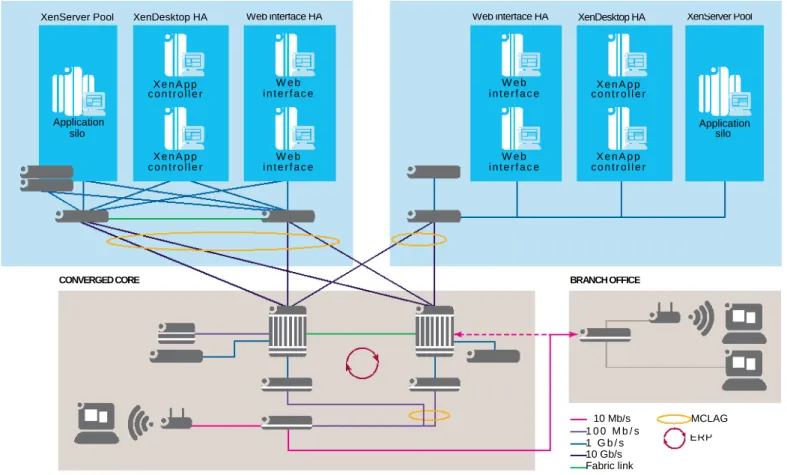
The collaboration with Citrix delivers a new, improved, end-to-end desktop virtualization solution that will make it easier and more cost-effective for businesses to deploy high-definition virtual desktops and applications to all users across an entire enterprise. The new Enterprise Virtual Desktop Solution combines the approach to application fluent networks with Citrix desktop and server virtualization, and Layer 4-7 technologies. It delivers the most cost-effective, scalable and high-performance solution for hosting, securing and optimizing the delivery of virtual desktops and applications (Figure 1).
Figure 1. Delivering a new, improved, end-to-end desktop virtualization solution
In addition, because efficient network storage is critical for effective desktop virtualization, the Enterprise Virtual Desktop Solution is enhanced by a comprehensive storage offering from NetApp®. Collaboration with NetApp integrates its high-performance, Unified Storage Architecture with the Enterprise Virtual Desktop Solution. This storage solution gives enterprises an agile and scalable storage platform for any virtual desktop environment.
Enterprise Virtual Desktop Solution
APPLICATION NOTE
DC1 DC2
XenServer Pool XenDesktop HA
Application silo CONVERGED CORE X e n A p p c o n t r o l l e r X e n A p p c o n t r o l l e r Web interface HA W e b i n t e r f a c e W e b i n t e r f a c e Web interface HA W e b i n t e r f a c e W e b i n t e r f a c e BRANCH OFFICE XenDesktop HA 1 0 0 M b / s 1 G b / s 10 Gb/s Fabric link 10 Mb/s MCLAG X e n A p p c o n t r o l l e r X e n A p p c o n t r o l l e r XenServer Pool ERP Application silo 2
In a virtual environment, the availability and performance of the shared storage infrastructure is more critical than that of the individual servers running the
environment. Therefore, a high level of availability and performance is vital to meet storage requirements. NetApp offers a comprehensive set of software and hardware storage solutions that address the most stringent requirements for availability and performance of large, scalable environments. Whether an enterprise storage network is Fiber Channel (FC) or Ethernet (Network File System (NFS), Internet Small Computer System Interface (iSCSI), and Fiber Channel over Ethernet (FCoE)), these technologies combine with NetApp storage to scale the largest consolidation efforts and virtualize the most demanding applications, without sacrificing or requiring the deployment of
separate hardware to meet the needs a specific environment.
This document provides a detailed explanation of how to implement the Enterprise Virtual Desktop Solution in a typical enterprise network environment to deliver secure and reliable virtual desktops to end users.
ENTERPRISE VIRTUAL
DESKTOP SOLUTION
Desktop virtualization in the Enterprise Virtual Desktop Solution is provided by the Citrix XenDesktop®. Citrix is the industry leader in desktop virtualization and has built a portfolio of products to simplify desktop virtualization deployment. The Citrix XenDesktop
virtualization solution delivers Microsoft® WindowsTM desktops as an on-demand service to any user, anywhere. It uses server virtualization for deployment as opposed to a dedicated physical server. As a result, it can quickly and securely deliver individual applications or complete desktops to all enterprise end users, whether they are task workers, knowledge workers or mobile workers.
The Application Fluent Network operates with the Citrix infrastructure to recognize Layer 4-7 traffic flows and prioritize traffic to improve the user’s connections, without
compromising other network connectivity.
Citrix XenDesktop deployment
For ease of configuration and simplified deployment, Citrix offers a quick deployment model for XenDesktop. The quick deployment model is the fasted way to deploy a fully functional XenDesktop solution.
Citrix XenDesktop is hypervisor agnostic. It can operate with Citrix XenServer®, Microsoft Hyper-VTM, and VMWare® vSphereTM hypervisors hosting virtual desktop
infrastructures. For the enterprise application presented in this paper, Citrix XenDesktop configuration uses server virtualization with the VMWare ESX hypervisor.
The key Citrix XenDesktop server side components required for a quick deployment are: Citrix XenDesktop Controllers: The Citrix XenDesktop controllers maintain the required
number of idle desktops to allow instant connections. They also monitor the state of online and connected virtual desktops and shut down virtual desktops as needed. The primary controller is configured as the farm master server, and it is able to focus on its role of managing the farm when an additional XenDesktop Controller exists.
Enterprise Virtual Desktop Solution
APPLICATION NOTE
Citrix License Server: The Citrix License Server manages the licenses for all components of the XenDesktop.
Citrix Desktop Studio: The console used to configure and manage XenDesktop deployment.
Citrix Desktop Director: The console used by support staff to monitor a XenDesktop deployment and perform day-to-day maintenance tasks.
A database: Each XenDesktop farm requires a database. Citrix XenDesktop uses the database to centralize configuration information for the farm in one location. The database maintains all the static information about the XenDesktop environment.
The key Citrix XenDesktop client side components required for a quick deployment are: Citrix client device plug-in: Installed on user devices, the Citrix client device online
plug-in enables direct ICA connections from user devices to virtual desktops. The plug-in software is available for a range of different devices, so users can connect to published applications from various devices.
Domain Controller: The domain controller includes an active directory that provides a common name space and secure method of communication between all the servers and desktops in a virtual environment. It also manages user identities, applies group policy objects and deploys software and updates.
Virtual Desktop Agent: The Virtual Desktop Agent (VDA) is installed on virtual desktops to enable direct Independent Computing Architecture (ICA) connections between a virtual desktop and user devices with the Citrix online plug-in.
Virtual machine: The Citrix Hypervisor enables IT teams to create and manage virtual machines. Because XenDesktop is hypervisor agnostic the Citrix Hypervisor can be replaced by either VMWare vSphere or Microsoft Hyper-V hypervisors.
Citrix XenApp: Citrix XenApp® is an on-demand application delivery solution that enables any Windows application to be virtualized, centralized, and managed in a data center, and instantly delivered as a service to users anywhere on any device. It can be used to deliver both virtual applications and virtual desktops. However, it is typically used for virtual applications.
The additional required components are:
Domain Name System (DNS) services: DNS services provide IP Host name resolution for the core.
Dynamic Host Configuration Protocol (DHCP)
Enhancements to the Citrix XenDesktop quick deployment can include:
Citrix XenServer: A host used for scalable and cost-effective hosting of desktops. Profile management: A profile management tool that manages user personalization
settings to ensure users get a consistent experience every time they log on.
Enterprise Virtual Desktop Solution
APPLICATION NOTE
The Citrix XenDesktop high availability components for desktop delivery include: Citrix Branch Repeater: Citrix Branch Repeater® is a WAN optimization appliance
that accelerates, controls and optimizes services — desktops, applications and multimedia — for branch and mobile users. With granular visibility, enhanced prioritization and control of service traffic, it ensures excellent quality of experience (QoE) and availability while reducing bandwidth consumption and simplifying branch IT processes. It uses Citrix HDX IntelliCache and Broadcast technologies to optimize XenDesktop traffic by accelerating time-consuming tasks, such as printing, file downloads and video playback, while speeding up application launch times. Citrix NetScaler: Citrix NetScaler® is an advanced cloud networking platform. It
enables a data center network to become an end-to-end service delivery fabric that can optimize the delivery of all web applications, cloud-based services, virtual desktops, enterprise business applications and mobile services. It also ensures that the virtual desktop solution always adheres to performance, availability and security service level agreements (SLAs) for any service, to any user, anywhere.
NetScaler VPX. A virtual appliance delivery of Citrix NetScaler. It provides the functionality of specialized, high-end network devices that can be easily and
dynamically deployed on a single server or across entire cloud datacenters. It enables XenDesktop traffic load balancing, acceleration, security, and offloads to become virtualized services that can be easily deployed on-demand in the datacenter or cloud infrastructure. This enables NetScaler to be combined with virtualized networking solutions to deliver an end-to-end Layer 2-7 virtual networking stack.
Web Interface: The Citrix Web Interface provides the user interface to the XenDesktop environment. It brokers user authentication, enumerates the available desktops and, upon launch, delivers an .ica file to the Citrix Receiver on the user’s local device to initiate a connection.
Enterprise delivery service: Highly available desktop delivery
In a full XenDesktop infrastructure, the Web Interface servers are responsible for
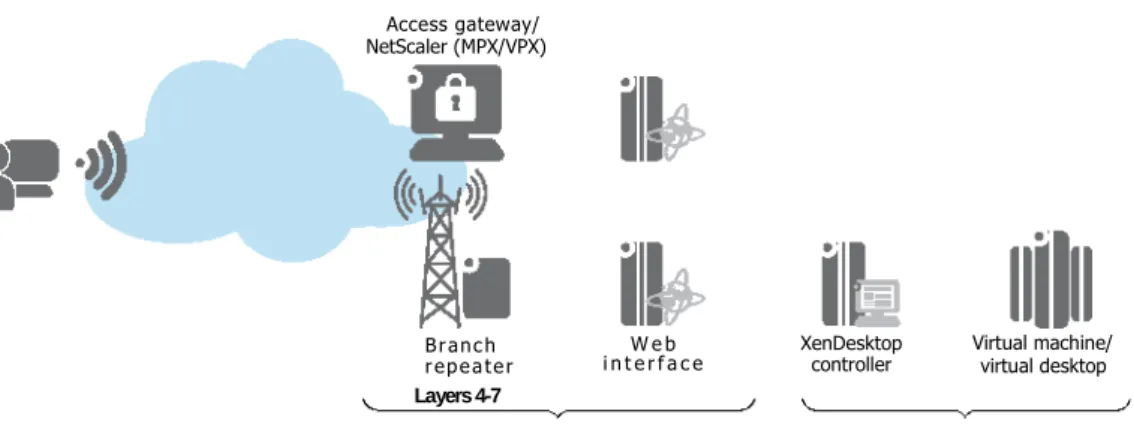
delivering applications and hosted shared desktops to users. Users make a connection to a Web Interface to access available applications and shared desktops (Figure 2).
Ensuring high availability for a Web Interface goes beyond providing an available server. If the sever hosting the Web Interface fails, the Internet Information Services (IIS) fails, or the Web Interface encounters issues, users will be unable to connect to the environment. Intelligent monitoring combined with load balancing allows users to get the fastest application delivery experience.
Figure 2. High availability delivery with the Citrix XenDesktop
Access gateway/
Enterprise Virtual Desktop Solution
APPLICATION NOTE
Layers 4-7
Client-side High availability delivery Server-side network network
NetScaler (MPX/VPX)
Br anc h
r epe a te r i n t e r f a c eW e b XenDesktopcontroller Virtual machine/virtual desktop
The NetScaler platform provides intelligent monitoring of Web Interfaces, which is ideal for redundant Web Interface deployment. By launching a connection to the Citrix Web Interface, the monitor determines if the server is available, if the web service is running and if the Web Interface site is functioning and responding. If disruptions in the service are identified, NetScaler generates an alert. The alert is then used as part of the NetScaler load balancing algorithm. If a Web Interface server is not responding correctly, the server is removed from the load balancing pool until the problem is corrected and new user requests are routed only to the available Web Interface servers.
Configuring high availability for a Web Interface allows an administrator to determine the best way of balancing users across servers. For example, one Web Interface server could be the least loaded server, but may be busy with another process. NetScaler can be configured to direct new user requests to Web Interface servers that respond first instead of directing based on user connections.
Citrix XML service
A critical component of any XenDesktop or XenApp environment is the Extensible Markup Language (XML) Service. It is the critical link between users and the XenDesktop or XenApp infrastructure.
The XML Service brokers user authentication, resource enumeration and resource launching processes. If the brokering process fails, users will not be able to start their virtual desktop. Monitoring the brokering process is not a trivial task because monitoring must go beyond simply identifying if the service is running. The process must also identify if the service is responding correctly. If the service responds incorrectly, the Web Interface server can get stuck in a request/response loop, which will result in users not gaining access to their resources.
NetScaler supports intelligent monitoring of the XML Service through the use of pre-configured monitor templates for the XenDesktop or XenApp. This monitoring determines if the XML Service is running and if the requested information from the broker is
provided in a timely manner and with expected information. If the monitoring process returns an unexpected result or a complete failure to respond, NetScaler creates an alert, which is used in the load balancing algorithm. Then NetScaler dynamically adjusts the environment to bypass the failed XenDesktop or XenApp server. When the XML Service functionality is restored, NetScaler automatically detects and incorporates the
XenDesktop or XenApp server into the environment.
Providing high-availability to the XML Service requires more than load balancing in the event of failure. In many organizations, a major shift change starts at 8:00 or 9:00 a.m. This results in a huge load on the XenDesktop or XenApp servers providing the XML service. Therefore, NetScaler also load balances connections across multiple XML Services to help spread the load and to provide a better and faster application initialization experience.
Virtual desktop delivery models
The Citrix XenDesktop can be delivered to virtual desktops using different delivery models: Hosted VDI: Hosted VDI desktops offer secure delivery of a virtualized desktop over
any network to any device. Users can personalize their desktops as they would a locally hosted desktop. This option is ideal for office workers. It can run on a virtualization layer (XenServer, Hyper-V or ESX) or on bare metal hardware.
Enterprise Virtual Desktop Solution
APPLICATION NOTE
Hosted Shared: Hosted Shared Virtual Desktops offer a locked-down, streamlined and standardized environment with a core set of applications. This model is ideal for task workers in an environment where personalization is not required, such as a call center.
Streamed Virtual Hard Disk (VHD): Streamed VHDs leverage the local processing power of rich clients, while providing centralized single-image management of the desktop. This option is ideal for government and university labs that use diskless PCs for maximum data security.
Local Virtual Desktop: Local Virtual Machine desktops provide a desktop that runs entirely on the user’s local device. This model extends the benefits of centralized, single-instance management to mobile workers that need to use their laptops offline. When they are able to connect to a suitable network, changes to the OS, applications and user data are automatically synchronized with the data center.
On-Demand Apps: This model allows any Windows application to be centralized and managed in the data center, hosted either on multi-user terminal servers or virtual machines, and instantly delivered as a service to physical and virtual desktops. Optimized for each user device, network and location, On-Demand Apps can be used with Hosted VDI, Hosted Shared or Streamed VHDs.
Regardless of which model is used, the network will seamlessly support the virtual desktop.
Network infrastructure for desktop elements
The foundation for all virtual desktop solutions is the network infrastructure. With the unique framework for application fluent networks, the network that forms the foundation of the Enterprise Virtual Desktop Solution automatically monitors and adjusts settings to establish the appropriate quality of service (QoS) parameters for all services. In this way, the network enables the environment to function at maximum efficiency to support virtual machine movement and virtual desktops at all times.
Converged Network Solution
With the increasing adoption of virtual devices and mobility, it is imperative to have a robust, always-on LAN infrastructure that provides sufficient bandwidth, switching capacity, and dynamic adjustments that support unprecedented traffic patterns. A key component of the approach to application fluent networks is the Converged Network Solution. It provides a reliable, high-quality intelligent network that adjusts based on the context of the users, devices, and applications on the network.
OmniSwitch 6900 Stackable LAN Switch
Another key component of the network is the OmniSwitch 6900 Stackable LAN Switch. This switch includes a Virtual Network Profile (vNP) feature that provides network administrators with the ability to define and apply network access control and QoS to specific types of devices by grouping them based on detailed profile criteria. With this ability, network administrators can create vNPs for tagged or untagged traffic with a unified framework of operation and administration. The vNP not only allows network administrators to create profiles for virtual machines, it also allows them to create different methods of authentication coupled with policy enforcement based on any number of rules.
Enterprise Virtual Desktop Solution
APPLICATION NOTE
The vNP feature identifies virtual machines based on their Media Access Control (MAC) address and uses a remote or local database lookup (for example, RADIUS) to determine the profile associated with the device. The feature also works when frames from a virtual machine are already tagged with a Virtual Local Area Network (VLAN) ID to associate device presence on the port. A profile name is returned upon successful authentication. Network-wide or switch-wide classification rules are used to classify. In addition, even a VLAN tag classification can be used to create VLAN port associations based on the VLAN ID contained in data traffic.
Because membership to a VLAN is based on vNP profile criteria, devices assigned to the VLAN are not tied to a specific port or switch. This flexibility allows device mobility within the network while maintaining network security. XenServer pools are connected to the ports enabled with OmniSwitch vNP. Upon activation of the vNPs, VLANs are propagated via Multiple VLAN Registration Protocol (MVRP) to the core and other locations of interest.
The Virtual Machine Manager (VMM), which is part of the OmniVistaTM 2500 Network Management System (NMS), manages vNPs network wide, and listens to XenServer and VCenter events for efficient mobility handling.
With these components, the network for the Enterprise Virtual Desktop Solution provides a foundation for high availability, low latency, line-rate connectivity, network redundancy, security and QoS for mobile and provisioned devices. It also offers the seamless, redundant connectivity required to support data center-to-data center communications with high availability, and security.
Enterprise Data Center Switching Solution
To enhance data center switching for a virtual desktop environment, the approach to application fluent networks can be configured with the Enterprise Data Center Switching Solution. This solution helps enterprises address the challenges facing today’s data center networks by delivering a high-quality user experience for new real-time applications. It provides greater agility for application deployment, enables seamless integration of public cloud services, and reduces data center costs.
The Enterprise Data Center Switching Solution is built on a unique blueprint for application fluent data center switching. This blueprint brings together three core innovations that, together, enable an extremely scalable, high-performance and resilient data center fabric: The vNP: The vNP enables applications to be managed as services. It allows the network
to fluently understand and dynamically control what is needed for quality application delivery, including automation of virtual machine movement. In this way, the vNP: ¬ Eases the IT effort for server virtualization, letting organizations reap greater
virtualization benefits
¬ Understands the unique requirements of each application (application prioritization, switching provisioning, QoS, security)
¬ Automatically adapts the network to optimize performance
The Pod: The Pod ensures low latency and high performance by providing server-to-server connectivity through a unique direct-connect architecture, without relying on a core switch to carry traffic. With this architecture, server-to-server traffic can easily be delivered with low 2ps latency.
Enterprise Virtual Desktop Solution
APPLICATION NOTE
The Mesh: The Mesh is created by connecting Pods to each other and to core switches, which can scale to more than 14,000 server facing ports with aggregate end-to-end latency of less than five microseconds. With this mesh network, end users across an enterprise benefit from a high performance experience thanks to a direct-connect architecture.
In addition, The Enterprise Data Center Switching Solution includes the market-leading OmniSwitch 10K Modular LAN Chassis, the OmniSwitch 6900 and the OmniSwitch 6850E to deliver:
Low-latency, any-to-any, 10 GigE connectivity that allows enterprises to meet the growing and evolving needs of the data center
Network virtualization, using the IEEE Multi-Chassis Link Aggregation (MC-LAG) specification and Virtual Chassis
Applications managed as services with vNP, and with automated virtual machine mobility that is uniquely agnostic to the server virtualization platform in use.
The OmniSwitch 6900 supports up to 1.28 terabits per second (Tb/s) of wire-rate traffic with sub-microsecond latency for high-performance servers and network connectivity. This is a performance requirement for real-time voice, data, and video applications over
converged scalable networks. The OmniSwitch 6900 also provides a comprehensive and flexible fabric architecture designed to automate and simplify the end-to-end deployment of campus, data center, cloud-based services. It is engineered to prevent host address
explosion and flooding with built-in SLA service support at low capital and operating costs and based on interoperable proven standards. It extends the lossless capability beyond FCoE to any traffic type in any class of service (CoS) queue and for many queues simultaneously in the same port.
Finally, rounding out the data center portion of the solution is the network management stack, which includes:
The VitalSuiteTM Performance Management Software for end-to-end application performance visibility
The OmniVista 2500 Virtual Machine Manager (VMM) for switch fabric management The OmniVista 2500 NMS, which unifies physical and virtual infrastructures to
provide network operators with a comprehensive end-to-end network view of virtual machine inventory, and enable location tracking, event and log auditing and provisioning operations.
Storage
NetApp
Scalable storage for the Enterprise Virtual Desktop Solution is provided by the NetApp unified storage architecture. The architecture provides storage efficiency and an increased level of data redundancy for the data center in highly available infrastructures. The NetApp system simultaneously supports FC or Ethernet network attached storage (NAS) protocols.
The network application outlined in this document uses NetApp Open Solution for Hadoop (NOSH), which was designed to improve its software technology to make fully distributed computing possible. Traditional enterprise platforms often rely on the benefits of shared infrastructure. However, the Hadoop Distributed File System (HDFS) improves the
operation of the distributed file system by providing data protection, fault tolerance, and the ability to balance workloads. The built-in redundancy and resiliency is required for the dynamic virtual desktop environment.
Enterprise Virtual Desktop Solution
APPLICATION NOTE
NETWORK DESIGN
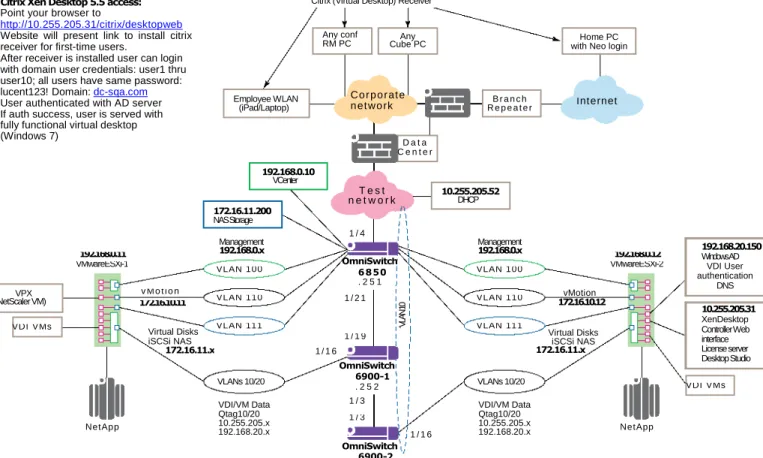
Figure 3 presents the configuration of an application network for the Enterprise Data Center Switching Solution. This configuration shows a simple data center test bed with a simple campus network, which includes a quick deployment of Citrix XenDesktop with Citrix Networking technologies. The test bed was used to demonstrate a virtualized desktop environment working seamlessly on a networking infrastructure.
Figure 3. Configuration of a network for the Enterprise Data Center Switching Solution
In Figure 3, the OS6850, OS6900 -1, and OS6900 -2 are operating as top of rack with virtualized networks depicted by VLAN 100, 110, 111, 10/20 to VMWare vSphere hypervisor (ESXi). On the 192.168.0.12 server, a Citrix bundle of quick deployment XenDesktop is installed. Citrix bundles XenDesktop, Web Interface, License Server, Data Store, and Desktop Studio for simple deployments. A Quick Start Guide for XenDesktop 5 is available from Citrix(http://support.citrix.com/article/CTX127594).It contains step-by-step instructions for installing the quick deployment of the Citrix XenDesktop.
The 192.168.20.150 server is running Windows AD, VDI User Authentication, and DNS. The Virtual desktops are distributed on the other servers depicted in the diagram.
Once the XenDesktop is installed, a golden image of a virtual machine must be created. Then the administrator can copy the golden image into other virtual machine images and tailor them to user needs.
Enterprise Virtual Desktop Solution
APPLICATION NOTE
Citrix Xen Desktop 5.5 access:
1. Point your browser to
http://10.255.205.31/citrix/desktopweb
2. Website will present link to install citrix receiver for first-time users.
3. After receiver is installed user can login with domain user credentials: user1 thru user10; all users have same password: lucent123! Domain:dc-sqa.com
4. User authenticated with AD server 5. If auth success, user is served with
fully functional virtual desktop (Windows 7)
Employee WLAN (iPad/Laptop)
Citrix (Virtual Desktop) Receiver Any conf RM PC Co r p o r at e n et wo rk Any Cube PC D a t a C e n t e r B r a n c h R e p e a t e r Home PC with Neo login
Internet 192.168.0.10 VCenter T e s t n e t w o r k 10.255.205.52DHCP 172.16.11.200 NASStorage 1 / 4 VMwareESXi-1 192.168.0.11 Management 192.168.0.x VLAN 100 OmniSwitch6850 . 2 5 1 Management 192.168.0.x VLAN 100 VMwareESXi-2 192.168.0.12 VPX (NetScaler VM) VDI VMs 172.16.10.11 Virtual Disks iSCSi NAS 172.16.11.x v M o t i o n VLAN 110 VLAN 111 1 / 1 6 1 / 2 1 1 / 1 9 VL AN 10 VLAN 110 VLAN 111 Virtual Disks iSCSi NAS 172.16.11.x vMotion 172.16.10.12 VLANs 10/20 OmniSwitch 6900-1 . 2 5 2 VLANs 10/20 NetApp VDI/VM Data Qtag10/20 10.255.205.x 192.168.20.x 1 / 3 1 / 3 1 / 1 6 VDI/VM Data Qtag10/20 10.255.205.x 192.168.20.x NetApp OmniSwitch 6900-2 . 2 5 3 192.168.20.150 WindowsAD VDI User authentication DNS 10.255.205.31 XenDesktop ControllerWeb interface Licenseserver DesktopStudio VDI VMs 1 0
The VPX in this configuration is Citrix Netscaler. It is running in a virtual machine that provides an all-in-one web application delivery controller that makes applications run five times better, reduces web application ownership costs, optimizes the user experience, and makes sure that applications are always available. This is achieved by using:
Proven application acceleration, such as Hypertext Transfer Protocol (HTTP) compression and caching
High application availability through an advanced L4-7 load balancer Application security with an integrated application firewall
Server offloading to significantly reduce costs and consolidate servers
Active Directory (AD) and DNS services are required to resolve fully qualified domain names (FQDN) for web interface and XML communications, and authenticate user access to the resources delivered by XenDesktop or XenApp. Because AD and DNS services are critical components of an enterprise IT architecture, they are usually designed with high availability in mind. The AD has built-in availability features, such as multi-master
replication and AD integrated DNS. Generally, using these features will address availability needs for AD and DNS.
Citrix XenDesktop VDI setup with VMWare vCenter
The test bed network of this application of the Enterprise Virtual
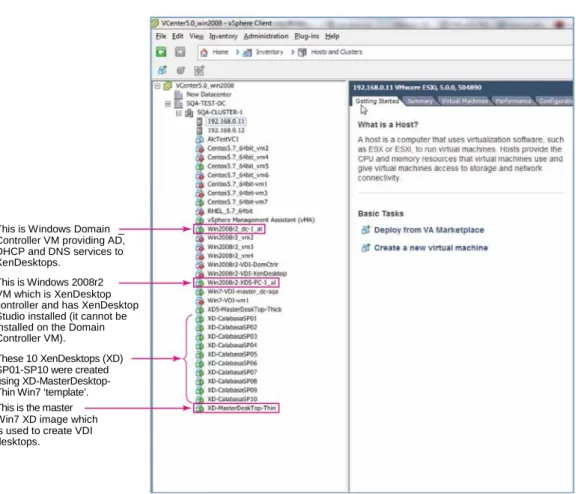
Desktop Solution is running VMWare vCenter for hypervisor deployment. The VDI VMs associated with the test bed are listed in Figure 4.
Figure 4. VDI VMs associated with the Enterprise Virtual Desktop Solution application test bed
Enterprise Virtual Desktop Solution
APPLICATION NOTE
This is Windows Domain _ Controller VM providing AD, DHCP and DNS services to XenDesktops.
This is Windows 2008r2 VM which is XenDesktop controller and has XenDesktop Studio installed (it cannot be installed on the Domain Controller VM).
These 10 XenDesktops (XD) SP01-SP10 were created using XD-MasterDesktop-Thin Win7 ‘template’. This is the master Win7 XD image which is used to create VDI desktops.
Quick deploy machines are automatically named according to the scheme “sitename**#”. In this configuration:
sitenameis the name specified for deployment on the site page ** is two random letters
# is a number that increases incrementally from 1 to n, where n is the number of desktops to be created.
Leading zeros are added where necessary to ensure that all machine names contain the same number of digits.
Figure 5 presents the display of VDI machines listed on Citrix Desktop screen.
Figure 5. VDI machines listed on Citrix Desktop screen
OmniVista 2500 Virtual Machine (VM) Manager Configuration
VM Manager configuration quick steps
The first step in configuring the VM Manager is to configure vCenter network parameters to properly control VM traffic. This must begin by configuring a VLAN Tag for the machine that will enable the VM Manager to monitor the machine and manage traffic. After configuring Virtual Machines and vCenter, OmniVista VM Manager can be configured by following the quick steps outlined below. Generally, VM Manager configuration should conform to the following guidelines:
Tag Virtual Machines
Configure one vNP per VM VLAN
Configure a VLAN Tag Rule for each VM VLAN (additional classification rules vNP can be configured, or the vNP can be associated with a policy list to further shape traffic)
The best way to manage VMs in a data center using VM Manager is to have the VMs communicate using tagged VLAN packets, and by provisioning the network using vNP VLAN Tag Classification rules over vNP Ports. Once all VMs are associated by VLAN tag with VM VLANs, any virtual machine movement will not require further user adjustments to network configuration. This also ensures that OmniVista will notify the user through VM VLAN Notifications when a Virtual Machine and its VM VLAN are mis-configured.
Enterprise Virtual Desktop Solution
APPLICATION NOTE
Step 1
Configure the VM Manager’s connection to a vCenter or XenServer Master Server in the
VM Preferenceswindow of the OmniVista Preferences application (Figure 6). Click the New button and complete the fields as described below. Click the Apply button to write the configuration to the server. Repeat the steps to configure a second connection. URL: The IP address of the vCenter Host Server. Enter the IP address, followed by
“/sdk” (e.g.,https://10.255.11.1/sdk).
Name: The user-configured name for the vCenter or XenServer.
VM Server Type: Select the VM Server Type from the drop-down menu (VMware vCenter or Citrix XenServer).
User: The administrator’s User Name.
Password: The password needed to access the vCenter or Master XenServer. Re-Type Password: Re-type the password needed to access the vCenter or Master
XenServer.
Polling Interval: The interval at which OmniVista will poll the vCenter. The interval set should be determined based on the number of Virtual Machines that must be managed. The more machines, the more resource-intensive the operation will be. The Polling Interval should generally be the same as the interval set for “Regular Updates” in the Setting Frequencies Window in the Discovery Application.
Figure 6. Configure the VM Manager’s connection to a vCenter or XenServer Master Server in the VM Preferences window of the OmniVista Preferences application
Connect to vCenter or XenServer
ClickNewand configure the connection. Click Applyto write the configuration to the server.
Enterprise Virtual Desktop Solution
APPLICATION NOTE
Step 2
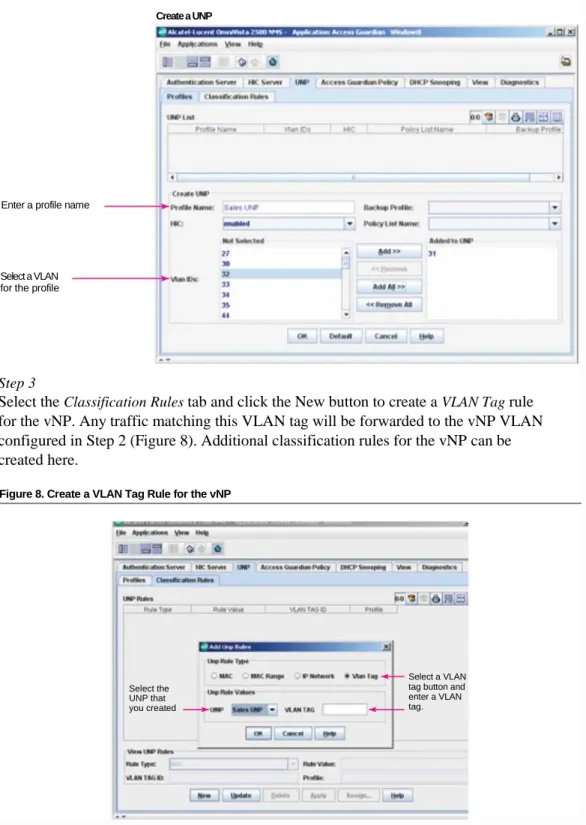
Configure a vNP using thevNPtab in the OmniVista Access Guardian application (Figure 7). Click theNewButton on theProfilestab to activate theCreate vNPwindow. As shown in Figure 7, when a vNP is created, it can be associated with a VLAN. Any traffic matching the rules in the vNP (such as, Classification Rules, Policy List Rules) are forwarded to that VLAN. Associate this vNP (and it’s VLAN) with a VM VLAN when creating a VM VLAN in Step 5.
Figure 7. Configure a vNP using the vNP tab in the OmniVista Access Guardian application
Enterprise Virtual Desktop Solution
APPLICATION NOTE
Enter a profile name
for the profile Select a VLAN
Create a UNP
Step 3
Select theClassification Rulestab and click the New button to create aVLAN Tagrule for the vNP. Any traffic matching this VLAN tag will be forwarded to the vNP VLAN configured in Step 2 (Figure 8). Additional classification rules for the vNP can be created here.
Figure 8. Create a VLAN Tag Rule for the vNP
Select the UNP that you created
Select a VLAN tag button and enter a VLAN tag.
Step 4
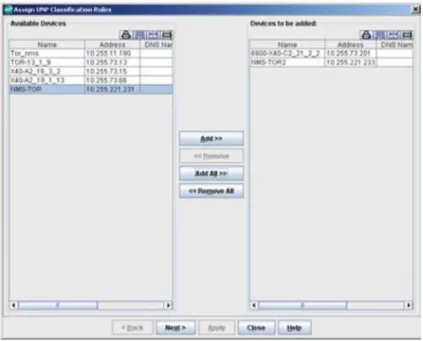
After creating the classification rule(s), click on theAssignbutton to launch theAssign vNP Profiles Wizardand assign the vNP to all switches on the network (Figure 9).
Figure 9. Assign the vNP to all switches on the network
Assign the UNP to Switches
Step 5
Configure a VM VLAN using theVM VLAN Configurationwindow in the VM Manager application and associate the VM VLAN with the vNP created in Steps 2-4 (Figure 10). Click theNewButton to activate theCreate vNP VLANpane, then select the vNP from the drop-down menu. The VLAN ID Field will automatically be completed with the vNP VLAN ID.
Figure 10. Configure a VM VLAN using the VM VLAN Configuration window
Create a VM VLAN
Enter a description Enable the
VM VLAN Select the UNP that you want to associate with the VM VLAN
Enterprise Virtual Desktop Solution
APPLICATION NOTE
Step 6
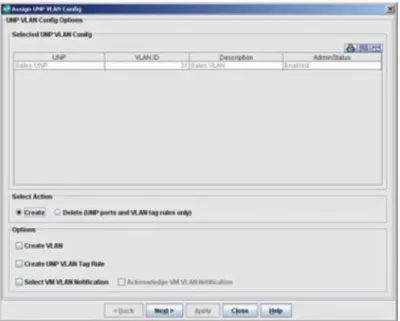
After creating the VM VLAN, click on theAssignbutton to bring up theAssign vNP VLAN Config Wizard. If a VLAN Tag Rule for the vNP has not been created, select the
Create vNP VLAN Tag Rulecheckbox to automatically create a VLAN Tag Rule for the VLAN (Figure 11). ClickNext.
Figure 11. Create a VLAN Tag Rule for the VLAN
Assign the VLAN to Switches
Step 7
Select the switches to which the VLAN will be assigned and clickNext(Figure 12).
Figure 12. Select the switches for VLAN assignment
Select Switches
Enterprise Virtual Desktop Solution
APPLICATION NOTE
Step 8
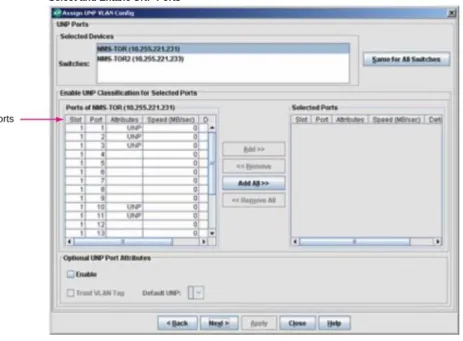
Select and enable vNP ports on the switches (Figure 13). When selecting ports, vNP is automatically enabled on those ports. Optional ports attributes can be configured by selecting the Enable checkbox at the bottom of the screen and selecting an attribute(s). SeeAssign vNP Configuration VLAN Wizardfor more information on optional port attributes. ClickNext.
Figure 13. Select and enable vNP ports on the switches
Select and Enable UNP Ports
Select ports
Step 9. (Optional)
Figure 14 can be used to enable MVRP on selected ports, if necessary. Configure MVRP, if necessary. Otherwise, clickNextuntil theApplyconfiguration screen is reached.
Figure 14. Enable MVRP on selected ports, if necessary
MVRP Ports Option
Select to ___ configure MVRP ports (optional)
Enterprise Virtual Desktop Solution
APPLICATION NOTE
Step 10
ClickApplyto apply the configuration (Figure 15).
Figure 15. Apply the configuration
Apply the Configuration
Exclude VLAN window
When OmniVista polls the VMware vCenter, it checks Virtual Machine configuration and sends a notification if there is a mis-configuration. TheExclude VLANwindow is used to define VM VLANs that should be ignored by OmniVista when conducting VM polling (Figure 16).
Figure 16. Exclude VLAN window
Exclude VLAN Window
Enterprise Virtual Desktop Solution
APPLICATION NOTE
VM VLAN Configuration Window
The VM VLAN Configuration Window (Figure 17) is used to configure VM VLANs and associate those VLANs with VNPs to manage the virtual machines on the network.
Figure 17. VM VLAN Configuration window
VM VLAN Configuration Window
VM VLAN notification window
TheVM VLAN Notificationwindow (Figure 18) displays VM VLAN notifications
generated by the VMM Service for missing VLAN/vNP configuration on a switch slot/ port where VMs are connected. Ideally, there should not be any notifications in this panel. If there are any vNP/VLAN notifications in this panel, the tree Icon for the VLAN Notification node turns red.
Figure 18. VM VLAN Notification window
VM VLAN Notification Window
Enterprise Virtual Desktop Solution
APPLICATION NOTE
OPERATIONAL SEQUENCE
The following operational sequence provides step-by-step instructions for connecting via a Citrix Virtual desktop (Figure 19).
Figure 19. Connecting via a Citrix Virtual desktop
Local and remote AD users Citrix VDI Virtualized Environment
6 2 2 a 1
Thin virtual desktop
Domain User credentials
Fully-functional PC
Select the desired Virtual Machine Http request T e s t n e t w o r k Login Page A c t i v e D i r e c t o r y Citrix XenDesktop C i t ri x W e b I n t e r f a c e OmniVista 2500 VMM A u th en tic at io n 3 Citrix Broker n DC-LAB VMware/ XenDesktop 4 Auth success 5 Domain Controller Active Directory DNS VDI Controller V i r t u a l D e s k t o p
Requires Neo login
Employee WLAN Home PC/iPad BYOD/iPad Office PC Internet I n s t a l l R e c e i v e r Co r p o r at e n et wo rk 1 a C l i e n t D e v i c e s
The end user launches an Internet browser to access the Web Interface, and if the receiver needs to be installed it will be installed at this time.
1. The Web Interface prompts the user for Active Directory credentials and passes the credentials to the Desktop Delivery Controller acting as a dedicated XML server. 2. The XML Service running the dedicated XML server (Desktop Delivery Controller)
authenticates the user against Active Directory.
3. After the user is successfully authenticated, the XML Service contacts the database to determine which virtual desktops are available for that user.
4. The virtual desktop information is sent back to the Web Interface and the Web Interface renders a web page containing a list of available desktops.
5. The user clicks on the desktop icon and the Web Interface forwards the request to the Desktop Delivery Controller. The Desktop Delivery Controller tells the Virtual Desktop Agent running on the virtual machine to start listening for an incoming session.
6. If the virtual desktop is not powered on, the Desktop Delivery Controller tells the VMWare vSphere to start a new virtual desktop and then notify the Virtual Desktop Agent. In addition, an indication is sent from the Virtual Machine Manager to the switches indicating a new VM to VLAN association, and the OV determines if a new VLAN must be created.
a. If a new VLAN must be created a message is sent to the Network Administrator. 7. The OmniSwitch 6900’s vNP detects the virtual machine, and the MAC address gets authenticated via a backend Radius server. Once authenticated, a VLAN is assigned and OmniSwitch applies the QoS rules for the traffic.
Enterprise Virtual Desktop Solution
APPLICATION NOTE
8. The virtual desktop connection information is forwarded to the Web Interface. The Web Interface creates a launch file (ICA) for the specific virtual desktop and forwards the launch file to the end user’s device.
9. The Virtual Desktop Agent running on the virtual desktop tells the Desktop Delivery Controller that the user has connected. The user’s logon information is then sent for validation.
10. The Desktop Delivery Controller validates the login credentials and checks out a license from the Citrix License Server. If the credentials are valid and a license is available, then the credentials, XenDesktop license and policies are sent to the virtual desktop for processing.
11. Once the connection has been approved, the Virtual Desktop Agent uses the transferred credentials to log on against Active Directory and applies profile configurations.
MONITORING VIRTUAL MACHINES
Locate VM tab
TheLocate VMstab (Figure 20) allows IT managers to search for virtual machines on the network. It provides detailed information about the host machine (the ESXi Server on which the virtual machine resides), as well as the virtual machines residing on the host machine. With this screen, managers can search for virtual machines by several search criteria (for example, date center name), and can perform a live search or an historical search.
(Note: For VM Locator to function properly, set 802.1q Port Filtering in theLocator
Preferenceswindow of thePreferencesapplication toStandard Modeso that OmniVista can detect virtual machines with tagged frames. In general, if the network has Q-Tagged data packets from IP Phones etc., the user must set802.1q Port Filtering to Standard Mode.)
Figure 20. Locate VMs tab
Locate VMs Tab
Enterprise Virtual Desktop Solution
APPLICATION NOTE
Performing a search
To perform a search, select the Search By criteria from the drop-down menu and enter the relevant information into the field to the right. By default, OmniVista will conduct an historical search. If a live search is required, select the Live Search checkbox. (Check the Stop after 1st match checkbox to stop the search after finding the first match, if desired.) When ready to perform the search, click the Locate button. The results will appear in the Host Information and Virtual Machine Information tables.
BENEFITS
The network infrastructure is the key to providing resiliency, redundancy and security for users in a virtual desktop environment, regardless of their access mechanism.
Traditionally, users access a virtual environment from the office. However, today they can be working at home, at remote offices, or just about anywhere. No matter where they are, employees want anytime, anywhere access to their data regardless of the device. The network is always ready to provide a quality user experience based on a simplified provisioning and management process (Figure 21).
Figure 21. The network provides a quality user experience with simplified provisioning and management
ENTERPRISE
In a virtualized desktop environment, the user’s operating system, applications and
personal settings are abstracted from the core hardware. Essentially, the user is able to jump across the network and to different machines without impacting the usability of the
desktop. This provides fault tolerance in the following ways:
Endpoint Failure: If the user’s physical endpoint fails, any new endpoint can be used to gain access to the virtual desktop
Hosted Virtual Desktop Failure: If the server delivering the hosted virtual desktop fails, the user can immediately initiate a new connection and the XenDesktop connection broker will direct the user to a new virtual desktop with all applications and personalization settings intact.
Streamed Virtual Desktop Failure: If the endpoint device hosting a streamed virtual desktop fails, the user can use any other device and connect to a new hosted virtual desktop or a streamed virtual desktop of similar hardware specifications.
Enterprise Virtual Desktop Solution
APPLICATION NOTE V i r t u a l D e s k t o p virtualization CONVERGEDNETWORK Enterprise Server Home office
Branch office Enterprise
WAN optimization Load balancing m esh HR Finance Production W A N
Core Access Corporate datacenter site 1 Corporate datacenter site 2
Corporate
office multi-site private cloud
DATACENTERNETWORK
ACRONYMS
Term Definition
AD Active Directory
CoS class of service
DHCP Dynamic Host Configuration Protocol
DNS Domain Name System
FC Fiber Channel
FCoE Fiber Channel over Ethernet
FQDN fully qualified domain name
HDFS Hadoop Distributed File System
HTTP Hypertext Transfer Protocol
ICA Independent Computing Architecture
IIS Internet Information Services
IT information technology
iSCSI Internet Small Computer System Interface
LAN Local Area Network
MAC Media Access Control
MC-LAG Multi-Chassis Link Aggregation
MVRP Multiple VLAN Registration Protocol
NAS network attached storage
NFS Network File System
NMS Network Management System
NOSH NetApp Open Solution for Hadoop
PvS Provisioning Server
Tb/s terabits per second
PC personal computer
QoE quality of experience
QoS quality of service
SLA service level agreement
VDA Virtual Desktop Agent
VHD Virtual Hard Disk
vDisk virtual disk
VLAN Virtual Local Area Network
VM Virtual Machine
VMM Virtual Machine Manager
vNP Virtual Network Profile
WAN Wide Area Network
XML Extensible Markup Language
Enterprise Virtual Desktop Solution
APPLICATION NOTE
APPENDIX
Boot configuration files
Below is the Boot file for the TOR address 172.16.11.252.as a sample bootfile. !================================== =! ! File: /flash/vmm/boot.cfg ! !================================== =! ! Chassis:
system name TOR-VMSW-1
! Configuration:
! Capability Manager: ! Multi-Chassis: ! Virtual Flow Control: ! Interface:
! Link Aggregate: ! VLAN:
vlan 1 admin-state enable vlan 10 admin-state enable vlan 110-113 admin-state enable
! Spanning Tree: spantree mode flat
spantree vlan 1 admin-state enable spantree vlan 10 admin-state enable spantree vlan 20 admin-state enable spantree vlan 110 admin-state enable spantree vlan 111 admin-state enable spantree vlan 112 admin-state enable spantree vlan 113 admin-state enable spantree vlan 333 admin-state enable
! Bridging: ! Port Mirroring: ! Port Mapping: ! IP:
ip service port 21 admin-state enable ip service port 22 admin-state enable ip service port 23 admin-state enable ip service port 80 admin-state enable ip service port 123 admin-state disable ip service port 161 admin-state enable ip service port 443 admin-state enable
ip interface “vlan-110” address 172.16.10.252 mask 255.255.255.0 vlan 110 ifindex 2 ip interface “vlan-111” address 172.16.11.252 mask 255.255.255.0 vlan 111 ifindex 3 ip interface “vlan-112” address 172.16.12.252 mask 255.255.255.0 vlan 112 ifindex 4 ip interface “vlan-113” address 172.16.13.252 mask 255.255.255.0 vlan 113 ifindex 5 ip interface “vlan-20” address 192.168.20.252 mask 255.255.255.0 vlan 20 ifindex 6
Enterprise Virtual Desktop Solution 2 5
! IPv6: ! IPSec: ! IPMS: ! AAA:
aaa ldap-server “OV-10.255.205.48” host 10.255.205.48 port 5389 dn “cn=DirMgr, o=alcatel.com” password d2255943b2edf91d2261f32004afd96c base “ou=People, o=alcatel.com” type generic retransmit 3 timeout 2 no ssl
aaa authentication default “local” aaa authentication console “local” aaa authentication snmp “local”
! NTP: ! QOS: ! Policy Manager: ! VLAN Stacking: ! ERP: ! MVRP: mvrp port 1/3 enable mvrp enable ! LLDP: ! UDLD:
! Server Load Balance: ! High Availability Vlan: ! Session Manager: session cli timeout 555555
session prompt default “Tor-vmsw-1->”
! Web:
! Trap Manager:
snmp-trap absorption disable
! Health Monitor: ! System Service:
swlog appid capManSig subapp all level error system timezone PST
! SNMP: ! BFD:
! IP Route Manager:
ip static-route 10.255.205.0/24 gateway 192.168.0.251 metric 1
! VRRP: ! UDP Relay: ip helper address 10.255.205.52 ! RIP: ! OSPF: ip load ospf ip ospf area 0.0.0.0
ip ospf interface “vlan-110”
Enterprise Virtual Desktop Solution
APPLICATION NOTE
ip ospf interface “vlan-110” area 0.0.0.0 ip ospf interface “vlan-110” admin-state enable ip ospf interface “vlan-111”
ip ospf interface “vlan-111” area 0.0.0.0 ip ospf interface “vlan-111” admin-state enable ip ospf interface “vlan-112”
ip ospf interface “vlan-112” area 0.0.0.0 ip ospf interface “vlan-112” admin-state enable ip ospf interface “vlan-113”
ip ospf interface “vlan-113” area 0.0.0.0 ip ospf interface “vlan-113” admin-state enable ip ospf interface “vlan-20”
ip ospf interface “vlan-20” area 0.0.0.0 ip ospf interface “vlan-20” admin-state enable ip ospf admin-state enable
! IP Multicast: ! DVMRP: ! IPMR: ! RIPng: ! OSPF3: ! BGP: ! Netsec: ! Module: ! RDP: ! DA-UNP:
unp dynamic-vlan-configuration enable unp name vm-10 vlan 10
unp name vm-20 vlan 20 unp name vm-333 vlan 333
unp classification vlan-tag 10 unp-name vm-10 unp classification vlan-tag 20 unp-name vm-20 unp classification vlan-tag 333 unp-name vm-333 unp port 1/16
unp port 1/16 classification enable unp port 1/16 trust-tag enable
! DHL:
©2012 Citrix Systems, Inc. All rights reserved. Citrix°, NetScaler°, Branch Repeater°, XenServer°, XenApp° and XenDesktop° are trademarks or registered trademarks of Citrix Systems, Inc. and/or one or more of its subsidiaries, and may be registered in the United States Patent and Trademark Office and in other countries. All other trademarks and registered trademarks are property of their respective owners.