66
M
any administrators aren’t con-cerned about the traffic on their networks as long as ev-erything is working. The problem with this approach is that if you don’t think about network analysis options until it is too late, the analysis often fails due to a lack of baseline data. Which connections are normal? How do you define unusu-ally high traffic levels? You won’t be able to answer these questions unless you have reference data that describes the normal status of the network.Detailed studies of network traffic are not only of interest for troubleshooting: they can also help you locate incorrectly configured computers, detect worm or virus outbreaks, and perform forensic analysis. It is important to have
refer-ence data for all of your network con-nections, but simply logging raw net-work data often requires too much space. In most cases, it will be more than enough to record network traffic flows. A tool like Argus can help you collect and analyze network traffic.
Network Traffic Flows
A network traffic flow is an IP data stream – any TCP connection is flow, for example. Most monitoring systems log the IP address, the protocol, the ports, and the volume of data exchanged.The pioneer of this technology is net-work device vendor Cisco, which added this kind of functionality to its devices many years ago. Cisco routers use UDP to export the network flows (Netflows)
they have monitored, and there are many software products available, such as ntop [1], that can import and analyze this data.
Other router vendors have added com-patible functions to their devices. Addi-tionally, a number of Netflow probe pro-grams run on Linux-based routers if you do not happen to have Cisco routers. The programs generate Cisco-compatible netflow data that administrators can pro-cess using ntop and similar products.
Ntop supports more detailed analysis than MRTG, for example, which does not analyze individual flows, but simply uses SNMP to display the total data throughput. If you just need to be able to identify trends, MRTG may be fine, but to evaluate the logged data, you need a tool that is able to display and analyze your data.
Alternative Argus
Argus [2] provides an alternative to Net-flow and other monitoring tools. It
con-Argus helps you monitor the flow of data on your network, detect
trends, discover worms and viruses, and analyze bandwidth usage.
BY RALF SPENNEBERG
Keeping an eye on the network with Argus
WATCHFUL EYE
Argus
SYSADMIN
sists of two components: a daemon that detects flows and logs them to a file, and a collection of clients that help the ad-ministrator analyze the flows. The format Argus uses may not be compati-ble to Cisco Netflow, but it does have more in the line of functions.
Whereas Netflow logs two flows for each con-nection (one for each di-rection), Argus collates
this information to form a single flow. Unfortunately, the Argus format has changed over the years. The Canine [3] converter is available for older versions (Argus 2.0.5). Canine supports various formats, but unfortunately, not the for-mat used by Argus version 3.0, the cur-rent developer version, which I will be investigating in this article. However, you can look forward to a new version of Canine soon after the final version of Argus 3 is released.
Setting Up Argus
Before you can use Argus, you must in-stall the Argus daemon on the systems with netflows you will be monitoring and logging. To set up the Argus 3.0.0 re-lease candidate, first download the pack-age, then unpack and follow the normal
./configure, make, make install steps to install. Then copy the configuration file to /etc and modify the permissions:
# cp ./support/Config/U
argus.conf U
/etc/argus.conf
# chmod 600 /etc/argus.conf
The modifications to the configuration file are self-explanatory. For the time being, we can just set the variable
ARGUS_OUTPUT_FILE appropriately, and remove the pound signs. Argus cli-ents retrieve data over the wire directly from the daemon when the daemon has enabled the port. The default port (561) is enabled by default.
For security reasons, you will probably want to set up a user account for the daemon after completing your initial tests, and set the ARGUS_SETUSER_ID
option in the configuration file. The source code package includes a startup script, ./support/Startup/argus, for the daemon; Red Hat and Fedora Core users can copy the script to /etc/init.d/, and enable; other distributions, however, are not supported.
Archiving
Regular rotation is a proven cure for oversized logfiles. In test environments, you can expect 2 to 5 MB of data a day, whereas productive networks will pro-duce up to 100 MB of log input on a daily basis.
To support rotation, the source code archive has a argus-archive script under
./support/Archive. A cron entry to match would look something like the following: 0 1 * * * U
/usr/local/bin/U
argusarchive >> U
/var/log/argus/U
archive.log 2>&1 Before launching this for the first time, you
will need to modify a few variables in the first couple of lines of the script – the archive directory, and the protocol file location, for example. (The current ver-sion of the script is still a bit buggy, so it makes more sense to use logrotate or a similar tool.)
Data Analysis
Argus has a collection of data analysis tools. All of the commands start with ra
(see Table 1).
The most important tool has to be
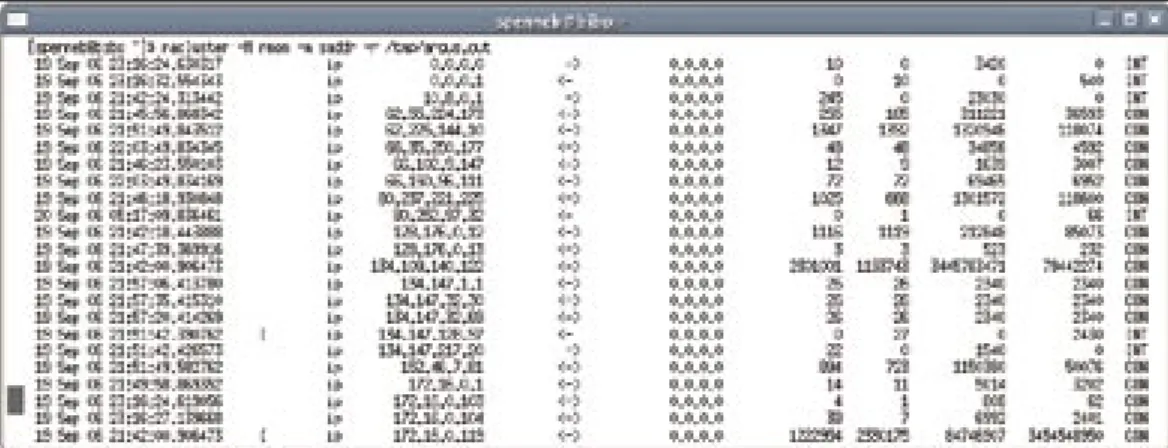
racluster. If you are interested in the top talker on your network, you are able to pass the -m saddr (source IP address) parameter to the command to tell it to combine all flows with identical addresses (Figure 1). The parameters shown in Table 2 store the Netflows; each of them is selectable for aggrega-tion with racluster.
The -L0 option tells Argus to output a header with the column names. The -c
parameter adds a separator (for example,
-c \|). The columns in Figure 1 contain the following data:
• Start time (stime) • protocol (proto)
• Source IP address (saddr) • Direction (dir)
• Target IP address (daddr) • Number of IP packets sent by the
source (spkts)
• Number of IP packets sent by the target (dpkts)
• Number of bytes sent by the source (sbytes)
• Number of bytes sent by the target (dbytes)
• Connection status (status)
Administrators can use the -s option to modify the display: for example,
racluster -s stime dur saddr spkts will ra parses and filters Argus data
rabins parses and splits Argus data (time-based, for example)
racluster aggregates Argus data
racount performs arbitrary counts of Argus data radium acts as a multiplexer and grants multiple clients
simultaneous access to the data ragraph graphic representation of Argus data
ragrep searches the Argus data for regular expressions rasort sorts the output on an arbitrary field
rasplit distributes the output over multiple files rastrip removes various parameters from the files ratopf live display of Argus data
Table 1: Argus Commands
just display the time, duration, source IP address, and the num-ber of packets sent.
Views
Entering -M rmon, as shown in Figure 1 is a useful trick. Nor-mally, a network node will be both client and server. Thus, Argus will see the node as a source in some flows and as a target in other flows. This option tells the tools to recalculate all flows. This function is also re-quired for preparing data for
RMON applications. Remote monitoring (RFC 1757) is another alternative for monitoring the network.
The racluster command sorts its out-put by the specified aggregation object (in our example, this is saddr). If you do not want to sort by IP address, but by the number of bytes sent, you can also specify the rasort command. racluster
has a special -w - option for pipe opera-tions (this tells the tool to send its out-put to standard outout-put). Figure 2 shows how the sorted view gives administrators a useful overview of the traffic volumes on the network and of the systems be-hind the noise.
Which Services Are Used?
A question network administrators often ask is: “Which services do the users on my network really use, and what vol-umes of data do they exchange?” Enter-prise policies might outlaw some ser-vices, and an analysis can help you to introduce appropriate countermeasures at an early stage. Trojans often use un-usual ports that stick out in the list. Again, we need racluster to generate a list of the ports in use:racluster -M rmon -m U
proto sport -r /tmp/argus.out U
-w - - ip | rasort U
-m bytes proto sport U
-s stime dur proto sport U
spkts dpkts sbytes dbytes
In this example, the source port (sport) is the aggregation object. When aggre-gating ports, it is important to specify both the -m sport and the proto; in fact, these details are mandatory.
Berkeley Packet Filter
All of the commands support tcpdump -style filtering, however, the Argus filters differ in a number of respects. The ra(1)manpage has more details. Every com-mand will accept a minus character (-) followed by a Berkeley packet filter, which is ip in the last example. Filters of this kind allow administrators to restrict the analysis to a specific host or net-work, if needed (for example, ip and host 217.160.128.61).
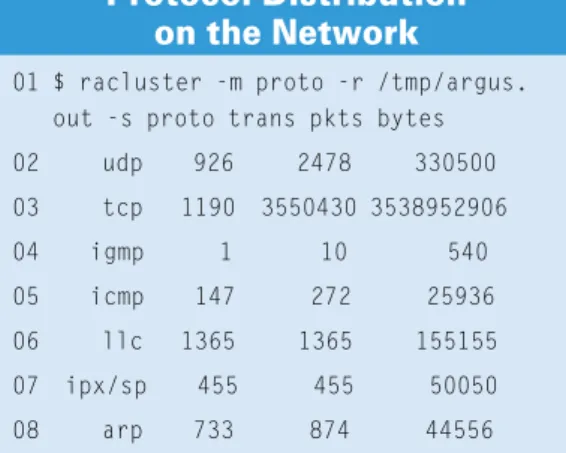
A change in protocol distribution can indicate a trojan at work on your net-work. To detect this, you first need refer-ence data for the normal distribution. Again, administrators can easily compile this data using Argus. The “Protocol
Dis-tribution on the Network” box gives you an example. The -s option again restricts the output to the columns you need.
Absolute Flexibility
For complex aggregations, racluster also supports the definition of flow models in a configuration file (racluster(5)). Be-sides a number of variables that control the behavior of racluster, this file con-tains filter definitions and optional model definitions. A filter specifies the flows racluster should analyze, and a model describes how aggregation is to be performed. Both of these details con-form with Berkeley packet filters and the
-m command-line option. A typical con-figuration file might look like this:
filter="src net U
( 10.0.0.0 mask 255.0.0.0 )" U
model="saddr/8 proto dport" filter="dst net U
( 10.0.0.0 mask 255.0.0.0 )" U
model="daddr/8 proto dport" In our example, Argus will first aggre-gate the flows that originate within the 10.0.0.0/ 8 network by source address, protocol, and target port. The tool with aggregate flows where the network is the target by target address and target port.
What’s the Time?
Setting Argus up for log rotation restricts the potential evaluation period. How-ever, all Argus commands support the
-t Timerange option, followed by the pe-riod to be evaluated. rasplit extracts the required data and stores it in a separate file; you can still use all the other filters. If you prefer not to mess with the log-files and use current data instead, it’s no
MAC addresses smac, dmac MPLS label smpls, dmpls VLAN label svlan, dvlan IP addresses saddr, daddr IP protocol proto
Port sport, dport
Type of Service stos, dtos Time to Live sttl, dttl
Table 2: Selection of Argus
Parameters
01 $ racluster -m proto -r /tmp/argus. out -s proto trans pkts bytes 02 udp 926 2478 330500 03 tcp 1190 3550430 3538952906 04 igmp 1 10 540 05 icmp 147 272 25936 06 llc 1365 1365 155155 07 ipx/sp 455 455 50050 08 arp 733 874 44556
Protocol Distribution
on the Network
Figure 2: The rasort command sorts the output by various criteria.
Argus
SYSADMIN
problem – tell the Argus daemon to pub-lish its data via a TCP port, and tell the
ra* tools to pick the data up from the daemon when the daemon IP address is passed to them using the -S option.
Live Analysis
ratop also supports live analysis of your data. The command only needs a single argument: ratop -S Remote-Host. It opens a connection to the machine with the daemon, reads, and then displays, the data. ratop automatically sorts the con-nections by the number of packets trans-mitted, although other orders are possi-ble. Calling the tool with the h flag (Fig-ure 3) displays the keyboard shortcuts that ratop supports.
Graphical Analysis
Argus also supports graphical analysis of your network data. For example, the
fol-lowing commands will give you a graph-ical analysis of the specified ports.
To save some space, I have left out the legend in Figure 4. The blue lines in the figure show HTTP connections, and the gray lines in the figure give you HTTPS. Also, the received data is shown in the positive area of the Y axis, and the trans-mitted data is shown in the negative number space.
ragraph bytes dport -nn U
-M 1m -r argus.out -w U
./ports.png
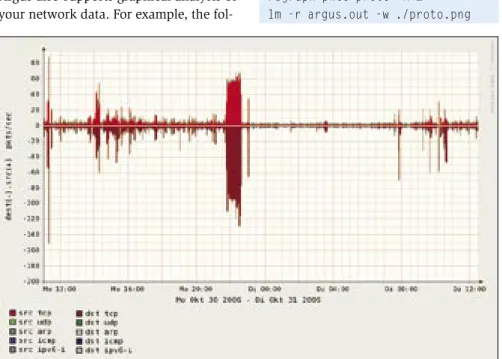
Below, Figure 5 graphically illustrates an analysis of the protocols that are used in the “Protocol Distribution on the Net-work” box by ragraph:
ragraph pkts proto -M U
1m -r argus.out -w ./proto.png
You could easily detect an increase in ICMP or IPv6 traffic here, and you might also suspect something fishy, because the data could be indicative of a tunnel or an attack – both protocols can easily be misused to hide malevolent data. Ad-ministrators can also evaluate the round-trip time for TCP connections (tcprtt), and the packet loss (sloss, dloss).
Although many of Argus’ features, such as graphical analysis, are possible with other tools like ntop and MRTG, the granular flow data storage that Argus provides does give administrators the ability to take a closer look at suspicious data, whereas ntop and MRTG do not give you the original data to help you conduct a detailed analysis. ■
Ralf Spenneberg is a freelance Unix/ Linux trainer, con-sultant, and author. His company, Open-Source, provides training and consul-tancy services. Ralf
has published a number of books on the topics of intrusion detection, and virtual private networks. His new book, Linux Firewalls with Iptables & Co. was published just a few months ago.
T
H
E
A
U
T
H
O
R
[1] Ntop: http:// www. ntop. org
[2] Argus homepage:
http:// www. qosient. com/ argus/
[3] CANINE: http:// security. ncsa. uiuc. edu/ distribution/ CanineDownLoad. html
[4] Argus release candidate:
ftp:// qosient. com/ dev/ argus-3. 0/
INFO
Figure 3: Just like the top tool, ratop shows a keyboard shortcut help text when you press h.
Figure 4: ragraph gives administrators a graph of the flow data. The port analysis shows the use of network services; HTTP and HTTPS, in this case.
Figure 5: Analysis of the protocols can tell the administrator much about potential tunnels.