Welltech 2424s FXS
Gateway User Guide
2
Contents
CH1 Introduction
... 4
1-1 Physical Interface ... 4
1-2 Environmental ... 4
1-3 Front Panel: LED Indicators ... 5
1-4 Rear Panel: LED Indicators ... 6
1-5 QUICK SETUP ... 7
CH2 Device Settings
... 13
2-1 Network Configuration ... 13
2-2 Device Time Setting ... 15
2-3 Device Advance Setting... 16
2-4 User Login Setting ... 17
2-5 Debug Settings ... 18
2-6 Event Notice ... 19
2-7 Auto Provisioning ... 20
2-8 SNMP ... 22
CH3 NAT Setting
... 23
3-1 DHCP Ser. (DHCP server) ... 23
3-2 UPNP (universal plug and play server) ... 24
3-3 Bandwidth (Bandwidth Control) ... 24
3-4 URL Filter ... 28
3-5 IP Filter ... 28
3-6 MAC Filter ... 29
3-7 APP Filter ... 29
3-8 Port Filter ... 30
3-9 Port Fwd ... 30
CH4 VOIP Setting
... 31
4-1 SIP ... 31
4-2 Audio ... 32
4-3 Tone ... 34
4-4 NAT Traversal ... 35
CH5 VOIP Advance
... 36
5-1 SIP ... 36
5-2 Audio ... 38
5-3 Ring ... 40
CH6 Dialing Plan
... 41
6-1 General... 41
6-2 Dialing Rule ... 42
6-3 Digit Manipulation ... 43
6-4 Phone Book... 44
CH7 FXS Setting
... 45
7-2 SIP Proxy ... 48
7-3 Caller ID ... 49
7-4 Others... 50
CH8 SIP Trunk
... 51
8-1 Create SIP Trunk ... 52
CH9 Route Plan
... 54
9-1 Create Route Plan ... 55
CH10 Status
... 57
10-1 Device States ... 57
10-2 Line States ... 58
10-3 SIP Trunk States... 59
CH11 Maintenance
... 60
11-1 Firmware Update ... 60
Appendix A--- System Recovery ... 61
4
WellGate 2424s
CH1 Introduction
2424s Telephony Gateway
The Welltech 2424s is a 24 ports FXS (WellGate 2424s) VoIP gateway which includes 1-WAN/1-LAN (management port) 10/100 base-T network
environment. Field-proven quality of Voice communication and Fax
transmission over IP broadband access network to makes WellGate 2424s to be an excellent solution for various VoIP applications.
1-1 Physical Interface
Ethernet port (RJ-45, 10/100 base-T)
1-WAN port, for connect to router, ADSL modem (ATU-R), or switch
hub directly.
1-LAN port, for PC, management or other network devices connecting.
Telephony port (RJ-11)
24-FXS ports, to connect to analog phone.
Console port (RS232, rate:115200)
AC power Jack
Status indicated LED
Indicates Power, Ethernet, Line, SIP and system status
1-2 Environmental
Dimension: 440 × 44 × 262 mm(WxHxD) Weight: 3.25kg (unit)
Operating Temp. & Humidity
- Temp.: 0°C~45°C (32°F~113°F)
- Humidity: 10%~85% relative humidity, non-condensing
Power Input:
1-3 Front Panel: LED Indicators
WellGate 2424s
Figure 1-3-1 front panel
LED Description
Power When the power adapter is connected, the LED will light
up green.
Status When system is startup successfully, the LED will light up
green.
Proxy When the gateway is registered successfully to a Proxy,
this will light up green.
WAN This will light up green when the gateway’s WAN port is
physically connected to the public internet. When data is transmitted through this port, it will flash green.
The default IP of WAN port is 10.1.1.3.
LAN This will light up green when the gateway’s LAN port is
physically connected to a local network (Refer to Rear Panel section in page number for location of LAN port). When data is transmitted through this port, it will flash green.
The default IP of LAN port is 192.168.123.123.
Port1~Port24 The status LED for FXS port 1-24, this will light up amber orange when the connected phone is engaged in a conversation. It will flash amber orange when there is an incoming call.
6
1-4 Rear Panel: LED Indicators
WellGate 2424s
Figure 1-4 rear panel for FXS
Item Description
Phone1 - Phone24 The status LED for FXS port 1-24, this will light up amber orange when the connected phone’s handset is lifted, or when the connected phone is engaged in a conversation. It will flash amber orange when there is an incoming call. (WellGate 2424s only)
LAN 10/100 Base-T RJ-45 socket for LAN port, connects to PC
for management purpose.
WAN 10/100 Base-T RJ-45 socket for WAN port, connects to
wide area network.
AC100V~240V The power socket, input AC 100V~240V, output DC 12V,
6A.
Console Port This port is for RS-232 cable connected , the baud rate is 115200, data bits is 8, parity is none, stop bits is 1, flow control is none. Normally the port is used for Welltech’s engineer debug.
Notice: if you want to use it, just could use command “ifaddr –print” (to display IP address of WAN and LAN port on screen) or “passwd” (to change password), other commands are not yet available.
Reset Button Press and hold over 5 seconds to reload factory default setting, this will erase all existing settings configured on this gateway.
1-5 QUICK SETUP
Note
:
Please use Windows XP IE 6.0 web browser or above version to
configure FXO gateway webpage setting. Welltech products don’t
support other Web Browser such as FireFox to configure.
Login :
Setp1: Setup the administrative PC’s IP address to be same as WellGate 2424s and connect the Ethernet cable into WAN or LAN port. Start IE6.0 (or later version) to navigate WellGate 2424s web management system by typing the default URL which is http://192.168.123.123 (through LAN port) or
http://10.1.1.3 (through WAN port). The screen will display User Name and Password (the default user id is root and user password is root). (See figure 1-5-1 web access)
Figure 1-5-1 web access
Step 2: After login, the screen shows the Home page of WellGate 2424s. (See
8 Figure 1-5-2 Network configure-1
Change Default IP Network:
Step 3: After successfully logon to the system, we need to change the
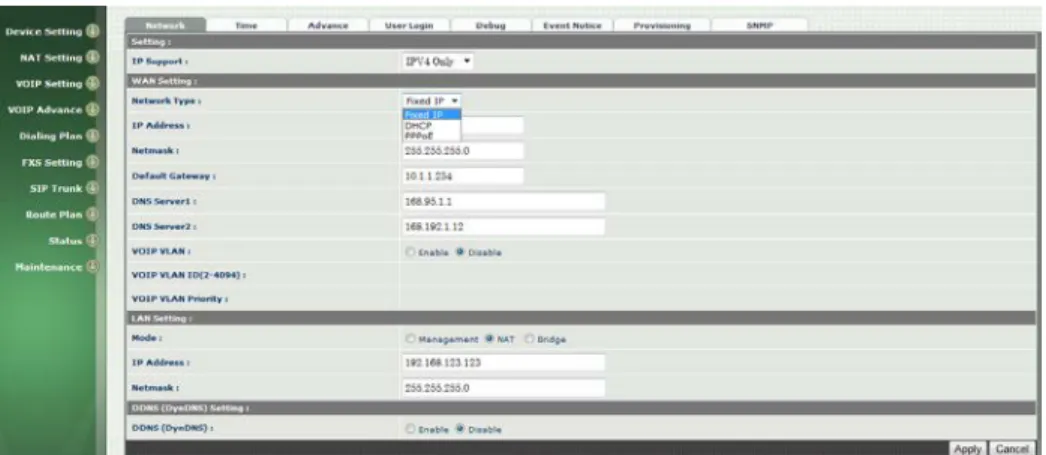
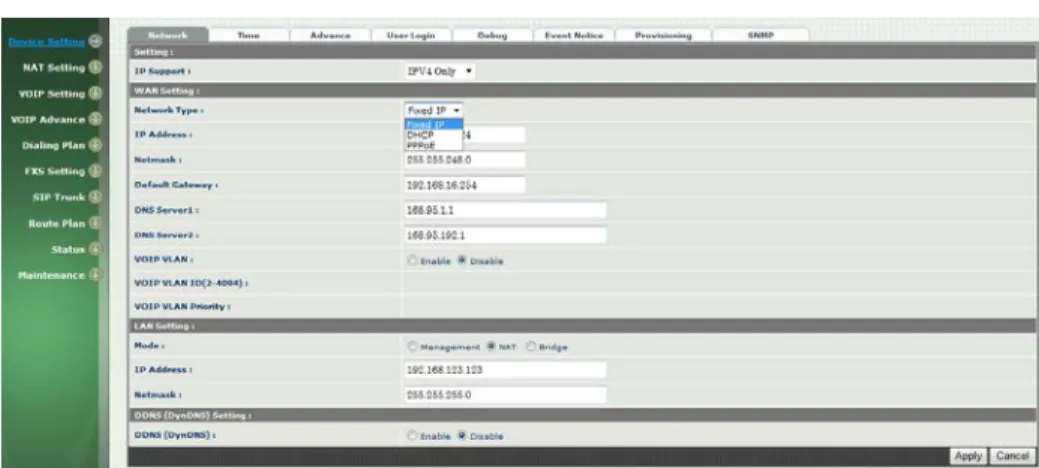
network configuration. Click Device Setting > Network to setup the service network interface (WAN) parameters. Enter the deserved IP address, netmask and default gateway or selected to “DHCP” or “PPPOE”. Apply the change by clicking Apply button as fig (See Figure 1-5-3 Network configure-2).
Note: If Gateway WAN port are setting in the 10.x.x.x segment, please make sure that you also change the LAN port to other segment such as 192.168.x.x
Change Default Time setting:
Step 4: When re-logon to the new IP address, the next is to setup the system
time zone. Click Device Setting > Time to setup the system. Enter the current SNTP server, time zone and daylight saving parameters. Apply the change by clicking Apply button. (See figure 1-5-4 Time setting)
Figure 1-5-4 Time setting
Modify SIP Account Parameter:
Step 5: The next step is to add a SIP trunk for VOIP calling. For WellGate
2424O, it is necessary for VOIP calling while WellGate 2424S is optional. Click SIP trunk and new tocreate the required sip trunk. Enter the trunk ID to 1 and input those SIP parameters. Apply the change by clicking Apply button. (See Figure 1-5-5 SIP Trunk).
Note: please don’t delete sip trunk, even it is unless at all, because it have to be used with Route plan.
10
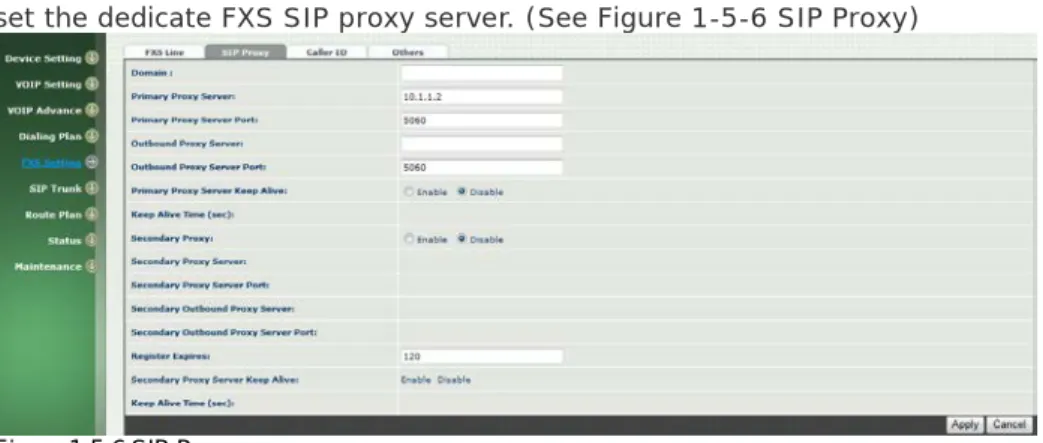
set the dedicate FXS SIP proxy server. (See Figure 1-5-6 SIP Proxy)
Figure 1-5-6 SIP Proxy
Step 7: Setup each FXS line’s parameters by clicking the line ID from FXS settings > FXS Line. Modify the SIP register information and apply it. ( See Figure 1-5-7 SIP Proxy )
Figure 1-5-7 SIP Proxy
Soft Reset WellGate 2424s:
Step 8: After modify basic setting. It is required to reset WellGate 2424s.
Click Maintenance > Maintenance > Soft-Reset or Reboot to take effect. Apply the change by clicking Apply button. (See Figure 1-5-8 Quick-Reset)
Figure 1-5-8 Quick-Reset
Check WellGate 2424s Registered Status: Step 9: After soft-reset or reboot.
>Click Status > SIP Trunk Status to check whether registered or not. (See Figure 1-5-9 SIP Trunk States )
Figure 1-5-9 SIP Trunk States
>Click line status to check whether registered or not. (Figure 1-5-10 SIP Trunk States)
12
Through the above settings, the WellGate 2424s should able to do the following:
For FXS (WG2424S):
1. The user can pick up the handset and hear dial tone. Call out and talk. 2. For VOIP incoming call to a dedicate FXS number, the dialed phone will ring and can answer to talk.
CH2 Device Settings
From this setting category, all devices related parameters can be found here.
2-1 Network Configuration
> Network
Figure 2-1 network setting
Parameter Description: WAN Setting:
Network Type: support “Fixed IP”;”DHCP”;”PPPOE”
IP Address: IP address
Default Gateway: Default gateway
DHCP Tag (option 60): input Vendor class identifier or not. DHCP Tag (option 61): input Client identifier or not. DNS Server1: Primary DNS Server IP network DNS Server2: Secondary DNS Server IP network
14
LAN Setting:
Management mode: This LAN port is used for management purpose, not used for register or routing.
NAT mode: DHCP function on the LAN port. The LAN ports will function
as a DHCP server, network devices connected to them will be issued with IP addresses. (On the lift item will add a NAT setting, the information please refer NAT setting)
IP Address: IP address (please set to 192.168.x.x if your WAN port is using 10.x.x.x IP segment).
Netmask: IP network mask
Bridge mode: At this mode, both WAN and LAN ports are configured to
Switch/Hub features. LAN port access to WAN port directly. Note: default LAN IP address is 192.168.123.123
DDNS (DynDNS) Setting:
DDNS (DynDNS): enable or disable dynamic DNS feature. Domain Name: input your Domain Name
User Name: input your user name Password: input your password
2-2 Device Time Setting
WellGate 2424s support SNTP with time zone and daylight saving.
Device Setting > Time
Figure 2-2 Time setting
Parameter Description:
Now: Current Time (display only) NTP Time Server: SNTP time server
NTP Refresh Interval(sec):The frequency to sync NTP server in seconds
Time Zone:
The time-zone WellGate 2424s is located.
Standard: Use a predefined standard time zone
Customize: Use a user defined time zone
Daylight Saving: Auto adjust daylight saving timer or not
Daylight Bias: The offset added to the Bias when the time zone is in
daylight saving time
Daylight Start: The date that a time zone enters daylight time Month: 01 to 12
Week Day: Sunday to Saturday
Apply Week (Day:01 to 05, Specifies the occurrence of day in the month; 01 = First occurrence of day, 02 = Second occurrence of day, ...and 05 = Last occurrence of day)
Hour: 00 to 23
Standard Start: The date that a time zone enters daylight time Month: 01 to 12
16
2-3 Device Advance Setting
> Advance
Figure 2-3 Advance setting
Parameter Description:
HTTP Service: The Administrator Web service port (the default is 80) HTTPS Service: The https web service port (the default is 443) Telnet Service: The telnet service port (the default is 23)
HTTP/HTTPS Service access on WAN: When click the disable option;
The WEB service will be rejected on WAN port, so please be careful with this function. If you wanted to enable WAN port again, you need to access this device from its LAN port to connect to WEB pages and enable WAN port.
2-4 User Login Setting
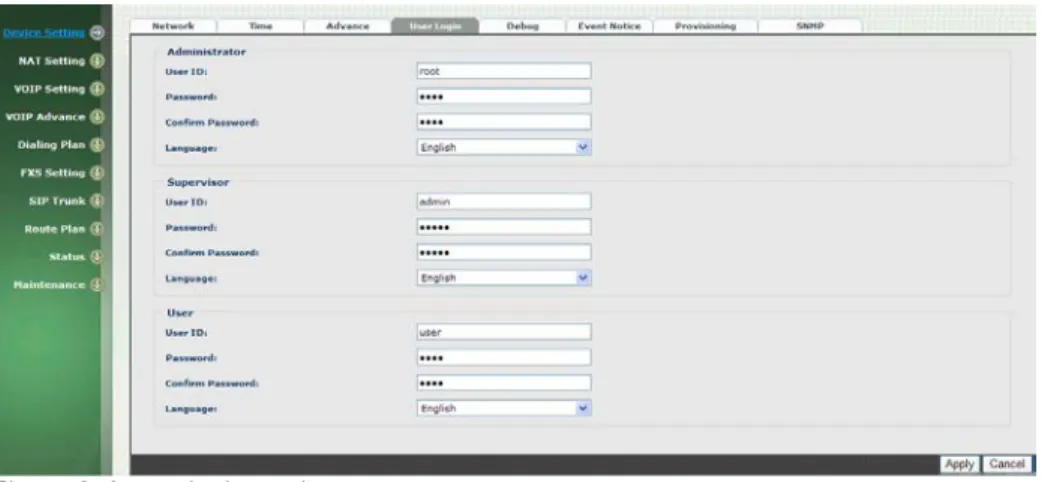
Three level of users can be used, administrator, supervisor, user. Each level of users will have different predefined access level.
>User Login
Figure 2-4 user login setting
Parameter Description:
Administrator: The administrator level user which has full access of
WellGate 2424s.
Supervisor: The supervisor level user which has limited administrative
access right.
User: The user access right which only allows to setting some user
related features.
User ID: Login User ID Password: Login Password
Confirm Password: Confirm new password again
Language: The web page language used when the account login. To add
18
2-5 Debug Settings
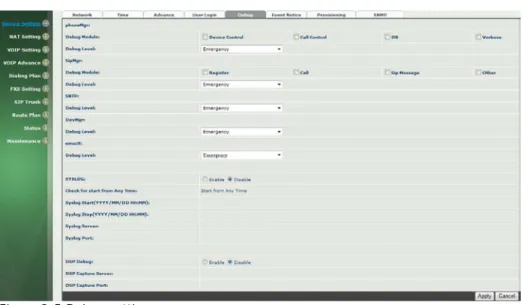
WellGate 2424s provides the real time debug to syslog or through telnet interface. It generates the debug information based on debug level and modules. Since the generating debug will consume system resource, it is recommended to turn on only for necessary and under Welltech FAE’s instruction.
Debug
Figure 2-5 Debug setting
Parameter Description:
SYSLOG: Enable or disable to send system information to SYSLOGD
server or not
Check for start from Any Time: Always Send: Always send syslog
or only during a specified time range.
Syslog Start (YYYY/MM/DD HH:MM): Always Send: Always
send syslog or only during a specified time range.
Syslog Stop (YYYY/MM/DD HH:MM): The syslog stop sending
time.
Syslog Server: Syslog server IP address
Syslog Port: syslog server service port (default is 514)
DSP Debug: Enable or disable to send DSP information to capture log DSP Capture server: Syslog capture server IP address
2-6 Event Notice
WellGate 2424s can send Syslog Event Notice when it had the following cases: 1. Register Failure or re-registered
2. FXO is plug or unplug 3. Ethernet reconnected 4. System started
Figure 2-6 Event notice setting
SYSLOG: Enable or disable to send system event to SYSLOG
server or not
Syslog Server: Syslog server IP address
20
2-7 Auto Provisioning
The WellGate 2424s can be provisioned by WellEMS 9510 for large deployment. Please contact Welltech for availabilities.
>Provisioning
Figure 2-7-1 Provisioning
Select 9510:
Figure 2-7-2 Provisioning type of 9510
Parameter Description:
(This function is not available yet for WellEMS 9510)
EMS: Enable auto provisioning service by WellEMS 9510 or not. Enable: Enable the service and use manual configured EMS server
parameters.
Disable: Disable the auto provisioning service.
Discovery: To automatically discover the EMS server or not. By
using this mode, WellEMS 9510 need to be the same IP network in order to make the IP broadcasting work.
broadcasting port (default is 61005).
EMS summary refresh interval: How long the WellGate 2424s
will report its summary status to WellEMS 9510 in seconds.
EMS IP address: The WellEMS 9510 server IP address EMS Server Port: The WellEMS 9510 Server port Data Encrypt:
Disable: disable encryption function.
Welltech encryption: Enable Welltech proprietary encryption for SIP
signaling and RTP. It is required a Welltech SIP proxy server (WS6500 or SIPPBX 6200) to work with this feature. When enable it, you can hide your VOIP traffic from ISP’s monitor.
External encryption: for custom encryption, it is valid now, if you want
add the function to mach your proxy, please contact with Welltech’s sales.
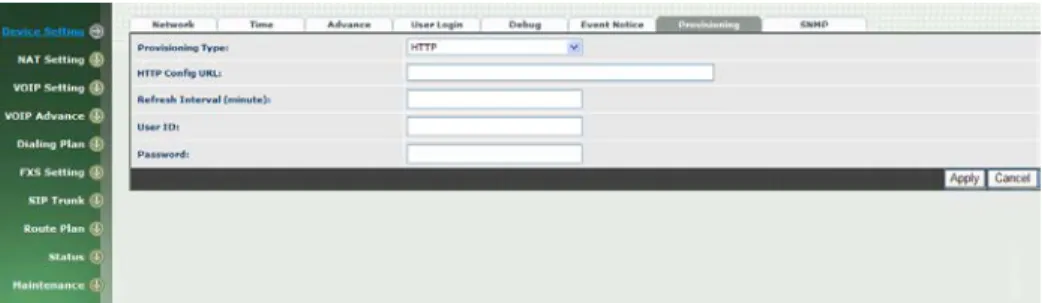
Select Http:
This feature is for feature usage only.
Figure 2-7-3 Provisioning type of Http
Http config URL: internal used only
Refresh interval(minute): interval to check whether have a new
configuration/firmware or not in minutes
User ID: specify the login id for http authentication Password: specify the password for http authentication
22
2-8 SNMP
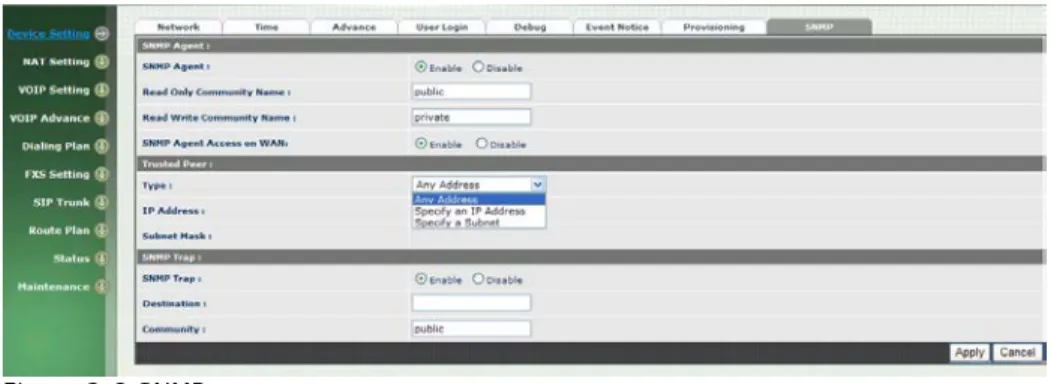
Figure 2-8 SNMP SNMP Agent:
SNMP Agent: Enable SNMP or not.
Read Only Community Name: The community name to read
through SNMP protocol
Read Write Community Name: The community name to read and
write through SNMP protocol.
SNMP Agent Access on WAN: Enable SNMP to be accessed
through WAN port or not. Trusted Peer:
Type:
Any Address: Any address can retrieve the SNMP
information.
Specify an IP Address: Only the IP address listed can
retrieve the SNMP information. Normally, it will be the SNMP manger IP address.
Specify a Subnet: Only the network specified can retrieve
the SNMP information.
IP address: The IP address for a trusted peer Subnet Mask: The network mask for a trusted peer
SNMP Trap:
SNMP Trap: Enable SNMP trap or not
Destination: The IP address for SNMP manager to receive the SNMP
trap
CH3 NAT Setting
The WellGate 2424s can support NAT, 2 ethernet leg (gw) or bridge mode. Here are the settings for NAT related service.
3-1 DHCP Ser. (DHCP server)
Figure 3-1 DHCP server
DHCP Server: Enable DHCP server or not.
Client Range Start IP: specify DHCP client lease start IP Client Range End IP: specify DHCP client lease end IP Default Gateway: specify the default gateway
Submask: specify the submask. DNS Server 1: specify the DNS server DNS Server 2: specify the DNS server
24
3-2 UPNP (universal plug and play server)
Figure 3-2 UPnP
UPNP IGD: Enable UPNP server or not.
3-3 Bandwidth (Bandwidth Control)
By using bandwidth control feature, the user can manage the traffic based on their needs.
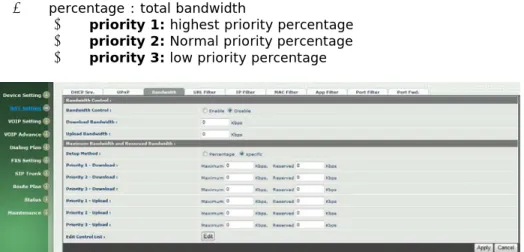
Figure 3-3-1 Bandwidth control Bandwidth Control:
Bandwidth Control: enable bandwidth control or not.
Download Bandwidth: specify total bandwidth for download (unit:
kbps). 0 indicates no limitation.
Upload Bandwidth: specify total bandwidth for upload (unit: kbps).
0 indicates no limitation.
Maximum Bandwidth and Reserved Bandwidth:
the required bandwidth
percentage : total bandwidth
priority 1: highest priority percentage priority 2: Normal priority percentage priority 3: low priority percentage
Figure 3-3-2 Bandwidth control
specific :
priority 1 – Download: highest priority download bandwidth priority 2 – Download: normal priority download bandwidth priority 3 – Download: low priority download bandwidth priority 1 – Upload: highest priority upload bandwidth priority 2 – Upload: normal priority upload bandwidth priority 3 – Upload: low priority upload bandwidth
Figure 3-3-3 Edit control list
In order to set which target is belonged to which priority, the following is the setting method for target’s priority.
26 IP Target
Figure 3-3-4 IP Target 1
Figure 3-3-5 IP Target 2
Priority: Priority value for the target Type: The target type is set to IP
Configure Type: unique IP or a range of IP address
Unique:
IP Address: the IP address to be set
IP Range:
Start IP: The starting IP for a range End IP: The stopping IP for a range
Port Target
Figure 3-3-6 Port Target
Type: The target type is set to port number
Configure Type: unique port number or a range of port number
Unique:
Port: the port number to be added Protocol: protocol for the port
Port Range:
Start port: the starting port number End port: the stop port number Protocol: protocol for the port range
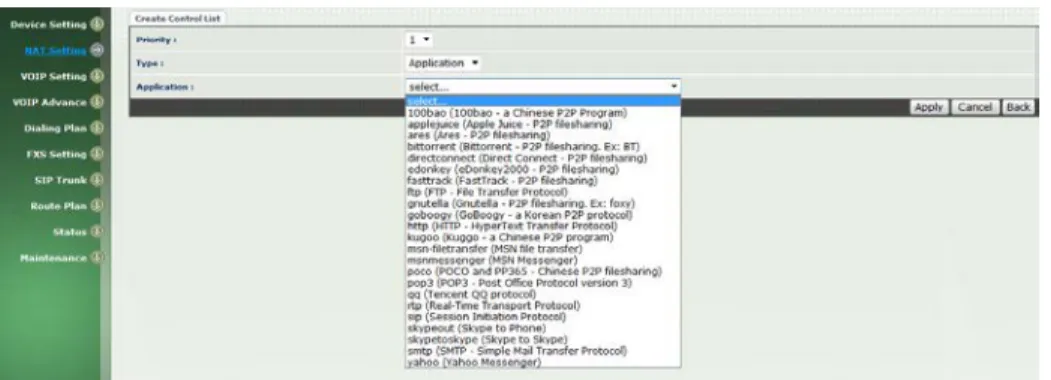
Application Target
Figure 3-3-7 Application Target
Priority: Priority value for the target Type: Application
Application: the list for the application
DSCP target
28
The WellGate 2424s support firewall features as below.
3-4 URL Filter
Figure 3-4 URL Filter
URL Filter: the specified url will be blocked
3-5 IP Filter
Figure 3-5 IP Filter
IP Filter: The specified IP address to be blocked
Local IP address: The LAN side IP address to be forwarded Protocol: TCP, UDP or both are used for port forward
3-6 MAC Filter
Figure 3-6 MAC Filter
MAC Filter: The MAC address to be blocked
3-7 APP Filter
Figure 3-7 App Filter
30
3-8 Port Filter
Figure 3-8 Port Filter
Port Filter: enable port Filter or not.
Port Range: Starting and stopping port to be forward. If you are
using only 1 port, please set the starting equal to stopping port.
Protocol: TCP, UDP or both are used for port blocked.
3-9 Port Fwd
The WellGate 2424s support port forward feature as below
Figure 3-9 Port Fwd
Port Fwd: enable port forward feature or not
Port Range: Starting and stopping port to be forward. If you are
using only 1 port, please set the starting equal to stopping port.
Protocol: TCP, UDP or both are used for port forward Local IP address: The LAN side IP address to be forwarded Local Port: The LAN side port to be forwarded. If you are using the
VOIP Parameters Setting
SIP Parameters:
CH4 VOIP Setting
4-1 SIP
Figure 4-1 SIP setting
Parameter Description:
Session Timer: Enable session timer or not (RFC 4028)
Session Expires (sec): This is the setting of initial session timer
expires time according to RFC4028 - Session Timers in the Session Initiation Protocol.
Min SE (sec): The minimum session timer allowed when receiving a
call with session timer value according to RFC 4028.
PRACK: Enable provisioning ACK or not (RFC 3262) None: Disable PARCK
Supported: When select this mode, 100rel will be added to the support list. It indicates WellGate 2424s can support the PRACK but not mandatory.
Require: PRACK is mandatory required.
SIP Local Port: The SIP local service port (default is 8080) SIP Qos Type: Quality of Service Type for SIP signaling
- None: Not using QOS Tag and not enables QOS.
- DiffServ: Differentiated Services Value. Input DSCP value 0-63 for
32
4-2 Audio
Figure 4-2 Audio setting
Codec 1~5: The preferred codec priority
G.711u Payload Size: G.711 u-Law payload size G.711a Payload Size: G.711 A-law payload size G.729 Payload Size: G.729A payload size G.723.1 Payload Size: G.723.1 payload size Bit Rate: G.723.1 bit rate used
5.3K bit rate is used
6.3K bit rate is used
Codec Priority: Selection order to match the remote SDP for codec
selection.
Local SDP Order: Use local SDP order to match codec Remote SDP Order: Use Remote SDP order to match codec DTMF Relay:
In-Band DTMF: use inband DTMF instead of out of band.
RFC 2833(fall back to SIP-INFO): Use RFC 2833 if the SDP
negotiation could be done. Or use SIP INFO for DTMF relay.
SIP INFO: Use SIP-INFO DTMF relay
RFC 2833(fall back to Inband): Use RFC 2833 if the SDP
Silence Suppression:
Enable: Start the voice activity (silence) detection when detect
silence for 60 seconds, it will hang up the call (For FXO use)
Disable: Send silence packet as normal voice packet (no silence
detection)
RTP Basic Port: The RTP starting port. Each channel will be add
additional 10. For example, the RTP basic port is 16384, thus call 1 will use 16384 while call 2 will use 16394 etc.
RTP Qos Type: IP QoS tag for RTP stream
DiffServ: The differentiated service QoS tag will be used. Input DSCP value 0-63 for DSCP.
TOS: Type of Service which include IP precedence value and TOS.
34
4-3 Tone
The setting page is used to setup the tone to be generated or detected. The detected tone is the Disconnect 1 & 2 (for FXO use) and the others are for generating (when FXS received the “bye” from IP side or waiting time
out by analog phone which keeps handset pick up, it will send busy tone to analog phone). The disconnect tone is very important for PSTN
status supervision.
Figure 4-3 Tone setting
Please use Country Template to select the country profile which will be applied. Click Use to load those country tone parameters to system and change if necessary. For those countries are not showed in the list, please select a closed country and edit to match your country. You can send an email with the tone definition to Welltech if you would like to put your country into the list.
4-4 NAT Traversal
The WellGate 2424s support the following NAT traversal methods
Figure 4-4 NAT Traversal
NAT Traversal:
Disable: Disable NAT traversal features
STUN (Type 1,2): Enable STUN for NAT traversal. Since
STUN can be used only for type 1 and type 2 NAT server, it is recommended to use this option. When STUN client detect the used NAT is type 3 NAT, it will stop the STUN feature.
STUN Server: STUN Server IP address
STUN (All): No matter which NAT type server are used,
STUN is always to be used for NAT traversal.
STUN Server: STUN Server IP address
UPNP: Enable UPnP client for NAT traversal. Please note that
the IP sharing box need support uPnP feature.
Behind NAT: Use DMZ for NAT traversal
IP Sharing Address: public IP sharing address. You
need to specify the port mapping or DMZ for all required port.
36
CH5 VOIP Advance
5-1 SIP
Figure 5-1 SIP
Parameter Description:
SIP Hold Type: SIP on hold message sending method.
- Send Only: Set the SDP media to sendonly when send an on-hold
SIP message.
- 0.0.0.0: Set the SDP connection to 0.0.0.0 when send an on-hold
SIP message.
- Inactive: Set the SDP media to inactive when send an on-hold SIP
message.
SIP Compact Form: Enable SIP compact form or not. When enable
this feature, the connected SIP proxy is required to support compact form.
Session Refresher: Who will send dialog keep alive message
(re-invite or update).
UAC: User Agent Client will do the refresh (default setting)
UAS: User Agent Server will do the refresh
SIP T1 (msec): T1 determines several timers as defined in
RFC3261. For example, when an unreliable transport protocol is used, a Client Invite transaction retransmits requests at an interval that start at T1 seconds and doubles after every retransmission. A Client General transaction retransmits requests at an interval that starts at T1 and doubles until it reaches T2. (Default Value: 500ms) **
SIP T2 (msec): Determines the maximum retransmission interval
as defined in RFC3261. For example, when an unreliable transport protocol is used, general requests are retransmitted at an interval which starts at T1 and doubles until reaches T2. If a provisional response is received, retransmission continue but at an interval of T2. (Default Value: 4000ms) **
SIP T4 (msec): T4 represents the amount of time the network
takes to clear message between client and server transactions as defined in RFC3261. For example, when working with an unreliable transport protocol, T4 determines the time that UAS waits after receiving an ACK message and before terminating the transaction. (Default Value: 5000) **
Invite Linger Timer: After sending an ACK for an INVITE final
response, a client cannot be sure that the server has received the ACK message. The client should be able to retransmit the ACK upon receiving retransmissions of the final response for this timer. This timer is also used when a 2xx response is sent for an incoming Invite. In this case, the ACK is not part of the Invite transaction.
General Linger Timer: After a UAS sends a final response, the UAS
cannot be sure that the client has received the response message. The UAS should be able to retransmit the response upon receiving retransmissions of the request based on this timer.
Cancel General No Response Time (msec): When sending a
CANCEL request on a General transaction, the User Agent waits cancel General No Response Timer milliseconds before timeout termination if there is no response for the cancelled
transaction(Default Value: 10000ms).**
General Request Timeout Timer (msec): After sending a
General request, the User Agent waits for a final response general Request Timeout Timer milliseconds before timeout termination (in this time the User Agent retransmits the request every T1,
2*T1,…T2,…milliseconds)**
Cancel Invite No Response Timer (msec): When sending a
CANCEL request on an Invite request, the User Agent waits this timer before timeout termination if there is no response for the cancelled transaction.
Provisional Timer (msec): The provisionalTimer is set when
receiving a provisional response on an INVITE transaction. The transaction will stop retransmissions of the INVITE request and will wait for a final response until the provisionTimer expires. If you set
38
will think the request is failed. The default is 5 seconds.
MWI Subscript Expires (sec): You can Enable or Disable the MWI
subscribe. The default is 600 sec. If a new voice mail is arrived, the stutter tone will be used instead of regular dial tone. This feature is dedicate to FXS only.
Line Congestion Code: when callee's end system was contacted
successfully but the callee is busy and does not wish to take the call at this time, the system wills response the code, default is 600. (FXO use)
SIP-Info Flash Mode: when you enable the feature, system will
make flash key to send SIP message by sip-info.
5-2 Audio
The setting page includes the device related audio settings.
Figure 5-2 Audio setting
RFC 2833 Payload Type: 96 or 101. It is recommended to use 101. DTMF Send On Time(msec): When generate DTMF, the DTMF on
time will be send (default value is 70 ms)
DTMF Send Off Time(msec): When generate DTMF, the DTMF off
time will be send (default value is 70 ms)
DTMF Detect Min on Time (msec): The minimum DTMF on time will
be processed as a regular DTMF event. Smaller than it will be ignored. The default value is 60ms.
DTMF Detect Min off Time (msec): The minimum DTMF off time for
the same DTMF value. Smaller than it and the new DTMF digit is the same as previous one will be handled as 1 digit only.
DTMF Relay Volume: The DTMF relay volume T.38 Fax Volume: The T.38 fax relay volume
T.38 Redundant Depth: The T.38 redundant packet depth. It could 0
(no redundant), 1 or 2. It is recommended to set to 2.
T.38 ECM: The t.38 error correction mode. Default value is ON. Min Jitter Buffer (msec): The minimum delay time of Jitter buffer. Max Jitter Buffer (msec): The Maximum delay time of Jitter buffer. Max Echo Tail Length (G.168): Enable the echo cancellation feature.
The default setting is “128ms”.
Jitter Opt. Factor: Jitter buffer dynamic factor for optimize. Please
set to 7 unless under Welltech’s instruction to change.
40
5-3 Ring
The ring cadence, voltage and frequency for the phone
Figure 5-3 Ring setting
Frequency (10~70HZ): Specify the ringing frequency value
(default is 20HZ)
Ring on (0~8000ms): Specify the ringing on value (default
is 1000msec)
Ring off (0~8000ms): Specify the ringing off value (default
is 2000msec)
Ring level (10~95volt): Specify the ringing level (default is
CH6 Dialing Plan
6-1 General
Figure 6-1 General setting
First Digit Time Out: Specify the duration of dial waiting when the receiver is off hook. The range is 1~60 sec.
Inter Digit Time Out: Specify the interval of input digits, if the
interval is over the setting, the system will end the dial and send out the DTMF. The limitation range is 1~10sec.
End of Digit: The assigned key will be tread as end of dial. Retrieve Number: it will forced to get back line, if used WellGate
2424s make transfer to other devices but the devices no answer and into voice mail,
42
6-2 Dialing Rule
Figure 6-2 Dialing Rule setting
Dialing rule is used to speed up the dialing procedure. Some user don’t like to use the end of dialing digit such as “#”, the administrator can use dialing rule instead. The longest prefix will be matched first.
Dialed Prefix: The prefix to be matched
Max Digits: The digits will be received based on the Dialed Prefix.
The following is an example for dialing rule: Mobile call is started with 09 and it is 10 digits Long distance call is started with 0 and it is 10 digits
International call is started with 00 and its max digit should be less than 32 The others are local call and 8 digits
Emergency call is started with 1 and 3 digits The Dialing rule can be set as follows:
Prefix, max digits 09, 10 0, 10 00, 15 1, 3 2, 8 3, 8 4, 8 5, 8 6, 8 7, 8 8, 8 9, 8
6-3 Digit Manipulation
The Digit Manipulation will be processed based on prefix and DM group after the DNIS is determined.
Figure 6-3 Digit Manipulation setting
DM Group: Different DM group have different case to be used. FXS: This DM group is used for FXS dialing out.
VOIP: This DM group is used for VOIP incoming call. After the
DNIS is collected in 2 stage dialing or 1 stage dialing DNIS, this DM group will be processed before enter the routing procedure.
1-4: These DM groups are used for backup routing purpose.
When a backup routing is used, the administrator can select a DM group to be processed before start the backup route.
Matched Prefix: The prefix to be matched for DM. The longest prefix
will be matched first.
Matched Length: Set to 0 for ignoring the length. The other 1-32 are
the length to be matched as a condition.
Start Pos: The start position to be replaced. Stop Pos: The stop position to be replaced. Replace Value: The value to replace. Example of Digit Manipulation Settings:
Prefix Len Start
Pos Stop Pos Replace Value Test DNIS Result DNIS
886 0 0 0 002 8862123456 0028862123456
44
6-4 Phone Book
Phone Book is used for peer to peer call.
Figure 6-4 Phone Book setting
Name: This field supports called number only. If you enter words or text here, it will routes to proxy server automatically.
Tel No: Enter called number and IP address. Please follow this sample of
picture, as the format of “number@uri:port”. (default port is 5060)
Export: To backup the phone book records. Import: To reload setting of phone book.
CH7 FXS Setting
The FXS line setting includes each line number and SIP proxy settings.
Figure 7-0 FXS setting
Line ID: FXS line (T1 to T24) State: The line is active or not TEL No: The telephone number
Hotline TEL:
If hot line is set, this field shows the hot line number.
Export: backup all lines setting.46
7-1 FXS line
Figure 7-1 FXS setting
User ID: FXS Line number (T1 to T24) User Type: The line type, FXO or FXS
Line State: Set to active if you would like to use this line. Otherwise,
set to Inactive.
Forward reason:
Unconditional forward: forward the call all the time Busy forward: Forward the call when phone is busy.
No answer forward: forward the call when the call does not
answered after no answer timeout.
Forward TEL: The forward telephone number for the selected
reason
No answer timeout: sec The no answer timeout will be used (default
is 120 sec)
Call waiting: Enable call waiting or not. When disable call waiting features, the second incoming call will be rejected.
Reject Anonymous Call: Reject the anonymous incoming call or not Hot line: Enable to disable hot line feature
Hot line TEL: The number to be dialed automatically after the user
pickup the phone.
Polarity Reversal generation: Enable Polarity Reversal for FXS as
billing signal or not. When a FXS calls to VOIP and answered by the VOIP, WellGate 2424s will generate reverse signal to FXS as a billing
start. When VOIP side disconnect first, WellGate 2424s will reverse back as a billing stop signal.
Current Drop generation: Enable current drop (0 voltage) when
VOIP is disconnected or not.
Input(Encode)Gain: Adjust the volume from FXS to VOIP (default is
0 db)
Output(Decode)Gain: Adjust the volume from VOIP to FXS (default
is 0 db)
FAX Relay: Enable T.38 Fax Relay or not
Voice mail subscription: enable voice mail subscription (MWI) or
not.
Caller ID mode:
Inhibit: don’t send caller ID to analog phone. Transparent: send caller ID to analog phone. SIP caller ID mode:
Inhibit: don’t send caller ID to VOIP SIP Transparent: send caller ID to VOIP SIP Register Type:
Register: register to proxy. If it is not registered to SIP proxy,
the FXS line still can use SIP trunk for VOIP call.
Predefine: When it is set to predefine, WellGate 2424s will
not send register message out.
Internal: When it is set to internal, WellGate 2424s does not
send register message out, the FXS line still can use SIP trunk for VOIP call or call locally.
TEL No: The registrar telephone number
User ID: The SIP user ID for register and call making
User Password: The SIP password for register and call making Display Name: The SIP display name
48
7-2 SIP Proxy
The SIP proxy server defined here is dedicated used for FXS lines.
Figure 7-2 FXS setting
Domain: The SIP domain for register or call making
Primary proxy server: Primary SIP registrar server address
Primary proxy server port: Primary SIP registrar server port
number
Outbound Proxy server: Primary outbound proxy server address Outbound Proxy server port: Primary outbound proxy server port
number
Primary Proxy server keep Alive: using through NAT and keep the
port.
Keep Alive Time (sec): Specify of times send sip register message to
proxy server.
Secondary Proxy: Enable secondary proxy or not. When enable it,
the primary and secondary proxy will be registered at the same time.
Secondary proxy server: Secondary SIP registrar server address Secondary proxy port: Secondary SIP registrar server port number Secondary outbound Proxy server: Secondary outbound proxy
server address
Secondary outbound Proxy server port: Secondary outbound
proxy server port number
Register Expire: SIP register time to live
Primary Proxy server keeps Alive: using through NAT and keep the
port.
Keep Alive Time (sec): Specify of times send sip register message to
7-3 Caller ID
The call ID stand for the phone
Figure 7-3 Caller ID setting
Caller ID Mode: Caller ID mode to be used for phone (FSK
Bellcore/FSK ETSI/DTMF)
Polarity Reverse before caller ID: start polarity reverse before
send the caller ID
Dual tone before caller ID: Send dual tone before caller ID (for FSK
ETSI use only)
Caller ID present: The timing to send the caller ID
(Before first ring/after first ring/after first short ring)
DTMF caller ID start digit: specify the DTMF caller ID start digit
(default is D, the range is A to D and #)
DTMF caller ID stop digit: specify the DTMF caller ID start digit
50
7-4 Others
Flash time and current drop generation time
Figure 7-4 Others setting
Min flash time(80~800msec):
Specify the value of the flash (low),
If the phone-set’s flash time is smaller than the Flash Low setting, the flash will be ignored.
MAX flash time (80~800msec): Specify the value of the flash
(high), if the phone-set’s flash time is larger than the Flash high setting, the flash will be handled as hang-up.
Current Drop Times (msec): Specify the value of the current drop
CH8 SIP Trunk
The administrator needs to set the SIP trunk for VOIP outgoing call and incoming call. There are up to 16 SIP trunk can be used for whole system.
Figure 8-0 SIP Trunk setting
Trunk ID: SIP trunk ID 1 to 16
Register Type: Register type is predefine or register TEL No: The Tel no for the SIP account
Proxy Server: The SIP proxy server
Proxy Server port: The SIP proxy server port Outbound Proxy: The SIP outbound proxy sever
52
8-1 Create SIP Trunk
Figure 8-1 SIP Trunk page
Trunk ID: SIP trunk ID 1-16
Register Type: Whether this account need register or not
Register: When it is set to register, WellGate 2424s will send
REGISTER message to SIP proxy server for registration.
Predefine: When it is set to predefine, WellGate 2424s will NOT
send REGISTER message out.
Domain: The SIP domain for register or call making Proxy Server: SIP registrar server address
Proxy Server Port: SIP registrar server port number Outbound Proxy Server: outbound proxy server address
Outbound Proxy server port: outbound proxy server port number Register Expires: the default register expires for negotiation TEL No: The registrar telephone number
User ID: The SIP user ID for register and call making
User Password: The SIP password for register and call making Display Name: The SIP display name
Reject Anonymous Call: Reject the anonymous call Outgoing Caller ID: The outgoing SIP caller ID mode.
Display Name: The display name will be set according to the
following type.
None: No display name will be used
SIP display name: The display name will be the Display Name
set in this SIP trunk.
SIP user ID: If the SIP user ID is set, the SIP user ID set in this
part. The SIP FROM header’s URL will be the
SIP_User_ID@Domain or SIP_User_ID@SIP_Proxy_Server.
Keep Alive: Enable or Disable it.
Keep Alive Time (sec): Specify of times send sip register message to
proxy server.
Note: please don’t delete sip trunk, even it is unless at all, because it have to be used with Route plan.
54
CH9 Route Plan
The core of WellGate 2424s is the routing policy. The policy is based on incoming call type/target, length and prefix to determinate the outgoing call process. For VOIP incoming call, it can send to FXS interface and vice versa.
For FXS interface, it could be routed to VOIP and vice versa. You can ignore the routing plan if you don’t need it for FXS interface.
Figure 9-0 Route Plan page
Incoming Call Type: Incoming call type (VOIP or FXS) Matched Prefix: matched DNIS (called number) prefix
Matched Incoming List: matched DNIS incoming interface target Matched Length: matched DNIS (called number) length
Outgoing Type: The outgoing call type (FXS or VOIP) Export: backup route plan setting.
9-1 Create Route Plan
Click Route Plan and Click new to create a new routing policy.
Figure 9-1 Route Plan setting
Incoming Call Type: Incoming call type VOIP: The incoming SIP call type
FXS: The FXS extensions incoming call type Matched Prefix: matched DNIS (called number) prefix
Matched Incoming List: matched DNIS incoming interface target For VOIP incoming call type, the incoming target will be
the SIP trunk ID. Only the call from the selected SIP Trunk will be accepted for this route.
For FXS incoming call type, the incoming target will be the line ID (T1 to T24). Only the call is coming from the selected line will be accepted for this route.
Matched Length: matched DNIS (called number) length. For ignoring
the length, please set to 0.
56
Hunting Type: The hunting method will be used for this route. Priority Ring: The call will be hunted based on the
routing list order one by one.
Cyclic Ring: The call will be hunted based on the cyclic basis. This is the recommended method.
Routing List:
The routing target list will be used for this route.
DM Group: Select DM group 1 to 4 in case it requires a DM (for
example remove the prefix) before to make the call.
Create Route Plan>Backup Route
Backup Route Active: Active the backup route or not. Outgoing Type: The backup route outgoing call type.
Hunting Type: The hunting method will be used for this route. Please
refer to the Primary Route.
Routing List: The backup routing target list will be used for this route. Route DM Group: Select DM group 1 to 4 in case the backup required
the DM before to make the call. The DNIS is unchanged by the primary route DM and same as the DNIS before routing. For example, the DNIS is 886282265699 and primary DM group remove 886 and use it (DNIS = 282265699) to make call. When backup route is started, the DNIS is still unchanged as 886282265699. This makes the DM easy to predict and implement.
2 special default route, “VOIP Default Route” and “FXS default Route”, are used as the default routing when there is no any other routing are matched. It is not recommended to disable these 2 default route. The FXS default route is used when a FXS outgoing call’s default routing. VOIP default route is used for a VOIP incoming call’s default routing.
CH10 Status
WellGate 2424s provides the system status here.
Figure 10-0 Device Status
10-1 Device States
See the figure 10-0 Device Status
Model: The model number
MAC-Address: The MAC address of WellGate 2424s Network Type: The Network Interface Type Settings IP-Address: IP address is using
IPV6 IP-address: display IPV6 address
58
10-2 Line States
This page shows the each line’s current status.
Figure 10-2 Line Status
Line: L1 to L24
Account: display each line number
Registered: display each line register status. Call State: The line status for this line
10-3 SIP Trunk States
Figure 10-3 SIP Trunk Status
Account: SIP trunk account
Registered: The SIP trunk register status
Concurrent Call: The concurrent calls are used for this SIP trunk Refresh Interval (second): The time to refresh the status
60
CH11 Maintenance
WellGate 2424s can be managed by this management page for upgrading firmware or reset.
Figure 11-0 Maintenance
Backup: Backup the system settings for restoring purpose Restore: Restoring the backup setting back to WellGate 2424s Reset to Default: Reset system setting to factory default Quick-Reset: Warm Reset without reboot WellGate 2424s Reboot: reboot WellGate 2424s
11-1 Firmware Update
This maintenance page provides the firmware upgrade features.
Figure 11-1 firmware update
Appendix A--- System Recovery
WellGate 2424s use dual firmware image to ensure the system stabilities. In most of case, you will not encounter the system failed to boot issue. Normally, the user should able to use Web page to login and upgrade the firmware through it. If you are not able to do it, please following the following steps for recovery.
1. Start the Welltech 2424s and to check the STATUS led is up or not. If STATUS led is ON, please press the reset button for 5 seconds to reset to default. After all LED are light up, the system is back to factory settings.
2. Change your PC IP address to 192.168.123.1
3. Connect your PC to LAN port and use http://192.168.123.123 to upgrade the firmware
4. If you cannot login to the web page through 192.168.123.123. Open a command line windows and type “telnet 192.168.123.123”.
You also can to use RS-232 console port, the baud rate is 115200, data bits is 8, parity set to none, stop bits set to 1, flow control set none.
If you can see the following go to next step. Otherwise, please contact Welltech FAE for RMA.
5. Prepare a TFTP server for firmware download as follows
- download tftp server
http://www.welltech.com/support/voip/TFTP/TFTP_Server.zip or
http://tftpd32.jounin.net/tftpd32_download.html
62
- download the firmware into tftp data directory
6. In the telnet terminal or console port, do the following command
- 1. input login and password - 2. input __dmctw
- 3. cd /config_fs - 4. rm -f wg24*.bin
- 5. tftp –g –r wg24.2.03f.bin 192.168.123.1 (see figure update firmware by
Figure - update firmware by tftp
- 6. copy firmware successfully
7. Check whether the system was recovered or not
- 1. Enter “ls” of command
64 Figure – update firmware successfully
Appendix B --- HTTP auto provisioning
Get the http provisioning packet from Welltech and start the provisioning as follows:
Step 1: build mac list for mass configuration file generation
Please open the “wg2424s MAC.csv gotten from Welltecg by using Microsoft Excel. You can refer the picture below. Normally, you should get all required configuration mac list from Welltech and use it for configuration file
generation. For FXS>
The wg2424s MAC.csv contains most frequently changed parameters as following:
MACAddress: WellGate 2424s MAC Address
fxs1.displayname ~ fxs24.displayname: display name for each line fxs1.password ~ fxs24.password: user password for register to SIP proxy
for each line
fxs1.telno ~ fxs24.telno: tel no for each line
fxs1.userid ~ fxs24.userid: user id for register to SIP proxy for each line
Please save and close it.
Step 2: create a template configuration file
Open the “wg2424s Parameter.txt” getting from Welltech and make the required change. Please at least make the changes for those provisioning and SIP proxy settings. For detail, please refer the comments of “wg2424s Parameter.txt”.
Step 3: Make the change for wegencfg.ini as follows if necessary
66
Step 4: Generate the individual configuration file.
Double click the “wtgencfg.exe”, it will generate the configuration file for each MAC list in “MAC address.cfg” as the following pictures.
Step 5:
Put the “*.cfg” file into http or ftp directory. Set the provisioning settings in WellGate 2424s and reboot to test it. You can use the hfs for http file server. It can be download from http://www.rejetto.com/hfs/.
Note: please link it to download provision file. More information please refers “wg2424s Parameter.txt”.
http://www.welltech.com/support/voip2/SIP%20series/FXSO%20series/24x x/provision/WG2424s_provision.zip