CentraStage & Apple Configurator
The benefits of integrating Apple Configurator
into your CentraStage MDM solution
Introduction
Apple Configurator makes it easy for anyone to mass configure and deploy iPhone, iPad, and iPod touch in a school, business, or institution.
Three simple workflows let you prepare new iOS devices for immediate distribution, supervise devices that need to maintain a standard configuration, and assign
devices to users. Users are able to quickly update devices simultaneously to the latest version of iOS1, configure settings, and install apps and data for students,
employees, or patrons.
Apple Configurator can be used by larger organisations and businesses to set up new devices, install enterprise apps, and enrol each device with a Mobile Device Management solution for remote management by an IT administrator. It is perfect for the classroom or student lab where devices need to be quickly refreshed and kept up to date with the correct settings, approved policies, apps and data. Apple
Configurator can also be used to personalise devices with data and documents for specific users.
For many organisations, however, a complete mobile strategy includes more than just device deployment. After devices have been deployed, they must be secured and monitored to ensure complete protection of all vulnerable materials including the assets themselves. They must be updated as end-users change job roles or move into a different class during their day. They must be manageable from your IT
Helpdesk when there are issues, and they must be wiped of all sensitive information and privileges as devices are retired. By integrating CentraStage with Configurator, educational institutions are able to administrate their devices in a simple and
streamlined process.
1 Please note, however, that CentraStage MDM requires a minimum iOS version of 6 to function, with
Preparation with Configurator
The benefits of integrating CentraStage’s MDM with Apple Configurator is shown from the start of initial deployment to the end of retirement, covering a device’s lifecycle.
Supervised Device Preparation with Configurator
The first step to preparing a device in Configurator is setting your devices to‘Supervised’ mode. Unlike ‘Unsupervised’ mode, ‘Supervised’ mode sets protective restrictions and loads exclusive settings on each connected device, such as:
iOS Version Enforcement – Load each device with any desired iOS version you prefer
Sync & Backup Protection – Restrict each device’s ability to sync or backup with another computer
Lock Screen Management – Set each device’s lock screen image and message
Supervised mode effectively wipes any connected device to a clean template, ready for staging with apps and profiles that end-users are unable to tweak on the backend in the CentraStage Management Console.
Over-the-Air Provisioning with CentraStage
Because CentraStage can provide wireless app and profile provisioning to devices, updating device configurations is easy and convenient. That said, before you begin supervising devices, it’s best to set up your MDM infrastructure in CentraStage. Wirelessly managing your devices and profiles in the CentraStage Management Console allows you to make changes to your devices even when they’re checked-out. Most importantly, management with CentraStage is immediate.
Once the MDM profile is created, exporting the profile from the Management Console, importing the profile into Configurator, and enrolling each device into CentraStage is quick and easy process.
Mass Silent Enrolment with Configurator
Once your devices are prepared in ‘Supervised’ mode and your CentraStage MDM profile has been exported from the Management Console into Configurator, stage any device with your desired presets efficiently. Configurator enables seamless mass deployment of CentraStage to any device formatted with the program, silently enrolling each connected iPhone and iPad into CentraStage.
This process is made even easier with a mobile cart, automatically staging one device after another and enrolling each one along the way. Connecting iOS devices
device when it’s not in use. From that point on, all device data and MDM action can tracked and executed in the online Management Console.
Top-level Management and Tracking with CentraStage
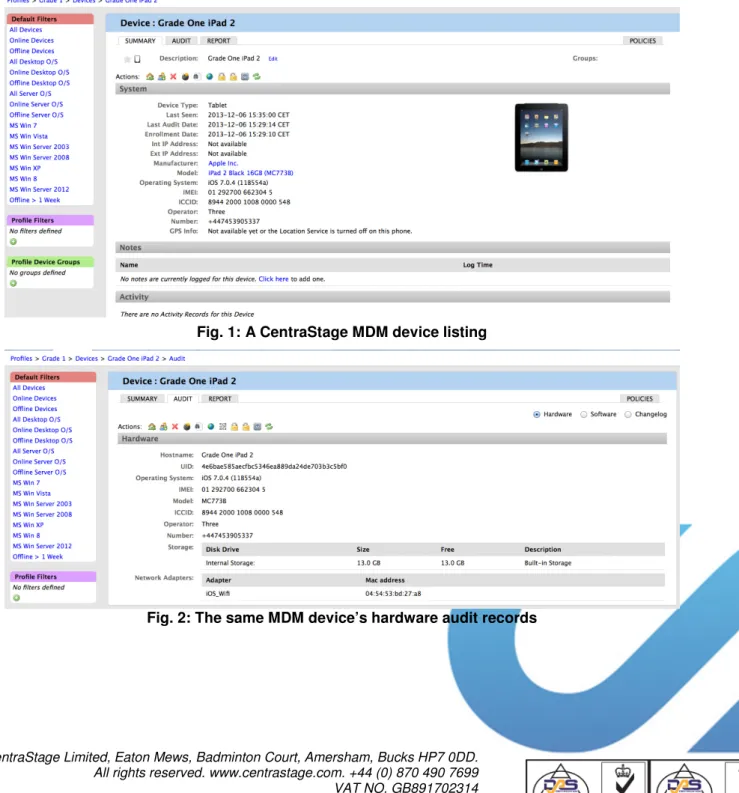
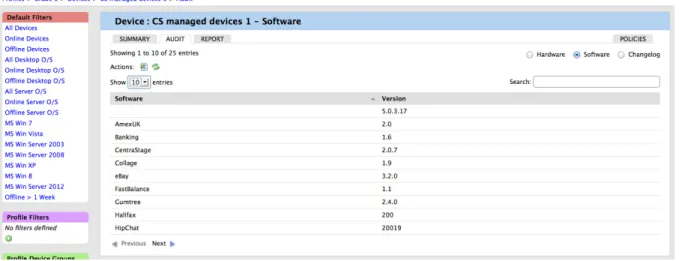
This includes comprehensive auditing against the iOS assets in your organisation, and also brings some immediate enhancement for the security of custom data. The following screenshots show an example of all the useful information that can be collected by the CentraStage MDM service.Fig. 1: A CentraStage MDM device listing
Fig. 3: The same MDM device’s software audit records
Device Reassignment with Configurator
After a device has been issued, it often may be reassigned depending on whether a student changes classes or if a different employee starts to use the device. Apple Configurator’s convenient user assignment capabilities make reassigning devices simple, but also allow:
Users to start with a clean slate of content on the device
User-specific content to be stored in Configurator, in an easily obtainable database if the user checks-out the device in the future
With Configurator, reassigning devices is a quick and simple process.
Device Retirement with CentraStage
When a device is lost or stolen, CentraStage’s full-wipe features can easily and remotely retire a device safely and securely. Immediately, all internal policies,
content and preferences will be removed from the device, leaving it in a generic state that leaves no sensitive information exposed or at risk.
Additional Benefits of Integration
Integrating CentraStage with Configurator provides additional benefits to boost your MDM potential, including:
• Asset tracking and audit
• Reporting and automated alerts • Advanced certificate management • Network configuration
• Email security
• Profiles management • Apps remote management
Integrating CentraStage with
Configurator
Not only do Apple Configurator and CentraStage complement each other with superior features and functionality, but they are also very easy to integrate. Integration is a quick and easy two-step process.
Before starting this process, it is ideal to set devices to ‘Supervised’ Mode. On the Prepare page in Configurator, setting a device to Supervised Mode allows you to wipe a returned device and reload the master profile every time your device is
plugged back in. As each device is connected, Configurator will proceed to wipe and re-load the device's operating system, before pushing through the user's profile settings.
Step 1: Export the CentraStage MDM Profile
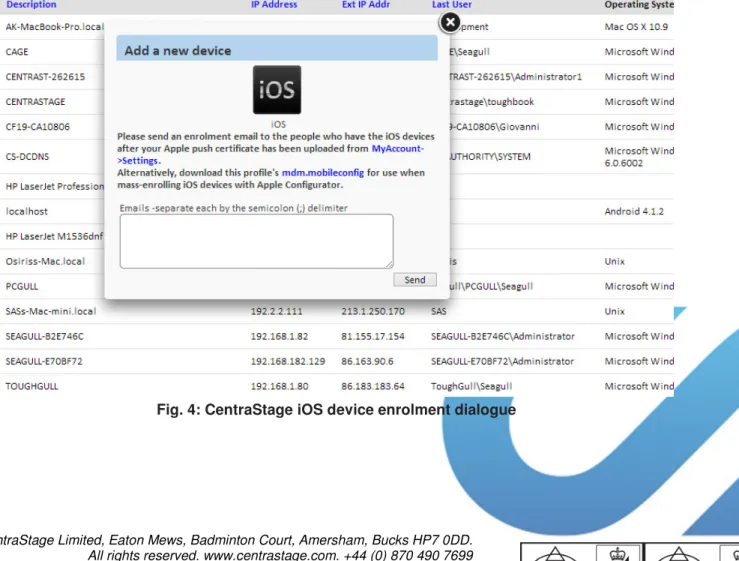
CentraStage offers Apple Configurator integration from the “Add Device” popup in each of your profiles section in the CSM, as shown below.
then be imported into Configurator.
Step 2: Import the MDM Profile into Apple Configurator
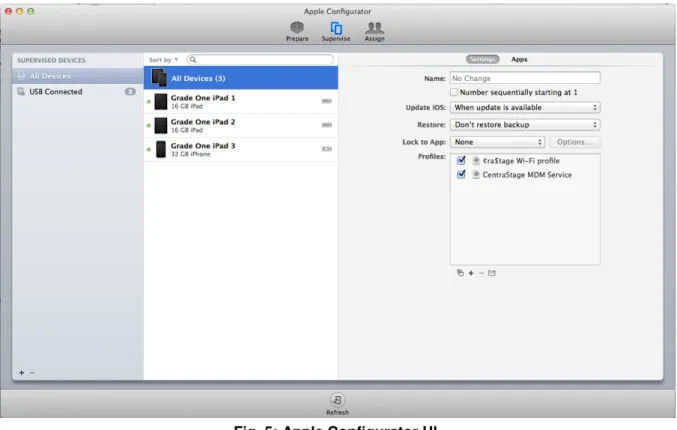
Once your devices have been prepared into ‘Supervised’ mode using AppleConfigurator, import the MDM profile using the plus sign at the bottom of the Profiles box.
Fig. 5: Apple Configurator UI.
Please note that it is a mandatory step to check “Number sequentially starting at 1” at the All Devices level, as each of your devices need a unique name.
From this point, simply click Refresh at the bottom of the window and your devices will be enrolled and staged with the appropriate MDM profiles. You can now manage device settings and features from the CentraStage Management Console wirelessly instead of having to plug in each device to reconfigure.
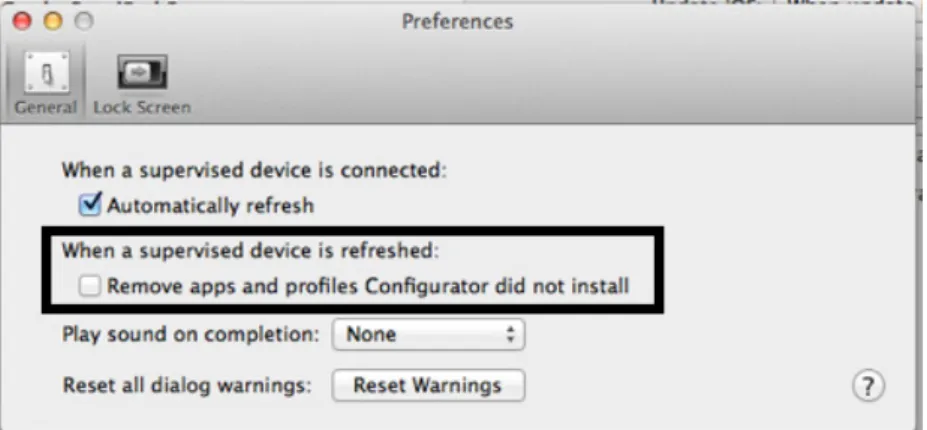
The last but not the least is to change the default settings for the Configurator from its Preference panel, as shown above, to make sure that a supervised device will not have its MDM profile reinstalled when it is re-connected to Apple Configurator.