AKB-210DSP
Bestellnummer 38.0220
INSTRUCTION MANUAL
with DSP Technology
Table of contents
Product description ... 3 Type remarks ... 3 Key features ... 3 Applications... 4 Connections... 5 System information ... 7 Description ... 7 Hardware Architecture... 8Digital audio input... 8
Audio performance data... 8
Remote control ... 9 Product overview ... 9 Hardware part ...10 Sub out ...12 Linking ...12 Software installation...13 Control panel...13 Input options...14 Filter design...15 Graph Area...16
Filter Definition Area ...16
Settings window...17 Work flow...17 Measurement...17 Designing filters ...20 Download ...21 Save Files ...21 Examples...23
Example 1: 2 channel stereo setup...23
Example 2: Stereo setup with active subwoofer...25
Product description
Type remarks
Firmware version 2.4 (Oct 2011)
Key features
Compact design
Personal Computer controlled Pop free start and stop control Stereo analogue input Subwoofer output
Fully user customised filtering Button panel controlled Remote controlled
Link communication master / slave (only with two modules) Low signal to noise ( 100dB)
Optional features, by adding a digital audio board. SPDIF stereo audio input
Input sample rates up to 192kHz
Link communication trough SPDIF link cable (one cable for audio and link) USB audio input
Low signal to noise ( 104dB)
- The first time the is used all biquads are zero, so there are no
filters installed. Connecting any speakers and audio input at this point may cause some damage to them.
- Take notice on what changes you make, changing a 2channel filters to flat
can damage your speakers because both channels may be full range!
- After updating the firmware please be sure to also download the latest
Applications
With one module the following applications can be set up, further explained in the “Hardware part” chapter:
Stereo passive filtered system
Briged mode for single subwoofer (max 140Watt short term into 8 Ohms) Mono/mid 2 way setup (tweeter + sub)
When two modules are used the following applications can be set up, also explained in “Hardware part”:
2 way active filtered stereo system 2 channel system with active subwoofer
2 channel system, both modules in bridge mode for more power
All setups are possible with both analogue and optional with the digital audio inputs SPDIF and USB.
Note that all setups have the ability to use an extra channel by connecting an active subwoofer to the subout. By this you will have the opportunity to build a 3 way system.
Connections
F u
Figure 1
Overview of the connections on the front of the
Function un i
1
1 Amplifier output, for slave speaker in stereo setup 4
4 Analogue input left channel
5
5 Analogue input right channel
6 6 Subwoofer output 7 77 7 On/Off switch 8
9 99
9 Master trigger output, slave trigger input
Right channel trough 1 110 10 Main Fuse 1 11 ~230 volt input D v on y
Digital version only: 2
22
2 SPDIF audio input
3
3 SPDIF audio output
Audio trough for slave module 8
8b USB audio input
F u
Figure 2
Overview of the connections on the back of the FunctionFunction unun ii 1 1 Transformer connection 2 2 JP1, Bridge jumper 3 33
3 J4, Stereo Left channel output
2 channel Low channel Pin1 (left) Speaker Pin 2 (right) Speaker + 4
4 J2, Stereo Right channel output
2 channel High channel Pin1 (left) Speaker Pin 2 (right) Speaker + 5
5 J3, Connection of banana plugs
Physically the same as connector J2 6
6 Transformer connection
7
System information
F u
Figure 3
Description
The is a plate amp for use in powered speaker systems. As an active speaker controller, a canformthebasisof powerful active two way monitor.a In stereo mode one will power an active master / passive slave pair. Finally, the module may also be used as a one way 140W amplifier. All signal processing, including volume control, is done using the on board DSP (digital signal processor).
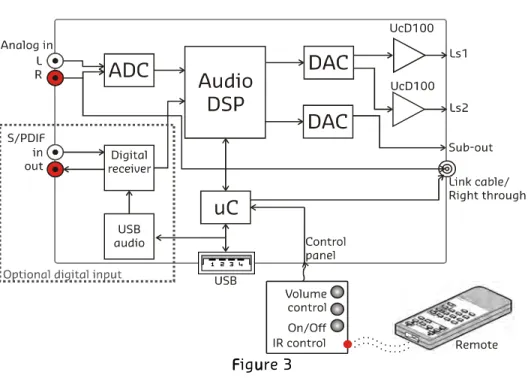
Figure 3 shows the block diagram of the amplifier. When two modules are used, the second unit slaves to the first unit (master) through a link cable. The link cable (a stereo mini jack cable) carries both the right audio channel and control data. This way, both units respond to the master’s control panel.
A PC controls the through the USB port. This connection is used to upload the configuration and filter settings. An optional board permits use of the USB link for audio as well as an SPDIF link. In digital mode, master/slave linking is done through the SPDIF in/out connections instead of the mini jack cable.
Hardware Architecture
The standard version of the has a stereo analogue audio input. This analogue signal is converted to digital, processed by the DSP and then converted back to analogue. A microcontroller controls the DSP, reads the control panel and communicates with the PC and/or another that may be attached.
Digital audio input
The optional digital input board plugs into the main PCB and carries two RCA connectors, SPDIF in and SPDIF through. Incoming SPDIF is linked through directly to the output and sent to the DSP through an asynchronous sample rate converter (ASRC) for jitter removal. The USB part adds a hub and an audio device which in turn also transmits audio over the ASRC to the DSP. The ASRC chip scans its input for whichever signal is active. In a stereo setup and in digital mode the SPDIF through cable doubles as a master/slave link, obviating the need for the mini jack cable. The mini jack cable remains functional though and does not have to be removed.
Audio performance data
MBW 20kHz, unless otherwise noted. All filters set to unity. Noise levels unweighted.
Item Symbol Min Typ Max Unit Notes
Input level Vin 2.2 V
Input impedance 10k Ohm Analogue cinch inputs
LS1 100* W Into 4 Ohms LS2 100* W Into 4 Ohms LS1 50 W Into 8 Ohms Output level LS2 50 W Into 8 Ohms 100 dB ADC Signal/Noise SNR 104 dB DAC Total harmonic distortion+Noise THD+N 0.05 0.07 % 20Hz<f<20kHz. Pout<PR/2
Analogue sampling rate Fs 48 kHz
0 0 34,03 cm
Delay per channel
0 0 1000 us
Set in software, not for subout channel Supported digital sampling
rates
Fs 32, 44.1, 48, 88.2, 96, 192
kHz All input rates
converted to 48kHz
Gain 20 dB volume at 0dB
Analogue Latency 1,12 ms
SPDIF latency 3,58 ms
Remote control
The master unit is fitted with small keypad which can be placed in the front of the loudspeaker cabinet. Volume and idle/on is controlled by the pushbuttons and by an infra red remote control. When 2 modules are used only one control panel is needed, cause the
trigger communication between master and slave.
There is also a touch panel available . This can replace the standard control panel.
The use of an Inferred remote control adds the ability to switch input channels with the up and down buttons of the remote. The uses a standard RC 5 TV protocol for Infrared control.
Product overview
Before you can use the in your particular setup, you first have to set the right settings. This is done by pc software, called DSP filter design.
Please do not connect any speakers to your system yet!
When you want to set up a system with the you apparently know what you want. So with this information you can setup your system as follows:
Stereo setup, in this setup you use one module for driving two (passive filtered) speakers.
Bridged setup, the possibility to bridge both amplifiers on the will enable you to get more power at higher loads. This setup is especially useful for driving a subwoofer
2 channel setup. A 2 channel setup will allow you to make a two way active speaker. Each amplifier of the will drive one driver of the speaker, i.e. high, mid or low.
In this setup you will need one per speaker. A combination of the above mentioned setups is
also possible, for example a stereo setup with an active subwoofer with an in bridge mode, see Figure 4.
Stereo
audio in Right speaker Left speaker V l m o n V l m Up I R c er n O f Control Panel
Hardware part
Stereo setup: Connect the module to your pc by a USB cable and select on witch side of the room your master module will be, the speaker with the . When your master is the left channel the slave will become the right channel. The slave speaker can be connected by the banana plugs on the .
e
e
Figure
Figure 4
4
Bridged setup: Connect the module to your pc by a USB cable and select where the master module is placed, master module is left or right audio or functions as a sub woofer. When you use 2 for a stereo bridged setup you will also have to initialise the second (slave) module, see example in the last chapter of this document. In bridged mode the jumper (see Figure 2) must be placed and the speaker must be connected between J4 speaker+ and J2 speaker+. In all other setups the jumper is not placed! When you want to set the master as right channel with analogue input you will have to change the input cinches, left in the right cinch and right in the left. This is because only the right channel is linked trough, so if you want the left channel to be linked trough you just switches left and right. For digital sources the left and right channel are linked.
2 Channel: Connect the module to your pc by a USB cable and select what kind of 2 channel you want to setup. When you want to set the master as right channel with analogue input you will have to change the input cinches, left in the right cinch and right in the left. This is because only the right channel is linked trough, so if you want the left channel to be linked trough you just switches left and right. For digital sources the left and right channel are linked. An example is given in the last chapter of this document.
V l m Do n V l m U I R c e er n O f Stereo audio in Control Panel
trigger +
right ch
LF HF LF HFr
Figure 6
Sub-out
On all setups there is also the ability to use the Line out sub. This can source an active subwoofer module. The sub output has up to 6 biquads for filtering that can exclude the use of an external subwoofer filter.
Linking
When 2 modules are used these two can be linked by a trigger cable. This cable holds device data and also carries an audio channel on analogue source. If the digital board is installed then the SPDIF link cable can be used to communicate between the 2 modules. This cable is placed from master SPDIF out to slave SPDIF in cinch. The trigger cable is no longer needed in this setup. On USB audio input on the master the SPDIF output is also used for linking master to slave.
Software installation
System requirements:
• Pentium class or higher
• 64MB RAM
• USB1.0 or higher
All files are compressed in the setup.zip file. This zip file contains a DLL file for communication and a .EXE file, which represents the DSP filter design program.
1. Unzip the setup.zip file on your hard disk
2. Open the “ DSP filter design.EXE” by double clicking the file
Control panel
Now the program is ready for use. You see the following window, called the control panel.
F u
F u
Figure
Figure 7
7
When the program is running connect your to your pc by the USB cable. Windows will automatically detect and install the and the USB audio device (digital version only). When the installation is done the connected window will appear and the connec tion light will turn green. You can also manuallymake a connection by the “connect” button, on the bottom right of the control panel.
Now you can adapt the settings of the real time through USB. On the left of the control panel you see the Force input and active input groups. This shows you the settings of the audio inputs of the ,and lets you control these inputs (only when digital audio board is added).
Audio can be provided in 3 ways, analogue, SPDIF and USB audio. The selection of any of these inputs can be automatic, “auto detect”. This means that when any of the inputs is presented there will be switched to this channel automatically. This is done by setting the analogue input
F u
F u
Figure
Figure 8
8
as the standard source. During analogue in the other two inputs are scanned for any valid signal. The first channel that contains any valid audio is selected and becomes the new input source. But if you put in the USB cable but you want to use the analogue input you can force the analogue input to be used. This can be done for all inputs, the options Analogue, SPDIF and USB Audio.
When the module selects one of the inputs this is shown by the active input lights.
Under the Setup select part the system setup can be selected. There can be chosen between:
2-channel Stereo Bridged
Master on the left Master on the left Master on the left
Master on the right* Master on the right* Master on the right*
Mid/Sub, L+R Sub, L+R
Side, L R
* Only on digital audio board, for analogue version cinches has to be changed like described in ‘Hardware part’.
The output signal of the subout channel is controlled in the “Subout control” panel. Normally this will be set to L+R to use one subwoofer, but if you want to use a subwoofer on both sides you can set the subout to only use left or right input signal.
The last thing that can be controlled in this window is volume. This can be done by setting the scrollbar to a desired position or by typing the value in the volume field, this value is send when pressed “enter”.
All of the configurations made here will be redirected from master to slave, when presented. So there is no need to connect the slave module to the pc.
The slave module is always the opposite of the master, so master left will set the slave to right. This is done automatically because the module knows whether it is master or slave.
Only when the module is switched off by remote all settings, like volume and setup, are stored in memory.
Input options
Use this dialog to match the input sensitivity of the analogue input to the full scale output level of your analogue source (max. 2.2V). This helps prevent annoying loudness jumps when switching between digital and analogue sources.
Gain can be changed in steps of one dB and only for the analogue input.
F u
Figure 9
Filter design
When you want to make some filters for your module they can be designed in the “Filter design”. Under view there can be switched between the control panel and the filter design window.
The following pages will give you a widespread instruction of the possibilities of the program.
r
Figure 1
11
F u
Figure 10
Graph Area
The magnitude tab shows the imported driver responses, filters, individual biquads, individual filtered driver responses and the sum.
Colour Function
Blue, thin Measured woofer response
Green, thin Measured midrange response
Red. thin Measured tweeter response
Blue, thick Filtered woofer response Green, thick Filtered midrange response
Red, thick Filtered tweeter response
Light blue, thick Response of filter, selected channel only Orange, thick Response of selected biquad
Black, thick Sum response
Having all of these on at the same time quickly produces an intractable mess so these graphs can be separately enabled or disabled in the filter definition area.
The impulse or step tabs show the time domain response of the imported drivers and the sum response, and are used to demarcate the anechoic portion.
Filter Definition Area
The three channel tabs, labelled Tweeter, Woofer and Subwoofer are functionally identical. The top left frame is used to import response files. The “select” button opens a file. The “show” checkbox turns display of the measured graph on or off. The Common Settings box controls global gain (for each channel), delay, and the visibility of plots.
The amplified channels have up to 12 biquads, selected using the “Biquad Section” radio buttons in the middle. The Subwoofer lineout has only 6 biquads sections, for only simple filter settings. To the right is a settings area specific to the type of function selected. Unused biquads are set to unity.
The selected biquad is edited by selecting a function and setting relevant parameters.
The delay has a maximum value of 1000us for channel 1 and 2. The subwoofer channel does not include any delay. Distance is calculated by sound speed/delay distance, maximum distance is therefore 340,29meters/0,001secondes 34,029cm. Note that the minimum step size is 0,726cm cause the sample rate of 46875Hz.
The sample frequency is not the standard 48kHz because of internal clock source also needed for USB connection.
Settings window
The settings window is under File > Settings… Measurement sampling rate sets the sample rate used in the imported response files (typically 48kHz). Processor sampling rate is that of the DSP hardware. Note that this setting does not control the sampling rate of the hardware. Rather, it informs the filter design application of what that sampling rate is. In short, leave this at the standard value.
The select button opens a file dialogue box witch is not used in this application.
Work flow
Measurement
Measuring using the DSP unit set to “flat”
Perform impulse response measurements for each driver separately. Save the entire impulse record truncation can be done later on the filter design program.
Measuring using an external amplifier
A separate amplifier may also be used for measuring the drivers, provided the amplifier’s output impedance is as low as the DSP unit’s.
Importing response data
Select the tab for the channel you want to import and click “select”. The filter designer expects the impulse response measurement as a text file with one sample per line.
There is no restriction on the absolute gain of the impulse response data. The only thing that matters is that the absolute gain be the same for all three measurements. The filter designer computes a gain offset based on all loaded responses to centre them collectively on the vertical scale.
Truncating response data
r
r
Figure
Figure 1
1
12
12
The first echo is apparent at 5ms. Zoom in until you see only the anechoic portion of the impulse response. Dragging the mouse, left button down, from left to right marks a zoom area. Dragging from right to left zooms out. Dragging with the right button down pans the plot left and right.
r
Figure 1
13
Click “truncate”. Anything currently outside the display is drawn in grey and not processed. You will notice that in the frequency graph a portion of the low frequency response is also drawn in grey. This is to remind the user that insufficient information is available to make *any* correction below this frequency. A way of obtaining quasi anechoic low frequency measurements is making close up measurements. Working with such measurements requires a good deal of interpretation but it is doable.
Important: Avoid making any corrections for which no anechoic data is available. If reflections are included, they are guaranteed to dominate the measurement at low frequencies, and you will end up making corrections for circumstances that are highly specific to the room in which the measurement was made. Power response data can only be made in a proper echo chamber or preferably, by collating a large number of anechoic off axis measurements. A reverberant measurement in a normal live room just won’t do.
The steps of loading and truncating data can be repeated at any time. This can be particularly practical when combining close up and far field measurements during the filter design phase. The window in Figure 13 shows the result of this. The small knot of corrections made around 70Hz is based on close up data first loaded separately. The LF section of the test mule is quite smooth apart from one internal standing wave.
Designing filters
Biquad function Parameters Use
Unity Section is not used
LPF1 Cut off frequency (always 3dB) First order lowpass
LPF2 Cut off frequency (asymptotically)
Q
Second order lowpass. A Q of 0.71 corresponds to butterworth. 0.5 corresponds to LR2. Two identical sections with a Q of 0.71 form an LR4 filter.
HPF1 Cut off frequency (always 3dB) First order highpass
HPF2 Cut off frequency (asymptotically)
Q
Second order highpass. A Q of 0.71 corresponds to butterworth. 0.5 corresponds to LR2. Two identical sections with a Q of 0.71 form an LR4 filter.
Shelf1 Centre Frequency (halfway point)
Gain Direction
First order shelf. Useful for baffle step correction
Shelf2
Centre Frequency (halfway point) Gain
Q Direction
Second order shelf. Useful for correcting internal cabinet resonances and for the midband peak/dip combo of most midwoofer speakers.
Asymmetric Shelf Pole frequency and Q Zero frequency and Q
Equalising the bottom end of closed box woofers with large magnets
Boost/Cut Centre frequency
Q gain
Dip/peak filter. For peaks, Q is defined by the poles. For dips, Q is defined by the zeros. Thus the same filter with opposite gains will cancel.
The first step is equalising the magnitude responses of the drivers flat over their entire useable frequency range.
The weapons of choice are shelving filters, and boost/cut sections. A sharp peak followed by an equally sharp dip can be corrected using a second order shelving filter with a high Q.
Exercise care when deciding what to correct. When correcting for diffraction errors, do not exceed a Q of 3 lest the cure be worse than the ailment. Errors that are caused inside the driver, or internal cabinet resonances that emanate through the same diaphragm, may be corrected ruthlessly provided the measurement has sufficient resolution to pin them down.
As a rule of thumb, sharp dips are diffraction artefacts while sharp peaks are caused by the drivers themselves. Exceptions are room resonances (if the response is not correctly truncated) and diffractions on repetitive patterns.
The second step is designing the actual crossover filters. All the usual strategies work. Delaying higher frequency drivers with respect to lower frequency ones is a powerful alternative to using asymmetric slopes and yields substantially improved coherence through the crossover region.
Download
Under download the user can press “load DSP” to download its designed filters to the . This will store the filter settings into the memory of the module.
Save Files
Under filter design there is an option to save all filter settings together with the measurements so it can be reloaded afterwards. Till now it is not possible to read back the filters out of the modules.
During the update from version 1 to 2 of the filter design software we had to make some changes in the save function. Therefore it is not possible to use save files made in an earlier version as V2.
r
Figure 1
14
Examples
Example 1: 2-channel stereo setup
This example will guide you through setting up you 2 channel stereo system with the , a schematic presentation of similar setup is given in Figure 6. The master module is always the one with the control panel connected.
First you got your 2 modules with no cables or speakers connected!.
Ma r
MaMasterr Master
1. Plug in the power connector and switch the module to ON
2. Power up the module by the control panel or remote,Blue LED goes on 3. Start the pc program, filter design
4. Plug in the USB cable (assumed that you’ve already installed the software as described in the Software Installation chapter)
5. Wait for automatic connection, a popup is displayed as in Figure 8. If the software doesn’t connect automatically press the “connect” button. If there is no response there is a problem with the USB connection or your operating system that can not detect the USB device
6. Set the system to the desired setup, for this example a 2 channel where the master represents the Left speaker
r
Figure 1
15
7. When needed set the desired input, for now just leave it Auto detect. Note that in auto detect the USB source is selected when the module is connected to the pc
8. Switch to the Filter design Window under view, or press ctrl+f
9. Fill in your biquads with the desired filters, in this preliminary software the high channel is channel 1 and the low channel is channel 2
r
Figure 1
16
11. When download is completed you can power down the module 12. Start with the SLAVE module
S SSlave Slave
1. Start the pc program, filter design. Or go back to the control panel (ctrl+c) if the program is still running
2. Plug in the power connector and switch the module to ON
3. Plug in the USB cable (assumed that you’ve already installed the software as described in Software Installation chapter)
4. Wait for automatic connection, now the program detects a slave module, this is shown in a popup. If connection is not automatic then press the “connect” button. If there is no response there is a problem with the USB connection
5. Switch to the Filter design Window under view, or press ctrl+f
6. Fill in your biquads with the desired filters or use the same filters as the master module. In this preliminary software the high channel is channel 1 and the low channel is channel 2
8. When download is completed you can power down the module and disconnect the USB cable
9. Master and Slave are now set up as a 2 channel stereo system
F n l s Final setup
When both modules are installed it is time to complete your setup.
First connect your speakers as explained in chapter Product overview
Connect the trigger cable (mini jack) oror SPDIF cable between both modules, depending on the used audio source
Power up master and slave module
Turn on the master by control panel or remote
Lower you source volume, prevent loud start up volume Connect your source to the
Ready!
Now the system is fully setup and can be controlled by the control panel, remote control or by connecting the module to your pc. From now on you can update your filters at any time, just repeat the Master and Slave steps.
* If your slave module is not turned on by the master try to power down the slave, turn the master off, wait 5 seconds, power up slave and turn the master back on
* When there is something that does not work try to repeat the installation
Example 2: Stereo setup with active subwoofer
This example describes how to set up a stereo passive filtered audio system plus an active subwoofer (with or without filtering) with use of one .This setup is shown in Figure 5. At first you have only a with no cables connected.
1. Plug in the power connector and switch the module to ON 2. Power up the module by the control panel or remote 3. Start the pc program, filter design
Software installation” )
5. Wait for automatic connection, a popup is displayed as in Figure 8. If connection is not automatic the press the “connect” button. If there is no response there is a problem with the USB connection or your operating system that can not detect the USB device
6. Set the system to the desired setup, for this example stereo left because the left
speaker holds the module
7. Set the Subout control to L+R, because one subwoofer is used
r
Figure 1
17
8. When needed set the desired input, for now just leave it Auto detect. Note that in auto detect the USB source is selected when the module is connected to the pc
9. Switch to the Filter design Window under view, or press ctrl+f
10. Fill in your biquads with the desired filters. For the stereo setup you don’t need to set any filtering for channel 1(left speaker) and channel 2 (right speaker), but you got the ability to use them
11. Set your Subwoofer filtering if required
12. Even when you don’t want to use the filters you still need to set them to unity. Press download, or use ctrl+F9
13. When the download is complete the setup is done
14. Connect the right speaker to the Amplifier out connector and your subwoofer to the Line out Sub
15. Present your audio source
Ready!
Now the system is fully setup and can be controlled by the control panel, remote control or by connecting the module to your pc. From now on you can update your filters at any time, just repeat the steps of this example.
Technical data
Supply voltage 230Volt AC/50Hz +/ 10%
Dimensions 115mmx200mmx60mm (WxHxD)
Plate thickness 2,5mm
Weight 1,5 kg