User’s Guide
XT30/XT50
© 2008 Digital Monitoring Products, Inc.
Information furnished by DMP is believed to be accurate and reliable.
This information is subject to change without notice.
Silencing an Alarm
When the alarm bell or siren is sounding, enter your user code or present your
card to a keypad or reader during the Status List display.
All/Perimeter or Home/Sleep/Away System
CANCEL VERIFY displays.
• If a burglar alarm is valid, press VERIFY to send a verification message
to the Central Station.
• If a valid alarm has not occurred, press CANCEL to cancel the alarm
and send an Abort or Cancel message to the Central Station. The
keypad displays ALARM CANCELLED and the security system will be
disarmed.
What to do when a trouble tone is sounding
You can silence the trouble tone by pressing any key. This only silences the
keypad and does not correct the condition that originally caused the problem.
XT30/XT50 User’s Guide i
XT Series
™User’s Guide
for XT30/XT50 Series Panels
Table of Contents
Section Page Section Page
Silencing an Alarm ... Inside front cover
Introduction ...1
About Your Security System ...1
Emergency Evacuation Plans ...2
DMP Keypads ...3
Special Keypad Tones ...7
DMP Wireless ...8
Special Wireless Displays ...8
Special Keypad Displays ...8
Email/Cell Phone Messages ...9
Understanding Security System Terms ...9
Arming and Disarming ...12
How Your System Operates ... 12
Arming Functions ... 12
Key Fob Arming ... 13
Key Fob Disarming ... 13
Area System Arming ... 13
Area System Disarming ... 14
All/Perimeter System Arming ... 15
All/Perimeter System Disarming ... 16
Home/Away System Arming ... 17
Home/Away System Disarming ... 18
Keypad Shortcut Keys ... 19
User Menu ...21
Accessing the User Menu ... 21
User Menu Options ... 21
User Check-in ... 22
Zone Activity Check ... 22
Sensor Reset ... 23
Outputs On Off ... 23
Bypass Zones ... 24
Zone Monitor ... 24
Using the Zone Monitor Function ... 25
System Test ... 25
User Codes ... 26
Schedules ... 29
Permanent Schedules ... 29
Extending Schedules ... 30
Output Schedules ... 30
Date and Time ... 31
Display Events ... 31
Request Service? ... 31
System Setup ...32
System Setup Record... 32
ii XT30/XT50 User’s Guide
Output Record ... 32
Key Fob Button Programming ... 33
User Codes ... 33
Appendix A ...35
About the Display Events Section... 35
Zone Activity Check Event Display ... 35
Zone Bypass Event Displays ... 35
Zone Event Displays ... 36
Arming and Disarming Event Displays ... 36
User Check-in Event Displays ... 36
User Code Change Event Displays ... 36
Supervisory Event Displays ... 37
System Monitor Event Displays ... 37
Wireless Jamming Event Displays ... 37
Wireless Trouble Event Displays ... 37
Appendix B ...38
DMP Wireless Description ... 38
Appendix C ...39
User’s Guide ... 39
Entering User Names ... 41
Appendix D ...42
Email/Cell Phone Message User’s Guide ... 42
PhoneAccess™ User’s Guide ... 43
Common Keypad Displays ... 44
XT30/XT50 User’s Guide 1
Introduction
About Your Security System
Your system is designed with your safety and comfort in mind. It uses the latest in computer technology to create the most advanced, user friendly, security, fire, and access control system available.
The system combines ease of use with a simple to understand keypad display to offer the full range of features requested by today’s security system owners. Your security system can protect both the interior and perimeter of your home or business while you are away or just the perimeter when you are inside, giving you a wall of security and peace of mind.
You can turn portions of your protection on or off at any time by pressing a few keys. You can add, delete, and change personal user codes at any time or check the status of all protection devices in the system.
DMP Keypads
This is the device we have placed at certain locations throughout the premises that allows you to turn the system protection on and off using your personal user code.
Keypad User Menu
The keypad provides a simple User Menu containing all of the functions you need to fully operate your system such as changing the time of day or a personal user code.
A Note About False Alarms
One of the most important concerns facing the security industry today is false alarms. The accidental dispatching of police and fire agencies places others in jeopardy by limiting the response capability of those emergency service units.
As part of our commitment to reducing false alarms, we would like to encourage you to read this guide thoroughly. All the information contained here can help you quickly, and comfortably, learn the XT Series™ system operation.
Note: There may be a 30-second alarm communication delay pre-programmed at installation to allow disarming if a false alarm occurs. This delay is optional and can be removed or increased to 45 seconds by your alarm dealer.
Test Your System Weekly
It is recommended that you test the burglary portion of your system at least once each week. Testing should involve an active test of all doors, windows, and motion detectors connected to your system. If your system also has fire protection, call the service department to find out how this portion of your system should be tested. Refer to the System Test section of this guide for instructions on testing the burglary portion of your system.
2 XT30/XT50 User’s Guide
Practice your escape plans
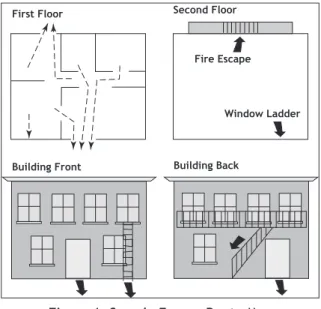
Devising an escape plan is only the beginning. For the plan to be effective everyone should practice escape routes from each room.
Second Floor
Building Front Building Back
First Floor
Fire Escape
Window Ladder
Figure 1: Sample Escape Route Map
Early detection
The best way to survive a fire or other emergency is to get out early. A fire alarm system installation, with smoke and carbon monoxide detectors in each room, can greatly decrease your risk of loss or injury.
Emergency Evacuation Plans
Overview
The National Fire Protection Association recommends that you establish an emergency evacuation plan to safeguard lives in the event of a fire or other emergency.
Draw a floor plan of your home or business
On a clean sheet of paper, draw the walls, windows, doors, and stairs. Also draw any obstacles that a person may encounter while exiting the building such as large furniture or appliances.
Develop escape routes
Determine at least two routes the occupants in each room can take to safely escape. One route can be the most obvious such as the door. Another can be through an easily opened window. If the window is high off the ground, an escape ladder should be provided.
Draw arrows on the floor plan to show escape routes from each room.
Decide where to meet
Prearrange a meeting place outside and away from where emergency personnel are likely to be working. A neighbor’s house or across the street in front of the house are good locations. Always perform a head count to make sure all occupants safely exited. NEVER ENTER A BURNING BUILDING. If the head count shows one or more persons missing, give this information immediately to the authorities. Never enter a building to look for someone.
Introduction XT30/XT50 User’s Guide 3
DMP Keypads
Your system may have one or more easy to use LCD keypads that allow you to properly operate the system. • Security Command™ Keypads • Thinline™, Aqualite™, Icon Keypads • Clear Touch™ Keypads
A B C DEF G H I J K L V WX M N O P Q R S T U Y Z
COMMAND
9 0
1 2 3 4
5 6 7 8
R
ABC PRINTING F R I 2 : 51 AM
ARMED
32-Character Display
Armed LED Power LED
Select Keys
Data Entry Digit keys
COMMAND Key Back Arrow Key !
Security Command™ Keypad 32-Character Display
Armed LED Power LED
Data Entry Digit keys
COMMAND Key Back Arrow Key
Select Keys 1 2 3 4
9 0 CMD 5 6 7 8
ABC PRINTING F RI 2 : 51 AM
Backlit Logo and Proximity Antenna
Thinline™/Aqualite™ Keypad
Icon Display
Shortcut and Digit keys Backlit Logo
and Proximity
Antenna COMMAND Key
Back Arrow Key Select Keys
Thinline™ Series Icon Keypad
AC Power/Armed LED
Three Panic Icons 32-Character
Display with Four Touch Select Areas
Data Entry Digit Keys
COMMAND Key Back Arrow Key
Logo Icon
I
F R I 2 51 A: AM
4 XT30/XT50 User’s Guide Introduction
The Select keys
Security Command™, Thinline™, Aqualite™, and Icon Keypads:
There are four keys under the display called the Select keys. These keys are one of the features that make your system so easy to operate. They allow you to make selections by pressing the Select key under a choice shown in the display.
Note: For the purposes of this guide, when instructed to press the first Select key, press the far left Select key; the second Select key is the second from the left; third Select key is second from the right; and the fourth Select key is the far right key. Clear Touch™ Keypads:
There are four Select Areas in the display. These Select Areas are one of the features that make your system so easy to operate. They allow you to make selections by touching the area to choose the item in the display.
Note: For the purposes of this guide when using Clear Touch™ Keypads, when instructed to press the first Select key, touch Select Area 1; the second Select key touch Select Area 2; third Select key touch Select Area 3; and the fourth Select key touch Select Area 4.
Power/Armed LED
Security Command™, Thinline™, and Aqualite™ Keypads:
The Power LED indicates the panel Power status. It is recommended you contact the service department when the Power LED is off or blinks.
LED Operation AC Battery
ON (Steady) OK OK
OFF Trouble N/A
BLINKS OK Trouble
The Armed LED is ON steady anytime any burglary protection area is armed and is OFF when ALL areas are disarmed.
Clear Touch™ Keypads:
The LED indicates the Power and Armed status of the panel. Depending on the operation, the LED displays in Red or Blue as listed in the table.
Color and Activity LED Operation
Blue Steady Panel Disarmed, AC Power OK, Battery OK Blue Blinking Panel Disarmed, AC Power OK, Battery Fault No Light Panel Disarmed, AC Power Fault, Battery OK Red Steady Panel Armed, AC Power OK, Battery OK Red/Blue Alternate Panel Armed, AC Power OK, Battery Fault Red Blinking Panel Armed, AC Power Fault, Battery OK
32-Character Display Select Area 1
Select Area 2 Select Area 3 Select Area 4
Introduction XT30/XT50 User’s Guide 5
Panic Functions
Your keypad may be set up to send a Panic, Emergency, or Fire report to the central station. This function is optional. If this option is programmed for your keypad, icons display below the top row Select keys/areas.
Security Command™, Thinline™, Aqualite™, and Icon Keypads:
Press and hold the two Select keys adjacent to the desired icon for 2 seconds, until a beep from the keypad is heard.
Top Row Select Keys
Police Emergency Fire
!
Security Command™ Keypad Panic Keys Top Row Select Keys
Police Emergency Fire
Thinline™/Aqualite™/Thinline™ Icon Keypad Panic Keys With Shaded Buttons To Indicate Police Panic Keys
Clear Touch™ Keypads:
Touch the icon for 2 seconds until a beep is heard.
Clear Touch™ Keypad Panic Icons
7/0 Panic Function
Security Command™, Thinline™, and Aqualite™ Keypads:
Security Command™, Thinline™, and Aqualite™ Keypads may also be programmed at installation to allow the user to initiate an optional Panic alarm by simultaneously pressing and holding the 7 and 0 (zero) keys. When the 7 and 0 keys are pressed for a short time, the keypad sends a Panic alarm report to the central station.
Note: The 7/0 Panic Function is not available on Clear Touch™ or Thinline™ Icon keypads.
Police Emergency Fire Touch Select Areas
6 XT30/XT50 User’s Guide Introduction Backlighting Brightness
At the SET BRIGHTNESS display, use the left Select key to lower the keypad brightness. Use the right Select key to increase the brightness. On Thinline™ Icon Series keypads, enter the desired brightness from the range of off (0) to maximum (8).
Note: If the brightness level is lowered, it temporarily reverts back to maximum intensity whenever a key is pressed.
On Security Command™, Thinline™, or Aqualite™ keypads this sets the LCD display, AC LED, and keyboard backlighting brightness level.
On Clear Touch™ keypads the user selected brightness may be set to off which allows the backlighting to turn off (clear glass). Simply touch the glass anywhere and the backlight illuminates for data entry. When the speaker is sounding, the backlight illuminates at one-half (1/2) brightness.
On Thinline™ Series Icon keypads this sets the LCD display, keyboard, and logo backlighting brightness level.
Internal Speaker Tone
Set the tone of the keypad internal speaker. At the SET TONE display, use the top left Select key to make the tone lower. Use the right Select key to make the tone higher. On Thinline™ Icon Series keypads, enter the desired speaker tone from the range of 1-8. Volume level
Set the volume level of the keypad internal speaker for key presses. During alarm, trouble, and prewarn conditions, the volume is always at maximum level. At SET VOLUME LEVEL, use the left Select key to lower the keypad volume. Use the right Select key to raise the volume. On Thinline™ Icon Series keypads, enter the desired speaker volume level from the range of off (0) to maximum (8).
Common Keys on All Keypads
Data Entry Digit keys
These keys allow you to enter your user code when arming or disarming or enter other information into the system.
COMMAND (CMD) key
The COMMAND key allows you to advance through the keypad displays, User Menu, or complete a data entry function.
Back Arrow
(<—
) keyThe Back Arrow (<—) key is used to go back through the keypad displays while operating your system. You can press the Back Arrow key to back up through the list of functions in the User Menu or to erase the last character you entered.
Keypad User Options
The User Options menu allows you to make adjustments to your keypad to best fit your environment and needs.
On Security Command™, Thinline™, Aqualite™, or Thinline™ Series Icon keypads,press and hold the Back Arrow and COMMAND keys for two seconds. The keypad display changes to SET BRIGHTNESS. Press the COMMAND key to display the next option or the Back Arrow key to exit.
On Clear Touch™ keypads, touch and hold the center of the logo icon for two seconds. The display changes to SET BRIGHTNESS. Touch the COMMAND (CMD) key to display the next option or touch the Back Arrow (<—) to exit the User Options function.
Introduction XT30/XT50 User’s Guide 7 Model Number
The keypad model number, firmware version, and date display, but cannot be changed.
Keypad Address
The current address assigned to the keypad displays, but cannot be changed. Press the Back Arrow key to exit the User Options function.
Special Keypad Tones
Your keypad also contains a small speaker that alerts you about events as they occur on your system. For burglary alarms, the tone will silence as soon as the first user code digit key is pressed. If a valid user code is not entered within 5 seconds or an invalid user code is entered, the tone begins sounding again.
Below are brief descriptions of the different tones you hear from the keypad.
Fire alert: An intermittent sweeping siren from LCD keypads only that continuously repeats until the fire alarm is silenced. This is in addition to the bell output from the alarm panel.
Burglary alert: A siren tone from LCD keypads only that continues until the alarm is silenced. This is in addition to the bell output from the alarm panel.
Key press tone: A short beep as you press a key on the keypad.
Prewarn tone: A continuous pulsed tone that sounds when you open an entry delay door on a system that is armed (turned on) reminding you to disarm the burglary protection.
Your system will silence the tone as soon as the first user code digit key is pressed. If a valid user code is not entered within 5 seconds or an invalid user code is entered, the prewarn tone begins sounding again.
Exit tone: When fully arming your system to leave, a continuous pulsing tone sounds during the exit countdown just after arming to remind you to exit the premise. At ten seconds prior to the end of the countdown, the rate of pulsing increases.
Monitor tone: A pulsed tone that sounds one time for one second each time a door or window is opened while you are using the zone monitor function from the User Menu. See Zone Monitor.
Trouble tone: A steady tone indicating a trouble condition on your system. Press any key to silence the trouble tone.
What to do when the trouble tone sounds You can silence the trouble tone by pressing any key. This only silences the keypad and does not correct the condition that originally caused the trouble.
8 XT30/XT50 User’s Guide Introduction
DMP Wireless
Your system may include DMP wireless devices such as key fob(s). There are three types of DMP wireless key fobs available:
4-Button Model 1145 Key Fob 2-Button Model 1146 Key Fob 1-Button Model 1147 Key Fob The drawing shows the button layout for all three models for your reference. Each button on the key fob is programmed to perform a specific action. The button names are listed for your reference. TOP = the Key Fob Top button BTM = the Key Fob Bottom button LFT = the Key Fob Left button RGT = the Key Fob Right button The button programming list for the key fob(s) connected to your system is located in the System Setup section of this guide. Refer to Appendix B for LED Status operation information. Specific function labels can be added to each button to indicate button operation.
For best operation, allow the LED to turn on and then turn off before pressing another button. The key fob may not complete sending the signal for the button press if another button is pressed too soon.
Special Wireless Displays
Your system may use wireless transmitters to send alarm and trouble information from the protection devices to the panel. Wireless systems have a few unique keypad displays.
BACK DOOR -LOBAT - (Low Battery) The battery in a wireless transmitter is low. (BACK DOOR is used as an example only.)
BACK DOOR -MISNG - (Missing) The panel is not receiving the wireless transmitter periodic test report.
WIRELESS -TRBL - (Trouble) Some part of your wireless system is operating improperly. Call the service department for assistance.
WIRELESS RECEIVER JAMMED -ALARM - Your system may be programmed for wireless interference detection and, if displayed, your wireless receiver has detected an interfering signal while the system is armed.
WIRELESS RECEIVER JAMMED -TRBL - (Trouble) Your system may be programmed for wireless interference detection and, if displayed, your wireless receiver has detected an interfering signal while the system is disarmed.
Special Keypad Displays
As you use your system, you may occasionally see a keypad display that asks you to enter a user code or describes a condition on the system. Below are some examples of the displays you may see. ALARM
A 24-hour zone, such as a fire or panic zone, or an armed burglary zone is faulted. Your system may sound bells or sirens.
Connect Keyring or Lanyard Here LED
2-Button Layout 1-Button Layout 4-Button Layout
TOP
TOP
TOP BTM
BTM
LFT RGT
Key Fob Examples and Button Names
Introduction XT30/XT50 User’s Guide 9 SYSTEM TROUBLE or SERVICE REQUIRED
There is an electronic failure in your system. Contact the service department as soon as possible.
TEST IN PROGRESS
The system is currently being tested by an installation or service technician.
Email/Cell Phone Messages
Your system may be programmed at installation to send a variety of messages to your personal email, PDA, and cell phone.
The message option uses your security system’s reporting capability to send reports using an email address or cell phone number in much the same way as someone sending an email would do. You can receive reports of alarms, troubles, or system armings and disarmings and know at a glance your system status. See Appendix D for more information.
Understanding Security System Terms
Throughout this guide, and in some displays on your keypad, you may see certain words or phrases that might be unfamiliar. Below are some terms you will see here and on the keypad display.
Arming
This is the term used for turning on the burglary protection in one or more areas of the system. Your system may require you to enter a user code. When armed, the system can sound alarm bells or sirens and, if monitored, send alarm reports to a central station when a burglary zone is faulted.
Fire, panic, and other 24-hour devices are always turned on and do not need to be armed.
ALARM NOT SENT
The alarm signal was aborted and was not sent to the central station because a user code was entered to disarm the system before the alarm signal was sent to the central station. Also, your system may be pre-programmed at installation to send an Abort signal to the Central Station. Refer to the Introduction section.
ALARM CANCELLED
An Alarm signal just sent to the central station was cancelled because a user code was entered after the alarm was sent. Also, an Alarm Cancel signal is sent to the Central Station.
ALARM VERIFIED
A valid burglar alarm has occurred and has been manually verified by the user. The alarm system also transmits a VERIFY message to the Central Station.
ENTER CODE
The system requires you to enter a personal user code. User codes can be used for turning your system on (arming), turning your system off (disarming), and other system options.
As you enter your user code, the keypad display shows an asterisk (*) in place of each digit pressed. This prevents others from seeing your user code on the display as you enter it.
TRY AGAIN
The user code you entered is not recognized by the system. Check the user code and try again.
INVALID CODE
The user code you entered is considered invalid by the system. TRBL (TROUBLE)
There is a problem with a protection device or system component. This display is accompanied by a description of the problem.
10 XT30/XT50 User’s Guide Introduction Disarming
This means turning off one or more areas of the system. When disarmed, the system does NOT sound alarms or send alarm reports to a central station when a burglary zone faults.
Zone
A zone refers to one or more protected openings or pro tection devices assigned the same zone number. Each door or window, motion detec tor, smoke detector, or other device has a zone number and a name.
Often, similar devices in the same general area share the same zone. For example, the windows on the east side of the premises can all be grouped together in a zone named E. WINDOWS. Entry or Exit Zone
Almost all systems have one or more doors through which you can enter or exit the premises. These doors are programmed with a delay time to allow you to enter or exit while the system is armed without setting off the alarm.
When you arm the system, activity on all burglary zones is ignored until the programmed exit delay time expires. Once that time has expired and the system is fully armed, opening the door causes the panel to start the entry delay time. During the entry delay time, enter a valid user code to disarm the system or an alarm occurs. Instant Zone
Exterior windows and non-entry doors, or interior protection devices, are typically not programmed with delay times. If these zones fault while the system is armed, an alarm occurs instantly. 24-Hour Zone
A 24-hour zone is not turned on or off by arming or disarm ing your
system. Some examples of 24-hour zones are fire zones, panic zones, and temperature control zones.
Areas
An area is made up of burglary zones that can be armed or disarmed together. The Perimeter area, for example, consists of all the doors and windows on the outside of the building. When you arm the Perimeter, these zones sound an alarm if tripped.
Central Station Monitoring
Your system can also be programmed to automatically send alarm, trouble, and arming and disarming reports to a central station. Operators at the central station can then dispatch the appropriate authorities or contact you with the specific event information. Status
Status is a feature that automatically displays the system armed or dis armed status on the keypads. Alarm or trouble con ditions on a zone or a system monitor such as AC or battery trouble can also display. There are two types of status information available:
Status List and Armed Status. Status List
The keypad Status List displays any alarm or trouble condition on a zone and any trouble condition that occurs with the AC power or battery power. If your system contains any Panic zones, these do not display on the keypad for security reasons.
If an alarm occurs on a non-fire, 24-hour zone or a system monitor, it remains in the Sta tus List until it re stores. If one or more armed burglary zones trips, the last one to trip remains in the Status List. The burglary zone alarm remains in the Status List until it is cleared by disarming the system.
Introduction XT30/XT50 User’s Guide 11 Zone Status
To display the status of a particular zone, enter the zone number followed by the COMMAND key when the keypad displays the Status List.
Armed Status
With Armed Status, the keypad displays the current armed condition of areas within your security system.
The keypad displays When
HOME SYSTEM ON The perimeter areas is armed in a Home/ Away system.
PERIMETER ON The perimeter is armed in an All/ Perimeter system.
ALL SYSTEM ON All areas are on.
SLEEP SYSTEM ON The perimeter and interior areas are on but the bedroom area is off.
Also, for keypads that include an Armed LED, the Armed LED is ON steady anytime a burglary protection area is armed and OFF when ALL areas are disarmed.
Exit Error
This is an automatic panel function that occurs if an exit door does not close all the way after the system is armed.
For example, if the front door is left ajar upon exit and the exit delay time expires, the system attempts to arm the front door zone but recognizes the open condition. The system sounds the alarm sirens and starts the entry delay. If the open condition is not corrected, an alarm and exit error is reported to the central station.
The Exit Error feature allows the central station to acknowledge the arming error without dispatching the police on a false alarm.
12 XT30/XT50 User’s Guide Arming and Disarming
Arming and Disarming
How Your System Operates
Your system has been programmed to operate in one of three modes: Area, All/Perimeter or Home/Sleep/Away.
• Area — Your burglary protection is divided into up to four areas. Each area can have a custom name, be turned on or off independently of other areas, and limit access to only those users with proper authority.
• All/Perimeter — Your burglary protection is divided into two areas: Interior and Perimeter.
Perimeter arming is for when you are staying inside but want the comfort of knowing the exterior doors and windows are armed. Perimeter arming allows you to move freely about inside without setting off any interior alarms.
All arms both the Perimeter and the Interior of the system. You want to arm both of these areas when leaving the building and no one is left inside.
• Home/Sleep/Away — Your burglary protection is divided into two or three areas: Perimeter, Interior, and Bedrooms.
Home (Perimeter) arming is for when you are staying inside but want the comfort of knowing the exterior doors and windows are armed.
Sleep (Perimeter and Interior) arms all areas except those near bedrooms and nighttime areas.
Away (Perimeter, Interior, and Bedrooms) arms all three areas for when you leave the building and no one is left inside. Regardless of which mode is programmed, much of the operation is similar. Throughout this guide, any differences between the systems are noted for your convenience.
Arming Functions
Arming: During arming, the system verifies that all doors, windows, and other protection devices to be armed are in normal condition. If everything is normal, the system arms. If there is a problem on one or more burglary zones, the keypad displays the problem and allows you to correct the problem or bypass those zones.
If the problem can be corrected by closing a door or window, do not bypass the zone. Instead, correct the problem and try arming again. If the problem cannot be corrected, you can bypass the zone or wait until the zone can be repaired by a service technician. A bypassed zone is ignored by the system during the armed period. In some cases the keypad might display FRONT DOOR - FAULT. The keypad may then display PRIORITY ZONE, which is a zone that cannot be bypassed. The problem on the zone must be corrected before the system can be armed.
After making your arming selection, the keypad displays any zones that are currently bypassed. These zones remain bypassed until the system is armed and then disarmed. Any 24-hour zones in a faulted condition also display.
Armed Message: After completing all bypasses or correcting zone faults, the areas selected are armed.
For All/Perimeter systems the keypad briefly displays ALL SYSTEM ON if all areas in the system are arming or PERIMETER ON if only selected areas are arming.
For Home/Away or Home/Sleep/Away systems the keypad displays
ALL SYSTEM ON if all areas in the system are arming, HOME SYSTEM ON or SLEEP SYSTEM ON if only selected areas are arming.
Arming and Disarming XT30/XT50 User’s Guide 13
Exit Delay: The keypad then displays the exit delay time as it counts down. If the entire system has been armed, your system beeps the exit delay tone at eight-second intervals until the last 10 seconds when the keypad beeps at three-second intervals. After exiting the building, if you re-enter during the countdown the exit countdown restarts, allowing additional time to then disarm or again exit the building during the countdown. This restart can occur only one time. When the exit delay time ex pires, all disarmed zones are armed. If your system uses a keyswitch to arm an area, the exit delay time does NOT count down on the keypad display.
When you arm both the Perimeter and Interior to leave the building but then you do not exit by the time the exit delay ends, the system automatically arms but the interior area(s) will remain disarmed because you have not exited.
Should you exit the building and the door does not close properly, your system may be programmed so that when the exit delay countdown ends, then the entry delay starts and the bell will sound to alert you to the situation. Enter your user code to stop the bell and disarm the system. Rearm the system, exit the building, and make sure the door is securely closed.
DIALING . . . Message: If your system is monitored, it may be programmed to wait for the arming report to be sent to the monitoring station before displaying the armed mes sage. (See Arming Report below.) This verifies that the arming message was received by your monitoring station. While the system waits, the display reads DIALING.... If the report is received, the keypad buzzes for one second and displays the armed message. If the report is not received, the keypad displays LOCAL ALARM ONLY
before displaying the armed message.
Arming Report: Your system may be pre-programmed at installation to send arming or zone bypass reports to a central station.
Key Fob Arming
Press the key fob button programmed for Arming or Toggle (Arm/ Disarm) button. A Red LED two-second acknowledgement indicates All System On. A Green/Red two-second acknowledgement indicates System On with some areas armed.
Key Fob Disarming
Press the key fob button programmed for Disarming or Toggle (Arm/Disarm) button. A Green LED two-second acknowledgement indicates All System Off.
Area System Arming
Area Assignment: Your security system is programmed into separate areas. The number of areas and their names are listed in the back of this guide.
Arming or Disarming: You can arm and disarm all areas at one time or each area individually. You can only arm or disarm areas authorized for your user code.
All or Selective Arming: After entering your user code, the system allows you to arm either all of the areas to which you have access or one or more selected areas. If you choose to arm all areas, the system begins verifying that all zones in those areas are in a good condition. If you choose to arm selected areas, the system prompts you to choose the areas you want to arm.
14 XT30/XT50 User’s Guide Arming and Disarming Arming the System
1. Press the COMMAND key until ARM DISARM displays. 2. Select ARM to turn on all protection.
3. Enter your user code if required. The display reads
ALL? NO YES.
4. Select NO to arm only selected areas. Go to step 5. Select
YES to arm all areas authorized for your user code.
5. If NO is selected in step 4, the display begins to list each area to which you have access followed by NO YES. Example: OFFICE NO YES.
5a. Select YES for each area you want to arm. 5b. Select NO for each area you do NOT want to arm.
Note: You can also simply press the area numbers you want to arm while ALL? NO YES displays. This changes the display to AREAS:. The numbers you select appear in the display. For example: AREAS: 2 4. Press COMMAND when done. 6. The system displays any faulted and bypassed zones in the
following order: faulted burglary zones, bypassed burglary zones, faulted 24-hour zones, and bypassed 24-hour zones. 7. At this point you can force arm or bypass any faulted burglary
zones. A zone that is force armed is restored into the system if it later returns to normal. A zone that is bypassed remains bypassed until the system is disarmed. See steps 7a through 7d.
7a. If a problem exists on any zones, the zone name and problem are shown followed by: OKAY BYPASS STOP.
7b. Select OKAY to force arm the zone(s) before arming. 7c. Select BYPASS to bypass the zone(s) before arming.
Note: 24-hour zones cannot be bypassed.
7d. Select STOP to stop the system from arming. Correct the zone problem(s) and return to step 1.
8. The display reads SYSTEM ON if at least one area in the system is armed, and ALL SYSTEM ON if all areas in the system are armed.
9. The keypad then displays the exit time in seconds and counts down the remaining time: EXIT: # # (# # = seconds remaining). When the entire system is armed, the keypad sounds the exit delay alert and when the delay expires, all zones are armed.
Area System Disarming
Disarming: While the system is armed, you can only enter the premises through an exit/entry delay door without causing an alarm. After opening the door, the keypad sounds a prewarn tone to remind you to disarm the system. You must disarm the system before the delay time expires or an alarm on the door zone occurs.
During the prewarn tone, the keypad displays ENTER CODE: Enter your user code to disarm the system. Only those areas authorized for your user code disarm.
Note: Your system will silence the tone as soon as the first user code digit key is pressed. If a valid user code is not entered within 5 seconds or an invalid user code is entered, the prewarn tone begins sounding again.
All or Selective Disarming: After entering your user code, the system allows you to disarm either all of the areas to which you have access or just selected areas. If you choose to disarm all areas, the system automatically disarms them. If you choose to disarm selected areas, the names of those areas display on the keypad.
Arming and Disarming XT30/XT50 User’s Guide 15 5. After all areas have displayed, any alarms or communication
problems that occurred during the armed period are shown. 6. If all areas are disarmed, the keypad displays
ALL SYSTEM OFF.
All/Perimeter System Arming
Area Assignment: Your security system is divided into two separate areas. Motion detectors, inside doors, and other interior protection devices are assigned to the Interior area while windows and exterior doors are assigned to the Perimeter area.
Perimeter or All: When arming an All/Perimeter system, the keypad displays PERIM ALL. If you select ALL, you arm both the Perimeter and the Interior of the system. You want to arm both of these areas when leaving with nobody left inside. Selecting PERIM
arms only the Perimeter of the system. Perimeter arming is for when you are staying inside but want the comfort of knowing the exterior doors and windows are armed. Perimeter arming allows you to move freely about inside without setting off any interior alarms.
System Ready/System Not Ready Keypad Displays When all zones in the system are in a normal condition, the keypad displays SYSTEM READY. If there are one or more zones that are not in a normal condition, the keypad displays SYSTEM NOT READY. Pressing any Select key during this display shows the zone name allowing you to investigate the problem.
Instant Arming
Instant: During the exit delay time, you can cancel the exit and entry delays and cause all zones to be instant zones. Select
INSTNT while the exit delay displays. This immediately arms the exit zones. However, no entry delay is provided and an alarm immediately occurs should an entry door be opened.
Alarm Display: After disarming, the keypad displays any zones that went into alarm or any communication problems that occurred during the armed period. All burglary zones are then disarmed and any bypassed zones are automatically reset.
Disarmed Message: The keypad displays ALL SYSTEM OFF after the system disarms.
Central Station Report: Your system may be pre-programmed at installation to send a report of the disarming to the central station.
Disarming an Area System
1. Press the COMMAND key until ARM DISARM displays. During entry delay this process starts at step 3 below.
2. Select DISARM to disarm areas.
3. The keypad displays ENTER CODE: . Enter your user code and press COMMAND. The keypad displays ALL? NO YES. 4. Select YES to disarm all areas authorized for your user
code.
4a. Select NO to disarm only certain areas individually. The keypad then displays the name of each area authorized for your code followed by the NO YES display.
4b. Select YES to disarm the area displayed.
4c. Select NO to not disarm and to display the next area.
Note: You can also just press the area numbers you want to disarm while at the ALL? NO YES display. This changes the display to AREAS: . The area numbers you select appear in the display. For example: AREAS: 2 4. To remove an area number from the display, press its corresponding number on the keypad. Press COMMAND when done.
16 XT30/XT50 User’s Guide Arming and Disarming All/Perimeter Shortcut Key Arming
Arm Perimeter — Press 6 for 2 seconds.
Arm All— Press 1 for 2 seconds.
Arming an All/Perimeter System
1. Enter your code. The keypad displays PERIM ALL. 2. Select PERIM to arm the Perimeter area only.
3. Select ALL to arm both the Perimeter and Interior areas. 4. The system displays any faulted and bypassed zones in the
following order: faulted burglary zones, bypassed burglary zones, faulted 24-hour zones, and bypassed 24-hour zones. 5. At this point you can force arm or bypass any faulted
burglary zones. A zone that is force armed is restored into the system if it later returns to normal. A bypassed zone remains bypassed until the system is disarmed. See steps 5a through 5d.
5a. If a problem exists on any zones, the zone name and problem display followed by: OKAY BYPASS STOP. 5b. Select OKAY to force arm the zone(s) before arming. 5c. Select BYPASS to bypass the zone(s) before arming. 5d. Select STOP to stop the system from arming. Correct
the zone problem(s) and return to step 1.
6. The keypad displays PERIMETER ON if only the perimeter is being armed and ALL SYSTEM ON if both the perimeter and interior are being armed.
7. The keypad next displays EXIT: ## INSTNT and begins to count down the number of seconds remaining for you to exit. If the entire system is armed, the keypad sounds the exit delay alert and when the delay expires, all zones are armed.
8. You can select INSTNT while EXIT: ## INSTNT displays to immediately arm all zones and make them instant. The keypad displays INSTANT. When you select INSTANT, any entry/exit zone that trips immediately activates an alarm and the exit delay countdown immediately stops.
9. When the system is armed, the keypad displays PERIMETER ON for perimeter arming and ALL SYSTEM ON for perimeter and interior arming.
All/Perimeter System Disarming
Disarming: While the system is armed, you can only enter the premises through an entry/exit delay door without causing an alarm. After opening the door, the keypad sounds a prewarn tone to remind you to disarm the system. You must disarm the system before the prewarn tone expires or an alarm on the door zone occurs.
During the prewarn tone, the keypad displays ENTER CODE:. Enter your user code to disarm the system.
Note: Your system will silence the tone as soon as the first user code digit key is pressed. If a valid user code is not entered within 5 seconds or an invalid user code is entered, the prewarn tone begins sounding again.
Alarm Display: After disarming, the keypad dis plays any zones that tripped or any transmission problems that occurred dur ing the armed period. All burglary zones are then dis armed and any by passed zones automatically reset.
Disarmed Message: The keypad displays ALL SYSTEM OFF after the system disarms.
Central Sta tion Report: Your system may be pre-programmed at installation to send a report of the system disarming to the central sta tion.
Arming and Disarming XT30/XT50 User’s Guide 17 Disarming an All/Perimeter System
1. During the entry delay time, the keypad displays ENTER CODE:. Enter your user code.
2. The keypad displays any zones that went into alarm and any communication problems that occurred during the armed period.
3. The keypad next displays ALL SYSTEM OFF to confirm the system is disarmed.
Disarming During an Alarm
1. While the alarm bell or siren sounds, you may choose to enter your user code to silence the alarm sounder.
For a burglary alarm, the keypad displays
CANCEL VERIFY
and after the pre-programmed alarm communication delay, the alarm is sent to the Central Station.
This allows you to investigate the alarm prior to disarming the system. This display remains on the keypad until a selection is made, the Back Arrow is pressed, or the internal system bell cutoff timer expires.
2. If a valid alarm has not occurred, Select CANCEL to disarm the system and cancel the alarm.
The keypad displays ALARM CANCELLED then ALL SYSTEM OFF to confirm the system is disarmed.
OR
If the alarm is valid, select VERIFY to send a verify message to the Central Station.
Home/Away System Arming
Area Assignment: Your security system is divided into two or three separate areas. Motion detectors, inside doors, and other interior devices are assigned to an Interior and possibly Bedroom area while windows and exterior doors, are assigned to a Perimeter area.
Arming the system: When arming a Home/Away system, the keypad displays HOME AWAY or HOME SLEEP AWAY. If you select AWAY, you arm all areas of the system. You want to arm all areas when leaving with nobody staying inside.
Selecting HOME arms only the system Perimeter. Perimeter arming is for when you are staying inside but want the comfort of knowing the exterior doors and windows are armed.
Selecting SLEEP arms the Perimeter and Interior devices but leaves devices near bedrooms and other nighttime areas off.
System Ready/System Not Ready Keypad Displays When all system zones are in a normal condition and can be armed without bypassing, the keypad displays SYSTEM READY. If there are one or more zones that are not in a normal condition, the keypad displays SYSTEM NOT READY. Pressing any Select key during this display shows the faulted zone name.
Home/Sleep/Away Shortcut Key Arming
Arm Home — Press 3 for 2 seconds to arm the perimeter.
Arm Sleep — Press 7 for 2 seconds to arm the perimeter and interior areas and leave the bedroom area off.
18 XT30/XT50 User’s Guide Arming and Disarming Arming a Home/Away System
1. Enter your user code. The keypad displays HOME AWAY or
HOME SLEEP AWAY (you may have three areas). 2. Select HOME to arm the Perimeter only. 3. Select SLEEP to arm the Perimeter and Interior.
4. Select AWAY to arm the Perimeter, Interior, and Bedroom. 5. The system displays any faulted and bypassed zones in the
following order: faulted burglary zones, bypassed burglary zones, faulted 24-hour zones, and bypassed 24-hour zones. 6. At this point you can force arm or bypass any faulted burglary
zones. A zone that is force armed is restored into the system if it later returns to normal. A zone that is bypassed remains bypassed until the system is disarmed. See steps 6a through 6d.
6a. If a problem exists on any zones, the zone name and problem display followed by: OKAY BYPASS STOP. 6b. Select OKAY to force arm the zone(s) before arming. 6c. Select BYPASS to bypass the zone(s) before arming. 6d. Select STOP to stop the system from arming. Correct
the zone problem(s) and return to step 1.
7. The keypad displays HOME SYSTEM ON if you selected HOME, or SLEEP SYSTEM ON if you selected SLEEP, or ALL SYSTEM ON if you selected AWAY.
8. The keypad next displays EXIT: ## INSTNT and begins to count down the number of seconds remaining for you to exit. The keypad sounds the exit delay alert and when the delay expires, all zones are armed.
9. You can select INSTNT while EXIT: ## INSTNT displays to immediately arm all zones and make them instant. The keypad displays INSTANT. When you select INSTANT, any entry/exit zone that trips immediately activates an alarm and the exit delay countdown immediately stops.
10. When the system is armed, the keypad displays HOME SYSTEM ON for Perimeter arming, SLEEP SYSTEM ON for Perimeter and Interior arming, and ALL SYSTEM ON for all areas armed.
Home/Away System Disarming
Disarming: While the system is armed, you can only enter the premises through an entry/exit delay door without causing an alarm. After opening the door, the keypad sounds a prewarn tone to remind you to disarm the system. You must disarm the system before the prewarn tone expires or an alarm on the door occurs. During the prewarn tone, the keypad displays ENTER CODE:. Enter your code to disarm the system.
Note: Your system will silence the tone as soon as the first user code digit key is pressed. If a valid user code is not entered within 5 seconds or an invalid user code is entered, the prewarn tone begins sounding again.
Alarm Display: After disarming, the keypad dis plays any zones that tripped or any communication problems that occurred dur ing the armed period. All burglary zones are then dis armed and any by-passed zones automatically reset.
Disarmed Message: The keypad displays ALL SYSTEM OFF after the system disarms.
Central Sta tion Report: Your system may be pre-programmed at installation to send a report of the system disarming to the central sta tion and/or to your email address or cell phone.
Arming and Disarming XT30/XT50 User’s Guide 19
Keypad Shortcut Keys
Your LCD keypad provides one-button shortcut keys. Holding down the selected
keypad button for two seconds until the tone re-sounds allows you to arm, monitor, or reset your system. These options can still be accessed through the User Menu if desired.
Keypad Key Arming System Operation
Press Key 1 Arm Away for Home/Sleep/Away systems Arm All for All/Perimeter systems Press Key 2 Sensor (Fire) Reset on all systems Press Key 3 Arm Home for Home/Sleep/Away systems Press Key 4 Check-in Report on all systems
Press Key 5 Monitor (Chime) on all systems
Press Key 6 Arm Perimeter for All/Perimeter systems Press Key 7 Arm Sleep for Home/Sleep/Away systems Press Key 8 Easy Exit for Home/Sleep/Away systems Disarming a Home/Away System
1. During entry delay, the keypad displays ENTER CODE:. Enter your user code.
2. The keypad then displays any alarms or communication problems that occurred during the armed period.
3. The keypad next displays ALL SYSTEM OFF to confirm the system is disarmed.
Disarming During an Alarm
1. While the alarm bell or siren sounds, you may choose to enter your user code to silence the alarm sounder. For a burglary alarm, the keypad displays
CANCEL VERIFY
and after the pre-programmed alarm communication delay, the alarm is sent to the Central Station.
This allows you to investigate the alarm prior to disarming the system. This display remains on the keypad until a selection is made, the Back Arrow is pressed, or the internal system bell cutoff timer expires.
2. If a valid alarm has not occurred, Select CANCEL to disarm the system and cancel the alarm.
The keypad displays ALARM CANCELLED then ALL SYSTEM OFF to confirm the system is disarmed.
OR
If the alarm is valid, select VERIFY to send a verify message to the Central Station.
1 2 3 4
9 0 CMD 5 6 7 8
ABC DEF GHI JKL
vWX
STU
PqR MNO
Y Z
Away
All Home
Monitor (Chime)
Perimeter Sleep
Check-in Report (Latch Key) Sensor Reset
(Fire Reset)
Easy Exit
20 XT30/XT50 User’s Guide Arming and Disarming Arming Function
System Operation: Home/Sleep/Away, or All/Perimeter.
You can use the Arming shortcut keys, 1, 3, 6, and 7 when the system is disarmed. You may be prompted to enter your user code. If any zones are faulted, select force arm or bypass. Refer to the Arming Section for detailed arming operation.
Home/Sleep/Away Arming
Arm Home — Press 3 for 2 seconds to arm the perimeter.
Arm Sleep — Press 7 for 2 seconds to arm the perimeter and interior areas and leave the bedroom area off.
Arm Away — Press 1 for 2 seconds.
All/Perimeter Arming
Arm Perimeter — Press 6 for 2 seconds.
Arm All— Press 1 for 2 seconds. Sensor (Fire) Reset Function
System Operation: Area, Home/Sleep/Away, or All/Perimeter. You can use the Sensor (Fire) Reset, shortcut key 2, when the system is armed or disarmed. When pressed, detectors that have latched due to an alarm condition are now restored and returned to normal function. The keypad displays SENSORS ON and SENSORS OFF to acknowledge the shortcut key press.
Note: You are prompted to enter your User Code on Area or All/ Perimeter systems.
Monitor (Chime) Function
System Operation: Area, Home/Sleep/Away, or All/Perimeter. You can use the Monitor (Chime), shortcut key 5, when the system is disarmed. When pressed, the Zone Monitor operation is initiated. As needed, refer to the Zone Monitor section. The keypad displays
MONITOR ON and chimes or displays MONITOR OFF and no tone is sounded.
Note: The Monitor (Chime) shortcut key applies to all Exit zones in an Area system and to all zones assigned to the perimeter in a Home/Sleep/Away or All/Perimeter system.
Check-in Report (Latch Key) Function
System Operation: Area, Home/Sleep/Away, or All/Perimeter. Your system may be pre-programmed at installation to send messages to your personal email, PDA, or cell phone. You can use the Check-in Report (Latch Key), shortcut key 4, to have a Check-in Report message sent. Refer to Appendix D for Email/Cell phone message information.
Note: Check-in report function is not supported by Icon keypads. Easy Exit™ Function
System Operation: Home/Sleep/Away.
You can use the Easy Exit, shortcut key 8, when the system is armed, to restart the exit delay allowing you to exit the premises without disarming the system. For example, to let a pet out or retrieve the newspaper. After the exit delay time expires, the system automatically rearms.
You can also press the Easy Exit, shortcut key 8 again, to cancel the exit delay countdown. For example, the telephone rings before you retrieve the newspaper so you press shortcut key 8 to rearm the system.
User Menu XT30/XT50 User’s Guide 21
User Menu
Many of your system features have been put into a User Menu that you can access from a 32-character keypad. The menu requires you to enter your user code. Only those functions to which you have access display.
Accessing the User Menu
1. Press the COMMAND key until MENU? NO YES displays. 2. Select YES. The keypad displays ENTER CODE: — . Enter
your user code. You can now scroll down through the list of system features available to you.
User Menu Options
The following list shows the User Menu options in order:
Menu Option Description
USER CHECKIN Allows check-in with the system to indicate arrival on premises.
ZONE ACTIVITY CHECK Allows you to monitor a zone for non-activity.
SENSOR RESET Resets smoke or glassbreak detectors that have latched during an alarm condition.
OUTPUTS ON/OFF Allows you to turn on or off any of the outputs described in the System Setup section of this guide.
BYPASS ZONES Allows you to Bypass a zone or reset an already bypassed zone.
ZONE MONITOR Allows you to add or remove a zone from the monitor mode.
SYSTEM TEST Tests the system siren, communication to the central station, and backup battery.
USER CODES Allows you to add, delete, or change user codes and authority levels.
SCHEDULES Allows you to add, remove, or change system schedules.
DATE AND TIME Allows you change the Day, Date, or Time that is currently in the system.
DISPLAY EVENTS Allows you to view the last 100 events on the XT30 and 200 events on the XT50 that occurred on your system.
SERVICE REQUEST Allows you to send a message to the Central Station requesting service on the alarm system.
The following pages detail each User Menu item and provide instructions on when and how to use them properly.
22 XT30/XT50 User’s Guide User Menu
User Check-in
User Code Level: Master, Standard, Limited, or Scheduled.
Function: This feature allows you to monitor the arrival of children from school or employees to work by having a special Check-in Report sent to your email address or cell phone if programmed.
Note: Check-in report function does not work with Icon keypads. Appendix D describes the Email/Cell Phone option.
Sending a Check-in Report
1. After disarming the system, access the User Menu.
2. At the USER CHECKIN? display, press any Select key. The keypad displays USER CHECKIN: 22 (22 = user number). 3. The panel sends the Check-in Report containing your account
number and user number to the email address or cell phone number.
Check-in (Latch Key) Report Shortcut Key
All Systems (except Icon keypads) — Press 4 for 2 seconds, then enter your user code to send a Check-in Report.
Zone Activity Check
User Code Level: Master, Standard, Limited, or Scheduled.
Function: Your security system may be pre-programmed at installation for the Zone Activity Check feature allowing you to monitor a person for non-activity.
When no activity is detected for the programmed time period, your keypad sounds a steady tone for a set period of time and displays
PRESS ANY KEY. Pressing any key on the keypad, before the steady tone stops, prevents your system from sending a “User Activity Not Detected” report to the central station. Pressing the key also restarts the zone activity timer.
This could be used for a person living alone to detect when they have not moved about to trip a disarmed zone within a programmed period of time. This feature is optional.
Note: The Zone Activity Check is disabled when a schedule is entered to allow for sleeping hours and is automatically enabled when an area is disarmed.
Selecting Zone Activity Check
1. At the ACTIVITY CHECK? display, press any Select key. The keypad displays ENABLE? YES NO. The default is YES. 2. When NO is selected, the keypad displays CHECK DISABLED
for four seconds and then sends the Activity Check Disabled message to the central station.
3. When YES is selected, the keypad displays CHECK ENABLED for four seconds and then sends the Activity Check Enabled message to the central station.
User Menu XT30/XT50 User’s Guide 23
Sensor Reset
User Code Level: Master, Standard, Limited, or Scheduled.
Function: Resets smoke or glassbreak detectors. Also clears Fire and Supervisory zone alarms and trouble keypad displays. Sensor Reset also clears low battery displays if your system is using wireless sensors.
Once smoke or glassbreak detectors trip, they must be reset before they can detect any additional alarm conditions. When Sensor Reset is selected, power to the detectors is temporarily removed by the system allowing them to reset.
Make sure all smoke is cleared from around the area of the smoke detectors before performing a Sensor Reset to prevent the alarm from occurring again.
Resetting the Sensors 1. Access the User Menu.
2. When SENSOR RESET? displays, press any Select key. The keypad displays SENSORS OFF for five seconds followed by
SENSORS ON.
3. The keypad returns to the status display. Sensor (Fire) Reset Shortcut Key
All Systems — Press 2 for 2 seconds, then enter your user code if required, to reset the system.
Outputs On Off
User Code Level: Master, Standard, or Limited.
Function: Allows you to turn the system outputs on and off. This function is used to individually turn your system relay outputs on and off. Your system may use these outputs to control interior and exterior lighting, or heating, air conditioning, or other appliances.
The system output names and numbers are located in the System Setup section at the back of this guide.
Turning the Outputs On and Off 1. Access the User Menu.
2. Press the COMMAND key until OUTPUTS ON/OFF? displays. 3. Press any Select key.
4. The keypad displays OUTPUT: - ON OFF.
5. Enter the output number you want to turn on or off. The output number appears in the display.
6. With the output number displayed, Select ON or OFF. The output is then turned on or off, depending on your selection, and remains in that state until you change it.
7. The system automatically removes the output number and a new output number can be entered. Refer back to step 5. To exit the Output menu option, press the Back Arrow key until you return to the keypad Status List.
24 XT30/XT50 User’s Guide User Menu
Bypass Zones
User Code Level: Master or Standard.
Function: Allows you to bypass a zone prior to arming the system. Bypassing is usually done when a zone cannot be restored to normal and you want to arm the system. Once bypassed, the system does not respond to any activity on the zone.
A zone can be bypassed only while it is disarmed. Since Fire, Panic, Emergency, and Supervisory zones are always armed, they can never be bypassed.
The Bypass Zones function can also be used to restore a bypassed zone back into the system. This can only be done while the zone is disarmed. Disarming always resets a bypassed zone.
Your system may be pre-programmed at installation to send a bypass report to your central station when Bypass Zones is selected. Using the Bypass Zones Function
1. Access the User Menu.
2. Press the COMMAND key until BYPASS ZONES? displays. 3. Press any Select key. The keypad displays ZONE - RST
BYPS.
4. To reset a zone, enter the zone number and Select RST. 5. To Bypass a zone, enter the zone number and Select BYPS.
Zone Monitor
User Code Level: Master, Standard, or Limited.
Function: Allows the system to monitor selected disarmed zones (doors, windows, or motion detectors). When a monitored zone trips, the keypad sounds a tone and displays the zone name. This is an ideal feature for monitoring door zones to tell when someone comes in or goes out and for system testing.
You can place any combination of disarmed zones in Zone Monitor but only the most recently tripped zone displays. The displayed zone name clears automatically after a short time or when the zone is armed. Zone Monitor does not function while the system is armed but a zone placed into the Zone Monitor is still monitored when the system is disarmed.
Using Zone Monitor as part of your weekly system test: After using the System Test function, place all zones in Zone Monitor. Starting at the front door, walk around and open and then close each door and window. You should hear the keypad beep each time. The keypad also displays the name of each zone as its device is opened.
Once all protected doors and windows are tested, walk in front of each motion detector and trip any other protection devices on the system. The keypad should beep to confirm their operation. If at any time during your weekly testing a device does not cause the keypad to beep, call the service department for assistance. Monitor (Chime) Shortcut Key
All Systems — Press 5 for 2 seconds when the system is disarmed. This initiates the Zone Monitor operation for all Exit zones in an Area system or all zones assigned to the perimeter in a Home/ Sleep/Away or All/Perimeter system. The keypad displays MONITOR ON and chimes or displays MONITOR OFF and no tone is sounded.
User Menu XT30/XT50 User’s Guide 25
System Test
User Code Level: Master, Standard, or Limited.
Function: System Test is used to test the battery, alarm bell or siren, and central station communi cation. The System Test function begins automatically as soon as you select it.
Using the System Test Function 1. Access the User Menu.
2. Press the COMMAND key until SYSTEM TEST? displays. 3. Press any Select key. The system test begins automatically
and the keypad displays:
1) BELL SOUNDING during a two second bell test, then: 2) KEYPAD SOUNDING during a two second keypad test,
then:
3) BATTERY - OKAY or BATTERY - TRBL to indicate the battery condition, then:
4) TRANSMIT TEST * and ATTEMPT NO : 1 during the transmit test, then:
5) TRANSMIT OKAY or TRANSMIT FAILED to show the transmit test results, then:
6) TEST END to indicate the System Test is complete. 7) Press the Back Arrow key to end the system test.
* The transmit test does not occur on local systems.
Testing your system burglary protection: The System Test function should be part of your weekly testing and should be followed by placing the interior and perimeter burglary devices in Zone Monitor mode. This allows you to open and then close each protected door and window while listening for the keypad to beep confirming its operation. See Zone Monitor.
Using the Zone Monitor Function
1. Access the User Menu.
2. Press the COMMAND key until ZONE MONITOR? displays. 3. Press any Select key.
The keypad displays PERIM ALL NBR.
4. Select PERIM to place all disarmed perimeter zones into Zone Monitor.
4a. The keypad dis`plays PERIM? ADD RMV.
4b. Select ADD to add all perimeter zones to Zone Monitor. 4c. Select RMV to remove all perimeter zones.
5. Select ALL to place all disarmed zones into Zone Monitor. 5a. The keypad displays ALL? ADD RMV.
5b. Select ADD to add all disarmed zones to Zone Monitor. 5c. Select RMV to remove all disarmed zones.
6. Select NBR to enter a specific zone number for zone monitor.
7. If NBR is selected, the keypad displays ZONE : - ADD RMV. 7a. Enter any zone number and select ADD to add this
zone.
7b. Enter any zone number and select RMV to remove the zone.
8. The zone number automatically disappears and a new zone number can then be entered. See step 7.