Version 14.5
Inmagic DB/Text for SQL
Administrator’s Guide
[12/09/13]Copyright 2003–2013 by Inmagic (a subsidiary of SydneyPLUS International Library Systems). All rights reserved.
Inmagic®, the Inmagic logo, DB/Text®, DB/TextWorks®, BiblioTech®, and BiblioTech PRO® are registered trademarks, and Inmagic.net™, BibSpeed™, IntelliMagic™, and PowerPack™ are trademarks of Inmagic. Other brand and product names are trademarks or registered trademarks of their respective holders.
The information in this document is subject to change without notice and should not be construed as a commitment by Inmagic, which assumes no responsibility for any errors that may appear in this document. Use of any other product name does not imply endorsement of that product by Inmagic.
This documentation may be used only in accordance with the terms of the Inmagic license agreement. WARRANTY
INMAGIC MAKES NO WARRANTY, EXPRESS OR IMPLIED, INCLUDING BUT NOT LIMITED TO THE WARRANTIES OF MERCHANTABILITY AND FITNESS. INMAGIC SHALL NOT BE LIABLE FOR ANY LOST PROFITS OR ANY OTHER INCIDENTAL OR CONSEQUENTIAL DAMAGES. IN PARTICULAR, INMAGIC SHALL HAVE NO LIABILITY FOR ANY DATA OR PROGRAMS STORED OR USED WITH THIS PRODUCT, INCLUDING THE COSTS OF RECOVERING SUCH PROGRAMS OR DATA.
U.S. GOVERNMENT: If Licensee is acquiring the software on behalf of any unit or agency of the U.S. Government, the following shall apply:
(a) For units of the Department of Defense: RESTRICTED RIGHTS LEGEND: Use, duplication or disclosure by the Government is subject to restrictions as set forth in subparagraph (c)(1)(ii) of the Rights in Technical Data Clause at DFARS 252.227-7013. (b) For any other unit or agency: NOTICE - Notwithstanding any other lease or license agreement that may pertain to, or accompanying the delivery of, the computer software and accompanying documentation, the rights of the Government regarding its use, reproduction and disclosure are as set forth in Clause 52.227-19(c)(2) of the FAR.
Contractor/Manufacturer is Inmagic, 200 Unicorn Park Drive, Fourth Floor, Woburn, MA 01801, U.S.A. Questions regarding any Inmagic product should be addressed to Inmagic. or your local authorized Inmagic dealer. Inmagic
600 Unicorn Park Drive Fourth Floor
Woburn, MA 01801 U.S.A.
Telephone: 781-938-4444 or 800-229-8398 Fax: 781-938-4446
http://www.inmagic.com
Contents
Chapter 1: Introduction ... 1
DB/Text for SQL ... 1
The Administration Program ... 1
Audience for this Document ... 2
Contacting Inmagic ... 3
Chapter 2: Configuring the Software on SQL Server ... 4
The Configure SQL Server menu ... 4
The Manage Upgrades menu ... 4
Using the Setup Wizard ... 5
Creating the Control Database ... 6
Upgrading the Control Database ... 6
Upgrading DB/Text for SQL Textbases ... 7
Specifying or Changing the SQL Server Instance ... 7
Chapter 3: Managing Security ... 9
Using DB/Text with SQL Authentication ... 10
Changing the SQL Password ... 10
Using DB/Text with Windows Authentication ... 11
Setting DB/Text for SQL Security on SQL Server (Assign User Rights to SQL Server) . 13 Setting DB/Text for SQL Security on a Textbase (Assign User Rights to Textbase) ... 14
Minimum Roles Required for DB/Text for SQL Functions ... 15
Chapter 4: Managing Textbases ... 16
Copying, Renaming, and Deleting Textbases ... 16
Moving a Textbase to a Different Drive... 18
Dumping and Loading Textbase Records ... 19
Recovering a Textbase ... 20
Clearing Textbase Record Locks... 22
Analyzing a Textbase ... 23
Listing Textbases on the SQL Server ... 23
Chapter 5: Backing Up DB/Text for SQL Files... 24
Illustration of Where DB/Text for SQL Files Reside ... 24
DB/Text for SQL Files Outside SQL Server that Should be Backed Up ... 25
Textbase Files (.CBS, .CBA, .CAC) ... 25
Log Files (.LOG) ... 25
User-defined Initialization Files (.INI) ... 25
Menu Screen Files (.CBM) ... 25
Image Files and Annotation Files ... 25
Textbase User Files (.CBU) ... 26
User-Specific File (.IDI) ... 26
Other Files ... 26
Backup Methods ... 27
Backing Up DB/Text for SQL Files with the Administration Program ... 29
Backing Up DB/Text for SQL Files with SQL Server Backup Tools ... 31
Tracking SQL Server Errors ... 35
Checking a Textbase for Problems ... 36
Chapter 7: Database Maintenance ... 37
Chapter 8: DB/Text for SQL Performance Guidelines ... 38
System Usage ... 38
Textbase Size ... 38
Hardware Specifications ... 38
Performance Enhancements for Index Browsing ... 38
Scroll Bars ... 38
Entry Hits ... 38
SQL Server Database Configuration ... 39
Chapter 9: Initialization Files ... 40
Inmagic.INI ... 40
InmCSrv.INI ... 40
<TEXTBASE>.INI ... 40
ICSWeb.INI ... 41
Chapter 1: Introduction
Inmagic DB/Text for SQL is an enterprise-wide scalable content management system that combines a robust and flexible database management environment with high speed search. Its Web publishing capabilities provide the ability to publish, access, and maintain information on corporate intranets and the Internet.
DB/Text for SQL uses Microsoft SQL Server as its data store. DB/Text for SQL makes extensive use of open standards and technologies, including Extensible Markup Language (XML), which forms the basis for much of its Web publishing functionality.
DB/Text for SQL
Inmagic DB/Text for SQL (also called "DB/Text") consists of the following components:
DB/TextWorks for SQL. This is the Windows desktop component. Throughout the rest of this
document it will be referred to as "DB/TextWorks".
WebPublisher PRO for SQL. This component gives your organization the ability to publish
textbases on the Web. Anyone with a Web browser can point to an HTML screen and submit a query. The results are returned dynamically, in forms that your organization can design. Your organization can also design an interface so users can add, edit, and delete records in a textbase via the Web. Throughout the rest of this document, this component will be referred to as "WebPublisher".
DB/Text for SQL Importer ("Importer") is a Windows service that runs in the background to
import files into textbases. You can set up profiles for as many file types and textbases as you want. For example, you can import records, documents, PDF files, XML files, and so on.
An Administration program (the "Admin tool") is included for use with both DB/TextWorks for SQL and WebPublisher PRO for SQL. This program is the primary subject of this document.
The Administration Program
After you install DB/Text for SQL, you have access to the DB/Text for SQL Administration program (InmCSAdmin.EXE), also called the Admin tool in this document.
The DB/Text for SQL Administrator uses this program to perform a number of administrative and maintenance tasks for the DB/Text for SQL system. These tasks—which are explained in the following chapters—can be for textbase management (for example, to copy, rename, delete, or move a textbase), as well as for backing up DB/Text for SQL textbases.
The Admin tool also provides the Administrator with tools for other management activities. Why are there two DB/Text for SQL Administration programs?
During installation, the Administration program is installed in both the DB/TextWorks installation folder and the WebPublisher Exec subfolder. These two instances are independent. Some tasks performed with the Administration program have to be done twice, specifically the Select SQL Instance command or the Change SQL Password command. These commands ensure that the software components
(DB/TextWorks and WebPublisher) have consistent information about the SQL Server hosting the textbases.
As part of the installation process, Setup opens the Administration window so the configuration needed to enable database connectivity is done, for example, selecting the SQL Server instance that will be used with DB/Text. This process is covered in the installation notes provided with your DB/Text for SQL
How do I start the Administration program?
For DB/TextWorks, from the Windows Start menu, choose Programs>Inmagic
Applications>DBText for SQL>Administration (TW-SQL). This shortcut only appears on the machine on which DB/TextWorks is installed. Note that you can also double-click
InmCSAdmin.EXE located in the main DB/TextWorks installation folder. On current 64-bit operating systems, including Windows 2008/2012 and Windows 7, right-click on InmCSAdmin.EXE and “Run as administrator.”
For WebPublisher, from the Windows Start menu, choose Programs>Inmagic
Applications>DBText for SQL>Administration (WP-SQL). You can also double-click
InmCSAdmin.EXE located in the Exec subfolder of the main WebPublisher installation folder. On current 64-bit operating systems, including Windows 2008/2012 and Windows 7, right-click on InmCSAdmin.EXE and “Run as administrator.”
When the Administration program is running, the title bar indicates whether the program was installed with DB/TextWorks or WebPublisher.
What else should I know about the Administration program?
The Administration program lets anyone who can start it have access to the functions it performs (for example, the ability to delete textbases). Note that some functions require administrator privileges, while others do not. Chapter 3 describes the security features of DB/Text for SQL.
Because the Administrator may not want to make these functions available to the average user, we recommend the Administrator secure access to the executable (InmCSAdmin.EXE).
Audience for this Document
This guide is intended for the DB/Text for SQL Administrator ("Administrator"). It describes administrative and maintenance tasks that should be performed.
The Administrator is the person who will perform the ongoing administrative and maintenance tasks necessary to make and keep the SQL Server for DB/Text up and running smoothly. Some of these tasks are performed using the Admin Tool.
The Administrator’s responsibilities may include:
Installing and updating the software (this may include installing SQL Server or SQL Server Express, as well as the DB/Text software, and any other software required to maintain and administer SQL Server and DB/Text).
Performing data maintenance duties to monitor and optimize your SQL Server’s performance.
Performing routine data preservation duties (for example, backing up files, such as textbase files and their related files; and restoring files).
Setting up and monitoring security for your DB/Text system.
The Administrator will find it useful to be familiar with the basic concepts regarding use of the DB/Text software. To do so, see the DB/TextWorks online help. For a list of the documentation available for the DB/Text for SQL product, see its README file. You received electronic copies of the documentation set when you installed the software. You will find them in the Documentation subfolder of the
DB/TextWorks installation folder and, if applicable, the Documentation subfolder of the WebPublisher installation folder. In addition, you can access the documentation via the Product Documentation link on the Customer Extranet page.
Contacting Inmagic
For help, you can contact Inmagic or your local Inmagic dealer. If you have a maintenance agreement, please have your customer ID ready, and try to be at your computer when you call. If that is not possible, note exactly what you were doing when you encountered the problem, the exact text of any error
messages you received, and your DB/Text for SQL version number and serial number (open
DB/TextWorks and choose Help>About DB/TextWorks.) If you do not have a maintenance agreement, you can contact Inmagic Customer Service to purchase one.
Inmagic
600 Unicorn Park Drive, Fourth Floor Woburn, MA 01801 U.S.A.
Tel: 781-938-4444 or 800-229-8398 Fax: 781-938-4446
http://www.inmagic.com
[email protected] - technical support questions
[email protected] - general company, product, and services questions [email protected] - sales, product pricing, and custom solution questions [email protected] - feature requests
If your message is intended for a particular person, such as a Technical Support representative, please include the name of that person in the subject and in the message.
Chapter 2: Configuring the Software on SQL Server
DB/Text for SQL uses SQL Server as its data store, requires a single SQL Server instance to be specified, and creates a control database called _InmTextbases. This is the database that tracks each textbase created by DB/TextWorks.
During the DB/Text for SQL installation process, the Setup program starts the Administration program so this can be accomplished.
This chapter explains how to change instances of SQL Server, how to create and upgrade a control database on the SQL Server, and how to upgrade textbases on the SQL Server.
The most efficient way to configure the software on SQL Server the first time you have to do it is to use the Setup Wizard in the Administration program (InmCSAdmin.EXE).
Important! You must have SQL Administrator privileges to be able to use the commands on these menus.
The Configure SQL Server menu
The Configure SQL Server menu is used after you install the software for the first time, or later if you need to move your textbase files to a different SQL instance.
Use this command:
Setup Wizard. Start a series of dialogs that take you through the necessary steps to connect to a new
or different SQL instance. This command performs both functions described in the next two bullets. For more information, see “Using the Setup Wizard” on page 5.
OR, use these commands:
Configure SQL Server>Initialize SQL Server>Select/Change SQL Instance. Specify the SQL
Server instance that you want to use with DB/Text for SQL. For more information, see “Specifying or Changing the SQL Server Instance” on page 7.
Configure SQL Server>Initialize SQL Server>Create Control Database. Create the necessary
databases and log in on your SQL Server. For more information, see “Creating the Control Database” on page 6.
Configure SQL Server>Manage Security>Change SQL Password. This is enabled if SQL
Authentication was selected during installation.
Configure SQL Server>Manage Security>Assign User Rights to SQL Server and Configure
SQL Server>Manage Security>Assign User Rights to Textbase. These are enabled if Windows Authentication was selected during installation.
The Manage Upgrades menu
The Manage Upgrades menu is used to perform updates after you receive an upgrade. Use them only if the installation notes tell you to. Most of the time they aren't needed.
Upgrade DB/Text for SQL>Control Database. When you receive updates to the DB/Text for SQL
software, and the upgrade notes specify that this is needed, use this command to update the control database and all existing DB/Text for SQL textbases to the latest version of the software. However,
you have the option to only update the control database—you can use the Upgrade DB/Text for SQL>Textbases command (see the next bullet) to update your textbases later. For more information, see “Upgrading the Control Database” on page 6.
Upgrade DB/Text for SQL>Textbases. If you choose not to upgrade your existing DB/Text for
SQL textbases when you upgrade the control database (see the previous bullet), use this command to upgrade one or more textbases to the latest version of the software. For more information, see “
Upgrading DB/Text for SQL Textbases” on page 7.
Upgrade DB/Text for SQL>Menu Screens. When you receive updates to the DB/Text for SQL
software, use this command to update your existing menu screens to the latest version of the software. The Manage Upgrades menu is also used to convert your files from the non-SQL version of
DB/TextWorks to DB/Text for SQL:
Convert from DB/Text>Textbases. Use this command to convert your textbases.
Convert from DB/Text>Menu Screens. Use this command to convert your menu screens.
Convert from DB/Text>Web Components. Use this command to convert your Web screens, forms,
and so forth when you upgrade from WebPublisher PRO to WebPublisher PRO for SQL. Note: For more information about converting from the non-SQL version of DB/TextWorks and
WebPublisher PRO to the SQL version, see Converting to the Inmagic DB/Text for SQL Platform, a PDF that was installed with your DB/TextWorks for SQL software and is also available from the Product Documentation link on the Customer Extranet page.
Using the Setup Wizard
During the installation of DB/TextWorks, you use the Setup Wizard to select the SQL instance, assign user rights to that SQL instance, and create the control database for the DB/Text SQL instance. To use the Setup Wizard
1. Select Configure SQL Server>Setup Wizard.
2. On the Setup Wizard: Select SQL Instance dialog box, specify the SQL Server. You may be able to use the Browse button to choose from a list of available SQL Servers on your network. If Browse does not display the SQL Instance you want to use, enter the instance name manually. (Note: On Windows 2008 and 2012 R2 you MUST enter the name manually.) Then click Next.
3. Depending on your situation:
If you are using Windows Authentication, on the Setup Wizard: Assign User Rights to SQL Server dialog box, assign user rights to the SQL Server. Then click Finish.
If you are using SQL Authentication, on the Setup Wizard: Change SQL Password dialog box, fill in the New password box. Then click Finish.
4. Once you see the message “DB/Text has been successfully configured on SQL Server <name of SQL instance>”, the control database has been created. Click OK to dismiss the message.
If you do not use the Setup Wizard, you will have to use the separate functions to accomplish what the Setup Wizard does:
If using SQL Authentication:
Configure SQL Server>Initialize SQL Server>Select SQL Instance
Configure SQL Server>Initialize SQL Server>Create Control Database
Configure SQL Server>Manage Security>Assign User Rights to SQL Server
Creating the Control Database
If you need to change the SQL instance you are using for your textbases, first change the SQL instance, then use this command to create a control database (choose Configure SQL Server>Initialize SQL Server>Create Control Database) on your SQL Server. This will prepare the SQL Server for use with the DB/Text for SQL software.
The Create Control Database command creates the following required items on the SQL Server:
The control database on the server, called _InmTextbases. This is the database that tracks each textbase created in DB/Text for SQL.
A database table to store IDs for each textbase.
A SQL login name (_Inmagic_Content_Server) for the server, if you are using SQL Authentication. To create the control database on your SQL Server
1. Choose Configure SQL Server>Initialize SQL Server>Create Control Database to start the creation process for the current SQL Server.
2. When the control database has been created, click OK to dismiss the completion message.
Upgrading the Control Database
When you receive updates to the DB/Text for SQL software, you may be asked to update the control database and your existing textbase tables on your SQL Server. (This is not common.)
Note: If you are installing DB/Text for SQL for the first time, you run the Setup Wizard instead, as indicated in the DB/Text for SQL Installation and Upgrade Instructions. This function creates the control database automatically.
To upgrade the control database and textbase tables
1. Choose Manage Upgrades>Upgrade DB/Text for SQL>Control Database to start the upgrade process.
2. A message asks if you also want to upgrade all textbases on the SQL Server. Depending on what you want to do, click one of the following buttons:
Yes to upgrade the textbases. During the process, the Operation Status dialog box opens and its
Operation log and progress bars show the status of the upgrade.
Note: If any of the textbases has passwords, you will be prompted for the Master password during the upgrade process.
No to not upgrade the textbases. Only the control database is upgraded on the SQL Server. When
this process is complete, a message appears. Click OK to dismiss the message box. You can upgrade textbases later by using the Upgrade DB/Text for SQL>Textbases command.
Upgrading DB/Text for SQL Textbases
This step is needed only if it was specified in the upgrade notes, and you did not upgrade your DB/Text for SQL textbases when you upgraded the control database on your SQL Server (as explained in the previous section).
Some DB/Text for SQL upgrades require that the textbase tables in the SQL databases be up-to-date with the current version of the software. If a needed textbase upgrade is not performed, the textbase cannot be opened using the new version of the software.
To upgrade a DB/Text for SQL textbase
1. Choose Manage Upgrades>Upgrade DB/Text for SQL>Textbases to open the Select DB/Text for SQL Textbase dialog box.
2. Navigate the Look in drop-down list to the folder containing the textbase(s) you plan to update. You must have Full Control access to this folder.
Note: If you plan to upgrade multiple textbases and they are not in the same folder, you must choose Manage Upgrades>Upgrade DB/Text for SQL>Textbases for each folder containing the textbases. 3. Select the textbase(s) you want, then click Open.
Note: If any of the textbases has a password, you will be prompted for the Master password during the upgrade process.
The Confirm Update Settings dialog box opens so you can review the textbases that will be upgraded and then click Finish to start the process. During the upgrade, the Operation Status dialog box opens and its Operation log and progress bars show the status.
Specifying or Changing the SQL Server Instance
Use the Select SQL Instance command to specify the SQL Server instance you want to use with DB/Text for SQL when you first install the software. Note: This is not recommended, as the Setup Wizard will guide you through the appropriate steps, including this one, during the software installation. Use the Change SQL Instance command if you need to move your textbases to a different SQL instance. (If you have already specified a SQL instance, the Select SQL Instance menu command changes to Change SQL Instance.)
Important! When you change to a different SQL Server, you will not be able to access textbases on the previous SQL Server. If you need to move textbases to the new server, first back them up to a folder OTHER THAN the one containing their non-SQL files (having extensions CBA, CAC, etc.), delete them from the original SQL server, THEN change the SQL instance using this command, and restore them to the new server.
To specify a SQL Server instance
2. Use the Browse button to select the SQL Server instance. If you must enter it manually, use one of the following formats:
IP address followed by a comma and the port number on the SQL Server.
Example: 192.168.0.199,1783
Note: If you do not include a port number, the default port (1433) is used.
Server name.
Example: SQLDATA
This will connect to the default instance of SQL Server on the named server.
Tip! If you are running the Administration program from the same machine on which SQL Server resides, you can type a period “.” in the SQL Instance box to automatically enter the default SQL instance. If you are using a version of SQL Server Express, you need to append \SQLEXPRESS (unless you installed the SQL Express instance independently, with a different instance name).
Server name followed by a backslash and the instance name.
Example: SQLDATA\SQL254 3. Click OK.
Chapter 3: Managing Security
Security/access settings are specified through the Configure SQL Server>Manage Security menu in the Admin tool.
The Manage Security menu contains the following commands:
Change SQL Password. This command is only enabled if you are using SQL Authentication. This
command lets you change the password assigned to the SQL Server account
(_Inmagic_Content_Server). This account is created automatically during the installation of DB/TextWorks. For more information, see “Changing the SQL Password” on page 10.
Assign User Rights to SQL Server. This command is only enabled if DB/Text for SQL is using
Windows Authentication. This command lets you specify the users/groups that can use DB/Text to perform operations and whether they can modify the control database. For more information, see “Setting DB/Text for SQL Security on SQL Server” on page 13.
Assign User Rights to Textbase. This command is only enabled if DB/Text for SQL is using
Windows Authentication. This command lets you specify the users/groups that can open a particular textbase and the level of access granted to each. For more information, see “Setting DB/Text for SQL Security on a Textbase” on page 14.
Note: For information about the additional security measures a textbase administrator can apply within a textbase (for example, using Master passwords, Field Access/Silent passwords, and record-level security), see the DB/TextWorks online help.
Using DB/Text with SQL Authentication
When the control database is created on SQL Server Express, a SQL Server account
(_Inmagic_Content_Server) is created automatically and a default password is assigned. This account controls access to all textbases. All DB/Text users are connected to the SQL databases using this account. With SQL Authentication, all DB/Text for SQL users are members of the fixed SQL Server roles
bulkadmin and dbcreator. They may also have sysadmin privileges if they are administrators on the machines hosting the SQL instance.
Important! If you plan to use both DB/TextWorks and WebPublisher, you must first change this initial SQL password for each component by using the Change SQL Password command on the Manage Security menu for both DB/TextWorks and WebPublisher. You have to use the same password for DB/TextWorks and WebPublisher. (You do not need to know the default password to change it.)
Changing the SQL Password
If you want to change the password assigned to the _Inmagic_Content_Server account, you must do so through the Change SQL Password dialog box (start the Admin tool, then choose Configure SQL Server>Manage Security>Change SQL Password) in both the DB/TextWorks and WebPublisher Administration programs.
Caution! Changing the password with SQL Server management tools will make your textbases
inaccessible, as the DB/Text components will still be trying to access SQL Server with the password they had previously set.
To change a SQL Server password
1. Choose Configure SQL Server>Manage Security>Change SQL Password. 2. Type a new password in the New password box and click OK.
3. Confirm your new password and click OK. Your new password is in effect.
If you change the SQL Server password and you have WebPublisher, you must also run the
Administration program from where you installed WebPublisher and specify the same SQL password. Choose Programs>Inmagic Applications>DB/Text for SQL>Administration (WP-SQL). These activities ensure that DB/TextWorks, WebPublisher, and SQL Server remain synchronized. For the new password to take effect, you must restart your World Wide Web Publishing Service.
Using DB/Text with Windows Authentication
Windows Authentication helps protect DB/Text from unauthorized use by authenticating users based on their Windows user account. This is done by assigning user/group names to DB/Text for SQL role memberships. These roles determine whether a user can access DB/Text and, if so, what operations the user can perform.
Note: Best practice is to set up one or more Windows groups for use with DB/Text for SQL. As employees join or leave the company, they can be added to or removed from the appropriate group by Information Technology staff, with no need to involve the SQL Administrator.
To use Windows Authentication with DB/Text, the Administrator must perform several tasks—some using SQL Server management tools and others using the Admin tool (specifically, the Configure SQL Server>Manage Security menu).
To set up DB/Text security with Windows Authentication
You must complete the following tasks before users can be authenticated when logging in to DB/TextWorks.
Note: If you just installed DB/Text for SQL for the first time, and you are using Windows Authentication, and you installed the Sample textbases, you must perform step 4 (and optionally step 5) to permit users to access the Sample textbase(s). The other steps were already done as part of Setup.
1. Ensure that all users and/or groups exist in the Windows domain where SQL Server is a member. For more information, see your Windows documentation.
2. On the SQL Server, use the SQL Server Management Studio provided with SQL Server 2005, 2008, or 2012. These are typically accessible from the Start menu. Create SQL Server logins for each user or group that should be able to access DB/Text for SQL. For more information about creating SQL Server logins, see your Microsoft SQL Server documentation.
3. Use the Admin tool to grant the login names specified in step 2 a DB/Text role membership for the SQL Server. This role determines whether the login name can use DB/Text to perform any operations and, if so, whether that login name can modify the control database (which is changed whenever a textbase is created or destroyed). To do this, choose Configure SQL Server>Manage
Security>Assign User Rights to SQL Server. For more information, see “Setting DB/Text for SQL Security on SQL Server” on page 13.
4. Use the Admin tool to grant the login names created in step 2 a DB/Text role membership for each textbase to which they should have access. The role you assign determines whether the user/group can access a particular textbase and the level of access to it (for example, specify that a members of a group can only search and view records, but not edit them). To do this, choose Configure SQL Server>Manage Security>Assign User Rights to Textbase. For more information, see “Setting DB/Text for SQL Security on a Textbase” on page 14.
5. For users/groups that require broader access than the DB/Text roles allow, grant them membership in additional SQL Server fixed server roles and SQL Server fixed database roles, as appropriate. These additional roles may be needed for non-admin users/groups that will be doing management activities, such as backing up DB/Text for SQL textbases and using Express Import. Note, however, that any user/group with sysadmin privileges does not need any role memberships to be able to have full access to the software. For more information, see “Using SQL Server fixed roles” on page 12.
DB/Text for SQL roles
Windows Authentication security relies on users having membership in roles. The roles determine which operations a user can perform.
DB/Text for SQL comes with a defined set of roles for the SQL Server control database and for individual textbases. Role membership is assigned to users/groups through the Manage Security menu on the
DB/Text for SQL Administration window (choose Configure SQL Server>Manage Security>Assign User Rights to SQL Server and Configure SQL Server>Manage Security>Assign User Rights to Textbase).
Each role is detailed in the following sections:
“To set or change security on the DB/Text for SQL control database” on page 13, and “To set or change security for a database user on a DB/Text for SQL textbase” on page 14.
Each user should have one role for the SQL Server (that is, a role specifying whether they can modify the control database) and one role for each individual textbase.
Important! Any user with sysadmin privileges or db_owner role membership does not need any DB/Text for SQL roles to be able to access any textbase.
Using SQL Server fixed roles
While the DB/Text for SQL roles are sufficient for most users, there may be some who require broader access to the software. To accommodate this, you can assign those users membership in specific SQL Server fixed server roles and SQL Server fixed database roles.
Assigned using the SQL Server Management Studio, these roles allow you to expand the access that a particular user/group has to DB/Text for SQL and its textbases on the SQL Server.
For information about how SQL Server fixed roles can affect a user’s privileges, see the tables and discussion on page 15.
For information about using the SQL Server Management Studio, see your Microsoft SQL Server documentation.
Adding a database user
Once you have created a SQL Server login for each user/group you want to access DB/Text for SQL, you must add these login names as users for the individual databases (including the control database).
Use the DB/Text for SQL Administration program to add users for the control database and the individual databases (textbases).
1. From the Assign User Rights to SQL Server dialog box (for the control database) or from the Assign User Rights to Textbase dialog box (for a specific textbase), click the Add User button to open the Add Database User dialog box.
2. Select a SQL Server login name from the Login Name drop-down list.
Important! For textbase login names to appear in the Login Name drop-down list, the users/groups must exist in the Windows domain (of which SQL Server is a member) and have a login on the SQL Server. If the list is blank, all possible login names have already been added. If you are converting textbases from DB/TextWorks to the DB/Text for SQL platform (choose Manage
Upgrades>Convert from DB/Text>Textbases), the login you use to perform the conversion will not appear in the Login Name drop-down list, as it is automatically a member of db_owner for all of the textbases being converted.
3. [Optional] Type a user name in the User Name box. Note that if you specified a user name for this login in your domain or on the SQL Server, it will appear here automatically.
4. Click OK. Notice that on the applicable dialog box (Assign User Rights to SQL Server or Assign User Rights to Textbase) the User Name appears in the Current Database Users list.
Tip! You can also use this dialog box to remove users from a SQL database (and, therefore, deny them access to the textbase). This will not remove the login(s) from the SQL Server.
Setting DB/Text for SQL Security on SQL Server (Assign User Rights to SQL Server)
Before any user/group can use DB/Text for SQL, their SQL Server login must be added as a user for the control database. The login name must also have a DB/Text for SQL role assigned.Note: If you just installed DB/Text for SQL, this may have been done as part of the Setup.
The DB/Text for SQL roles for SQL Server grant access to the SQL Server and the DB/Text for SQL control database. The control database (named _InmTextbases) is the SQL database that tracks all textbases created with DB/Text for SQL. It maps the names of the textbases you create to the SQL databases. Each textbase is assigned a SQL Server reference name (used internally by SQL Server only) in the format of _InmTB_1, _InmTB_2, and so forth.
To specify security settings for the SQL Server and the DB/Text for SQL control database, use the Assign User Rights to SQL Server dialog box, accessible from the DB/Text for SQL Administration window. To set or change security on the DB/Text for SQL control database
1. Choose Configure SQL Server>Manage Security>Assign User Rights to SQL Server.
2. On the Assign User Rights to SQL Server dialog box, from the Current Database Users list, select the user name for which you want to set security. If the user name is not in the list, click the Add User button to locate and add the user name to the list. (Note that for a user name to be visible, the user/group must exist in the Windows domain [of which SQL Server is a member] and have a login on the SQL Server. To add a user or group to the SQL Server, use the management tools distributed with the Microsoft SQL Server software.) For more information about adding a database user, see “Adding a database user” on page 12.
3. From the DB/Text for SQL role membership group, select an option to assign membership in the appropriate DB/Text for SQL role. A user can only be assigned one DB/Text for SQL role.
None. The user name does not have membership in any DB/Text for SQL role and cannot access
the SQL Server or the control database. This means the user name will not be able to use the DB/Text for SQL software.
DB/Text for SQL User. The user name has Read and Execute permission. This is required for
any user you plan to let open any DB/Text for SQL textbase.
DB/Text for SQL Administrator. The user can perform all textbase management functions (for
example, renaming and deleting a textbase). The user can also modify tables in the control database. We recommend this user also be a member of the SQL Server fixed server role of dbcreator, which enables textbase creation.
Note: To set security for individual textbases, use the Assign User Rights to Textbase dialog box. For more information, see “SettingDB/Text for SQL Security on a Textbase” on page 14.
4. Click Apply.
5. Repeat steps 2–4 for each user/group that you want to access DB/Text for SQL. 6. Click Close.
Setting DB/Text for SQL Security on a Textbase (Assign User Rights to Textbase)
Before users can open any DB/Text for SQL textbases, the DB/Text for SQL Administrator must add their SQL Server logins as users for each textbase to which the users should have access. Each user/group name must also be given role membership to determine the access they have to each textbase.To do this, use the Assign User Rights to Textbase dialog box, as explained below.
Reminder: If you just installed the Sample textbases, and you are using Windows Authentication, you must perform the steps below to allow users to access the Sample textbases.
To set or change security for a database user on a DB/Text for SQL textbase 1. Choose Configure SQL Server>Manage Security>Assign User Rights to Textbase.
2. On the Select DB/Text for SQL Textbase dialog box, select the textbase on which you want to set security and click the Open button. If the textbase has passwords, you are prompted for the Master password.
3. On the Assign User Rights to Textbase dialog box, from the Current Database Users list, select the user name for which you want to set security. If the user name is not listed, click the Add User button to locate and add the user name to the list. (Note that for a user name to be visible, the user/group must exist in the Windows domain [of which SQL Server is a member] and have a login on the SQL Server.) For more information about adding a database user, see “Adding a database user” on page 12.
4. [Optional] If you want the user or group with the user name selected in step 3 to be able to edit the structure of the DB/Text for SQL textbase, select the Member of db_owner check box from the Properties group. If you select this option, the user or group will automatically have DB/Text for SQL Textbase Writer role membership and the options in the next step will be disabled. (This is also true if the user has sysadmin privileges.)
5. From the DB/Text for SQL role membership group, select an option to assign the user name
membership in the appropriate DB/Text for SQL role. A user can only be assigned one DB/Text for SQL role.
None. The user name does not have any DB/Text for SQL role membership and cannot access the
textbase.
DB/Text for SQL Reader. The user name has Read-only access to the textbase. The user name
only has Select permission in SQL tables.
DB/Text for SQL Data Writer. The user name can search and modify record information (that
is, search for, add, edit, and/or delete records), but cannot update validation and substitution lists.
DB/Text for SQL Textbase Writer. The user name can search and modify record information
(search for, add, edit, and/or delete records) and modify validation lists when overriding validation, if the appropriate option is checked in Edit Textbase Structure.
6. Click Apply.
7. Repeat steps 3-6 for each user/group you want to access this textbase.
8. Click Close. The Assign User Rights to Textbase dialog box closes, and the Select DB/Text for SQL Textbase dialog box opens so that you can select another textbase for which to specify security. If you do not want to specify security for another textbase, click Cancel on that dialog box.
Minimum Roles Required for DB/Text for SQL Functions
This section lists the minimum permissions for specific DB/Text for SQL commands. It applies only if DB/Text for SQL is using Windows Authentication, not SQL Authentication. (With SQL Authentication, all DB/Text for SQL users are members of the fixed SQL Server roles bulkadmin and dbcreator. They may also have sysadmin privileges if they are administrators on the machines hosting the SQL instance.)
DB/Text for SQL Functions
Function TW for SQL Role Textbase Role
Create a new textbase CSAdmin
Edit a textbase structure CSUser db_owner
Search a textbase CSUser CSReader
Edit textbase records CSUser CSWriter
Import records CSUser CSWriter
Import records using Express method Sysadmin see note (1)
Edit lists (validation, substitution) CSUser db_owner
Update validation lists during edit/import CSUser CSTBWriter
Administrator Tool Functions
Function TW for SQL Role Textbase Role
Configure SQL Server (all functions) Sysadmin
Recover or Load textbase Sysadmin
Delete a textbase CSAdmin
Clear record locks CSUser db_owner
Back up a textbase CSUser db_owner (see note 2)
Restore textbase, replacing current one from a local backup set (see note 3)
CSAdmin Restore textbase, from a backup set created
elsewhere (see note 4)
Sysadmin
Upgrade control database CSAdmin
Upgrade CS menu screens CSUser
Convert DB/Text textbases CSAdmin
Convert DB/Text menu screens CSUser
Convert DB/Text Web components CSUser
Notes
1. Instead of a sysadmin role, this function can be accomplished by a db_owner who has also been assigned to the SQL Server bulkadmin role.
2. An alternative role to db_owner is the SQL Server role db_backupoperator.
3. A local backup set is one that was created from the textbase being overwritten. Both the textbase being replaced and the one replacing it will have the same db_owner, so sysadmin privileges are not required.
Chapter 4: Managing Textbases
The DB/Text for SQL Administrator can perform a number of administrative tasks for the DB/Text for SQL system through the Administration program. These include tasks related to textbase management, which are accessed through the Manage Textbases menu on the DB/Text for SQL Administration window.
Keep in mind that data related to DB/Text for SQL resides both inside and outside SQL Server. The textbase files that reside outside SQL Server all have the same file name with different extensions. For example, a textbase called Sales uses files named SALES.CBA, SALES.CBS, SALES.CAC, and so forth. For more information about textbase files, see the DB/TextWorks online help.
Note: Renaming, deleting, or moving textbases may affect Recordset scripts, menu screens, and Link fields.
Copying, Renaming, and Deleting Textbases
Use the following procedures to copy, rename, or delete a textbase. Note that you cannot copy or rename a textbase that is Read-only.Important! Never use Windows Explorer to simply delete, copy, or rename the external files. Deleting, copying or renaming the external files does not update the tables inside SQL Server, and can lead to orphan databases, multiple external files pointing to the same internal database, or erroneous List Textbases information.
To copy a textbase
The following steps can only be used to copy a textbase onto the same server.
For instructions on how to copy a textbase between servers, see “Example of When You May Use the Back Up Textbases Function for Purposes Other Than for a Backup” on page 29.
Note that the copy operation requires exclusive access to a textbase (meaning no one else can have it open), and the Master password, if the textbase has passwords.
When you copy a textbase, a new SQL Server database is created on the SQL Server and external textbase files are placed in the location specified in the New Textbase box on the Copy Textbase dialog box (see step 4, below).
1. Make sure the textbase is not in use by anyone.
2. Choose Manage Textbases>Copy Textbase to open the Copy Textbase dialog box.
3. Type the full path and name of the textbase you want to copy in the Existing Textbase box, or click the Browse button and navigate to it.
4. Type the full path and name of the textbase you want to create in the New Textbase box, or click the Browse button to navigate to the location where you want to put the new textbase and specify its name.
Note: The Copy Textbase command will not create a new folder for you. If you type the name of a folder that does not exist, a textbase by that name will be created. For example, if you type C:\ SALES, a textbase called SALES will be created. Also note that you cannot overwrite an existing textbase.
5. Click OK, then respond to the confirmation prompts.
If you gave the textbase a new name, and a user file of that name does not exist in your user file path, DB/Text for SQL copies your user file to a copy with the new name.
Tip! The first time a user opens the textbase in its new location, he or she may see a message warning that the textbase is not where the user file expects it to be. It is safe to ignore this message (choose Yes to continue).
To rename a textbase
This operation requires exclusive access to a textbase (meaning no one else can have it open), and the Master password, if the textbase has passwords.
1. Make sure the textbase is not in use by anyone. 2. Choose Manage Textbases>Rename Textbase.
3. Type the full path and name of the textbase you want to rename in the Existing Textbase box, or click the Browse button to navigate to it. For example, to rename a textbase called Old, type:
C:\DIR\OLD.
4. Type the new full path and name you want for the textbase in the New Textbase box, or click the Browse button to navigate to the location you want and specify its name. For example, to call the new textbase New and keep it in the same location, type: C:\DIR\NEW.
5. Click OK, then respond to the confirmation prompts.
6. If you renamed a secondary textbase (that is, a textbase that is accessed indirectly through a Link field in a primary textbase), open the primary textbase (the one that contains the Link field), and edit the textbase structure to redefine the link definition.
Note: This command automatically renames the local textbase user file. If a textbase is on a network and is used by others, remind anyone else who uses the textbase and stores private elements in their user files to rename their corresponding user file, using Windows Explorer. User files are stored locally, so each user must rename his/her own user file.
To delete a textbase
This operation requires exclusive access to a textbase (meaning no one else can have it open), and the Master password, if the textbase has passwords. It also requires the user to be a SQL administrator. 1. Make sure the textbase is not in use by anyone.
2. Choose Manage Textbases>Delete Textbase to open the Delete Textbase dialog box.
3. Type the full path and name of the textbase you want to delete in the Textbase to Delete box, or click the Browse button to navigate to it.
Note: If you have upgraded all of your textbases from the non-SQL version of DB/TextWorks to DB/Text for SQL, you can use this command to delete each of your old textbases (which have a .TBA extension). When you click the Browse button and navigate to the location of a textbase, select DB/TextWorks Textbases (*.tba) from the Files of type drop-down list, and select the textbase. 4. Decide whether to delete the user file. User files contain locally stored forms, query screens, sets, and
skeletons:
Select the Delete user file for this textbase check box if you want to delete the user file.
Note: Selecting this check box also deletes the textbase .IDI and .TBS files. For more information about these files, see the DB/TextWorks online help.
Clear the Delete user file for this textbase check box to preserve the user file. (This is the default.) For example, if you just copied a textbase to a new location, and you are now deleting the old textbase, do not delete its user file.
5. Click OK, then respond to the prompts.
Moving a Textbase to a Different Drive
Use the following procedure to move a textbase to a different drive. This operation requires exclusive access to a textbase (meaning no one else can have it open), and the Master password, if the textbase has passwords. Note: If you want to move a textbase to a different directory on the same drive, use Manage Textbases>Rename Textbase.
To move a textbase to a different drive
This operation only moves the external files to a different drive. To move a textbase to a different SQL Server, see “Example of When You May Use the Back Up Textbases Function for Purposes Other Than for a Backup” on page 29.
1. Copy the textbase to its new location, then delete the old textbase, following the procedures explained above. Do not delete the user file unless you have given the textbase a new name.
2. If the textbase that you moved is a secondary textbase (that is, a textbase that is accessed indirectly through a Link field in a primary textbase), open the primary textbase (the one that contains the Link field), and redefine the link definition (by editing the textbase structure), so it points to the moved textbase. Note: This is NOT necessary if all primary and linked textbases are moving to the new folder AND the links were defined without path names.
Tip! The first time a user opens the textbase in its new location, he or she may see a message warning that the textbase is not where the user file expects it to be. It is safe to ignore this message (choose Yes to continue).
Dumping and Loading Textbase Records
Use the Dump Textbase function (Manage Textbases>Dump Textbase) to copy record information from all fields in all records in the primary textbase to a text file in Inmagic tagged format. Dump Textbase is typically used in conjunction with and before Load New Textbase.
The Dump Textbase command also writes out the image annotation list at the end of the resulting .DMP file.
Dumping a textbase backs up records, and you may want to use it as part of your regular maintenance routine.
To dump textbase records to a file
1. Make sure the textbase is not in use by anyone.
2. Choose Manage Textbases>Dump Textbase to open the Dump DB/Text for SQL Textbase dialog box.
3. Select the textbase containing the records you want to dump and click Open. If the textbase has passwords assigned, you are prompted for the Master password. The Specify Dump File dialog box opens.
4. Specify a name (the default file extension is .DMP) and location for the file that will be created and click Save.
Note: When loading a new textbase, the software looks for the extension .DMP by default. 5. Click OK to dismiss the message indicating that the dump operation is complete.
To load records into a new, empty textbase
The Load New Textbase function (Manage Textbases>Load New Textbase) is intended primarily as a recovery mechanism, to be used on an empty textbase or in situations where you are sure records will not be duplicated. For example, if you have to recreate a textbase, you can use the Load New Textbase command to move all of the dumped or exported record information into the new, empty textbase. Load New Textbase is typically used in conjunction with and after Dump Textbase.
Important! The Load New Textbase command does not check for matching records or validation. This operation may result in duplicate records when used on a textbase that already contains records. The Load New Textbase command and the Import command (File>Import) are two very different operations. Do not use them interchangeably.
The Load New Textbase command automatically adds all of the records to the textbase without checking for matching records, validation, or strict fields. It assumes the file is in Inmagic tagged format, and uses Express Import and Exclusive Textbase Access, locking others out of the textbase during the load. Computed and Automatic fields are treated as text (that is, DB/Text for SQL does not change incoming values or create new values for Computed and Automatic fields). Rejected records are copied to an exception file, which has the same name and location as the dump file you loaded, with a file extension such as .X01, .X02, and so forth.
4. On the Select Dump File dialog box, select a file to load. The software looks for files with the file extension .DMP, but you can specify a different extension, such as .TXT or .ASC.
5. Click Open to open the SQL Server Bulk Insert Options dialog box. 6. Do the following:
In the Maximum records to buffer box, enter the maximum number of records you want DB/Text for SQL to prepare before loading them into the SQL Server database. When
determining the number to use, consider the balance you want between performance and resource consumption. Larger numbers often result in faster loads, but tend to consume more disk space in the temporary file path. The default value is 30000.
Specify the location of your SQL Server by selecting the appropriate option button:
SQL Server is local (located on this computer). Select this option if your SQL Server is
located on this computer.
SQL Server is remote (located on different computer). Select this option if your SQL
Server is located on a computer other than the one you are using now. If you select this option, in the Temp file path box, enter the path to the public directory on the network in which you want to store temporary files needed for the load operation. Note that this location must be accessible from both this computer and the SQL Server (using the format
\\server\share\...), and your account and the account used by the SQL Server service must have read/write/delete access to the directory.
Click OK to start the loading process.
Recovering a Textbase
Recovering a textbase involves dumping its contents to an ASCII file, making an empty copy of the textbase, and loading the ASCII file into the copied textbase. You can perform the necessary steps individually, or, if you have enough disk space, DB/Text for SQL can perform them for you. The Recover Textbase function is most often used when a textbase is damaged.
You can use either the single-step recovery procedure or the multi-step recovery procedure. Note, however, that the single-step recovery procedure requires access to the DB/Text for SQL Administration program, as well as membership in a particular role (see page 15).
To perform a Single-Step Recovery
1. Make sure the textbase is not in use by anyone, including a service such as the Importer. 2. Start the DB/Text for SQL Administration program (InmCSAdmin.EXE).
3. Choose Manage Textbases>Recover Textbase, specify a textbase, and click Open. Note that you will need the Master password if the textbase has passwords.
4. Click Yes on the confirmation message.
5. On the SQL Server Bulk Insert Options dialog, specify the maximum number of records to buffer and the SQL Server location. If the SQL Server is not located on this machine, also specify the path to a shared folder on a network server that is read- and write-accessible from this machine as well as the SQL Server (using the format \\server\share\...). This folder will hold temporary files created during the operation. Click OK.
6. When the operation finishes, click OK twice to dismiss the completion messages. Your old textbase will still exist, with a new backup name. (The second completion message tells you the new name.)
To perform a Multi-Step Recovery Use the multi-step recovery procedure if:
You do not have sufficient privileges to run the DB/Text for SQL Administration program
(InmCSAdmin.EXE). If you do not, you will not be able to perform steps 4 and 5 below. However, you will have a new textbase that is accessible.
The damage is in the .CBA file (for example, a public form). You need to clear the Copy Public Textbase Elements check box when you create the new textbase.
You need to modify the structure before importing the records.
There is insufficient space available to perform the single-step recovery explained above. Once you have determined that you need to perform a multi-step recovery, do the following: 1. If you have not already done so, export records from the damaged textbase using Manage
Textbases>Dump Textbase.
2. Use DB/TextWorks to create a new textbase by copying the structure of the damaged one.
Choose File>New Textbase. On the Specify New DB/Text for SQL Textbase dialog box, name the new textbase. You cannot use the same name as the existing damaged textbase, but you can rename the new textbase later. Click Save.
On the Create Textbase Structure dialog box, select the Copy an Existing Inmagic Structure option and click OK. Use the next dialog box to select the existing damaged textbase to use as the basis for the new textbase structure, then click Open. (When prompted, copy the user file, too.) Note: Instead of copying the structure of an existing textbase, you can create the new textbase structure from a textbase structure definition file (.CBB). For more information, see “Creating the new textbase from a .CBB file,” next.
Follow the prompts to specify a Master password (if required) and to copy validation lists, passwords, textbase elements, and so forth. DB/TextWorks creates a new textbase. The textbase does not have any records in it. If you copied textbase elements, the textbase includes any forms, query screens, sets, and record skeletons that were saved in the textbase file.
Close the textbase by choosing File>Close.
3. Load records into the new empty textbase. Choose Manage Textbases>Load New Textbase and load the dumped file from step 1 into the new empty textbase that you just created in step 2. You now have a new textbase, complete with records. For more specific details about loading a textbase, see “To load records into a new, empty textbase” on page 19.
4. Delete the original damaged textbase files. Start the DB/Text for SQL Administration program and choose Manage Textbases>Delete Textbase. (Do not delete the user file.) Do not use Windows to delete the textbase files; this will not delete the SQL database.
5. Rename the new textbase back to its original name by choosing Manage Textbases>Rename Textbase, if applicable.
6. If you have stored sets in your textbase or user file, open the new textbase in DB/Text for SQL and choose Sets>Refresh Sets to rebuild the sets. If others use this textbase and have private sets, ask them to do the same.
Creating the new textbase from a .CBB file
Instead of copying the structure of an existing textbase (as described in the previous set of instructions), you can create the new textbase from a textbase structure definition file (.CBB extension).
Before doing this, export all of your public elements from the damaged textbase (choose
Maintain>Manage Textbase Elements). Once your new textbase is created, you can import these public elements into the textbase.
Perform the multi-step recovery process described above, but with the following exception:
In step 2, on the Create Textbase Structure dialog box, select Import Structure Definition File. Once the new textbase is created with a new name, it will automatically have a corresponding user file with the same name (<textbasename>.CBU). This user file will be empty. If you had any private elements, they are still located within the damaged textbase’s corresponding .CBU file.
To recover your private elements (if any), do one of the following:
If you are able to rename textbases: Delete the damaged textbase and rename the new one with the
name of the original, damaged textbase. The .CBU file containing your private elements still exists, and—because it now has the same name—is used with the new textbase. (The empty user file that was created with the new textbase will be unused and can be deleted using Windows Explorer.)
If you are not able to rename textbases: Copy the user file for the damaged textbase over the one
for the new textbase so that the new .CBU file contains your private elements.
Clearing Textbase Record Locks
The Clear Textbase Record Locks command checks for records left locked when a user aborted or lost power or connection while editing a record. It unlocks any records found locked. This is safe because exclusive access to the textbase is required in order to use this function, guaranteeing that you are not clearing a lock held by another active user.
If you do not clear locks, a user attempting to edit a locked record will be denied access because of a non-active lock that was not previously released.
Non-active locks remain locked for 20 minutes, at which time the lock is automatically cleared. You can change the default 20-minute value by adding the RecordLockInterval= parameter to the [Advanced] section of the InmCSrv.INI file. Note that the time must be entered in milliseconds (meaning that the default is RecordLockInterval=1200000).
Active locks remain locked indefinitely. For example, when a user is updating a record, it remains locked for as long as the record is open in the Edit window.
This command is safe to run whether or not you have locked records. To unlock records in a textbase
1. Close any textbase that is open.
2. Choose Manage Textbases>Clear Textbase Record Locks.
3. Select the textbase whose record locks you want to clear, then click Open. You must have exclusive access to the textbase.
Note: If the textbase has a Master password, you will be prompted for it before the records can be unlocked. If you are using Windows Authentication, you must also have either sysadmin privileges or be a member of the SQL Server fixed database role of db_owner.
4. If the textbase has any locks to clear, a confirmation message appears. Review the message, then click Yes to unlock the record(s).
5. Click OK to dismiss the completion message.
Analyzing a Textbase
The Analyze Textbase command analyzes each record in the specified textbase and generates a tabular report listing the following information about each field in the textbase:
Max Entries. The maximum number of entries in a single record.
Max Entry Length. The maximum length of a single entry.
Max Record Length. The maximum length of this field in a single record.
To analyze a textbase
1. If the textbase you want to analyze is open, close it by choosing File>Close. 2. Choose Manage Textbases>Analyze Textbase.
3. Use the Look in list to navigate to the folder where the textbase is located, select it, then click Open. 4. If the textbase has passwords, you are prompted for the Master password. Type the password in the
Password box, then click OK. You must use the Master password and have exclusive access to the textbase to analyze it.
5. On the Specify Text File dialog box, do the following:
In the File name box, type a name for the report file to be generated.
Navigate the Save in drop-down list to the location where you want to save the report file.
Click the Save button.
6. Wait while DB/Text for SQL analyzes the textbase. While the textbase is being analyzed, the Analyze Textbase Operation Status dialog box opens.
Note: If you want to stop the process before it is completed, click the Stop Analyze Textbase Operation button.
7. A completion message appears, detailing the number of records analyzed and the location of the resulting report file. Click OK to open the report file in Microsoft Notepad.
If you want to view the report again later, use a text editor (for example, Microsoft Notepad) to open the report file, located in the folder you specified.
Listing Textbases on the SQL Server
The List Textbases command lists each textbase on the current SQL Server, its location, and its corresponding SQL database name.
To display a list of textbases on a SQL server
Choose Manage Textbases>List Textbases. The Textbase List window lists the textbases on your SQL Server. You can use the toolbar buttons on the Textbase List window to:
Find information in the list. Click the Find toolbar button to locate any text or numeric information
in the list, such as a specific textbase, directory, or SQL Server database name.
Print the list. Click the Print toolbar button to print the list to a printer.
Chapter 5: Backing Up DB/Text for SQL Files
To protect your information against accidental loss or damage, be sure to back it up on a regular basis. If a textbase is of great importance to your organization, consider keeping copies of all files off-site.
The DB/Text for SQL Administrator should know and do the following, or have procedures in place that get the necessary procedures done. If your organization has a database administrator who performs the backups of your organization’s SQL Servers and their data, the DB/Text for SQL Administrator should work with this person. If not, the DB/Text for SQL Administrator should have procedures in place to get these tasks done:
Identify a regular backup strategy that will protect the data produced by DB/Text for SQL that is located inside and outside SQL Server. Files required by DB/Text for SQL are stored both inside SQL Server (for example, DB/Text for SQL data files) and outside SQL Server (for example, textbase elements).
Identify an on-site and, if applicable, an off-site backup strategy, including who needs to do what on what schedule.
Identify what is to be backed up and how frequently. Backup frequency will be dictated by how often information changes, how difficult it would be to manually regenerate lost information, and the importance of the information to your organization.
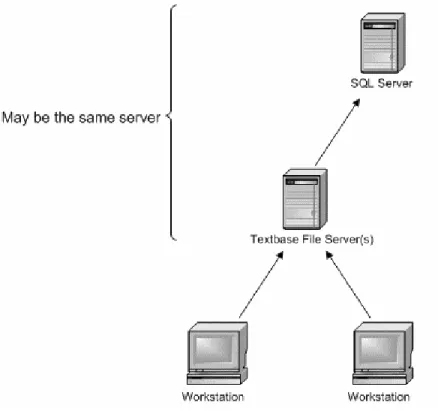
Illustration of Where DB/Text for SQL Files Reside
The following illustration shows where DB/Text for SQL files reside.DB/Text for SQL Files Outside SQL Server that Should be Backed Up
This section lists the DB/Text for SQL files that reside outside SQL Server that should be backed up when necessary. As noted below, some can be backed up by the Back Up Textbases function provided in the DB/Text for SQL Administration program; others only by using Windows Explorer or some other backup software.Textbase Files (.CBS, .CBA, .CAC)
Back up all your textbases on a regular basis. We recommend you use the Back Up Textbase function (choose Back Up & Restore>Back Up Textbases).
Log Files (.LOG)
Optional textbase log file; lists when changes were made to the textbase structure and records. In this way, a log file acts as an audit trail. To back up log files, we recommend you use the Back Up Textbases function (choose Back Up & Restore>Back Up Textbases).
User-defined Initialization Files (.INI)
Initialization (.INI) files are text files that a user can edit.
DB/Text for SQL uses these initialization files: Inmagic.INI, InmCSrv.INI, and an optional <textbase>.INI file.
WebPublisher uses the same .INI files as DB/TextWorks, plus an additional file called ICSWeb.INI. The Importer service uses these initialization files: ICSISrv.INI, InmCSrv.INI, and an optional <textbase>.INI file.
To back up the <textbase>.INI file, we recommend you use the Back Up Textbases function (choose Back Up & Restore>Back Up Textbases). To back up the other initialization files, use Windows Explorer or other backup software.
To learn more about the DB/Text for SQL-related INI files, see “Chapter 9: Initialization Files” on page 40.
Menu Screen Files (.CBM)
Menu screen files have the extension .CBM and are located in the directory you specified when you created them. To print a description of a menu screen, open it in the Menu Screen Designer and choose Menu Operations>Print Definition. Use Windows Explorer or other backup software to back up .CBM files.
Image Files and Annotation Files
If your textbase records include references to image files (for example, .JPG, .TIF, .BMP files), back up these files as you would any file, using Windows Explorer or other backup software. If the images are annotated, back up the annotation files, too. Each annotated image may have its own annotation file (default extension .ANN) stored outside of the textbase. You supply the file name and location when you save the annotations.
Do the same for any static images (for example, images used in picture boxes or logos) referenced in forms, query screens, or menu screens.