Veritas Storage Foundation™
Scalable File Server
Replication Guide
Veritas Storage Foundation Scalable File Server
Replication Guide
The software described in this book is furnished under a license agreement and may be used only in accordance with the terms of the agreement.
Documentation version 5.5.1
Legal Notice
Copyright © 2009 Symantec Corporation. All rights reserved.
Symantec, the Symantec Logo are trademarks or registered trademarks of Symantec Corporation or its affiliates in the U.S. and other countries. Other names may be trademarks of their respective owners.
This Symantec product may contain third party software for which Symantec is required to provide attribution to the third party (“Third Party Programs”). Some of the Third Party Programs are available under open source or free software licenses. The License Agreement accompanying the Software does not alter any rights or obligations you may have under those open source or free software licenses. Please see the Third Party Legal Notice Appendix to this Documentation or TPIP ReadMe File accompanying this Symantec product for more information on the Third Party Programs.
The product described in this document is distributed under licenses restricting its use, copying, distribution, and decompilation/reverse engineering. No part of this document may be reproduced in any form by any means without prior written authorization of Symantec Corporation and its licensors, if any.
THE DOCUMENTATION IS PROVIDED "AS IS" AND ALL EXPRESS OR IMPLIED CONDITIONS, REPRESENTATIONS AND WARRANTIES, INCLUDING ANY IMPLIED WARRANTY OF MERCHANTABILITY, FITNESS FOR A PARTICULAR PURPOSE OR NON-INFRINGEMENT, ARE DISCLAIMED, EXCEPT TO THE EXTENT THAT SUCH DISCLAIMERS ARE HELD TO BE LEGALLY INVALID. SYMANTEC CORPORATION SHALL NOT BE LIABLE FOR INCIDENTAL OR CONSEQUENTIAL DAMAGES IN CONNECTION WITH THE FURNISHING,
PERFORMANCE, OR USE OF THIS DOCUMENTATION. THE INFORMATION CONTAINED IN THIS DOCUMENTATION IS SUBJECT TO CHANGE WITHOUT NOTICE.
The Licensed Software and Documentation are deemed to be commercial computer software as defined in FAR 12.212 and subject to restricted rights as defined in FAR Section 52.227-19 "Commercial Computer Software - Restricted Rights" and DFARS 227.7202, "Rights in Commercial Computer Software or Commercial Computer Software Documentation", as applicable, and any successor regulations. Any use, modification, reproduction release, performance, display or disclosure of the Licensed Software and Documentation by the U.S. Government shall be solely in accordance with the terms of this Agreement.
Symantec Corporation 350 Ellis Street
Mountain View, CA 94043 http://www.symantec.com
Technical Support
Symantec Technical Support maintains support centers globally. Technical Support’s primary role is to respond to specific queries about product features and functionality. The Technical Support group also creates content for our online Knowledge Base. The Technical Support group works collaboratively with the other functional areas within Symantec to answer your questions in a timely fashion. For example, the Technical Support group works with Product Engineering and Symantec Security Response to provide alerting services and virus definition updates.
Symantec’s maintenance offerings include the following:
■ A range of support options that give you the flexibility to select the right amount of service for any size organization
■ Telephone and Web-based support that provides rapid response and up-to-the-minute information
■ Upgrade assurance that delivers automatic software upgrade protection ■ Global support that is available 24 hours a day, 7 days a week
■ Advanced features, including Account Management Services
For information about Symantec’s Maintenance Programs, you can visit our Web site at the following URL:
www.symantec.com/techsupp/
Contacting Technical Support
Customers with a current maintenance agreement may access Technical Support information at the following URL:
www.symantec.com/techsupp/
Before contacting Technical Support, make sure you have satisfied the system requirements that are listed in your product documentation. Also, you should be at the computer on which the problem occurred, in case it is necessary to replicate the problem.
When you contact Technical Support, please have the following information available:
■ Product release level ■ Hardware information
■ Available memory, disk space, and NIC information ■ Operating system
■ Version and patch level ■ Network topology
■ Router, gateway, and IP address information ■ Problem description:
■ Error messages and log files
■ Troubleshooting that was performed before contacting Symantec ■ Recent software configuration changes and network changes
Licensing and registration
If your Symantec product requires registration or a license key, access our technical support Web page at the following URL:
www.symantec.com/techsupp/
Customer service
Customer service information is available at the following URL: www.symantec.com/techsupp/
Customer Service is available to assist with the following types of issues: ■ Questions regarding product licensing or serialization
■ Product registration updates, such as address or name changes
■ General product information (features, language availability, local dealers) ■ Latest information about product updates and upgrades
■ Information about upgrade assurance and maintenance contracts ■ Information about the Symantec Buying Programs
■ Advice about Symantec's technical support options ■ Nontechnical presales questions
Maintenance agreement resources
If you want to contact Symantec regarding an existing maintenance agreement, please contact the maintenance agreement administration team for your region as follows:
[email protected] Asia-Pacific and Japan
[email protected] Europe, Middle-East, and Africa
[email protected] North America and Latin America
Additional enterprise services
Symantec offers a comprehensive set of services that allow you to maximize your investment in Symantec products and to develop your knowledge, expertise, and global insight, which enable you to manage your business risks proactively. Enterprise services that are available include the following:
These solutions provide early warning of cyber attacks, comprehensive threat analysis, and countermeasures to prevent attacks before they occur. Symantec Early Warning Solutions
These services remove the burden of managing and monitoring security devices and events, ensuring rapid response to real threats.
Managed Security Services
Symantec Consulting Services provide on-site technical expertise from Symantec and its trusted partners. Symantec Consulting Services offer a variety of prepackaged and customizable options that include assessment, design, implementation, monitoring, and management capabilities. Each is focused on establishing and maintaining the integrity and availability of your IT resources. Consulting Services
Educational Services provide a full array of technical training, security education, security certification, and awareness communication programs. Educational Services
To access more information about Enterprise services, please visit our Web site at the following URL:
www.symantec.com
Technical Support
... 4Chapter 1
Introducing Storage Foundation Scalable File Server
file-level replication
... 9About SFS file-level replication ... 9
SFS Replication license ... 10
How SFS Replication works ... 10
Chapter 2
Setting up basic SFS Replication between two
clusters
... 13Accessing the SFS Replication commands ... 13
Starting SFS Replication ... 14
Setting up communication between the source and destination clusters ... 17
Setting up the file systems to replicate ... 22
Scheduling the replication ... 24
Defining what will be replicated ... 26
Chapter 3
Using the CLI
... 29About user roles and privileges ... 29
About using the SFS command-line interface ... 30
Chapter 4
Using the SFS Replication commands
... 31About accessing the SFS Replication commands ... 31
About the service commands ... 32
Using the service commands ... 33
About the configuration commands ... 34
Using the configuration commands ... 35
About the replication unit commands ... 42
Using the replication unit commands ... 44
About the schedule commands ... 46
Using the schedule commands ... 48
About the job commands ... 51
Contents
Using the job commands ... 53
Index
... 59Contents 8
Introducing Storage
Foundation Scalable File
Server file-level replication
This chapter includes the following topics: ■ About SFS file-level replication ■ SFS Replication license ■ How SFS Replication works
About SFS file-level replication
The Veritas Storage Foundation™ Scalable File Server (SFS) Replication solution provides high performance, scalable (one-to-many) data replication and is ideal for use as a content distribution solution, and for use to create hot standby copies of important data sets.
SFS Replication allows you to asynchronously replicate a file system from one node in a source cluster to another node in a destination cluster at regularly timed intervals. This allows for content sharing, replication, and distribution.
The SFS Replication functionality allows episodic replication with a minimum timed interval update of fifteen minutes and no set maximum. Unlike many replication solutions, SFS Replication also allows the destination file system to be online for reads while replication is active.
Major features of SFS Replication include: ■ Online access (read-only) to replicated data.
1
■ Immediate read/write access to destination replicated data in the unlikely event that the source file system goes offline for a sustained period of time. ■ Load balancing across jobs.
■ Transport failover of replication service from one node to another. ■ Unlimited simultaneous replication operations.
Note:The SFS Replication feature is designed to copy file systems only between two SFS clusters. SFS replication cannot be used to replicate file systems within a single SFS cluster.
SFS Replication license
SFS Replication is included in the Enterprise edition of SFS. If you have the Standard edition, SFS Replication is available as a separate feature with a separate license. Licensing is available on a per cluster basis, with both the source and destination clusters requiring an SFS Replication license. For more details, please contact your Symantec account team, or visit the Symantec Technical Support website at:www.symantec.com/techsupp/.
How SFS Replication works
SFS Replication is an incremental file-level replication service that runs on top of the Cluster File System that is used by SFS which is, in turn, based on the Veritas File System (VxFS). SFS Replication uses two file system specific features: File Change Log (FCL) and Storage Checkpoint services, to retrieve file changes between replication periods.
For a given period, the FCL records every change made to the file system. By scanning the FCL, SFS Replication quickly identifies the file(s) that have changed and generates the modified file list. This avoids the expensive file system scanning that is normally associated with file-based replication, and which typically results in sub-optimal performance.
Next, SFS Replication uses VxFS Storage Checkpoint's metadata comparison feature to retrieve the modified extent list of each changed file. It does not need to access the file data.
The SFS Replication transport layer works in conjunction with, and interfaces to the well-known rsync remote file synchronization tool. Using this existing network transportation program makes the network configuration much easier in the enterprise domain: the Secure Socket Shell (SSH) port (22) required by rsync is
Introducing Storage Foundation Scalable File Server file-level replication
SFS Replication license
opened by default on almost all enterprise firewalls. rsync is also a reliable solution for a low bandwidth or unreliable link environment.
Note:SFS uses the rsync protocol to provide transportation of SFS Replication encapsulated files. The use of rsync is not exposed in SFS, and cannot be administered outside of the SFS Replication feature set.
11 Introducing Storage Foundation Scalable File Server file-level replication
Introducing Storage Foundation Scalable File Server file-level replication
How SFS Replication works
Setting up basic SFS
Replication between two
clusters
This chapter includes the following topics: ■ Accessing the SFS Replication commands ■ Starting SFS Replication
■ Setting up communication between the source and destination clusters ■ Setting up the file systems to replicate
■ Scheduling the replication ■ Defining what will be replicated
Accessing the SFS Replication commands
This chapter describes how to set up, configure, and enable basic SFS Replication between two SFS clusters.
You run SFS Replication between two SFS clusters which will be referred to as the source cluster and the destination cluster.
The source is where the data is being replicated from. source
The destination is where the data is being replicated to. destination
2
SFS Replication requires communication between both clusters. This
communication occurs over TCP/IP Port 22 (SSH) so ensure that port 22 is open across the network between the two clusters.
Note:The source and destination virtual IP addresses being used for replication between clusters must have port 22 access open between the source and destination.
The SFS Replication top-level commands are listed inTable 2-1.
To access the SFS Replication commands, log into your administrative console (master, system-admin, or storage-admin) and enterReplication>mode.
For login instructions, go toAbout using the SFS command-line interface. Table 2-1 SFS Replication commands
Definition Command
Starts, stops, and displays the status of the replication service. service
Exports and imports the public keys and authenticates the destination cluster for replication service.
config
Creates, displays, and deletes the repunit definitions. repunit
Schedules operations related to the replication service. schedule
Creates, displays, modifies, disables, and destroys the job definitions. job
Before using the SFS Replication commands, make sure that the source and destination clusters are communicating with each other over the network. The most common, and easiest way to verify communication, is to use theNetwork> pingcommand included in the SFS CLI.
Starting SFS Replication
This section lists the specific commands needed to run SFS Replication on your clusters. For more detailed information about each command, go toAbout accessing the SFS Replication commands.
Setting up basic SFS Replication between two clusters
Starting SFS Replication
Note:Before you set up your clusters for replication, you must first identify which is the source cluster and which is the destination cluster. All of the commands below are performed on the source cluster first.
To use SFS Replication, you must first create an online file system on the SFS source cluster and an online file system on the SFS destination cluster.
Note:Assign a virtual IP (VIP) address to both the source and destination clusters. The SFS Replication service requires VIP addresses not already in use for the two clusters to communicate.
To start SFS Replication on the source cluster
1
To bind a virtual IP address for the replication service on the source cluster, enter the following:Replication> config bind ip_addr
where ip_addr is the virtual IP address for the replication service on the source cluster.
For example:
Replication> config bind 10.10.10.10 Please wait...
Completed
2
To start the replication service, enter the following on the source node:Replication> service start
For example:
Replication> service start
Please wait. Starting replication service... SFS replication SUCCESS V-288-0 Replication service started successfully.
Replication>
15 Setting up basic SFS Replication between two clusters
3
To check the status of the replication service, enter the following:Replication> service status
For example:
Replication> service status Status : RUNNING
Replication>
4
To confirm the IP address is up and running, enter the following:Replication> config show ip
For example:
Replication> config show ip Replication VIP :: 10.10.10.10 Online On Node :: sfs_01
To start SFS Replication on the destination cluster
1
To bind a virtual IP address for the replication service on the destination cluster, enter the following:Replication> config bind ip_addr
where ip_addr is the virtual IP address for the replication service on the destination cluster.
For example:
Replication> config bind 10.10.20.20 Please wait...
Completed
2
To start the replication service, enter the following on the destination node:Replication> service start
For example:
Replication> service start
Please wait. Starting replication service... SFS replication SUCCESS V-288-0 Replication service started successfully.
Replication>
Setting up basic SFS Replication between two clusters
Starting SFS Replication
3
To check the status of the replication service, enter the following:Replication> service status
For example:
Replication> service status Status : RUNNING
Replication>
4
To confirm that the IP address is up and running, enter the following:Replication> config show ip
For example:
Replication> config show ip Replication VIP :: 10.10.20.20 Online On Node :: sfs_01
You next need to set up communication between the source and destination clusters.
See“Setting up communication between the source and destination clusters” on page 17.
Setting up communication between the source and
destination clusters
You need to set up communication between your source and destination clusters. Make sure that you already created an online file system on the SFS source cluster and an online file system on the SFS destination cluster.
See“Starting SFS Replication”on page 14.
SFS Replication makes use of encrypted keys in order to authenticate the source and destination cluster. This section provides a walk-through for the creation and export/import of these encrypted keys for both the source and destination cluster. In this release of SFS Replication, it is possible to provide a third-party destination to act as an intermediary between nodes for the transfer of the encrypted keys.
Note:Without the correct authentication of source/destination encryption keys, SFS Replication will not function correctly.
17 Setting up basic SFS Replication between two clusters
To configure the export keys on the source cluster
1
To configure the export keys on the source cluster, enter the following:Replication> config export_keys [URL]
where the URL is the location you want to copy the public keys to.
If you do not want to enter a URL, you can cut and paste the output from the
Replication> config export_keyscommand into the
Replication> config import_keyscommand. The output will by default
be displayed to your computer screen. The SCP and FTP protocols are supported.
For example, if you entered a URL in the command:
Replication> config export_keys scp://username@hostname:~/ Password: ******
SFS Replication SUCCESS V-288-0
Key file SFSKEY_source_10.10.10.10_2009-05-29 copied successfully at location username@hostname:~/
For example, if you did not enter a URL in the command:
Replication> config export_keys
Displaying replication key. Please use this key with config import_keys command.
ssh-rsa
AAAAB3NzaC1yc2EAAAABIwAAAQEApUukbe8znGccz9V1UPTwn8JpbtnfQ2eJGQw BrOIrI6dYyxPVeIb2MhdkjiwwDoHybYkS6YXHR5AFT+m2gociKVYgD1fJppip 6YC1BqTa5h7eII89eRS85PCYwEXhoMJmoUS4cFxzT3gqAMH80eu3aiZHn+ PAU7Tu0xpY1vpTOQ1X661GfbtdLp9ZNF+9qbt/x73yh09HjVCgeTBcMHJZhrbNZ2/ mK7XX8509pM/7yZxSWzCswamuaum3VZBpyX+uwQp/KyvrO5ZnAW5WUO93myqy ShwJKujRWF02sIm6bvn8pI0ZukwMx16etnsLippqttR4ED8SXI1W1A3JysXiXw== root@rupee::rupee_10.209.105.236
Config export keys command completed successfully
Setting up basic SFS Replication between two clusters
Setting up communication between the source and destination clusters
2
To configure the import keys on the destination cluster, enter the following:Replication> config import_keys [URL]
where the URL is the location you want to copy the public keys from. For example:
Replication> config import_keys scp://username@hostname:~/ Password: ******
SFS Replication SUCCESS V-288-0
Key file SFSKEY_source_10.10.10.10_2009-05-29 copied successfully at location username@hostname:~/
If you did not enter a URL during theReplication> config export_keys
command, you can cut and paste the output and enter it into theReplication> config import_keyscommand.
For example:
Replication> config import_keys
Enter replication key of remote cluster:: ssh-rsa
AAAAB3NzaC1yc2EAAAABIwAAAQEApUukbe8znGccz9V1UPTwn8JpbtnfQ2eJGQw BrOIrI6dYyxPVeIb2MhdkjiwwDoHybYkS6YXHR5AFT+m2gociKVYgD1fJppip 6YC1BqTa5h7eII89eRS85PCYwEXhoMJmoUS4cFxzT3gqAMH80eu3aiZHn+ PAU7Tu0xpY1vpTOQ1X661GfbtdLp9ZNF+9qbt/x73yh09HjVCgeTBcMHJZhrbNZ2/ mK7XX8509pM/7yZxSWzCswamuaum3VZBpyX+uwQp/KyvrO5ZnAW5WUO93myqy ShwJKujRWF02sIm6bvn8pI0ZukwMx16etnsLippqttR4ED8SXI1W1A3JysXiXw== root@rupee::rupee_10.209.105.237
Enter console IP address of remote cluster::10.209.105.237 SFS Replication SUCCESS V-288-1089 Config import keys command completed successfully
3
To verify the key has been imported correctly, enter the following:Replication> config show
19 Setting up basic SFS Replication between two clusters
To configure the export keys on the destination cluster
1
To configure the export keys on the destination cluster, enter the following:Replication> config export_keys [URL]
where the URL is the location you want to copy the public keys to. The SCP and FTP protocols are supported.
If you do not want to enter a URL, you can cut and paste the output from the
Replication> config export_keyscommand to the
Replication> config import_keyscommand. The output will by default
be displayed to your computer screen.
For example, if you entered a URL with the command:
Replication> config export_keys scp://username@hostname:~/ Password: ******
SFS Replication SUCCESS V-288-0
Key file SFSKEY_destination_10.10.20.21_2009-05-29 copied successfully at location username@hostname:~/
For example, if you did not enter a URL with the command:
Replication> config export_keys
Displaying replication key. Please use this key with config import_keys command.
ssh-rsa
AAAAB3NzaC1yc2EAAAABIwAAAQEApUukbe8znGccz9V1UPTwn8JpbtnfQ2eJGQw
BrOIrI6dYyxPVeIb2MhdkjiwwDoHybYkS6YXHR5AFT+m2gociKVYgD1fJppip6YC1BqTa5h7 eII89eRS85PCYwEXhoMJmoUS4cFxzT3gqAMH80eu3aiZHn+PAU7Tu0xpY1vpTOQ1X661G fbtdLp9ZNF+9qbt/x73yh09HjVCgeTBcMHJZhrbNZ2/mK7XX8509pM/7yZxSWzCswamuaum 3VZBpyX+uwQp/KyvrO5ZnAW5WUO93myqyShwJKujRWF02sIm6bvn8pI0ZukwMx16etns LippqttR4ED8SXI1W1A3JysXiXw==
root@rupee::rupee_10.209.105.237
Config export keys command completed successfully
Setting up basic SFS Replication between two clusters
Setting up communication between the source and destination clusters
2
To configure the import keys on the source cluster, enter the following:Replication> config import_keys [URL]
where the URL is the location you want to copy the public keys from. For example:
Replication> config import_keys scp://username@hostname:~/ Password: ******
SFS Replication SUCCESS V-288-0
Key file SFSKEY_source_10.10.20.20_2009-05-29 copied successfully at location username@hostname:~/
If you did not enter a URL during theReplication> config export_keys
command, you can cut and paste the output and enter it into theReplication> config import_keyscommand.
For example:
Replication> config import_keys
Enter replication key of remote cluster:: ssh-rsa
AAAAB3NzaC1yc2EAAAABIwAAAQEApUukbe8znGccz9V1UPTwn8JpbtnfQ2eJGQw BrOIrI6dYyxPVeIb2MhdkjiwwDoHybYkS6YXHR5AFT+m2gociKVYgD1fJppip 6YC1BqTa5h7eII89eRS85PCYwEXhoMJmoUS4cFxzT3gqAMH80eu3aiZHn+ PAU7Tu0xpY1vpTOQ1X661GfbtdLp9ZNF+9qbt/x73yh09HjVCgeTBcMHJZhrbNZ2/ mK7XX8509pM/7yZxSWzCswamuaum3VZBpyX+uwQp/KyvrO5ZnAW5WUO93myqy ShwJKujRWF02sIm6bvn8pI0ZukwMx16etnsLippqttR4ED8SXI1W1A3JysXiXw== root@rupee::rupee_10.209.105.236
Enter console IP address of remote cluster::10.209.105.236 SFS Replication SUCCESS V-288-1089 Config import keys command completed successfully
3
To verify the key has been imported correctly, enter the following:Replication> config show
21 Setting up basic SFS Replication between two clusters
To authenticate source cluster and destination clusters for replication
1
This command should be executed only on the source cluster. To authenticate the public keys on the source cluster, enter the following:Replication> config auth conIP link_name
Enter the destination cluster console IP address. conIP
Both the source cluster and the destination cluster need to be assigned a unique identifier (name). This identifier is used to identify the link that is established between the source and destination clusters. You can use the link name instead of the virtual IP addresses of the source and destination clusters when using the other replication commands. For example:
Pune_Shanghai. link_name
For example:
Replication> config auth 10.182.107.133 dest1 Authentication process going on. Please wait... Authentication completed successfully
SFS Replication SUCCESS V-288-0
Config auth command completed successfully
2
To confirm the authentication, enter the following:Replication> config show
Link name Remote cluster ConsoleIP Remote cluster Replication IP ========= ======================== ============================ dest1 10.182.107.133 10.10.20.20
Time of Key Import Time of Authorization
============================ ============================ Sun Jul 12 04:02:05 UTC 2009 Sun Jul 12 04:02:57 UTC 2009
You next need to set up the file systems you want to replicate. See“Setting up the file systems to replicate”on page 22.
Setting up the file systems to replicate
You need to set up the file systems you want to replicate using theReplication> repunitcommands.
Setting up basic SFS Replication between two clusters
Setting up the file systems to replicate
Make sure that you already set up communication between your source and destination clusters.
See“Setting up communication between the source and destination clusters” on page 17.
A single replication unit can span across multiple directories and multiple file systems.
A replication unit is defined as an ordered set of entries, where each entry is one of the following:
■ A single file system ■ A single subdirectory ■ A single file
SFS Replication requires that the source and destination replication units of a job definition have the same type of ordered entries, that is, every entry pair (one entry from the source and one entry from the destination replication unit) must be of a similar type.
Both could be files, or both could be directories, as shown in the following example:
Replication unit Name Replication unit Entries ===================== ========================
ru1 fs1,fs2/dir1,fs2/f1
ru2 fs4,fs6/dir2,fs5/f2
The entry is identified by the file system name, optionally followed by a slash '/', followed by the path of the directory or the file inside the file system. Member entries are ordered inside a replication unit and such ordering information is used to determine the replication entity pair mapping from the source replication unit to the destination replication unit.
Note:The commands in this section apply only to the source cluster.
23 Setting up basic SFS Replication between two clusters
To create a replication unit
1
To create a replication unit, enter the following:Replication> repunit create repunit_name repunit_entry[,repunit_entry,...]
where the repunit_entry is either a file, folder, or directory. For example:
Replication> repunit create ru3 fs1/dir1,fs2/dir2 SFS Replication SUCCESS V-288-0
Replication unit ru3 created successfully. Replication>
2
To confirm the creation of the replication unit, enter the following:Replication> repunit show
Replication unit Name Replication unit Entries ===================== ========================
ru3 fs1/dir1,fs2/dir2
You next need to set up the schedule for the replication. See“Scheduling the replication”on page 24.
Scheduling the replication
You use theReplication> schedulecommands to create a schedule for replicating
files from the source to the destination cluster.
Make sure that you already set up the file systems you want to replicate. See“Setting up the file systems to replicate”on page 22.
Setting up basic SFS Replication between two clusters
Scheduling the replication
To create a replication schedule
◆ To create a replication schedule, enter the following:
Replication> schedule create schedule_name minute
[hour] [day_of_the_month] [month] [day_of_the_week]
Specify the name of the schedule to be created. schedule_name
Enter a numeric value between 0-59, or an asterisk (*), which represents every minute. This variable is not optional. minute
Enter a numeric value between 0-23, or an asterisk (*), which represents every hour.
hour
Schedule the day of the month you want to run the replication. Enter a numeric value between 1-31, or an asterisk (*), which represents every day of the month. day_of_the_month
Schedule the month you want to run the replication. Enter a numeric value between 1-12, or an asterisk (*), which represents every month. You can also use the names of the month. Enter the first three letters of the month (not case sensitive).
month
Schedule the day of the week you want to run the replication. Enter a numeric value between 0-6, or an asterisk (*), which represents every day of the week. Sunday is interpreted as 0. You can also enter the first three letters of the week (you must use lower case letters).
day_of_the_week
For example, to create a schedule where the replication job occurs every 30 minutes, enter:
Replication> schedule create s1 */30 Replication>
To display the list of schedules
◆ To display the schedule you have set up for replication, enter the following:
Replication> schedule show s1
Schedule Name Minute Hour Day Month WeekDay =============== ====== ====== ===== ======= ========
s1 */30 * * * *
You next need to define what will be replicated.
25 Setting up basic SFS Replication between two clusters
See“Defining what will be replicated”on page 26.
Defining what will be replicated
You use theReplication> jobcommands to set up a job definition. This defined job determines what is going to be replicated and when, using the settings from the previous commands.
Make sure that you created a schedule for replicating files from the source to the destination cluster.
See“Scheduling the replication”on page 24.
Setting up basic SFS Replication between two clusters
Defining what will be replicated
To set up the replication job
1
To set up the replication job, enter the following:Replication> job create job_name src_repunit_name dest_repunit_name link_name [rep_schedule]
For example:
Replication> job create job1 ru1 ru2 Pune_Shanghai s1 Completed successfully.
2
To enable the job, enter the following:Replication> job enable job_name
For example:
Replication> job enable job1
SFS replication SUCCESS V-288-1303 Trying to enable job job1. Please check status of job after a few seconds.
3
To check if the job was enabled, enter the following:Replication> job show [job_name]
For example:
Replication> job show job1
Jobname Source wset Destination wset Link name ======= =========== ================ =========
job1 ru1 ru2 Pune_Shanghai
Replication Freq State ================ =====
s1 Enabled
27 Setting up basic SFS Replication between two clusters
Setting up basic SFS Replication between two clusters
Defining what will be replicated
Using the CLI
This chapter includes the following topics: ■ About user roles and privileges
■ About using the SFS command-line interface
About user roles and privileges
The privileges within Storage Foundation Scalable File Server (SFS) are based on what user role (Master, System Administrator, or Storage Administrator) has been assigned.
The following table provides an overview of the user roles within SFS. Table 3-1 User roles within SFS
Description User role
Masters are responsible for adding or deleting users, displaying users, and managing passwords. Only the Masters can add or delete other administrators.
A master can accomplish all commands and tasks that can be executed by the System and Storage Administrators.
Master
System Administrators are responsible for configuring and maintaining the file system, NFS sharing, networking, clustering, setting the current date/time, and creating reports.
System Administrator
Storage Administrators are responsible for provisioning storage and exporting and reviewing reports.
Storage Administrator
TheSupportaccount is reserved for Technical Support use only, and it cannot be created by administrators. For more information, go to the Troubleshooting
3
chapter in the Veritas Storage Foundation Scalable File Server Administrator’s
Guide.
About using the SFS command-line interface
You can enter SFS commands on the system console or from any host that can access SFS through a session using SSH.
SFS provides the following features to help you when you enter commands on the command line:
■ Command-line help by typing a command and then a question mark (?) ■ Command-line manual (man) pages by typingmanand the name of the command
you are trying to find
Table 3-2 Conventions used in the SFS online command-line man pages
Description Symbol
Indicates you must choose one of elements on either side of the pipe. | (pipe)
Indicates that the element inside the brackets is optional. [ ] (brackets)
Indicates that the element inside the braces is part of a group. { } (braces)
Indicates a variable for which you need to supply a value. Variables are indicated in italics in the man pages.
< >
To determine who can access the commands, refer toTable 3-3. Table 3-3 Replication mode command access
Master Storage
Admin System
Admin Replication mode commands
X X config X X job X X repunit X X schedule X X service
Using the CLI
About using the SFS command-line interface
Using the SFS Replication
commands
This chapter includes the following topics:
■ About accessing the SFS Replication commands ■ About the service commands
■ Using the service commands ■ About the configuration commands ■ Using the configuration commands ■ About the replication unit commands ■ Using the replication unit commands ■ About the schedule commands ■ Using the schedule commands ■ About the job commands ■ Using the job commands
About accessing the SFS Replication commands
Before using the SFS Replication commands, make sure that your cluster's SSH port 22 is open across the network.
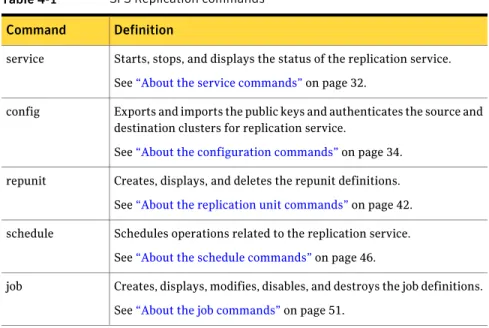
The SFS Replication mode commands are listed inTable 4-1.
To access the commands, log into your administrative console (master, system-admin, or storage-admin) and enterReplicationmode.
4
For login instructions and the list of commands you access, go toAbout using the SFS command-line interface.
Table 4-1 SFS Replication commands
Definition Command
Starts, stops, and displays the status of the replication service. See“About the service commands”on page 32.
service
Exports and imports the public keys and authenticates the source and destination clusters for replication service.
See“About the configuration commands”on page 34. config
Creates, displays, and deletes the repunit definitions. See“About the replication unit commands”on page 42. repunit
Schedules operations related to the replication service. See“About the schedule commands”on page 46. schedule
Creates, displays, modifies, disables, and destroys the job definitions. See“About the job commands”on page 51.
job
About the service commands
TheReplication> servicecommands start, stop, and display the replication
service.
Table 4-2 Service commands
Definition Command
Starts the replication service. The service can only be started after you bind a virtual IP for replication service using theReplication> config bindcommand. TheReplication> service start command must be run on both the source and destination clusters. You must runReplication> service startbefore you run other commands.
See“To start the replication service”on page 33. service start
Displays the replication service status. The service status is displayed as RUNNING or STOPPED.
See“To display status of the replication service”on page 33. service status
Using the SFS Replication commands
About the service commands
Table 4-2 Service commands (continued)
Definition Command
Stops the replication service on the cluster the command was executed on.
See“To stop the replication service”on page 33. service stop
Using the service commands
To start the replication service
◆ To start the replication service, enter the following:
Replication> service start
For example:
Replication> service start
Please wait. Starting replication service... SFS replication SUCCESS V-288-0
Replication service started successfully. Replication>
To display status of the replication service
◆ To display the status of the replication service, enter the following:
Replication> service status
For example:
Replication> service status Status: RUNNING
To stop the replication service
◆ To stop the replication service, enter the following:
Replication> service stop
For example:
Replication> service stop Replication> service status Status: STOPPED
33 Using the SFS Replication commands
About the configuration commands
TheReplication> configcommands provides a set of cluster
authentication-related operations and methods to add and delete a virtual IP. SFS Replication authentication strategy is based on RSA-key authentication, and both the source and destination clusters have to export their replication public keys. The source cluster imports the destination cluster's public key and the destination cluster imports the source cluster's public key.
After the source and destination clusters have successfully imported each other's public keys, you need to run theReplication> config authcommand on the
source cluster to complete the authentication between the two clusters. This command checks the two-way communication between the source and destination clusters, and authenticates the clusters allowing the SFS Replication service to begin.
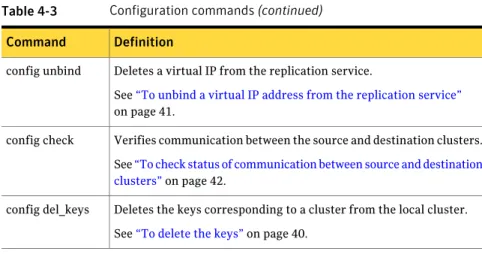
Table 4-3 Configuration commands
Definition Command
Displays the list of imported and authorized clusters. See“To display the configuration settings”on page 36. config show
Exports public keys for a cluster. See“To export the keys”on page 39. config export_keys
Imports public keys for a cluster. See“To import the keys”on page 40. config
import_keys
Authenticates a cluster for replication.
See“To authenticate a cluster for replication”on page 37. config auth
Deauthenticates a cluster for replication. You can only deauthenticate at the source.
Note:You cannot deauthenticate a link name that is currently used by a job.
See“To deauthenticate a cluster for replication”on page 38. config deauth
Adds a virtual IP to the replication service.
See“To bind a virtual IP address for the replication service” on page 41.
config bind
Using the SFS Replication commands
About the configuration commands
Table 4-3 Configuration commands (continued)
Definition Command
Deletes a virtual IP from the replication service.
See“To unbind a virtual IP address from the replication service” on page 41.
config unbind
Verifies communication between the source and destination clusters. See“To check status of communication between source and destination clusters”on page 42.
config check
Deletes the keys corresponding to a cluster from the local cluster. See“To delete the keys”on page 40.
config del_keys
Using the configuration commands
After you have determined which two SFS clusters to use, you need to authenticate them.
Theconfigcommands must be executed in a specific order.
■ Use theconfig del_keysafter theconfig deauthcommand, or it fails. ■ You can only run theconfig unbindcommand (to unbind the virtual IP) after
you have run theservice stopcommand.
■ You need to run theconfig bindcommand (to bind the virtual IP) before you
can run theservice startcommand.
■ You can only run theconfig authcommand after both the source and
destination have inputted each others keys.
35 Using the SFS Replication commands
To display the configuration settings
◆ To display the configuration settings, enter the following:
Replication> config show [ip|remote_clus]
Displays information related to the replication virtual IP address of the local cluster.
ip
Displays information related to the remote cluster replication virtual IP address as well as information related to the key import and authentication status.
remote_clus
For example:
Replication> config show
Link name Remote cluster ConsoleIP Remote cluster Replication IP ========= ======================== ============================= src1 10.182.105.231 10.10.10.10
Time of Key Import Time of Authorization
============================ ============================ Sun Jul 12 04:02:05 UTC 2009 Sun Jul 12 04:02:57 UTC 2009
To display the virtual IP of the replication service, enter the following:
Replication> config show ip
For example:
Replication> config show ip Replication VIP:: 10.10.10.10
The definitions of the headings are as follows:
This is the name you specified when running theReplication> config authcommand between the local cluster and the remote cluster.
Link name
The management console IP address of the remote cluster. Remote cluster
ConsoleIP
The replication virtual IP address of the remote cluster. Remote cluster
Replication IP
Using the SFS Replication commands
Using the configuration commands
The exact time (in Coordinated Universal Time (UTC) format) you imported the keys of the remote cluster usingReplication> config import_keyscommand.
Time of Key Import
The exact time (in UTC format) you completed the authorization of the remote cluster using theReplication> config authcommand. Time of
Authorization
To authenticate a cluster for replication
◆ To authenticate a cluster for replication, enter the following:
Replication> config auth conIP link_name
Enter the destination cluster console IP address. conIP
Both the source cluster and the destination cluster need to be assigned a unique identifier (name). This identifier is used to identify the link that is established between the source and destination clusters. You can use the link name instead of the virtual IP addresses of the source and destination clusters when using the other replication commands.
An example of a link name is:Pune_Shanghai. Once you set up the link name on the source cluster, it automatically transmits the link name to the destination cluster.
link_name
For example:
Replication> config auth 10.182.107.133 dest1 Authentication process going on. Please wait... Authentication completed successfully
SFS Replication SUCCESS V-288-0
Config auth command completed successfully
37 Using the SFS Replication commands
To deauthenticate a cluster for replication
◆ To deauthenticate a cluster for replication (performed only on the source cluster), enter the following:
Replication> config deauth link_name
where link_name is the name of the link that was previously established between the source and destination clusters. The public key is no longer recognized.
For example:
Replication> config deauth dest1 Please wait...
SFS Replication SUCCESS V-288-0
Config deauth command completed successfully
Using the SFS Replication commands
Using the configuration commands
To export the keys
◆ To export the public keys from the source cluster to the destination cluster, enter the following:
Replication> config export_keys [URL]
where the URL is the path to copy the public keys. The SCP and FTP protocols are supported.
If you do not want to enter a URL, you can cut and paste the output from the
Replication> config export_keyscommand into the
Replication> config import_keyscommand. The output will by default
be displayed to your computer screen.
For example, if you entered a URL with the command:
Replication> config export_keys scp://username@hostname:~/ Password: ******
SFS Replication SUCCESS V-288-0
Key file SFSKEY_source_10.10.10.10_2009-05-29 copied successfully at location username@hostname:~/
For example, if you did not enter a URL with the command:
Replication> config export_keys
Displaying replication key. Please use this key with config import_keys command.
ssh-rsa
AAAAB3NzaC1yc2EAAAABIwAAAQEApUukbe8znGccz9V1UPTwn8JpbtnfQ2eJGQw BrOIrI6dYyxPVeIb2MhdkjiwwDoHybYkS6YXHR5AFT+m2gociKVYgD1fJppip 6YC1BqTa5h7eII89eRS85PCYwEXhoMJmoUS4cFxzT3gqAMH80eu3aiZHn+ PAU7Tu0xpY1vpTOQ1X661GfbtdLp9ZNF+9qbt/x73yh09HjVCgeTBcMHJZhrbNZ2/ mK7XX8509pM/7yZxSWzCswamuaum3VZBpyX+uwQp/KyvrO5ZnAW5WUO93myqy ShwJKujRWF02sIm6bvn8pI0ZukwMx16etnsLippqttR4ED8SXI1W1A3JysXiXw== root@rupee::rupee_10.209.105.236
Config export keys command completed successfully
39 Using the SFS Replication commands
To import the keys
◆ To import the public keys to the destination cluster, enter the following:
Replication> config import_keys [URL]
where the URL is the path to copy public keys.
If you did not enter a URL, you can cut and paste the output from the
Replication> config export_keyscommand into the
Replication> config import_keyscommand.
For example, if you did enter a URL:
Replication> config import_keys scp://username@hostname:~/ Password: ******
SFS Replication SUCCESS V-288-0
Key file SFSKEY_source_10.10.20.20_2009-05-29 copied successfully at location username@hostname:~/
For example, if you did not enter a URL:
Replication> config import_keys
Enter replication key of remote cluster:: ssh-rsa
AAAAB3NzaC1yc2EAAAABIwAAAQEApUukbe8znGccz9V1UPTwn8JpbtnfQ2eJGQw
BrOIrI6dYyxPVeIb2MhdkjiwwDoHybYkS6YXHR5AFT+m2gociKVYgD1fJppip6YC1BqTa5h7 eII89eRS85PCYwEXhoMJmoUS4cFxzT3gqAMH80eu3aiZHn+PAU7Tu0xpY1vpTOQ1X661G fbtdLp9ZNF+9qbt/x73yh09HjVCgeTBcMHJZhrbNZ2/mK7XX8509pM/7yZxSWzCswamuaum 3VZBpyX+uwQp/KyvrO5ZnAW5WUO93myqyShwJKujRWF02sIm6bvn8pI0ZukwMx16etns LippqttR4ED8SXI1W1A3JysXiXw==
root@rupee::rupee_10.209.105.236
Enter console IP address of remote cluster::10.209.105.236
SFS Replication SUCCESS V-288-1089 Config import keys command completed successfully
To delete the keys
◆ To delete the public key from the source cluster, enter the following:
Replication> config del_keys conIP
where conIP is the destination cluster console IP address.
Using the SFS Replication commands
Using the configuration commands
To bind a virtual IP address for the replication service
◆ To bind a virtual IP address for the replication service on the source cluster, enter the following:
Replication> config bind ip_addr
where ip_addr is the replication virtual IP address on the source cluster. For this command to run successfully, all jobs on the cluster must be in the
Disablestate.
For example:
Replication> config bind 10.10.10.10 Please wait...
Completed
To unbind a virtual IP address from the replication service
◆ To unbind a virtual IP address from the replication service, enter the following:
Replication> config unbind ip_addr
where ip_addr is the IP address of the node you want to delete from the replication service.
Make sure that you have stopped the service before unbinding the IP address. For example:
Replication> config unbind 10.10.10.10 Please wait...
Completed
41 Using the SFS Replication commands
To check status of communication between source and destination clusters ◆ To check the status of the communication between the source and destination
clusters, enter the following:
Replication> config check link_name
where link_name is the unique identifiers (name) that were assigned to the source and destination clusters when you ran theReplication> config authcommand.
Replication> config check dest1
Checking local to remote cluster communication ....OK Checking remote to local cluster communication ....OK Checking communication between replication vips ....OK Replication>
About the replication unit commands
TheReplication> repunitcommands allow you to define the type of data that you will replicate from the source cluster to the destination cluster. All files and folders belonging to a replication unit are replicated together from the source cluster to the destination cluster.
A single replication unit can span across multiple directories and multiple file systems.
A replication unit is defined as an ordered set of entries, where each entry is one of the following:
■ A file system ■ A subdirectory ■ A single file
SFS Replication requires that the source and destination replication units of a job definition have the same type of ordered entities, that is, every entity pair (one entry from the source and one entry from the destination replication unit) must be of a similar type. For example, both could be files, or both could be directories. The entity is identified by the file system name, optionally followed by a slash '/', followed by the path of the directory or the file inside the file system. Member entities are ordered inside a replication unit and such ordering information is used to determine the replication entity pair mapping from the source replication unit to the destination replication unit.
Using the SFS Replication commands
About the replication unit commands
Note:Make sure that the paths in the destination replication unit exist in the destination cluster.
Table 4-4 Replication unit commands
Definition Command
Creates a replication unit definition. This command determines the exact item (such as a file system) that you want to replicate. See“To create a replication unit”on page 44.
repunit create
Adds additional entries to the existing replication unit definition you created with theReplication> repunit createcommand. See“To add an entry to the replication unit”on page 44. repunit add_entry
Changes an entry in an existing replication unit definition. See“To modify an entry in a replication unit”on page 45. repunit
modify_entry
Displays a replication unit definition.
See“To display the replication unit names”on page 45. repunit show
Removes an entry in an existing replication unit definition. See“To remove an entry in a replication unit”on page 46. repunit
remove_entry
Destroys a replication unit definition.
Note:Make sure that you first destroy the job which was using the replication units, or therepunit destroycommand fails. See“To eliminate a replication unit”on page 46.
repunit destroy
43 Using the SFS Replication commands
Using the replication unit commands
To create a replication unit
◆ To create a replication unit, enter the following:
Replication> repunit create repunit_name repunit_entry[,repunit_entry,...]
Enter the name of the replication unit. repunit_name
Enter the comma-separated entries you want to create. repunit_entry
For example:
Replication> repunit create ru1
fs1/DB_CONFIG,fs1/SQL_CONFIG,fs2/conf_file
SFS Replication SUCCESS V-288-0 replication unit ru1 created successfully
To add an entry to the replication unit
◆ To add an entry to the replication unit, enter the following:
Replication> repunit add_entry repunit_name repunit_entry
Enter the name of the replication unit. repunit_name
Enter the entry you want to add to the replication unit. repunit_entry
For example:
Replication> repunit add_entry ru1 fs2/new_conf_file Replication>
Using the SFS Replication commands
Using the replication unit commands
To modify an entry in a replication unit
◆ To modify an entry in an existing replication unit definition, enter the following:
Replication> repunit modify_entry repunit_name repunit_entry1 repunit_entry2
Enter the name of the replication unit. repunit_name
Enter the old entry you want to modify. repunit_entry1
Enter the new entry you are creating to replace the old entry. repunit_entry2
For example:
Replication> repunit modify_entry ru1 fs2/new_conf_file fs2/new_conf_file_1
To display the replication unit names
◆ To display a list of replication unit names, enter the following:
Replication> repunit show [repunit_name]
where repunit_name is the name of a specific replication unit you want to display.
For example:
Replication> repunit show
Replication unit Name Replication Unit Entries ===================== ========================
ru1 fs1/d1/, fs2/d2/
ru2 fs1/d1/
ru3 fs2/d2/
ru4 fs3/
45 Using the SFS Replication commands
To remove an entry in a replication unit
◆ To remove an entry in a replication unit, enter the following:
Replication> repunit remove_entry repunit_name repunit_entry
Enter the replication unit name. repunit_name
Enter the name of the entry you want to remove from the replication unit.
repunit_entry
For example:
Replication> repunit remove_entry ru1 fs2/new_conf_file Replication>
To eliminate a replication unit
◆ To eliminate a replication unit, enter the following:
Replication> repunit destroy repunit_name
where repunit_name is the name of the replication unit you want to eliminate. For example:
Replication> repunit destroy ru1 Replication>
About the schedule commands
TheReplication> schedulecommands configure the schedules used for one or
more jobs. SFS Replication uses the following parameters to schedule the replication jobs: minute, hour, day-of-the-month, month, and day-of-the-week. SFS Replication supports periodic replications, where the data gets replicated from the source to the destination cluster at regular intervals defined by the schedule.
To schedule the replication commands, use the commands inTable 4-5. Table 4-5 Schedule commands
Definition Command
Creates a schedule.
See“To create the replication schedule”on page 48. schedule create
Using the SFS Replication commands
About the schedule commands
Table 4-5 Schedule commands (continued)
Definition Command
Displays a list of schedules or one specific schedule. See“To display the schedule”on page 49.
schedule show
Modifies an existing schedule.
Make sure that the job is first disabled before you modify the schedule. See“To modify a schedule”on page 50.
schedule modify
Deletes a schedule.
Note:Make sure that no currently running job is using this schedule definition.
See“To delete a schedule”on page 51. schedule delete
47 Using the SFS Replication commands
Using the schedule commands
To create the replication schedule
◆ To create a replication schedule, enter the following:
Replication> schedule create schedule_name minute
[hour] [day_of_the_month] [month] [day_of_the_week]
Specify the name of the schedule to be created. schedule_name
Enter a numeric value between 0-59, or an asterisk (*), which represents every minute. This variable is not optional. minute
Enter a numeric value between 0-23, or an asterisk (*), which represents every hour.
hour
Schedule the day of the month you want to run the replication. Enter a numeric value between 1-31, or an asterisk (*), which represents every day of the month. day_of_the_month
Schedule the month you want to run the replication. Enter a numeric value between 1-12, or an asterisk (*), which represents every month. You can also use the names of the month. Enter the first three letters of the month (not case sensitive).
month
Schedule the day of the week you want to run the replication. Enter a numeric value between 0-6, or an asterisk (*), which represents every day of the week. Sunday is interpreted as 0. You can also enter the first three letters of the week (you must use lower case letters).
day_of_the_week
It is possible to enter an interval (two numbers separated by a hyphen) for theminute,hour,day-of-month,month, andday-of-week. If you want to run
the schedule between 1 a.m. and 4 a.m., you can enter a value of 1-4 for the hour variable. The range is inclusive.
The parameters also accept a set of numbers separated by a comma. For example,1,3,5,7or1-4,5-10.
For example, to run the replication job every 30 minutes, enter the following:
Replication> schedule create s1 */30 Replication>
Using the SFS Replication commands
Using the schedule commands
To display the schedule
◆ To display the list of schedules, enter the following:
Replication> schedule show [schedule_name]
where schedule_name is a specific schedule name. To list all of the schedule names, enter the command without a schedule_name.
For example:
Replication> schedule show
Schedule Name Minute Hour Day Month WeekDay =============== ====== ====== ===== ======= ========
s1 */30 * * * *
s2 */45 */1 * * *
49 Using the SFS Replication commands
To modify a schedule
◆ To modify a schedule, enter the following:
Replication> schedule modify schedule_name minute
[hour] [day_of_the_month] [month] [day_of_the_week]
Specify the name of the schedule to be modified. schedule_name
Enter a numeric value between 0-59, or an asterisk (*), which represents every minute.
minute
Enter a numeric value between 0-23, or an asterisk (*), which represents every hour.
hour
Schedule the day of the month you want to run the replication. Enter a numeric value between 1-31, or an asterisk (*), which represents every day of the month. day_of_the_month
Schedule the month you want to run the replication. Enter a numeric value between 1-12, or an asterisk (*), which represents every month. You can also use the names of the month. Enter the first three letters of the month (not case sensitive).
month
Schedule the day of the week you want to run the replication. Enter a numeric value between 0-6, or an asterisk (*), which represents every day of the week. Sunday is interpreted as 0. You can also enter the first three letters of the week (you must use lower case letters).
day_of_the_week
For example, to change the schedule so that the replication job is run every 40 minutes, enter the following:
Replication> schedule modify s1 40 Replication> schedule show s1
Schedule Name Minute Hour Day Month WeekDay =============== ====== ====== ===== ======= ========
s1 */40 * * * *
Using the SFS Replication commands
Using the schedule commands
To delete a schedule
◆ To delete a schedule, enter the following:
Replication> schedule delete schedule_name
where you can delete a specific schedule name. To delete all of the schedules, do no enter a schedule name.
Make sure that no currently running job is using this schedule definition. For example:
Replication> schedule delete s1 Replication>
About the job commands
TheReplication> jobcommands bind together the source and destination
replication units and the source and destination cluster. You use these commands to define which nodes participate in the replication, what gets replicated, and when the replication occurs.
The job is defined on the source cluster.
Table 4-6 Job commands
Definition Command
Creates a job definition. The job definition defines what will be copied (replicated), the source cluster, the destination cluster, and the frequency of the replication. The job needs to be create only at the source cluster.
See“To create a replication job”on page 53. job create
Lists a single job definition, or all of the job definitions for a destination cluster.
See“To display the job definitions”on page 53. job show
Enables a job definition. After the job name is created, you need to enable the job. By default the job is disabled until you enter this command.
The actual replication of the job starts on the next schedule of the job. See“To enable a job”on page 54.
job enable
51 Using the SFS Replication commands
Table 4-6 Job commands (continued)
Definition Command
Displays the status of all of the jobs copied during replication and the time the replication occurred.
See“To check the status of the jobs”on page 54. job status
Modifies the replication schedule, source replication unit, or destination replication unit of an existing job.
To modify the replication schedule job does not need to be in the DISABLEDstate.
The job must be in theDISABLEDstate to change the source work and the destination replication unit.
See“To modify the job”on page 55. job modify
Triggers a job, created by theReplication> job createcommand, to run out of the defined sequence. For example, you can trigger a job you want to run immediately.
See“To trigger a job ”on page 56. job trigger
Pauses a running job.
See“To pause a job”on page 56. job pause
Resumes a job from the point it was paused or it failed.
If the job was paused or is failing because of a minor issue (for example, failing to place a source offline, the replication service is down, or the destination file system is full), you can start the job again from the point it failed.
See“To resume a job”on page 56. job resume
Disables a job definition in the enabled, paused, or failed status. See“To disable a job”on page 57.
job disable
Aborts a job. All files replicated up to that point are destroyed. See“To abort a job”on page 57.
job abort
Destroys a job definition. The job must first be disabled before it can be destroyed.
Note:You cannot destroy a job that is in the RUNNING state. See“To destroy a job definition”on page 57.
job destroy
Using the SFS Replication commands
About the job commands
Using the job commands
To create a replication job
◆ To create a replication job, enter the following:
Replication> job create job_name src_repunit_name dest_repunit_name link_name [rep_schedule]
Enter a name for the job you want to create. job_name
Enter the source of the replication unit name. src_repunit_name
Enter the destination of the replication unit name. dest_repunit_name
This is the name you specified when running theReplication> config authcommand between the local cluster and the remote cluster.
link_name
Enter the name of the replication schedule created using the Replication> schedulecommand.
rep_schedule
For example:
Replication> job create job1 ru1 ru2 Pune_Shanghai s1 Completed successfully.
To display the job definitions
◆ To display the job definitions, enter the following:
Replication> job show [job_name]
where job_name is the name of the job you want to display. If you want to list all of the job definitions, enter the command without a job name.
For example:
Replication> job show job1
Jobname Source wset Destination wset Link name ======= =========== ================ =========
job1 ru1 ru2 Pune_Shanghai
Replication Freq State ================ =====
s1 Disabled
53 Using the SFS Replication commands
To enable a job
◆ To enable a job, enter the following:
Replication> job enable job_name
where job_name is the name of the job you want to enable. For example:
Replication> job enable job1
SFS replication SUCCESS V-288-1303 Trying to enable job job1. Please check status of job after a few seconds.
To check the status of the jobs
◆ To check the status of all of the jobs, enter the following:
Replication> job status [job_name]
where you can display the status of all of the jobs or enter one job name. For example:
Replication> job status
Jobname Job State Start Time Progress
======= ========= ========== ========
job1 Trying_to_enable Tue Jun 2 17:21:26 IST 2009
-If theJob StatedisplaysTrying_to_enable, then thejob enableis in progress. Check thejob statusagain after a few minutes.
For example:
Replication> job status
Jobname Job State Start Time Files Sent ======= ========= ========== ========== job1 Enabled Tue Jun 2 17:22:20 IST 2009
-Using the SFS Replication commands
Using the job commands
To modify the job
◆ To modify the job, enter the following:
Replication> job modify job_name
{rep_sched|src_repunit|dest_repunit|link_name} [value]
For example:
Replication> job show j2
Jobname Source repunit Target repunit Link name ======= ============== ============== =========
j2 ru2 ru2 mytest
Schedule name State ============= =====
-- Disabled
Replication> job modify j2 dest_repunit ru3 Job modify completed successfully.
Replication> job show j2
Jobname Source repunit Target repunit Link name ======= ============== ============== =========
j2 ru2 ru3 mytest
Schedule name State ============= =====
-- Disabled
Enter the job name you want to modify. job_name
Modifies the replication frequency in a the job definition. You need to specify:
value: A replication frequency.
rep_sched
Modifies the source repunit of a job definition. You need to specify:
value: A new source repunit.
src_repunit
Modifies the destination repunit in a job definition.
value: Comma-separated destination replication units.
dest_repunit
55 Using the SFS Replication commands
This is the name you specified when running theReplication> config authcommand between the local cluster and the remote cluster.
link_name
To trigger a job
◆ To trigger a job, enter the following:
Replication> job trigger job_name
where job_name is the name of the job you want to trigger. For example:
Replication> job trigger job1 Replication>
To pause a job
◆ To pause a job, enter the following:
Replication> job pause job_name
where job_name is the name of the job you want to pause. For example:
Replication> job pause job1 Replication>
To resume a job
◆ To resume a job, enter the following:
Replication> job resume job_name
where job_name is the name of the job you want to resume. For example:
Replication> job resume job1 Replication>
Using the SFS Replication commands
Using the job commands