Table of Contents
Quick Start ... 4
1.0 Introduction ... 5
1.1 Objective ... 5
1.2 Scope ... 5
1.3 Terms & Definitions ... 5
2.0 Technical Requirements ... 6
2.1 Computer ... 6
2.2 Credentials ... 6
2.3 Internet ... 6
2.4 Browser ... 6
2.5 Video ... 6
2.6 Audio ... 7
2.7 Redundancy ... 7
3.0 Viewing a Program ... 9
3.1 Prerequisites ... 9
3.2 Log in ... 9
3.3 The Main Viewer Screen ... 9
3.4 Playing the Program ... 10
3.5 Other Viewer Functions and Resources ... 12
3.6 Functions of the Schedules ... 13
4.0 How to Receive Assistance Using the Support Interface ... 15
5.0 How to Submit the Attendance ... 16
6.0 Notifications ... 18
6.1 Announcements ... 19
7.0 Useful Shortcuts for the Player ... 21
8.0 Important Information Regarding Mobile Devices ... 22
8.1 Apple Devices ... 22
1.0 Introduction
1.1 Objective
This provides a how-to instructional guide for viewing a live or recorded spiritual program from a remote location. It also provides guidance for using various features available on the stream.jw.org website.
1.2 Scope
This document applies only to locations assigned as Viewers for a program.
1.3 Terms & Definitions
1. Calendar – A list of past, current and upcoming streaming events.
2. Viewer - Any individual or location that is connecting to the stream.jw.org portal and watching or listening to a program that is being streamed.
3. Program - Theocratic program that is broadcasted on one of the channels assigned. 4. Originating Site - The location where a theocratic program is actually taking place. From
this location the video and audio is captured and streamed so that the viewing locations can watch the program.
5. Viewing Location - The physical site where a theocratic program is being viewed. This may be a Kingdom Hall, Assembly Hall or other approved location.
6. Moderator – An individual with a login for the stream.jw.org portal who is responsible for providing technical support to Viewers in the support interface built into the portal.
7. Site Coordinator - Brother appointed to oversee all matters regarding the theocratic program at a specific viewing location. Each viewing location should have a Site Coordinator.
8. Technical Contact - Brother chosen by the local body of elders at a viewing location who will provide technical support for the viewing location.
2.0 Technical Requirements
Before using stream.jw.org to view a spiritual event, be sure to review the following checklist.
2.1 Computer
Do you have a computer that meets the basic requirements to view a program on stream.jw.org?
If using Windows:
Windows XP/Vista/7/8
2.33GHz or higher CPU
1gb of Ram or higher
If using Mac:
Apple Max OSX 10.5 “Leopard” or higher
1gb of Ram or higher
If using a mobile device:
Please review ‘Section 8.0 I porta t i for atio regardi g o ile devi es’
2.2 Credentials
Do you have your username and password for logging into stream.jw.org?
Note: Typically this information is provided in a letter sent from the branch.
2.3 Internet
Do you have a high-speed internet connection? (Such as Cable or DSL)
Note: Information regarding exact internet requirements will be provided by the branch. It is
recommended that an Ethernet cable be used from the computer to the router or modem providing internet service, rather than using wireless (WiFi) for viewing the program. This provides more stability and a higher level of performance for the stream.
2.4 Browser
Are you using the most up-to-date version of your internet browser? (One of the following)
Mozilla Firefox (Version 23+)
Google Chrome (Version 30+)
Internet Explorer (Version 10+)
Safari (Version 6+)
2.5 Video
Do you have a way of connecting your computer/laptop to an external display like a projector or television? (One of the following)
HDMI / Display Port / DVI
Component (Red/Green/Blue)
VGA
S-Video
Composite (Yellow-RCA)
Coaxial
2.6 Audio
Do you have a way to connect the audio from your computer/laptop to the sound system available at your location?
2.7 Redundancy
It is recommended that the computer, Internet router, monitors and projectors be connected to an Uninterruptible Power Supply (UPS) so that in the event of power failure the program can still be viewed.
It is recommended that 2 computers be used, 1 for viewing the program and 1 to communicate via the support feature. If only 1 computer is available, ensure that the desktop of the viewing
computer can be extendedso as to put the video on the extended screen (projector or television)
while the support feature is running privately on the main screen. Figure 2.1 shows a diagram of a standard setup for a viewing location:
3.0 Viewing a Program
3.1 Prerequisites
In order to view a program the following is needed:
1. A username and password for the www.stream.jw.org website 2. A computer with an internet connection
3. Adobe Flash Player installed on the computer
Please Note: Be sure to disable any popup blockers on the browser before viewing a
program.
3.2 Log in
1. Open an internet browser and enter https://www.stream.jw.org into the address bar and then press ENTER.
2. Log in with the username and password provided.
3. Upon initially logging in, users may be prompted to reset their password to a unique one that the viewer must choose (depending on the discretion of the program administrator).
3.3 The Main Viewer Screen
When logging in to the stream.jw.org as a viewer, this screen will appear (See Figure 3.1)
3.4 Playing the Program
To view or listen to the program, click on the desired program to expand the box and click the green play icon. (See Figure 3.2)
Figure 3.2
A popup window will appear and begin playing the program (See Figure 3.3)
Figure 3.3
Click here to watch the selected program. Select the desired program.
If desired, the video window may be projected onto a larger screen (a second monitor, projector or other device) that suits local needs. Clicking on the square box at the bottom right of the playback window puts the video window into full screen. Pressing ESC returns the window to normal mode.
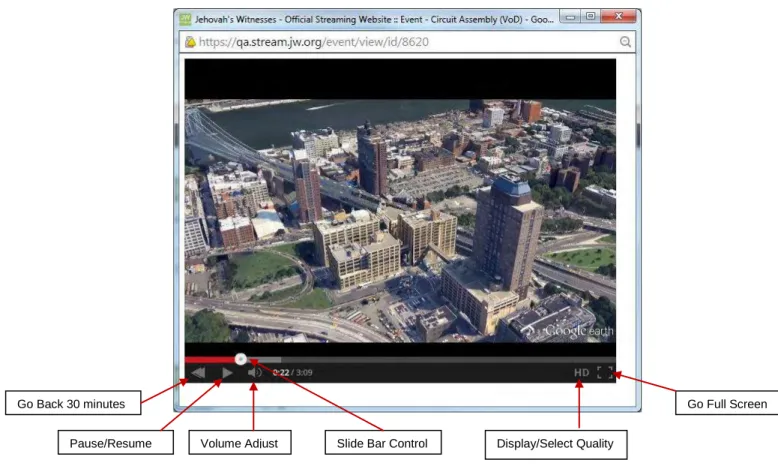
Controls appear at the bottom of the screen to adjust the playback volume, move the playback slide bar forward or backward, pause and resume the program, or go back in increments of 30 minutes.
Moving the mouse over the letters HD reveals the set of program qualities that are available. The player can automatically select the best quality depending on the Internet connection speed or select a desired quality manually by clicking the desired entry. To see the locations of these control functions that may be selected by the viewer. (See Figure 3.4)
Figure 3.4
Go Back 30 minutes
Pause/Resume Volume Adjust Slide Bar Control Display/Select Quality
3.5 Other Viewer Functions and Resources
In addition to the main function of being able to view or listen to the program, the viewer page also provides a number of other optional functions and resources, depending on the programs available accessed by the viewer (See Figure 3.5).
Figure 3.5
The following provides a list of functions that can be found on the viewer page as indicated on Figure 3.5:
1. Top right: Log Out and Help.
a. Log Out: When finished watching a program, close the video player popup box and then press Log Out to completely exit from the system. Simply clicking the X or closing the webpage will leave the Viewer account logged in to the system and this may cause issues related to counting the attendance. It will also cause problems when logging in and viewing a program with the same user ID in the future.
b. Help: Clicking Help will download the help file in pdf format.
2. Top left: This box is to enter the attendance when requested. To confirm, press Submit. 3. Optional Download icon (green down arrow) – located between the submit attendance
icon and the play icon (when the download option exists). Click the desired file resolution to download.
4. Bottom left: Click Message to expand and read; - to minimize and X to delete.
5. Bottom line: Submit a support request for assistance from a moderator (if this feature is enabled). Simply type question(s) or comment(s) and press ENTER. The input will be echoed back in the space to the right of the program list and the response(s) from the moderator will appear at the bottom.
Show Downloadable mp4 file (if provided)
Max/Min/Del Message
Be sure to Log Out
Download Help File Submit Attendance
Enter Attendance
Request Support Click to Download
6. If the viewer account is enabled for viewing Regularly Scheduled Programs such as the weekly Bethel Watchtower Study or Bethel Morning Worship Program or other similar programs, the viewer page will show a Calendar View (see Figure 3.6.) If there are no scheduled programs this view will not be displayed.
Figure 3.6
Figure 3.6
3.6 Functions of the Schedules
1. If a program is available, the calendar will display the number of programs on that day as shown in Figure 3.6. Clicking on the date of the program(s) desired will cause the programs for that date to appear in the Programs list and these can be played like any other program. Please note that the programs can be either live or pre-recorded.
2. Note that the Calendar View uses the same space on the viewer page as does the Viewer/Moderator support messages. Therefore, when both Calendar View and Support functions are enabled, it will be necessary to switch between the Support View and the Calendar View. For example clicking on Support in Figure 3.6 will switch the view to the Calendar View shown in Figure 3.7. Similarly, clicking Calendar in Figure 3.7 will revert from the Support View to the Calendar View.
Figure 3.7
4.0 How to Receive Assistance Using the Support Interface
The need may arise to send a message in the support section if you are having issues with either the website or the audio / video of one of the programs. Depending on the program, this feature may or may not be enabled for use.
1. Loading the main page should automatically show the support section.
2. Type in the message in the box where “type here” appears and press ENTER when finished. What was typed will appear in the box above (See Figure 4.1)
Figure 4.1
3. Replies from those assigned to provide support will appear in the chat room dialog box. (See Figure 4.2)
Figure 4.2
Note: Support messages will have a delay of about 30-60 in both directions
The message will appear here after pressing ENTER.
Type a message here
Replies to messages sent will appear here
5.0 How to Submit the Attendance
All viewing locations are asked to submit their attendance at some point during the program. Follow the steps below in the order that they appear to submit the attendance.
1. Click on the program to be viewed. The box expands and a field allowing for the attendance figure to be entered becomes available. (See Figure 5.1)
2. Insert the total attendance count into the field.
3. Click the icon next to the attendance figure to submit the attendance. (See Figure 5.1)
Figure 5.1
Click this icon to submit the attendance. Enter the attendance
4. If you need to edit the attendance figure, click X and re-enter the figure. Click the icon next to the attendance figure to submit the attendance. (See Figure 5.2)
Figure 5.2
5. A message will appear in the upper right corner confirming that the attendance has been submitted. (See Figure 5.3)
Figure 5.3
6. If an update is received to the attendance total, simply repeat steps 1-4 to submit the updated total. This will not add to the previous total but will replace it with the new number submitted.
Clear the incorrect attendance figure by clicking here and reentering the figure
A confirmation message will appear Click this icon to submit
6.0 Notifications
A useful feature of the stream.jw.org website is the ability to send notifications to quickly provide users with needed information.
The notification message appears in the lower left corner under the Notifications heading. Once the message appears the recipient has the option to minimize or close the notification box.
1. Messages appear under the Notifications heading. (See Figure 6.1)
Figure 6.1
2. Click on the Message to expand the box so that the message can be read. (See Figure 6.2)
Figure 6.2
Click here to expand the box and read the message
3. Click minimize to minimize the message once more (See Figure 6.3), or
4. Click X to close the message. A popup box will appear asking you to confirm that you wish to close the message and have it removed from your list of messages. (See Figure 6.3)
Figure 6.3
5. If you click OK to confirm the closing of your message, the message disappears from your list of messages and you will not be able to see it again. (See Figure 6.4)
Figure 6.4
6.1 Announcements
Announcements are important messages sent from the streamer. These can be viewed by clicking on the Announcement under the Notifications heading (See Figure 6.5). This will
Click here to minimize the message again Click here to close the message box. A confirmation popup appears
A popup appears asking you to confirm that you wish to close the message.
The message has now disappeared from you list of messages
expand the box so that the announcement can be read. Announcements cannot be closed, only minimized.
Figure 6.5
Click here to expand the box and read the announcement
Click here to minimize the announcement again
7.0 Useful Shortcuts for the Player
Key
Description
F /
Double Click / ESCF or Double Click on video window( or Clicking Full Screen Icon)
takes video window to Full Screen mode
ESC or Double Click when in Full Screen mode cancels Full Screen
Mode
S
Pressing S several times switches through four kinds of image
scaling. Press number:
1.
Scales to full screen width keeping aspect ratio (crops 4:3 at
the top and 16:9 at the bottom of the screen)
2.
Scales to full screen width, ignoring correct aspect ratio
(distorted image, but no cropping)
3.
Displays unscaled video (1 to 1 pixel), image size on screen
depends on video resolution.
4.
Reverts to default setting: scales to full window/screen and
keeps aspect ratio
Key presses are accepted only in non-full screen mode, but the effect
of mode 1 and 2 is only visible in full screen mode..
The default setting is the one which must be always used, so that the
image is not distorted and not cropped, and the video is in maximum
size, for both 16:9 and 4:3.
T
/
Right ClickShow statistical information about video and audio stream
Note: This option should not be used when displaying the program to
a large audience
↑ /
↓
Change volume 10% up (
↑
) or down (
↓
)
= /– /0
or
NUM+ / NUM– / NUM0
= or NUM+ : Zoom video in by 1%
- or NUM - : Zoom video in by 1%
0 or NUM0 : Reset
8.0 Important Information Regarding Mobile Devices
Stream.jw.org uses either HDS or HLS video formats to play videos on your computer or mobile devices, this is done using a Flash (HDS) based player or by using HTML5 (HLS) and your devices built in video decoder. However, since Flash support is limited on phones and tablets, we use HLS for all videos played on your mobile device.
8.1 Apple Devices
All iOS devices running 3.0 and later support HLS and stream.jw.org. These include the iPhone 4, iPad 1-4 and iPad Air. However, If you are having issues viewing a video and are using an iPad Air, be sure to disable private browsing.
How do I disable private browsing on my iOS device?
To turn off private browsing, tap Safari, then tap in the lower-right corner. Tap Private to turn private browsing off.
Note: If you're using an iPad, tap , then Private.
Note: While Private is disabled, Safari should appear white or gray instead of black or dark.
8.2 Android Devices
HLS has limited support on devices running the Android operating system. Android devices before 4.x (Gingerbread or Honeycomb), do not support HLS. Devices running Android 4.x and above will support HLS, but there are still inconsistencies and problems.
To use stream.jw.org on an Android device you must use either Ice Cream Sandwich (4.0) or
Jelly Bean (4.1+).
How do I check what version of the Android operating system I have?
From the Home screen, touch Menu > Settings > More > About device .
Please Note: Even if you are using version 4.0+, many features of stream.jw.org are not
guaranteed to work. You may experience issues with the aspect ratio of video, video seeking and full screen viewing.