ON THIS PAGE Introduction Important Notes Using the LDIFDE utility Using VBScript and ADSI
RELATED LINKS
Part 1: Installing a Windows 2000 Server as a Domain Controller
Part 2: Installing a Windows 2000 Professional Workstation and Connecting it to a Domain
Windows 2000 Server Online Help
Windows 2000 Planning and Deployment Guide Directory Services Windows 2000/NT Forum LDIF draft standard, draft-good-ldap-ldif-05.txt All Products | Support | Search | microsoft.com Guide
Windows 2000 Home | Windows 2000 Worldwide |
Search This Site
Go
Advanced Search
Windows 2000 Product Information How to Buy Technical Resources Downloads Support Technologies Partners Windows Server Community Windows Family Windows Update
Windows 2000 > Technical Resources > Step-by-Step Guides
Step-by-Step Guide to Bulk Import and Export to Active Directory
Posted: February 16, 2000Introduction
This guide introduces batch administration of the Active DirectoryTM service, using both the LDAP Data Interchange Format (LDIF) utility and a simple program you can write using the Visual Basic® Scripting Edition (VBScript) development system. Using these tools, you can export, import, and modify objects such as users, contacts, groups, servers, printers, and shared folders.
In this guide, you will perform the following tasks:
Perform batch operations using the LDIFDE utility. Export users into a file format compatible with the LDIF standard format. Perform a batch modification of all the users. Use LDIF to create a new user and delete a user.
Perform batch operations using ADSI and VBScript. Export users into a text file, using a script written with ADSI and VBScript. Use VBScript to perform a batch modification of all the users. Use VBScript to create a new user and delete a user.
Requirements and Prerequisites
You must install the Windows 2000 Server operating system, including Active Directory, on a server in your network. You can then run the Administration Tools from the server or from a workstation running the Windows 2000 Professional operating system.
This step-by-step guide assumes that you have run the procedures in A Common Infrastructure for Windows 2000 Server Deployment Step-by-Step Parts 1 and 2.
The common infrastructure documents specify a particular hardware and software configuration. If you are not using the common infrastructure, you need to make the appropriate changes to this document. For the latest information about hardware requirements and compatibility for servers, clients, and peripherals, see the Windows 2000 Product Compatibility search page.
The Administration Tools are installed by default on all Windows 2000-based domain controllers. The LDIFDE utility described in this guide is installed by default on servers, and can be copied to any Windows 2000-based workstation. The VBScript programs that you create can be run from either servers or workstations.
For all procedures in this guide, you must be logged on as an administrator. If you log on using an account that does not have administrative privileges, you may not be able to perform export and import operations in Active Directory.
Important Notes
The names of the company, organization, products, people, and events used in these step-by-step guides are fictitious. No association with any real company, organization, product, person, or event is intended or should be inferred.
The step-by step guides are based on a common infrastructure designed for use on a private network. The fictitious company name and DNS name used in this common infrastructure are not registered for use on the Internet. Please do not use this name on a public network or the Internet.
The Active Directory service structure for this common infrastructure is designed to show how Windows 2000 features work and function with the Active Directory. It was not designed as a model for configuring an Active Directory for any organization -- for such information see the Active Directory documentation. For more information about the common infrastructure, see the "Requirements and Prerequisites" section of this document.
Using the LDIFDE utility
performing batch operations on directories that conform to the LDAP standards. LDIF can be used to export and import data, allowing batch operations such as Add, Modify, and Delete to be performed in Active Directory. A utility called LDIFDE is included in the Windows 2000 operating system to support batch operations based on the LDIF standard.
Using LDIF to Export All Objects in the Marketing OU
You can use LDIFDE to export all objects in the Marketing organizational unit (OU), created in
"Step-by-Step Guide to Common Infrastructure Part 1". This example searches the organizational unit for certain objects and creates a file containing the names of those objects.
To export all objects in the Marketing OU
Click Start, point to Programs, then point to Accessories, and click Command Prompt. 1 .
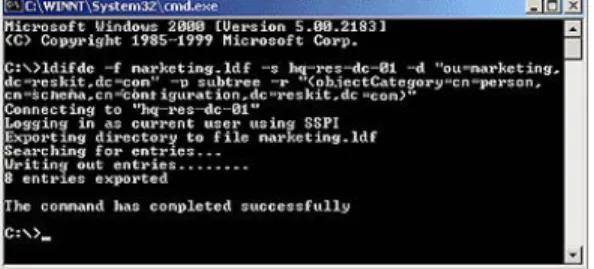
At the command prompt, type:
ldifde -f marketing.ldf -s hq-res-dc-01-d"ou=Marketing,dc=
reskit,dc=com"-psubtree–r"(objectCategory=CN=Person,CN=Schema,CN=Configuration,DC=reskit,DC=com)"
2 .
This creates a LDIF file named Marketing.ldf, by connecting to the server named HQ-RES-DC-01 and executing a subtree search of the Marketing OU for all objects of the category Person. (See Figure 1 below.)
Note that objectCategory is an indexed attribute designed to enhance search performance.
Figure 1. Creating an LDF file
You can use this LDIF file to perform a batch import of all the objects from the Marketing OU into any other LDAP-compatible directory. Some attributes may not be applicable to other
implementations of LDAP. In particular, if you use this mechanism to import the objects into another Active Directory, some attributes must be omitted because they are automatically generated during object creation. (If they are not specifically omitted, the operation will fail.) For example, the LDIFDE command that is used to omit these attributes is:
ldifde -f marketing.ldf -s hq-res-dc-01 –d "ou=Marketing,dc= reskit,dc=com"–r
>"(objectCategory=CN=Person,CN=Schema,CN=Configuration,DC=reskit,DC=com)" –m
Using LDIF to Modify All Objects in the Marketing OU
In this example, the entire Marketing organization has moved to a new office address. You use LDIF to perform a batch modification for all user objects in the Marketing organization by altering the state, street, locality, and postal code attributes.
To modify all objects in the Marketing OU
Click Start, point to Programs, then point to Accessories, and click Command Prompt. 1 .
At the command prompt, type the following command to extract the required entries: 2 .
ldifde -f marketing.ldf -s hq-res-dc-01-d"ou=Marketing,dc=
reskit,dc=com"-psubtree–r"(objectCategory=CN=Person,CN=Schema,CN=Configuration,DC=reskit,DC=com)" –l "l,st,streetAddress, postalCode"
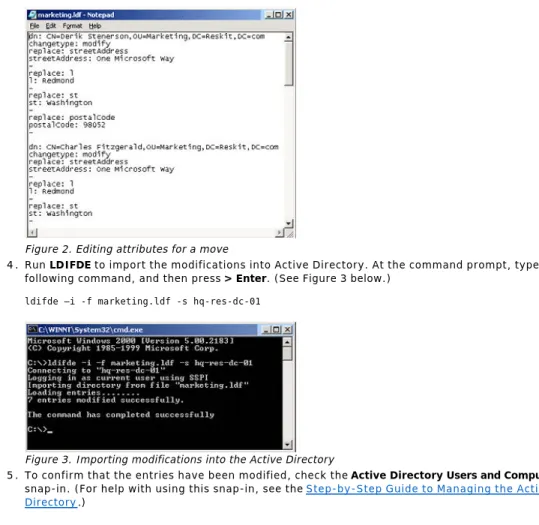
Use a text editor such as Notepad to edit the LDIF file, Marketing.ldf. (Save the file as an .ldf file.) Modify each entry so that it is similar to that shown in Figure 2 below.
Figure 2. Editing attributes for a move
Run LDIFDE to import the modifications into Active Directory. At the command prompt, type the following command, and then press > Enter. (See Figure 3 below.)
ldifde –i -f marketing.ldf -s hq-res-dc-01
Figure 3. Importing modifications into the Active Directory 4 .
To confirm that the entries have been modified, check the Active Directory Users and Computers snap-in. (For help with using this snap-in, see the Step-by-Step Guide to Managing the Active Directory.)
5 .
For further information on using LDIFDE, type LDIFDE /? at the command prompt.
Note: Another utility called CSVDE performs the same export functions as LDIFDE, but uses a
comma-separated file format. Import operations with CSVDE are “add” only, and CSVDE does not offer the ability to modify or delete objects. The CSV file format is supported by applications such as Microsoft Excel.
Using LDIF to Create a New User
In this example, you use LDIF to add a new user named James Smith to the Marketing organizational unit. Start a text editor, such as Notepad, and create a new text file named Newuser.ldf. (Save the file as an ldif file, not as a text file.)
1 .
Edit the LDIF file Newuser.ldf, and add the following text (see Figure 4 below):
dn: CN=JamesSmith,OU=Marketing,DC=reskit,DC=com changetype: add
cn: James Smith objectClass: user samAccountName: James > givenName: James > sn: Smith
2 .
Save and close the LDIF file. 3 .
Run LDIFDE to import the new user into Active Directory. On the Start menu, point to Programs, then point to Accessories, and click Command Prompt. Type the following command, and then press Enter.
ldifde –i -f newuser.ldf -s hq-res-dc-01
4 .
To confirm that the new user has been created, check the Active Directory Users and Computers snap-in.
5 .
Figure 4. Adding a new user to the Marketing OU
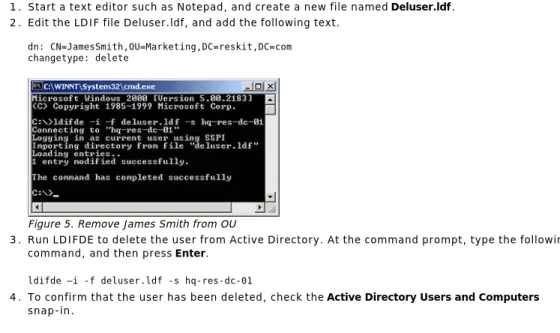
In this example, you use LDIF to remove the user named James Smith from the Marketing OU. Start a text editor such as Notepad, and create a new file named Deluser.ldf. 1 .
Edit the LDIF file Deluser.ldf, and add the following text.
dn: CN=JamesSmith,OU=Marketing,DC=reskit,DC=com changetype: delete
Figure 5. Remove James Smith from OU 2 .
Run LDIFDE to delete the user from Active Directory. At the command prompt, type the following command, and then press Enter.
ldifde –i -f deluser.ldf -s hq-res-dc-01
3 .
To confirm that the user has been deleted, check the Active Directory Users and Computers snap-in.
4 .
Using VBScript and ADSI
Active Directory Services Interfaces (ADSI) makes it easy to develop directory-enabled applications. In conjunction with the Windows Script Host, batch directory operations can be scripted using VBScript or Jscript® development software. In this guide, the procedures that were described in the previous section (which used LDIF) are performed using simple applications written in VBScript.
Please note that these scripts do not include any error checking, nor are they meant to provide a
programmer’s reference to VBScript and ADSI. All of the examples included here assume you are logged on with the proper credentials on a machine that is a member of the target domain. It is possible in ADSI to explicitly specify credentials and a target domain. For more information on this, see the documentation on ADSI’s OpenDSObject in the Platform SDK.
After each procedure, confirm that the entries have been modified by checking the Active Directory Users and Computers snap-in.
Using VBScript to Export All Objects in the Marketing OU
In this example, you use a text editor such as Notepad to create a VBScript program. The script searches the Marketing OU and creates a text file that lists all of the user objects and a subset of their attributes.
To create the export script
Copy the following text into your text editor:
'Global variables Dim oContainer Dim OutPutFile Dim FileSystem
'Initialize global variables
Set FileSystem = WScript.CreateObject("Scripting.FileSystemObject") Set OutPutFile = FileSystem.CreateTextFile("marketing.txt", True) SetoContainer=GetObject("LDAP://OU=marketing,DC=reskit,DC=com")
'Enumerate Container EnumerateUsers oContainer
'Clean up OutPutFile.Close Set FileSystem = Nothing Set oContainer = Nothing
WScript.Echo "Finished" WScript.Quit(0)
Sub EnumerateUsers(oCont) Dim oUser
For Each oUser In oCont Select Case LCase(oUser.Class) Case "user"
If Not IsEmpty(oUser.distinguishedName) Then
OutPutFile.WriteLine "dn: " & oUser.distinguishedName End If
If Not IsEmpty(oUser.name) Then
OutPutFile.WriteLine "name: " & oUser.Get ("name") End If
'need to do this because oUser.name would get back the Relative Distinguished name (i.e. CN=Jo Brown)
If Not IsEmpty(oUser.st) Then OutPutFile.WriteLine "st: " & oUser.st End If
If Not IsEmpty(oUser.streetAddress) Then
OutPutFile.WriteLine "streetAddress: " & oUser.streetAddress End If
Case "organizationalunit" , "container"
EnumerateUsers oUser End Select
OutPutFile.WriteLine Next
End Sub
Save the file as Export.vbs. 2 .
At the command prompt type export.vbs and press Enter. This creates a file named Marketing.txt, which contains a list of users and some of their attributes, such as distinguished name, name, state, and street address.
3 .
With appropriate modification, this script can be used with any application that supports COM and Visual Basic technologies. Such applications include Microsoft Visual Basic, Microsoft Excel, and Microsoft Access. Scripting can also be hosted by Internet Explorer and Internet Information Services 5.0, which is part of Windows 2000 Server.
Using VBScript to Modify All Objects in the Marketing OU
In this example, the Marketing organization has moved to a new office address. A simple VBScript program is used to perform a batch modification for all user objects in the Marketing organization. The script alters the state, street, locality, and postal code attributes.
Copy the following text into your text editor: Dim
oContainer Set oContainer=GetObject("LDAP://OU=marketing,DC=reskit,DC=com") ModifyUsers oContainer
'cleanup
Set oContainer = Nothing
WScript.Echo "Finished"
Sub ModifyUsers(oObject) Dim oUser
oObject.Filter = Array("user") For Each oUser in oObject oUser.Put "st","New York"
oUser.Put "streetAddress","825 Eighth Avenue" oUser.Put "postalCode","10019"
oUser.Put "l","New York" oUser.SetInfo Next
End Sub 1 .
Save the file as Modify.vbs. 2 .
At the command prompt, type modify.vbs and press Enter. This processes all objects in the Marketing organizational unit and modifies all users, altering the state, street address, postal code, and locality attributes.
3 .
Using VBScript to Create a User Object in the Marketing OU
In this example, you use VBScript to add a new user to the Marketing organization. This example illustrates how easy it is to use ADSI and VBScript to programmatically access the directory. Note that in this example, only a limited set of attributes are configured during the user creation.
Copy the following text into your text editor: Dim oContainer 'Parent container of new user Dim
oUser 'Created user
'Get parentcontainerSetoContainer=GetObject("LDAP://OU=marketing,DC=reskit,DC=com")
'Create user
Set oUser = oContainer.Create("User","CN=Jo Brown")
'Assign properties values to user oUser.Put "samAccountName","Jo" oUser.Put "givenName","Jo" oUser.Put "sn","Brown"
oUser.Put "userPrincipalName","[email protected]" oUser.SetInfo
'Clean up Set oUser = Nothing Set oContainer = Nothing
WScript.Echo "Finished" 1 .
Save the file as Adduser.vbs. 2 .
At the command prompt, type adduser.vbs and press Enter. This creates a new user named Jo Brown in the Marketing OU.
3 .
Using VBScript to Delete a User
In this example, you use VBScript to delete a user from the Marketing organization. Copy the following text into your text editor:
Dim oContainer 'Parent container of object to be
deleted 'Get parent
container Set oContainer=GetObject("LDAP://OU=marketing,DC=reskit,DC=com")
'Delete user
oContainer.Delete "user","CN=Jo Brown"
'Clean up
Set oContainer = Nothing
WScript.Echo "Finished" 1 .
Save the file as Deluser.vbs. 2 .
At the command prompt, type deluser.vbs and press Enter. This deletes the user Jo Brown from the Marketing OU.
3 .
Contact Us E-Mail This Page Free Newsletters