Enterprise Security Suite
Doctor Web Head Office 2-12A, 3rd str. Yamskogo polya Moscow, Russia
125124
Web site: www.drweb.com Phone: +7 (495) 789-45-87
Refer to the official web site for regional and international office information. Dr.Web Enterprise Security Suite
Version 10.0
Installation Manual 1/15/2016
© Doctor Web, 2016. All rights reserved
This document is the property of Doctor Web. No part of this document may be reproduced, published or transmitted in any form or by any means for any purpose other than the purchaser's personal use without proper attribution.
TRADEMARKS
Dr.Web, SpIDer Mail, SpIDer Guard, CureIt!, CureNet!, Dr.Web AV-Desk and the Dr.WEB logo are trademarks and registered trademarks of Doctor Web in Russia and/or other countries. Other trademarks, registered trademarks and company names used in this document are property of their respective owners.
DISCLAIMER
In no event shall Doctor Web and its resellers or distributors be liable for errors or omissions, or any loss of profit or any other damage caused or alleged to be caused directly or indirectly by this document, the use of or inability to use information contained in this document.
Doctor Web
We thank all our customers for their support and devotion to the Dr.Web products!
Doctor Web develops and distributes Dr.Web® information security solutions which provide
efficient protection from malicious software and spam.
Doctor Web customers can be found among home users from all over the world and in
government enterprises, small companies and nationwide corporations.
Dr.Web antivirus solutions are well known since 1992 for continuing excellence in malware
detection and compliance with international information security standards. State certificates
and awards received by the Dr.Web solutions, as well as the globally widespread use of our
products are the best evidence of exceptional trust to the company products.
4
Table of Contents
6
Chapter 1: Welcome to Dr.Web Enterprise Security Suite
6 1.1. Introduction
7 1.2. Conventions and Abbreviations
8 1.3. About Product
14 1.4. System Requirements
18 1.5. Distribution Kit
19 1.6. Licensing
21
Chapter 2: Installation of Dr.Web Enterprise Security Suite
Components
21 2.1. Planning the Structure of an Anti-Virus Network
21 2.2. Installing Dr.Web Server
22 2.2.1. Installing Dr.Web Server for Windows® OS
27 2.2.2. Installing Dr.Web Server for UNIX® System-Based OS
28 2.2.3. Installing Dr.Web Server Extra Distribution Kit
28 2.2.4. Installing Dr.Web Security Control Center Extension
30 2.3. Installing Dr.Web Agent
31 2.3.1. Installation Files
32 2.3.2. Local Installation of Dr.Web Agent
39 2.3.3. Remote Installation of Dr.Web Agent under Windows® OS
49 2.4. Installing NAP Validator
50 2.5. Installing Proxy Server
53
Chapter 3: Removal of Dr.Web Enterprise Security Suite Components
53 3.1. Removing Dr.Web Server
53 3.1.1. Removing Dr.Web Server for Windows® OS
53 3.1.2. Removing Dr.Web Server for UNIX® System-Based OS
55 3.2. Removing Dr.Web Agent
55 3.2.1. Removing Dr.Web Agent for Windows® OS
57 3.2.2. Removing Dr.Web Agent through Active Directory
57 3.3. Removing Proxy Server
58
Chapter 4: Updating Dr.Web Enterprise Security Suite Software and Its
Components
58 4.1. Upgrading Dr.Web Server for Windows® OS
61 4.2. Upgrading Dr.Web Server for UNIX® System-Based OS
65 4.3. Upgrading Dr.Web Security Control Center Extension
5
65 4.4. Upgrading Dr.Web Agent
66 4.4.1. Upgrading Dr.Web Agents on Stations under Windows® OS
67 4.4.2. Upgrading Dr.Web Agents on Stations under Linux, Android OS X
67 4.5. Upgrading Proxy Server
6 Chapter 1: Welcome to Dr.Web Enterprise Security Suite
Chapter 1: Welcome to Dr.Web Enterprise Security Suite
1.1. Introduction
Documentation of Dr.Web® Enterprise Security Suite anti-virus network administrator is intended to introduce general features and provide detailed information on the organization of the complex anti-virus protection of corporate computers using Dr.Web® Enterprise Security Suite.
Documentation of Dr.Web® Enterprise Security Suite anti-virus network administrator contains the following parts:
1. Installation Manual (the drweb-esuite-10-install-manual-en.pdf file)
Installation Manual will be useful to the organization manager who makes the decision to purchase and install a system of comprehensive anti-virus protection.
Installation Manual explains how to build an anti-virus network and install its general components. 2. Administrator Manual (the drweb-esuite-10-admin-manual-en.pdf file)
3. Appendices (the drweb-esuite-10-appendices-en.pdf file)
Administrator documentation contains cross-references between three mentioned documents. If you download these documents to the local computer, cross-references work only if documents are located in the same folder and have their initial names.
Administrator documentation does not include the description of Dr.Web anti-virus packages for protected computers. For relevant information, please consult User Manuals of Dr.Web anti-virus solution for corresponding operating system.
Before reading these document make sure you have the latest version of the Manuals. The Manuals are constantly updated and the current version can always be found at the official web site of Doctor Web at http://download.drweb.com/esuite/.
7 Chapter 1: Welcome to Dr.Web Enterprise Security Suite
1.2. Conventions and Abbreviations
Conventions
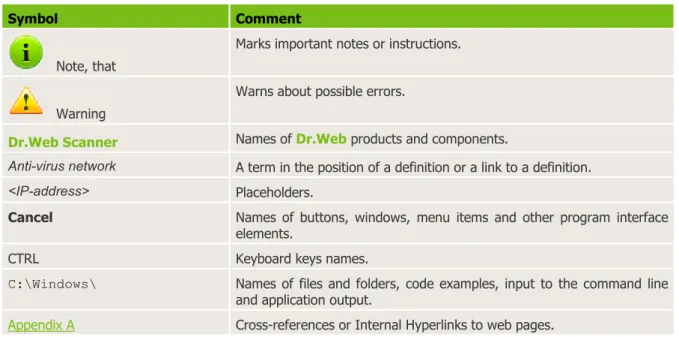
The following conventions are used in the Manual.
Table 1-1. Conventions
Symbol Comment
Note, that
Marks important notes or instructions.
Warning
Warns about possible errors.
Dr.Web Scanner Names of Dr.Web products and components.
Anti-virus network A term in the position of a definition or a link to a definition.
<IP-address> Placeholders.
Cancel Names of buttons, windows, menu items and other program interface elements.
CTRL Keyboard keys names.
C:\Windows\ Names of files and folders, code examples, input to the command line and application output.
Appendix А Cross-references or Internal Hyperlinks to web pages.
Abbreviations
The following abbreviations will be used in the Manual without further interpretation:
uACL – Access Control List,
uCDN – Content Delivery Anti-virus network,
uDB, DBMS – Database, Database Management System,
uDFS – Distributed File System,
uDNS – Domain Name System,
uDr.Web GUS – Dr.Web Global Update System,
uEBNF – Extended Backus-Naur Form,
uGUI – Graphical User Interface, a GUI version of a program – a version using a GUI,
uLAN – Local Area Network,
uMTU – Maximum Transmission Unit,
uNAP – Network Access Protection,
uOS – operating system,
uPC – personal computer,
uTTL – Time To Live,
8 Chapter 1: Welcome to Dr.Web Enterprise Security Suite
1.3. About Product
Dr.Web Enterprise Security Suite is designed for organization and management of integrated and secure complex anti-virus protection either local company network including mobile devices, or home computers of employers.
An aggregate of computers and mobile devices on which Dr.Web Enterprise Security Suite cooperating components are installed, represents a single anti-virus network.
Dr.Web Enterprise Security Suite anti-virus network has a client-server architecture. Its components are installed on a computers and mobile devises of users and administrators as well as on a computers that function as LAN servers. Anti-virus network components exchange information via TCP/IP network protocols. Anti-virus software can be installed (and manage them afterwards) on protected stations either via the LAN, or via the Internet.
Dr.Web Server HTTP/HTTPS
Dr.Web Security Control
Center TCP/IP network
Dr.Web Mobile Control
Center Updates transmission via HTTP/HTTPS
Protected station
Dr.Web GUS
9 Chapter 1: Welcome to Dr.Web Enterprise Security Suite
Central Protection Server
Central protection Server is installed on a computer of anti-virus network, and installation can be performed on any computer, not only on that functioning as a LAN server. General requirements to this computer are given in the System Requirements section.
Cross-platform Server software allows to use a computer under the following operating systems as a Server:
· Windows® OS,
· UNIX® system-based OS (Linux®,FreeBSD®, SolarisTM).
Central protection Server stores distribution kits of anti-virus packages for different OS of protected computers, updates of virus databases and anti-virus packages, license keys and package settings of protected computers. Server receives updates of anti-virus protection components and virus databases via the Internet from the Global Update System and propagate updates on protected stations.
Hierarchical structure of several Servers can be established to serve protected stations of anti-virus network.
Server supports the backup of critical data (databases, configuration files, etc.). Server writes single log of anti-virus network events.
Single Database
The single database is connected to the central protection Server and stores statistic data on anti-virus network events, settings of the Server itself, parameters of protected stations and anti-virus components, installed on protected stations.
You can use the following types of databases:
Embedded database. Two variants of database that is inbuilt into the central protection Server directly are provided:
· SQLite2 (InitDB),
· SQLite3.
External database. Inbuilt drivers for connecting the following databases are provided:
· Oracle,
· PostgreSQL,
· ODBC driver to connect other databases such as Microsoft SQL Server/Microsoft SQL Server Express.
You can use any database that corresponds to your demands. Your choice should be based on the needs that must be satisfied by the data store, such as: capability to service the anti-virus network of corresponding size, features of database software maintenance, administration capabilities provided by the database itself and also requirements and standards which are accepted for use in your company.
Central Protection Control Center
Central protection Control Center is automatically installed with the Server and provides the web interface for remote managing of the Server and the anti-virus network by means of editing the settings of the Server and protected computers settings stored on the Server and protected computers.
TheControl Center can be opened on any computer that have the network access to the Server. TheControl Center can be used almost under any operating system with full use on the following web browsers:
· Windows® Internet Explorer®,
10 Chapter 1: Welcome to Dr.Web Enterprise Security Suite
· Google Chrome®.
The list of possible variants of use is given in the System Requirements section. Central protection Control Center provides the following features:
· Serviceability of Anti-virus installation on protected stations including: remote installation on protected stations under Windows OS with preliminary browsing the network to search computers; Creation of distribution files with unique identifiers and parameters of connection to the Server to facilitate Anti-virus installation process by the administrator or possibility of Anti-virus installation by users on stations by oneself (detailed information see in the Installing Dr.Web Agent section).
· Facilitate administering based on grouping of anti-virus network workstations.
· Feasibility of centralized administrating of stations anti-virus packages including: uninstallation either separate components or entire Anti-virus on stations under Windows OS; configuring parameters of anti-virus package components; assigning permissions to set up and administer the anti-virus packages on protected computers for users of these computers.
· Centralized administering of workstations virus check including: remote launch of anti-virus check either according the specified schedule or direct request from administrator for the Control Center; centralized configuration of check parameters and transmitting them to the workstations to launch the local check with these parameters.
· Receiving the statistic information on protected stations states, viral statistics, installed anti-virus software state, running anti-anti-virus components state and also, the list of hardware and software on protected station.
· Flexible administrating system of Server and anti-virus network based on opportunity of permissions delimiting for different administrators and also, possibility to connect administrators via the external authorization systems such as Active Directory, LDAP, RADIUS, PAM.
· Managing the licensing of workstations anti-virus protection with branched system of assigning licenses to stations, groups of stations and also, granting licenses between several Servers in multiserver configuration of anti-virus network.
· Wide set of setting to configure the Server and its separate components including: configuring schedule to maintain the Server; plug in user hooks; flexible configuration of update system of all anti-virus network components from the GUS and further propagation of updates on stations; configuring the system of administrator notifications about anti-virus network events with different methods of notification delivering; configuring neighbor connections to configure multiserver anti-virus network.
Detailed information on described functions is given in the Administrator Manual.
The par of the Control Center is the Web server that is automatically installed with the Server. The general task of the Web server is performing operation with web pages of the Control Center and clients network connections.
Central Protection Mobile Control Center
As a separate component, the Mobile Control Center is provided. It is designed for installation and operation on mobile devices under iOS and Android OS. General requirements to the application are given in the System Requirements section.
Mobile Control Center connects to the Server according to the anti-virus network administrator credentials including via an encrypted protocol. Mobile Control Center supports the base set of Control Center functions:
1. Manage Dr.Web Server repository:
11 Chapter 1: Welcome to Dr.Web Enterprise Security Suite
· launch repository update from Dr.Web Global Update System. 2. Manage stations on which an update of anti-virus software is failed:
· display failed stations;
· update components on failed stations.
3. Display statistics information on anti-virus network state:
· number of stations registered at Dr.Web Server and their current state (online/offline);
· viral statistics for protected stations.
4. Manage new stations waiting for connection to Dr.Web Server:
· approve access;
· reject stations.
5. Manage anti-virus components installed on anti-virus network stations:
· launch the fast or full scan either for selected stations or for all stations of selected groups;
· setup Dr.Web Scanner reaction on malware detection;
· view and manage files in the Quarantine either for selected stations or for all stations in the selected group.
6. Manage stations and groups:
· view properties;
· view and manage components composition of anti-virus package;
· delete;
· send custom messages to stations;
· reboot stations under Windows OS;
· add to favorites list for the quick assess.
7. Search for stations and groups in an anti-virus network by different parameters: name, address, ID.
8. View and manage messages on major events in an anti-virus network via the interactive Push notifications:
· display all notifications at Dr.Web Server;
· set reactions on notification events;
· search notification by specified filter parameters;
· delete notifications;
· exclude notifications from automatic deletion.
You can download Mobile Control Center from the Control Center or directly in App Store and Google Play.
Network Stations Protection
On protected computers and mobile devices of the network, the control module (Agent) and the anti-virus package for corresponding operating system are installed.
Cross-platform software allows to provide anti-virus protection of computers and mobile devises under the following operating systems:
· Windows® OS,
· UNIX® system-based OS,
· OS X®,
· Android OS,
12 Chapter 1: Welcome to Dr.Web Enterprise Security Suite
Either user computers or LAN servers can be protected stations. Particularly, anti-virus protection of the Microsoft® Outlook® mail system is supported.
Control module performs regular updates of anti-virus components and virus databases from the Server and also, sends information on virus evens on protected computer to the Server.
If the central protection Server is not accessible, it is possible to update virus databases on protected stations via the Internet from the Global Update System.
Depending on the operating system of the station, the following protection functions are provided:
Stations under Windows
®OS
Anti-virus check
Scans a computer on user demand and according to the schedule. Also the remote launch of anti-virus scan of stations from the Control Center including rootkits check is supported.
File monitor
The constant file system protection in the real-time mode. Checks all launched processes and also created files on hard drives and opened files on removable media.
Mail monitor
Checks all incoming and outgoing mail messages when using the mail clients. The spam filter is is also available (if the license permits this function).
Web monitor
Checks all calls to web sites via the HTTP protocol. Neutralizes malicious software in HTTP traffic (for example, in uploaded and downloaded files) and blocks the access to suspicious or incorrect resources.
Office control
Controls access to network and local resources, in particular, limits access to web sites. Allows to control the integrity of important files from the accidental change or virus infecting and limit the access to unwanted information for employees.
Firewall
Protects computers from external unauthorized access and prevents leak of vital data via Internet. Monitors connection attempts and data transfer via the Internet and blocks suspicious connections both on network and application levels.
Quarantine
Isolates malware and suspicious objects in the specific folder.
Self-protection
Protects files and folders of Dr.Web Enterprise Security Suite from unauthorized or accidental removal and modification by user or malicious software. If self-protection is enabled, access to files and folders of Dr.Web Enterprise Security Suite is granted to Dr.Web processes only.
Preventive protection
Prevents of potential security threats. Controls the access to the operating system critical objects, controls drivers loading, programs autorun and system services operation and also monitors running processes and blocks them in case of detection of viral activity.
Stations under UNIX
®system-based OS
Anti-virus check
Scans a computer on user demand and according to the schedule. Also the remote launch of anti-virus scan of stations from the Control Center is supported.
File monitor
The constant file system protection in the real-time mode. Checks all launched processes and also created files on hard drives and opened files on removable media.
13 Chapter 1: Welcome to Dr.Web Enterprise Security Suite
Web monitor
Checks all calls to web sites via the HTTP protocol. Neutralizes malicious software in HTTP traffic (for example, in uploaded and downloaded files) and blocks the access to suspicious or incorrect resources.
Quarantine
Isolates malware and suspicious objects in the specific folder.
Stations under OS X
®Anti-virus check
Scans a computer on user demand and according to the schedule. Also the remote launch of anti-virus scan of stations from the Control Center is supported.
File monitor
The constant file system protection in the real-time mode. Checks all launched processes and also created files on hard drives and opened files on removable media.
Quarantine
Isolates malware and suspicious objects in the specific folder.
Mobile devices under Android OS
Anti-virus checkScans a mobile device on user demand and according to the schedule. Also the remote launch of anti-virus scan of stations from the Control Center is supported.
File monitor
The constant file system protection in the real-time mode. The check of all files as they are saved in the memory of the device.
Calls and SMS Filter
Filtering the incoming phone calls and SMS allows to block the undesired messages and calls, such as advertisements or messages and calls from unknown numbers.
Anti-theft
Detect the device location or lock its functions in case it has been lost or stolen.
Restricting Internet Access
URL filter allows to protect user of the mobile device from unsolicited Internet sites.
Firewall
Protects the mobile device from external unauthorized access and prevents leak of vital data via Internet. Monitors connection attempts and data transfer via the Internet and blocks suspicious connections both on network and application levels.
Security Troubleshooting
Diagnostic and analysis of the security of mobile device and resolving the detected problems and vulnerabilities.
Application launch control
Blocks the launch on mobile device those applications that are not included into the list of allowed by administrator.
Servers under Novell
®NetWare
®OS
Anti-virus check
Scans a computer on user demand and according to the schedule.
File monitor
The constant file system protection in the real-time mode. Checks all launched processes and also created files on hard drives and opened files on removable media.
14 Chapter 1: Welcome to Dr.Web Enterprise Security Suite
Providing a Connection between Anti-virus Network Components
To provide stable and secure connection between anti-virus network components, the following features are presented:
Dr.Web Proxy server
Proxy server can optionally be included into the anti-virus network. The main function of the Proxy server is to provide connection between the Server and protected stations in cases when direct connection is impossible. E.g. if the Server and protected stations are located in different networks which do not have packet routing between them. At the expense of using caching function, reducing of network traffic and time of receiving updates by protected stations can be provided.
Traffic compression
Special compression algorithms are applicable for transferring data between the anti-virus network components to reduced network traffic to minimum.
Traffic encryption
Data transferred between the anti-virus network components can be encrypted to provide additional secure level.
Additional Features
NAP ValidatorNAP Validator is provided as a separate component and allows to use Microsoft Network Access Protection (NAP) technology to check health of protected stations software. The resulting security is achieved through the implementation of the requirements for performance of network stations.
Repository loader
Dr.Web Repository loader is provided as a separate utility and allows to download products of Dr.Web Enterprise Security Suite from the Global Update System. It can be used for downloading of Dr.Web Enterprise Security Suite products updates to place them on the Server not connected to the Internet.
1.4. System Requirements
For Dr.Web Enterprise Security Suite to be installed and function the following is
required:
uDr.Web Server should be installed on a computer that have an access to the Internet to receive updates from Dr.Web GUS (Global Update System) automatically;
It is allowed to propagate updates by any other way to the Servers which are not connected to the Internet. Particularly, in multiserver configuration of anti-virus network, it is possible to receive updates from the GUS by only one Server with subsequent distribution to other Servers, or to use
Dr.Web Repository Loader additional utility to download updates from the GUS with subsequent distribution to Servers.
uanti-virus network computers should have access to Dr.Web Sever or to the Proxy server;
ufor interaction between the anti-virus components, the following ports must be opened on used computers:
15 Chapter 1: Welcome to Dr.Web Enterprise Security Suite
Port numbers
Protocols Connection directions Purpose
2193
TCP
· incoming, outgoing for the Server
and Proxy server
· outgoing for the Agent
For connection between the Server and anti-virus components and for interserver communications.
Also is used by Proxy server to establish a connection with clients.
UDP incoming, outgoing
For the Network Scanner.
139, 445 TCP
· incoming for the Server
· incoming, outgoing for the Agent
· outgoing for the computer on which the Control Center is opened
For the Network Installer.
UDP incoming, outgoing
9080 HTTP · incoming for the Server
· outgoing for the computer on which the Control Center is opened
For Dr.Web Security Control Center.
9081 HTTPS
10101 TCP For Server remote diagnostic utility.
80 HTTP
outgoing For receiving updates from GUS.
443 HTTPS
The 2371 port is required for connection (via TCP and UDP protocols) between components of 4.XX
version. It is used for support of compatibility, particularly during upgrade of anti-virus network components.
Dr.Web Server requires:
Component Requirement
CPU and
operating system
The following operating systems installed on a computer with corresponding CPU are supported:
uCPU that supports SSE2 instructions and has 1,3 GHz or faster clock frequency: · Windows;
· Linux; · FreeBSD; · Solaris x86.
uV9 UltraSPARC IIIi CPU or later: · Solaris Sparc.
Complete list of supported OS see in the Appendices document, in Appendix A.
RAM · Minimal requirements: 1 GB.
· Recommended requirements: 2 GB and more.
Free disk space Up to 12 GB: up to 8 GB for a embedded database (installation catalog) and up to 4GB for the system temporary catalog (for work files).
Depending on the Server settings, additional space may be required to store temporary files, e.g. to store personal installation packages of Agents (app. 8,5 MB for each) in the var \installers-cache subfolder of Dr.Web Server installation folder.
16 Chapter 1: Welcome to Dr.Web Enterprise Security Suite
Component Requirement
To install the Server, it is required on Windows OS system disk or in the /var/ tmp for UNIX system-based OS (or in the other temporary files folder, if it is redefined), not dependently on the Server installation folder, at least 1,2 GB for the general distribution kit and 2,5 GB for the extra distribution kit of free system disk space to launch the installer and unpack temporary files.
Other For the installation of Dr.Web Server for UNIX system-based OS, the following libraries required: lsb v. 3 or later, glibc v. 2.7 and later.
To use PostgreSQL DB, the libpq required. To use Oracle DB, the libaio required.
Additionally under FreeBSD OS, the compat-8x library required.
Dr.Web Proxy Server requires:
Component Requirement
CPU Intel® Pentium® III 667 MHz or faster.
RAM not less than 1 GB.
Free disk space not less than 1 GB. Operating
system
· Windows; · Linux; · FreeBSD; · Solaris.
Complete list of supported OS see in the Appendices document, in Appendix A. Other For the installation of Proxy Server for UNIX system-based OS: lsb v. 3 or later.
Additionally under FreeBSD OS, the compat-8x library required.
Dr.Web Security Control Center requires:
uWeb browser:
Web browser Support Warnings Windows Internet
Explorer 8 and later
Supported
· Full operability of the Control Center under web browser with the
Enhanced Security Configuration for Windows Internet Explorer
mode enabled is not guaranteed.
· If you install Server on a computer with a '_' (underline) character in the name, configuration of Server with Dr.Web Security Control Center by use of Windows Internet Explorer will not be available. In this case, use other web browser.
· For proper operation of Control Center, IP address and/or DNS name of computer with installed Dr.Web Server must be added to the trusted sites of browser, on which you open Control Center. · For proper opening of Control Center via the Start menu under
Windows 8 and Windows Server 2012 OS with tiled interface, set the following parameters of a web browser: Tools
→
Programs→
Opening Internet Explorer set the Always in Internet Explorer flag.Mozilla Firefox 25 and later
17 Chapter 1: Welcome to Dr.Web Enterprise Security Suite
Web browser Support Warnings Google Chrome 30
and later
–
Opera® 10 and later
Can be used, but operating is not guaranteed.
–
Safari® 4 and later –
uTo use Dr.Web Security Control Center in full, the Dr.Web Security Control Center extension must be installed. The extension is distributed with the Server installation package. It installs by browser request when you use elements of Dr.Web Security Control Center which require the extension (for instance, for anti-virus components remote updater or Network Scanner). The extension can be installed on Windows Internet Explorer 8 and later or Mozilla Firefox 25 and later web browsers.
For operation of Dr.Web Security Control Center extension at the Network Scanner page, under both Windows and GNU/Linux OS, you must have administrator (root) rights.
Under Mozilla Firefox web browser, Dr.Web Security Control Center extension is available under Windows OS and Linux system-based OS only.
uRecommended screen resolution to use Dr.Web Security Control Center is 1280x1024 pt.
Dr.Web Mobile Control Center requires:
Requirements are differ depending on the operating system on which the application is installed:
uiOS:
Component Requirement
Operating system iOS® 7 and later
Device Apple® iPhone®
Apple® iPad®
uAndroid OS:
Component Requirement
Operating system Android 4.0 and later
The NAP requires:
For Server
uWindows Server® 2008 OS.
For the Agents
uWindows XP SP3 OS, Windows Vista OS, Windows Server 2008 OS.
Dr.Web Agent and the full anti-virus package require:
Requirements are differ depending on the operating system on which anti-virus solution is installed (the full list of supported OS see in the Appendix A. The Complete List of Supported OS Versions):
· Windows OS:
Component Requirement
18 Chapter 1: Welcome to Dr.Web Enterprise Security Suite
Component Requirement Free RAM Not less than 512 MB.
Free disk space 1 GB for executable files + extra disk space for logs and temporary files.
Other 1. Dr.Web Agent for Windows context help requires Windows® Internet Explorer® 6.0 or later.
2. For Dr.Web for Outlook extension the the Microsoft Outlook client from the Microsoft Office package is required:
uOutlook 2000 (Outlook 9),
uOutlook 2002 (Outlook 10 or Outlook XP),
uOffice Outlook 2003 (Outlook 11),
uOffice Outlook 2007 (Outlook 12),
uOffice Outlook 2010 (Outlook 14),
uOffice Outlook 2013 (Outlook 15).
· Linux system-based OS: Component Requirement
CPU 32-bit (IA-32, x86) and 64-bit (x86-64, x64, amd64) Intel platforms. Free RAM Not less than 512 MB.
Free disk space Not less than 400 MB of free disk space on a volume on which Anti-virus folders are placed.
· OS X: configuration requirements coincide with the requirements for operating system;
· Android OS: configuration requirements coincide with the requirements for operating system;
· Novell NetWare OS: configuration requirements coincide with the requirements for operating system. No other anti-virus software (including other versions of Dr.Web anti-virus programs) should be installed on the workstations of an anti-virus network managed by Dr.Web Enterprise Security Suite.
Functionality of Agents is described in the user manuals for corresponding OS.
1.5. Distribution Kit
The program software is distributed depending on the OS of the selected Dr.Web
Server:
1. For UNIX system-base OS - as run files for installation under corresponding OS versions of the following components:
uDr.Web Server general distribution kit,
uDr.Web Server extra distribution kit,
uProxy Server.
2. For Windows OS - as installation wizard executable files for installation of the following components:
uDr.Web Server general distribution kit,
uDr.Web Server extra distribution kit,
uProxy Server,
uDr.Web Agent for Active Directory,
19 Chapter 1: Welcome to Dr.Web Enterprise Security Suite
uUtility to change attributes for Active Directory objects,
uNAP Validator.
Dr.Web Server distribution kit contains two packages:
1. General distribution kit - basic distribution kit to install Dr.Web Server. Composition is similar to composition of previous versions of Dr.Web Enterprise Security Suite distribution.
General distribution kit performs the installation of Dr.Web Server itself and includes anti-virus protection packages for stations under Windows OS only.
2. Extra distribution kit - includes distributions of all enterprise products, which are provided for installation on protected stations under all supported OS.
The package is installed as an additional on a computer with Dr.Web Servergeneral distribution kit
installed.
Extra distribution kit must be installed from the same type of package as a general distribution kit.
Dr.Web Server general distribution kit contains the following components:
uDr.Web Server software for the respective OS,
uDr.Web Agents software and anti-virus packages software for supported OSs,
uDr.Web Security Control Center software,
uVirus databases,
uDr.Web Security Control Center extension,
uDr.Web Server FrontDoor extension,
uManuals, templates, and examples.
In addition to the distribution kit, serial numbers are also supplied. Having registered these serial numbers one can get files with a Server key and an Agent key.
1.6. Licensing
Rights to use Dr.Web Enterprise Security Suite are regulated by the license key file.
Key files have a write-protected format based on the mechanism of electronic signature. Editing the file makes it invalid. Therefore it is not recommended to open your key file with a text editor, which may occasionally corrupt it.
Dr.WebEnterprise Security Suitelicense parameters and price depend on the number of protected computers, which includes the servers protected byDr.WebEnterprise Security Suite network.
Before purchasing a license for a Dr.Web Enterprise Security Suite solution you should carefully consider this information and discuss all the details with your local distributor. The number of Dr.Web Servers running the network does not affect the license price.
Licensing specific and key files management for already deployed anti-virus network are described in details in Administration Manual, p. License Manager.
When purchasing a license for Dr.Web Enterprise Security Suite anti-virus, you receive registration keys or a registration card with a serial number.
20 Chapter 1: Welcome to Dr.Web Enterprise Security Suite
License key files are generally sent to users by e-mail, after the product serial number has been registered at the special web site: http://buy.drweb.com/register/ unless otherwise specified in the registration card attached to the product. Visit the web site above, in the form enter your personal data and in the corresponding field type the registration serial number (it is written on the registration card). An archive with key files will be sent to the designated address. Or you will be allowed to download it directly from the web site.
As a rule, key files come in a zip-archive, which contains key files for the Server and for workstations.
Users can receive key files in one of the following ways:
uby e-mail (usually after registration of the serial number at the web site, see above);
uwith the anti-virus distribution kit if license files were included at kitting;
uas a file on a separate carrier.
Please keep key files until they expire. They are required during the installation and re-installation of the anti-virus, as well as to restore program components. In case a license key file is lost, you need to complete the registration form at the web site specified above so that you can restore it. Note that you will need to enter the same registration serial number and the same personal data as during the first registration, you can change the e-mail address only. In this case the license key file will be sent to the new address.
To try the Dr.WebEnterprise Security Suite anti-virus and familiarize yourself with the software, you can order demo keys. Such key files provide for the full functionality of the main anti-virus components, but have a limited term of use. Demo key files are sent upon request made through the web form at https://download.drweb.com/demoreq/biz/. Your request for demo keys will be examined and, if approved, an archive with key files will be sent to the designated address.
21 Chapter 2: Installation of Dr.Web Enterprise Security Suite Components
Chapter 2: Installation of Dr.Web Enterprise Security
Suite Components
2.1. Planning the Structure of an Anti-Virus Network
To create an anti-virus network:
1. Make a plan of the anti-virus network structure taking including all protected computers and designating which ones are to function as the Servers.
2. Install Dr.Web Server software on the selected computer or computers (Dr.Web Security Control Center is installed with it).
3. Via the Control Center, update the product software in the Server repository. 4. Configure the Server (Servers) and workstations software.
5. Install and configure the Proxy Server, if necessary.
6. Install Dr.Web Agent software on workstations and then register the anti-virus workstations at Dr.Web Server.
Agents establish a connection with the Server immediately after the installation. Anti-virus workstations are authorized at the Server according to the set policy (see Administrator Manual, p. New Stations Approval Policy).
7. Through Dr.Web Security Control Center, set up and run the necessary modules.
When planning the structure of the anti-virus network, you should first of all select a computer to perform the functions of Dr.Web Server.
Dr.Web Server can be installed on any computer of the local network, not only on that functioning as a local network server. General system requirements to this computer are described in p. System Requirements.
Dr.Web Security Control Center can be opened on any computer, not just on the one with
Dr.Web Server installed. There should be a network connection with a computer on which the
Server is installed.
The anti-virus network can incorporate several Dr.Web Servers. The features of such configuration are described in Administrator Manual, p. Peculiarities of a Network with Several Dr.Web Servers.
To install the Server and Dr.Web Agent, one-time access (physical or remote) to the correspondent computers is required. All further steps will be taken from the administrator’s workplace (which can also be outside the local network) and will not require access to Dr.Web Servers and workstations.
2.2. Installing Dr.Web Server
The installation of Dr.Web Server is the first step in the installation of Dr.Web Enterprise Security Suite anti-virus. Unless and until it is successfully installed, no other Dr.Web Enterprise Security Suite components can be installed.
Installation of full package of Dr.Web Server contains the following two steps:
1. Installation of general distribution kit. General distribution kit performs the installation of Dr.Web Server itself and includes anti-virus protection packages for stations under Windows OS only.
22 Chapter 2: Installation of Dr.Web Enterprise Security Suite Components
2. Installation of extra distribution kit. Extra distribution kit includes distributions of all enterprise products, which are provided for installation on protected stations under all supported OS. The package is installed as an additional on a computer with Dr.Web Server general distribution kit installed.
The installation procedure of Dr.Web Server depends on Server version (for Windows OS or for UNIX system-based OS).
All parameters set during the installation can be changed later by an anti-virus network administrator. If the Server software is already installed on your computer, see the Upgrading Dr.Web Enterprise Security Suite for Windows® OS or Upgrading Dr.Web Enterprise Security Suite for UNIX® System-Based Systems sections correspondingly.
If the previously installed Server was removed before installing the Server software, contents of the repository will be deleted during installation and the new version will be installed. If the repository of the previous version by some reason was not removed, it is necessary to manually delete the contents of the repository before installing the new version of the Server and then renew the repository after installation.
The language for the Server installation folder name must match to the language, specified in language settings of Windows OS for the non-Unicode programs. In opposite case, the Server will not be installed.
The english language is an exception for the installation folder name.
Together with Dr.Web Server, Dr.Web Security Control Center is installed, which serves to manage the anti-virus network and set up the Server.
By default, Dr.Web Server will run automatically after the installation under Windows OS and must be started manually under UNIX system-based OS.
2.2.1. Installing Dr.Web Server for Windows® OS
Below is described the installation of Dr.Web Server for Windows OS. The set and the order of steps may somewhat differ depending on the distribution file version.
Before installing, please consider the following:
The distribution file and other files requested during the program installation should reside on local drives of the computer on which the Server software is installed; these files should be made accessible for the LocalSystem user.
Dr.Web Server should be installed by a user with the administrator’s rights to the computer.
After Dr.Web Server is installed it is necessary to update all Dr.Web Enterprise Security Suite
components (see Administrator manual, p. Manual Updating of Dr.Web Enterprise Security Suite Components).
In case an external database is to be used it is necessary to create the database first and set the ODBC driver (see Appendix B. The Description of the DBMS Settings. The Parameters of the DBMS Driver ).
Server installation module supports the product change mode. To add or remove separate components, e.g. database configuration drivers it is necessary to run the Server installer and select
23 Chapter 2: Installation of Dr.Web Enterprise Security Suite Components
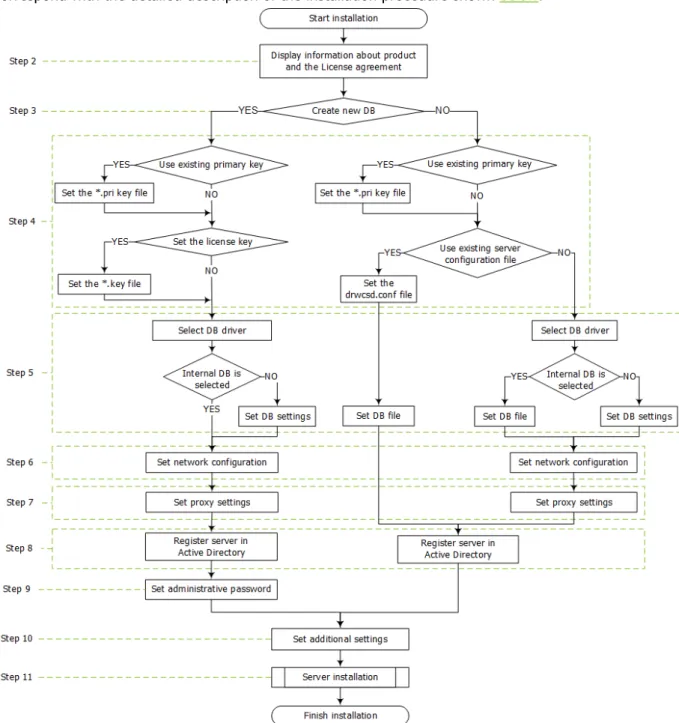
Figure 2-1 illustrates the flowchart of Dr.Web Server installation procedure. Steps in the flowchart correspond with the detailed description of the installation procedure shown below.
Picture 2-1. Dr.Web Server installation procedure flowchart (click any block in the flowchart to see its description)
To install Dr.Web Server on a computer operated by Windows OS:
1. Run the distribution file.
By default, installer uses the language of the operating system. If necessary, you can change the installation language on any step by selecting the corresponding option in the right upper part of the installer window.
2. A window with information on the product to install and the link to the license agreement text will be opened. When you read the agreement, to continue the installation, select I accept the terms of the license agreement and click Next.
24 Chapter 2: Installation of Dr.Web Enterprise Security Suite Components
uCreate a new database - to create a new anti-virus network.
uUse the existing database - to keep the database from the previous Server installation. You will be able to specify the database file later (see step 5).
4. In the next window, setup the database.
a) If at step 3 you have selected the Create a new database option, in the New Database Parameters window, specify the following settings:
uThe Set the license key flag allows to set Dr.Web Agent license key file during the Server installation.
· If the flag is cleared, the Server installation is performed without the Agent license key. In this case, the license keys must be added after the Server installation via the License Manager.
· If the flag is set, you must specify the path to the Agent license key file in the corresponding field.
uThe Use existing private encryption key flag allows to use the existing encryption keys, e.g., from the previous Server installation.
· At the first Server installation, clear the Use existing private encryption key flag. The new encryption keys will be automatically generated during the installation process.
· If you are installing the Server for an existing anti-virus network, set the Use existing private encryption key flag and specify the path to the private key file in the corresponding field. At this, the public key file will be automatically generated (content of the public key will match the content of the previous public key). This allows for already installed Agents to connect to the new Server. Otherwise, after the installation, it will be necessary to copy the new public encryption key to all workstations, on which Dr.Web Agents have been previously installed.
If an error occurs during the public key extraction, specify the path to the file with the corresponding public key manually in the Specify public encryption key opened field. For evaluation purposes, you can use a demo key files. Click Request the demo key to go to the official web site of Doctor Web company and receive the demo license key files (see Demo key files).
b) If at step 3 you have selected the Use the existing database option, in the Existing Database Parameters window, specify the following settings:
uTheUse existing configuration file flag allows to specify the Server settings.
· If the flag is cleared, the Server configuration file with the default settings will be created.
· If the flag is set, you must specify the path to the configuration file with the Server settings in the corresponding field.
uThe Use existing private encryption key flag allows to use the existing encryption keys, e.g., from the previous Server installation.
· At the first Server installation, clear the Use existing private encryption key flag. The new encryption keys will be automatically generated during the installation process.
· If you are installing the Server for an existing anti-virus network, set the Use existing private encryption key flag and specify the path to the private key file in the corresponding field. At this, the public key file will be automatically generated (content of the public key will match the content of the previous public key). This allows for already installed Agents to connect to the new Server. Otherwise, after the installation, it will be necessary to copy the new public encryption key to all workstations, on which Dr.Web Agents have been previously installed.
If an error occurs during the public key extraction, specify the path to the file with the corresponding public key manually in the Specify public encryption key opened field. For evaluation purposes, you can use a demo key files. Click Request the demo key to go to the official web site of Doctor Web company and receive the demo license key files (see Demo key files).
25 Chapter 2: Installation of Dr.Web Enterprise Security Suite Components
5. The Database Driver window allows you to adjust the parameters of the used database which depend on the database type specified at step 3 and the availability of the Server configuration file specified at step 4.
uIf at step 3 you have selected the Create a new database option or for the Use the existing database option at step 4 you have not specified the path to the Server configuration file, select the driver to use. At this:
· The SQLite (built-in database) and IntDB (built-in database) options prescribe to use built-in facilities of Dr.Web Server. Additional parameters are not required.
· The rest options imply usage of an external DB. You must specify corresponding parameters to configure the access to a DB. Parameters of DBMS are described in the appendices (see Appendix B. The Description of the DBMS Settings. The Parameters of the DBMS Driver).
uIf at step 3 you have selected the Use the existing database option and at step 4 you have specified the path to the Server configuration file, specify the path to the database file to use according to the specified Server configuration file.
6. If at step 3 you have selected the Create a new database option or for the Use the existing database option at step 4 you have not specified the path to the Server configuration file, the Network Configuration window will be opened. You can set up a network protocol for the Server (it is allowed to specify only one network protocol; additional protocols can be configured later). To specify the network settings from the predefined set, select one of the following variants from the drop-down list:
uStandard configuration prescribes to use default settings on base of the Server detection service.
uLimited configuration prescribes to limit the Server operation only to the internal network interface – 127.0.0.1. With such settings the Server can be administrated only from the Control Center opened on the same computer, and communicate only with the Agent launched on the same computer. In future, after the Server settings have been checked out you will be able to change network settings.
uUser-defined configuration indicates what the following predefined setting are changed:
· In the Interface and Port fields, specify the corresponding values to access the Server. Default interface is 0.0.0.0, which means that the Server can be accessed via any interface.
By default the 2193 port is used.
Note: in Servers 4.ХХ the 2371 port was used. In the 10.0 version this port is no longer supported.
Addresses should be specified in the network addresses format described in the Appendices
document, p. Appendix E. The Specification of Network Addresses.
· Set the Restrict access to Dr.Web Server flag to limit the local access to the Server. The Agent Installers, Agents and other Servers (for existing anti-virus network built with Dr.Web Enterprise Security Suite) will not be able to access the Server. You can change these settings later via Dr.Web Security Control Center menu Administration
→
Dr.Web Server configuration→
Modules tab.· Set the Enable Dr.Web Server detection service if you want the Server to answer broadcast and multicast requests from other Servers by IP address and service name specified in the corresponding fields below.
7. If at step 3 you have selected the Create a new database option or for the Use the existing database option at step 4 you have not specified the path to the Server configuration file, the Proxy server window will be opened to setup parameters of a proxy server usage when connecting to the Server:
26 Chapter 2: Installation of Dr.Web Enterprise Security Suite Components
The Use proxy server flag will be available only if the Server installation folder does not contain configuration files from the previous installation.
Specify the following parameters to setup a connection to the proxy server:
uProxy server address - the proxy server address (obligatory field),
uUser name, Password - user name and the password to access the proxy server, if the proxy server supports authorized connection.
uIn the Authorization method drop-down list, select necessary method of authorization at proxy server, if the proxy server supports authorized connection.
8. If computer on which you are installing the Server is included into the Active Directory domain, in the next window you will be prompted to register Dr.Web Server in the Active Directory domain. During registration in Active Directory domain, the SRV record corresponding to Dr.Web Server, is created on DNS server. Further, clients can access Dr.Web Server via this SRV record.
Specify the following parameters for the registration:
uSet the Register Dr.Web Server in the Active Directory flag.
uIn the Domain field, specify the name of the Active Directory domain to register the Server in. If the domain is not specified, the domain in which the computer with installing Server is registered, is used.
uIn the User name and Password fields, specify Active Directory domain administrator credentials.
9. If at step 3 you have selected the Create a new database option, the Administrative password window will be opened. Specify the password for anti-virus network administrator which is created by default with the admin login and the full set of permissions to manage anti-virus network.
10.The next window notifies you that the Wizard is ready to install Dr.Web Server. If necessary, you can configure additional installation parameters. For this, click Additional parameters in the bottom if the window and specify the following settings:
uOn the General tab:
· In the Dr.Web Security Control Center interface language drop-down list, select default interface language for Dr.Web Security Control Center.
· In the Dr.Web Agent interface language drop-down list, select default interface language for Dr.Web Agent and anti-virus package components installing on stations.
· Set the Share Dr.Web Agent installation folder flag to change the usage mode and the name of Agent shared installation folder (hidden name of shared resource is set by default).
· Set the Launch Dr.Web Server after installation is complete flag to start the Server automatically after the installation.
· Set the Update repository after installation is complete flag to update the Server repository automatically after the installation is complete.
· Set the Send statistics to Doctor Web company flag to send statistics on virus events to Doctor Web company.
uOn the Path tab:
· In the Dr.Web Server installation folder field, the folder to install the Server is specified. To change default folder, click Browse and select the necessary folder.
· In the Dr.Web Server backup folder field, the folder to backup Server critical data according to the tasks from the Server schedule is specified. To change default folder, click Browse and select the necessary folder.
27 Chapter 2: Installation of Dr.Web Enterprise Security Suite Components
If you are going to use the ODBC for Oracle as an external database, select the Custom option and disable the installation of Oracle client (in the Database support - Oracle database driver
section) in the opened window.
Otherwise, Oracle DB functioning will fail because of the libraries conflict.
uOn the Log tab, you can specify the settings for logging of the Server installation and operation. After the additional parameters setup is finished, click ОК to apply these changes or Cancel if no changes were made or to cancel specified changes.
11.Click Install to start the installation. Further actions of the installation program do not require user intervention.
12.Once the installation is complete, click Finish.
As a rule, Dr.Web Server can be managed via Dr.Web Security Control Center which acts as an interface for the Server.
In the Programs main menu of Windows OS installation wizard places the Dr.Web Server folder containing the following elements for configuration and managing the Server:
uThe Server control folder contains the commands to start, restart and shut down the Server, as well as the commands to set up the logging parameters and other Server commands described in detail in Appendix H5. Dr.Web Server.
uWeb interface item opens Dr.Web Security Control Center and connects to the Server installed at this computer (at the http://localhost:9080).
uDocumentation item opens administrator documentation in HTML format.
Structure of the Server installation folder is described in the Administrator Manual, in the Dr.Web Server section.
2.2.2. Installing Dr.Web Server for UNIX® System-Based OS
Installation should be carried out in console under superuser account (root).
Package-based installation of Dr.Web Server on a UNIX system-based OS
1. To start installing the Server, use the following command:
sh ./<distribution_file>.run
To launch the installation package, you can use command line switches. Parameters of command line launch are given in the Appendices document, p. H10. Dr.Web Server Installer for UNIX® System-Based OS
By default, administrator's name is admin and the password is root.
2. Next, the text of the license agreement presented. To proceed the installation, you must accept the license agreement.
3. On a request of backup folder, specify the path to the necessary folder or confirm default backup folder - /var/tmp/drwcs.
4. If the extra distribution kit is detected in the system, you will be informed about deletion of the extra distribution kit before installation of the Server package. You cannot continue the installation without deletion of extra distribution kit.
5. Then the program components will be installed on your computer. In the course of the installation you can be asked to confirm some actions as the administrator.
28 Chapter 2: Installation of Dr.Web Enterprise Security Suite Components
In the course of the installation of the Dr.Web Server for FreeBSD OS an rc script /usr/local/ etc/rc.d/drwcsd.sh will be created.
Use the following commands:
u/usr/local/etc/rc.d/drwcsd.sh stop - manually stop the Server,
u/usr/local/etc/rc.d/drwcsd.sh start - manually start the Server.
Please note, during the Server installation, the license key is not specified. License keys must be added after installation of the Server, via the License Manager.
2.2.3. Installing Dr.Web Server Extra Distribution Kit
Installation of extra distribution kit must be performed on a computer with Dr.Web Server general distribution kit installed. Description of Server general distribution kit installation is given in the Installing Dr.Web Server for Windows® OS and Installing Dr.Web Server for UNIX® System-Based OS sections.
Extra distribution kit must be installed from the same type of package as a general distribution kit.
To install Dr.Web Server extra distribution kit on a computer operated by Windows OS:
1. Run the distribution file.
2. The Dr.Web ESuite Extra window with information about the program and the license agreement to be installed will be opened. When you read the agreement, to continue the installation, select I accept the terms of the license agreement and click Install.
3. Installation of extra distribution kit begins. If no errors occur, further actions of the installation program do not require user intervention.
4. Once the installation is complete, click Finish. Computer reboot is not required.
To install Dr.Web Server extra distribution kit on a computer operated by UNIX
system-based OS:
1. Run the distribution file via the following command:
sh ./<distribution_file>.run
2. Next, the text of the license agreement presented. To proceed the installation, you must accept the license agreement.
3. Then the program components will be installed on your computer.
2.2.4. Installing Dr.Web Security Control Center Extension
Under Mozilla Firefox, Opera ans Chrome web browsers, Dr.Web Security Control Center
extension installation is available under Windows OS and Linux system-based OS only.
Dr.Web Security Control Center extension is required for full functionality of Dr.Web Security Control Center (see also the System Requirements section).
29 Chapter 2: Installation of Dr.Web Enterprise Security Suite Components
1. Automatically, by browser request when you use Dr.Web Security Control Center, particularly, elements which require the extension (anti-virus components remote updater or Network Scanner).
2. Manually, via Dr.Web Security Control Center extension installer.
Manually Installation of Dr.Web Security Control Center Extension
To download Dr.Web Security Control Center Extension for manually installation:
1. Open Dr.Web Security Control Center. If Dr.Web Security Control Center extension for using browser is not installed yet, under the main menu, recommendation on extension installation will be presented.
2. Follow the Install Dr.Web Security Control Center browser extension link.
Figure 2-2. Section for downloading Dr.Web Security Control Center extension
3. In the extension download section, version of current browser and offered extension bit rate (x86 or x64) are represented.
For UNIX system-based systems you can select distribution kit for corresponding OS from the drop-down list.
4. To download and save the extension, click Download. After this, you can install the extension manually.
5. To change the bit rate of the extension, click the link under download button, after this you can download installer as described at step 4.
To install Dr.Web Security Control Center Extension under Windows OS:
1. Run the installation file. On the Welcome page of theInstallShield Wizard, clickNext.
2. On the License Agreement page, read the agreement. To accept the agreement and proceed with the installation, selectI accept the terms of the license agreement and clickNext. To exit the wizard, clickCancel.
3. A window for changing the default installation folder will be opened. If necessary, click Change and specify the installation folder. Click Next.
4. ClickInstall. The installation begins. Further actions of the installation program do not require user intervention.