PRINTER’S INSTR
UCTIONS:
AL,USER GUIDE,DMCBT - P/N:
10007569 A - INK:
BLA
CK - MA
TERIAL:
20 LB
. MEAD BOND
WITH 80 LB
. WHITE CO
ATED CO
VER - SIZE:
5.50
0”
X 8.500”
-
T
OLERANCE:
± .125" - SCALE:
1-1 - FOLDING:
ALB
UM FOLD - BINDING:
SADDLE-STITCH
Intercom and Music System
Bluetooth
®
Player
Operation & User’s Guide
DMC System Master with DMCBT Bluetooth® Player
Safety Warnings
CAUTION!
The exclamation point within an equilateral triangle is intended to alert the user to the presence of important operating and maintenance (servicing) instructions in the literature accompanying the product.
SHOCK WARNING!
The lightning fl ash with arrowhead symbol within an equilateral triangle is intended to alert the user to the presence of un-insulated “dangerous voltage” within the product’s enclosure that may be of suffi cient magnitude to constitute a risk of electric shock to persons.
READ ALL INSTRUCTIONS CAREFULLY BEFORE INSTALLING OR USING THE DMC SYSTEM.
THE DMC MUST BE INSTALLED BY TRAINED DEALERS OR
INSTALLERS, AND MUST CONFORM TO ALL LOCAL BUILDING AND ELECTRICAL CODES.
Warning: Always follow these safety instructions. Retain these instructions for future system reference.
DO NOT expose the DMC to moisture. Doing so can create fi re or shock hazards and impair the warranty.
DO NOT expose Patio Stations to direct water spray or damage to the station may occur.
DO NOT attempt to service this product yourself as opening or removing covers may expose you to dangerous voltage or other hazards and will invalidate your warranty. Neither the Master Station nor the Room/Patio Stations contain any user-serviceable parts. REFER ALL SERVICING TO QUALIFIED SERVICE PERSONNEL.
USE ONLY M&S Systems replacement parts and have them installed by an M&S Systems dealer or installer. Unauthorized substitutions can result in fi re, electric shock, or other hazards and will void the warranty.
Upon completion of any service or product repair, have the M&S Systems dealer or installer conduct a safety check to ensure the system is in proper operating condition.
Use only a dry cloth to clean the Master Station, Room/Patio Stations, Door Stations, and speakers. Do not use liquid cleaners or aerosol cleaners.
CAUTION
R
I
S
K OF ELECT
R
IC
S
HOCK
DO NOT OPEN
CAUTION: TO REDUCE THE RISK OF ELECTRIC SHOCK, DO NOT REMOVE COVER (OR BACK). NO USER-SERVICEABLE PARTS INSIDE, REFER SERVICING TO QUALIFIED
Table of Contents
Introduction
The DMC Intercom . . . 2
The DMCBT PLAYER . . . 3
Bluetooth Player . . . 3
Player Sources. . . 3
Speakerphone . . . 3
Mini Slide-Out Shelf . . . 3
USB Charging Port . . . 3
Audio Input Jack . . . 3
Bluetooth Player Setup
Wireless Connection . . . 4
Device Pairing . . . 4
Button Brightness . . . 4
Playing Music
Intercom Source Selection . . . 5
Bluetooth Operation . . . 5
Player Power . . . 5
Playing Audio . . . 5
Mobile Device Control . . . 6
Wired Audio Operation . . . 7
Playing from an Wired Device. . . 7
Speakerphone Mode
Speakerphone Operation . . . 8
Limited Warranty
2- Year Limited Warranty . . . 9
2
Figure 1. System Overview DMC
Music/Communication System
DMCBT
Bluetooth® Player
Patio Station Room
Station
Room Station w/Remote Scan Ceiling-mount
Music Speaker Wall-mount
Music Speaker
Up to 15 stations and/or speakers total can be in the system
Volume Controls
External Input Wall Plate
Door Station w/Bell Button Room
Station
The Bluetooth® word mark and logos are registered trademarks owned by Bluetooth SIG, Inc. and any use of such marks by Core Brands LLC / Nortek is under license. Other trademarks and trade names are those of their respective owners.
The DMC Intercom
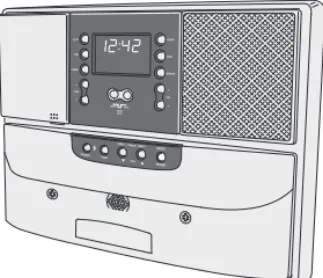
The DMC is an intercom and sound system designed for today’s home. Its compact size and modern, elegant look complement any décor. But it offers more than just sensible good looks. It gives you peace of mind as it allows you to communicate with family members and monitor specifi ed rooms. Plus you can listen to music from AM or FM radio and other sources throughout your home with high-quality sound. Please read all of the instructions and safety warnings before operating the system.
This guide contains instructions for operating the intercom system's Bluetooth Player. Refer to the User Guide for your DMC intercom system for general operation instructions.
Keep this manual in a safe place for future reference. If you lose the manual, you can download a copy from the Nortek Security & Control Web site at:
www.nortekcontrol.com
Introduction
The DMCBT PLAYER
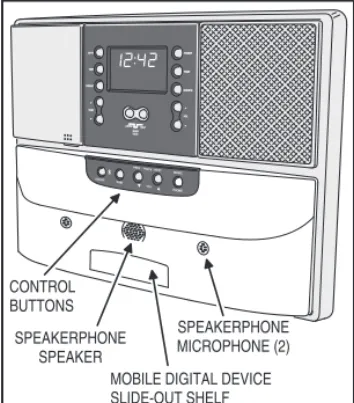
Your intercom system is equipped with a Model DMCBT Bluetooth Player mounted under the Master Station which expands the audio capabilities of the system.
Bluetooth Player
With the Bluetooth Player installed, the system can play from popular mobile phones and music devices using wireless Bluetooth technology.
Player Sources
The Bluetooth Player can stream music or other audio to the intercom system two ways, wireless or wired.
• Up to eight wireless Bluetooth capable mobile devices can be “paired” with the Bluetooth Player. The maximum usable distance from a Bluetooth mobile device to the Player is about 35 feet.
• A mobile device or digital audio player can be directly connected to the Bluetooth Player's audio input jack.
Speakerphone
A Special feature of the Bluetooth Player is a built-in speakerphone that can be used if a telephone call is received by a Bluetooth connected mobile phone device.
Mini Slide-Out Shelf
A spring-loaded, mini slide-out shelf is built into the front of the Bluetooth Player. The shelf holds a mobile device while it is charging or directly connected to the Bluetooth Player.
USB Charging Port
Mobile device charging is supported with the Bluetooth Player's on-board USB charging port located on the left side of the mini slide-out shelf.
Audio Input Jack
Mobile devices can connect directly to the Bluetooth Player through the 3.5 mm audio input jack located on the left side of the mini slide-out shelf. A 10-inch audio cable is included.
MOBILE DIGITAL DEVICE
SLIDE-OUT SHELF
SPEAKERPHONE
SPEAKER
CONTROL
BUTTONS
SPEAKERPHONE MICROPHONE (2)
Figure 2. DMCBT Bluetooth Player
SET THE MOBILE DEVICE ON THE PLAYER'S MINI SLIDE-OUT SHELF CONNECT THE MOBILE DEVICE
TO THE AUDIO INPUT JACK USB
CHARGING JACK
4
Wireless Connection
A mobile device (cell phone, music player, etc.) can play audio and be controlled through the Bluetooth Player with a Bluetooth wireless connection.
Device Pairing
To create a Bluetooth wireless connection with a mobile device, the Bluetooth Player must fi rst be “paired” with the device. The Bluetooth Player can only play audio from one mobile device at a time, but it can remember pairing for up to eight different mobile devices.
Once paired, the Bluetooth Player will automatically connect to the mobile device when the Bluetooth Player is selected on the paired mobile device.
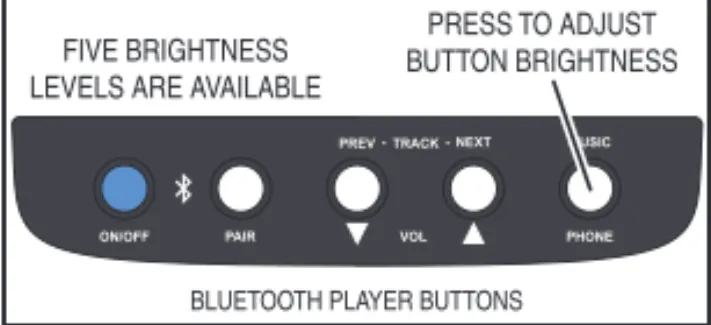
Button Brightness
The Bluetooth Player’s button brightness can be set to fi ve different levels. Press the MUSIC/PHONE button to change the brightness level (anytime with power on, while not in speakerphone mode).
Pairing with a Mobile Device:
1. Press ON/OFF to turn on the Bluetooth Player. The ON/OFF button should be fl ashing. 2. Go to the Bluetooth setting in the mobile
device. Be sure the mobile device is set as “discoverable”.
3. Press PAIR on the Bluetooth Player. The PAIR and ON/OFF buttons should alternately fl ash. 4. On the list of Bluetooth devices in the mobile
device, select “Nortek DMC Intercom”. 5. After a few seconds, the mobile device
should pair with the Bluetooth Player. The mobile device should show “Connected”, the Bluetooth Player should stop fl ashing, and the ON/OFF button should light solid. 6. To add any additional mobile devices (the
Bluetooth Player can remember up to 8 total), turn off the Bluetooth in the previously paired mobile device to disconnect it from the Bluetooth Player (the pairing information will be remembered), then repeat Steps 2-5 for the next mobile device that needs to be paired. 7. After pairing all mobile devices, be sure to
turn Bluetooth back on for each device.
Bluetooth Player Setup
Figure 4. Player is On with No Connection
ON/OFF BUTTON FLASHING BLUE
BLUETOOTH PLAYER BUTTONS
Figure 5. Player is Waiting for Pairing
ON/OFF & PAIR BUTTONS FLASHING BLUE
BLUETOOTH PLAYER BUTTONS
Figure 6. Player is On with Connection
ON/OFF BUTTON SOLID BLUE
BLUETOOTH PLAYER BUTTONS
Figure 7. Brightness Adjustment
PRESS TO ADJUST BUTTON BRIGHTNESS FIVE BRIGHTNESS
LEVELS ARE AVAILABLE
Intercom Source Selection
The DMC intercom system selects audio from four sources shown on its display AM, FM, CD, and AUX.
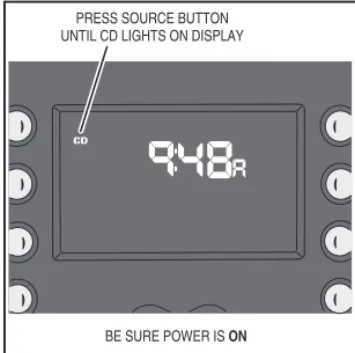
To play music from the Bluetooth Player, on the intercom system, select the CD source on the DMC Master Station display.
Bluetooth Operation
Player Power
To use the Bluetooth Player, press the Player’s ON/OFF button. The button will fl ash blue for a few seconds while the Bluetooth Player connects to a mobile device.
If the Bluetooth Player’s ON/OFF button continues to fl ash blue, the Bluetooth Player is not connected to a mobile device. Check that a previously paired Bluetooth mobile device is near (within 35 feet or closer) to the Bluetooth Player. Check the Bluetooth connection status on the mobile device.
Playing Audio
Once the power on the intercom and the Bluetooth Player is turned on, and CD is selected on the intercom, audio can be played from the mobile device.
Selecting the Bluetooth Player as the Source:
1. Press POWER to turn on the DMC system. 2. On the Master Station, press SOURCE
repeatedly to cycle through AM, FM, CD and AUX until you reach CD.
Playing Audio from the Mobile Device:
1. Choose a music, streaming, or other audio producing app on the mobile device and begin playing.
2. All the buttons on the Bluetooth Player should light while the audio is playing. 3. Use the ▲ VOL ▼ buttons on the intercom
to adjust the volume playing through the intercom system.
Playing Music
CD
PRESSSOURCE BUTTON UNTIL CD LIGHTS ON DISPLAY
BE SURE POWER ISON
Figure 8. Bluetooth Player Source Selected
Figure 9. Player is Connected Ready to Play
ON/OFF BUTTON BLINKS UNTIL AUTO CONNECT THEN TURNS SOLID BLUE
BLUETOOTH PLAYER BUTTONS
Figure 10. Player is Playing Audio
WHEN PLAYING, ALL THE BUTTONS LIGHT
BLUETOOTH PLAYER BUTTONS
Figure 11. Intercom Volume
INTERCOM VOLUME CONTROLS
6
Bluetooth Operation (cont.)
Mobile Device Control
When connected to a mobile device, you can control the mobile device using the buttons on the Bluetooth Player.
✓Note: The ▼VOL▲ buttons on the Bluetooth Player are for Speakerphone Mode only. Use the volume controls on the intercom and the mobile device to adjust the intercom's audio level.
Controlling the Mobile Device:
• To select the next track, press TRACK NEXT on the Bluetooth Player. • To select the previous track, press
TRACK PREV on the Bluetooth Player.
Playing Music
Figure 12. Going to Next Track
PRESS NEXT TRACK TO SELECT THE NEXT TRACK
ON THE REMOTE DEVICE
BLUETOOTH PLAYER BUTTONS
Figure 13. Going to Previous Track
PRESS PREVIOUS TRACK TO SELECT THE PREVIOUS TRACK
ON THE REMOTE DEVICE
Playing Music
Wired Audio Operation
Playing from an Wired Device
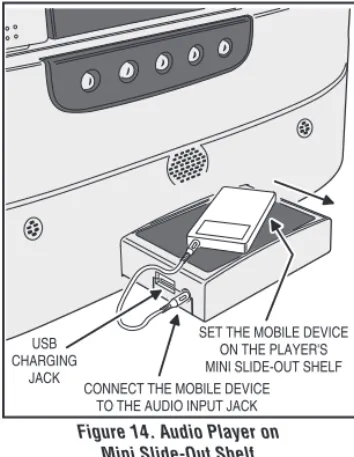
Portable digital audio players (MP3 players, etc.) can sit on top of the Bluetooth Player's mini slide-out shelf.
Audio from the digital audio player’s headphone jack connects to the 3.5 mm audio input jack on the side of the mini slide-out shelf with the cable supplied. The digital audio player can be charged (whether its currently being used for audio or not) using the USB charging jack on the side of the mini slide-out shelf (USB cable is not supplied).
✓Note: Depending on their design, some digital audio players may not accept a battery charge when connected to the USB charging jack on the device drawer.
Playing Audio from a Digital Audio Player:
1. Press POWER to turn on the DMC system. 2. On the Master Station, press SOURCE
repeatedly to cycle through AM, FM, CD and AUX until you reach CD.
3. Press on the front of the Bluetooth Player's mini slide-out shelf to unlatch the spring lock and extend the shelf all the way out. 4. Connect the headphone jack on your digital
audio player to one end of the 3.5 mm audio cable.
5. Connect the other end of the audio cable into the audio input jack on the side of the Bluetooth Player's mini slide-out shelf. 6. Set your digital audio player on top of the
shelf.
7. To charge the digital audio player (optional) connect a charging cable between the digital audio player and the USB jack on the side of the shelf.
8. Select your music on the digital audio player andbegin playing. THE BUTTONS ON THE BLUETOOTH PLAYER DO NOT CONTROL A WIRED DIGITAL AUDIO PLAYER, USE THE BUTTONS ON THE MOBILE DEVICE.
9. The digital audio player’s volume control will affect the overall volume of the system, set it about mid-level, then use the intercom volume controls.
SET THE MOBILE DEVICE ON THE PLAYER'S MINI SLIDE-OUT SHELF CONNECT THE MOBILE DEVICE
TO THE AUDIO INPUT JACK USB
CHARGING JACK
Figure 14. Audio Player on Mini Slide-Out Shelf
✓Note: To prevent damage, be sure to close the Bluetooth Player's mini slide-out shelf when it is not being used.
CD
PRESSSOURCE BUTTON UNTIL CD LIGHTS ON DISPLAY
BE SURE POWER ISON
8
Speakerphone Mode
Speakerphone Operation
A Special feature of the Bluetooth Player is a built-in speakerphone that can be used if a telephone call is received by the Bluetooth connected mobile device.
Using the Speakerphone:
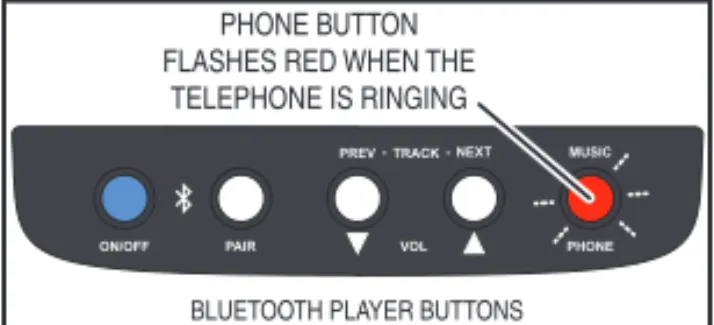
• If the mobile device is a cell phone and a telephone call is received while the Bluetooth Player is connected to the mobile device, the PHONE button on the Bluetooth Player will fl ash red. • Press the PHONE button to answer the
call. The Bluetooth Player buttons will light red, any audio being played by the Bluetooth Player will be muted, and the telephone call will sound from the built-in speakerphone.
• Use the ▼VOL▲ buttons on the Bluetooth Player to adjust the speakerphone volume.
• To end the telephone call, press the
PHONE button again.
Figure 16. Telephone is Ringing
PHONE BUTTON FLASHES RED WHEN THE
TELEPHONE IS RINGING
BLUETOOTH PLAYER BUTTONS
Figure 17. Call Answered
3 BUTTONS LIGHT RED
PRESS THE PHONE BUTTON TO ANSWER THE CALL
BLUETOOTH PLAYER BUTTONS
Figure 18. Adjusting Speakerphone Volume
USE THE VOLUME BUTTONS TO ADJUST THE SPEAKERPHONE LEVEL
BLUETOOTH PLAYER BUTTONS
Figure 19. Ending the Call
TO END THE CALL, PRESS THE PHONE BUTTON
Limited Warranty
2- Year Limited Warranty
Nortek Security & Control LLC warrants its M&S Systems brand products to be free of defects for 2 years. The warranty period begins on either (a) the date of purchase or installation date of this product, or (b) the date of closing on a new residence in which this product was originally installed.
The warranty extends to the original user of the product and to each subsequent owner of the product during the term of the warranty. Nortek Security & Control will repair or replace, at its option, parts and materials at no charge. Parts supplied under this warranty may be new or rebuilt at the option of Nortek Security & Control.
If, during the warranty period, the product appears to have a defect, please call Nortek Security & Control Returns at 855-546-3351 prior to dismantling. Dismantling the product prior to calling may void the warranty. Before returning any product to Nortek Security & Control, obtain a Return Authorization (RA) number from Nortek Security & Control Returns. Nortek Security & Control will return the repaired product freight prepaid within the continental United States. ANY PRODUCT RETURNED TO NORTEK SECURITY & CONTROL WITHOUT AN RA NUMBER WILL BE REFUSED.
This limited warranty is in lieu of any other warranties, express or implied, including any implied warranty of merchantability or fi tness for a particular purpose or otherwise, and of any other obligations or liability on the seller’s part. This limited warranty does not cover damage caused by improper installation, acts of God, criminal acts, the violation of applicable building or electrical codes or the use of non-M&S wire or cable (excluding CAT-5 and RG-6).
Under no circumstances shall Nortek Security & Control be liable for consequential, incidental or special damages arising in connection with use, or inability to use this product. In no event shall Nortek Security & Control’s liability hereunder exceed the cost of the product covered hereby. No person is authorized to assume for us or obligate us for any other liability in connection with the sale of this product. Some states do not allow the exclusion or limitation of consequential, incidental or special damages, so the above limitation or exclusion may not apply to you. This limited warranty gives you specifi c legal rights, and you may also have other rights, which vary from state to state.