MAICO Diagnostics | 10393 West 70th Street | Eden Prairie, MN 55344, USA | Toll Free 888.941.4201
MA 41
D-0106002 8120525-2
Operating Instructions MA 41
i
Table of Contents Page
1 Introduction ... 1
1.1 Intended Use Statement ... 1
1.2 Essential Performance ... 1
2 Description ... 2
3 Getting Started ... 3
3.1 Unpacking the Instrument ... 3
3.2 Calibration of the Device ... 4
3.3 Where to Setup... 4
3.4 Rear Panel Connections ... 5
4. Working with the MA 41 ... 6
4.1 Using the Control Panel of the MA 41 ... 6
4.2 Functionality of Operating Elements ... 7
4.3 The Display of the MA 41 ... 9
5 Measurement Methods of Audiometry ... 10
5.1 Tone Audiometry ... 10
5.2 Speech Audiometry ... 17
5.3 Monitoring ... 22
5.4 Talk Forward ... 22
5.5 Documentation of the Results... 23
5.6 Patient Management ... 24
6 Quick Reference Guide ... 26
6.1 General Setup ... 26
6.2 Tone and Speech Audiometry ... 26
7 User Menu ... 29
7.1 Setup Date and Time ... 34
7.2 Set Printer Settings ... 35
8 Cleaning and disinfection recommendations ... 36
9 Device Update ... 37
10 Connection to the PC ... 38
11 Regulatory Symbols ... 40
12 Technical Data... 41
D-0106002 8120525-2
Operating Instructions MA 41
ii 14 Safety Regulations ... 47 14.1 Electrical Safety ... 47 14.2 Measuring Security ... 47 14.3 Device Control ... 47 14.4 Operation ... 4714.5 Warnings and Statements ... 48
Appendix A: QuickSINTM Speech-in-Noise Test Manual ... 49
D-0106002 8120525-2
Operating Instructions MA 41
1
1 Introduction
Thank you for purchasing a quality product from MAICO Diagnostics. The Audiometer MA 41 is manufactured to meet all quality and safety requirements, and has been certified with the CE-symbol according to Medical Directive 93/42/EEC.
In designing the MA 41 we placed particular importance on making it a user-friendly device, meaning its operation is simple and easy to understand. All functions of the MA 41 are software controlled, allowing for easy upgrades of new features and functions in the future.
The user manual should make it as easy as possible for you to become familiar with the functions of the MA 41.
If you have questions or ideas for further improvements, please contact us. Your MAICO Team
1.1 Intended Use Statement
The MA 41 is a portable or standalone audiometer intended to be used for the identification of hearing loss and the factors that contribute to the occurrence of the hearing loss in the age range of children to adults. It is intended to be used by audiologists, ENTs, hearing healthcare professionals, or other trained technicians in a hospital, clinic, healthcare facility or other suitable quiet environment as defined in ANSI S3.1 or equivalent.
1.2 Essential Performance
The following is considered essential performance:
To generate and present stimulus signals in the audio range as specified in
the applicable IEC 60645 series in normal condition
D-0106002 8120525-2
Operating Instructions MA 41
2
2 Description
The MA 41 is a portable one and half channel audiometer with pure tone, speech, and optional sound field audiometric testing. Additionally, it has limited special audiology test capabilities such as Stenger and Master Hearing Aid. It can be used as a portable audiometer or a desktop unit for ENT diagnostics, hearing aid fittings in the office, and for mobile audiometry.
The MA 41 audiometer delivers 11 air conduction (AC) test frequencies from 125
Hz to 8 kHz, with levels from -10 dBHL to 120 dBHL. Bone conduction (BC) can be
tested with 10 test frequencies from 250 Hz to 8 kHz with levels from -10 dBHL to
80 dBHL (using the B 71 bone conductor). As an upgrade option, the MA 41 is also
capable of high frequency audiometry up to 16 kHz.
The large back lighted LCD-color display shows level, frequency, transducer, signal type, audiograms, and other information for each channel.
The MA 41 performs tests using DD 45 headphones, B 71 bone conduction oscillator, optional insert phones, and optional speakers. Built-in test signals include pure tone, pulse tone, warble tone, narrow band and speech noise. Inputs include ports for a live speech microphone and a CD player for speech test material. Speech tests can also be imported via a removable SD memory card. Outputs have separate jacks for air conduction headphones, bone conduction transducer, optional insert phones and optional sound field speakers. Optional transducers available include: TDH 39, insert phones, B 71W, B 81, HAD 200, HDA 300.
Furthermore, the patient management feature provides the ability to store results in the device for further evaluation and documentation.
Results can print directly via the USB printer or stored as a PDF file on the included SD memory card or USB flash drive. The MA 41 can be connected to the PC via USB to track the session and store the results in NOAH or the MAICO Database. In order to remain current with present and future technologies the MA 41 is compatible with PCs, easy to use, extremely reliable, and is adaptable to future developments. It is also designed to be easily serviced as the need arises. Automatic test programs make trouble shooting and the yearly calibration as effortless as possible.
The speaker outputs can also be used as line level outputs for an external amplifier or active speaker. Please contact your authorized service center to change to line output levels.
D-0106002 8120525-2
Operating Instructions MA 41
3
3 Getting Started
3.1 Unpacking the Instrument
Prior to shipping, the MA 41 was carefully packed and inspected. However, it is good practice to thoroughly inspect the outside of the shipping box for signs of damage. If any damage is noted, please notify the carrier immediately.
Please remove the MAICO instrument from the shipping box by lifting the case completely out of the box. The instrument can now be easily removed from the plastic packaging without the use of scissors or other sharp tools.
SAVE ALL THE ORIGINAL PACKING MATERIAL AND THE SHIPPING CONTAINER SO THE INSTRUMENT CAN BE PROPERLY PACKED IF IT NEEDS TO BE RETURNED FOR SERVICE OR CALIBRATION.
Notify the carrier immediately if any mechanical damage is noted. This will insure that a proper claim is made. Save all packing material so the claim adjuster can inspect it as well. Notify your dealer or MAICO when the adjuster has completed the inspection.
Please check that all accessories listed below have been received in good condition. If any accessories are missing or damaged, immediately notify your dealer or MAICO.
Standard Accessories:
D-0106002 8120525-2
Operating Instructions MA 41
4 3.2 Calibration of the Device
The instrument, headphones, bone conduction oscillator, as well as the optional insert phones and speakers, will come calibrated to the instrument and have the same serial number (e.g. 0021520). Use of transducers not calibrated to this particular instrument will likely lead to incorrect thresholds causing incorrect test results which will invalidate the test. If a transducer needs to be replaced, the instrument must be recalibrated with the new transducer.
The use of non-calibrated audiometers can lead to incorrect measurements! 3.3 Where to Setup
The MA 41 should be operated in a quiet room, so that the audiometric examinations are not influenced by outside noises. Ambient sound pressure levels in an audiometric test room shall not exceed the values specified in the norm ISO 8253-1:2010 or ANSI S3.1-1999. For use in noisier environments, headphones with optional sound insulation muffs are available.
Electro-medical instruments, which emit strong electromagnetic fields (e.g. microwaves or radiotherapy devices), can influence the function of the audiometer. Therefore, it is not recommended to the use these instruments in close proximity to the audiometer as it may lead to incorrect test results.
The test room must be at a normal temperature, usually from 15° C / 59° F to 35°
C / 95° F, and the instrument should be switched on approximately 10 minutes
before the first measurement. If the device has been cooled down (e.g. during transport), please wait until it has warmed to room temperature before using. Caution: External devices such as a computer, printer or Ethernet which are connected to the device must meet electrical safety requirements, such as IEC/EN 60601-1 or UL 60601-1. This is to avoid electrical shock to the user or the patient.
D-0106002 8120525-2
Operating Instructions MA 41
5 3.4 Rear Panel Connections
Figure 1– Rear View of the MA 41
1: Power switch 10: CD Input
2: Power socket 100-240VAC / 50-60Hz 11: Speaker left channel
3: Network socket 12: Speaker right channel
4: USB out socket 13: Bone conduction receiver
5: USB in socket 14: Insert phone left channel
6: Patient response switch socket 15: Insert phone right channel
7: Talk-back microphone socket 16: Phone left channel
8: Mic live voice microphone socket 17: Phone right channel
9: Monitor phone output socket
Place the MA 41 on a stable counter or table. Plug the power cord into the power socket on the rear panel. Connect all accessories with the appropriate sockets as shown above. Plug the power cord into a grounded outlet.
Turn on the instrument with the power switch, which is located on the rear panel of the MA 41. The device will perform its initialization and boot up. Please wait until the test screen appears, this can take up to 60 seconds. If an error is detected the startup is stopped and a description of the error will be shown on the display. In this case please contact your local dealer for service.
11 12 13 14 15 16 9 10 8 7 6 5 4 2 1 3 17
D-0106002 8120525-2
Operating Instructions MA 41
6
4. Working with the MA 41
The hearing level can be easily adjusted with the level dials on each side of the instrument (1). The instrument’s default setting is in 5 dB steps and can be adjusted to 2 dB or 1 dB steps, as needed.
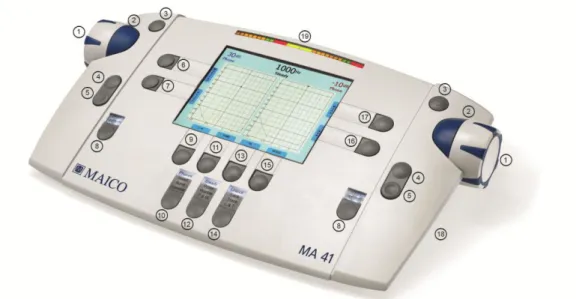
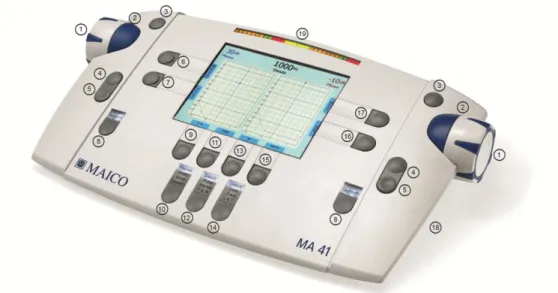
The Stimulus Presenter buttons (2) and Store buttons (3) are located beside the left and right level control dials (1). With the STIM mode button (8) you can change from presenter to interrupter mode. The corresponding LED lights up when a signal is presented. The frequency can be adjusted with the Plus (4) and Minus (5) buttons on both sides of the instrument. The ergonomic design of the MA 41 makes it easy to control the dB level, signal presentation, and frequency adjustments with one hand.
4.1 Using the Control Panel of the MA 41
The main functions of the MA 41 are directly accessible by using the Function buttons which are located around the display. As the buttons have changing functionality, the actual function of each button is shown in the blue boxes on the screen above the button. To change the function of buttons (9), (11), (13) and (15), which have several functions, press the corresponding button and a list of alternative functions will appear. Quickly press and release the button until the desired function is selected.
D-0106002 8120525-2
Operating Instructions MA 41
7
An extensive user menu for the customization of the MA 41 is available for advanced users (see chapter 7).
4.2 Functionality of Operating Elements
The following table describes the main functions of each button for the tone and speech audiometry screens:
Figure 3 - Control Panel MA 41
(1) Level control: adjusts the hearing level for the left/right ear
(2) STIM bar: presents or interrupts the signal for the left/right ear
(3) STORE button: stores results for the left/right ear
(4) Frequency up: change to higher frequency for tone audiometry, enters a
correct answer for word recognition score (WRS) testing, or selects the next word in the word list for speech recognition threshold (SRT) testing with wave files
(5) Frequency down: change to lower frequency for tone audiometry, enters an
incorrect answer for WRS testing, or selects a previous word in the word list for SRT testing with wave files
(6) Monitor with options to adjust monitor and talk back settings; for speech,
the input calibration for microphone or CD player can be adjusted
(7) Function button: function is displayed on the screen based on test screen
D-0106002 8120525-2
Operating Instructions MA 41
8
Tone: Select New, to delete all stored results and start a new session Speech: Reset the result percentage counter or Play wave file
(8) Channel STIM Mode button/TALK: to change from presenter to interrupter
mode, or to talk to the patient by pressing and holding the button down
(9) Function button: to select left, right or both ears
(10) Transducer selector button: to choose between Phones, Insert, Bone and, Speaker (only calibrated transducers are available)
(11) Function button: function is displayed on the screen based on test screen Tone: No response, stores value with arrow below the symbol
Speech: Select microphone, external CD player or wave file as signal source (12) Test Signal selector button: Steady, Pulse, Warble, or P&W (pulse and warble
tone)
(13) Function button: function is displayed on the screen based on test screen Tone: Selects test for selected receiver, either the pure tone threshold, Hearing Level (HL) or Uncomfortable Loudness (UCL); if Speaker is selected as the transducer an option for aided sound field threshold (Aided) is also made available
Speech: Select Speech Recognition Threshold (SRT), Word Recognition Score (WRS), UCL or Master Hearing Aid (MHA).
(14) Select Unlock: Lock (locks the presentation of the signal in both channels), Track (activates the masking noise to automatically increase and decrease level in relationship to the signal), L&T (Lock and Track)
(15) Function button: function is displayed on the screen: Masking on/off, activates masking in the opposite ear
(16) Function button: to switch from tone to speech and back; the current function is displayed on the screen
(17) Function button - Menu: to enter the user menu, where settings can be adjusted, results can be printed out or stored as PDF on SD memory card or USB flash drive or the patient list can be entered
(18) SD memory card slot (19) Level meter
Note: When a Function button is grey, this identifies it as an inactive button with
D-0106002 8120525-2
Operating Instructions MA 41
9 4.3 The Display of the MA 41
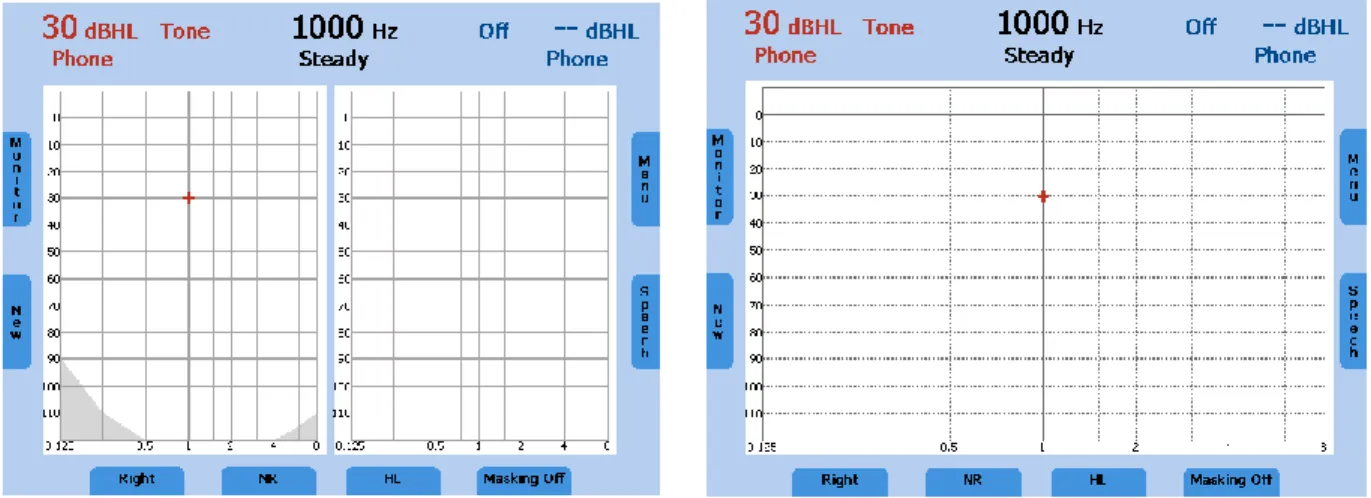
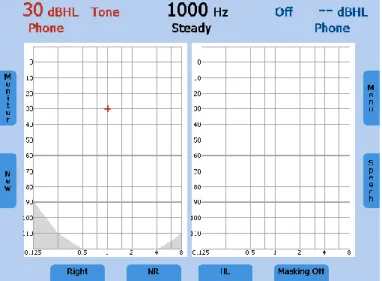
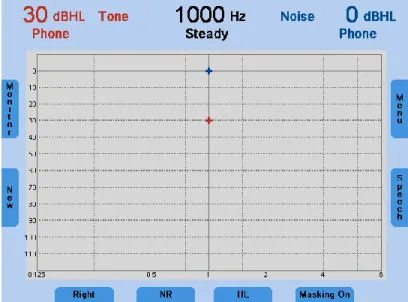
The instrument is set up by default to display the tone audiometry screen.
The default frequency is set to 1 kHz and the level of the tone is set to 30 dBHL in
the right ear, masking in the other ear is switched off. All channel information is shown on the display, as well as the type of the function buttons shown on the display.
The display has an energy saving function; the backlight of the display is automatically dimed after approximately three minutes. Any action with the MA 41, such as pressing a button or rotating the dial, will immediately illuminate the backlight.
D-0106002 8120525-2
Operating Instructions MA 41
10
5 Measurement Methods of Audiometry
Remove any obstructions that will interfere with the earphone cushion placement over the ear (e.g. hats, eyeglasses). Always use the headphones with appropriate padded ear cushions.
Ensure the headphones are placed correctly over the patient’s ears and that the red is over the right ear and the blue is over the left ear. Adjust the headband of the headphones so that the receivers are at the correct height (the sound output grid on the inside of the headphone should be directly over the ear canal).
Ask the patient to press the button on the patient response switch when the tone is heard, even if it is barely audible.
For hygienic reasons it is important to disinfect the ear cushions on the headphone between patients (see chapter 8).
5.1 Tone Audiometry
The MA 41 supports tone audiometric testing methods. The following testing methods can be started in the tone audiometry mode and the results can be saved to the instrument.
Air conduction testing
Bone conduction testing
Sound field testing
Pure tone hearing threshold
Uncomfortable Loudness (UCL)
D-0106002 8120525-2
Operating Instructions MA 41
11 5.1.1 Pure Tone Testing
During pure tone audiometry, the patient’s hearing threshold is measured. Typically the threshold search begins with air conduction testing in the ear with better hearing.
While viewing the tone screen the following settings will be displayed.
The default setting is the right channel set to air conduction pure tone and the left channel is switched off. The frequency is automatically set at 1,000 Hz.
The audiometer provides one and a half channels, one for the test signal, and the other for the masking signal. The test signal can be routed to the left, right, or both ears. If masking is on, the masking signal is routed to the non-test ear, through the primary transducer established in the set-up menu.
Select the ear to be tested by pressing the function button (9) on the control panel underneath the screen. Press several times to toggle between Right, Left and Both. Next, select the transducer to be used, headphones (Phones), insert phones (Insert), bone conductor (Bone), or sound field speaker (Speaker) by pressing the appropriate button (10). Press the button several times until the LED indicates the required transducer. Only calibrated transducers are available.
The level and frequency is displayed as a numerical value at the top of the screen and is also indicated by the cursor within the audiogram.
The dBHL can be changed with the attenuator dials on both sides (1) of the
instrument.
Use the frequency plus (4) or minus (5) keys to increase or decrease the frequency. Press the STIM button (the blue button touching the attenuator dials) to present
D-0106002 8120525-2
Operating Instructions MA 41
12
or interrupt the tone. The status LED for the stimulus mode button (8) will illuminate when the tone is presented.
Follow your preferred procedure for the hearing threshold evaluation.
Note: A warning prompt appears on the display in the event that the hearing level
exceeds 100 dBHL. The warning prompt disappears after approximately 3 seconds.
As long as the prompt is visible on the display, no further entries can be made. Test the frequencies: Starting at 1,000 Hz, test the higher frequencies first, then the lower frequencies.
Use the frequency up key (4) to select the next higher frequency and use the frequency down key (5) to select the next lower frequency.
Once a threshold value is established at the desired frequency, press the store button (3) to store the threshold. The appropriate symbol will be plotted in the audiogram on the display.
Once all frequencies are tested, select the other ear and repeat the hearing threshold test.
Pulse Tone
If required, the test can also be performed with a pulsed tone. Set the test signal button (12) on PULSE and the pure tone will be switched to a pulsating tone. Warble Tone
If required, the test can also be performed with a warble (frequency modulated) tone. Press the test signal button (12) and the pure tone will frequency modulate. The warble tone can also be pulsed as described above.
D-0106002 8120525-2
Operating Instructions MA 41
13 5.1.1.1 Masking
Masking is required if there is a notable threshold difference between the left and right ears. It is possible for sound to be transmitted to both ears via bone conduction while testing the poorer ear. This is called “crossover.”
Crossover occurs often while testing bone conduction, but it can also occur during air conduction testing. Relevant to crossover is the sound level received by the opposite ear. The difference between the original test signal in the test ear and the received signal in the opposite ear is called “interaural attenuation.”
For bone conduction measurements the interaural attenuation is 0 to 15 dB. Bone conduction crossover is therefore possible even with a slight difference in hearing loss between ears.
To ensure that the patient will not experience crossover, mask the opposite ear. Masking increases the hearing threshold of the opposite ear. For bone conduction the masking signal is automatically routed to the opposite output of the phones or inserts.
The masking is done with a noise signal which is transmitted by the headphone. For pure tone audiometry a narrowband noise is used. This noise changes its center frequency according to the frequency of the test signal.
Note: Masking is only available in when Right or Left ear is selected. When Both
D-0106002 8120525-2
Operating Instructions MA 41
14 Manual Masking
The masking is switched on by pressing the Masking On/Off button (15). The
channel of the non-test ear is switched on and set to noise with a level of 0 dBHL.
Adjust the level of the masking noise by the right-hand level control dial. If the Store button on either side of the instrument is pressed, the hearing threshold value will be stored in the audiogram with the corresponding masking symbol. The masking sound should be continuously presented for effective masking by pressing the STIM button. You can interrupt the masking signal by pressing the corresponding stimulus button (2).
Automatic Masking
With the manual masking, as described before, the masking level should be adjusted every time you change the test signal level. The MA 41 has a tracking function for easy masking.
Set the tone level and the masking level to a desired difference for effective masking. Press the TRACK button (14) to implement the automatic masking feature. The masking level is automatically changed if you adjust the test signal
level (e.g. if the test level is at 30 dBHL and the masking level 50 dBHL and you
change the test level to 45 dBHL the masking level will automatically adjust to 65
dBHL).
D-0106002 8120525-2
Operating Instructions MA 41
15 5.1.2 Bone Conduction Testing
Place the bone conduction oscillator so that the flat, circular side of the transducer is placed on the mastoid, at the noticeable ledge of the cranial bone behind but not touching the pinna. The other side of the headband is placed in front of the opposite ear. Set the receiver selector to Bone and select the testing ear.
Perform the test utilizing the same method as air conduction testing.
For hygienic reasons it is important to disinfect the bone conduction oscillator following each patient (see chapter 8).
5.1.3 Sound Field Testing (optional)
Set the transducer selector (10) to Speaker. Perform the test utilizing the same method as air conduction testing.
Warble tones should be used in the sound field as pure tones may provide inaccurate results in the typical test room.
Perform the test in the same way as described in the air conduction section above. 5.1.4 Uncomfortable Loudness (UCL) Testing
Testing of UCL can be measured using pure tone or speech stimuli. The purpose
is to determine the dBHL level at which the stimuli becomes uncomfortable to the
patient. The UCL is described as the level between very loud and too loud as perceived by the patient when listening to the test signal. This information is valuable for determining the limits of a patient's dynamic range.
Warning! Because this test uses high sound pressure levels, it is extremely important to perform this test using the utmost caution to avoid causing hearing loss. To prevent the possibility of extreme discomfort by the patient, it is important to start the test at a comfortable level.
Press and release the test mode selector key (13) below the display to select UCL. The LCD-display in the bottom row changes from HL to UCL. Start with a test level
of 60 dBHL and present the tone briefly (max. 1s). If the signal was recognized by
the patient as “not uncomfortable,” increase the level and proceed as described before. If the signal was uncomfortable for the patient store the value. Proceed accordingly with other test frequencies.
D-0106002 8120525-2
Operating Instructions MA 41
16 5.1.5 Stenger
The Stenger test is a test to confirm the presence of pseudohypacusis. During this test, two tones of the same frequency will be presented simultaneously to both ears, and only the louder tone will be perceived. Select HL to perform the Stenger test and select both ears (9). Instruct the patient to press the response button when the tone is heard. Present a tone to the better hearing ear 10 dB above threshold and wait for the patient to indicate the tone has been heard. Now present the tone to the poorer ear 10 dB below the indicated threshold (the patient may “ignore” this tone). Present the tones simultaneously by pressing the lock function button (14) and the STIM Mode button (8) to set it to interrupter mode. If the patient responds it is a negative. If the patient does not respond it is a positive Stenger, indicating that the tone is heard in the poorer ear and the patient is ignoring the stimulus.
D-0106002 8120525-2
Operating Instructions MA 41
17 5.2 Speech Audiometry
The MA 41 supports speech audiometry. To conduct speech tests using speech test material you can use a CD player, wave files from the SD memory card, or a microphone.
Caution: If you are using a CD player powered by electrical current, the player must meet electrical safety requirements, such as IEC 60601-1 or UL. This is to avoid electrical shock of either the patient or you. If you are not sure if your player meets these requirements it is safer to use battery power.
5.2.1 Input Calibration
The MA 41 must be calibrated to the particular speech test to ensure valid test levels. That means every time you change the speech test CD you must recalibrate the instrument.
To calibrate the CD speech input, select CD with the signal selector key (11). Press the Monitor button (6) and then InCal (17) and the calibration screen appears (see figure 7b).
On every CD with speech test material there is a reference signal, such as a reference tone or speech simulating noise. Play back the reference signal with the CD. Use the left or right level control (1) and adjust the levels until the VU-meter (19) shows all yellow lights and one green light.
If one or more red lights are on, reduce the level using the level control dial (1). To calibrate the microphone for live voice testing, select MIC with the signal selector key (11). Press the Monitor button (6) and then InCal (17) and the calibration screen appears. Use the left or right level control (1) and adjust the levels until the VU-meter (19) shows all yellow lights and one green light.
Store the calibration and leave the calibration mode by pressing the OK button on the left side of the display.
D-0106002 8120525-2
Operating Instructions MA 41
18 5.2.2 Performing Speech Testing
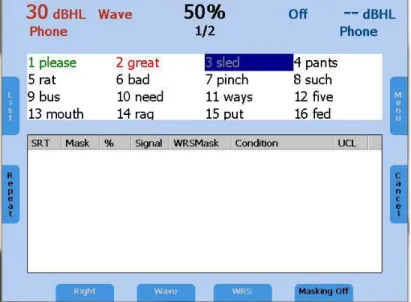
Use the function button for Speech on the right side of the tone screen (16) to switch to speech testing. The speech test screen will open, and the unit will default to the right ear and the level will be set to the default value.
The speech recognition threshold (SRT) is a test indicating the lowest level in which speech is understood using a closed set of spondaic words. Speech testing can be done via recorded speech test material from CD or wave files or with the microphone and live voice using standardized word lists.
Ask the patient to repeat each word. Often times a carrier phrase such as, “Say the word _______” may be used. The patient should sit at a distance of at least 1 meter from the device. Additionally, any obstructions which may interfere with the placement of the earphone cushions on the ear (i.e. hair, eyeglasses) should be removed. Ensure the headphones are put on correctly. Adjust the headband of the headphones so that the receivers are at the correct height (the sound output grid should be placed directly over the ear canal).
Select the ear to be tested by pressing Right, Left, or Both by the function button (9) on the control panel underneath the screen.
Next, select the transducer to be used, Phones, Insert, or Speaker by pressing the Transducer button (10). Toggle to the required signal by the selector button (11) to MIC/CD/Wave.
D-0106002 8120525-2
Operating Instructions MA 41
19
5.2.3 Speech Audiometry with Microphone or CD player
Connect the microphone or CD player to the corresponding input (10). Select the test ear (9) and MIC or CD as signal source by the function button (11). Make sure that the input signal is calibrated correctly, as described above. Select the test SRT, WRS or UCL with the function button (13).
For the SRT test familiarize the patient with a closed set of spondaic words at a level loud enough for them to hear and understand. Begin the test and decrease the level as the patient repeats the word. Once the threshold has been found press the Store button (3) to save the result.
For the WRS test, the level remains fixed and correct or incorrect answers can be entered by the Frequency Plus (4) and Frequency Minus (5) button. Once the word list has been completed by the patient, press the Store button to save the established WRS score. To clear the word counter, press the Reset key (6) on the left side of the display. If no counter is set the Reset key (6) is displayed grey. For the UCL testing the level is increased until the patient indicates the level is uncomfortable and the result can be saved by pressing the Store button (3). 5.2.4 Speech Audiometry with Wave Files
If Wave is selected by the speech signal selector (11) a menu will pop-up with the available word lists, stored on the SD memory card. A word list can be selected by using the level controls (1) to scroll through the list. A list can be loaded by pressing the Stimulus button (2). The word list will then be displayed on the speech audiometry screen.
The level is displayed as a numerical value at the top of the screen. The level can be changed with the level controls (1) on both sides of the instrument. Before starting the playback of the wave files, the first word can be selected by the Frequency Up and Down buttons (4) and (5). Press the function button Play (7) to start. Once the speech test is started the test can only be stopped by pressing the Cancel (16) or Store (3).
The procedure for the SRT, WRS and UCL test is the same as the procedure for CD or microphone testing. For the SRT test, a word needs to be selected in the wordlist by the frequency up (4) or down (5) key. When the Play button (7) is pressed, the selected word is presented.
D-0106002 8120525-2
Operating Instructions MA 41
20
For the WRS test score, tally the correct words by pressing the frequency up (4) key and the incorrect words by pressing the frequency down (5) key. The next word will be played back automatically. The correct word is displayed green, while incorrect word is displayed red. By pressing Repeat (7), the word will be repeated. Once a wave file has been selected, the intensity cannot be changed. Select the presentation level before selecting Play (7).
The percentage of the speech discrimination score will be displayed and stored in the speech table or audiogram as soon as the Store button (3) is pressed.
Press the function button List (6) to load another word list.
UCL measurements are best performed with the Passage wave file include with the device. Select the ear for testing (9). Press the function button Play (7) to start the presentation to the patient. Rotate the attenuator wheel (1) to increase the volume until the patient reports this is uncomfortable loud. Press Store (3) to save the results.
5.2.5 Masking
Speech audiometry masking can be used in the same manner as described in chapter 5.1.1.1 for pure tone audiometry. Instead of narrowband noise, speech noise (SN) is applied when masking is turned on. Masking noise is activated in the non-test ear by pressing the function button Masking On/Off (15). Adjust the level of the masking channel by the corresponding level control (1) for effective masking.
D-0106002 8120525-2
Operating Instructions MA 41
21 5.2.6 Master Hearing Aid (MHA)
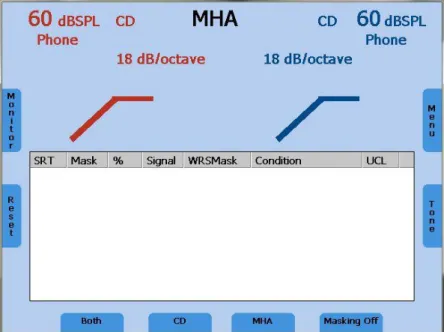
The Master Hearing Aid (MHA) feature utilizes input signals from the Live Voice (Mic), external CD/MP3 player or with the wave files. These signals are then filtered by various high pass filters to simulate a hearing aid.
Begin by selecting a signal source in the speech mode with the function button (11). Start the MHA function by pressing the Test Selection button (13). When using wave files begin testing by pressing the Play button (7) to play back the imbedded wave files. Press the stimulus mode (8) indicator to alternate between signal sources like the microphone or the CD. Change the dB presentation levels with the level control dials (1), and control the filtering options by using the frequency Up (4) and Down (5) keys.
D-0106002 8120525-2
Operating Instructions MA 41
22 5.3 Monitoring
All signals presented to the patient can be monitored by the examiner via a monitoring headset or the internal speakers. For this purpose, press the Monitor button (6) and the monitor screen will appear.
Enable monitoring by pressing the function button Monitor On/Off (9). Monitoring by the integrated speaker is switched on by pressing the button (13) and the external headset is activated for monitoring via button (11). Then the monitor level of the left and right channel can be adjusted with the corresponding level control dial (1). In order to hear the signal given to the patient, make sure to activate monitoring (9).
Figure 11 - Display Monitor Settings
The talk back microphone is activated by the button (15) and its level adjusted by the frequency up and down buttons (4), (5).
5.4 Talk Forward
Connect the microphone headset (or optional gooseneck microphone) to the microphone socket (8) on the rear side of the device. To talk to the patient press and hold the STIM mode/TALK button and speak into the microphone. Adjust the level by turning the left or right level control (1) while the STIM mode/TALK button is pressed and held.
D-0106002 8120525-2
Operating Instructions MA 41
23 5.5 Documentation of the Results
All stored results can be directly printed via the USB printer. Make sure that a compatible printer is connected via the USB port (4) and the device is configured according to the connected printer settings; refer to menu settings in chapter 7.2. The results can also be stored as a PDF file on a SD memory card or USB flash drive to be later transferred to a PC for further usage. The PDF file contains the measurement results. An SD memory card needs to be inserted in the SD card slot (20) or a USB flash drive connected to the USB socket (4) on the rear side of the device.
When the examination has been completed, press the Menu button (17) in the tone or speech test mode. The user menu is opened and the functionality of the function buttons (11), (13) and (15) changes to PDF, Print, and Patients, respectively.
To printout the results press the Print button (13). Make sure that a compatible printer is connected and the printer settings are correct.
To store the results on the SD memory card or USB flash drive, press the PDF button (11). A PDF will be created and stored on for further transfer to a PC or printout via a PC connected printer. Make sure that a SD memory card is inserted in the SD memory card slot (18).
After printing or creating a PDF you will automatically return to the tone or speech test mode. Enter the patient list by pressing the Patient button (15) to store the results.
D-0106002 8120525-2
Operating Instructions MA 41
24 5.6 Patient Management
The patient management option allows the results of the audiological tests to be stored on the SD memory card. The results can be reloaded at a later time to be reviewed, edited, or printed. Patients can be stored by a number ID or by entering the name and birth date. The demographic patient information can be entered using the level controls (1) or a connected USB keyboard.
Enter the User Menu by pressing the Menu button (17) in the tone or speech audiometry screen. Press the button Patients (15) to display the patient list. To comply with patient privacy laws the option to add a PIN code for entry to this list has been offered. To activate this feature press the New Patient button (15) followed by the Login button (15). Enter the desired 4 digit PIN using the level control dials (1) and the Stim button (2). Once the 4 digits have been entered press the Set button (9) and the device will return to the patient list. Moving forward the PIN will be required to enter the patient list. To deactivate the PIN, select Login Off after following the same steps as listed above.
Figure 12 – Patient List
Select a patient using the level controls and press the Stimulus button (2) to display the stored sessions. Select a session and press the PDF button (11) to save the PDF on the SD memory card or USB flash drive. To print the results to a connected printer press Print (13). The patient information will only be included on the printout if it is done in the patient list, or if the PDF is created in the patient list screen.
Current results can be stored to a numbered patient or to a named patient. Entering the Patient List, automatically a new numbered patient with a new
D-0106002 8120525-2
Operating Instructions MA 41
25
number will be selected. Just press the Save button (9) to save the current session to the new patient number. To save the results to an existing patient, select a patient by the level controls and press the Save button.
To save the current results to a new patient with a new patient name, press the button New Patient (15) and a screen appears to enter the patients last name, first name, ID and date of birth.
Figure 13 – New Patient
Enter the characters of the name by scrolling through the alphabet with the level controls and enter the selected character by using the Stimulus button (2). Jump to the next or previous field by using the Frequency Up (4) or Down (5) button. The date can be entered in the same manner with the level controls. Delete the last character or number by pressing the Delete button (17).
A USB keyboard can also be utilized to enter the patient information. Connect it to the USB connector (4) and type in the characters. Jump to the next field with the tab key. Press the function button OK (6) to save the new patient and go back to the patient list. The new patient is selected and the current measurement results can be saved to this new patient by pressing the function button Save (9).
Press the button No Name (9) to store the results only by a patient number, without entering a name or use Cancel (6) to go back to the Patient List without saving.
D-0106002 8120525-2
Operating Instructions MA 41
26
6 Quick Reference Guide
6.1 General Setup 6.1.1 Startup Settings
Air conduction
Pure tone on the right channel, left channel is switched off 30 dBHL tone
Presenter mode
6.1.2 Transducer Selection
Select the transducer to be used, headphones (Phones) or insert phones (Insert), by pressing the appropriate button (10). The display shows the selected transducer at the top of the display screen below the presentation levels.
6.1.3 Signal Selection
For tone testing the test signal is always tone. For speech audiometry the signal can be selected by the SIGNAL key (11). The type of NOISE signal is dependent upon the opposite channel’s signal.
6.1.4 Masking
Use the Masking On/Off button (15) to activate masking in the non test ear. For tone audiometry narrow band noise is used as the masking signal and for speech audiometry, speech noise is used.
6.2 Tone and Speech Audiometry
6.2.1 How to Select Tone or Speech Audiometry Mode There are two audiometry modes.
Tone audiometry: shows level and frequency on the display
Speech audiometry: shows level, correct and incorrect words, and speech discrimination percentage on the display
D-0106002 8120525-2
Operating Instructions MA 41
27 6.2.2 Tone Audiometry
Frequency Selection
Use one of the two sets of frequency keys (4) or (5) to select the frequency. The maximum and minimum frequency depends on the transducer you have selected. Warble Tone
Press the Test Signal button (12) to activate the warble tone. The LED will highlight Warble.
Pulse Tone
Press the Test Signal button (12) to activate the pulse tone. The LED will highlight Pulse.
Tracking Function
Press the TRACK key (14) to activate tracking. Both channels will adjust when only one attenuator is adjusted.
Lock Function
Press the LOCK/UNLOCK (14) key to activate the interlock function. Signals from both channels will be presented simultaneously with the press of only one STIM button (2). If both ears are selected, LOCK is automatically activated.
Select L&T (14) to interlock the stimulus presentation of both channels as well as the tracking of the levels.
STIM Mode Selection
Press STIM MODE (8) key to switch between continuous presentation and presentation by pressing the STIM button (2). When in continuous presentation mode the STIM buttons function as interrupters. The light above the STIM MODE key is on if continuous presentation is selected.
CD and Wave speech signals are always in continuous presentation. Talk Forward Microphone
Press and hold the STIM MODE (8) to activate Talk Forward. Adjust the level by turning one of the attenuator dials (1) while in the mode.
Talkback Microphone and Monitor Volume Control
Press the Monitor key on the left side of the display and the volume control bars for talkback and monitor are shown.
Adjust the monitor volume with the right and left dials (1). Adjust the talkback microphone volume with the plus/minus keys (4) or (5).
D-0106002 8120525-2
Operating Instructions MA 41
28 6.2.3 Speech Audiometry
To select speech audiometry, select Speech (16) and the test SRT or WRS (13). Use the frequency up (4) and down (5) key to select a word in the word list.
For the WRS test the display shows the percentage of correctly repeated words. To count the word as correct press the frequency key (4) up.
To count the word as incorrect press the frequency key (5) down.
To clear the counter, press the Reset key (7) on the left side of the display. Speech Calibration
To calibrate the MIC or CD speech input, select the input with the SIGNAL selector key (11). Press the Monitor button (6), so that the monitor setting screen appears. Now press the InCal button (17) on the right side of the display and the calibration screen appears.
Play the reference signal with the CD player or speak into the microphone. Use the left or right intensity dial (1) and adjust the levels until both VU-meters show all yellow and one green light. If one or more red lights are displayed, reduce the level using the corresponding dial (1).
Store the calibration and leave the calibration mode by pressing the OK (6) button on the left side of the display.
6.2.4 Documentation of the Results Printout
Enter the user Menu by pressing the function button (17) and press the Print (13) button to printout the results.
Store Results as a PDF
Enter the user Menu by pressing the function button (17) and press the button PDF (13) to save the results as PDF file on SD memory card or USB flash drive. Store the Result in the Patient List
Enter the User Menu by pressing the function button (17) and press the button Patient (15) to enter the patient list. Enter a new patient by pressing the button New Patient (15). It is also possible to print a result from the patient list or to create a PDF of the result. Select a stored session of a patient in the patient list and press then the button PDF (11) or Print (13). In this case, the patient information will be included in the PDF or printout. Press the button New (7) in the patient list to start a new session.
D-0106002 8120525-2
Operating Instructions MA 41
29
7 User Menu
The User Menu enables the user to customize the device to meet their specific needs. Additionally, the menu allows the user to printout the results via USB printer, store the results as a PDF on an SD memory card or USB flash drive, and the ability to enter the patient list. To enter the User Menu press the Menu button (17) on the right side of the display.
To choose an item from the menu use the level control dials. A short description of the selected setting item will be displayed below the user menu list.
To display the sub items or change the setting of the selected item press the STIM Presenter button (2).
To confirm the change press the OK button (7) on the left side of the display, or press Cancel (6) to return without any change.
Note: When changes have been made to the menu and saved, restart the device to confirm all changes are implemented.
D-0106002 8120525-2
Operating Instructions MA 41
30
These menu items are available (Bold represents default setting):
Frequency Settings Frequency Default Frequency Set (On/Off):
Set default frequency if side, transducer or signal type has changed
Frequency Roll Back: Frequency control jumps
to 1,000 Hz if the highest and lowest frequency was reached Stop: Frequency control
function stops at highest and lowest frequency
Wrap: Jumps to the
lowest/highest frequency when the highest/lowest frequency Standard
Frequencies
Select/deselect
Level Default Level On/Off: Set default level after
changing signal type
Level Steps 5; 2; 1
Inverse Dialing Change effect on dialing an
encoder: Dial Down
Speech Level Unit dBSPL/dBHL: Select the level
D-0106002 8120525-2
Operating Instructions MA 41
31
Signal Controller
Assignment Assign ear side fixed to the left or right controller; - Same, left dial controls level of the left ear, right dial the level of the right ear
- Interchanged, left and right dial controls the level of the opposite ear
Assign signals fixed to the left and right controller
- Test signal always on the left hand side or always on the right hand side
This setting requires a restart
Presenter Duration Unlimited, signal is presented
as long as the STIM bar is pressed
1.5 Seconds, signal is switched off after 1.5 seconds
User defined duration, user can define a maximum
presentation duration Interrupter /
Presenter Mode Default Presenter or Interrupter Mode
Pulse 500 ms, slow pulsing
250 ms, fast pulsing
PTA Select/deselect frequencies for
the calculation of the PTA value for the default transducer
CD Channel Select the CD
D-0106002 8120525-2
Operating Instructions MA 41
32
Store Properties Change Frequency
After Store Moves to next test frequency after storing a threshold (on) or stays on same frequency after storing (off)
Change Level After Store
Change in level after storing a threshold (stay at the same test level (0) or decrease by 10, 20, or 30 dB)
Default Transducer Selection of Default
Transducer
Headphones or Inserts
Monitoring Monitoring Monitor only speech signals
(off) or all signals (on)
Tests Start Test Tone/Speech, defines test
which will load after start-up
Printer Settings Set Printer Settings Opens a dialog to select a
printer and configure its settings
PDF Save Option Save on SD Card Stores PDF files to an SD
memory card
Save on USB Stores PDF files to a USB flash
drive
Device Information Show Information Shows device information
Date/Time Set Date/Time Opens a dialog to change the
date, time, and the date format to US or International
Display Brightness Change the display brightness
from 1 – 100%, store new value by pressing the Store button (3)
Language English/German/Italian/
D-0106002 8120525-2
Operating Instructions MA 41
33
Diagram Settings Diagram in Speech
Test Diagram or Table
Number of Diagrams in Tone Test
No audiogram, only the level and frequency, one combined audiogram or two separate audiograms for left and right
Bone Lines On/Off, displays a dotted line,
connecting the bone conduction results
Bone Symbol Setting Int Symbols/US Symbols/
UK Symbols Import/Export User
Settings
Export User Settings to SD Card/Import User Settings from SD Card.
D-0106002 8120525-2
Operating Instructions MA 41
34 7.1 Setup Date and Time
Select Date/Time in the user menu by scrolling down with the left or right level control (1) and select Set Date/Time by using the stimulus presenter bar. The following screen will appear:
Set the date format to International or US by the function button (9). Jump to the required position of the date or the time by the left Frequency Up/Down button (4) or (5) and change the value by the right Frequency Up/Down button (4) or (5) or left level control. Press the function button OK (6) to store the changes or Exit (7) to leave the Date/Time setting screen without saving the changes.
D-0106002 8120525-2
Operating Instructions MA 41
35 7.2 Set Printer Settings
Select the printer by turning the left or right level control (1) down. The color mode is automatically adjusted. If the color mode is wrong adjust the color mode as well. Jump to the field paper format by pressing the stimulus presenter bar several times and select A4 or Letter format by using the level controls. If the printer is connected to your Ethernet network select Ethernet as port. Additionally, the IP address of the printer needs to be entered in the field “IP Address.” Select the number of the IP address by rotating the level controls and press the STORE button to enter the selected number.
Save the settings and return to the user menu by pressing the function button OK (7).
Test your printer settings by a sample print before starting the audiological assessment. Incorrect settings may require a restart of the device.
Enter the field clinic name by using the STIM button. Select letters by rotating the level control and enter the selected letter by pressing the STORE button (3). Save the settings and return to the user menu by pressing the function button OK (7).
D-0106002 8120525-2
Operating Instructions MA 41
36
8 Cleaning and disinfection recommendations
It is recommended that parts (device and accessories like headphones, ear
cushions) which come in direct contact with the patient be subjected to standard cleaning and disinfecting procedure between patients. Please disinfect the
instrument and its accessories in dependence on the specific existing infection potential.
Recommendations for cleaning and disinfection of MAICO device presented in this document are not intended to replace or contradict policies in effect or procedures required for infection control at the facility.
If there is not a high infection potential, MAICO recommends:
Before cleaning always switch off and disconnect the device from power supply. For cleaning use a lightly dampened cloth with soap water solution
Disinfect the instrument and its accessories by wiping the surfaces with wet
Sani-Cloth® Active wipes or a comparable product and allow them to take effect for
the duration related to the specific disinfection aim listed in product data sheet of the disinfection product. Please follow also its instructions for cleaning.
Wipe before and after each patient
After contamination
After infectious patients
Disinfect computer, keyboard, transport trolley etc. with Sani-Cloth® Active
wipes:
once a week
after contamination
when polluted
To avoid damage of the device and its accessories, please mind the following: Do not autoclave or sterilize.
Do not use the device in the presence of fluid that can come into contact with any of the electronic components or wiring.
Should the user suspect fluids have contacted the system components or
accessories, the unit should not be used until deemed safe by a MAICO certified service technician.
D-0106002 8120525-2
Operating Instructions MA 41
37
9 Device Update
Insert the SD memory card into your computer and copy the update file MaicoMA4xseries.CAB to the SD memory card. Switch off the MA 41, insert the SD memory card into the MA 41, and then switch the device on. The update will be installed automatically. Wait until the update is finished and follow the instructions. Remove the SD memory card from the MA 41, it will boot up normally. Following the update, please use your computer to delete the update file from the SD memory card in order to have normal use of the card.
D-0106002 8120525-2
Operating Instructions MA 41
38
10 Connection to the PC
Install the included software on your PC. This will allow you to use your device with NOAH™ and the MAICO Database. The driver for the device will be installed automatically. Connect the MA 41 by USB cable to the PC and turn on the device. The required driver will be installed. Please follow the installation procedure. When the installation program asks you how to search for software, choose “Yes, this time only” and click on the Next button.
Figure 17 - Installation Advice
Select automatic installation in the next dialog window and click the Next button. Wait till the MAICO MA4x family driver is installed and the operating system updated. Click on the Finish button when the installation of the driver is completed. The new hardware is now ready to use.
D-0106002 8120525-2
Operating Instructions MA 41
39
Once the instrument is linked to the PC audiometry software, you are able to record the results while performing your audiological assessment. Make sure that the software is running and that a connection is built up before starting a new session.
Review the Audiometry Module User Manual for complete instructions of software use. This is located on the included CD and USB.
D-0106002 8120525-2
Operating Instructions MA 41
40
11 Regulatory Symbols
Symbol IEC Pub. Description 980 & 60601-1 Serial Number 980 & 60601-1 Date of Manufacture 980 & 60601-1 Manufacturer
980 & 60601-1 Caution, Consult Accompanying Documents
980 & 60601-1 Return to Authorized Representative, Special Disposal Required 980 & 60601-1 Reference Number
60601-1 B Patient Applied Part According to IEC60601-1 980 & 60601-1 Consult Operating Instructions
60601-1 Keep Dry
60601-1 Transport and Storage Temperature range Logo
980 & 60601-1
EU Authorized Representative
4005727
Medical Equipment Classified by Intertek Testing Services
NA Inc. with respect to electric shock, fire, and mechanical hazards only, in accordance with UL 60601-1.
Classified under the Medical Device Directive (93/42/EEC)
as a Class IIa device.
Registration Label
D-0106002 8120525-2
Operating Instructions MA 41
4112 Technical Data
EU Authorized Representative: EC REP MAICO Sickingenstr. 70-71 D-10553 Berlin GermanyStandards: ANSI S3.6, ANSI S3.43, IEC 60645-1,
IEC 60645-2, ISO 389
UL 60601-1 American Standards for Medical Electrical Equipment
IEC/EN 60601-1 International Standards for Medical Electrical Equipment
CSA C22.2 # 601-1-M90
Medical Device Directive (MDD) to comply with “EC Directive”
93/42/EEC
Test Frequencies: 125 Hz – 8,000 Hz
9,000 Hz – 16,000 Hz (upgrade)
Level Step: 5 dB, 2 dB or 1 dB level steps (user
selectable) Maximum Sound Pressure Level:
AC with earphone DD 45: - 10 dBHL to 120 dBHL
BC with B 71/B 71W Bone Conduction Oscillator:
- 10 dBHL to 80 dBHL
Insert earphones Ear 3A: - 10 dBHL ... 120 dBHL
Sound field speaker from Amp:
Tones: - 10 dBHL ... 100 dBHL
D-0106002 8120525-2
Operating Instructions MA 41
42 Sound field speaker from MA 41:
(using SP90 Speaker Kit):
Tones: - 10 dBHL ... 90 dBHL
Speech: - 10 dBHL ... 70 dBHL
Test Signal: Pure tone, Pulse tone, Warble tone
Masking Signals: Narrow Band Noise: 5/12 Octave
filter with the same center frequency resolution as pure tone
Speech Noise: 125 to 6,000 Hz falling 12 dB/octave above 1 kHz (+/-5 dB)
Modulation:
Pulse Tone: 0.25/0.5 s on time
Warble Tone: 5% sinus frequency modulation,
repetition rate 5 Hz Tests:
Tone: HL, UCL
Speech: SRT, WRS, UCL
Patient Response: Handheld response switch
Monitor: Build in monitor speaker, headset
Communication: Talk forward and talk back
D-0106002 8120525-2
Operating Instructions MA 41
43
External Devices: USB keyboard
CD player
Supported USB printers: HP (PCL 3 and PCL 5e)
Epson (ESC/P2, LQ, Stylus Color) Canon (iP100, iP90, BubbleJet)
Stimulus Functions: Tone Presenter / Interrupter
Interlock (tone presentation of both channels simultaneously)
Tracking (fixed level difference between both channels)
Masking
Warm-up Time: Less than 10 min after power on
Mode of Operation: Continuous
Environment Conditions: 15 - 35 ̊C / 59 - 95 ̊F (operation)
5 - 50 ̊C / 41 - 122 ̊F (transport) Humidity: 30-90% Dimensions: W x D x H: 34.5 x 20 x 8 cm / 13.4” x 7.9” x 3.2” Weight: 1.5 kg / 2.7 lbs Power Supply: 100 - 240 V~ 50/60 Hz ±10 %
Power Consumption: Approximately 60 VA
D-0106002 8120525-2
Operating Instructions MA 41
44
Figure 19 – Connection Sockets of the MA 41
Connection sockets: Specification:
1: On/Off Power
2: Power (100 ... 240 V~ 50/60 Hz)
3: Network Ethernet
4: USB out USB 2.0
5: USB in USB 2.0
6: Patient response switch RI= 500
7: Talk Back Microphone ZI= 1 k, UI= 0.38 - 500
mVeff
8: Mic Microphone ZI= 1 k, UI= 0.38 - 500
mVeff
9: Monitor phone ZA= 250 , UA= 8 Veff
10: CD Input ZI= 47 k, UI= 0.04 - 5
Veff
11: Speaker left ZA= 4 , UA= 8 Veff
12: Speaker right ZA= 4 , UA= 8 Veff
13: Bone (bone conductor) ZA= 4 , UA= 8 Veff
14: Insert phone left ZA=10 , UA=1 Veff
15: Insert phone right ZA=10 , UA=1 Veff
16: Phone left (headphone) ZA=10 , UA=1 Veff
17: Phone right (headphone) ZA=10 , UA=1 Veff
11 12 13 14 15 16 9 10 8 7 6 5 4 2 1 3 17
D-0106002 8120525-2
Operating Instructions MA 41
45 Standard Accessories:
Items Part Number
DD45 Headphones 8010880
B71 Bone Conductor 8010800
Patient Response Switch 8011091
Power Cable 8011392
Mic/Monitor Headset 8010870
Adaptor, Stereo, 1/8” to 1/4” 8010402
SD Memory Card w/ Wave Files (2 GB) 8100885
CD, Noah Module and Maico DB 8105958
USB Flash Drive 8102480
1 Meter USB Cable 8004381
Carrying Case 8100797
MA 41 Manual 8120525
MA 41 Quick Guide 8102407
Optional Accessories:
Items Part Number
High Frequency Option (HDA200 and High Tone License) 1000057
EAR 3A Insert Phones 8010959
TDH 39 Headphones 8010820
Monitor Phone 8111857
Talk-Back Microphone 8110026
Gooseneck Microphone 8006479
Sound Room Patch Cords (each) 8004383
Sound Room Kit 8120006
SP90 Free Field Speaker Kit 8121128
D-0106002 8120525-2
Operating Instructions MA 41
46
13 Warranty, Maintenance and After-Sales Service
The MAICO MA 41 is guaranteed for 1 year.
This warranty is extended to the original purchaser of the instrument by MAICO through the distributor from whom it was purchased and covers defects in material and workmanship for a period of one year from date of delivery of the instrument to the original purchaser.
The MA 41 may be repaired and serviced only by your dealer or by an authorized service center. We urgently advise you against attempting to rectify any faults yourself or commissioning non-experts to do so.
In the event of repair during the guarantee period, please enclose evidence of purchase with the instrument.
In order to ensure that your instrument works properly, the MA 41 should be checked and calibrated at least once a year. This check should be carried out by your dealer.
When returning the instrument for repairs it is essential that all transducers (headphones, inserts, and bone conduction oscillators) are sent in as well. Please send the device to your dealer or to a service center authorized by your dealer, and include a detailed description of any defects the equipment is exhibiting. In order to prevent damage in transit, please use the original packing whenever possible to return the instrument.
Within the European Union it is illegal to dispose electric and electronic waste as unsorted municipal waste. According to this, all MAICO products sold after August 13, 2005, are marked with a crossed-out wheeled bin. Within the limits of Article (9) of DIRECTIVE 2002/96/EC on waste electrical and electronic equipment (WEEE), MAICO has changed their sales policy. To avoid additional distribution costs we assign the responsibility for the proper collection and treatment according legal regulations to our customers.
D-0106002 8120525-2
Operating Instructions MA 41
47
14 Safety Regulations
Consult operating instructions before using this device.
14.1 Electrical Safety
The MA 41 audiometer is a B patient applied part according to international standard IEC 60601-1 (EN 60601-1). The instruments are not intended for operation in areas with an explosion hazard.
Electrostatic discharge (ESD) according to IEC 61000-4-2. It is recommended that you use this device in an electrostatically controlled environment. To avoid the risk of electric shock, this equipment must only be connected to supply mains with protective earth.
14.2 Measuring Security
To guarantee that the audiometer works properly, the instrument has to be checked and calibrated at least once a year.
The service and calibration must be performed by an authorized service center. In accordance with the regulations of the EU Medical Directive, warranties may be void if these checks are not done.
The use of non-calibrated audiometers can lead to incorrect test results and is not advisable.
14.3 Device Control
The user of the instrument should perform a subjective instrument check once a week.
14.4 Operation
The instrument should only be handled and operated by trained personnel (audiologists, ENT doctors or personnel with similar qualifications).
D-0106002 8120525-2
Operating Instructions MA 41
48 14.5 Warnings and Statements
No modification of this equipment is allowed.
Maico will make available instructions and diagrams to repair devices that it deems appropriate to be repaired in the field.
No adverse effects have been reported from the materials used in this device based on 50 plus years of use with many different patient populations.
The operation of the device can be safely terminated by using the power switch found on the rear of the device or by disconnecting the power cable.
D-0106002 8120525-2
Operating Instructions MA 41
49
Appendix A: QuickSIN
TMSpeech-in-Noise Test Manual
QuickSINTM is a trademark of Etymotic Research Inc. Reprinted with permission from Etymotic Research
D-0106002 8120525-2
Operating Instructions MA 41
D-0106002 8120525-2
Operating Instructions MA 41
D-0106002 8120525-2
Operating Instructions MA 41
D-0106002 8120525-2
Operating Instructions MA 41
D-0106002 8120525-2
Operating Instructions MA 41
D-0106002 8120525-2
Operating Instructions MA 41
D-0106002 8120525-2
Operating Instructions MA 41
D-0106002 8120525-2
Operating Instructions MA 41
D-0106002 8120525-2
Operating Instructions MA 41
D-0106002 8120525-2
Operating Instructions MA 41
D-0106002 8120525-2
Operating Instructions MA 41
D-0106002 8120525-2