Concepts Guide
Manual Edition: August 2002
Manufacturing Part Number: B6960-90059 Release A.05.00
Legal Notices
Hewlett-Packard makes no warranty of any kind with regard to this manual, including, but not limited to, the implied warranties of merchantability and fitness for a particular purpose. Hewlett-Packard
shall not be held liable for errors contained herein or direct, indirect, special, incidental or consequential damages in connection with the furnishing, performance, or use of this material.
Warranty. A copy of the specific warranty terms applicable to your Hewlett-Packard product and replacement parts can be obtained from your local Sales and Service Office.
Restricted Rights Legend. All rights are reserved. No part of this document may be photocopied, reproduced, or translated to another language without the prior written consent of Hewlett-Packard Company Company. The information contained in this document is subject to change without notice.
Use, duplication or disclosure by the U.S. Government is subject to restrictions as set forth in subparagraph (c) (1) (ii) of the Rights in Technical Data and Computer Software clause at DFARS 252.227-7013 for DOD agencies, and subparagraphs (c) (1) and (c) (2) of the
Commercial Computer Software Restricted Rights clause at FAR 52.227-19 for other agencies.
Hewlett-Packard Company United States of America
Copyright Notices. ©Copyright 1983-2002 Hewlett-Packard Company, all rights reserved.
Reproduction, adaptation, or translation of this document without prior written permission is prohibited, except as allowed under the copyright laws.
©Copyright 1979, 1980, 1983, 1985-93 Regents of the University of California
This software is based in part on the Fourth Berkeley Software Distribution under license from the Regents of the University of California.
©Copyright 1986-1997 FTP Software, Inc. All rights reserved ©Copyright 1986 Digital Equipment Corporation
©Copyright 1990 Motorola, Inc.
©Copyright 1990, 1991, 1992 Cornell University ©Copyright 1989-1991 The University of Maryland ©Copyright 1988 Carnegie Mellon University
©Copyright 1991-1995 by Stichting Mathematisch Centrum, Amsterdam, The Netherlands
©Copyright 1999, 2000 Bo Branten
Trademark Notices. UNIX® is a registered trademark in the United States and other countries, licensed exclusively through X/Open Company Limited.
X Window System is a trademark of the Massachusetts Institute of Technology.
Motif is a trademark of the Open Software Foundation, Inc. in the U.S. and other countries.
Windows NT™ is a U.S. trademark of Microsoft Corporation. Microsoft®, MS-DOS®, Windows® and MS Windows® are U.S. registered
trademarks of Microsoft Corporation.
Oracle®, SQL*Net®, and Net8® are registered U.S. trademarks of Oracle Corporation, Redwood City, California. Oracle Reports™, Oracle7™, Oracle7 Server™, Oracle7 Backup Utility™, Oracle8™, Oracle8 Server Manager™ and Oracle8 Recovery Manager™ are trademarks of Oracle Corporation, Redwood City, California. Java™ is a U.S. trademark of Sun Microsystems, Inc.
Adobe® and Acrobat® are trademarks of Adobe Systems Incorporated. ARM® is a registered trademark of ARM Limited.
X/Open® is a registered trademark, and the X device is a trademark of X/ Open Company Ltd. in the UK and other countries.
64-bit configurations) on all HP 9000 computers are Open Group UNIX 95 branded products.
Netscape and Netscape Navigator are U.S. trademarks of Netscape Communications Corporation.
OpenView® is a registered U.S. trademark of Hewlett-Packard Company.
In This Chapter . . . 2
About Data Protector . . . 3
Introducing Backups and Restores . . . 7
What Is a Backup? . . . 7
What Is a Restore? . . . 7
Backing Up a Network Environment . . . 8
Direct Backup . . . 9
Data Protector Architecture . . . 10
Operations in the Cell. . . 11
Backup Sessions . . . 12
Restore Sessions . . . 14
Enterprise Environments . . . 15
Splitting an Environment into Multiple Cells . . . 16
Media Management . . . 19
Backup Devices . . . 20
User Interfaces . . . 21
Data Protector GUI. . . 22
Overview of Tasks to Set Up Data Protector . . . 23
2. Planning Your Backup Strategy
In This Chapter . . . 26Backup Strategy Planning. . . 27
Defining the Requirements of a Backup Strategy . . . 27
Factors Influencing Your Backup Strategy . . . 29
Preparing a Backup Strategy Plan . . . 29
Planning Cells . . . 32
One Cell or Multiple Cells? . . . 32
Installing and Maintaining Client Systems . . . 33
Creating Cells in the UNIX Environment . . . 34
Creating Cells in the Windows Environment . . . 35
Creating Cells in a Mixed Environment . . . 36
Geographically Remote Cells . . . 37
Understanding and Planning Performance . . . 38
The Infrastructure . . . 38
Configuring Backups and Restores . . . 40
Disk Performance . . . 42
Contents
Media Management Performance . . . 43
Online Database Application Performance . . . 43
Planning Security. . . 44
Cells . . . 44
Data Protector Users Accounts . . . 45
Data Protector User Groups. . . 45
Data Protector User Rights . . . 46
Visibility of Backed Up Data . . . 46
Data Encoding. . . 46
Who Owns a Backup Session? . . . 47
Clustering . . . 48
Cluster Concepts . . . 48
Cluster Support. . . 51
Example Cluster Environments. . . 51
Full and Incremental Backups . . . 61
Full Backups . . . 61
Incremental Backups . . . 62
Considering Restore . . . 64
Backup Types and Scheduling . . . 66
Keeping Backed Up Data and Information About the Data . . . 67
Data Protection . . . 67
Catalog Protection . . . 68
Logging Level . . . 68
Browsing Files for Restore . . . 69
Backing Up Data . . . 71
Creating a Backup Specification . . . 73
Selecting Backup Objects . . . 73
Backup Sessions . . . 74
Media Sets or Backup Sets . . . 74
Backup Types and Scheduled Backups . . . 74
Scheduling, Backup Configurations, and Sessions . . . 75
Scheduling Tips and Tricks . . . 76
Automated or Unattended Operation . . . 81
Considerations for Unattended Backups . . . 81
Restoring Data . . . 83
Restore Duration. . . 83
Operators Are Allowed to Restore . . . 84
Consistent and Relevant Backup . . . 89
Process Overview . . . 89
Manual Disaster Recovery Method . . . 91
Disaster Recovery Using Disk Delivery. . . 92
Enhanced Automated Disaster Recovery . . . 94
One Button Disaster Recovery (OBDR). . . 96
Overview of Disaster Recovery Methods . . . 98
Disaster Recovery Methods and Operating Systems . . . 101
Alternative Disaster Recovery Methods . . . 103
3. Media Management and Devices
In This Chapter . . . 106Media Management . . . 107
Media Life-Cycle . . . 109
Media Pools. . . 110
Free Pools . . . 112
Media Pool Usage Examples . . . 114
Implementing a Media Rotation Policy . . . 117
Media Management Before Backups Begin . . . 120
Initializing or Formatting Media . . . 120
Labeling Data Protector Media . . . 120
Location Field . . . 121
Media Management During Backup Sessions . . . 122
Selecting Media for Backups . . . 122
Adding Data to Media During Backup Sessions . . . 123
Calculating Media Condition . . . 126
Media Management After Backup Sessions . . . 127
Copying Media . . . 127
Vaulting . . . 128
Restoring from Media in a Vault . . . 129
Devices . . . 131
Device Lists and Load Balancing . . . 131
Device Streaming and Concurrency . . . 132
Segment Size . . . 133
Block Size . . . 135
Number of Disk Agent Buffers. . . 135
Contents
Standalone Devices . . . 137
Small Magazine Devices . . . 138
Large Libraries. . . 139
Handling of Media . . . 139
Size of a Library . . . 139
Sharing a Library with Other Applications . . . 140
Enter / Eject Mailslots . . . 140
Barcode Support . . . 140
Cartridge Memory Support . . . 141
Cleaning Tape Support . . . 141
Sharing a Library with Multiple Systems. . . 142
Data Protector and Storage Area Networks . . . 144
Storage Area Networks . . . 144
Fibre Channel . . . 145
Device Sharing in SAN . . . 148
Indirect and Direct Library Access . . . 149
Device Sharing in Clusters. . . 151
4. Users and User Groups
In This Chapter . . . 154Increased Security for Data Protector Users . . . 155
Access to Backed Up Data . . . 155
Users and User Groups . . . 156
Using Predefined User Groups . . . 157
Data Protector User Rights . . . 157
5. The Data Protector Internal Database
In This Chapter . . . 160About the IDB . . . 161
The IDB on the Windows Cell Manager . . . 161
The IDB on the HP-UX and Solaris Cell Managers . . . 162
The IDB in the Manager-of-Managers Environment . . . 162
IDB Architecture . . . 163
Media Management Database (MMDB) . . . 164
Catalog Database (CDB) . . . 165
Detail Catalog Binary Files (DCBF) . . . 166
Session Messages Binary Files (SMBF) . . . 166
Overview of IDB Management . . . 170
IDB Growth and Performance . . . 171
Key Database Growth and Performance Factors . . . 171
IDB Growth and Performance: Key Tunable Parameters . . . 172
IDB Size Estimation . . . 176
6. Service Management
In This Chapter . . . 184Overview . . . 185
Data Protector and Service Management . . . 186
Native Data Protector Functionality . . . 187
Application Response Measurement Version 2.0 (ARM 2.0 API). . . 188
Integration with HP OpenView Operations . . . 189
Integration with ManageX . . . 189
SNMP Traps . . . 190
The Monitor. . . 190
Reporting and Notification . . . 190
Event Logging and Notification . . . 192
Windows Application Log . . . 193
Java-Based Online Reporting . . . 193
Data Protector Checking and Maintenance Mechanism . . . 193
Central Management, Distributed Environment . . . 194
Using the Data Provided by Data Protector . . . 194
Service Management Integrations . . . 195
Data Protector-OVO-OVR Integration. . . 195
Data Protector-OVO-SIP . . . 198
Data Protector-SIP . . . 198
Integrating Data Protector with HP OpenView Service Desk . . . 199
7. How Data Protector Operates
In This Chapter . . . 202Data Protector Processes or Services . . . 203
Backup Sessions . . . 204
Scheduled and Interactive Backup Sessions . . . 204
Backup Session Data Flow and Processes. . . 204
Pre-Exec and Post-Exec Commands . . . 207
Contents
Mount Requests in Backup Sessions . . . 208
Backing Up with Disk Discovery . . . 209
Restore Sessions. . . 210
Restore Session Data Flow and Processes. . . 210
Queueing of Restore Sessions . . . 211
Mount Requests in a Restore Session . . . 212
Parallel Restores . . . 212
Fast Multiple Single File Restore . . . 213
Media Management Sessions . . . 215
Media Management Session Data Flow . . . 215
8. Integration with Database Applications
In This Chapter . . . 218Overview of Database Operation . . . 219
Filesystem Backup of Databases and Applications . . . 222
Online Backup of Databases and Applications . . . 223
9. Direct Backup
In This Chapter . . . 228Overview . . . 229
Direct Backup . . . 230
How Direct Backup Works . . . 231
Direct Backup Process Flow . . . 234
Requirements and Support . . . 236
Supported Configurations . . . 237
Three Hosts: CM, Application, Resolve . . . 237
Two Hosts: Cell Manager/Resolve Agent and Application . . . 238
Basic Configuration: Single Host . . . 238
10. Split Mirror Concepts
In This Chapter . . . 240Overview . . . 241
Supported Configurations . . . 245
Local Mirror - Dual Host . . . 245
Local Mirror - Single Host . . . 246
Remote Mirror. . . 246
Local/Remote Mirror Combination . . . 248
In This Chapter . . . 252
Overview . . . 253
Supported Configurations . . . 257
Basic Configuration: Single Virtual Array - Dual Host . . . 257
Other Supported Configurations . . . 258
Other Configurations . . . 261
A. Backup Scenarios
In This Appendix . . . .A-2 Considerations . . . .A-2 Company XYZ. . . .A-5 Environment . . . .A-5 Backup Strategy Requirements . . . .A-8 Proposed Solution . . . .A-9 Company ABC . . . .A-22 Environment . . . .A-22 Backup Strategy Requirements . . . .A-24 Proposed Solution . . . .A-27
B. Further Information
In This Appendix . . . .B-2 Backup Generations . . . .B-3 Internationalization . . . .B-5 Localization . . . .B-5 File Name Handling . . . .B-5
Glossary
The printing date will change when a new edition is printed. Minor changes may be made at reprint without changing the printing date. The manual part number will change when extensive changes are made. Manual updates may be issued between editions to correct errors or document product changes. To ensure that you receive the updated or new editions, you should subscribe to the appropriate product support service. See your HP sales representative for details.
Table 1 Edition History
Part Number Manual Edition Product
B6960-90102 November 2001 OmniBack II Release A.04.10 B6960-90059 August 2002 Data Protector Release
Table 2
Convention Meaning Example
Italic Book or manual titles, and manual page names
Refer to the HP OpenView
Storage Data Protector Integration Guide for more
information.
Provides emphasis You must follow these steps. Specifies a variable
that you must supply when entering a command
At the prompt type:
rlogin your_name where you supply your login name.
Bold New terms The Data Protector Cell Manager is the main ... Computer Text and items on the
computer screen
The system replies: Press Enter
Command names Use the grep command ... File and directory
names
/usr/bin/X11
Process names Check to see if Data Protector Inet is running.
Window/dialog box names
In the Backup Options dialog box...
Computer Bold
Text that you must enter
At the prompt, type: ls -l
user interface. Refer to the HP OpenView Storage Data Protector
Administrator’s Guide for information about the Data Protector
graphical user interface.
General Information
General information about Data Protector can be found at http://www.openview.hp.com/products/data_protector/
Technical Support Technical support information can be found at the HP Electronic Support Centers at
http://support.openview.hp.com/support.jsp
Information about the latest Data Protector patches can be found at http://support.openview.hp.com/patches/patch_index.jsp
For information on the Data Protector required patches, see the HP
OpenView Storage Data Protector Software Release Notes
HP does not support third-party hardware and software. Contact the respective vendor for support.
Documentation Feedback
Your comments on the documentation help us to understand and meet your needs. You can provide feedback at
http://ovweb.external.hp.com/lpe/doc_serv/ Training
Information
For information on currently available HP OpenView training, see the HP OpenView World Wide Web site at
http://www.openview.hp.com/training/
Follow the links to obtain information about scheduled classes, training at customer sites, and class registration.
Help.
Manuals Data Protector manuals are available in printed format and in PDF format. Install the PDF files during the Data Protector setup procedure by selecting the User Interface component on Windows or the
OB2-DOCS component on UNIX. Once installed, the manuals reside in the \<Data_Protector_home>docs directory on Windows and on the /opt/omni/doc/C/ directory on UNIX. You can also find the manuals in PDF format at http://ovweb.external.hp.com/lpe/doc_serv/
HP OpenView Storage Data Protector Administrator’s Guide This manual describes typical configuration and administration tasks performed by a backup administrator, such as device configuration, media management, configuring a backup, and restoring data.
HP OpenView Storage Data Protector Installation and Licensing Guide
This manual describes how to install the Data Protector software, taking into account the operating system and architecture of your environment. This manual also gives details on how to upgrade Data Protector, as well as how to obtain the proper licenses for your environment.
HP OpenView Storage Data Protector Integration Guide
This manual describes how to configure and use Data Protector to back up and restore various databases and applications.
There are two versions of this manual:
• HP OpenView Storage Data Protector Windows Integration Guide This manual describes integrations running the Windows operating systems, such as Microsoft Exchange, Microsoft SQL, Oracle, SAP R/3, Informix, Sybase, NetApp Filer, HP OpenView Network Node Manager and Lotus Domino R5 Server.
• HP OpenView Storage Data Protector UNIX Integration Guide This manual describes integrations running on the UNIX operating system, such as: Oracle, SAP R/3, Informix, Sybase, NetApp Filer, HP OpenView Network Node Manager and Lotus Domino R5 Server.
This manual describes Data Protector concepts and provides background information on how Data Protector works. It is intended to be used with the task-oriented HP OpenView Storage Data Protector Administrator’s
Guide.
HP OpenView Storage Data Protector EMC Symmetrix/Fastrax Integration Guide
This manual describes how to install, configure, and use the EMC Symmetrix and EMC Fastrax integrations. It is intended for backup administrators or operators.
• The first part describes the integration of Data Protector with the EMC Symmetrix Remote Data Facility and TimeFinder features for Symmetrix Integrated Cached Disk Arrays. It covers the backup and restore of filesystems and disk images as well as online databases, such as Oracle and SAP R/3.
• The second part describes the integration of Data Protector with the EMC Fastrax. It covers the backup and restore of disk images as well as Oracle8i and SAP R/3 systems, using direct disk to tape technology. HP OpenView Storage Data Protector HP SureStore Disk Array XP Integration Guide
This manual describes how to install, configure, and use the integration of Data Protector with HP SureStore Disk Array XP. It is intended for backup administrators or operators. It covers the backup and restore of Oracle, SAP R/3, Microsoft Exchange, and Microsoft SQL.
HP OpenView Storage Data Protector HP SureStore Virtual Array Integration Guide
This manual describes how to install, configure, and use the integration of Data Protector with HP SureStore Virtual Array. It is intended for backup administrators or operators. It covers the backup and restore of Oracle, SAP R/3 and Microsoft Exchange.
This manual describes how to install, configure, and use the integration of Data Protector with HP OpenView Service Information Portal, HP OpenView Service Desk, and HP OpenView Reporter. It is intended for backup administrators. It discusses how to use the OpenView
applications for Data Protector service management.
HP OpenView Storage Data Protector MPE/iX System User Guide This document describes how to install and configure MPE/iX clients, and how to back up and restore MPE/iX data.
HP OpenView Storage Data Protector Integration Guide for HP OpenView Operations
This document describes how to monitor and manage the health and performance of the Data Protector environment with HP OpenView Operations (OVO), HP OpenView Service Navigator, and HP OpenView Performance (OVP).
HP OpenView Storage Data Protector Software Release Notes This document gives a description of new features of HP OpenView Storage Data Protector A.05.00. It also provides information on supported configurations (devices, platforms and online database integrations, SAN configurations, EMC split mirror configurations, and HP SureStore XP configurations), required patches, limitations, as well as known problems and workarounds. An updated version of the supported configurations is available at
http://www.openview.hp.com/products/data_protector/specifications/inde x.asp.
Protector concepts. Read this manual to fully understand the fundamentals and the model of Data Protector.
Audience
The manual is intended for users interested in understanding the concepts of Data Protector operation and for people who plan company backup strategies. Depending on the required level of detail, you can also use this manual together with the HP OpenView Storage Data Protector
Organization
The manual is organized as follows:
Chapter 1 “About Backup and Data Protector” on page 1. Chapter 2 “Planning Your Backup Strategy” on page 25. Chapter 3 “Media Management and Devices” on page 105. Chapter 4 “Users and User Groups” on page 153.
Chapter 5 “The Data Protector Internal Database” on page 159. Chapter 6 “Service Management” on page 183.
Chapter 7 “How Data Protector Operates” on page 201.
Chapter 8 “Integration with Database Applications” on page 217. Chapter 9 “Direct Backup” on page 227.
Chapter 10 “Split Mirror Concepts” on page 239. Chapter 11 “Virtual Array Backup” on page 251. Appendix A “Backup Scenarios” on page A-1. Appendix B “Further Information” on page B-1. Glossary Definition of terms used in this manual.
In This Chapter
In This Chapter
This chapter provides an overview of backup and restore concepts. It introduces Data Protector architecture, media management, user interfaces, backup devices, and other features. The chapter concludes with an overview of Data Protector configuration and other tasks needed to set up Data Protector.
About Data Protector
HP OpenView Storage Data Protector is a backup solution that provides reliable data protection and high accessibility for your fast growing business data. Data Protector offers comprehensive backup and restore functionality specifically tailored for enterprise-wide and distributed environments. The following list describes major Data Protector features:
• Scalable and Highly Flexible Architecture
Data Protector can be used in environments ranging from a single system to thousands of systems on several sites. Due to the network component concept of Data Protector, elements of the backup infrastructure can be placed in the topology according to user requirements. The numerous backup options and alternatives to setting up a backup infrastructure allow the implementation of virtually any configuration you want.
• Easy Central Administration
Through its easy-to-use graphical user interface (GUI), Data Protector allows you to administer your complete backup
environment from a single system. To ease operation, the GUI can be installed on various systems to allow multiple administrators to access Data Protector via their locally installed consoles. Even multiple backup environments can be managed from a single system. The Data Protector command-line interface allows you to manage Data Protector using scripts.
• High Performance Backup
Data Protector allows you to back up to several hundred backup devices simultaneously. It supports high-end devices in very large libraries. Various types of backups, such as local, network, full, differential, leveled incremental, online, disk image, and built-in support of parallel data streams, allow you to tune your backups to best fit your requirements.
• Supporting Mixed Environments
As Data Protector supports heterogeneous environments, most features are common to the UNIX and Windows platforms. The HP-UX, Solaris and Windows Cell Managers can control all
About Data Protector
supported client platforms (UNIX, Windows, and Novell NetWare). The Data Protector user interface can access the entire Data Protector functionality on all supported platforms.
• Easy Installation for Mixed Environments
The Installation Server concept simplifies the installation and upgrade procedures. To remotely install UNIX clients, you need an Installation Server running HP-UX or Solaris. To remotely install Windows clients, you need an Installation Server running Windows NT or Windows 2000. The remote installation can be performed from any client with an installed Data Protector GUI.
• High Availability Support
Data Protector enables you to meet the needs for continued business operations around the clock. In today's globally distributed business environment, company-wide information resources and customer service applications must always be available. Data Protector enables you to meet high availability needs by:
Integrating with clusters (HP-MC/ServiceGuard, Microsoft Cluster Server, and Veritas Cluster) to ensure fail-safe operation with the ability to back up virtual nodes
Enabling the Data Protector Cell Manager itself to run on a cluster
Supporting all popular online database Application Programming Interfaces
Integrating with advanced high availability solutions like HP SureStore Disk Array XP, HP SureStore Virtual Array or EMC Symmetrix.
Providing various disaster recovery methods for Windows and UNIX platforms.
• Easy Restore
Data Protector includes an internal database that keeps track of data such as which files from which system are kept on a particular medium. In order to restore any part of a system, simply browse the files and directories. This provides fast and convenient access to the data to be restored.
• Automated or Unattended Operation
each Data Protector medium and the data on it. Data Protector provides sophisticated media management functionality. For example, it keeps track of how long a particular backup needs to remain available for restoring, and which media can be (re)used for backups.
The support of very large libraries complements this, allowing for unattended operation over several days or weeks (automated media rotation).
Additionally, when new disks are connected to systems, Data Protector can automatically detect (or discover) the disks and back them up. This eliminates the need to adjust backup configurations manually.
• Service Management
Data Protector is the first backup and restore management solution to support service management. The integration with Application Response Management (ARM) and Data Source Integration (DSI) enables powerful support of Service Level Management (SLM) and Service Level Agreements (SLA) concepts by providing relevant data to management and planning systems.
The DSI integration provides a set of scripts and configuration files from which users are able to see how to add their own queries using Data Protector reporting capabilities.
• Monitoring, Reporting and Notification
Superior web reporting and notification capabilities allow you to easily view the backup status, monitor active backup operations, and customize reports. Reports can be generated using the Data Protector GUI, or using the omnirpt command on systems running UNIX, Windows NT, or Windows 2000, as well as using Java-based online generated web reports.
You can schedule reports to be issued at a specific time or to be attached to a predefined set of events, such as the end of a backup session or a mount request.
• Integration with Online Database Applications
Data Protector provides online backup of Microsoft Exchange Server 5.5, Microsoft Exchange Server 2000, Microsoft SQL Server 7, Microsoft SQL Server 2000, Oracle7, Oracle8, Informix, SAP R/3, Lotus Domino R5 Server, and Sybase database objects.
About Data Protector
• Integration with Other Products
Additionally, Data Protector integrates with EMC Symmetrix and Fastrax, Microsoft Cluster Server, MC/ServiceGuard and other products.
For detailed documentation describing the features of Data Protector, including integrations, as well as the latest platform and integration support information, consult the HP OpenView Storage Data Protector home page at
http://www.openview.hp.com/products/data_protector/specifications/inde x.asp.
Introducing Backups and Restores
This section explains basic backup and restore concepts.What Is a Backup?
A backup is a process that creates a copy of data on backup media. This copy is stored and kept for future use in case the original is destroyed or corrupted.
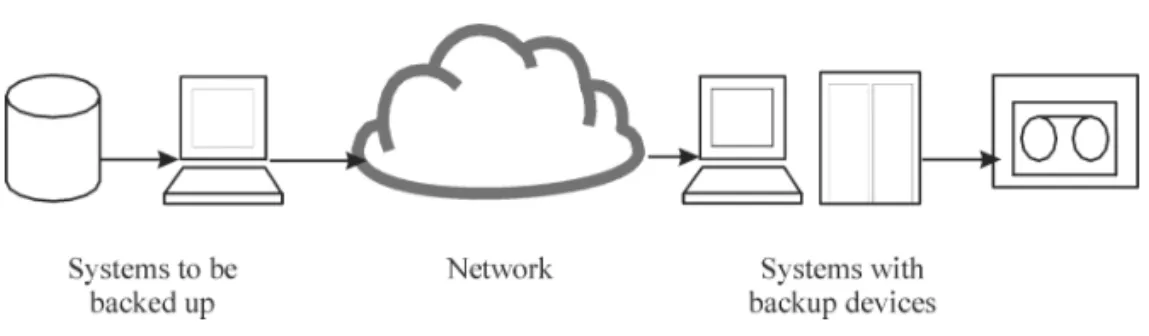
A high-level presentation of a backup is shown in Figure 1-1. Figure 1-1 Backup Process
In most cases, the source is data on a disk, such as files, directories, databases, and applications. If the backup is expected to be used for disaster recovery, it needs to be consistent.
Software that actually copies data to the destination is a backup application. The destination is a backup device, such as a tape drive, with media to which a copy of the data is written.
What Is a Restore?
A restore is a process that recreates the original data from a backup copy. This process consists of the preparation and actual restore of data, and some post-restore actions that make that data ready for use.
Introducing Backups and Restores
Figure 1-2 Restore Process
The source is a backup copy. A restore application is software that actually writes data to a destination. The destination is usually a disk to which the original data is written.
Backing Up a Network Environment
During backups in a network environment, data is transferred over the network from systems to be backed up to media on systems with backup devices, where the data is stored.
Figure 1-3 Network Backup
To accomplish backup of a network environment you need an application that allows you to:
• Attach backup devices to any system in the network
This enables local backups of systems with large volumes of data and network backups in order to reduce backup device costs.
• Route backup data flow to any network path
• Route backup data away from the LAN and onto a SAN when data volume or network traffic makes LAN transfer inefficient
• Integrate into the IT management framework
• Support many different types of systems to be backed up
Direct Backup
A direct backup is one in which you can send data directly from disk to tape in the SAN without involving a dedicated backup server for the data movement. Data Protector direct backup minimizes the impact of backup on production servers by using non-intrusive, hardware-based mirroring technologies.
Also, this solution makes use of a filesystem-independent ability to resolve data. This ability is fully integrated with the industry-standard XCOPY functionality that is embedded in supported disk arrays and bridges, removing the need for a separate data mover appliance.
Data Protector Architecture
Data Protector Architecture
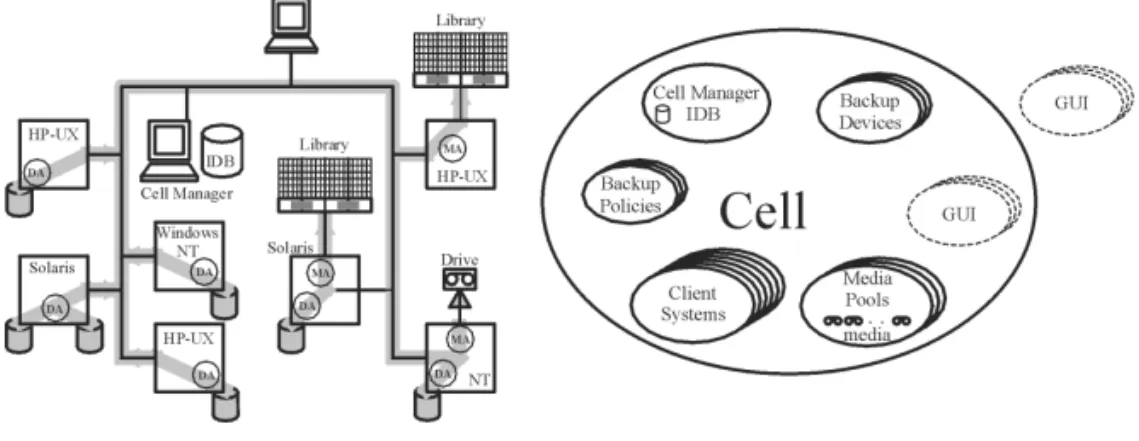
The Data Protector cell, shown in Figure 1-4, is a network environment that has a Cell Manager, client systems, and devices. The Cell Manager is the central control point where Data Protector software is installed. After installing Data Protector software, you can add systems to be backed up. These systems become Data Protector client systems that are part of the cell. When Data Protector backs up files, it saves them to media in backup devices.
The Data Protector internal database (IDB) keeps track of the files you back up so that you can browse and easily recover the entire system or single files.
Data Protector facilitates backup and restore jobs. You can do an immediate (or interactive) backup using the Data Protector user interface. You can also schedule your backups to run unattended. Figure 1-4 The Data Protector Cell (Physical View and Logical View)
NOTE The GUI and the Cell Manager systems can run on HP-UX, Solaris Windows NT, Windows 2000, or Windows XP operating systems; they do not have to run the same operating system.
Cell Manager The Cell Manager is the main system in the cell. The Cell Manager: • Manages the cell from a central point
• Contains the IDB
The IDB contains information about backup details such as, backup durations, media IDs, and sessionIDs
• Runs core Data Protector software
• Runs Session Managers that start and stop backup and restore sessions and write session information to the IDB
Systems to Be Backed Up
Client systems you want to back up must have the Data Protector Disk Agent (DA), also called Backup Agent, installed. To back up online database integrations, install the Application Agent. In the rest of the manual, the term Disk Agent will be used for both agents. The Disk Agent reads or writes data from a disk on the system and sends or receives data from the Media Agent. The Disk Agent is also installed on the Cell Manager, thus allowing you to back up data on the Cell
Manager, the Data Protector configuration, and the IDB. Systems with
Backup Devices
Client systems with connected backup devices must have the Data Protector Media Agent (MA) installed. Such client systems are also called Drive Servers. A backup device can be connected to any system and not only to the Cell Manager. The Media Agent reads or writes data from media in the device and sends or receives data from the Disk Agent. Systems with a
User Interface
You can manage Data Protector from any system on the network on which the Data Protector graphical user interface (GUI) is installed. Therefore, you can have the Cell Manager system in a computer room while managing Data Protector from your desktop system.
Installation Server The Installation Server holds a repository of the Data Protector software packages for a specific architecture. The Cell Manager is by default also an Installation Server. At least two Installation Servers are needed for mixed environments: one for UNIX systems and one for Windows systems.
Operations in the Cell
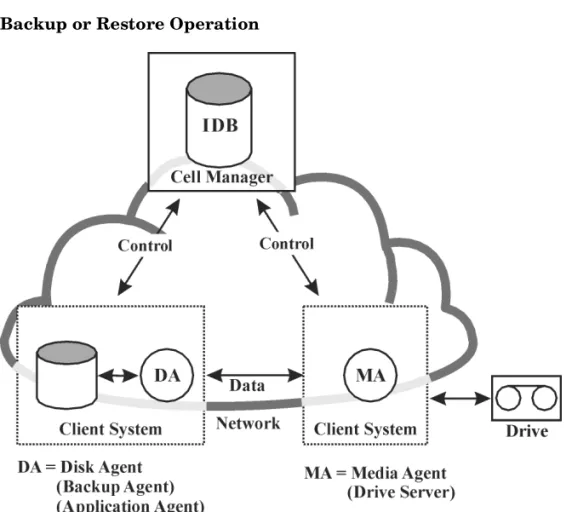
The Data Protector Cell Manager controls backup and restore sessions, which perform all the required actions for a backup or restore,
Data Protector Architecture
respectively, as shown in Figure 1-5. Figure 1-5 Backup or Restore Operation
Backup Sessions
What Is a Backup Session?
A backup session, shown in Figure 1-6, is a process that creates a copy of data on storage media. It is started either interactively by an operator using the Data Protector user interface, or unattended using the Data Protector Scheduler.
How Does It Work? The Backup Session Manager process starts Media Agent(s) and Disk Agent(s), controls the session, and stores generated messages to the IDB. Data is read by the Disk Agent and sent to the Media Agent, which saves it to media.
Figure 1-6 Backup Session
A typical backup session is more complex than the one shown in Figure 1-6. A number of Disk Agents read data from multiple disks in parallel and send data to one or more Media Agents. For more information on complex backup sessions, refer to Chapter 7, “How Data Protector Operates,” on page 201.
Data Protector Architecture
Restore Sessions
What Is a Restore Session?
A restore session, shown in Figure 1-7, is a process that restores data from previous backups to a disk. The restore session is interactively started by an operator using the Data Protector user interface.
How Does It Work? After you have selected the files to be restored from a previous backup, you invoke the actual restore. The Restore Session Manager process starts the needed Media Agent(s) and Disk Agent(s), controls the session, and stores messages in the IDB. Data is read by the Media Agent and sent to the Disk Agent, which writes it to disks.
Figure 1-7 Restore Session
A restore session may be more complex than the one shown in Figure 1-7. See Chapter 7, “How Data Protector Operates,” on page 201 for more information on restore sessions.
Enterprise Environments
What Is anEnterprise Environment?
A typical enterprise network environment, shown in Figure 1-8, consists of a number of systems from different vendors with different operating systems. The systems may be located in different geographical areas and time zones. All the systems are connected with LAN or WAN networks operating at various communication speeds.
When to Use an Enterprise Environment?
This solution can be used when several geographically separated sites require common backup policies to be used. It can also be used when all departments at the same site want to share the same set of backup devices.
Figure 1-8 Large Data Protector Enterprise Environment
Configuring and managing backups of such a heterogeneous environment is challenging. Data Protector functionality has been designed to highly simplify this task. For information about the Manager of Managers (MoM), refer to “MoM” on page 16.
... MoM Cell
Cell Cell
Cell con
trol
control
co
n
tr
o
l
MoM GUI
Enterprise Environments
Splitting an Environment into Multiple Cells
You may decide to split large environments into multiple cells for a number of reasons:
Why Split Large Environments into Multiple Cells?
• Geographical grouping of systems.
• Logical grouping of systems, for example, departments. • Slow network connection between some systems. • Performance considerations.
• Separate administrative control.
See Chapter 2, “Planning Your Backup Strategy,” on page 25 for a list of considerations in planning your environment.
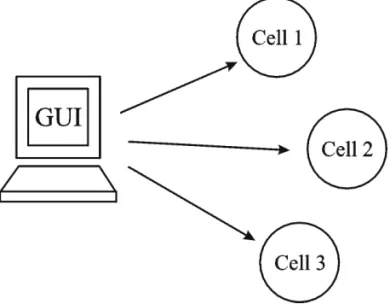
Data Protector allows you for managing multiple cells from a single point.
Figure 1-9 Single-Point Management of Multiple Cells
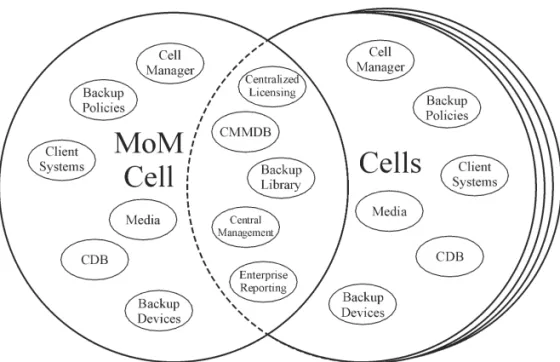
MoM Data Protector provides the Manager-of-Managers to manage large environments with multiple cells. The MoM allows you to group multiple cells into a larger unit, called a MoM environment that can be managed from a single point, as shown in Figure 1-9. The MoM enables virtually unlimited growth of your backup environment. New cells can be added or existing ones split.
A MoM environment does not require a reliable network connection from Data Protector cells to the central MoM cell, because only controls are sent over the long distance connections, and backups are performed locally within each Data Protector cell. However, this is based on the assumption that each cell has its own Media Management Database. Figure 1-10 Manager-of-Managers Environment
Manager-of-Managers provides the following features: • Centralized licensing repository
This enables simplified license management. This is optional but useful for very large environments.
• Centralized Media Management Database (CMMDB)
The CMMDB allows you to share devices and media across several cells in a MoM environment. This makes devices of one cell (using the CMMDB) accessible to other cells that use the CMMDB. The
CMMDB, if used, must reside in the MoM cell. In this case, a reliable network connection is required between the MoM cell and the other Data Protector cells. Note that it is optional to centralize the Media Management Database.
Enterprise Environments
• Sharing libraries
With the CMMDB, you can share high-end devices between cells in the multi-cell environment. One cell can control the robotics, serving several devices that are connected to systems in different cells. Even the Disk Agent to Media Agent data path can go across cell
boundaries.
• Enterprise reporting
The Data Protector Manager-of-Managers can generate reports on a single-cell basis as well as for the entire enterprise environment.
Media Management
Data Protector provides you with powerful media management, which lets you easily and efficiently manage large numbers of media in your environment in the following ways:
Media Management Functionality
• Grouping media into logical groups, called media pools, which allows you to think about large sets of media without having to worry about each medium individually.
• Data Protector keeps track of all media and the status of each medium, data protection expiration time, availability of media for backup, and a catalog of what has been backed up to each medium. • Fully automated operation. If Data Protector controls enough media
in the library devices, the media management functionality lets you run backups without operator intervention.
• Automated media rotation policies that allow media selection for backups to be performed automatically.
• Recognition and support of barcodes on large library devices and silo devices with barcode support.
• Easy access to information from tape without having to physically load and unload tape(s) using the Cartridge Memory technology. • Recognition, tracking, viewing, and handling of media used by Data
Protector in large library devices and silo devices.
• The possibility of having information about the media in a central place and the sharing of this information among several Data Protector cells.
• Support for media vaulting. What Is a Media
Pool?
Data Protector uses media pools to manage large numbers of media. A media pool is a logical collection of media of the same physical type with common usage policies (properties). Usage is based on the data on the media. The structure and quantity of the pools and which pool contains what type of data on its media, depends entirely on your preferences. When a device is configured, a default media pool is specified. This media pool is used if no other media pool is defined in the backup specification.
Backup Devices
Backup Devices
Data Protector defines and models each device as a physical device with its own usage properties, such as the default pool.
This device concept is used because it allows you to easily and flexibly configure devices and use them in conjunction with backup
specifications. The definition of the devices is stored in the Data Protector Media Management Database.
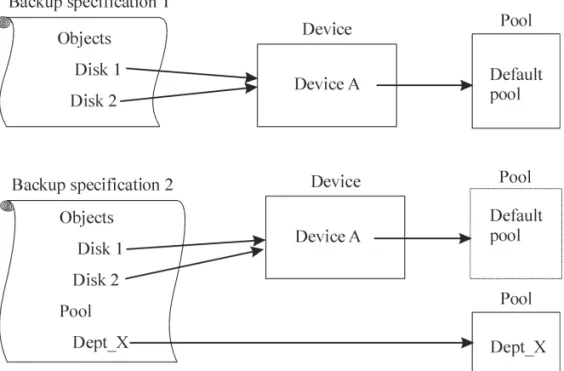
Figure 1-11 How Backup Specifications, Devices, and Media Pools Are Related
Figure 1-11 shows the relationship among the backup specification, devices, and media pools. The devices are referred to in the backup specification. Each device is linked to a media pool; this media pool can be changed in the backup specification. For example, backup
specification 2 references the pool Dept_X instead of the default pool. Data Protector supports various devices. Refer to the HP OpenView
User Interfaces
Data Protector provides easy access to all configuration and
administration tasks using the Data Protector GUI provided to run under X11/Motif on UNIX platforms and on the Windows platforms. Additionally, a command-line interface is available on UNIX and Windows platforms.
The Data Protector architecture allows you to flexibly install and use the Data Protector user interface. The user interface does not have to be used from the Cell Manager system; you can install it on your desktop system. As depicted in Figure 1-12, the user interface also allows you to transparently manage Data Protector cells with HP-UX, Solaris or Windows Cell Managers.
Figure 1-12 Using the Data Protector User Interface
TIP In a typical mixed environment, install the Data Protector user interface on several systems in the environment, thus providing access to Data Protector from several systems.
User Interfaces
Data Protector GUI
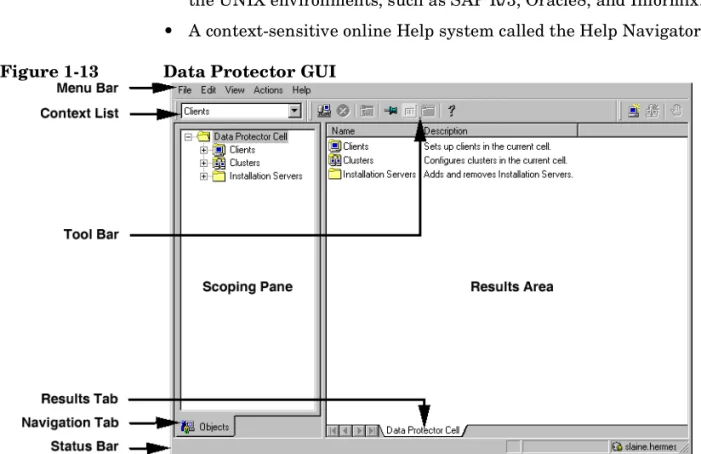
The Data Protector GUI, depicted in Figure 1-13, is an easy-to-use, powerful interface providing the following functionality:
• A Results Tab with all the configuration wizards, properties and lists. • Easy configuration and management of the backup of online database
applications that run in Windows environments, such as Microsoft SQL 7, Microsoft Exchange 2000, SAP R/3, and Oracle8 or that run in the UNIX environments, such as SAP R/3, Oracle8, and Informix. • A context-sensitive online Help system called the Help Navigator. Figure 1-13 Data Protector GUI
Overview of Tasks to Set Up Data Protector
This section provides an overview of global tasks to set up your Data Protector backup environment. Depending on the size and complexity of your environment, you may not need to go through all these steps. 1. Analyze your network and organizational structure. Decide whichsystems need to be backed up.
2. Check if there are any special applications and databases which you want to back up, such as Microsoft Exchange 2000, Oracle8, SAP R/3, or others. Data Protector provides specific integrations with these products.
3. Decide on the configuration of your Data Protector cell, such as the: • system to be your Cell Manager
• type of backup - local backup versus network • systems to control backup devices and libraries • type of connections, LAN and/or SAN
4. Consider the types of devices on which the applications to be backed are installed.
5. Purchase the required Data Protector licenses for your setup. This way you obtain the passwords you need to be installed. Alternatively, you can operate Data Protector using an instant-on password. However, this is valid only for 60 days from the date of installation. Refer to the HP OpenView Storage Data Protector Installation and
Licensing Guide for details.
6. Decide how you want to structure your backups:
• Which media pools do you want to have and how will they be used? • Which devices will be used and how?
• Which user groups do you want to use and what will they do? • How many backup specifications do you need and how should they
be grouped?
7. Install the Data Protector Cell Manager system and use the Data Protector user interface to distribute Data Protector components to
Overview of Tasks to Set Up Data Protector
other systems. Also connect devices (tape drives) to the systems that will control them. See the HP OpenView Storage Data Protector
Installation and Licensing Guide for detailed instructions.
8. Configure backup device(s). For details on this and the following steps, see the HP OpenView Storage Data Protector Administrator’s
Guide.
9. Configure media pools and optionally prepare the media. 10. Configure backup specifications, including scheduling. 11. Configure the IDB.
12. Configure reports, if needed.
13. Consider preparing for disaster recovery if your disk fails. 14. Become familiar with tasks such as:
• How to work with failed backups • Performing restores
• Testing disaster recovery • IDB maintenance
In This Chapter
In This Chapter
This chapter describes backup strategy planning. It focuses on planning Data Protector cells, performance, and security, as well as backing up and restoring data. The chapter also discusses basic backup types, automated backup operation, clustering, and disaster recovery.
Backup Strategy Planning
Data Protector is simple to configure and administer. However, if you work in a large environment with diverse client systems and huge amounts of data to back up, plan in advance. Planning will simplify subsequent configuration steps.
What Is Backup Strategy
Planning?
Backup strategy planning is a process that includes the following steps: 1. Defining the requirements and constraints for backups, for example,
how often your data needs to be backed up.
2. Understanding the factors that influence your backup solution, such as the sustained data transfer rates of the network and of backup devices. These factors can affect how you configure Data Protector and the kind of backup -- network or direct, for example -- that you choose.
3. Preparing the backup strategy that shows your backup concept and how it will be implemented.
This section provides detailed information on the preceding steps. The rest of this guide provides important information and considerations that will help you plan your backup solution.
Defining the Requirements of a Backup Strategy
Defining objectives and constraints of your backup strategy includes answering questions, such as:
• What are you r organizational policies regarding backups and restores?
Some organizations already have defined policies on archiving and storing data. Your backup strategy should comply with these policies. • What types of data need to be backed up?
List all types of data existing in your network, such as user files, system files, Web servers, and large relational databases.
Backup Strategy Planning
The allowed downtime has a significant impact on the investments into network infrastructure and equipment needed for backups. For each type of data, list the maximum acceptable downtime for recovery, that is, how long specific data can be unavailable before recovered from a backup. For example, user files may be restored in two days, while some business data in a large database would need to be recovered in two hours.
Recovery time consists mainly of the time needed to access the media and the time required to actually restore data to disks. A full system recovery takes more time, because some additional steps are
required. See “Disaster Recovery” on page 86 for more information. • How long should specific types of data be kept?
For each type of data, list how long the data must be kept. For example, you may only need to keep user files for three weeks, while information about company employees may be kept for five years. • How should media with backed up data be stored and maintained?
For each type of data, list how long the media with data must be kept in a vault, a safe, external location, if you use one. For example, user files may not be stored in a vault at all, while order information may be kept for five years, with verification of each medium after two years.
• How much data needs to be backed up?
List the estimated amount of data to be backed up, for each type of data. This influences the time needed for backup and helps you to choose the right backup devices and media for backup.
• What is the projected future growth of the amount of data?
Estimate future growth, for each type of data. This will help you to come up with backup solutions that will not be quickly outdated. For example, if your company plans to hire 100 new employees, the amount of users’ data and client systems’ data will grow accordingly. • How long can a backup take?
Estimate the time needed for each backup. This directly affects the amount of time data is available for use. User files can be backed up at any time when the users are not working on them, while some transactional databases may only have a few hours available for backup. The time needed for backup depends on the type of backup you do, full or incremental. See “Full and Incremental Backups” on
page 61 for more information. Data Protector also backs up some popular online database applications. See the HP OpenView Storage
Data Protector Integration Guide for more information.
When there is a very fast and large disk to be backed up on a slower device, consider the possibility of backing up one hard disk through multiple concurrent Disk Agents. Starting multiple Disk Agents on the same disk speeds up the backup performance considerably. Also, if there is a large volume of information to be backed up and the available time to complete the back up is limited, consider the possibility of using direct backup to take advantage of SAN speed, reduced network traffic, and the lack of the backup-server bottleneck. • How often does data need to be backed up?
For each type of data, list how often the data needs to be backed up. For example, user working files may be backed up on a daily basis, system data on a weekly basis, and some database transactions twice a day.
Factors Influencing Your Backup Strategy
There are a number of factors that influence how your backup strategy will be implemented. Understand these factors before preparing your backup strategy.
• Your company’s backup and storage policies and requirements. • Your company’s security policies and requirements.
• Your physical network configuration.
• Computer and human resources available at different sites of your company.
Preparing a Backup Strategy Plan
The result of the planning is a backup strategy that must address the following areas:
• How critical system availability (and backup) is to the company
❏ The need to keep the backed up data at a remote location in case of a disaster.
Backup Strategy Planning
This includes the recovery and restore plan for all critical client systems.
❏ The security of backed up data
The need to guard premises to prevent unauthorized people from entering. This also includes safeguarding all relevant data against unauthorized access, using physical access prevention and
electronic password protection. • Types of data that need to be backed up
List the company’s types of data and how you want to combine them in backup specifications, including the time frames available for backups. The company’s data can be divided into categories like company business data, company resource data, project data, and personal data, each with its own specific requirements.
• Backup policy implementation
❏ How backups are done, and which backup options are used
This defines the frequency of full and incremental backups. It also defines the backup options that are used and whether the backups are permanently protected and the backup media stored at a security company.
❏ How the client systems are grouped into backup specifications Consider how best to group backup specifications. This can be done on the basis of departments, data types, or backup frequency.
❏ How the backups are scheduled
Consider using the staggered approach, whereby full backups are scheduled for different clients (backup specifications) on different days to avoid network load, device load, and time window issues.
❏ Retaining data on media, and information about backups Consider protecting data from being overwritten by newer backups for a specified amount of time. This protection, called data protection, is on a session basis.
Define the period of time the Catalog Database should store information about backup versions, the number of backed up files and directories, and messages stored in the database. For as long as this catalog protection has not expired, backed up data is easily accessible.
• Device configuration
Determine devices to be used for backups, and the client systems they are connected to. Connect the backup devices to client systems with the greatest amount of data, so that as much data as possible is backed up locally and not via the network. This increases backup speed.
Consider using a library device, if you have large amounts of data to back up.
If you have large amounts of data to back up or if you anticipate that your network will impair backup speed, consider configuring your system for direct backup by attaching a library device to the SAN through a fibre channel bridge.
• Media management
Determine the type of media to be used, how to group the media into media pools, and how to place objects on the media.
Define how media are used for backup policies. • Vau lting
Decide whether to store media to a safe place (a vault), where it is kept for a specific period of time.
• Backup administrators and operators
Determine the rights of users that can administer and operate your storage product.
Planning Cells
Planning Cells
One of the most important decisions in planning your backup strategy is whether you want to have a single or multiple cell environment. This section describes the following:
• Factors you should consider when planning cells • How cells relate to a typical network environment • How cells relate to Windows domains
• How cells relate to Windows workgroup environments
One Cell or Multiple Cells?
When deciding whether to have a single cell or multiple cells in your environment, consider the following items:
• Backup administration issues
The use of multiple cells gives you higher administration freedom within each cell. You can apply completely independent media management policies for each cell. If you have several administrative groups, you may, for security reasons, not want a cell to span across these groups. A disadvantage of having multiple cells is that it can require more administrative work or might even require a separate administrator for each cell.
• Size of each cell
The size of a Data Protector cell affects backup performance and the ability to manage the cell. The recommended maximum size for a Data Protector cell is 100 client systems. Cells with more than 200 client systems are less manageable.
• Network considerations
All client systems of a cell should be on the same LAN for maximum performance. See the sections that follow for more information about other network considerations such as your network configuration.
• Geographical location
If the client systems you want to back up are geographically
dispersed, it may be difficult to manage them from a single cell and there may be networking problems between the client systems. Additionally, the security of data may be an issue.
• Time Zones
Each cell should be within one time zone. • Secu rity of data
Data Protector provides cell level based security. All Data Protector administrative work is done in the context of a single cell: media, backup devices, and backed up data belong to one cell. Note that Data Protector lets you share devices or move media between cells, so physical access to media must be limited to authorized personnel. • Mixed environments
Data Protector allows you to back up client systems of diverse platforms in a single cell. However, it may be convenient to group client systems in a cell based on the platforms. For example, you may have one cell with the Windows client systems and one with the UNIX client systems. This is especially useful if you have separate administrators and policies for the UNIX and Windows
environments.
• Departments and sites
You can group each department or site in a separate cell. For
example, you may have one cell for the accounting, one for the IT, and one for the manufacturing department. Even if you choose to have several cells, Data Protector allows you to easily configure common policies among the cells.
Installing and Maintaining Client Systems
If you have several UNIX and Windows client systems, an efficient mechanism for the installation of Data Protector becomes important. Local installation on every client is not feasible in large environments. Installation
Servers and the Cell Manager
The main system in a Data Protector cell is the Cell Manager. To conveniently distribute (push) Data Protector components to client systems from a central location, a system holding the Data Protector
Planning Cells
software repository is needed. This system is called the Data Protector Installation Server. The Cell Manager is by default also an Installation Server.
Each time you perform a remote installation, you access the Installation Server. The advantage of using Installation Servers is that the time required for remote installation, update, upgrade, and uninstallation of Data Protector software is greatly reduced, especially in enterprise environments.
There are certain hardware and software requirements that need to be met by Installation Servers and Cell Managers before you start
installing the software. A dedicated port, generally port 5555, needs to be available throughout the cell. See the HP OpenView Storage Data
Protector Installation and Licensing Guide for details.
The Cell Manager and Installation Servers are installed directly from the CD. After you have installed the Cell Manager and Installation Servers you can then install the components on various client systems using the Data Protector Installation GUI.
When you install Data Protector for the first time, it runs with an instant-on license, valid for 60 days, that lets you use Data Protector before you acquire a permanent license. During this time, purchase any required licenses.
Also during this time, you should set up and configure your Data
Protector environment and request your permanent license. To request a permanent password string, you need to know which client systems belong in which Data Protector cell, the number of devices connected to the client systems, and whether you need to use any of the Data Protector integrations.
Creating Cells in the UNIX Environment
Creating cells in the UNIX environment is easy. Based on the considerations given in this manual, decide which client systems you want to add to the cell and define the Cell Manager system. During installation, root access is required to every client system. An important prerequisite is to have a clean node name resolving setup, such that each client system is accessible from every other client system using the same fully qualified node name.
Creating Cells in the Windows Environment
Due to the different possible configurations (domain vs. workgroup), the various levels of support for Windows Administrators may have some impact on the setup of Data Protector during installation. An important prerequisite is to have a clean node name resolving setup, so that each client system is accessible from every other client system using the same fully qualified node name.
Windows Domains
A Windows domain can easily be mapped to a Data Protector cell. In a single Windows domain, use a one-to-one mapping if the size of the domain does not exceed the recommended size of the Data Protector cell. Otherwise, split it into two or more cells and manage these cells using the Data Protector Manager-of-Managers.
Mapping a Data Protector Cell into a Windows
Domain
Mapping a Data Protector cell into a Windows domain also eases administration within Data Protector itself. To ease administration, distribute the software such that all the client systems can be installed using a central Windows account in a domain organization. Other operations, however, are not limited to a Windows domain organization since all operations and security verifications are performed by the Data Protector internal protocol and not by the Windows Security.
In general, there are no limitations on how and where Data Protector can be installed. However, because of the structure of Windows and the most common configurations, which are domain environments, some
operations are easier when Data Protector is mapped to a single domain or a multiple domain model, where one of the domains is a master domain, to allow a single user to manage all the client systems within the environment (Software Distribution and User Configuration).
In a multiple cell environment with a Manager-of-Managers, this issue is more significant because all the cells that are configured require a central administrator that has access to the entire backup environment. When a single domain or multiple domains with a master domain are configured, the same global master domain user can be the
administrator of all the cells and the Manager-of-Managers
environment. If multiple independent domains are used, you need to configure multiple users to administer the environment.
Planning Cells
Windows Workgroups
Some of the configuration tasks require more steps in some cases, because there are no global users as in a domain. Software distribution requires a unique logon for every client system on which you install the software. This means that to install 100 client systems in a workgroup environment, you will be required to enter 100 logons. In such cases, use a domain environment, since installation and many other non-Data Protector related administration tasks are much easier for a large-scale environment.
Using MoM in such an environment requires you to configure the administrators separately for each cell, to manage the MoM environment from any of the cells.
Again, Data Protector is not limited to a Windows domain organization. However, it takes advantage of and simplifies the administration procedures in the areas where user authentication is required (Installation, User Management).
Creating Cells in a Mixed Environment
In a mixed environment, take into account the factors described in Chapter , “Creating Cells in the UNIX Environment,” on page 34. The more the environment is broken into multiple domains and multiple workgroups, the more accounts and steps need to be considered to distribute the software and to prepare the environment for administration.
Geographically Remote Cells
Data Protector allows you to easily administer geographically remote cells. See “Splitting an Environment into Multiple Cells” on page 16 for more information.
Considerations for Geographically Remote Cells
When configuring geographically remote cells, remember the following: • Data is not sent over a WAN.
The devices and the client systems that you are backing up are configured locally.
• The cells are configured in a MoM.
To manage geographically remote cells centrally, you need to configure the cells in a MoM environment.
• Consider user configurations.
All the considerations that are mentioned regarding single domain, multiple domain, and workgroup configurations need to be taken into account.
You can configure a single cell over geographically remote locations. In this case, you need to ensure that data transfer from each client system to the corresponding device is not done over a WAN. Because a WAN network is not a stable connection, it is possible that connections are lost. MoM Environment A MoM environment does not require a reliable network connection from cells to the central MoM cell, because only controls are sent over the long distance connections, and backups are performed locally within each Data Protector cell. However, this is based on the assumption that each cell has its own media management database.
In such a case, use the Data Protector Reconnect broken connections backup option so that connections are re-established after they are broken.