A subsidiary of
Medical Corporation
Do
cu
me
n
t
at
io
n.
Code Review Installation Guide
Code Review and Utilities
Document updated: January 24, 2011 Document Version 1.0.0
© 2011 by ZOLL Data Systems. All rights reserved.
Code Review Installation Guide ... i
Overview ...1
Intended Audience ... 1
How to use this document ... 1
Hardware prerequisites ... 1
Windows 7 Requirements ... 2
Installing RescueNet Code Review ...3
Install RescueNet Code Review ... 3
Configure ZOLL Data Retriever Service ... 8
Chapter 3 Getting help ... 10
Code Review Installation Guide • 1
Overview: Intended Audience
Do
cu
me
n
t
at
io
n.
Overview
This document will describe the steps required for successfully completing an installation of the Code Review Software and the Utilities available with the Enterprise Edition. All of the configuration items described in this document must be successfully completed to ensure a correctly functioning installation.
This document is a guide for all users installing RescueNet Code Review. Please read the entire document before beginning the installation, in order to familiarize you self with the steps and items that will need to be completed or configured.
Intended Audience
This document is intended for use by: • System Administrators • Deployment Specialists • Product Management
• Technical staff charged with installing RescueNet Code Review.
How to use this document
This document has been written in sections, in the order in which the installation is to be performed. It was written with the assumption that all sections would be followed in the order they were written.
Performing sections of this document out of order may result in an inoperable system.
Hardware prerequisites
RescueNet Code Review is supported on a Microsoft© Windows XP sp 3 and Windows 7; any other operating systems are unsupported. Installing RescueNet Code Review on an operating system other than the supported operating system may lead to an inoperable system and cannot be support by ZOLL.
RescueNet Code Review requires Microsoft .NET Framework 2.0 sp 1. Ensure that Microsoft .NET Framework 2.0 sp 1 is installed prior to installing any portion of RescueNet Code Review.
RescueNet Code Review requires Microsoft MSXML 4.0 sp 2. Code Review will install this automatically if this version is not found on the machine.
Code Review Installation Guide • 2
Overview: Windows 7 Requirements
Do
cu
me
n
t
at
io
n.
Windows 7 Requirements
RescueNet Code Review must be installed to an installation folder other than C:\Program Files in order for the application and the Utilities to function on a Windows 7 machine.
Some Utility applications may require the exe to be “Run as Administrator” in order to function properly. Refer to the Installation Instructions that follow in this document to ensure a successful installation on a Windows 7 machine.
Code Review Installation Guide • 3
Installing RescueNet Code Review: Install RescueNet Code Review
Do
cu
me
n
t
at
io
n.
Installing RescueNet Code Review
Install RescueNet Code Review
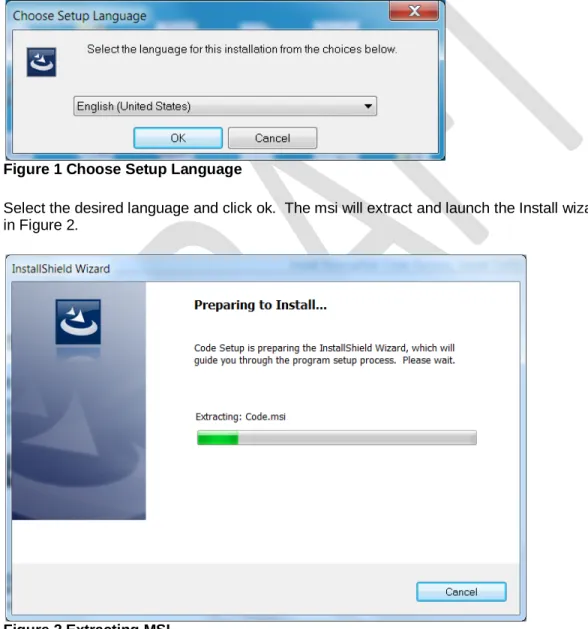
Install RescueNet Code Review using the executable “Code520.exe”. After you launch the
executable, the Choose Setup Language screen will be displayed as the install wizard launches as seen in Figure 1.
Figure 1 Choose Setup Language
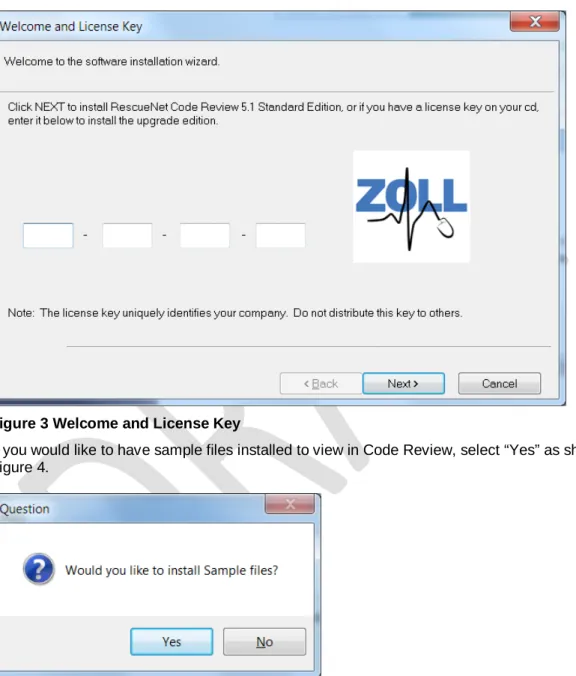
Select the desired language and click ok. The msi will extract and launch the Install wizard as seen in Figure 2.
Code Review Installation Guide • 4
Installing RescueNet Code Review: Install RescueNet Code Review
Do
cu
me
n
t
at
io
n.
The Welcome and License screen will appear. If installing the free, standard version, do not enter a license key and click Next. If installing the Enterprise edition, enter a license key and click Next as seen in Figure 3.
Figure 3 Welcome and License Key
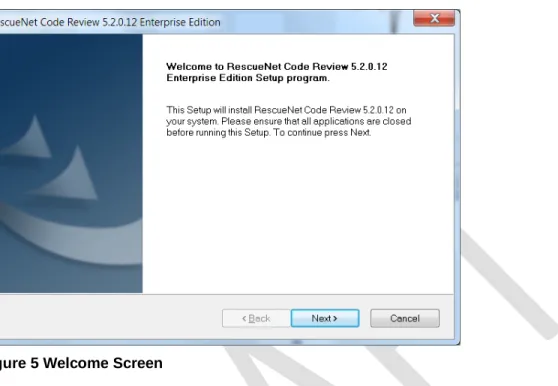
If you would like to have sample files installed to view in Code Review, select “Yes” as shown in Figure 4.
Figure 4 Sample Files
Code Review Installation Guide • 5
Installing RescueNet Code Review: Install RescueNet Code Review
Do
cu
me
n
t
at
io
n.
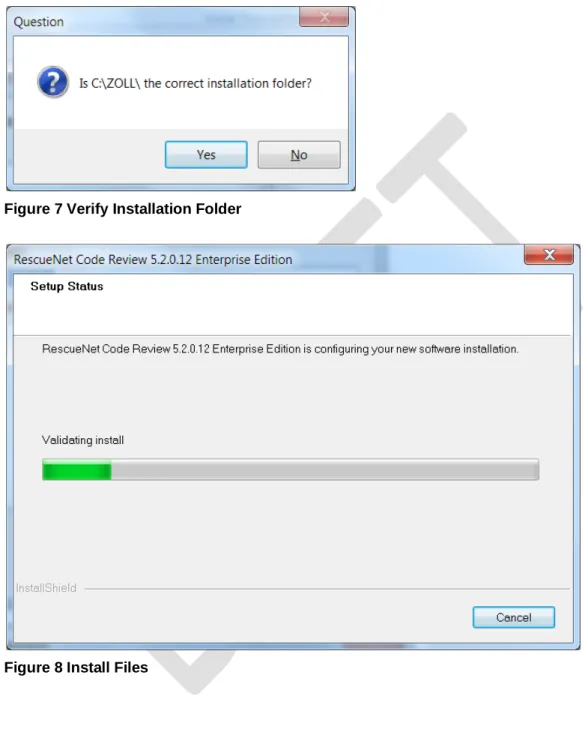
Figure 5 Welcome Screen
Follow the installation prompts to continue the installation. When selecting the installation folder it is important to select a folder other than C:\Program Files in order for the application and the Utilities to function on a Windows 7 machine.
Code Review Installation Guide • 6
Installing RescueNet Code Review: Install RescueNet Code Review
Do
cu
me
n
t
at
io
n.
Figure 7 Verify Installation Folder
Code Review Installation Guide • 7
Installing RescueNet Code Review: Install RescueNet Code Review
Do
cu
me
n
t
at
io
n.
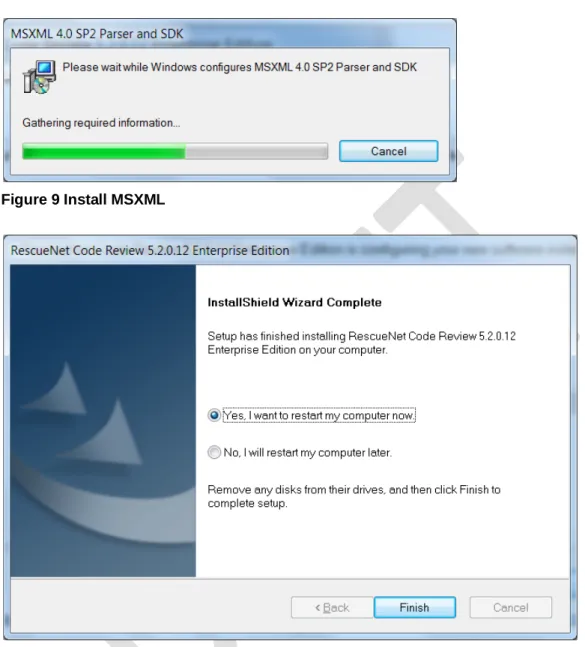
Figure 9 Install MSXML
Figure 10 Installation Complete
Code Review Installation Guide • 8
Installing RescueNet Code Review: Configure ZOLL Data Retriever Service
Do
cu
me
n
t
at
io
n.
Configure ZOLL Data Retriever Service
If you will be using the utility “ZOLL Data Retriever Service” on a Windows 7 machine, some special configurations must be made in order for the application to function properly. To customize settings that will control which files the Service will move, refer to the RescueNet Utilities Guide.
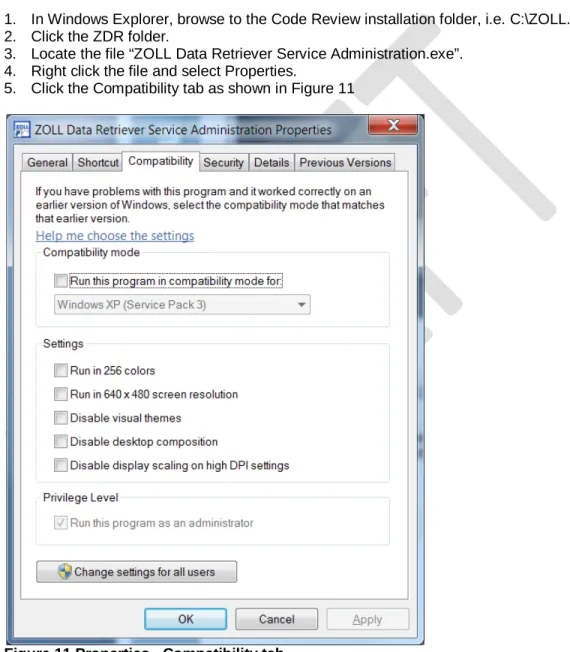
1. In Windows Explorer, browse to the Code Review installation folder, i.e. C:\ZOLL. 2. Click the ZDR folder.
3. Locate the file “ZOLL Data Retriever Service Administration.exe”. 4. Right click the file and select Properties.
5. Click the Compatibility tab as shown in Figure 11
Code Review Installation Guide • 9
Installing RescueNet Code Review: Configure ZOLL Data Retriever Service
Do
cu
me
n
t
at
io
n.
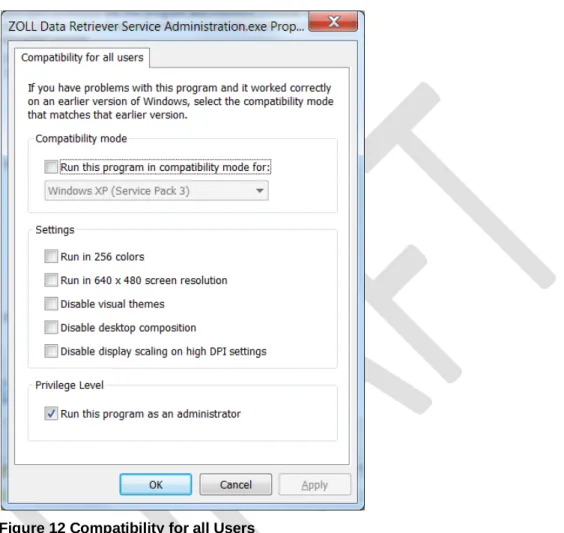
6. Click “Change Settings for all users” to get to the “Compatibility for all users” tab as shown in Figure 12.
Figure 12 Compatibility for all Users
7. Select “Run this program for All Users” and click OK and again on OK. 8. Repeat steps 1-7 for “ZOLL Data Retriever Service.exe”.
Code Review Installation Guide • 10
Installing RescueNet Code Review: Technical and Sales support
Do
cu
me
n
t
at
io
n.
Chapter 3 Getting help
Technical and Sales support
For customers in the United States, contact ZOLL Medical Corporation at the following
address, telephone numbers, e-mail address, fax number, or URL if you have questions about using the RescuNet software or want information about software sales, upgrades,
and support contracts: ZOLL Medical Corporation 269 Mill Road
Chelmsford, MA 01824-4105 USA
Telephone: toll free (800) 348-9011 or (978) 421-9655 E-mail: [email protected]
Fax: (978) 421-0015 Web:
For customers in all other locations, either send e-mail to [email protected] or contact your nearest authorized local ZOLL representative. International offices: