Information in this document is subject to change without notice. © 2012 D-Link Corporation. All rights reserved.
Reproduction in any manner whatsoever without the written permission of D-Link Corporation is strictly forbidden.
Trademarks used in this text: D-Link and the D-LINK logo are trademarks of D-Link Corporation; Microsoft and Windows are registered trademarks of Microsoft Corporation.
Other trademarks and trade names may be used in this document to refer to either the entities claiming the marks and names or their products. D-Link Corporation disclaims any proprietary interest in trademarks and trade names other than its own. April 2012 P/N 651ES1228015G
T
ABLE OF
C
ONTENTS
INTRODUCTION ... 1
USING THE CONSOLE CLI ... 3
COMMAND SYNTAX ... 7
BASIC SWITCH COMMANDS ... 10
MODIFY BANNER AND PROMPT COMMANDS ... 34
SWITCH PORT COMMANDS ... 37
PORT SECURITY COMMANDS ... 41
NETWORK MANAGEMENT (SNMP) COMMANDS ... 47
SWITCH UTILITY COMMANDS ... 73
NETWORK MONITORING COMMANDS ... 88
MULTIPLE SPANNING TREE PROTOCOL (MSTP) COMMANDS ... 105
FORWARDING DATABASE COMMANDS ... 121
PACKET STORM CONTROL COMMANDS ... 129
QOS COMMANDS ... 133
PORT MIRRORING COMMANDS ... 148
VLAN COMMANDS ... 151
LINK AGGREGATION COMMANDS ... 160
BASIC IP COMMANDS ... 165
IGMP SNOOPING COMMANDS ... 172
DHCP RELAY COMMANDS ... 185
802.1X COMMANDS ... 192
ACCESS CONTROL LIST (ACL) COMMANDS ... 213
CPU FILTERING COMMANDS ... 228
SAFEGUARD ENGINE COMMANDS ... 230
TRAFFIC SEGMENTATION COMMANDS ... 233
TIME AND SNTP COMMANDS ... 235
ARP COMMANDS... 241
ROUTING TABLE COMMANDS ... 245
MAC NOTIFICATION COMMANDS ... 249
ACCESS AUTHENTICATION CONTROL COMMANDS ... 253
SSH COMMANDS ... 277
SMTP COMMANDS ... 285
CABLE DIAGNOSTICS COMMANDS ... 290
DHCP LOCAL RELAY COMMANDS ... 292
GRATUITOUS ARP COMMANDS ... 296
ASYMMETRIC VLAN COMMANDS ... 305
IGMP SNOOPING MULTICAST VLAN COMMANDS ... 307
LLDP COMMANDS ... 313
DOS PREVENTION COMMANDS ... 334
IP-MAC-PORT BINDING COMMANDS ... 340
LOOPBACK DETECTION COMMANDS ... 347
FLOW METER COMMANDS ... 354
ARP SPOOFING PREVENTION COMMANDS ... 357
TECHNICAL SUPPORT COMMANDS ... 360
COMMAND HISTORY COMMANDS ... 363
BPDU ATTACK PROTECTION COMMANDS ... 367
PPPOE CIRCUIT ID INSERTION COMMANDS ... 374
DHCP SERVER SCREENING SETTINGS ... 377
IPV6 NEIGHBOUR DISCOVERY COMMANDS ... 380
DEBUG SOFTWARE COMMANDS ... 384
BPDU TUNNEL COMMANDS ... 395
APPENDIX A – PASSWORD RECOVERY PROCEDURE ... 398
APPENDIX B – SYSTEM LOG ENTRIES ... 399
APPENDIX C – TRAP ENTRIES ... 406
1
I
NTRODUCTION
The Switch can be managed through the Switch’s serial port, Telnet, or the Web-based management agent. The Command Line Interface (CLI) can be used to configure and manage the Switch via the serial port or Telnet interfaces.
This manual provides a reference for all of the commands contained in the CLI. Configuration and management of the Switch via the Web-based management agent is discussed in the Manual. Configuration and management of the Switch via the Web-based management agent is discussed in the User’s Guide.
Accessing the Switch via the Serial Port
The Switch’s serial port’s default settings are as follows: • 9600 baud
• no parity • 8 data bits • 1 stop bit
A computer running a terminal emulation program capable of emulating a VT-100 terminal and a serial port configured as above are then connected to the Switch’s serial port via an RJ-45 console cable.
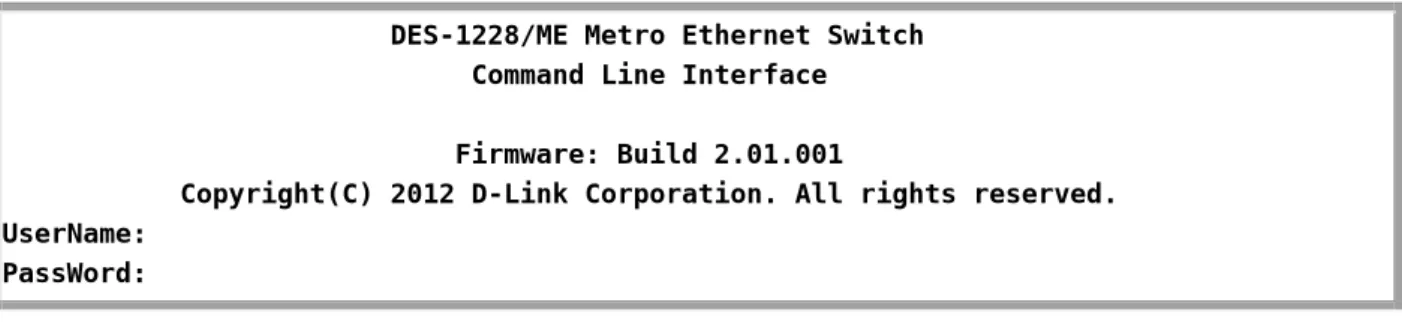
With the serial port properly connected to a management computer, the following screen should be visible. If this screen does not appear, try pressing Ctrl+R to refresh the console screen.
DES-1228/ME Metro Ethernet Switch Command Line Interface
Firmware: Build 2.01.001
Copyright(C) 2012 D-Link Corporation. All rights reserved. UserName:
PassWord:
Figure 1 - 1. Initial CLI screen
There is no initial username or password. Just press the Enter key twice to display the CLI input cursor − DES-1228/ME:5#. This is the command line where all commands are input.
Setting the Switch’s IP Address
Each Switch must be assigned its own IP Address, which is used for communication with an SNMP network manager or other TCP/IP application (for example BOOTP, TFTP). The Switch’s default IP address is 10.90.90.90. Users can change the default Switch IP address to meet the specification of your networking address scheme.
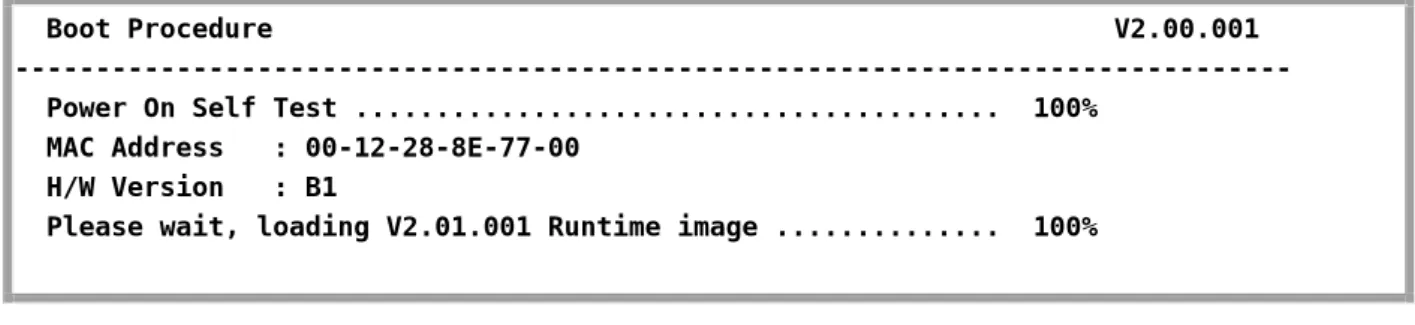
The Switch is also assigned a unique MAC address by the factory. This MAC address cannot be changed, and can be found on the initial boot console screen – shown below.
Boot Procedure V2.00.001 --- Power On Self Test ... 100%
MAC Address : 00-12-28-8E-77-00 H/W Version : B1
Please wait, loading V2.01.001 Runtime image ... 100%
Figure 1 - 2. Boot screen
The Switch’s MAC address can also be found in the Web management program on the Switch Information (Basic Settings) window in the Configuration folder.
The IP address for the Switch must be set before it can be managed with the Web-based manager. The Switch IP address can be automatically set using BOOTP or DHCP protocols, in which case the actual address assigned to the Switch must be known. The IP address may be set using the Command Line Interface (CLI) over the console serial port as follows:
Starting at the command line prompt, enter the command config ipif System ipaddress xxx.xxx.xxx.xxx/yyy.yyy.yyy.yyy. Where the x’s represent the IP address to be assigned to the IP interface named System and the y’s represent the corresponding subnet mask.
Alternatively, users can enter config ipif System ipaddress xxx.xxx.xxx.xxx/z. Where the x’s represent the IP address to be assigned to the IP interface named System and the z represents the corresponding number of subnets in CIDR notation.
The IP interface named System on the Switch can be assigned an IP address and subnet mask which can then be used to connect a management station to the Switch’s Telnet or Web-based management agent.
DES-1228/ME:5#config ipif System ipaddress 10.73.21.11/8 Command: config ipif System ipaddress 10.73.21.11/8
Success.
DES-1228/ME:5#
Figure 1 - 3. Assigning an IP Address
In the above example, the Switch was assigned an IP address of 10.73.21.11 with a subnet mask of 255.0.0.0. The system message Success indicates that the command was executed successfully. The Switch can now be configured and managed via Telnet, SNMP MIB browser and the CLI or via the Web-based management agent using the above IP address to connect to the Switch.
2
U
SING THE
C
ONSOLE
CLI
The Switch supports a console management interface that allows the user to connect to the Switch’s management agent via a serial port and a terminal or a computer running a terminal emulation program. The console can also be used over the network using the TCP/IP Telnet protocol. The console program can be used to configure the Switch to use an SNMP-based network management application over the network.
This chapter describes how to use the console interface to access the Switch, change its settings, and monitor its operation.
Note: Switch configuration settings are saved to non-volatile RAM using the save command. The current
configuration will then be retained in the Switch’s NV-RAM, and reloaded when the Switch is rebooted. If the Switch is rebooted without using the save command, the last configuration saved to NV-RAM will be loaded.
Connecting to the Switch
The console interface is used by connecting the Switch to a VT100-compatible terminal or a computer running an ordinary terminal emulator program (e.g., the HyperTerminal program included with the Windows operating system) using an RJ-45 console cable. Your terminal parameters will need to be set to:
• VT-100 compatible • 9600 baud
• 8 data bits • No parity • One stop bit • No flow control
Users can also access the same functions over a Telnet interface. Once users have set an IP address for your Switch, users can use a Telnet program (in VT-100 compatible terminal mode) to access and control the Switch. All of the screens are identical, whether accessed from the console port or from a Telnet interface.
After the Switch reboots and users have logged in, the console looks like this:
DES-1228/ME Metro Ethernet Switch Command Line Interface
Firmware: Build 2.01.001
Copyright(C) 2012 D-Link Corporation. All rights reserved. UserName:
PassWord:
Figure 2 - 1. Initial Console Screen after logging in Commands are entered at the command prompt, DES-1228/ME:5#.
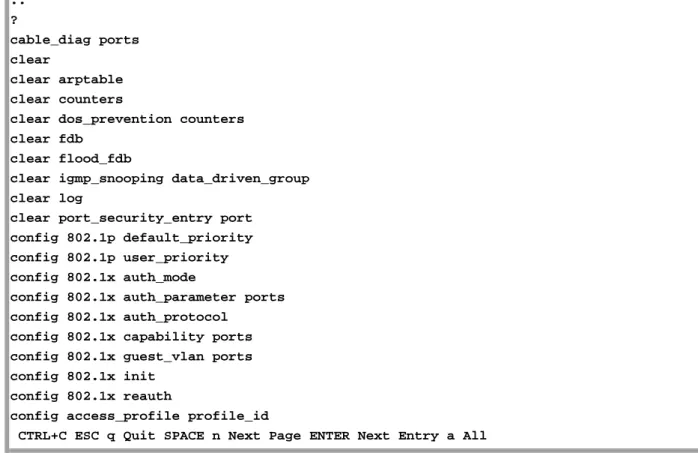
There are a number of helpful features included in the CLI. Entering the ? command will display a list of all of the top-level commands.
.. ? cable_diag ports clear clear arptable clear counters
clear dos_prevention counters clear fdb
clear flood_fdb
clear igmp_snooping data_driven_group clear log
clear port_security_entry port config 802.1p default_priority config 802.1p user_priority config 802.1x auth_mode
config 802.1x auth_parameter ports config 802.1x auth_protocol
config 802.1x capability ports config 802.1x guest_vlan ports config 802.1x init
config 802.1x reauth
config access_profile profile_id
CTRL+C ESC q Quit SPACE n Next Page ENTER Next Entry a All
Figure 2 - 2. The ? Command
When users enter a command without its required parameters, the CLI will prompt users with Next possible completions: message.
DES-1228/ME:5#config account Command: config account
Next possible completions: <username>
DES-1228/ME:5#
Figure 2 - 3. Example Command Parameter Help
In this case, the command config account was entered without the parameter <username>. The CLI will then prompt users to enter the <username> with the message, Next possible completions:. Every command in the CLI has this feature, and complex commands have several layers of parameter prompting.
In addition, after typing any given command plus one space, users can see all of the next possible sub-commands, in sequential order, by repeatedly pressing the Tab key.
To re-enter the previous command at the command prompt, press the up arrow cursor key. The previous command will appear at the command prompt.
DES-1228/ME:5#config account Command: config account
Next possible completions: <username>
DES-1228/ME:5#config account Command: config account
Next possible completions: <username>
DES-1228/ME:5#
Figure 2 - 4. Using the Up Arrow to Re-enter a Command
In the above example, the command config account was entered without the required parameter <username>, the CLI returned the Next possible completions: <username> prompt. The up arrow cursor control key was pressed to re-enter the previous command (config account) at the command prompt. Now the appropriate username can be entered and the config account command re-executed.
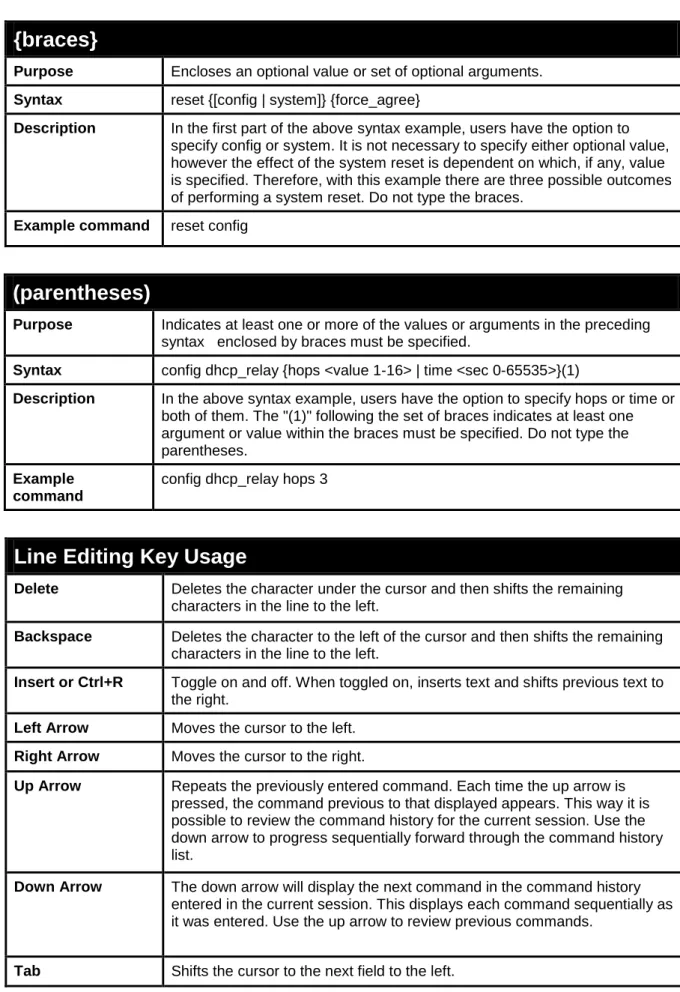
All commands in the CLI function in this way. In addition, the syntax of the help prompts are the same as presented in this manual − angle brackets < > indicate a numerical value or character string, braces { } indicate optional parameters or a choice of parameters, and brackets [ ] indicate required parameters.
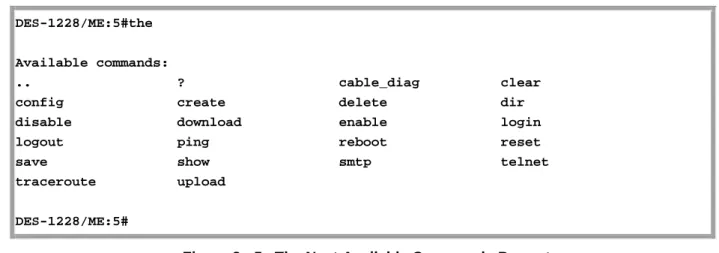
If a command is entered that is unrecognized by the CLI, the top-level commands will be displayed under the Available commands: prompt.
DES-1228/ME:5#the
Available commands:
.. ? cable_diag clear config create delete dir disable download enable login logout ping reboot reset save show smtp telnet traceroute upload
DES-1228/ME:5#
Figure 2 - 5. The Next Available Commands Prompt
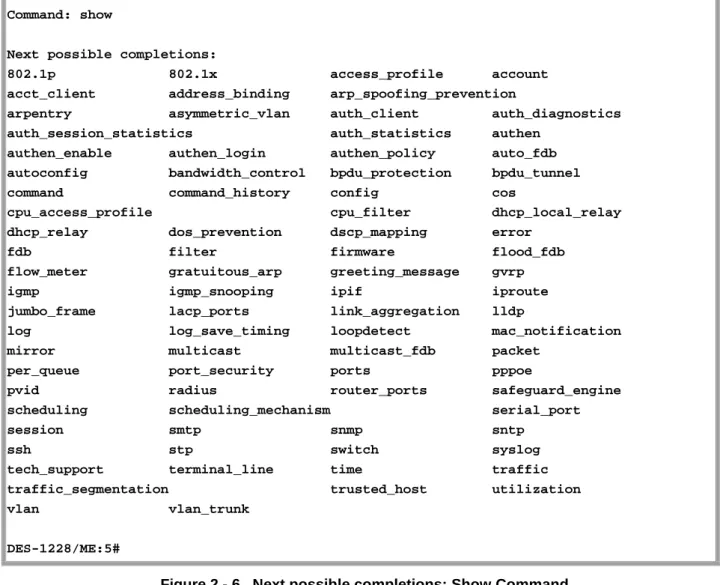
The top-level commands consist of commands such as show or config. Most of these commands require one or more parameters to narrow the top-level command. This is equivalent to show what? or config what? Where the what? is the next parameter. For example, if users enter the show command with no additional parameters, the CLI will then display all of the possible next parameters.
DES-1228/ME:5#show Command: show
Next possible completions:
802.1p 802.1x access_profile account acct_client address_binding arp_spoofing_prevention
arpentry asymmetric_vlan auth_client auth_diagnostics auth_session_statistics auth_statistics authen
authen_enable authen_login authen_policy auto_fdb autoconfig bandwidth_control bpdu_protection bpdu_tunnel command command_history config cos
cpu_access_profile cpu_filter dhcp_local_relay dhcp_relay dos_prevention dscp_mapping error
fdb filter firmware flood_fdb flow_meter gratuitous_arp greeting_message gvrp igmp igmp_snooping ipif iproute jumbo_frame lacp_ports link_aggregation lldp
log log_save_timing loopdetect mac_notification mirror multicast multicast_fdb packet
per_queue port_security ports pppoe
pvid radius router_ports safeguard_engine scheduling scheduling_mechanism serial_port session smtp snmp sntp
ssh stp switch syslog tech_support terminal_line time traffic traffic_segmentation trusted_host utilization vlan vlan_trunk
DES-1228/ME:5#
Figure 2 - 6. Next possible completions: Show Command
In the above example, all of the possible next parameters for the show command are displayed. At the next command prompt, the up arrow was used to re-enter the show command, followed by the account parameter. The CLI then displays the user accounts configured on the Switch.
3
C
OMMAND
S
YNTAX
The following symbols are used to describe how command entries are made and values and arguments are specified in this manual.
Note: All commands are case-sensitive. Be sure to disable Caps Lock or any
other unwanted function that changes text case.
<angle brackets>
Purpose Encloses a variable or value that must be specified.
Syntax config ipif <System> [{ipaddress <network_address> | vlan <vlan_name 32> | state [enable | disable}] | bootp | dhcp]
Description In the above syntax example, users must supply an IP interface name in the <System> space, a VLAN name in the <vlan_name 32> space, and the network address in the <network_address> space. Do not type the angle brackets.
Example Command config ipif System ipaddress 10.24.22.5/8 vlan Design state enable
[square brackets]
Purpose Encloses a required value or set of required arguments. One value or argument can be specified.
Syntax create account [admin | operator| Power User|user] <username 15>
Description In the above syntax example, users must specify either an admin or a user level account to be created. Do not type the square brackets.
Example Command create account admin ctsnow
| vertical bar
Purpose Separates two or more mutually exclusive items in a list, one of which must be entered.
Syntax create account [admin | operator| Power User|user] <username 15>
Description In the above syntax example, users must specify either admin, or user. Do not type the vertical bar.
{braces}
Purpose Encloses an optional value or set of optional arguments.
Syntax reset {[config | system]} {force_agree}
Description In the first part of the above syntax example, users have the option to specify config or system. It is not necessary to specify either optional value, however the effect of the system reset is dependent on which, if any, value is specified. Therefore, with this example there are three possible outcomes of performing a system reset. Do not type the braces.
Example command reset config
(parentheses)
Purpose Indicates at least one or more of the values or arguments in the preceding syntax enclosed by braces must be specified.
Syntax config dhcp_relay {hops <value 1-16> | time <sec 0-65535>}(1)
Description In the above syntax example, users have the option to specify hops or time or both of them. The "(1)" following the set of braces indicates at least one argument or value within the braces must be specified. Do not type the parentheses.
Example command
config dhcp_relay hops 3
Line Editing Key Usage
Delete Deletes the character under the cursor and then shifts the remaining characters in the line to the left.
Backspace Deletes the character to the left of the cursor and then shifts the remaining characters in the line to the left.
Insert or Ctrl+R Toggle on and off. When toggled on, inserts text and shifts previous text to the right.
Left Arrow Moves the cursor to the left.
Right Arrow Moves the cursor to the right.
Up Arrow Repeats the previously entered command. Each time the up arrow is pressed, the command previous to that displayed appears. This way it is possible to review the command history for the current session. Use the down arrow to progress sequentially forward through the command history list.
Down Arrow The down arrow will display the next command in the command history entered in the current session. This displays each command sequentially as it was entered. Use the up arrow to review previous commands.
Multiple Page Display Control Keys
Space Displays the next page.
CTRL+c Stops the display of remaining pages when multiple pages are to be displayed.
ESC Stops the display of remaining pages when multiple pages are to be displayed.
n Displays the next page.
p Displays the previous page.
q Stops the display of remaining pages when multiple pages are to be displayed.
r Refreshes the pages currently displayed.
a Displays the remaining pages without pausing between pages.
4
B
ASIC
S
WITCH
C
OMMANDS
The Basic Switch commands in the Command Line Interface (CLI) are listed (along with the appropriate parameters) in the following table:
Command
Parameters
enable password encryption disable password encryption
create account [admin|operator|Power User|user] <username 15> config account <username> {encrypt [plain_text|sha_1] <password>} show account
delete account <username> show session
show switch show serial_port
config serial_port {baud_rate [9600 | 19200 | 38400 | 115200] | auto_logout [never | 2_minutes | 5_minutes | 10_minutes | 15_minutes]} (1)
enable clipaging disable clipaging
enable telnet {<tcp_port_number 1-65535>} disable telnet
telnet <ipaddr> {tcp_port <value 0-65535>}
ping [<ipaddr> | <domain_name 255>] {times <value 1-255> | timeout <sec 1-99> | source_ip <ipaddr>}
enable web {<tcp_port_number 1-65535>} disable web
save { [config {config_id <value 1-2>} | log | all]} reboot {force_agree}
reset {[config | system ]} { force_agree} login
logout
show config [ current_config | config_in_nvram <config_id 1-2> ] {[include | exclude | begin] <filter_string 80> {<filter_string 80> {<filter_string 80>}} {[include | exclude | begin] <filter_string 80> {<filter_string 80> {<filter_string 80>}}
{[include | exclude | begin] <filter_string 80> {<filter_string 80> {<filter_string 80>}}}}}
config terminal_line [default | <value 20-80>] show terminal_line
enable jumbo_frame disable jumbo_frame
Command
Parameters
show jumbo_frame clear
config configuration config_id
config configuration trap { save [ enable | disable ] | upload [ enable | disable ] | download [ enable | disable ] }(1)
show config information
Each command is listed, in detail, in the following sections:
enable password encryption
Purpose Used to enable password encryption on a user account.
Syntax enable password encryption
Description The user account configuration information will be stored in the configuration file, and can be applied to the system at a time in the future. If the password encryption is enabled, the password will be in encrypted form. If password encryption is disabled and the user specifies the password in encrypted form, or if the password has been converted to encrypted form by the last enabled password encryption command, the password will still be in encrypted form. It can not revert back to plain text.
Parameters None.
Restrictions Only Administrator level users can issue this command.
Example usage:
To enable password encryption on the Switch.
DES-1228/ME:5#enable password encryption Command: enable password encryption
Success.
DES-1228/ME:5#
disable password encryption
Purpose Used to disable password encryption on a user account.
Syntax disable password encryption
Description The user account configuration information will be stored in the configuration file, and can be applied to the system at a time in the future. If the password encryption is enabled, the password will be in encrypted form. If password encryption is disabled and the user specifies the password in encrypted form, or if the password has been converted to encrypted form by the last enabled password encryption command, the password will still be in encrypted form. It can not revert back to plain text.
Parameters None.
Restrictions Only Administrator level users can issue this command.
Example usage:
DES-1228/ME:5#disable password encryption Command: disable password encryption
Success.
create account
Purpose Used to create user accounts.
Syntax create [admin|operator|Power User|user] <username 15>
Description This command is used to create user accounts that consist of a username of 1 to 15 characters and a password of 0 to 15 characters. Up to eight user accounts can be created.
Parameters admin <username> – Name of the administrator account. operator <username>- Specify an operator level account.
Power User <username> - Specify a power user level account, The power user level is lower than the operator level and higher than the user level.
user <username> – Name of the user account.
username - The user name, with a minimum of 1 character and a maximum of 15 characters
Restrictions Only Administrator level users can issue this command. Usernames can be between 1 and 15 characters. Passwords can be between 0 and 15 characters.
Example usage:
To create an operator-level user account with the username “dlink”.
D E S - 1 2 2 8 / M E : 5 # c r e a t e a c c o u n t o p e r a t o r d l i n k C o m m a n d : c r e a t e a c c o u n t o p e r a t o r d l i n k E n t e r a c a s e - s e n s i t i v e n e w p a s s w o r d : * * * * * E n t e r t h e n e w p a s s w o r d a g a i n f o r c o n f i r m a t i o n : * * * * * S u c c e s s . DES-1228/ME:5#
NOTICE: In the case of lost passwords or password corruption, please refer to Appendix C Password Recovery Procedure, at the end of this manual which will guide you through the steps necessary to resolve this issue.
config account
Purpose Used to configure user accounts.
Syntax config account <username> {encrypt [plain_text|sha_1] <password>}
Description This command is used to configure a user account that has been created using the create account command. When the password information is not specified in the command, the system will prompt the user to input the password interactively. For this case, the user can only input the plain text password.
If the password is present in the command, the user can select to input the
password in the plain text form or in the encrypted form. The encryption algorithm is based on SHA-1.
Parameters <username> – The name of the account. The account must already be defined. plain_text – Select to specify the password in plain text form.
sha_1 – Select to specify the password in the SHA-1 encrypted form.
password – The password for the usefr account. The length of the password in plain text form and in encrypted form are different. For the plain text form, passwords must have a minimum of 0 character and can have a maximum of 15 characters. For the encrypted form password, the length is fixed to 35 bytes long. The password is case-sensitive.
Restrictions Only Administrator level users can issue this command. Usernames can be between 1 and 15 characters. Passwords can be between 0 and 15 characters.
Example usage:
To configure the user password of “dlink” account:
DES-1228/ME:5#config account dlink Command: config account dlink
Enter a old password:****
Enter a case-sensitive new password:*****
Enter the new password again for confirmation:***** Success.
show account
Purpose Used to display user accounts.
Syntax show account
Description This command is used to display all user accounts created on the Switch. Up to eight user accounts can exist at one time.
Parameters None.
Restrictions Only Administrator level users can issue this command.
Example usage:
To display the accounts that have been created:
D E S - 1 2 2 8 / M E : 5 # s h o w a c c o u n t C o m m a n d : s h o w a c c o u n t C u r r e n t A c c o u n t s : U s e r n a m e A c c e s s L e v e l - - - - - - a d m i n A d m i n d l i n k O p e r a t o r b e t a P o w e r U s e r g u e s t U s e r T o t a l E n t r i e s : 4 DES-1228/ME:5#
delete account
Purpose Used to delete an existing user account.
Syntax delete account <username>
Description This command is used to delete a user account that has been created using the create account command.
Parameters <username> – The name of the account to be deleted.
Restrictions Only Administrator level users can issue this command.
Example usage:
To delete the user account “dlink”:
DES-1228/ME:5#delete account dlink Command: delete account dlink
Success.
show session
Purpose Used to display a list of currently logged-in users.
Syntax show session
Description This command is used to display a list of all the users that are logged-in at the time the command is issued.
Parameters None.
Restrictions None.
Example usage:
To display the way that the users logged in:
DES-1228/ME:5#show session Command: show session
ID Live Time From Level Name -- --- --- --- --- 8 0:2:27.60 Serial Port 5 dlink
Total Entries: 1
show switch
Purpose Used to display general information about the Switch.
Syntax show switch
Description This command is used to display information about the Switch.
Parameters None.
Restrictions None.
Example usage:
To display the Switch’s information:
DES-1228/ME:5#show switch Command: show switch
Device Type : DES-1228/ME Metro Ethernet Switch MAC Address : 00-12-28-8E-77-00
IP Address : 10.90.90.90 (Manual) VLAN Name : default
Subnet Mask : 255.0.0.0 Default Gateway : 0.0.0.0
Boot PROM Version : Build 2.00.001 Firmware Version : Build 2.01.001 Hardware Version : B1
System Name : System Location :
System Uptime : 0 days, 1 hours, 46 minutes, 17 seconds System Contact :
Spanning Tree : Disabled GVRP : Disabled IGMP Snooping : Disabled VLAN Trunk : Disabled 802.1X : Disabled
Telnet : Enabled (TCP 23) Web : Enabled (TCP 80) RMON : Disabled
SSH : Disabled CLI Paging : Enabled Syslog Global State: Disabled Dual Image : Supported
Password Encryption Status : Disabled
show serial_port
Purpose Used to display the current serial port settings.
Syntax show serial_port
Description This command is used to display the current serial port settings.
Parameters None.
Restrictions None
Example usage:
To display the serial port setting:
DES-1228/ME:5#show serial_port Command: show serial_port
Baud Rate : 9600 Data Bits : 8 Parity Bits : None Stop Bits : 1 Auto-Logout : 10 mins
config serial_port
Purpose Used to configure the serial port.
Syntax config serial_port { baud_rate [9600 | 19200 | 38400 | 115200] | auto_logout [never | 2_minutes | 5_minutes | 10_minutes | 15_minutes] } (1)
Description This command is used to configure the serial port’s baud rate and auto logout settings.
Parameters baud_rate [9600 | 19200 | 38400 | 115200] − The serial bit rate that will be used to communicate with the management host. There are four options: 9600, 19200, 38400, and 115200.
never − No time limit on the length of time the console can be open with no user input.
2_minutes − The console will log out the current user if there is no user input for 2 minutes.
5_minutes − The console will log out the current user if there is no user input for 5 minutes.
10_minutes − The console will log out the current user if there is no user input for 10 minutes.
15_minutes − The console will log out the current user if there is no user input for 15 minutes.
Restriction s
Only Administrator level and Operator level users can issue this command.
Example usage:
To configure the baud rate:
DES-1228/ME:5#config serial_port baud_rate 115200 Command: config serial_port baud_rate 115200
Success.
enable clipaging
Purpose Used to pause the scrolling of the console screen when a command displays more than one page.
Syntax enable clipaging
Description This command is used when issuing a command which causes the console screen to rapidly scroll through several pages. This command will cause the console to pause at the end of each page. The default setting is enabled.
Parameters None.
Restrictions Only Administrator level users, Operator level and Power User level users can issue this command.
Example usage:
To enable pausing of the screen display when the show command output reaches the end of the page:
DES-1228/ME:5#enable clipaging Command: enable clipaging
Success.
DES-1228/ME:5#
disable clipaging
Purpose Used to disable the pausing of the console screen scrolling at the end of each page when a command displays more than one screen of information.
Syntax disable clipaging
Description This command is used to disable the pausing of the console screen at the end of each page when a command would display more than one screen of information.
Parameters None.
Restrictions Only Administrator level users, Operator level and Power User level users can issue this command.
Example usage:
To disable pausing of the screen display when show command output reaches the end of the page:
DES-1228/ME:5#disable clipaging Command: disable clipaging
Success.
enable telnet
Purpose Used to enable communication with and management of the Switch using the Telnet protocol.
Syntax enable telnet {<tcp_port_number 1-65535>}
Description This command is used to enable the Telnet protocol on the Switch. The user can specify the TCP port number the Switch will use to listen for Telnet requests.
Parameters <tcp_port_number 1-65535> − The TCP port number. TCP ports are numbered between 1 and 65535. The “well-known” TCP port for the Telnet protocol is 23.
Restrictions Only Administrator level and Operator level users can issue this command.
Example usage:
To enable Telnet and configure port number:
ES-1228/ME:5#enable telnet Command: enable telnet
Success.
DES-1228/ME:5#
disable telnet
Purpose Used to disable the Telnet protocol on the Switch.
Syntax disable telnet
Description This command is used to disable the Telnet protocol on the Switch.
Parameters None.
Restrictions Only Administrator level and Operator level users can issue this command.
Example usage:
To disable the Telnet protocol on the Switch:
DES-1228/ME:5#disable telnet Command: disable telnet
Success.
telnet
Purpose Used to Telnet another device on the network.
Syntax telnet <ipaddr> {tcp_port <value 0-65535>}
Description This command is used to connect to another device’s management through Telnet.
Parameters <ipaddr> − Enter the IP address of the device to connect through, using Telnet.
tcp_port <value 0-65535> − Enter the TCP port number used to connect through. The common TCP port number for telnet is 23.
Restrictions Only Administrator level, Operator level and Power User level users can issue this command.
Example usage:
To connect to a device through telnet with an IP address of 10.53.13.99:
DES-1228/ME:5#telnet 10.53.13.99 tcp_port 23 Command: telnet 10.53.13.99 tcp_port 23
ping
Purpose Used to ping a remote IP address on the network.
Syntax ping [<ipaddr> | <domain_name 255>] {times <value 1-255> |
timeout <sec 1-99> | source_ip <ipaddr>}
Description This command is used to send Internet Control Message Protocol (ICMP) echo messages to a remote IP address. The remote IP address will then “echo” or return the message. This is used to confirm connectivity between the switch and the remote device.
Parameters <ipaddr> − Specifies the IP address of the host.
<domain_name 255> - Specifies the domain name of the host. This name can be up to 255 characters long.
times - (Optional) Specify the number of individual ICMP echo messages to be sent.
value 1-255 - Specify the number of individual ICMP echo
messages to be sent. A value of 0 will send an infinite ICMP echo messages. The maximum value is 255. The default is 0.
timeout – Specify the timeout period while waiting for a response from the remote device. A value of 1 to 99 seconds can be specified. The default is 1 second.
<sec 1-99> - Specify the time-out period while waiting for a response from the remote device. A value of 1 to 99 seconds can be specified. The default is 1 second.
source_ip - Specifies the source IP address of the ping packets. If specified, the IP address will be used as the packets’ source IP address that ping send to remote host.
<ipaddr> - Enter the source IP address used here.
To send ICMP echo message to “10.51.17.1” for 4 times:
DES-1228/ME:5#ping 10.51.17.1 times 4 Command: ping 10.51.17.1 times 4
Reply from 10.51.17.1, time<10ms Reply from 10.51.17.1, time<10ms Reply from 10.51.17.1, time<10ms Reply from 10.51.17.1, time<10ms
Ping Statistics for 10.51.17.1
Packets: Sent =4, Received =4, Lost =0
DES-1228/ME:5#
enable web
Purpose Used to enable the HTTP-based management software on the Switch.
Syntax enable web {<tcp_port_number 1-65535>}
Description This command is used to enable the Web-based management software on the Switch. The user can specify the TCP port number the Switch will use to listen for Telnet requests.
Parameters <tcp_port_number 1-65535> − The TCP port number. TCP ports are numbered between 1 and 65535. The “well-known” port for the Web-based management software is 80.
Restrictions Only Administrator level and Operator level users can issue this command.
Example usage:
To enable HTTP and configure port number:
DES-1228/ME:5#enable web 80 Command: enable web 80
Success.
DES-1228/ME:5#
disable web
Purpose Used to disable the HTTP-based management software on the Switch.
Syntax disable web
Description This command disables the Web-based management software on the Switch.
Parameters None.
Restrictions Only Administrator level and Operator level users can issue this command.
Example usage: To disable HTTP:
DES-1228/ME:5#disable web Command: disable web
Success.
DES-1228/ME:5#
save
Purpose Used to save changes in the Switch’s configuration to non-volatile RAM.
Syntax save {[config {config_id <value 1-2>} | log | all]}
Description This command is used to enter the current switch configuration into non-volatile RAM. The saved switch configuration will be loaded into the Switch’s memory each time the Switch is restarted.
Parameters config – Used to save the current configuration to a file.
config_id - Specifies which cfg file ID. if cfg ID is not specified, it refers to the boot_up CFG file.
log – Used to save the current log to a file. The log file cannot be deleted.
all – Save changes to currently activated configurations and save log. If no keywords are specified, save the changes to the
configuration. If there are no keywords specified, the changes will be saved to the configuration.
Restrictions Only Administrator level,Operator level or Power User level users can issue this command.
Example usage:
To save the Switch’s current configuration to non-volatile RAM:
DES-1228/ME:5#save config Command: save config
Saving all configurations to NV-RAM... Done. Success.
DES-1228/ME:5#
To save the Switch’s current log to non-volatile RAM:
DES-1228/ME:5#save log Command: save log
Saving all log information to NV-RAM... Done. Success.
To save the Switch’s the current configuration and log to non-volatile RAM:
DES-1228/ME:5#save all Command: save all
Saving all configurations and log information to NV-RAM... Done. Success.
DES-1228/ME:5#
reboot
Purpose Used to restart the Switch.
Syntax reboot {force_agree}
Description This command is used to restart the Switch.
Parameters force_agree – When force_agree is specified, the Switch will be forced to restart immediately without further confirmation.
Restrictions Only Administrator level users can issue this command.
Example usage:
To restart the Switch:
DES-1228/ME:5#reboot Command: reboot
Are you sure you want to proceed with the system reboot?(y/n) y Please wait, the switch is rebooting...
To force the Switch to restart:
DES-1228/ME:5#reboot force_agree Command: reboot force_agree
reset
Purpose Used to reset the Switch to the factory default settings.
Syntax reset {[config | system]} {force_agree}
Description This command is used to restore the Switch’s configuration to the default settings assigned from the factory.
Parameters config − If the keyword ‘config’ is specified, all of the factory default settings are restored on the Switch including the IP address, user accounts, and the switch history log. The Switch will not save or reboot.
system − If the keyword ‘system’ is specified all of the factory default settings are restored on the Switch. The Switch will save and reboot after the settings are changed to default. Rebooting will clear all entries in the Forwarding Data Base.
force_agree – When force_agree is specified, the reset command will be executed immediately without further confirmation.
If no parameter is specified, the Switch’s current IP address, user accounts, and the switch history log are not changed. All other parameters are restored to the factory default settings. The Switch will not save or reboot.
Restrictions Only Administrator level users can issue this command.
Example usage:
To restore all of the Switch’s parameters to their default values except the IP address, user accounts, and Switch logs:
DES-1228/ME:5#reset Command: reset
Are you sure you want to proceed with system reset except IP address, log and user account?(y/n) y Success.
DES-1228/ME:5#
To restore all of the Switch’s parameters to their default values:
DES-1228/ME:5#reset config Command: reset config
Are you sure you want to proceed with system reset?(y/n) y Success.
To restore all of the Switch’s parameters to their default values and have the Switch save and reboot:
DES-1228/ME:5#reset system
Command: reset system
Are you sure you want to proceed with system reset, save and reboot?(y/n) y
Load Factory Default Configuration... Done. Saving all configurations to NV-RAM... Done. Please wait, the switch is rebooting...
login
Purpose Used to log in a user to the Switch’s console.
Syntax login
Description This command is used to initiate the login procedure. The user will be prompted for a Username and Password.
Parameters None.
Restrictions None.
Example usage:
To initiate the login procedure:
DES-1228/ME:5#login Command: login
UserName:
logout
Purpose Used to log out a user from the Switch’s console.
Syntax logout
Description This command terminates the current user’s session on the Switch’s console.
Parameters None.
Restrictions None.
Example usage:
To terminate the current user’s console session:
show config
Purpose Display the content of the current configuration, or the configuration file in flash.
Syntax show config [ current_config | config_in_nvram <config_id 1-2> ] {[include | exclude | begin] <filter_string 80> {<filter_string 80> {<filter_string 80>}} {[include | exclude | begin] <filter_string 80> {<filter_string 80> {<filter_string 80>}}
{[include | exclude | begin] <filter_string 80> {<filter_string 80> {<filter_string 80>}}}}}
Description This command is used to display the content of the current configuration, or the configuration file in flash.
The output stream of the configuration data can be filtered by the expression specified at the end of the command. The expression can contain up to three multiple filter evaluations. A filter evaluation begins with a filter type (include, exclude, and begin), followed by up to three filter strings (ex: “stp”). A filter string is enclosed by symbol ". The following describes the meaning of the each filter type.
include: includes lines that contain the specified filter string. exclude: excludes lines that contain the specified filter string
begin: The first line that contains the specified filter string will be the first line of the output.
The relationship of multiple filter strings following the same filter type is OR. That is, one line is qualified if one of specified filter strings is matched.
If more than one filter evaluation is specified; the output is filtered by the former evaluation and will be used as the input of the latter evaluation.
For example, if the following expression is specified, Include “stp” exclude “port”
The result of the above example is all lines that include the “stp” string but exclude the “port” string.
Parameters current_config – Display system configuration from the DRAM database, i.e. the current system setting.
config_in_nvram – Display the system configuration from NV-RAM i.e. the configuration filein flash.
config_id - Specifies which cfg file ID. if cfg ID is not specified, it refers to the boot_up CFG file.
include – includes lines that contain the specified filter string. exclude – excludes lines that contain the specified filter string. begin – the first line that contains the specified filter string will be the first line of the output.
filter_string - A filter string is enclosed by symbol ". Thus, the filter string itself cannot contain the “character. The filter string is case sensitive.
Example usage:
To display the current spanning tree configurations:
D E S - 1 2 2 8 / M E : 5 # s h o w c o n f i g c u r r e n t _ c o n f i g i n c l u d e " s t p " C o m m a n d : s h o w c o n f i g c u r r e n t _ c o n f i g i n c l u d e " s t p " d i s a b l e s t p c o n f i g s t p v e r s i o n r s t p c o n f i g s t p m a x a g e 2 0 m a x h o p s 2 0 f o r w a r d d e l a y 1 5 t x h o l d c o u n t 6 f b p d u e n a b l e h e l l o t i m e 2 c o n f i g s t p p r i o r i t y 3 2 7 6 8 i n s t a n c e _ i d 0 c o n f i g s t p m s t _ c o n f i g _ i d n a m e 0 0 : 7 1 : 3 9 : 0 0 : 0 0 : 0 1 r e v i s i o n _ l e v e l 0 c o n f i g s t p p o r t s 1 - 2 6 e x t e r n a l C o s t a u t o e d g e a u t o p 2 p a u t o s t a t e e n a b l e c o n f i g s t p m s t _ p o r t s 1 - 2 6 i n s t a n c e _ i d 0 i n t e r n a l C o s t a u t o p r i o r i t y 1 2 8 c o n f i g s t p p o r t s 1 - 2 6 f b p d u e n a b l e c o n f i g s t p p o r t s 1 - 2 6 r e s t r i c t e d _ r o l e f a l s e c o n f i g s t p p o r t s 1 - 2 6 r e s t r i c t e d _ t c n f a l s e D E S - 1 2 2 8 / M E : 5 #
config terminal_line
Purpose Used to configure the number of rows which can be displayed on a screen.
Syntax config terminal_line [ default | <value 20-80>]
Description This command is used to configure the number of rows which can be displayed on a screen. The default value is 24.
Parameters None.
Restrictions Only Administrator level, Operator level or Power User level users can issue this command.
Example usage:
To configure the terminal line to display 30 rows:
DES-1228/ME:5#config terminal_line 30 Command: config terminal_line 30
Success.
DES-1228/ME:5#
Note: If the downloaded configuration file has been modified and saved, the “From” item will
show terminal_line
Purpose Used to show the number of rows which can be displayed on the screen.
Syntax show terminal_line
Description This command is used to show the number of rows which can be displayed on the screen.
Parameters None.
Restrictions None.
Example usage:
To show the current number of rows that can be displayed:
DES-1228/ME:5#show terminal_line Command: show terminal_line
Terminal Line : 30
DES-1228/ME:5#
enable jumbo_frame
Purpose Used to enable jumbo frame.
Syntax enable jumbo_frame
Description This command is used to configure the jumbo frame setting as enable.
Parameters None.
Restrictions Only Administrator level, Operator level or Power User level users can issue this command.
Example usage: To enable jumbo frame:
DES-1228/ME:5#enable jumbo_frame Command: enable jumbo_frame
Success.
DES-1228/ME:5#
disable jumbo_frame
Purpose Used to disable jumbo frame.
Syntax disable jumbo_frame
Description This command is used to configure the jumbo frame setting as disable.
Parameters None.
Restrictions Only Administrator level, Operator level or Power User level users can issue this command.
Example usage:
To disable jumbo frame:
DES-1228/ME:5#disable jumbo_frame Command: disable jumbo_frame
Success.
DES-1228/ME:5#
show jumbo_frame
Purpose Used to display the current configuration of jumbo frame.
Syntax show jumbo_frame
Description This command is used to display the current configuration of the jumbo frame setting.
Parameters None.
Restrictions None.
Example usage:
To display jumbo frame:
DES-1228/ME:5#show jumbo_frame Command: show jumbo_frame
Jumbo Frame State : Disabled Maximum Jumbo Frame Size : 2048 Bytes
DES-1228/ME:5#
clear
Purpose This command is used to clear the terminal screen.
Syntax clear
Description This command is used to clear the terminal screen.
Parameters None.
Restrictions None.
Example usage:
To clear the terminal screen:
DES-1228/ME:5#clear Command: clear
config configuration config_id
Purpose This command is used to select a configuration file as the next boot up configuration or to apply a specific configuration to the system. This command is required when multiple configuration files are supported.
Syntax config configuration config_id <int 1-n> {delete | boot_up | active}
Description Used to select a configuration file as the next boot up configuration or to apply a specific configuration to the system. This command is required when multiple configuration files are supported.
Parameters delete – Specifies to delete the configuration file.
boot_up – Specifies the configuration file as a boot up file. active – Specifies to apply the configuration.
Restrictions Only Administrator level users can issue this command.
Example usage:
To set configuration file 1 to be a boot up file:
DES-1228/ME:5#config configuration config_id 1 boot_up Command: config configuration config_id 1 boot_up
Success.
config configuration trap
Purpose Used to configure the trap status of configuration saving completed, configuration uploading completed and configuration downloading completed.
Syntax config configuration trap { save [ enable | disable ] | upload [ enable | disable ] | download [ enable | disable ] }(1)
Description When set to enabled, the SNMP Agent will send a trap while the related operation (save / upload / download the configuration) is successfully completed.
Parameters save – Enable: the SNMP agent will send trap while successfully save the configuration to NVRAM
Disable: No trap will be sent.
upload – Enable: the SNMP agent will send trap while successfully complete upload configuration.
Disable: No trap will be sent.
download – Enable: the SNMP agent will send trap while successfully complete download the configuration. Disable: No trap will be sent.
Restrictions Only Administrator level users can issue this command.
Example usage:
To enable the trap of a configuration saving completed:
D E S - 1 2 2 8 / M E : 5 # c o n f i g c o n f i g u r a t i o n t r a p s a v e e n a b l e C o m m a n d : c o n f i g c o n f i g u r a t i o n t r a p s a v e e n a b l e S u c c e s s .
DES-1228/ME:5#
show config information
Purpose Used to display the content of the configuration file information.
Syntax show config information
Description Used to display the content of the configuration file information.
Parameters None.
Restrictions Only Administrator level users can issue this command.
Example usage:
To display the contents of the config file
DES-1228/ME:5#show config information Command: show config information Save Configuration Trap : Enabled Upload Configuration Trap : Enabled Download Configuration Trap : Enabled
ID Version Size(B) Update Time From User -- --- --- --- ---
---
*1 2.00.007 14330 0000/00/00 19:51:51 0.0.0.0(CONSOLE) Anonymous 2 2.00.007 14330 0000/00/00 19:51:51 0.0.0.0(CONSOLE) Anonymous
5
M
ODIFY
B
ANNER AND
P
ROMPT
C
OMMANDS
The Modify Banner and Prompt commands in the Command Line Interface (CLI) are listed (along with the appropriate parameters) in the following table:
Command
Parameters
config command_ prompt [<string 32> | username | default] config greeting_message {default}
show greeting_message
Administrator level users can modify the login banner (greeting message) and command prompt by using the commands described below:
config command prompt
Purpose Used to configure the command prompt.
Syntax config command_prompt [<string 32> | username | default]
Description Administrator level users can use this command to change the command prompt.
Parameters string 32 − The command prompt can be changed by entering a new name of no more that 32 characters.
username − The command prompt will be changed to the login username.
default – The command prompt will reset to factory default command prompt. Default = the name of the Switch model, for example “DES-1288/ME”.
Restrictions Only Administrator level users can issue this command. Other restrictions include:
If the “reset” command is executed, the modified command prompt will remain modified. However, the “reset config/reset system” command will reset the command prompt to the original factory banner.
Example usage
To modify the command prompt to “AtYourService”:
DES-1228/ME:5#config command_prompt AtYourService Command: config command_prompt AtYourService
Success.
config greeting _message
Purpose Used to configure the login banner (greeting message).
Syntax config greeting _message {default}
Description Users can use this command to modify the login banner (greeting message).
Parameters default – If the user enters default to the modify banner command, then the banner will be reset to the original factory banner.
To open the Banner Editor, click Enter after typing the config greeting_message command. Type the information to be displayed on the banner by using the commands described on the Banner Editor:
Quit without save: Ctrl+C Save and quit: Ctrl+W
Move cursor: Left/Right/Up/Down Delete line: Ctrl+D
Erase all setting: Ctrl+X Reload original setting: Ctrl+L
Restrictions Only Administrator level users can issue this command. Other restrictions include:
If the “reset” command is executed, the modified banner will remain modified. However, the “reset config/reset system” command will reset the modified banner to the original factory banner.
The capacity of the banner is 24*80. 24 Lines and 80 characters per line.
Ctrl+W will only save the modified banner in the DRAM. Users need to type the “save config/save all” command to save it into Flash.
Only valid in threshold level.
Example usage: To modify the banner:
DES-1228/ME:5#config greeting_message Command: config greeting_message
Greeting Messages Editor
================================================================================
DES-1228/ME Metro Ethernet Switch Command Line Interface
Firmware: Build 2.01.001
Copyright(C) 2012 D-Link Corporation. All rights reserved.
================================================================================
<Function Key> <Control Key> Ctrl+C Quit without save left/right/
Ctrl+W Save and quit up/down Move cursor Ctrl+D Delete line Ctrl+X Erase all setting Ctrl+L Reload original setting ---
show greeting_message
Purpose Used to view the currently configured greeting message configured on the Switch.
Syntax show greeting_message
Description This command is used to view the currently configured greeting message on the Switch.
Parameters None.
Restrictions None.
Example usage:
To view the currently configured greeting message:
DES-1228/ME:5#show greeting_message Command: show greeting_message
================================================================================
DES-1228/ME Metro Ethernet Switch Command Line Interface
Firmware: Build 2.01.001
Copyright(C) 2012 D-Link Corporation. All rights reserved.
6
S
WITCH
P
ORT
C
OMMANDS
The Switch Port commands in the Command Line Interface (CLI) are listed (along with the appropriate parameters) in the following table:
Command
Parameters
config ports [<portlist> | all] {medium_type [fiber | copper]} {speed [auto | 10_half | 10_full | 100_half | 100_full | 1000_full {[master | slave]}] | flow_control [enable | disable] | state [enable | disable] | learning [enable | disable] | [description <desc 32> | clear_description] | mdix [auto | normal | cross]} (1)
show ports {<portlist>} { [description | err_disabled] }
config ports
Purpose Used to configure the Switch’s Ethernet port settings.
Syntax [<portlist> | all] {medium_type [fiber | copper]} {speed [auto | 10_half | 10_full | 100_half | 100_full | 1000_full {[master | slave]}] | flow_control [enable | disable] | state [enable | disable] | learning [enable | disable] | [description <desc 32> | clear_description] | mdix [auto | normal | cross]} (1)
Description This command is used to configure the Switch’s Ethernet ports. Only the ports listed in the <portlist> will be affected.
Parameters all − Configure all ports on the Switch.
<portlist> − Specifies a port or range of ports to be configured.
medium_type [fiber | copper] – If configuring the Combo ports, this defines the type of medium being configured.
speed – Allows the user to adjust the speed for a port or range of ports. The user has a choice of the following:
auto − Enables auto-negotiation for the specified range of ports.
[10 | 100 | 1000] − Configures the speed in Mbps for the specified range of ports. Gigabit ports are statically set to 1000 but can be set to slower speeds.
[half | full] − Configures the specified range of ports as either full-duplex or half-duplex. [master | slave] − The master setting (1000M/Full_M) will allow the port to advertise
capabilities related to duplex, speed and physical layer type. The master setting will also determine the master and slave relationship between the two connected physical layers. This relationship is necessary for establishing the timing control between the two physical layers. The timing control is set on a master physical layer by a local source. The slave setting (1000M/Full_S) uses loop timing, where the timing comes from a data stream received from the master. If one connection is set for
1000M/Full_M, the other side of the connection must be set for 1000M/Full_S. Any other configuration will result in a link down status for both ports.
flow_control [enable | disable] – Enable or disable flow control for the specified ports. state [enable | disable] − Enables or disables the specified range of ports.
learning [enable | disable] − Enables or disables the MAC address learning on the specified range of ports.
description <desc 32> − Enter an alphanumeric string of no more than 32 characters to describe a selected port interface.
clear_description − Enter this command to clear the port description of the selected port(s). mdix – Specifies the MDIX setting of the port. The MDIX setting can be auto, normal or cross. If set to normal state, the port in MDIX mode, can be connected to PC NIC using a straight cable. If set to cross state, the port in mdi mode, can be connected to a port (in mdix mode) on another switch through a straight cable.
Restrictions Only Administrator level or Operator level users can issue this command.
Example usage:
To configure the speed of ports 20 to 24 to be 10 Mbps, full duplex, with state enabled:
DES-1228/ME:5#config ports 20-24 speed 10_full state enable Command: config ports 20-24 speed 10_full state enable
Success.
show ports
Purpose Used to display the current configuration of a range of ports.
Syntax show ports {<portlist>} {[description | err_disabled]}
Description This command is used to display the current configurations of a range of ports. No parameters will show all ports.
Parameters <portlist> − Specifies a port or range of ports to be displayed.
description – Adding this parameter to the show ports command indicates that a previously entered port description will be included in the display.
err_disabled – Use this to list disabled ports including connection status and reason for being disabled.
Restrictions None.
Example usage:
To display the configuration of all ports on a standalone switch:
DES-1228/ME:5#show ports Command: show ports
Port State/ Settings Connection Address MDI Speed/Duplex/FlowCtrl Speed/Duplex/FlowCtrl Learning --- --- --- --- --- 1 Enabled Auto/Disabled LinkDown Enabled Auto Auto/Disabled LinkDown Enabled 2 Enabled Auto/Disabled LinkDown Enabled Auto Auto/Disabled LinkDown Enabled 3 Enabled Auto/Disabled LinkDown Enabled Auto Auto/Disabled LinkDown Enabled 4 Enabled Auto/Disabled LinkDown Enabled Auto Auto/Disabled LinkDown Enabled 5 Enabled Auto/Disabled LinkDown Enabled Auto Auto/Disabled LinkDown Enabled 6 Enabled Auto/Disabled LinkDown Enabled Auto Auto/Disabled LinkDown Enabled 7 Enabled Auto/Disabled LinkDown Enabled Auto Auto/Disabled LinkDown Enabled
Example usage:
To display the configuration of all ports on a standalone switch, with description:
DES-1228/ME:5#show ports description Command: show ports description
Port State/ Settings Connection Address MDI Speed/Duplex/FlowCtrl Speed/Duplex/FlowCtrl Learning --- --- --- --- --- 1 Enabled Auto/Disabled LinkDown Enabled Auto
Desc:
2 Enabled Auto/Disabled LinkDown Enabled Auto
Desc:
3 Enabled Auto/Disabled LinkDown Enabled Auto
Desc:
4 Enabled Auto/Disabled LinkDown Enabled Auto
Desc:
5 Enabled Auto/Disabled LinkDown Enabled Auto
Desc:
6 Enabled Auto/Disabled LinkDown Enabled Auto
Desc:
7
P
ORT
S
ECURITY
C
OMMANDS
The Port Security commands in the Command Line Interface (CLI) are listed (along with the appropriate parameters) in the following table:
Command
Parameters
config port_security ports [<auth_portlist> | all] {admin_state [enable | disable] |
max_learning_addr <max_lock_no 0-64> | lock_address_mode [DeleteOnTimeout | DeleteOnReset | Permanent]} (1)
delete port_security_entry vlan_name <vlan_name 32> mac_address <macaddr> port <auth_port>
clear port_security_entry port <auth_portlist> show port_security {ports <auth_portlist>} enable port_security trap_log
disable port_security trap_log