,~crtune Sy.:s..e~ms :Cbrpor'ation
,
l'So'L,:=i~~;;,~~t~t~~~b~d
San Cam.os'.,. eCA, 94070
Order1ns MeeC yo~~ Foreune Svste~
O~der Numbers: 10019 l.o 1 for ehe compleee binder wieh disks 100194.01 for the compleee binder without disks Consult an authorized Fortune Systems dealer for copies of 3anuals and technical information. I
i1
This equ1peene generates, uses, and can radiate radio frequency energy. If it is noe insealled and used in accordance with the inseructiona in this gUide, ie may cause interference to radio comaunicatloas. It has been tested and found to comply vith the lUaits for a claas A computing device pursuant to FCC rules, Part
IS,
Subpart J, which is designed to provide reasonable protectlon against such interference when the equipment is operaeed ift a commercial enVironment. Operation of thisequipment in a resideneial area is likely to cause interference; in that case the user, at his own expense, will be required to take whatever aeasures may ~e required to correct the
~elcome, Fortune System User
This package contains everything you need to learn how to use your
Fortune 32:16. Before you begin, use the checklist below to
determine if your package is complete.
• ~eet Your Fortune System
• Fortune 32:16 Reference Guide
• Understand Your Fortune System
In the back is a plastic sheet with three pockets that contain:
• Two master disks
• Training disk
• Fortune Systems software registration card ,
If any item is missing from your binder, contact your Fortune Systems dealer for a replacement before you proceed with your training.
How to Use This Package
It's important that you know how to use each item in this package before you begin.
• Meet Your Fortune Svstem. Use this. guide with your training
disk to learn how to connect and use your Fortune 32:16.
• Fortune 32:16 Reference Guide. After you are familiar with the
operation of your Fortune system, you'll use this guide as a quick reference for details you can't be expected to remember. If you are already very familiar with computers and computer terminology, you may want to use this guide immediately.
• Understand Your Fortune SV8tem. This guide explains how to
manage the Fortune 32:16 and all the information created on it.
It assumes that you have computer experience or have read ~
Your Fortune System.
• Haster disks. These disks contain the software that operates your Fortune system.
• Training disk. This disk contains some training programs, a
vocabulary list, and some information about Fortune Systems applications.
• Fortune Systems software registraeion card. This postpaid card
registers and warrantees your disks. Be sure to fill it oue and
mail it to Fortune Systems Corporation.
vi
raE FORTUNE 32: 16 MUST BE SHUT DOWN IN AN ORDER.L.Y ~NNER
Contents
Meet Your Fortune Svstem
Part 1 Pare 2 Part 3
Geeeing Acquainted with Your System Setting Up the Fortune System Working with the Basic Units Part 4 Completing the System Setup Part 5 More About Your System -Glossary
Index
Fortune 32:16 Reference Guide
Part 1 Single User System
Part 2 Multiuser System
Part 3 Screen Definitions
Part 4 System Utilities Procedures
Part 5 System Management Procedures
Part: 6 Product Maintenance Procedures
Part: 7 System Problems
Understand Your Fortune System
Part I Taking Control of the Computer
Part: 2 Using the Fortune Operating System
Part: 3 Routine Maintenance
Part: 4 Administering Users
Part 5 Keeping the System Up and Running
Meet Your Fortune System
Fortune Systems Corporation 1501 Industrial Road
Copyright ~ 1982 Fortune Systems Corporation. All rights reserved. No part of this document may be copied, photocopied, reproduced, translated, or reduced to any electronic medium or machine-readable form without prior consent in writing from Fortune Systems
Corporation. The information in this manual may be used only under the terms and conditions of separate Fortune Systems Corporation license agreemertts.
Fortune 32:16 is a trademark of Fortune Systems Corporation. Multiplan is a trademark of Microsoft, Inc.
Printed.in U.S.A.
3 4 5 6 7 8 9 0
Ordering Meet Your Fortune System Order Number: 1000795-01
Please do not order products from the address shown below. Consult an authorized Fortune Systems dealer for copies of manuals and technical information.
Customer Comments
Your ideas about Fortune products and evaluations of Fortune manuals will be appreciated. Submit your comments to the Publications Department, Fortune Systems Corporation, 1501 Industrial Road, San Carlos, CA 94070. By submitting any idea, evaluation, or· other information to Fortune Systems Corporation, you consent to any use or distribution of such information deemed appropriate by Fortune Systems Corporation. Fortune Systems Corporation shall have no obligation whatsoever with respect to such information.
Disclaimer of Warranty and Liability
No representations or warranties, expressed or implied, of any kind are made by or with respect to anything in this manual. By way of example, but not limitation, no representations or warranties of merchantability or fitness for any particular purpose are made by or with respect to anything in this manual.
In no event shall Fortune Systems Corporation be liable for any incidental, indirect, special or consequential damages whatsoever (including but not limited to lost profits) arising out of or related to this manual or any use thereof even if Fortune Systems Corporation has been advised, knew or should have known of the possibility of such damages. Fortune Systems Corporation shall not be held to any liability with respect to any claim on account of, or arising from, the manual or any use thereof.
How to Use This Guide
This guide tells a person who has no previous computer experience how to unpack, install, connact, and operate a Fortune 32:16. If you are new to computers, you should read the guide from the first page. If you have lots of experience with comp~ters, you'll want to skip through this guide, looking only for features unique to the Fortune 32:16. The chart on the next page outlines the steps to set-up che Fortune 32:16 for experienced users.
If you classify yourself in a category somewhere between a novice and an experienced user, you may want to be selective. Be conservative in your judgments. When in doubt, read.
Part 1 of this guide introduces you to each unit of the Fortune system and to some fundamental computer concepts, and tells you about the environment needed for the Fortune system.
Part 2 provides step-by-step procedures for unpacking the basic units, and connecting them for use.
Part 3 tells you how to turn on the system, get it operating, and shut it down 0 It also contains step-by-step ins~ructions for some of the most common procedures you'll need to know. You also use the training disk in this package. The programs on the training disk will help you become comfortable with routine operations.
Part 4 tells you how to connect additional units to the basic units of the Fortune system.
Part 5 provides additional information about some features of the Fortune system. You may want to refer to the information here to understand the relations between what you do and what the computer does.
tihen you're unsure about the meaning of a word you find in the guide, look it up in the glossary, which also contains terms you'll learn about in Understand Your Fortune System.
If you are an experienced computer user and just want to know how to set up and use your Fortune 32:16, you'll find in the Fortune 32:16 Reference Guide brief step-by-step procedures for everything you'll need.
Contents
How to Use This Guide
Part 1 Getting Acquainted with Your Fortune 32:16
1 An Overview of the Fortune 32:16
The Basic Units Software
Additional Units Manuals
2 Your System Training Working with Disks
Caring for Flexible Disks Using the Training Disk
Part 2 Setting Up the Fortune System
3 Setup Sequence
Finding a Place for the Computer Making Sure You Have Everything Unpacking the Basic Units Looking at the Basic Units Supplies and Storage
4 Connecting the Basic Units Setting Up the Basic Units Making Some Adjustments
Part 3 Working with the Basic Units
5 Introducing Yourself Using Procedure Charts
Getting Help from the Computer Correcting Mistakes
Starting Up the System
Te11ing,the Computer the Date and Time
iii 1-1 1-2 1-3 1-6 1-8 1-11 1-13 1-14 1-16 1-17 2-1 2-2 2-3 2-6
2 ... 8
2 .. 13
2 .. 18
2-20 2-21 2-24 3-1 3-2 3-3
3 .. 5
3-6
3-7
3-9
Establishing Your Account A Look at the Global Menu If You Have a Problem Shutting Down the System
6 Preparing to Use the System
Starting Up the System and Logging In Inserting and Removing Flexible Disks Formatting Flexible Disks
Copying the Operating System Loading the Training Disk Program Copying the Training Disk
7 U~ing the Training Disk Program
Learning More About Your Fortune System Learning More About the Fortune Applications
Packages
Using the Business/Computer Dictionary Playing with Your Fortune System Playing Worms
Playing Hangman Playing Worm
Shutting Down the System
3-12 3-15 3-17 3-19 3-21 3-22 3-23 3-25 3-27 3-29 3-30 3-32 3-33 3-36 3-38 3-40 3-41 3-42 3-44 3-45
Part 4 Completing the System Setup 4-1
vi
8 Connecting Additional Units What You May Need
Putting Your Decisions on Paper
9 Connecting a Printer
Telling the Operating System About a Printer Testing the Printer
4-2 4-3 4-6 4-8 4-10 4-14
10 Setting Up a Satellite Workstation 4-17
Unpacking the Satellite Workstation 4-18
Connecting a Satellite Workstation 4-20
Turning On a Satellite Workstation 4-22
11 Loading a Multiuser Operating System 4-24
Installing the Multiuser Operating System Diskette 4-26 Telling the Operating System About Satellite
12 Working with Your Whole System Starting Up the Master Workstation Starting Up the Satellite Workstation Logging Off at a Satellite Workstation Shutting Down the Whole System
Finding Out Who Is Where Using Applications
Part 5 More About Your System
Glossary
13 More System Information Accounts
Passwords
Establishing a Password
14 More About the Equipment Central Processing Unit Hard Disk
The Screen The Keyboard ASCII Terminal
15 Loading the Operating System
Changing Information on the Maintenance The Configuration Menu
The Boot Procedure The Screen Displays
Screen 4-29 4-30 4-31 4-33 4-35 4-36 4-38 5-1 5-2 5-3 5-4 5-5
5 ... 8 5-9 5-10 5-12 5 ... 15 5-18
5 .. 21 5-23 5 .. 21 5 .. 30 5-34
G-1
!hrollghouc !d.scot'Y. people have soughc
• co <indop ;asca-: way. of do11lg _chemac1c:al
calcl.llat1olls.
Getting Acquainted with Your Fortune 32:16
The Fortune 32:16 is a desktop microcomputer that combines the power and computing capability of a larger computer with the ease of use
and convenience of a small computer. The basic Fortune system
includes a central processing unit, a monitor, and a keyboard. With
the basic units, one person can work on one application at a time. If you add more monitors with keyboards to your system, other people
can work at the same time on other applications. This guide will
also help you set up a mUltiple user system.
As with any new piece of equipment, the more you know and understand about the basics of how it works and what it's used for, the more comfortable you'll be when you use it.
This part of the guide will introduce you to the following:
What the basic units are
How the hardware relates to the software What documentation is provided
1 An Overview of the Fortune 32:16
All computer systems are made up of two main parts: hardware and
software. One cannot work without the other. The hardware includes
the equipment you'll unpack soon: a central processing unit, a
monitor, and a keyboard. Software consists of the instructions that
tell the computer what to do.
The two major categories of software are the operating system
and application programs. The operating system is the master
program that controls the hardware and keeps track of where
information is stored. Application programs can perform tasks such
as word processing, financial planning, and accounting. Depending
on the combination of hardware and software in your system, more
than one person can use the system at a time. Both the single user
and multiuser systems can do multitasking, running more than one application at a time.
Basic Units
The hardware of the computer system takes the place of pens,
pencils, typewriters, and paper. Three units make up the basic
hardware of the Fortune 32:16: the central processing unit, the
monitor, and the keyboard. There are other important pieces of
hardware, such as the printer, which you will learn more about later.
KEYBOARD
The keyboard (which replaces the pens, pencils, and typewriters) is the input device, the device used to put information into the
computer. You communicate with the computer through the keyboard.
To give you control of the computer, the keyboard has all the keys you see on the common office typewriter, and others that perform additional functions.
THE MONITOR
The monitor looks very much like a television set. On the screen of the monitor you see the display that is the result of what you type
at the keyboard. The display is green on a black background, which
is easy on the eyes. You watch the monitor to make sure that the
computer is doing what you told it to do through the keyboard. It's
easy to correct any mistakes you make if you see them as they appear on the screen. The monitor is usually thought of as an output device, because it is most often used to display what is inside the computer to people outside the computer.
The monitor looks like a TV set.
CENTRAL PROCESSING UNIT
The central processing unit (CPU) does most of the work that makes a
computer compute. Among its many tasks is the transfer of your
input at the keyboard to the output on the screen, so that you can keep track of what is happening.
Inside the CPU are all the electronic circuits and devices that
hold the results of the work you do. One of these devices is the
hard disk drive, which stores information you need everyday. The
flexible disk drive is a device that reads information from disks, that look like small phonograph records. .The flexible disk drive is
disks to store information you previously kept on paper. Flexible disks are a convenient way to store information you are not
currently using. Once the information is on the flexible disk, it
can be read and displayed on the screen at any time. Any device used with the computer is connected in some way to the CPU.
The CPU looks like a small piece of luggage without the handle.
BASIC SYSTEM
When the three basic units are put together, the computer is ready
for work. All it needs is software. If you know how to speak its
~ language, you can instruct it yourself. Otherwise, you need
Software
At its lowest level, the language of the computer is a collection of electrical signals that it responds to at millions of times a
second. At the next level up, the language of the computer is a
code that one part of the computer uses to generate the electrical
signals required to control another part of the computer. This code
is called the machine language of the computer, and there are many
different machine languages. Some people can write instructions in
these languges. These people write sets of instructions so that
other people can write instructions in a still higher level
language. At the next level of computer languages, instructions to
the computer are written in a code consisting of groups of letters. The computer translates these letters, which are in an assembly
language, into machine language. As the level of a language gets
higher and higher, it eventually gets closer and closer' to the
languages that most people use. Any set of instructions for a
computer written in any of these languages is called software. No
matter what the language of the software may be, it must eventually be translated into the language of the computer at its lowest level -- a collection of electrical signals.
OPERATING SYSTEM
The operating system is the master program of any computer. The
operating system keeps track of what is happening inside the computer; and it responds to input at the keyboard, doing such
things as transferring inputs from the keyboard to the screen. In
addition, when you give instructions at the keyboard, the system can search through information stored on a disk and display it on the
screen, or write it on a disk. The operating system also passes
your instructions to other parts of the computer. You can give your
APPLICATION SOFTWARE
Application software acts as a translator for people who want to work with computers but have no need to learn a computer language. People who write application software must have some knowledge of computers and some knowledge of the field in which the application is used so that they can translate from either language to the
other. Users of application software often work from a menu on a
screen. A ~ is a display of choices available to the computer
user in the vocabulary of the user, who may be an accountant, or an engineer, or a typist. Application software makes a specific type of work easy to do on a computer, but the software is dedicated to
that specific job. Fortune Systems provides a full range of
applications software for the Fortune 32:16.
OTHER KINDS OF SOFTWARE
There's much more to software than operating systems and application
software. As you become more involved, you'll hear many more terms,
such as assembly language, compilers, interpreters, and utilities.
t
\
i \/
I i !\
"
/
I
!
I t 1 • r I i"' \
1o'P" -. -,
"~",ote . 0' ....... __ I/eoti on SOW"" _
,.._.0
-
-
'---._-_.,
- -~----\ I I \, /Software is available in many forms and at many levels.
Additional Units
The better computer systems are capable of expansion by connecting additional units. With your Fortune system, additional units are optional; by adding units, you can put together a system that fits
your needs. For example, if one use of your Fortune 32:16 is word
processing, you can add an additional unit for each operator. When you need the additional features, your Fortune system can be
expanded by connecting additional units to controllers in the CPU. A controller contains electronic circuits designed to be connected
with a specific type of device, usually outside the CPU. One
controller in the CPU is used for the monitor, and one is used for the hard disk drive.
ASCII TERMINAL
An ASCII terminal is a display unit that looks very much like the
monitor. (The name ASCII comes from American Standard Code for
Information Interchange; it is pronounced to rhyme with "passkey.") Each ASCII terminal makes it possible for an additional operator to
work on the Fortune system. A standard keyboard is used with the ASCII terminal.
The main difference between a monitor and an ASCII terminal is that the ASCII terminal is connected to the CPU through a cable, and can operate at distances up to 50 feet from the CPU.
If your system has an ASCII terminal, you'll be unpacking and installing it after the basic units are connected and operating.
PRINTERS
A computer operator can see the information in the computer by
looking at the display on the screen, but many people want to see it
in printed form. A printer is needed so that selected information
in the computer can be printed for hard coPY distribution. Fortune
Systems Corporation can provide a letter quality printer or a dot matrix printer.
The output of a letter quality printer looks like the ouput of a typewriter; it is printed in the same way a typewriter prints, by
striking a solid print character against a ribbon. A dot matrix
printer forms letters by striking a set of closely spaced dots in
the shape of letters, numbers, and other characters. The dot matrix
printer produces the text faster than a letter quality printer can, but the solid type produced by a letter quality printer is what most
people are accustomed to reading. The Fortune dot matrix printer
operates at 110 to 200 characters per second; the Fortune letter
quality printer operates at 20 to 55 characters per second. Either
Fortune printer can be connected to the CPU with the cable provided and requires no other equipment or software.
A matriX printer can print three times faster than a letter quality
printer.
Manuals
The best computer equipment is useless if people don't know how to operate it. The Fortune system is supported at every level by manuals, which are referred to in the computer industry as
documentation. Fortune Systems documentation is packaged in binders
that contain everything you need to use an application. For
example, the product Multiplan includes an operator's guide, reference guide, a master diskette and a training diskette, a reference card, and a keyboard template, which is an attachment to the keyboard that identifies the use of keys.
Documentation for the Fortune system is divided into six
categories, which are identical to the six boxes on the global menu that you'll soon see. These series and the types of manuals
provided with each are listed below. Note also that each category
has a color. This color is printed as a stripe on every manual that
is grouped with software in that category.
BUSINESS APPLICATIONS (Red)
Applications such as General Ledger, Payroll, and other business functions are included in this category.
PROFESSIONAL TOOLS (Yellow)
Applications in this group include Multiplan, an electronic spreadsheet program.
OFFICE AUTOMATION TOOLS (Green)
These applications, which include the FOR:WORD word processor, assist with office work.
COMMUNICATIONS (Orange)
TRAINING AND EDUCATION (Blue)
Introductory training for the applications, as well as the
computer-aided training included in Meet Your Fortune System) is in this category.
SYSTEM TOOLS (Purple)
2 Your System Training
Before you unpack your Fortune system and get poing, you need to know more about it. The training that you need is provided in this
manual, with easy, step-by-step directions for doing everything. In
this section you'll learn about hard disks and flexible disks, and
how to use both kinds. Then you'll learn what's involved in the
Working with Disks
Much of the information used by the Fortune system is stored on disks. The CPU contains a flexible disk drive behind the door on the right-hand side of the CPU and a hard disk drive behind the cover on the left-hand side of the CPU.
Flexible disks store information offline; that is, the
information is available to the computer only when you insert the
flexible disk into the flexible disk drive. The flexible disk drive
rotates the disk so that the CPU can read information from it and write information on it.
The hard disk drive rotates hard disks to perform the same
function as the flexible disk. The hard disk stores more
information than a flexible disk and transfers information faster than a flexible disk.
IDENTIFICATION OF FLEXIBLE DISKS
Flexible disks provided with Fortune applications software include master disks with the application software, and one disk with the
operator training. The flexible disks are stored in a plastic
pocket at the back of each application package. In this binder
you'll find a training disk with some information that you can experiment with to learn more about the Fortune 32:16.
As an application is used, new information is generated and can
be stored on blank flexible disks. To keep track of what kind of
information is stored on a particular flexible disk, each new disk
should be labeled at the time the information is stored. The
H d d" k d or IS rive- .--FI exi Ie disk drive b
,
1
"omUI\I~ n:16
'\
\\
~
Caring for Flexible Disks
By taking proper care of your flexible disks you can ensure accurate
files and proper performance from your Fortune 32:16. When you take
good care of a flexible disk, it should last approximately 200
hours. Since you'll use flexible disks primarily for storage, your
disks should last a long time.
HELPFUL HINTS
Never touch or scratch the exposed magnetic surface of the
disk. This is the portion exposed by the cutouts on the disk
covering.
Keep the disk away from magnetic fields produced by devices such as magnetic paper-clip holders, electric pencil sharpeners, TV sets, display screens, and air conditioners.
Never write on the disk labels after they're attached to the flexible disks.
Avoid extremes of temperatilre where your flexible disks are
stored. Don't leave them in direct sunlight.
Protect the disks against excessive humidity. Try to keep them
within a range of 20 to 50 percent humidity.
When you're not using a disk, return it to the protective
envelope it came in and store it in a container with other disks. Do not bend, fold, staple, or otherwise mutilate your disk. Avoid spilling any liquids or cigarette ashes on the disk.
Using the Training Disk
The training disk contains information about your Fortune system as well as quizzes an4 games to help you learn how to use the system. It's designed so that you'll be working on the computer instead of just reading about it.
After you've unpacked, connected, and checked out your Fortune system, you'll copy the information from the disk onto your Fortune
system. Then you'll be ready to go. If there is more than one
person who needs to learn how to use the computer, you can take
turns. There's no need to make additional copies of the disk to
train additional operators.
This training disk is typical of the training disks supplied
with Fortune Systems applications. Each application training disk
helps you to learn the most efficient use of the application by providing prerecorded information which you can experiment with. The operator's guide that comes with the application tells you how to best use the training disk for that application.
STOPPING AND STARTING
Now you need to know how to use the training disk; that is, when and
for how long. Although this depends on your own time restrictions,
some guidelines will help.
Once your Fortune system is set up you can begin the training.
Go through the training at your own pace. You may want to start
your training as soon as you unpack your system, or you may want to
read more of this guide before you begin. Either way, choose a time
when you won't be interrupted constantly so that you can get the greatest benefit from your efforts.
You can stop the training contained in this manual at certain points, such as at the end of each part. If you have the time, you should work through at least Chapter 5 so that your system is
unpacked, connected, and ready to use. Better yet, work through
Part 3 to get a clear idea of how to use the system through some
hands-on exercises. Even though you may have additional units to
Schott's engraving represents an apparatus of uncertain use. which dimly foreshadows the programming of movements by means of a perforated cylinder.
From Gaspar Schott, Magia Universalist Bamberg, 1677.
Setting Up the Fortune System
Now that you know about the components of your Fortune system, it's
time to unpack everything and set it up for your training. One
thing to remember about the following pages is that the directions
are very specific about the order in which to do things. They're
designed that way to make it easy for you and to make sure that everything's connected correctly for optimum performance from the Fortune system.
In the following pages you'll learn how to set up your computer, including:
Making a place for your system
Unpacking everything and checking to make sure everything's there
3 Setup Cycle
It's important that you follow the setup cycle presented in the next few pages to ensure that your system is properly unpacked and
situated for your use. The setup cycle shown in the following pages
contains these steps:
1 Finding a place for your Fortune system that has the proper
environment, enough space available, and ample electrical outlets.
2 Checking to make sure you received everything. This can be
easily and quickly done, and ensures you have everything you need.
3 Unpacking the Fortune system. The order and process of
unpacking each unit is described here in detail.
Once you've finished setting up, spend some time looking at the
basic units. Each is described in detail in this chapter to give
Finding a Place for the Computer
Be sure you consider all the issues when selecting a place to set up your Fortune system.
ENVIRONMENT
Your Fortune system is designed for general use and doesn't require the special air conditioning needed by the giants of the past. An
environment that is good for you is good for your computer. It is
as sensitive to smoke, dust, heat, and humidity as people are, so keep it in a clean, well-ventilated environment.
SPACE
When the basic units of a Fortune system are in place on the average-sized office desk, the operator will still have enough work space
and storage space for the reference material needed for work. There
probably won't be much room for other equipment. You may want to
reserve a disk or table just for your computer.
Even if you don't have additional equipment, consider the
question of extra space now. Once you become accustomed to the
computer, you'll probably think of other work it can do for you and
other equipment to add. Reserve enough space in a room to allow for
expansion.
It is especially important to allow the CPU as much space as possible on all sides, because the internal power supply generates heat. A fan in the CPU draws air across the power supply to keep it
from overheating. Don't put the CPU flush against a wall.
Your system probably has a printer. Leave space around the
printer so that either single sheet or continuous sheet paper can easily be used. Allow standing room around the printer so you can
add paper. Continuous paper requires paper storage space behind the
printer and a location, such as a catch basket, to feed printed
paper to. It's convenient to have paper stored nearby, so that a
refill is a quick task when needed.
The cable that connects an ASCII terminal to the CPU may be up
to 50 feet in length. Any additional terminals require the same
OUTLETS AND CABLES
Make sure that you locate your system in a place with plenty of
electrical outlets. Otherwise, every time you add a new piece of
equipment, you'll find yourself looking for a place to plug it in. Even if your system doesn't have satellite workstations, consider what would be involved if you decided to add them and had to route control cables to the location you have selected for the basic units.
A six-foot power cable with a grounded three-pronged connector is provided with the computer.
ELECTRICAL INTERFERENCE
The computer should not share an electrical outlet with equipment
such as a large office copier or machine tools. Installing the
computer very close to electrical machinery may cause problems for
the computer. Don't have your Fortune system share an electrical
Desk for Fortune 32: 16 with easy access Space for printer
Space with many outlets for future hookups
You'll need adequate space, ventilation, and electrical outlets for
Making Sure You Have Everything
Now is the time to make sure that you have everything you expected
and need. One way is to check the items on the invoice.
BASIC SYSTEM
If you have only the three basic units, you should be able to tell at a glance that you have one box for each unit.
The long, shallow box contains the CPU.
The tall box contains the master workstation, consisting of a monitor and a keyboard.
Those two boxes are the only ones you need to open until you have the basic system up and running.
ADDITIONAL UNI'rS
If you have additional units, such as a printer or an ASCII
terminal, you have boxes that you don't need to open now. Find out
which box contains which unit, and open only the boxes containing the basic units.
The box that contains the master workstation (the monitor and keyboard) and the box that contains a satellite workstation (an ASCII terminal and a keyboard) look alike from the outside. To identify the box containing the master workstation, look on the side to find the place with the following markings:
Master
0
1001011-01ASCII
0
1000091-01Open only the one that is marked as the master.
CABLE CONNECTIONS
If your system has satellite workstations, cables must be installed
from the CPU to each satellite workstation. Standard cables
ELECTRICAL CONNECTIONS
Depending on the type of electrical outlets you have, you may need to puchase one or more three-pronged adapters.
your Fortune system have three-pronged plugs.
The power cables for If your outlet
accommodates only two-pronged plugs, the adapter will allow you to
plug the computer into your outlets. If you must use extension
Unpacking the Basic Units
Your Fortune system comes surrounded by heavy shock-absorbing material and packed in heavy cardboard cartons to protect it during shipping. Although the units are small and easy to move around once they're unpacked, they seem much larger with packing material around
them. You'll need help to unpack so that your system isn't dropped
or damaged in the process. Be sure to have the cartons on the
floor, preferably close to the place where you'll be using the
system. Unpack the CPU first, since it contains some important
papers about your system.
CENTRAL PROCESSING UNIT
The CPU comes in a long, shallow carton. There's some information
on one end about the type of unit it contains.
1 Remove the tape from the top of the box and open the flaps.
2 Take out the papers at the top of the packaging and read the one
marked "Important Notice." This tells you to inspect your
equipment carefully and report any evidence of damage. You'll
also find the limited product warranty, software license agreement, maintenance agreement, and return envelope for your
papers. Put the papers aside in a safe place, because you'll
need to fill them out to register the warranty for your system.
3 Remove the foam-wrapped package that contains the power cord.
4 Fold the carton flaps down and as much out of the way as
possible. This will give you room to maneuver when you've taken the unit out of the box.
5 With one person at each short end of the carton, have each
person place one hand along the top of the box and the other hand underneath the CPU and lift the CPU out of the carton. When the unit is almost out of the box, let go of the carton and put both hands underneath the CPU.
6 While holding onto the unit, tilt it and put one insulated side
Warranty information under flaps
7 Lift up and remove the insulation from the side of the CPU
that's standing up. Place the insulation back in the box next
to the CPU. You'll need to keep it for repacking in the future.
8 Take the unit completely out of the carton and put it on a table with the remaining insulation hanging off the table. Have one person hold the unit down on the table while the other one removes the last piece of insulation.
9 Take off the plastic wrapping.
10 Turn the unit around, if necessary, to have the front facing where the operator will sit. The front of the CPU has the
Fortune name on a panel at the left-hand edge. Place it where
you'll be using your Fortune system.
11 Remove the cardboard from the flexible disk drive by opening the door (on the right-hand side) and lifting it out. Put this cardboard back in the box for future use.
12 Place the power cord on the work area next to the unit so that
you can plug it in later.
MONITOR AND KEYBOARD
The monitor, also called a terminal, comes packed with the keyboard in a tall carton.
1 Remove the tape and open the top of the box.
2 Read the important shipping notice on the top and be sure to
report any damage to your dealer.
3 There are two warranty cards beneath this notice, one for the
monitor and one for the keyboard. Put these cards with the ones
from the CPU.
4 Remove the long box in the top center of the carton. This box
contains the keyboard.
5 Carefully cut the tape along the cardboard sleeve. The keyboard
is inside, enclosed in foam-backed cardboard. Remove the
6 The cords for the monitor and keyboard are wrapped in a light
styrofoam sheet and packed at the back of the monitor. Unpack
the cords and put them aside.
7 Two people will be needed to remove the monitor from the
carton. Have one person hold the box while the other person
reaches into the box, grasps the terminal near its base, and
lifts it upward. When the monitor is almost out of the box, the
second person should let go of the carton and help the first person gently place the monitor on the floor.
8 Have one person hold the monitor while the other person removes
the insulating foam from both sides. Then remove the plastic
wrapping and place the monitor next to the CPU and keyboard.
9 Put the insulation and the wrapping for the cables back in the
box.
SAVING THE BOXES
Keep the boxes and the shock-absorbing material. If you need to
ship the system somewhere or need to go some distance for service, you should repack the system in the cartons.
WARRANTY CARDS AND INFORMATION
Make sure the warranty cards are filled out and that the appropriate copies are returned to Fortune Systems Corporation in the envelope
provided. Keep your copies in a safe place, because you'll need
them later if your system needs repairs during the warranty period.
You have a warranty card for each unit: CPU, monitor, and
keyboard. Each unit also has an identification label with a serial
number on it. You'll need to take the correct warranty card with
you when you need service on a unit. To help you tell the
difference between one card and another, the serial number is preceded by a code:
Code Unit
CP CPU
MT Master terminal
KB Keyboard
Looking at the Basic Units
Now that everything is unpacked, take some time to look at the
illustrations and locate the connector places y~u'll need to connect
and start up the system.
CENTRAL PROCESSING UNIT
At the front of the central processing unit (CPU) are two horizontal slots. The slot at the right has a door that can be opened by
pressing the top half with your finger. Behind the door is the
flexible disk drive. Whenever you insert or remove a flexible disk,
you'll open this door. The slot at the left has a cover that cannot
be moved. Below and to the left of each slot is an indicator light
that is red whenever the disk is being used. (The indicator may
either flash on and off very rapidly or stay on.) Near the bottom
of the CPU, on the right-hand side, you can see the place for connecting the keyboard to the CPU, and near the bottom on the left-hand side is the slot for the reset switch which you'll use to restart the computer.
,....-- ent or power supp y on Sl e
-Door to flexible disk drive Cover for hard disk drive
-,o~1IH1 101.'"
I
I
!» • • • • • ~ • • • • • • • • • •••...
M]
1
-
J
' - - r nne
tor-Access to reset control IndICators Keyboa d co c
From the front of the CPU, you can see horizontal slots for insertion of flexible disks.
At the back of the CPU are the power on/off switch and the power
receptacle where you connect the power cable. Next to the on/off
switch is a fan and vent to remove heat from the CPU. At the far
left-hand side are five places for connecting additional units to
the CPU. One of these places holds the controller for the monitor;
another holds the controller for the hard disk.
Power receptacle
Senal number label Fan outlet
ON/OFF Switch
o
0 0 0 11-===:::::::~hIPower cable 5 controller locations
MONITOR
The part of the monitor that contains the screen can be tilted up or
down or swiveled from side to side. With these adjustments, you can
set the screen to any position convenient for viewing. At the top
of the monitor is a knob that allows you to change the screen
brightness. After you get the system operating, you can adjust this to whatever brightness level you prefer.
Brightness ~nob - - - ,
Connector location
KEYBOARD
You will be using the keys to get your Fortune system operating, so
you should become familiar with their names and locations. The
keyboard has many more keys than the conventional typewriter.
The keyboard has keys for all uses.
Standard Keys
Special Application Keys
Cursor Control Keys
Screen Control Keys
Numeric Keypad
Function Keys
Help Key, Cancel Del Key, and Return Key
The keys that are similar to the ones you find on a conventional typewriter are in the usual places.
On the left-hand side of the keyboard are three additional keys for special
applications.
To the right of the standard keys are the cursor control keys, which have arrows on them.
Just above the cursor control keys are the screen control keys.
On the .far right-hand side of the keyboard is the numeric keypad. At the top row of the keyboard are 16
function keys, which will have different meanings in different applications. Three important keys to find now are the Help key, the Cancel Del key, and the
Return key. You will be using the Return
key often.
THE KEYBOARD HAS MORE THAN KEYS
The keyboard must be connected to other units through a cable. The connector is at the back left-hand side of the keyboard.
Just beneath the upper right-hand corner of the keyboard is a
knurled knob. This knob controls the sound you'll hear as you press
the keys during operation. At one extreme position you won't hear
anything; at the other extreme position, the sound is at its
loudest. While you're using the system, it's very easy to find the
knob without looking. You can adjust it for the level you prefer.
Also at the right-hand side of the keyboard is a place for storing templates that you get with each Fortune Systems software
product. The function keys have different meanings for each
application. The template is a long strip that tells you what each
function key means in a particular application. When you are working with an application, you put the template for that
application under the function keys. Other templates may be left in
this storage location.
Template storoge
Keyboard sound control
Supplies and Storage
There's more to installing a computer than putting some electronic
equipment on a desk and plugging it in. You must also consider the
materials you'll be using and where to store them. Your supply
requirements depend on the applications you are using.
Paper, ribbons, and printwheels used by the printers Blank flexible disks for storing the results of daily work Labels for flexible disks
A storage container for flexible disks
Most of these supplies are readily available, but you may need
to order others. Be sure to check the manual for your application
to determine if you need additional supplies. Right now you'll need:
Several blank flexible disks Disk labels
The flexible disks you use must meet the following requirements.
5 1/4 inch
Certified at 96 tracks per inch Dual sided
Qualified vendors include Verbatim, Maxell, and Dysan.
As a result of each day's work on the computer, you'll create two kinds of output, information on the hard disk and information
printed on paper. You'll need to find a place to store each kind.
It's a good idea to store a copy of your data on a flexible
disk. This is called making a backup. Each application manual you
have includes information on what data should be backed up and
when. In addition, you need to store the disks in a place where
they won't get lost or damaged. If you have confidential
information, you may want to store the disks in a locked desk or filing cabinet.
Printed results of your work usually can be stored in regular
binders available at stationery stores. If you use a wide print
Blank flexible disks
0 0
Binders
CE)
G
/
jj
G
Disk labelsI
0 0
Printer ribbons and elements
Disk storage box
4 Connecting the Basic Units
Now that your Fortune system is unpacked, you're ready to connect
all the units. The Fortune 32:16 should operate with no problems if
the basic units are connected according to the instructions.
First, you'll place the CPU in position and connect the power cable to the CPU.
Second, you'll connect the keyboard to the CPU. Third, you'll connect the monitor to the CPU.
Instructions for connect~ng additional units are provided later.
1( (.
Setting Up the Basic Units
You'll set up the basic units only once, but it requires careful
attention. The coiled cables that connect the keyboard to the CPU
and the monitor to the CPU are identical, but each of the connectors on the CPU has a special purpose.
PUT THE CPU IN PLACE
1 Be sure that the front of the CPU faces the operator's chair.
You can attend to details of placement later, after the keyboard and monitor have been connected.
2 Insert the plug end of the power cable into the receptacle at
the back of the CPU. Do not connect the other end of the cable
to an electrical outlet now. Wait until all units are connected
and ready.
ATTACH THE KEYBOARD
1 Put the keyboard on the desk in front of the CPU.
2 The two coiled cables are identical, and the connectors at each
end are identical. Connect one of the coiled cables to the
connector at the back of the keyboard. Push the cable in to
make sure it is firmly seated.
This cable also fits a connector at the back of
the CPU. In step 3, be sure that you connect the
keyboard to the connector at the front of the CPU.
3 Insert the other end of the the coiled cable into the connector
at the front of the CPU on the lower right-hand side. It is
labeled KBD. Push the cable in to make sure it is firmly seated.
Squeeze clip
ATTACH THE MONITOR
1 Put the monitor on the desk to the right of the CPU.
2 Connect the second coiled cable to the connector at the back of
the monitor. Push the cable in to make sure it is firmly seated.
3 Look at the back of the CPU to find the controller for the
monitor. It has a connector that fits the connector on the
coiled cable; it is labeled CRT.
This cable also fits a connector at the front of the
CPU. In step 4, be sure that you connect the cable
from the monitor to the connector at the back of the CPU.
4 Insert the other end of the coiled cable from the monitor into
the controller for the monitor. Push the cable in to make sure
Making Some Adjustments
Now that you have the basic units connected, sit in the operator's chair and adjust things to suit yourself.
ADJUST THE POSITIONS OF THE THREE BASIC UNITS
The CPU should be within easy reach, because you'll be inserting and removing flexible disks when you use the system.
The keyboard can be put anywhere that's comfortable for you. The length of the coiled cable is the only limit on placement.
The monitor can be placed on top of the CPU, if you wish. If
you decide on this location, put the monitor on the right side of
the CPU, over the keyboard connector. That way, heat from the CPU
can pass to the air rather than to the monitor.
The top part of the monitor can be swiveled from side to side or
up and down. Use these adjustments to eliminate any reflected glare
from room lighting and to adjust the screen to your eye level.
GET READY FOR POWER ON
You won't see the effect of the brightness knob until you connect
the system to an electrical outlet and turn on the power. If you
have the level set too low, the screen will be so dark you won't realize that the system is working.
Set the brightness knob to midrange now. First rotate it fully
counterclockwise and notice its position. Then rotate it fully
clockwise and notice its position. Set the knob in the middle for
Steiger's mechanical calculator used one turn of the crank for each figure in the multipliex:.
Courtesy of the U.S. Patent Office.
(.e IIdel.)
O. STEIGER. II .h.It-... ' II.
lIUL TIPt YINO 0& DIVIDING 11.10111.1.
No. 638,110. Patented Kay 7, 1895 .
...
"
.
,: 0 •
~ "
Working With the Basic Units
Many of the topics covered in this part are procedures you'll do
often, such as turning the system on and off. If you forget how to
do this, or if you need to show someone else what to do, have them read this part.
In the following pages you'll learn these things about your Fortune system:
5 Introducing Yourself
Right now your Fortune system doesn't have any information in it about what day it is, who you are, and whether or not you can use
the system. You have to give it this information. In addition, you
need to know how to turn the system on, become familiar with what you'll see when you turn the system on, and how to turn the system
off.
Before you can use your Fortune 32:16, you must turn the power
on and set up an account for yourself. The first step seems
logical; all electrical equipment needs to be turned on before it
can work. The next step, establishing an account, is similar to
telling the computer who you are. You must have an account on your
system before you can use it.
Once you have an account, the computer will set up a place on
the hard disk where you can store information. You can store
information using application software or by communicating directly with the operating system, if you know how.
1.
Connect the units to each other pnd to power.2.
Turn on the Fortune system.3.
Type in the date and time.[ 4.
Establish on account.5.
look at the global menu.6.
Shut down the system.Using Procedure Charts
Many of the instructions you'll encounter in the rest of this guide are written in the form of procedure charts. Procedure charts outline the sequence of steps you follow to learn how to use the
software available in the Fortune system. The charts are always
presented in the same format and are designed to be easy to read and follow.
ORGANIZATION
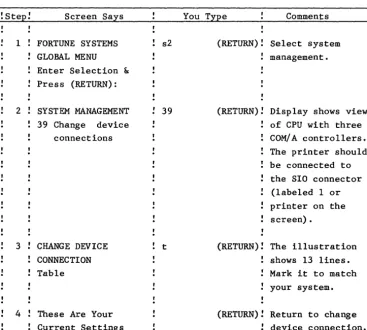
The procedure chart contains three columns: Screen Says, You Type,
and Comments. Check the sample chart and locate the three columns.
Any time you use a procedure chart, start by reading the Screen Says
column. This column shows what should be displayed on the screen at
this point.
Next read the text in the You Type column. This shows which
keys to press or text to type. Keys are indicated by the name of
the key enclosed in a box, for example, (EXECUTE). Here is a guide
to the way key operations are shown in the You Type column and how to perform them.
You Type instructions
(your last name) (EXECUTE)
(RETURN)
What you do
Type your last name, then press the Execute key.
Press the Return key.
newuser (RETURN) Type the word newuser, then
press Return.
THINGS TO REMEMBER
Procedure charts build on one another. Often the instructions in a
procedure chart are based on the assumption that you have completed
some procedures described earlier in the guide. Be sure that you
stop and start at the proper places while using this guide.
You need to follow the procedures exactly. Never use the
Getting Help from the Computer
When you can't remember the details of a procedure, or if you are
uncertain about what happens when you follow s~me procedure, you can
often get help from the computer. When this kind of help is
available, you get it by pressing the blue Help key.
WHEN HELP IS AVAILABLE
Help is not available at every step of a procedure, so you should
ask for help as early as possible. The kind of help that is
available depends on where you are in the procedure. If you are
facing a menu with many items, the help may tell you only about the
proper way to make a selection. If you are partway into a
procedure, help may tell you what can happen if you continue.
For complicated procedures, help may be available as soon as you make the selection. The screen will be filled with detailed
information about the procedure.
IT DOESN'T HURT TO ASK
Help is there because people often need it. Don't be afraid to
ask. If you press the Help key at any point you'll get one of three
responses from the computer:
You'll get some help.
You'll get a message that says help is not available. Nothing will happen.
The impossibility is that you'll get into trouble that you can't
Correcting Mistakes
Next you'll be entering information to get your system going.
There's really no mystery to this. It's like typing on the keyboard
of a typewriter. The difference is that you'll see what you've
typed immediately on the screen in front of you, and sometimes your system will tell you immediately that:
You've entered information incorrectly.
You've entered information and need to go on to another step. There are system problems.
You'll have fewer problems with your computer if you're careful
to follow procedures exactly. You can solve most of your problems
by examining what you've done or by repeating the procedure.
Procedures in this guide usually describe error-free operation. Typographical errors are easy mistakes to correct if you notice them
before you press the Return key. Use the Backspace key or
left-cursor key to position the cursor over the error, then type over the mistake.
The computer will detect some errors and display an error
message in the lower left corner of the screen. Most error messages
tell you exactly what's wrong and what to do.
Don't use the space bar to move the cursor. If you do, the
cursor moves but it replaces each character in the text with a
space. If you use the space bar, you'll see the characters
disappear. That will remind you to use the cursor control keys or
the Backspace key.
Most procedures tell you what to do if you make a mistake. If
something appears on the screen other than what the procedure tells you about, you should read the instructions to find out what to do and to make sure that you are following the procedure correctly. You can usually recover from an incorrect selection by pressing the
Cancel Del key. You'll be able to use this key with the training
Starting Up the System
Each time you turn on your Fortune system you'll have to type in the
date and time. This time, you'll also have to connect the CPU to a
power outlet. You won't have to do this often, but even this step requires special considerations.
CONNECT TO POWER
Follow these steps to connect the CPU to a power outlet.
I Make sure that the power on/off switch of the CPU is in the Off
position. The switch has a small white dot on one side. When
that side of the switch is pushed in, the power is on. Now you
should check that the side with the white dot is not pushed in.
2 The power cable has a three-pronged connector. You should use
an electrical outlet that matches it. If you don't have that
kind of outlet, you must use an adapter. For your safety, and
for the protection of the system, connect the ground lead of the
adapter to a local ground. Use the screw that holds the cover
of the electrical outlet to the base plate as the local ground.
3 When you have connected the CPU to power, set the power on/off
switch at the back of the CPU to On. Push the white dot in to
set the power switch to On.
4 Check that the fan is operating by testing the airflow with your
hand.
5 You can follow these indications of proper operation:
Keyboard beeps
Red indicator over the hard disk drive is on. Cursor on the screen is blinking.
CPU
ON/OFF switch
CPU plug
The on/off switch should be off before you plug in to the power outlet.
The first message you see is "Fortune Systems 32:16 Please Wait," with the "Please Wait" blinking.
During the power-on sequence, the numbers 1 through 9 will be
displayed at. varying intervals. Form the habit of watching the
numbers appear. They represent the nine steps the computer requires
to prepare itself for use. If something fails, the highest number
that you see is good information to have.
Telling the Computer the Date and Time
The procedure you're about to learn will soon become as routine as dialing a telephone, but this time it will require your complete attention.
The computer uses date and time to keep a record of when information is created or revised.
When the computer prompts you for an input, the blinking block of light (the cursor) marks the position on the screen where you'll see what you type. As you type, the cursor moves to the position where the next character will be entered.
The date and time displayed on your screen were typed in when
the computer was tested. They won't be exactly what is shown in
this guide. That doesn't matter, because you'll change them.
You can use the Backspace key to correct errors. If the
computer tells you that you've made a mistake, press the Return key until you see a screen message that looks familiar, then start