
HL-1650/1670N USER’S GUIDE
235
0
0
Full text
(2) Laser Printer. HL-1650/1670N USER’S GUIDE (For USA & CANADA Only) IMPORTANT NOTE: For technical and operational assistance, you must call. Calls must be made from within that country. In USA. 1-800-276-7746. In CANADA. 1-800-853-6660 1-514-685-6464. (within Montreal). If you have comments or suggestions, please write us at: In USA. Printer Customer Support Brother International Corporation 15 Musick Irvine, CA 92618. In CANADA. Brother International Corporation (Canada), Ltd. - Marketing Dept. 1, rue Hôtel de Ville Dollard-des-Ormeaux, PQ, Canada H9B 3H6. BROTHER FAX-BACK SYSTEM Brother Customer Service has installed an easy to use fax-back system so you can get instant answers to common technical questions and product information for all Brother products. This is available 24 hours a day, 7 days a week. You can use the system to send the information to any fax machine, not just the one from which you are calling. Call and follow the voice prompts to receive faxed instructions on how to use the system and your index of fax-back subjects. In USA. 1-800-521-2846. In Canada 1-800-685-5381 1-514-685-5381 (within Montreal) DEALERS/SERVICE CENTERS (USA only) For the name of a Brother authorized dealer or service center, call 1-800-284-4357. SERVICE CENTERS (Canada only) For service center addresses in Canada, call 1-800-853-6660.. INTERNET ADDRESS For technical questions and downloading drivers: http://www.brother.com.
(3) Definitions of Warnings, Cautions, and Notes The following conventions are used in this User’s Guide:. Warning Indicates warnings that must be observed to prevent possible personal injury.. !. Caution Indicates cautions that must be observed to use the printer properly or prevent damage to the printer.. ✒ Note Indicates notes and useful tips to remember when using the printer..
(4) To Use the Printer Safely Warning After you have just used the printer, some internal parts of the printer are extremely HOT! When you open the covers of the printer, never touch the shaded parts shown in the following illustrations.. !. Caution After you have just used the printer, some internal parts of the printer are extremely HOT! Wait for the printer to cool down before you touch the internal parts of the printer..
(5) TABLE OF CONTENTS CHAPTER 1 ABOUT THIS PRINTER What is included in the carton ....................................................1-1 Components...................................................................................1-1 General View..................................................................................1-8. Positioning the printer ................................................................... 1-10 Power supply................................................................................1-10 Environment .................................................................................1-11. What kind of paper can I use? ................................................ 1-12 Print media and size.....................................................................1-12 Printing from the Paper cassette ..................................................1-17 Printing from the Multi-purpose tray .............................................1-21 Printing envelopes........................................................................1-25 Printing on Labels, Transparencies etc. .......................................1-31 Printing to the Face up output tray (Face up printing)...................1-37 Printing on both sides of the paper (Duplex printing)....................1-39 Manual Feed ................................................................................1-42.
(6) CHAPTER 2 DRIVER AND SOFTWARE Printer Driver ..........................................................................................2-1 Features in the PCL printer driver (Windows users only) ..............2-3 Features in the PS printer driver (Windows users only)...............2-11 Features in the bonus software (Windows users only) ................2-16 Software for networks...................................................................2-17 Software installation for Windows computers ...............................2-19 Software installation for Macintosh computers .............................2-20. Automatic Emulation Selection ............................................... 2-23 Automatic Interface Selection .................................................. 2-25 Printer Settings .................................................................................. 2-26 Factory settings............................................................................2-26. CHAPTER 3 CONTROL PANEL Control panel .........................................................................................3-1 Switches ...................................................................................................3-2 Go switch .......................................................................................3-3 Job Cancel switch ..........................................................................3-4 Reprint switch.................................................................................3-5 + / – switch ...................................................................................3-11 Set switch.....................................................................................3-12 Back switch ..................................................................................3-13. LED ........................................................................................................... 3-14 LCD display ......................................................................................... 3-15 BACK LIGHTS .............................................................................3-16 How to use the Control panel .......................................................3-18 Control Panel setting menu ..........................................................3-20.
(7) CHAPTER 4 OPTIONS Optional accessories ........................................................................4-1 Lower tray unit (LT-500) .................................................................4-2 Installing the Lower tray unit...........................................................4-3. Network option (NC-4100h) .........................................................4-5 Installing the Network board ...........................................................4-5. RAM expansion....................................................................................4-9 Installing additional memory .........................................................4-13. IrDA interface (IR-1000) .............................................................. 4-17 Optional font package (BS-3000) .......................................... 4-18. CHAPTER 5 ROUTINE MAINTENANCE Replacing the consumables .........................................................5-1 Cleaning .......................................................................................5-17 Maintenance messages ...............................................................5-25.
(8) CHAPTER 6 TROUBLESHOOTING LCD messages .....................................................................................6-1 Error messages..............................................................................6-1 Maintenance messages .................................................................6-3 Service call messages....................................................................6-4. Troubleshooting paper handling................................................6-5 Paper jams and how to clear them ..........................................6-6 JAM TRAY1 ...................................................................................6-8 JAM TRAY2 .................................................................................6-10 JAM MP TRAY .............................................................................6-11 JAM INSIDE .................................................................................6-12 JAM REAR ...................................................................................6-14 JAM DUPLEX...............................................................................6-18 PAPER JAM.................................................................................6-21. Improving the print quality .......................................................... 6-25 How to print correctly..................................................................... 6-31 Other problems.................................................................................. 6-33 For DOS users .............................................................................6-33 BR-Script 3 language ...................................................................6-34.
(9) APPENDIX Printer specifications ......................................................... Appendix-1 Print media and size..........................................................Appendix-5 What is important when you choose paper to use with this printer ..........................................................................................Appendix-8. Emulation modes ...............................................................Appendix-11 Resident fonts ......................................................................Appendix-13 75 Scalable and 12 Bitmapped fonts...............................Appendix-13. Symbol sets / Character sets .....................................Appendix-16 OCR symbol sets ............................................................Appendix-16 HP LaserJet mode...........................................................Appendix-17 EPSON mode..................................................................Appendix-18 IBM mode........................................................................Appendix-18 Trademarks .....................................................................Appendix-23. Regulations ............................................................................Appendix-24. INDEX.
(10) CHAPTER 1 ABOUT THIS PRINTER. C H A PTER 1 A B O U T TH I S PR I N TER. 1.
(11) CHAPTER 1 ABOUT THIS PRINTER. What is included in the carton Components When you unpack the printer, check to see that you have all of the following parts. 4 1. 5. 2. 6 3 Fig. 1-1. 1. Drum unit assembly (with Toner cartridge) 2. Documentation 3. CD-ROM 4. Printer 5. AC power cord 6. Paper cassette. 1-1.
(12) ✒ Note •. • • •. An interface cable is not a standard accessory. Some computers have both a USB and a parallel port. Please purchase the appropriate cable for the interface you intend to use. Most existing parallel cables support bi-directional communication, but some might have an incompatible pin assignment or may not be IEEE 1284-compliant. Do not use a parallel cable that is longer than 3 metres (10 feet). The power cord may differ slightly from this figure depending on the country where you purchased the printer. When you use a USB cable, make sure to use a high speed twisted cable (12Mbps), and connect it to the USB connector of your PC. Do not use the USB connector on the front of your PC or on the iMac's keyboard). 1-2.
(13) CHAPTER 1 ABOUT THIS PRINTER. What is included on the CD-ROM (For Windows user) 1. 3. 4 2 5 6. 1-3.
(14) 1. Initial setup See the setup process from hardware setup to driver installation on a video.. 2. Install software. For general users Printer driver (For more information, see Chapter 2) Automatic E-mail Printing For administrators Network utility (For Administrator) • BRAdmin Professional • Network Printer Driver Wizard • Network Print Software • Storage Manager. 3. Manual User’s Guide Network guide Technical Reviewer’s Guide. 4. Brother Solutions Center Introduction to our user support web page. You can easily access it and receive the latest drivers and information for this printer.. 1-4.
(15) CHAPTER 1 ABOUT THIS PRINTER. 5. Maintenance Tutorial See the maintenance videos for this printer. We recommend that you view the videos before getting started.. 6. Make Disk sets If you do not have a CD-ROM drive, copy the contents of the CD-ROM to floppy disks.. 1-5.
(16) What is included on the CD-ROM (For Macintosh users) 2 1. 1. 4. 1. 5. 6. Initial setup & Maintenance Tutorial See the maintenance operations required for this printer in the video movie. We recommend that you look at the video first before getting started.. 2 Printer Driver Installer For more information, See Chapter 2.. 3 BR-Script PPD Installer Printer driver (For more information, see Chapter 2) This printer has support for Mac OS 8.51, 8.6, 9.0 and 9.04.. 1-6.
(17) CHAPTER 1 ABOUT THIS PRINTER. 4 Manual User’s Guide Network guide Technical Reviewer’s Guide. 5 Brother Solutions Center 6 Read me. 1-7.
(18) General View 1 7 2 6 4. 8. 3 5 Fig. 1-2. 1 2 3 4 5 6 7 8. Face down output tray Control panel Multi-purpose tray Cover release button Paper cassette Front cover Extension flap Multi-purpose tray extension. 1-8.
(19) CHAPTER 1 ABOUT THIS PRINTER. 15 18. 11. 12. 10 9. 13. 14. 17. Fig. 1-3. 9 10 11 12 13 14 15 16 17 18. Interface cover PCB access plate Parallel interface connector USB connector Power switch AC power inlet Face up output tray Paper adjustment lever for duplex printing Duplex tray Face up tray extension. 1-9. 16.
(20) Positioning the printer Please take note of the following before using the printer.. Power supply Use the printer within the specified power range. AC power: Frequency:. AC 220-240 V or AC 100-120 V 50/60 Hz. The power cord, including extensions, should not exceed 5 metres (16.5 feet). Do not share the same power circuit with other high-power appliances, particularly an air conditioner, copier, shredder, etc. If it is unavoidable that you must use the printer with these appliances, we recommend that you use a voltage transformer or a high-frequency noise filter. Use a voltage regulator if the power source is not stable.. 1-10.
(21) CHAPTER 1 ABOUT THIS PRINTER. Environment Use the printer only within the following ranges of temperature and humidity. Ambient temperature: Ambient humidity:. 10°C to 32.5°C (50°F to 90.5°F) 20% to 80% (without condensation). Do not block the air exit on top of the printer. Do not place objects on top of the printer, especially on the air vent. Ventilate the room in which you use the printer. Do not place the printer where it is exposed to direct sunlight. Use a blind or a heavy curtain to protect the printer from direct sunlight if the printer is unavoidably set up near a window. Do not install the printer near devices that contain magnets or generate magnetic fields. Do not subject the printer to strong physical shocks or vibrations. Do not expose the printer to open flames or salty or corrosive gasses. Place the printer on a flat, horizontal surface. Keep the printer clean. Do not install the printer in a dusty place. Do not install the printer near an air conditioner. Do not place the printer where the air vent of the printer can be obstructed. Keep a gap of approximately 100 mm (4 inches) between the air vent and the wall.. 1-11.
(22) What kind of paper can I use? Print media and size The Paper trays and LCD panel descriptions in this manual are named as shown below. Upper paper tray. Tray 1. Multi-purpose tray. MP tray. Optional Lower tray. Tray 2. The printer usually loads paper from the installed Multi-purpose tray, Upper paper tray or optional Lower paper tray. Click the check mark in the following table to see the detailed information for each selection. Select the Media type from the printer driver. Media type. Tray 1. MP tray. Tray 2. Duplex printing. Plain paper. ✔. ✔. ✔. ✔. Plain paper. Recycled paper. ✔. ✔. ✔. ✔. Plain paper. Bond paper. ✔. Bond paper. Thick paper. ✔. Thick paper or Thicker paper. ✔. ✔. Transparencies. up to 10 sheets. Only A4, Letter. Transparencies. Label. ✔. Plain paper. Only A4, Letter. Envelopes. ✔. Envelopes. Card stock. ✔. Thick paper or Thicker paper. 1-12.
(23) CHAPTER 1 ABOUT THIS PRINTER. Upper paper tray (Tray 1). Multi-purpose tray (MP tray). Optional Lower tray unit (Tray 2). Duplex printing. Paper size. A4, Letter, Legal, 8.5 x 13 in., B5 (JIS), B5 (ISO), Executive, A5, A6, B6. Width: 70 to 216 mm (215 to 8.5 in.) Length: 116 to 356 mm (4.57 to 14.0 in.). A4, Letter, Legal, B5 (JIS), B5 (ISO), Executive, A5. A4, Letter, Legal. Capacity. 250 sheets 2 (80 g/m or 21 lbs.). 100 sheets 2 (80 g/m or 21 lbs.). 250 sheets (80 2 g/m or 21 lbs.). Legal : 30 8.5 x 13 in. : 30 labels : 10. 1-13.
(24) We recommend the following print methods (output tray) for each paper media type:. Media type. Paper output. Plain paper. Notes. Face down. Face up. ✔. ✔. 60 g/m to 105 g/m (16 to 28 lbs.). ✔. 105 g/m to 161 g/m (28 to 43 lbs.). Thick paper Recycled paper. ✔. Transparencies. ✔. 2. 2. 2. 2. ✔ OHP films. Label. ✔. Envelopes. ✔. Card stock. ✔. You can select the priority of the paper source in the Paper Menu on the Control Panel. For more information about the paper settings, see Chapter 3.. 1-14.
(25) CHAPTER 1 ABOUT THIS PRINTER. Recommended paper Europe. USA 2. Plain paper. Xerox Premier 80 g/m. Xerox 4200DP 20 lb. Xerox Business 80 g/m2. Champion Paper One 20 lb. Modo DATACOPY 80 g/m2. Hammermill Laser Paper 24 lb. IGEPA X-Press 80 g/m2 Recycled paper. Steinbis Recycling Copy 80 g/m2. Transparency. 3M CG3300. 3M CG 3300. Label. Avery laser label L7163. Avery laser label #5160. ♦ ♦ ♦ ♦ ♦ ♦. Before you purchase large quantities of paper, please test print a small quantity to ensure that the paper is suitable. Use paper designed for plain paper copying. Use paper that is 75 to 90 g/m2. Use neutral paper; avoid acidic or alkaline paper. Use Long grain paper. Use paper with a moisture content of approximately 5%.. 1-15.
(26) Printable area. The figure below shows the printable area.. Portrait. 1. USA/Canada. 4. 2. Europe/other countries. 1 0.17 inch (4.2 mm) 2 0.25 inch (6.35 mm). 4.2 mm. 3 0.17 inch (4.2 mm) 4 0.25 inch (6.35 mm). 4.2 mm. 6.01 mm. 6.01 mm. 3 Fig. 1-4. Landscape. 1 USA/Canada 0.17 inch (4.2 mm). 4. 2. 1 2 0.2 inch (5.08 mm) 3 0.17 inch (4.2 mm) 4 0.2 inch (5.08 mm). 3 Fig. 1-5. 1-16. Europe/other countries 4.2 mm 5.0 mm 4.2 mm 5.0 mm.
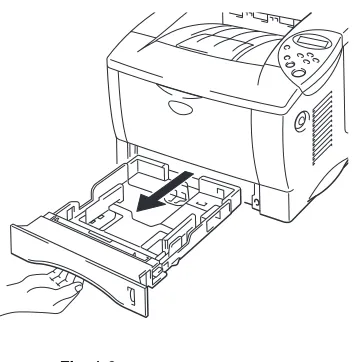
(27) CHAPTER 1 ABOUT THIS PRINTER. Printing from the Paper cassette ☛ 1. Pull the paper cassette out of the printer.. Fig. 1-6. ☛ 2. While pressing the paper guide release lever, slide the adjusters to fit the paper size. Check that they fit correctly into the slots.. Fig. 1-7. 1-17.
(28) For Legal or 8.5 x 13 in. paper While pressing the Universal guide release lever, extend the rear of the Paper cassette.. Fig. 1-8. ☛ 3. Load paper in the paper cassette. Check that the paper is flat and below the limit mark.. Fig. 1-9. 1-18.
(29) CHAPTER 1 ABOUT THIS PRINTER. ✒ Note Do not load more than 250 sheets of paper (80 g/m2 or 21 lb.) in the cassette or paper jams may occur. Paper can be loaded up to the lines on the sliding guide.. ☛ 4. Install the paper cassette into the printer.. ✒ Note • Extend the Extension flap to prevent the paper from sliding off the face down output tray. • If you choose not to extend the Extension flap, we recommend that you remove printed pages immediately after they exit the printer.. When you print on transparencies, use the Face down output tray.. Fig. 1-10. 1-19.
(30) ☛ 5. Change the following settings in the printer driver Properties tab. <PCL driver>. Select the paper size, media type etc.. Select the Paper source.. <PS driver>. Select the Paper size.. Select the Paper source etc.. 1-20.
(31) CHAPTER 1 ABOUT THIS PRINTER. Printing from the Multi-purpose tray ✒ Note • For correct printing, you must select the same paper size from within your software application as the paper in the tray. • If your application software does not support paper size selection in its print menu, you can change the paper size on the printer’s control panel under the PAPER menu. For more information, see Chapter 3.. ☛ 1.. Open the Multi-purpose tray.. Fig. 1-11. ☛ 2.. Unfold the Multi-purpose tray extension.. Fig. 1-12. 1-21.
(32) ☛ 3.. Place paper in the Multi-purpose tray so it touches the back of the tray and remains below the limit mark.. Fig. 1-13. ✒ Note When you place paper on the Multi-purpose tray, note the following: • If you will be printing on paper that weighs more than 135 g/m2 (36 lbs), use the face up output tray. • Insert the leading edge of the paper first and push it gently into the tray. • If you use pre-printed paper in the Multi-purpose tray, the paper should be inserted top edge first with the printed side face up.. 1-22.
(33) CHAPTER 1 ABOUT THIS PRINTER. ☛ 4.. Press and slide the paper width adjuster to fit the paper.. Fig. 1-14. ✒ Note • Make sure neatly stacked paper is correctly seated in the Multi-purpose tray; otherwise paper may not be fed correctly, resulting in skewed printouts or paper jams. • During printing, the inside tray automatically rises to feed paper into the printer.. ☛ 5.. When you print on transparencies, use the Face down output tray.. Fig. 1-15. 1-23.
(34) ☛ 6.. Change the following settings in the printer driver properties tab.. <PCL driver>. Select the paper size, media type etc.. Select the Paper source.. <PS driver>. Select the Paper size.. Select the Paper source etc.. 1-24.
(35) CHAPTER 1 ABOUT THIS PRINTER. Printing envelopes Envelope types to avoid • • • • • • • • • • • • •. Envelopes that are damaged, curled, wrinkled, or irregularly shaped Envelopes that are extremely shiny or highly textured Envelopes with clasps, snaps or tie strings. Envelopes with self-adhesive closures Envelopes of baggy construction Envelopes that are not sharply creased Embossed envelopes Envelopes that were previously printed by a laser printer Envelopes that are pre-printed on the inside Envelopes that cannot be arranged uniformly when placed in a pile Envelopes constructed with paper that exceeds the paper weight specifications for the printer. Poorly manufactured envelopes with edges that are not straight or consistently square. Envelopes with transparent windows, holes, cutouts or perforations.. 1-25.
(36) Fig. 1-16. USE OF THE ENVELOPE TYPES LISTED ABOVE MAY CAUSE DAMAGE TO YOUR PRINTER. SUCH DAMAGE IS NOT COVERED UNDER ANY WARRANTY OR SERVICE AGREEMENT.. ✒ Note •. Before printing envelopes, you must fan the stack of envelopes well to avoid paper jams and misfeeds.. •. Do not load different types of paper at the same time in the paper cassette because paper jams and misfeeds may occur. Do not print envelopes using Duplex printing. For correct printing, you must select the same paper size from within your software application as the paper in the tray. If your application software does not support paper size selection in its print menu, you can change the paper size on the printer’s control panel under the PAPER menu. For more information, see Chapter 3.. • • •. 1-26.
(37) CHAPTER 1 ABOUT THIS PRINTER. ☛ 1.. Open the Multi-purpose tray.. Fig. 1-17. ☛ 2.. Unfold the Multi-purpose tray extension.. Fig. 1-18. 1-27.
(38) ☛ 3.. Open the Face up output tray.. Fig. 1-19. ☛ 4.. Place envelopes in the Multi-purpose tray so they touch the back of the tray and remain below the limit mark.. Fig. 1-20. ✒ Note When you place paper in the Multi-purpose tray, note the following: • If you will be printing on paper that weighs more than 135 g/m2 (36 lbs), use the face up output tray. • Insert the leading edge of the paper first and push it gently into the tray. • The top of the paper stack must be under the guides that are on both sides of the tray. The maximum thickness is 11 mm (or 0.43 inch). • The printed side must be face up.. 1-28.
(39) CHAPTER 1 ABOUT THIS PRINTER. ☛ 5.. Press and slide the paper width adjuster to fit the envelope size.. Fig. 1-21. ✒ Note • •. Make sure that neatly stacked envelopes are correctly seated in the Multi-purpose tray otherwise envelopes may not be fed correctly, resulting in skewed printouts or paper jams. When printing, the inside tray automatically rises to feed envelopes into the printer.. 1-29.
(40) ☛ 6.. Change the following settings in the printer driver properties tab.. <PCL driver>. Select the envelope size, media type etc.. Select the Multipurpose tray.. <PS driver>. Select the envelope size.. Select the Multi-purpose tray.. 1-30.
(41) CHAPTER 1 ABOUT THIS PRINTER. Printing on Labels, Transparencies etc. Special paper types to avoid •. Damaged, curled, wrinkled, or irregularly shaped paper. Fig. 1-22. 1-31.
(42) ✒ Note •. Before using paper with holes, such as organizer sheets, you must fan the stack of paper well to avoid paper jams and misfeeds.. • •. Do not use paper with perforations at the edge. Do not place the punched holes of organizer sheets near the actuator (paper sensor). Do not use organizer sheets that are stuck together. The glue on them might cause damage to the printer. Do not load different types of paper at the same time in the paper cassette because it may cause paper jams or misfeeds. For correct printing, you must select the same paper size from within your software application as the paper in the tray. If your application software does not support paper size selection in its Print menu, you can change the paper size on the printer’s control panel under the PAPER menu. For more information, see Chapter 3.. • • • •. Warning Do not touch transparencies that have just been printed because they are very hot!. 1-32.
(43) CHAPTER 1 ABOUT THIS PRINTER. ☛ 1.. Open the Multi-purpose tray.. Fig. 1-23. ☛ 2.. Unfold the Multi-purpose tray extension.. Fig. 1-24. 1-33.
(44) When you use labels, open the Face up output tray. When you use transparencies, print to the Face down output tray.. Fig. 1-25. ☛ 3.. Place paper in the Multi-purpose tray so it touches the back of the tray and remains below the limit mark.. Fig. 1-26. ✒ Note When you place paper in the Multi-purpose tray, note the following: • If you will be printing on paper that weighs more than 135 g/m2 (36 lbs), use the face up output tray. • Insert the leading edge of the paper first and push it gently into the tray. • The printed side must be face up.. 1-34.
(45) CHAPTER 1 ABOUT THIS PRINTER. ☛ 4.. Press and slide the paper width adjuster to fit the paper.. Fig. 1-27. 1-35.
(46) ☛ 5.. Change the following settings in the printer driver Properties tab.. <PCL driver>. Select the envelope size, media type etc. Select the Multi-purpose tray.. <PS driver>. Select the envelope size.. Select the Multi-purpose tray.. 1-36.
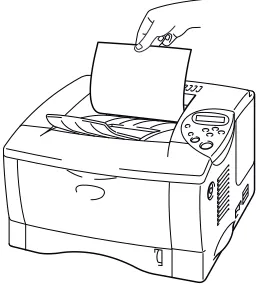
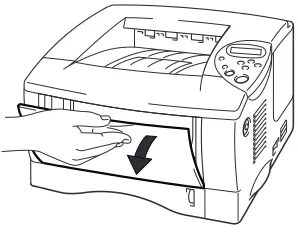
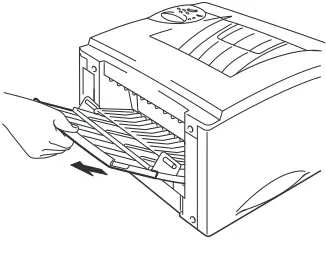
(47) CHAPTER 1 ABOUT THIS PRINTER. Printing to the Face up output tray (Face up printing) When the Face up output tray is open, the printer has a straight paper path from the Paper cassette or Multi-purpose tray to the rear of the printer. Use this output method when you want to print on special media that is thick or should not be bent, such as heavy paper, labels, transparencies, card stock or envelopes.. ☛ 1.. Open the Face up output tray.. Fig. 1-28. ☛ 2.. Unfold the Face up output tray extension.. Fig. 1-29. 1-37.
(48) ☛ 3.. Place the paper into the Paper cassette or Multi-purpose tray.. Fig. 1-30. ☛ 4.. After the printer ejects all the printed pages, remove them and close the Face up output tray.. 1-38.
(49) CHAPTER 1 ABOUT THIS PRINTER. Printing on both sides of the paper (Duplex printing). The supplied printer drivers for Windows® 95 / 98 / Me, Windows NT® 4.0, Windows® 2000 supports automatic duplex printing.. Guidelines for printing on both sides of the paper. 1 If the paper is thin, it may wrinkle.. 2 If paper is curled, straighten it, and then place it in the paper cassette. 2 3 Use A4, Letter or Legal size plain paper (60 to 105 g/m or 16 to 28 lb.). Do not use bond paper.. 4 If the paper is not feeding correctly, it may be curled. Remove the paper and straighten it.. 1-39.
(50) ☛ 1.. Load paper into the Paper cassette or Multi-purpose tray.. Fig. 1-31. ☛ 2.. When you use A4 or Letter size paper, set the Paper adjustment lever for duplex printing to match your paper size.. Fig. 1-32. ✒ Note If the Paper adjustment lever for duplex printing is not correctly set for the paper size, paper jams may occur and the printing will be out of position on the paper.. 1-40.
(51) CHAPTER 1 ABOUT THIS PRINTER. ☛ 3.. Open the Properties tab in the printer driver. Select the duplex printing mode in the Paper tab, and then click the OK button. The printer will print on both sides of the paper automatically.. 1-41.
(52) Manual Feed If you place paper in the Multi-purpose tray when the setting MANUAL FEED = ON has been set in PAPER mode using the control panel, the printer will load paper only from the Multi-purpose tray.. ✒ Note. When you feed paper manually, note the following: • If your application software supports a manual feed selection in the Print menu, you can select it in that software. The software command setting overrides the Control panel’s setting. You will not have to set MANUAL FEED and MP SIZE in PAPER mode. • If you use pre-printed paper in the Multi-purpose tray, the paper should be inserted top edge first with the pre-printed side face up.. 1-42.
(53) CHAPTER 2 DEIVER AND SOFTWARE. C H A PTER 2 DRIVER AND SOFTWARE. 2.
(54) CHAPTER 2 DEIVER AND SOFTWARE. Printer Driver A Printer Driver is software that translates data from the format used by a computer into the format required by a particular printer, which is typically done using a printer command language or page description language. The printer drivers for the following operating systems are on the supplied CD-ROM. The latest printer driver can also be downloaded from the Brother Solutions Center at http://solutions.brother.com.. For Windows® 95/98/Me, Windows NT® 4.0 and Windows® 2000. • PCL (Hewlett-Packard Laserjet laser printer) driver • BR-Script (PostScript Level3 language emulation) driver For Macintosh • BR-Script (PostScript Level3 language emulation) driver (For more information, see the Network User’s Guide on the CD-ROM.) • USB printer driver for Macintosh. 2-1.
(55) PCL driver. PS driver. Windows 95/98/Me. ✔. ✔. Windows 2000. ✔. ✔. Windows NT4.0. ✔. ✔ ✔. Macintosh (via Network) ✔. Macintosh (via USB). If you want to print from a DOS application, please see Chapter 6 of this manual.. 2-2.
(56) CHAPTER 2 DEIVER AND SOFTWARE. Features in the PCL printer driver (Windows users only) For more detailed information, please see the on-line Help in the printer driver. You can also change settings by clicking the illustration on the left side of the tab screen.. Basic tab. 1. 2. 1. Select the Paper size, Multi-page, Orientation etc... 2. Select the Paper source etc... 2-3.
(57) Advanced tab 1. 2. 3. 4. 5. Change the tab settings by pressing these icons as follows: 1. 2. 3. 4. 5.. Print Quality Duplex Watermark Page Setting Device Options. 2-4.
(58) CHAPTER 2 DEIVER AND SOFTWARE. ♦ Print Quality Select the Resolution, Toner save and Print settings. •. You can change the resolution as follows: 300 dpi 600 dpi HQ1200: Brother HQ1200 technology provides the best print quality while printing at full engine speed.. •. Toner Save You can save running costs by turning on the Toner Save mode, which reduces the printer density.. •. With the Print setting set to MANUAL, you can change the Brightness, Contrast, Graphics mode settings and TrueType mode options manually.. ♦ Duplex This printer has a Duplex printing function as standard. If you select the duplex button, the dialogue box for making duplex settings appears. Six types of duplex binding directions are available for each orientation.. 2-5.
(59) ♦ Watermark You can place a watermarked logo or text into your documents. When you use a bitmap file as a watermark, you can change the size of the watermark and place it anywhere you like on the page. When you use text as a watermark, you can change the font, darkness and angle settings.. ♦ Page Setting Change the print image scaling and select Mirror / Reverse print options.. 2-6.
(60) CHAPTER 2 DEIVER AND SOFTWARE. ♦ Device Options. Set the following print function modes in this tab. Job Spooling Quick Print Setup Sleep Time Status Monitor Macro Administrator Insert Command File Page Protection Print Date & Time. 2-7.
(61) Job Spooling You can reprint a document without sending the data again ( you will need to send the password again if one is set) from your PC because the printer will save data that you specify for reprinting. • •. Last job reprint : Secure Print :. Reprint the last job Print the data with a password. For more information about the reprint function, see “REPRINT switch” in Chapter 3. Note If you want to prevent other people from printing your own data using the reprint function, remove the Use Reprint check mark in Job Spooling settings.. 2-8.
(62) CHAPTER 2 DEIVER AND SOFTWARE. Accessories When you install options, add those options and make settings for them in the Accessories tab as follows.. 1. 2 1. You can add and remove the options manually or automatically. Automatic Printer Options Detection This function detects the current optional unit devices automatically and the available functions are reflected in the printer driver. When you press “Auto Detect”, options that are installed on the printer will be listed. You can manually add or delete options. Tray and other settings will match the installed options.. 2. Paper Source Setting This feature recognizes the paper size in each paper tray automatically.. 2-9.
(63) Support tab. • • • •. You can download the latest driver by accessing the Brother Solutions Center at http://solutions.brother.com. You can see the printer driver version. You can check the current driver settings. You can print the Configuration page, Test page, etc... 2-10.
(64) CHAPTER 2 DEIVER AND SOFTWARE. Features in the PS printer driver (Windows users only) For more detailed information, please see the on-line Help in the printer driver.. Details tab. Select the port where your printer is connected or the path to the network printer you are using. Select the printer driver that you installed.. 2-11.
(65) Paper tab. 1. 2 3. 1. Select the Paper size, Multi-page, Orientation, etc... 2. Select the Paper source.. 3. Select the Duplex function.. 2-12.
(66) CHAPTER 2 DEIVER AND SOFTWARE. Graphics Set the print quality, etc... 2-13.
(67) Device Options. 1. 2. 1. You can change settings by clicking the setting and then selecting a new value in the Change Settings box. Toner Save Mode Sleep Mode Media Type HRC setting Job spooling (You need to set the RAM Disk size first. For more information, see Chapter 3.). 2. Select the installed options from the list.. 2-14.
(68) CHAPTER 2 DEIVER AND SOFTWARE. ♦ Job Spooling You can print a document without sending the data again (except Secure printing) from your PC because the printer will save data that you specify for reprinting. For more information, see Chapter 3. •. Secure Print :. Print the data with a password. 2-15.
(69) Features in the bonus software (Windows users only) ♦ Automatic E-mail Printing Automatic E-mail printing is used to download e-mail automatically, receive mail at the selected time and print it automatically. You can also set it to select the mail to be printed automatically depending on the sender and the subject of the e-mail.. Search e-mail by the sender and the subject and auto print As soon as an e-mail is received, the printer prints it automatically without your having to start the print operation. You can also choose the mail you want to print by having the printer search by sender and subject.. Auto access at the selected time You can check incoming e-mail by accessing the server at the time you set.. Several mail users can share a PC Usually, it is difficult to share e-mail software between several people on one PC. Automatic E-mail Printing supports multi-users, so several people can use e-mail software on one PC.. You can keep your current e-mail software. Even if you use Netscape or Microsoft Internet Mail, you can use Automatic E-mail Printing and get additional functions not supplied in the original e-mail software.. 2-16.
(70) CHAPTER 2 DEIVER AND SOFTWARE. Software for networks. ♦ BRAdmin professional BRAdmin professional is a utility for managing your Brother network enabled printers which are running under Windows 95/98/Me, Windows 2000 and Windows NT 4.0 and allows you to easily configure and check the status of your network enabled printer.. ♦ Storage Manager Brother Storage Manager software can manipulate the printer forms that you may have stored in the internal flash memory. You can print the fixed form document at any time by operating the control panel. To make the fixed document to print, you must first write Fonts, Macros or fixed forms to the memory of your printer.. 2-17.
(71) ♦ Network Printer Driver Wizard This installer includes the Windows PCL driver and Brother network port driver (LPR and NetBIOS). The administrator should set up the IP address, Gateway, Subnet without BRAdmin Professional before using this software. If the administrator then installs the printer driver and port driver using this software, he can save the file to the File server or send the file via E-mail to users. Then, users just click that file and the printer driver, port driver and IP address, etc., is automatically copied to their PC.. 2-18.
(72) CHAPTER 2 DEIVER AND SOFTWARE. Software installation for Windows computers You can install the Software from the supplied CD-ROM as follows:. ☛ 1.. Insert the CD-ROM into the CD-ROM drive. The opening screen appears automatically. If the screen does not appear, click Start and choose Run, enter the CD drive letter and type \START.EXE (for example: D:\START.EXE).. ☛ 2.. Select the LANGUAGE, and then follow the on-screen instructions. The printer driver will complete the installation.. 2-19.
(73) Software installation for Macintosh computers This printer supports Mac OS versions 8.51, 8.6, 9.0 and 9.04.. Apple LaserWriter 8 Driver The Apple LaserWriter Driver may have been installed with your system. It is also available at http://www.apple.com. LaserWriter 8 versions 8.6 and 8.7 have been tested for use with this printer.. PostScript Printer Description Files (PPDs) PPDs, in combination with the Apple LaserWriter 8 Driver, access the printer features and allow the computer to communicate with the printer. An installation program for the PPDs (“BR-Script PPD Installer”) is provided on the CD-ROM.. 2-20.
(74) CHAPTER 2 DEIVER AND SOFTWARE. Installing the printer driver for Macintosh. <For Network users with the PS driver> ☛ 1.. Turn on your Macintosh computer. Insert the CD-ROM into the CD-ROM drive. The following window will appear automatically.. ☛ 2.. To install the BR-Script PPD file, click this icon.. ☛ 3.. To set up the LaserWriter driver, refer to the Network User’s Guide.. 2-21.
(75) <For USB users with the PCL driver> ☛ 1.. Turn on your Macintosh computer. Insert the CD-ROM into the CD-ROM drive. The following window will appear automatically.. ☛ 2.. Double click the Printer Driver Installer icon and then follow the instructions on the screen.. ☛ 3.. Connect the USB interface cable to your Macintosh, and then connect it to the printer.. ☛ 4.. Open the Chooser from the Apple Menu on the Macintosh, and click the Brother HL-1650/1670N icon and highlight it.. 2-22.
(76) CHAPTER 2 DEIVER AND SOFTWARE. Automatic Emulation Selection This printer has an Automatic emulation selection function. When the printer receives data from the computer, it automatically selects the emulation mode. This function has been factory set to ON. The printer can select among the following emulation combinations:. EPSON (default) HP LaserJet BR-Script 3 EPSON FX-850. IBM HP LaserJet BR-Script 3 IBM Proprinter XL. You can select the emulation mode manually in the EMULATION menu in SETUP mode by using the control panel. For more information, see Chapter 3.. 2-23.
(77) Note When you use the Automatic emulation selection, note the following: • The EPSON or IBM emulation mode priority must be selected, because the printer cannot distinguish between them. Since the factory setting is the EPSON emulation mode, to use the IBM emulation mode you may need to select it in the EMULATION menu in SETUP mode using the control panel. • Try this function with your application software or network server. If the function does not work properly, either select the required emulation mode manually using the printer panel switches or use the emulation selection commands from your software.. 2-24.
(78) CHAPTER 2 DEIVER AND SOFTWARE. Automatic Interface Selection This printer has an Automatic interface selection function. When the printer receives data from the computer, it automatically selects the interface that is appropriate. When you use the parallel interface, you can turn the high-speed and bidirectional parallel communications on or off in the Parallel menu in INTERFACE mode using the control panel. For more information, see Chapter 3. Since the automatic interface selection mode has been factory set to ON, simply connect the interface cable to the printer. If a Network board (Brother NC-4100h) has been installed, select NETWORK mode by using the control panel.. If you constantly use only one interface, we recommend that you select that interface in the interface mode. The printer allocates all of the input buffer to that interface if only one interface is selected.. 2-25.
(79) Printer Settings Factory settings The printer settings have been set at the factory before shipment. They are called “Factory settings.” Although you can operate the printer with these factory settings unchanged, you can tailor the printer with user settings. Please see “List of Factory settings” in Chapter 3.. Note Changing the user settings does not affect factory settings. You cannot modify the preset factory settings.. The changed user settings can be restored to the factory default settings with the RESET MENU mode. For more information, see Chapter 3.. 2-26.
(80) CHAPTER 3 CONTROL PANEL. C H A PTER 3 CONTROL PANEL. 3.
(81) CHAPTER 3 CONTROL PANEL. Control panel. Data Back. Reprint Set Job cancel. Go. Fig. 3-1. 3-1.
(82) USER’S GUIDE. Switches You can control the basic printer operations and change various printer settings with 7 Control panel switches (Go, Job Cancel, Reprint, +, −, Set, Back).. 1. Key Go. 2. Job Cancel. 3 4. Reprint. + -. 5. Set. 6. Back. Function Exit from the Control panel menu, Reprint settings and Error messages. Pause / Continue printing. Stop and cancel the printer operation in progress. Select the Reprint menu. Move forward and backward through Menus. Move forward and backward through selectable options. Select the Control panel menu. Set the selected menus and settings. Go back one level in the menu structure.. 3-2.
(83) CHAPTER 3 CONTROL PANEL. Go switch. The panel indications can be changed from the current status (MENU, ERROR and REPRINT settings) by pressing the Go switch once. For ERROR indications, the panel changes only when the error is cleared.. You can PAUSE printing with the Go switch. Pressing the Go switch again restarts the print job and clears the PAUSE. During PAUSE, the printer is in the off-line state.. Note If you do not wish to print the remaining data when the printer is in PAUSE, you can cancel the job by pressing the Job Cancel switch. Press the Go switch to clear the PAUSE and return the printer to the “Ready” state.. 3-3.
(84) USER’S GUIDE. Job Cancel switch. You can cancel the processing or printing of data with the Job Cancel switch. The display shows “JOB CANCELLING” until cancelling is completed. After cancelling the job, the printer returns to the “READY” state. When the printer is in any state except receiving data or printing, the display shows “NO DATA!!!” and you cannot cancel the job.. 3-4.
(85) CHAPTER 3 CONTROL PANEL. Reprint switch. If you want to reprint a document that has just been printed, you can reprint it by pressing the Reprint switch. Also, if you have created a document that you wish to share with colleagues, simply spool the document to a nonsecure area of the printer. This document can then be re-printed by anyone who is on the network or at the printer Control panel. You can use the reprint function when the printer is READY or in the Settings menu. When you want to print SECURE data, we recommend RAM enhancement to enable the reprint using the RAM function.. When you use RAM to reprint;. ☛ 1.. Press the Set switch on the Control panel to exit from the READY status and select RAMDISK SIZE in the SETUP mode.. ☛ 2.. The default RAM size is 0MB. Press the + switch to increase the reprint RAM size in 1MB steps.. Note When you increase the RAM size for secure printing, the work area of the printer is decreased and the printer performance will be reduced. When you store the data in RAM, the data will be deleted when the printer power is turned off.. We also recommend adding additional RAM when you want to be able to print a large amount of secure data. (See RAM expansion in Chapter 4.). 3-5.
(86) USER’S GUIDE. Reprinting the last JOB. You can reprint the last print job without sending it from the computer again.. Note • • • •. When REPRINT is set to Off using the control panel and you press the Reprint switch, the LCD briefly shows “NO DATA STORED.” If you want to cancel reprinting, press the Job Cancel switch. If the printer does not have enough memory to spool the print job, it prints only the last page. Pressing the – or + switch makes the number or reprint copies decrease or increase. You can select between COPIES= 1 and COPIES=999.. For more information about the settings in the printer driver, see “Job Spooling” in Chapter 2.. 3-6.
(87) CHAPTER 3 CONTROL PANEL. ♦ Reprint the last JOB 3 times. ☛ 1.. Set the REPRINT menu ON with SETUP mode using the Control panel.. Note If you print using this printer’s own driver, the settings for Job Spooling in the printer driver will take priority over the settings made in the Control panel. For more information, see “Job Spooling” in Chapter 2.. ☛ 2.. Press the Reprint switch.. COPIES=. 1. COPIES=. 3. If you wait too long to continue the switch panel operation, the display exits the REPRINT menu automatically. Press + until the next screen is displayed as shown below.. Press the Set or Reprint switch. PRINTING. Note If you want to reprint the data and have pressed the Go switch, the display shows “PRESS SET TO PRINT”. Press Set to start the reprint job or press the Go switch to cancel the reprint job.. 3-7.
(88) USER’S GUIDE. Printing SECURE data. Secure documents are password protected and only those people that know the password will be able to print the document. The printer will not print the document when you send it for printing; to print the document you must use the control panel of the printer. When you want to delete the spooled data, you can carry out this operation on the control panel.. Note • •. If there is data in the job information that cannot be displayed on the LCD, the display shows “?”. You can also reprint the job using the supplied printer driver.. For more information about the settings in the printer driver, see “Job Spooling” in Chapter 2.. 3-8.
(89) CHAPTER 3 CONTROL PANEL. Operations for printing secure data. If there is no data.. Press the Reprint switch.. NO DATA STORED. LAST JOB Press + or -. SECURE. Press Set.. USER. ✶✶✶✶✶✶✶ Press + or – to select the user name. Press Set to set the user name.. JOB. ✶✶✶✶✶✶✶ Press + or – to select the job. Press the Set switch to set the job.. PASS NO.=0000 Input your password. Press the Set switch to set the password.. COPIES=. 1. The printer will exit this menu after a timeout period.. Press the Set or Reprint switch. If you press the Go switch, the display shows “PRESS SET TO PRINT”.. PRINTING. 3-9.
(90) USER’S GUIDE. ♦ When there is no reprint data in memory If the printer does not have any data in buffer memory and you press the Reprint switch, the LCD briefly shows “NO DATA STORED.”. ♦. When you cancel the reprint job Pressing the Job Cancel switch allows you to cancel the reprint job. The Job Cancel switch also allows you to cancel a paused reprint job.. 3-10.
(91) CHAPTER 3 CONTROL PANEL. + / – switch If you press the + or – switch when the printer is the on-line state (READY), it goes off-line and the LCD displays the menu.. To display menus in the current mode If you press the + or – switch when the printer is in the on-line state (READY), it goes off-line and the LCD displays the current mode. You can enter other menus in the current mode by pressing the + or – switch. Pressing the + or – switch allows you to scroll forward or backward through the menus and settings on the display. Press or hold the switch until the display shows the desired item.. To set numbers There are two ways to input numbers. You can press the + or – switch to scroll up or down to set one number at a time, or you can hold down the + or – switch to scroll faster. When you see the number you want, press the Set switch.. 3-11.
(92) USER’S GUIDE. Set switch If you press the Set switch when the printer is in the on-line state (READY), it goes off-line and the LCD displays the current mode. Pressing the Set switch allows you to set the selected menu or the default number. After changing the menu or number, an asterisk appears briefly on the right side of the message and the mode returns to the previous menu.. 3-12.
(93) CHAPTER 3 CONTROL PANEL. Back switch If you press the Back switch when the printer is in the on-line state (READY), it goes off-line and the LCD goes to the menu display.. Pressing the Back switch allows you to return to the previous level from the current menu level. The Back switch also allows you to select the previous digit while inputting numbers. When the leftmost digit is selected, the Back switch allows you to go up one level in the menu. When a menu or number without an asterisk (Set switch not pressed) is selected, the Back switch allows you to return to the previous menu level with the original setting unchanged.. Note When you press the Set switch to select a setting, an asterisk appears briefly at the end of the display. Since the asterisk indicates the selection, you can easily find the current settings as you scroll through the display.. 3-13.
(94) USER’S GUIDE. L ED The lamps light or blink to indicate the current printer status.. DATA - Orange LED. LED indication On. Meaning Data remains in the printer buffer.. Blinking. Receiving or processing data. Off. No remaining data. 3-14.
(95) CHAPTER 3 CONTROL PANEL. LCD display. The display shows the current printer status. When you use the control panel switches, the display will change. When you take the printer off-line, the display changes to show the selected emulation. If any problems occur, the display shows the corresponding operator call, error, or service call message to prompt you to take an action. For more information about these messages, see “TROUBLESHOOTING” in Chapter 6.. 3-15.
(96) USER’S GUIDE. BACK LIGHTS Off Green (General). Red (Error) Orange (Setting). The printer is in sleep status. Warming up Ready to print Printing A problem has occurred with the printer. Setting Menu Setting reprint times Pause. 3-16.
(97) CHAPTER 3 CONTROL PANEL. Printer Status Messages The following table shows the printer status messages that are displayed during normal operation: Printer Status Message. Meaning. READY. Ready to print.. PROCESSING. Busy processing data.. SLEEP. In sleep status (power save mode).. PRINTING. Printing.. SELF TEST. Performing self-diagnostics.. PAUSE. The printer has suspended feeding forms. Pressing the Go switch resumes form feed.. NOW INITIALIZING. The printer is setting up.. WARMING UP. The printer is warming up.. MEMORY SIZE=XX MB. This printer has XX MB memory.. JOB CANCELLING. Cancelling the job.. RESOLUTION ADAPT. Printing with reduced resolution.. PRESS SET TO PRINT. Press the Set switch to start printing.. RESET TO FACTORY SETTING. The printer setting returns to the factory setting.. 3-17.
(98) USER’S GUIDE. How to use the Control panel When you operate the Menu switches (+&− −, Set, Back), remember the following basic steps: ♦. If no control panel operations are performed for 30 seconds, the LCD automatically returns to READY.. ♦. When you press the Set switch to select a setting, an asterisk briefly appears at the end of display. After that, the display returns to the previous menu level.. ♦. After changing the status or number, pressing the Back switch before pressing the Set switch will cause the display to return to the previous menu with the original setting unchanged.. ♦. When you input numbers, you can do it by scrolling through the available range (000 to 999) or by setting digits one at a time. When setting digits one at a time, the blinking digit is the changeable digit.. ♦. When you operate the + / −, Set, Back switches, remember the following basic steps.. 3-18.
(99) CHAPTER 3 CONTROL PANEL. ♦ For example : When you want to turn the MP FIRST setting ON Choose this setting to load paper from the Multi-purpose tray first. READY Press the +switch. Press the + or – switch to scroll forward or backward through the Menu selections. INFORMATION Press the Set switch. Press the Set switch to enter the next level of the selected menu. PAPER Press the Set switch to proceed to the next menu level.. SOURCE Press the. + switch.. Press the. Set switch.. MP FIRST. =OFF. ✱ Press the + switch.. =ON Press the Set switch. An asterisk ✱ briefly appears at the end of the display. The default setting is indicated by an “✱”.. =ON. ✱. 3-19.
(100) USER’S GUIDE. Control Panel setting menu We named the Paper tray in this manual and LCD panel as shown below: Upper paper tray Multi-purpose tray Optional lower tray. Tray 1 MP tray Tray 2. There are 8 modes. For more information about the selections available for each mode, refer to the pages listed below.. ♦. INFORMATION For more information, see 3-21. ♦. PAPER For more information, see 3-22. ♦. QUALITY For more information, see 3-22. ♦. SETUP For more information, see 3-23. ♦. PRINT MENU For more information, see 3-24. ♦. NETWORK For more information, see 3-30. ♦. INTERFACE For more information, see 3-31. ♦. RESET MENU For more information, see 3-32. 3-20.
(101) CHAPTER 3 CONTROL PANEL. INFORMATION Setting Menu. Description. PRINT SETTINGS. Print the Configuration page.. PRINT TEST. Print the test page.. RRINT DEMO. Print the demonstration.. PRINT FILE LIST. Print the file list.. PRINT FONTS. Print the font list and samples.. VERSION. MAINTENANCE. Sub-Setting Menu. Description. SER.NO=#########. Printer serial number.. ROM VER=####. ROM firmware version (only Network users). ROM DATE ##/##/##. ROM date (only Network users). NET VER=####. Network firmware version. NET DATE ##/##/##. Network date. RAM SIZE=###MB. The size of memory in this printer.. PAGE COUNTER. =######. REMAIN DRUM. =######. REMAIN PF KIT1. =######. REMAIN PF KIT2. =######. REMAIN FUSER. =######. REMAIN LASER. =######. 3-21.
(102) USER’S GUIDE. PAPER. Setting Menu. Description. SOURCE. =AUTO / MP TRAY /TRAY1 / TRAY2. MP FIRST. =OFF/ON Feed paper from the MP tray first.. MANUAL FEED. =OFF/ON. DUPLEX. =OFF/ON(LONG BIND)/ON(SHORT BIND). QUALITY Setting Menu. Description. RESOLUTION. =300/600/HQ1200 You can choose a print resolution of 300, 600 or HQ1200.. HRC. =OFF/LIGHT/MEDIUM/DARK HRC: High Resolution Control offers improved print quality of characters and graphics that conventional laser printers cannot attain with a resolution of 300 or 600 dpi.. TONER SAVE. =OFF/ON. DENSITY. =-6:0:6 Increase or decrease the print density.. 3-22.
(103) CHAPTER 3 CONTROL PANEL. c SETUP Setting Menu. Description. LANUGAGE. = ENGLISH /FRANÇAIS /…. LCD DENSITY. =0/1/2. POWER SAVE TIME. =1:99MIN.. AUTO CONTINUE. =OFF/ON. LOCK PANEL. =OFF/ON Turn on/off lock panel function. PASS NO.=###. RERRINT. =ON/OFF. PAGE PROTECTION. PROTECT = AUTO. EMULATION. =AUTO (EPSON)/AUTO(IBM)/ HP LASERJET/….. KEEP PCL. =OFF/ON. RAMDISK SIZE. =0/1/2…MB. DELETE STORAGE. Delete the internal flash memory print data.. AUTO, OFF, LETTER, A4 OR LEGAL. RESTART?. Sub-Setting Menu. Description. SECURE FILE. Select the User name, Job name and password.. DATA ID. =####. MACRO ID. =####. FONT ID. =####. FORMAT. OK?. 3-23.
(104) USER’S GUIDE. PRINT MENU. Setting Menu. Description. MEDIA TYPE. =PLAIN PAPER/TRANSPARENCIES/THIN PAPER/THICK PAPER/THICKER PAPER/BOND PAPER. PAPER. Set cut sheet paper size to LETTER, LEGAL, A4, A5, A6, B5, B6, EXECUTIVE, COM10, MONARCH, C5 and DL. COPIES. =1:999 Shows the number of printed pages.. ORIENTATION. =PORTRAIT/LANDSCAPE This printer can print pages in portrait or landscape orientation.. PRINT POSITION. AUTO FF=OFF. This printer can be adjusted to correct the page format.. Sub-Setting Menu. Description. X OFFSET=0. Move the print start position (at the upper left corner of pages) horizontally up to –500 (left) to +500 (right) dots in 300 dpi units.. Y OFFSET=0. Move the print start position (at the upper left corner of pages) vertically up to –500 (up) to +500 (down) dots in 300 dpi units.. =OFF/1:5:99 (sec) Allows you to print the remaining data without pressing the Go switch.. FF SUPPRESS. =OFF/ON Turn on/off the form feed suppress function.. 3-24.
(105) CHAPTER 3 CONTROL PANEL. PRINT MENU (continued) Setting Menu. Description. HP LASERJET. FONT NO.. =I0000:?????. FONT PITCH/POINT. =???.??. SYMBOL/CHARACTER SET. PC-8/…. TABLE PRINT. Print code table.. AUTO LF=OFF. =OFF/ON. Set the symbol set or the character set.. ON: CR→CR+LF, OFF: CR→CR =OFF/ON. AUTO CR=OFF. ON: LF→LF+CR, FF+CR, or VT→VT+CR OFF: LF→LF, FF→FF, or VT→VT =OFF/ON. AUTO WRAP=OFF. Line feed and carriage return occur when the printer reaches the right margin. =ON/OFF. AUTO SKIP=ON. line feed and carriage return occur when the printer position reaches the bottom margin. =####. LEFT MARGIN. Set the left margin at column 0 to 126 columns at 10 cpi. =####. RIGHT MARGIN. Set the right margin at column 10 to 136 columns at 10 cpi. =####. TOP MARGIN. Set the top margin at a distance from the top edge of the paper: 0, 0.33, 0.5, 1.0, 1.5 or 2.0” Factory setting=0.5. 3-25.
(106) USER’S GUIDE. Setting Menu. Description =####. BOTTOM MARGIN. Set the bottom margin at a distance from the bottom edge of the paper: 0, 0.33, 0.5, 1.0, 1.5 or 2.0” Factory setting: 0.33(None-HP), 0.5(HP) =####. LINES. Set the number of lines per page from 5 to 128 lines.. 3-26.
(107) CHAPTER 3 CONTROL PANEL. PRINT MENU (continued) Setting Menu. Description. EPSON FX-850. FONT NO.. =I0000:?????. FONT PITCH/POINT. =???.??. SYMBOL/CHARACTER SET. PC-8/…. TABLE PRINT. Print code table.. AUTO LF=OFF. =OFF/ON. Set the symbol set or the character set.. ON: CR→CR+LF OFF: CR→CR. AUTO MASK. =OFF/ON. LEFT MARGIN. =#### Set the left margin at column 0 to 126 columns at 10 cpi. =####. RIGHT MARGIN. Set the right margin at column 10 to 136 columns at 10 cpi. =####. TOP MARGIN. Set the top margin a distance from the top edge of the paper: 0, 0.33, 0.5, 1.0, 1.5 or 2.0” Factory setting=0.33 =####. BOTTOM MARGIN. Set the bottom margin a distance from the top edge of the paper: 0, 0.33, 0.5, 1.0, 1.5 or 2.0” Factory setting=0.33 =####. LINES. Set the number of lines per page from 5 to 128 lines.. 3-27.
(108) USER’S GUIDE. PRINT MENU (continued) Setting Menu. Description. IBM PROPRINTER. FONT NO.. =I0000:?????. FONT PITCH/POINT. =???.??. SYMBOL/CHARACTER SET. PC-8/…. TABLE PRINT. Print code table.. AUTO LF=OFF. =OFF/ON. Set the symbol set and the character set.. ON: CR→CR+LF, OFF: CR→CR. AUTO CR=OFF. =OFF/ON. LEFT MARGIN. =#### Set the left margin at column 0 to 126 columns at 10 cpi. =####. RIGHT MARGIN. Set the right margin at column 10 to 136 columns at 10 cpi. =####. TOP MARGIN. Set the top margin a distance from the top edge of the paper: 0, 0.33, 0.5, 1.0, 1.5 or 2.0” Factory setting=0.33 =####. BOTTOM MARGIN. Set the bottom margin a distance from the top edge of the paper: 0, 0.33, 0.5, 1.0, 1.5 or 2.0” Factory setting=0.33 =####. LINES. Set the number of lines per page from 5 to 128 lines.. 3-28.
(109) CHAPTER 3 CONTROL PANEL. PRINT MENU (continued). Setting Menu. Description. BR-SCRIPT. ERROR PRINT. =OFF/ON. APT. =OFF/ON APT: Advanced Photoscale Technology offers photographic fine grayscale on graphics. APT setting is available only at 600 dpi.. 3-29.
(110) USER’S GUIDE. NETWORK Setting Menu. Description. TCP/IP. Sub-Setting Menu. Description. TCP/IP ENABLE. =ON/OFF. IP ADDRESS=. ###.###.###.###. SUBNET MASK=. ###.###.###.###. GATEWAY=. ###.###.###.###. IP BOOT TRIES. =#. IP METHOD. =AUTO/STATIC/RARP/BOOTP/DHCP. NETWARE ENABLE. =ON/OFF. NET FRAME. =AUTO/8023/ENET/8022/SNAP. NETWARE. APPLETALK. =ON/OFF. NETBEUI. =ON/OFF. DLC/LLC. =ON/OFF. BANYAN. =ON/OFF. LAT. =ON/OFF. NETBIOS/IP. =ON/OFF. ENET. =AUTO/100B-FD/100B-HD/10B-FD/10B-HD. 3-30.
(111) CHAPTER 3 CONTROL PANEL. INTERFACE Setting Menu. Description. AUTO IF TIME. = 1:5:99 (sec) You must set the timeout period for the auto interface selection.. INPUT BUFFER. = Level1:5:15. RESTART PRINTER?. Increase or decrease the input buffer capacity.. PARALLEL. When using the parallel interface. Sub-setting Menu. Description. HIGH SPEED. =ON/OFF Turns the high speed parallel communications ON/OFF. =ON/OFF. BI-DIR=ON/OFF. Turns the bi-directional parallel communications ON/OFF.. 3-31.
(112) USER’S GUIDE. RESET MENU Setting Menu. Description. RESET PRINTER. Resets the printer and restores all printer settings – including command settings – to settings you have previously made with the control panel switches.. FACTORY RESET. Resets the printer and restores all printer settings – including command settings – to the factory settings. See “List of Factory Settings”.. 3-32.
(113) CHAPTER 3 CONTROL PANEL. Set IP Address INFORMATION. ↓. Press the + or – switch to select the “NETWORK” menu.. NETWORK. ↓. Press the Set switch.. ↓. Press the Set switch.. TCP/IP. TCP/IP ENABLE. ↓. Press the + switch.. IP ADDRESS=. ↓ 192.0.0.192. ↓. Press the Set switch.. ✲ The last number in the digit which you can change is blinking. Press the + or – switch to increase or decrease the number. Press the Set switch to go to next digit.. 123.0.0.192. ↓. Repeat this until you have set your IP address.. 123.45.67.89. ↓ 123.45.67.89. Press the Set switch to complete the IP address.. ✲. An asterisk appears at the end of the display.. 3-33.
(114) USER’S GUIDE. . About Emulation Modes This printer has the following emulation modes.. ♦. HP LaserJet Mode The HP LaserJet mode (or HP mode) is the emulation mode in which this printer emulates the Hewlett-Packard LaserJet laser printer. Many software applications support this type of laser printer. Using this mode will allow your printer to operate at its optimum performance with those applications.. ♦. BR-Script 3 Mode BR-Script is an original page description language and a PostScript language emulation interpreter. This printer supports level 3. The BR-Script interpreter of this printer enables full and satisfactory control of text and graphics on pages. Average users will not need extensive knowledge of the PostScript language. However, if you want to obtain technical information about PostScript commands, see the following commercial manuals: • • • • •. Adobe Systems Incorporated. PostScript Language Reference Manual, 2nd Edition. Menlo Park: Addison-Wesley Publishing Company, Inc., 1990. Adobe Systems Incorporated. PostScript Language Program Design. Menlo Park: Addison-Wesley Publishing Company, Inc., 1988. Adobe Systems Incorporated. PostScript Language Reference Manual. Menlo Park: Addison-Wesley Publishing Company, Inc., 1985. Adobe Systems Incorporated. PostScript Language Tutorial and Cookbook. Menlo Park: Addison-Wesley Publishing Company, Inc., 1985. Adobe Systems Incorporated. PostScript Language Reference Manual, third Edition. Addison-Wesley Longman, Inc., 1999.. 3-34.
(115) CHAPTER 3 CONTROL PANEL. ♦. EPSON FX-850 and IBM Proprinter XL Mode The EPSON FX-850 and IBM Proprinter XL modes are the emulation modes that this printer emulates to meet the industry-standard for dot matrix printers of their respective manufacturers. Some applications support these dot matrix printer emulations. Use these emulation modes for optimum performance when printing from those types of applications.. 3-35.
(116) USER’S GUIDE. List of Factory settings The following table shows the initial factory default settings.. Note • •. • •. The settings are subject to the emulation mode. Effective modes are indicated in parentheses in the following table. The following settings cannot be restored to the factory settings with the RESET menu in the “FACTORY SETTINGS” mode: INTERFACE MODE, HRC SETTING, PAGE PROTECTION, SCALABLE FONT, LOCK PANEL, PAGE COUNTER and local language for display messages. The COPY setting is always restored to the factory setting when the printer is turned off and on again. It is not possible to reset NETWORK setting on the Control panel. If you wish to reset the print server back to its default factory settings (resetting all information such as the password and IP address information) hold down the Network Test Button of the Network board (NC-4100h) for more than 5 seconds.. 3-36.
(117) CHAPTER 3 CONTROL PANEL. MODE. MENU. Factory Setting. PAPER. SOURCE. =AUTO. MP FIRST. =OFF. MP SIZE=. =A4/LTR. MANUAL FEED. =OFF. DUPLEX. =OFF. RESOLUTION. =600. HRC. =MEDIUM. TONER SAVE. =OFF. DENSITY. =0. LANGUAGE. =ENGLISH. LCD DENSITY. =0. POWER SAVE TIME. =5 MIN.. AUTO CONTINUE. =OFF. LOCK PANEL. =OFF. REPRINT. =ON. EMULATION. =AUTO (EPSON). KEEP PCL. =OFF. QUALITY. SETUP. 3-37.
(118) USER’S GUIDE. MODE. MENU. Factory Setting. PRINT MENU. MEDIA TYPE. =PLAIN PAPER. PAPER. =A4/LETTER. COPIES. =1. ORIENTATION. =PORTRAIT. PRINT POSITION. X OFFSET=0 Y OFFSET=0. AUTO FF TIME. =5. FF SUPPRESS. =OFF. HP LASER JET. FONT NO.=59 FONT PITCH/POINT=10.00/12.00 SYMBOL/CHARACTER SET=PC8 AUTO LF=OFF AUTO CR=OFF AUTO WRAP=OFF AUTO SKI=ON LEFT MARGIN=#### RIGHT MARGIN=#### TOP MARGIN=#### BOTTOM MARGIN=#### LINES=####. 3-38.
(119) CHAPTER 3 CONTROL PANEL. MODE. MENU. Factory Setting. EPSON FX-850. FONT NO.=59 FONT PITCH/POINT=10.00/12.00 SYMBOL/CHARACTER SET=US ASCII AUTO LF=OFF AUTO MASK=OFF LEFT MARGIN=#### RIGHT MARGIN=#### TOP MARGIN=#### BOTTOM MARGIN=#### LINES=#### FONT NO.=59. IBM PROPRINTER. FONT PITCH/POINT=10.00/12.00 SYMBOL/CHARACTER SET=PC8 AUTO LF=OFF AUTO CR=OFF LEFT MARGIN=#### RIGHT MARGIN=#### TOP MARGIN=#### BOTTOM MARGIN=#### LINES=####. 3-39.
(120) USER’S GUIDE. MODE. MENU. Factory Setting. BR-SCRIPT. ERROR PRINT=OFF APT=OFF. NETWORK. TCP/IP ENABLE=ON. TCP/IP. IP METHOD=AUTO IP ADDRESS=192.0.0.192 SUBNET MASK=0.0.0.0 GATEWAY=0.0.0.0 IP BOOT TRIES=3 IP METHOD=AUTO NETWARE ENABLE=ON. NETWARE. NEE FRAME=AUTO. APPLETALK. =ON. NETBEUI. =ON. DLC/LLC. =ON. BANYAN. =ON. LAT. =ON. NETBIOS/IP. =ON. ENET. =AUTO. 3-40.
(121) CHAPTER 4 OPTIONS. C H A PTER 4 O PTI O N S. 4.
(122) CHAPTER 4 OPTIONS. Optional accessories This printer has the following optional accessories. You can increase the capabilities of the printer with these items.. ♦ Options Lower tray unit. Network board. Additional memory. IrDA interface. LT-500. NC-4100h. 100pin DIMM. IR-1000. See Lower tray unit in this chapter. See Network option in this chapter. See RAM expansion in this chapter. See IrDA interface in this chapter. Optional font package. BS-3000. See Optional font package in this chapter. 4-1.
(123) Lower tray unit (LT-500) The Lower tray unit (tray 2) is a device that functions as an additional paper source. It can hold a maximum of 250 sheets of paper (80 g/m2 or 21 lb.).. Multi-purpose tray (MP tray) 100 sheets. Paper cassette (Tray 1) 250 sheets. Lower tray unit (Tray 2) 250 sheets. Expands up to 600 sheets total Fig. 4-1. To purchase the optional Lower tray unit (tray 2), consult the dealer where you purchased the printer.. 4-2.
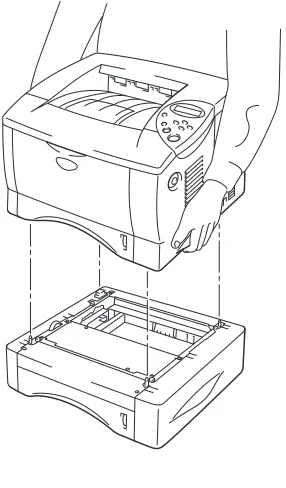
(124) CHAPTER 4 OPTIONS. Installing the Lower tray unit Install the optional Lower tray unit under the printer as follows:. ☛ 1.. Turn off the power switch, and then unplug the power cord.. ☛ 2.. Close the Process cover, Multi-purpose tray, Face up output tray and Extension flap.. ☛ 3.. Lift the printer carefully with both hands and place it on top of the Lower tray unit, so that the alignment pins of the Lower tray unit are inserted into the guide holes in the underside of the printer.. Fig. 4-2. Follow the instructions supplied with the Lower tray unit.. 4-3.
(125) Change the following settings in the printer driver Properties tab.. Select the paper size.. Select the Paper Source and Media type.. 4-4.
(126) CHAPTER 4 OPTIONS. Network option (NC-4100h) Installing the Network board enables you to use the printer in the TCP/IP, IPX/SPX, AppleTalk, DLC/LLC, Banyan VINES, DEC LAT and NetBEUI environments. Also, useful utilities such as BR-Admin 32 and Network Printing software for the administrator are included. For more information about Set Up, see the Network User’s Guide.. Installing the Network board ☛ 1.. Turn off the printer, and then unplug the power cord. Disconnect the interface cable (printer cable) from the printer.. ☛ 2.. Open the Interface cover.. Fig. 4-3. 4-5.
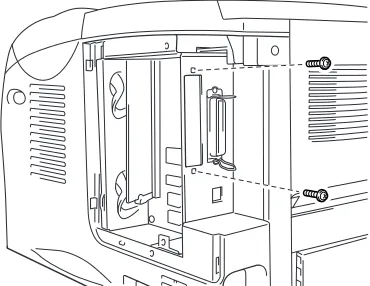
(127) ☛ 3.. Unscrew the two screws that secure the PCB access plate. Remove the plate.. Fig. 4-4. ☛ 4.. Remove the two screws securing the Network board cover plate and remove the plate.. Fig. 4-5. ☛ 5.. Unpack the Network board.. 4-6.
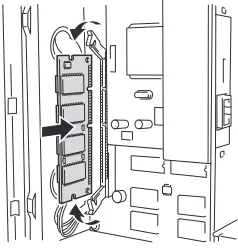
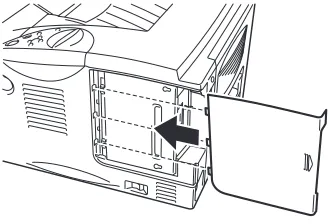
(128) CHAPTER 4 OPTIONS. ☛ 6.. Insert the Network board connector into the PCB connector, and then secure it with the two screws removed in Step 4.. Fig. 4-6. ☛ 7.. Re-install the PCB access plate, and then secure it with the two screws you removed in Step 3.. Fig. 4-7. 4-7.
(129) ☛ 8.. Close the Interface cover.. Fig. 4-8. ☛ 9.. Plug the power cord into the AC outlet, and then turn on the power switch.. 4-8.
(130) CHAPTER 4 OPTIONS. RAM expansion HL-1650: This printer has 8 Mbytes of standard memory and one slot for optional expansion memory. The memory can be expanded up to 136 Mbytes by installing commercially available dual in-line memory modules (DIMMs). (The standard memory installed varies depending on the country where it is purchased.). HL-1670N: This printer has 16 Mbytes of standard memory and one slot for optional expansion memory. The memory can be expanded up to 144 Mbytes by installing commercially available dual in-line memory modules (DIMMs). (The standard memory installed varies depending on the country where it is purchased.). This printer uses memory modules that are: 100 pins, no-parity, SDRAM with 64Mbit or more. This printer is not compatible with Extended Data Output (EDO) DIMM, or DIMM that uses 16 Mbit SDRAM.. 4-9.
Figure
+7

Related documents
Was very knowledgeable about the subject matter.. Provided valuable feedback on graded assignments. Thank you for responding to the following questions related to COVID-19 and
• Patented Audio Reference Companding employs, unlike conventional wireless technology, a level dependent microphone circuitry • Wide variety of legendary Shure
Siemens’ reputation for corporate responsibility was known to its Afghan employees, who had heard and read about the company’s policies abroad, and its leadership
pring scales measure force, which is the tension force of constraint acting on an o)ect, opposing the force of gravity. They are usually cali)rated so that measured force
BI platforms need to be supplemented by a software environment for analytical computing that is open source and has many contributors Supplier of BI platforms rely on
The main research focus of this study centres on “aspects of intervention processes that can provide relevant and valuable information for evaluating its success or failure.” Previous
This multiple case study used the concept of doing gender and transformational leadership for its conceptual framework, and was designed to identify the skillsets that women bring
Energy efficient operations Energy Efficiency Excellence Energy compliance 1 Fleet Management Excellence 2 Maritime Business Excellence 3 Environmental Technology and
