The
Connection Machine System
NQS for the CM-5
Version 2.0
January 1992
First printing, January 1992
The information in this document is subject to change without notice and should not be construed as a commitment by Thinking Machines Corporation. Thinking Machines Corporation reserves the right to make changes to any products described herein to improve functioning or design. Although the information in this document has been reviewed and is believed to be reliable, Thinking Machines Corporation does not assume responsibility or liability for any errors that may appear in this document. Thinking Machines Corporation does not assume any liability arising from the application or use of any information or product described herein.
Connection Machine® is a registered trademark of Thinking Machines Corporation. CM, CM-5, CM-2, CM-200, and DataVault are trademarks of Thinking Machines Corporation. CM Fortran is a trademark of Thinking Machines Corporation.
Thinking Machines is a trademark of Thinking Machines Corporation. UNIX is a registered trademark of AT&T Bell Laboratories.
Copyright © 1992 by Thinking Machines Corporation. All rights reserved. Thinking Machines Corporation
245 First Street
Contents
..--
':-..--;---About This Manual ...
Customer Support ...
Chapter 1 Using NQS on a CM-5...
1.1 A Simple Program ...
1.2 Overview of NQS ...
1.3 Submitting a Batch Request: The qsub Command .... 1.3.1 The Basics ...
1.3.2 Specifying the Queue ...
1.3.3 Specifying a Request from a Script File .... 1.3.4 Specifying a Request from Standard Input 1.3.5 The Output from a Request ... 1.3.6 Setting Limits on a Request ... 1.3.7 Choosing a Shell ... 1.3.8 Setting a Priority for a Batch Request . 1.3.9 Receiving Mail about a Batch Request
1.4 Deleting a Batch Request: The qdel Command .
1.5 Obtaining Information: The qstat Command .. 1.5.1 Finding Out about Batch Requests .... 1.5.2 Finding Out about Queues ...
Chapter 2 Configuring and Managing NQS ...
2.1 Starting Up NQS ...
2.2 Configuring NQS- The qmgr Utility ...
2.3 Who Can Issue qmgr Commands ...
2.4 Configuring Batch Queues- An Overview ...
2.5 Creating, Enabling, and Starting a Batch Queue . 2.5.1 2.5.2 2.5.3 v vii 1 1 2 4 5 6 7 7 7 9 10 11 11 12 12 13 14 17 18 18 19 20
...
21
The create batch queue Command
...
The enable queue Command ...
The start queue and set restriction window
Commands...
21 22
23
Version 2.0, January 1992
'Il
NQSfr.th.CM-2.6
2.7
2.8
2.9
2.10
2.11
2.12
Deleting a Restriction Window ...
Stopping, Disabling, and Deleting a Queue ...
Who Can Use a Queue? ...
Setting Limits ...
Creating Queue Complexes ...
Pipe Queues - An Overview ...
Creating, Configuring, and Managing Pipe Queues ... 2.11.1 An Example ...
2.11.2 Creating a Pipe Queue: The create pipe_queue
Command
...
2.11.3 Configuring and Managing Pipe Queues ...
Managing NQS ... 2.12.1 Shutting Down NQS ... 2.12.2 Creating a Default Batch Queue ... 2.12.3 Determining What Shell Is to Be Used ... 2.12.4 Setting the Default Intraqueue Priority ... 2.12.5 Logging Error Output ...
2.12.6 Running the nmapmcr Utility ...
24
25 26
27
28
30
31 31
32 33 34 34 35 35 36 37 37
The Machine ID ... 38
Adding an Entry to the nmapmgr Database ... 38
2.13 Obtaining Information ... 40
2.13.1 Obtaining Accounting Information ... . 41
Appendix Man Pages ...
...
43
Index ...
93
About This Manual
Objectives of This Manual
This manual is a guide to using, configuring, and managing the NQS batch system on the Connection Machine system Model CM-5.
Intended Audience
CM-5 users should read Chapter I to learn how to use the NQS batch system. We assume that users are familiar with the UNIX operating system and the basics of executing programs on the CM-5.
System administrators should read Chapter 2 for an explanation of how to configure and manage NQS.
Revision Information
This manual is specific to the CM-5. It is a new manual.
Related Documents
•
CM-5 Software Summary, CMosr Version 7.1* CM-5 System Administrator Guide, Version 7.1
a
NQS
fortheC
'Ii
Notation Conventions
The table below displays the notation conventions observed in this manual.
Convention Meaning
bold typewriter
italics
UNIX and CM System Software commands, command options, and filenames, when they appear embedded in text. Also C/Paris and C lan-guage elements, such as keywords, operators, and function names, when they appear embedded in text.
Argument names and placeholders in function and command formats.
typewriter Code examples and code fragments.
% bold typewriter In interactive examples, user input is shown in bold typewriter
typewriter and system output is shown in regular typewriter font
Customer Support
am
Thinking Machines Customer Support encourages customers to report errors in Connec-tion Machine operaConnec-tion and to suggest improvements in our products.
When reporting an error, please provide as much information as possible to help us iden-tify and correct the problem. A code example that failed to execute, a session transcript, the record of a backtrace, or other such information can greatly reduce the time it takes Thinking Machines to respond to the report.
If your site has an applications engineer or a local site coordinator, please contact that person directly for support. Otherwise, please contact Thinking Machines' home office customer support staff:
US. Mail: Thinking Machines Corporation Customer Support
245 First Street
Cambridge, Massachusetts 02142-1264
Internet
Electronic Mail:
uucp
Electronic Mail:
Telephone:
customer-supportthink.com
ames!think!customer-support
(617) 234-4000 (617) 876-1111
Chapter 1
Using NQS on a CM-5
NQS stands for Network Queueing System, which is a standard batch system. In a batch system, you submit one or more programs as a request to a queue, rather than executing them directly. The batch system in turn submits the requests in the queue for execution. Your request is generally executed when it reaches the head of its queue.
Read this chapter to learn how to use NQS on the CM-5. Read the next chapter if you are a system administrator and want to set up NQS on your CM.
To help you learn how to use NQS, we provide a trivial sample program in the first section of this chapter, followed by instructions on how to compile it. You can submit the compiled program via NQS to be executed on the CM.
11.1 A Simple Program
The program shown below is written in CM Fortran.
The program sets up three arrays of five elements each. The elements of array A are assigned the values 1, 2, 3, 4, 5; the elements of array B are each assigned the value 2. The program then squares each of these values, adds each element of A to the corresponding element of B, and puts the results in array C. It then prints
2" NQSfor theICM-S
a
qWType this program in a file as you normally would; call the file simple. fcm. (Remember that in Fortran each program statement must begin in column 7.) To compile the program, issue the following command at your UNIX prompt (which is represented as a percent sign in this manual):
.... .. ... . ... . . ....
%--
cmf
simpleie .fc
n
of . s
i..
:
.:- -:-::: :,-.-.-.::.-.-.:.-..:... . ..
You now have a CM Fortran program called simple that is ready for execution on the CM.
1.2 Overview of NQS
As mentioned above, NQS is a standard batch system. NQS can also be used for batch submissions to computers other than the CM. In this manual, however, we focus only on using NQS to submit requests for execution on the Connection Ma-chine system.
The CM system administrator is in charge of configuring NQS queues to meet the needs of your site. A particular partition manager on the CM may not have any queues, or it may have several. You may have only batch queues, which submit requests directly to the CM for execution, or you may in addition have pipe
queues, which pass requests along to batch queues. Pipe queues are useful
be-Ul
Version 2.0, January 1992
ChaMer .Usn
QSo
C-
cause they can be associated with several different batch queues; if one is unavailable, the pipe queue can try the next, until it finds one that will accept the request. You don't have to worry about finding the available queue yourself. Here are some of the characteristics of batch queues that a system administrator can configure:
*
Who can use a queue. The system administrator can restrict access to aqueue to specific users or groups.
*
Limits associated with requests in the queue. For example, there can belimits on the amount of CPU time or stack size that a request can use.
*
When the queue submits its requests for execution. A batch queue canop-erate continuously, or it can opop-erate only at specified times-for example, from midnight to six in the morning.
To submit a request for execution via either a batch queue or a pipe queue, you either:
* Issue the qsub command, using as an argument the name of a script file that contains the name of the program or programs to be run; or
· Submit the program or programs to qsub from the standard input See Section 1.3, below.
Processes in a batch request run under timesharing, just like any other processes. To obtain information about a queue, or about the status of a request in a queue, issue the qstat command. See Section 1.5.
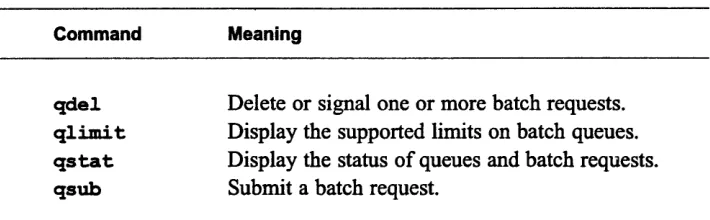
Table 1 lists the NQS user commands described in the rest of this chapter. The appendix contains UNIX man pages for all NQS commands.
Table 1. User commands for the NQS batch system.
Command Meaning
qdel Delete or signal one or more batch requests.
qlimit Display the supported limits on batch queues.
qstat Display the status of queues and batch requests.
qsub Submit a batch request.
4X
NQNMhe
M-1.3 Submitting a Batch Request: The qsub Command
Use the qsub command to submit a program for execution via either a batch queue or a pipe queue.
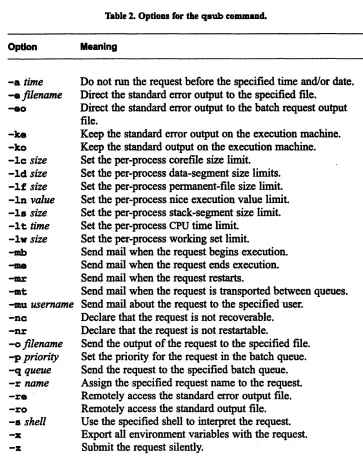
NOTE: The qsub command has many options associated with it; in this chapter, we discuss only some of the more important. See the man page for qsub in the appendix for a complete discussion of all its options. Table 2 summarizes the qsub options supported on the CM-5.
Table 2. Options for the qsub command.
Option Meaning
-a time
-e filename
-eo
-ke
-ko
-lc size
-id size
-if size
-In value
-18
size
-lt time
-lv size
-rb
-mr
-mt
-mu username
-nc
-nr
-o filename
-p priority
-q queue
-r name
-re
--ro
-s shell
-x
-z
Do not run the request before the specified time and/or date. Direct the standard error output to the specified file.
Direct the standard error output to the batch request output file.
Keep the standard error output on the execution machine. Keep the standard output on the execution machine. Set the per-process corefile size limit.
Set the per-process data-segment size limits. Set the per-process permanent-file size limit. Set the per-process nice execution value limit. Set the per-process stack-segment size limit. Set the per-process CPU time limit.
Set the per-process working set limit.
Send mail when the request begins execution. Send mail when the request ends execution. Send mail when the request restarts.
Send mail when the request is transported between queues. Send mail about the request to the specified user.
Declare that the request is not recoverable. Declare that the request is not restartable.
Send the output of the request to the specified file. Set the priority for the request in the batch queue. Send the request to the specified batch queue. Assign the specified request name to the request. Remotely access the standard error output file. Remotely access the standard output file. Use the specified shell to interpret the request. Export all environment variables with the request.
Submit the request silently.
Q.
Version 2.0, January 1992
9
Chpe 1 sngNSon aCM-
51.3.1 The Basics
To execute the program simple via the queue cmql, put the program's name in
a script file. A script file is simply a UNIX file that contains commands to be
executed. For example, you could create a file that contains just the word
simple; you could call the file /yourname/simplescript. You could then
submit this file to cmql as follows:
%,
q: b --
-l ::---
imp s cr:p
The -q flag specifies the name of the queue to which you are submitting the request.
The system displays a response like this:
. ..- : . :: : - -: : -. .:-. :- . : :: . - - - .
:Request-:276.barney.acme.com
ub itted to queue
The number 276 is a sequence number assigned to this request by NQS, and
barney. acme. con is the hostname of the computer from which the request was
submitted; 276. barney. acme. comrn is the request-id for this request.
When simple is finally executed, its output is placed in a file; error messages are placed in another file.
Submitting a batch request has these basic elements:
· Specifying the queue to which the request is being submitted * Specifying the request to be run
* Specifying options that affect the way the request is to be run
You can embed qsub options at the beginning of the script file, along with the name of the executable program and other commands. See Section 1.3.2, below, for an example. NQS looks at options in the script file only if they are not speci-fied on the qsub command line; this lets you override a script file option by specifying a different setting for the option on the qsub command line.
a - NQ-fi theCM-S---
1.3.2 Specifying the Queue
There are several different methods of specifying the queue to which you want to submit your request. You can find out the names and characteristics of avail-able batch queues or pipe queues by issuing the qstat command with the -b or -p option, respectively; see Section 1.5.2.
You can use the following methods to specify a batch queue:
· Use the -q option on the qsub command line, as shown in the example above. NQS submits the request to the queue you specify.
* Embed the -q option in a script file that you name on the qsub command line. All qsub options must appear at the beginning of the script file, and must begin with a pound sign (#) followed by an "at" sign (@) and a dollar sign ($). The option must begin immediately after the dollar sign-no white space is allowed. Comments must begin with a pound sign. For ex-ample, the following script file sends the program simple to queue cmql for execution:
If you named this script file simple_script, you could execute the pro-gram by issuing the following command:
* Set the environment variable QUB _QUEUE to the name of the queue to which you want the request submitted. You would typically do this to set up a default queue for all requests, which you could override for a specific request by using the -q option. If you use the C shell, you could put the following command in your .cshrc file to set the default queue to cmq2:
Version 2.0, January 1992
Chpgter).~~~ds--
U
o
S7
If you don't use any of these methods for specifying a queue, the request is sub-mitted to the default batch queue for the system, if your system administrator has defined one.
1.3.3 Specifying a Request from a Script File
As we have already shown, you can execute a program by including its name in a script file. You can include UNIX commands in the file as well. Typically, NQS interprets the commands in a script file exactly as if you had typed them at your UNIX prompt. It may, however, use a different shell to interpret the commands, depending on how your system administrator has configured NQS. See Section
1.3.7, below.
1.3.4 Specifying a Request from Standard Input
Instead of using a script file, you can simply enter the request from standard in-put-that is, directly after the qsub command line. Put each command or program name on a separate line, and type the Ctrl-d key combination at the end to signal that there is no more input. For example:
If you are executing a shell under Emacs or Gmacs, type Ctrl-c Ctrl-d.
1.3.5 The Output from a Request
NQS places the output from a batch request in a file, which is by default placed in the directory from which you issued qsub. You can control the name and loca-tion of this file. The default filename consists of the first seven characters of the script name, followed by . o, followed by the sequence number of the request. Thus, in our example in Section 1.3.1, NQS would put the output in the file
sirn-9
M
NQfrteC-pe . o276 in your current working directory. Messages to standard error go
into a file with . e in the name instead of . o (simple_. e276 in this example). If you submit the request from standard input, the default output and error files would begin with STDIN. o and STDIN. e, followed by the sequence number. To specify a different output filename, use the -o option, followed by a path-name, on the qsub command line or in a script file. NQS writes output to the pathname you specify. For example,
causes the standard output of the program simple to be written to /requests/
simple. out.
Similarly, use the -e option to specify a different pathname for standard error output.
Another way to change the name of the output file is to use the -r option, fol-lowed by a request-name of up to 15 characters. This request-name identifies the request when you issue the qstat command to check the status of requests; if you don't specify a request-name, NQS uses the name of the script file (or STDIN) instead. If you do specify a request-name, NQS substitutes it for the name of the script file (or STDIN) in the name of the output file.
Here is sample output for our simple_script batch request:
NOTE: In processing the batch request, NQS runs a script as if it were logged in as you; start-up files like . cshrc and. login are executed. This means that you may see various messages along with the output. In particular, you will probably see the following message:
Version 2.0, January 1992
::; ::i :·.I::.::::·! ·i:~:·. -·~·::~.ii: , ii lililii~'l, :~liili::iii:i ··i ::·:·:':::::Ii:::i~::
~-::::::
·. : ·:-.: : ·:::::::::::::. ·-~.::.
':: · :. 1 :::: ·11:::.:::::: . . :·li~ii~~li : .·:ii~iii... · · .. ... ... :::::::::::::::: ,:.: ... ... s S'' : : :` '. l: ' :'n · m...
.:::
:...
.. .
....
...
·
::: T~::::::
~·-:i::
·
: .·:::.::.:::::..::.::::·:.::: .. :. .. ...
h e
,,
.snNS. onaCM-S9
This comes from the shell, warning you that there is no terminal associated with this job. You can ignore this message.
NOTE: While the request is running, NQS considers your home directory to be your current working directory (because it runs the request as a newly logged-in process). Thus, if the process dumps core, the corefile is placed in your home
directory, rather than the directory from which you submitted the request.
1.3.6
Setting
Limits on a Request
As shown in Table 2, the qsub command has many options you can specify to set limits on the amount of resources a batch request can use. The batch queue has its own set of limits. You can find them out by issuing the qstat command with the -1 option; see Section 1.5.2. You may want to set lower limits to obtain more favorable scheduling for your request, or to avoid running up accounting charges if, for example, your program goes into an infinite loop. If the limit you set exceeds the limit for a queue, the queue will not accept the request.
For example, use the -it option to set a limit on the amount of partition-manager CPU time an individual program within a batch request can use. The following command sets a limit of 120 seconds of CPU time for the program simple:
u
t
qsub
lt
120 si le
CMOST does not support all of the limit options that qsub lets you specify. If you specify an unsupported option, NQS ignores it. To find out which options your site supports, issue the qlimit command. For example, if your partition manag-er is named Barney, issue qlimit as follows:
% qimit arney
iili: .:.:: : .:~ .:. ,. .. .:: :: - : -. .
10
NQfoteM-The response might look like this:
These are the limits you can set for this partition manager. The "shell strategy" in this response refers to the default way in which NQS chooses a shell to inter-pret commands in a script file. See Section 1.3.7, below.
NOTE: Other limits may be available if you are sending your request to another computer.
1.3.7 Choosing a Shell
As we mentioned above, your system administrator can specify how NQS is to interpret commands in batch script files. This is called the shell strategy; you can find out the default shell strategy via the qlmit command. The possible shell strategies are:
* Free. Your login shell determines the appropriate shell to be used to
ex-ecute the commands in your script file, and exex-ecutes that shell. This typically means that NQS uses the shell that would have been used if you had issued the commands in the script file interactively. For example, if your script file begins with the line
your login shell would execute a C shell for the script file.
* Login. NQS uses your login shell to execute the commands in your script
file, regardless of the contents of your file.
Version 2.0, January 1992
NO for the CM-5
mpe 1. Ug
* Fixed. NQS uses a specified shell to execute the commands, regardless of
the contents of your script file. Use qlimit to find out the name of this shell.
You can override the shell strategy by using the -s option with the qsub com-mand. For example,
specifies that the C shell is to be used to interpret the commands in the script file
simplescript.
1.3.8 Setting a Priority for a Batch Request
To set a priority for your batch request in its queue, use the qsub option -p, fol-lowed by an integer from 0 to 63, inclusive; 63 is the highest priority, and 0 is the lowest priority. This priority determines the request's position in the queue. The request is placed in front of all requests with lower priority, and behind all re-quests with higher or the same priority.
If you don't specify a priority, the request is assigned a default priority, as set by the system administrator. Use the qatat command with the -fb or -fp option to determine the default priority for a queue; see Section 1.5.2.
NOTE: NQS does not necessarily run requests in the order in which they appear in a batch queue. It can take requests out of order to use resources efficiently. Generally, however, requests at the beginning of the queue are run before re-quests that appear later in the queue.
1.3.9 Receiving Mail about a Batch Request
Use the qsub options -mb and -me to specify that NQS is to send you mail about your batch request. Specify --mb to get mail when the request begins execution; specify -me to get mail when the request ends execution. Use the -mu option with a username to send the mail to another user.
To obtain more information about the status of a batch request, use the qatat command with the -a option; see Section 1.5.1.
Chapter . Using NS on a CM-5 11
12:i .. iS :: A NQifor the; CM-.*¢
1.4, Deleting a Batch Request: The qdel Command
Issue the qdel command to delete a request from a queue. As an argument, spec-ify the request-id that was displayed when you submitted the request. (You can also obtain the request-id by issuing the qstat command with the -a option; see Section 1.5.1, below.) For example,
%-
dl 276-submits a request, then deletes it. (You don't need to specify the hostname if you are issuing the command from the local host.)
This form of the qdel command does not delete a request that is actually run-ning. To do this, use the -k option. This option sends a SIGKILL signal to the specified request, causing it to exit and be deleted from the queue. If the request contains more than one process, all are signalled.
To send a signal other than SIGKILL to a running request, specify its number in-stead of k (see the discussion of sigvec in your UNIX documentation for signal numbers). For example, to send a SIGTERM signal to a running request with
re-quest-id 276, issue this command:
% qde -15
2276
1.5 Obtaining Information: The qstat Command
Use the qstat command to obtain information about queues and batch requests. This section describes some of the more important options; for complete infor-mation on qstat, see its man page in the appendix.
Version 2.0, January 1992
NO for the CM-5
Chapter 1. Uing NQ on CM-S 13
1.5.1 Finding Out about Batch Requests
If you issue qatat with no options, the status of all your requests on the local host are displayed. To find out the status of all requests on any queue, issue qstat with the -a option. To find out the status of the requests of a particular user, use the -u option, followed by the user's name. For example:
The response might look like this:
NQS Versioiw 2 .Q.T...t...
This shows that user Sharon has one request, with request-id
O@diamond. think. con and name cm5sub, running on the queue pn_128.
The other fields are:
PRI - This is the intraqueue priority for the request; see Section 1.3.8.
* NICE - This is the nice value for the request. If you don't specify this
value via the -n option to the qsub command, NQS uses the default value for the queue. (See your UNIX documentation for more information on nice values.)
cpu - This is the maximum partition-manager CPU time for the request; once again, you can set this via a qub option (-it), or you can accept the default queue limit.
*ME - This is the maximum memory for the request; for requests running
on a CM-5, this will always be UNLIMITED.
* STATE - This is the state of the request. A request can be in one of these
states:
· Arriving - A request is arriving if it is being placed on the queue from a remote host.
* Holding - A request is holding if it is currently prevented from
entering any other state because a hold has been placed on it.
1 4vxss @ < s s * s s N Q*f o th e C M -Sfo
* Waiting - A request is waiting if it was submitted with the con-straint that it not be run before a certain date or time, and that date or time hasn't arrived yet. You submit a request in this way by using the qsub option -a.
* Queued - When a request is queued, it is eligible to run as soon as the resource is available or the queue's restriction window opens. * Routing, Departing - If the queue is a pipe queue, a request can
be routing or departing as it passes through the queue.
* Staging - A request is staging when its input files are being brought on to the partition manager on which it is to execute. * Running - A request is running when it is actually executing. * Exiting - A request is exiting when it has completed execution
and the required output files are being returned.
1.5.2 Finding Out about Queues
Use qstat with the -b option to find out the status of NQS batch queues. The response might look like this:
There are two batch queues, ql and q2, on diamond. think. com. The other fields provide the following status information about the queues:
STATUS -- A queue can be in one of these states:
· AVAILABL - The queue is enabled (that is, you can submit re-quests to it) and started (that is, submitted rere-quests can run). · STOPPED - The queue is enabled but stopped (that is, the queue is
enabled, but queued requests are blocked from running).
Version 2.0, January 1992
NO for the CM-5
Chapter1.UsingNSo
a
---
-1-* DISABLED - You cannot submit requests to the queue.
*· NAVAIL - The queue is disabled and stopped.
* NQS DOWN - The NQS daemon for the partition manager is not
running.
You can submit requests to a queue only if the queue is enabled and the local NQS daemon is present.
* TOTAL - This is the number of requests currently in the queue.
* RUNNING - The first value in this field is the number of requests that are
running in the queue. The second value is the run limit for the queue (that is, the maximum number of requests that can be running in the queue at the same time). Thus, in the example, ql has one request running, and its run limit is 1; q2 has two requests running out of a possible 10.
* QuEED - This is the number of requests in the queue waiting to run.
*· n - This is the number of requests that are ineligible for processing.
* TRANSITION - This is the number of requests that are in between queues
(for example, between a pipe queue and a batch queue). Use the -p option to find out this information about pipe queues.
Use the -f option along with -b or -p to display information about a queue in a fuller format. For example,
might produce this response about the batch queue bqO:
16
I.... " " -- ··;'::;NSfrteC-.. XQ:C· C
Comments about some of these fields:
* The COMPLEX MEMBERSHIP field indicates whether or not this queue be-longs to a queue complex. Multiple queues can belong to a queue complex that shares a single run limit.
*
The Restriction Window fields indicate the time during which the queue is available to run requests.* The ACCESS field indicates what access restrictions, if any, have been placed on the queue. The system administrator can restrict access to speci-fied users and groups.
Version 2.0, January 1992
NQS
versont2
A'C QJUE: qOeoth n . . ... .·.. k.co . ... saus ··::- ·_': ::.:·:·AVIB.. ... .... . ...
~~~~~~~~~~~~~~~~~~~~~~~~~~~~~~~~~~~~~~~~~
:·::::.... :·..:...: · ·.... ·.: · i. .. . .. .ri.y. ..Total: Running: 0 0 1 .1~~~~~~~~~~~~~~~~~~~~~~~~~~~~~~~~~~~~~~~. ... ....
~
j:::·f ... . .. .. ... .... .. % -xr: ~~~~~~~~~~~~~~~~~~~~~~~~~~~~~~~~~~~~~~~~~~~~~~~:. ::r~i~ilei,:i~ii~ijli~i~i;·i~iiii . .... .'::·~:.:·:::.. i:~: ·l·:·:i~l.. .... .:... . ... .... ..:'.Ii:::··.. ...:.I::iCOPIEX MEMBERSH. ... .... . ... X u:::~·:: ::· .::. ... ...
~~~~~~~~~:····
·:·:& .... .R SOURCES...: . .
Per-process limit data = size 1 meq~bytes <DEFAULT>
... .. :··::~i I··::::il:: .. ...~ ~ ll::i·. . .. .. ....
PeZ.r-rocperm file~ s i ze imtI eabte DE Per-proees s ize limit ck 1" megab.ytepsaIDEFAU.
.:::: :..-::·:: :.:.:·:.:::::.:.: :i~iilj~j::l:: · :: · :::::U :::::::::::::i: r r~: u ... .... ... .... .. ... ... .... .::~·i:·i::i'l::::..i~i
Per-pocess CPU tim liit M .. '''··::::: 3 EE.0 <DEFAULT>.... .~~.:i~i::~- · . .... :::::ri::·..::~·::.: ·:::::::::I::::'~:. ...
:i:·::··~~~·~~Z
~
·I·~~ ::~~:-~ : :~~~::::~~
::..:~~~..:...:t a
X " " 'T :::.:.:::::. .·· :; .::... e -q ·::;:~~:···:·:..: :::.·.·:·:: D K 'i:i:: :·:':·: .... ... :·:·ili ::i':i:~.::··· ..
... ... ... :.:::·:: :' -- ···· :: .;.::::::·:'::::: I::::::;Y ... :CPU::::t~~~~~~~~~~~~~~~~~~ 600:0:,::.···:-:.::li:::l~il.:0II EFAULTX:l~i:'iiii.:·::::: ·:me%:·· ::-;--··` -· ·::·:: :: :::·: I::II::::.··:i::: :·3:
:: ·:::.:w o! r I: m eg a Y: 8I:·I: < I:: ':::: '::I:::-.::: - · ·: :·: · ·
P.er-process. woking: set'::I l it 1meay s<DEFAUL>
Reti tio inddow statt time ..;:.:.:.:... ....=... :...~~~~~~~~~~~~~~~~~~~~... <NONE>:-. . ...
Restriction..-
:
:.·:·:·:·.
.. .... ....·.·
·:·.D
X Windo w:s `stop:: time <ONN O N E >r tI'2ft · m ·:·:.:· ..:.: ;:: :: ..:..:::.:. : : .: :::.:·:~ ~ ~
...
.
Restriction ode indo :<NOT:;:-S`ET>:... .·
. ... . .. . ... ... . ... ... ... ... ... ..: . ·:-::: · .i;;:.ii~'..''.. .ij:I l ·:: Re i· f '.'sriction idw sed trinate signal .. <NOT SET> . ...
A C C ··:::~; ·· ··E SS·· :: ··::::: ·:·.::: '- '"'':;::: ;-: ·~:~' · · ··- :::::-`:'::::: .''::···-' '·:··· .... .... ..···--·..
Unrestr:":i~h i~n ice.. .access.
. ... ... ...~~~~~~~~~~~~~~~~~~~~~~~~~~~~~~~~~~~~~~~~~~~~~~~~~~~~~~~~~~~~~~~~~~~~.·. :I~:···
Chapter 2
Configuring and Managing NQS
This chapter describes how to configure and manage the NQS batch system. You can configure the batch system to meet the needs of your site. For example, you can:
* Configure a batch queue to run at certain times or on certain days, so that low-priority jobs can run late at night or on weekends. (See Section 2.5.3.) * Restrict a queue to specified users or groups of users, thereby limiting
ac-cess to the CM to high-priority jobs. (See Section 2.7.)
* Set limits on the kinds of processes that can run in the queue. (See Section 2.8.)
*
Assign batch queues to a queue complex, which has an overall limit on the number of requests that can run at the same time. (See Section 2.9.) * Create pipe queues, which feed requests to batch queues. This allows usersto submit requests to a single pipe queue, which can automatically find an available CM-5 partition. (See Section 2.10.)
18
No
teC-2.1 Starting Up NQS
The NQS software is typically installed on a partition manager as part of the in-stallation of CMOST. To start up NQS, run the script atartnqs. This script starts up the NQS daemon, nqsdaemon, and directs its output to /usr/spool/nqs/
log. daemon.
The installation puts NQS user commands in /usr/bin; it puts daemons (such as nqsdaemon) in /usr/etc.
If you want to set up pipe queues on computers that are not partition managers, you must install NQS on those machines. After installing NQS, you must map the machine into the NQS network, as described in Section 2.12.6.
NQS must be installed before you can use the qmgr utility, which is described in the following section.
2.2 Configuring NQS
-
The qmgr Utility
Use the qmgr utility to set up NQS for your system. When you issue qmgr, you are put into an environment from which you can issue commands to configure all aspects of NQS. Subsequent sections of this chapter describe some of these commands; for complete information, see the man page for qmgr or issue the help command in the qmgr environment.
When using qmgr for the first time, you must log in as superuser before issuing the command. Then, at the xgr: prompt, issue a qmgr command with the follow-ing format:
This makes you an NQS manager; you need not subsequently log in as the super-user to issue qmgr commands.
You can abbreviate qmgr commands, as long as the abbreviation for each key-word in the command is unique. In the sections that follow, we show the minimum abbreviations after the first use of the command.
Version 2.0, January 1992
hmer 2Cfuig: an MnaingNQ
1
We recommend putting all configuration commands in a file, so that you can run them automatically if you have to reinitialize NQS or set up NQS on another parti-tion manager. For example, if the commands are in the file setup. qmgr, you could issue the following command:
2.3 Who Can Issue qmgr Commands
There are three privilege levels for issuing qcmgr commands:
* NQS managers, as well as the superuser, can issue any qmgr command. * NQS operators can issue a subset of qpgr commands. In general, they
can-not issue commands to create and configure queues. They can, however, start and stop queues and shut down NQS.
* Users with neither manager nor operator privileges can issue information-al NQS commands; see Section 2.13.
We recommend that you designate a sufficient number of NQS operators so that an operator is always available when queues are running, in case a problem arises.
As noted above, you must initially run the qmgr command as superuser; you can then specify yourself as a manager. Subsequently, you can issue any qmgr com-mands without being the superuser.
Use the set managers command (minimum abbreviation: se man) to specify a list of NQS managers and operators. Specify an account name or a user ID for each manager or operator. If the user is on a remote machine, use the format
user-id@machine_name. To make a user an NQS manager, add :m at the end; to make
the user an operator, add :o. For example,al NQS com mands; see Section 2.13.i;jiji'iiiii:iliiiiiii S~i:Iiiiliiiiiiiiijj:;i~~iiiiiiii:a:::::· '::· ·` ``'' We recommend that you designate a sufficient number of NQS operators so that::::· :-·-::i~i
makes rich a manager and josh an operator; user 1469 on the remote computer gemstone is also made an operator.
20NQ f r h CM-.M>'s>,,?i,$><,'EX,.~s:i:,.'S
Use the add managers command (minimum abbreviation: ad m) to add one or more managers or operators, using the same format. Use the delete managers
command (minimum abbreviation: de m) to take away manager or operator privi-leges from specified users.
2.4, Configuring Batch Queues -
An Overview
Batch queues are the basic mechanism for providing batch access to a CM. Below is a qmgr session that sets up a batch queue called cmql. You would set up the queue on the partition manager where you want the requests to run.
After each command, the system responds:
Let's look in more detail at the commands.
creates the queue cmql. The priority argument sets the queue's priority among other batch queues that might be running at the same time.
Version 2.0, January 1992
:: restrictionwid ::0) cq s::'tart time. (18:
;%~~~~~~~~~~~~~~~~~~~~~~~~~~~~~~~~~~~~~~~~~~~~~~::i::: : ; : :::
s ·rjatop ti in (6:00) inode) (tiine
~~~~~~~~~~~~~~~~~~~~~~~~~. .. -... ... A .. ...3
,,'...,, ,,.',:,..,.'-'"''". "".':" ' "'"''"' ' ':""'~~ '.... .. ... '
~ ~~~~~~~~~~~~~~~~~~~~~
" T '' ' ""'-'"'"'"''':'.: ' ' ' ;'j·l~::i i:i:l ·: ··""'''''""'''::~: "';-: I· '": ''"'' "'Mr exi
~~~~~~~~~~~~~~~~~~~~~~~~~~~~~~~..
..
....
....
,,,,..
..
.
:::: .:;
:.: : -: .:;. ; :: - : - -. :: : -. : ::-- ·: ··- : ·: :: --:.:
"::
NQS..
mah
TMtL:
C0MPLETE:.:;
ansaction compete
ta .
lcal
host-;:Ns :::ageFITCMr - -.- ::
:
... - : ::: ; -: .:. ...-:
-::-.-:... -creaX..:.bt^-
:
.
-geu
queue... . rio
.priori 32 . : :.:-:::.::::.::
...
.:
:::i::::.:
.
:::i :I: · :·: :.::-: i :: :: 7 'liv i l' :· :: :;i'::'i i:c.-.-i. : ..:.- - --..- .t . . -. - , - - ,
-set- restrictionwindow cq start time=18:
sop ti..i
e=
(6 0 inode
t ienly;
.: .-
. -- :
-t~ine~i:- : XX :.- :: . : : .. ::...X--.
-. - . - .·.. ·1. - - -. -.·. ---.-.-... ...- ,- .·::::,i,: ... l- - . . - , . .. . . . .. .:::i
Chapter 2. Configuring and Managing NQS 21
g~~i ~
*
~m
ffuu
specifies when the queue is active. In this case, it comes up at six o'clock every night and runs till six o'clock in the morning.
makes the queue available to accept requests from users. The requests are not executed until the queue starts.
causes you to leave the qgr environment. Your UNIX prompt is displayed once again.
2.5 Creating, Enabling, and Starting a Batch Queue
There are three steps to making a batch queue operational:
1. Create the queue, using the create batch_queue command.
2. Enable the queue, using the enable queue command. This allows the queue to accept batch requests.
3. Start the queue, using the start queue or the set restriction _win-dow command.
2.5.1 The create batch_queue Command
Use the create batch_queue command (minimum abbreviation: c b) to create a batch queue.
create batch_queue takes a priority as an argument (minimum
abbrevi-ation: pr); the priority must be an integer between 0 and 63, inclusive. This number specifies the interqueue priority of this queue - that is, its priority in relation to other batch queues running on this computer at the same time.
T
.
22
NQfteEMM
For example,
creates a queue called cmql with a priority of 63- the highest interqueue priority.
NOTE: If the batch queue will be used by a pipe queue (described in Section 2.11), be careful in naming the queue so that the pipe queue will operate in the manner you desire; see Section 2.11.2.
There are two optional arguments to create batch queue:
run limit (minimum abbreviation: r). The run limit specifies the
maxi-mum number of requests allowed to run in this queue at any given time; the default is 1.
* pipeonly (minimum abbreviation: pi). Use this argument if you want the batch queue to accept requests only if they come from a pipe queue. If you are using pipe queues, you may want to use this option for your batch queues, since it ensures that users will not bypass the pipe queue mechanism and submit jobs directly to batch queues.
Manager privileges are required to issue the create batch_queue command.
2.5.2 The enable queue Command
Use the enable queue command (minimum abbreviation:
en
q) to enable aqueue; this permits the queue to accept batch requests. The queue must also be "started" for it to run queued requests, as described below.
Operator privileges are required for the enable queue command.
Version 2.0, January 1992
hape 2. confiurin and Ma g
2.5.3 The start queue and set restriction_window Commands
There are two commands that start a queue:
*
Issue the start queue command (minimum abbreviation: sta q) to start the queue immediately and make requests eligible to run; use this com-mand when the queue is to operate continuously.*
Use the set restriction window command (minimum abbreviation:se rest) to set the times or dates when the queue is to start and stop. The
queue starts automatically when the specified starting time arrives, and stops when the specified stopping time arrives. Its arguments are described below.
NOTE: You can use either of these commands to start a batch queue; you can use only the start queue command to start a pipe queue.
Operator privileges are required to issue the start queue and set
restric-tion window commands.
The set restriction window command takes the following arguments (all
except term are required):
I
*
start time
and
stop_time
(minimum
abbreviations:
sta and sto).
Use these arguments to specify when the queue is to start and when it is to stop. You can specify either a time (in the form hh:mm:ss, and assuming the current day) or a date with or without a time. Specify the date by indi-cating either the day of the week - Fri, for example - or the date - 17 Feb, for example. (Specifying both the day of the week and the date willgenerate an error message.) If you do not specify a time with the date, 0:00:00 is assumed. You can also specify the date as today, tomorrow, or
yesterday. For information about time, day, and date syntax, please see the qmgr manual page.
To have the queue start immediately, specify a start time that is prior to the current time.
*
mode (minimum abbreviation:
m).
Specify mode= (timeonly)
if
start_time
and stop_time
specify only times. Specify
mode= (timedate) if the arguments include a date as well as a time.!
24o NQS. for:the
CM-For example,
specifies that cmql is to start at midnight and stop at eight o'clock in the morning every day.
specifies that the queue is to start at six o'clock on the evening of February 17th, and stop at eight o'clock on the morning of February 20th.
*
term (minimum
abbreviation:
t).
If you specify term= (true), NQS
sends a SIGTERM signal to any processes that are executing when the queue is stopping.If term= (false), NQS does not send a SIGTERM signal to the processes; this is the default. The processes are allowed to finish executing before the queue stops.
In both cases, the queue ends up stopped but still enabled. Requests in the queue remain in the queue, but do not run. New requests can be added to the queue.
Deleting a Restriction Window
Use the delete restrictionwindow command (minimum abbreviation del
rest) to remove a restriction window from a batch queue. For example,
gr: delete.
restriction
window
ql
-
- --
Mq.
i-.:-d-lete...:
- ....
..-...
,. . .. .j..
deletes the restriction window currently in effect for queue cmql. You don't have to issue this command before creating a new restriction window; a new window
Version 2.0, January 1992
S
. . ... . .. ...
...
*t re.Istriin
.ido
\
:-.::MO time.(...0...0. s.op ... QO....
~~~~~~~~~~~~~~~~~..
. .... ... ... .... . . .. ... . ... ... .... ... .... .. .... .... .. . .. , .. .. .. . . .. ... ,.. -.
. s: :: ::: :: :, :-::~~~~~ti.
. ..-.
-::..:::.,
..
,,--
s-Mgr: s-et resrictonAswindow cmq- \
stI'
'; ,' ... ' . ' ' ' '
=
(feb
20
08"':00":0
.""
''"
...
ro
t
ii-i
so-- -i- - sto
--
=
-((-fob -:20 -
-001:
0 de=
...
... ...
XCa
2 Cin
automatically supersedes the window previously in effect. Operator privileges are required to issue this command.
If you issue this command while the queue is running (that is, within a restriction window), the queue continues to run. Issue a stop queue command to stop the queue in this case.
If you issue this command while the queue is not running (that is, outside a restriction window), you must issue the command start queue or set
re-striction_window to start the queue.
2.6 Stopping, Disabling, and Deleting a Queue
For taking a queue out of operation, there are three commands analogous to the ones described in Section 2.5:
* To stop a queue, use the stop queue command (minimum abbreviation:
sto q), specifying the name of the queue. Requests currently running are
allowed to complete. Users can still add requests to the queue, but no more requests will run until the queue is started again.
*
Use the disable queue command (minimum abbreviation: di q), along with a queue name, to prevent any more requests from being placed in the specified queue.*
Use the delete queue command (minimum abbreviation: de q), along with a queue name, to delete the specified queue. The queue must have no requests in it, and it must be disabled.stop queue and disable queue are operator commands; delete queue re-quires full manager privileges.
In addition, an NQS operator can do the following:
Issue the purge queue command (minimum abbreviation: pu q) to
purge all requests from a specified batch queue. Requests that are currently running are allowed to complete; all other requests are lost and can't be recovered.26 NQ8for the CM-S
Issue the abort queue command (minimum abbreviation: ab q) to abort all requests that are currently running in the specified queue. The com-mand sends a SIGTERM signal to each running process. After a specified number of seconds (the default is 60), the command sends a SIGKILL sig-nal to any remaining processes that are still running. For example,
aborts the processes running in cmq1, giving them 120 seconds between the time they are sent the SIGTERM signal and the time they are sent the SIGKILL signal. The aborted requests are deleted from the queue. Other requests remain in the queue and are eligible to run.
2.7 Who Can Use a Queue?
When a queue is first created, anyone can submit batch requests to it. The qmgr utility provides commands that let you restrict access to a queue.
The superuser can always use the queue, unless you issue the disable queue
command to prevent any more requests from being placed in the queue. To restrict access to the superuser, issue the set noaccess command (mini-mum abbreviation: se no_a), specifying the name of the queue.
To subsequently add users to the access list for the queue, issue the add users command (minimum abbreviation: ad u) or add groups command (minimum abbreviation: ad g) instead. Use the add users command to specify a user, or a list of users, to the access list for a queue. You can specify them either by their user names or their user IDs. Put user IDs in square brackets; separate names or IDs with commas and put parentheses around the list. For example,
adds four users to the access list for cmql.
Similarly, issue the add groups command to add specified groups to the access list for a batch queue. For example,
Version 2.0, January 1992
Chapter 2. Configuring and Managing NQS 27
adds the users who belong to the specified groups to the batch queue cmql. NOTE: If anyone can currently use the queue, you must first issue the set
no_access command before issuing the add users or add groups command
to specify users who are to have access to the queue.
You can delete individual users and groups by issuing the delete users and
delete groups commands (minimum abbreviations: de u and de g).
If you have restricted access to the queue and you now want to let anyone use it, issue the set unrestricted access command (minimum abbreviation: se
u), specifying the name of the queue. For example:
2.8 Setting Limits
NQS allows you to specify a variety of limits on the resources that a batch request (or an individual process in a request) can use in a specified batch queue. Users can specify lower limits for individual processes within a batch request; they can-not, however, specify higher limits.
The limits listed below are meaningful for batch queues running on a partition manager. See the qmgr man page for complete information on the limit com-mands and on how to specify limit values, or issue the help command within the
qgr environment.
* Core file size - By default, the maximum per-process corefile size is
un-limited. Use the set corefile
limit
command (minimum
abbreviation: se cor) to specify a limit.* CPU time limit - By default, the maximum amount of front-end CPU time a process can use is 36000 seconds. Use the set perprocess
cpulimit command (minimum abbreviation: se per p c) to specify a
* Data size - By default, there is no maximum per-process data segment size. Use the set data_limit command (minimum abbreviation: se da) to specify a limit.
* File size - By default, the maximum per-process permanent file size on
the partition manager is 1 megabyte. Use the set perprocess
permfile_limit command (minimum abbreviation: se per_p p) tospecify a different limit for processes running in a specified batch queue. * Nice value - By default, the nice value for a process is 0. Use the set
nice value_limit command (minimum abbreviation: se ni) to
speci-fy a different default. Nice values are integers in the range -20 to 20; a lower number specifies a higher execution priority.
* Stack size - By default, the maximum per-process stack segment size is 6 megabytes. Use the set stack limit command (minimum abbrevi-ation se st) to specify a different limit.
* Working set limit - By default, the working set limit (that is, the
physi-cal memory quota) for a process is 25 megabytes. Use the set
working_set limit command (minimum abbreviation: se w) to speci-fy a different limit.In all cases where it is applicable, the setting unlimited specifies that there is to be no limit on the resource.
NQS manager privileges are required to issue these commands.
2.9 Creating Queue Complexes
You can assign one or more batch queues to a queue complex, and you can assign
an overall run limit to the queue complex. This can be useful if you have several queues, each with an individual run limit, but you want the overall run limit to be less than the total of the run limits for all the queues (for example, to keep the CM from being tied up).
For example, if ql, q2, and q3 each have a run limit of 4, you could assign them to a queue complex with a run limit of 8; this guarantees that no more than eight requests will run at the same time.
Version 2.0, January 1992
Chapr 2
Use the create complex command (minimum abbreviation: c c) to create a queue complex. Put the names of the batch queues in parentheses; separate their names with commas.
For example,
creates a queue complex called qcl; by default, it has a run limit of 1.
To set or change the run limit associated with a queue complex, use the set
com-plex run limit command (minimum abbreviation: se com r). For example,
changes qcl's run limit from the default (1) to 8.
Use the delete complex command (minimum abbreviation: de c) to delete a complex; give the name of the complex as the only argument.
To add a queue to an existing queue complex, use the add queues command (minimum abbreviation: ad q). For example,
adds two queues to the queue complex qcl.
Use the remove queue command (minimum abbreviation: r q) to remove one or more queues from a queue complex. For example:
i:' q r ... .. ... ... :F·::::;~~:: :·.:·~; j ·;:;... ...:
2.10 Pipe Queues
-
An Overview
Pipe queues provide a convenient and flexible way of giving users access to mul-tiple CM resources. A pipe queue can be associated with one or more destination batch queues. When the user submits a batch request to a pipe queue, the pipe queue tries each of its destination queues in turn, until it finds one that will run the request. A batch queue would reject the request if, for example, it is stopped, or it has reached its run limit. If at first no batch queue accepts the request, the pipe queue keeps cycling through its destination list until it finds a queue that will accept it.
Once a batch queue accepts the request, it is treated like any request submitted directly to the queue. After the request has run, the results are returned to the user in the normal way, as described in Chapter 1.
Using pipe queues in combination with batch queues offers considerable advan-tages over using batch queues alone:
* From the user's perspective. Users need not worry about searching for the batch queue on which their requests will run the soonest; the pipe queue can take care of this automatically. For example, a user might sub-mit a request to a pipe queue that is associated with four batch queues, each of which is in turn associated with one partition of a CM, and each of which has a run limit of 1. The pipe queue will cycle through each of its associated batch queues until it finds one that is available; this is the
queue to which the user's request will be submitted.
In addition, users need not be logged in to a partition manager in order to use a CM. They can have a pipe queue set up on their local computer, and submit their requests to it. The pipe queue will communicate with the batch queue on the remote computer.
* From the system administrator's perspective. The use of pipe queues ensures that the load on the CM resources is evenly balanced. Requests on one batch queue will not be backed up while another batch queue lies idle. A pipe queue, unlike a batch queue, can be created on a computer that is not a partition manager; as long as it can reach a partition manager via a network, it can use the CM.
To create and configure a pipe queue, follow these steps:
1. If NQS has not been installed on the computer on which you want to create the pipe queue, you must first install it.
Version 2.0, January 1992
I
NSfor the CM-5
Chap2nnaMi3
2. As part of installing NQS, you must run the nmapmgr utility on the com-puter on which the pipe queue is to run, and on all comcom-puters with which the pipe queue is to communicate. This utility creates a database of map-pings between computers. See Section 2.12.6.
3. You then use the qmgr utility as you do for batch queues, to create, enable, and start the pipe queue. See Section 2.11.
2.111 Creating, Configuring, and Managing Pipe Queues
This section describes how to use qmgr commands to make an NQS pipe queue operational. See Section 2.2 for information on qmgr.
The only new command introduced in this section is create pipe_queue, which we discuss in Section 2.11.2.
2.11.1
An Example
The following qmgr commands create, enable, and start a pipe queue called
pipel that is associated with batch queues express_, short_ medium_,
and long_q:
As mentioned in Section 2.4, we recommend putting all qmgr configuration commands in a file so that you can run them automatically.
S
3M
NfothCM
2.11.2: Creating a Pipe Queue: The create pipe_queue Command
Use the create pipe_queue command (minimum abbreviation: c p) to create a pipe queue. Specify the name of the queue, followed by required and optional arguments. You must be an NQS manager to issue this command.
The following arguments are required:
* priority (minimum abbreviation: pr). The priority argument speci-fies the interqueue priority for this queue. It must be an integer between 0 and 63, inclusive; 63 is the highest priority. The interqueue priority for pipe queues specifies the order in which NQS handles requests in the pipe queues; all requests in the higher-priority queue are serviced before re-quests in the lower-priority queue.
* server (minimum abbreviation: a). The server is the program binary for pipe queues. Specify this server as /usr/etc/pipeclient.
* One or more destinations (minimum abbreviation: d). These destina-tions are the queues to which requests sent to this queue are in turn sent. Each destination can be either a batch queue or another pipe queue. The queues can be on a remote computer or on the computer on which this pipe queue is to exist. Separate the destination queues with commas. If there is more than one destination (there is no limit to the number of destination
queues), enclose the list in parentheses. For example:
destina*.iora
(expess
j
q sho.iiirt
me.iu
...
When reate pipequeue is executed, the destination queues are sorted. When create pipe queue is executed, the destination queues are sorted into two groups by whether they are local or remote. Each group is then sorted into alphabetical order.
When a pipe queue receives a request, it attempts to submit it to the first queue in the group of local queues. If that queue does not accept the request (for example, because it has reached its run limit), the pipe queue then tries the second local queue, and so on, until it finds a queue that ac-cepts the requests. If no local queue acac-cepts the request, the pipe queue then begins trying the remote queues: first the one that is alphabetically first, then the one that is alphabetically second, and so on, until it finds a queue that accepts the request. If no queue on the destination list accepts the request, the pipe queue waits five minutes, then tries again, starting with the first local queue. It keeps on trying for up to three days.
Version 2.0, January 1992 NO for the CM-5
Catr . CofguigandM
The local queues in the above destination list, for example, would be tried in the order express_q, medium short_q.
Because the queues are tried in alphabetical order, you may have to finagle .the names of the queues appropriately when you create them. For example, to get NQS to try first express_q, then short_q, then mediumq, and then long_q, you could create the queues as follows:
The following arguments are optional:
* pipeonly (minimum abbreviation: pi). This argument specifies that this pipe queue is to accept only requests coming from other pipe queues; users will not be allowed to submit requests directly to this queue.
* run limit (minimum abbreviation: r). The run limit sets a ceiling on the number of requests allowed to run in the pipe queue at any given time. If you omit this argument, the default run limit is 1.
Here are two sample create pipe_queue commands:
2.11.3 Configuring and Managing Pipe Queues
To configure and start a pipe queue, you can use qmgr commands we have al-ready discussed in connection with batch queues. For example:
* To specify who can use a queue, you can issue the set noaccess, set
unrestricted access, add users,
and
add groupscommands,
as
discussed in Section 2.7.
* To enable the queue, use the enable queue command discussed in Sec-tion
2.5. tion 2.5.
34
NQ~8for
the CM-S
* To start the queue, use the start queue command, as discussed in
Sec-tion 2.5. Note that you can't use the set restricSec-tion
window
command to start a pipe queue.* Use the various commands listed in Section 2.6 for stopping, disabling, and deleting a pipe queue, and for purging and aborting requests in a pipe queue.
There are no resource limits, like those discussed in Section 2.8, associated with pipe queues. The limits in effect for a batch request submitted to a pipe queue are those of the batch queue that ultimately accepts the request.
2.12 Managing NQS
The qzgr utility contains several commands you can use to manage NQS as a whole, in addition to setting up and managing individual batch or pipe queues. These commands are described in Sections 2.12.1-2.12.5.
In addition, Section 2.12.6 describes the nmapmgr utility, which creates and up- dates a data base of mappings between the NQS computers.
2.12.1 Shutting Down NQS
To shut down NQS on a computer, run the script stopnqs.
This script executes the shutdown command (minimum abbreviation: shu), which sends a SIGTERM signal to each process of each request currently running. After a specified number of seconds (the default is 60), shutdown sends a SIG-KILL signal to all the remaining processes. All the requests are put back in their queues, unless they terminated when they received the SIGTERM signal. For example,
gives processes 120 seconds to respond to the shutdown before being killed. An NQS operator can issue this command.
Version 2.0, January 1992
34 NSfor the CM-5
Chapte2....Configuring...a . :-S:
To start NQS back up again, run the startnqs command, as discussed in Section 2.1. You can't restart NQS until the specified shutdown time has expired.
2.1,;!.2 Creating a Default Batch Queue
Use the set default
batch _request
queue command (minimum
abbrevi-ation: se def b q) to specify a default batch queue for batch requests. If a user submits a batch request without specifying the name of a queue, the request is sent to this default queue. For example:makes cql the default batch queue.
Use the set nodefault batch request queue command (minimum
ab-breviation: se no_d b q) to subsequently specify that there is to be no default batch queue. You need not issue this command if you haven't already set a de-fault queue.
2.12.3 Determining What Shell Is to Be Used
Use the set shell_strategy command (minimum abbreviation: se sh) to specify how to determine what shell is to be used to execute a batch request, in cases where the user does not specify a shell. There are three strategies: free,
fixed, and login.
Use the free argument (minimum abbreviation: fr) to specify that the user's login shell is to determine the shell to be used in executing a batch request; this is the default strategy. The login shell is the shell named with-in the user's entry with-in the password file. This shell is executed, and it with-in turn is instructed to examine the shell script file and spawn another shell of the appropriate type for interpreting the script. Thus, if the script specifies that the Bourne shell is to be executed, the login shell will execute that shell. This strategy therefore runs the script exactly as though the user had issued the commands in the script file interactively.
* Use the fixed argument (minimum abbreviation: fi) to specify a particu-lar shell that is to be used to execute all batch requests. Specify the shell
as an absolute pathname; enclose the pathname in parentheses. For
example,
specifies that the C shell is to be used to execute all batch requests. * Use the login argument (minimum abbreviation: 1) to specify that the
user's login shell is to be used to execute a batch request.
The fixed and login strategies exist for computers that are short on available free processes. In these two strategies, a single shell is executed, and that same shell executes all the commands in the ba