YouTube
™
FOR
DUMmIES
‰YouTube
™
FOR
DUMmIES
‰by Doug Sahlin and Chris Botello
YouTube™For Dummies®
Published by
Wiley Publishing, Inc. 111 River Street Hoboken, NJ 07030-5774 www.wiley.com
Copyright © 2007 by Wiley Publishing, Inc., Indianapolis, Indiana Published by Wiley Publishing, Inc., Indianapolis, Indiana Published simultaneously in Canada
No part of this publication may be reproduced, stored in a retrieval system or transmitted in any form or by any means, electronic, mechanical, photocopying, recording, scanning or otherwise, except as per-mitted under Sections 107 or 108 of the 1976 United States Copyright Act, without either the prior written permission of the Publisher, or authorization through payment of the appropriate per-copy fee to the Copyright Clearance Center, 222 Rosewood Drive, Danvers, MA 01923, (978) 750-8400, fax (978) 646-8600. Requests to the Publisher for permission should be addressed to the Legal Department, Wiley Publishing, Inc., 10475 Crosspoint Blvd., Indianapolis, IN 46256, (317) 572-3447, fax (317) 572-4355, or online at http:// www.wiley.com/go/permissions.
Trademarks:Wiley, the Wiley Publishing logo, For Dummies, the Dummies Man logo, A Reference for the Rest of Us!, The Dummies Way, Dummies Daily, The Fun and Easy Way, Dummies.com, and related trade dress are trademarks or registered trademarks of John Wiley & Sons, Inc. and/or its affiliates in the United States and other countries, and may not be used without written permission. YouTube is a trademark of YouTube, Inc. All other trademarks are the property of their respective owners. Wiley Publishing, Inc., is not associated with any product or vendor mentioned in this book.
LIMIT OF LIABILITY/DISCLAIMER OF WARRANTY: THE PUBLISHER AND THE AUTHOR MAKE NO REP-RESENTATIONS OR WARRANTIES WITH RESPECT TO THE ACCURACY OR COMPLETENESS OF THE CONTENTS OF THIS WORK AND SPECIFICALLY DISCLAIM ALL WARRANTIES, INCLUDING WITHOUT LIMITATION WARRANTIES OF FITNESS FOR A PARTICULAR PURPOSE. NO WARRANTY MAY BE CRE-ATED OR EXTENDED BY SALES OR PROMOTIONAL MATERIALS. THE ADVICE AND STRATEGIES CON-TAINED HEREIN MAY NOT BE SUITABLE FOR EVERY SITUATION. THIS WORK IS SOLD WITH THE UNDERSTANDING THAT THE PUBLISHER IS NOT ENGAGED IN RENDERING LEGAL, ACCOUNTING, OR OTHER PROFESSIONAL SERVICES. IF PROFESSIONAL ASSISTANCE IS REQUIRED, THE SERVICES OF A COMPETENT PROFESSIONAL PERSON SHOULD BE SOUGHT. NEITHER THE PUBLISHER NOR THE AUTHOR SHALL BE LIABLE FOR DAMAGES ARISING HEREFROM. THE FACT THAT AN ORGANIZATION OR WEBSITE IS REFERRED TO IN THIS WORK AS A CITATION AND/OR A POTENTIAL SOURCE OF FUR-THER INFORMATION DOES NOT MEAN THAT THE AUTHOR OR THE PUBLISHER ENDORSES THE INFOR-MATION THE ORGANIZATION OR WEBSITE MAY PROVIDE OR RECOMMENDATIONS IT MAY MAKE. FURTHER, READERS SHOULD BE AWARE THAT INTERNET WEBSITES LISTED IN THIS WORK MAY HAVE CHANGED OR DISAPPEARED BETWEEN WHEN THIS WORK WAS WRITTEN AND WHEN IT IS READ.
For general information on our other products and services, please contact our Customer Care Department within the U.S. at 800-762-2974, outside the U.S. at 317-572-3993, or fax 317-572-4002. For technical support, please visit www.wiley.com/techsupport.
Wiley also publishes its books in a variety of electronic formats. Some content that appears in print may not be available in electronic books.
Library of Congress Control Number: 2007926394 ISBN: 978-0-470-14925-6
About the Authors
Doug Sahlinis an author, photographer, and videographer living in Lakeland, Florida. He is also the president of Superb Images, Inc., which is a wedding and event photography and videography company. He has written or co-authored 20 books on graphic, Web design, and video-editing and image-editing applications, including 50 Fast Digital Video Techniquesand Photoshop CS2 for Digital Photographers Only.While working on his books, Doug has pro-duced commercial photographs and video of actors, authors, architecture, automobile races, fashion models, food, landscapes, and products for his clients. His work has taken him from coast to coast and north to south, and has been seen in print and on the Web.
Chris Botellois a Photoshop artist and graphic designer living in Los Angeles, where he works as a retoucher and finisher on movie posters and marketing campaigns for the motion-picture industry.
Chris began his career in the graphic arts as print production manager for
Premieremagazine. He designed movie posters for Miramax Films and was the art director for Microsoft’s launch of sidewalk.com/boston.
Chris is the author of a successful series of books on Adobe Photoshop, Illustrator, and InDesign for Thomson Course Technology. When not working, Chris loves to travel and gets the opportunity to do so as a guest instructor for Crystal Cruise Lines.
Dedication
Doug Sahlin: This book is dedicated to my best friend and mentor: my mother, Inez. I miss you, kiddo. Chris Botello:This book is dedicated to my friend Bill Miltenberger, who for years told me to “Get an agent, and in jig-time, you’ll be writing books in the big time.” Finally, I listened.
Authors’ Acknowledgments
Doug Sahlin:This is the section of the book where the authors have a chance to acknowledge, berate, condescend to, or mention people, places, or things that were helpful, instrumental, or played a major or minor part in the writing of the book. First and foremost, I would like to acknowledge my co-author: live and in living color from the Left Coast, the effervescent, holistic and syn-ergistic Chris Botello. Many thanks to the fine folks at Wiley for publishing this really fine book. Thanks to Acquisitions Editor Steve Hayes for making this project possible and for reminding us when a deadline was about to go whooshing past. Thanks to our Project Editor, the ebullient, enthusiastic, and ecologically friendly Christopher Morris for providing copious comments and moral support while keeping us on track. Thanks to Margot Maley Hutchison for tidying up contractual details and tending to all the fine print. As always, thanks to my friends, mentors, and family. Special thanks to Karen, Ted, Colin, and Niki the Cat, also known as “Queen of the Universe.”
Chris Botello:With so many thank-you’s to go around, my first is to Doug Sahlin, co-author and Floridian mentor, who guided me through my first
For Dummiesbook with wit and good humor. Thank you to Acquisitions Editor Steve Hayes and Project Editor Christopher Morris for shepherding the project and keeping us on track. Thanks to Carole McClendon for putting me in the right place at the right time. And thank you as always to my friends, my family, and Rex Rosen.
Publisher’s Acknowledgments
We’re proud of this book; please send us your comments through our online registration form located at www.dummies.com/register/.
Some of the people who helped bring this book to market include the following:
Acquisitions, Editorial, and Media Development
Senior Project Editor:Christopher Morris Senior Acquisitions Editor:Steven Hayes Copy Editors:Teresa Artman, Jennifer Riggs Technical Editor:Douglas Spotted Eagle Editorial Manager:Kevin Kirschner
Media Development and Quality Assurance: Angela Denny, Kate Jenkins,
Steven Kudirka, Kit Malone Media Development Coordinator:
Jenny Swisher
Media Project Supervisor:Laura Moss-Hollister Editorial Assistant:Amanda Foxworth
Senior Editorial Assistant:Cherie Case Cartoons:Rich Tennant
(www.the5thwave.com)
Composition Services
Project Coordinator: Jennifer Theriot Layout and Graphics: Carl Byers,
Stephanie D. Jumper, Laura Pence, Heather Ryan, Alicia B. South, Christine Williams
Proofreaders: Aptara, John Greenough Indexer: Aptara
Anniversary Logo Design:Richard Pacifico
Publishing and Editorial for Technology Dummies
Richard Swadley,Vice President and Executive Group Publisher Andy Cummings,Vice President and Publisher
Mary Bednarek,Executive Acquisitions Director Mary C. Corder,Editorial Director
Publishing for Consumer Dummies
Diane Graves Steele,Vice President and Publisher Joyce Pepple,Acquisitions Director
Composition Services
Contents at a Glance
Introduction ...1
Part I: Curtain Up on Streaming Video ...7
Chapter 1: Everything You Wanted to Know about YouTube ...9
Chapter 2: Registration, Please: Creating a YouTube Account...25
Chapter 3: A Guided Tour through the Tube ...37
Part II: So Many Videos, So Little Time ...69
Chapter 4: Searching the Tube for Your One-in-a-Million Video...71
Chapter 5: Customizing Your YouTube Experience ...93
Chapter 6: Joining the YouTube Community ...127
Part III: Broadcasting Your Video to the World ...155
Chapter 7: From Camcorder to YouTube ...157
Chapter 8: Look at Me! Tips for Getting Your Video Seen ...193
Chapter 9: Getting Famous on YouTube...247
Part IV: Famous Final Scene:
YouTube for Fun and Profit...275
Chapter 10: Thinking outside the YouTube Box...277
Chapter 11: Playing It Smart, Playing It Safe ...305
Chapter 12: Bam!! Kicking It up a Notch ...327
Part V: The Part of Tens ...351
Chapter 13: Ten Tips for YouTube Videographers...353
Chapter 14: Ten Things Not to Include in Your Videos ...363
Table of Contents
Introduction...1
About This Book...1
How to Use This Book ...2
Foolish Assumptions ...2
Conventions Used in This Book ...2
How This Book Is Organized...3
Part I: Curtain Up on Streaming Video...3
Part II: So Many Videos, So Little Time...3
Part III: Broadcasting Your Video to the World ...3
Part IV: Famous Final Scene: YouTube for Fun and Profit ...4
Part V: The Part of Tens...4
Icons Used in This Book...4
Where to Go from Here...5
Part I: Curtain Up on Streaming Video ...7
Chapter 1: Everything You Wanted to Know about YouTube . . . .9
Charting YouTube ...9
Touring the Tube...11
Finding the Perfect Video...14
Changing Your YouTube Preferences ...15
Getting to Know Other Tubers ...17
Creating the Perfect YouTube Video...17
Creating Specialty Accounts...18
YouTube for the Entrepreneur ...20
YouTube and the Copyright Police ...21
A YouTube Parental Guide ...21
Being a Model YouTube Citizen...21
Seeking the YouTube Experience ...22
Chapter 2: Registration, Please: Creating a YouTube Account . . . .25
Signing Up with YouTube ...26
Choosing your username ...27
Opening your account ...27
Confirming your e-mail address ...30
Jumping through Security Hoops ...31
Logging in ...31
Getting help if you forget your username or password...32
Getting help if you can’t log in...33
Modifying Your YouTube Account ...34
Changing your e-mail address or password...34
Changing your username ...35
Closing Your Account ...36
Chapter 3: A Guided Tour through the Tube . . . .37
Viewing Top Videos...38
Finding newest videos: The Most Recent page ...38
Browsing most-viewed videos: The Most Viewed page...40
Browsing top-rated videos: The Top Rated page ...41
Browsing most-discussed videos: The Most Discussed page ...42
Browsing top favorites: The Top Favorites page...43
Browsing most-linked videos: The Most Linked page ...44
Browsing most-responded videos: The Most Responded page ...45
Browsing Videos by Category ...46
Browsing videos on the Categories page ...47
Power searching categories ...48
Browsing the Autos & Vehicles category ...50
Browsing the Comedy category ...52
Browsing the Entertainment category...53
Browsing the Film & Animation category ...54
Browsing the Music category ...55
Browsing the News & Politics category...56
Browsing the People & Blogs category ...56
Browsing the Pets & Animals category ...57
Browsing the Science & Technology category ...57
Browsing the Sports category ...58
Browsing the Travel & Places category...58
Checking Out the YouTube Channels ...59
Browsing the Channels page...59
Browsing a channel ...60
Checking Out the YouTube Community Square...61
Browsing groups...62
Browsing contests ...63
Getting Info and Help ...65
Viewing your My Account page ...65
Viewing your Viewing History page ...66
Getting answers to general help questions...66
Part II: So Many Videos, So Little Time ...69
Chapter 4: Searching the Tube for Your One-in-a-Million Video . . . .71
Finding More Than One Way to Search YouTube...71
Searching YouTube’s Video Vault...72
Changing Channels ...74
Searching for channels with keywords...76
Searching for a fellow Tuber’s channel...77
Indulging Your Special Interests with Groups ...79
Searching through Playlists ...80
Sorting a Search ...82
Sorting by relevance ...82
Sorting by Date Added...83
Sorting by View Count ...84
Sorting by Rating ...85
Sifting through a Category ...86
Refining Your Search to Target Results ...87
Mixing and matching to find the perfect video ...88
Doing a tag-specific search...88
Expediting Your Search with Chris and Doug’s Tips and Tricks ...90
Performing a “faux” Boolean search ...90
Using the Podzinger search engine ...91
Chapter 5: Customizing Your YouTube Experience . . . .93
Saving Your Favorite Videos ...94
Have It Your Way with Your Own Playlist ...95
Creating a QuickList ...95
Creating a playlist...98
Customizing a playlist...102
Adding videos to an existing playlist ...104
Channel Surfing ...105
Get Me a Subscription ...106
Subscribing to a channel from the Video page...107
Subscribing to a channel from a channel ...108
Subscribing to a tag ...109
Communing with a Group ...110
Joining a Group...110
Creating a Group...114
What’s Your Preference? ...118
Changing your channel info ...118
Changing your personal info...120
Changing your location info...121
Changing your channel URL...122
Customizing Your Channel’s Look ...124
xiii
Table of Contents
Chapter 6: Joining the YouTube Community . . . .127
Networking with Other Tubers...128
Posting a text comment on a video...128
Posting a video response ...129
Rating a video ...131
Messaging another Tuber...132
Checking your messages, video comments, and video responses ...133
Joining a group ...135
Starting a group ...138
Sharing Your YouTube Experiences...139
Creating a list of contacts...140
Creating a Friends list and a Family list...142
Creating a customized contact list...144
Removing a contact from a contact list...145
Forwarding a link to a video ...146
Sharing a playlist ...148
Weeding Out the Bad Stuff ...150
Flagging a video as inappropriate ...150
Blocking another user from contacting you ...152
Filtering user comments...153
Part III: Broadcasting Your Video to the World ...155
Chapter 7: From Camcorder to YouTube . . . .157
Recording the Perfect Video ...157
Recording video with a camcorder ...158
Recording video with your digital camera ...161
White balance and other delights ...162
From Source to Desktop ...163
Starting a new project in Movie Maker...164
Starting a new project in iMovie...164
Capturing video with Windows Movie Maker...166
Capturing video with iMovie...171
Creating your first movie in Movie Maker...172
Creating a movie in iMovie...174
Optimizing video for the Tube with Movie Maker ...177
Optimizing video for the Tube with iMovie ...180
Digital Video 101 For Dummies ...181
Understanding frame and pixel aspect ratio ...181
Choosing the right codec ...182
Freeware Applications for Optimizing Video...183
Creating Instructional Videos ...184
Choosing capture software ...184
Choosing the right hardware ...186
One Giant Step: Uploading Your Video...187
Uploading video from your computer ...187
Using Quick Capture ...190
Chapter 8: Look at Me! Tips for Getting Your Video Seen . . . .193
Your Video on the Cutting Floor...193
Trimming a video clip in Movie Maker ...194
Trimming a video clip in iMovie ...195
Cropping a video clip in iMovie...199
Adding Panache to Your Videos ...202
Adding pizzazz with transitions ...202
Creating Image Slideshows ...230
Optimizing images for slide shows ...231
Creating a slide show in Movie Maker ...231
Creating a slide show in iMovie...234
Getting Noticed on YouTube...236
Tag, my video’s It...236
A tale of two categories ...241
Promoting your YouTube videos...242
Creating a Vlog ...243
Chapter 9: Getting Famous on YouTube . . . .247
Creating Specialty Accounts...248
Creating a specialty account when you first register ...250
Switching your account to a specialty account ...251
Finding Performers on the Tube ...252
YouTube for singers and musicians ...253
Becoming an online music star ...256
YouTube for comedians...259
YouTube for directors and filmmakers...264
YouTube for gurus...269
Part IV: Famous Final Scene:
YouTube for Fun and Profit ...275
Chapter 10: Thinking outside the YouTube Box . . . .277
Promoting Products and Services on YouTube...277
Infomercials on YouTube...279
Selling products on YouTube ...281
Creating a Professional Presentation ...282
xv
Table of Contents
Adding a Video to an eBay Auction ...284
YouTube + MySpace = YouTopia ...288
What’s acceptable on MySpace ...290
Adding video to our MySpace page ...291
Adding a video to your MySpace blog ...293
YouTube and Other Online Communities ...297
Adding a YouTube video to Friendster...297
Using YouTube video on a Blogger page ...299
Advertising on YouTube...302
Chapter 11: Playing It Smart, Playing It Safe . . . .305
Understanding the YouTube Community Guidelines ...306
Illegal content: What’s not allowed in your video...306
Is YouTube really PG-13? ...308
Flagging a video as inappropriate ...311
What to do if your video is removed ...313
What to do if YouTube cancels your account...314
Protecting yourself and your family ...315
Keeping your identity secret...315
Communicating YouTube safety to teens...317
Making your video private ...318
Blocking another user from contacting you ...320
Avoiding Problems with Copyright Infringement ...321
The official word: The YouTube policy on copyright infringement ...321
Copyright tips part 1: The hard line ...322
Copyright tips part 2: The real deal ...323
How to file a copyright infringement notification with YouTube ...325
Chapter 12: Bam!! Kicking It up a Notch . . . .327
Uploading a Video from Your Mobile Phone ...327
Higher Education: Joining Your College’s Private Tube ...331
Embedding YouTube Video in Your Web Site ...333
Auto-Starting a Web Site YouTube Video ...336
Creating a Video HTML E-Mail...338
Changing Outlook security settings ...338
Sending a YouTube video page via e-mail ...340
Embedding Video in a WordPress Blog ...342
Hacking YouTube ...344
Downloading YouTube videos to your computer ...344
Part V: The Part of Tens ...351
Chapter 13: Ten Tips for YouTube Videographers . . . .353
Choosing a Camcorder ...353
Mastering Your Recording Equipment ...355
Steadying the Camcorder with a Tripod ...355
Creating a Makeshift Studio ...356
Recording Yourself...357
Creating a Makeshift Dolly ...358
Recording Video from a Car...358
Creating a Documentary-Style Video...359
Capture Video with the Highest Quality...360
Multi-Purposing Your Video...361
Chapter 14: Ten Things Not to Include in Your Videos . . . .363
10. Copyrighted Music...364
9. Nudity ...364
8. Your Personal Identification ...365
7. Your Big Thumb...365
6. Copyrighted Video ...366
5. Your Spleen ...366
4. Your Worst Enemy...367
3. The Scene of Your Last Crime ...367
2. Your Death-Defying Acts ...368
1. Roadkill...368
Index...369
xvii
Table of Contents
Introduction
D
o you have a video you want to share with a few friends, or perhaps, the world? Or perhaps, you’re the eclectic type who likes weird, wonderful, and obscure videos, the videos you can’t find at your local rental store. Either way, you can get what you want at YouTube.YouTube is one of the most popular hangouts on the Internet. At YouTube, you find videos from actor wannabes, businessmen, and even political candi-dates. It’s a wild and wooly place, and like the New World when Columbus set foot on it in 1492, almost completely uncharted.
If you think of YouTube as a place where young adolescents spend their time watching questionable video clips, it’s time for you to experience the true marvels of YouTube and its wide and diverse community. It doesn’t matter what type of video trips your trigger, you’ll find it on the Tube. Oh yeah, you might as well get used to it; the Tubeis how we refer to YouTube. And we call the people who use YouTube Tubers.
About This Book
The Tube has evolved during the past year. The Tube has so many new features and so many things you can do that assimilating them all is nearly impossible without a road map. The YouTube Web site has no road map, so we provide the next best thing: YouTube For Dummies (Wiley).
With this book, you have a handy reference to all features of the Tube and then some. When you need to find quick, concise information on how to do something, like find your type of video, all you need to do is let your fingers do the walking to the index or table of contents. That’s right, you don’t need to read this book from cover to cover; although we prefer that you do. Read the section that contains the information you need to know right now and then get back to the serious fun of surfing the Tube.
How to Use This Book
Park this book right next to your computer monitor, but please keep it out of the trajectory of any potential harm, such as coffee spills. Or if you’re in need of some exercise, put the book on a convenient bookshelf. But do remember where you put it. We guarantee that after you start surfing the Tube, you’ll refer to our book often.
The table of contents and the index can point you toward the information you need. But this isn’t just a reference book. Plenty of sections show you how to do things. For example, we devote entire chapters to showing you how to search for videos, how to shoot and upload videos, and how to get noticed on the Tube.
Foolish Assumptions
We assume that you have a computer with an Internet connection. We also assume that you have a connection that’s robust enough to play streaming video without interruption. That’s right, YouTube isn’t for those with dialup connections. We also assume that you have a video card capable of display-ing millions of colors. Oh yeah, a sound card is a must too — that is, unless you like silent movies.
If you want to upload videos to the Tube, a camcorder or digital camera with a movie mode is a huge help. Otherwise, you’ll need a slew of videos to which you own the rights. That’s right, we assume you don’t want to break any copyright laws or fall afoul of the YouTube police. We also assume that you have a YouTube account. But if you don’t, there’s no need for concern. We show you how to set up a YouTube account in Chapter 2.
Conventions Used in This Book
When we show you how to do something, it’s all neatly broken down into steps. When instructions include something, like choose File➪New, all you have to do is click the word File and then choose the word New from the drop-down list. (If you’re using Windows Vista for your operating system, File has been replaced with the Office Button, at the top-left of the window.)
How This Book Is Organized
This book is divided into five parts. Each part is comprised of chapters that contain related material. Each chapter is further subdivided into orderly seg-ments that cover activities you’ll want to do at YouTube and techniques on how to create stellar videos for the Tube. Here’s the lowdown on each part.
Part I: Curtain Up on Streaming Video
Part I introduces you to the wonderful word of shared video that is YouTube. In Chapter 1, we give you a brief overview to what you can expect to find in the following chapters. After that, we give you a guided tour of the Tube and show you how to create your very own YouTube account.
Part II: So Many Videos, So Little Time
This part shows you how to find the type of videos you like to watch, how to customize your experience on YouTube, and how to become part of the YouTube community. In this part, we also show you how to subscribe to a YouTube channel, create playlists, and much more.
Part III: Broadcasting Your
Video to the World
In Part III, we show you how to record videos with your camcorder, capture them to your computer, and then edit them. We also show you how to add pizzazz to your videos with video transitions, effects, titles, and more. We show you these techniques in Windows Movie Maker and iMovie. We also show you how to upload your videos to the Tube and then get them noticed.
3
Introduction
Part IV: Famous Final Scene:
YouTube for Fun and Profit
YouTube offers something for everyone. In this part, we show you how to embed YouTube videos in your Web site, blog, or MySpace page. We also show you how to utilize the Tube if you have a product to sell or want to direct traffic from the Tube to your Web site. Oh yeah, we also show you how to add a YouTube video to your eBay auction. How cool is that?
Part V: The Part of Tens
Part V tosses in 40 extra, little items designed to optimize your YouTube experience. In this section, you find tips for video and video bloggers, as well as a rundown of the ten best features you want to start using today, and a useful list of ten things to notinclude in your videos.
Icons Used in This Book
This book uses several icons, which you find in the page margins. Each icon represents a tidbit of wisdom we’ve discovered while surfing the Tube, creat-ing video for the Tube, and so on.
When you see this icon, you find a little nugget of wisdom that shows you the best way to approach a task.
These are red flags to things you shouldn’t do. Trust us, when you see this icon, heed our advice because we’ve already found out the hard way. These sections are for geeks,or people who tape their broken glasses back together and wear pocket pals. You know who you are.
Where to Go from Here
Skim through the table of contents or the index and then read a section that piques your curiosity. We also suggest that you fire up your computer, launch your favorite Web browser, and log in to the Tube to put your newly found wisdom to immediate use.
5
Introduction
Part I
Curtain Up on
Streaming Video
In this part . . .
Chapter 1
Everything You Wanted to
Know about YouTube
In This Chapter
Creating accounts
Touring YouTube
Searching for and creating videos
Setting YouTube preferences
Joining the YouTube community
Promoting a business on YouTube
Molding YouTube for you and your kids
Y
ouTube is: A: an appliance; B: an ergonomic chair; C: the coolest video site on the Internet? If you answered A or B, you really need this book. But the fact that you own this book or are skimming through these pages at your favorite bookseller means you probably answered correctly, but need to know more about YouTube, which is great because these pages are written by a couple of card-carrying geeks who love video and think YouTube is the coolest thing since one-terabyte hard drives.We cover a lot of ground in this book. In this chapter, we give you an overview of whatwe cover and howwe cover it.
Charting YouTube
YouTube popped out of the woodwork when three PayPal employees brain-stormed to start a video sharing service. They were at a party, and people were shooting digital photos and capturing videos. After the party, they tried to share the videos via e-mail but ran into difficulties due to differences in file formats and codecs. That’s when the lads came up with the idea to start an online video sharing service. Their idea was probably one of those blinding flashes of inspiration, like the kind that wakes you from a sound sleep; the
modern day equivalent to getting hit on the head with an apple and deciding that gravity is a really cool concept. However, getting a great idea without acting on it is like inspiration with no perspiration. Most people never make it past the inspiration phase. Then, a few months after you dismiss the idea, you find someone else is marketing it, and you kick yourself squarely on whatever part of your body you can comfortably reach for not acting on your idea. Fortunately for Chad Hurley, Steve Chen, and Jawed Karim (the founders of YouTube) and those of us who like posting videos that can be shared with a worldwide audience, they acted on their inspiration. Their first brainstorm-ing sessions took place in Chad Hurley’s garage, where they mapped out a strategy to simplify the process of sharing video with friends, family, and the world. The initial site design incubated from a tiny germ of an idea, and an Internet giant was born.
Free video, how cool a concept is that? Well, that’s exactly what Chad and Steve (Jawed left the company to further his education) supplied from their office in San Mateo, California. Development of the YouTube site commenced in February 2005, and the beta was launched in May 2005. YouTube was offi-cially launched in December 2005. The goal was simple: Get as much traffic as possible and build a loyal following. You know, the old build-it-and-they-will-come mentality. After a short period of time, the YouTube site had more traf-fic than some of the most popular existing video and short film Web sites, including Atom Films (www.atomfilms.com). In the final days of their beta phase, Tubers(this book’s official term for people who use the YouTube site) viewed a staggering three million video clips a day and uploaded close to eight million clips a day. Can you imagine the bandwidth YouTube consumed? And the founders weren’t getting paid for their efforts, but they were getting a lot of press. A solid influx of cash had to be on their timeline in the very near future.
YouTube gained momentum and then they got cash — $3.5 million green-backs of venture capital to be exact. And then YouTube gained more momen-tum, and Google bought them for $1.65 Billion; however, YouTube is still a private entity calling its own shots. The history of YouTube is still being writ-ten and might change considerably while we’re writing this book. Lots of interesting tidbits about the history of YouTube haven’t even been men-tioned yet. Figure 1-1 shows the YouTube Web site, playing a video of the staff’s last day in their San Mateo office.
You can maintain multiple personalities on YouTube. It’s as easy as creating multiple accounts. You use one username when you want to upload your Dr. Jekyll videos, and log in under another username when you want to upload your Mr. Hyde videos.
Touring the Tube
When you visit YouTube for the first time, you might be wondering what all the hubbub is about. YouTube isn’t a particularly cool-looking site, which in a way is a good thing. After all, the coolness is in the content,not the interface.
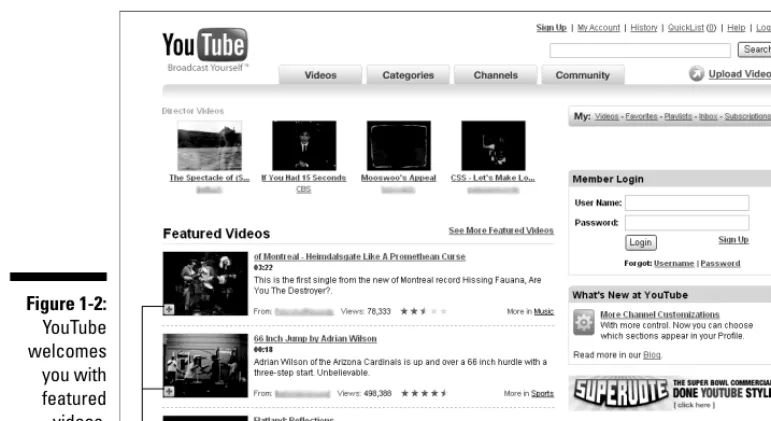
Nevertheless, you have to be able to find what you want quickly, which is the hallmark of any good Web design. The YouTube Web site looks inviting enough. Figure 1-2 shows the site as it appears to someone who hasn’t set up an account. You’re greeted with little icons that have a plus sign in the lower-left corner. We won’t tell you what that icon’s used for — at least not now. Viewing videos on YouTube is easy. Just click an icon and then the page changes, the video is served up — danger Will Robinson, video is loading— and begins playing in a little window. Viewing a video is just that simple. Each video comes complete with a controller that lets you pause the video when you have to take care of some annoying task, like answering the phone or responding to your boss’s e-mail. You can also control the volume of the video. When the video finishes playing, you can replay the video, share it with a friend, look for another video, or do something really boring — like your day job.
Figure 1-1:
The YouTube staff cele-brating their last day in their original office.
11
Chapter 1: Everything You Wanted to Know about YouTube
After you view a couple videos, you can get adventurous and click one of the blue buttons (actually the buttons are a gradient from white to a lovely shade of blue) and gain access to all the videos in the YouTube vault. You can browse the Videos section of the site, check out videos in the Categories section of the site, reach for your remote in the Channels section of the site, or smile on your brother in the Community section of the site. No matter where you go in the vast YouTube universe, you get to watch an animated ad on the right side of the site. After all, someone’s got to pay for the terabytes of bandwidth that YouTube consumes every month. Here’s a question to ponder: If YouTube removed half the videos and advertisements from their vast Web site, would it be half-vast?
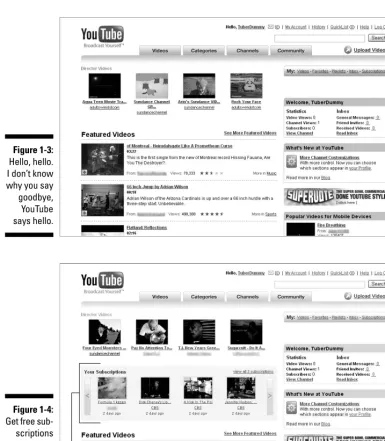
YouTube invites you to upload videos on every page of the site. If you’re a registered user and click the Upload Video button, you can upload a video — a task that we simplify in Chapter 7. However, if you don’t have a YouTube account and click the button, you’re presented with a simple form to fill out, which makes you an official Tuber. After you’re an official Tuber, you get to enjoy all the benefits of the YouTube Web site and become a part of the YouTube community. After you sign in, the site welcomes you with your username and statistics, as shown in Figure 1-3.
Tubers get to upload videos as often as they want, and the price is zip, zilch, nada. Tubers who like videos provided by a specific user can subscribe to that user’s channel. Subscribing to a channel is as simple as clicking a button. When you subscribe to a channel, an icon of the channel appears on your Subscriptions list, which is part of your Channel. Click the Channel icon— the
Plus signs
Figure 1-2:
Tuber’s equivalent of a remote control — and you’re transported to that channel. Another benefit of subscribing to a channel is that you see a thumbnail of the most recent uploaded video from each of the channels you subscribe to when you log in to the Tube (see Figure 1-4).
Subscriptions
Figure 1-4:
Get free sub-scriptions with no strings attached.
Figure 1-3:
Hello, hello. I don’t know why you say goodbye, YouTube says hello.
13
Chapter 1: Everything You Wanted to Know about YouTube
When you start uploading your own videos and other Tubers take notice, you’ll probably get some subscribers to your channel. You may also get requests to be added to other Tuber’s Friends list. If you’re really lucky, you may get some Tuber groupies. Just don’t let your significant other know. But if you want to do some really cool stuff, like look for some videos you actually want to view, you need to know how to get from Point A to Point B to Point C. The YouTube designers have made that task relatively simple. You get reminders when new stuff is available or when new features are added. You can take the point-and-click approach to finding out what YouTube has to offer or follow our road map in Chapter 3.
If you’re watching a YouTube video at work and you hear the unmistakable stiletto click of your supervisor’s high heels rushing toward your cubicle, mute the sound and dim your monitor so that the video isn’t visible. When your supervisor arrives, slap the side of the monitor and frown. If you’re lucky, your supervisor will think you’re experiencing a technical malfunction, not watching a YouTube video.
The previous tip doesn’t work if you’re employed by the IT department of your company.
Finding the Perfect Video
YouTube has videos. Lots of videos. Finding a video you actually want to view is like looking for the proverbial needle in the haystack. You can randomly sift through each portal of the YouTube Empire until you find what you want. However, that could take years.
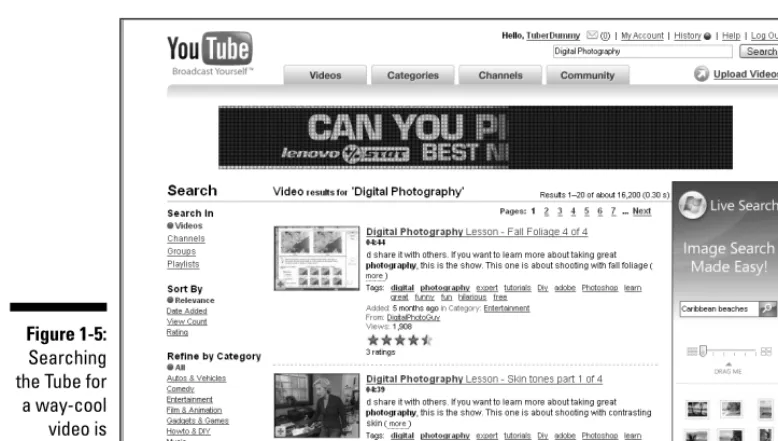
Instead of randomly tip-toeing through the YouTube video collection, you can get scientific and search YouTube. You can do a wild-guess search, or really get down to brass tacks and use YouTube features to search the vault and find what you deem the perfect video. You can search through all videos or refine your search by perusing channels, groups, or playlists. You can also sort search results. You view each video in turn, or compile a Quicklist, which can be viewed at your leisure. We show you how to do all this and more in Chapter 4. Figure 1-5 shows the results of a category search.
If you find yourself frequently opening your favorite Web browser and typing
Changing Your YouTube Preferences
When you first set up a YouTube account, you have a giant clean slate. But that can change quickly if you use even just a fraction of what YouTube offers. When you create a YouTube account, you get a channel with your username, as shown in Figure 1-6. As you can see, a new account has a squeaky clean channel. Think of a channel as a place for your stuff, such as favorite videos, subscribers, uploaded videos, and so on. The channel has placeholders for all these things (see Figure 1-6). Your mission as a virgin Tuber is to get some stuff to fill in the blanks. You can put in the stuff that matters to you in your channel. You can save videos in your channel, create playlists, look at com-ments posted by other viewers, and so on.
The channelis your home base on the Tube. That’s where you and other Tubers go to find your videos, view your playlists, and so on. You can change the way your channel looks by changing the channel design. Your channel features an icon,which by default is a frame from the last video you uploaded, or you can choose an icon from your favorite video. Figure 1-7 shows a user channel that’s tricked out 27 ways to Sunday. We show you how to customize your channel and fine-tune your YouTube experience in Chapter 5.
Figure 1-5:
Searching the Tube for a way-cool video is easy.
15
Chapter 1: Everything You Wanted to Know about YouTube
Figure 1-7:
Having it your way with a custom channel.
Figure 1-6:
Getting to Know Other Tubers
YouTube is a huge community. Next time you surf the Tube, take a look at the different usernames associated with the videos; then take a look at the number of groups and you start to get the idea. It’s kind of like a video com-mune. You can be totally anonymous even if you have a YouTube account. But if you post some really cool videos, you’ll find that people leave com-ments on your stuff and subscribe to your channel. It’s only polite to return the favor and thank your fellow Tubers for their comments.
But responding to comments is only the beginning. You can request to be a fellow Tuber’s friend, join a group, subscribe to a channel, and so on. You may never meet the people you associate with on YouTube in person, but it’s still fun. And let’s face it, the world is a serious place. Adding some fun to your life is a good thing; it keeps you younger and relieves the stress in your life. So feel free to strike up a relationship with people who leave comments on your videos and leave comments when you watch a video you really like. You can also send messages to other Tubers. If you’re not sure how to do it, we show you everything about the YouTube community in Chapter 6.
Creating the Perfect YouTube Video
Pixelated, blurry video is ugly and shouldn’t be seen or heard. When you sift through the myriad of videos on YouTube, you may shake your head and ask the question: Why? We did the same, and that’s why we’re on a two-man cru-sade to stamp out ugly video. After all, if you’ve got something to show the world, and it has your username attached, it ought to be the best it can be. Digital video is fun. However, many people who own camcorders don’t even know how to get the video into their computers. Face it, if you can’t get the video into your computer, you’ll never get it on YouTube. But there’s a lot more than getting the video into your computer. You need to render your video in a format supported by YouTube, and you need to do some editing. Let’s face it, nobody except family members and a few close friends want to see the video where you forgot to stop recording after taping a scene and captured an additional two minutes of your shuffling feet.
In Chapter 7, we give you some tips on recording good video and how to get that video into your computer.
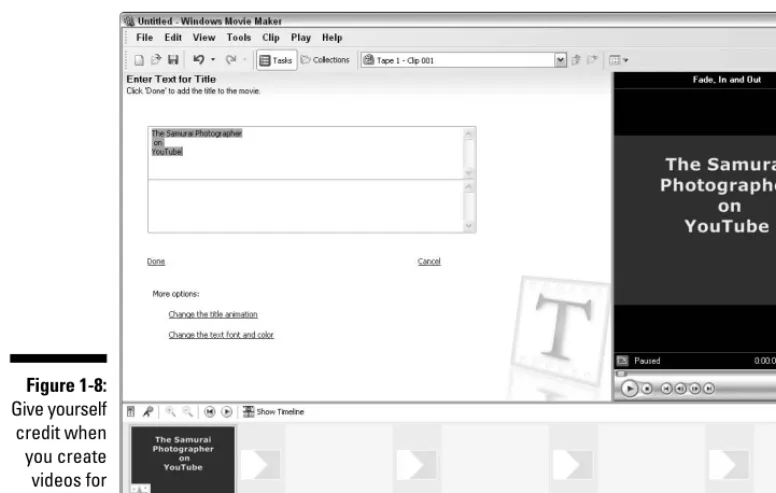
Let’s say you want to kick your videos up a notch or two. Editing video isn’t rocket science. You can easily add transitions between scenes or titles and credits with an application, like Windows Movie Maker or Apple iPhoto. Figure 1-8 shows a video being christened with an appropriate title credit in Movie Maker.
17
Chapter 1: Everything You Wanted to Know about YouTube
Creating Specialty Accounts
Are you a musician, celebrity, celebrity-wannabe, or a reasonable facsimile thereof? If so, YouTube likes people like you. In fact, they let you create spe-cial accounts. Yes, Virgina, the spespe-cial accounts are still free, and your videos appear in the appropriate channel. For example, if you sign up for a Comedians account, all of your videos are found in the Comedians channel, which makes it easy for people who need a good laugh to find your material. Talk about having your cake and eating it too. Specialty accounts come in four flavors:
Comedians: The hot spot to be if you’re a performing comedian or an aspiring comedian. It’s also the place to visit if you want a good laugh. These guys and gals will leave you in stitches. It’s their job. Figure 1-9 shows the first page of people who have Comedians accounts.
Directors: The hotspot if you’re a videographer, aspiring actor, or a director wannabe.
Gurus:The hotspot if you’re a brainiac, and you want to pass your knowledge on to other Tubers. This is also an excellent place if you’re an instructor of some sort and want to drive traffic to your Web site.
Figure 1-8:
Musicians: The hotspot if you’re a musician, singer, recording label owner, or are involved in music in some other way. So if you have the notion to rock the boat baby, create a Musicians account. Who knows, MTV and Virgin Records may be surfing the Tube for talent and discover you. YouTube also has a Partners account. But this type of account isn’t available for mere mortals and the general Tuber population. Here you’ll find compa-nies, like CBS, Capitol Records, and VH1, to name a few. The name Partners
leads the authors to believe that a partner must cough up cold, hard cash in order to get the account. But hey, somebody has to pay the bills so we Tubers can have our fun for free. The Partners channel is also an interesting place to visit when the partners crank out some serious videos. For example, in the CBS channel, you’ll find interesting video clips about current events. YouTube created a You Choose 08 channel, which serves as another platform for politicians who have thrown their hat into the ring for the 2008
Presidential Election. Now you can surf the Tube for fun, and then figure out which politician you’d like to see as the next President of The United States. People have been discovered through the videos they’ve posted on YouTube. According to the YouTube founders, at least one person who posted a music video has signed a record contract. When you set up a specialty YouTube account and post a cool video, the world is your stage. If you think you’re the next Mariah Carey, Jim Carrey, or Martin Scorsese, check out Chapter 9.
Figure 1-9:
Outta the way, knuckle-head, I have a joke to tell. Soitenly!
19
Chapter 1: Everything You Wanted to Know about YouTube
YouTube for the Entrepreneur
Do you have a product to sell or a message to tell? If you do, get your cam-corder out, take a video of the product, or tape your message and upload the video to YouTube. You might find some prospects for your product or service by surfing the Tube. When you do create video to promote a product or ser-vice, make sure you add ending credits with the URL to your Web site or to the site where Tubers can actually purchase your product or service. Figure 1-10 is a YouTube video embedded in an eBay auction that’s being previewed via eBay’s Turbo Lister software.
You can also embed your product video in your Web site. What a deal, Lucille; full video to promote your product or service, and your site doesn’t get the bandwidth hit. If you’ve got a warehouse full of products to sell, you can embed a YouTube video on your site’s home page that shows site visitors your facility and the awesome merchandise you have available. We show you how to use YouTube to promote yourself or your products in Chapter 10. Do you teach people how to use software applications, like Adobe Photoshop and Dreamweaver? Well, don’t limit yourself to students in seminars. You can also be a guru online. In fact, YouTube has a Guru account, which is right up your alley, Sally. Being a guru online is different than being a guru in person. Instead of using a projector to display your computer screen to the audience, you use an application to capture video of every move you make while using an application. You can record audio at the same time. We show you how to create instructional videos in Chapter 7.
Figure 1-10:
YouTube and the Copyright Police
Gobs of video get uploaded to YouTube every day. If you upload a video to which you don’t own the copyright or haven’t purchased rights to the video, you’re in violation of the copyright law. YouTube does a pretty good job of policing its site. YouTube also gets feedback from users when a video isn’t considered appropriate. If you upload a copyrighted video and YouTube catches you, it yanks the video and your account. YIKES! If the copyright owner of the video finds out, you could find yourself in deep water, which may require a life preserver in the form of an attorney. So be cool and respect other artist’s materials. Don’t upload copyrighted videos. We show you the skinny on what is and isn’t cool to upload in Chapter 11.
A YouTube Parental Guide
Kids do the darndest things . . . including looking up inappropriate Web sites. If you have young children, monitor their computer usage. Even though YouTube does contain video not suitable for children, you can make YouTube a safe and enjoyable experience for your child as long as he is at least 13 years of age. In fact, you have to be 13 years of age to qualify for a YouTube account. We show you how to do this and more in Chapter 11.
Being a Model YouTube Citizen
In addition to making YouTube a safe experience for your children, we also show you how to play well with others. To be a model Tuber, you must respect the rights of your fellow video buddies. Our parents always told us not to say anything if you don’t have anything nice to say. Well, we take that one step further and show you what we consider to be proper etiquette when commenting on other videos. Flaming (that is, saying nasty or derogatory things about other Tubers — or for that matter, anybody) is verboten. If you’re the shy, retiring type who likes to surf the Tube in relative
anonymity, you can don the Tube veil of secrecy. You can share your videos with the world or just a few close friends and family, and either way, you can preserve your identity when you do so. And if you’re interested in securing your privacy, don’t forget about the content of the videos you’re uploading. Sure, your YouTube contact information may be private, but what about what’s in your video? We show you how to protect every aspect of your iden-tity in Chapter 11.
21
Chapter 1: Everything You Wanted to Know about YouTube
Seeking the YouTube Experience
When we told our friends and relatives about this book project, we received mixed reviews. Some people thought the videos on the homepage of YouTube were the greatest thing since the release of the Xbox 360. Our older friends and relatives weren’t quite as enthusiastic. But there’s something for every-one on the Tube. You’ve just got to be an ambassador and show your friends how to find the stuff they want to see. That’s what we show you in this book. Not everyone finds all of the top-played videos interesting. In fact, you may find some of them repulsive. However, YouTube truly does have something for everyone. If you set up a YouTube account, you can have it your way. When you set up an account, follow some of our sage advice on how to search YouTube and start looking for videos that pique your curiosity. After you find something you like, you can save it as a favorite for future viewing and create video playlists. You can also leave comments for the users who upload videos you like. Chances are, they’ll be your kind of people, too.
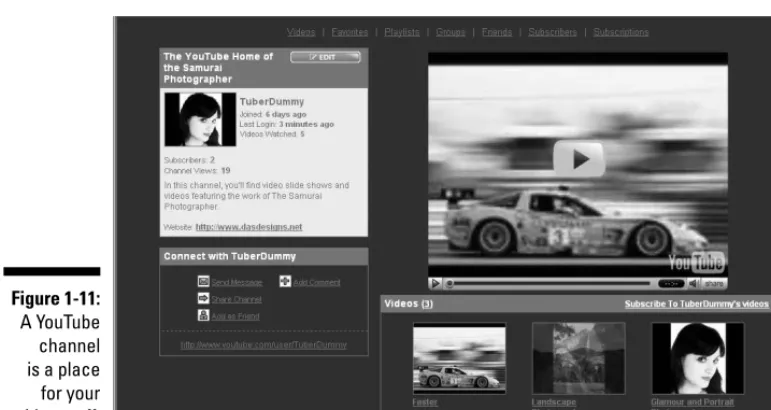
YouTube has so much more to it than meets the eye — or, for that matter, the ear. The intellectual highbrow type can find instructional videos on many topics. The artsy-fartsy kind can find video blogs from film festivals, videos from aspiring actors, and much more. The trick is to get past the home page and start surfing the categories and channels. Another place to look for your kind of video and your kind of people is in the YouTube Community section. After you find what you like on the Tube, you can add the content to your channel. Each Tuber with an account gets his own channel, and many people like to make this space their own. When a fellow Tuber visits your channel, she sees the first page of your channel. Figure 1-11 shows the public view of a Tuber’s channel. Fellow tubers can dive deeper into a channel by clicking the section links. A YouTube channel has the following sections:
Videos:This section contains a list of videos the user uploads to YouTube.
Favorites: This section shows thumbnails of videos the user selects as his favorites.
Playlists:This section features playlists the user creates.
Groups: This section shows groups that the user joins.
Friends:This section shows the people the user adds as friends.
Subscribers:This section shows a list of Tubers who subscribe to the user’s channel.
The lists are comprised of thumbnail icons, which, after clicked, display the associated item. For example, if you click a playlist icon, you see the associ-ated playlist.
The easiest way to make the Tube your way is to find some videos you like and then view the channel of the user who uploaded the clips. When the user’s channel page is displayed in your browser, click through the sections and look at the playlists the user has created, the friends in her channel, the user’s favorite videos, the videos she’s uploaded, and so on. This gives you a good starting-off point. Within no time, you’re subscribing to channels you like, creating playlists, and creating friends with other YouTube users. So if you’re ready to start experiencing everything YouTube has to offer, keep reading.
Figure 1-11:
A YouTube channel is a place
for your video stuff.
23
Chapter 1: Everything You Wanted to Know about YouTube
Chapter 2
Registration, Please: Creating
a YouTube Account
In This Chapter
Joining YouTube
Verifying your e-mail address
Logging in to YouTube
Changing your e-mail address, password, or username
Creating multiple accounts
Closing your YouTube account
W
hen you’re registering a new account, YouTube doesn’t demand exces-sive amounts of personal information from you. YouTube doesn’t ask for your home address or your telephone number — and it does notask for your credit card number. Compared to most other major sites, the YouTube registration requirements are appealingly non-intrusive.But let’s not kid ourselves: We all know that in this brave, new world of the Web, complete anonymity is a thing of the past. Whenever you register an account with any Web site, you’re sharing your personal information. But you can feel safe with YouTube: Their terms-of-service disclosure assures you that they won’t share your personal information with other Web sites or corporations.
Nevertheless, when you sign up with YouTube or any other Web site, you’re “putting yourself out there” as they say; and with a Web site like YouTube, where you can share personal videos with a mass audience, it’s worth taking a moment to think about the face that you want to present to the world.
Signing Up with YouTube
YouTube has an open-door policy:Anyone who visits the site can search the site and watch videos. You aren’t required to register, to supply information about yourself, or to create a username and a password. That’s a pretty good deal: One hundred million videos at your fingertips, and you’re free to watch them in total anonymity.
If anonymity is appealing to you, the following is a list of things you can do on YouTube without registering or logging in:
You have unlimited ability to search the YouTube video collection, including video groups.
You can create a QuickList of videos that you want to save for later viewing.
You can view the historyof your session: a compendium of all the videos you’ve watched.
You can share a video that you like by forwarding a link to friends’ e-mail addresses.
You can search through the Help section for answers to any questions you have about using YouTube.
Without registering or logging in, YouTube doesn’t know who you are, and anything you save — such as a QuickList — is lost when you quit your browser or shut down your computer.
In addition to searching and watching videos, YouTube offers many fun and interesting features — commenting on a video, for example, or creating a list of your favorite videos — and to access those features you must first create an account.
The following is a list of YouTube features, which you must first register to access:
Leaving feedback or commenting on a video
Uploading your own video
Flagging a video as inappropriate
Creating specialty accounts, such as Director, Comedian, or Guru accounts
Customizing your experience with subscriptions and playlists
Creating your own channel
These and other features truly enhance your relationship with YouTube, allowing you to customize your experience and interact with the YouTube community. After you register, your preferences — your favorite videos, your subscriptions, your search history, and so on — are all saved to your account page.
Choosing your username
Creating a username is a standard part of registering with any Web site. For example, if you’re shopping online and want to purchase something from an online retailer, you must first create an account so that they know where to ship your goods — and how to bill you. Part of that process includes creating a user-name that you’ll use to log in whenever you visit that site. No big deal, right? Keep in mind, though, that YouTube is different. In the history of the Internet, never has anything been like it. YouTube isn’t a retail site. YouTube isn’t an auction site. YouTube is a video-sharing site, which is a wholly different thing. Why? Because it’s personal. Viewing other people’s videos is a very personal thing. Sharing your own videos with an audience of millions is an even more personal thing. Because of this, some of the procedures commonplace on other Web sites are worth a bit of rethinking on YouTube.
For example, your username. When registering at YouTube, you might want to consider creating a username that protects your anonymity. Using your full name as your username is in no way wrong or against the rules, but you prob-ably don’t want the millions of people who might watch your videos of you and your family to know your full name. This might not bother you, but many people don’t want their full name out there, and creating a username that’s anonymous is a much safer bet.
On the other hand, many users use YouTube for exactly that purpose: to get their name out there. Let’s say that you’re a musician or a comedian, and you’re uploading your videos to YouTube to showcase your talent. In that case, you might very well want your username to be your full name. The same goes for your business. If you own a taxi service, for example, and you upload videos that advertise your business, it’s probably a smart idea that your business and usernames are one and the same.
Opening your account
Registering with YouTube is quick and painless. You don’t need to submit your address or your phone number, and YouTube doesn’t ask you for a credit card number. Instead, YouTube requires that you submit a valid e-mail address and — surprise — your date of birth. Why your date of birth? Because YouTube is very specific in its terms of service that it
27
Chapter 2: Registration, Please: Creating a YouTube Account
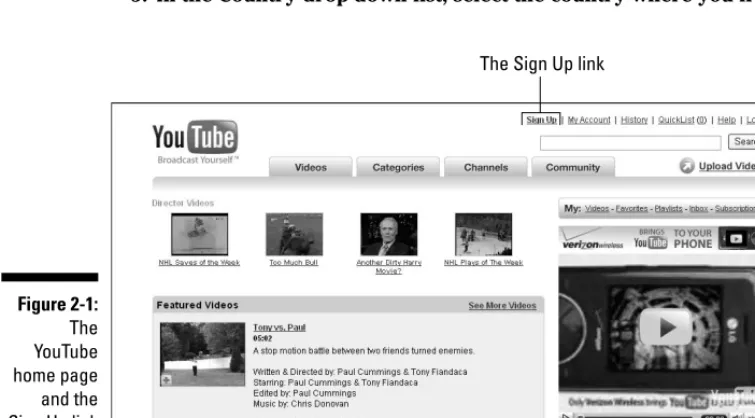
doesn’t consider itself to be a site that is appropriate for anybody under the age of 13, and it doesn’t allow anybody under that age to register an account. Signing up with YouTube begins at the home page of the site, www.youtube. com. When you arrive at this page as an unregistered user, the Sign Up link appears in bold at the top-right side of the page, as shown in Figure 2-1.
1. Click the Sign Up link, as shown in Figure 2-1.
This takes you to the Join YouTube sign up page. (See Figure 2-2.)
2. Enter your e-mail address.
You must enter a valid e-mail address to register.
3. Enter a username.
To protect your privacy, it’s not a good idea to use your full name as your username. The username that you enter must be different from the millions of other usernames registered already. If you enter a username that’s taken already, you can’t register until you change it to an original name.
4. Enter a password in both the Password and Confirm Password fields.
It’s a good idea to jot down your username and password in case you forget it.
5. In the Country drop-down list, select the country where you live.
The Sign Up link
Figure 2-1:
The YouTube home page and the Sign Up link
6. Enter your postal code.
This is required only for citizens of the United States, U.K., or Canada.
7. Click to select your gender. 8. Enter your date of birth.
9. Type the characters (letters and numbers) from the colored box into the Verification field.
YouTube wants to confirm that you’re an actual human being and not a computer program creating false registrations. If you can’t read the characters, click the Can’t Read? link below the box to change to another image and color scheme.
10. Check the box if you want to receive the YouTube “Broadcast Yourself” e-mail newsletter.
If you choose to receive it, YouTube will e-mail you the “Broadcast Yourself” newsletter on a regular basis. It’s a cool little newsletter — not too wordy or overdone — that keeps you up to date with new features and happenings on YouTube.
11. Click the Sign Up button.
If you leave any fields empty or if you choose a username that’s taken already, YouTube refreshes the page with red warning notes identifying the fields that need to be corrected before you can register.
Figure 2-2:
The Join YouTube sign-up page.
29
Chapter 2: Registration, Please: Creating a YouTube Account
Confirming your e-mail address
It’s very much in YouTube’s interest to confirm that the e-mail address you enter when you sign up is valid and active. Should there be any issues with your account — good or bad — YouTube wants to know that it can identify you through your e-mail address and can contact you.
After you complete the Sign Up procedure, YouTube sends an e-mail titled “YouTube Service” to your account. (See Figure 2-3.)
This usually happens instantly after signing up, but it may take a few minutes. The e-mail welcomes you to the YouTube community and offers some high-lights of the YouTube experience.
The second paragraph in the e-mail informs you that you must confirm your e-mail address before you can upload a video or comment on a video. Here’s how:
1. Click the blue Upload text link in the second paragraph.
This takes you to the YouTube e-mail confirmation page, as shown in Figure 2-4.
2. Enter your e-mail address in the Send a Confirmation E-mail To: field. 3. Click Send Email.
4. Return to your e-mail Inbox and then open the e-mail from YouTube titled “YouTube Email Confirmation.”
Figure 2-3:
5. Click the blue Click Here text link.
This takes you to YouTube’s video upload page, but you don’t need to upload a video now if you don’t want to. Your e-mail address is con-firmed. You’re now a fully registered member of the YouTube community and can access all features that are available only to members.
Jumping through Security Hoops
After you register, your username and password are YouTube’s primary method for identifying you and allowing you access to your account.
Therefore, it’s important that you keep your password secret: With your user-name and password, anybody could log in to your account from any com-puter and have access to your personal YouTube property, such as family videos that you’ve designated as private.
Logging in
When you register an account with YouTube, YouTube automatically down-loads a cookie to your computer. A cookieis short text-only string of com-puter code that YouTube uses to identify you whenever you return to the site using the same computer. For example, if you register with YouTube on your home computer, the next time you visit the site using that computer you’re automatically logged in under your username. The cookie takes care of this. You know that you’re logged in because your username appears in bold at the top of the page.
Figure 2-4:
The YouTube e-mail confirmation page.
31
Chapter 2: Registration, Please: Creating a YouTube Account
If you go to YouTube from another computer — that is, one without the cookie — you aren’t logged in automatically. Logging in manually, however, is easy. Here’s how:
1. Click the Log In text link at the top-right corner of the page.
This takes you to the Login page. (See Figure 2-5.)
2. Enter your username and password, and then click the Log In button.
Getting help if you forget your
username or password
When you first register with YouTube, jot down your username and pass-word, especially if they’re different from those that you use regularly on other Web sites. But if you forget either of them, it’s really no big deal: Remember, YouTube has your e-mail address! To retrieve a forgotten pass-word (or username), follow these steps:
1. Click the Log In text link at the top-right corner of the page.
2. Click the Password text link next to Forgot: below the Log In button. (If you want to retrieve a forgotten username instead of a password, click the User Name text link instead.)
This takes you to the Forgot Password page. (See Figure 2-6.)
Figure 2-5:
3. Enter your username.
4. Enter the verification code from the multicolored box. 5. Click the Email My Password! button.
YouTube sends an e-mail containing your password to your registered e-mail address.
Getting help if you can’t log in
If you can’t log in with what you’re certain is your correct username and password, it’s probably because you don’t have cookies turned on in your browser preferences. If you’re using Internet Explorer as your browser (chances are, you are) do the following to turn on cookies:
1. In Internet Explorer, go to the Tools menu. 2. Click Internet Options.
3. Click the Privacy tab at top. 4. Click the Advanced button.
5. Set First- and Third-Party Cookies to Accept, as shown in Figure 2-7.
Figure 2-6:
The YouTube Forgot Password page.
33
Chapter 2: Registration, Please: Creating a YouTube Account
Modifying Your YouTube Account
Things change. For example, you change jobs and get a new e-mail address. Or you finally break up with your I-just-can’t-commit boyfriend and decide that you no longer want to use his dog’s name as your password. When life’s little changes come your way, some of them might require that you update your YouTube account. No problem.
Changing your e-mail address or password
You’re free to change your password as often as you like. If your e-mail address changes — if you change employers, for example — you need to update your registered e-mail address with your new one.
1. Log in to your YouTube account.
2. Click the My Account text link at the top of the page.
3. Click the Password & Email link in the Account Settings section at the bottom of the page.
This takes you to the Password & Email page, as shown in Figure 2-8.
4. Enter your registered e-mail address or, if you’re changing your address, enter your new e-mail address.
5. Enter your current password.
6. If you’re changing your password, enter your new password and then retype it in the next field to confirm.
7. Click either of the Update buttons to the left to update your account with the new information.
Figure 2-7:
Changing your username
The short answer to the question “How do I change my username?” is “You can’t.” In other words, you can’t transfer all the unique qualities of your account — your favorite links, playlists, search history, and so on — from one account to another. The solution to the problem: Create multiple accounts.
Having more than one identity on YouTube can be desirable. Let’s say, for example, you’re a well-known lawyer, respected for your no-nonsense approach to your practice. And let’s say, too, that you have a great video of your Sunday afternoon belly dancing performances at the local cultural center. If you wanted to create a video channel on YouTube for your law practice, you might not want your law videos sitting side-by-side with your belly dancing videos on the same page.
Fortunately, there’s a simple solution. YouTube allows you to create multiple accounts with your single e-mail address. So our lawyer could easily create two accounts, one for her practice and another for her performance art. That way, her belly dancing fans would never be shocked and scandalized to dis-cover that she’s also a lawyer!
Figure 2-8:
Go to the Password & Email page to change your password or your e-mail address.
35
Chapter 2: Registration, Please: Creating a YouTube Account
Closing Your Account
If your username is your identity on YouTube, closing your account means the end of that identity. All the unique qualities of your account — your groups, your subscriptions, your search histories, and so on — will no longer be available to you. That’s your main consideration if you’re thinking about closing your account. Other than that, the process is quick and simple:
1. Log in to your YouTube account.
2. Click the My Account text link at the top of the page.
3. Click the Close Account text link in the Account Settings section at the bottom of the page.
This takes you to the Close Account page, as shown in Figure 2-9.
4. Enter the reason why you’re closing the account.
As with any breakup, the other party deserves to have some idea why you’re leaving. If you’re closing your account because you are unhappy with their service or had a bad experience on the site, that could be valuable information to the YouTube team for improving the site.
5. Enter your current password.
6. Click either of the Close My Account buttons, and your account is closed.
Figure 2-9:
Chapter 3
A Guided Tour through the Tube
In This Chapter
Viewing top videos
Searching videos by category
Browsing YouTube’s channels
Checking out YouTube’s community square
Getting help and info
Y
ouTube is already well known as a pop-culture phenomenon; a site where you can see video excerpts of your favorite TV shows, catch a red-carpet catfight between spoiled celebrity rich kids, or see a video replay of that game-winning goal at the World Cup.But YouTube isn’t just recycled pop-culture videos. So if you want to check out of the Paris Hilton and Entertainment Tonightisn’t your idea of entertain-ment for tonight, rest assured that YouTube has much more to offer.
That’s what this chapter is about. We click around the YouTube interfa