RSLinx
Training Guide
Contacting Rockwell Software
Technical Support Telephone—440-646-5800 Technical Support Fax—440-646-5801 World Wide Web—www.software.rockwell.com
Copyright Notice © 2002 Rockwell Software Inc. All rights reserved Printed in the United States of America
Portions copyrighted by Allen-Bradley Company, Inc. and used with permission. This manual and any accompanying Rockwell Software products are copyrighted by Rockwell Software Inc. Any reproduction and/or distribution without prior written consent from Rockwell Software Inc. is strictly prohibited. Please refer to the license agreement for details.
Trademark Notices WINtelligent Series is a registered trademark. The Rockwell Software logo, RSAssistant, RSBatch, RSCompanion, RSData, RSEmulate 5, RSEmulate 500, RSGuardian,
RSHarmony, RSKeys, RSLinx, RSLogix 5, RSLogix 500, RSPower, RSPowerCFG, RSPowerRUN, RSRules, RSServer32, RSServer, RSServer Toolkit, RSSql, RSToolbox, RSTrainer, RSTrend, RSTune, RSView32, RSView, RSWire, A.I. Series, Advanced Interface (A.I.) Series, AdvanceDDE, ControlGuardian, ControlView, INTERCHANGE, Packed DDE, PLC-500, WINtelligent, WINtelligent EMULATE 5, WINtelligent EMULATE 500, WINtelligent LINX, WINtelligent LOGIC 5, WINtelligent VIEW, WINtelligent RECIPE, WINtelligent VISION, WINtelligent VISION2 are trademarks of Rockwell Software Inc.
PLC, PLC-2, PLC-3 and PLC-5 are registered trademarks, and Data Highway Plus, DH+, DHII, DTL, Network DTL, Pyramid Integrator, PanelBuilder, PanelView, 5/250, PLC-5/20E, PLC-5/40E , PLC-5/80E, SLC, SLC 5/01, SLC 5/02, SLC 5/03, SLC 5/04, and SLC 500 are trademarks of the Allen-Bradley Company, Inc.
Microsoft, MS-DOS, Windows, and Visual Basic are registered trademarks, and Windows NT and Microsoft Access are trademarks of the Microsoft Corporation. Ethernet is a registered trademark of Digital Equipment Corporation, Intel, and Xerox Corporation.
IBM is a registered trademark of International Business Machines Corporation. AIX, PowerPC, Power Series, RISC System/6000 are trademarks of International Business Machines Corporation.
UNIX is a registered trademark in the United States and other countries, licensed exclusively through X/Open Company Limited.
All other trademarks are the property of their respective holders and are hereby acknowledged.
Warranty This Rockwell Software product is warranted in accord with the product license. The product's performance will be affected by system configuration, the application being performed, operator control and other related factors.
The product's implementation may vary among users.
This manual is as up-to-date as possible at the time of printing; however, the
accompanying software may have changed since that time. Rockwell Software reserves the right to change any information contained in this manual or the software at anytime without prior notice.
The instructions in this manual do not claim to cover all the details or variations in the equipment, procedure, or process described, or to provide directions for meeting every possible contingency during installation, operation, or maintenance.
Revision Date: 2/27/2002
RSLinx
Training Guide
Table Of Contents
Goals of this manual...1
Training Section 1: Introduction...3
New
Features ...5
Training Section 2: Installing RSLinx ...25
Training Section 3: Configuration of Communication Hardware,
RSWho and Diagnostics ...27
Training Section 4: Using the Data Table Monitor ...37
Training Section 5: DDE and How It Works ...41
Training Section 6: Project, Topic and Alias Configuration ...47
Training Section 7: Establishing a DDE Link to Microsoft Excel ...57
Training Section 8: Writing a simple Microsoft Excel Macro ...63
Training Section 9: Local and Remote OPC ...69
Training Section 10: Basics of Reading Data using OPC ...77
Training Section 11: Basics of Writing Data using OPC ...83
Training Section 12: Diagnostics, Troubleshooting and Options ..89
Appendix A: Support Library Technotes…………. ... A-1
Appendix B: OPC Specification Overview ... B-1
Appendix C: RSEmulate 5 & 500... C-1
Appendix D: Using Network DDE…………. ... D-1
Goals:
By the end of the training period, using this training guide, classroom instruction and experience with RSLinx, you should understand and correctly perform configuration steps for the following:
•
The features of RSLinx
•
Installation requirements and how to install RSLinx
•
How to configure communications hardware in
RSLinx
•
Using the new RSWho
•
How to use the diagnostics in RSLinx
•
DDE (Dynamic Data Exchange) and OPC
(OLE for Process Control) and how they work
•
How to configure DDE/OPC topics
•
How to set-up a DDE hot link to Microsoft Excel and
make a live graph of the data
•
How to write a macro in Microsoft Excel to write data
via DDE
•
Network DDE - exchanging data between RSLinx
server and client applications
Training Section 1: Introduction
Product Description
RSLinx is a complete 32-bit product family that provides
communications to a wide range of applications. RSLinx supports Rockwell Software and Allen-Bradley programming, HMI, and component software products.
It serves shop floor data to commercially available DDE client applications, such as Microsoft Excel and Access. This allows real-time data from the plant floor to be brought into applications for display, logging, or trending.
With RSLinx, you can set individual parameters or download recipes to supported devices from a supervisory computer. RSLinx also supports many popular industrial applications developed by OEMs (Original Equipment Manufacturers), VARs (Value-Added Resellers - part of Rockwell Software’s Strategic Provider Program), and independent software vendors using the INTERCHANGE Compatible RSLinx 'C' API. RSLinx is available in packages to suit a variety of needs for both features and
functionality. RSLinx OEM is available to act as a communications engine for many of Rockwell Software's HMI software products (RSTrend, WINtelligent VIEW, WINtelligent QUALITY, WINtelligent RECIPE), as well as any third-party product that was developed to use the RSLinx 'C' API.
RSLinx Professional starts with the functionality of RSLinx OEM and adds DDE
communications to all products that can act as DDE clients. RSLinx SDK is the Software Development Kit used for creating custom applications that can utilize the
communications capabilities of RSLinx and RSLinx OEM.
Its 'C' Application Programming Interface (API) includes over 50 of the most powerful data access and conversion functions of the INTERCHANGE API, plus a few additional functions specific to the RSLinx architecture.
Developed from top to bottom as a true 32-bit application, RSLinx takes full advantage of the multi-threading, multi-tasking, and multi-processing capabilities of the Windows operating systems. RSLinx can run any combination of the above applications
RSLinx can transfer data to and from Allen-Bradley PLCs using common Allen-Bradley communications devices such as the PCMK, 1784-KT board or the 1770-KF2B module.
It supports the Allen-Bradley SLC-500, PLC-2, PLC-3, PLC-5, and PLC-5/250 families of processors all in one package.
It is a complete communications software package, not requiring any external driver software to operate - it is not a TSR (memory resident). It does all of the
communications work for commercially available DDE compatible Windows programs as well as Windows programs that a user may design.
With RSLinx and a DDE compatible Windows application such as Excel, a user can install, connect to a PLC, and be on-line collecting data in about 5 minutes.
In some ways, RSLinx is three drivers in one:
•
It includes direct driver level access between the PLC and other Rockwell Software products.•
It provides DDE (Dynamic Data Exchange) access to any DDE compatible software program.•
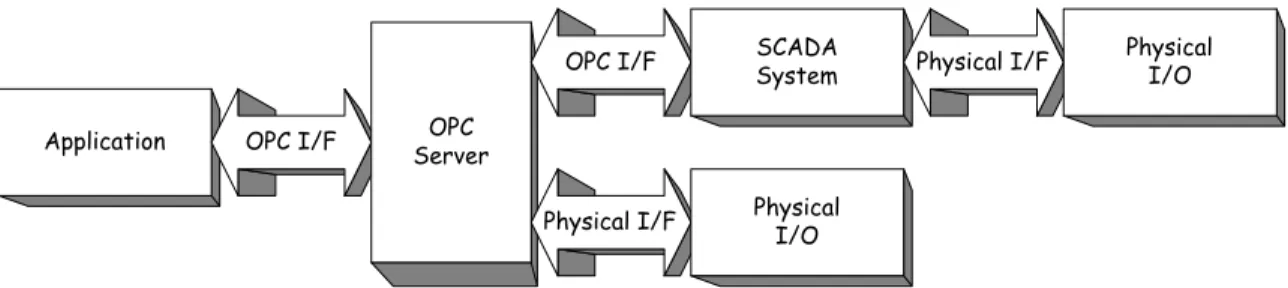
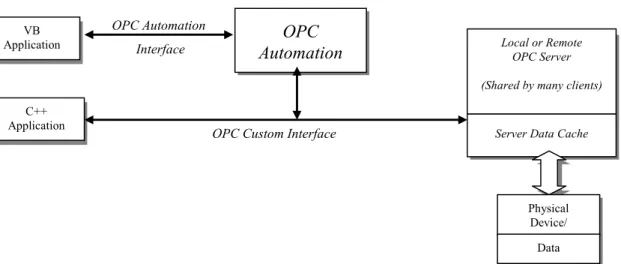
In addition, it now supports OLE for Process Control (OPC).Ø For more information on OPC, or to download the OPC specification, got to:
http://www.opcfoundation.org
DDE Server C-API
RSLinx – DDE/OPC Server
Any DDE Compatible Program (client)
• Microsoft Excel
• Microsoft Access
• Lotus 123 for Windows
• Etc. RSI Software Packages
• RSView32
• RSLogix5
• RSLogix500
• RSTrend
• Etc.
Network (with correct communication hardware)
• DH+ • DH • DH485 • Ethernet Network Device OPC Server (Direct Driver)
New Features
RSLinx version 2.1 Features
• Network Shortcuts – Provides quick access to specific network hiding routing complexities from client applications.
• New Driver Configuration
Ø Selectively enable/disable drivers
Ø Have multiple COM port drivers configured but disabled. Quickly switch between drivers for the same COM port. Ø Specify driver startup state
(i.e. Automatic, Manual, Disabled, On Demand)
§ The On Demand selection is only available for serial and Ethernet drivers, and for the PCMK driver only in the Windows 95/98 environment.
Ø Only applies to specific drivers
(i.e. PCMK on Win 9x, RS-232 serial driver)
§ RS-232 DF1 driver can now use up to 32 COM ports.
• PLC/SLC Data Monitor (read only) – New RSLinx Data Monitor
ActiveX control provides ability to monitor multiple data files for PLC or SLC devices.
Ø Unlike the Data Monitor found in RSLinx 2.0, they now support the RSLogix Emulate 5/500 emulator software!
• OPC/DDE for DeviceNet – Read / Write data values to any device on DeviceNet. Use Electronic Data Sheet (EDS) information to access device attributes in a user-friendly format while using Copy to Clipboard.
Ø EDS parameters for DeviceNet topics and tags for topics with an
associated tag name file. To use the feature, refer to the Copy a DDE link help topic. You can also use the OPC browse feature to get EDS
parameters from browse-capable OPC clients.
• Configuration Backup/Restore – Save RSLinx configuration information including drivers and DDE/OPC Topics. Backup files can be archived on a network server and retrieved during a restore operation. Included in this functionality is a command line driven interface for Batch file operations.
• Network Properties - Users can now specify network polling parameter and address ranges for configured drivers. This is required for offlink network browsing (e.g. KE-KE bridging).
New Features (cont.)
• Drivers
Ø 1784-PCC PCMCIA for ControlNet (NT driver).
§ The NT kernel mode driver is shipped with the 1784-PCC card (Series B or a reflashed Series A) and must be installed prior to configuring the 1784-PCC driver in RSLinx.
Ø 5136-SD/SD2 S&S DH+ (Windows 95/98 driver) Ø DF1 Slave driver
Ø DeviceNet 1747-SDN Pass Through driver
Ø Support for DeviceNet drivers (1784-PCD, 1784-PCID(S)). § Install the driver provided with the hardware.
• DDE/OPC server diagnostics– Added the following diagnostics:
Ø Handled unsolicited messages Ø Unhandled unsolicited messages Ø DDE Client Connections
Ø DDE Client Disconnections Ø OPC Client Connections Ø OPC Client Disconnections
• New DDE/OPC item modifier noopt allows the client rather than RSLinx to optimize items.
Ø For example, n7:0,L122,noopt ignores the 100 word limit on a DH+ network and reads the full 122 words. However, this item is sent in its own packet.
• Support for RSLogix 5 and RSLogix 500 data files (.rss and .rsp) directly for Tag Name Service support.
Ø To use the RSLogix 5 and 500 tag database for DDE or OPC, select DDE/OPC > Topic Configuration > Data Collection, enable Use Symbols and select the proper file.
Ø DDE and OPC will now use your tag names for PLC5 or SLC addresses. To view what tags RSLinx reads from your data file, select Edit > Copy DDE Link to Clipboard, select the topic, and choose Data Table Address.
New Features (cont.)
• RSLinx runs "headless" when automatically started by RSView32, OPC clients, RSLogix products, and custom C applications.
Ø No splash screen appears and the RSLinx main window is not shown. In this case, the RSLinx application is said to be running "headless."
Ø RSLinx does however appear as a system tray icon, just as if it were running as a service.
Ø To view the existing RSLinx, click the icon, right-click the icon and select Restore, or from the Start menu select Programs > Rockwell Software > RSLinx > RSLinx. Any of these actions will bring the running RSLinx to the foreground.
Ø To shut down RSLinx, right-click the icon and select Shutdown, or right-click the icon, select Restore, and choose File > Exit and Shutdown.
RSLinx Lite, RSLinx OEM, and RSLinx Professional are available in
the following languages:
•
English
•
Spanish
•
German
•
French
•
Italian
•
Portuguese
RSLinx Features
RSLinx has had the following existing features since version 2.0 and earlier:
•
Support for all A-B PLC types; SLC-500 family, PLC-2, PLC-3, PLC-5, PLC-5/250 in one software package.•
All communications hardware devices for Allen Bradley PLCs aresupported in a single software package. There is no need to buy a separate software package for each hardware device you wish to use and there are no TSR (memory resident) programs to install.
•
Multiple communication hardware devices may be used at the same time, in the same personal computer. These devices may communicate on one or more Data Highway Pluses and/or Data Highway 485s.•
Graphical RSWho function may be configured to present a graphicalrepresentation of the active devices on an Allen-Bradley network. It is able to display RSWhos for different highways at the same time and can be set to refresh automatically or manually.
•
Complete diagnostics and error reporting. It also includes diagnostics for DDE links that may be active.•
Individual read and writes (word/bits can be read and/or written).•
Block reads and writes (not supported when using the emulators).•
Unsolicited messages with Allen-Bradley PLCs. (not supported when using the emulators).•
Copy Link to Windows Clipboard supported to ease establishment of DDE links.•
Automatic optimization of data communications.•
Local and Remote stations through 1785-KA\1785-KA5\5130-KA module bridges.•
Network support via NET DDE.Another view of the same information:
RSLinx Processor/Communications Device
Support Matrixes
Allen-Bradley Hardware Ethernet DH+ DH485 DF1 (Serial) DeviceNet ControlNet 1747-PIC X 1770-KFC X 1770-KFD (Serial Interface) X 1770-KF2 X 1770-KF3/1747-KE X 1771-SDNPT * X 1784-KT/KTX/PCMK X X 1784-KTC(X) or 9904-KTCX X 1784-PCC (PCMCIA CARD) X 1784-PCD (PCMCIA CARD) X1784-PCDIS (PCI CARD) X (NT only)
1784-PCMK X X
1784-PKTX X X
1785-KE X
AB Ethernet (TCP/IP) X
Linx Gateway Client Driver X
Logix 5550 X MicroLogix X Panel View X PLC-5 Channel Zero X SLC500 5/03 Channel Zero X SoftLogix 5 Controller X S&S Technologies 5136-SD/SD2 X
* 1771-SDNPT driver to support pass through capability from a 1771 based network to DeviceNet.
Benefits of RSLinx
•
Ease of upgrade to new processors and networks because all of the 32-bit Allen-Bradley drivers are included in one package.•
Compatibility of products from Rockwell Software, Allen-Bradley and third party products or custom solutions using RSLinx’s open C API, OPC or AdvanceDDE.•
Synchronous read and write access to processor data in PLC-5 and SLC 500 processors via DDE interface.•
Synchronous and asynchronous read and write access to processor data in PLC-5, PLC-2, PLC-3, PLC-5/250, MicroLogix 1000 andSLC 500 processors via C API.
•
Concurrent operation of multiple communication devices.•
Intuitive user interface tested in our Usability Lab.•
Easy Copy/Paste DDE hot link establishment.•
Data sharing with other computers via Network DDE.•
Efficient use of system resources and minimal network traffic via optimized DDE reads.•
Superior speed and reduced network load with block reads and writes.•
Connectivity to legacy networks supported by remote routing through 1785-KA, 1785-KA5, 5130-1785-KA, 5820-EI, 1756-DHRIO, and Remote ControlNet.•
Intuitive system investigation supported by graphical RSWho function and comprehensive diagnostics.•
Assistance is just a click away, via context-sensitive help, “What’s This” right click help, and On line books.•
Seamless upgradability from RSLinx Lite or RSLinx OEM. Ø RSLinx Gateway can only be installed from anRSLinx Lite, RSLinx OEM, RSLinx Professional, RSLinx SDK, RSLinx Gateway
What’s the difference?
RSLinx is available in versions to meet the cost and functionality requirements of many different applications. Depending on the version you are running, some functionality may or may not be operational.
To know which version you are running, read RSLinx main title bar text
(the line of text at the very top of the main window). If you are running the Lite or OEM version, some of the features documented in the online help file may not be enabled. The following explains the main differences between the different versions of RSLinx: We’ve packaged RSLinx to provide the best cost/functionality trade-off to address different market segments:
• RSLinx Lite – Only used when bundled with other Rockwell Software products that use RSLinx as their communication interface to plant floor devices. No external interfaces are provided for DDE, OPC or custom ‘C’ applications.
• RSLinx OEM – Intended for use with third party HMI’s or custom applications. Provides complete driver support for Allen-Bradley devices and networks. We expose our AdvanceDDE interface for DDE messaging, OPC COM interface for local OPC connectivity and runtime support for custom applications
developed with the RSLinx SDK.
• RSLinx Professional –Full-featured version. Includes all the functionality in RSLinx OEM plus additional features such as: DDE formats (XL_Table,
CF_Text) for Microsoft Office or standard DDE client applications, FastDDE for Wonderware clients, and an OPC Automation interface for local OPC
connectivity.
Note: An RSLinx package that has lost its activation will revert back to RSLinx Lite. Some applications, such as RSView32, can NOT communicate to tags or other PLC data using only RSLinx Lite.
• RSLinx Gateway – Includes all the functionality in RSLinx Professional, plus remote client connectivity or TCP/IP. Allows additional workstations running RSLinx or an OPC Client application to "gateway" to Allen-Bradley networks connected to the server PC. Can connect from an off-site location using Remote Access Service (RAS).
With the purchase of RSLinx Gateway, you have a license for up to five concurrent remote connections. More remote connections can be obtained by purchasing additional license packs.
• RSLinx SDK –The Software Development Kit (SDK) provides all the necessary files and documentation for development of custom C/C++ applications to communicate to the RSLinx runtime interface.
A copy of RSLinx OEM is included with this purchase. End use of the custom application will require additional purchases of RSLinx OEM, RSLinx
Professional, or RSLinx Gateway.
RSLinx Requirements
Software requirements
RSLinx requires one of the following software environments:
•
Microsoft Windows NT Version 4.0 (Service Pack 3 or later recommended). Because RSLinx takes advantage of features not available in Windows NT prior to Version 4.0, RSLinx is only supported on Windows NT Version 4.0 or later.•
Microsoft Windows 95 with DCOM for Windows 95 installed. DCOM for Windows 95 must be installed before attempting to install RSLinx, or the RSLinx installation will fail.Ø DCOM for Windows 95 can be installed from the RSLinx CD or downloaded Microsoft's DCOM95 website
(www.microsoft.com/com/dcom.asp).
•
Microsoft Windows 98.Hardware requirements
RSLinx has the following minimum hardware requirements:
•
An Intel 486/66 or Pentium processor with at least 16 megabytes of RAM. This version of RSLinx will not run on Alpha, MIPS, or Power PC processors. The versions of Windows NT for different processors are notbinary-compatible.
•
At least 15 megabytes of available hard disk space. 20 megabytes of available hard disk space may be required for specific application features.•
A 16-color, SVGA display with 800 by 600 or greater resolution.•
A Windows-compatible pointing device.Note: RSLinx 2.00.97.30 will not install on Windows NT 4.0 with Service Pack 4. The version of Harmony that is installed with RSLinx 2.00.97.30 will not install on Windows NT 4.0 with Service Pack 4. The installation hangs at about 50% (during the Harmony Installation).
The solution is to download the file “HarmonyRT.zip” from Support Library Technote ID: P1040.
RSLinx Help Systems
Rockwell Software Technical Support
Most questions can be answered with RSLinx’s many internal help options without a call to Rockwell Software’s Technical Support, but if you must call, expect superior customer service. Rockwell Software is the first company in the automation industry to receive the Support Center Practices (SCP) Certification from ZD Service and Support Consultants for exemplary customer service in the area of technical support and training programs. Rockwell Software plans to continuously improve in the areas of technical software support and customer service to assure that their customers receive world class assistance.
The Software Support Professionals Association (SSPA) coveted Software Technical Assistance Recognition (STAR) award for Most Improved was another recent outstanding achievement! Just call Rockwell Software support at (440) 646-7800 (Mayfield Village, Ohio), Monday through Friday, 8:00 A.M. to 5:00 P.M. Eastern Time.
RSLinx Internal Help
Help with RSLinx can be easily accessed by either pressing the F1 key or using the Help Menu Options seen below. It uses a standard help format you may have seen in other products.
Enhancements to the help system include:
•
What’s This? help in most areas of RSLinx by right-clicking an option. Press the What’s This? button and a help topic popup will appear.•
Similar to What’s This?, the Context Help icon has been added to the toolbar. Just click the ? icon and the cursor will change to this:Click the topic and the same help topic popup will appear.
•
Online books that include a Hardware Configuration Manual and the RSLinx Getting Started Guide in Adobe Acrobat .pdf format. The reader tool is included and you may print the file if you’d like.•
RSI on the Web takes you to the main Rockwell Software website.•
Copy Protection helpHelp on the Web
On the Rockwell Software website, support area:
http://www.software.rockwell.com/support/
Support Library
Browse our on-line Support Library for tips and answers to your most common problems. Our support technicians enter tech notes in the Support Library based on calls to our Support group.
Reset Codes
Have you lost a Rockwell Software product's activation due to some type of hard drive damage or corruption? A Reset Code can help you get up and running quickly. This requires that you have your MASTER disk available.
Support Request
Submit a Support Request using your Web browser, and we will either contact you by telephone or e-mail as quickly as possible. Have your product serial number available to complete the process.
Software Updates
If your software is currently under warranty or a support contract, you may be able to download a Software Update.
Training
Our Training Catalog is available on-line, including detailed course descriptions,
schedules and enrollment information. You'll find a range of courses covering Rockwell Software and Microsoft technologies. You can even sign up for a course on-line!
Support Guide
The purpose of our Support Guide is to describe our support services for you. Our most important goal is that you are completely satisfied and comfortable using Rockwell Software products. That’s where our technical expertise and variety of support services can really make a difference.
Downloads
Search our database of Downloadable Files for Demos, General Downloads, Presentations, Promotional Information, and Customer Feedback! (This does not include On-line Software Updates.)
Transfer Registration
Transfer your Product Registration using your Web browser! If we need additional information to complete the transfer, we will contact you by
E-mail.
The Software Connection Magazine
- Your Link to Software Support and Product News
If you have not seen the latest issue in print, you can find it on-line, as well as past issues dating back to 1995.
Check out the URL:
http://www.software.rockwell.com/corporate/swc
My Support
A new support feature on our website allows you to personalize technotes and personalize software updates.
You can select the products of interest to you and can specify your preferred delivery
Application Notes and Suggestions
• With a ControlLogix 5550, unsolicited messages work on only an Ethernet network or a DH+ network.
• To receive unsolicited DDE messages from a processor through a DHRIO module, and through an ENET module over an Ethernet network, select your DDE topic from the DDE/OPC Topic Configuration dialog box. Then, select Advanced Communication, click Remote, and manually enter the Remote Link ID of the DHRIO channel through which the message is being sent.
• Newly created DDE topics default to 20 for Limit Maximum Packets. This makes the updates more symmetrical for the group of optimized packets for each topic. For the same functionality on older DDE topics, set Limit Maximum Packets on the DDE/OPC Topic Configuration dialog box, Data Collection tab to 20, or the best value for the PLC and access method.
• When configuring DDE/OPC topics to receive unsolicited messages from a ControlNet device, from the DDE/OPC Topic Configuration dialog box, select the Advanced Communication tab and select Local route for Local or Remote
Addressing.
• To ensure that unsolicited messages coming to RSLinx work properly when setting up a DDE topic to a remote processor via ControlLogix Gateway, set the Remote Link ID to match the Link ID of the remote module (such as DHRIO).
• Block reads and writes do not work with user defined types - (ControlLogix 5550).
• In Windows NT, the PIC/AIC+ and the DF1 Polling Master / Slave drivers (with RTS control enabled only) drivers need their own serial driver (RSSERIAL.SYS rather than SERIAL.SYS) and cannot therefore share an interrupt with another serial device.
• When using auto configuration on a 1770-KF2/KF3 device, you must set the Station Number to that of the KF2/KF3 before clicking Auto-Configure. Otherwise, Auto-Configure tries to detect the device at the currently selected station, and if the device is a PLC, Auto-Configure configures to the PLC rather than the KF2/KF3.
• If you restore a Windows NT configuration, and you have a configured KTC(X) or PCMK driver, you must reboot the computer to start the driver.
• After the first time you configure a PCC driver in Windows NT, you must reboot your computer before using the driver.
• When you install RSLinx, DTL32.DLL remains in the system directory if it is locked by another application.
• You must have Windows NT Administrative privileges to install RSLinx and/or configure RSLinx drivers.
Application Notes and Suggestions (continued)
• When receiving unsolicited messages from an SLC 500 processor via a 1785-KA5 Bridge, the DDE topic's remote configuration must be set to Internet mode.
Ø Also, in the SLC 500 message instruction, the remote bridge node address must be set to 0.
Ø Also, unsolicited messages sent from a PLC or other node to RSLinx will cause errors if no DDE clients or C-API applications are running to receive them.
• When downloading a program to an SLC 500, stop all data connections active to that station. Under certain instances, the processor may fault if applications continue to poll the SLC during a download.
• If you are running Windows 95 using the 1747-PIC driver with WINtelligent LINX, but are no longer using WINtelligent LINX, we recommend you change the following entry in your system.ini file (located in \Windows directory). Under the [boot] section of the system.ini file, change comm.drv = icomcomm.drv to
comm.drv = comm.drv After changing this entry, restart Windows 95.
• RSLinx does not automatically create a NetDDE share entry in the NT or Windows 95 registry for configured topics. For help on enabling NetDDE and creating NetDDE shares, refer to the NetDDE help page.
• RSLinx will not reread a User Defined Structure list for SoftLogix until the topic is stopped and restarted.
• RSLinx supports no-interrupt configurations when using Allen-Bradley network cards; however, we recommend assigning an interrupt to increase driver performance.
• If you have Auto Hide on for the Windows task bar, every time you go to the task bar (if animation is on), it reduces your packets/sec speed due to computation times.
• Do not use the power saver option on your computer when running RSLinx. Use either the BIOS or Control Panel to disable this option.
Application Notes and Suggestions (continued)
Downgrading to a previous version of RSLinx
If you have RSLinx Version 2.1 installed, but wish to downgrade to a previous version of RSLinx, complete the following:
1. Select DDE > Topic Configuration, and delete any DDE topics configured in RSLinx 2.1.
2. From the Start menu, select Programs > Rockwell Software > RSLinx > Uninstall RSLinx 2.1 (assuming you used the defaults when you installed RSLinx 2.1). You may choose freely to preserve or delete configurations. You may also choose to uninstall RSLinx from the Control Panel's Add/Remove Programs selection.
3. Reboot your computer.
4. Install the previous version of RSLinx.
To use with A.I. Series Ladder Logistics
In Windows NT 4.0, this version of RSLinx is only compatible with versions:
• 7.21 or higher of PLC-5 A.I. Series Ladder Logistics
• 8.14 or higher of PLC-500 A.I. Series Ladder Logistics
• 6.19 or higher of PLC-3 A.I. Series Ladder Logistics
• 1.39 or higher of PLC-5/250 A.I. Series Ladder Logistics
In Windows 95, this version of RSLinx is only compatible with versions:
• 8.00 or higher of PLC-5 A.I. Series Ladder Logistics
Windows 95 support for other A.I. and RSLinx will be added in future revisions of A.I. programming software. If you are using an older version and are under support, call customer support and request an upgrade.
Application Notes and Suggestions (continued)
1784-PCMK and PCMCIA information and Windows NT limitations
When using a 1784-PCMK (PCMCIA or “PC” card) communications card, Windows NT has the following limitations:
• When a 1784-PCMK is reconfigured through RSLinx, your Windows NT system must be rebooted for the changes to take effect.
• Only one PCMCIA card of the same type may be used at one time.
This means that you can only use one 1784-PCMK at a time or one PCMCIA Ethernet card at a time with RSLinx. You can also use one 1784-PCMK and one PCMCIA Ethernet card at the same time
• Windows NT and RSLinx do not support dynamic removal or insertion of PCMCIA cards. If you remove or insert a PCMK card with RSLinx running, you must re-start your Windows NT system for the card to be recognized.
• It is easier to configure the PCMK card when using board addresses at or above D000.
Running RSLinx on NT with computers that are not networked
When running RSLinx on NT with the 1784-KT/KTX(D)/KTC/PCMK,RSLinx requires NDIS services to be running.
Windows NT does not install or start NDIS services unless it has been configured to use a network driver. To make sure that NDIS services are installed and started, a network protocol must be selected in Windows NT.
If you attempt to configure an RSLinx driver, and network services are not installed on your workstation, you will see the following succession of message dialogs. Click OK to proceed through each.
• System Process - System Error\Object Name not found.
• RSLinx\StartServiceError: Unable to start NDIS Kernel Mode Mac
Driver. See Application Event Log for Specific error(s).
• System Process - System Error\Object Name not found.
• RSLinx\StartServiceError: Unable to start NDIS Kernel Mode Mac
Driver. See Application Event Log for Specific error(s).
• RSLinx\StartServiceError: Unable to start NDIS Kernel Mode Mac
Driver. See Application Event Log for Specific error(s).
RSLinx will be running but drivers will not have been started. If these messages occur when you attempt to configure an RSLinx driver, you must install network services on your workstation.
Application Notes and Suggestions (continued)
Running RSLinx on machines not on a network
1. Start Windows NT 4.0 and go into the Control Panel.
2. Double-click the Network icon. If NT asks if you want to install Windows NT Networking, click Yes.
3. NT takes you through the Network Setup Wizard. When NT asks how you are connected to the Network, choose Wired to the Network.
4. Do not have NT search for a adapter. Select MS Loopback Adapter. 5. Choose TCP/IP Protocol.
6. Click Next to accept the four other services NT will load. 7. Place your NT 4.0 CD in the drive and click Continue.
8. During the install, you will be prompted for a Frame Type. Choose 802.3. 9. When asked if you want to use DHCP to configure your TCP/IP,
click No.
10. When prompted to configure your TCP/IP Properties, use an IP Address of
100.100.100.100 and a Subnet Mask of 255.255.255.0 and click OK. 11. Choose Workgroup and insert a name in the box.
You must restart your system for these changes to take effect. When Windows NT restarts, you may go into RSLinx and configure your drivers.
Important: This procedure requires that you log into Windows NT with system administrator privileges. For RSLinx to work properly in Windows NT 4.0, you must have installed RSLinx Release 1.50.58 or later. If you have an earlier version of RSLinx, please upgrade to the latest version of RSLinx.
Application Notes and Suggestions (continued)
Routing through bridge devices
• RSLinx can not communicate through an external bridge device when using the 1756-DHRIO bridge device with the TCP or CNET driver.
The problem exists when the first bridge is a 1756-DHRIO device and the second bridge is not a 1756-DHRIO device (for example, Pyramid Integrator). In this case, the source link ID remains at zero and the response packets fail. The following limitations currently exist:
• Offlink routing works through one bridge.
• Offlink routing works through two or more bridges if the first bridge is a 1756-DHRIO module.
• Offlink routing does not work through two or more bridges if the first bridge is something other than 1756-DHRIO device.
• You cannot go from a DHRIO module through a 1785-KA bridge device to a DH network.
•
To go from a DHRIO module through a 1785-KA5 bridge device to a DH485 network, the DHRIO module must be configured using the ControlLogix Gateway Configuration tool. For example, if a 1785-KA5 bridge is on a DH+ network at node 4 and the DH485 LinkID is 13, complete the following:1. Select File > Browse Network. 2. Select the DHRIO module.
3. Go to the routing table configuration tab.
4. Right-click on the channel being used and select Add Module. 5. Select the DH+ Bridge.
6. Enter the DH+ node number of the KA5 (4 in this example), and the LinkID of the DH485 (13 in this example).
Training Section 2: Installing RSLinx
RSLinx is installed using a standard Windows setup program.
Your RSLinx package may consist either of a CD or of several disks (not both). If disks, you can start with the disk labeled Disk 1.
Complete the following to install RSLinx:
1. Insert RSLinx diskette 1 into a floppy diskette drive (or for CD installation, insert the CD in the CD drive).
2. Click the Start button on the taskbar, then Run, and Browse to the drive that contains the RSLinx diskette or CD.
3. Find and double-click SETUP.EXE.
4. Click OK.
5. Follow the directions that appear on the screen.
• One of the final steps in the installation process requires the activation to be installed. It is the “key” to activating the software and without it, RSLinx is only RSLinx Lite.
Ø The Lite version has no DDE or OPC capability.
Note: In Microsoft Windows NT, as with any other network software, you must have administrator privileges to install RSLinx software.
6. A new installation step will require a 10-digit number.
•
The setup program will not all you to proceed until after the serial number found on the RSLinx activation disk is entered.7. Click Next and proceed with the installation.
8. After completing the RSLinx installation, remove the RSLinx diskettes and store them in a safe place, especially the master activation disk.
•
Even an activation disk with NO activations left on it can help you recover from a lost or damaged activation. See the Help Menu / Copy Protection section for instructions on how to use the key disk feature.Training Section 3: Configuration of Communication
Hardware, RSWho and Diagnostics
1. Open RSLinx. The following screen will appear:
The first time you start-up a newly installed RSLinx package you are required to configure communications hardware.
In this section we will go through an example of how to configure communication hardware and how to use the new RSWho (Who Active) and highway diagnostics.
Open DDE/OPC Project RSWho
Configure Drivers Driver Diagnostics
Copy DDE Link to Clipboard Topic Configuration
Status Bar Context Help
Lab / Discussion:
1. Start-up RSLinx.
2. Click the Configure Communications Hardware icon. The Configure Drivers box, seen below, will appear.
3. Pick the hardware device from the Available Drivers list that you intend to use to communicate with the PLC world and press Add New…
•
For the example in this training exercise, we will select the 1784 KT/KTX(D)/PCMK/PKTX(D).Note: If you are using a hardware device other than the KT that is used in this example, you can choose that alternate device.
To delete a driver configured earlier, click here.
4. Click Add New. The following dialog will appear to name the new driver:
•
Use the default AB_KT-1 5. Click OK•
Then the following dialog will appear to choose the type of KT card and begin configuration:Click the pulldown arrow and select KT.
Tip: Rockwell Software provides a utility to read your WINtelligent LINX configuration and display it for use in configuring RSLinx.
This utility is available on the Rockwell Software website (www.software.rockwell.com) or by contacting Technical Support at (440) 646-7800.
Configuring the 1784 KT
1.
To configure the KT, take the following steps (each item is selected and configured by clicking on that item’s row in the previous box).a) Select the hardware (Device Type) by. Choose KT.
b) Select the Network Type (DH+ or DH485) by clicking the Network Type item and then clicking the pull down arrow on the right side of this box to select the correct option. Choose DH+.
c) Create a Station Name up to eight characters. In this case, use the default: RSLinx.
d) Enter the Station Number - a valid, non-duplicate station address for the DH+. (Range: 0-77 Octal)
e) Pick the correct board hexadecimal address for the KT. This must match the settings made on the KT DIP switches.
•
If you are unsure of your KT board's dip switch settings,you will need to check the board and the installation documentation to match the dip switch settings to their address.
f) Select the correct interrupt number. This should correspond to that set by the hardware jumper on the KT board.
•
An interrupt (or IRQ) is not required, but for best performance, select an unused interrupt of either 3, 4, 5 or 7.g) If this is the last station on the network, it is important to select YES to terminate the DH+.
•
Turning on terminate DH+ will switch in a terminating resistor, as a PLC would have if it was the last station on the network.h) Click OK.
Take note of the new AB_KT-1 driver that is displayed in the Configured Drivers section of the Configure Hardware dialog box.
For the first KT card configured this will be AB_KT-1. The full configuration should read:
AB_KT-1 DH+ Sta:0 Addr:D800 RUNNING
RSLinx supports multiple communication hardware devices, so the next KT configured will be named AB_KT-2 (by default, although you can change it)
and so on.
The only limits to multiple communication drivers are the physical locations for devices in your PC, memory addresses, and Windows resources.
RSWho
RSWho is RSLinx’s network browser interface. RSWho allows you to view all the active network connections from a single screen.
The left pane of RSWho is the Tree Control, which shows networks and devices. The right pane is the List Control, which shows all members of a collection.
A collection is a network, or a device that is a bridge. Features:
•
RSWho browsing is restricted to one network at a time.•
RSWho list view has two views, large icon and detail.•
RSWho supports ascending and descending sorting for columns in list view.•
RSWho supports persistence of window settings including column width and splitter position.•
RSWho is started automatically and maximized when RSLinx starts up.Browsing
The RSWho icon indicates a network. If the icon is animated, the network is being browsed. Click on a network or device to start browsing.
When the Autobrowse checkbox is selected, RSWho continuously browses the selected network. If Autobrowse is cleared, the Refresh button is active. Clicking Refresh
instructs RSWho to perform one browse cycle of the selected device. Since Refresh only performs one browse cycle, clicking Refresh multiple times may be necessary to discover everything on the network.
When the network or device is collapsed (indicated by the + sign), click + or double-click the network or device icon next to the + to expand the view and begin browsing. When the network or device is expanded (indicated by the – sign), click – or double-click the network or device icon next to the – to collapse the view.
Right-click on a supported device to select Station Diagnostics or other supported services for that device.
Important: A device that appears with a red X over it indicates that RSWho previously recognized this device, but now it can not. The red X indicates a
communication status error, such as unplugging a recognized device. Tip: To remove multiple “dead nodes” delete a driver from RSWho, then
Lab / Discussion
1. Check if the connection to the DH+ is good by opening an RSWho.
•
Click the RSWho icon.Ø Alternatively, open an RSWho by selecting Communications / RSWho from the top menu of RSLinx.
2. A right-click on an RSWho screen will allow you select many options, depending on where you right-click, the RSWho below shows many of the RSWho right-click menus.
•
Note: you can not make all right-click menus appear at the same timeNote: RSWho will not browse through SoftLogix, Ethernet, or a Linx Gateway on a remote RSLinx Gateway
Bridge
RSWho in Large Detail View
A Station that was once active,but is no longer, is indicated with a RED “X”
3. Note that each device on the DH+ is identified by its own icon. Also displayed are the station or project name and the station number.
4. In either the right or left pane of the RSWho, right-click on one of the PLC stations and select Station Diagnostics. The following will appear:
Note: It is not a good idea to let RSWho screens run all the time in Autobrowse mode. To keep an RSWho screen fresh, RSLinx must continually poll all the
processors on the network selected.
This generates a lot of network traffic and increases the load on RSLinx’s network drivers. Rockwell Software suggests that an RSWho only be used when necessary, then closed.
As an alternative if you would like to keep an RSWho open, uncheck the refresh button and if you think the network might have changed, or you encounter a problem, just press the manual Refresh button.
5. Right-click on the KT in the RSWho window. Select Driver Diagnostics.
•
When you are finished looking at the diagnostics, close theRSWho window and diagnostics windows by clicking the “Xs” in the upper right of the window.
Training Section 4: Using the Data Table Monitor
Data Table Monitors
The Data Monitor can now view the activity in your data table files for both PLC-5 data as well as SLC data. This procedure is called data monitoring.
The Data Monitor window is modeless; therefore, they can remain on the desktop if you minimize RSLinx
When you are monitoring your data, the information displays in either a data file list window or a data table window. Data monitoring allows you to:
• Select data files to be viewed
• View the data files in a grid format
• View more than one data file at the same time
The RSLinx data table monitor is not available with RSLinx Lite or RSLinx OEM.
OR
-Important: The data table monitor is read-only. Values in the data files cannot be modified directly from the data monitor window. However, elements can be copied to the clipboard and read or written with DDE. Input and Output files are protected against writes with DDE.
The following fields display on the Data Monitor dialog box:
Data Grid displays data values for addresses in the data table file (even if they are not currently being used). The width of the grid can be adjusted to meet your display requirements. When you click a position in this grid, the address displays in the field directly below.
Offset displays the file type and number and the data file element.
Columns - Click the arrow to the right of this drop-down list box to change the number of elements that can be shown in a row horizontally across the data grid. If you view Binary data the default is 16 and cannot be modified.
Double click here to see Data File.
The Data Table’s Properties option allows you to change the poll rate and radix of the data (Binary, Octal, Decimal, Hexadecimal, or ASCII.)
Training Section 5: DDE and How It Works
Dynamic Data Exchange (DDE) is an interprocess communications specification that is built into the Microsoft Windows operating system.
It allows Windows programs that support DDE to exchange data between themselves. All
communications occur within the Windows environment, essentially transparent to the users, using very simple communication instructions.
The easiest way to visualize Dynamic Data Exchange is to think of a conversation between people in a room. These people represent the different Microsoft Windows applications (software programs) running on your computer.
Some of the people in the room ask questions (clients), others provide answers (servers), and some both ask questions and provide answers (client/servers).
•
In other words, the client initiates or requests a data transfer and the servers respond to the request by providing or accepting data.Dynamic Data Exchange questions are quite generic. When Microsoft Excel asks RSLinx a question, it is merely looking for data. Excel does not know where the data is coming from. Excel only knows that it asked RSLinx a question, and if RSLinx has an answer, then the data will be provided.
Note: Not all applications that run under Microsoft Windows support DDE. Check with an application’s manufacturer before purchasing an application for use with RSLinx.
RSLinx Microsoft
Excel
Note: AdvanceDDE protocol is the only version supported by RSLinx-OEM. DDE is not available with RSLinx Lite.
DDE Continued - Application, Topic, Item
Each Dynamic Data Exchange question consists of three parts:
•
To whom am I talking (i.e., which APPLICATION gets the question)?•
What subject are we talking about (i.e., what is the general TOPIC)?•
Which data do I require (i.e., what specific ITEM are we talking about)? In other words, who is talking? what's the general topic?what specific data?
Windows DDE uses the words: Application, Topic, Item to describe the DDE conversation that takes place between programs running under Windows (e.g., RSLinx and Excel).
Definitions of Application, Topic, and Item:
Application: When you use a Microsoft Windows application to obtain data from another Windows application, you must provide the name of the Application you wish to respond to your question. The Application refers to the program you are running, such as RSLinx would be the application that some client (such as Excel) would talk to (it usually refers to the executable program file, e.g., RSLinx.exe).
To use the previous example, when you pose a question to your group of people, you must tell them whom you want a response from. When you ask RSLinx for data from a PLC on a highway, the Application name to use is RSLinx. (RSLinx.exe is the name of the RSLinx executable file and thus the name to use for DDE communications no matter what you have named the RSLinx icon).
Topic: Once the Application is known, we must determine which Topic to discuss. To use the previous example, when you pose a question to an individual, you must select a general Topic to talk about. With DDE, available Topics are determined by the
Application. The person asking the question must choose an available topic, or data exchange cannot take place.
In RSLinx, a Topic will consist of the information necessary to get us communicating with a particular PLC.
A DDE Project is a storage container for one or more DDE Topics, as a folder holds files in Windows. By grouping topics together in a project, you can make multiple topics available at the same time.
Item: After the Application and Topic are known, your Microsoft Windows application must provide RSLinx with the specific Item to discuss. To use the example of the conversing people: if the individual (who) and general topic of conversation are known, you must determine the exact data you require.
In the case of Excel, we might know we want to talk to RSLinx (Application) about a PLC-5 at a certain station (Topic) (that is, we want to send data from a PLC-5 to an Excel spreadsheet).
The last part of the question, Item, determines which specific data table address to return to your Windows application.
Example: Application Topic Item
RSLinx PLC5Topic1 C5:0.acc
(RSLinx) (specific PLC) (specific counter value) Where RSLinx is the application name, PLC5Topic1 is an example topic name, and C5:0.acc is an example item, in this case a counter accumulator in a PLC-5.
The Application, Topic, and Item are basic parts of all DDE conversations. Each DDE compatible Windows program has its own unique syntax. The syntax are special markings, such as ‘ = | and ! . Consult the documentation of your Windows program to determine the exact procedure and syntax used for DDE conversations.
Data Format: AdvanceDDE, XL_Table and CF_Text
A brief discussion of available Data Formats for DDE communications follows. It is intended to provide you with a general understanding of Data Format from a user standpoint.
Normally no user intervention or control of data formats is possible, and for the most part, the use of different data formats is transparent to the user. There is one major exception - you will certainly notice a vast improvement of the speed at which your data is transferred if one of the “higher” levels of the available data formats is used.
Microsoft has implemented two Data Formats that are available for DDE conversations:
CF_Text and XL_Table.
CF_Text is the simplest and easiest to implement. All DDE compliant
applications should be able to understand this data format. It is the basic level of compliance to Microsoft’s DDE specification. Microsoft has also defined a faster data format called XL_Table. Microsoft has only implemented this data format in Excel.
FastDDE is a proprietary format used by Wonderware that is faster than XL_Table, but does not incorporate error checking.
From a data throughput standpoint, CF_Text is slow and XL_Table is fast. In a general way, you can think of CF_Text as an ASCII transfer with each data item being a single message, while XL_Table blocks the data into a table, so many items may be a single message.
RSLinx can communicate using any of these data formats. When a DDE channel is established, a form of handshaking takes place that automatically establishes the data format to be used (the fastest format both the client and server can understand).
AdvanceDDE
In addition to supporting CF_Text and XL_Table, Rockwell Software has also implemented its own DDE data format. This format is called AdvanceDDE (also known as PackedDDE).
AdvanceDDE is specifically designed for industrial communications giving the
communications increased data throughput and well defined error checking to ensure data communications integrity.
AdvanceDDE’s speed performance is accomplished in numerous ways. Among these, it allows for the binary transfer of data (thus there is no performance penalty for
converting numeric binary data to text and back again). It also packetizes data to allow multiple data items per message (instead of one as in CF_Text).
All Rockwell Software Products can understand AdvanceDDE allowing for fast and accurate DDE communications.
Lab/Discussion: DDE Terminology
You should be familiar with the following terms (if not, please read the immediately preceding pages titled DDE and how it works).
•
Clients•
Servers•
Client/ServersThree Basic Parts to any DDE request:
•
Application•
Topic•
ItemExamples RSLinx
Excel
Application RSLinx Excel
Topic Testsol
(a PLC station)
[book1.xls]sheet1 (an Excel spreadsheet)
Item T4:0.acc
(a valid PLC data table address)
R2C3
(a cell address)
Types of Links:
Hot Link A hot link is a DDE channel that remains open, though it is only updated when the server sees a data change.
Cold Link A cold link is only opened upon command, such as via an Excel macro, or some other program implementing a DDE communication.
Types of links to RSLinx:
Bit/Word Read Hot link or Cold link with a macro Block Word Read Hot link or Cold link with a macro Bit/Word Write Cold link with macro only
Training Section 6: Project, Topic and Alias
Configuration
After configuring your communications hardware and verifying its connection, you can now configure a DDE/OPC Project and Topic to enable RSLinx to provide data to DDE requests. The Topic contains the information necessary to communicate with the intended PLC.
1. Click the File menu/Open Project, then click the New button. Type in a project name, such as TEST and click OK.
Project names are limited to 49 characters. Spaces are converted to
underscores (_). If the Open Project dialog box does not appear, go right to step two.
•
When you create a project, you create a container for a number of topics; exactly how many topics is up to you and the amount of disk space you have available.•
It is usually best to add all the topics for a given scenario to a specific project. You may select to not create projects and use the default only, but there are advantages to grouping your topics into projects. Less of your computer's resources are used because instead of loading all of your topics, you might only load the ones you use for a specific acquisition or report.Though you can create many projects, only one project can be used at a time. Click here
Note: If you have DDE connections open to RSLinx and select the Open Project menu item, the following message displays:
"Cannot change projects while DDE connections are active to RSLinx. Please close all DDE connections to continue."
2. A topic is a pointer to a PLC, much like how your telephone number “points” to your house. It also determines how fast or when data will be collected.
Topics may be configured in two ways :
•
The preferred method is from an RSWho. Right-click a station and select“Configure New DDE/OPC Topic.”
•
This method will create a NEW topic – to only see or edit an existing topic, use the menu item called DDE/OPC - Topic Configuration…•
Another way is to either use the Topic Configuration icon.A DDE/OPC Topic Configuration dialog box displays. Click the help button in the dialog box for additional information on DDE topic configuration.
The following Topic Configuration will appear:
3. Replace the default topic name with the name testsol.
•
If the DDE/OPC Topic Configuration box is open by creating a topic from the RSWho, the following will be returned to this Topic Configuration boxautomatically:
Ø The Station Address Ø PLC Family
Ø Local/Remote addressing of the PLC
Ø Communications Driver used to get to that station.
DDE/OPC Topic Configuration – Data Source Tab
Topic Names have a 49-character limit
Clone duplicates the selected topic to help quickly create other topics with similar names or other common features.
4. Click on the Data Collection Tab and set the Data Collection mode to Poll Rate and the rate at 100 mSec (one-tenth of a second).
--See illustrations on the next two pages.--
•
Polled Messages data collection mode instructs RSLinx to actively go out on the network and poll data. If you select Polled, you must also enter a polling rate in the Poll Rate (mSec) field. The minimum value for poll rate is 1ms, although actual speed depends on the number of active stations and data highway traffic.•
Unsolicited data collection mode waits for a message instruction from the processor to send data to RSLinx.•
Send all unsolicited updates sends unsolicited data to the client regardless of whether or not the data has changed.Use good judgement when selecting poll rates. Only collect fast changing data at the higher rates. Create slower topics to the same PLC for slower changing data. This technique can reduce network traffic if handled correctly.
Unsolicited data collection may be used alone or in conjunction with polling. It requires the PLC logic to be written to send a message to the RSLinx station. Unsolicited Message is an excellent way to reduce network traffic for infrequently changing data.
The Limit Maximum Packets Option
Limit Maximum Packets on the Data Collection Tab is used in high load situations. It limits the maximum packets launched at any single point in time on a per topic basis. This helps the user not to overload a PLC station.
RSLinx allows values from 5-100 outstanding packets at one time. Certain numbers, such as a PLC5 on a DH+ network, work best at less than 30 packets outstanding if only RSLinx is accessing the processor.
To determine the best value, change the pollrate to 1ms and do an advise on the item. If you receive an Out of Buffer Space message in the DDE Event Log, reduce the number of outstanding packets.
Limit Maximum Packets can be used to make updates more symmetrical for all
optimized packets. The default value is 20, but for some PLCs and access methods, it may be necessary to change the default value for better performance and/or to reduce communication errors.
Collisions are possible when two products talk to the same PLC; therefore, you can only reduce, not eliminate, errors.
Update HotLink after a poke
Check this to update the DDE hotlink after a poke. This is a requirement of WonderWare.
Optimize poke packets
This option is only supported for PLC-5 and SLC processors, and in blockable DDE/OPC. DDE is only supported from FastDDE (WonderWare) and PackedDDE (AdvanceDDE) clients and from OPC clients.
• The entire packet must be received at once or it can not be optimized.
Note: It should be specified that this is an example for training purposes. In real applications, the poll rate should be set at a reasonable and/or realistic setting that is application dependent.
Keep DeviceNet connection open
Enabling this checkbox may increase DeviceNet Traffic. Do not check this box if the poll rate accuracy is greater than 5 seconds.
Enable this option if your poll rate exceeds 5 seconds and your desired poll rate
accuracy is 5-10 seconds. The target device closes the connection if no communication occurs in 5 seconds.
• RSLinx will keep the explicit message connection open between the DDE server and the node configured in the topic.
Fail Unsolicited messages if data will be overwritten
Enable this box for the DDE/OPC client to receive all unsolicited messages, even if RSLinx must fail messages to ensure that no data is lost to the DDE/OPC client.
• This option is useful if the PLC sends too many unsolicited messages for the DDE/OPC client to handle, or the OPC client’s group rate is slower that the PLC is sending unsolicited messages.
• If enabled, you must have ladder logic written in the PLC program to handle RSLinx failing the message for the PLC to resend the message.
Click the Advanced Communications Tab, look but do not change anything.
Important: Changing the information on this tab may cause the information to be disconnected from the correct object on the Data Source tab.
This tab is usually only used to set up a new topic without starting from the RSWho. The RSWho new topic creation method automatically applies the driver and station information.
DDE/OPC Topic Configuration – Advanced Communication Tab
If no remote configuration is established, the Remote Routing Configuration dialog displays when you click the Remote radio button.
Serial communication to the 1770-KF2B, 1785-KE, and PLC-5 Channel Zero can not use remote communications.
Local or Remote Addressing
These options vary depending on the current communication hardware driver and the bridge device selected.
RSLinx supports six different methods (listed in the Bridge Device drop-down list box) for accessing remote processor networks:
•
1785-KA Local/Remote•
1785-KA5 Bridge/5130-KA•
Ethernet EI RM Module•
Ethernet EI 5130-KA Module•
Remote ControlNet•
1756-DHRIOSee RSLinx Help for specific instructions.
Alias Configuration
An Alias Topic is a “virtual” or “redundant” topic that you can use to reference other topics. This allows you to define a “virtual topic” which can be directed to one of several physical PLC devices, with automatic switchover.
You can also configure the criteria used for switching from primary to backup devices, or you can force a switchover using a DDE Execute command. Alias topics are not
mandatory for communication to occur.
For example, if you have a PLC accessed by an Ethernet driver, a KT driver, and a DF1 driver, you could create three topics. You can then create an alias topic which prioritizes:
1) Ethernet driver's topic 2) KT driver's topic 3) DF1 driver's topic