PBS Professional 12.1 User’s Guide, updated 5/16/13.
Copyright © 2003-2013 Altair Engineering, Inc. All rights reserved.
PBS™, PBS Works™, PBS GridWorks®, PBS Professional®, PBS Analytics™, PBS Catalyst™, e-Compute™, and e-Render™ are trademarks of Altair Engineering, Inc. and are protected under U.S. and international laws and treaties. All other marks are the property of their respective own-ers.
ALTAIR ENGINEERING INC. Proprietary and Confidential. Contains Trade Secret Information. Not for use or disclosure outside ALTAIR and its licensed clients. Information contained herein shall not be decompiled, disassembled, duplicated or disclosed in whole or in part for any pur-pose. Usage of the software is only as explicitly permitted in the end user software license agree-ment.
Copyright notice does not imply publication.
For documentation and the PBS Works forums, go to: Web: www.pbsworks.com
For more information, contact Altair at: Email: [email protected]
T
echnical Support
This document is proprietary information of Altair Engineering, Inc.
Location
T
elephone
North America +1 248 614 2425 [email protected] China +86 (0)21 6117 1666 [email protected] France +33 (0)1 4133 0992 [email protected] Germany +49 (0)7031 6208 22 [email protected] India +91 80 66 29 4500 [email protected] Italy +39 800 905595 [email protected] Japan +81 3 5396 2881 [email protected] Korea +82 31 728 8600 [email protected] Scandinavia +46 (0)46 286 2050 [email protected] UK +44 (0)1926 468 600 [email protected]
Table of Contents
About PBS Documentation
vii
1 New Features
1
1.1 New Features. . . .1
1.2 Deprecations . . . .4
1.3 Backward Compatibility . . . .5
2
Getting Started With PBS
7
2.1 Why Use PBS? . . . .72.2 PBS Tasks and Components . . . .7
2.3 Interfaces to PBS. . . .10
2.4 Setting Up Your Environment. . . .12
3
Submitting a PBS Job
21
3.1 Introduction to the PBS Job. . . .213.2 The PBS Job Script . . . .25
3.3 Submitting a PBS Job . . . .31
3.4 Job Submission Recommendations and Advice . . . .39
3.5 Job Submission Options . . . .39
4
Job Input and Output Files
49
4.1 Introduction to Job File I/O in PBS. . . .494.2 Input/Output File Staging . . . .49
T
able of Contents
5
Allocating Resources & Placing Jobs
69
5.1 What is a Vnode? . . . .69
5.2 PBS Resources . . . .70
5.3 Requesting Resources . . . .72
5.4 How Resources are Allocated to Jobs. . . .82
5.5 Limits on Resource Usage. . . .85
5.6 Viewing Resources . . . .88
5.7 Specifying Job Placement. . . .90
5.8 Backward Compatibility . . . .98
6
Multiprocessor Jobs
105
6.1 Submitting Multiprocessor Jobs . . . .1056.2 Using MPI with PBS. . . .113
6.3 Using PVM with PBS . . . .151
6.4 Using OpenMP with PBS . . . .153
6.5 Hybrid MPI-OpenMP Jobs . . . .154
7
Controlling How Your Job Runs
157
7.1 Using Job Exit Status . . . .1577.2 Using Job Dependencies. . . .158
7.3 Adjusting Job Running Time . . . .161
7.4 Using Checkpointing. . . .165
7.5 Holding and Releasing Jobs . . . .167
7.6 Allowing Your Job to be Re-run. . . .172
7.7 Making qsub Wait Until Job Ends . . . .173
7.8 Deferring Execution . . . .174
7.9 Setting Your Job’s Priority . . . .175
7.10 Running Your Job Interactively . . . .176
8 Reserving Resources Ahead of Time
183
8.1 Terminology . . . 1838.2 Prerequisites for Reserving Resources . . . 184
8.3 Creating and Using Reservations . . . 184
8.4 Viewing the Status of a Reservation . . . 190
8.5 Using Your Reservation . . . 194
9 Job Arrays
201
9.1 Advantages of Job Arrays . . . 201
9.2 Terminology . . . 201
9.3 Description of Job Arrays . . . 202
9.4 Submitting a Job Array . . . 206
9.5 Viewing Status of a Job Array . . . 213
9.6 Using PBS Commands with Job Arrays . . . 217
9.7 Job Array Caveats . . . 220
10 Working with PBS Jobs
223
10.1 Current vs. Historical Jobs . . . 22310.2 Modifying Job Attributes . . . 225
10.3 Deleting Jobs . . . 228
10.4 Sending Messages to Jobs . . . 229
10.5 Sending Signals to Jobs. . . 230
10.6 Changing Order of Jobs. . . 231
10.7 Moving Jobs Between Queues . . . 233
11 Checking Job & System Status
235
11.1 Viewing Job Status . . . 23511.2 Viewing Server Status . . . 250
11.3 Checking Queue Status . . . 252
11.4 Viewing Job & System Status with xpbs . . . 254
11.5 Selecting a List of Jobs . . . 254
11.6 Tracking Job Progress Using xpbs TrackJob Feature . . . 257
11.7 Checking License Availability . . . 259
12 Submitting Cray Jobs
261
12.1 Introduction . . . 26112.2 PBS Jobs on the Cray . . . 261
12.3 PBS Resources for the Cray . . . 262
12.4 Rules for Submitting Jobs on the Cray . . . 270
12.5 Techniques for Submitting Cray Jobs . . . 272
12.6 Viewing Cray Job Information . . . 278
12.7 Caveats and Advice . . . 282
13 Using Provisioning
289
13.1 Definitions . . . 289
13.2 How Provisioning Works . . . 289
13.3 Requirements and Restrictions . . . 291
13.4 Using Provisioning . . . 293
13.5 Caveats and Errors. . . 294
14 HPC Basic Profile Jobs
297
14.1 Definitions . . . 29714.2 How HPC Basic Profile Jobs Work . . . 298
14.3 Environmental Requirements for HPCBP. . . 298
14.4 Submitting HPC Basic Profile Jobs. . . 299
14.5 Managing HPCBP Jobs . . . 304
14.6 Errors, Logging and Troubleshooting . . . 305
14.7 Advice and Caveats . . . 311
14.8 See Also. . . 312
15 Special Circumstances and Tools
315
15.1 Support for Large Page Mode on AIX . . . 31515.2 Using Comprehensive System Accounting. . . 316
16 Using the
xpbs
GUI
319
16.1 Using the xpbs command . . . 31916.2 Using xpbs: Definitions of Terms . . . 320
16.3 Introducing the xpbs Main Display . . . 321
16.4 Setting xpbs Preferences . . . 328
16.5 Relationship Between PBS and xpbs . . . 329
16.6 How to Submit a Job Using xpbs . . . 330
16.7 Exiting xpbs. . . 333
16.8 The xpbs Configuration File . . . 334
16.9 xpbs Preferences . . . 334
Appendix B: License Agreement
339
About PBS Documentation
Where to Keep the Documentation
To make cross-references work, put all of the PBS guides in the same directory.
What is PBS Professional?
PBS is a workload management system that provides a unified batch queuing and job man-agement interface to a set of computing resources.
The PBS Professional Documentation
The documentation for PBS Professional includes the following: PBS Professional Administrator’s Guide:
Provides the PBS administrator with the information required to configure and manage PBS Professional (PBS).
PBS Professional Quick Start Guide:
Provides a quick overview of PBS Professional installation and license file generation. PBS Professional Installation & Upgrade Guide:
Contains information on installing and upgrading PBS Professional. PBS Professional User’s Guide:
Covers user commands and how to submit, monitor, track, delete, and manipulate jobs. PBS Professional Programmer’s Guide:
PBS Manual Pages:
Describe PBS commands, resources, attributes, APIs
Ordering Software and Publications
To order additional copies of this manual and other PBS publications, or to purchase addi-tional software licenses, contact your Altair sales representative. Contact information is included on the copyright page of this book.
Document Conventions
PBS documentation uses the following typographic conventions:
abbreviation
The shortest acceptable abbreviation of a command or subcommand is underlined.
command
Commands such as qmgr and scp input
Command-line instructions
manpage(x)
File and path names. Manual page references include the section number in parentheses appended to the manual page name.
formats
Formats
Attributes
Attributes, parameters, objects, variable names, resources, types Values
Keywords, instances, states, values, labels
Definitions
New Features
1.1
New Features
1.1.1
New Features in PBS Professional 12.0
1.1.1.1
Shrink-to-fit Jobs
PBS allows you to specify a variable running time for jobs. You can specify a walltime range
for jobs where attempting to run the job in a tight time slot can be useful. Administrators can convert non-shrink-to-fit jobs into shrink-to-fit jobs in order to maximize machine use. See
section 7.3, “Adjusting Job Running Time”, on page 161.
1.1.2
New Features in PBS Professional 11.3
1.1.2.1
Deleting Moved and Finished Jobs
You can delete a moved or finished job. See section 10.3.2, “Deleting Finished Jobs”, on page 228 and section 10.3.3, “Deleting Moved Jobs”, on page 229.
1.1.3
New Features in PBS Professional 11.2
1.1.3.1
Grouping Jobs by Project
You can group your jobs by project, by assigning project names. See section 3.5.3, “Specify-ing a Job’s Project”, on page 44.
1.1.3.2
Support for Accelerators on Cray
You can request accelerators for Cray jobs. See section 12.5.11, “Requesting Accelerators”, on page 277.
1.1.3.3
Support for X Forwarding for Interactive Jobs
You can receive X output from interactive jobs. See section 7.10.6, “Receiving X Output from Interactive Jobs”, on page 177.
1.1.4
New Features in PBS Professional 11.1
1.1.4.1
Support for Interlagos Hardware
You can request Interlagos hardware for your jobs. See section 12.5.10, “Requesting Interla-gos Hardware”, on page 277.
1.1.5
New Features in PBS Professional 11.0
1.1.5.1
Improved Cray Integration
PBS is more tightly integrated with Cray systems. You can use the PBS select and place lan-guage when submitting Cray jobs. See section , “Submitting Cray Jobs”, on page 261.
1.1.5.2
Enhanced Job Placement
PBS allows job submitters to scatter chunks by vnode in addition to scattering by host. PBS also allows job submitters to reserve entire hosts via a job’s placement request. See section 5.7, “Specifying Job Placement”, on page 90.
1.1.6
New Features in PBS Professional 10.4
1.1.6.1
Estimated Job Start Times
PBS can estimate the start time and vnodes for jobs. See section 11.1.13, “Viewing Estimated Start Times For Jobs”, on page 246.
1.1.6.2
Unified Job Submission
PBS allows you to submit jobs using the same scripts, whether the job is submitted on a Win-dows or UNIX/Linux system. See section 3.2.2.2, “Python Job Scripts”, on page 25.
1.1.7
New Features in PBS Professional 10.2
1.1.7.1
Provisioning
PBS provides automatic provisioning of an OS or application on vnodes that are configured to be provisioned. When a job requires an OS that is available but not running, or an application that is not installed, PBS provisions the vnode with that OS or application. See Chapter 13, "Using Provisioning", on page 289.
1.1.7.2
Walltime as Checkpoint Interval Measure
PBS allows a job to be checkpointed according to its walltime usage. See “Job Attributes” on page 374 of the PBS Professional Reference Guide.
1.1.7.3
Employing User Space Mode on IBM InfiniBand
Switches
PBS allows users submitting POE jobs to use InfiniBand switches in User Space mode. See
section 6.2.5, “IBM POE with PBS”, on page 118.
1.1.8
New Features in Version 10.1
1.1.8.1
Submitting HPCBP Jobs
Support for HPCBP jobs is deprecated. PBS Professional can schedule and manage jobs on one or more HPC Basic Profile compliant servers using the Grid Forum OGSA HPC Basic Profile web services standard. You can submit a generic job to PBS, so that PBS can run it on an HPC Basic Profile Server. This chapter describes how to use PBS for HPC Basic Profile jobs. See Chapter 14, "HPC Basic Profile Jobs", on page 297.
1.1.8.2
Using Job History Information
PBS Professional can provide job history information, including what the submission parame-ters were, whether the job started execution, whether execution succeeded, whether staging out of results succeeded, and which resources were used. PBS can keep job history for jobs
which have finished execution, were deleted, or were moved to another server. See section 10.1, “Current vs. Historical Jobs”, on page 223 and section 11.1.15, “Viewing Information for Finished and Moved Jobs”, on page 247.
1.1.8.3
Reservation Fault Tolerance
PBS attempts to reconfirm reservations for which associated vnodes have become unavail-able. See section 8.6.6, “Reservation Fault Tolerance”, on page 199.
1.1.9
New Features in Recent Releases
1.1.9.1
Path to Binaries (10.0)
The path to the PBS binaries may have changed for your system. If the old path was not one of /opt/pbs, /usr/pbs, or /usr/local/pbs, you may need to add /opt/pbs/ default/bin to your PATH environment variable.
1.1.9.2
Job-Specific Staging and Execution Directories (9.2)
PBS can now provide a staging and execution directory for each job. Jobs have new attributes
sandbox and jobdir, the MoM has a new parameter $jobdir_root, and there is a new environ-ment variable called PBS_JOBDIR. If the job’s sandbox attribute is set to PRIVATE, PBS creates a job-specific staging and execution directory. If the job’s sandbox attribute is unset or is set to HOME, PBS uses the job submitter’s home directory for staging and execution, which is how previous versions of PBS behaved. See section 4.2, “Input/Output File Stag-ing”, on page 49.
1.1.9.3
Standing Reservations (9.2)
PBS now provides a facility for making standing reservations. A standing reservation is a series of advance reservations. The pbs_rsub command is used to create both advance and standing reservations. See Chapter 8, "Reserving Resources Ahead of Time", on page 183.
1.2
Deprecations
For a list of deprecations, see section 1.3, "Deprecations and Removals" on page 8 in the PBS Professional Administrator’s Guide.
1.3
Backward Compatibility
1.3.1
Job Dependencies Affected By Job History
Enabling job history changes the behavior of dependent jobs. If a job j1 depends on a finished job j2 for which PBS is maintaining history than j1 will go into the held state. If job j1 depends on a finished job j3 that has been purged from the historical records than j1 will be rejected just as in previous versions of PBS where the job was no longer in the system.
1.3.2
PBS path information no longer saved in
AUTOEXEC.BAT
Any value for PATH saved in AUTOEXEC.BAT may be lost after installation of PBS. If there is any path information that needs to be saved, AUTOEXEC.BAT must be edited by hand after the installation of PBS. PBS path information is no longer saved in
AUTOEXEC.BAT.
1.3.3
Submitting Jobs with Old Syntax
For instructions on submitting jobs using old syntax, see section 5.8, “Backward Compatibil-ity”, on page 98.
Getting Started With PBS
2.1
Why Use PBS?
PBS frees you from the mechanics of getting your work done; you don’t need to shepherd each job to the right machine, get input and output copied back and forth, or wait until a par-ticular machine is available. You need only specify requirements for the tasks you want exe-cuted, and hand the tasks off to PBS. PBS holds each task until a slot opens up, then takes care of copying input files to the execution directory, executing the task, and returning the output to you.
PBS keeps track of which hardware and licenses are available, and all waiting and running tasks. PBS matches the requirements of each of your tasks to the right hardware, licenses, and time slot, and makes sure that tasks are run according to the site’s policy. PBS also maximizes usage and throughput.
2.2
PBS Tasks and Components
2.2.1
PBS Tasks
PBS is a distributed workload management system. PBS manages and monitors the computa-tional workload for one or more computers. PBS does the following:
Queuing jobs
PBS collects jobs (work or tasks) to be run on one or more computers. Users submit jobs to PBS, where they are queued up until PBS is ready to run them.
Scheduling jobs
PBS selects which jobs to run, and when and where to run them, according to the policy specified by the site administrator. PBS allows the administra-tor to prioritize jobs and allocate resources in a wide variety of ways, to maximize efficiency and/or throughput.
Monitoring jobs
PBS tracks system resources, enforces usage policy, and reports usage. PBS tracks job completion, ensuring that jobs run despite system outages.
2.2.2
PBS Components
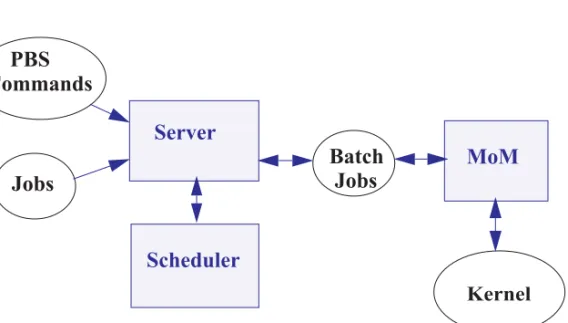
PBS consists of a set of commands and system daemons/services, shown in Figure 2-1:
The server and scheduler daemons run on the server host. A machine that executes jobs is called an execution host. Each execution host runs a MoM daemon. The server host can run a MoM daemon. One server manages any number of MoM daemons. Commands can be run from the server host, execution hosts, and command-only client hosts. The server/scheduler host, the execution hosts, and the client hosts are called a PBS complex.
Figure 2-1: Jobs are submitted to the PBS server. The scheduler chooses where and when to run the jobs, and the server sends the jobs to MoM. PBS commands communicate with the server.
Batch
Jobs
Jobs
KernelPBS
Commands
Server
Scheduler
MoM
Commands
PBS provides a set of commands that you can use to submit, monitor, alter, and delete jobs. The PBS commands can be installed on any supported platform, with or without the other PBS components.
Some PBS commands can be run by any PBS user, while some require administrator or operator privilege. Some commands provide extended fea-tures for administrators and operators.
Job
A PBS job is a task, in the form of a shell script, cmd batch file, Python script, etc. describing the commands and/or applications you want to run. You hand your task off to PBS, where it becomes a PBS job.
Server
The PBS server manages jobs for the PBS complex. PBS commands talk to the PBS server, jobs are submitted to the server, and the server queues the jobs and sends them to execution hosts.
Scheduler
The scheduler runs jobs according to the policy specified by the site admin-istrator. The scheduler matches each job’s requirements with available resources, and prioritizes jobs and allocates resources according to policy. MoM
MoM manages jobs once they are sent to the execution host. One MoM manages the jobs on each execution host. MoM stages files in, runs any prologue, starts each job, monitors the job, stages files out and returns out-put to the job submitter, runs any epilogue, and cleans up after the job. MoM can also run any execution host hooks.
MoM creates a new session that is as identical to your login session as is possible. For example, under UNIX, if the job submitter’s login shell is
csh, then MoM creates a session in which .login is run as well as
.cshrc.
MoM is a reverse-engineered acronym that stands for Machine-oriented Mini-server.
2.3
Interfaces to PBS
PBS provides a command-line interface and its own GUI (Graphical User Interface). Altair also offers a web-based front end to PBS called Compute Manager, which is a separate prod-uct. This document describes the PBS command-line interface and the PBS GUI. For infor-mation on Compute Manager, see www.pbsworks.com.
2.3.1
PBS Commands
PBS provides a set of commands that allow to submit, monitor, and manage your jobs. Some PBS commands can be used by any PBS user; some can be used only by administrators, and some have different behavior depending on the role of the person invoking them. In this doc-ument, we describe the commands that can be used by any PBS user. For a complete descrip-tion of all commands and their requirements, see “Requirements for Commands” on page 25 of the PBS Professional Reference Guide.
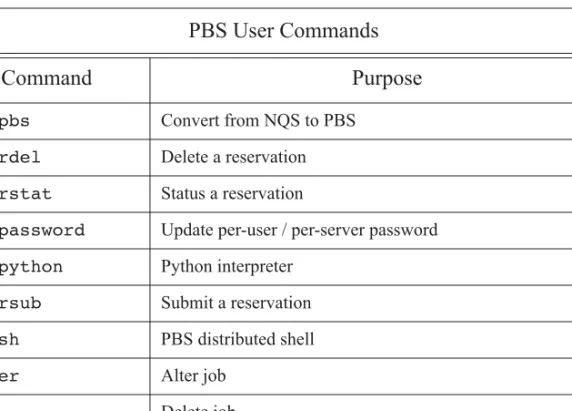
Table 2-1: PBS Professional User Commands
PBS User Commands
Command
Purpose
nqs2pbs Convert from NQS to PBS
pbs_rdel Delete a reservation
pbs_rstat Status a reservation
pbs_password Update per-user / per-server password
pbs_python Python interpreter
pbs_rsub Submit a reservation
pbsdsh PBS distributed shell
qalter Alter job
qdel Delete job
qhold Hold a job
We also list the PBS administrator commands here:
qmsg Send message to job
qorder Reorder jobs
qrls Release hold on job
qselect Select jobs by criteria
qsig Send signal to job
qstat Status job, queue, Server
qsub Submit a job
tracejob Report job history
xpbs Graphical user interface
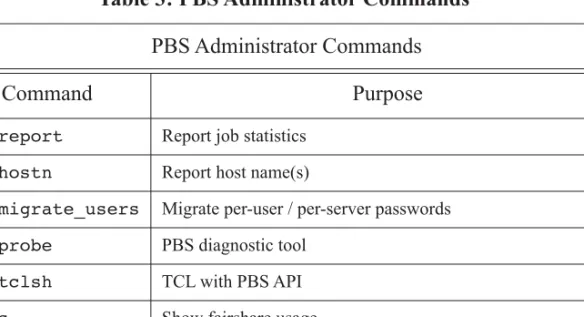
Table 3: PBS Administrator Commands
PBS Administrator Commands
Command
Purpose
pbs-report Report job statistics
pbs_hostn Report host name(s)
pbs_migrate_users Migrate per-user / per-server passwords
pbs_probe PBS diagnostic tool
pbs_tclsh TCL with PBS API
pbsfs Show fairshare usage
pbsnodes Manage vnodes
printjob Report job details
Table 2-1: PBS Professional User Commands
2.4
Setting Up Your Environment
2.4.1
Prerequisites for Account
Your account must have the following characteristics for PBS to work correctly:
• Account must have access to all PBS hosts
• Account must have valid username and group on all execution hosts and on the server
• Account must be able to transfer files between hosts using the file transfer mechanism chosen by the administrator. This is described in section 13.9, "Setting File Transfer Mechanism", on page 897 of the PBS Professional Administrator’s Guide.
• The time zone environment variable must be set correctly in order to use advance and standing reservations. See section 2.4.5, “Setting the Submission Host’s Time Zone”, on page 18.
• Username must be 256 characters or less in length.
• Your environment must be correctly configured:
- For UNIX/Linux, see section 2.4.2, “Setting Up Your UNIX/Linux Environment”, on page 13.
- For Windows, see section 2.4.3, “Setting Up Your Windows Environment”, on page
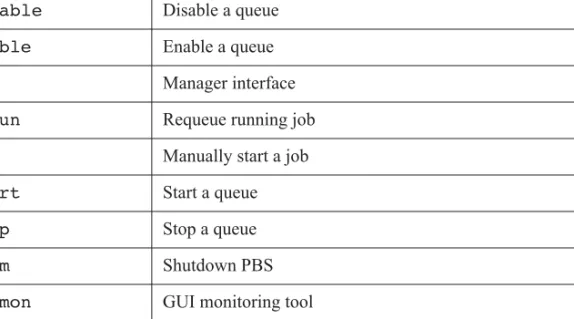
qdisable Disable a queue
qenable Enable a queue
qmgr Manager interface
qrerun Requeue running job
qrun Manually start a job
qstart Start a queue
qstop Stop a queue
qterm Shutdown PBS
xpbsmon GUI monitoring tool
Table 3: PBS Administrator Commands
15.
• Account must have correct user authorization to run jobs. See section 2.4.4, “Setting Up Your User Authorization”, on page 17.
2.4.2
Setting Up Your UNIX/Linux Environment
2.4.2.1
Set Paths to PBS Commands
PBS commands reside in a directory pointed to by $PBS_EXEC/bin. This path may change from one installation of PBS to the next, so use the variable instead of the absolute path. The location of $PBS_EXEC is given in /etc/pbs.conf. Make it easy to use PBS commands by doing the following:
1. In your .login file, source /etc/pbs.conf: If you are using bash or sh, do the following: % . /etc/pbs.conf
If you are using csh, do the following: %source /etc/pbs.conf
2. Add the path to PBS commands to your PATH environment variable. Use
$PBS_EXEC, not the absolute path. For example, where MY_PATH is your existing set of paths:
setenv PATH ${MY_PATH}:$PBS_EXEC/bin/
2.4.2.2
Set Paths to PBS Man Pages
Add the path to the PBS man pages to your MANPATH environment variable:
setenv MANPATH /usr/man:/usr/local/man:$PBS_EXEC/man/
2.4.2.3
Make Login and Logout Files Behave Properly for Jobs
By default, PBS runs your jobs under your login, meaning that your login and logout files are sourced for each job. If your .cshrc, .login, .profile, or .logout contains com-mands that attempt to set terminal characteristics or produce output, such as by writing to
the file is run inside a PBS job. PBS sets the PBS_ENVIRONMENT environment variable
inside jobs. Test for the PBS_ENVIRONMENT environment variable and run commands
only when it is not set. For example, in a .login file:
if ( ! $?PBS_ENVIRONMENT ) then do terminal settings here run command with output here endif
2.4.2.4
Capture Correct Job Exit Status
When a PBS job runs, the exit status of the last command executed in the job is reported by the job’s shell to PBS as the exit status of the job. The exit status of the job is important for job dependencies and job chaining. Under UNIX/Linux, the last command executed might not be the last command in your job, if you have a .logout on the execution host. In that case, the last command executed is from the .logout and not from your job. To prevent this, preserve the job’s exit status in your .logout file by saving it at the top, then doing an explicit exit
at the end, as shown below:
set EXITVAL = $status
previous contents of .logout here exit $EXITVAL
Under Windows, you do not need to take special steps to preserve the job’s exit status.
2.4.2.5
Avoid Background Processes Inside Jobs
Make sure that your login file doesn’t run processes in the background when invoked inside a PBS job. If your login file contains a command that runs in the background inside a PBS job, persistent processes can cause trouble for some MoMs. For example, applications like ssh-agent background themselves into a new session and would prevent a cpuset-enabled MoM from deleting the CPU set for the job, thereby preventing subsequent jobs from running.
2.4.2.6
Provide
bash
Functions to Jobs
If your jobs need to have exported bash functions available to them, you can put these func-tions in your .profile or .login on the execution host(s). You can also use qsub -V or
qsub -v <function name> to forward the function at job submission. Just make sure that you don’t have a function with the same name as an environment variable if you use -v or -V. See section 7.10.8, “Forwarding Exported Shell Functions”, on page 180.
2.4.3
Setting Up Your Windows Environment
2.4.3.1
HOMEDIR for Windows Users
PBS starts jobs in the job owner’s home directory, which is pointed to by HOMEDIR. If you have not been explicitly assigned a home directory, PBS uses a Windows-assigned default as the base location for your default home directory, and starts jobs there. Windows assigns the following default home path:
[PROFILE_PATH]\My Documents\PBS Pro
For example, if userA has not been assigned a home directory, the default home directory is the following:
\Documents and Settings\userA\My Documents\PBS Pro
Windows can return one PROFILE_PATH in one of the following forms:
\Documents and Settings\username
\Documents and Settings\username.local-hostname \Documents and Settings\username.local-hostname.00N
where N is a number
\Documents and Settings\username.domain-name
2.4.3.2
Requirements for Windows Username
• The username must contain only alphanumeric characters, dot (.), underscore (_), and/or hyphen “-”.
• The hyphen must not be the first letter of the username.
• If “@” appears in the username, then it is assumed to be in the context of a Windows domain account: username@domainname.
• The space character is allowed. If a space character appears in a username string, then the string is displayed in quotes, and must be specified in quotes.
2.4.3.3
Requirements for Windows User Account
Your Windows user account must be a normal user account. You cannot submit jobs from a SYSTEM account.
2.4.3.4
Allow Job Submission and Return of Output
PBS runs your jobs under your account. When your job runs on a remote execution host, it needs to be able to log in and transfer files using your account. If your system administrator has not set up access using hosts.equiv, you can set up access using .rhosts files. A
.rhosts file on the server allows you to submit jobs from a remote machine to the server. Set up the .rhosts file in your PROFILE_PATH, in your home directory, on the PBS server host and on each execution host. For example:
\Documents and Settings\username\.rhosts
Format of .rhosts file:
hostname username
Be sure the .rhosts file is owned by you or an administrator-type group, and has write access granted only to you or an administrator or group.
Add all PBS hosts to your .rhosts file:
Host1 user1 Host2 user1 Host3 user1
Make sure that you list all the names by which a host may be known. For instance, if Host4 is known as "Host4", "Host4.<subdomain>", or "Host4.<subdomain>.<domain>" you should list all three in the .rhosts file:
Host4 user1
Host4.subdomain user1 Host4.subdomain.domain user1
If your username contains white space, quote it in the .rhosts file:
Host4.subdomain.domain “Bob Jones”
Example 2-1: The following entry in user user1’s .rhosts file on the server permits user user1 to run jobs submitted from the workstation wks031:
wks031 user1
To allow user1’s output files from a job that runs on execution host Host1 to be returned to user1 automatically by PBS, user1 adds an entry to the .rhosts file on the worksta-tion naming the execuworksta-tion host Host1:
2.4.4
Setting Up Your User Authorization
PBS requires that your username be consistent across a server and its execution hosts, but not across a submission host and a server. You may have access to more than one server, and may have a different username on each server. You can change the user ID for a job; see section 3.5.4, “Specifying Job Username”, on page 44.
2.4.4.1
User Authorization Under UNIX/Linux
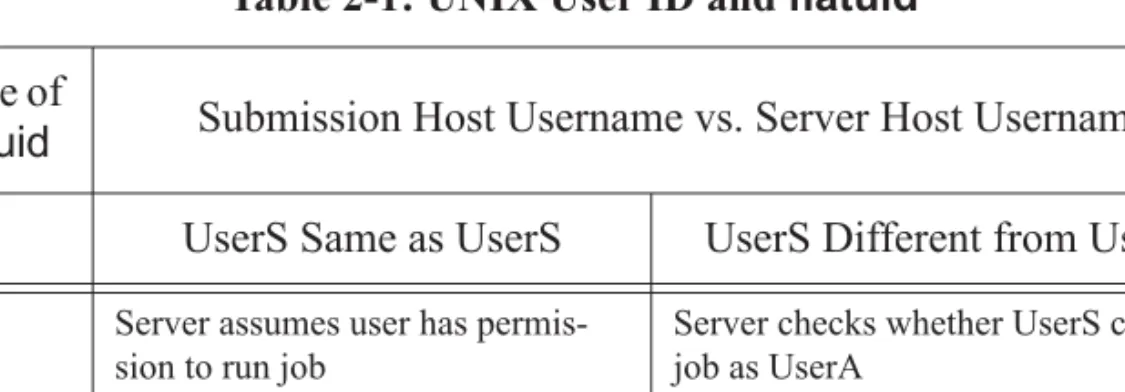
The server’s flatuid attribute determines whether it assumes that identical user names mean identical users. If True, it assumes that if UserS exists on both the submission host and the server host, then UserS can run jobs on that server. If not True, the server calls ruserok()
which uses /etc/hosts.equiv or .rhosts to authorize UserS to run as UserS. In this case, the username you specify with the -u option must have a .rhosts file on the server’s host listing the job owner, meaning that UserS at the server must have a .rhosts file listing UserS.
Example 2-2: Our user is UserA on the submission host, but is userB at the server. In order to submit jobs as UserA and run jobs as UserB, UserB must have a .rhosts file on the server’s host that lists UserA.
Note that if different names are listed via the -u option, then they are checked regardless of the value of flatuid.
Using hosts.equiv is not recommended.
Table 2-1: UNIX User ID and
flatuid
Value of
flatuid
Submission Host Username vs. Server Host Username
UserS Same as UserS
UserS Different from UserA
True Server assumes user haspermis-sion to run job
Server checks whether UserS can run job as UserA
False/ unset
Server checks whether UserS can run job as UserS
Server checks whether UserS can run job as UserA
2.4.4.2
User Authorization Under Windows
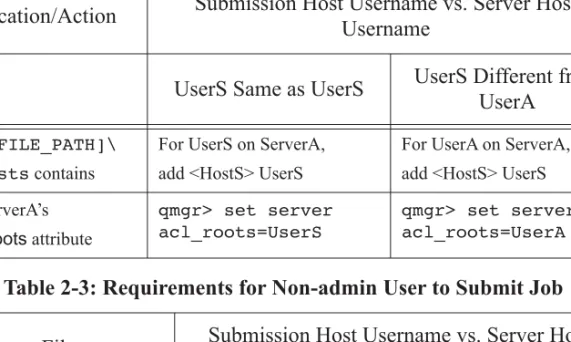
Under Windows, if a user has a non-admin account, the server’s hosts.equiv file is used to determine whether that user can run a job on a given server. For an admin account,
[PROFILE_PATH].\rhosts is used, and the server’s acl_roots attribute must be set to
allow job submissions. User names containing spaces are allowed as long as the username length is no more than 256 characters, and the user names are quoted when used in the com-mand line.
2.4.5
Setting the Submission Host’s Time Zone
Make sure that the environment variable PBS_TZID is set correctly at your submission host. Set this environment variable to a timezone location known to PBS Professional. You can get the appropriate zone location from the PBS server host.
Table 2-2: Requirements for Admin User to Submit Job
Location/Action
Submission Host Username vs. Server Host
Username
UserS Same as UserS
UserS Different from
UserA
[PROFILE_PATH]\ .rhosts contains
For UserS on ServerA, add <HostS> UserS
For UserA on ServerA, add <HostS> UserS set ServerA’s acl_roots attribute qmgr> set server acl_roots=UserS qmgr> set server acl_roots=UserA
Table 2-3: Requirements for Non-admin User to Submit Job
File
Submission Host Username vs. Server Host
Username
UserS Same as
UserS
UserS Different from
UserA
On Linux, use the tzselect command if it is available, or get the zone location from / usr/share/zoneinfo/zone.tab.
On all other platforms, use the list of libical supported zoneinfo locations available under
$PBS_EXEC/lib/ical/zoneinfo/zones.tab.
The format for PBS_TZID is a timezone location, rather than a timezone POSIX
abbrevia-tion. Examples of values for PBS_TZID are:
America/Los_Angeles America/Detroit Europe/Berlin Asia/Calcutta
Submitting a PBS Job
3.1
Introduction to the PBS Job
To use PBS, you create a batch job, usually just called a job, which you then hand off, or sub-mit, to PBS. A batch job is a set of commands and/or applications you want to run on one or more execution machines, contained in a file or typed at the command line. You can include instructions which specify the characteristics such as job name, and resource requirements such as memory, CPU time, etc., that your job needs. The job file can be a shell script under UNIX, a cmd batch file under Windows, a Python script, a Perl script, etc.
For example, here is a simple PBS batch job file which requests one hour of time, 400MB of memory, 4 CPUs, and runs my_application:
#!/bin/sh
#PBS -l walltime=1:00:00 #PBS -l mem=400mb,ncpus=4 ./my_application
To submit the job to PBS, you use the qsub command, and give the job script as an argument to qsub. For example, to submit the script named “my_script”:
qsub my_script
We will go into the details of job script creation in section 3.2, “The PBS Job Script”, on page 25, and job submission in section 3.3, “Submitting a PBS Job”, on page 31.
3.1.1
Lifecycle of a PBS Job, Briefly
Your PBS job has the following lifecycle:
1. You write a job script
2. You submit the job to PBS
3. PBS accepts the job and returns a job ID to you
4. The PBS scheduler finds the right place and time to run your job, and sends your job to the selected execution host(s)
5. Licenses are obtained
6. On each execution host, PBS creates a job-specific staging and execution directory
7. PBS sets PBS_JOBDIR and the job’s jobdir attribute to the path of the job’s staging
and execution directory.
8. On each execution host allocated to the job, PBS creates a job-specific temporary directory.
9. PBS sets the TMPDIR environment variable to the pathname of the temporary
direc-tory.
10. If any errors occur during directory creation or the setting of variables, the job is requeued.
11. Input files or directories are copied to the primary execution host
12. If needed, cpusets are created
• If it exists, the prologue runs on the primary execution host, with its current working directory set to PBS_HOME/mom_priv, and with PBS_JOBDIR and TMPDIR set in
its environment.
13. The job runs under your login
14. If it exists, the epilogue runs on the primary execution host, with its current working directory set to the path of the job’s staging and execution directory, and with
PBS_JOBDIR and TMPDIR set in its environment. 15. Output files or directories are copied to specified locations
16. Temporary files and directories are cleaned up
17. Licenses are returned to pool
For more detail about the lifecycle of a job, see section 4.2.7, “Summary of the Job’s Lifecy-cle”, on page 57 and section 4.2.8, “Detailed Description of Job’s Lifecycle”, on page 58.
3.1.2
Where and How Your PBS Job Runs
Your PBS jobs run on hosts that the administrator has designated to PBS as execution hosts. The PBS scheduler chooses one or more execution hosts that have the resources that your job requires.
PBS runs your jobs under your user account. This means that your login and logout files are executed for each job, and some of your environment goes with the job. It’s important to make sure that your login and logout files don’t interfere with your jobs; see section 2.4.2, “Setting Up Your UNIX/Linux Environment”, on page 13.
3.1.3
The Job Identifier
After you submit a job, PBS returns a job identifier. Format for a job:
sequence_number.servername
Format for a job array:
sequence_number[].servername.domain
You’ll need the job identifier for any actions involving the job, such as checking job status, modifying the job, tracking the job, or deleting the job.
The largest possible job ID is the 7-digit number 9,999,999. After this has been reached, job IDs start again at zero.
3.1.4
Your Job’s Shell Script(s)
When PBS runs your job, PBS starts the top shell that you specify for the job. The top shell defaults to your login shell on the execution host, but you can set another using the job’s
Shell_Path_List attribute. See section 3.3.3.1, “Specifying the Job’s Top Shell”, on page 32. Under UNIX/Linux, if you do not specify a shell inside the job script, PBS defaults to using / bin/sh. If you specify a different shell inside the job script, the top shell spawns that shell to run the script; see section 3.3.3.2, “Specifying Job Script Shell or Interpreter”, on page 33. Under Windows, the job shell is the same as the top shell.
3.1.5
Scratch Space for Jobs
When PBS runs your job, it creates a temporary scratch directory for the job on each execu-tion host. If your administrator has not specified a temporary directory, the root of the tempo-rary directory is /tmp. Your administrator can specify a root for the temporary directory on each execution host using the $tmpdir MoM parameter. PBS creates the TMPDIR environ-ment variable, and sets it to the full path to the temporary scratch directory.
Under Windows, PBS creates the temporary directory and sets TMP to the value of the
Win-dows %TMPDIR% environment variable. If your administrator has not specified a
tempo-rary directory, PBS creates the tempotempo-rary directory under either \winnt\temp or
\windows\temp.
PBS removes the directory when the job is finished. The location of the temporary directory is set by PBS; you should not set TMPDIR.
Your job script can access the scratch space. For example: UNIX:
cd $TMPDIR
Windows:
cd %TMPDIR%
For scratch space for MPI jobs, see section 6.2.3, “Caveats for Using MPIs”, on page 117.
3.1.6
Types of Jobs
PBS allows you to submit standard batch jobs or interactive jobs. The difference is that while the interactive job runs, you have an interactive session running, giving you interactive access to job processes. There is no interactive access to a standard batch job. We cover interactive jobs in section 7.10, “Running Your Job Interactively”, on page 176.
3.1.7
Job Input and Output Files
You can tell PBS to copy files or directories from any accessible location to the execution host, and to copy output files and directories from the execution host wherever you want. We describe how to do this in Chapter 4, "Job Input and Output Files", on page 49.
3.2
The PBS Job Script
3.2.1
Overview of a Job Script
A PBS job script consists of:
• An optional shell specification
• PBS directives
• Job tasks (programs or commands)
3.2.2
Types of Job Scripts
PBS allows you to use any of the following for job scripts:
• A Python, Perl, or other script that can run under Windows or UNIX/Linux
• A UNIX shell script that runs under UNIX/Linux
• Windows command or PowerShell batch script under Windows
3.2.2.1
UNIX Shell Scripts
Since the job file can be a shell script, the first line of a shell script job file specifies which shell to use to execute the script. Your login shell is the default, but you can change this. This first line can be omitted if it is acceptable for the job file to be interpreted using the login shell. We recommend that you always specify the shell.
3.2.2.2
Python Job Scripts
PBS allows you to submit jobs using Python scripts under Windows or UNIX/Linux. PBS includes a Python package, allowing Python job scripts to run; you do not need to install Python. To run a Python job script:
UNIX/Linux:
qsub <script name> Windows:
qsub -S %PBS_EXEC%\bin\pbs_python.exe <script name> If the path contains any spaces, it must be quoted, for example: qsub -S “%PBS_EXEC%\bin\pbs_python.exe” <python job script>
You can include PBS directives in a Python job script as you would in a UNIX shell script. For example: % cat myjob.py #!/usr/bin/python #PBS -l select=1:ncpus=3:mem=1gb #PBS -N HelloJob print “Hello”
Python job scripts can access Win32 APIs, including the following modules:
• Win32api
• Win32con
• Pywintypes
3.2.2.2.i Debugging Python Job Scripts
You can run Python interactively, outside of PBS, to debug a Python job script. You use the Python interpreter to test parts of your script.
Under UNIX/Linux, use the -i option to the pbs_python command, for example: /opt/pbs/default/bin/pbs_python -i <return>
Under Windows, the -i option is not necessary, but can be used. For example, either of the following will work:
C:\Program Files\PBS Pro\exec\bin\pbs_python.exe <return> C:\Program Files\PBS Pro\exec\bin\pbs_python.exe -i <return>
When the Python interpreter runs, it presents you with its own prompt. For example: % /opt/pbs/default/bin/pbs_python -i <return>
>> print “hello”
hello
3.2.2.2.ii Python Windows Caveat
If you have Python natively installed, and you need to use the win32api, make sure that you import pywintypes before win32api, otherwise you will get an error. Do the following:
cmd> pbs_python >> import pywintypes >> import win32api
3.2.2.3
Windows Job Scripts
The Windows script can be a .exe or .bat file, or a Python or Perl script. 3.2.2.3.i Requirements for Windows Command Scripts
• Under Windows, comments in the job script must be in ASCII characters.
• Any .bat files that are to be executed within a PBS job script have to be prefixed with "call" as in:
@echo off
call E:\step1.bat call E:\step2.bat
Without the "call", only the first .bat file gets executed and it doesn't return control to the calling interpreter.
For example, an old job script that contains:
@echo off E:\step1.bat E:\step2.bat
should now be:
@echo off
call E:\step1.bat call E:\step2.bat
3.2.2.3.ii Windows Advice and Caveats
• In Windows, if you use notepad to create a job script, the last line is not automatically newline-terminated. Be sure to add one explicitly, otherwise, PBS job will get the follow-ing error message:
More?
when the Windows command interpreter tries to execute that last line.
• Drive mapping commands are typically put in the job script.
• Do not use xcopy inside a job script. Use copy, robocopy, or pbs_rcp instead. The xcopy command sometimes expects input from the user. Because of this, it must be assigned an input handle. Since PBS does not create the job process with an input handle assigned, xcopy can fail or behave abnormally if used inside a PBS job script.
• PBS jobs submitted from cygwin execute under the native cmd environment, and not under cygwin.
3.2.3
Setting Job Characteristics
3.2.3.1
Job Attributes
PBS represents the characteristics of a job as attributes. For example, the name of a job is an attribute of that job, stored in the value of the job’s Job_Name attribute. Some job attributes can be set by you, some can be set only by administrators, and some are set only by PBS. For a complete list of PBS job attributes, see “Job Attributes” on page 374 of the PBS Profes-sional Reference Guide. Job attributes are case-insensitive.
3.2.3.2
Job Resources
PBS represents the things that a job might use as resources. For example, the number of CPUs and the amount of memory on an execution host are resources. PBS comes with a set of built-in resources, and your PBS administrator can define resources. You can see a list of all built-in PBS resources in “Resources” on page 297 of the PBS Professional Reference Guide. Resources are case-insensitive.
3.2.3.3
Setting Job Attributes
You can set job attributes and request resources using the following equivalent methods:
• Using specific options to the qsub command at the command line; for example, -e <path> to set the error path.
• Using PBS directives in the job script; for example, #PBS Error_Path=<path> to set the error path.
These methods have the same functionality. If you give conflicting options to qsub, the last option specified overrides any others. Options to the qsub command override PBS direc-tives, which override defaults. Some job attributes and resources have default values; your administrator can set default values for some attributes and resources.
After the job is submitted, you can use the qalter command to change the job’s characteris-tics.
3.2.3.4
Using PBS Directives
A directive has the directive prefix as the first non-whitespace characters. The default for the prefix is #PBS.
Put all your PBS directives at the top of the script file, above any commands. Any directive after an executable line in the script is ignored. For example, if your script contains “@echo”, put that line below all PBS directives.
3.2.3.4.i Changing the Directive Prefix
By default, the text string “#PBS” is used by PBS to determine which lines in the job file are PBS directives. The leading “#” symbol was chosen because it is a comment delimiter to all
shell scripting languages in common use on UNIX systems. Because directives look like com-ments, the scripting language ignores them.
Under Windows, however, the command interpreter does not recognize the ‘#’ symbol as a
comment, and will generate a benign, non-fatal warning when it encounters each “#PBS” string. While it does not cause a problem for the batch job, it can be annoying or disconcerting to you. If you use Windows, you may wish to specify a different PBS directive, via either the
PBS_DPREFIX environment variable, or the “-C” option to qsub. The qsub option over-rides the environment variable. For example, we can direct PBS to use the string “REM PBS” instead of “#PBS” and use this directive string in our job script:
REM PBS -l walltime=1:00:00 REM PBS -l select=mem=400mb REM PBS -j oe date /t .\my_application date /t
Given the above job script, we can submit it to PBS in one of two ways:
set PBS_DPREFIX=REM PBS
qsub my_job_script or
qsub -C “REM PBS” my_job_script
3.2.3.4.ii Caveats and Restrictions for PBS Directives
• You cannot use PBS_DPREFIX as the directive prefix.
• The limit on the length of a directive string is 4096 characters.
3.2.4
Job Tasks
These can be programs or commands. This is where you can specify an application to be run.
3.2.5
Job Script Names
We recommended that you avoid using special characters in job script names. If you must use them, on UNIX/Linux you must escape them using the backslash (“\”) character.
3.2.5.1
How PBS Parses a Job Script
PBS parses a job script in two parts. First, the qsub command scans the script looking for directives, and stops at the first executable line it finds. This means that if you want qsub to use a directive, it must be above any executable lines. Any directive below the first execut-able line is ignored. The first executexecut-able line is the first line that is not a directive, whose first non-whitespace character is not “#”, and is not blank. For information on directives, see sec-tion 3.2.3.4, “Using PBS Directives”, on page 28.
Second, lines in the script are processed by the job shell. PBS pipes the name of the job script file as input to the top shell, and the top shell executes the job shell, which runs the script. You can specify which shell is the top shell; see section 3.3.3.1, “Specifying the Job’s Top Shell”, on page 32, and, under UNIX/Linux, which shell you want to run the script in the first execut-able line of the script; see section 3.3.3.2, “Specifying Job Script Shell or Interpreter”, on page 33.
3.2.5.1.i Comparison Between Equivalent UNIX/Linux and Windows Job Scripts
The following UNIX/Linux and Windows job scripts produce the same results. UNIX/Linux: #!/bin/sh #PBS -l walltime=1:00:00 #PBS -l select=mem=400mb #PBS -j oe date ./my_application date Windows: REM PBS -l walltime=1:00:00 REM PBS -l select=mem=400mb REM PBS -j oe date /t my_application date /t
The first line in the Windows script does not contain a path to a shell because you cannot specify the path to the shell or interpreter inside a Windows job script. See section 3.3.3.2, “Specifying Job Script Shell or Interpreter”, on page 33.
The remaining lines of both files are almost identical. The primary differences are in file and directory path specifications, such as the use of drive letters, and slash vs. backslash as the path separator.
The lines beginning with “#PBS” and “REM PBS” are PBS directives. PBS reads down the job script until it finds the first line that is not a valid PBS directive, then stops. From there on, the lines in the script are read by the job shell or interpreter. In this case, PBS sees lines 6-8 as commands to be run by the job shell.
In our examples above, the “-l <resource>=<value>” lines request specific resources. Here, we request 1 hour of wall-clock time as a job-wide request, and 400 megabytes (MB) of memory in a chunk. We will cover requesting resources in Chapter 5, "Allocating Resources & Placing Jobs", on page 69.
The “-j oe” line requests that PBS join the stdout and stderr output streams of the job into a single stream. We will cover merging output in "Merging Output and Error Files” on page 65.
The last three lines are the command lines for executing the programs we wish to run. You can specify as many programs, tasks, or job steps as you need.
3.3
Submitting a PBS Job
3.3.1
Prerequisites for Submitting Jobs
Before you submit any jobs, set your environment appropriately. Follow the instructions in
section 2.4, “Setting Up Your Environment”, on page 12.
3.3.2
Ways to Submit a PBS Job
You can use the qsub command to submit a normal or interactive job to PBS:
• You can call qsub with a job script; see section 3.3.3, “Submitting a Job Using a Script”, on page 32
• You can call qsub with an executable and its arguments; see section 3.3.4, “Submitting Jobs by Specifying Executable”, on page 36
• You can call qsub and give keyboard input; see section 3.3.5, “Submitting Jobs Using Keyboard Input”, on page 37
You can use the xpbs command to submit a normal or interactive job to PBS; see section 16.6, “How to Submit a Job Using xpbs”, on page 330:
• You can run xpbs and give it a job script
• You can run xpbs and give it keyboard input
You can use an Altair front-end product to submit and monitor jobs; go to
www.pbsworks.com.
3.3.3
Submitting a Job Using a Script
You submit a job to PBS using the qsub command. For details on qsub, see “qsub” on page 210 of the PBS Professional Reference Guide. To submit a PBS job, type the following:
• UNIX/Linux shell script: qsub <name of shell script>
• UNIX/Linux Python or Perl script:
qsub <name of Python or Perl job script>
• Windows command script: qsub <name of job script>
• Windows Python script:
qsub -S %PBS_EXEC%\bin\pbs_python.exe <name of python job script> If the path contains any spaces, it must be quoted, for example:
qsub -S “%PBS_EXEC%\bin\pbs_python.exe” <name of python job script>
3.3.3.1
Specifying the Job’s Top Shell
You can can specify the path and name of the shell to use as the top shell for your job. The rules for specifying the top shell are different for UNIX/Linux and Windows; do not skip the following subsections numbered 3.3.3.1.i and 3.3.3.1.ii.
The Shell_Path_List job attribute specifies the top shell; the default is your login shell on the
execution host. You can set this attribute using the the following:
• The “-S <path list>” option to qsub
• The #PBS Shell_Path_List=<path list> PBS directive The option argument path list has this form:
You must supply a <path list> if you attempt to set Shell_Path_List, otherwise, you will get
an error. You can specify only one path for any host you name. You can specify only one path that doesn’t have a corresponding host name.
PBS chooses the path whose host name matches the name of the execution host. If no match-ing host is found, then PBS chooses the path specified without a host, if one exists.
3.3.3.1.i Specifying Job’s Top Shell Under UNIX/Linux
On UNIX/Linux, the job’s top shell is the one MoM starts when she starts your job, and the job shell is the shell or interpreter that runs your job script commands.
Under UNIX/Linux, you can use any shell such as csh or sh, by specifying qsub -S <path>. You cannot use Perl or Python as your top shell.
Example 3-1: Using bash:
qsub -S /bin/bash <script name>
3.3.3.1.ii Specifying Job’s Top Shell Under Windows On Windows, the job shell is the same as the top shell.
Under Windows, you can specify a shell or an interpreter such as Perl or Python, and if your job script is Perl or Python, you must specify the language using an option to qsub; you can-not specify it in the job script.
Example 3-2: Running a Python script on Windows:
qsub -S “C:\Program Files\PBS Pro\exec\bin\pbs_python.exe” <script name> 3.3.3.1.iii Caveats for Specifying the Job’s Top Shell
If you specify a relative path for the top shell, the full path must be available in your PATH
environment variable on the execution host(s). We recommend specifying the full path.
3.3.3.2
Specifying Job Script Shell or Interpreter
3.3.3.2.i Specifying Job Script Shell or Interpreter Under UNIX/Linux If you don’t specify a shell for the job script, it defaults to /bin/sh. You can use any shell, and you can use an interpreter such as Perl or Python.
You specify the shell or interpreter in the first line of your job script. The top shell spawns the specified process, and this process runs the job script. For example, to use /bin/sh to run the script, use the following as the first line in your job script:
To use Perl or Python to run your script, use the path to Perl or Python as the first line in your script:
#!/usr/bin/perl
or
#!/usr/bin/python
3.3.3.2.ii Specifying Job Script Shell or Interpreter Under Windows
Under Windows, the job shell or interpreter is the same as the top shell or interpreter. You can specify the top/job shell or interpreter, but not a separate job shell or interpreter. To use a non-default shell or interpreter, you must specify it using an option to qsub:
qsub -S <path to shell or interpreter> <script name>
3.3.3.3
Examples of Submitting Jobs Using Scripts
Example 3-3: Our job script is named “myjob”. We can submit it by typing: qsub myjob
and then PBS returns the job ID:
16387.exampleserver.exampledomain
Example 3-4: The following is the contents of the script named “myjob”. In it, we name the job “testjob”, and run a program called “myprogram”:
#!/bin/sh #PBS -N testjob ./myprogram
Example 3-5: The simplest way to submit a job is to give the script name as the argument to
qsub, and hit return: qsub <job script> <ret> If the script contains the following:
#!/bin/sh ./myapplication
you have simply told PBS to run myapplication.
3.3.3.4
Passing Arguments to Jobs
If you need to pass arguments to a job script, you can do the following:
using -v or -V.
For example, to use myinfile as the input to a.out, your job script contains the fol-lowing:
#PBS -N myjobname a.out < $INFILE
You can then use the -V option:
qsub -v INFILE=/tmp/myinfile <job script>
For example, to use myinfile and mydata as the input to a.out, your job script con-tains the following:
#PBS -N myjobname
cat $INFILE $INDATA | a.out
You can then use the -V option:
qsub -v INFILE=/tmp/myinfile, INDATA=/tmp/mydata <job script> You can export the environment variable first:
export INFILE=/tmp/myinfile qsub -V <job script>
• Use a here document. For example: qsub [option] [option] ... <ret> #PBS <directive>
./jobscript.sh arg1 <^d> 152.examplehost
If you need to pass arguments to a job, you can do any of the following:
• Pipe a shell command to qsub.
For example, to directly pass myinfile and mydata as the input to a.out, type the following, or make them into a shell script:
echo “a.out myinfile mydata” | qsub -l select=... For example:
echo "jobscript.sh -a arg1 -b arg2" | qsub -l select=...
For example, to use an environment variable to pass myinfile as the input to a.out, type the following, or make them into a shell script:
export INFILE=/tmp/myinfile export INDATA=/tmp/mydata
echo “a.out $INFILE $INDATA” | qsub
• Use qsub --<executable> <arguments to executable>. See section 3.3.4, “Submitting Jobs by Specifying Executable”, on page 36.
3.3.4
Submitting Jobs by Specifying Executable
You can run a PBS job by specifying an executable and its arguments instead of a job script. When you specify only the executable with any options and arguments, PBS starts a shell for you. To submit a job from the command line, the format is the following:
qsub [options] -- executable [arguments to executable] <return>
For example, to run myprog with the arguments a and b: qsub -- myprog a b <return>
To run myprog with the arguments a and b, naming the job JobA, qsub -N JobA -- myprog a b <return>
To use environment variables you define earlier: export INFILE=/tmp/myinfile
export INDATA=/tmp/mydata qsub --a.out $INFILE $INDATA
3.3.5
Submitting Jobs Using Keyboard Input
You can specify that qsub read input from the keyboard. If you run the qsub command, with the resource requests on the command line, and then press “enter” without naming a job file, PBS will read input from the keyboard. (This is often referred to as a “here document”.) You can direct qsub to stop reading input and submit the job by typing on a line by itself a con-trol-d (UNIX) or control-z, then “enter” (Windows).
Note that, under UNIX, if you enter a control-c while qsub is reading input, qsub will terminate the process and the job will not be submitted. Under Windows, however, often the
control-c sequence will, depending on the command prompt used, cause qsub to submit the job to PBS. In such case, a control-break sequence will usually terminate the qsub
command. qsub <ret>
[directives] [tasks] ctrl-D
3.3.6
Submitting Jobs Under Windows
3.3.6.1
Passwords
When running PBS in a password-protected Windows environment, you will need to specify to PBS the password needed in order to run your jobs. There are two methods of doing this: (1) by providing PBS with a password once to be used for all jobs (“single signon method”), or (2) by specifying the password for each job when submitted (“per job method”). Check with your system administrator to see which method was configured at your site.
3.3.6.1.i Single-Signon Password Method
To provide PBS with a password to be used for all your PBS jobs, use the pbs_password
command. This command can be used whether or not you have jobs enqueued in PBS. The command usage syntax is:
pbs_password [-s server] [-r] [-d] [user]
When no options are given to pbs_password, the password credential on the default PBS server for the current user, i.e. the user who executes the command, is updated to the prompted password. Any user jobs previously held due to an invalid password are not released.
-r
Any user jobs previously held due to an invalid password are released.
-s server
Allows you to specify server where password will be changed.
-d
Deletes the password.
user
The password credential of user user is updated to the prompted password. If user is not the current user, this action is only allowed if:
1. The current user is root or admin.
2. User user has given the current user explicit access via the ruse-rok() mechanism:
a The hostname of the machine from which the current user is logged in appears in the server's hosts.equiv file, or
b The current user has an entry in user's HOMEDIR\.rhosts file. Note that pbs_password encrypts the password obtained from you before sending it to the PBS Server. The pbs_password command does not change your password on the current host, only the password that is cached in PBS.
The pbs_password command is supported only on Windows and all supported Linux plat-forms on x86 and x86_64.
The pbs_password command has no effect on running jobs. Queued jobs use the new password.
3.3.6.1.ii Per-job Password Method
If you are running in a password-protected Windows environment, but the single-signon method has not been configured at your site, then you will need to supply a password with the submission of each job. You can do this via the qsub command, with the -Wpwd option, and
supply the password when prompted. qsub -Wpwd <job script>
You will be prompted for the password , which is passed on to the program, then encrypted and saved securely for use by the job. The password should be enclosed in double quotes. Keep in mind that in a multi-host job, the password supplied will be propagated to all the sis-ter hosts. This requires that the password be the same on your accounts on all the hosts. The use of domain accounts for a multi-host job will be ideal in this case.
Accessing network share drives/resources within a job session also requires that you submit the job with a password via qsub -W pwd.
The -Wpwd option to the qsub command is supported only on Windows and all supported Linux platforms on x86 and x86_64.
3.4
Job Submission Recommendations and
Advice
3.4.1
Trapping Signals in Script
You can trap signals in your job script. For example, you can trap preemption and suspension signals.
If you want to trap the signal in your job script, the signal may need to be trapped by all of the job’s shells, depending on the signal.
The signal TERM is useful, because it is ignored by shells, but you can trap it and do useful things such as write out status.
Example 3-6: Ignore the listed signals:
trap "" 1 2 3 15
Example 3-7: Call the function “goodbye” for the listed signals:
trap goodbye 1 2 3 15
3.5
Job Submission Options
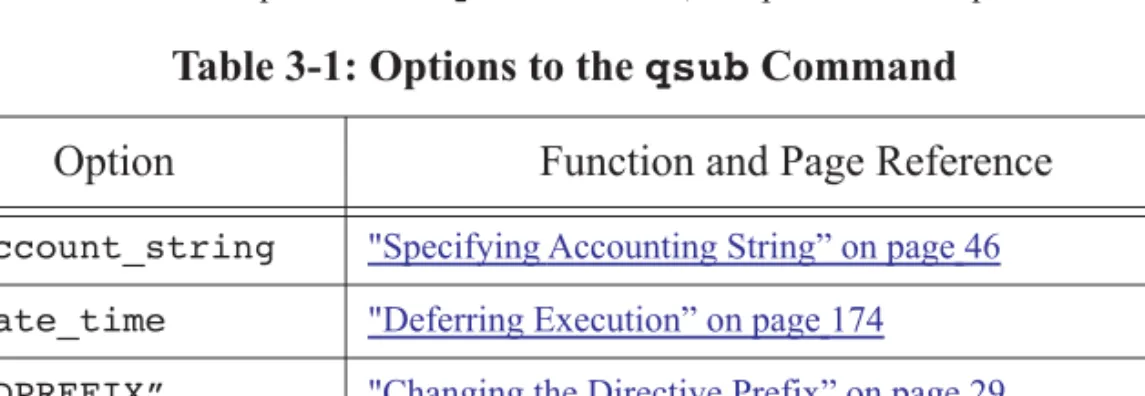
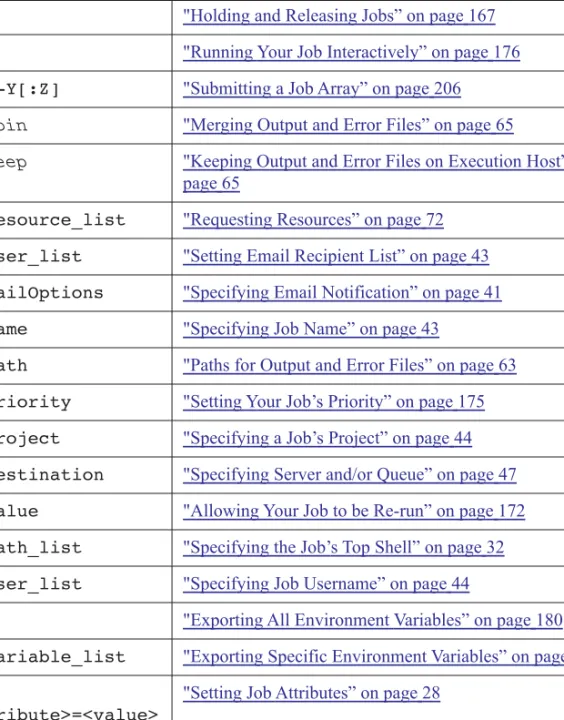
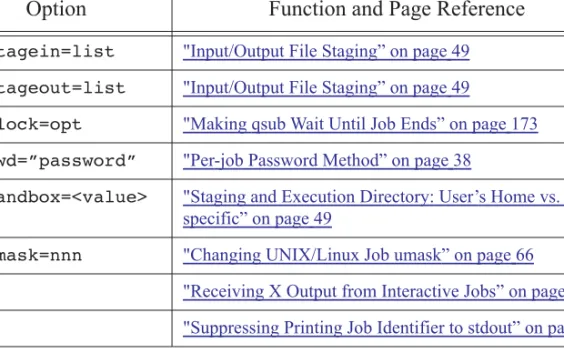
The table below lists the options to the qsub command, and points to an explanation of each:
Table 3-1: Options to the
qsub
Command
Option
Function and Page Reference
-A account_string "Specifying Accounting String” on page 46
-a date_time "Deferring Execution” on page 174
-C “DPREFIX” "Changing the Directive Prefix” on page 29
-c interval "Using Checkpointing” on page 165