EMC HADOOP STARTER KIT
EMC Isilon and VMware Big Data Extensions for
Hadoop – Deploying Pivotal HD
EMC WHITE PAPER
ABSTRACT
This white paper describes how to create a Hadoop analytics environment in a couple hours at little to no cost using a VMware vSphere environment, VMware Big Data Extension’s for Hadoop cluster deployments, and an existing EMC Isilon storage array for HDFS accessible shared storage. It focuses specifically on how to automate deployments of the PivotalHD platform utilizing EMC Isilon for HDFS.
TABLE OF CONTENTS
ABSTRACT ... 1
TABLE OF CONTENTS ... 2
EXECUTIVE SUMMARY ... 3
INTRODUCTION ... 3
AUDIENCE ... 3
WHY VIRTUALIZE HADOOP? ... 3
APACHE HADOOP PROJECTS ... 4
PIVOTALHD ... 4
HOW HADOOP WORKS ... 6
VIRTUALIZING HADOOP ... 6
ISILON SCALE-OUT NAS FOR VIRTUALIZED HADOOP CLUSTER SHARED DATA SERVICE ... 7
VSPHERE BIG DATA EXTENSION FOR VIRTUALIZED HADOOP CLUSTER TOPOLOGY AWARENESS ... 7
INSTALLATION STEPS ... 7
Prerequisites for Installing VMware Big Data Extensions ... 7
vSphere Requirements ... 8
Resource Requirements for the vSphere Management Server and Templates ... 8
Resource Requirements for the Hadoop Cluster ... 8
Environment for this guide ... 8
BIG DATA EXTENSION OVF DEPLOYMENT ... 10
DEPLOY BIG DATA EXTENSION ... 16
CONNECT MANAGEMENT SERVER ... 19
INSTALL THE CLI ... 21
NETWORKING ... 22
ISILON SETUP ... 25
ADD NFS MOUNT POINTS TO ESX HOSTS ... 30
ADD DATASTORES TO BIG DATA EXTENSIONS ... 33
SETTING UP PIVOTALHD ... 35
SETTING UP A CUSTOM TEMPLATE ... 43
DEPLOY A HADOOP CLUSTER ... 52
UPLOAD DATA FOR TESTING ... 57
WORDCOUNT ... 59
CREATING USERS ON ISLON ... 62
CONCLUSION ... 63
References ... 63
EXECUTIVE SUMMARY
INTRODUCTION
IDC published an update to their Digital Universe study in December and found that the rate of digital data creation is not only continuing to grow, but the rate is actually accelerating. By the end of this decade we will create 40 Zettabytes of new digital information yearly or the equivalent of 1.7MB of digital information for every man, woman, and child every second of every day. This information explosion is creating new opportunities for our businesses to leverage digital information to serve their
customers better, faster, and most cost effectively through Big Data Analytics applications. Hadoop technologies can be cost effective solutions and can manage structured, semi-structured and unstructured data unlike traditional solutions such as RDBMS. The need to track and analyze consumer behavior, maintain inventory and space, target marketing offers on the basis of consumer preferences and attract and retain consumers, are some of the factors pushing the demand for Big Data Analytics solutions using Hadoop technologies. According to a new market report published by Transparency Market Research
(http://www.transparencymarketresearch.com) "Hadoop Market - Global Industry Analysis, Size, Share, Growth, Trends, and Forecast, 2012- 2018," the global Hadoop market was worth USD 1.5 billion in 2012 and is expected to reach USD 20.9 billion in 2018, growing at a CAGR of 54.7% from 2012 to 2018.
Hadoop like any new technology can be time consuming, and expensive for our customers to get deployed and operational. When we surveyed a number of our customers, two main challenges were identified to getting started: confusion over which Hadoop distribution to use and how to deploy using existing IT assets and knowledge. Hadoop software is distributed by several vendors including Pivotal, Hortonworks, and Cloudera with proprietary extensions. In addition to these distributions, Apache distributes a free open source version. From an infrastructure perspective many Hadoop deployments start outside the IT data center and do not leverage the existing IT automation, storage efficiency, and protection capabilities. Many customers cited the time it took IT to deploy Hadoop as the primary reason to start with a deployment outside of IT.
This guide is intended to simplify Hadoop deployments, reduce the time to deployment, and the cost of deployment while leveraging common IT technologies such as EMC Isilon storage and VMware virtualization. These technologies are often already in place for many customers.
AUDIENCE
This white paper is intended for IT program managers, IT architects, Developers, and IT management to jumpstart initial deployments of Hadoop clusters.
WHY VIRTUALIZE HADOOP?
Hadoop is an open source software project that enables the distributed processing of large data sets across clusters of commodity servers. It is designed to scale up from a single server to thousands of machines. Hadoop clusters can be
dynamically scaled up and down based on the available resources and the required services levels. Performance service levels vary widely for processing, from a few minutes to multiple days.
Hadoop has emerged as a tool of choice for big data analytics, and virtualizing Hadoop brings many benefits, including:
Rapid provisioning – From the creation of virtual Hadoop nodes to starting up the Hadoop services on the cluster, much of the Hadoop cluster deployment can be automated, requiring little expertise on the user’s part. Virtual Hadoop clusters can be rapidly deployed and configured as needed.
Elasticity – Hadoop capacity can be scaled up and down on demand in a virtual environment, thus allowing the same physical infrastructure to be shared among Hadoop and other applications. This consolidation of workloads results in more efficient resource utilization and reduced costs.
Multi-tenancy – Different tenants running Hadoop can be isolated in separate VMs, providing stronger VM-grade resource and security isolation. With virtualization, mixed workloads that include non-Hadoop applications can run alongside Hadoop on the same physical cluster.
Hadoop Virtualization Extensions (HVE) allow Apache Hadoop compliant clusters implemented on virtualized infrastructure full awareness of the topology on which they are running, thus enhancing the reliability and performance of these clusters.
APACHE HADOOP PROJECTS
Apache Hadoop is an open source, batch data processing system for enormous amounts of data. Hadoop runs as a platform that provides cost-effective, scalable infrastructure for building Big Data analytic applications. All hadoop clusters contain a
distributed filesystem called the Hadoop Distributed Filesystem (HDFS), a computation layer called MapReduce, and a cluster feature called YARN.
The Apache Hadoop project contains the following subprojects:
• Hadoop Distributed File System (HDFS) – A distributed file system that provides high-throughput access to application data.
• Hadoop MapReduce – A software framework for writing applications to reliably process large amounts of data in parallel
across a cluster.
• Hadoop is supplemented by an ecosystem of Apache projects, such asPig, Hive, Sqoop, Flume, Oozie, Whirr, Hbase, and Zookeeper that extend the value of Hadoop and improves its usability.
Version 2 of Apache Hadoop introduces YARN, a sub-project of Hadoop that separates the resource management and processing components. YARN was born of a need to enable a broader array of interaction patterns for data stored in HDFS beyond
MapReduce. The YARN-based architecture of Hadoop 2.0 provides a more general processing platform that is not constrained to MapReduce.
For full details of the Apache Hadoop project see http://hadoop.apache.org/
PIVOTAL HD
Pivotal HD is a commercially supported distribution of the Apache Hadoop stack, including HDFS, MapReduce, Hive, Mahout, Pig, HBase, Yarn, Zookeeper, Sqoop and Flume packages from The Apache Foundation. Backed by the world’s largest Hadoop support organization and tested at scale in Pivotal’s 1,000-node Pivotal Analytics Workbench, Pivotal HD Enterprise offers the capabilities of Apache Hadoop in a fully supported, enterprise-ready distribution.
• 100% Apache Hadoop-based platform
• World’s first true SQL processing for enterprise-ready Hadoop • Scale tested in 1000-node Pivotal Analytics Workbench • Available as software only or as an appliance-based solution • Backed by EMC’s global, 24x7 support infrastructure
Simple and Complete Cluster Management: Command Center
Command Center is a robust cluster management tool that allows users to install, configure, monitor and manage Hadoop components and services through a Web graphical interface. It provides a comprehensive dashboard with instant views of the health of the cluster and key performance metrics. Users can also view live and historical information about the host, application
and job-level metrics across the entire Pivotal HD cluster. Command Center also provides Command-Line Interface and Web Services API for integration into enterprise monitoring services.
Ingest Management for Hadoop Clusters: Data Loader
Data Loader allows users to load large numbers of data feeds in real time, with linear scalability support. Data Loader is an advanced Big Data ingesting tool that can be used to load petabytes of data into Pivotal HD platform. It utilizes the MapReduce distributed processing paradigm to load data at wirespeed. Data Loader provides a pipeline for moving Big Data in bulk or as streams in parallel. It supports bulk/batch loading with high throughput for big data and streaming with low latency for fast data. With a highly interactive graphical web interface, Data Loader deploys code, partitions data into chunks, splits jobs into multiple tasks and schedules the tasks, takes into account data locality and network topology and handles job failures. Data Loader allows easy migration of data between large data cluster deployments. Users can stage and batch data loading for offline data analytics as well as real-time data streaming for online incremental data analytics. Data Loader allows easy migration of data between large data cluster deployments.
Abstracting the Storage Layer: Unified Storage Service
Apache Hadoop Distribution provides a variety of file systems that can be used to read data, but the parallel processing paradigm works best when the data is already in HDFS. It's not uncommon to have Big Data in different formats, sizes and stored across different file systems. Unified Storage Service (USS) is an abstraction layer that allows users access to a multitude of storage systems (other HDFS, NFS shares, FTP Site, Isilon, etc.) under a single namespace. USS is implemented as a "pseudo" Hadoop file system (HDFS) that delegates file system operations directed at it to other file systems in an "HDFS-like" way. It mounts multiple file systems and maintains a centralized view of the mount points, which are accessible through the URI scheme. Large enterprises typically have a multitude of storage systems with gold mines of information that can be put to use for strategic insights. Moving this data to a central “data lake” environment would be time consuming and costly. USS can be used to provide a unified view of underlying storage system for Big Data analytics. With USS there is no need to copy data from the underlying storage system to HDFS. Users can leave the data where it is stored, and still access the data using the HDFS protocol, which greatly cuts down time and operational costs.
Hadoop In the Cloud: Pivotal HD Virtualized by VMware
Hadoop Virtualization Extensions (HVE) are plug-ins that enable Hadoop virtual ware. Pivotal HD is the first Hadoop distribution to include HVE plug-ins, enabling easy deployment of Hadoop in enterprise environments. With HVE, Pivotal HD Enterprise can deliver truly elastic scalability in the cloud, augmenting on-premises deployment options that include software and appliance deployments.
Spring Data: Build Distributed Processing Solutions with Apache Hadoop
Spring for Apache Hadoop simplifies developing Big Data applications by providing a unified configuration model and easy-to-use APIs for using HDFS, MapReduce, Pig, and Hive. It also provides integration with other Spring ecosystem projects such as Spring Integration and Spring Batch, enabling you to develop solutions for big Data ingest/export and Hadoop workflow orchestration.
HAWQ: A Fast, Proven SQL Database Engine for Hadoop
Unlike new SQL-on-Hadoop entrants, Pivotal HAWQ brings more than 10 years of innovation that has resulted in a rich, powerful SQL query optimizer and processor optimized to run analytical queries and mixed query workloads in massively parallel,
distributed environments. HAWQ’s query optimizer utilizes mature and proven technology innovation from the Greenplum database. HAWQ’s cost-based query optimizer can effortlessly find the optimal query plan for the most demanding of queries, including queries with more than 30 joins.
HOW HADOOP WORKS
Hadoop works by abstracting from an application the heavy lifting of parallelizing, scheduling and running a job against a large data set. In Hadoop, a user writes a client application that submits one or more jobs. The job contains a map function and a reduce function. The MapReduce framework handles breaking the job into tasks, scheduling tasks to run on machines, and monitoring the tasks. A job processes an input dataset specified by the user and creates an output job one as well. These input and output datasets are one or more files on the Hadoop distributed filesystem.
Let’s take at how Mapreduce and HDFS work:
Hadoop MapReduce has two main services: the jobtracker and the tasktracker. The jobtracker is a master process, responsible for accepting job submissions from clients, scheduling tasks to run on worker nodes, and providing administrative functions such as worker health and task progress monitoring of the cluster. There is one jobtracker per cluster and it usually runs on reliable hardware since a failure will result in the failure of all running jobs. In a virtual environment we protect the VM running this service by running it on shared storage utilizing VMware HA cluster features.
The tasktracker, accepts task assignments from the jobtracker, instantiates the user code, executes those tasks, and reports progress back to the jobtracker. There is always a single tasktracker on each worker node. Both tasktrackers and datanodes (more on datanodes in the next section) run on the same machines in a conventional Hadoop architecture, which makes each node both a compute node and a storage node, respectively. Each tasktracker is configured with a specific number of map and reduce task slots that indicate how many of each type of task it is capable of executing in parallel. A tasktracker map tasks and reduce tasks in parallel, so there is concurrency both within a worker where many tasks run, and at the cluster level where many workers exist. Map and reduce slots are configured separately because they consume resources differently. It is common that tasktrackers allow more map tasks than reduce tasks to execute in parallel.
HDFS is what’s called a userspace filesystem. The filesystem code runs outside the kernel as an OS processes and is not registered with or exposed via the Linux VFS layer. HDFS has three main services: Namenode, Secondary namenode, and Datanode. The datanode service is responsible for storing and retrieving blocks. The namenode stores the filesystem metadata. Clients connect to the namenode to perform filesystem operations.
The third HDFS service is called the secondary namenode and performs internal housekeeping for the namenode. Despite its name, the secondary namenode is not a backup for the namenode and performs a completely different function.
The sole native method of access to HDFS is its Java API. All other access methods are built on top of this API and by definition, can expose only as much functionality as it. EMC Isilon enables this feature on an Isilon cluster as a free feature by simply installing a HDFS license.
VIRTUALIZING HADOOP
Compute (Mapreduce) and data (HDFS) are combined in the traditional Hadoop model. While this implementation is
straightforward, representing how the physical Hadoop model can be directly translated into a VM, the ability to scale up and down is limited because the lifecycle of this type of VM is tightly coupled to the data it manages. Powering off a VM with combined storage and compute means access to its data is lost, while scaling out by adding more nodes would necessitate rebalancing data across the expanded cluster, so this model is not particularly elastic.
Separating compute from storage in a virtual Hadoop cluster can achieve compute elasticity, enabling mixed workloads to run on the same virtualization platform and improving resource utilization. This is quite simple to configure using a HDFS data layer that is always available along with a compute layer comprising a variable number of TaskTracker nodes, which can be expanded and contracted on demand.
Extending the concept of data-compute separation, multiple tenants can be accommodated on the virtualized Hadoop cluster by running multiple Hadoop compute clusters against the same data service. Using this model, each virtual compute cluster enjoys performance, security and configuration isolation.
While Hadoop performance using the combined data-compute model on vSphere is similar to its performance on physical hardware, providing virtualized Hadoop increased topology awareness can enable the data locality needed to improve
performance when data and compute layers are separated. Topology awareness allows Hadoop operators to realize elasticity and multi-tenancy benefits when data and compute are separated. Furthermore, topology awareness can improve reliability when multiple nodes of the same Hadoop cluster are co-located on the same physical host.
Opportunities to optimize the data locality and failure group characteristics of virtualized Hadoop include:
• Virtual Hadoop nodes on the same physical host are grouped into the same failure domain, on which placement of multiple
replicas should be avoid.
• Maximizing usage of the virtual network between virtual nodes on the same physical host, which has higher throughput and lower latency and does not consume any physical switch bandwidth.
Thus, virtual Hadoop nodes on the same physical host are put into the same failure and locality group which can be optimized for in existing Hadoop mechanisms, such as: replica placement, task scheduling, balancing, etc.
To learn more about Hadoop, and the benefits to virtualizing your hadoop deployment read the Hadoop Virtualization Extensions on VMware vSphere 5 technical white paper
http://www.vmware.com/files/pdf/Hadoop-Virtualization-Extensions-on-VMware-vSphere-5.pdf
ISILON SCALE-OUT NAS FOR VIRTUALIZED HADOOP CLUSTER
SHARED DATA SERVICE
EMC Isilon is the only scale-out NAS platform natively integrated with the Hadoop Distributed File System (HDFS). Using HDFS as an over-the-wire protocol, you can deploy a powerful, efficient, and flexible data storage and analytics ecosystem.
In addition to native integration with HDFS, EMC Isilon storage easily scales to support massively large Hadoop analytics projects. Isilon scale-out NAS also offers unmatched simplicity, efficiency, flexibility, and reliability that you need to maximize the value of your Hadoop data storage and analytics workflow investment.
Combine the power of VMware vSphere Data Extension with Isilon scale-out NAS to achieve a comprehensive big data storage and analytics solution that delivers superior value.
For more details on using EMC Isilon for HDFS:
http://www.emc.com/collateral/software/white-papers/h10528-wp-hadoop-on-isilon.pdf
VSPHERE BIG DATA EXTENSION FOR VIRTUALIZED HADOOP
CLUSTER TOPOLOGY AWARENESS
VMware vSphere Big Data Extensions works with the vSphere platform to support Big Data and Apache Hadoop
workloads. While largely powered by Project Serengeti, the Big Data Extensions provides an integrated set of management tools to help enterprises deploy, run and manage Apache Hadoop on a common infrastructure. Through the vSphere vCenter user interface, enterprises are able to manage and scale Apache Hadoop seamlessly through the vSphere platform.
Virtualizing Apache Hadoop on vSphere offers clear advantages around agility, elasticity, and security. Virtualizing Apache Hadoop on vSphere gives users the ability to create and deploy a cluster in minutes while not sacrificing
performance. Virtualizing Apache Hadoop on vSphere using BDE also frees enterprises from buying dedicated hardware for Apache Hadoop. It allows for the separation of data and compute, paving the way for mixed workload environments and the ability to run different workloads simultaneously on the same physical host. Lastly, by leveraging vSphere and VM-based isolation, VMware is able to deliver a more reliable and secure solution to managing Apache Hadoop data within enterprises.
INSTALLATION STEPS
The rest of this document is a step by step guide on how to deploy a small Hadoop environment utilizing VMware Big Data Extension’s and EMC Isilon storage.
Big Data Extensions requires that you install and configure vSphere, and that your environment meets minimum resource requirements. You must also make sure that you have licenses for the VMware components of your deployment.
NOTE: VMware Big Data Extensions is a free download and does not require a license.
vSphere Requirements
Before you can install Big Data Extensions, you must have set up the following VMware products:
• Install vSphere 5.0 (or later) Enterprise or Enterprise Plus.
NOTE The Big Data Extensions graphical user interface is only supported when using vSphere Web Client 5.1 and later. If you install Big Data Extensions on vSphere 5.0, you must perform all administrative tasks using the command-line interface. This guide assumes vSphere 5.1 is installed
• Enable the vSphere Network Time Protocol on the ESXi hosts. The Network Time Protocol (NTP) daemon ensures that time-dependent processes occur in sync across hosts.
Resource Requirements for the vSphere Management Server and Templates
• Resource pool with at least 27.5GB RAM.• Port group (or dvportgroup) with at least 6 uplink ports that has connectivity with the dvportgroups used to deploy your
Hadoop clusters.
• 40GB or more (recommended) disk space for the management server and Hadoop template virtual disks.
Resource Requirements for the Hadoop Cluster
By default, when you deploy the Big Data Extensions (Serengeti) OVA, the deployment process allocates resources for the Hadoop cluster from the resource pool you create in vSphere. Datastore free space is not less than the total size needed by the Hadoop cluster, plus swap disks for each Hadoop node that is equal to the memory size requested.
Network configured across all relevant ESX hosts, and has connectivity with the network in use by the management server.
Environment for this guide
The goal of this guide is not to validate performance of scale of a virtualized Hadoop environment. The equipment and size of your environment may differ. As long as your environment has the resources to meet the prerequisites listed in the previous section you will be able to deploy using this guide. At a minimum your environment should have two ESX hosts and access to an Isilon cluster for HDFS.
Isilon OneFS version 6.5.5 and greater supports HDFS. Isilon OneFS 7.0.1.5 and greater supports HDFS version 2. OneFS 7.0.2.2 is used for this guide.
Figure 1
below is a Visio representation of the environment used to validate the install guide.
Figure 1. Hadoop Environment
Figure 2 shows the vCenter view of the configured environment.
Figure 2. vCenter view of environment
VMware Big Data extensions require a Resource pool to deploy Hadoop clusters into. This can be sub-pools or the root resource pools. For this guide we created a sub-resource pool off of the root resource pool. To create a resource pool, a DRS cluster must be created and ESX hosts placed in it. HA is not required on this resource pool, although it’s recommended. Figure 3 shows the DRS settings used.
Figure 3. DRS configuration
BIG DATA EXTENSION OVF DEPLOYMENT
The following section is a step by step guide to deploy the Big Data Extension OVF. The OVF and be obtained from VMware for free, and does not require a license. It can be found at www.vmware.com/downloads
Figure 4. Deploy template start
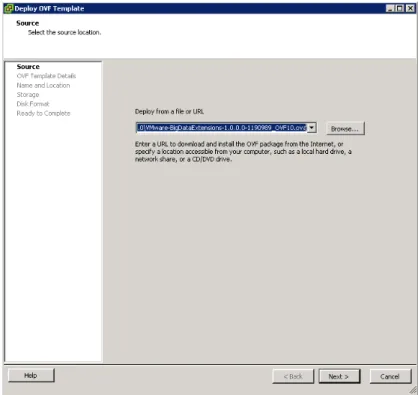
1) In the vSphere Client, select File > Deploy OVF Template
2) Click Browse and select the location to which you downloaded the OVA
3) Click Next
Figure 5. View OVF details
4) View the OVF Template Details page and click Next
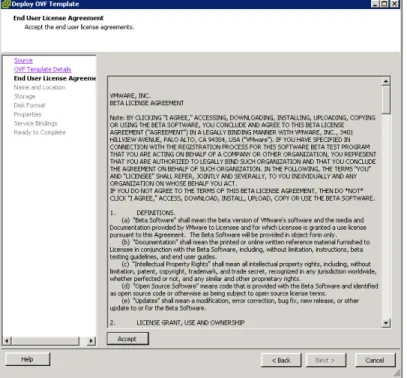
Figure 6. Accept OVF EULA
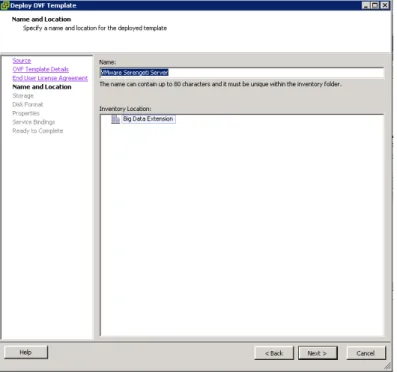
Figure 7. Name the vApp
6) Specify a name for the vApp, select a target datacenter for the OVA, and click Next.
Figure 8. Choose datastore
7) Select shared storage for the OVA if possible and click Next. If shared storage is not available, local storage is acceptable. For this guide we are using local storage
NOTE
: The OVA deploys 2 VM’s; a master and a
Template. The master node runs the Serengeti
service that allows deployments of hadoop
clusters. For the master node, shared storage is
the best choice. Using shared storage, you can
protect the master node's virtual machine using
vMotion, HA, and FT. For worker nodes use local
storage. With local storage, the throughout is
scalable and the cost of storage is lower.
In this step we are only selecting storage for the
master and template VM’s
Figure 9. Choose virtual disk type
8) Choose disk format type and click Next
Figure 10. Configure network settings
9) Configure server settings. Select static IP and provide the network settings. You may also use DHCP. If DHCP is selected, we will need to retrieve the allocate IP address in later steps.
Figure 11. Configure settings
10) Make sure the Initialize Resources check box is checked. When the Initialize Resources check box is checked, the resource pool, datastore, and network assigned to the vApp are added to the Big Data Extensions server for use by the Hadoop cluster you create. If the Initialize Resources check box is un-checked, resources can be added later using the CLI.
The VC SSO service URL follows this format https://vchostname:7444/lookupservice/sdk 11) Click Next
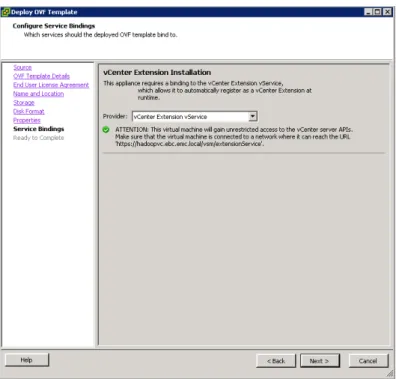
Figure 12. Configure vCenter Extension vService
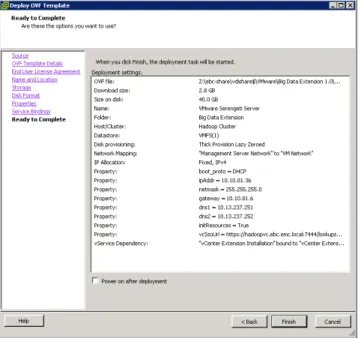
Figure 13. Review settings and finish
13) Review settings and click Finish
Note: You can select “Power on after Deployment”
Figure 14. vApp deployment processing
Figure 15. Deployment complete
14) After clicking Finish the vApp will deploy
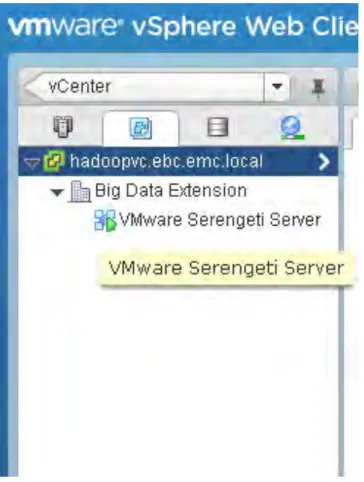
Figure 16. vApp in vCenter inventory
15) You will now see your vApp in the vSphere Client. If you did not chose power on after deployment, right click the vApp and choose “Power On”
Figure 17. Power on vApp
DEPLOY BIG DATA EXTENSION
To enable Big Data Extensions for use with a vCenter Server system, you need to register it with the vSphere Web Client. Prerequisites: Big Data Extension Ova has been deployed
Log in to the system on which the vSphere 5.1 Web Client is installed.
The Big Data Extensions graphical user interface is only supported when using vSphere Web Client 5.1 and later. If you install Big Data Extensions on vSphere 5.0, you must perform all administrative tasks using the command-line interface. This guide is for vSphere 5.1
Ensure that you have login credentials with administrator privileges for the vCenter Server system with which you are registering Big Data Extensions.
Figure 18. Locate Serengeti Server in vSphere Web Client
1) Log on to the vSphere Web Client Format for web client URL:
https://vCenterHost:9443/vsphere-‐client/#
2) Using the vSphere Web Client Navigator panel, locate the Serengeti vApp that you want to register with the plug-in.
Figure 19. Navigate to summary screen
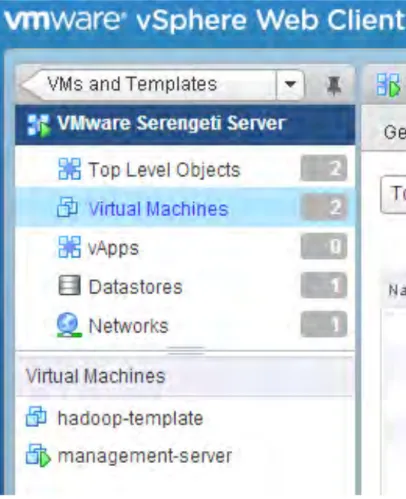
3) Under the vAPP you will see the started management server. If it is not started power on the vAPP
4) Select management-server in the inventory tree to display information about the object in the center pane, and click the Summary tab in the center pane to access additional information.
5) Record the IP address of the
management-server virtual machine.
Figure 20. Verify network settings
6) The Summary will provide the ip address for this server. This is the same ip address you used during the ovf deployment. If you chose DHCP you will see its assigned IP address here.
Figure 21. Management Server address
7) Open a Web browser and go to the URL of the management-server virtual machine: https://management-‐server-‐ip-‐address:8080/register-‐ plugin/
Figure 22. Big Data Extensions registration
8) The Register Big Data Extensions Plug-in Web page displays.
9) Select Install and enter the following information:
a) vCenter hostname or IP address b) Username/password
The package URL should be filled in 10) Click Submit.
Figure 23. Verify Big Data Extensions Plugin
11) Log out of the web client.
12) Log back in and you should see the Big Data Extension installed
CONNECT MANAGEMENT SERVER
You must connect the Big Data Extensions plug-in to the Serengeti management server you want use. Connecting to the Serengeti management server lets you manage and monitor Hadoop and HBase distributions deployed within the server instance.
Prerequisites:
• Verify that the Serengeti vApp deployment was successful and that the Management Server virtual machine is running. • Install the Big Data Extensions plug-in.
Figure 24. Open Big Data Extensions plug-in
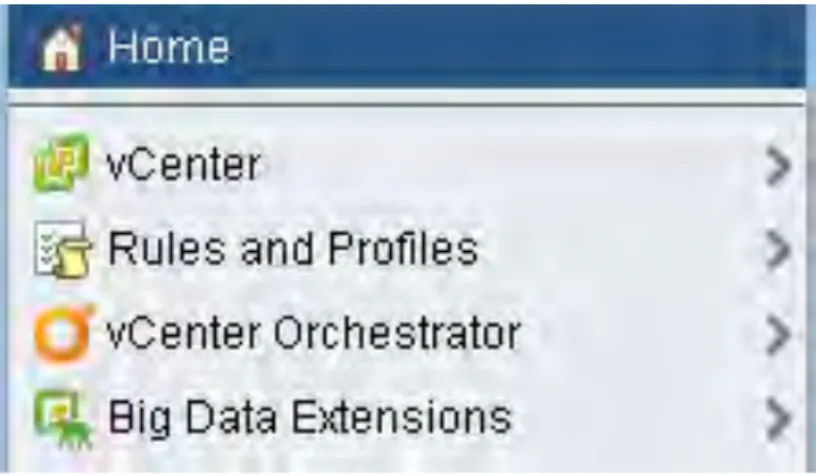
1) Log in to the vCenter Web console. 2) Select Big Data Extensions Home. 3) Click the Summary tab.
4) Click Connect Server
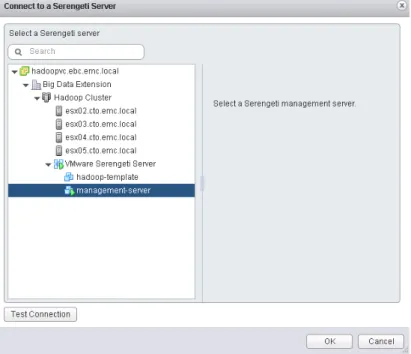
Figure 25. Connect Serengeti Server
5) The Connect to a Serengeti Server dialog box is displayed.
6) Navigate to the Management Server virtual machine within the Big Data Extensions vApp that you want to connect to, select it, and click OK to confirm your selection.
NOTE: If the connection fails, it is probable that NTP time configuration has not been setup. The management server for the Serengeti vAPP is deployed with time set to UTC. Verify that time zones, date, and time are correct.
Figure 26. Verify connection of Serengeti Server
7) The Serengeti server instance appears in the list of connected servers viewable in the Summary tab of the Big Data Extensions Home.
INSTALL THE CLI
This section is optional. All the setup and configuration of the BDE can be done in the web client, however you may want to view some settings in the CLI.
NOTE If you are using Cloudera CDH3 or CDH4, some Hadoop operations cannot be run from the Serengeti CLI console due to incompatible protocols between Cloudera Impala and CDH3 and CDH4 distributions. If you wish to run Hadoop administrative commands using the command line (such as fs, mr, pig, and hive), use a Hadoop client node to issue these commands.
Figure 27. Download Serengeti CLI
1) Log in to the vSphere Web console. 2) Select Big Data Extensions. 3) In the Getting Started tab, click the
Download Big Data Extensions CLI Console link.
4) A ZIP file containing the CLI console downloads to your computer. Or navigate to the url
http://managemtserver/cli 5) Extract the zip to a folder
Figure 28. Run Java Serengeti file
6) Open a command shell, and navigate to the directory where you unzipped the CLI download package.
7) Change to the cli directory, and run the following command to start the CLI:
java -jar serengeti-cli-version.jar
Figure 29. Serengeti CLI shell home screen
8) You have now started the CLI shell
Figure 30. Connect to management server with CLI
9) To connect type the following command
connect –host managementserver:8080
10) User name format is user@domain 11) Once connected you can issue commands
NETWORKING
To deploy Hadoop clusters, network resources must be added to the Big Data Extension. This resource will allow every node deployed within the cluster to receive an IP address. This can be done by either creating a pool or using DHCP on the appropriate network
Figure 31. vSwitch information
1) For our guide there are 2 port groups. “VM Network” and “Management Network”. We will deploy all Hadoop cluster nodes to the “VM Network” 2) Make note of the appropriate port
group name for your environment that you will use for deploying hadoop cluster nodes on.
Figure 32. vSphere Web Client Resources
3) Log in to the vSphere Web console. 4) Select Big Data Extensions. 5) From the Inventory Lists, click
Resources.
Figure 33. vSphere Web Client Networking
6) Expand Resources > Inventory List, and select Networks.
Figure 34. Configure networking
7) A default network mapping to the port group VM Network should exist. This is set to DHCP. If the mapping exists and there is a DHCP server to hand out IP’s we are done with this section.
8) If no network exists or you will be using IP pools instead of DHCP Click the plus (+) icon.
Figure 35. Add Networks
9) The Add Networks dialog box displays
10) Enter the name you wish to call the network. Enter the port group name recorded in step 2. Select DHCP or Static. If you use static, enter the IP ranges and
associated information for the pool to use when assigning IP addresses to the cluster nodes during deployment.
ISILON SETUP
We will set our Isilon cluster to be the shared datastore for HDFS by adding a HDFS license, creating a Hadoop directory off the root directory, and creating an NFS mount to the ESX hosts. After exporting the Hadoop directory we will set it as the root for HDFS connections.
Prerequisites: A running Isilon cluster
For details on setting up Isilon for vSphere, and for using HDFS:
http://www.emc.com/collateral/hardware/technical-documentation/h10554-dp-isilon-vsphere5-deployment.pdf and
Figure 36. Logon to Isilon cluster
1) Logon to your Isilon cluster
Figure 37. Add HDFS license
2) To add HDFS license click the help button in the top right corner and select “About This Cluster”
Figure 38. Activate license
3) Click Activate License and add code. After you should see the HDFS module listed
NOTE: HDFS is a free license. You can obtain your code from your Isilon sales team.
Figure 39. Adding a new directory.
4) Next click on File System Management and File System Explorer. In the right panel highlight the root /ifs
5) Click the Add
Directory button in the middle of the page
Figure 40. Name newly created directory
6) Enter the name “Hadoop”
7) Give a user rights to the directory
8) Click Submit
NOTE: For this demo the root account was used. For
production environments it may be preferable to use a different user
9) You will now see the Hadoop directory in the root
Figure 42. Create a NFS export
10) Create a NFS export of this directory using Unix Sharing under the Protocols tab. 11) Click “Add Export”
Figure 43. Enter NFS export information
Figure 44. Save new configuration
12) Enter information for the share such as the ESXi host IP’s 13) Enter the path to the
directory recently created
14) At the bottom of the page click Save
NOTE: For this guide, root access is provided. For production environments, customers may want to create a specific user for access. This is done by creating a user on the Hadoop management server of a deployed cluster (example mapusr). The same user is then created on the Isilon cluster, and must be give permissions to the Hadoop root directory. See
http://doc.isilon.com/onefs/7.0.2/help/en-us/GUID-9223F3AB-F852-4DF1-A5D1-20E8F7305AC1.html for details.
Figure 45. Verify successful creation of export
15) The Export is created
Figure 46. Verify HDFS is running with SSH
16) SSH into the Isilon cluster. Run the command:
isi hdfs
17) This verifies that HDFS is running and shows the root directory that HDFS will use
Figure 47. Change HDFS root path
18) Change the HDFS root to /ifs/Hadoop by running this command
Isi hdfs –root-path=/ifs/Hadoop
19) Next, run:
isi hdfs
Executing this command again verifies results 20) Create the mapred user
and add it to the wheel grou
ADD NFS MOUNT POINTS TO ESX HOSTS
The benefit of using shared storage for Hadoop is the centralization of data. With Isilon, the directory that HDFS will use for processing data (/ifs/hadoop) can also be shared as a NFS mount point or a SMB share. By creating a NFS mount point for the HDFS directory, we can easily copy data into the cluster for processing.
NOTE: It is not recommended to use Isilon datastores to run VM’s, however for testing and for this guide it can be used to host Hadoop cluster shared VM’s.
Figure 48. Add storage to ESXi host(s)
1) From the vSphere Client, select a host, then click the Configuration tab, then
“Storage” under the hardware listing.
2) Click Add Storage
Figure 49. Provision NFS storage
3) Choose Network File System.
4) Click Next
Figure 50. Enter Isilon cluster information
5) Enter the information for the Isilon cluster. 6) Give the export an unique datastore name
7) Click Next
Figure 51. Finish wizard to complete NFS provisioning
Figure 52. Verify NFS is present
9) Verify NFS export has mounted
10) Repeat the proceeding steps on all ESX hosts in the DRS cluster
ADD DATASTORES TO BIG DATA EXTENSIONS
To deploy Hadoop clusters, storage resources must be added to the Big Data Extension. This resource allows us to decide if Hadoop cluster nodes should be deployed on local, or shared storage. You can add datastores to Big Data Extensions to make them available to Hadoop and HBase clusters. Big Data Extensions supports both shared datastores and local datastores.
NOTE: By default local storage may be added to this resource. Delete it and recreate it using the following steps.
Figure 53. Open vSphere Web Client
1) Log in to the vSphere Web Client. 2) Select Big Data Extensions. 3) From the Inventory Lists, click
Resources.
Figure 54. Initiate Add Datastore wizard
4) Expand Inventory List, and select Datastores.
5) Click the plus (+) icon. 6) The Add Datastore dialog box
displays.
Figure 55. Choose datastore configuration
Figure 56. Configure second datastore
7) Type a name with which to identify the datastore in Big Data Extensions. Type the name of a datastore as it is labeled in vSphere.
NOTE: You can use the * and ? pattern matching operators (wildcards) to specify multiple datastores. For example, to specify all datastores whose name begins with data-, type data-*.
8) For this white paper the ESXi hosts all have 2 local drives named VMFS* and SSD*. Both are added as local storage
Figure 57. Add the NFS share
9) Add the Hadoop NFS export as a shared data store type
Figure 58. Review and verify configuration
10) There is now local and shared storage for the Hadoop clusters
SETTING UP PIVOTALHD
One of the benefits of VMware Big Data Extension is the ability to configure, deploy and run multiple Hadoop distributions from different vendors. When you deploy the Big Data Extensions vApp, the Apache 1.2.1 Hadoop distribution is included in the OVA that you download and deployed. You can add and configure other Hadoop distributions, like PivotalHD, using Yellowdog updater (YUM). YUM is an open-source command-line package-management utility for Linux operating systems that allows automatic updates, package and dependency management, on RPM-based distributions like CentOS. PivotalHD and Cloudera distributions require the setup of a YUM repository on the Serengeti vApp management server to host the RPM’s for the hadoop distribution. There are different versions of this guide that show how to setup Serengeti for different distributions.
Go to: https://community.emc.com/docs/DOC-26892
For more information on deploying PivotalHD, Cloudera, or Apache Hadoop.
This guide is for PivotalHD. To use PivotalHD with VMware Big Data Extensions, you must first setup a YUM repo, and create a CentOS 6 template. The YUM repo holds the RPM’s that are required to install PivotalHD. These RPMS, can be found here:
VMware Big Data Extension supports PivotalHD version1 on RedHat and derivatives version 6.
After downloading the RPM’s and creating a repo, a configuration script is used to configure the BDE automation. VMware Big Data Extension uses a Ruby script called config-distro.rb located in the /opt/serengeti/sbin directory on the Serengeti vApp management. This script sets up the chef manifests that are used to automate Hadoop cluster deployments. We run this utility and give it the correct distro information for the different packages we want to deploy.
When the Serengeti vApp is deployed, along with the management server VM is a template VM. This VM is a Centos 5
distribution and is used to deploy all the nodes that make up a Hadoop cluster. The management VM uses puppet to deploy the packages to the template and configure it accordingly. PivotalHD is supported on CentOS 6.
The following section shows how to setup the Serengeti management server for PivotalHD.
Figure 59. Management console
1) Log in to management server using either putty or the VMware console
Figure 60. Change Dir
2) Change directories to the temp dir cd /tmp
Figure 61. Setup repo config All on one line:
wget bitcast-a.v1.o1.sjc1.bitgravity.com/greenplum/pivotal-sw/phd_1.0.1.0-19_community.tar.gz
3) Download the RPMS from the pivotal web site using the wget command wget
bitcast-a.v1.o1.sjc1.bitgravity.com/greenplum/pivota l-sw/phd_1.0.1.0-19_community.tar.gz
Figure 62. Setup repo config
4) Extract the content of the downloaded file
tar -zxvf phd_1.0.1.0-19_community.tar.gz
Figure 63. Sych repo
5) There will be some errors with the content as it extracts. This is normal.
Figure 64. Change directory
6) Once extraction is comple, change directories
Figure 65. Extract Files
7) There are 3 files in this directory that need to be extracted.
tar -xf PHD-1.0.1.0-19.tar.gz tar -xf PHDTools-1.0.1-19.tar.gz
tar -xf PCC-2.0.1.84.121.163.x86_64.tar.g
Figure 66. Create directory and move files mkdir -p /opt/serengeti/www/PHD/1
mv PHD-1.0.1.0-19 /opt/serengeti/www/PHD/1/ mv PCC-2.0.1.84 /opt/serengeti/www/PHD/1/ mv PHDTools-1.0.1-19 /opt/serengeti/www/PHD/1 cd /opt/serengeti/www/PHD/1/
8) Once the files are extracted, create a directory to place the RPMS and copy the files to that directory
mkdir -p /opt/serengeti/www/PHD/1 mv PHD-1.0.1.0-19 /opt/serengeti/www/PHD/1/ mv PCC-2.0.1.84 /opt/serengeti/www/PHD/1/ mv PHDTools-1.0.1-19 /opt/serengeti/www/PHD/1 cd /opt/serengeti/www/PHD/1/
Figure 67. list directory
9) A list show the 3 directories moved in the last step.
10) Create a YUM repo by executing the following command:
createrepo .
Figure 69. Create and edit PHD.repo file
11) Create and edit the repo file touch PHD.repo
vim PHD.repo
Figure 70.PHD.repo contents [PHD] name=Pivotal HD Version 1 baseurl=https://10.10.81.36/PHD/1/ enabled=1 gpgcheck=0 protect=1
12) Enter the following into the file [PHD] name=Pivotal HD Version 1 baseurl=https://10.10.81.36/PHD/1/ enabled=1 gpgcheck=0 protect=1
NOTE: baseurl should be the IP address of the management server. An ifconfig from the command line will give you this address.
Save file.
Figure 71. URL
13) Open a browser and enter the url:
https://10.10.81.36/cdh/4/clou dera-cdh4.repo
You should see the contents of the repo file from the last step.
config-distro.rb --name PivotalHD --vendor PHD --version 1.0.1 --repos http://10.10.81.36/PHD/1/PHD.repo
config-distro.rb name PivotalHD --vendor PHD --version 1.0.1 --repos http://10.10.81.36/PHD/1/PHD.repo
Figure 73. Contents of the manifest file
15) Change directory and run the cat command on the manifest file to check contents:
cd /opt/serengeti/www/distros cat manifest
The end of the file should contain the same text as the screen shot on the left.
Figure 74. Edit map file
16) Change directory and edit the map file:
cd /opt/Serengeti/www/specs vim map
Figure 75. Content of map file
17) Scroll through the file till you find the “PHD” section. Verify that the version number is the same that you downloaded and set the repo up with.
Close file without saving
Figure 76. restart tomcat service
18) Restart tomcat service service tomcat restart
Figure 77. Check distributions
19) In the VMware web client, go to the Big Data extensions tab and click on Hadoop Distributions. You should see the PivotalHD distribution version 1.2.1 is now ready. This verifies the contents of the manifest file. You will always have the apache distribution listed in addition to any other configures distributions.
Figure 78.Verify map file
20) Click on the Big Data Clusters tab, and select deploy cluster. Under the Hadoop distribution drop down select Cloudera. All deployment types should be available. This verifies the contents of the map file.
SETTING UP A CUSTOM TEMPLATE
The Serengeti vApp deployed for use by VMware Big Data extension comes with two VM’s. The management VM, that contains all the CHEF recipes and manifests used for automating deployments, and a Template VM, used to deploy all the nodes of a Hadoop cluster. The template VM comes with CentOS 5 as the installed OS. You can create a Hadoop Template virtual machine using a customized version of CentOS 6.x OS. This allows you to deploy an operating system with configurations specific to your IT environment. You can create a Hadoop Template virtual machine using a version of CentOS 6.x Linux customized for your IT environment in combination with a supported Hadoop distribution. This allows you to create a Hadoop Template virtual machine using your organization's preferred operating system configuration. When you provision Big Data clusters the customized CentOS operating system will be used in the virtual machines that are created from the Hadoop Template virtual machine. PivotalHD deployments require CentOS 6. The Table below shows the supported Hadoop Distributions by VMware Big Data Extensions.
The EMC Hadoop Starter kit has multiple guides to show how to setup different Hadoop distributions. These guides show setting up the distribution using the CentOS 5 template. It is possible to use the CentOS 6 template by downloading the correct RPM’s or tar files for the distribution, however this goes beyond the scope of the HSK documentation. The rest of this section will show how to create a CentOS 6 template for use by PivotalHD.
Figure 79. Create new virtual machine
1) Using the vCenter client, create a new Virtual Machine. Select Typical and click Next
Figure 80. Name VM
2)
Give the Template VM a descriptive
name and choose an Inventory
location. Click
Next
Figure 81. Choose storage
3) Select a location for the template vm. It should be on shared storage. Click Next
Figure 82. Choose Operating System
4) Select Linus as the guest operating
systems with “Red Hat Enterprise
Linux 6 (64-bit)” as the version
Click
Next
Figure 83. Set network
5) Use the default Adapter and connect it to the correct network. This network should be reachable by vCenter and the Serengeti Management VM.
Click Next
Figure 84.Disk Size
6) Create a disk size of 20 gigs Click Next
Figure 85. Review Settings
7) Review the setting and click Finish.
Once the VM creation is finished, power on the VM and open the console.
Figure 86. Attach iso
8) Click the CD button and navigate to your CentOS 6.x image. CentOS images can be downloaded from:
http://wiki.centos.org/Download
For this install we will be using CentOS version 6.4
Figure 87.Splash screen
9) From the splash screen select Install.
This doc will not walk through all the steps of Installing the OS. The Template requires a basic Install so the defaults used. We will highlight some points of interest.
Figure 88. Install settings
10) There is no need to give the template a host name. Host names are assigned by Big Data extension during deployment. For IP address we will want to use DHCP. Templates deployed by BDE use either DHCP or a IP address pool to assign IP’s. During the configuration of the template we will require access to the internet. If you do not have DHCP assign a temporary IP address.
Remember to set the address back to DHCP after configuration. Select Basic Server for Install.
Figure 89. Edit network settings
11) After the install completes logon to the console. Edit the network file:
vi /etc/sysconfig/network-scripts/ifcfg-eth0
Figure 90. ifcfg-eth0 settings
12) Change the ONBOOT to equal yes If you are using a temporary IP address, the ifcfg-eth0 file should look like the screen shot on the left when configuration is complete.
Figure 91. ifup eth0
13) Bring up the interface with this command
ifup eth0
14) Install the wget utility. yum install wget
Figure 93. Download Java
wget https://mrplus.googlecode.com/files/jdk-6u31-linux-x64.bin --no-check-certificate
15) Change into the temp directory cd /tmp
16) Retrieve the java installer using wget wget
https://mrplus.googlecode.com/files/jdk-6u31-linux-x64.bin --no-check-certificate
NOTE: By retrieving the Java installer from a google repository we can avoid the hassle of downloading it from Oracle then uploading it to the VM.
Figure 94.Setup Java for Install
17) Change the attribute on the downloaded file:
chmod a+x jdk-6u31-linux-x64.bin Make a directory to install java: mkdir /usr/java
mkdir /usr/java/default
Move the java installer to this directory: mv jdk-6u31-linux-x64.bin /usr/java/default
Change into that directory: cd /usr/java/default
Figure 95. Install Java
18) Install java: ./ jdk-6u31-linux-x64.bin
Figure 96. Install VMware tools
19) Next Install VMware Tools. On the console click the VM tab, select guest and Install/Upgrade VMware Tools
Figure 97. Mount cdrom
20) From the command line mount the cdrom
ount /dev/cdrom /media 21) Change directories to media
Figure 98. Change directory
Figure 99. Copy VMwaretools installer
22) Copy the VMware tools installer to the temp directory
cp VMwareTools* /tmp
Figure 100. Extract installer
23) Extract the VMwaretools tar file tar –zxvf VMwareTools*
Figure 101. Run Installer
24) Change into the vmwaretools directory and execute the installer
cd /vmware-tools-distrib ./vmware-install.pl
Figure 102. Download customization tools
wget https://10.10.81.36/custos/custos.tar.gz --no-check-certificate
25) After the installer is done change into the temp directory and download the custom scripts from the mangemnet server
cd /tmp wget
https://10.10.81.36/custos/custos.tar.g z --no-check-certificate
Note: Replace the IP address with the IP address of your management server
Figure 103.Extract and execute installer
./installer.sh /usr/java/default/jdk.1.6.0_31
26) Extract the contents and execute the file.
tar xf custos.tar.gz ./installer.sh
/usr/java/default/jdk.1.6.0_31
Figure 104. Set environmental
echo “JAVA_HOME=/usr/java/default/jdk1.6.0_31 “ > etc/environment
27) When the install completes, add the java path to the environment echo
“JAVA_HOME=/usr/java/default/jdk1.6.0_31 “ > etc/environment
Figure 105. Turn off firewall
28) Turn the firewall off service iptables off chkconfig iptables off
Figure 106. Fix eth0 cloning issue
rm /etc/udev/rules.d/70-persistent-net.rules
29) If you have set a temporary IP address, set it back to DHCP.
30) Remove the 70-persistent-net.rules file and power down the template VM. rm /etc/udev/rules.d/70-persistent-net.rules
template off
Figure 107. Place template in vApp/Remove old template from vApp
Figure 108. Restart tomcat
31) On the vcenter client, drag and drop the new template into the vApp. Then Drag and drop the old template out of the vApp
32) On the management server, restart the tomcat service
service tomcat restart
DEPLOY A HADOOP CLUSTER
Hadoop and HBase clusters are composed of three different node types: master nodes, worker nodes, and client nodes. Understanding the different node types will help you plan your cluster, and configure the appropriate number and type of nodes when creating a cluster. The three types of node groups in a Hadoop deployment are master nodes, worker nodes, and client nodes. Master nodes oversee the following key operations that comprise Hadoop: storing data in the Hadoop Distributed File System (HDFS) and running parallel computations on that data using MapReduce. The NameNode coordinates the data storage function (with the HDFS), while the JobTracker oversees and coordinates the parallel processing of data using MapReduce. Worker nodes make up the majority of virtual machines and perform the job of storing the data and running computations. Each worker node runs both a DataNode and TaskTracker service that communicates with, and receives instructions from their master nodes. The TaskTracker service is subordinate to the JobTracker, and the DataNode service is subordinate to the NameNode. Client nodes have Hadoop installed with all the cluster settings, but are neither master nor worker nodes. Instead, the client
node loads data into the cluster, submits MapReduce jobs describing how that data should be processed, and then retrieves or views the results of the job when processing is finished.
After you complete deployment of the Hadoop distribution, you can create a Hadoop and HBase cluster to process data. You can create multiple clusters in your Big Data Extensions environment, but your environment must meet all prerequisites.
NOTE: By default the apache distribution of hadoop is setup after deployment with no additional configuration needed. For this guide we will use the apache hadoop distribution
Pre-requisites:
• Deploy the Big Data Extensions vApp. • Install the Big Data Extensions plugin.
• Ensure that there are adequate resources allocated to run the Hadoop cluster.
• Configure one or more Hadoop distributions.
Table 1 Shows the variables and their descriptions for the cluster deployment:
Table 1. Cluster deployment variables
Hadoop cluster name Type a name by which to identify the cluster.
Hadoop distro Select the Hadoop distribution.
Deployment type Select the type of cluster you want to create. You can choose to create:
• Basic Hadoop Cluster
• HBase Cluster
• Data/Compute Separation Hadoop Cluster • Compute-only Hadoop Cluster
The type of cluster that is created determines the available node group selections.
DataMaster Node Group The DataMaster node is a virtual machine that runs the Hadoop NameNode and TaskTracker service. This node manages HDFS data and assigns tasks to Hadoop JobTracker services deployed in the worker node group. Select a resource template from the drop-down menu, or select Customize to customize a resource
template. For the master node, use shared storage so that you protect this virtual machine with VMware HA and FT.
ComputeMaster Node Group The ComputeMaster node is a virtual machine that runs the Hadoop compute nodes. This node assigns tasks to Hadoop JobTracker services deployed in the worker node group. Select a resource template from the drop-down menu, or select Customize to customize a resource template.
For the master node, use shared storage so that you protect this virtual machine with VMware HA and FT.
Select a resource template from the drop-down menu, or select Customize to customize a resource template.
For the master node, use shared storage so that you protect this virtual machine with VMware HA and FT.
Worker Node Group Worker nodes are virtual machines that run the Hadoop
DataNodes and TaskTracker service. These nodes store HDFS data and execute tasks. Select the number of nodes and the resource template from the drop-down menu, or select Customize to customize a resource template.
For worker nodes, use local storage.
NOTE You can add nodes to the worker node group by using Scale Out Cluster. You cannot reduce the number of nodes.
Client Node Group Client Node Group is a virtual machine that contains the Hadoop client components. From this virtual machine you can access HDFS, submit MapReduce jobs, run Pig scripts, or run Hive queries. Select the number of nodes and a resource template from the drop-down menu, or select Customize to customize a resource template.
NOTE You can add nodes to the client node group by using Scale Out Cluster. You cannot reduce the number of nodes.
NOTE: By using a compute only cluster, we can utilize Isilon shared storage using HDFS.
Figure 109. Create new Hadoop cluster
1) Log in to the vSphere Web Client.
2) Select Big Data Extensions. 3) Click Create a
New Hadoop Cluster from the Basic Tasks list in the Getting Started tab.
4)
The Create New Hadoop Clusterdialog displays.
Figure 110. Name cluster
5) Give the cluster a name. 6) Select a distribution 7) Select Compute-Only Hadoop Cluster
Figure 111. Configure HDFS URL
8) Enter the HDFS RPC URL to the Isilon cluster. Format: HDFS://IsilonFQDN Note Beginning with build 1.0.0.0-1251203 the URL requires a port number, which is 8020. Format would be
HDFS://IsilonFQDN:80 20
9) Select the resource size for the nodes. 10) By default the
Compute Master and the Client Node will be placed on shared storage. To change this, select customize on the dropdown and
Figure 113. Choose cluster size
by default on local storage. For this guide we entered one node per ESX host (total 4)
Figure 114. Select Resource Pool
12) Select a resource pool for deployments
Figure 115. Choose network
Figure 117. Verify deployed cluster from vSphere Client
UPLOAD DATA FOR TESTING
Now that a Hadoop cluster is up and running we can run a simple program to test how it works. First we’ll need to upload some data to our NFS share so that we can run a MapReduce job against it. For this test we will use a program called WordCount (details in the next section). Wordcount uses text files as input. A large collection of text files can be found here
http://www.textfiles.com/ or you can use Google to use your own large text files.
For this document we will use a text of James Joyce’s Ulysses which can be found on the Internet Archive here: http://archive.org/stream/ulysses04300gut/ulyss12.txt
Simply copy the text from the archive and save it as a text file on your desktop. Once you’ve downloaded and extracted it you can upload it to the Hadoop NFS share.
Figure 116. Deploy cluster
14) Cluster will begin deploying
Figure 118. Browse NFS datastore
1) Using the vSphere Client select the NFS datastore, right click and choose “Browse Datastore”
Figure 119. Create new folders
2) Create 2 folders named Input and Output
3) Navigate into the Input folder
Figure 120. Upload file to datastore
4) Select the Upload File option from the Upload menu. Browse to the extracted text file and upload
Figure 121. Verify presence of file after upload
5) File should now be in the Input directory
WORDCOUNT
Wordcount is a program that allows a user to run a Hadoop mapreduce command against a text file. The program shows the basics of how Hadoop can be used to run big data analytics in a simplistic manner.
WordCount reads text files and counts how often words occur. The input is text files and the output is text files, each line of which contains a word and the count of how often it occurred, separated by a tab.
Each mapper takes a line as input and breaks it into words. It then emits a key/value pair of the word and each reducer sums the counts for each word and emits a single key/value with the word and sum.
As an optimization, the reducer is also used as a combiner on the map outputs. This reduces the amount of data sent across the network by combining each word into a single record.
To run the example, the command syntax is
bin/hadoop jar hadoop-‐*-‐examples.jar wordcount [-‐m <#maps>] [-‐r <#reducers>] <in-‐dir> <out-‐dir>
All of the files in the input directory (called in-dir in the command line above) are read and the counts of words in the input are written to the output directory (called out-dir above). It is assumed that both inputs and outputs are stored in HDFS (see ImportantConcepts). If your input is not already in HDFS, but is rather in a local file system somewhere, you need to copy the data into HDFS using a command like this:
bin/hadoop dfs -‐mkdir <hdfs-‐dir>
bin/hadoop dfs -‐copyFromLocal <local-‐dir> <hdfs-‐dir>
NOTE: One of the advantages of using a shared storage model like Isilon is the ability to use NFS or SMB to copy data into the HDFS input directory. This simplifies the process by not having to make multiple copies of data or use CLI tools to ingest data into HDFS
Figure 122. Select Client VM
1) From the vSphere Client select the Client VM. 2) Open the virtual
machine console
Figure 123. Login to client
3) All the VM’s have randomly generated passwords. Login using the password
Figure 124. Change password
4) Change the password by running:
/usr/sbin/serenen geti-password –u
Figure 125. Verify HDFS protocol
5) Check that the HDFS protocol is working
hadoop fs –ls /
You should see the directory structure on the NFS share
Figure 126. Run wordcount command
hadoop jar /usr/lib/gphd/hadoop-‐mapreduce/hadoop-‐mapreduce-‐examples-‐
2.0.1.0.jar wordcount /Input/Ulysses.txt /Output/Data
6) Run the word count command hadoop jar /usr/lib/gphd/hadoop- mapreduce/hadoop- mapreduce-examples-2.0.1.0.jar wordcount /Input/Ulysses.txt /Output/Data
7) The job will begin running. All the words in ulysses will be counted
Figure 127. Check output directory
8) When the job is complete check the output directory
hadoop fs –ls /Output/
Figure 128. Verify output file
9) Check the created Dat directory
hadoop fs –ls /Output/Data
Figure 129. Verify output file contents
10) Check the contents of the output file
hadoop dfs –cat /Output/Data/part-r-00000
Figure 130. Grep for a word
11) Grep for a word to see how many times it appears