Dell
t
Line-Interactive Rack UPS
5600W
User's Guide
Notes and Warnings
NOTE:A NOTE indicates important information that helps you make better use of your product.
CAUTION:A CAUTION indicates a potentially hazardous situation which, if not avoided, may result in minor or moderate injury or in property damage incidents.
WARNING:A WARNING indicates a potentially hazardous situation which, if not avoided, could result in death or injury.
DANGER:A DANGER indicates an imminently hazardous situation which, if not avoided, will result in death or serious injury.
DANGER:Observe the following instruction to help prevent an imminently hazardous situation which, if not avoided, will result in death or serious injury:
S This UPS contains LETHAL VOLTAGES. All repairs and service should be performed by
AUTHORIZED SERVICE PERSONNEL ONLY. There are NO USER SERVICEABLE PARTS
inside the UPS.
Information in this document is subject to change without notice.
E 2009 Dell Inc. All rights reserved.
Reproduction in any manner whatsoever without the written permission of Dell Inc. is strictly forbidden.
Trademarks used in this text: Dell and the DELL logo are trademarks of Dell Inc.; Greenlee is a registered trademark of Greenlee Textron;
National Electrical Code and NEC are registered trademarks of National Fire Protection Association, Inc.; Phillips is a registered trademark of Phillips Screw Company.
Table of Contents
1
Introduction
Finding Information. . . 8
2
Safety Warnings
3
Installation
Inspecting the Equipment . . . 12Unpacking the Cabinet . . . 13
UPS Rear Panels. . . 15
UPS Front Panel . . . 16
Rackmount Setup . . . 17
Installing the EBM . . . 23
Installing the UPS . . . 24
Installing Remote Emergency Power-off . . . 24
Hardwiring the UPS Input. . . 27
UPS Initial Startup . . . 30
4
Operation
UPS Startup and Shutdown. . . 31Starting the UPS . . . 31
Display Functions . . . 34
Startup Screen . . . 34
Screen Locked . . . 35
UPS Status . . . 35
Event Log . . . 38
Measurements . . . 39
Control Screens . . . 40
Identification. . . 41
Settings. . . 41
Transferring the UPS Between Modes. . . 45
Transferring from Normal to Bypass Mode. . . 45
Transferring from Bypass to Normal Mode. . . 46
Retrieving the Event Log. . . 46
Behavior on Overload . . . 46
Configuring Load Segments . . . 47
Controlling Load Segments Through the Display . . . 47
Configuring Automatic Start Delay . . . 48
Configuring Automatic on Battery Shutdown . . . 49
Configuring Battery Settings. . . 50
Configuring the UPS for an EBM. . . 50
Running Automatic Battery Tests . . . 51
Configuring Automatic Battery Tests . . . 51
Configuring Automatic Restart . . . 51
5
Additional UPS Features
RS-232 and USB Communication Ports. . . 52Dell Network Management Card (Optional). . . 54
6
UPS Maintenance
UPS and Battery Care . . . 56
Transporting the UPS . . . 56
Storing the UPS and Batteries . . . 58
When to Replace Batteries. . . 58
Testing Batteries . . . 59
Updating the UPS Firmware . . . 59
7
Specifications
8
Troubleshooting
Accessing Alarms and Conditions . . . 64UPS Status Menu . . . 64
Event Log Menu . . . 65
Typical Alarms and Conditions. . . 65
Introduction
The Dellt Line-Interactive Rack uninterruptible power system (UPS) protects your sensitive electronic equipment from basic power problems such as power failures, power sags, power surges, brownouts, and line noise.
Power outages can occur when you least expect them and power quality can be erratic. These power problems have the potential to corrupt critical data, destroy unsaved work sessions, and damage hardware — causing hours of lost productivity and expensive repairs.
With the Dell Line-Interactive Rack UPS, you can safely eliminate the effects of power disturbances and guard the integrity of your equipment. The UPS's flexibility to handle an array of network devices makes it the perfect choice to protect your LANs, servers, workstations, and other electrical equipment. Figure 1 shows the Dell Line-Interactive Rack UPS.
Figure 1. The Dell Line-Interactive Rack UPS
Providing outstanding performance and reliability, the UPS's unique benefits include:
S Buck and Boost voltage regulation that ensures regulated voltage to your load by correcting voltage fluctuations.
S The UPS filters and regulates incoming AC power and provides consistent power to your equipment without draining the battery.
S 4U size that fits any standard 48 cm (19”) rack.
S Start‐on‐battery capability for powering up the UPS even if utility power is not available.
S Maintenance is simplified by allowing the safe replacement of batteries without powering down the UPS.
S Extended runtime with an optional External Battery Module (EBM).
S Emergency shutdown control through the Remote Emergency Power-off (REPO) ports.
S Two standard communication ports (USB and RS-232 serial port).
S Optional Dell Network Management Card with enhanced communication capabilities for increased power protection and control.
S Advanced power management with the Dell UPS Management Software for graceful shutdowns and power monitoring.
S Sequential shutdown and load management through separate receptacle groups called load segments.
S Firmware that is easily upgradable without a service call.
Finding Information
CAUTION:The Safety, Environmental, and Regulatory Information document provides important safety and regulatory information.
What are You Looking For? Find It Here
S The user's guide for my UPS
S The user's guide for the Dell Network Management Card
S Dell UPS Management Software
NOTE: Documentation and software updates can be found at support.dell.com.
Dell UPS Disc
S Specifications
S How to configure UPS settings
S How to troubleshoot and solve problems S How to install REPO control
Dell UPS User's Guide
The user's guide is available on the Dell UPS disc and
on support.dell.com.
S Safety instructions S Regulatory information S Recycling information
Safety, Environmental, and Regulatory Information
S Warranty information
S Terms and Conditions (U.S. only) S End User License Agreement
Dell Warranty and Support Information
S Support information Dell Support Website — support.dell.com
NOTE: Select your region or business segment to view the appropriate support site.
Safety Warnings
CAUTION:Before performing the procedures in this document, read and follow the safety instructions and important regulatory information in your Safety, Environmental, and Regulatory Information document.
IMPORTANT SAFETY INSTRUCTIONS
SAVE THESE INSTRUCTIONS
This manual contains important instructions that you should follow during installation and
maintenance of the UPS and batteries. Please read all instructions before operating the equipment and save this manual for future reference.
DANGER:Observe the following instruction to help prevent an imminently hazardous situation which, if not avoided, will result in death or serious injury:
S This UPS contains LETHAL VOLTAGES. All repairs and service should be performed by
AUTHORIZED SERVICE PERSONNEL ONLY. There are NO USER SERVICEABLE PARTS inside the UPS.
WARNING:Observe the following instructions to help prevent a potentially hazardous situation which, if not avoided, could result in death or injury:
S Only qualified service personnel (such as a licensed electrician) shall perform the electrical installation. Risk of electrical shock.
S This UPS contains its own energy source (batteries). The output receptacles may carry live voltage even when the UPS is not connected to an AC supply.
S Do not remove or unplug the input cord when the UPS is turned on. This removes the safety ground from the UPS and the equipment connected to the UPS.
S To reduce the risk of fire, connect only to a circuit provided with branch circuit overcurrent protection with an ampere rating in accordance with the National Electrical Code® (NEC®), ANSI/NFPA 70 or your local electrical code:
UPS Output Power 208V 230V
5600W 40A 32A (Europe)
35A (North America)
S If the UPS requires any type of transportation, disconnect the internal UPS batteries before transporting (see page 56).
CAUTION:Observe the following instructions to help prevent a potentially hazardous situation which, if not avoided, may result in minor or moderate injury or in property damage incidents:
S Servicing of batteries should be performed or supervised by personnel knowledgeable about batteries and the required precautions. Keep unauthorized personnel away from batteries.
S Batteries can present a risk of electrical shock or burn from high short-circuit current. The
following precautions should be observed: 1) Remove watches, rings, or other metal objects; 2) Use tools with insulated handles; 3) Wear rubber gloves and boots; 4) Do not lay tools or metal parts on top of batteries; 5) Disconnect the charging source prior to connecting or disconnecting battery terminals.
S Determine if the battery is inadvertently grounded. If inadvertently grounded, remove the utility source from the ground. Contact with any part of a grounded battery can result in electrical shock. The likelihood of such shock can be reduced if such grounds are removed during installation and maintenance (applicable to equipment and remote battery supplies not having a grounded supply circuit).
S ELECTRIC ENERGY HAZARD. Do not attempt to alter any battery wiring or connectors. Attempting to alter wiring can cause injury.
S Replace batteries with the same number and type of batteries as originally installed in the UPS.
S Proper disposal of batteries is required. Refer to your local codes for disposal requirements.
S Never dispose of batteries in a fire. Batteries may explode when exposed to flame.
S Do not open or mutilate the battery or batteries. Released electrolyte is harmful to the skin and eyes and may be extremely toxic.
S The UPS may be connected to a maximum of one External Battery Module (EBM).
WARNING:Additional instructions for Rack-Mounted Systems
S Your rack kit has been approved only for the rack cabinet provided. It is your responsibility to ensure that installation of the equipment into any other rack complies with all applicable standards. Dell disclaims all liability and warranties with respect to combinations of equipment with any other rack.
S Before installing your equipment in a rack, install all front and side stabilizers. Failure to install stabilizers can allow the rack to tip over.
S Always load from the bottom up, and load the heaviest items first.
WARNING:Slide/rail mounted equipment is not to be used as a shelf or work space.
Installation
This chapter explains:
S Equipment inspection
S Unpacking the cabinet
S UPS rear panels
S UPS setup and installation, including the External Battery Module (EBM)
S Remote Emergency Power-off (REPO) installation
S Initial startup
Inspecting the Equipment
If any equipment has been damaged during shipment, keep the shipping cartons and packing materials for the carrier or place of purchase and file a claim for shipping damage. If you discover damage after acceptance, file a claim for concealed damage.
To file a claim for shipping damage or concealed damage: 1) File with the carrier within 15 days of receipt of the equipment; 2) Send a copy of the damage claim within 15 days to your service representative.
NOTE:Check the battery recharge date on the shipping carton label. If the date has passed and the batteries were never recharged, do not use the UPS. Contact your service representative.
Unpacking the Cabinet
CAUTION:Unpacking the cabinet in a low-temperature environment may cause condensation to occur in and on the cabinet. Do not install the cabinet until the inside and outside of the cabinet are absolutely dry (hazard of electric shock).
CAUTION:The cabinet is heavy (see page 60). Use caution to unpack and move the cabinet.
Use care when moving and opening the carton. Leave the components packaged until ready to install. To unpack the system:
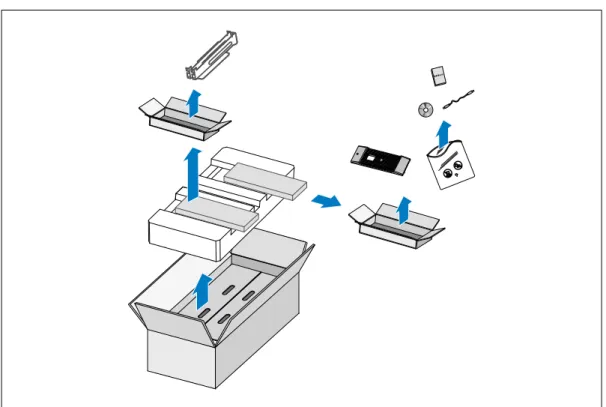
1 Open the outer carton and remove the accessories packaged with the cabinet (see Figure 2).
CAUTION:The cabinet is heavy (see page 60). Lifting the cabinets into the rack requires a minimum of two people.
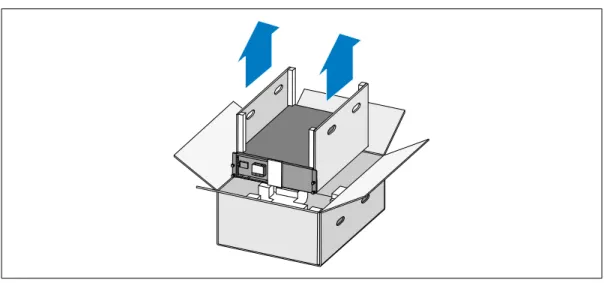
2 With one person on each side, carefully lift the cabinet out of the outer carton using the handles on the cardboard and set it on a flat, stable surface (see Figure 3).
Place the cabinet in a protected area that has adequate airflow and is free of humidity, flammable gas, and corrosion.
Figure 3. Lifting the Cabinet
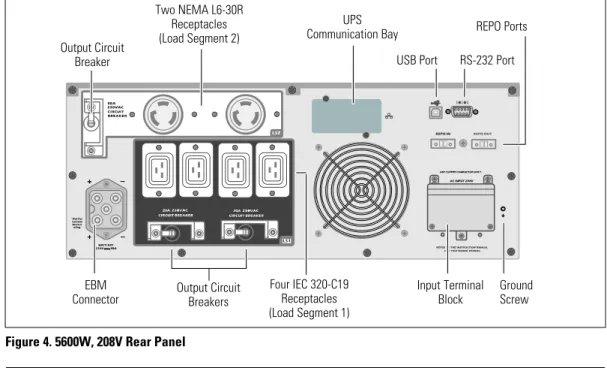
UPS Rear Panels
This section shows the rear panels of the Dell Line-Interactive Rack models.
UPS Communication Bay
Input Terminal Block USB Port
Four IEC 320-C19 Receptacles (Load Segment 1)
REPO Ports RS-232 Port Two NEMA L6-30R
Receptacles (Load Segment 2)
EBM Connector Output Circuit
Breaker
Ground Screw Output Circuit
Breakers Figure 4. 5600W, 208V Rear Panel
REPO Ports Four IEC 320-C19 Receptacles
(Load Segment 1) Output Circuit
Breaker
UPS Communication Bay
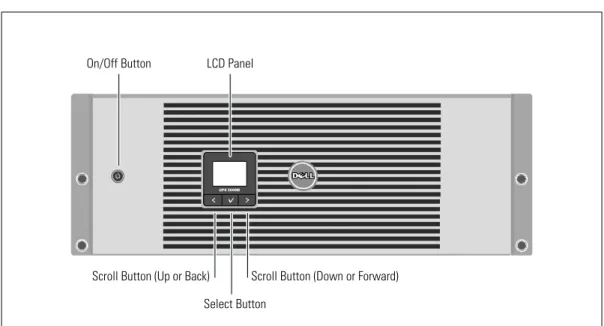
UPS Front Panel
This section shows the front panel of the Dell Line-Interactive Rack UPS.
On/Off Button LCD Panel
Scroll Button (Down or Forward) Select Button
Scroll Button (Up or Back)
Rackmount Setup
CAUTION:The cabinet is heavy (see page 60): 1) Dell strongly recommends to remove the battery tray from the UPS before lifting. 2) Lifting the cabinets into the rack requires a minimum of two people.
CAUTION:Removing the batteries should be performed or supervised by personnel knowledgeable about batteries and the required precautions. Keep unauthorized personnel away from batteries.
CAUTION:If installing an optional EBM, install the EBM directly below the UPS.
NOTE:Mounting rails are required for each individual cabinet.
To install the UPS and optional EBM in a rack:
1 Remove the internal battery trays from the UPS:
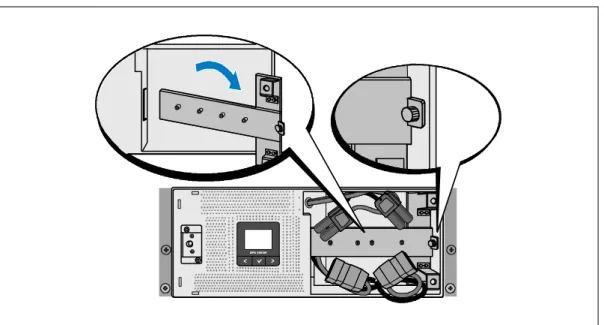
Loosen the thumbscrew on the battery retaining bracket and remove the bracket (see Figure 7).
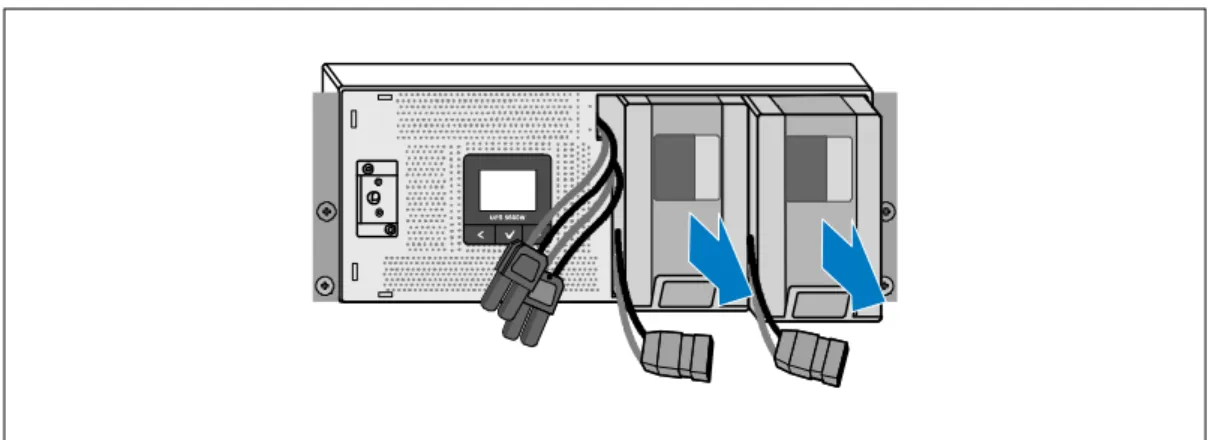
Pull the battery trays out using the plastic tabs and remove the battery trays (see Figure 8).
Figure 8. Removing the Battery Trays
2 If installing additional UPSs, repeat Step 1 for each cabinet.
NOTE:The following instructions are the same for square-hole racks and unthreaded, round-hole racks. The rails fit both rack styles. The square-hole rack is shown in the illustrations.
3 Select the proper holes in the rail for positioning the cabinet in the desired location in the rack. Locate the rails at the bottom of the 4U space allocated for the UPS (3U for the EBM).
5 Attach the rails to the rack:
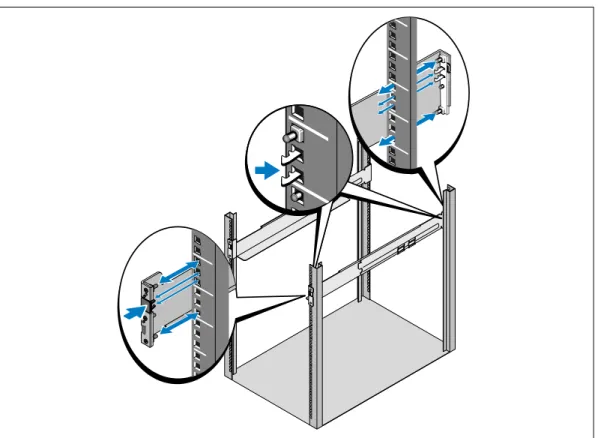
Engage the back end of the rail until it fully seats on the vertical rack flange and the hook latch locks in place (see Figure 9).
Pull the rail just past the front of the rack.
Push the front end of the rail until it fully seats on the vertical rack flange and the hook latch locks in place.
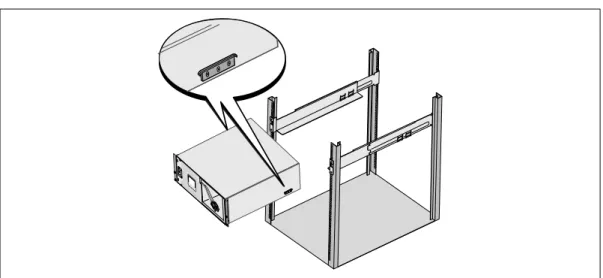
6 Slide the cabinet into the rack (see Figure 10). Repeat Steps 3 through 5 for any additional cabinets.
Figure 10. Installing the Cabinet
7 Secure the front of the cabinet to the rack using the four thumbscrews on the mounting brackets (see Figure 11). Tighten by hand; do not use power tools. Repeat for any additional cabinets.
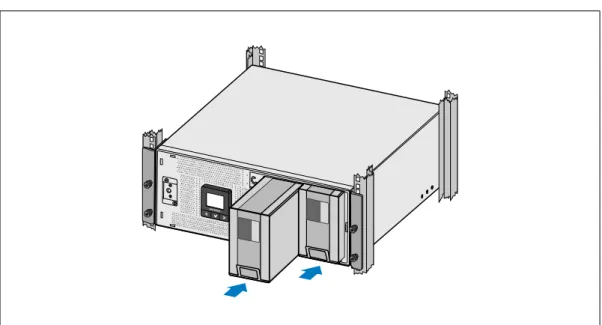
8 Install the UPS battery trays (see Figure 12).
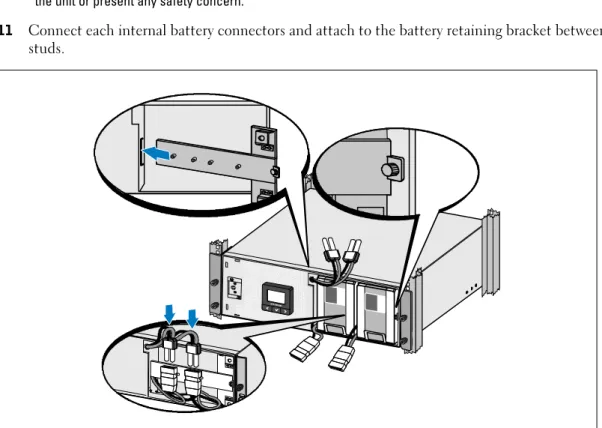
9 Replace the battery retaining bracket (see Figure 13).
10 Tighten the thumbscrew.
NOTE:A small amount of arcing may occur when connecting the batteries. This is normal and does not damage the unit or present any safety concern.
11 Connect each internal battery connectors and attach to the battery retaining bracket between the studs.
12 Snap the UPS front cover into place (see Figure 14).
Figure 14. Installing the UPS Front Cover
Installing the EBM
NOTE:A small amount of arcing may occur when connecting an EBM to the UPS. This is normal and will not harm personnel. Insert the EBM cable into the UPS battery connector quickly and firmly.
To install the optional EBM:
Installing the UPS
To install the UPS:
1 If you plan to use Dell UPS Management Software, connect your computer to the USB port using the supplied cable. For more information about communication options, see page 52.
2 If your rack has conductors for grounding or bonding of ungrounded metal parts, connect the ground cable (not supplied) to the ground bonding screw. See “UPS Rear Panels” on page 15 for the location of the ground bonding screw for each model.
3 If an emergency power-off (disconnect) switch is required by local codes, see the following section, “Installing Remote Emergency Power-off” (REPO) to install the REPO switch before powering on the UPS.
4 Plug the equipment to be protected into the UPS output receptacles, but do not turn on the protected equipment.
5 Make any necessary provisions for cord retention and strain relief.
NOTE:Verify that the total equipment ratings do not exceed the UPS capacity to prevent an overload alarm.
Installing Remote Emergency Power-off
REPO is used to shut down the UPS from a distance. For example, this feature can be used for shutting down the load and the UPS by thermal relay, in the event of room overtemperature. When REPO is activated, the UPS shuts down the output and all its power converters immediately. The UPS logic power remains on to issue an alarm.
The REPO feature shuts down the protected equipment immediately and does not follow the orderly shutdown procedure initiated by any power management software. Any devices that are operating on battery power are also shut down immediately.
When the REPO switch is reset, the equipment will not return to utility or battery power until the UPS is manually restarted.
The REPO contacts are normally open.
WARNING:The REPO circuit is an IEC 60950 safety extra low voltage (SELV) circuit. This circuit must be separated from any hazardous voltage circuits by reinforced insulation.
CAUTION:The REPO must not be connected to any utility connected circuits. Reinforced insulation to the utility is required. The REPO switch must have a minimum rating of 24 Vdc and 20 mA and be a dedicated
CAUTION:To ensure the UPS stops supplying power to the load during any mode of operation, the input power must be disconnected from the UPS when the emergency power-off function is activated.
NOTE:For Europe, the emergency switch requirements are detailed in Harmonized document HD-384-48 S1, “Electrical Installation of the Buildings, Part 4: Protection for Safety, Chapter 46: Isolation and Switching.”
REPO Connections
Wire Function Terminal Wire Size Rating Suggested Wire Size
REPO 4–0.32 mm2 (12–22 AWG) 0.82 mm2 (18 AWG)
NOTE:The pins must be open to keep the UPS running. If the UPS shuts down because the REPO connector pins are shorted, restart the UPS by re-opening the REPO connector pins and turning on the UPS manually. Maximum resistance in the shorted loop is 10 ohm.
NOTE:Always test the REPO function before applying your critical load to avoid accidental load loss.
Remove Jumper if Installed
Figure 16. REPO Connector
To install the REPO switch:
1 Verify that the UPS is off and disconnected from utility power.
2 Remove the REPO connector from the accessory kit.
NOTE:Verify that there is no jumper installed in the REPO connector. If a jumper is installed, remove it before connecting to the REPO port. See Figure 16.
CAUTION:If you are daisy-chaining the REPO function, observe the following connection requirements to avoid unintentional shutdown of the UPS:
S The left pin of the REPO port labeled “OUT” on the first UPS must be connected to the left pin of the REPO port labeled “IN” on the second UPS.
S The right pin of the REPO port labeled “OUT” on the first UPS must be connected to the right pin of the REPO port labeled “IN.” on the second UPS.
4 Optional. If you are daisy-chaining the REPO function with another UPS, you can shut down the entire system using a single switch.
Connect the second REPO connector to the REPO port labeled “OUT.”
NOTE:A separate contact must simultaneously cause UPS input AC power to be removed.
5 Connect the switch or circuit to the REPO connector on the UPS rear panel using insulated 0.75 mm2–0.5 mm2 (18–20 AWG) wire.
6 Optional. If you are daisy-chaining the REPO function with another UPS, connect the REPO port labeled “OUT” to the REPO port labeled “IN” on the next UPS.
Continue for each UPS. On the last UPS in the daisy-chain, connect a REPO connector (without a jumper) in the REPO port labeled “OUT.”
7 Verify that the externally-connected REPO switch is not activated to enable power to the UPS output receptacles.
8 For hardwired models, continue to the following section, “Hardwiring the UPS Input.” Otherwise, continue to “UPS Initial Startup” on page 30.
Hardwiring the UPS Input
WARNING:Only qualified service personnel (such as a licensed electrician) shall perform the electrical installation. Risk of electrical shock.
The Dell Line-Interactive Rack hardwired models require a dedicated branch circuit that meets the following requirements:
S 5600W/208V models only: 40A 2-pole circuit breaker to provide short circuit and overcurrent protection
S 5600W/230V models only: 32A for Europe (or 35A for North America) 2-pole circuit breaker to provide short circuit and overcurrent protection
S The protection device requires a two-pole disconnection device between the UPS output and the load (see Figure 17)
S The breaker must be wall-mounted and be readily accessible to the operator
S For Europe, the breaker must meet the IEC/EN 60934 standard and have a contact air gap of at least 3 mm
S 200–240 Vac
S Single-phase
- 5600W/208V model is phase-to-phase (can also be used on a split-phase 120/240 Vac input) - 5600W/230V model is phase-to-neutral
S 50/60 Hz
S Flexible metal conduit (recommended for ease of service and maintenance)
AC Mains Wall
2-Pole Breaker
UPS Line
To hardwire the UPS input:
1 Switch off utility power at the distribution point where the UPS will be connected. Be absolutely sure there is no power.
2 Remove the terminal block cover (four screws) and retain.
Figure 18. Removing the Terminal Block Cover
3 Punch a hole in the terminal block cover for the input conduit using a Greenlee® punch or similar device. The hole accommodates 3/4” or 1” IMC conduit.
4 Pull the input wire through the conduit, leaving approximately 2 ft (0.5m) of exposed wire. Attach a flexible metal fitting to the end of the conduit.
5 Insert the conduit through the wiring access entry and attach the conduit fitting to the panel. Strip 0.5” (1.5 cm) of insulation from the end of each incoming wire.
6 Connect the input and ground wires to the terminal block according to Figure 19 and Table 1.
Terminal Position 1 2 3
Figure 19. UPS Input Terminal Block Table 1. UPS Wiring Specifications
Wire Function Terminal
Position UPS Wire Function
Terminal Wire
Size Rating* Tightening Torque
Input 1 Input Ground
5.26–16 mm2
(10–6 AWG) 2.49 Nm (22 lb in)
2 L2/Neutral In
3 L1 In
* Use a minimum:
S 10 AWG for equipment grounding wire, 75_C copper wire minimum S 8 AWG for input line and neutral wires, 75_C copper wire minimum 7 Replace the terminal block cover.
UPS Initial Startup
To start up the UPS:
1 Verify that the internal batteries are connected.
2 If an optional EBM is installed, verify that the EBM is connected to the UPS.
3 Verify that all load segment circuit breakers are in the ON position.
4 Switch the main utility breaker on.
The UPS front panel display illuminates. The Dell startup screen changes to the UPS status summary screen. The UPS front panel display shows the flashing Standby icon .
5 Press the button on the UPS front panel.
After the startup is complete, the status icon changes to the appropriate icon based on the UPS operating mode (see Table 3 on page 36).
6 On the UPS status control panel, press the button to check for active alarms or notices. Resolve any active alarms before continuing. See “Troubleshooting” on page 64.
If there are no active alarms, a “No Active Alarms” message appears.
7 Verify that the Normal icon appears on the UPS status summary screen, indicating that the UPS is operating normally and any loads are powered (see Table 3 on page 36).
8 If an optional EBM is installed, see “Configuring the UPS for an EBM” on page 50.
9 To change other factory-set defaults, see “Operation” on page 31.
10 If you installed an optional REPO, test the REPO function:
Activate the external REPO switch. Verify the status change on the UPS display. Deactivate the external REPO switch and restart the UPS.
NOTE:Dell recommends setting the date and time.
NOTE:At initial startup, the UPS sets system frequency according to input line frequency (input frequency auto-sensing is enabled by default). After initial startup, auto-sensing is disabled until manually re-enabled by output frequency setting.
NOTE:At initial startup, input voltage auto-sensing is enabled by default. After the subsequent startup, auto-sensing is disabled until manually re-enabled by output voltage setting.
Operation
This chapter contains information on how to use the UPS, including:
S UPS startup and shutdown
S Control panel and display functions
S Retrieving the Event Log
S Transferring the UPS Between Modes
S Behavior on overload
S Configuring load segments, battery settings, and automatic restart
UPS Startup and Shutdown
To start up or shut down the UPS, see:
S “Starting the UPS” on page 31
S “Starting the UPS on Battery” on page 32
S “UPS Shutdown” on page 32
Starting the UPS
To start the UPS:
1 Verify that the UPS is connected to utility power.
2 Switch on utility power where the UPS is connected.
The UPS front panel display illuminates. The Dell startup screen (see Figure 20 on page 33) changes to the UPS status summary screen. The UPS front panel display shows the Standby mode icon .
3 Press the button on the UPS front panel.
After the startup is complete, the status icon changes to the appropriate icon based on the UPS
4 On the control panel, press the button to check for active alarms or notices. Resolve any active alarms before continuing. See “Troubleshooting” on page 64.
If there are no active alarms, a “No Active Alarms” message appears.
5 Verify that the Normal mode icon appears on the UPS status summary screen, indicating that the UPS is operating normally and any loads are powered.
Starting the UPS on Battery
NOTE:Before using this feature, the UPS must have been powered by utility power with output enabled at least once.
NOTE:Utility power cannot be present at startup.
To start the UPS on battery:
1 Press the button on the UPS front panel until the UPS beeps.
The UPS front panel display illuminates, and the UPS begins the startup sequence.
The UPS cycles through Standby mode to Battery mode. The Battery mode icon displays on the UPS status summary screen. The UPS supplies power to your equipment.
NOTE:The UPS does not assume the load if you press the button less than three seconds. 2 Press the button to check for active alarms or notices.
Ignore the “UPS on Battery” notice and notices that indicate missing utility power. Resolve other active alarms before continuing. See “Troubleshooting” on page 64. After correcting the alarms, restart if necessary.
You can prevent a battery start (requiring utility power at the next startup) by simultaneously pressing the and buttons for three seconds. To disable the battery start, see the Start on Battery setting on page 42.
UPS Shutdown
To shut down the UPS:
1 Press the button on the front panel for three seconds. The UPS begins to beep. The UPS transfers to Standby mode.
Control Panel Functions
The UPS has a three-button graphical LCD with dual color backlight. Standard backlight is used to light up the display with white text and a blue background. When the UPS has a critical alarm, the backlight changes the text to dark amber and the background to amber. See Figure 20.
Figure 20. Dell Line-Interactive Rack UPS Control Panel
There are three buttons on the control panel:
S Scroll up or back
S Select
S Scroll down or forward
Table 2 describes the functions of the LCD control buttons.
Table 2. Control Button Functions
Control Button Sequence Function
Press for less than one second Scroll back or up to the previous menu. Press for longer than one
second
Return/exit back one menu layer without initiating a command or changing a setting.
Press for less than one second Select the menu or option to be changed. Press for longer than one
second
To select an option:
1 When scrolling through the settings, the present setting displays for each selection.
2 Press and release the button to select the option. The current setting for the option flashes when selected.
3 Use the or buttons to toggle the available options.
4 Set the new option by pressing the button again for longer than one second. The option stops flashing.
Changing the Language
Language selection is controlled through the user settings. See Table 6 page 41 for information on available languages.
Display Functions
The UPS provides useful information about the UPS itself, load status, events, measurements, identification, and settings through the front panel display.
Startup Screen
During startup, the Dell logo startup screen displays for five seconds and then defaults to the UPS status summary screen.
The display automatically returns to the UPS status summary screen when no button has been pressed for 15 minutes and no other screen has been locked by a user. When you return to the status summary screen, press the button for longer than one second to exit back to the menu selections. Selecting UPS Status from the main menu list lets you to scroll through all of the UPS status menu screens, including the status summary screen.
Screen Locked
To lock a screen, press the button. The current view stays locked and does not automatically return to the default screen after time-out. When the screen is locked, the image of a key appears on the UPS status summary screen just to the left of the status icon. See Figure 21.
Pushing any button returns the normal button function, unlocks the screen, and removes the lock symbol.
Figure 21. A Locked Screen
Only screens that have dynamic, real-time data updates can be locked. Applicable screens include the status summary screen, measurement screens, active alarms, and the battery status screen.
UPS Status
A UPS status summary screen replaces the startup screen after the UPS is powered on. The UPS status summary screen displays until you press to go to the first of the main menu selections.
The UPS status provides separate screens for the following information:
S Status summary, including mode and load
S Notice or alarm status, if any are present
S Battery status, including state and charge level
See Table 3 for examples of the UPS status summary screens. The status icon in the upper right corner of each status summary screen conveys the UPS status or mode.
Table 3. Status Summary Screens
Status Summary Screen Description UPS Critical Failure
The UPS is in Fault mode. The status icon and background of the icon are flashing.
Battery Mode
The status icon and background of the icon are flashing.
An audible alarm (0.5 seconds on/4.5 seconds off) accompanies the switch to Battery mode.
When utility power returns, the UPS transfers to Normal mode operation while the battery recharges.
Bypass Mode
The UPS is operating in Bypass mode through the static bypass switch. The status icon and background of the icon are flashing. Battery mode is not available.
UPS in Overload Condition
The status icon and background of the icon are flashing.
Bad Battery Detected or Battery Disconnected
The status icon and background of the icon are flashing, along with the outer shell of the battery symbol at the bottom.
UPS General Alarms Active
Table 3. Status Summary Screens (continued) Status Summary Screen Description
Battery Test Status
The UPS is performing a battery test.
Normal Mode
The UPS is operating in Normal mode from utility power. The UPS monitors and charges the batteries as needed and provides filtered power protection to your equipment.
Standby Mode
When the UPS is turned off and remains connected to utility power, the UPS is in Standby mode and utility power supplies the connected equipment. The UPS is not supporting the load, but is ready to assume the load on command.
The notice and alarm screens are visible only when notices or alarms are active. There is a separate screen for each active notice or alarm. If there are no active notices or alarms, a “No Active Alarms” message appears in a single screen between the UPS status summary and the battery status screen. If there are multiple notices or alarms, scroll through each notice or alarm screen to reach the first battery status screen.
NOTE:Events are not shown in status summary screens. They appear only in the Event Log.
Table 4. Battery Status Screens
Battery Status Screen Description
Battery charging Batteries are charged in constant current mode. Battery floating Batteries are charged in constant voltage mode.
Battery resting Batteries are connected but are not being charged or discharged. (This is part of the normal charging cycle.)
Battery discharging Batteries are discharging.
Battery disconnected Batteries are unavailable because they are disconnected.
Charger disabled The r is off. You can enable the Charger setting from the Settings menu (see page 44).
Event Log
The Event Log holds up to 50 events. You can scroll through the event screens, beginning with the most recent event.
NOTE:The date format depends on the language selection.
The first row of each event screen contains the date (MM/DD/YYYY) and time (hh:mm:ss) at which the event occurred. The second row contains the type of event and code. The event description begins on the third row and may continue to the fourth row. The bottom right corner of the event screen displays two numbers: an ordering number of the event in the log, followed by the total number of events in the log.
If there are no events in the log, the event screen displays “No events in log.” See “Retrieving the Event Log” on page 46.
Measurements
The measurements screens provide useful measurement information on:
S Output watts VA, current, power factor, voltage, and frequency
S Input voltage and frequency
S Battery voltage and percentage charged
S Instantaneous Headroom Watts remaining
S Peak Headroom Watts (the remaining watts available to support the load at peak demand, includes the date and timestamp of the peak demand)
S Peak Consumption Watts (the peak power demand on the UPS, includes the date and timestamp of the peak demand)
S Present kWh Consumption (the kWh demand on the UPS averaged over the past hour)
S Cumulative kWh Consumption (the total kWh usage, includes the date and timestamp since it was last reset)
Control Screens
Table 5 describes the available control screens.
Table 5. Control Screens
Control Screens Description
Go to Bypass Transfers the UPS system to internal Bypass mode.
When the Go to Bypass command is issued, the screen immediately shows the message for five seconds: Manual Bypass Command. The option then changes to Go to Normal.
When the Go to Normal command is issued, the screen immediately shows the message Normal Mode Command Sent for five seconds. The option then changes to Go to Bypass.
Battery Test Schedule Battery Test: yes | Cancel Battery test: no Starts a manual battery test.
See “Testing Batteries” on page 59. Reset Error State Reset Alarms: yes | no
Manually clears any latched alarms, such as bad battery detected, overload, or DC Bus OV/UV.
If a bad battery alarm was also active, reset the battery test status to “Not Tested.”
Load Segments Load segment 1: on | off Load segment 2: on | off
These on/off commands override automatic load segment on/off controls made by the Automatic Start Delay and Automatic On Battery Shutdown settings. See “Configuring Load Segments” on page 47.
Restore Factory Settings Restore Factory Settings: yes | no Available only in Standby mode. Restoring the factory settings:
S Returns all user-configurable EEPROM settings to default factory settings S Resets all pending on/off commands
S Clears the Event Log and resets all time stamps S Resets the battery test status
Identification
The identification screens display the following UPS information:
S Type and model
S Part number
S Serial number
S UPS firmware
S Comm firmware
S Network Management Card firmware
NOTE:The NMC firmware screen displays only if the Network Management Card is installed. See “Dell Network Management Card“ on page 54.
Settings
Only available options are displayed.
User settings are not protected by default. You can enable the password through the User Password setting.
Table 6 displays the options that can be changed by the user.
Table 6. Settings
Description Available Settings Default Setting Change Language [English] [French] [German] [Spanish] [Japanese]
[Simplified Chinese] [Russian] [Korean] [Traditional Chinese]
English
User Password [Enabled] [Disabled]
If Enabled, the default password is USER. NOTE: If you enter an incorrect password, the message “Wrong Password” appears. Press any button to return to the password screen and retry the password.
Disabled
Table 6. Settings (continued)
Description Available Settings Default Setting Set Date and Time Set Month, Day, Year, Hours, Minutes, and Seconds
Date: mm/dd/yyyy Time: hh:mm:ss
NOTE: The date format is dependent on the language selection.
NOTE: Time is a 24-hour clock.
01/01/2009 12:00:00
Control Commands from Serial Port
[Enabled] [Disabled]
If Enabled, control commands are accepted through the serial port, USB ports, or option card.
If Disabled, configuration and load control commands are restricted to LCD only.
Enabled
Output Voltage [Auto-sensing] Auto-sensing
[200V] [208V] [220V] [230V] [240V]
Output Frequency [50Hz] [60Hz] [Auto-sensing] Auto-sensing
Overload Alarm Level [10%] [20%] [30%]...[100%]
If 100%, the UPS issues an Output Overload alarm at load > 100%.
NOTE: Output Overload Level 1 by default is set to 100% and is configurable from 10% to 100% in 10% increments through the LCD setting menu. This feature allows customers to be alerted before the UPS has reached its rated capacity limits.
100%
Automatic Start Delay [Off] [0s] [1s] [2s]...[32767s]
See “Configuring Load Segments” on page 47.
0s Automatic on Battery Shutdown [Off] [0s] [1s] [2s]...[32767s]
See “Configuring Load Segments” on page 47.
Off Start on Battery [Enabled] [Disabled]
NOTE: Battery start is disabled from the factory and remains disabled until the UPS has been powered from utility and enters Standby mode. After the UPS has been started once from utility, the Start on
Table 6. Settings (continued)
Description Available Settings Default Setting Battery Saving Mode [Disabled] [10%] [20%] [30%]...[100%]
The UPS output is turned off in five minutes if the UPS is on battery and output power is below the selected level.
Disabled
On Battery Notice Delay [0s] [1s] [2s]...[99s]
The UPS issues a “UPS on battery” notice in the specified number of seconds after the UPS starts to discharge the batteries.
0s
Site Wiring Fault Alarm [Enabled] [Disabled] Disabled for 208V
models; Enabled for all others
Bypass Voltage Low Limit [-6%] [-7%]...[-20%] of nominal
The Bypass operation is disabled if the measured bypass voltage level is below the nominal output voltage (-15%).
NOTE: The Qualify Bypass setting may overrule the Bypass Voltage Low Limit setting.
-15% of nominal
Bypass Voltage High Limit [+6%] [+7%]...[+20%] of nominal
The Bypass operation is disabled if the measured bypass voltage level is above the nominal output voltage (+10%).
NOTE: The Qualify Bypass setting may overrule the Bypass Voltage High Limit setting.
+10% of nominal
Qualify Bypass [Always] [Never] [Bypass Disabled] If Always, Bypass operation is allowed when:
S Bypass voltages > the value set for Bypass Voltage Low Limit
S Bypass voltages < the value set for Bypass Voltage High Limit
S Bypass frequency > (nominal frequency -3 Hz)
Table 6. Settings (continued)
Description Available Settings Default Setting External Battery Modules (EBMs) [0] [1]
See “Configuring the UPS for an EBM” on page 50. 0
Charger [Enabled] [Disabled]
If Enabled, batteries charge normally. If Disabled, the battery charger is off.
Enabled
Battery Charge % to Restart [0%] [10%] [20%] [30%]...[100%]
When enabled, automatic restart is made when the battery charge state reaches the selected level. If set to 0%, the feature is disabled.
0%
Battery Low Alarm [Immediate] [2 min] [3 min] [5 min]
If you select a value, the battery low alarm triggers when the set amount of backup time
(approximately) remains in the batteries.
3 min
Automatic Battery Tests [Enabled] [Disabled]
See “Running Automatic Battery Tests” on page 51.
Enabled
Reset Peak Consumption Watts [No] [Yes] If No, no action.
If Yes, the Peak Consumption Watts value is cleared and the date and time stamp for this statistic is set to the current date and time.
No
Reset Cumulative Consumption kWh
[No] [Yes] If No, no action.
If Yes, the Cumulative Consumption kWh value is cleared and the date and time stamp for this statistic is set to the current date and time.
No
Reset Peak Headroom Watts [No] [Yes] If No, no action.
If Yes, the Peak Headroom Watts value is cleared and the date and time stamp for this statistic is set to the current date and time.
Table 6. Settings (continued)
Description Available Settings Default Setting Clear Event Log The number after “Total events” shows how
many events are currently stored in the log. Press the button for longer one second to reset the event count to zero and clear the log.
—
LCD Contrast [-5], [-4], [-3], [-2], [-1], [+0], [+1], [+2], [+3], [+4], [+5]
The LCD Contrast is adjustable from -5 to +5. This range covers the maximum adjustment for
contrasting the background with the text in the visual display of the control panel.
[+0]
Transferring the UPS Between Modes
Transferring between modes includes:
S Transferring from Normal to Bypass mode
S Transferring from Bypass to Normal mode
Transferring from Normal to Bypass Mode
To transfer from Normal to Bypass mode:
1 Press the button for longer than one second to go to the main menu selection and scroll down to the Control menu using the button.
2 Press the button to enter the Control menu.
3 Select Go to Bypass.
The text on the screen changes to Manual Bypass Command Sent. The Bypass mode icon flashes, indicating Bypass mode.
Transferring from Bypass to Normal Mode
To transfer from Bypass to Normal mode:
1 Press the button for longer than one second to go to the main menu selection and scroll down to the Control menu using the button.
2 Press the button to enter the Control menu.
3 Select Go to Normal.
The text on the screen changes to Normal Command Sent. The Normal mode icon flashes, indicating Normal mode.
Retrieving the Event Log
To retrieve the Event Log:
1 Press the button for longer than one second to go to the main menu selection and scroll down to the Event Log menu using the button.
2 Press the button to enter the Event Log list.
3 Scroll through the listed events, notices, and alarms using either the button or the button.
Behavior on Overload
See Table 7 for an explanation of how the UPS responds to an overload condition.
Table 7. Behavior on Overload
Overload Severity Load Level On Utility Power On Battery Level 1 100% to 101% Overload alarm and supports
load indefinitely
Overload alarm and supports load until low battery shutdown level is reached Level 2 102% to 110% Overload and Level 2
Overload alarms and supports load indefinitely
Transfers to Fault mode in 12 seconds (±1 sec) or when low battery shutdown level is reached
Level 3 > 110% Overload, Level 2 Overload, and Level 3 Overload alarms and supports load
indefinitely
Transfers to Fault mode in 300 ms to 1 sec
Configuring Load Segments
Load segments are sets of receptacles that can be controlled by the Dell UPS Management Software, the Dell Network Management Card, or through the LCD display, providing an orderly shutdown and startup of your equipment. For example, during a power outage, you can keep key pieces of equipment running while you turn off other equipment. This feature allows you to save battery power.
Each Dell Line-Interactive Rack model has two configurable load segments. See “UPS Rear Panels” on page 15 for the load segment locations.
To control the load segments with power management software, see your power management software manual for details (refer to the Software CD or www.dell.com for the latest information).
Controlling Load Segments Through the Display
To control the load segments through the display:
1 Press the button for longer than one second to go to the main menu selection and scroll down to the Control menu using the button.
2 Press the button to enter the Control menu.
3 Use the button to scroll to Load Segments.
4 Press the button.
The current setting for the option flashes when selected.
5 Select the desired load segment using the and buttons.
6 Set the desired load segment ON or OFF using the button.
7 Press the button for longer than one second to confirm.
Configuring Automatic Start Delay
You can configure a load segment to turn on automatically after the utility power returns, if it was shut down by:
S The button
S An external command with auto-restart option
S Battery under voltage state
S Automatic on battery shutdown command
You can specify the restart delay time for each load segment: select zero seconds (0s is the default) to restart immediately, select 1–32767 seconds to delay for the specified time, or select Off.
To set the restart delay times for each load segment:
1 Press the button for longer than one second to go to the main menu selection and scroll down to the Settings menu using the button.
2 Press the button to enter the Settings menu.
3 Use the button to scroll to the Automatic Start Delay option and press the button. The current setting for the option flashes when selected.
4 Set the restart delay for one load segment using the and buttons.
5 Press the button to confirm.
6 Set the restart delay for the other load segment if applicable.
7 Press the button to confirm.
NOTE:Load segment On/Off commands issued through the Control menu override the user settings for load segments.
NOTE:There is an additional built-in one-second delay between closing load segment 1 and 2 when an On command is issued for both segments at the same time.
Configuring Automatic on Battery Shutdown
If set to Off (default), the load segment turns off only when commanded manually by the button, an external command, or through the display (Control > Load Segments).
If set to zero seconds (0s), the load segment turns off automatically when the UPS on Battery state activates.
If you select a value, the load segment turns off automatically after the selected delay while the UPS operates on battery, but the shutdown is cancelled if the utility returns before the delay has expired. To set the shutdown times for each load segment:
1 Press the button for longer than one second to go to the main menu selection and scroll down to the Settings menu using the button.
2 Press the button to enter the Settings menu.
3 Use the button to scroll to the Automatic on Battery Shutdown option and press the button. The options display and the current settings flash when selected.
4 Set the shutdown delay for one load segment using the and buttons.
5 Press the button to confirm.
6 Set the shutdown delay for the other load segment if applicable.
Configuring Battery Settings
Configure the UPS settings for an installed EBM, including whether to run automatic battery tests and automatic restart configuration.
Configuring the UPS for an EBM
If the UPS is not configured for the EBM, the UPS reports less battery time remaining on the UPS front panel and to any remote software. You may receive a shutdown warning prematurely. To ensure
maximum battery runtime when using power management software, configure the UPS for the EBM:
1 Press the button for longer than one second to go to the main menu selection and scroll down to the Settings menu using the button.
2 Press the button to enter the Settings menu.
3 Use the button to scroll to the External Battery Modules option and press the button. The battery number value begins to flash.
4 Set the battery number value using the and buttons.
Configuration Setting
UPS only (internal batteries) 0 (default)
UPS + 1 EBM 1
NOTE: Runtime is automatically adjusted based on present load levels and whether an EBM is configured. 5 Press the button to confirm.
Running Automatic Battery Tests
The automatic discharge test, enabled by default, runs during the transition from Float to Rest mode. After the test completes, the charge cycle restarts to completely charge the batteries and then continues to Rest mode normally. The automatic test runs approximately once every three months and does not run again until after three more Float to Rest mode transitions. If a manual battery test is requested, the automatic battery test timer is reset so it will not run for the next three months.
For an automatic battery test to run:
S The Automatic Battery Tests setting must be enabled for the automatic battery tests to run. (See the following section, “Configuring Automatic Battery Tests.”)
S The batteries must be fully charged.
S The UPS must be in Normal mode with no active alarms.
S The load must be higher than 10%.
Configuring Automatic Battery Tests
To configure the automatic battery tests:
1 Press the button for longer than one second to go to the main menu selection and scroll down to the Settings menu using the button.
2 Press the button to enter the Settings menu.
3 Use the button to scroll to the Automatic Battery Tests option and press the button. The option begins to flash.
4 Select whether to enable or disable the automatic battery test using the and buttons.
5 Press the button to confirm.
Configuring Automatic Restart
The UPS automatically restarts if the utility power returns after the output was shut off due to depleted batteries, a shutdown input signal, or an automatic shutdown command.
Additional UPS Features
This chapter describes:
S Communication ports (RS-232 and USB)
S Dell Network Management Card
S Dell UPS Management Software
RS-232 and USB Communication Ports
To establish communication between the UPS and a computer, connect your computer to one of the UPS communication ports using an appropriate communication cable (RS-232 cable not supplied). See “UPS Rear Panels” on page 15 for the communication port locations.
When the communication cable is installed, power management software can exchange data with the UPS. The software polls the UPS for detailed information on the status of the power environment. If a power emergency occurs, the software initiates the saving of all data and an orderly shutdown of the equipment.
The cable pins for the RS-232 communication port are identified in Figure 22, and the pin functions are described in Table 8.
3 8 7 9
1 6 2 4 5
Figure 22. RS-232 Communication Port (DB-9 Connector)
Table 8. RS-232 Communication Port Pin Assignment
Pin Signal Name Function Direction from the UPS
1 Unused —
2 Tx Transmit to external device Out
3 Rx Receive from external device In
4 Unused —
5 GND Signal common (tied to chassis) —
6 Unused —
7 Unused —
8 Unused —
9 Unused —
Dell Network Management Card (Optional)
The Dell Line-Interactive Rack UPS has one available communication bay, which supports the optional Dell Network Management Card. See Figure 23 for the location of the communication bay.
It is not necessary to shut down the UPS before installing a communication card.
1 Remove the slot cover secured by two screws. Retain the screws.
2 Insert the communication card into the slot.
3 Secure the card with the retained screws.
Figure 23. Dell Network Management Card
For details on disabling control commands from the Dell Network Management Card, see the Control Commands from Serial Port setting on page 42.
Dell UPS Management Software
Each Dell Line-Interactive Rack UPS ships with Dell UPS Management Software.
Dell UPS Management Software provides up-to-date graphics of UPS power and system data and power flow. It also gives you a complete record of critical power events, and it notifies you of important UPS or power information. If there is a power outage and the Dell Line-Interactive Rack UPS battery power becomes low, the software can automatically shut down your computer system to protect your data before the UPS shutdown occurs.
For details on disabling control commands from the software, see the user setting for Control Commands from Serial Port setting on page 42.
UPS Maintenance
This chapter explains how to:
S Care for the UPS and batteries
S Transport the UPS
S Store the UPS and batteries
S Test the batteries
S Update the UPS firmware
UPS and Battery Care
For the best preventive maintenance, keep the area around the UPS clean and dust‐free. If the atmosphere is very dusty, clean the outside of the system with a vacuum cleaner. For full battery life, keep the UPS at an ambient temperature of 25°C (77°F).
NOTE:The batteries in the UPS are rated for a 3–5 year service life. The length of service life varies, depending on the frequency of usage and ambient temperature. Batteries used beyond expected service life will often have severely reduced runtimes. Replace batteries at least every 5 years to keep units running at peak efficiency.
Transporting the UPS
NOTE:The internal UPS batteries MUST be disconnected before transport.
CAUTION:The following procedure should be performed or supervised by personnel knowledgeable about batteries and the required precautions. Keep unauthorized personnel away from batteries.
If the UPS requires any type of transportation, the batteries must be disconnected (but not removed) before the unit is transported:
1 Verify that the UPS is off and disconnected from utility power.
2 Place the UPS on a flat, stable surface with the front of the cabinet facing you.
3 Remove the UPS front cover (see Figure 24).
Figure 24. Removing the UPS Front Cover
5 Replace the UPS front cover (see Figure 26).
Figure 26. Replacing the UPS Front Cover
Storing the UPS and Batteries
If you store the UPS for a long period, recharge the battery every 6 months by connecting the UPS to utility power. The batteries charge to 90% capacity in approximately 4 hours. However, it is
recommended that the batteries charge for 48 hours after long-term storage.
Check the battery recharge date on the shipping carton label. If the date has passed and the batteries were never recharged, do not use the UPS. Contact your service representative.
When to Replace Batteries
When the status summary screen displays the UPS fault icon with the “Service Battery” alarm and the audible alarm sounds continuously, the batteries may need replacing. Contact your service
representative to order new batteries.
NOTE:With the user-replaceable battery feature, UPS batteries can be replaced easily without turning the UPS off or disconnecting the load.
Testing Batteries
For a battery test to run:
S The batteries must be fully charged.
S The UPS must be in Normal mode with no active alarms.
S The load must be higher than 10%. To test batteries:
1 Connect the UPS to utility power for at least 48 hours to charge the batteries.
2 Press the button for one second to go to the main menu selection and scroll down to the Control menu using the button.
3 Press the button to enter the Control menu.
4 Use the button to scroll to the Battery Test option.
5 Press the button to start the battery test.
During the battery test, the UPS transfers to Battery mode and discharges the batteries for 25% of the original expected runtime. The status screen displays “Battery test running” and the
percentage of the test completed. The results display on the UPS status screen when complete.
Updating the UPS Firmware
To keep the UPS firmware updated with the latest improvements and benefits, visit www.dell.com for updates. You can download the latest firmware version and the instructions for installing it.
Specifications
This chapter provides the following specifications:
S Model list
S Dimensions and weights
S Electrical input and output
S Environmental and safety
S Battery
S UPS block diagram
Table 9. UPS Model List
208V Model 230V Models UPS Models 5600R LI (H955N), 5600W 5600R LI (J731N), 5600W External Battery Module
(EBM)
5600R EBM (K812N), 216 Vdc/30A
Table 10. Dimensions and Weights
UPS Models EBM Model
UPS Dimensions (W H D)
438.0 171.5 801.4 mm (17.2” 6.8” 31.5”)
438.0 127.0 735.0 mm (17.2” 5.0” 29.0”)
Rack Unit Size 4U 3U
Weights 72.0 kg (158.7 lb) 65.0 kg (143.0 lb)
Table 11. Electrical Input
208V Models 230V Models
Nominal Voltage 200–208V 220–240V
Nominal Voltage Range 200–208V auto-sensing 160–286V auto-sensing Nominal Frequency 50/60 Hz auto-sensing, ±3 Hz
Table 12. Electrical Output
208V Models 230V Models Power Levels
(Rated at Nominal Inputs)
5600W 5600W
Regulation (Normal Mode) -6% to +6% of nominal voltage
NOTE: Varies based on auto-detected input voltage or customer settings. Regulation (Battery Mode),
Nominal Voltage ±5%
-6% to +6% of nominal voltage
NOTE: Varies based on auto-detected input voltage or customer settings.
Voltage Waveform Sine wave
Output Receptacles (2) NEMA L6-30R, 30A (4) IEC 320-C19, 20A
(4) IEC 320-C19; 16A for IEC, 20A for UL
(6) IEC 320-C13; 10A for IEC, 15A for UL
Table 13. Environmental and Safety
208V Models 230V Models Operating Temperature Up to 1,500 meters: 0°C to 40°C (32°F to 104°F); UL tested 25°C (77°F)
Above 1,500 meters: 0°C to 35°C (32°F to 95°F) Transit/Storage
Temperature
-15°C to 60°C (5°F to 140°F) Relative Humidity 0–95% noncondensing
Operating Altitude Up to 3,048 meters (0–10,000 ft) above sea level
Audible Noise Less than 55 dBA on line/bypass mode (less than 75% load), room temperature Fan Speed Off when the UPS is in Standby mode or there is no load
Low speed: when the load is <80%
High speed when the load is >80% or the UPS is in Battery mode Surge Suppression ANSI/IEEE C62.41; 1991 Category B3
Safety Conformance UL 1778 4th Edition; CSA C22.2, No. 107.3
UL 1778 4th Edition; CSA C22.2, No. 107.3; IEC/EN 62040-1-1;
IEC/EN 60950-1 Safety Markings UL, cUL, VCCI UL, cUL, CE, GS, GOST, BSMI,
S-MARK, KC, NRCS, C-tick, CQC EMC (Class A) FCC Part 15, ICES-003, VCCI IEC/EN 62040-2; EN 55022/CISPR 22;
ICES-003; CNS14757-2; AS/NZS 62040.2; FCC Part 15; KN22; GB7260.2;
Table 14. Battery
Configuration 5600W: (18) 216V, 7.2 Ah internal batteries; (18) 216V, 7.2 Ah EBM Battery Type CSB GP1272 7.2 Ah or YUASA NP7-12 7Ah
Voltage 5600W: 216 Vdc internal, 216 Vdc/30A EBM
Fuses UPS: (2) 30A fuses
EBM: (2) 30A fuses
Type Sealed, maintenance‐free, valve‐regulated, lead‐acid
Charging Approximately 4 hours to 90% usable capacity at nominal line and no supplementary power supply load
Monitoring Advanced monitoring for earlier failure detection and warning Battery Runtimes* 5600W internal batteries: 5.5 minutes at full load/17 minutes at half load
5600W with one EBM attached: 19 minutes at full load/45 minutes at half load * Battery runtimes are approximate and vary depending on the load configuration and battery charge.
Battery
DC/DC Input
Filter
Output Filter Bypass
Charger
DC/AC Inverter AC/DC
Boost
Output Input
Troubleshooting
The Dell Line-Interactive Rack UPS is designed for durable, automatic operation and issues alarms to alert you whenever potential operating problems occur. Usually the alarms shown by the control panel do not mean that the output power is affected. Instead, they are preventive alarms intended to alert the user. Active alarms and active notices are accompanied by an audible buzzer.
Accessing Alarms and Conditions
The control panel provides troubleshooting information from two main menus:
S UPS status menu: Access to all active alarms
S Event Log menu: Access to the most recent 50 events, which may include active and closed alarms
UPS Status Menu
From the UPS Status menu, you can access the following screens for troubleshooting information:
S Status summary screen: The status summary screen provides information on both mode and load. When there is a critical alarm, the status summary screen changes from its normal white text on a blue background to dark amber text on an amber background.
S Notice or alarm screens: A separate screen appears for each active notice or alarm. If there are no active alarms or notices, the display reads “No Active Alarms.”
S Battery status screen: The battery status screen indicates the battery charge mode, the percent the battery is charged, and the runtime with the present load level.
NOTE:When an alarm is active, the control panel automatically displays an active alarm screen unless the screen lock is enabled by the user.
To access troubleshooting information using the UPS status menu screen:
1 Press the button for one second or longer to go to the UPS status menu screen.
2 Press the button to access the UPS Status Summary screen.
3 Press the button to access the notice and alarm screens.
The UPS Status Summary screen provides load information. The status icon indicates the UPS
Event Log Menu
From the Event Log menu, you can access the last 50 events, which includes events, notices, and alarms, arranged from newest to oldest.
Events are silent conditions that are recorded in the Event Log as status information, such as “Clock Set Done.” Events do not require a response.
Notices and alarms are records of when events occurred and, if applicable, when they were cleared.
S Notices, including active notices, are recorded in the Event Log. Active notices, such as “UPS on Battery,” are announced by an intermittent beep. Notices do not normally require a response.
S Alarms, including active alarms, are recorded in the Event Log. Active alarms are announced by an intermittent beep. Examples are “Output Overload” and “Heatsink Overtemperature.” Active alarms require a response.
The UPS Status menu displays by default. To access troubleshooting information using the Event Log menu:
1 Press the button for one second to go to the main menu selection and scroll down to the Event Log menu using the button.
2 Click the button to enter the Event Log list.
3 Scroll through the listed events, notices, and alarms using the or button.
Typical Alarms and Conditions
Table 15 describes typical alarms and conditions.
Table 15. Typical Alarms and Conditions
Alarm or Condition Possible Cause Action The UPS does not provide or
indicate the expected backup time.
The batteries need charging or service.
Apply utility power for 48 hours to charge the batteries. If the condition persists, contact your service representative.
Power is not available at the UPS output receptacles.
The UPS is in Standby mode. Supply power to the connected equipment by pressing the On/Off button until the front