C H A P T E R
70
Configuring Dynamic Access Policies
This chapter describes how to configure dynamic access policies. It includes the following sections.
• Information About Dynamic Access Policies, page 70-1
• Licensing Requirements for Dynamic Access Policies, page 70-3
• Dynamic Access Policies Interface, page 70-4
• Configuring Dynamic Access Policies, page 70-6
• Testing Dynamic Access Policies, page 70-8
• DAP and Authentication, Authorization, and Accounting Services, page 70-9
• Configuring Endpoint Attributes Used in DAPs, page 70-13
• Configuring DAP Access and Authorization Policy Attributes, page 70-29
• Guide to Creating DAP Logical Expressions using LUA, page 70-33
Information About Dynamic Access Policies
VPN gateways operate in dynamic environments. Multiple variables can affect each VPN connection, for example, intranet configurations that frequently change, the various roles each user may inhabit within an organization, and logins from remote access sites with different configurations and levels of security. The task of authorizing users is much more complicated in a VPN environment than it is in a network with a static configuration.
Dynamic access policies (DAP) on the ASA let you configure authorization that addresses these many variables. You create a dynamic access policy by setting a collection of access control attributes that you associate with a specific user tunnel or session. These attributes address issues of multiple group membership and endpoint security. That is, the ASA grants access to a particular user for a particular session based on the policies you define. The ASA generates a DAP at the time the user connects by selecting and/or aggregating attributes from one or more DAP records. It selects these DAP records based on the endpoint security information of the remote device and the AAA authorization information for the authenticated user. It then applies the DAP record to the user tunnel or session.
The DAP system includes the following components that require your attention:
• DAP Selection Configuration File—A text file containing criteria that the ASA uses for selecting and applying DAP records during session establishment. Stored on the ASA. You can use ASDM to modify it and upload it to the ASA in XML data format. DAP selection configuration files include all of the attributes that you configure. These can include AAA attributes, endpoint attributes, and access policies as configured in network and web-type ACL filter, port forwarding and URL lists,
Chapter 70 Configuring Dynamic Access Policies Information About Dynamic Access Policies
• DfltAccess Policy—Always the last entry in the DAP summary table, always with a priority of 0. You can configure Access Policy attributes for the default access policy, but it does not contain—and you cannot configure—AAA or endpoint attributes. You cannot delete the DfltAccessPolicy, and it must be the last entry in the summary table.
Refer to the Dynamic Access Deployment Guide (https://supportforums.cisco.com/docs/DOC-1369) for additional information.
DAP and Endpoint Security
The ASA obtains endpoint security attributes by using posture assessment tools that you configure. These posture assessment tools include the AnyConnect posture module, the independent Host Scan package, Cisco Secure Desktop, and NAC.
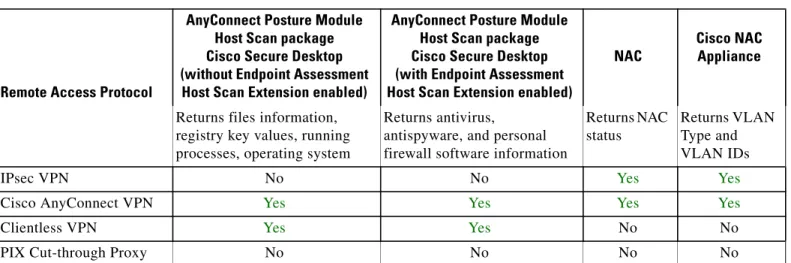
Table 70-1 identifies each of the remote access protocols DAP supports, the posture assessment tools available for that method, and the information that tool provides.
DAP Support for Remote Access Connection Types
The DAP system supports the following remote access methods:• IPsec VPN
• Clientless (browser-based) SSL VPN
• Cisco AnyConnect SSL VPN
• PIX cut-through proxy (posture assessment not available)
Remote Access Connection Sequence with DAPs
The following sequence outlines a typical remote access connection establishment.
1. A remote client attempts a VPN connection.
2. The ASA performs posture assessment, using configured NAC and Cisco Secure Desktop Host Scan values.
Table 70-1 DAP Posture Assessment
Remote Access Protocol
AnyConnect Posture Module Host Scan package Cisco Secure Desktop (without Endpoint Assessment Host Scan Extension enabled)
AnyConnect Posture Module Host Scan package Cisco Secure Desktop (with Endpoint Assessment Host Scan Extension enabled)
NAC
Cisco NAC Appliance
Returns files information, registry key values, running processes, operating system
Returns antivirus,
antispyware, and personal firewall software information
Returns NAC status
Returns VLAN Type and VLAN IDs
IPsec VPN No No Yes Yes
Cisco AnyConnect VPN Yes Yes Yes Yes
Clientless VPN Yes Yes No No
Chapter 70 Configuring Dynamic Access Policies
Licensing Requirements for Dynamic Access Policies
3. The ASA authenticates the user via AAA. The AAA server also returns authorization attributes for the user.
4. The ASA applies AAA authorization attributes to the session, and establishes the VPN tunnel.
5. The ASA selects DAP records based on the user AAA authorization information and the session posture assessment information.
6. The ASA aggregates DAP attributes from the selected DAP records, and they become the DAP policy.
7. The ASA applies the DAP policy to the session.
Licensing Requirements for Dynamic Access Policies
The following tables shows the licensing requirements for enforcing Dynamic Access Policies.
Advanced Endpoint Assessment license
Note This feature is not available on No Payload Encryption models.
SSL VPN license (client)
Note This feature is not available on No Payload Encryption models.
AnyConnect Mobile License
Note This feature is not available on No Payload Encryption models.
Model License Requirement
All other models Advanced Endpoint Assessment License.
Model License Requirement
Chapter 70 Configuring Dynamic Access Policies Dynamic Access Policies Interface
Dynamic Access Policies Interface
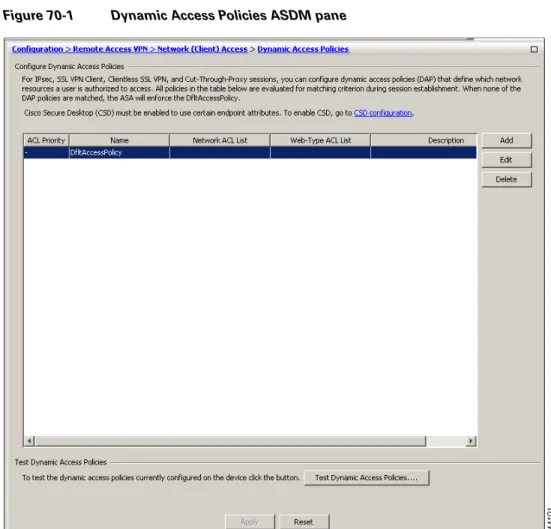
Figure 70-1 shows the Dynamic Access Policies pane.Figure 70-1 Dynamic Access Policies ASDM pane
Fields
• ACL Priority—Displays the priority of the DAP record. The ASA uses this value to logically sequence the access lists when aggregating the network and web-type ACLs from multiple DAP records. The ASA orders the records from highest to lowest priority number, with lowest at the bottom of the table. Higher numbers have a higher priority, that is a DAP record with a value of 4 has a higher priority than a record with a value of 2. You cannot manually sort them.
Model License Requirement
All other models AnyConnect Mobile license.1
1. This license requires activation of one of the following licenses to specify the total number of SSL VPN sessions permitted: AnyConnect Essentials or AnyConnect Premium.
Chapter 70 Configuring Dynamic Access Policies
Dynamic Access Policies Interface
• Name—Displays the name of the DAP record.
• Network ACL List—Displays the name of the firewall access list that applies to the session.
• Web-Type ACL List—Displays the name of the SSL VPN access list that applies to the session.
• Description—Describes the purpose of the DAP record.
• Test Dynamic Access Policies button—Click to test already configured DAP records.
• Find — You can search for a Dynamic Access Policy (DAP) by using the Find field. Start typing in the field and the tool will search the beginning characters of every field of the DAP table for a match. You can use wild cards to expand your search.
For example typing sal in the Find field will match a DAP named Sales but not a DAP named Wholesalers. If you type *sal in the Find field, the search will find the first instance of either Sales or Wholesalers in the table.
• Find Arrows — Use the up and down arrows to skip up or down to the next string match.
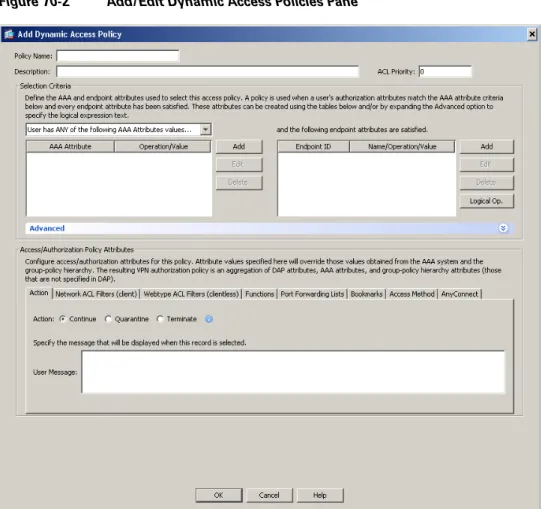
• Match Case — Checking the Match Case check box will make your search case-sensitive. Figure 70-2 shows the Add Dynamic Access Policy pane.
Chapter 70 Configuring Dynamic Access Policies Configuring Dynamic Access Policies
Configuring Dynamic Access Policies
Prerequisites
• Other than where noted, you must install Cisco Secure Desktop or Host Scan before configuring DAP endpoint attributes.
• Before configuring File, Process, and Registry endpoint attributes, configure File, Process, and Registry Basic Host Scan attributes. For instructions, start ASDM and select Configuration > Remote Access VPN > Secure Desktop Manager > Host Scan and click Help.
Guidelines and Limitations
Mobile Device Guidelines
ASA administrators will use AnyConnect Mobile Posture DAP Attributes differently depending on the AnyConnect license they have installed. See Adding Mobile Posture Attributes to a DAP, page 70-16 for more information.
Detailed Steps
Step 1 Start ASDM and select Configuration > Remote Access VPN > Network (Client) Access or Clientless SSL VPN Access > Dynamic Access Policies.
The Configure Dynamic Access Policies pane opens.
Step 2 To include certain antivirus, antispyware, or personal firewall endpoint attributes, click the CSD configuration link near the top of the pane. Then enable Cisco Secure Desktop and Host Scan extensions. This link does not display if you have previously enabled both of these features.
If you enable Cisco Secure Desktop, but do not enable Host Scan extensions, when you apply your changes ASDM includes a link to enable Host Scan configuration.
Step 3 To create a new dynamic access policy, click Add. To modify an existing policy, click Edit. The Add/Edit Dynamic Access Policy pane opens.
Step 4 At the top of the Add/Edit Dynamic Access Policy pane, provide a name (required) and a description (optional) of this dynamic access policy.
• The Policy Name is a string of 4 through 32 characters, no spaces allowed.
• You are allowed a maximum of 80 charaters in the DAP Description field.
Step 5 In the ACL Priority field, set a priority for the dynamic access policy.
The security appliance applies access policies in the order you set here, highest number having the highest priority. Values of 0 to 2147483647 are valid. The default value is 0.
Step 6 In the Add/Edit AAA Attributes field, use the ANY/ALL/NONE drop-down list (unlabeled) to choose whether a user must have any, all, or none of the AAA attribute values you configure to use this dynamic access policy, as well as satisfying every endpoint attribute.
Duplicate entries are not allowed. If you configure a DAP record with no AAA or endpoint attributes, the ASA always selects it since all selection criteria are satisfied.
Step 7 To Set AAA attributes, click Add or Edit in the AAA Attributes field. Use one or more of these procedures: See the “Configuring AAA Attributes in a DAP” section on page 70-9 for more information.
Chapter 70 Configuring Dynamic Access Policies
Configuring Dynamic Access Policies
• Adding an Anti-Spyware or Anti-Virus Endpoint Attribute to a DAP, page 70-14
• Adding an Application Attribute to a DAP, page 70-15
• Adding Mobile Posture Attributes to a DAP, page 70-16
• Adding a File Endpoint Attribute to a DAP, page 70-17
• Adding a Device Endpoint Attribute to a DAP, page 70-18
• Adding a NAC Endpoint Attribute to a DAP, page 70-19
• Adding an Operating System Endpoint Attribute to a DAP, page 70-20
• Adding a Personal Firewall Endpoint Attribute to a DAP, page 70-20
• Adding a Policy Endpoint Attribute to a DAP, page 70-21
• Adding a Process Endpoint Attribute to a DAP, page 70-22
• Adding a Registry Endpoint Attribute to a DAP, page 70-23
You can create multiple instances of each type of endpoint attribute. For each of these types, you need to decide whether the DAP policy should require that the user have all instances of a type (Match all = AND) or only one of them (Match Any = OR). To set this value for each of the end point attributes, click the Logical Op. button.
Step 9 In the Advanced field you can enter one or more logical expressions to set AAA or endpoint attributes other than what is possible in the AAA and Endpoint areas above. This feature that requires knowledge of the Lua programming language.
• AND/OR—Click to define the relationship between the basic selection rules and the logical expressions you enter here, that is, whether the new attributes add to or substitute for the AAA and endpoint attributes already set. The default is AND.
• Logical Expressions—You can configure multiple instances of each type of endpoint attribute. Enter free-form Lua text that defines new AAA and/or endpoint selection attributes. ASDM does not validate text that you enter here; it just copies this text to the DAP XML file, and the ASA processes it, discarding any expressions it cannot parse.
• Guide—Click to display online help for creating these logical operations or see Guide to Creating DAP Logical Expressions using LUA, page 70-33.
Step 10 To configure network and webtype ACLs, file browsing, file server entry, HTTP proxy, URL entry, port forwarding lists and URL lists, set values in the Access Policy Attributes fields. Attribute values that you configure here override authorization values in the AAA system, including those in existing user, group, tunnel group, and default group records. See Configuring DAP Access and Authorization Policy Attributes, page 70-29 for more information.
Step 11 Click OK.
Tip If you want to test your Dynamic Access Policy, in the Configure Dynamic Access Policies dialog box, click Test Dynamic Access Policies and add the attributes to the test interface. See Testing Dynamic Access Policies, page 70-8.
Chapter 70 Configuring Dynamic Access Policies Testing Dynamic Access Policies
Testing Dynamic Access Policies
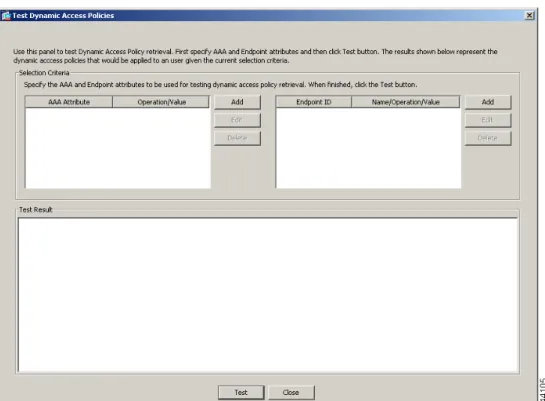
Figure 70-3 Test Dynamic Access Policies Pane
This pane lets you test the retrieval of the set of DAP records configured on the device by specifying authorization attribute value pairs. To specify these pairs, use the Add/Edit buttons associated with the AAA Attribute and Endpoint Attribute tables. The dialogs that display when you click these Add/Edit buttons are similar to those in the Add/Edit AAA Attributes and Add/Edit Endpoint Attributes dialog boxes.
When you enter attribute value pairs and click the “Test” button, the DAP subsystem on the device references these values when evaluating the AAA and endpoint selection attributes for each record. The results display in the “Test Results” text area.
Fields
• Selection Criteria—Determine the AAA and endpoint attributes to test for dynamic access policy retrieval.
• AAA Attributes
– AAA Attribute—Identifies the AAA attribute.
– Operation Value—Identifies the attribute as =/!= to the given value. – Add/Edit—Click to add or edit a AAA attribute.
• Endpoint Attributes—Identifies the endpoint attribute. – Endpoint ID—Provides the endpoint attribute ID. – Name/Operation/Value—
Chapter 70 Configuring Dynamic Access Policies
DAP and Authentication, Authorization, and Accounting Services
• Test Result—Displays the result of the test.
• Test—Click to test the retrieval of the policies you have set.
• Close—Click to close the pane.
DAP and Authentication, Authorization, and Accounting
Services
DAP complements AAA services. It provides a limited set of authorization attributes that can override those AAA provides. The ASA selects DAP records based on the AAA authorization information for the user and posture assessment information for the session. The ASA can select multiple DAP records depending on this information, which it then aggregates to create DAP authorization attributes.
You can specify AAA attributes from the Cisco AAA attribute hierarchy, or from the full set of response attributes that the ASA receives from a RADIUS or LDAP server. For more information about DAP and AAA, see the section, Configuring AAA Attributes in a DAP.
Configuring AAA Attributes in a DAP
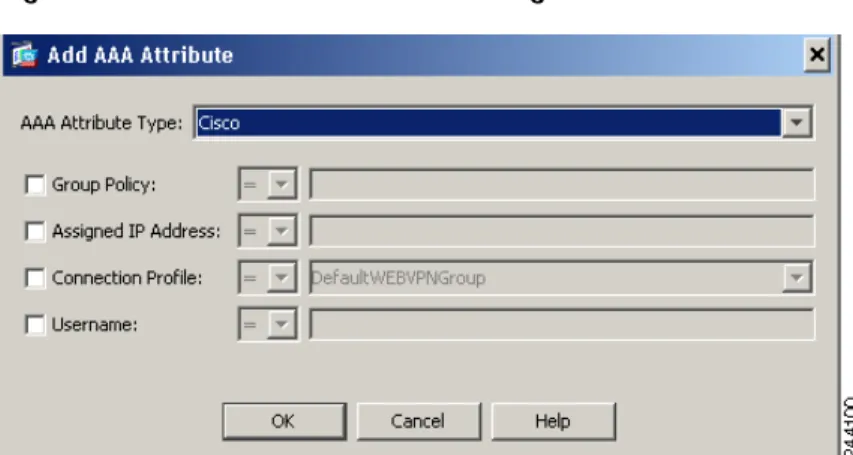
Figure 70-4 shows the Add AAA Attribute dialog box.
Figure 70-4 Add AAA Attribute Dialog Box
To configure AAA attributes as selection criteria for DAP records, in the Add/Edit AAA Attributes dialog box, set the Cisco, LDAP, or RADIUS attributes that you want to use. You can set these attributes either to = or != the value you enter. There is no limit for the number of AAA attributes for each DAP record. For detailed information about AAA attributes, see AAA Attribute Definitions.
Fields
AAA Attributes Type—Use the drop-down list to select Cisco, LDAP or RADIUS attributes:
• Cisco—Refers to user authorization attributes that are stored in the AAA hierarchical model. You can specify a small subset of these attributes for the AAA selection attributes in the DAP
record.These include:
– Group Policy —The group policy name associated with the VPN user session. Can be set locally on the security appliance or sent from a RADIUS/LDAP server as the IETF-Class (25) attribute. Maximum 64 characters.
Chapter 70 Configuring Dynamic Access Policies DAP and Authentication, Authorization, and Accounting Services
– IP Address—The assigned IP address for full tunnel VPN clients (IPsec, L2TP/IPsec, SSL VPN AnyConnect). Does not apply to Clientless SSL VPN, since there is no address assignment for clientless sessions.
– Connection Profile—The connection or tunnel group name. Maximum 64 characters.
– Username—The username of the authenticated user. Maximum 64 characters. Applies if you are using Local, RADIUS, LDAP authentication/authorization or any other authentication type (for example, RSA/SDI), NT Domain, etc).
– =/!=—Equal to/Not equal to.
• LDAP—The LDAP client (security appliance) stores all native LDAP response attribute value pairs in a database associated with the AAA session for the user. The LDAP client writes the response attributes to the database in the order in which it receives them. It discards all subsequent attributes with that name. This scenario might occur when a user record and a group record are both read from the LDAP server. The user record attributes are read first, and always have priority over group record attributes.
To support Active Directory group membership, the AAA LDAP client provides special handling of the LDAP memberOf response attribute. The AD memberOf attribute specifies the DN string of a group record in AD. The name of the group is the first CN value in the DN string. The LDAP client extracts the group name from the DN string and stores it as the AAA memberOf attribute, and in the response attribute database as the LDAP memberOf attribute. If there are additional memberOf attributes in the LDAP response message, then the group name is extracted from those attributes and is combined with the earlier AAA memberOf attribute to form a comma separated string of group names, also updated in the response attribute database.
In the case where the VPN remote access session to an LDAP authentication/authorization server returns the following three Active directory groups (memberOf enumerations):
cn=Engineering,ou=People,dc=company,dc=com cn=Employees,ou=People,dc=company,dc=com cn=EastCoastast,ou=People,dc=company,dc=com
the ASA processes three Active Directory groups: Engineering, Employees, and EastCoast which could be used in any combination as aaa.ldap selection criteria.
LDAP attributes consist of an attribute name and attribute value pair in the DAP record. The LDAP attribute name is syntax/case sensitive. If for example you specify LDAP attribute Department instead of what the AD server returns as department, the DAP record will not match based on this attribute setting.
Note To enter multiple values in the Value field, use the semicolon (;) as the delimiter. For example:
eng;sale; cn=Audgen VPN,ou=USERS,o=OAG
• RADIUS—The RADIUS client stores all native RADIUS response attribute value pairs in a database associated with the AAA session for the user. The RADIUS client writes the response attributes to the database in the order in which it receives them. It discards all subsequent attributes with that name. This scenario might occur when a user record and a group record are both read from the RADIUS server. The user record attributes are read first, and always have priority over group record attributes.
Chapter 70 Configuring Dynamic Access Policies
DAP and Authentication, Authorization, and Accounting Services
RADIUS attributes consist of an attribute number and attribute value pair in the DAP record. See Security Appliance Supported RADIUS Attributes and Values for a table that lists RADIUS attributes that the security appliance supports.
Note For RADIUS attributes, DAP defines the Attribute ID = 4096 + RADIUS ID. For example:
The RADIUS attribute "Access Hours" has a Radius ID = 1, therefore DAP attribute value = 4096 + 1 = 4097.
The RADIUS attribute "Member Of" has a Radius ID = 146, therefore DAP attribute value = 4096 + 146 = 4242.
• LDAP and RADIUS attributes include:
– Attribute ID—Names/numbers the attribute. Maximum 64 characters. – Value—The attribute name (LDAP) or number (RADIUS).
To enter multiple values in the Value field, use the semicolon (;) as the delimiter. For example: eng;sale; cn=Audgen VPN,ou=USERS,o=OAG
– =/!=—Equal to/Not equal to.
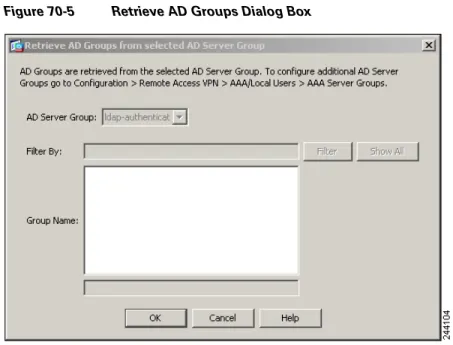
• LDAP includes the Get AD Groups button. This button queries the Active Directory LDAP server for the list of groups the user belong to (memberOf enumerations). It retrieves the AD groups using the CLI show-ad-groups command in the background
The show ad-groups command applies only to Active Directory servers using LDAP. Use this command to display AD groups that you can use for dynamic access policy AAA selection criteria.
The default time that the ASA waits for a response from the server is 10 seconds. You can adjust this time using the group-search-timeout command in aaa-server host configuration mode.
Note If the Active Directory server has a large number of groups, the output of the show ad-groups command might be truncated based on limitations to the amount of data the server can fit into a response packet. To avoid this problem, use the filter option to reduce the number of groups reported by the server.
Retrieving Active Directory Groups
Chapter 70 Configuring Dynamic Access Policies DAP and Authentication, Authorization, and Accounting Services
Figure 70-5 Retrieve AD Groups Dialog Box
You can query an Active Directory server for available AD groups in this pane. This feature applies only to Active Directory servers using LDAP. Use the group information to specify dynamic access policy AAA selection criteria.
You can change the level in the Active Directory hierarchy where the search begins by changing the Group Base DN in the Edit AAA Server pane. You can also change the time that the ASA waits for a response from the server in the window. To configure these features, choose
Configuration > Remote Access VPN > AAA/Local Users > AAA Server Groups > Edit AAA Server.
Note If the Active Directory server has a large number of groups, the list of AD groups retrieved may be truncated based on limitations of the amount of data the server can fit into a response packet. To avoid this problem, use the filter featureto reduce the number of groups reported by the server.
Fields
AD Server Group—The name of the AAA server group to retrieve AD groups.
Filter By—Specify a group or the partial name of a group to reduce the groups displayed. Group Name—A list of AD groups retrieved from the server.
AAA Attribute Definitions
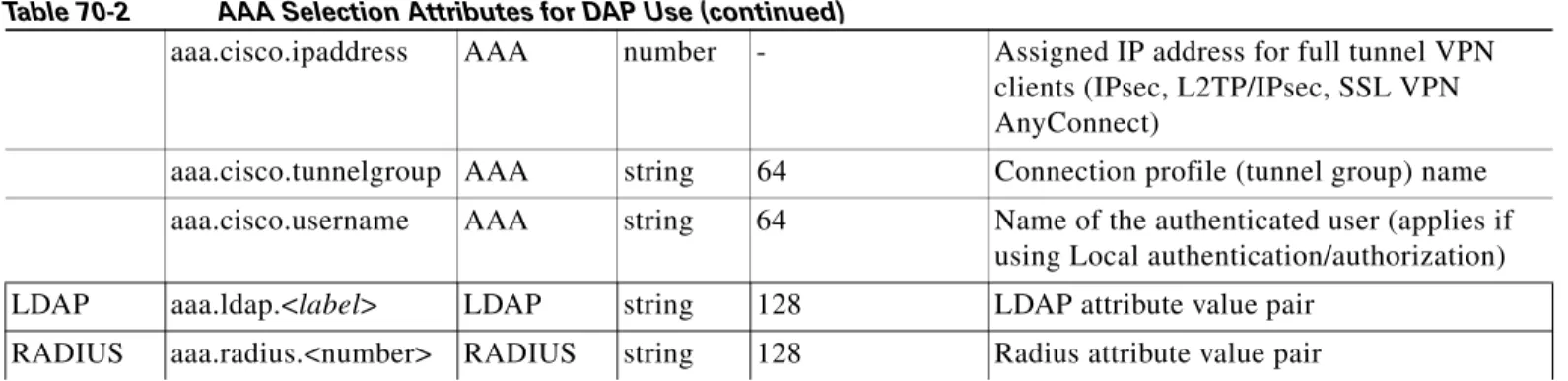
Table 70-2 defines the AAA selection attribute names that are available for DAP use. The Attribute Name field shows you how to enter each attribute name in a Lua logical expression, which you might do in the Advanced section of the Add/Edit Dynamic Access Policy pane.
Table 70-2 AAA Selection Attributes for DAP Use
Attribute
Type Attribute Name Source Value
Max String
Length Description
Cisco aaa.cisco.grouppolicy AAA string 64 Group policy name on the ASA or sent from a Radius/LDAP server as the IETF-CLass (25) attribute
Chapter 70 Configuring Dynamic Access Policies
Configuring Endpoint Attributes Used in DAPs
Configuring Endpoint Attributes Used in DAPs
Endpoint attributes contain information about the endpoint system environment, posture assessment results, and applications. The ASA dynamically generates a collection of endpoint attributes during session establishment and stores these attributes in a database associated with the session. There is no limit for the number of endpoint attributes for each DAP record.
Each DAP record specifies the endpoint selection attributes that must be satisfied for the ASA to select it. The ASA selects only DAP records that satisfy every condition configured.
For detailed information about Endpoint attributes, see Endpoint Attribute Definitions.
Configuring endpoint attributes as selection criteria for DAP records is part of the larger process of Configuring Dynamic Access Policies. Read Configuring Dynamic Access Policies, page 70-6 before you configuring endpoint attributes in DAPs.
This section includes the following topicss:
• Adding an Anti-Spyware or Anti-Virus Endpoint Attribute to a DAP, page 70-14
• Adding an Application Attribute to a DAP, page 70-15
• Adding Mobile Posture Attributes to a DAP, page 70-16
• Adding a File Endpoint Attribute to a DAP, page 70-17
• Adding a Device Endpoint Attribute to a DAP, page 70-18
• Adding a NAC Endpoint Attribute to a DAP, page 70-19
• Adding an Operating System Endpoint Attribute to a DAP, page 70-20
• Adding a Personal Firewall Endpoint Attribute to a DAP, page 70-20
• Adding a Policy Endpoint Attribute to a DAP, page 70-21
• Adding a Process Endpoint Attribute to a DAP, page 70-22
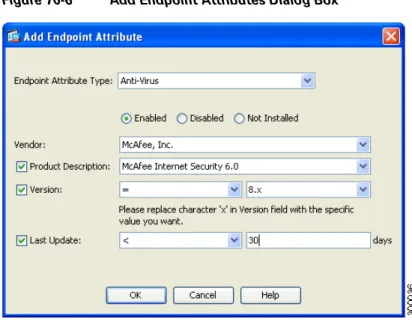
• Adding a Registry Endpoint Attribute to a DAP, page 70-23 Figure 70-6 shows the Add Endpoint Attributes dialog box.
aaa.cisco.ipaddress AAA number - Assigned IP address for full tunnel VPN clients (IPsec, L2TP/IPsec, SSL VPN AnyConnect)
aaa.cisco.tunnelgroup AAA string 64 Connection profile (tunnel group) name aaa.cisco.username AAA string 64 Name of the authenticated user (applies if
using Local authentication/authorization) LDAP aaa.ldap.<label> LDAP string 128 LDAP attribute value pair
RADIUS aaa.radius.<number> RADIUS string 128 Radius attribute value pair
See Security Appliance Supported RADIUS Attributes and Values for a table that lists RADIUS attributes that the security appliance supports.
Chapter 70 Configuring Dynamic Access Policies Configuring Endpoint Attributes Used in DAPs
Figure 70-6 Add Endpoint Attributes Dialog Box
Adding an Anti-Spyware or Anti-Virus Endpoint Attribute to a DAP
PrerequisitesConfiguring Anti-Spyware and Anti-Virus endpoint attributes as selection criteria for DAP records is part of a larger process. Read Configuring Dynamic Access Policies, page 70-6 before you configure Anti-Spyware and Anti-Virus endpoint attributes.
Guidelines
You can create multiple instances of each type of endpoint attribute. For each of these types, you need to decide whether the DAP policy should require that the user have all instances of a type (Match all = AND) or only one of them (Match Any = OR).
To set this value, after you have defined all instances of the endpoint attribute, click the Logical Op.
button and select the Match Any or Match All button. If you do not specify a Logical Operation, Match Any is used by default.
Detailed Steps
Step 1 In the Endpoint Attribute Type list box, select Anti-Spyware or Anti-Virus.
Step 2 Click the appropriate Enabled, Disabled, or Not Installed button to indicate whether the selected endpoint attribute and its accompanying qualifiers (fields below the Enabled/Disabled/Not Installed buttons) must be enabled, disabled, or are not installed.
Step 3 From the Vendor ID list box, click the name of the anti-spyware or anti-virus vendor you are testing for.
Step 4 Check the Product Description check box and select from the list box the vendor’s product name you are testing for.
Step 5 Check the Version checkbox and set the operation field to equal to (=), not equal (!=), less than (<), greater than (>), less that or equal to (<=), or greater than or equal to (>=) the product version number you select from ther Version list box.
Chapter 70 Configuring Dynamic Access Policies
Configuring Endpoint Attributes Used in DAPs
If the choice in the version list box has an x, such as 3.x, replace the x with a specific release number, for example, 3.5.
Step 6 Check the Last Update check box. Specify the number of days since the last update. You might want to indicate that an update should occur in less than (<) or more than (>) the number of days you enter here.
Step 7 Click OK.
Step 8 Return to Configuring Dynamic Access Policies, page 70-6.
Additional References
• See Endpoint Attribute Definitions, page 70-24 for additional information on the antispyware and antivirus endpoint attribute requirements.
• See DAP and AntiVirus, AntiSpyware, and Personal Firewall Programs, page 70-24 for information on how Host Scan checks for antivirus, antispyware, and personal firewall programs that are memory-resident.
Adding an Application Attribute to a DAP
PrerequisitesConfiguring Application endpoint attributes as selection criteria for DAP records is part of a larger process. Read Configuring Dynamic Access Policies, page 70-6 before you configure Application endpoint attributes.
Guidelines
You can create multiple instances of each type of endpoint attribute. For each of these types, you need to decide whether the DAP policy should require that the user have all instances of a type (Match all = AND) or only one of them (Match Any = OR).
To set this value, after you have defined all instances of the endpoint attribute, click the Logical Op.
button and select the Match Any or Match All button. If you do not specify a Logical Operation, Match Any is used by default.
Detailed Steps
Step 1 In the Endpoint Attribute Type list box, select Application.
Step 2 In the Client Type operation field, select equals (=) or does not eaqual (!=).
Step 3 In the Client type list box, indicate the type of remote access connection you are testing for.
Step 4 Click OK.
Step 5 Return to Configuring Dynamic Access Policies, page 70-6.
Additional References
See Endpoint Attribute Definitions, page 70-24 for additional information on the Application endpoint attribute requirements.
Chapter 70 Configuring Dynamic Access Policies Configuring Endpoint Attributes Used in DAPs
Adding Mobile Posture Attributes to a DAP
LicensingMobile posture requires an AnyConnect Mobile license and an AnyConnect Premium license installed on the ASA. Enterprises that install these licenses will be able to enforce DAP policies on supported mobile devices based on DAP attributes and other existing endpoint attributes. This includes allowing or denying remote access from a mobile device.
Prerequisites
Configuring mobile posture attributes as selection criteria for DAP records is part of a larger process. Read Configuring Dynamic Access Policies, page 70-6 before you configure Anti-Spyware and Anti-Virus endpoint attributes.
Guidelines
• These mobile posture attributes can be included in a dynamic access polciy and enforced without installing Host Scan or Cisco Secure Desktop on the endpoint.
• Some mobile posture attributes are relevant to the AnyConnect client running on mobile devices only, some mobile posture attributes are relevant to both AnyConnect clients running on mobile devices and AnyConnect desktop clients.
• When specifying mobile posture attributes and application attributes in a dynamic access policy, they both should be set to AnyConnect.
Detailed Steps
Step 1 In the Endpoint Attribute Type list box, select AnyConnect.
Step 2 Check the Client Version check box and set the operation field to be equal to (=), not equal to (!=), less than (<), greater than (>), less than or equal to (<=), or greater than or equal to (>=) the AnyConnect client version number you then specify in the Client Version field.
You can use this field to evaluate the client version on mobile devices, such as mobile phones and tablets, or desktop and laptop devices.
Step 3 Check the Platform check box and set the operation field to be equal to (=), or not equal to (!=) the operating system you then select from the Platform list box.
You can use this field to evaluate the operating system on mobile devices, such as mobile phones and tablets, as well as the operating system on desktop and laptop devices. Selecting Apple iOS or Android platforms activates the additional attribute fields for Device Type and Device Unique ID.
Step 4 Check the Platform Version check box and set the operation field to be equal to (=), not equal to (!=), less than (<), greater than (>), less than or equal to (<=), or greater than or equal to (>=) the operating system version number you then specify in the Platform Version field.
If you want to create a DAP record that contains this attribute, be sure to also specify a Platform in the previous step.
Step 5 If you selected the Platform checkbox and selected the Apple iOS or Android platform, you can check the Device Type checkbox. Set the operation field to be equal to (=) or not equal to (!=) the mobile device you then select in the Device Type field.
Chapter 70 Configuring Dynamic Access Policies
Configuring Endpoint Attributes Used in DAPs
When you specify Android in the Platform field, you will be able to pick from a list of supported Android devices in the Device Type field. When you specify Apple iOS in the Platform field you will be able to pick from a list of supported Apple devices in the Device Type field. In both cases, the proper Android or Apple iOS device type information is substituted for the device type you choice from the list box.
If you have a supported device which is not listed in the Device Type field, you can enter the Android or Apple iOS device type information in the Device Type field. The most reliable way to obtain the device type information is to install the AnyConnect client on the endpoint and perform a DAP Trace. In the DAP trace results, look for the value of endpoint.anyconnect.devicetype. That is the value that you need to enter in the Device Type field.
Step 6 If you selected the Platform checkbox and selected the Apple iOS or Android platform, you can check the Device Unique ID checkbox. Set the operation field to be equal to (=) or not equal to (!=) the mobile device’s unique ID you then specify in the Device Unique ID field.
The Device Unique ID distinguishes individual devices allowing you to set policies for a particular mobile device. To obtain a device’s unique ID you will need the device to connect to the ASA and perform a DAP trace. See Performing a DAP Trace, page 70-33 for more information.
Step 7 Click OK.
Step 8 Return to Configuring Dynamic Access Policies, page 70-6.
Additional References
See Endpoint Attribute Definitions, page 70-24 for additional information on the AnyConnect endpoint attribute requirements.
Adding a File Endpoint Attribute to a DAP
Prerequisites• Configuring File endpoint attributes as selection criteria for DAP records is part of a larger process. Read Configuring Dynamic Access Policies, page 70-6 before you configure File endpoint attributes.
• Before configuring a File endpoint attribute, define the file for which you want to scan in the Host Scan window for Cisco Secure Desktop. In ASDM select Configuration > Remote Access VPN > Secure Desktop Manager > Host Scan. Click Help on that page for more information.
Guidelines
You can create multiple instances of each type of endpoint attribute. For each of these types, you need to decide whether the DAP policy should require that the user have all instances of a type (Match all = AND) or only one of them (Match Any = OR).
To set this value, after you have defined all instances of the endpoint attribute, click the Logical Op.
button and select the Match Any or Match All button. If you do not specify a Logical Operation, Match All is used by default.
Chapter 70 Configuring Dynamic Access Policies Configuring Endpoint Attributes Used in DAPs
Detailed Steps
You only need to configure one AnyConnect attribute in the Add Endpoint Attribute field except where noted.
Step 1 In the Endpoint Attribute Type list box, select File.
Step 2 Select the appropriate Exists or Does not exist radio button to indicate whether the selected endpoint attribute and its accompanying qualifiers (fields below the Exists/Does not exist buttons) should be present or not.
Step 3 In the Endpoint ID list box, choose from the drop-down list the endpoint ID that equates to the file entry for which you want to scan.
The file information is displayed below the Endpoint ID list box.
Step 4 Check the Last Update check box and set the operation field to be less than (<) or greater than (>) a certain number of days old. Enter the number of days old in the days field.
Step 5 Check the Checksum checkbox and set the operation field to be equal to (=) or not equal to (!=) the checksum value of the file you are testing for.
Step 6 Click Compute CRC32 Checksum to determine the checksum value of the file you are testing for.
Step 7 Click OK.
Step 8 Return to Configuring Dynamic Access Policies, page 70-6.
Additional References
See Endpoint Attribute Definitions, page 70-24 for additional information on the File endpoint attribute requirements.
Adding a Device Endpoint Attribute to a DAP
PrerequisitesConfiguring Device endpoint attributes as selection criteria for DAP records is part of a larger process. Read Configuring Dynamic Access Policies, page 70-6 before you configure Device endpoint attributes.
Guidelines
You can create multiple instances of each type of endpoint attribute. For each of these types, you need to decide whether the DAP policy should require that the user have all instances of a type (Match all = AND) or only one of them (Match Any = OR).
To set this value, after you have defined all instances of the endpoint attribute, click the Logical Op.
button and select the Match Any or Match All button. If you do not specify a Logical Operation, Match Any is used by default.
Detailed Steps
Chapter 70 Configuring Dynamic Access Policies
Configuring Endpoint Attributes Used in DAPs
Step 2 Check the Host Name checkbox and set the operation field to be equal to (=) or not equal to (!=) the host name of the device you are testing for. Use the computer’s host name only, not the fully qualified domain name (FQDN).
Step 3 Check the MAC address checkbox and set the operation field to be equal to (=) or not equal to (!=) the MAC address of the network interface card you are testing for. Only one MAC address per entry. The address must be in the format xxxx.xxxx.xxxx where x is a hexadecimal character.
Step 4 Check the BIOS Serial Number checkbox and set the operation field to be equal to (=) or not equal to (!=) the BIOS serial number value of the device you are testing for. The number format is
manufacturer-specific. There is no format requirement.
Step 5 Check the Port Number checkbox and set the operation field to be equal to (=) or not equal to (!=) the TCP port in listening state you are testing for. You can define a single port per line.
Step 6 Check the Privacy Protection checkbox and set the operation field to be equal to (=) or not equal to (!=) the component CSD uses to execute the PreLogin Policy.
Step 7 Check the Version of Secure Desktop (CSD) checkbox and set the operation field to be equal to (=) or not equal to (!=) the version of the Host Scan image running on the endpoint.
Step 8 Check the Version of Endpoint Assessment checkbox and set the operation field to be equal to (=) or not equal to (!=) the version of endpoint assessment (OPSWAT) you are testing for.
Step 9 Click OK.
Step 10 Return to Configuring Dynamic Access Policies, page 70-6.
Additional References
See Endpoint Attribute Definitions, page 70-24 for additional information on the Device endpoint attribute requirements.
Adding a NAC Endpoint Attribute to a DAP
PrerequisitesConfiguring NAC endpoint attributes as selection criteria for DAP records is part of a larger process. Read Configuring Dynamic Access Policies, page 70-6 before you configure NAC endpoint attributes.
Guidelines
You can create multiple instances of each type of endpoint attribute. For each of these types, you need to decide whether the DAP policy should require that the user have all instances of a type (Match all = AND) or only one of them (Match Any = OR).
To set this value, after you have defined all instances of the endpoint attribute, click the Logical Op.
button and select the Match Any or Match All button. If you do not specify a Logical Operation, Match Any is used by default.
Detailed Steps
Chapter 70 Configuring Dynamic Access Policies Configuring Endpoint Attributes Used in DAPs
Step 2 Check the Posture Status checkbox and set the operation field to be equal to (=) or not equal to (!=) the posture token string received by ACS. Enter the posture token string in the Posture Status text box.
Step 3 Click OK.
Step 4 Return to Configuring Dynamic Access Policies, page 70-6.
Additional References
See Endpoint Attribute Definitions, page 70-24 for additional information on the NAC endpoint attribute requirements.
Adding an Operating System Endpoint Attribute to a DAP
PrerequisitesConfiguring Operating System endpoint attributes as selection criteria for DAP records is part of a larger process. Read Configuring Dynamic Access Policies, page 70-6 before you configure Operating System endpoint attributes.
Detailed Steps
Step 1 In the Endpoint Attribute Type list box, select Operating System.
Step 2 Check the OS Version checkbox and set the operation field to be equal to (=) or not equal to (!=) the Windows, Mac, or Linux operating system you set in the OS Version list box.
Step 3 Check the OS Update checkbox and set the operation field to be equal to (=) or not equal to (!=) the Windows, Mac, or Linux service pack for the operating system you enter in the OS Update text box.
Step 4 Click OK.
Step 5 Return to Configuring Dynamic Access Policies, page 70-6.
Additional References
See Endpoint Attribute Definitions, page 70-24 for additional information on the Operating System endpoint attribute requirements.
Adding a Personal Firewall Endpoint Attribute to a DAP
PrerequisitesConfiguring Personal Firewall endpoint attributes as selection criteria for DAP records is part of a larger process. Read Configuring Dynamic Access Policies, page 70-6 before you configure Personal Firewall endpoint attributes.
Chapter 70 Configuring Dynamic Access Policies
Configuring Endpoint Attributes Used in DAPs
Detailed Steps
Step 1 In the Endpoint Attribute Type list box, select Operating System.
Step 2 Click the appropriate Enabled, Disabled, or Not Installed button to indicate whether the selected endpoint attribute and its accompanying qualifiers (fields below the Enabled/Disabled/Not Installed buttons) must be enabled, disabled, or are not installed.
Step 3 From the Vendor ID list box, click the name of the personal firewall vendor you are testing for.
Step 4 Check the Product Description check box and select from the list box the vendor’s product name you are testing for.
Step 5 Check the Version checkbox and set the operation field to equal to (=), not equal (!=), less than (<), greater than (>), less that or equal to (<=), or greater than or equal to (>=) the product version number you select from ther Version list box.
If the choice in the Version list box has an x, such as 3.x, replace the x with a specific release number, for example, 3.5.
Step 6 Click OK.
Step 7 Return to Configuring Dynamic Access Policies, page 70-6.
Additional References
• See Endpoint Attribute Definitions, page 70-24 for additional information on the Personal Firewall endpoint attribute requirements.
• See DAP and AntiVirus, AntiSpyware, and Personal Firewall Programs, page 70-24 for information on how Host Scan checks for antivirus, antispyware, and personal firewall programs that are memory-resident.
Adding a Policy Endpoint Attribute to a DAP
PrerequisitesConfiguring Policy endpoint attributes as selection criteria for DAP records is part of a larger process. Read Configuring Dynamic Access Policies, page 70-6 before you configure Policy endpoint attributes.
Guidelines
You can create multiple instances of each type of endpoint attribute. For each of these types, you need to decide whether the DAP policy should require that the user have all instances of a type (Match all = AND) or only one of them (Match Any = OR).
To set this value, after you have defined all instances of the endpoint attribute, click the Logical Op.
button and select the Match Any or Match All button. If you do not specify a Logical Operation, Match Any is used by default.
Detailed Steps
Chapter 70 Configuring Dynamic Access Policies Configuring Endpoint Attributes Used in DAPs
Step 2 Check the Location checkbox and set the operation field to be equal to (=) or not equal to (!=) the Cisco Secure Desktop Microsoft Windows location profile. Enter the Cisco Secure Desktop Microsoft Windows location profile string in the Location text box.
Step 3 Click OK.
Step 4 Return to Configuring Dynamic Access Policies, page 70-6.
Additional References
See Endpoint Attribute Definitions, page 70-24 for additional information on the Policy endpoint attribute requirements.
Adding a Process Endpoint Attribute to a DAP
Prerequisites• Configuring Process endpoint attributes as selection criteria for DAP records is part of a larger process. Read Configuring Dynamic Access Policies, page 70-6 before you configure Personal Firewall endpoint attributes.
• Before configuring a Process endpoint attribute, define the process for which you want to scan in the Host Scan window for Cisco Secure Desktop. In ASDM select Configuration > Remote Access VPN > Secure Desktop Manager > Host Scan. Click Help on that page for more information.
Guidelines
You can create multiple instances of each type of endpoint attribute. For each of these types, you need to decide whether the DAP policy should require that the user have all instances of a type (Match all = AND) or only one of them (Match Any = OR).
To set this value, after you have defined all instances of the endpoint attribute, click the Logical Op.
button and select the Match Any or Match All button. If you do not specify a Logical Operation, Match All is used by default.
Detailed Steps
Step 1 In the Endpoint Attribute Type list box, select Process.
Step 2 Click the appropriate Exists or Does not exist button to indicate whether the selected endpoint attribute and its accompanying qualifiers (fields below the Exists and Does not exist buttons) should be present or not.
Step 3 In the Endpoint ID list box, choose from the drop-down list the endpoint ID for which you want to scan. The endpoint ID process information is displayed below the list box.
Step 4 Click OK.
Chapter 70 Configuring Dynamic Access Policies
Configuring Endpoint Attributes Used in DAPs
Additional References
See Endpoint Attribute Definitions, page 70-24 for additional information on the Process endpoint attribute requirements.
Adding a Registry Endpoint Attribute to a DAP
Prerequisites• Configuring Process endpoint attributes as selection criteria for DAP records is part of a larger process. Read Configuring Dynamic Access Policies, page 70-6 before you configure Personal Firewall endpoint attributes.
• Before configuring a Registry endpoint attribute, define the registry key for which you want to scan in the Host Scan window for Cisco Secure Desktop. In ASDM select Configuration > Remote Access VPN > Secure Desktop Manager > Host Scan. Click Help on that page for more information.
Guidelines
• You can only scan for registry endpoint attributes on Windows operating systems.
• You can create multiple instances of each type of endpoint attribute. For each of these types, you need to decide whether the DAP policy should require that the user have all instances of a type (Match all = AND) or only one of them (Match Any = OR).
To set this value, after you have defined all instances of the endpoint attribute, click the Logical Op.
button and select the Match Any or Match All button. If you do not specify a Logical Operation,
Match All is used by default.
Detailed Steps
Step 1 In the Endpoint Attribute Type list box, select Registry.
Step 2 Click the appropriate Exists or Does not exist button to indicate whether the Registry endpoint attribute and its accompanying qualifiers (fields below the Exists and Does not exist buttons) should be present or not.
Step 3 In the Endpoint ID list box, choose from the drop-down list the endpoint ID that equates to the registry entry for which you want to scan.
The registry information is displayed below the Endpoint ID list box.
Step 4 Check the Value checkbox and set the operation field to be equal to (=) or not equal to (!=).
Step 5 In the first Value list box, identify the registry key as a dword or a string.
Step 6 In the second Value operation list box, enter the value of the resgistry key you are scanning for.
Step 7 If you want to disregard the case of the registry entry when scanning, click the Caseless checkbox. If you want the search to be case-sensitive, do not ccheck the Caseless check box.
Step 8 Click OK.
Chapter 70 Configuring Dynamic Access Policies Configuring Endpoint Attributes Used in DAPs
Additional References
See Endpoint Attribute Definitions, page 70-24 for additional information on the Registry endpoint attribute requirements.
DAP and AntiVirus, AntiSpyware, and Personal Firewall Programs
The security appliance uses a DAP policy when the user attributes matches the configured AAA and endpoint attributes. The Prelogin Assessment and Host Scan modules of Cisco Secure Desktop return information to the security appliance about the configured endpoint attributes, and the DAP subsystem uses that information to select a DAP record that matches the values of those attributes.
Most, but not all, antivirus, antispyware, and personal firewall programs support active scan, which means that the programs are memory-resident, and therefore always running. Host Scan checks to see if an endpoint has a program installed, and if it is memory-resident as follows:
• If the installed program does not support active scan, Host Scan reports the presence of the software. The DAP system selects DAP records that specify the program.
• If the installed program does support active scan, and active scan is enabled for the program, Host Scan reports the presence of the software. Again the security appliance selects DAP records that specify the program.
• If the installed program does support active scan and active scan is disabled for the program, Host Scan ignores the presence of the software. The security appliance does not select DAP records that specify the program. Further, the output of the debug trace command, which includes a lot of information about DAP, does not indicate the program presence, even though it is installed.
Endpoint Attribute Definitions
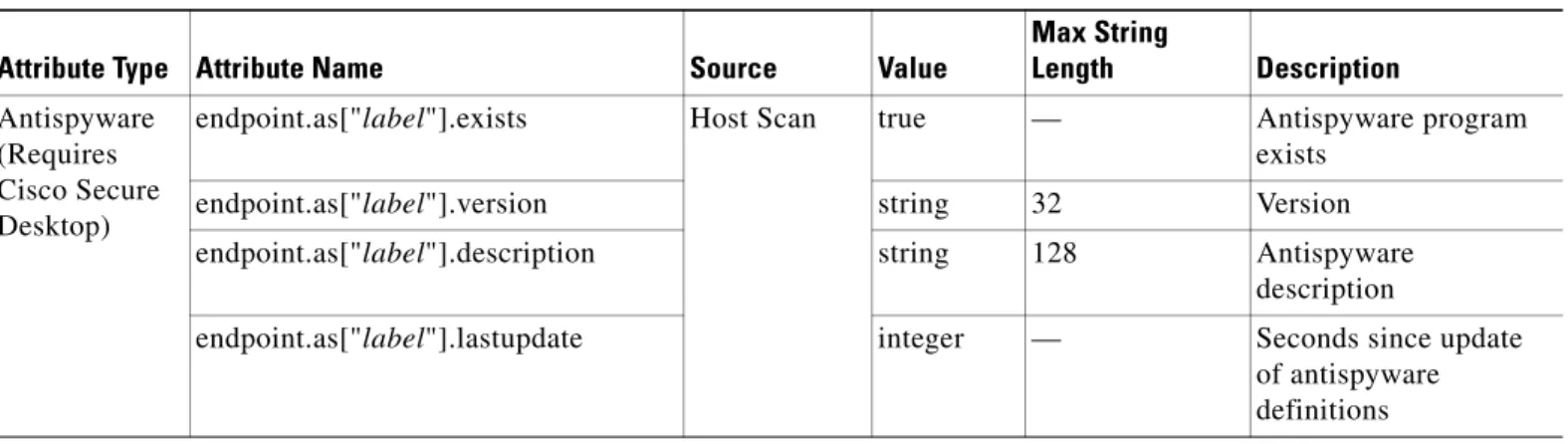
Table 70-3 defines the endpoint selection attribute names that are available for DAP use.The Attribute Name field shows you how to enter each attribute name in a Lua logical expression, which you might do in the Advanced area in the Add/Edit Dynamic Access Policy pane. The label variable identifies the application, filename, process, or registry entry.
Table 70-3 Endpoint Attribute Definitions
Attribute Type Attribute Name Source Value
Max String
Length Description
Antispyware (Requires Cisco Secure Desktop)
endpoint.as["label"].exists Host Scan true — Antispyware program exists
endpoint.as["label"].version string 32 Version
endpoint.as["label"].description string 128 Antispyware description
endpoint.as["label"].lastupdate integer — Seconds since update of antispyware definitions
Chapter 70 Configuring Dynamic Access Policies
Configuring Endpoint Attributes Used in DAPs
Antivirus (Requires Cisco Secure Desktop)
endpoint.av["label"].exists Host Scan true — Antivirus program exists
endpoint.av["label"].version string 32 Version
endpoint.av["label"].description string 128 Antivirus description endpoint.av["label"].lastupdate integer — Seconds since update
of antivirus definitions AnyConnect
(Does not require Cisco Secure Desktop or Host Scan.)
endpoint.anyconnect.clientversion Endpoint version — AnyConnect client version.
endpoint.anyconnect.platform string — Operating system on
which AnyConnect client is installed. endpoint.anyconnect.platformversion version 64 Version of operating
system on which AnyConnect client is installed.
endpoint.anyconnect.devicetype string 64 Mobile device type on
which AnyConnect client is installed. endpoint.anyconnect.deviceuniqueid caseless 64 Unique ID of mobile
device on which AnyConnect client is installed.
Application endpoint.application.clienttype Application string — Client type: CLIENTLESS ANYCONNECT IPSEC
L2TP
Table 70-3 Endpoint Attribute Definitions (continued)
Attribute Type Attribute Name Source Value
Max String
Chapter 70 Configuring Dynamic Access Policies Configuring Endpoint Attributes Used in DAPs
Device endpoint.device.hostname Endpoint string 64 Host Name only. Not
FQDN.
endpoint.device.MAC string Must be in the
format
xxxx.xxxx.xxxx where x is a hexadecimal character.
Mac Address for a network interface card. Only one Mac address per entry.
endpoint.device.id string 64 BIOS Serial Number.
The number format is manufacturer-specific. There is no format requirement.
endpoint.device.port string An integer
between 1 and 65535.
TCP port in listening state. You can define a single port per line.
endpoint.device.protection None (Host Scan) Scure Desktop (either Cache Cleaner or Vault)
64 Defines which
component of CSD will execute for the particular PreLogin Policy.
endpoint.device.protection_version string 64 Version of Host Scan image they are running. endpoint.device.protection_extension string 64 Versionof Endpoint
Assessment (OPSWAT) File endpoint.file["label"].exists Secure
Desktop
true — The files exists
endpoint.file[“label”].endpointid
endpoint.file["label"].lastmodified integer — Seconds since file was last modified
endpoint.file["label"].crc.32 integer — CRC32 hash of the file
NAC endpoint.nac.status NAC string — User defined status
string Operating
System
endpoint.os.version Secure
Desktop
string 32 Operating system
endpoint.os.servicepack integer — Service pack for
Windows
Table 70-3 Endpoint Attribute Definitions (continued)
Attribute Type Attribute Name Source Value
Max String
Chapter 70 Configuring Dynamic Access Policies
Configuring DAP Access and Authorization Policy Attributes
Configuring DAP Access and Authorization Policy Attributes
To Configure Access and Authorization Policy Attributes for a DAP, click each tab and configure the fields.• Action Tab—Specifies special processing to apply to a specific connection or session. – Continue—(Default) Click to apply access policy attributes to the session.
– Quarantine—Through the use of quarantine, you can restrict a particular client who already has an established tunnel through a VPN. ASA applies restricted ACLs to a session to form a restricted group, based on the selected DAP record. When an endpoint is not compliant with an administratively defined policy, the user can still access services for remediation (such as updating the antivirus and so on), but restrictions are placed upon the user. After the remediation occurs, the user can reconnect, which invokes a new posture assessment. If this assessment passes, the user connects.
Note This parameter requires an AnyConnect release that supports AnyConnect Secure Mobility features.
– Terminate—Click to terminate the session. Personal
firewall (Requires Secure Desktop)
endpoint.fw["label"].exists Host Scan true — The personal firewall exists
endpoint.fw["label"].version string 32 Version
endpoint.fw["label"].description string 128 Personal firewall description Policy endpoint.policy.location Secure
Desktop
string 64 Location value from
Cisco Secure Desktop Process endpoint.process["label"].exists Secure
Desktop
true — The process exists
endpoint.process["label"].path string 255 Full path of the process Registry endpoint.registry["label"].type Secure
Desktop
dword string
— dword
endpoint.registry["label"].value string 255 Value of the registry entry
VLAN endoint.vlan.type CNA string — VLAN type:
ACCESS AUTH ERROR GUEST QUARANTINE ERROR STATIC TIMEOUT
Table 70-3 Endpoint Attribute Definitions (continued)
Attribute Type Attribute Name Source Value
Max String
Chapter 70 Configuring Dynamic Access Policies Configuring DAP Access and Authorization Policy Attributes
– User Message—Enter a text message to display on the portal page when this DAP record is selected. Maximum 490 characters. A user message displays as a yellow orb. When a user logs on it blinks three times to attract attention, and then it is still. If several DAP records are selected, and each of them has a user message, all of the user messages display.
Note You can include in such messages URLs or other embedded text, which require that you use the correct HTML tags.
For example: All contractors please read <a href='http://wwwin.example.com/procedure.html'> Instructions</a> for the procedure to upgrade your antivirus software.
• Network ACL Filters Tab—Lets you select and configure network ACLs to apply to this DAP record. An ACL for DAP can contain permit or deny rules, but not both. If an ACL contains both permit and deny rules, the ASA rejects it.
– Network ACL drop-down list—Select already configured network ACLs to add to this DAP record. Only ACLs having all permit or all deny rules are eligible, and these are the only ACLs that display here.
– Manage...—Click to add, edit, and delete network ACLs.
– Network ACL list—Displays the network ACLs for this DAP record.
– Add>>— Click to add the selected network ACL from the drop-down list to the Network ACLs list on the right.
– Delete—Click to delete a highlighted network ACL from the Network ACLs list. You cannot delete an ACL from the ASA unless you first delete it from DAP records.
• Web-Type ACL Filters (clientless) Tab—Lets you select and configure web-type ACLs to apply to this DAP record. An ACL for DAP can contain only permit or deny rules. If an ACL contains both permit and deny rules, the ASA rejects it.
– Web-Type ACL drop-down list—Select already configured web-type ACLs to add to this DAP record. Only ACLs having all permit or all deny rules are eligible, and these are the only ACLs that display here.
– Manage...—Click to add, edit, and delete web-type ACLs.
– Web-Type ACL list—Displays the web-type ACLs for this DAP record.
– Add>>—Click to add the selected web-type ACL from the drop-down list to the Web-Type ACLs list on the right.
– Delete—Click to delete a web-type ACL from the Web-Type ACLs list. You cannot delete an ACL from the ASA unless you first delete it from DAP records.
• Functions Tab—Lets you configure file server entry and browsing, HTTP proxy, and URL entry for the DAP record.
– File Server Browsing—Enables or disables CIFS browsing for file servers or shared features.
Note Browsing requires NBNS (Master Browser or WINS). If that fails or is not configured, we use DNS.
Chapter 70 Configuring Dynamic Access Policies
Configuring DAP Access and Authorization Policy Attributes
– File Server Entry—Lets or prohibits a user from entering file server paths and names on the portal page. When enabled, places the file server entry drawer on the portal page. Users can enter pathnames to Windows files directly. They can download, edit, delete, rename, and move files. They can also add files and folders. Shares must also be configured for user access on the applicable Windows servers. Users might have to be authenticated before accessing files, depending on network requirements.
– HTTP Proxy—Affects the forwarding of an HTTP applet proxy to the client. The proxy is useful for technologies that interfere with proper content transformation, such as Java, ActiveX, and Flash. It bypasses mangling while ensuring the continued use of the security appliance. The forwarded proxy modifies the browser’s old proxy configuration automatically and redirects all HTTP and HTTPS requests to the new proxy configuration. It supports virtually all client side technologies, including HTML, CSS, JavaScript, VBScript, ActiveX, and Java. The only browser it supports is Microsoft Internet Explorer.
– URL Entry—Allows or prevents a user from entering HTTP/HTTPS URLs on the portal page. If this feature is enabled, users can enter web addresses in the URL entry box, and use clientless SSL VPN to access those websites.
Using SSL VPN does not ensure that communication with every site is secure. SSL VPN ensures the security of data transmission between the remote user PC or workstation and the ASA on the corporate network. If a user then accesses a non-HTTPS web resource (located on the Internet or on the internal network), the communication from the corporate ASA to the destination web server is not secured.
In a clientless VPN connection, the ASA acts as a proxy between the end user web browser and target web servers. When a user connects to an SSL-enabled web server, the ASA establishes a secure connection and validates the server SSL certificate. The end user browser never receives the presented certificate, so therefore cannot examine and validate the certificate. The current
implementation of SSL VPN does not permit communication with sites that present expired certificates. Neither does the ASA perform trusted CA certificate validation. Therefore, users cannot analyze the certificate an SSL-enabled web-server presents before communicating with it.
To limit Internet access for users, choose Disable for the URL Entry field. This prevents SSL VPN users from surfing the web during a clientless VPN connection.
– Unchanged—(default) Click to use values from the group policy that applies to this session. – Enable/Disable—Click to enable or disable the feature.
– Auto-start—Click to enable HTTP proxy and to have the DAP record automatically start the applets associated with these features.
• Port Forwarding Lists Tab—Lets you select and configure port forwarding lists for user sessions. Port Forwarding provides access for remote users in the group to client/server applications that communicate over known, fixed TCP/IP ports. Remote users can use client applications that are installed on their local PC and securely access a remote server that supports that application. Cisco has tested the following applications: Windows Terminal Services, Telnet, Secure FTP (FTP over SSH), Perforce, Outlook Express, and Lotus Notes. Other TCP-based applications may also work, but Cisco has not tested them.
Note Port Forwarding does not work with some SSL/TLS versions.
Caution Make sure Sun Microsystems Java Runtime Environment (JRE) 1.4+ is installed on the remote computers to support port forwarding (application access) and digital certificates.
Chapter 70 Configuring Dynamic Access Policies Configuring DAP Access and Authorization Policy Attributes
– Port Forwarding—Select an option for the port forwarding lists that apply to this DAP record. The other attributes in this field are enabled only when you set Port Forwarding to Enable or Auto-start.
– Unchanged—Click to remove the attributes from the running configuration. – Enable/Disable—Click to enable or disable port forwarding.
– Auto-start—Click to enable port forwarding, and to have the DAP record automatically start the port forwarding applets associated with its port forwarding lists.
– Port Forwarding List drop-down list—Select already configured port forwarding lists to add to the DAP record.
– New...—Click to configure new port forwarding lists.
– Port Forwarding Lists (unlabeled)—Displays the port forwarding lists for the DAP record. – Add—Click to add the selected port forwarding list from the drop-down list to the Port
Forwarding list on the right.
– Delete—Click to delete selected port forwarding list from the Port Forwarding list. You cannot delete a port forwarding list from the ASA unless you first delete it from DAP records.
• Bookmarks Tab—Lets you select and configure bookmarks for certain user session URLs. – Enable bookmarks—Click to enable. When unchecked, no bookmarks display in the portal
page for the connection.
– Bookmark drop-down list—select already configured bookmarks to add to the DAP record. – Manage...—Click to add, import, export, and delete bookmarks.
– Bookmarks (unlabeled)—Displays the URL lists for the DAP record.
– Add>>—Click to add the selected bookmark from the drop-down list to the URL area on the right.
– Delete—Click to delete the selected bookmark from the URL list area. You cannot delete a bookmark from the ASA unless you first delete it from DAP records.
• Access Method Tab—Lets you configure the type of remote access permitted. – Unchanged—Continue with the current remote access method.
– AnyConnect Client—Connect using the Cisco AnyConnect VPN Client. – Web-Portal—Connect with clientless VPN.
– Both-default-Web-Portal—Connect via either clientless or the AnyConnect client, with a default of clientless.
– Both-default-AnyConnect Client—Connect via either clientless or the AnyConnect client, with a default of AnyConnect.
• AnyConnect Tab—Lets you choose the status of the Always-on VPN flag.
– Always-On VPN for AnyConnect client—Determine if the always-on VPN flag setting in the AnyConnect service profile is unchanged, disabled, or if the AnyConnect profile setting should be used.