Microsoft Dynamics SL (Solomon)
Integrated Product
Deferred Revenue Processing v6.5b
User Guide
Copyright Notice
Print Date: April 2007
The information contained in this document is subject to change without notice.
COMPUTER UPGRADES MAKES NO WARRANTY OF ANY KIND WITH REGARD TO THIE MATERIAL, INCLUDING, BUT NOT LIMITED TO, THE IMPLIED WARRANTIES OF MERCHANTABILITY AND FITNESS FOR A PARTICULAR PURPOSE. Computer Upgrades shall not be liable for errors contained herein or for incidental consequential damages in connection with the furnishing, performance, or use of this material.
This document contains proprietary information that is protected by copyright. All rights are reserved. No part of this document may be photocopied, reproduced, or translated without the prior written consent of Computer Upgrades, Inc.
© 2003, 2004, 2005, 2006, 2007 Computer Upgrades, Inc. iii
Contents
WHAT IS DEFERRED REVENUE PROCESSING? ... 1
TECHNICAL REQUIREMENTS... 2
RUNNING DEFERRED REVENUE RECOGNITION IN TRIAL LOC MODE ... 2
LICENSE FILE INSTRUCTIONS ... 2
INSTALLING DEFERRED REVENUE RECOGNITION... 3
Running SETUP...3
Updating the Solomon Menu ...6
Running DB Update ...6
Loading PVrec values...8
Loading Screen Customizations ...10
USING DEFERRED REVENUE RECOGNITION... 13
ACCESSING DEFERRED REVENUE PROCESSING ... 14
DESIGNATING DEFERRED REVENUE RECOGNITION ACCOUNTS ... 15
SETTING UP THE REVENUE RECOGNITION SCHEDULE ... 18
Entering the Invoice ...19
Setting up the Revenue Recognition Schedule for a Line Item During Invoicing ...23
Adding Revenue Recognition Schedules After the Invoice Batch Has Been Released ...26
RECOGNIZING REVENUE... 32
DEFERRED REVENUE RESTART PROCESSING... 37
PRINTING THE DEFERRED REVENUE REPORTS... 40
Deferred Revenue/AR Adjustment Report...42
TROUBLESHOOTING... 48
Determining Which Invoices are Missing Revenue Recognition Schedules ...48
UNINSTALLING DEFERRED REVENUE... 57
Updating the Solomon Menu ...57
Running DB Update ...57
Unloading Screen Customizations...58
Uninstalling Under the Control Panel...60
© 2003, 2004, 2005, 2006, 2007 Computer Upgrades, Inc. 1
What is Deferred Revenue Processing?
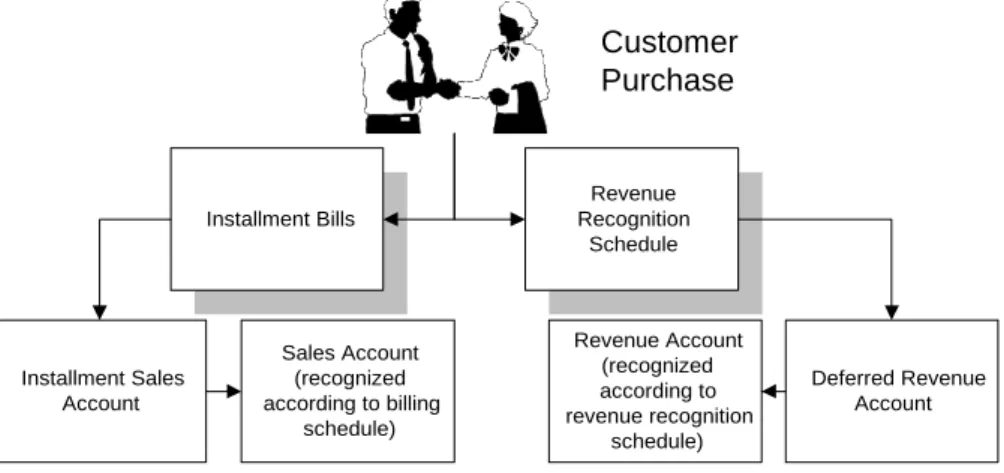
During the course of business, items are sold which are invoiced in installments. For example, a customer may subscribe to a magazine for one year, and ask to be billed in four easy payments. Installment Billing allows you to set up the billing cycle in Solomon to accommodate this type of situation.
Another, separate need of companies with this type of billing is the need to recognize revenue from those billings. Since revenue recognition and installment billing often have completely different schedules, the revenue recognition is irrespective of the billing cycle used when a commitment for purchase is made. Deferred Revenue Recognition is another integrated product available from Computer Upgrades, which handles the revenue recognition.
To illustrate further, the customer has purchased a magazine subscription, and is billed in “four easy payments” over a period of four months. The subscription lasts for 12 months, however, so the revenue is recognized over the 12-month period. The installment billing (“four easy payments”) is completely separate from the revenue recognition.
Customer Purchase Installment Bills Installment Sales Account Revenue Recognition Schedule Deferred Revenue Account Sales Account (recognized according to billing
schedule) Revenue Account (recognized according to revenue recognition schedule)
Figure 1: Difference between Installment Billing & Revenue Recognition
Technical Requirements
Deferred Revenue Recognition requires the following Solomon modules:
Customization Manager
Accounts Receivable Other technical requirements are:
Windows 2000, Windows NT, or Windows XP workstations
Running Deferred Revenue Recognition in Trial Loc Mode
Deferred Revenue Recognition can be run in Trial Loc mode so that you can “try before you buy”.
You should install Deferred Revenue Recognition on a Trial Loc installation of Solomon IV (that is, a version that is not unlocked with registration keys, and does not have any customizations installed).
Deferred Revenue Recognition will lock up after 20 accesses have been recorded in the trial database.
Please contact Computer Upgrades if you need to test Deferred Revenue Recognition on a registered installation of Solomon.
Should you decide to purchase Deferred Revenue Recognition, contact Computer Upgrades for information about pricing and licensing.
Should you decide to not purchase Deferred Revenue Recognition, please follow the Uninstallation instructions provided at the end of this manual.
License File Instructions
When you purchase Deferred Revenue Recognition, we will provide you with a license file, DEFREV.LIC. To fully unlock the software, copy this file into your\Program Files\Solomonsubdirectory, or the subdirectory wherePARENT.EXEis installed.
© 2003, 2004, 2005, 2006, 2007 Computer Upgrades, Inc. 3
Installing Deferred Revenue Recognition
Warning:
Make sure all users have exited Solomon and remain out of all databases throughout the installation and update process.
Running SETUP
1. Close all applications:
2. Run the SETUP program by clicking onSTART, thenRUN, and type in C:\Download\SETUP.EXE (if you are installing from a different subdirectory, type in that subdirectory instead). The initial installation screen displays.
Click OK.
If this is not where your Solomon root directory is, clickChange directory. You want to point to the Solomon directory.
© 2003, 2004, 2005, 2006, 2007 Computer Upgrades, Inc. 5 3. Once the proper directory is displayed, click on theInstallbutton (which shows a picture of a monitor).
Updating the Solomon Menu
1. Make a backup of DELTA.MNU, by selecting the file (c:\program files\solomon\delta.mnu). Press CTRL/C to copy it, then CTRL/V to paste it. Rename the file “Copy of DELTA.MNU” to “DELTA.MNU.ORIGINAL”. 2. Click onStartthenRunF:\PROGRAM FILES\SOLOMON\DEFREV\CUDELTA.EXE. (the subdirectory
where Deferred Revenue is installed):
3. Click OK when the process completes.
CUDelta automatically adds the correct entries to the Solomon Menu.
Note
:If you get a message that the Solomon Menu is flagged as Read Only, you need to change the file attributes in Windows Explorer.
Running DB Update
1. Run Solomon.
2. Log into the database where you want to install Deferred Revenue Recognition. 3. From the Solomon Toolbar, click onUtility | DB Update.
4. In the left file window, change the directory to the \PROGRAM FILES\SOLOMON\DEFREV subdirectory (for example, F:\PROGRAM FILES\SOLOMON\DEFREV).
© 2003, 2004, 2005, 2006, 2007 Computer Upgrades, Inc. 7 5. Highlight all the files displayed in the right file windowexceptUNINSTAL.CRU and CUSTOM.CSV.
UNINSTAL.CRU, is used to uninstall Deferred Revenue Recognition. CUSTOM.CSV is used by the CUCUSTOM process, and is not needed by DBUPDATE. Be sure to scroll down and select all the other files in the window.
IMPORTANT:
Do not highlight any .CRT files or .CRU files if the database contains existing Deferred Revenue data.
6. ClickBegin Processing. Continue if no event log is produced.
If a message “Process status recorded in file” displays, stop the installation, look at the event log, determine the cause of the import failure, and then re-run the DBUPDATE process again.
7. Exit from DBUPDATE.
Note
If you are using the Client edition of Solomon IV over a peer to peer network, AND you have installed the executables on each workstation, you must run SETUP and DB Update on each workstation.
Loading PVrec values
1. Click on Utility | Possible Values Import.
2. Click on “Enter file name”. Browse to C:\Program Files\Solomon\DefRev\DefRev.CSV.
© 2003, 2004, 2005, 2006, 2007 Computer Upgrades, Inc. 9 4. Click OK.
Loading Screen Customizations
1. While Solomon is running, click onStartthen onRUNand type in
F:\PROGRAM FILES\SOLOMON\DEFREV\CUCUSTOM.EXE. Substitute the appropriate drive letter for F:.
2. Scroll down to the \PROGRAM FILES\SOLOMON\DEFREV subdirectory in the directory tree. Double click on the subdirectory to highlight it.
© 2003, 2004, 2005, 2006, 2007 Computer Upgrades, Inc. 11 3. Enter the SQL Server Login Name, and Password:
Field Name Action
SQL Server Login Name
Enter the SQL Server login name (for example, “sa”). Remember that SQL is case sensitive.
SQL Server Password
If you have defined a password for the login name, enter it here.
4. ClickInstall Customizations. When the process is complete the confirming message displays.
5. If the process fails, an error message will display:
Contact Computer Upgrades for assistance (you may have entered an incorrect SQL login or password). 6. In Solomon, selectUtility ->Access Rights.Set up security for the following screens/reports:
Deferred Revenue Recognition Schedule (X9.430.00)
Deferred Revenue Setup (X9.431.00)
Deferred Revenue Processing (X9.432.00)
Deferred Revenue Suspended Processing (X9.434.00)
Click on theSavebutton orCTRL/Sto save your changes. Close the Access Rights Maintenance window. 7. Check the %WINDIR%\System32 folder for the following files
CRYPTCOM.DLL
CUPARM.DLL
If you do not find the files in the Windows Operating System folder, copy files to the %WINDIR%\System32 folder and then register them:
NOTE: The%WINDIR%represents the Windows Operating System folder. Example: C:\WINDOWSorC:\WINNT
Register DLLs in a Command line window:
Example: c:\windows\system32\regsvr32.exe c:\windows\system32\cryptcom.dll c:\windows\system32\regsvr32.exe c:\windows\system32\cuparm.dll
8. As the final step, close Solomon and reopen, to refresh the changes to the database.
Note
If you are using the Standard edition of Solomon over a peer to peer network, AND you have installed the executables (PARENT.EXE) on each workstation, you must run DB Update on each workstation.
© 2003, 2004, 2005, 2006, 2007 Computer Upgrades, Inc. 13
Using Deferred Revenue Recognition
Using Deferred Revenue Recognition is a four step process:
1. Designate various revenue accounts as Deferred Revenue Recognition Accounts on the Deferred Revenue Recognition Account Definition Screen (x9.731.00).
2. Set up Deferred Revenue Recognition Schedules for appropriate invoices and line items on the Deferred Revenue Recognition Schedule Screen (x9.730.00).
3. Release the batch on the Hand Prepared Invoices and Memos screen (08.010.00).
4. Process Deferred Revenue Recognition on the Deferred Revenue Recognition Processing Screen (x9.732.00).
Designate Deferred Revenue
Accounts
Set up Deferred Revenue Recognition Schedule Process Deferred Revenue Recognition Release the AR
Accessing Deferred Revenue Processing
Follow these instructions to access Deferred Revenue: 1. SelectModuleson the Solomon menu bar.
2. SelectAccounts Receivableon the pull-down menu.
© 2003, 2004, 2005, 2006, 2007 Computer Upgrades, Inc. 15
Designating Deferred Revenue Recognition Accounts
The first step in using Deferred Revenue Recognition is to identify which GL Accounts are associated with deferred revenue recognition.
Note
Any account that you associate with deferred revenue should already be set up within the GL Chart of Accounts. Most companies will use only one Deferred Revenue Recognition account. For example:
© 2003, 2004, 2005, 2006, 2007 Computer Upgrades, Inc. 17
If your fiscal year is identical to the calendar year (it runs from January 1stthrough December 31st), the default is
Standard Calendar Year
If your fiscal year is not identical to the calendar year, and the year of the last period determines the fiscal year (for example, your fiscal year 1999 runs from July 1, 1998 to June 30, 1999), check the box forFiscal Year is Calendar Year in Period 12.
If you have a Period 13, check the check box forUse Period 13as well. 3. Enter the requested information in the fields:
Field Name Action
Account Enter the GL Account number from the Chart of Accounts that you wish to define as a Deferred Revenue Recognition account. You may press F3 to see a list of current Account numbers.
Description The description of the account displays.
Setting up the Revenue Recognition Schedule
As the Revenue Recognition Schedule is associated with a particular invoice, you must first access the Hand Prepared Invoices and Memos screen (08.010.00) in the Accounts Receivable module.
When; you access this screen, you will notice that the following fields have been added to the screen:
Original Invoice Number
Inventory ID
ADeferred Revenue Recognitionbutton has also been added to the bottom of the screen to allow you to access the Revenue Recognition Schedule screen (x9.430.00).
© 2003, 2004, 2005, 2006, 2007 Computer Upgrades, Inc. 19
Entering the Invoice
When entering the invoice that you will be creating a revenue recognition schedule for, follow these steps:
1. Enter the batch header information as follows:
Field Name Action
Batch Nbr Solomon automatically assigns the Batch Number when you save the batch.
Period to Post Defaults to the current period. Enter the Period to post the transaction to.
Status This field shows the Batch Status. Possible displays are:
Hold– will not be released.
Balanced– ready for release.
Partially Released– the batch could not be completely released due to an out of balance document or other problem.
Void– the batch has been voided.
Unposted– the batch has been released to GL but has not yet been posted in that module.
Posted– the batch has been released and posted in GL. Since this is a new batch, the batch is on HOLD.
Batch Handling The default in the field is “No Action”. You have the following options:
Hold –set the batch on hold when exiting.
Release Later– set status to Balanced.
Release Now– call the release process immediately when the screen is exited or you navigate to a different or new batch.
No Action– leave status unchanged.
2. Enter the Invoice header information:
Field Name Action
Type Accept the default of Invoice. (If a credit is needed, change the field to Credit Memo.)
Invoice/Memo Nbr
Solomon will assign the invoice or credit memo number when you save the document, or click on the Deferred Revenue button.
Customer ID Enter the customer ID for the customer that this invoice or credit memo is for.
Name Solomon displays the name associated with the customer id that was entered.
Original Inv# If you are entering a Credit Memo, enter the original invoice number here.
Date The default is today’s date. If the invoice or credit memo should be dated today, accept the default.
Amount Enter the total amount of the invoice or credit memo.
Description Enter a brief description of the invoice or credit memo. Note that this description will be printed on the Customer Statement.
Terms Enter the terms for this invoice or credit memo. (Should be defaulted to the terms set up in the Customer’s record.)
Terms Description
Solomon displays the terms description.
Project If you are using the Project modules, enter a Project ID associated with this invoice.
Salesperson ID The salesperson associated with this customer displays. You may change the salesperson for this invoice.
Disc Date The Discount Date is defaulted from the terms information.
© 2003, 2004, 2005, 2006, 2007 Computer Upgrades, Inc. 21
Field Name Action
Total The invoice total displays here.
3. Enter the invoice or credit memo detail information:
Field Name Action
Company ID Solomon displays the company ID associated with the database you are logged into.
Account Enter the Deferred Revenue Account that you want to use for the line item of this invoice. For example, if you have defined 2610 as Deferred Income, you would use that account here, rather than the account for Sales/Income.
Project If you have the Project Controller installed AND have designated the account entered as being related to a project, enter the Project ID here.
Task If you have the Project Controller installed, AND have designated the account entered as being related to a project, enter the Task ID here.
Subaccount Enter the subaccount that you want to use for this line item of this invoice.
Quantity Enter how many items are being purchased. (You may leave this field blank.)
Unit Desc If you entered a Quantity, enter a brief description of the unit (for example, “each”).
Field Name Action
Amount If you have entered a Quantity and Unit Price, Solomon calculates the total amount of the line item for you.
Invent ID Enter any inventory ID that may be associated with this line item.
Description This field defaults to the Customer ID and Customer Name. You may change it.
Ext Ref Nbr Enter any external reference number that may be associated with this line item.
Tax Category Enter the tax category associated with this line item.
Tax ID If a tax ID is associated with this line item, enter it here.
4. If you have entered an account for this line item which has been defined as a Deferred Revenue Recognition Account, you may set up a Revenue Recognition Schedule for that line item now by clicking on theDeferred Revenuebutton. Your invoice (or credit memo) will automatically be saved.
© 2003, 2004, 2005, 2006, 2007 Computer Upgrades, Inc. 23
Setting up the Revenue Recognition Schedule for a Line Item During Invoicing
Warning:
If you forget to set up revenue recognition schedules for each line item that has deferred revenue, the deferred revenue on that line item will never be recognized. Once you have released the batch on the AR Invoice and Memo screen, you must use the Deferred Revenue Post-Invoice Scheduling screen to add or modify existing schedules. When you click on the Revenue button at the bottom of the Invoices and Memos screen (08.010.00), and the Account that was entered for the line item has been defined as a Deferred Revenue Account, the Deferred Revenue Recognition Schedule screen (x9.430.00) displays:
The following fields are already completed based on the line item:
Doc Type
Customer ID
Customer Name
Batch status
Line item ID
Transaction Description
Original Amount of the line item
Enter the following information for the schedule:
Field Name Action
Start Date Enter the date that you want to start recognizing revenue.
Orig. Amount Enter the amount to be distributed. If you are entering unequal distributions, the total of all the Original Amounts in the grid must equal the Original Amount of the line item that is shown at the top of the screen.
Account Enter the Account to use for revenue recognition. For example, you may want to recognize revenue in Account 3030 (Sales/Income).
Sub Account Enter the subaccount to use for revenue recognition.
Schedule Choose one of the following Schedules:
Monthly – Revenue will be recognized each month, for as many months as you designate.
Quarterly – Revenue will be recognized each quarter, for as many quarters as you designate.
Semiannually – Revenue will be recognized semi-annually (every ½ year) for as many ½ years as you designate.
Annually – Revenue will be recognized annually for as many years as you designate.
# of Times Indicate how many times you wish to recognize revenue for the schedule that you designated.
For example, if you enter 12 here, for a monthly schedule, you will recognize 1/12th of the revenue (entered in Orig. Amount) for 12 months.
If you want to recognize all the revenue immediately, enter 1 here, and the full amount will be recognized on the Start Date.
Start Period The fiscal period in which revenue will begin being recognized displays based on the start date that was entered..
Next Period Displays the next period in which revenue will be recognized.
Periods left Displays how many periods are left to recognize revenue for.
Remaining Amount
© 2003, 2004, 2005, 2006, 2007 Computer Upgrades, Inc. 25 In the following example, revenue is being recognized in two different subaccounts. On the first line, $50 of revenue is being recognized over 10 months in one subaccount starting on December 1st. On the second line, $50 of revenue is being recognized on December 1st.
The “Total Original Amount” for the lines must equal the “Original Amt” for the line item that is shown at the top of the Revenue Recognition Schedule. If the amounts do not match, the following informational message displays:
You shouldalwayscorrect the amounts so that the deferred amount and the total recognition amounts match. If you release the AR Invoice without correcting the revenue recognition schedule, you will end up with Deferred Revenue that is never recognized.
Once the AR Invoice is released, you may set up the Deferred Revenue Recognition schedule related to that invoice by selecting the menu optionDeferred Revenue Post-Invoice Scheduling.
IMPORTANT
Adding Revenue Recognition Schedules After the Invoice Batch Has Been
Released
Sometimes invoices are entered with the Deferred Revenue account, but do not have a Revenue Recognition Schedules associated with them. Once you have determined which invoices need Revenue Recognition Schedules, you must add the schedules to the appropriate line item.
NOTE:
Refer to the Troubleshooting section for instructions on how to determine which invoices are missing Revenue Recognition Schedules.
This is an example of an invoice that was created without a Revenue Recognition Schedule:
The Customer is “C331”, the Invoice/Memo number is “000084” and Line Item “1” uses account 2610, which has been designated for Deferred Revenue.
Follow these instructions to add a Revenue Recognition Schedule to an invoice that has been released. 1. Open Solomon, and log into your database.
© 2003, 2004, 2005, 2006, 2007 Computer Upgrades, Inc. 27 3. Select the Deferred Revenue Post-Invoice Scheduling option:
4. Tab to the Customer ID field and enter the Customer ID. If you know the customer name but not the ID, press F3 to view the customer table and select the customer by name.
© 2003, 2004, 2005, 2006, 2007 Computer Upgrades, Inc. 29 5. The cursor is now on the Invoice/Memo field. Enter the Invoice/Memo reference number. If you are not
sure what the reference number is, press F3 to review a list of invoices for that customer.
NOTE: If you get an error message about PVRec values not found, please go back to the installation steps, and run the instructions to import PVRec values.
Determine the line item in the invoice which contains the Deferred Revenue Subaccount (2610 in this example):
6. When the Scheduling screen re-appears, enter the Line ID associated with the Deferred Revenue account (line 1 in this example):
© 2003, 2004, 2005, 2006, 2007 Computer Upgrades, Inc. 31 7. Add the Revenue Recognition schedule, just as you would any other Revenue Recognition schedule. Save
Recognizing Revenue
Once you have set up the schedules for Revenue Recognition, you are ready to process Deferred Revenue
Recognition. This process finds all scheduled revenue recognition records for the date rage, and creates a batch for recognizing revenue.
Follow these directions to recognize revenue:
1. SelectDeferred Revenue Processingon the Accounts Receivable menu.
© 2003, 2004, 2005, 2006, 2007 Computer Upgrades, Inc. 33 3. Enter the requested information:
Field Name Action
Create Detailed Journal
This checkbox is checked when you enter the screen. If you choose to create a detailed journal, the GL Journal transaction will contain one line for each transaction of each invoice that is selected. Otherwise, a single entry will be created for each account/subaccount combination in the GL Journal.
Combine Multiple Invoices
This checkbox is not available when you enter the screen. This option becomes available when you deselect the detailed journal entry box.
If you choose to combine multiple invoices, all transactions will be combined for a given sale number (external reference number) for a given part number (inventory id). This option is used to recombine sales that have been broken into several invoices for Installment Billing.
This option also removes zero balance transactions from the journal. Zero balance transactions are created if both an invoice and a credit memo exist for the same sale. Since Deferred Revenue Recognition is scheduled, a cancellation or return of a deferred sale should have a credit memo entered that schedules the unrecognized portion of the original sale as a deferred credit memo.
Field Name Action
Auto Release If you check the auto release box, the GL Journal is automatically released at the end of processing. Otherwise, the GL Journal is placed on Hold status, and you should review the batch in the GL Transaction Entry screen before releasing the batch.
From This field defaults to the first day of the current period. If you want to change the period being processed, enter the beginning date of the period, and the last day of the period will display.
Deferred Revenue may be recognized for past, current, or future periods. Revenue recognition in future periods will not take effect until that period.
To This field defaults to the last day of the current period.
Period to Process
This field displays the period associated with the From and To dates.
Selected Accounts that are marked YES will be processed for revenue recognition.
1. Click theSelect Allbutton to select all the Deferred Revenue Recognition accounts for processing, or click theSelect Nonebutton to de-select all the Deferred Revenue accounts for processing. 2. Once you have selected the Deferred Revenue accounts that you want to process, click theBegin
Processingbutton.
If you have requested revenue recognition for prior periods, an informational message displays:
The following example shows what happens when we have processed the first month of revenue recognition when we are recognizing $50 over 10 months:
© 2003, 2004, 2005, 2006, 2007 Computer Upgrades, Inc. 35 Notice that 9 months and $45 remain to be recognized.
However, when we have requested that $50 be recognized immediately, we see that $50 has been recognized and there is no more revenue to recognize on this schedule:
When we look in the Journal Transactions screen of the General Ledger, we see that the following transaction has been created:
The Deferred Revenue account 2610 has been debited $50 and $5, and the Revenue account 3030 has been credited $50 in subaccount 03-430-AA-00-00-1 and $5 in subaccount 03-430-AA-00-00-1.
Account Subaccount Debit Credit
2610 03-430-AA-00-00-1 50 0
3030 03-210-AA-00-00-1 0 50
2610 03-430-AA-00-00-1 5 0
© 2003, 2004, 2005, 2006, 2007 Computer Upgrades, Inc. 37
Deferred Revenue Restart Processing
It happens to the best of us. Everything seems to be going well until there’s a power outage. You can restart the batch on the Deferred Revenue Restart Processing screen.
If you have a suspended Deferred Revenue batch, it will display on this screen. The following information displays:
Field Name Action
Selected Batches that are marked YES will be processed for revenue recognition.
Batch Number Displays the original batch number assigned to the batch
Period to Post Displays the period that the batch will be posted to
Status Displays the status of the batch.
When you restart batch processing, it completes the process of creating the General Ledger Journal transaction, by following the rules that you originally set up on the Revenue Recognition screen (detail or summary entries, and automatic batch release or manual batch release in GL).
What happens when you originally create the batch on the Revenue Recognition screen?
The process looks at all the deferred revenue schedule lines, and checks the “Start Date” along with the schedule, the number of times, and the next period.
It generates the appropriate GL transactions based on the next period and the number of times. (If the number of times is 0, the process assumes that all revenue for that schedule line has been recognized).
Oftentimes, when the process is interrupted, only a few of the GL transactions have been created, and those are the transactions that make up the Suspended Deferred Revenue batch. These transactions are completed properly when
© 2003, 2004, 2005, 2006, 2007 Computer Upgrades, Inc. 39 However, there are usually other deferred schedule lines that have not yet been processed. In order to process those transactions, you must go back into the Deferred Revenue Recognition screen, and generate the deferred revenue for that period.
It is a two step process to ensure that all the deferred revenue is recognized:
1. Process the suspended batches on the Deferred Revenue Restart Processing screen. 2. Process the same fiscal period again on the Deferred Revenue Processing screen.
Printing the Deferred Revenue Reports
The Deferred Revenue Reports display as an option on the Accounts Receivable menu:
© 2003, 2004, 2005, 2006, 2007 Computer Upgrades, Inc. 41 There are two reports available for Deferred Revenue:
Deferred Revenue/AR Adjustment Report – This report shows the deferred revenue schedules that are active in the periods designated for the report.
Projected Revenue Report – This report shows the projected revenue that will be recognized during the period(s) designated for the report.
Deferred Revenue/AR Adjustment Report
SelectDeferred Revenue Reportsfrom the AR menu, and the following window displays:
Enter the Beginning and Ending Period that you want to review the Deferred Revenue schedules for. Click onPrintand the Deferred Revenue/AR Adjustment Report is generated:
© 2003, 2004, 2005, 2006, 2007 Computer Upgrades, Inc. 43
Label Meaning
CustID Customer ID
Name Customer Name
RefNbr AR Document Number
DocDate AR Document creation Date
DocType Document Type (usually IN for Invoice) Debit Amount Amount debited in the GL for the period. Credit Amount Amount credited in the GL for the period. DefRev Balance Remaining balance to be recognized. AR Balance Total AR balance to be recognized. DefRev Adjustment Amount still to be recognized. AR Adjustment AR amount not yet recognized.
Projected Revenue Report
SelectDeferred Revenue Reportsfrom the AR menu, and the following window displays:
© 2003, 2004, 2005, 2006, 2007 Computer Upgrades, Inc. 45 Change the beginning and end periods to those that you want to review the projected revenue for. ClickPrint.
Label Meaning
CustID Customer ID
Customer Name Customer Name
RefNbr AR Document Number
DocType Document Type (usually IN for Invoice) Fiscal Yr Fiscal year that the revenue will be recognized in
Period 01 Revenue that will be recognized in Period 1 of the fiscal year. Period 02 Revenue that will be recognized in Period 2 of the fiscal year. Period 03 Revenue that will be recognized in Period 3 of the fiscal year. Period 04 Revenue that will be recognized in Period 4 of the fiscal year. Period 05 Revenue that will be recognized in Period 5 of the fiscal year. Period 06 Revenue that will be recognized in Period 6 of the fiscal year. Period 07 Revenue that will be recognized in Period 7 of the fiscal year. Period 08 Revenue that will be recognized in Period 8 of the fiscal year. Period 09 Revenue that will be recognized in Period 9 of the fiscal year. Period 10 Revenue that will be recognized in Period 10 of the fiscal year.
© 2003, 2004, 2005, 2006, 2007 Computer Upgrades, Inc. 47
Label Meaning
Period 11 Revenue that will be recognized in Period 11 of the fiscal year. Period 12 Revenue that will be recognized in Period 12 of the fiscal year. Period 13 Revenue that will be recognized in Period 13 of the fiscal year.
Customer (custid) Total Total of all revenue being recognized for a customer during the designated periods. Grand Total Total of all revenue being recognized during the designated periods.
Troubleshooting
Determining Which Invoices are Missing Revenue Recognition Schedules
The following SQL statement will find invoices which list a deferred revenue account, but which don’t have a revenue recognition schedule associated with that line item:
select batnbr, refnbr, lineid, custid from artran where acct = ‘20240’ and acct not in (select defacct from xdefrevtran where custid = artran.custid and invtype = artran.trantype and arrefnbr = artran.refnbr and arlineid =
artran.lineid) order by batnbr desc;
The SQL statement is provided to you as NODRTRAN.SQL.
Follow these steps to run the statement in SQL Server Query Analyzer: 1. Open SQL Server Query Analyzer and connect to your SQL Server.
© 2003, 2004, 2005, 2006, 2007 Computer Upgrades, Inc. 49 3. Click onFilethenOpen.
4. Locate the file NODRTRAN.SQL in the \Program Files\Solomon IV\DefRev subdirectory. Your screen should resemble the following:
5. Click in the SQL Text window and scroll down to 20240 in the SQL statement. Replace 20240 with the actual deferred account number (2610in this example). Your screen should now resemble the following:
© 2003, 2004, 2005, 2006, 2007 Computer Upgrades, Inc. 51 In this example, we are looking for invoices that refer to the deferred account 2610 that do not have revenue recognition schedules.
© 2003, 2004, 2005, 2006, 2007 Computer Upgrades, Inc. 53 Select the Result tab:
Change the Default results target toResults to File. ClickOK.
8. PressF5to rerun your SQL statement, and you will be prompted for a filename:
© 2003, 2004, 2005, 2006, 2007 Computer Upgrades, Inc. 55 10. ClickFile -> Exitto close Query Analyzer. You will be prompted to save the changes to the SQL statement:
ClickYes.
11. Open the file that you have saved (c:\Program Files\Solomon\DefRev\Missing DR Schedules.txtin this example) with Notepad to view the results:
The batnbr is the AR batch number The refnbr is the Invoice/Memo number. The lineid is the Line number.
© 2003, 2004, 2005, 2006, 2007 Computer Upgrades, Inc. 57
Uninstalling Deferred Revenue
Updating the Solomon Menu
1. Open the DELTA.MNU file using WordPad.
2. Remove the following entries from the[Accounts Receivable]section.
Deferred Revenue Setup, x943100.exe
Deferred Revenue Post-Invoice Scheduling, x943000.exe Deferred Revenue Processing, x943200.exe
Deferred Revenue Reports, ROI.EXE ; 08890
Deferred Revenue Restart Processing, x943400.exe
HINT: Press CTRL-F and search for “x9”.
Running DB Update
1. Run Solomon.
2. Log into the database where you want to install Deferred Revenue Recognition. 3. From the Solomon Toolbar, click onUtility | DB Update.
4. In the left file window, change the directory to the\Program Files\Solomon\DefRevsubdirectory (for example,F:\PROGRAM FILES\SOLOMON\DefRev).
6. ClickBegin Processing. Continue if no event log is produced.
If a message “Process status recorded in file” displays, stop the installation, look at the event log, determine the cause of the import failure, and then re-run the DBUPDATE process again.
7. Exit from DBUPDATE.
Note
If you are using the Client edition of Solomon over a peer to peer network, AND you have installed the executables (PARENT.EXE) on each workstation, you must run DB Update on each workstation.
Unloading Screen Customizations
1. While Solomon is running, click onStartthen onRunand type in
“C:\Program Files\Solomon\DefRev\cucustom.exe”. Substitute the appropriate subdirectory structure for C:\Program Files\Solomon.
2. Click onOK.
3. When the CUCustom screen displays, scroll down to the \Program Files\Solomon\DefRev subdirectory in the directory tree. Double click on the subdirectory to highlight it.
© 2003, 2004, 2005, 2006, 2007 Computer Upgrades, Inc. 59 4. Enter the SQL Server Login Name and Password:
Field Name Action
SQL Server Login Name Enter the SQL Server login name (for example, “sa”). Remember that SQL is case sensitive.
Password If you have defined a password for the login name, enter it here. 5. ClickRemove Customizations. When the process is complete, clickOKto close CUCustom.
Uninstalling Under the Control Panel
1. Click onStart | Settings | Control Panel. The Control Panel displays:
3. SelectDeferred Revenue 6.5and click onChange/Remove. ClickYeson the following prompt:
4. When Deferred Revenue is completely removed the following message displays:
The uninstallation process is now complete.
You may also want to remove theSolomon\DefRevsubdirectory.
© 2003, 2004, 2005, 2006, 2007 Computer Upgrades, Inc. 63
Technical Support
Contact Computer Upgrades, Inc. 405 Waltham St., Suite 356 Lexington, MA 02421
voicemail: (781) 861-0572 x703