Mastering SQL Queries for SAP
Business One
Utilize the power of SQL queries to bring Business
Intelligence to your small to medium-sized business
Copyright © 2011 Packt Publishing
All rights reserved. No part of this book may be reproduced, stored in a retrieval system, or transmitted in any form or by any means, without the prior written permission of the publisher, except in the case of brief quotations embedded in critical articles or reviews.
Every effort has been made in the preparation of this book to ensure the accuracy of the information presented. However, the information contained in this book is sold without warranty, either express or implied. Neither the author, nor Packt Publishing, and its dealers and distributors will be held liable for any damages caused or alleged to be caused directly or indirectly by this book.
Packt Publishing has endeavored to provide trademark information about all of the companies and products mentioned in this book by the appropriate use of capitals. However, Packt Publishing cannot guarantee the accuracy of this information.
First published: May 2011
Production Reference: 3010711
Published by Packt Publishing Ltd. 32 Lincoln Road
Olton
Birmingham, B27 6PA, UK. ISBN 978-1-849682-36-7
www.packtpub.com
Credits
Author Gordon Du
Reviewers Zal Parchem Muddassar Imran Wolfgang Niefert Navneet Dhami
Acquisition Editor Stephanie Moss
Development Editor Susmita Panda
Technical Editor Pallavi Kachare
Copy Editor
Laxmi Subramanian
Project Coordinator Vishal Bodwani
Proofreader Aaron Nash
Indexer
Monica Ajmera
Graphics
Geetanjali Sawant
Production Coordinator Arvindkumar Gupta
About the Author
Gordon Du
studied System Engineering and Computer Science at the Nankai University in Tianjin, China. He has over 28 years of experience in diversified information technology fields. His experience with SQL goes back to 1987. Gordon was the first person in China to successfully implement an international software package for a Chinese investment-only company in 1995.Gordon has been the top contributor on the SAP Business One forum since August 2008. He has been awarded 45,000 points as of January 16, 2011. This is the highest lifetime points recorded by SAP Community Network for a non-SAP employee since 2004. Over 25 percent of Gordon's points are related to solving SQL query questions and problems posted by other forum members. Here are some links demonstrating this.
His SCN profile link for reference:
http://forums.sdn.sap.com/profile.jspa?userID=4130357
His first blog on SCN:
http://www.sdn.sap.com/irj/scn/weblogs?blog=/pub/wlg/17099
The congratulations and thanks thread to his 35,000 points from forum users:
http://forums.sdn.sap.com/thread.jspa?threadID=1718298&tstart=0
Gordon has worked and trained extensively in China, Singapore, USA, and Canada. He also holds the following certificates: a Microsoft Certified System Administrator, Microsoft Certified System Engineer, and a Microsoft Certified Database
Administrator.
Acknowledgement
Special thanks goes to my wife, Lisa, whose love and encouragement helped me to complete this book. Thank you, my son Mason and his fiancée, Ava, for your support and reviews. Thank you to Zal Parchem, who not only inspired me from the beginning, but also provided a professional technical review. Thanks to the staff at Packt Publishing and all my friends who supported me in writing this book. Among all my friends, MS Christine Malone has given me the greatest support by her excellent final proof reading and editing.
About the Reviewers
Zal Parchem
has been in the business world working in the Information Systems area for over 31 years. For the past 10 years, he has been working as an Independent Consultant, concentrating on helping small to midsize companies install andcustomize their ERP (Enterprise Resource Planning) systems. He has restricted his work efforts to the SAP Business One (SAP B1) ERP system and is actively involved in many SAP Forums, SAP Blogging areas, and the Wiki sections for SAP B1. He works with SAP, SAP B1 Partners, and Customers around the world. For the past three years, Zal Parchem has been using SQL extensively in SAP B1 for reporting and customization purposes in SAP B1.
He has been employed in a variety of industries, with company sizes ranging from six personnel to over 250,000 employees. Having retired from The Home Depot in 2001, he started his career as an Independent Consultant.
He has also written a "guerrilla handbook" titled Project Methodology and
Documentation for SAP Business One Implementations. He actively reviews all SAP B1 books available in print; his reviews can be seen online at Amazon.
Page and Moy, UK. He is a First Class Graduate from DMU (De Montfort University, Leicester UK) and was awarded the best final year project award from BCS (British Computer Society). Moreover, he is a Professional Member of BCS. He is enthusiastic about modern expert system and database administration. He has aesthetic skills in writing complex SQL Queries, ASP.NET, VB.NET and AJAX.
Imran was born in Gujranwala, a small city famous for its peaceful atmosphere. He attended Suffa Secondary School at 10th Grade and achieved the highest scores in his city. He got admission at the Government College University, Lahore for further education in Computer Science. He went to Malaysia for higher education and finished a Higher Diploma in Computing Studies from KDU College Malaysia. Then he went back to Pakistan and worked with Wateen Telecom Pvt. Ltd. and Telenor for two years, primarily developing web-based applications and working on automation projects.
Muddassar then traveled to the United Kingdom to attend the De Montfort
University. In 2010, he received his Bachelors in Computer Science. While studying at DMU, he was working with Venus Packaging Solutions Ltd. As a VB.NET Developer until March 2011 and then joined Page & Moy in April 2011. Further, Imran writes on his blog (www.blog.mudasar.co.uk) and his personal
website is www.mudasar.com. For relaxation, he likes to workout at the gym and travel.
Wolfgang Niefert
has more than 15 years experience with international SAP implementations. A certification for the SAP Production Planning (PP) module with the SAP academy in London allows him to relate larger SAP solutions to SAP Business ONE. Wolfgang has worked in Germany, Switzerland, UK, U.S., Poland, Russia and Saudi Arabia. He is the managing director of NIEFERT Certified Solutions (NCS, LLC) in San Diego, CA. NCS LLC is an SAP Channel Partner and recognized Software Solutions Partner (SSP) for SAP. He designed the N2ONE Portal Solution that integrates with SAP Systems in Real-Time. The N2ONE Portal solution is a hosted eCommerce platform that that works with SAP Business ONE and SAP All-In-ONE.the US.
NCS LLC is also a Microsoft Certified Gold Partner and publishes the Momentum Reporter for Excel. This solution allows the visual design of database queries and retrieves query results directly in Excel. In addition NIEFERT published the N2ONE Forecast Manager (SAP Edition). This solution manages SAP data for KPI reporting and web based dashboard publishing.
As a true renaissance consultant with a broad knowledge and skill set in multiple fields, Wolfgang provides a 360 perspective on modern business solutions. Orchestrating project areas and translating visions into realities is his core competency.
In his spare time Wolfgang has established a recognized portfolio of Black and White Large Format landscape and portrait photography.
After passing B-Tech in Computer Science and Engineering
Navneet Dhami
joined ITSL Technologies as a .Net developer in June 2007. He worked on ERSys (ERP Systems) and internal CRM product of ITSL Technologies. He then moved to SAP as TechnoFunctional consultant, and also provided training on TB1000, TB1100, TB1200 books. After that he joined Sapphire systems in June 2010 as SAP SDK Support consultant.He is an active contributor to the SAP sdn community. He got gold contribution status in the year 2010 in sdn community.
www.PacktPub.com
Support files, eBooks, discount offers and more
You might want to visit www.PacktPub.com for support files and downloads related to
your book.
Did you know that Packt offers eBook versions of every book published, with PDF and ePub
files available? You can upgrade to the eBook version at www.PacktPub.com and as a print
book customer, you are entitled to a discount on the eBook copy. Get in touch with us at
[email protected] for more details.
At www.PacktPub.com, you can also read a collection of free technical articles, sign up for a
range of free newsletters and receive exclusive discounts and offers on Packt books and eBooks.
http://PacktLib.PacktPub.com
Do you need instant solutions to your IT questions? PacktLib is Packt's online digital book
library. Here, you can access, read and search across Packt's entire library of books.
Why Subscribe?
• Fully searchable across every book published by Packt
• Copy and paste, print and bookmark content
• On demand and accessible via web browser
Free Access for Packt account holders
If you have an account with Packt at www.PacktPub.com, you can use this to access
Table of Contents
Preface 1
Section 1 – SQL Query Basic
Chapter 1: SAP Business One Query Users and Query Basics
9
Who can benefit from using SQL Queries in SAP Business One? 9
Consultant 10 Developer 10 SAP Business One end user 10 Non-SAP Business One users 11
SQL query and related terms 11
RDBMS 11 Table 11 Field 12 SQL 12 T-SQL 13
Subsets of SQL 13
Query 13
Data dictionary 14
SAP Business One—Database tables reference 14 Naming convention of tables for SAP Business One 15
Three letter words 15
"O" tables 16
"A" tables 16
Document header tables 16
Example of table links within SAP Business One 18
Base tables versus target tables 18
Keeping it simple—The key to build a good query 21
Summary 22
Chapter 2: Query Generator and Query Wizard
23
Query Generator 24
Query Generator overview 24 Left part of Query Generator form 25 Middle and right parts of Query Generator form 26 Executing a query from Query Generator form 27
Query Wizard 28
Query Wizard overview 28 Step 1—Splash screen 29 Step 2—Select tables for the report 29
Step 3—Select fields and sort orders 30
Step 4—Conditions and relations 32 Step 5—Query Wizard completion 34
What is the difference between Query Generator and Query Wizard? 35 Benefitting from built-in system queries 36
Summary 40
Chapter 3: Query Manager and Query Statements
41
Query Manager user interface 42
Display all existing queries 43 Creating and saving user queries 45 Deleting user queries 47 Managing query categories 47
Commonly used statements 52
SELECT—first statement to retrieve data 53
The scope of the value that can be retrieved 53
The numbers of columns to be included 56
Column name descriptions 56
Clauses can follow this statement 57
DISTINCT—duplicated records can be removed 57 TOP—number of lines returned by ranking 58 FROM—data resource can be assigned 58
A single table 59
BETWEEN—ranges to be defined from lower to higher end 70
IN/EXISTS—the value list that may satisfy the condition 71 LIKE—similar records can be found 71 GROUP BY—summarizing the data according to the list 72
HAVING—conditions to be defined in summary report 73
ORDER BY—report result can be by your preferred order 74 UNION/UNION ALL—to put two or more queries together 74
Some important functions to return values 75
ISNULL() predicate 75
SUM() function 76
MAX() function 76
MIN() function 77
COUNT() function 77
DATEDIFF() function 78
DATEADD() function 80
DATEPART() function 80
CAST()/CONVERT() function 81
CASE expressions 81
IF expressions 83
Summary 84
Section 2 – SQL Query in Action
Chapter 4: Query Examples
87
Why three categories have been chosen 88
Defining variables for queries 89
Case 4-R1: Four variables in one query 89
Case 4-R2: Variables first or last 90
Date function—where the most problems emerge 91
Case 4-D1: Balance of production for a month 92
Case 4-D2: How to input a fixed date range 93
Orange arrow—an excellent tool for drill down 94
Case 4-O1: Make it simple 95 Case 4-O2: Sales order updating alert with drill down 96
Getting a subtotal from the query 97
Case 4-T1: By Union ALL 98 Case 2: By running total 99
Case 4-M5: A case for solution just from deduction 105 Case 4-M6: Goods Receipt PO within 10 days 106 Case 4-M7: Quantity purchased, received, and returned 107 Case 4-M8: Customized sales analysis report 108 Case 4-M9: Average sales per month 109 Case 4-M10: Credit Memo user check 110 Case 4-M11: Delivery date on sales order 111 Case 4-M12: Reducing from two to one line for the sales summary 112 Case 4-M13: Tax code summary 114 Case 4-M14: Sales by states 115 Case 4-M15: Many linked tables in one query 117 Case 4-M16: Sales Order with PO 118
Query for inventory transactions 120
Case 4-I1: Adding stock total to the query 120 Case 4-I2: Adding a total to the query bottom 121 Case 4-I3: Items not delivered within 15 days 122 Case 4-I4: Active item list 122
Case 4-I5: How to find stock taking details 123
Case 4-I6: Query on price updates 124 Case 4-I7: Planned quantity versus in stock 125 Case 4-I8: Adding to the production orders list from a sales order 126 Case 4-I9: Complete item list with or without transactions 126
Query for financial transactions 130
Case 4-F1: Top five customers 131
Case 4-F2: Incoming payment 131 Case 4-F3: Linking an incoming payment with an invoice 132 Case 4-F4: Listing both types of payment transactions 133
Case 4-F5: Incoming payment filtering 134
User query for alert 135
Case 4-A1: Creating a right alert without duplicated lines 136 Case 4-A2: Alert for invoice without base document 137 Case 4-A3: A/R Invoice past due alert 137 Case 4-A4: Special ship to alert for Sales Order 138 Case 4-A5: Open Sales Opportunity alert 139 User query alert guide 140
Miscellaneous query examples 145
Chapter 5: Securities and Approvals
149
How to handle securities for query usage 149
Giving only a few users the capability to build a query report 150 Creating queries under different categories 152 Query Groups: a tool to assign user permissions 153
How to use query for approval procedures 159
Creating approval stages 161 Creating approval templates 162
Originator 162 Documents 163 Stages 164 Terms 165
Examples of user queries for approval 169
Case 1—Approval for adding delivery document 169 Case 2—"On Account" outgoing payment approval 170 Case 3—Approval for invoice to special customer groups 170 Case 4—Approval for over booking sales order 171 Case 5—None cash outgoing payment approval 172
Summary 173
Chapter 6: SQL Query for Formatted Search (FMS)
175
Formatted Search and User-Defined Values 176 How to work with User-Defined Values 177
Search in existing User-Defined Values according to the saved queries 181
Where do the $ values come from? 190
How to get the value you need from, and for, the FMS query 193
Can you run FMS queries directly? 194
What is the negative sign's function in FMS query? 194
Search in existing User-Defined Values only 195
A typical FMS query application: auto code creation 203
BP code auto generation 203 Item code auto generation 204 Special code auto generation 205
General FMS query examples 205
Case 10—Commitment checks for warehouse in stock 211
Case 11—Multiplying a field from OITM with a field on order line 211
Case 12—Multiplying two UDF values from two tables 212 Case 13—Last sales price for a customer 212 Case 14—Calling a UDF value in the BOM to Production Order 213
Case 15—Multiplying a UDF value with a system field value 213
Case 16—Eliminating the duplicate lines returned by FMS query 214 Case 17—Getting the sales rep code assigned to an activity form 214
Case 18—FMS query for User-Defined Table (UDT) 215
Summary 216
Chapter 7: SQL Query for Reporting Tools
217
Query Print Layout Designer (QPLD) and its usage 218
Simple query report printing 220 Query Print Layout Designer 222
Working with a QPLD report 224
Creating a QPLD report 225
Editing a QPLD report 227
Saving a QPLD report 233
Printing a QPLD report 234
Deleting a QPLD report 234
Recreating the QPLD report 235
Direct query for Crystal Reports (Command) 238
Working with Standard Report Wizard 239
Creating a new database connection 240
Adding a Command to a report 245
Working with a Command 246
Basic formatting for a Crystal Report 251
Summary 255
Chapter 8: SQL Query for a Stored Procedure
257
Why Stored Procedure is included in this book 257 SBO_SP_TransactionNotification overview 259 How to work with SBO_SP_TransactionNotification 261
Some example queries for this SP 266
Case 1—Blocking an outgoing payment for a specific BP 266
Case 10—Blocking goods issue for none super user 277 Case 11—Blocking Goods Receipt PO if no based PO 278
Summary 279
Chapter 9: More Complicated SQL Query Topics
281
The Case expression usage 281
Case 9-C1—Displaying Transtype as code instead of a number 282 Case 9-C2—Combining two queries with a Case expression 283 Case 9-C3—Showing discount percentage for each interval 284 Case 9-C4—Item wise subtotal in a goods receipt 285 Case 9-C5—Updating UDF with different dates 286
Working with a subquery 287
Case 9-S1—Item groups not in use 288 Case 9-S2—YTD sales for two years 288 Case 9-S3—Checking only the similar records 289 Case 9-S4—Showing the last A/P invoice document date for items 290
Using PIVOT to simplify a cross tab style queries 291
Case 9-P1—Monthly sales by geography 291 Case 9-P2—Complete list of all items with/without sales 292
Database query for Excel 294
Creating a new data source 294
New data source added within Excel 295
New data source added from the control panel 298
Query wizard for database query in Excel 302 Microsoft Query window 304
Avoiding pitfalls while building queries 308
Creating a query before knowing the data table structure 308 Complicating the logic instead of simplifying it 309 Trying to do too many things in one query 309 Relying on others' help only 310
Summary 310
Appendix
311
Original transaction list by code 311
Original transaction list by name 312
Object codes and names 314
Preface
This book has been created to serve the needs of many SAP Business One users. If you have a chance to browse the SAP business One website between mid-2008 and mid-2011, you will find that my name is always on the top contributor's list. I have solved many SQL Query related problems faced by many users, and some such users have asked me to write a blog or wiki page on the topic. However, the subject is too big to fit into any of those information holders. That is why this book came into being.Business Intelligence (BI)
This is a buzz word nowadays. Usually, only big companies use this term very often. However, from the strict definition from Wikipedia, we can understand the following:
BI refers to computer-based techniques used in spotting, digging-out, and analyzing business data, such as sales revenue by products and/or departments or associated costs and incomes. BI technologies provide historical, current, and predictive views of business operations. BI often aims to support better business decision-making.
That means BI can be used in any type of solution as long as the technology allows the supporting business decision making process. In this book, you
will learn why BI could be a perfect fit for SAP Business One. Hence, it will benefit small-to-midsized businesses. SQL Query is one of the most powerful tools in SAP Business One that is related to BI.
What this book covers
There are two sections present in this book.
Section 1: SQL Query Basic
The first section is mainly for beginners who have limited knowledge of SQL Query but want to use this tool as soon as possible. You will learn basic tools to start writing your query quickly. Upon completion, you could jump to the next section to further your skills to complete more. Section 1, SQL Query Basic comprises three chapters: Chapter 1, SAP Business One Query Users and Query Basics, discusses the basic concepts and knowledge needed to use SQL query in SAP Business One. You will learn a clear definition of SQL query, the data dictionary, and table links.
Chapter 2, Query Generator and Query Wizard, introduces two basic tools for SAP Business One. Query Generator and Query Wizard will teach you to create SQL query in SAP Business One quickly to get the job done.
Chapter 3, Query Manager, illustrates the most important business intelligence tool for SAP Business One. Query Manager will help you write query freely. This chapter covers the most frequently used query statements one by one. All statements are explained with concrete examples.
Through these three chapters, you will gain the basic knowledge to jump to the next section and have to use SQL query in more areas. Even experienced readers may find some value in going through this section.
Section 2: SQL Query in Action
The second part of the book will jump to a higher level of complex SQL queries. You will learn different skills for different categories. This section is more closely related to Business Intelligence more closely because it can retrieve more business required data at the right time by the right people. Section 2, SQL Query in Action comprises six chapters:
Chapter 5, Securities and Approval, describes the security for query by SAP Business One and also the query associated with approval processes. You will learn how to handle query security by utilizing query groups. You will also learn user query for approval procedures with query examples.
Chapter 6, SQL Query for Formatted Search (FMS), emphasizes one of the most
frequently used and error-prone processes to create SQL Query for Formatted Search (FMS). You will learn everything needed in FMS query and the associated Auto Refresh functionality.
Chapter 7, SQL Query for Other Reporting Tools, focuses on SQL query usage in some other reporting tools. You will learn Query Print Layout Designer as well as the SQL query usage within Crystal Reports. The latter focuses on Command in the database expert selection of Crystal Reports.
Chapter 8, SQL Query for Stored Procedure (SP), is about one of the very special cases for query usage. You will learn query that is used in a special Stored Procedure: SBO_SP_TransactionNotification. By giving a clear overview of the SP, the last section shows some kernel SQL query examples for this SP.
Chapter 9, More Complicated SQL Query Topics, extends the scope of basic SQL query to more complicated cases. You will get in depth query knowledge to bring more Business Intelligence into SAP Business One. At the end of the book, you will get some good advices about query writing.
Through these six chapters, you will gain more knowledge regarding SQL query for SAP Business One. If you have specific questions in mind, you may jump to the chapter that most attracts you and go from there.
Each chapter contains specific query examples. For ease of reference in Chapters 4 and 9, each example refers to the chapter number, along with a letter code denoting the subject of the query. Please refer to the following key:
Letter code Query subject
R Variables
D Data function
O Orange arrow
T Subtotal
Letter code Query subject
C Case expression usage
S Subquery
P PIVOT
What you need for this book
• SAP Business One installation or trial system
• An eagerness to get more pertinent information from your database
• A table reference from help file REFDB.CHM in SAP Business One SDK Help Center
Who this book is for
This book is written for every kind of SAP Business One user who needs to obtain information, which is not available in the standard reports. SQL query is also the tool to provide specific solutions and alternatives to SAP Business One authorizations and standard business Processes. The audience for this book includes Consultant, Programmer, Administrator, and many other end users. In fact, every SAP Business One customer could benefit from this book. To get the right information at the right time is one of the most important tasks to bring SAP Business One's power to small and midsize businesses. This is the main goal of the book.
If you have started to use SQL Query already, the book will help you to use this tool more efficiently. If you are a beginner with very limited SQL knowledge, you will find the book easy to follow to solve your SQL query problems quickly. You may also find the book helpful if you are not a SAP Business One user, but have interest in learning SQL query skills. However, to run example queries in the book, SAP Business One installation or trial system is required. There are many examples in the book that are "Ready to Go". They cover many areas that may be similar to what you need.
Conventions
A block of code is set as follows:
DECLARE @Factor as numeric(1,0)
SELECT @Factor =
CASE (SELECT TOP 1 DispPosDeb FROM OADM) WHEN 'N' THEN 1 ELSE -1
END
New terms and important words are shown in bold. Words that you see on the screen, in menus or dialog boxes for example, appear in the text like this: "Under
Select, three fields are selected from two tables".
Warnings or important notes appear in a box like this.
Tips and tricks appear like this.
Reader feedback
Feedback from our readers is always welcome. Let us know what you think about this book—what you liked or may have disliked. Reader feedback is important for us to develop titles that you really get the most out of.
To send us general feedback, simply send an e-mail to [email protected],
and mention the book title via the subject of your message.
If there is a book that you need and would like to see us publish, please send us a note in the SUGGEST A TITLE form on www.packtpub.com or e-mail [email protected].
If there is a topic that you have expertise in and you are interested in either writing or contributing to a book, see our author guide on www.packtpub.com/authors.
Downloading the example code
You can download the example code files for all Packt books you have purchased from your account at http://www.PacktPub.com. If you purchased this book
elsewhere, you can visit http://www.PacktPub.com/support and register to have
the files e-mailed directly to you.
Errata
Although we have taken every care to ensure the accuracy of our content, mistakes do happen. If you find a mistake in one of our books—maybe a mistake in the text or the code—we would be grateful if you would report this to us. By doing so, you can save other readers from frustration and help us improve subsequent versions of this book. If you find any errata, please report them by visiting http://www.packtpub. com/support, selecting your book, clicking on the erratasubmissionform link, and
entering the details of your errata. Once your errata are verified, your submission will be accepted and the errata will be uploaded on our website, or added to any list of existing errata, under the Errata section of that title. Any existing errata can be viewed by selecting your title from http://www.packtpub.com/support.
Piracy
Piracy of copyright material on the Internet is an ongoing problem across all media. At Packt, we take the protection of our copyright and licenses very seriously. If you come across any illegal copies of our works, in any form, on the Internet, please provide us with the location address or website name immediately so that we can pursue a remedy.
Please contact us at [email protected] with a link to the suspected
pirated material.
We appreciate your help in protecting our authors, and our ability to bring you valuable content.
Questions
You can contact us at [email protected] if you are having a problem with
Section 1
SQL Query Basic
SAP Business One Query Users
and Query Basics
Query Generator and Query Wizard
SAP Business One Query
Users and Query Basics
This chapter will begin by identifying the target audience of this book, and will then go on to discuss the basic concepts and knowledge needed to use SQL query in SAP Business One. In the first section, you will be given a clear definition of the specific scope of the SQL and Query used in this book. The following section discusses the Data Dictionary and table links such as base tables versus target tables. The last section gives you a key concept to remember for building a good query by keeping it simple.Who can benefit from using SQL Queries
in SAP Business One?
It may not be easy to deduce the ideal reader of this book. In fact, there are many different groups of SAP Business One users who may need this tool.
To my knowledge, there is no standard organization chart for Small and Midsized enterprises. Most of them are different. You may often find one person that handles more than one role. In this sense all users, especially end users, may need this book as long as they can use SQL query with the basic knowledge required. You may check the following list to see if anything applies to you:
• Do you have dynamic updated version of your sales force performance in real time?
• Do you often check if approval procedures are exactly matching your expectations?
• Have you tried to start building your SQL query but could not get it done properly?
• Have you experienced writing SQL query but the results are not always correct or up to your expectations?
If the answer to any of the questions mentioned earlier is "yes", then you can certainly benefit from reading this book. It will answer each and every question mentioned earlier and give you the power to solve complicated problems.
Consultant
If you are an SAP Business One consultant, you have probably mastered SQL query already. However, if that is not the case, this book would be a great help to extend your consulting power. It will probably become a mandatory skill in the future that any SAP Business One consultant should be able to use SQL query.
Developer
If you are an SAP Business One add-on developer, these skills will be good additions to your capabilities. You may find this book useful even in some other development work like coding or programming. Very often you need to embed SQL query to your codes to complete your Software Development Kit (SDK) project.
SAP Business One end user
Non-SAP Business One users
To the other readers who are not SAP Business One users, you could still get some hints and tips from this book because the working and the problematic queries are both shown. Even without an SAP Business One user interface, you may still gain some useful concepts. In one query example of this book, I will show you that even without the actual data from my database to test the query due to localization limitation, the correct answer to the questioner can still be deduced.
No matter what your background is, you will find this book useful whenever you need to get certain data quickly and accurately.
SQL query and related terms
Before going into the details of SQL query, I would like to briefly introduce some basic database concepts because SQL is a database language for managing data in
RelationalDatabaseManagementSystems (RDBMS).
RDBMS
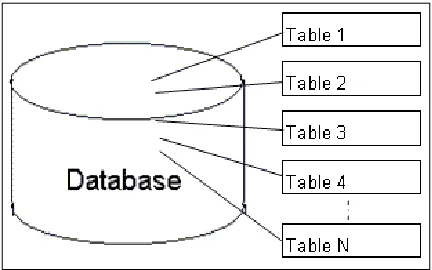
RDBMS is a Database Management System that is based on the relation model. Relational here is a key word for RDBMS. You will find that data is stored in the form of Tables and the relationship among the data is also stored in the form of tables for RDBMS.
Table
Table is also one of the most often used concepts in the book. Relationships between each table may be more important than tables themselves because without relation, nothing could be of any value. One important function within SAP Business One is allowing User Defined Table (UDT). All UDTs start with "@".
Field
A field is the lowest unit holding data within a table. A table can have many fields. It is also called a column. Field and column are interchangeable. A table is comprised of records, and all records have the same structure with specific fields. One
important concept in SAP Business One is User Defined Field (UDF). All UDFs start with U_.
SQL
SQL is often referred to as Structured Query Language. It is pronounced as S-Q-L or as the word "Sequel". There are many different revisions and extensions of SQL. The current revision is SQL: 2008, and the first major revision is SQL-92. Most of SQL extensions are built on top of SQL-92.
T-SQL
We have to limit the scope of the term SQL in this book. First of all, since SAP Business One is built on Microsoft SQL Server database, SQL here means Transact-SQL or T-SQL in brief. It is a Microsoft's/Sybase's extension of general meaning for SQL. Because we only use T-SQL throughout the book, SQL in this book will mean T-SQL unless it is clearly mentioned otherwise.
Subsets of SQL
There are three main subsets of the SQL language:
• Data Control Language (DCL)
• Data Definition Language (DDL)
• Data Manipulation Language (DML) Each set of the SQL language has a special purpose:
• DCL is used to control access to data in a database such as to grant or revoke specified users' rights to perform specified tasks.
• DDL is used to define data structures such as to create, alter, or drop tables.
• DML is used to retrieve and manipulate data in the table such as to insert, delete, and update data. Select, however, becomes a special statement
belonging to this subset even though it is a read-only command that will not manipulate data at all.
Query
Query is the most common operation in SQL. It could refer to all three SQL subsets. In this book, however, you will only learn the read-only part of the query. No Add, Delete, or Update SQL statement in DML will be discussed in the book since it is prohibited from SAP support policy for SAP Business One database integrity. All DCL or DDL SQL will also not be included because we neither control access to data in a database, nor define data structure for a database. You will find SELECT leading query only within the book. Read-only query SELECT has powerful functionality for finding useful information to meet your specific needs.
Data dictionary
In order to create working SQL queries, you not only need to know how to write it, but also need to have a clear view regarding the relationship between tables and where to find the information required. As you know, SAP Business One is built on Microsoft SQL Server. Data dictionary is a great tool for creating SQL queries. Before we start, a good Data Dictionary is essential for the database. Fortunately, there is a very good reference called SAP Business One Database Tables Reference readily available through SAP Business One SDK help Centre. You can find the details in the following section.
SAP Business One—Database tables
reference
The database tables reference file named REFDB.CHM is the one we are looking for.
SDK is usually installed on the same server as the SAP Business One database server. Normally, the file path is: X:\Program Files\SAP\SAP Business One SDK\Help.
In this help file, we will find the same categories as the SAP Business One menu with all 11 modules. The tables related to each module are listed one by one. There are tree structures in the help file if the header tables have row tables. Each table provides a list of all the fields in the table along with their description, type, size, related tables, default value, and constraints.
Naming convention of tables for SAP
Business One
To help you understand the previous mentioned data dictionary quickly, we will be going through the naming conventions for the table in SAP Business One.
Three letter words
Most tables for SAP Business One have four letters. The only exceptions are number-ending tables, if the numbers are greater than nine. Those tables will have five letters. To understand table names easily, there is a three letter abbreviation in SAP Business One. Some of the commonly used abbreviations are listed as follows:
• ADM: Administration
• ATC: Attachments
• CPR: Contact Persons
• CRD: Business Partners
• DLN: Delivery Notes
• HEM: Employees
• INV: Sales Invoices
• ITM: Items
• ITT: Product Trees (Bill of Materials)
• OPR: Sales Opportunities
• PCH: Purchase Invoices
• PDN: Goods Receipt PO
• POR: Purchase Orders
• SLP: Sales Employees
• USR: Users
• WOR: Production Orders
• WTR: Stock Transfers
"O" tables
All tables starting with "O" refer to master tables. O here represents Object. For example:
• OITM: Items Master
• OCRD: Business Partners Master
• OSLP: Sales Employee
"A" tables
Most tables starting with "A" may mean historical log tables. A here represents
Archive. For example:
• AITM: Items—History
• ACRD: Business Partners—History
• AUSR: Archive Users—History
Document header tables
These are special O tables with the exact same structure. They can be tables related to Sales or Purchase. These are called Marketing Documents. These also include most Inventory transaction tables. Some examples are:
• OINV: A/R Invoice Header
• OPCH: A/P Invoice Header
• OIGN: Goods Receipt Header
Document line tables
• IGN1: Goods Receipt Row
• INV2: A/R Invoice—Row Expense
Important table examples
Some specific tables very important for query building are listed here:
• OJDT-Journal Entry: This table includes all financial journal entries no matter whether they are automatically posted or manually posted.
• OINM-Warehouse Journal: This table includes all inventory-related transactions. It is a single point to check everything in relation to your
inventory (or stock). It becomes a view in the new version. This view must be queried very carefully.
• ADOC-Document History: This table includes all document history.
However, it is wrongly named in the documentation, "Invoice History" table in the help file.
Table links—the key for the right query
Table links are fundamental for query building. You will see some different links in this section, but the most common links will be discussed in the next section because there are too many and they are used too often.
To understand table links, you need to know more about table structures.
Primary key
Every table has a primary key. Some of the tables have foreign keys too. All those keys are used for the index. Docentry is a typical primary key to link OXXX with XXXn document tables. For example, Docentry is a common key field to link OPOR with POR1, POR2 to POR12.
A primary key can be one or more fields. For a simple table one key field would be good enough. For a complicated table, two or more fields for primary key are not rare. A primary key has to be unique within the same table. This key will not allow NULL
Foreign key
A foreign key is usually used to link to some other table's primary key. This field will be updated whenever the other table record has changed.
Although, you could link any fields between tables, if the field is not NULL,
you should try to use key link wherever possible in order to increase the database performance.
Example of table links within SAP Business
One
To be clearer about the link, here are a few table link examples:
• OITM-Items table and ITM1-Items Prices table:
These two tables are linked through ItemCode field. Both tables have the same field name to link. It is not one-to-one but one-to-many relationships. One Item Code in item master may have more than one item price associated.
• OITT-Product Tree table and ITT1-Product Tree Child Items:
These two tables are linked through Code field in OITT and Father field in ITT1. These tables are used for Bill of Materials.
• OCRD-Business Partner table and OSLP-Sales Employee table:
These two tables are linked through the same name field SlpCode. In the second table, SlpCode is the primary key for OSLP. On the other hand, it is a foreign key in the first table OCRD.
Base tables versus target tables
Base tables and target tables are special linked tables within SAP Business One. They are the most often used linked tables for SQL queries too.
One table could be based on different types of tables:
From this demonstration, you could get a clear picture about the relationship between Base Document (table) and Target Document (table). A specific pair of Purchase Order and Good Receipt PO tables is shown here. This concept applies to all document type tables. Here is a list of commonly used base-target pairs; they are not inclusive. You may find more, but the following are the most frequently used ones:
Base Table Target Table
OQUT—Sales Quotation ORDR—Sales Order
OQUT—Sales Quotation ODLN—Delivery
OQUT—Sales Quotation OINV—A/R Invoice
ORDR—Sales Order ODLN—Delivery ORDR—Sales Order OINV—A/R Invoice
ODLN—Delivery ORDN—Returns
ODLN—Delivery OINV—A/R Invoice
I have omitted the details for the link. Actually, you will find that all the links exist on the first child table or so-called row tablefor the header table, such as QUT1 instead of OQUT.
The linking fields are very clear. For example:
• BaseEntry in the target table refers to the base table's DocEntry
• BaseType refers to the types of the base table
• BaseRef is usually linked to DocNum field in the base table
• BaseLine will be the line number in the base line table
• TargetEntry in the base table refers to the target table's DocEntry
• TargetType refers to the types of the target table
Keeping it simple—The key to build a
good query
Before you go on to the next chapter, an important concept needs to be kept in mind:
Keep it simple is the key to
success to create queries efficiently.
Simplicity is in need everywhere in the current changing world. Wherever you make things complicated, you may find yourself in an awkward position to compete with others.
My slogan is: simple, simpler, the simplest.
I have a habit in query building: the last step for any new query would be checking to see if it is the simplest one. In this way, "keep it simple" would not only be kept in the already built query, but also helps new queries to be the simplest in the beginning. By keeping a query as simple as possible, it will ensure that the system performance is not affected. It will also be a great help to the troubleshooting process. A short checklist for simplicity is as follows:
The list can be much longer. The meaning behind it is clear: there is a never ending battle to get rid of complications.
When you try this method and it becomes a routine, you will find that query building becomes an enjoyable process.
Summary
In this chapter, you have been identified to be an appropriate reader who needs this information, supposing that you read through the beginning chapter and still want to read more.
You have been given all the basic concepts such as RDBMS, Table, SQL, T-SQL, SQL Subsets, and Query. You also get the idea of what the strict meanings of "SQL" and "Query" are within this book.
By going deeper into discussing table relationships, you gained a bigger picture of SAP Business One's database structure and tables' naming conventions. You also learned about base tables versus target tables in SAP Business One.
The "Keep it simple" principle has been emphasized in the last section of the chapter. You are advised to use it whenever you practice your own queries.
Query Generator and
Query Wizard
In the previous chapter, you learned basic concepts regarding certain terminologies used in this book. You also know that tables and table relationships are important for SQL Query. What are all of these concepts about? You will better understand when you start your own journey to create a SQL Query report.How do I start? That is a good question. I have learned this the hard way. Even though the tools to create queries are readily available from the SAP Business One menu, I myself had never gone through most of these tools before I planned to write this book to show you how to start. I have kept using only Query Manager and system queries until now. To be honest, I just found out too late that I took such a longer route than necessary. What a pity! If I had started with Query Generator and Query Wizard, it would have saved me a tremendous amount of time.
These tools are quite convenient and efficient for everyone to use, especially for starters to write their first query for SAP Business One. These tools will help you to omit this process of writing every single statement, tables' names, or fields' names, etc.
This chapter will introduce you to two basic SQL Query tools for SAP Business One:
• Query generator
• Query wizard
In the next section, the differences between these tools are discussed. You can decide which one is more suitable for you when you read through all their features and benefits.
If you are a more experienced reader, you may find that these tools are no longer necessary. Otherwise, you are strongly encouraged to go through the chapter to refresh yourself.
The last section introduces System Queries built-in to SAP Business One. Those system queries are another good start for readers whose SQL Query level is above average. You could then customize them and create your own queries quickly. For a beginner, you may just learn how to run those queries first to save time.
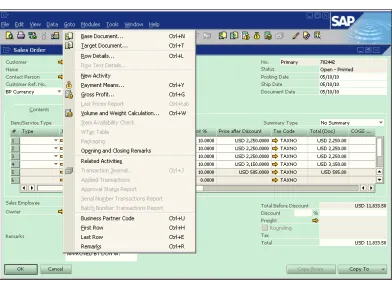
The previous screenshot shows you how to access these different tools from the SAP Business One menu. You can find all tools for this chapter from it. They are all under the Tools| Queries menu. Query Generator is the second item; Query Wizard is the third item; and System Queries is number five.
Query Generator
Query Generator is the first tool to be discussed. It is located above the Query Wizard in the menu item list.
With this tool, you are able to:
• Create many queries yourself from a fixed set of tables in SAP Business One
• Access all the data in those tables and evaluate it according to your needs
• Create individual reports without writing any single query statements
Left part of Query Generator form
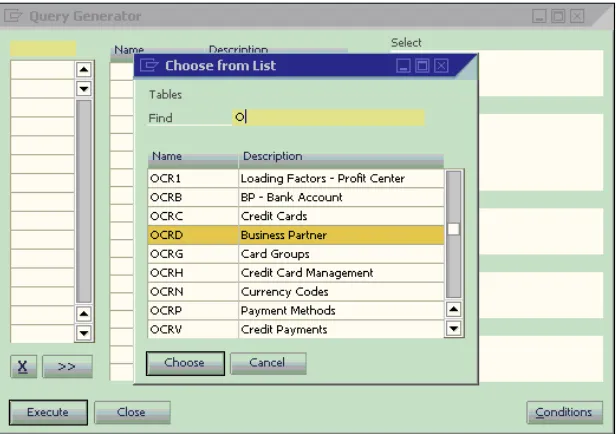
After you click on the Query Generator menu item, you can bring up the main form of Query Generator. On the top left of the form, you may find a yellow cell. Click the Tab key from the empty cell to bring up Choose from List, as in the following screenshot:
The set of table names will then show up. You could type any letters in the Find textbox to bring up the table names starting with that letter. In the example, you could find that the letter O is typed in. All tables starting with O would be on the top list. You could either use the scroll bar or page up/down key to find the tables you are looking for.
However, here is still one of the best places to find all commonly used tables for SAP Business One in case the help file is not available to you. In this less than ideal case, you probably need to go through the table name list quite a few times to become familiar with them.
In the example screenshot, the highlighted table OCRD (Business Partner table) will be selected when you click Choose:
You may select more than one table in the same way as the first table was selected. In the screenshot you just saw, the OCST (State table) has also been selected. If you selected the wrong table or changed your mind, the X button here could be used to remove it from the list.
Middle and right parts of Query Generator form
After the table selection, you would see that the middle part of the form shows you the fields from the highlighted table in alphabetical order. The right part shows the query component when you double-click the field name or table names on a proper box.
You may notice that there is an additional form shown. This appears after clicking on the Conditions button. You may find 12 conditional formulas from the form that can be selected. The Variables part allows you to select variable as [%0], [%1], and so on. The percent sign plus a number represents a variable for SQL query in SAP Business One. It can allow the user to select or input values during query execution.
In the last example, Start With formula plus [%0] variable gives the result as
T1.[Name] like '[%0]'. The additional % on the right of [%0] is a manual input wildcard character that can be used as a suffix to match any string of zero or more characters.
Under Sort, T1.[Name] is also selected to allow query results to be sorted by State/ Province names.
The result looks like the next screenshot:
If this query could be used later, click on Save near the bottom to save your query. It might be saved under any query categories with the name you entered. The topic regarding query saving will be discussed in detail later.
The Reverse Table button at the bottom of the form is used to help you choose to display the table either from right-to-left or from left-to-right. This is because unlike English, some of the other languages may not start from left-to-right, but in reverse order.
You may notice that all query script from different sections of the generator has been linked together for you. Remember, you do not need to write any single statement. This is such a good gift for you to reduce your learning curve in terms of query learning. Do not waste this valuable resource!
Query
W
izard
Query Wizard is the second tool to be discussed in this chapter. It is similar to Query Generator. We are going to compare both tools later in the book.
Query Wizard overview
user-With this tool, you can do the following:
• Create queries through five steps from a fixed set of tables from SAP Business One
• Access all data in those tables and get help from tips on each step
• Create individual reports without writing any single query statements
Step 1—Splash screen
The first step is very simple. After you click on Query Wizard menu item, you get the first screen that simply tells you: This wizard will guide you
step-by-step through the definition of parameters required for a query. The screenshot
is omitted here since it is nothing but a splash screen for you to know you are starting this wizard.
Step 2—Select tables for the report
In the example screenshot you just saw, you may find that the first table selected is
OCRD (Business Partner table). The second table selected is OSLP (Sales Employee table). Each table selected is placed in a separate row in the window. The second column displays the full description of the tables.
One thing here is, it is noticeably better than Query Generator. When you select any table, it automatically shows all linked tables under the lower part of the form. You will then find it very convenient to just choose the necessary tables by double-clicking.
This process applies to all tables selected in the upper part of the form.
A linked table list in the lower part of the form changes when you highlight different tables from the upper part of the form.
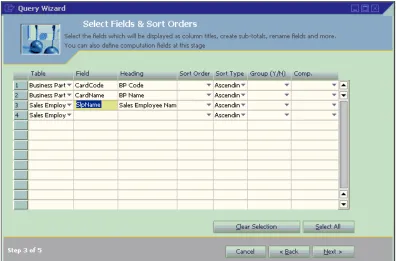
Step 3—Select fields and sort orders
You may tab out the Field column to bring up Choose from list from the selected table. It is just like when you selected tables from both tools. You may type in any letters on the Find textbox to search your requested fields. There are two columns on the list:
• Name: Field names
• Description: Field description
As you know from the previous chapter, you can get all field information from the Table References for SAP Business One in advance. If that is not available to you, this might be the second best place to find all commonly used field information. You will probably need to go through them many times before you can reach frequently used fields at ease.
From the previous screenshot, you can see that two fields in OCRD have been selected. Another field from OSLP has also been selected. They are:
• CardCode: Business Partner Code from OCRD
• CardName: Business Partner Name from OCRD
• SlpName: Sales Employee Name from OSLP
The third column, Heading, displays the field description by default. You can change them to anything you want such as Customer Name instead of BP Name. It will show on the top of the query result screen as a column heading.
The fourth column, Sort Order, uses an integer (1, 2, 3) to set the sort priority; you can assign any orders to the field you have selected.
The fifth column defines the sort type as Ascending or Descending.
The sixth column allows you to set the group on any fields you would like to add. You just need to select Y for the field you would like it to be grouped to. If you have not selected this, the default value would be N.
The last column in the previous screenshot, Comp., offers six computation options:
• Total Records: Displays the number of records retrieved
• Total Distinct Records: Displays the number of distinct records retrieved
• Amount: Displays the sum of the values for numeric field in the retrieved records
• Average: Calculates and displays the average of the values of that field in the retrieved records
• Minimum: Displays the smallest value of this field from within the retrieved records
• Maximum: Displays the largest value of this field from within the retrieved records
Step 4—Conditions and relations
For the previous example, it is the Display Conditions tab. You can see the condition entered is Sales Employee's name, which contains Gordon.
The other tab is for Display Relations. Under this tab, you will find the first column's checkbox, Execute. It applies the defined relationship between the tables that
appear in the row. When this checkbox is selected, SAP Business One adds another condition. This means that the records you want to retrieve must comply with the conditions defined on the Define Conditions tab and with the added condition.
Step 5—Query
W
izard completion
When you complete all Conditions and Relations, clicking on Next will bring you to the final step, which shows you the Query script created by the system that applies all of your selections.
You can find all Business Partner Codes and Names under the selected State/ Province from the query results.
Like Query Generator, if the query is useful, you can click Save to save your query. The topic regarding query saving will be discussed in the Creating and saving user queries section of the next chapter.
There is a video tutorial available for Query Wizard by SAP. You can find it here: http://www.youtube.com/
watch?v=xaLO_4JnG-E. From this video, you will have additional information in a classroom-like instruction for the topic here.
What is the difference between Query
G
enerator and Query
W
izard?
When you go through the first part of the chapter, you have probably already noticed the differences between the Query Generator and Query Wizard tools. You will find the summarized differences here to clarify any doubts you may have. The first tool, Query Generator, is one of the simplest tools for building SQL Queries. It just uses one simple User Interface (UI) for you to create queries. You can start to use it whenever you wish to find the tables, fields, and their relationship.
Here is the list showing the similarities between these two tools:
• There is no need to write full query statements
• Allows selection of tables and fields
• Prohibits updating data
• Uses the mouse alone to add conditions
Differences Query Generator Query Wizard
Single step User Interface
Requires more tables and fields
knowledge Less help and tips
Field level selection is basic
Multiple steps User Interface
Requires less tables and fields
knowledge More help and tips Field level selection is sophisticated
In summary, the Query Generator is designed to get quick results in a single step, while Query Wizard is more concentrated on step-by-step instructions to help you build queries with clear selection in different phases.
I prefer the Query Generator over the Query Wizard because I am familiar with all tables and fields. To me, the simpler the steps, the better. To a beginner, I would suggest you try Query Wizard because it gives you more power to select different tables and fields. You will also be provided with more helpful tips.
Benefitting from built-in system queries
Besides Query Generator and Query Wizard, there is another powerful tool for you to learn SQL Query in SAP Business One. That is: System Queries.The following screenshot shows you the names of all the available system queries. You may find as many as 18 queries here. Most queries are related to finance and banking.
You can see the query results from one of the system queries: Purchase Order Linked to Deposit.
What you need to know is the top part of the query result. You will see there is a Left Arrow (Show icon) there. When you click on the arrow, you will get the full body of the query statements.
As soon as you click on the Left Arrow icon, it will become Down Arrow (Hide icon). You will notice there are two additional icons displayed. One is Pencil Only. The other is a Pencil with Cross. All query statements are shown as well.
This is only available if you run those system queries under the tools menu instead of each module under report.
When you click on the Pencil Only icon, the background of the query statement area will become yellow instead of grey. You are now able to modify the query for your own use.
When you finish editing, you may click the other icon (Pencil with Cross). That will change back to the read only mode of the query body.
If you are interested, here is the complete statement of this query:
DECLARE @Factor as numeric(1,0)
SELECT @Factor =
CASE (SELECT TOP 1 DispPosDeb FROM OADM) WHEN 'N' THEN 1 ELSE -1
END
SELECT T0.CardCode, T0.CardName,
T0.Balance, T0.CreditLine,
(T0.CreditLine + @Factor*T0.Balance) "Deviation"
FROM OCRD T0
WHERE (select T0.CreditLine + @Factor*T0.Balance) < 0 AND T0.CardType = 'C'
Summary
In this chapter, you have learned about the following tools for creating or using SQL queries in SAP Business One:
• Query Generator
• Query Wizard
• System Queries
You have also learned the differences between Query generator and Query wizard. This is a good start for your progress in mastering SQL Queries for SAP Business One.
By practicing these tools, you could have better understanding of the tables and table relationship within SAP Business One. Some of the system queries will give you more hints than others regarding how to create the correct query.
If you are a beginner, you may need to try those tools quite a few times. Only when you feel comfortable in creating simple queries – without problems – with these tools, will you build a solid foundation to create more sophisticated queries. In order to benefit from Business Intelligence, it would be better to try to master these tools to as high a level as possible. To learn the details of each statement and the complicated syntax, continue to read the following chapters.
Query Manager and
Query Statements
In the previous chapter, you learned about two basic tools, Query Generator andQuery Wizard. Meanwhile, you also learned about system queries so that you can create or use queries with these tools. However, those tools have certain limitations. The most inconvenient limitation is that only a fixed set of tables is available to you with these tools. For example, the table list does not show all tables in the database. When the queries become complicated, these tools may not work for you.
You must be eager to know how to create queries freely without those restrictions. Do you have other ways of creating queries when you need to create them in complex logic? The answer is definitely: "Yes". This is the topic of this chapter. This chapter illustrates the most important business intelligence tool for SAP Business One: Query Manager. You will learn how to manage your queries by creating, saving, and deleting them directly from the Query Manager. At the same time, you will learn how to organize your queries into categories. The detailed query statements, keywords, and functions will be presented to you as well.
Query Manager user interface
The following screenshot shows you how to access this tool from the SAP Business One menu:
Just like the other query tools, Query Manager can be accessed through the first menu item under Tools | Queries.
You can also access it directly from the toolbar. The Query Manager icon can be found on the toolbar between the Form Settings and Message/Alert icons. This icon is shown in the previous screenshot on the left side of Query Manager.
In the Query Manager window, you can:
• Display all existing queries
• Create and save user queries
• Delete user queries
• Manage query categories
Display all existing queries
This is the simplest function for the Query Manager. You can find all your saved queries or system queries through the Query Manager User interface.
The first text block on the top of the Query Manager can display the query name you have selected or allow you to type a query name for a new query before you save it. The next text block below the query name can display the query category you have selected or allow you to type a query category name for a new query category before you save it through the Manage Category function.
The big window under these two boxes is the place to display all query categories and the query names for the expanded categories you have selected.
The second example shows the query categories plus the query names under expanded query categories:
You may notice that there are two different icons in front of each query category: the Down Arrow icon next to the General category and the RightArrow icon next to System as well as other categories. The Down Arrow icons stand for the query categories that are expanded to display the query names under the categories. The Right Arrow icons refer to the query categories that are not expanded. When you click on the icon, the status will change from expanded to non-expanded or vice versa. To find a query under a specific category, you just need to click on the icon in front of the query category to expand it.
You can display any queries in two ways:
1. The first way is from the Query Manager window directly. You can find the required query name and double-click on the name or you can click OK
The second method presents a limitation. If the query name is too long, it might be cut off when you display their names directly from the Tools menu. Or if you have special characters, it may not display them fully either. It is advisable to use shorter names for queries whenever possible. Avoid using special characters whenever possible.
When you name a query, it is better not to name them similar to each other. You may have the misfortune wherein, all names are not easily
distinguishable if the first 40 characters are the same.
Creating and saving user queries
Creating user queries can be done directly after you run any queries in order to bring up the query result window. The query you want to run can either be from query tools directly or selected from the Query Manager.