Web Page Design Lessons
Lesson 1: Introduction to HTML
Lesson 2: HTML Tags
Lesson 3: HTML Tags
Lesson 4: HTML Tags
<font> <body> <h(n)> <hr> <img> html colors <marquee>
<table> List Tags
Formatting tags <frame> superscript bold <a> subscript italic
center
<div> <style> <span>
Lesson 5: HTML Tags
<forms> <style> <span>
Web Page Design
Objectives
Define Web Page Development terms
Understand the Web Structure of a simple web page
setup
Know the HTML tags use in the HTML document page
structure
Identify the parts of an HTML document
Understand the uses and function of HTML found on
the html document page structure
Web Structure
Site Root Directory
(index.htm) Home Page
html documents
images
css
Web Terms
HTML - short for Hyper Text Markup Language, the
language used in creating documents on the World Wide Web..
Web Browser - A software that enables the user to
view Web pages that are created in HTML codes.
Tags - codes found inside an HTML document.
<HTML> <HEAD> <TITLE> <BODY> </HTML> </HEAD> </TITLE> </BODY> Opening
tags Clos
Explanation of document structure tags
<HTML>...</HTML> Encloses the entire HTML
document.These tags let the browser know to start
reading and displaying the information presented within.
<HEAD>...</HEAD>The <HEAD> element contains all information about the document in general. It contains HTML elements that describe the document's usage and relationship with other documents
<TITLE>...</TITLE> The <TITLE> is contained in the <HEAD> of the document. It is displayed at the top of the browser window and on the bookmark list, so it is
Explanation of document structure tags
Viewing your Web Page
HTML document when typed using Notepad
HTML codes display when viewed using a
Web Page Design
Lesson 2: HTML tag
<font> <body> <h(n)> <hr>
Font tag
(Text)
The text that you are going to use on your web page is controlled by the font tag,
SYNTAX: <font>…</font> The <font> tag attributes are:
face="font name"
Font tag
<Html>
<head><title></title></head> <body>
<font face="verdana" size=4
color="blue">assumption antipolo</font> </body>
</html>
HTML color value
HTML Color Values
HTML colors can be defined as a hexadecimal notation for the combination of Red, Green, and Blue color values (RGB).
The lowest value that can be given to one light source is 0 (hex #00) and the highest value is 255 (hex #FF).
Body tag
The <body> tag is a container where you put text and images you want to appear of your web
page.
SYNTAX: <body>…</body>
The <body> tag attributes are: background="image.gif" bgproperties=“fixed"
Header Tag
The <hn> tag is use to format text on your web pages. This tags whose function is to create
headings, subheadings titles on your page
SYNTAX: <hn>…</hn>
Header Tag
<Html>
<head><title></title></head> <body>
<h1>assumption antipolo</h1> <h2>assumption antipolo</h2> <h3>assumption antipolo</h3> <h4>assumption antipolo</h4> <h5>assumption antipolo</h5> <h6>assumption antipolo</h6> </body>
</html>
Image Tag
The <img> tag allows you to add image on your page.
SYNTAX: <img>
The <img> tag attributes are:
src=“path and name of the image file” width=“n" in pixels and in percentage(%) height=“n" in pixels and in percentage(%) border=“n" in pixels.
align="center, left or right”
Image Tag
<html>
<head><title></title></head> <body>
<img src="aacopy.gif" width=400px height=400px title="aalogo" alt="aalogo.gif" border=1px>
</body> </html>
Horizontal Rule Tag
The <hr> tag is used to create a horizontal line on your page.
SYNTAX: <hr>
The <hr> tag attributes are: width=“n" in pixels
size=“n" in pixels.
align="center, left or right” noshade
Horizontal Rule Tag
<html>
<head><title></title></head>
<body>
<hr width=200px size=10px noshade color="blue" align="left">
</body> </html>
Web Page Design
Lesson 3: HTML tag
<marquee> <table>
Marquee tag
The <marquee> display a scrolling text inside your web Page.
SYNTAX: <marquee>…</marquee> The <marquee> tag attributes are:
width= vertical dimensions.(value is in pixels)
height=horizontal dimensions.(value is in pixels)
direction=“left, right, up and down“ behavior=“scroll, slide and alternate"
Marquee tag
<html> <head><title></title></head> <body> </body> </html>save this file under filename:marquee.htm
<marquee bgcolor=#ffff00>assumption antipolo</marquee><marquee>assumption antipolo</marquee> <marquee width=200px height=200px bgcolor=#ff0000
direction="down">assumption antipolo</marquee>
<marquee bgcolor=#00ffff behavior=“alternate">assumption antipolo</marquee>
List tags
Unordered list - display a bulleted list inside your document page.
SYNTAX: <ul>…</ul>
<li> refers to the items that will be displayed on your unordered list tag.
List tags
<html>
<head><title></title></head> <body>
---M E N
U---<!---unordered list---> <ul type=square>
<li>Tinolang Manok <li>Adobong Manok <li>Sinigang na Manok <li>Pritong Manok
<li>Manok na ginawang Bola </ul>
<!---end unordered list---> </body>
</html>
List tags
Ordered list - display a numbered list of item inside your document page.
SYNTAX: <ol>…</ol>
<li> refers to the items that will be displayed on your unordered list tag.
List tags
<html>
<head><title></title></head> <body>
---M E N
U---<!---ordered list---> <ol type=I>
<li>Ginataang Isda <li>Pritong Isda <li>Inihaw na Isda <li>Tinapang Isda
<li>Isda na ginawang Bola </ol>
<!---end ordered list---> </body>
</html>
List tags
Definition list - display a list of terms and definition in your web page.
SYNTAX: <dl>…</dl>
List tags
List tags
<html>
<head><title> definition list tag</title></head> <body>
<!---definition list tag---> Definition of Terms:<br>
<dl>
<dt>Web Browser
<dd>A software that enables the user to view web pages that are created in HTML codes. <dt>HTML
<dd>HTML stands for Hyper Text Markup Language. It is a scripting language whose primary purpose is to create pages that are used on the WWW (World Wide Web). HTML pages or documents consist of codes called Tags embedded in the text of a document.
<dt>Tags
<dd>are codes in an HTML document which the internet browser reads and then interprets for succeeding display to a reader. An HTML document should always start with the tag [HTML], followed by the [HEAD], [TITLE] and the [BODY] that only occur once.
</dl>
<!---definition list tag end---> </body>
</html>
Table tag
The <table> specify a container for data the will be viewed as tables inside your web document. SYNTAX: <table>…</table>
Inside the <table> tag rows and columns are included:
<tr> refers to the table row of the table. <td>refers to the table cell of the table.
Table tag
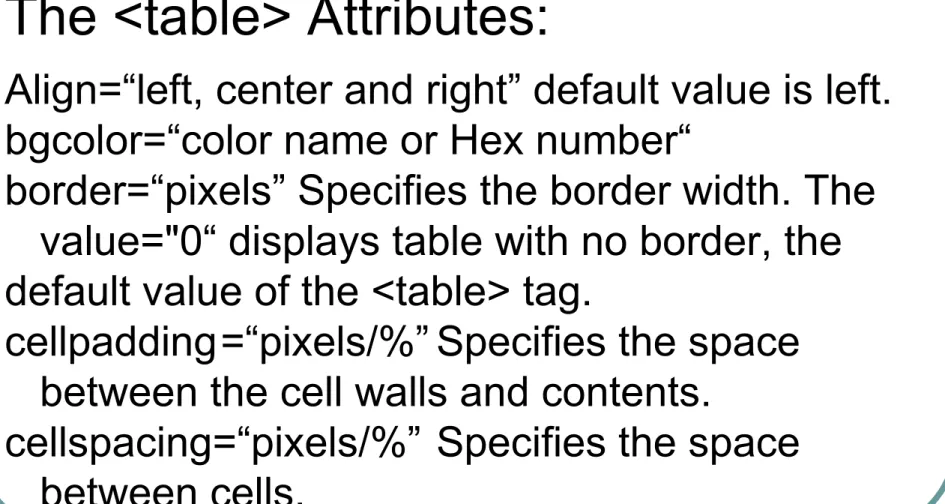
The <table> Attributes:
Align=“left, center and right” default value is left. bgcolor=“color name or Hex number“
border=“pixels” Specifies the border width. The value="0“ displays table with no border, the default value of the <table> tag.
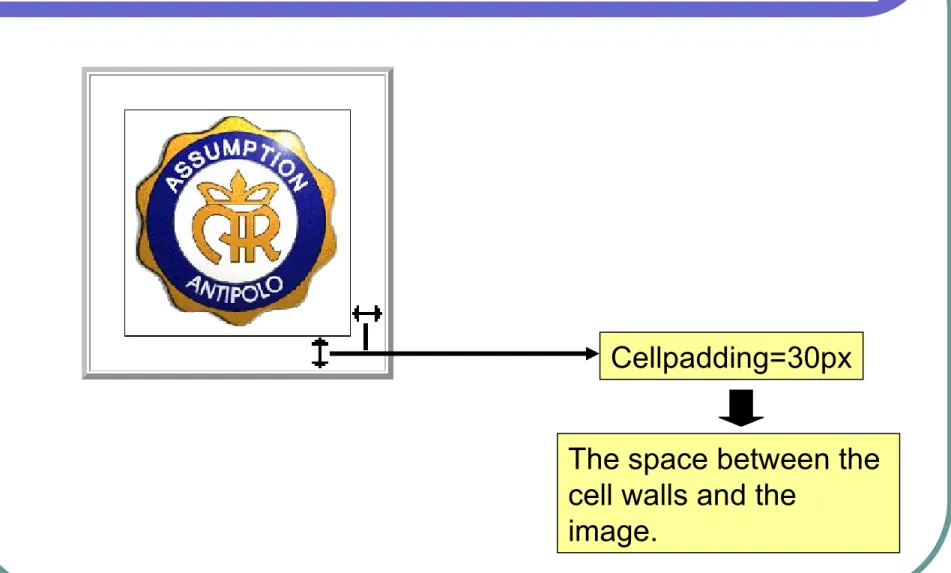
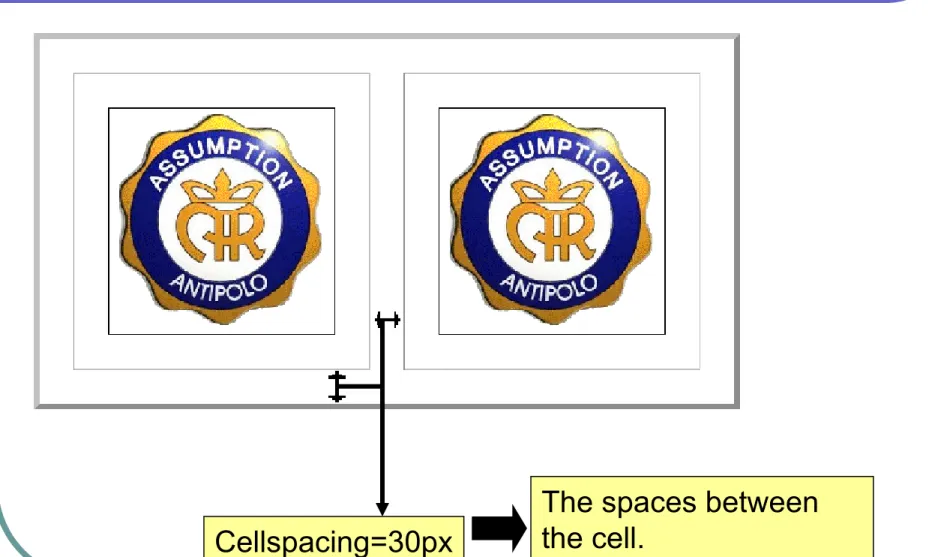
cellpadding=“pixels/%” Specifies the space between the cell walls and contents.
Table tag
The <table> Attributes:
frame=“above, below, hsides, lhs, rhs, vsides, box, border” Specifies which sides of the border side will appear. The "border" attribute can be used in specifying the width of the
border.
Table tag
<html> <head><title></title></head> <body> <!---table tag---> <table border=5> <tr><td><img src="aacopy.gif" border=1 width=200px height=200px>
</td> </tr> </table>
<!---table tag end---> </body>
</html>
Table tag
<html>
<head><title></title></head> <body>
<!---table tag---> <table border=5 cellpadding=30px> <tr>
<td><img src="aacopy.gif" border=1 width=200px height=200px>
</td> </tr> </table>
<!---table tag end---> </body>
</html>
Table tag
Cellpadding=30px
The space between the cell walls and the
Table tag
<html>
<head><title></title></head> <body>
<!---table tag---> <table border=5 cellpadding=30px> <tr>
<td><img src="aacopy.gif" border=1 width=200px height=200px> </td>
<td><img src="aacopy.gif" border=1 width=200px height=200px> </td>
</tr> </table>
<!---table tag end---> </body>
Table tag
<html>
<head><title></title></head> <body>
<!---table tag--->
<table border=5 cellpadding=30px cellspacing=30px> <tr>
<td><img src="aacopy.gif" border=1 width=200px height=200px> </td>
<td><img src="aacopy.gif" border=1 width=200px height=200px> </td>
</tr> </table>
<!---table tag end---> </body>
Table tag
Cellspacing=30px
Table tag
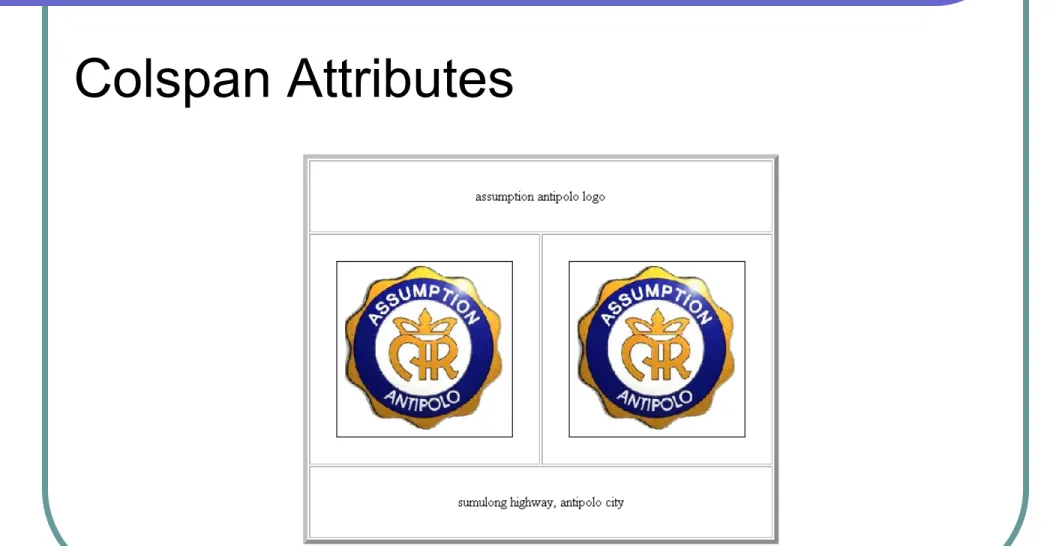
Table tag
<html>
<head><title></title></head> <body>
<!---table tag---> <table border=5 cellpadding=30px> <tr>
<td colspan=2 align="center">Assumption Antipolo logo</td></tr> <tr>
<td><img src="aacopy.gif" border=1 width=200px height=200px></td>
<td><img src="aacopy.gif" border=1 width=200px height=200px></td></tr>
<tr>
<td colspan=2 align="center">Sumulong Highway, Antipolo City</td></tr>
</table>
<!---table tag end---> </body>
Table tag
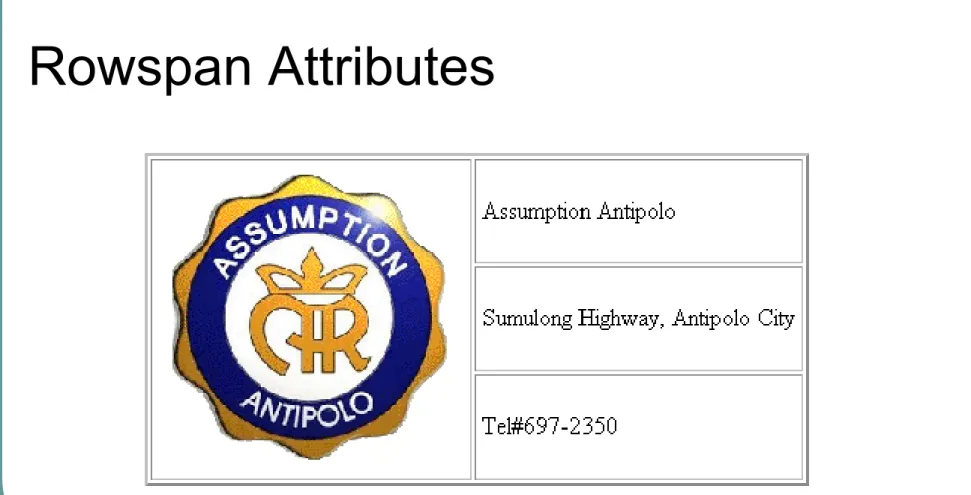
Table tag
<html>
<head><title></title></head> <body>
<!---table tag---> <table border=2 cellpadding=4>
<tr>
<td rowspan=3><img src="aacopy.gif" width=200px height=200px></td>
<td>assumption antipolo</td></tr> <tr>
<td>sumulong highway, antipolo city</td></tr> <tr>
<td>tel#697-2350</td></tr> </table>
<!---table tag end--->
Web Page Design
Lesson 4: HTML tag
Formatting tags <frame> superscript bold <a>
Formatting tags
Formatting tags allow you to add or change the style view of your web page window.
<b>…</b> bold <i>…</i> italic
<u>…</u> underline <sup>…</sup> superscript <sub>…</sub> subscript <br> line break
Formatting tags
<html> <head><title)Formatting tags</title></head> <body> <!---formatting tags---> Assum<b>ption Anti</b>polo<br> Assumption <i>Antipolo</i><br> Assumption <u>Antipolo</u><p> Assumption <sup>Antipolo</sup><br> <sub>Assumption</sub> Antipolo<br> Assumption Antipolo <!---formatting tags end--->
</body> </html>
Frameset tags
Frames allow you to subdivide your web page window to multiple windows.
SYNTAX: <frameset>…</frameset> The <frameset> tag attributes:
cols=“%" rows=“%"
border=“n" in pixels.
bordercolor="color name or hex number " frameborder="yes"|"no"
The Element Frame
Defines a rectangular subspace within a
Frameset document. Each FRAME must be contained within a <frameset> that defines the dimensions of the frame.
Frameset tags
The <frame> tag attributes: name=“name”
marginheight =“n" in pixels. marginwidth =“n" in pixels.
Frameset tags
The <frame> tag attributes: frameborder=“yes” | “no” noresize
Frameset tag
Frameset tag
Vertical Frames (columns)
<html>
<head><title>Vertical Frame</title></head> <frameset cols=25,50,25>
<frame> <frame> <frame> </frameset>
</html>
A comma-separated list of widths for division of window in columns.
Frameset tag
Frameset tag
Horizontal Frames (rows)
<html>
<head><title>Horizontal Frame</title></head> <frameset rows=25,50,25>
<frame> <frame> <frame> </frameset>
</html>
Frameset tag
Frameset tag
Horizontal and Vertical Frames (rows & columns)
<html>
<head><title>Horizontal and Vertical Frames</title></head> <frameset rows=130,*>
<frame>
<frameset cols=150,* > <frame>
<frame> </frameset>
</html>
The asterisk * replaces the
remaining percentage to 100%.)
Frameset tag
<html>
<head><title>Blue Page</title></head>
<body bgcolor=”blue”> </body>
</html>
Filename: blue.html
<html>
<head><title>Yellow Page </title></head>
<body bgcolor=“yellow”> </body>
</html>
Frameset tag
<html>
<head><title>Red Page </title></head>
<body bgcolor=“red”> </body>
</html>
Frameset tag
Frameset tag
<html>
<head><title>Vertical Frame</title></head>
<frameset cols=25,50,25 border=0>
<frame src=“blue.html“ noresize>
<frame src=“yellow.html">
<frame src=“red.html">
</frameset>
Anchor tags
The anchor tag <a> is used to create links to HTML files internal (on current page or within current website) or external (other websites)
SYNTAX: <a>…</a>
The <a> tag attributes:
* href=“Specifies a hypertext link to another
resource, such as an HTML document or image.”
Anchor tags
The <a> tag attributes:
* target=“Is used with frames to specify the frame in which the link should be rendered or appear.”
Anchor tag
Open the file yellow.html
<html>
<head><title>Yellow Page</title></head> <body bgcolor=“yellow”>
Anchor tag
Open the file yellow.html
<html>
<head><title>Yellow Page</title></head> <body bgcolor=“yellow”>
<a href="yellow.html">Yellow</a><br> <a href="blue.html">Blue</a><br>
<a href="red.html">Red</a><br> </body>
</html>
Anchor tag
Open the file combined.html with a browser
The text link
Anchor tag
Open the file yellow.html
<html>
<head><title>Yellow Page</title></head> <body bgcolor=“yellow”>
<a href=“yellow.html”
target=“_blank”>Yellow</a><br>
<a href="blue.html“ target=“_blank”>Blue</a><br> <a href="red.html“ target=“_blank”>Red</a><br> </body>
</html>
save this file The "_blank" value opens
Anchor tag
Open the file combined.html using notepad. <html>
<head><title>Horizontal and Vertical Frames</title></head>
<frameset rows=130,*> <frame src="blue.html"> <frameset cols=150,* >
<frame src="yellow.html"> <frame src="red.html">
Anchor tag
Open the file combined.html using notepad. <html>
<head><title> Horizontal and Vertical Frames </title></head>
<frameset rows=130,*>
<frame name=“top” src="blue.html"> <frameset cols=150,* >
<frame name=“left” src="yellow.html"> <frame name=“right” src="red.html"> </frameset>
</html>
Anchor tag
Open the file yellow.html
<html>
<head><title>Yellow Page</title></head> <body bgcolor=“yellow”>
<a href=“yellow.html”
target=“_blank”>Yellow</a><br> <a href="blue.html“
target=“_blank”>Blue</a><br> <a href="red.html“
target=“_blank”>Red</a><br> </body>
Anchor tag
<html>
<head><title>Yellow Page</title></head> <body bgcolor=“yellow”>
<a href=“yellow.html”
target=“right”>Yellow</a><br> <a href="blue.html“
target=“right”>Blue</a><br> <a href="red.html“
target=“right”>Red</a><br> </body>
</html>
Anchor tag
Creating a document jump link using the <a>
name attibute.
<a href="#introduction">Introduction</a>
Web Page Design
Lesson 5: HTML tag
Web Terms
URL - URL stands for Uniform Resource
Locator or web page address locator.
CGI - Stands for Common Gateway Interface
is a standard protocol for interfacing external application software with an information
Web Terms
Example of a URL
http://www.assumptionantipolo.edu.ph/webpage/index.html.
Explanation of the URL
http:// tells the web browser that the URL is of a web page.
www.assumptionantipolo.edu.ph is the domain name of the server where the web page is stored.
/webpage/ shows which directory the URL is located in on the server.
Form tag
The <form> tag allows you to add forms to your web pages using the form elements. Form
elements are elements that allows the interact with the computer by entering information to the computer. This elements are associated with the <input> tag.
SYNTAX: <form>…</form>
The <form> tag attributes
Attribute Value Explanation
Form tag
The <form> tag attributes
Attribute Value Explanation
method get The HTTP method for
post sending data to the action url. The default value is
get.
method="get": This method sends the form contents in the url.
method="post": This method sends the form contents in the body of the request.
Form tag
How to use the <form> tag and its attributes.
• Inform the browser that you are going to
use or starting a form in your web page.
Form tag
<form method="post" action="mailto:your email address">
•The command informs the browser that you are starting or using a form.
•The command informs the browser that the
Form tag
The <input> is use to define the type of elements will be use to enter data or information in the
computer.
SYNTAX: <input>
The <input> tag attribute
Form tag
Types of Elements: button
checkbox file
hidden image
password radio
Form tag
Text Element
A text area entry field allows multiple lines of entry to be entered by the Web Surfer. Typical uses are to provide comments the Web surfer can enter.
<form>
Form tag
The <form> tag allows you to add a guestbook, order forms, surveys to your web pages .
SYNTAX: <form>…</form>
<FORM>
<SELECT
onChange="document.bgColor=this.options[this.selectedIndex].value" >
<OPTION VALUE="FFFFFF">White <OPTION VALUE="FF0000">Red <OPTION VALUE="00FF00">Green <OPTION VALUE="0000FF">Blue </SELECT>
Web Page Design
Lesson 5: HTML tag
Division tag
The <div> tag is use as a container for other tags. The same use and function of the body tag. The div elements are block elements to group other tags together.
SYNTAX: <div>…</div> The <div> tag attributes
id