Access Online
Web-Based Training Guide
U
U
S
S
D
D
A
A
P
P
u
u
r
r
c
c
h
h
a
a
s
s
e
e
C
C
a
a
r
r
d
d
P
P
r
r
o
o
g
g
r
r
a
a
m
m
USDA OPPM Charge Card Service Center
Document Date: 10/01/2013
Access Online WBT Guide Document Version: 2.0
Revision History
Table 1 provides the revision history of this document.
Table 1. Revision History
Version Date Definition
1.0 02/02/2010 Initial version. 2.0 10/01/2013 Formatting updates.
Document Version: 2.0 Access Online WBT Guide
Table of Contents
REVISION HISTORY ... II LIST OF FIGURES ... IV LIST OF TABLES ... V 1 INTRODUCTION ... 1 1.1 PURPOSE OF DOCUMENT ... 1 1.2 SCOPE OF DOCUMENT ... 1 1.3 LOCATION OF DOCUMENT ... 11.4 ABBREVIATIONS AND ACRONYMS ... 1
1.5 PROVIDING FEEDBACK TO THE CCSC ... 2
2 LOGGING INTO ACCESS ONLINE WEB-BASED TRAINING ... 3
3 WBT TRAINING NOTES ... 4
3.1 WBTUSER TYPES GOVERNMENT A/OPC AND GOVERNMENT AOMODULES ... 4
3.2 WBTUSER TYPE CARDHOLDER MODULES ... 5
4 WBT MODULES ... 6
4.1 GETTING STARTED USING ACCESS ONLINE MODULE ... 6
4.2 CONFIGURE THE SYSTEM MODULE ... 8
4.3 MANAGE ACCOUNTS AND USER MODULE ... 9
4.4 WORK WITH TRANSACTIONS ... 11
4.5 WORK WITH ORDERS MODULE ... 12
4.6 MANAGE APPROVALS ... 13
4.7 CREATE AND RUN REPORTS AND STATEMENTS ... 14
4.8 ADDING THE LESSONS TO MY LESSON PLAN ... 15
4.9 STARTING YOUR TRAINING ... 16
5 TAKING YOUR CERTIFICATION TESTS ... 17
Access Online WBT Guide Document Version: 2.0
List of Figures
Figure 1. WBT Login Page ... 3
Figure 2. WBT Government A/OPC and Government AO Training Modules ... 4
Figure 3. WBT User Type Cardholder Training Modules ... 5
Figure 4. Getting Started Using Access Online Module Page ... 6
Figure 5. Configure the System Module Page ... 8
Figure 6. Manage Accounts and Users Page ... 9
Figure 7. Work with Transaction Page ... 11
Figure 8. Work with Orders Page ... 12
Figure 9. Manage Approvals Page ... 13
Figure 10. Create and Run Reports and Statements Page ... 14
Figure 11. My Learning Plan Page ... 15
Figure 12. Expanded Get Started Using Access Online Module ... 16
Figure 13. Completed Modules Page ... 16
Figure 14. Taking your Certification Tests ... 17
Figure 15. Certification Exam Results Page ... 17
Figure 16. Passed the Test Notification ... 19
Figure 17. Example Certificate of Completion ... 19
Document Version: 2.0 Access Online WBT Guide
List of Tables
Table 1. Revision History ... ii
Table 2. List of Abbreviations and Acronyms ... 1
Table 3. User Types for Getting Started Using Access Online Module ... 6
Table 4. User Types for Configure the System Module ... 8
Table 5. User Types for Manage Accounts and Users Module ... 9
Table 6. User Types for the Work with Transactions Module ... 11
Table 7. User Types for Work with Orders Module ... 13
Table 8. User Types for Manage Approval Module ... 14
Document Version: 2.0 Access Online WBT Guide
1
Introduction
1.1
Purpose of Document
This document describes the specific process for using U.S. Bank’s Web-Based Training (WBT) module and completing the training modules to obtain your certification.
1.2
Scope of Document
The CCSC provides this document to all APCs/LAPCs that request WBT guidance and assistance and can be used for any role level, APC, LAPC, AFPC, LFPC, AO, Financial Manager, or Government Cardholder.
Forward any questions concerning this manual to the USDA Charge Card Service Center (CCSC) CCSC Inbox. Additional information is also available on the CCSC Web site.
1.3
Location of Document
This document is located on the CCSC Web site with other guides, reference materials, and training documents.
1.4
Abbreviations and Acronyms
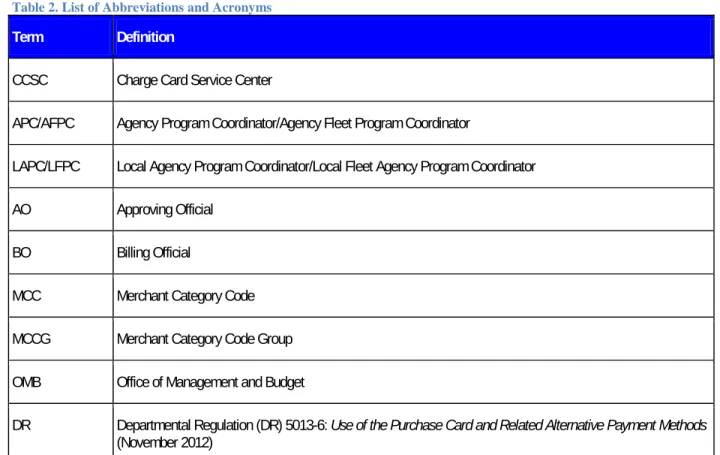
Table 2 provides a list of abbreviations and acronyms used within the document.
Table 2. List of Abbreviations and Acronyms
Term Definition
CCSC Charge Card Service Center
APC/AFPC Agency Program Coordinator/Agency Fleet Program Coordinator
LAPC/LFPC Local Agency Program Coordinator/Local Fleet Agency Program Coordinator AO Approving Official
BO Billing Official
MCC Merchant Category Code MCCG Merchant Category Code Group OMB Office of Management and Budget
DR Departmental Regulation (DR) 5013-6: Use of the Purchase Card and Related Alternative Payment Methods (November 2012)
Access Online WBT Guide Document Version: 2.0
Term Definition
WBT Web-Based Training
1.5
Providing Feedback to the CCSC
The CCSC welcomes your feedback. Please send us an e-mail at the CCSC Inbox about ways we can improve this manual and/or questions you may have.
Access Online WBT Guide Document Version: 2.0
2
Logging into Access Online Web-based Training
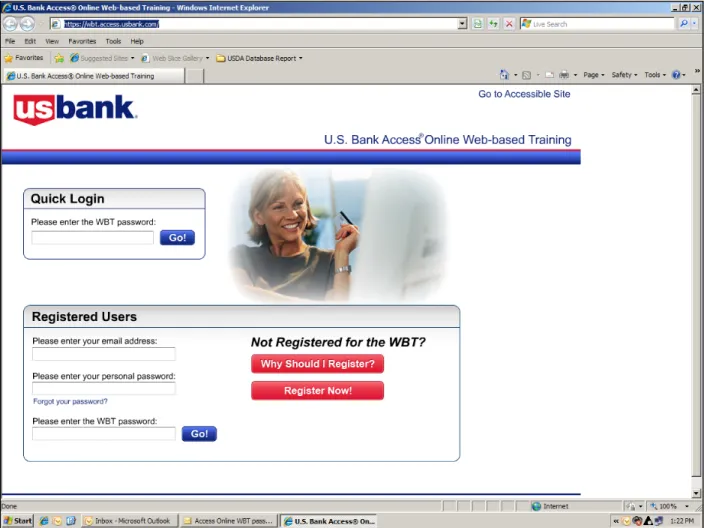
Figure 1 is the initial login page for Access Online WBT. All individuals associated with the USDA Card Program need to use the login at the bottom of the page under the “Registered Users” header, to sign in for their appropriate training.
Access Online WBT Guide Document Version: 2.0
3
WBT Training Notes
• Policy trainings are not included under the “Quick Login” header.
• The e-mail and (personal) password entered during the initial registration is retained by the system; therefore, that is the only password that can be entered in the Please enter your personal password field, thereafter. Please remember this password.
• During the initial registration (i.e., Personal Information), the only value you should enter in the Organization Short Name field is “USDA”.
• Users will continue to use the 60-days WBT password associated with the “User Type” they selected during their initial registration to access the training.
• If the lesson is not available to a particular user type, the lesson is notated as “N/A” in the table listed below each link.
• Fleet Coordinators or drivers that hold a Driver card must complete the modules notated as “Driver Cardholder” in the Cardholder column in the table listed below each link.
3.1
WBT User Types Government A/OPC and Government AO Modules
Figure 2 is the first screen that displays for the user types, Government A/OPC and Government AO, upon logging into the WBT.
There are seven training links listed under the “How do I. . . ?” with the modules that should be completed by all users.
Figure 2. WBT Government A/OPC and Government AO Training Modules
Access Online WBT Guide Document Version: 2.0
3.2
WBT User Type Cardholder Modules
Figure 3 displays the six links under the “How do I . . .?” for cardholders. The Configure the System module is not applicable to the cardholder user type.
Access Online WBT Guide Document Version: 2.0
4
WBT Modules
This section provides screen shots of the WBT modules, as well as information on who should complete the modules. You should work through these sections in consecutive order to select the lessons needed and then to add those to your lesson plan (My Learning Plan).
4.1
Getting Started Using Access Online Module
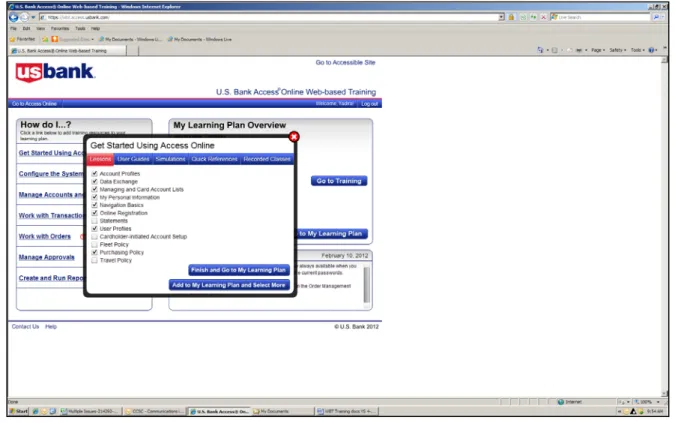
Figure 4 displays the first module, Get Started Using Access Online.
Figure 4. Getting Started Using Access Online Module Page
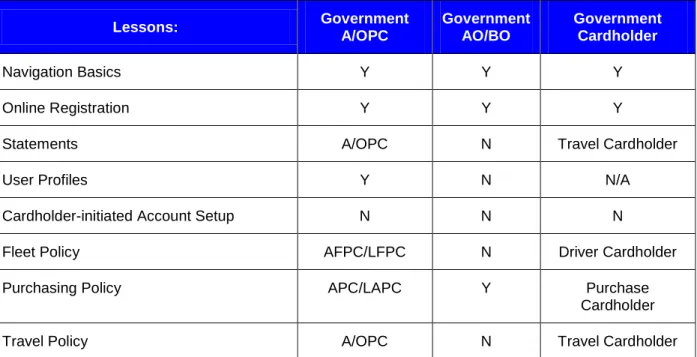
Table 3 lists all of the courses that are offered within this module. To take the courses, you select the lessons under the Getting Started Using Access Online link. The courses listed are according to the “User Type” selected during the Registration process.
Table 3. User Types for Getting Started Using Access Online Module
Lessons: Government A/OPC Government AO/BO Government Cardholder Account Profiles Y Y Y
Data Exchange Y N N/A
Managing and Card Account Lists Y Y N/A
My Personal Information Y Y Y
Access Online WBT Guide Document Version: 2.0 Lessons: Government A/OPC Government AO/BO Government Cardholder Navigation Basics Y Y Y Online Registration Y Y Y
Statements A/OPC N Travel Cardholder
User Profiles Y N N/A
Cardholder-initiated Account Setup N N N
Fleet Policy AFPC/LFPC N Driver Cardholder
Purchasing Policy APC/LAPC Y Purchase
Cardholder
Travel Policy A/OPC N Travel Cardholder
Table 3 aids you in determining the modules to complete within the Get Started Using Access Online module. To add a course to your learning plan, select the applicable boxes next to the modules you wish to complete and click the Add to My Learning Plan and Select More button at the bottom of the dialog box.
During the registration process, the user would have chosen one of the following user type options from the drop-down box:
• Government Cardholder • Government A/OPC • Government AO/BO
• Government Financial Manager
In Table 3, the user type is the column header. The following assumptions should be noted for the information listed in all grids:
• Under the Government A/OPC column header:
Purchase = APC/LAPC
Fleet = AFPC/LFPC
Travel = A/OPC
• Under the Government Cardholder column header:
Purchase Cardholder = lesson is exclusive to Purchase cardholders
Driver Cardholder = lesson is exclusive to Fleet Coordinators/Drivers with Driver cards
Travel Cardholder = lesson is exclusive to Travel cardholders
Y = Purchase/Driver/Travel cardholders
Access Online WBT Guide Document Version: 2.0
Please note that there are duplicate lessons listed throughout the WBT training (e.g., Online Registration, User Profiles, Purchasing Policy, etc.). Users are only required to complete the duplicate lessons once. You can select to complete the lesson in any of the seven modules, and once completed, you do not need to take the lesson again.
4.2
Configure the System Module
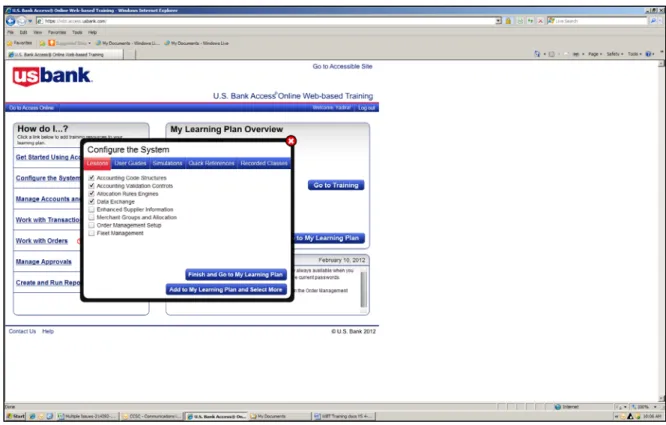
Figure 5 displays the Configure the System module page.
Note: This module is not applicable to user type Government Cardholder.
Figure 5. Configure the System Module Page
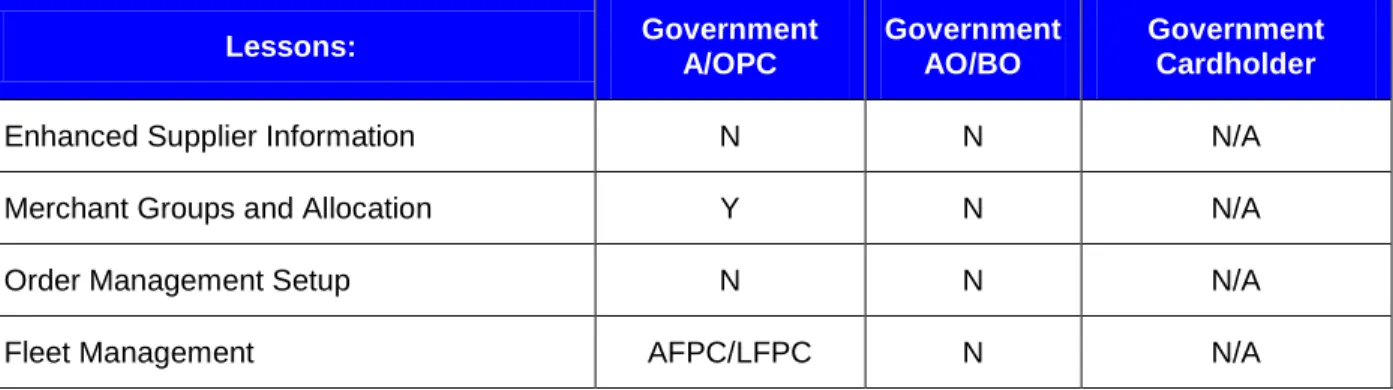
Table 4 list all the individuals involved with the charge card program(s) that need to take the listed lessons within the Configure the System module.
Table 4. User Types for Configure the System Module
Lessons: Government A/OPC Government AO/BO Government Cardholder
Accounting Code Structures N N N/A
Accounting Validation Controls Y Y N/A
Allocation Rules Engines N N N/A
Data Exchange Y N N/A
Access Online WBT Guide Document Version: 2.0 Lessons: Government A/OPC Government AO/BO Government Cardholder
Enhanced Supplier Information N N N/A
Merchant Groups and Allocation Y N N/A
Order Management Setup N N N/A
Fleet Management AFPC/LFPC N N/A
4.3
Manage Accounts and User Module
Figure 6 lists the lessons under the Manage Accounts and Users module.
Figure 6. Manage Accounts and Users Page
Table 5 list all individuals involved with the charge card program(s) that need to take the listed lessons in the Manage Accounts and Users module.
Table 5. User Types for Manage Accounts and Users Module
Lessons: Government A/OPC Government AO/BO Government Cardholder
Access Online WBT Guide Document Version: 2.0 Lessons: Government A/OPC Government AO/BO Government Cardholder Cardholder Account Setup and
Maintenance
Y N N/A
Managing Account Setup and Maintenance Y N N/A
Managing and Card Account Lists Y N N/A
Online Registration Y Y Y
User Profiles Y N N/A
Account Approval Process Y Y N/A
Fleet Management AFPC/LFPC N N/A
Fleet Policy AFPC/LFPC N N/A
Purchasing Policy APC/LAPC Y N/A
Travel Policy A/OPC N N/A
Statements N/A N/A N
Make Electronic Payments with ePay N/A N/A N
Cardholder-initiated Account Setup N/A N/A N
Access Online WBT Guide Document Version: 2.0
4.4
Work with Transactions
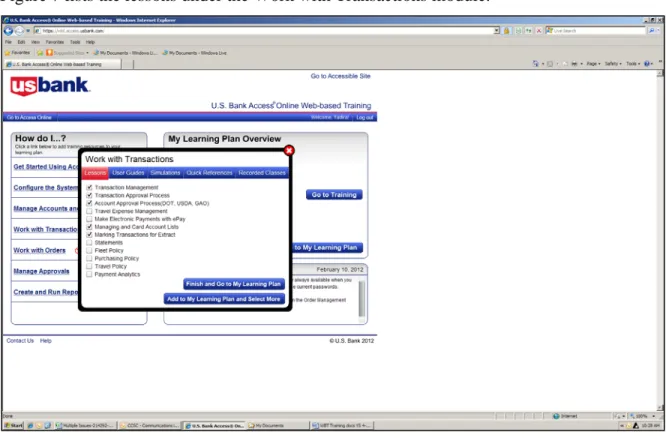
Figure 7 lists the lessons under the Work with Transactions module.
Figure 7. Work with Transaction Page
Table 6 list all the individuals involved with the charge card program(s) that need to take the lessons in the Work with Transaction module.
Table 6. User Types for the Work with Transactions Module
Lessons: Government A/OPC Government AO/BO Government Cardholder Transaction Management Y Y Y
Transaction Approval Process Y Y Y
Account Approval Process Y Y Y
Travel Expense Management N N N
Make Electronic Payments with ePay N N Travel Cardholder
Access Online WBT Guide Document Version: 2.0 Lessons: Government A/OPC Government AO/BO Government Cardholder
Statements A/OPC N N/A
Fleet Policy AFPC/LFPC N Driver Cardholder
Purchasing Policy APC/LAPC Y Purchase
Cardholder
Travel Policy A/OPC N Travel Cardholder
Payment Analytics Y Y N/A
4.5
Work with Orders Module
Figure 8 displays the lessons under the Work with Orders module.
Figure 8. Work with Orders Page
Access Online WBT Guide Document Version: 2.0
Table 7 list all the individuals involved with the charge card program(s) that need to take the lessons listed under the Work with Orders module.
Table 7. User Types for Work with Orders Module
Lessons: Government A/OPC Government AO/BO Government Cardholder Order Management N N N
Order Management Setup N N N/A
4.6
Manage Approvals
Figure 9 list the lessons under the Manage Approvals module.
Access Online WBT Guide Document Version: 2.0
Table 8 list all individuals involved with the charge card program(s) that need to take the lessons listed in the Manage Approval module.
Table 8. User Types for Manage Approval Module
Lessons: Government A/OPC Government AO/BO Government Cardholder
Account Approval Process Y Y N
Transaction Approval Process Y Y N
Transaction Management Y Y N/A
Fleet Policy AFPC/LFPC N N/A
Purchasing Policy APC/LAPC Y N/A
Travel Policy A/OPC N N/A
4.7
Create and Run Reports and Statements
Figure 10 lists the lessons under the Create and Run Reports and Statements module.
Figure 10. Create and Run Reports and Statements Page
Access Online WBT Guide Document Version: 2.0
Table 9 list all the individuals involved with the charge card program(s) that need to take the lessons listed in the Create and Run Reports and Statements module.
Table 9. User Types for Create and Run Reports and Statements Module
Lessons: Government A/OPC Government AO/BO Government Cardholder Standard Reports Y N N
Report Scheduler Y N N/A
Flex Data Reports Y N N/A
Shared Custom Reports Y N N/A
Travel Expense Management A/OPC N N
Statements A/OPC N N
Data Exchange Y N N/A
Marking Transactions for Extract N N N/A
Reporting Dashboard N N N/A
4.8
Adding the Lessons to My Lesson Plan
To select the lessons and add you lesson plan, follow these instructions:
1. Click the Finish and Go to My Learning Plan button once you have selected the appropriate lessons within each of the seven (or six) modules to add them to your learning plan.
Access Online WBT Guide Document Version: 2.0
Under the Remaining heading are the modules you need to complete.
2. Click the links under the Remaining heading to view the training lessons you selected and added to your learning plan.
Figure 12 is an example of the expanded Get Started Using Access Online module.
Figure 12. Expanded Get Started Using Access Online Module
4.9
Starting your Training
On the My Learning Page, click the Start Training button to begin taking training.
Once you have completed the lessons in the modules, the module is added to the column on the right under the Completed header, see Figure 13. You must then open up the general course description under the Completed header to take your certification test.
Figure 13. Completed Modules Page
Access Online WBT Guide Document Version: 2.0
5
Taking your Certification Tests
1. Expand each link under the Completed header (on the right) to view and select the modules ready for certification, refer to Figure 14.
Figure 14. Taking your Certification Tests
2. Click the Go to Certification button at the bottom right of the screen and begin taking the certification test.
Upon completing the certification test for the modules, the system displays the Certification Exam Results page, refer to Figure 15.
Access Online WBT Guide Document Version: 2.0
Your test results display at the bottom of the page. You are required to answer all
questions correctly to pass the exam. If you have not passed the test, you need to click the Back to My Learning Plan button and retake the test again. You must complete this step as many times as necessary, until you obtain a passing score.
Access Online WBT Guide Document Version: 2.0
6
Printing your Certification
Once you have passed the test, the system display the Certification Exam Results page with the “Congratulations” notification at the bottom of the screen, see Figure 16.
Figure 16. Passed the Test Notification
Upon successfully completing all training modules with a passing score, click the Print Certificate button to obtain a copy of the Certificate of Completion.
Please note that the Certificate of Completion lists all training modules completed according to the role (i.e., APC/LAPC/AO/Cardholder), as Figure 17 displays.
Figure 17. Example Certificate of Completion