Release 285 Graphics Drivers
for Windows - Version 285.27
RN-W285-27-02v01 |September 13, 2011 Windows XP
1 Introduction to Release Notes... 1
Structure of the Document ... 1
Changes in this Edition ... 1
2 Changes in the Release 285 Driver for Windows XP ... 4
Version 285.27 Highlights ... 5
What’s New in Release 285 ... 5
What’s New in Version 285.27 ... 7
Limitations in This Release ... 7
Advanced Driver Information ... 8
Changes in Version 285.27 ... 10
Fixed Issues–Windows XP 32-bit ... 10
Fixed Issues–Windows XP 64-bit ... 10
Open Windows XP Issues in Version 285.27 ... 11
NVIDIA Recommendations ... 11
Windows XP 32-bit Issues ... 11
Not NVIDIA Issues... 13
Application Issues... 13
Not NVIDIA Issues–SLI Mode... 20
Known Product Limitations ... 22
No PhysX Acceleration Using the GPU ... 23
Previous Driver Files Remain After Overinstalling with Release 256 or
Earlier Drivers ... 23
Uninstalling Drivers Using Device Manager is not Supported... 23
Using HDMI Audio with Displays that have a High Native Resolution ... 24
Using HDMI/DisplayPort Displays that do not Support Audio ... 24
Using HDMI/DisplayPort Audio in Dualview or Clone Mode Configurations25
GPU Runs at a High Performance Level (full clock speeds) in Multi-display
Modes ... 25
GeForce GTX 295 Fan Control and NVIDIA Control Panel Performance
Group version 6.03.06.00... 25
1280x1024 @ 60 Hz not Available on BenQ FP241W Monitors ... 26
GeForce 6 and 7 Series Cards Cannot Output Interlaced Signals in SLI Mode
[251457] ... 26
Image Sharpening Control not Available with GeForce 8 Series and Later
TABLE OF CONTENTS
GPUs ... 26
Display Output Selection not Available on “Bridgeless” SLI... 27
More Monitors are Listed in the Windows Device Manager than are Actually
Connected ... 27
DirectX Fails When Detaching/Reattaching Displays in Dualview Mode 27
OpenGL Viewport Scaling Problem in Horizontal Span Mode... 27
Video Playback in nView Clone and Span Modes ... 28
No Antialiasing of 3DMark03 Image Quality Screen Captures ... 28
Medal of Honor Under Windows XP / Windows 2000 ... 29
Windows XP/2000 Issue with Settings Tab Monitor Positioning ... 29
Antialiasing Problems With Certain Applications ... 29
Poor Quality S-Video Output on Some TVs ... 30
AGP and PCI-E Programs May Hang With AMD K7 and K8 Processors .... 30
Desktop Manager Does Not Re-Center Logon Screen ... 31
3 The Release 285 Driver for Windows XP ...32
About the Release 285 Driver ... 32
Hardware and Software Support... 33
Supported Operating Systems... 33
Supported NVIDIA Desktop Products ... 33
Supported Languages... 37
Driver Installation... 38
System Requirements ... 38
Before You Begin ... 38
Installing the NVIDIA Graphics Drivers... 41
Appendix A: Mode Support for Windows ...42
General Mode Support Information... 43
Default Modes Supported by GPU for Windows XP ... 44
Understanding the Mode Format ... 44
GeForce 500 and 400 Series, 300, 200, 100, 9 Series, 8 Series, 7 Series, 6
Series, and nForce 7xx/6xx GPUs ... 45
This edition of Release Notes describes the Release 285 family of graphics drivers (versions 280.xx to 284.xx) for Microsoft® Windows® XP. NVIDIA provides these notes to describe performance improvements and bug fixes in each documented version of the driver.
Structure of the Document
This document is organized in the following sections:
“Changes in the Release 285 Driver for Windows XP” on page 4 gives a summary of changes, and fixed and open issues in this version.
“The Release 285 Driver for Windows XP” on page 32 describes the NVIDIA products and languages supported by this driver, the system requirements, and how to install the driver.
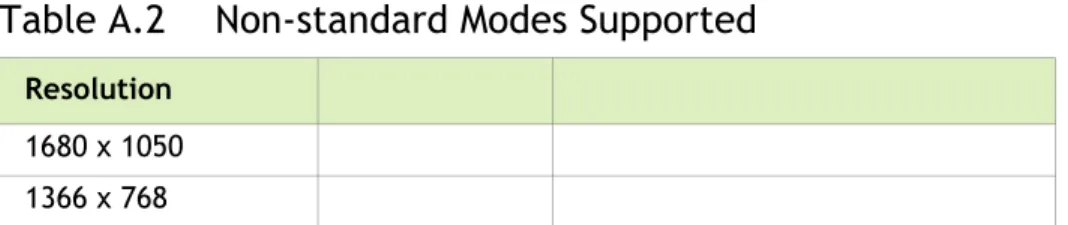
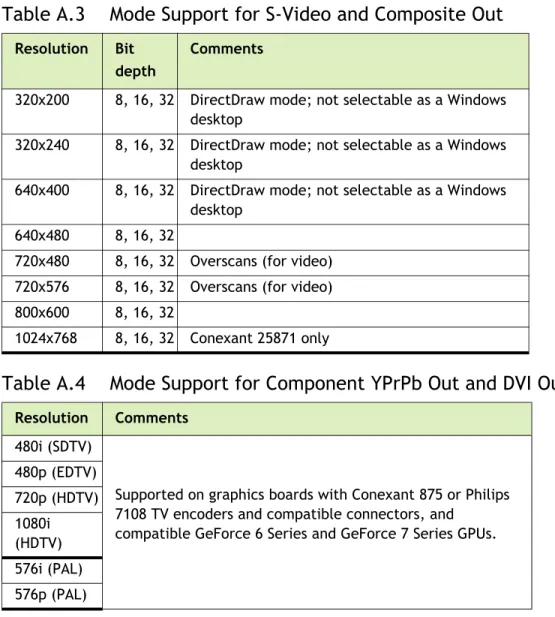
“Mode Support for Windows” on page 42 lists the default resolutions supported by the driver.
Changes in this Edition
This edition of the Release Notes for Windows XP includes information about NVIDIA graphics driver version 285.27, and lists changes made to the driver since Release 280 version 280.26. These changes are discussed beginning with the chapter “Changes in the
02
CHANGES IN THE RELEASE 285 DRIVER
FOR WINDOWS XP
This chapter describes open issues for version 285.27, and resolved issues and driver enhancements for versions of the Release 285 driver up to version 285.27. The chapter contains these sections:
“Version 285.27 Highlights” on page 5
“Changes in Version 285.27” on page 10
“Open Windows XP Issues in Version 285.27” on page 11
“Not NVIDIA Issues” on page 13
Version 285.27 Highlights
This section provides highlights of version 285.27 of the NVIDIA Release 285 Driver. What’s New in Release 285
What’s New in Version 285.27
Advanced Driver Information
What’s New in Release 285
The section summarizes the following driver changes in Release 285:
Product Support
Added support for the following GPUs:•
GeForce GTX 460 v2•
GeForce 4053D Vision
Added support for viewing 3DVisionLive.com and YouTube 3D with NVIDIA SLI PCs.Please view this knowledgebase article for more information on 3D Vision Window Mode. Windowed mode is the default viewing option for 3D Vision Photo Viewer. Added the following 3D Vision game profiles:
•
Aion•
Diablo 3•
Dead Rising 2: Off The Record•
From Dust•
Harry Potter and the Deathly Hallows Part 2•
Last Remnant Benchmark•
Men of Assault Squad•
Stock Car Updated the following 3D Vision game profiles•
Dirt 3 – updated the rating to Excellent.Chapter 02 : CHANGES IN THE RELEASE 285 DRIVER FOR WINDOWS XP
OpenGL
What’s New in Version 285.27
This driver package installs NVIDIA PhysX System Software v9.11.06.21. NVIDIA GPU PhysX acceleration is available only on systems with GeForce 8‐series and later GPUs with a minimum of 256MB dedicated graphics memory. NVIDIA GPU PhysX acceleration is not available if there a non‐NVIDIA graphics processor in the system, even if it is not used for rendering. This driver package installs the HD audio driver, version 1.2.24.0. See “Changes in Version 285.27” on page 10 for a list of changes and resolved issues in this driver version.
Limitations in This Release
The following are features that are not currently supported or have limited support in this driver release:
Support for Notebook PCs
Starting with Release 270 drivers, NVIDIA Verde drivers for notebook PCs will only be available for Windows Vista and Windows 7. Notebooks running Windows XP are supported by the latest Release 266 WHQL‐certified driver here: http://
www.nvidia.com/object/notebook‐winxp‐266.58‐whql‐driver.html. SLI Support The following SLI features are not support on Windows XP:
•
Quad SLI technology using GeForce GTX 590, GeForce 9800 GX2 or GeForce GTX 295•
3‐way SLI technology•
Hybrid SLI•
SLI multi‐monitor supportChapter 02 : CHANGES IN THE RELEASE 285 DRIVER FOR WINDOWS XP
Advanced Driver Information
This section contains the following additional information about the driver: Help for Resizing Your HDTV Desktop
Understanding Dynamic GPU Performance Mode
Help for Resizing Your HDTV Desktop
After resizing the HDTV desktop, the new custom resolution created is now added to the list of available resolutions for that display, and also added to the resolution list within the game or application. In Release 190 and later drivers, the method for resizing the HDTV desktop has changed to provide better image quality when applying underscan. This method results in a new custom resolution being created which needs to be selected from games or applications to apply the resizing. In the example displayed in the following screen shot, the underscan has created a new resolution (1216x682). Although this resolution looks different, it is still in HD format. Remember to select this resolution in your game or other application in order to take advantage of it.
Note: Some games or applications may not support the new resolu-tion.
Understanding Dynamic GPU Performance Mode
With the Release 280 drivers, NVIDIA GPU clock speeds will increase more quickly in response to increased graphics demands. Conversely, with lower graphics use the GPU clock speed slows down more quickly, conserving as much power as possible. In the Release 280 drivers, some users reported a noticeable fluctuation in clock speeds while engaging in various tasks on the PC. With the Release 285 drivers, adjustments have been made to reduce the sensitivity to levels similar to the R275 driver.Changes in Version 285.27
Changes in Version 285.27
The following sections list the important changes and the most common issues resolved since the Release 280 driver 280.26. This list is only a subset of the total number of changes made in this driver version. The NVIDIA bug number is provided for reference.Fixed Issues–Windows XP 32-bit
Single-GPU Resolved Issues and Changes
NVIDIA Update–Error message occurs when applying changes made to the NVIDIA Update preferences. [865664]
NVIDIA Update–Clicking the new driver notification balloon does not open a
browser to the NVIDIA driver download page. Instead, the NVIDIA Update window appears. [860067]
Multi-GPU Resolved Issues and Changes
[SLI]: Adobe Flash–Blue‐screen crash occurs when playing Adobe flash content at HD resolutions and then switching to full‐screen mode. [866079]
[SLI]: The Witcher –The game performs poorly when SLI is enabled. [828453]
Fixed Issues–Windows XP 64-bit
Single-GPU Resolved Issues and Changes
NVIDIA Update–Error message occurs when applying changes made to the NVIDIA Update preferences. [865664]
NVIDIA Update–Clicking the new driver notification balloon does not open a
browser to the NVIDIA driver download page. Instead, the NVIDIA Update window appears. [860067]
Open Windows XP Issues in Version 285.27
As with every released driver, version 285.27 has open issues and enhancement requests associated with it. This section includes lists of issues that are either not fixed or not implemented in this version. Some problems listed may not have been thoroughly investigated and, in fact, may not be NVIDIA issues. Others may have workaround solutions. “NVIDIA Recommendations” on page 11
“Windows XP 32‐bit Issues” on page 11
NVIDIA Recommendations
Single display modes such as TV‐only, DFP/LCD‐only, or CRT‐only provide the best performance and quality from Windows Media Center Edition.
Dual display modes such as Dualview and nView Clone and Span modes are not recommended when using the Windows Media Center.
Windows XP 32-bit Issues
NVIDIA Issues—Single-GPU
GeForce 400 Series GeForce 400 series: The NVIDIA Control Panel‐>Change Resolutions page shows resolutions that are not support by the monitor. [865973] GeForce 400/200 Series: Borderlands–while playing the game with ambient occlusion enabled and Dynamic Shadows turned on, shadow corruption occurs when changing the game resolution. [646331]GeForce 8 Series GPUs
GeForce 8800 GTX: Half‐Life 2 Episode 1–purple textures appear with 16xQ CSAA enabled at 2560x1600 resolution.[302602]
NVIDIA Issues—Multi-GPU
GeForce 400 Series GPUs
[SLI], GeForce 400: Homefront–with SLI enabled, objects in the distance flicker when toggling between full‐screen and windowed mode. [792687]
[SLI], GeForce 400 series: After connecting displays only to the primary GPU and then selecting Activate all displays from the Set SLI and PhysX configuration page, the page shows an extra display connected to the secondary GPU. [766254]
Open Windows XP Issues in Version 285.27
GeForce 8 Series GPUs
[SLI], GeForce 8600 GT: Battlefield 2–there is texture corruption on the wall in ʺGulf Of Omanʺ map. [350931]
[SLI], GeForce 8300/8400/8500/8600: Blue‐screen crash occurs when using the Set SLI Output control to switch from a display on the SLI master GPU to a display on the SLI slave GPU.
This occurs with “bridgeless” SLI configurations. When there is no SLI bridge connector, you
Not NVIDIA Issues
This section lists issues that are not due to the NVIDIA driver. “Application Issues” on page 13
“Not NVIDIA Issues–SLI Mode” on page 20
Application Issues
All GPUs
Dark Void–if you experience issues playing Dark Void, NVIDIA recommends the following steps: a Install all game patches. Retail box owners can get the patch here:http://download.nvidia.com/downloads/ nZone/patches/DarkVoid_PhysX_Update_Patch.exe b From the Windows Control Panel‐>Add/Remove programs, uninstall NVIDIA Game System Software 2.8.1.c From the Windows Control Panel‐>Add/Remove programs, right‐click NVIDIA PhysX and then click Repair. If you still experience problems after performing these steps, then either enable V‐Sync or skip the cut‐scenes by pressing [Enter] twice at the cut‐scene. Adobe Flash 10.x/11.x–1080p video content stutters during browser playback in full‐ screen mode.
The issue is resolved with Flash 11.0.1.83 and later.
Dual Core CPU: Counter Strike 1.6 hangs if you play Cheating Death 4.33.4 at same time.
This application does not properly recognize dual‐core CPUs.
Counter‐Strike Source frame rate is jumpy.
Jittery/lagging movement has been seen when starting a game after running the Video Stress
Test.
Smooth movement is restored after exiting and then restarting the application. The issue does
not appear when creating a new game, disconnecting, and then creating another new game. HQV DVD playback is bobbing when running in overlay mode.[272289]
This is not an NVIDIA bug, but rather an issue with the Intervideo decoder in WinDVD 8. During DVD and HD DVD/Blu‐ray playback, a white screen may appear over video
when toggling from windowed to full‐screen mode. [263449]
This issue was reported in driver v96.94 as an NVIDIA driver issue, but now appears to be an
application issue with PowerDVD. NVIDIA is working with the application developer to
Not NVIDIA Issues
Sims 2–“Smooth Edges (AA)” option is not available with Release 100 drivers.[272477]
This occurs because of an incorrect driver version check in the application. NVIDIA has
worked around this issue in the operating system by changing the way the driver version is
reported to this application.
Warhammer 40k Dawn of War (all versions) does not run with Release 100 drivers.[273154]
This occurs because of an incorrect driver version check in the application.
NVIDIA has worked around this issue in the operating system by changing the way the driver
version is reported to this application.
S.T.A.L.K.E.R. Shadow of Chernobyl: This application is not compatible with the
Override any application setting or Enhance the application setting antialiasing modes from the NVIDIA Control Panel Manage 3D Settings page.
Please use the in‐game antialiasing options.
Splinter Cell Double Agent crashes when loading a single player game.[270517]
This is an application issue. You can work around this issue by creating a shortcut to launch
the game as follows:
a Navigate to the game install directory, then change to the sub‐folder \SCDA‐Offline\system. b Create a shortcut to splintercell4.exe. c Add ʺ‐llʺ to the command line of the shortcut. d Use this shortcut to launch the single player version of the game. Age of Empires 3: Setting application to 1600x1200 with shader quality set to ‘very high’ causes menus and game to become corrupted.
This issue can be fixed by installing the v1.07 game patch.
Company of Heroes: Dark transparent band appears when running the in‐game performance test.
This is an application issue and can be reproduced on NVIDIA GeForce 7900 and ATI Radeon
X1950 GPUs.
Elder Scrolls 4 Oblivion: Running at 2560x1600 with NVIDIA Enhanced Application mode 16xQ, extremely rare 1‐2 second pauses occur during some fighting. [262685]
This appears to be an application issue in how large textures are created during the in‐game
fighting.
Far Cry: Water reflection on Archive level is not correct. [253431]
This appears to be an application issue. NVIDIA is working with the application developer to
try to patch their application
Half‐Life 2 Lost Coast: Color corruption occurs in the video stress test after changing the display mode.
Half‐Life 2 Episode One: Gravity Gun has z‐fighting problems on certain portions of the gun. [263505]
Quake4: Random pauses occur during gameplay. [260029]
This appears to be an application issue that affects testing on Quake4 with dual‐core
optimizations turned on. Turning off the SMP value in Quake4 eliminates this problem.
Age of Empires 3: Vertical sliver appears near the right side of the introduction videos. [221738]
Battlefield 1942 hangs after playing for a few minutes.[265230]
This is an application issue with dual‐core CPUs.
Counter‐Strike–the application crashes to the desktop if the resolution or bit‐depth is changed from the in‐game video options menu. [416582]
This is an application issue, and does not occur if you change the resolution or bit‐depth from
the game’s main menu and not while in the game.
GeForce 9 Series GPUs
GeForce 9500 GT: BioShock–the desktop brightness levels are affected after exiting the game. [443651]
GeForce 8 Series GPUs
GeForce 8800 GTX: Counter Strike ‐ the game fails to run in windowed mode with resolutions higher than 1280x1024. [403638]
This is not an NVIDIA bug, but rather an issue with the application.
GeForce 8800 GT: EverQuest 2–the introduction video does not display when antialiasing is enabled and the resolution is higher than 1600x1200. [355649] GeForce 8800 GTX/GeForce 7900 GTX: Neverwinter Nights 2–the minimap loses its background when the resolution is changed.[273788] GeForce 8800 GTX: Tabula Rasa–in‐game antialiasing does not work. [353867] GeForce 8600: Flight Simulator X–corruption appears after restoring from minimize at the default settings. [354345] Half‐Life 2 Lost Coast: GeForce 8800 GTX fog looks different than GeForce 7900 GTX fog, and dynamic shadows look solid black. [262215]
The GeForce 8800 GTX image quality matches the Microsoft Reference Rasterizer. This issue
may affect other Half‐Life 2 based engines such as Counter‐Strike Source and Half‐Life Episode
1. NVIDIA is working with the application developer to try to patch their application. GeForce 8500/8400/8300: Video corruption occurs when playing the Blu‐ray disc title
ʺTom Cruise the Last Samuraiʺ in IVI. [321632]
This is not an NVIDIA bug, but rather an issue with the application.
GeForce 8800 GTX: Star Wars: Battlefront 2–there is corruption during the training mission when played at high resolutions. [310721]
Not NVIDIA Issues
This is not an NVIDIA bug, but rather an issue with the application.
GeForce 7 Series GPUs
GeForce 7950 GT, GeForce 7900 GT/GS, GeForce 7600 GT: Dragging the Cyberlink application between the primary and secondary Dualview displays results in Cyberlink error message.[251639] GeForce 7950 GX2‐single card: Half‐Life 2–screen corruption occurs after exiting from the game. [358059] GeForce 7900 256MB: WinDVD video is corrupt when playing a DivX file.248105
This is not an NVIDIA bug, but rather an issue with the application.
GeForce 7 and 6 Series: Prey has non‐functioning application antialiasing when the desktop color depth is at 16 bpp.237419
This is an application issue and not an NVIDIA bug. Enabling 32‐bpp desktop color depth
fixes this problem.
GeForce 7 Series, GeForce 6 Series GPUs: Textures are not rendered in Age of Empires 3 at 1600x1200 and higher resolutions.196786
This is an issue with the application.
GeForce 7950 GX2, Quad NVIDIA SLI: World of Warcraft–Changing antialiasing modes in the NVIDIA control panel does not improve image quality. 248569
This is not a bug, but an issue with the application’s “Glow” effect. When the Glow effect is
enabled, the NVIDIA Control Panel antialiasing settings do not work. Please use in‐game
antialiasing.
GeForce 7950 GX2, NVIDIA Control Panel: The Overclocking Configuration ‐ Test button does not appear to have any effect.222639
This is not a bug. The test is being performed, but there is no visual indicator.
GeForce 7950 GX2: The Age of Empires introduction video has a vertical sliver on the right side. 221738
This is not an NVIDIA bug, but rather an issue with the application.
GeForce 7800 GTX 512 MB: Windows Media Player 10 crashes after playing a DVD for a few minutes.260582
This is not an NVIDIA bug, but rather an issue with the application.
GeForce 7800 GTX/GT: The Chronicles of Riddick does not render correctly at 2560x1600 on the Apple 30ʺ Cinema display.196555
This is an issue with the application.
GeForce 7800 GTX, Windows XP Media Center Edition 2005 Update2: When running in window mode, there is tearing in the video on the top of the screen when playing MPEG‐2 high definition clips on HDTV output.178515
This is an application issue with Media Center and does not occur if you run Media Center in
GeForce 7800 GTX/GT: Transparency antialiasing does not work with Grand Theft Auto San Andreas. 188619
The driver does not apply Transparency antialiasing to triangles that are alpha‐blended.
Applications with alpha blending do not benefit from Transparency antialiasing.
GeForce 7800 GT/GTX: Graphics are corrupted at the title screen in Age of Empires 3.191826
This is not an NVIDIA bug, but an issue with the application.
GeForce 7800 GT/GTX: F.E.A.R. Demo has blocky explosion effects.191728
This is not an NVIDIA bug, but an issue with the application.
GeForce 7800 GTX: Age of Empires 3 demo fails to run when connected to a DVI flat panel. 191128
This is not an NVIDIA bug, but an issue with the application. Demo versions of the application
attempt to set a mode that is not supported on the flat panel. To work around the issue, locate
the file newprofile.xml and change the resolution setting to 1024x768. This is fixed in final versions of the game.
GeForce 7800 GTX/GT, GeForce 6800: Textures are not rendered in Age of Empires 3 at 1600x1200 and higher resolutions.196786
This is not an NVIDIA issue, but rather a bug in the application.
GeForce 7800/GeForce 6800 GT: Shadow corruption/soft shadows appear after changing video settings in F.E.A.R.191454, 191163
This is an issue with the application and is documented as such in the demo’s release
notes.Disabling antialiasing fixes the soft shadow corruption.
GeForce 7800 GTX / GeForce 6 Series: The Chronicles of Riddick: Escape from Butcher Bay does not run under OpenGL.
This issue is resolved by downloading and installing the gameʹs 1.1 patch available at http:// www.vugames.com/file_list.do?gamePlatformId=1839. This problem occurs as a result of the
application checking the NVIDIA OpenGL driver for a version 1.5 instead of 2.0.
GeForce 7800 GTX, GeForce 6800/6800 Ultra, GeForce 6600 GT: Explosion effects in the game Pariah result in full‐screen corruption.166775
This is an issue with the application. To work around the issue, set the variable HasNvidiaTexM32Tex in the file pariah.ini to (1). ((0) is the default.)
GeForce 7800 GTX / GeForce 6800 Ultra: Age of Empires 3 demo v1.0 has corruption on the title screen when running at high resolutions (1600x1200) with antialiasing set to Medium or High, Shader Quality set to Very High, and Shadow Quality set to Very High. 191826
This is an issue with the application.
GeForce 7300 GT: Command & Conquer 3 Tiberium Wars–some object are not rendered when using the high graphics setting. [316633]
Not NVIDIA Issues
GeForce 6 Series GPUs
GeForce 6600 128MB, Windows XP Media Center Edition 2005:The MCE screen does not appear when switched to full‐screen mode.197718
This is an issue with the application.
GeForce 7 Series, GeForce 6 Series GPUs: Textures are not rendered in Age of Empires 3 at 1600x1200 and higher resolutions.196786
This is an issue with the application.
GeForce 7800 GT/GTX, GeForce 6800/6800 Ultra/GT: When selecting Detect Optimal Frequencies in the control panel, the desktop refresh rate switches to 60Hz.191589 GeForce 7800 GTX/GT, GeForce 6800: Shadows fail to render in Splinter Cell 1.195248 GeForce 7800 GTX/GT, GeForce 6800/6600: Ground and water textures are corrupted when zooming out in Civilization 4.196193 GeForce 6800 PCI‐E: The top of the video tears when watching a transport stream clip in VMR mode with Windows Media Player.195521 GeForce 6800: Corruption occurs on certain vehicles in Joint Operations: Typhoon Rising.195039 GeForce 6800: Command and Conquer Generals: Zero Hour displays green tint.197726 GeForce 6800: Flickering corruption appears around the mouse cursor in Dungeon Siege 2.188283 GeForce 6800, Windows XP Media Center Edition: Blue‐screen crash occurs when dragging Windows Media Player 10 window from the primary to the secondary display.191902 GeForce 6800 PCI‐E: When played in Overlay mode, there is an initial hesitation during the Galaxy Quest menu ship flyby.195504 GeForce 7800 GTX / GeForce 6800 Ultra: Age of Empires 3 demo v1.0 has corruption on the title screen when running at high resolutions (1600x1200) with antialiasing set to Medium or High, Shader Quality set to Very High, and Shadow Quality set to Very High. 191826
This is an issue with the application.
GeForce 6800 / 6200: Battlefield 1942 has shimmering textures.192010
Battlefield 1942 uses negative LOD intensively in the game, but this should not be used in
conjunction with anisotropic filtering.
To reduce shimmering, set the advanced option ʺnegative LOD biasʺ to CLAMP, and then the
image settings slider to High Quality.
GeForce 7800/GeForce 6800 GT: Screen corruption may occur with F.E.A.R. when antialiasing and soft shadows are enabled. 191454, 191163
This is an issue with the application and is documented as such in the demo’s release
GeForce 7800 GTX, GeForce 6800/6800 Ultra, GeForce 6600 GT: Explosion effects in the game Pariah result in full‐screen corruption.166775
This is an issue with the application. To work around the issue, set the variable HasNvidiaTexM32Tex in the file pariah.ini to (1). ((0) is the default.)
GeForce 6800: Shadows are not rendering correctly in Ground Control 2. 136079
This is not an NVIDIA bug, but an issue with the application.
Geforce 6800: Half‐Life 2 fog is different when using ATI hardware.144508
This is not an NVIDIA bug, but rather an issue with the application.
GeForce 6800: Aspect ratio is incorrect when movie transitions from 4:3 to 16:9 playback using PowerDVD5 Trail (download from the Cyberlink Web site). 134455
This is an application issue, and does not occur with other DVD players.
GeForce 6800 Ultra, Windows XP: Movies are choppy in Prince of Persia Warrior Within. However, gameplay is not affected.168245
This is not an NVIDIA bug, but rather an issue with the application.
GeForce 6800 Ultra PCI‐E: Shadows are not rendering correctly in Ground Control 2.136079
GeForce 6600/6800 (128MB): 3D Mark 2003 demo mode results in an out of memory error at 1600x1200x32 with 4x antialiasing enabled.125700
This is not a bug. The problem occurs because there is not enough memory to run 3D Mark03
in this mode with a 128MB board.
GeForce 6600: The 3D Pipes screen saver crashes when previewed with the desktop rotated 90 degrees and then switched back to 0 degrees (no rotation).253578
This is not an NVIDIA bug, but rather an issue with the application.
GeForce 6600 GT: Antialiasing doesn’t work with Serious Sam II Demo. 189613
This is not a bug. HDR in Serious Sam II is not supported by the NVIDIA control panel
antialiasing.
GeForce 6600 (128 MB): The game Hitman—Contracts refuses to start with graphics options set to the maximum (1600x1200, 4x antialiasing, 16x anisotropic filtering). 139645
This is not an NVIDIA bug, but an issue with the application.
GeForce 6600, GeForce FX 5600 Ultra: There is intermittent corruption on the first warning screen of some DVD titles. 138285
A patch for this issue is available from Microsoft.
GeForce 6600: Artifacts appear in the introduction videos and during game play in Tomb Raider: Angel of Darkness at 1600x1200 and with 4x antialiasing enabled.134704
This is not an NVIDIA bug.
GeForce 6200 256 MB: Windows Media Player 10 hangs when the desktop is rotated.200610
Not NVIDIA Issues
This is an application issue and not an NVIDIA bug.
GeForce 6200 (16MB/32MB): Game‐loading errors occur with Tomb Raider Angel of Darkness.147806
This is an issue with the application. You can work around this issue by switching off the video
using the command line switch “-no_fmv”.
GeForce 6200 with TurboCache (16MB): A Direct3D out‐of‐memory error occurs in Unreal Tournament 2003 when using the HardOCP Benchmark Utility version 2.1.157773
This is not an NVIDIA bug.
GeForce 6 Series: Stuttering occurs in the game EverQuest II. In‐game stuttering can occur as the result of the following system conditions:
•
Using high‐quality/maximum‐visual game settings on a PC with less than 1.5 GB of system memory—EverQuest IIʹs highest quality settings are extremely hardware intensive (graphics, memory, and CPU).•
Misconfigured AGP aperture settings and fragmented hard disks can also contribute to in‐game stuttering. GeForce 6 Series, Windows XP: There is no difference in lighting after turning the flashlight on and off a few times in Half‐Life 2, resulting in darkness even with the flashlight on. 156629This is not an NVIDIA bug, but rather an issue with the application.
Not NVIDIA Issues–SLI Mode
[SLI], GeForce 8800 GTX: Neverwinter Nights 2– flickering occurs between screen transitions when SLI is enabled.[296352]
219735 GeForce 7950 GX2 Quad NVIDIA SLI, GeForce 7900, GeForce 6800: NHL 2006– with SLI mode enabled, the screen flickers several times when exiting back to the menu from gameplay.
This is not an NVIDIA bug, but rather an issue with the application.
239600 GeForce 7900 GT/GS, Dual‐Core System, SLI: With SLI mode enabled, the game Flat Out stops responding after starting a game.
This is not an NVIDIA bug, but an issue with the OS. To resolve the issue, install the
Windows Dual‐Core patches.
196348 GeForce 7800 GTX/GT, SLI: The load balancing line is corrupted when playing Civilizations 4 at 2560x1600.
This is not an NVIDIA bug, but a visual effect resulting from the interaction between the
frame rate and the update rate of the split line.
•
196320 SLI mode does not appear capable of being enabled with City of Villains.•
modifying the City of Heroes application profile (this will create a second City of Heroesprofile) to enable SLI AFR mode, or
•
set AFR as the rendering mode in Global Profile.For more information on customizing SLI profiles, visit www.slizone.com and navigate to
Learn More‐>How‐to Guides.
[SLI], GeForce 6 and 7 Series: SLI does not work with OpenGL applications when the SLI control panel page is open. 199406
This is the correct behavior with SLI rendering. If you need to adjust SLI settings for an
OpenGL application you must adjust the NVIDIA control panel settings with the application
closed, then close the control panel and open the application.
GeForce 6 and 7 Series, SLI, Windows XP: With SLI enabled, Call of Duty 2 performance appears to be slow.
For optimal SLI performance in Call of Duty 2, you must select ʹYESʹ for ʹOptimize for SLIʹ in
the Graphics section of System Settings.
195807 GeForce 6 and 7 Series, SLI, Windows XP: After selecting ʹYESʹ for ʹOptimize for SLIʹ in the Graphics section of System Settings when playing Call of Duty 2, the setting resets to ‘No’ every time you restart the game.
The problem is that the setting does not get saved to the playerʹs config file. You must make sure ʹYESʹ is selected each time you launch the application or you can ensure the setting gets
written to the config file in one of the following ways:
•
Type ʺseta r_multiGpu 1ʺ in the console, or•
Add ʺseta r_multiGpu 1ʺ to the shortcut, or•
Add ʺseta r_multiGpu 1ʺ directly to your config.cfg and config_mp.cfg files in yourdirectory under the ʺmain/playersʺ folder.
193105 With SLI enabled, the SLI split line does not appear when VSync is forced on.
This is not a bug, and the applications are, in fact, running in SLI mode. The SLI split line/load
bar is not supposed to appear when Vsync is enabled in SLI mode.
159990 GeForce 6800/6600 GT: Slow performance with World of Warcraft in SLI mode.
This is not an NVIDIA bug, but instead the result of a recent patch for World of Warcraft to
reduce mouse lag on slower computers by synchronizing the GPU(s). This change is
unnecessary for NVIDIA users, and particularly for users with SLI configurations.
For optimal performance when playing World of Warcraft in SLI mode:
•
Disable vertical sync within the World of Warcraft in‐game video options.•
Enable ʺhardware mouseʺ acceleration and disable ʺsmooth mouseʺ within the World of Warcraft in‐game video options. ʺSmooth mouseʺ reduces mouse lag when the frame rate is low and ʺhardware mouseʺ is disabled.Known Product Limitations
Known Product Limitations
This section describes problems that will not be fixed. Usually, the source of the problem is beyond the control of NVIDIA. Following is the list of problems and where they are discussed in this document:
“No PhysX Acceleration Using the GPU” on page 23
“Previous Driver Files Remain After Overinstalling with Release 256 or Earlier
Drivers” on page 23
“Using HDMI Audio with Displays that have a High Native Resolution” on page 24
“Using HDMI/DisplayPort Displays that do not Support Audio” on page 24
“Using HDMI/DisplayPort Audio in Dualview or Clone Mode Configurations” on
page 25
“GPU Runs at a High Performance Level (full clock speeds) in Multi‐display Modes”
on page 25
“GeForce GTX 295 Fan Control and NVIDIA Control Panel Performance Group
version 6.03.06.00” on page 25
“1280x1024 @ 60 Hz not Available on BenQ FP241W Monitors” on page 26
“GeForce 6 and 7 Series Cards Cannot Output Interlaced Signals in SLI Mode
[251457]” on page 26
“Image Sharpening Control not Available with GeForce 8 Series and Later GPUs” on
page 26
“Display Output Selection not Available on “Bridgeless” SLI” on page 27
“More Monitors are Listed in the Windows Device Manager than are Actually
Connected” on page 27
“DirectX Fails When Detaching/Reattaching Displays in Dualview Mode” on page 27
“OpenGL Viewport Scaling Problem in Horizontal Span Mode” on page 27
“Video Playback in nView Clone and Span Modes” on page 28
“No Antialiasing of 3DMark03 Image Quality Screen Captures” on page 28
“Medal of Honor Under Windows XP / Windows 2000” on page 29
“Windows XP/2000 Issue with Settings Tab Monitor Positioning” on page 29
“Antialiasing Problems With Certain Applications” on page 29
“Poor Quality S‐Video Output on Some TVs” on page 30
“AGP and PCI‐E Programs May Hang With AMD K7 and K8 Processors” on page 30
No PhysX Acceleration Using the GPU
If after installing the PhysX System Software you find that there is no PhysX acceleration on supported applications, repeat the PhysX setup as follows:1
Reboot the PC.2
Open the NVIDIA Control Panel and then, under 3D Settings, click Set PhyX configuration to open that page.3
Under Select a PhysX processor, verify that either auto‐select or a specific NVIDIA GPU is selected.4
Click Apply.Previous Driver Files Remain After Overinstalling with
Release 256 or Earlier Drivers
Issue
When installing a Release 256 or earlier driver over a Release 260 or later driver, some of the previous driver files remain on the hard disk, resulting in potential conflicts.Workaround
After installing a Release 260 or later driver, you must uninstall the driver first before installing a Release 256 or earlier driver.Uninstalling Drivers Using Device Manager is not Supported
Issue
On all supported versions of Microsoft Windows, uninstalling the NVIDIA driver using the Windows Device Manager may not remove associated files or applications.Explanation
Microsoft has confirmed that this behavior is by design. If you wish to uninstall the NVIDIA driver, it is recommended that you do so using Add and Remove programs.Known Product Limitations
Using HDMI Audio with Displays that have a High Native
Resolution
To use HDMI audio with some displays that have a native resolution higher than 1920x1080, you
must set the display to a lower HD resolution.
Some HDMI displays have a native resolution that exceeds the maximum supported HD mode. For example, displays with a native resolution of 1920x1200 exceed the maximum supported HD mode of 1920x1080. Applying this native mode results in display overscan which cannot be resized using the NVIDIA Control Panel since the mode is not an HD mode. To avoid this situation and provide a better user experience, the driver treats certain TVs– such as the Viewsonic VX2835wm and the Westinghouse LVM‐ 37w3–as a DVI monitor when applying the native mode. Because the driver does not treat the TV as an HDMI in this case, the HDMI audio is not used.
Using HDMI/DisplayPort Displays that do not Support Audio
Some HDMI/DisplayPort displays do not support audio, or have issues with GeForce 9‐series and
earlier,and GeForce GTX 200‐series NVIDIA graphics cards.
The NVIDIA driver attempts to identify such displays and automatically disables the audio. For example, the NVIDIA driver disables HMDI audio for all Philips HDMI TVs, as these have been identified as having issues with GeForce 9 series and earlier, and GeForce GTX 200‐series NVIDIA graphics cards. There may be cases where either the driver disables audio even though there is no problem, or does not disable the audio when in fact the audio does not work. The following sections describe these situations and provides guidance for handling them.
Corrupted video and no audio
The driver has not disabled audio and the display’s audio signal is incompatible with the graphics card, causing video corruption.
With a different display connected in order to establish video, disable audio for the HDMI display using the NVIDIA Control Panel‐> Change Resolution page. From the connector list, select HDMI‐HDTV (Audio Disabled).
Video but no audio
If HDMI‐HDTV (Audio Disabled) is selected and you want to test whether your HDMI audio does, in fact, work, then select HDMI‐HDTV (Audio Enabled) and the driver will prompt you with instructions for testing HDMI audio with the display. If HDMI‐HDTV (Audio Enabled) is selected, then the driver has not successfully
detected that an incompatible display is connected.
Future drive versions will properly identify such displays and disable audio.
If there is no HDMI connector option in the NVIDIA Control Panel‐>Change
Resolution page, the display does not support audio and has properly reported this to the NVIDIA driver.
Using HDMI/DisplayPort Audio in Dualview or Clone Mode
Configurations
Two Audio-enabled Ports
In a multi‐display configuration where both HDMI/DisplayPort audio ports are enabled, only the primary display will provide the audio.
One Audio-enabled Port
In a multi‐display configuration where only one audio port is enabled, such as when one display is a DVI display, then the HDMI/DisplayPort display can provide the audio whether is it the primary or secondary display.
GPU Runs at a High Performance Level (full clock speeds) in
Multi-display Modes
This is a hardware limitation and not a software bug. Even when no 3D programs are running, the driver will operate the GPU at a high performance level in order to efficiently drive multiple displays. In the case of SLI or multi‐GPU PCs, the second GPU will always operate with full clock speeds; again, in order to efficiently drive multiple displays. Today, all hardware from all GPU vendors have this limitation.GeForce GTX 295 Fan Control and NVIDIA Control Panel
Performance Group version 6.03.06.00
The GeForce GTX 295 fan control does not function properly when using the NVIDIA Control Panel Performance Group version 6.03.06.00. For proper fan control, use version 6.03.12.00 or later.
Known Product Limitations
1280x1024 @ 60 Hz not Available on BenQ FP241W Monitors
Even though the monitor EDID lists 1280x1024 @ 60 Hz, the screen turns blank when using an HDMI connection. This is an issue with the monitor and not the NVIDIA driver. Because of this issue with the monitor, the NVIDIA driver blocks the problem mode (1280x1024 @ 60 Hz) and makes it unavailable.
GeForce 6 and 7 Series Cards Cannot Output Interlaced
Signals in SLI Mode [251457]
Problem Rendering problems and instability occur when outputting interlaced modes (480i, 576i and 1080i) over the Y Pr Pb component and DVI outputs. Explanation This is a hardware limitation in SLI mode only and cannot be fixed via a driver update. Resolution Due to this issue, starting in driver version 162.18 in Windows XP, the driver will automatically disable SLI mode when using the 480i, 576i and 1080i modes over all connectors on the GeForce 6 and 7 series GPUs. To re‐enable SLI mode, you must choose a non‐interlaced output mode and reboot your computer.
•
GeForce 8 series GPUs do not have this hardware limitation and you can output all HDTV interlaced and progressive scan outputs in SLI mode.•
The 480p, 576p, 720p, and 1080p progressive scan modes do not have this issue in SLI mode and are not affected by this change.Image Sharpening Control not Available with GeForce 8
Series and Later GPUs
With GeForce 8 Series and later graphics cards, the Image sharpening slider on the NVIDIA Control Panel‐> Display‐>Adjust Desktop Color Settings page is grayed out. This control is intentionally disabled because image sharpening is not supported on GeForce 8 series and later GPUs.
Display Output Selection not Available on “Bridgeless” SLI
On graphics cards that can operate in SLI mode without the SLI connector (such as the GeForce 6600), you cannot select which monitor to display the output. On the SLI display property page, the option box to select the output display is not available.
More Monitors are Listed in the Windows Device Manager
than are Actually Connected
Problem Many monitors are listed in the Windows Device Manager hardware tree even when only a few are actually connected or enabled. Explanation NVIDIA chooses to expose all potential monitors even though they are not yet connected. Such an implementation makes multiple device handling easier in certain situations, such as when a user unplugs a monitor and plugs another one in at a different port. The only impact is a cosmetic in the plug‐and‐play manager. There is no functional impact at all and the GDI is not aware of the multiple monitor listing.
DirectX Fails When Detaching/Reattaching Displays in
Dualview Mode
This problem can be duplicated as follows:1
Enable both displays in Dualview mode.2
Detach monitor 2 and apply settings.3
Reattach monitor 2 and apply settings. DirectX runtime fails on monitor 1.This is not an NVIDIA bug, but a limitation in the operating system where DirectX does not
enumerate the second device. DirectX can be restored to both displays by rebooting the system
OpenGL Viewport Scaling Problem in Horizontal Span Mode
With nView Horizontal Span mode enabled, when opening an OpenGL model in a viewport, the model image is scaled too large to fit in the viewport. The problem occurs with such applications as Maya 5.0 and 3D Studio MAX 4.26.
This is not an NVIDIA bug, but a limitation in the application’s ability to properly maintain the
Known Product Limitations
Video Playback in nView Clone and Span Modes
Problem With nView Clone or Span mode enabled, video playback appears on only one display under the following conditions:
•
Under nView Clone mode, when full‐screen video mirror is not used.•
Under nView Span mode, when full‐screen video mirror is not used and the video is positioned to span across both monitors. Explanation With applications that render using the hardware overlay—such as DirectX applications—the default driver behavior is to enable the hardware overlay when nView Clone or Span mode is enabled.Because the driver supports only one hardware overlay, the video appears on only one display.
No Antialiasing of 3DMark03 Image Quality Screen Captures
Problem After enabling antialiasing from the NVIDIA Properties page, 3DMark03 screen captures—obtained using the application’s screen capture function—might not be antialiased. Explanation This is not an NVIDIA bug, but rather a result of different methods used to render antialiased images. Depending on a combination of factors, the driver may take advantage of the NVIDIA hardware’s ability to bypass the front buffer while rendering an antialiased image. In this case, the front buffer does not contain antialiased data, so if an application takes data from the front buffer—as is the case with 3DMark03’s Image Quality screen captures—then the resulting image is not antialiased. To accommodate applications that request use of the front buffer, the NVIDIA software can provide the antialiased data in a buffer to the application. Since this negates the advantages of the NVIDIA hardware capability, this support is enabled only when antialiasing is enabled within the application, and not from the NVIDIA control panel.
In all cases when antialiasing is enabled, screen images as well as screen captures obtained
Medal of Honor Under Windows XP / Windows 2000
Problem The Electronic Arts game Medal of Honor uses a hard coded buffer to parse the OpenGL extension string. This can cause a system crash under Windows XP and Windows 2000. Workaround NVIDIA has implemented Medal of Honor application detection to work around this extension string crash.Windows XP/2000 Issue with Settings Tab Monitor
Positioning
Problem
In the Windows Display Properties > Settings tab, the secondary monitors cannot be positioned directly above monitor #1 without snapping horizontally to a position diagonal to monitor #1.
When the Problem Occurs
The problem occurs when four monitors are connected to the graphics adapter card, but only two of them are enabled.
Cause and Workaround
This is a Microsoft—not an NVIDIA—bug, and there is no workaround to correct the positioning of the monitor icons. However, the actual positioning of the displays on the desktop can be corrected using the nView Desktop Manager window as follows: a Under the Tools tab in the Desktop Manager windows, make sure Automatically Align Displays is checked. b In the Settings tab, position the appropriate monitor icon above monitor #1, then click Apply. The mouse cursor movement between monitor desktops will correspond to a vertical orientation of the monitors, even though the monitor icons in the Settings tab are diagonal to each other.
Antialiasing Problems With Certain Applications
Antialiasing in the NVIDIA Direct3D driver requires each new frame to be rendered from scratch. This requirement adversely affects applications that render only that portion of the content that has changed since the last frame. A common symptom of this problem is geometric structures that incorrectly disappear and re‐appear as the scene shifts.
Note: This will be the case even if the monitor icons are deliberately positioned diagonal to each other.
Known Product Limitations
Poor Quality S-Video Output on Some TVs
NVIDIA drivers differentiate an S‐video TV from a composite TV by searching for 75‐ Ohm loads on the chrominance and luminance lines. If the driver detects only one such load, it assumes that it has a composite TV and drives both chroma and luma onto that line. This approach allows both types of TV to display in color. Unfortunately, some S‐video TVs do not apply the correct load to both lines, causing the driver to detect an S‐video TV as a composite. The driver, in turn, sends the lower quality signal to the S‐video TV. To work around this problem, use the Control Panel to override the Auto‐select feature. This can be done following these steps:
1
In the Settings tab of the Display Properties Control Panel, click Advanced.2
In the nView tab, click Device Settings and click Select Output Device.3
In the Device Selection tab, click the TV option.4
Change the Video output format to S‐video.AGP and PCI-E Programs May Hang With AMD K7 and K8
Processors
Issue Microsoft® Windows® 2000 and Windows XP systems using AMD K7 and K8 processors can hang when an AGP or PCI‐E program is used. Root Cause There is a known problem with Microsoft® Windows® 2000 and Windows XP systems using AMD K7 and K8 CPUs that results in the Microsoft operating system allocating overlapping 4M cached pages with 4k write‐combined pages. This condition results in undefined behavior and data corruption, and is explicitly disallowed by the AMD CPU manual. This problem can affect any device driver in the system that allocates write‐combined system memory, but is usually most easily reproduced with graphics drivers since graphics drivers generally make heavy use of write‐combined system memory for performance reasons. Resolution Microsoft has a knowledge base article on the issue, the text of which is unfortunately quite outdated. While the article only mentions Windows 2000, AGP, and K7, both the root cause and resolution also apply to Windows 2000 or Windows XP, AGP or PCI‐E, and AMD K7 or K8. The article can be found at http://support.microsoft.com/ ?id=270715. The issue is resolved by applying an operating system registry key as described in the referenced article that instructs the Microsoft operating system to not use the 4M pages, thus avoiding the conflict.The registry key is automatically applied by installation of the latest NVIDIA nForce platform driver package (including 4.57 SMBUS or later). It is imperative for the package to be installed or for the registry key to be applied before the NVIDIA graphics driver or any other device drivers are installed. The registry key takes effect only after an operating system reboot.
Desktop Manager Does Not Re-Center Logon Screen
On Windows XP multi‐display systems that are set to nView Span mode, the Windows logon screen is centered on the extended desktop. This usually causes it to be split across two displays, which users may find annoying. Although users can normally use the Desktop Manager to restrict a window’s appearance to one display, security restrictions in the operating systems prevent this in the case of the logon screen.
03
THE RELEASE 285 DRIVER FOR
WINDOWS XP
This chapter covers the following main topics: “About the Release 285 Driver” on page 32
“Hardware and Software Support” on page 33
“Driver Installation” on page 38
About the Release 285 Driver
This driver release is from the Release 285 family of drivers (versions 285.xx to 289.xx). This driver package supports GeForce 6, 7, 8, 9, 100, 200, 300, 400 and 500‐series desktop GPUs as well as ION desktop GPUs. See “Supported NVIDIA Desktop Products” on
Hardware and Software Support
Supported Operating Systems
This Release 285 driver includes drivers designed for the following Microsoft® operating systems: Microsoft Windows® XP
•
Windows XP Media Center Edition 2005 Update Rollup2•
Windows XP Media Center Edition 2005•
Windows XP Media Center Edition 2004•
Windows XP Professional•
Windows XP Home Edition•
Windows XP Professional x64 EditionSupported NVIDIA Desktop Products
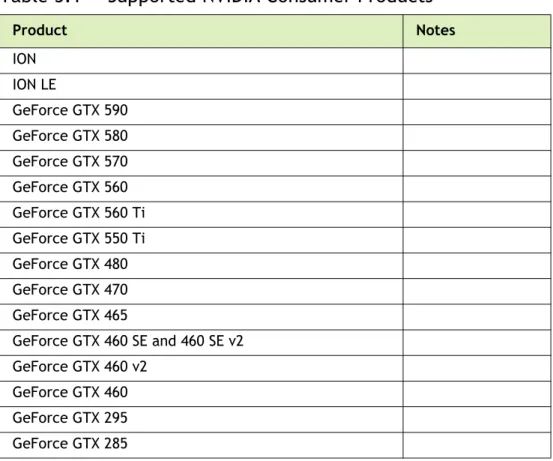
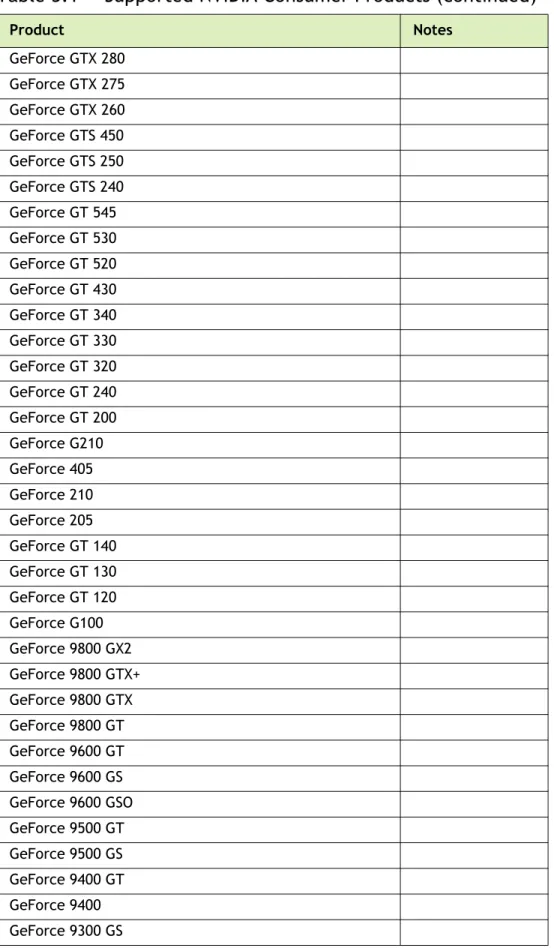
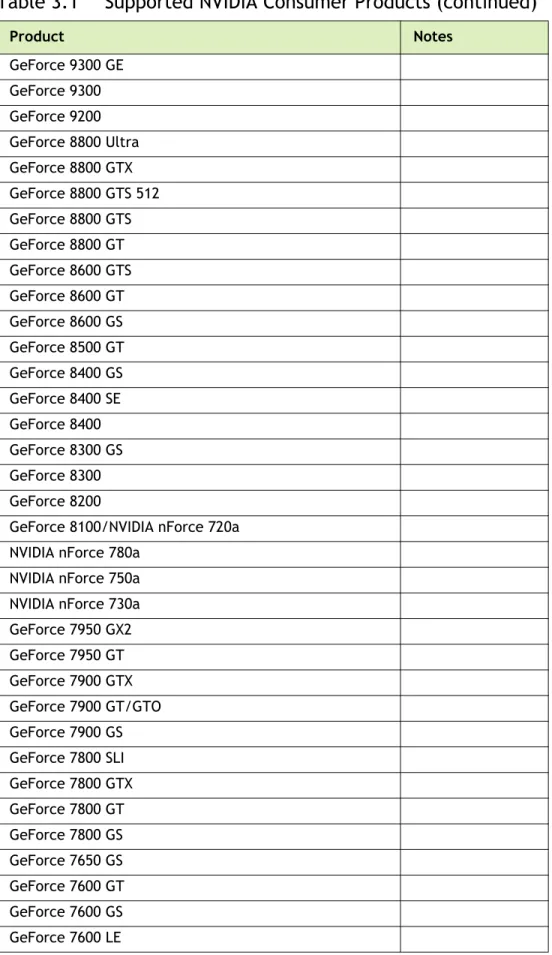
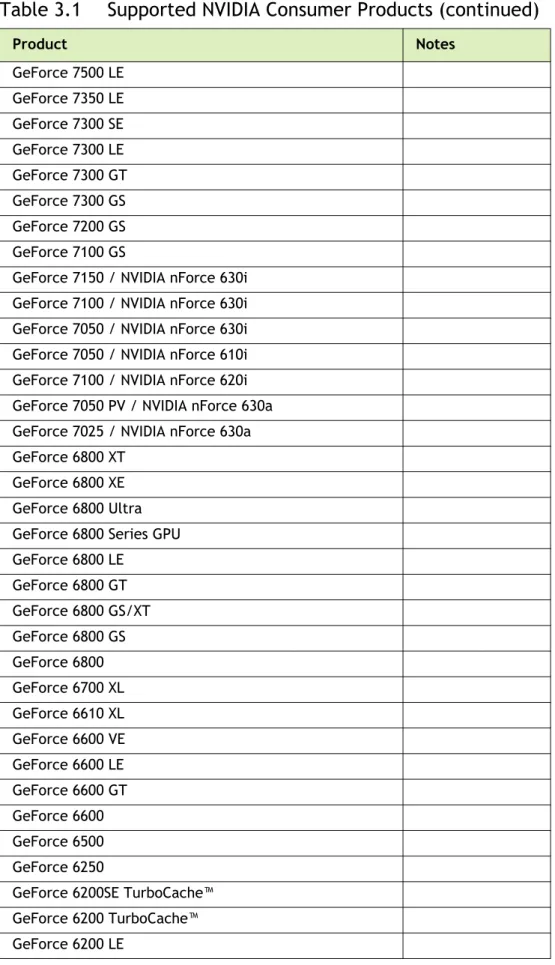
Table 3.1 lists the NVIDIA GPUs supported by this Release 285 driver.
Table 3.1
Supported NVIDIA Consumer Products
Product Notes ION ION LE GeForce GTX 590 GeForce GTX 580 GeForce GTX 570 GeForce GTX 560 GeForce GTX 560 Ti GeForce GTX 550 Ti GeForce GTX 480 GeForce GTX 470 GeForce GTX 465 GeForce GTX 460 SE and 460 SE v2 GeForce GTX 460 v2 GeForce GTX 460 GeForce GTX 295 GeForce GTX 285
Chapter 03 : THE RELEASE 285 DRIVER FOR WINDOWS XP GeForce GTX 280 GeForce GTX 275 GeForce GTX 260 GeForce GTS 450 GeForce GTS 250 GeForce GTS 240 GeForce GT 545 GeForce GT 530 GeForce GT 520 GeForce GT 430 GeForce GT 340 GeForce GT 330 GeForce GT 320 GeForce GT 240 GeForce GT 200 GeForce G210 GeForce 405 GeForce 210 GeForce 205 GeForce GT 140 GeForce GT 130 GeForce GT 120 GeForce G100 GeForce 9800 GX2 GeForce 9800 GTX+ GeForce 9800 GTX GeForce 9800 GT GeForce 9600 GT GeForce 9600 GS GeForce 9600 GSO GeForce 9500 GT GeForce 9500 GS GeForce 9400 GT GeForce 9400 GeForce 9300 GS
Table 3.1
Supported NVIDIA Consumer Products (continued)
GeForce 9300 GE GeForce 9300 GeForce 9200 GeForce 8800 Ultra GeForce 8800 GTX GeForce 8800 GTS 512 GeForce 8800 GTS GeForce 8800 GT GeForce 8600 GTS GeForce 8600 GT GeForce 8600 GS GeForce 8500 GT GeForce 8400 GS GeForce 8400 SE GeForce 8400 GeForce 8300 GS GeForce 8300 GeForce 8200
GeForce 8100/NVIDIA nForce 720a NVIDIA nForce 780a
NVIDIA nForce 750a NVIDIA nForce 730a GeForce 7950 GX2 GeForce 7950 GT GeForce 7900 GTX GeForce 7900 GT/GTO GeForce 7900 GS GeForce 7800 SLI GeForce 7800 GTX GeForce 7800 GT GeForce 7800 GS GeForce 7650 GS GeForce 7600 GT GeForce 7600 GS GeForce 7600 LE
Table 3.1
Supported NVIDIA Consumer Products (continued)
Chapter 03 : THE RELEASE 285 DRIVER FOR WINDOWS XP GeForce 7500 LE GeForce 7350 LE GeForce 7300 SE GeForce 7300 LE GeForce 7300 GT GeForce 7300 GS GeForce 7200 GS GeForce 7100 GS
GeForce 7150 / NVIDIA nForce 630i GeForce 7100 / NVIDIA nForce 630i GeForce 7050 / NVIDIA nForce 630i GeForce 7050 / NVIDIA nForce 610i GeForce 7100 / NVIDIA nForce 620i GeForce 7050 PV / NVIDIA nForce 630a GeForce 7025 / NVIDIA nForce 630a GeForce 6800 XT
GeForce 6800 XE GeForce 6800 Ultra GeForce 6800 Series GPU GeForce 6800 LE GeForce 6800 GT GeForce 6800 GS/XT GeForce 6800 GS GeForce 6800 GeForce 6700 XL GeForce 6610 XL GeForce 6600 VE GeForce 6600 LE GeForce 6600 GT GeForce 6600 GeForce 6500 GeForce 6250
GeForce 6200SE TurboCache™ GeForce 6200 TurboCache™ GeForce 6200 LE
Table 3.1
Supported NVIDIA Consumer Products (continued)
Supported Languages
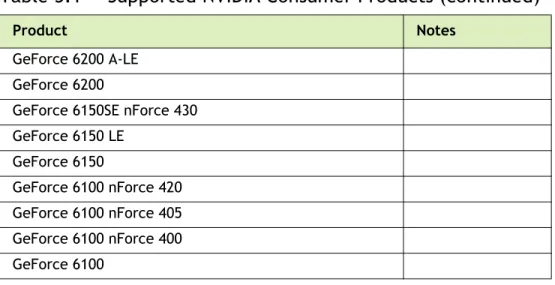
The Release 285 Graphics Drivers supports the following languages in the main driver Control Panel: GeForce 6200 A-LE GeForce 6200GeForce 6150SE nForce 430 GeForce 6150 LE GeForce 6150 GeForce 6100 nForce 420 GeForce 6100 nForce 405 GeForce 6100 nForce 400 GeForce 6100
English (USA) German Portuguese (Euro/ Iberian)
English (UK) Greek Russian
Arabic Hebrew Slovak
Chinese (Simplified) Hungarian Slovenian Chinese (Traditional) Italian Spanish
Czech Japanese Spanish (Latin America)
Danish Korean Swedish
Dutch Norwegian Thai
Finnish Polish Turkish
French Portuguese (Brazil)
Table 3.1
Supported NVIDIA Consumer Products (continued)
Chapter 03 : THE RELEASE 285 DRIVER FOR WINDOWS XP
Driver Installation
System Requirements
The hard disk space requirement for 32 bit is minimum 130 MB for English‐only, and 180 MB for International. The hard disk space requirement for 64 bit is minimum 165 MB for English‐only, and 220 MB for International.Before You Begin
If you do not have System Administrator access privileges, it is assumed that the appropriate person with System Administrator access in your organization will set up and install the NVIDIA graphics driver software on your computer.
nTune
If NVIDIA nTune is already installed
If you have previously installed NVIDIA nTune, NVIDIA recommends that you uninstall nTune before installing this driver. After the driver install is complete, you can reinstall nTune.
Copied Files and Registration
The installation process copies all necessary files for operation into the appropriate directories.
The nView system files are copied to your Windows\System directory.
nView Desktop Manager Profile files (*.tvp) are saved in the Windows\Nview directory.
Depending on the version of the NVIDIA driver previously installed, profiles may also be located in the Documents and Settings\All Users\Application Data\nView_Profiles directory.
As part of the install process, an uninstall is registered in your system.
Preserving Settings Before Upgrading Your Software
Before uninstalling or installing software, your can preserve your nView Desktop Manager and/or NVIDIA Display settings by using the nView Desktop Manager Profiles features.
Note: Follow the steps below and/or refer to the NVIDIA nView Desktop Manager User’s Guide
for details. Under Windows XP/2000 and Windows NT 4.0, you must have, at least, Power User access privileges in order to create or save a profile. (Refer to Windows Help if you
Follow the steps below and/or refer to the NVIDIA nView Desktop Manager User’s Guide for details.
1
Open the nView Desktop Manager Profiles page.2
To preserve your current settings, you can use either the Save or the New option from the nView Desktop Manager Profiles page:•
If you want to overwrite the currently loaded profile with your changed settings, use the Save option. Notice that a warning message indicates that you are about to overwrite the selected profile.•
If you want to retain the currently loaded profile and want to save your changed settings to a new file, click the New option. Enter a name and description of the profile in the New Profile dialog box. For example, you can name this profile My Settings.3
If you are an “advanced” user and want to customize certain settings in the saved profile, click Advanced << to expand the dialog box.4
To customize the settings, you can select or clear any of the settings check boxes.5
Click Save to return to the main Profiles page. If you created a new profile, you will see the name of the newly created profile in the profiles list. If you overwrote a current profile, the same profile name is retained in the list.Note: nView Desktop Manager profile (.tvp) files are saved in the Windows\nView directory.
Depending on the version of the NVIDIA driver previously installed, profiles may also
be saved in the Documents and Settings\All Users\Application Data\ nView_Profiles directory.