Document No. FO1001 Issue Date: Draft: Work Group: FibreOP Technical Team October 1, 2013 Final:
Title: Single Static IP – Basic Set-up
Version 1.1
Summary:
Use the following method to perform the basic set up to connect a device requiring a Single Public Static IP Address to the Internet using the FibreOP supplied Actiontec Routing Gateway (RG) device to initiate a session to another device across the internet.
Table of Contents
Contents
Figures: ... 2
Prerequisites and Assumptions ... 3
Prerequisites: ... 3
Assumptions: ... 3
Confirming the FibreOP Actiontec RG firmware version ... 4
FibreOP Actiontec RG Static WAN IP (Basic) Configuration ... 5
Static WAN IP Parameters... 5
Configuring the FibreOP Actiontec RG ... 6
Performing a factory reset on the FibreOP Actiontec RG ... 6
Performing the Static IP Configuration ... 7
Customer Specific Configurations ... 11
Customer Owned Equipment ... 11
Additional Information... 11
Figures:
Figure 1 Management User Interface ... 4Figure 2 Factory Reset... 6
Figure 3 Factory Reset Confirmation ... 7
Figure 4 Static IP Configuration ... 8
Figure 5 Static IP Status Page ... 9
Prerequisites and Assumptions
Prerequisites:
The device requiring a static IP must be:
Ethernet connected
IPv4 compatible
FibreOP Actiontec RG is running firmware version 33.120L.05
Assumptions:
This configuration assumes that device requiring a static IP is connected directly to the Bell Aliant owned FibreOP Actiontec RG by either Ethernet or Wi-Fi. There must not be any other routing or Firewall device installed between the static IP device and the FibreOP Actiontec RG on the customer’s Local Area Network (LAN).
Confirming the FibreOP Actiontec RG firmware version
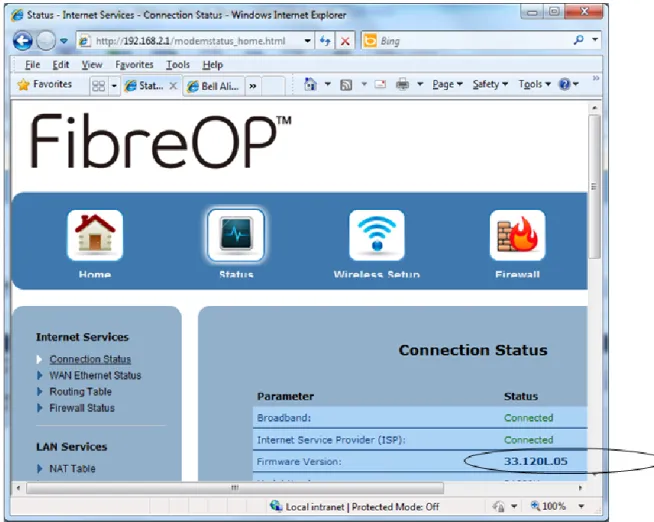
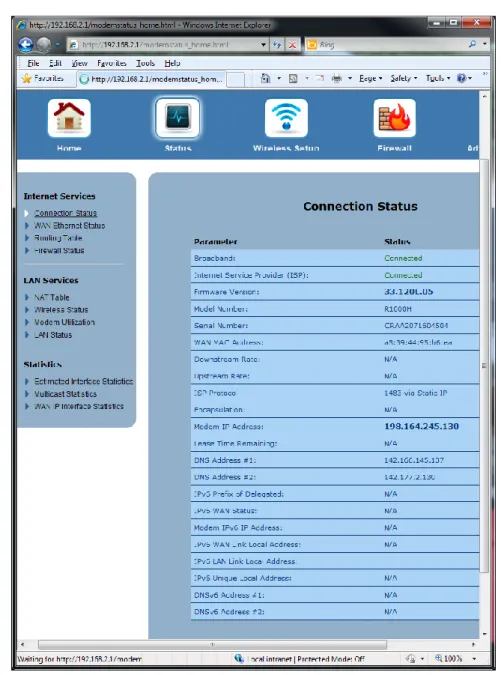
The FibreOP Actiontec RG firmware must be using version 33.120L.05. You can confirm the firmware version using the web based management User Interface (UI). Use the following steps to confirm the version of firmware running on the FibreOP Actiontec RG.
1. Log into the management user interface by browsing 192.168.2.1 using any browser from a computer connected to your network.
Use the User name and password that were set during installation. 2. Click on Status to view the status page.
The firmware version will be listed in the bottom right corner of the figure 1.
Figure 1 Management User Interface
NOTE: If a Firmware update or Actiontec RG Factory Reset occurs you will need to reconfigure the FibreOP Actiontec RG to your basic settings to restore your service.
FibreOP Actiontec RG Static WAN IP (Basic) Configuration
This section describes the process on how to configure the FibreOP Actiontec RG settings. These settings must be configured after any of the following situations:
1. Upon installation of the FibreOP Actiontec RG 2. Factory Reset of the FibreOP Actiontec RG 3. Replacement of original FibreOP Actiontec RG
Static WAN IP Parameters
The following Static WAN IP configuration parameters must be known before performing any configuration steps:
1) IP Address
2) Subnet mask
3) Default gateway
4) DNS#1
5) DNS#2
Note: The above parameters would have been provided to you by Bell Aliant.
Default DNS Servers:
Province
Primary DNS IP
Secondary DNS IP
New Brunswick
142.166.145.137
142.177.2.130
Nova Scotia
142.177.2.130
142.166.145.137
Newfoundland - Labrador 142.163.63.129
142.177.2.130
Configuring the FibreOP Actiontec RG
There can be two parts to configuring your FibreOP Actiontec RG depending on whether you want to start the configuration on a clean device or not.
If you are configuring your FibreOP Actiontec RG for the first time or If you want to wipe all existing configurations from your device and reconfigure it from scratch use the Performing a factory reset on the FibreOP Actiontec RG process below and then use the Performing the static IP Configuration process.
If your FibreOP Actiontec RG requires the static IP to be updated but you want to maintain all of the other existing configuration settings, you can skip the factory reset process and just use the Performing the Static IP Configuration process.
Performing a factory reset on the FibreOP Actiontec RG
1) Log into the management user interface by browsing 192.168.2.1 using any browser from a computer connected to your network.
NOTE: Use the User name and password that were set during installation. 2) Click the Advanced Setup button.
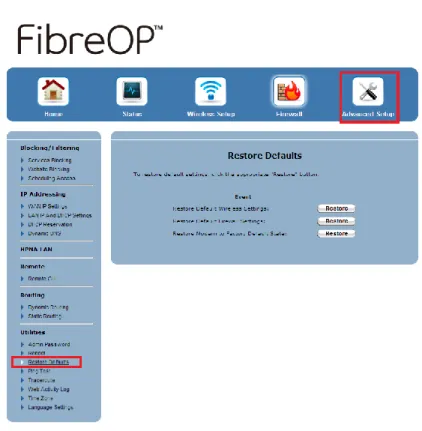
The links on the left side of the screen update. 3) Click the Restore Defaults link as shown in Figure 2.
The Restore Defaults page appears.
Figure 2 Factory Reset
4) Click the third Restore button beside the Restore Modem to Factory Default State:, this will restore modem to factory default state.
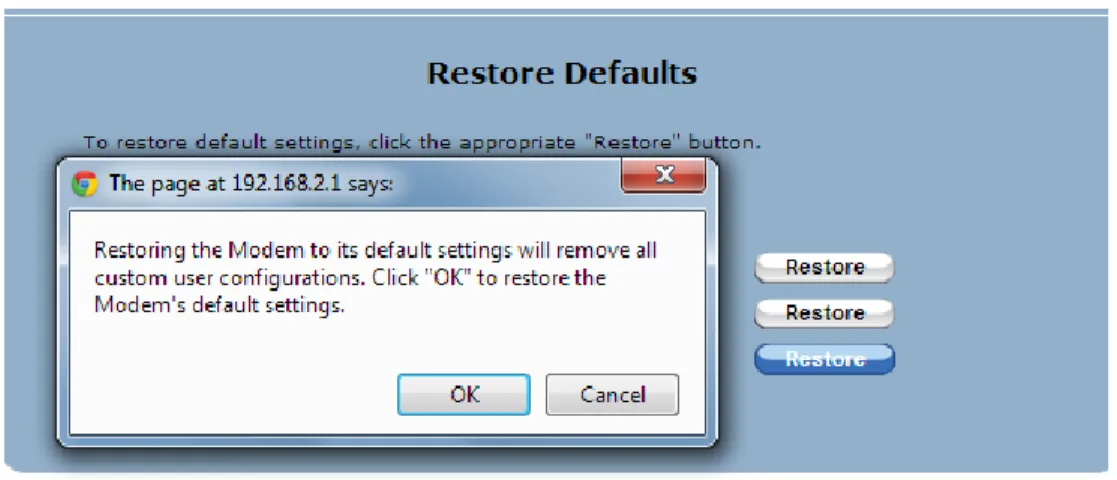
Figure 3 Factory Reset Confirmation
5) Click OK to confirm that you want to restore the modem’s default settings. The Home page appears.
6) Confirm the factory reset has completed properly by ensuring that the new login page requires the Username, Password, and Confirm Password fields to be completed. If the new login page doesn’t show up, it means the factory reset was not successful.
7) Repeat steps 2 to 6, if the factory reset did not complete successfully.
Performing the Static IP Configuration
1) Log into the management user interface by browsing 192.168.2.1 using any browser from a computer connected to your network.
NOTE: Use the User name and password that were set during installation. 2) Click Advanced Setup.
3) Click WAN IP settings.
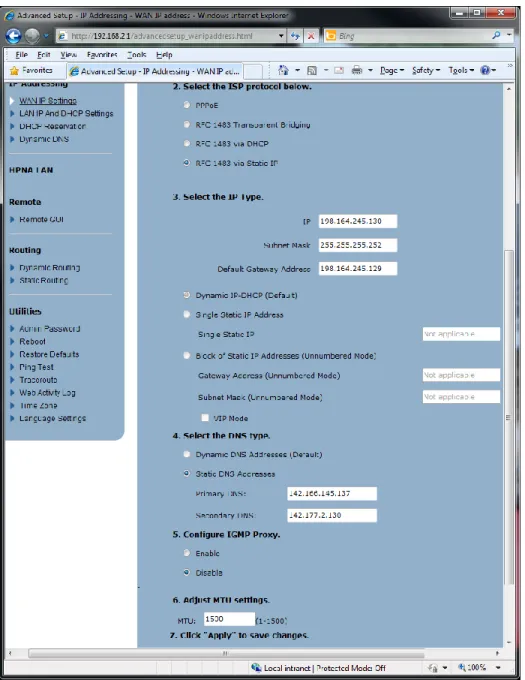
4) Select RFC 1483 via Static IP.
Figure 4 Static IP Configuration
5) Update the following settings using the information provided by Bell Aliant.
IP
Subnet Mask
Default Gateway
DNS#1
6) Click Apply.
Once the FibreOP Action RG configuration has been applied, the screen refreshes.
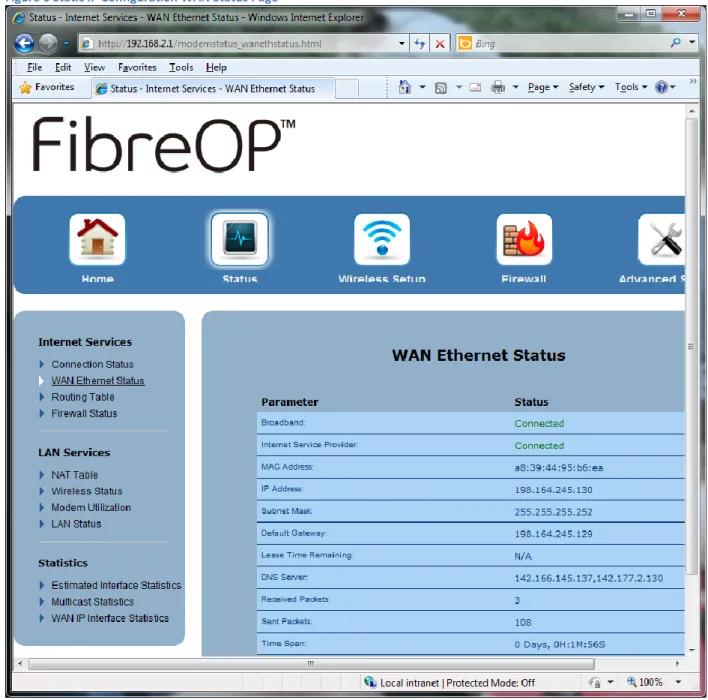
7) Confirm the settings in the Status page will reflect the FibreOP Actiontec RG has activated the static IP settings:
8) Click WAN Ethernet Status.
The WAN Ethernet Status page appears.
Customer Specific Configurations
In this basic configuration there is no specific customer configuration assuming the device requiring a static IP received an IP address from the FibreOP Actiontec RG from the regular address Pool. If the Static IP Device will be accessed from the internet then refer to one or more of these Configuration Notes:
o FO1002: FibreOP Actiontec RG LAN Device Addressing: DHCP vs. Static IP o FO1003: Port Forwarding Configuration
o FO1004: Customer Owned LAN Router Configuration
Customer Owned Equipment
Bell Aliant does not support any equipment not supplied by Bell Aliant. If issues with that equipment are encountered, contact the equipment manufacturer.
If you have your own router, it is highly recommended the router’s WAN IP be configured with either a static IP or with DHCP reservations in the FibreOP Actiontec RG. In addition, the router DHCP subnet must not conflict with the FibreOP Actiontec RG LAN subnet (default 192.168.2.x/24) or the 10.236.0.0/14 subnet.
Additional Information
For Configuration Troubleshooting please refer to the following Configuration Note: