AppResponse Xpert RPM Integration Version 2
Release Notes
RPM Integration provides additional functionality to the Riverbed OPNET AppResponse Xpert® real-time application performance monitoring solution. AppResponse Xpert with RPM Integration creates a single, integrated
appliance that provides a complete picture of how applications are performing and where delay is occurring – whether it’s at the end user, on the network, or across multi-tier applications.
RPM Integration accelerates troubleshooting with streamlined workflows and deeper network insight, including:
• Application-specific analysis: CIFS, FIX, VDI (VMware PCoIP, Citrix ICA and CGP), HTTP, VoIP (SIP, Skinny, H.323), and SQL
• Address management protocols: DHCP, DNS
• Network layer analysis: ARP, microburst view and alerting • Multi-segment analysis
Note—The ARX-6000 appliance model supports running both RPM Integration and Application Stream Analysis (ASA) Boost at the same time. For more information about ASA Boost, see the latest version of the 8.6 Release Notes.
This document discusses the following topics:
• RPM Integration Version 2 Enhancements on page ARX-1-2 • System Requirements on page ARX-1-2
• Important Notes on page ARX-1-4 • Known Issues on page ARX-1-10
RPM Integration Version 2 Enhancements
Version 2 of RPM Integration includes the following enhancements: • Support for RPM Integration on ARX-2200 appliances
• This release supports running RPM Integration and Database Performance Monitoring Module at the same time.
• Retrospective analysis of packets stored on an AppResponse Xpert
appliance. You can now use Cascade Pilot to analyze any packets that have been captured and saved in the appliance buffer. Previously, Cascade Pilot analysis was limited to “live” packets directly observed on the monitoring interfaces and to packets that were selected and saved to trace files using the AppResponse Xpert console.
Licensing Requirements
To install Shark Module, you need to download and install the
RPMIntegration patch on the AppResponse Xpert appliance. This patch provides two capabilities:
• Analysis of AppResponse Xpert packets using Shark Module and Cascade Pilot 10.5. This requires both Cascade Pilot and Shark Module licenses. For information about purchasing these licenses, contact your Riverbed sales representative.
• Export of AppResponse Xpert flow records to Cascade Profiler 10.0.7 or later. This capability is included in the RPM Integration patch and does not require a Shark Module license.
System Requirements
RPM Integration has the following system requirements: • Required AppResponse XpertHardware and Software • Required Software on your Local Computer
• Required Cascade Profiler Version for Flow Export
Required AppResponse XpertHardware and Software
The RPM Integration v2 release requires the following appliance models and software release:
• One or more 2200, 3300, 3700, 3800, 4200, 4300, 5000, 5100 or 6000 appliances. RPM Integration is not supported on any other appliance model. • The RPM Integration host appliance must have release 8.6.8 installed.
If you have a supported hardware model with an earlier release, you must update the appliance before you can install the RPMIntegration version 2 patch.
Note--The exact workflow for updating to 8.6.8 depends on the software currently installed on the appliance. For detailed instructions, see the AppResponse Xpert 8.6.8 Software Install Guide.
Required Software on your Local Computer
RPM Integration v2 requires the following software installed on your local host: • Cascade Pilot release 10.5 or higher
• (Optional) For advanced transaction analysis from Cascade Pilot to AppTransaction Xpert®, you need AppTransaction Xpert 16.5.T PL1 or higher.
These products are available for download at Riverbed Support (https://support.riverbed.com).
Required Cascade Profiler Version for Flow Export
To receive flow records from AppResponse Xpert, a Cascade Profiler appliance must have release 10.0.7 or later installed.
Verifying Your AppResponse Xpert Appliance
To verify that RPM Integration is supported on your appliance, do the following: 1) Log in to the appliance web UI
(https:appliance-name-or-ip:8443). 2) Verify the appliance model and installed software:
a) Navigate to the System > Setup page.
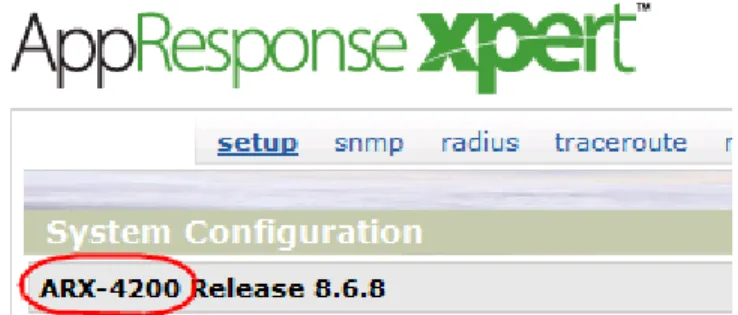
b) Check the appliance model in the top left of the table: Figure 1-1 Appliance Model in Web UI > System > Setup Page
The appliance model must be one of the following: 2200, 3300, 3700, 3800, 4200, 4300, 5000, 5100 or 6000. RPM Integration is not supported on any other appliance model.
c) Verify that the Installed Version is 8.6.8.
If the appliance has an earlier release, you must update the appliance 8.6.8 before you install the RPMIntegration patch. For complete instructions, see the AppResponse Xpert 8.6.8 Software Install Guide.
Important Notes
Note the following:
• Use an Accurate NTP Server for both Profiler and AppResponse Xpert Appliances
• Check Appliance Health Before You Run RPM Integration
• If "Analyze In > Cascade Pilot" Right-Click Menu Item Does Not Appear, Specify Binary Path or Re-Install Cascade Pilot as Administrator
• To View Packets Captured Before RPM Integration v2 was Installed, Save the Packets to a Trace or PCAP File
• Avoid Multiple Simultaneous Packet Operations on the Appliance • Microflow Indexing is Enabled by Default
• Trace Clips on AppResponse Xpert Appliances Cannot be Locked
Use an Accurate NTP Server for both Profiler and AppResponse Xpert Appliances
To ensure accurate traffic flow records from Cascade Profiler, synchronize both the Cascade Profiler and the AppResponse Xpert appliance to an accurate NTP server. The procedure for setting up traffic export to Cascade Profiler is described in the RPM Integration Getting Started Guide.Check Appliance Health Before You Run RPM Integration
RPM Integration can be highly resource-intensive. Therefore, it is good practice to check utilization loads on the appliance using the Appliance Health Check insight. You should check the appliance using this insight before you install RPM Integration and then periodically thereafter.
You can install the Appliance Health Check insight from the Java console > Insights > Update Center > support.opnet.com/ace_live/insights/support > Tools.
Riverbed recommends the following workflow for checking utilization loads on the appliance:
1) Run the Appliance Health Check insight (Insights > Support > Appliance Health Check).
You can install this insight from the Java console > Insights >
Update Center > support.opnet.com/ace_live/insights/support > Tools. Make sure that you have version 1.0.20 or higher installed on the appliance. 2) Set the Insight Time to the most recent week.
3) In the Packet Rate after Deduplication time series chart (middle), select the highest-traffic time window by dragging horizontally. The Key Performance Metrics table updates to show results for the time window when traffic was highest.
— If all performance metrics pass the performance check (green state), you should have no problems running RPM Integration on the appliance. — If any metrics do not pass the Performance Check (yellow or red state),
fix the problem as indicated in the insight help (click on the metric row in the Performance Metrics table).
If "Analyze In > Cascade Pilot" Right-Click Menu Item Does Not Appear, Specify
Binary Path or Re-Install Cascade Pilot as Administrator
If you do not see the Analyze In > Cascade Pilot right-click menu option in the AppResponse Xpert console, even if Cascade Pilot 10.5 (or later) is installed, this could indicate that AppResponse Xpert does not detect the Cascade Pilot binaries directory. To resolve this issue, try either of the following.
• Specify the Cascade Pilot binaries path in AppResponse Xpert:
a) In Cascade Pilot, click the About button in the upper-right corner of the main window.
b) In the About Cascade Pilot window, click the Logs/Configurations tab. The Program Folder line shows the software binaries directory for Cascade Pilot.
c) In the AppResponse Xpert console, choose Tools > Preferences and click the Cascade Pilot tab.
d) Click the Select Application radio button. In the Bin Directory field, enter the full binary path (for example,
C:\Users\yourname\AppData\Local\Apps\Riverbed\Cascade Pilot 10.5).
This will ensure that the AppResponse Xpert software detects the Cascade Pilot binaries path automatically. Do the following:
— Make sure that you are logged in to the local host as a user with Administrator privileges.
— Right-click on the installer icon and choose Run as Administrator. — In the initial Cascade Pilot setup screen, make sure that Install for All
Users is selected.
To View Packets Captured Before RPM Integration v2 was Installed, Save the
Packets to a Trace or PCAP File
This release has limited support for retrospective analysis on “pre-v2” packets—that is, packets in the buffer that were captured before
RPM Integration v2 was installed. To analyze pre-v2 packets in Cascade Pilot, you must save the packets to a trace file on your local host or to a PCAP file on the appliance. Note the following:
• You cannot use Cascade Pilot to analyze pre-v2 packets in capture jobs or trace clips.
• You cannot create a PCAP file on the appliance that is larger than 20GB in size. You also cannot store more than 50 GB of Pilot trace data on the
Avoid Multiple Simultaneous Packet Operations on the Appliance
When you want to do multiple packet operations in AppResponse Xpert and/or Cascade Pilot, do the operations in as sequential, “one-at-a-time” manner as possible. In this context, a packet operation is any operation that searches, retrieves, or otherwise accesses “raw” packets (rather than Microflow Index data) stored on the AppResponse Xpert appliance.
Examples include: downloading packets from the appliance to your local host, analyzing packets when Cascade Pilot cannot use Microflow Index data, or sending packets from Cascade Pilot to AppTransaction Xpert.
For more information, see Concurrent Packet Actions Can Result in Various Errors on page ARX-1-11.
Microflow Indexing is Enabled by Default
The appliance creates Microflow Index data for all capture jobs as long as a Shark Module license is installed and RPM Integration v2 software is running. Note the following:
• Memory Allocation of Microflow Index Data • Enable / Disable Microflow Indexing
Memory Allocation of Microflow Index Data
The total amount of disk storage available for Microflow Indexes is 50 GB, on all AppResponse Xpert models. This storage space is spread equally across all active jobs. This means that
• If packet collection by Monitoring Interface Group (MIfG) is disabled, the only active capture job is arx and 50 GB of storage is available for this one job. • If packet collection by MIfG is enabled, the 50 GB of space is divided among
the active MIfGs. If there are four MIfGs, for example, each capture job has 12.5GB available for its index.
Warning—The following actions will delete all index data for the affected MIfG and the aggregating interface (arx):
• Enable data collection for Monitoring Interface Groups (deletes the index on the aggregate capture job arx) • Disable data collection for Monitoring Interface Groups
(deletes the index on the associated MIfG capture job) • Enable a MIfG interface
(reduces the size of the index available for each MIfG, so it might prune the index for a MIfG that was already running)
• Disable a MIfG interface
(removes the index of the capture job associated with that MIfG and increases the available disk space for other MIfG indexes)
• Change the assignment of physical ports to a MIfG interface (deletes the index for the affected MIfGs)
Enable / Disable Microflow Indexing
Microflow Indexing is enabled by default. The only time you might want to disable indexing is if BOTH of the following conditions are true:
1) Appliance load is high enough to affect the rate at which the appliance can process traffic.
2) The Shark Module is a low priority compared to other processes running on the appliance: ASA Boost, Web Transaction Analysis, NetFlow data collection, and so on.
You can enable and disable Microflow Indexing in the CLI. Log in to the appliance as Administrator using an SSH-enabled program such as putty. Then enter the command shark. The following commands are available:
• capture_job index enable
Enables Microflow Indexing on all capture jobs.
• capture_job index disable
Disables Microflow Indexing on all capture jobs.
• capture_job list
Returns the current state of the capture jobs.
Warning—If you disable indexing, all index data on the appliance will be deleted.
Trace Clips on AppResponse Xpert Appliances Cannot be Locked
Locking trace clips on an AppResponse Xpert appliance is not supported. When you right-click on a trace clip and choose Lock, this menu item has no effect. This menu item will be grayed out in a future release.
Known Issues
This version of RPM Integration has the following known issues: • Concurrent Packet Actions Can Result in Various Errors
• Possible Delays when Cascade Pilot Reads Packets for Time Intervals with Data-Collection Gaps
• Cascade Pilot Shows Wrong Icon for Indexed Capture Jobs and Trace Clips • 153158 Cascade Pilot shows a generic error if more than two of the following
operations on capture jobs/trace clips are executed: apply a view, Export from Probe, Send to File, Send to Wireshark, Sent to AppTransaction Xpert. Only up to two concurrent access operations to High Speed Capture are supported.
For more information, see Concurrent Packet Actions Can Result in Various Errors on page ARX-1-11.
• 154349 The packet storage and the index computed on the packets are always in sync. It is not possible to retain the index computed on the packets that rolled out of the packet buffer.
• 145795 Running views might get corrupted if Shark Probe process is not shut down gracefully. After a restart Shark Probe logs show “sample back in time” errors.
• 153087 After an upgrade to RPM Integration v2, only the new captured packets can be accessed with capture jobs or trace clips. A “No Data Available” message appears if the user tries to access data created with a previous version.
• 153994 Locking a clip on ARX is not supported. Cascade Pilot 10.5 does not grey out the “Lock” option of the trace clip context menu. Selecting the “Lock” option from the trace clip context menu in Cascade Pilot does not have any effect on the actual trace clip.
• 143062 If the AppResponse Xpert appliance is not in DNS, Analyze in Cascade Pilot fails.
Workaround—Register the AppResponse Xpert appliance name in DNS before performing “Analyze to Cascade Pilot”.
• 153794 In certain conditions of heavy traffic with MIfGs enabled, the size of a clip shown in Cascade Pilot might underestimate the actual size of the traffic on disk.
Concurrent Packet Actions Can Result in Various Errors
Performing more than two of the following actions concurrently can result in various errors when the appliance tries to retrieve packets:
• In AppResponse Xpert:
— Analyze In Cascade Pilot preview operations (when Cascade Pilot cannot use Microflow Index data)
— Packet Download Manager preview/download • In Cascade Pilot:
— Applying views to trace clips (when Cascade Pilot cannot use Microflow Index data)
— Creating trace clips via Analyze In Cascade Pilot — Saving trace clips as files
— Sending packets to AppTransaction Xpert or Wireshark Symptoms
Error messages such as the following indicate that the appliance is having trouble processing concurrent packet tasks:
Workaround
Try to execute packet operations as sequentially (one operation at a time) as possible. If you want to download packets using the Packet Download Manager and analyze packets in Cascade Pilot, for example, perform one operation and wait for all packets to download before you perform the next operation.
If the appliance gets into a state where no actions are being performed and no new actions can be performed, reboot the appliance.
Possible Delays when Cascade Pilot Reads Packets for Time Intervals with
Data-Collection Gaps
If you try to analyze packets in Cascade Pilot for an AppResponse Xpert Project Time interval that has data-collection gaps—for example, if the SPAN port was disconnected—Cascade Pilot might take 10 seconds or more to process packets in that Project Time interval.
Cascade Pilot Shows Wrong Icon for Indexed Capture Jobs and Trace Clips
When it displays AppResponse Xpert capture jobs and trace clips, the Cascade Pilot > Files pane displays Microflow Index icons with red lightning bolts (==> an error occurred during indexing) instead of yellow lightning bolts (==> no indexing errors). This is a cosmetic issue and has no effect on functionality.
Installation and Setup
For information about how to install, set up, configure, and use Shark Module, refer to the AppResponse Xpert Shark Module Getting Started Guide.
Additional Documentation
For more information about Shark Module, see the following: • AppResponse Xpert Shark Module Getting Started Guide
• The following documents:
— Cascade Pilot Release Notes 10.5 release — Cascade Pilot Reference Manual 10.5 release — Cascade Profiler Release Notes 10.0.7 release
— Cascade Profiler Reference Manual 10.0.7 or later release
Note—You can download documentation for these products from Riverbed Support (https://support.riverbed.com).
What’s New in RPM Integration Release Notes
Release Date
RPM Integration
Version Description of Change July 23, 2013 v1 • First Issue
July 24, 2013 v1 • Added note: Use an Accurate NTP Server for both Profiler and AppResponse Xpert Appliances
October 1, 2013 v1 • Updated System Requirements and Verifying Your AppResponse Xpert Appliance to include information about new appliance models introduced with the
AppResponse Xpert 8.6.8 software release: ARX-3300, ARX-3800, ARX-4300, or ARX-5100
January 6, 2014 v2 New section—RPM Integration Version 2 Enhancements on page ARX-1-2 System Requirements
• Supported appliances—RPM Integration v2 is now supported on 2200 appliances • Required AppResponse Xpert software—Release 8.6.8 (or higher) is required for
RPM Integration v2
• Required Cascade Pilot and software—Release 10.5 (or higher) is required for RPM Integration v2
Verifying Your AppResponse Xpert Appliance — To verify the appliance for v2, you need to check the appliance model and software release.
Important Notes
• Removed note—Do Not Run RPM Integration and Database Performance Monitoring at the Same Time
• New note—If "Analyze In > Cascade Pilot" Right-Click Menu Item Does Not Appear, Specify Binary Path or Re-Install Cascade Pilot as Administrator on page ARX-1-5 • New note—To View Packets Captured Before RPM Integration v2 was Installed,
Save the Packets to a Trace or PCAP File on page ARX-1-7
• New note—Avoid Multiple Simultaneous Packet Operations on the Appliance on page ARX-1-8
• New note—Microflow Indexing is Enabled by Default on page ARX-1-8
• New note—Trace Clips on AppResponse Xpert Appliances Cannot be Locked on page ARX-1-10
Known Issues
• Added new bullet list of known issues found in v2
• New issue—Concurrent Packet Actions Can Result in Various Errors on page ARX-1-11
• New issue—Possible Delays when Cascade Pilot Reads Packets for Time Intervals with Data-Collection Gaps on page ARX-1-12
• New issue—Cascade Pilot Shows Wrong Icon for Indexed Capture Jobs and Trace Clips on page ARX-1-12