TURBO Pascal
Reference Manual
Version
3.0
Copyright
C>1983, 1984, 1985 by
BORLAND INTERNATIONAL Inc.
1800 Green Hill Road
Scotts Valley, CA 95066
This edition produced by
ALPHA SYSTEMS CORPORATION
711 Chatsworth Place
San Jose, CA 95128
Third edition, December 1988
Copyright C> 1983 Borland International, Inc. All Rights Reserved. This product is not supported by Borland, and all technical questions and other customer inquiries shall be directed solely to Alpha Systems Corporation.
This CP/M-only edition of the TURBO Pascal reference manual was typed from a copy of the Second edition by Shirley Welch and Bill Lockwood of Home Word Shop, and corrected and typeset by David A.J. McClone of Alpha Systems Corporation. Any errors in this edition which were not present in the previous edition are the sole responsibility of the editor, for which you have his apologies. Please bring them to our attention, so that they can be corrected.
The transcription of this edition to disk was done on two Eagle II compute:'s, using Spellbinder Word Processor. Editing was done on a Micromint SB180FX with a Televideo 950 terminal, using Spellbinder Word Processor. Typesetting was done with Magiclndex on a Hewlett Packard Laser Jet Plus.
The sans-serif fonts used in this manual are MagicOelite from Computer EdiType Systems. Special symbols such as
0
were selected from MagicSymbol, also from CES. The italic font used is typeface 1003 from the Digi-Fonts typeface library.T ABLE OF CONTENTS
INTRODUCTION - 1
THE PASCAL LANGUAGE - 1 TURBO PASCAL - 1
STRUCTURE OF THIS MANUAL - 2 TYPOGRAPHY - 2
Chapter 1. USING THE TURBO SYSTEM - 4 1.1. BEFORE USE - 4
1.2. IMPORTANT NOTE!!! - 4
1.3. FILES ON THE DISTRIBUTION DISK - 4 1.4. STARTING TURBO PASCAL - 5 1.5. INSTALLATION - 6
1.5. 1. INSTALLATION OF EDITING COMMANDS - 7 1.6. THE MENU - 8
1.6.1. LOGGED DRIVE SELECTION - 8 1.6.2. WORK FILE SelECTION - 9 1.6.3. MAIN FILE SELECTION - 10 1.6.4. EDIT COMMAND - 10 1.6.5. COMPILE COMMAND- 11 1.6.6. RUN COMMAND - 11 1.6.7. SAVE COMMAND - 11 1.6.8. DIRECTORY COMMAND - 11 1.6.9. QUIT COMMAND - 12 1.6.10. COMPILER OPTIONS - 12 1.7. THE TURBO EDITOR - 12 1.7.1. THE STATUS LINE - 13 1.7.2. EDITING COMMANDS - 13
1.7.3. A NOTE ON CONTROL CHARACTERS - 15 1.7.4. BEFORE YOU START: HOW TO GET OUT - 15 1.7.5. BASIC MOVEMENT COMMANDS - 16
1.7.6. EXTENDED MOVEMENT COMMANDS - 18 1.7.7. INSERT AND DELETE COMMANDS - 20 1.7.8. BLOCK COMMANDS - 21
1.7.9. MISCELLANEOUS EDITING COMMANDS - 23 1.8. THE TURBO EDITOR VS. WORDSTAR - 28 1.8.1. CURSOR MOVEMENT - 28
1.8.2. MARK SINGLE WORD - 28 1.8.3. END EDIT - 28
Page
ii
T ABLE OF CONTENTS
1.8.6. AUTO INDENTATION - 29
Chapter 2. BASIC LANGUAGE ELEMENTS - 30 2.1. BASIC SYMBOLS - 30
2.2. RESERVED WORDS - 30 2.3. STANDARD IDENTIFIERS - 31 2.4. DELIMITERS - 32
2.5. PROGRAM LINES - 32
Chapter 3. STANDARD .SCALAR TYPES - 33 3.1. INTEGER - 33
3.2. BYTE - 33 3.3. REAL - 33 3.4. BOOLEAN - 34 3.5. CHAR - 34
Chapter 4. USER-DEFINED LANGUAGE ELEMENTS - 3S 4.1. IDENTIFIERS - 35
4.2. NUMBERS - 35 4.3. STRINGS - 36
4.3.1. CONTROL CHARACTERS - 37 4.4. COMMENTS - 37
4.5. COMPILER DIRECTIVES - 38
Chapter S. PROGRAM HEADING AND PROGRAM BLOCK - 39 5.1. PROGRAM HEADING - 39
5.2. DECLARA TION PART - 39
5.2.1. LABEL DECLARATION PART - 40 5.2.2. CONSTANT DEFINITION PART - 40 5.2.3. TYPE DEFINITION PART - 41
5.2.4. VARIABLE DECLARATION PART - 41
5.2.5. PROCEDURE AND FUNCTION DECLARATION PART - 42 5.3. ST A TEMENT PART - 42
Chapter 6. EXPRESSIONS - 43 6.1. OPERATORS - 43
6.1.1. UNARY MINUS - 43 6.1.2. NOT OPERATOR - 44
TABLE OF CONTENTS
Page
iii
6.2. FUNCTION DESIGNATORS - 46 Chapter 7. STATEMENTS - 47 7.1. SIMPLE STATEMENTS - 47 7.1.1. ASSIGNMENT STATEMENT - 47 7.1.2. PROCEDURE STATEMENT - 47 7.1.3. GO TO STATEMENT - .48 7.1.4. EMPTY STATEMENT - 48 7.2. STRUCTURED STATEMENTS - 49 7.2.1. COMPOUND STATEMENT - 49 7.2.2. CONDITIONAL STATEMENTS - 49 7.2.2.1. IF STATEMENT - 49
7.2.2.2. CASE STATEMENT - 50 7.2.3. REPETITIVE STATEMENTS - 51 7.2.3.1. FOR STATEMENT - 52 7.2.3.2. WHILE STATEMENT - 52 7.2.3.3. REPEA T STATEMENT - 53
Chapter 8. SCALAR AND SUBRANGE TYPES - 54 8.1. SCALAR TYPE - 54
8.2. SUBRANGE TYPE - 55 8.3. TYPE CONVERSION - 56 8.4. RANGE CHECKING - 56 Chapter 9. STRING TYPE - 58 9.1. STRING TYPE DEFINITION - 58 9.2. STRING EXPRESSIONS - 58 9.3. STRING ASSIGNMENT - 59 9.4. STRING PROCEDURES - 60 9.4.1. DELETE - 60
9.4.2. INSERT - 60 9.4.3. STR - 61 9.4.4. VAL - 61
9.5. STRING FUNCTIONS - 62 9.5.1. COpy - 62
9.5.2. CONCAT - 62 9.5.3. LENGTH - 63 9.5.4. POS - 63
Page iv
T ABLE OF CONTENTS
Chapter 10. ARRAY TYPE - 65 10.1. ARRAY DEFINITION - 65
10.2. MULTIDIMENSIONAL ARRAYS - 66 10.3. CHARACTER ARRAYS - 67 10.4. PREDEFINED ARRAYS - 67 Chapter 11. RECORD TYPE - 68 11.1. RECORD DEFINITION - 68 11.2. WITH STATEMENT - 70 11.3. VARIANT RECORDS - 71 Chapter 12. SET TYPE - 73 12.1. SET TYPE DEFINITION - 73 12.2. SET EXPRESSIONS - 74 12.2.1. SET CONSTRUCTORS - 74 12.2.2. SET' OPERATORS - 75 12.3. SET ASSIGNMENTS - 76
Chapter 13. TYPED CONSTANTS - 77
13.1. UNSTRUCTURED TYPED CONSTANTS - 77 13.2. STRUCTURED TYPED CONSTANTS - 78 13.2.1. ARRAY CONSTANTS - 78
13.2.2. MULTI-DIMENSIONAL ARRA Y CONSTANTS - 79 13.2.3. RECORD CONSTANTS - 79
13.2.4. SET CONSTANTS - 80 Chapter 14. FILE TYPES - 81 14.1. FILE TYPE DEFINITION - 81 14.2. OPERA TIONS ON FILES - 82 14.2.1. ASSIGN - 82
14.2.2. REWRITE - 82 14.2.3. RESET - 82 14.2.4. READ - 83 14.2.5. WRITE - 83 14.2.6. SEEK - 83 14.2.7. FLUSH - 83 14.2.8. CLOSE - 84 14.2.9. ERASE - 84 14.2.10. RENAME - 84
T ABLE OF CONTENTS
Page v
14.3.2. FILEPOS - 85 14.3.3. FILESIZE - 85 14.4. USING FILES - 86 14.5. TEXT FILES - 88
14.5.1. OPERATIONS ON TEXT FILES - 88 14.5.1.1. READLN - 89
14.5.1.2. WRITELN - 89 14.5.1.3. EOLN - 89 14.5.1.4. SEEKEOLN - 89 14.5.1.5. SEEKEOF - 89
14.5.2. LOGICAL DEVICES - 91 14.5.3. ST ANDARD FILES - 92
14.6. TEXT INPUT AND OUTPUT - 95 14.6.1. READ PROCEDURE - 95 14.6.2. READLN PROCEDURE - 98 14.6.3. WRITE PROCEDURE - 98 14.6.3.1. WRITE PARAMETERS - 99 14.6.4. WRITELN PROCEDURE - 100 14.7. UNTYPED FILES - 101
14.7.1. BLOCKREAD AND BLOCKWRITE - 101 14.8. I/O CHECKING - 103
Chapter 15. POINTER TYPES - 105 15.1. DEFINING A POINTER VARIABLE - 105 15.2. ALLOCA TING VARIABLES (NEW) - 106 15.3. MARK AND RELEASE - 106
15.4. USING POINTERS - 107 15.5. DISPOSE - 109
15.6. GETMEM - 110 15.7. FREEMEM - 111 15.8. MAXAVAIL - 111 15.9. HINTS - 111
Chapter 16. PROCEDURES AND FUNCTIONS - 112 16.1. PARAMETERS - 112
16.1.1. RELAXATIONS ON PARAMETER TYPE CHECKING - 114 16.1.2. UNTYPED VARIABLE PARAMETER S - 115
16.2. PROCEDURES - 116
Page vi
T ABLE OF CONTENTS
16.2.2.2. CLRSCR - 118 16.2.2.3. CRTINIT - 119 16.2.2.4. CRTEXIT - 119 16.2.2.5. DELAY - 119 16.2.2.6. DELLINE - 119 16.2.2.7. INSLINE - 119 16.2.2.8. COTOXY - 120 16.2.2.9. EXIT - 120 16.2.2.10. HALT - 120 16.2.2.11. LOWVIDEO - 120 16.2.2.12. NORMVIDEO - 120 16.2.2.13. RANDOMIZE - 121 16.2.2.14. MOVE - 121 16.2.2.15. FILLCHAR - 121 16.3. FUNCTIONS - 121
16.3.1. FUNCTION DECLARATION - 121 16.3.2. ST ANDARD FUNCTIONS - 123 16.3.2.1. ARITHMETIC FUNCTIONS - 124 16.3.2.1.1. ABS - 124
16.3.2.1.2. ARCTAN - 124 16.3.2.1.3. COS - 124 16.3.2.1.4. EXP - 124 16.3.2.1.5. FRAC - 124 16.3.2.1.6. INT - 125 16.3.2.1.7. LN - 125 16.3.2.1.8. SIN - 125 16.3.2.1.9. SQR - 125 16.3.2.1.10. SQRT - 125
16.3.2.2. SCALAR FUNCTIONS - 126 16.3.2.2.1. PRED - 126
16.3.2.2.2. SUCC - 126 16.3.2.2.3. ODD - 126
16.3.2.3. TRANSFER FUNCTIONS - 126 16.3.2.3.1. CHR - 126
16.3.2.3.2. ORO - 126 16.3.2.3.3. ROUND - 127 16.3.2.3.4. TRUNC - 127
16.3.2.4. MISCELLANEOUS STANDARD FUNCTIONS - 127 16.3.2.4.1. HI - 127
TABLE OF CONTENTS
Page vii
16.3.2.4.4. RANDOM - 128 16.3.2.4.5. RANDOM(NUM) - 128 16.3.2.4.6. PARAMCOUNT - 128 16.3.2.4.7. PARAMSTR - 128 16.3.2.4.8. SIZEOF - 129 16.3.2.4.9. SWAP - 129 16.3.2.4.10. UPCASE - 129
16.4. FORWARD REFERENCES - 129 Chapter 17. INCLUDING FilES - 132 Chapter 18. OVERLAY SYSTEM - 134
18.1. CREATING OVERLAYS - 137 18.2. NESTED OVERLAYS - 139
18.3. AUTOMATIC OVERLAY MANAGEMENT - 140 18.4. PLACING
0
VERLA Y FILES - 14118.5. EFFICIENT USE OF OVERLAYS - 141
18.6. RESTRICTIONS IMPOSED ON OVERLAYS - 141 18.6.1. DATA AREA - 141
18.6.2. FORWARD DECLARATIONS - 142 18.6.3. RECURSION - 142
18.6.4. RUN-TIME ERRORS - 142
Chapter 19. IBM PC GOODIES - Omitted from this edition Chapter 20. PC-DOS AND MS-DOS - Omitted from this edition Chapter 21. CP /M-86 - Omitted from this edition
Chapter 22. CP/M-80 - 143 22.1. EXECUTE COMMAND - 143 22.2. COMPILER OPTIONS - 143
22.2.1. MEMORY ICOM FILE/CHN FILE - 144 22.2.2. ST ART ADDRESS - 145
22.2.3. END ADDRESS - 145
22.2.4. COMMAND LINE PARAMETERS - 145 22.2.5. FIND RUNTIME ERROR - 146
22.3. ST ANDARD IDENTIFIERS - 146 22.4. CHAIN AND EXECUTE - 146 22.5. OVERLAYS - 149
Page viii
T ABLE OF CONTENTS
22.6. FILES - 150
22.6.1. FILE NAMES - 150 22.6.2. TEXT FILES - 150
22.7. ABSOLUTE VARIABLES - 150 22.8. ADDR FUNCTION - 151 22.9. PREDEFINED ARRAYS - 152 22.9.1. MEM ARRAY - 152 22.9.2. PORT ARRAY - 152
22.10. ARRAY SUBSCRIPT OPTIMIZATION - 153 22.11. WITH STATEMENTS - 153
22.12. POINTER-RELATED ITEMS - 153 22.12.1. MEMAVAIL - 153
22.12.2. POINTERS AND INTEGERS - 153 22.13. CPIM FUNCTION CALLS - 154
22.13.1. BDOS PROCEDURE AND FUNCTION - 154 22.13.2. BDOSHL FUNCTION - 154
22.13.3. BIOS PROCEDURE AND FUNCTION - 154 22.13.4. BIOSHL FUNCTION - 155
22.14. USER-WRITTEN 1/0 DRIVERS - 155 22.15. -EXTERNAL SUBPROGRAMS - 156 22.16. IN-LINE MACHINE CODE - 157 22.17. INTERRUPT HANDLING - 158 22.18. INTERNAL DATA FORMATS - 159 22.18.1. BASIC DATA TYPES - 160 22.18.1.1. SCALARS - 160
22.18.1.2. REALS - 160 22.18.1.3. STRINGS - 161 22.18.1.4. SETS - 1.61
22.18.1.5. FILE INTERFACE BLOCKS - 162 22.18.1.6. POINTERS - 163
22.18.2. DATA STRUCTURES - 163 22.18.2.1. ARRAYS - 163
22.18.2.2. RECORDS - 164 22.18.2.3. DISK FILES - 164
22.18.2.3.1. RANDOM-ACCESS FILES - 164 22.18.2.3.2. TEXT FilES - 165
22.18.3. PARAMETERS - 165
22.18.3.1. VARIABLE PARAMETERS - 165 22;-18.3.2. VALUE PARAMETERS - 165 22.18.3.2.1. SCALARS - 165
TABLE OF CONTENTS
Page ix
22.18.3.2.3. STRINGS - 166 22.18.3.2.4. SETS - 166 22.18.3.2.5. POINTERS - 167
22.18.3.2.6. ARRAYS AND RECORDS - 167 22.18.4. FUNCTION RESULTS - 167
22.18.5. THE HEAP AND THE STACKS - 168 22.19. MEMORY MANAGEMENT - 169 22.19.1. MEMORY MAPS - 169
22.19.1.1. COMPILATION IN MEMORY - 170 22.19.1.2. COMPILATION TO DISK - 171 22.19.1.3. EXECUTION IN MEMORY - 172
22.19.1.4. EXECUTION OF A PROGRAM FILE - 173
Chapter 23. TURBO BCD PASCAL -
Omitted from this edition
Chapter 24. TURBO-87 -Omitted from this edition
Appendix A. STANDARD PROCEDURES & FUNCTIONS - 175 A.1. INPUT/OUTPUT PROCEDURES AND FUNCTIONS - 175 A.2. ARITHMETIC FUNCTIONS - 176
A.3. SCALAR FUNCTIONS - 176 A.4. TRANSFER FUNCTIONS - 176
A.S. STRING PROCEDURES AND FUNCTIONS - 176 A.6. FILE-HANDLING ROUTINES - 177
A.7. HEAP-CONTROL PROCEDURES AND FUNCTIONS - 177 A.8. SCREEN-RELA TED PROCEDURES AND FUNCTIONS - 178 A.9. MISCELLANEOUS PROCEDURES AND FUNCTIONS - 178 Appendix B. SUMMARY OF OPERATORS - 180
Appendix C. SUMMARY OF COMPilER DIRECTIVES - 182 e.1. IMPORTANT NOTICE - 182
e.2. A - ABSOLUTE CODE - 182 e.3. B - 1/0 MODE SELECTION - 183 e.4. C - CTRL-C AND CTRL-S - 183 e.S. I - I/O ERROR HANDLING - 183 e.6. I - INCLUDE FILES - 183
C.7. R - INDEX RANGE CHECK - 184 e.8. U - USER INTERRUPT - 184
Page x
T ABLE OF CONTENTS
C.11. X - ARRAY OPTIMIZATION - 185
Appendix D. TURBO VS. STANDARD PASCAL - 186 0.1. DYNAMIC VARIABLES - 186
0.2. RECURSION - 186 0.3. GET AND PUT - 186 0.4. GOTO STATEMENTS -186 0.5. PAGE PROCEDURE - 186 0.6. PACKED VARIABLES - 187 0.7. PROCEDURAL PARAMETERS - 187
Appendix E. COMPILER ERROR MESSAGES - 188 Appendix F. RUN-TIME ERROR MESSAGES - 192 Appendix C. I/O ERROR MESSAGES - 193
Appendix H. TRANSLATING ERROR MESSAGES - 195 H.1. ERROR-MESSAGE FILE LISTING - 196
Appendix I. TURBO SYNTAX - 199 Appendix J. ASCII TABLE - 204
Appendix K. KEYBOARD RETURN CODES
-Omitted from this edition
Appendix l. INSTALLATION - 205 L.1. TERMINAL INSTALLATION - 205
L.2. EDITING COMMAND INST ALLA TION - 209 Appendix M. CP/M PRIMER - 214
M.1. HOW TO USE TURBO ON A CP/M SYSTEM - 214 M.2. COPYING YOUR TURBO DISK - 214
M.3. USING YOUR TURBO DISK - 215 Appendix N. HELPI!! - 216
T ABLE OF CONTENTS
UST OF FIGURES
1-1 Log-on Message - 5 1-2 Main Menu - 6
1-3 Installation Main Menu - 6 1-4 Main Menu - 8
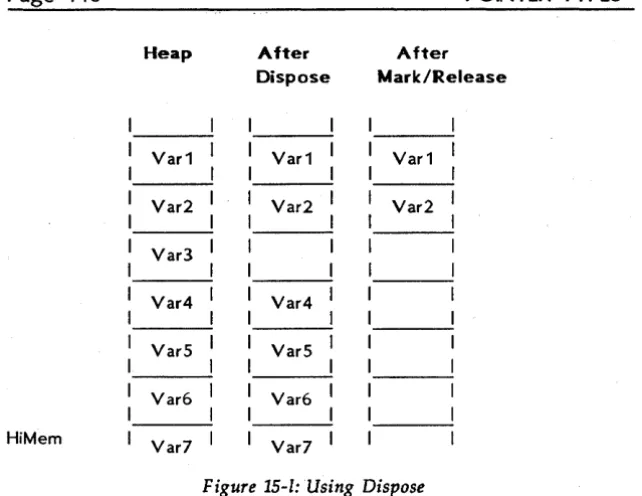
1-5 Editor Status Line - 13 15-1 Using Dispose - 110
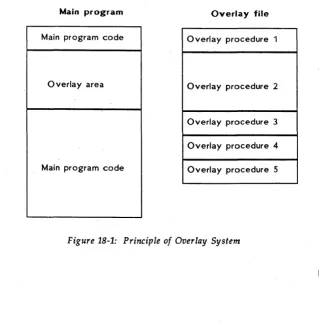
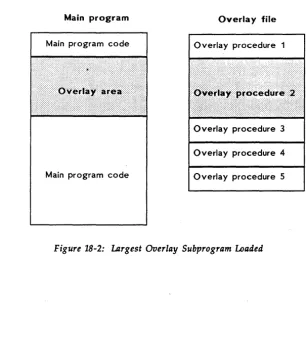
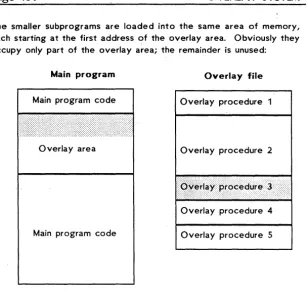
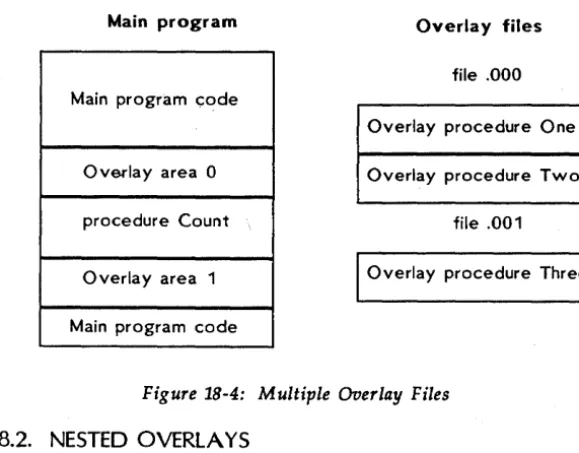
18-1 Principle of Overlay System - 134 ' 18-2 Largest Overlay Subprogram Loaded - 135 18-3 Smaller Overlay Subprogram loaded - 136 18-4 Multiple Overlay Files - 139
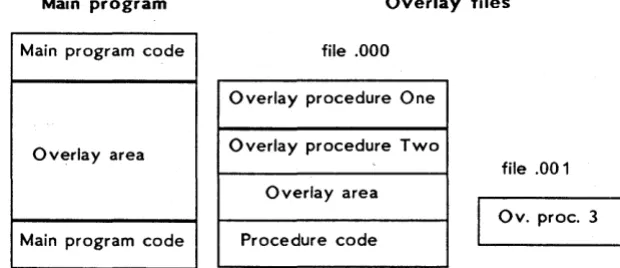
18-5 Nested Overlay Files - 140 22-1 Options Menu - 144
22-2 Start and End Addresses - 144 22-3 Run-time Error Message - 146 22-4 Find Run-time Error - 146
22-5 Memory map during compilation in memory - 170 22-6 Memory map during compilation to a file - 171 22-7 Memory map during execution in direct mode - 172 22-8 Memory map during execution of a program file - 173 L -2 Terminal Installation Menu - 205
UST OF TABLES
1-1 Editing Command Overview - 14 14-1 Operation of Eoln and Eof - 92 L -1 Secondary Editing Commands - 211
INTRODUCTION
This book is a reference manual for the TURBO Pascal system as implemented for the CP/M-BO, Z-System, and compatible operating systems. Although making thorough use of examples, it is not meant as a Pascal tutorial or textbook, and at least a basic knowledge of Pascal is assumed.
THEPASCAllANCUACE
Pascal is a general-purpose, high-level programming language originally designed by Professor Niklaus Wirth of the Technical University of Zurich, Switzerland and named in honor of Blaise Pascal, the famous French Seventeenth Century philosopher and mathematician.
Professor Wirth's definition of the Pascal language, published in 1971, was intended to aid the teaching of a systematic approach to computer programming, specifically introducing
structured programming.
Pascal has since been used to program almost any task on almost any computer and it is today established as one of the foremost high-level languages, whether the application is education, hobby, or profeSSional programming.
TURBO PASCAL
TURBO Pascal is designed to meet the requirements of all categories of users: it offers the student a friendly interactive environment which greatly aids the learning process; and in the hands of a programmer it becomes an extremely effective development tool providing both compilation and execution times second to none.
TURBO Pascal closely follows the definition of Standard Pascal as defined by K. Jensen and N. Wirth in the
Pascal User Manual and
Re po
ri. The few and minor differences are described in Appendix D. In addition to the standard, a number of extensions are provided, such as:Absolute address variables Bit/byte manipulation
Direct access to CPU memory and data ports Dynamic strings
Page 2
INTRODUCTION
Full support of operating system facilities In-line machine code generation
Include files
Logical operations on integers Overlay system
Program chaining with common variables Random access data files
Structured constants Type conversion functions
Furthermore, many extra 'standard procedures and functions are included to increase the versatility of TURBO Pascal.
STRUCTURE OF THIS MANUAL
The reader may be familiar with earlier editions of this manual, in which the earlier sections covered features common to PC-DOS, MS-DOS, CP/M-86 and CP/M-80 implementations of TURBO Pascal, and later chapters dealt with items that differed among implementations. This edition has been prepared by Alpha Systems Corporation to document the CP/M-80 implementation only. Information on features specific to implementations for incompatible operating systems such as MS-DO S, PC-DO S, and CP IM-86 has been taken out of this edition. Alpha Systems Corporation has a contract with Borland International to sell and support the CP IM-80 version of TURBO Pascal
only.
For copies of the software or the manual for operating systems incompatible with CP/M, contact Borland directly.TYPOCRAPHY
The body of this manual is printed in a normal typeface. Special characters are used for the following special purposes:
Italics
INTRODUCTION
Page 3
Boldface
Boldface is used to mark TURBO menu commands, as the compiler Options command, and to denote other key combinations, as Ctrl-K Y. It is also used to mark reserved words, and to highlight particularly important passages in the text.
Syntax Descriptions
The entire syntax of the Pascal language expressed as
Backus-Naur Forms
is collected in Appendix I, which also describes the typography and special symbols used in these forms.Where appropriate, syntax descriptions are also used more specifically to show the syntax of single language elements, as in the following syntax description of the function
Concat:
Concat(Stl,St2(,StN)}
Reserved words are printed in boldface, identifiers used mixed upper and lower case, and elements explained in the text are printed in
italics.
The text will explain that Stl,
St2,
andStN
must be string expressions. The syntax description shows that the wordConcat
must be followed by two or more string expressions, separated by commas and enclosed in parentheses. In other words, the following examples are legal (assuming thatName
is a string variable):Chapter
1
USING THE TURBO SYSTEM
This chapter describes the installation and use of the TURBO Pascal system, specifically the built-in editor.
1.1. BEFORE USE
Before using TURBO Pascal you should, for your own protection, make a work copy of the distribution diskette and store the original safely away. Remember that the User's license allows you to make as many copies as you need for your own personal use and for backup purposes only. Use a file-copy program to make the copy, and make sure that all fil~s are successfully transferred.
1.2. IMPORTANT NOTE!!!
TURBO Pascal provides a number of compiler directives to control special runtime facilities such as index checking, recursion, etc. PLEASE NOTICE that the default settings of these directives will optimize execution speed and minimize code size. Thus, a number of run-time facilities (such as index checking and recursion) are de-selected until explicitly selected by the programmer. All compiler directives and their default values are described in Appendix C.
1.3. FILES ON THE DISTRIBUTION DISK
The distribution disk contains the following files: TURBO.COMThe TURBO Pascal program: compiler, editor, and all. When you enter the command TURBO on your terminal, this file will load, and TURBO will be up and running.
TURBO.OVR
USINC THE TURBO SYSTEM
Page 5
TURBO.MSG
Messages for the installation program. This file may be translated into any language desired .
. PAS files
Sample Pascal programs. READ.ME
If present, this file contains the latest corrections or suggestions on the use of the system.
Only TURBO.COM must be on your run-time disk. A fully operative TURBO Pascal thus requires only 30 K of disk space. TURBO.OVR is required only if you want to be able to execute programs from the TURBO menu. TURBO.MSG is needed only if you want on-line compile-time error messages. The TINST files are used only for the installation procedure. The example .PAS files, of course, may be included on the run-time disk if so desired, but they are not necessary.
1.4. STARTING TURBO PASCAL
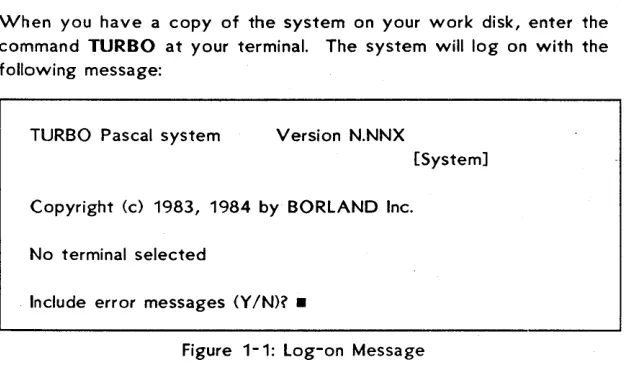
When you have a copy of the system on your work disk, enter the command TURBO at your terminal. The system will log on with the following message:
[image:19.396.47.360.329.514.2]TURBO Pascal system Version N.NNX
[System] Copyright (c) 1983, 1984 by BORLAND Inc.
No terminal selected
Include error messages <YIN)? •
Figure 1-1: Log-on Message
Page 6
USING THE TURBO SYSTEM
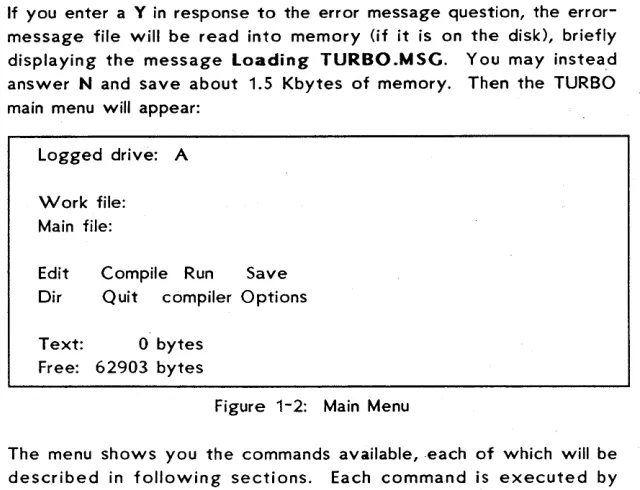
If you enter a Y in response to the error message question, the error-message file will be read into memory (if it is on the disk), briefly displaying the message Loading TURBO.MSG. You may instead answer N and save about 1.5 Kbytes of memory. Then the TURBO main menu will appear:
Logged drive: A Work file: Main file:
Edit Compile Run Save Oir Quit compiler Options Text: 0 bytes
Free: 62903 bytes
Figure 1-2: Main Menu
The menu shows you the commands available, each of which will be described in following sections. Each command is executed by entering the associated capital letter (highlighted after terminal installation, if your terminal has that feature). Don't press <RETURN>; the command executes immediately. The values above for Logged drive and memory use are for the sake of example only; the values shown will be the actual values for your computer.
You may use TURBO without installation if you don't plan to use the built-in editor. If you do, type Q now to leave TURBO for a minute to perform the installation.
1.5. INSTALLATION
Type TINST to start the installation program. All TINST files and the TURBO.COM file must be on the logged drive. This menu will appear:
TURBO Pascal installation menu. Choose installation item from the following: [S]creen installation
I
[C]ommand installationI
[Q]uitEnter S, C, or Q:
[image:20.396.31.351.71.316.2]USING THE TURBO SYSTEM
Page 7
Now hit S to select Screen installation. A menu containing the names of the most-used terminals will appear, and you may choose the one that suits you by entering the appropriate number. If your terminal is not on the menu, nor compatible with any of these (note: a lot of terminals are compatible with an ADM-3A), then you must perform the installation yourself. This is quite straightforward, but you will need to consult the manual that came with your terminal to answer the questions asked by the installation menu. See Appendix l for details. When you have chosen a terminal, you are asked if you want to modify it before installation. This can be used if you have, for example, an ADM-3A-compatible terminal with some additional features. Choose the ADM-3A and add the required commands to activate the special features. If you answer Yes, you will be taken through a series of questions as described in Appendix l.
Normally, you will answer No to this question, which means that you are satisfied with the pre-defined terminal installation. Now you will be asked the operating frequency of your microprocessor. Enter the appropriate value (2, 4, 6, or 8, most probably 4).
After that, the main menu re-appears, and you may now continue with the Command installation described in -the next section, or you may terminate the installation at this point by entering Q for Quit.
1.5.1. INSTALLATION OF EDITING COMMANDS
The built-in editor responds to a number of commands which are used to move the cursor around on the screen, delete and insert text, move text, etc. Each of these functions may be activated by either a primary of a secondary command. The secondary commands are installed by Borland, and comply with the standard set by WordStar. The primary commands are undefined for most systems, and may be defined easily to suit your taste or your keyboard, using the installation program.
Page 8
USING THE TURBO SYSTEM
1.6. THE MENU
A fter installation, you activate TURBO Pascal again by typing the command TURBO. Your screen should now clear and display the menu, this time with the command letters highlighted. If not, check your installation data.
Logged drive: A Work file: Main file:
Edit Compile Run Save Dir Quit compiler Options Text: 0 bytes·
Free: 62903 bytes
>
-Figure 1-4: Main Menu
By the way, whenever highlighting is mentioned here, it is assumed that your screen has different video attributes to show text in different intensities, reversed, underlined, or some other way. If not, just disregard any mention of highlighting.
This menu shows you the commands available to you while working with TURBO Pascal. A command is activated by pressing the associated upper case (highlighted) letter. Don't press <RETURN>, the command is executed immediately. The menu may very well disappear from the screen when working with the system; it is easily restored by entering an "illegal command", i.e., any key that does not activate a command. <RETURN> or <SPACE> will do perfectly.
The following sections describe each command in detail.
1.6.1. LOGGED DRIVE SELECTION
The L command is used to change the currently logged drive. When you press L, the prompt
[image:22.397.29.348.85.326.2]-USING THE TURBO SYSTEM
Page 9
invites you to enter a new drive name, that is, a letter from A through P, optionally followed by a colon and terminated with <RETURN>. If you don't want to change the current value, just hit <RETURN>. The l command performs a disk reset, even when you don't change the drive, and should therefore be used whenever you change disks, to avoid a fatal disk-write error.
The' new drive is not immediately shown on the menu, as it is not automatically updated. Hit for example <SPACE> to display a fresh menu, which will show the new logged drive.
1.6.2. WORK FILE SELECTION
The W command is used to select a work file, which is the file to be used to Edit, Compile, Run, eXecute, and Save. The W command will display this prompt:
Work file name: _
and you may respond with any legal file name (a name of one through eigh~ characters, an optional period, and an optional file type of no more-than three characters, for instance ALENAME.TYP>.
If you enter a file name without period and file type, the file type PAS is automatically assumed and appended to the name. You may explicitly specify a file name with no file type by entering a period after the name, but omitting the type.
Examples: PROGRAM PROGRAM. PROGRAM.FIL
becomes PROGRAM.PAS is not changed
is not changed
File types .BAK, .CHN, and .COM should be avoided, as TURBO uses these names for special purposes.
Page 10
USING THE TURBO SYSTEM
Workfile X:FILENAME.TYP not saved. Save <YIN)? •
warns you that you are about to load a new file into memory and write over the one you have just worked on. Answer Y to save, or N to skip.
The new work file name will show on the menu the next time it is updated, like when you hit <SPACE>.
1.6.3. MAIN FILE SELECTION
The M command may be used to define a main file when working with programs which use the compiler directive $1 to include a file. The main file should be the file which contains the include directives. You can then define the work file to be different from the main file, and thus edit different include files while leaving the name of the main file unchanged.
When a compilation is started, and the work file is different from the main file, the current work file is automatically saved, and the main file is loaded into memory. If an error is found during compilation, the file containing the error <whether it is the main file or an include file),· automatically becomes the work file, which may then be edited. When the error has been corrected, and compilation is started again, the corrected work file is automatically saved, and the main file is reloaded.
The main file name is specified as described for the work file name in the previous section.
1.6.4. EDIT COMMAND
USINC THE TURBO SYSTEM
Page
11
1.6.5. COMPILE COMMAND
The
C
command is used to activate the compiler. If no main file is specified, the work file will be compiled, otherwise the main file will be compiled. In the latter case, if the work file has been edited, you will be asked whether to save it before the main file is loaded and compiled. The compilation may be interrupted at any moment by pressing a key.The compilation may result either in a program residing in memory, in a .COM file, or in a .CHN file. The choice is made on the compiler Options menu described on page 143. The default is to have the program residing in memory.
1.6.6. RUN COMMAND
The R command is used to activate a program residing in memory or, if the C switch on the compiler Options menu is active, a TURBO object code file (COM file). If a compiled program is already in memory, it will be activated. If not, a compilation will automatically take place as described above.
1.6.7. SAVE COMMAND
The S command is used to save the current work file on disk. The old version of this file, if any, will be renamed to .BAK, and the new version will be saved.
1.6.8. DIRECTORY COMMAND
The D command gives you a directory listing and information about remaining space on the logged drive. When hitting D, you are prompted thus:
Dir mask:
Page 12
USING THE TURBO SYSTEM
1.6.9. QUIT COMMAND
The Quit command is used to leave the TURBO system. If the work file has been edited since it was loaded, you areasked whether you want to save it before quitting.
1.6.10. COMPILER OPTIONS
The 0 command selects a menu on which you may view and change some default values of the compiler. It also provides a helpful function to find run-time errors in programs compiled into object code files.· As these options vary between implementations, further discussion is deferred to Chapter 22.
1.7. THE TURBO EDITOR
The built-in editor is a full-screen editor specifically designed for the creation of program source text. If you are familiar with MicroPro's WordStar, you need but little instruction in the use of the TURBO editor, as all editor commands are exactly like the ones you know from WordStar. There are a few minor differences, and the TURBO editor has a few extensions; these are discussed on page 28. You may install your own commands "on top" of the WordStar commands, as described on page 7. The WordStar commands, however, may still be used.
Using the TURBO editor is simple as can be. When you have defined a work file and hit E, the menu disappears, and the editor is activated. If the work file exists on the logged drive, it is loaded and the first page of text is displayed. If it is a new file, the screen is blank apart from the. status line at the top.
You leave the editor and return to the menu by pressing <CTRl>K D; more about that later.
USING THE TURBO SYSTEM
Page
13
Let us first take a look at the meaning of the status line at the top of the screen.
1.7.1. THE STATUS LINE
The top line on the screen is the status line containing the following information:
Line n Col n Insert Indent X:FILENAME. TYP
Line n
Col n
Insert
Indent
Figure 1-5: Editor Status line
Shows the number of the line containing the cursor, counted from the start of the file.
Shows the number of the column containing the cursor, counted from the beginning of the line.
Indicates that characters entered on the keyboard will be inserted at the cursor position. Existing text to the right of the cursor will move to the right as you write new text. Using the
insert mode on/off
command «CTRL>V by default> will instead display the text Overwrite. Text entered on the keyboard will then write over characters under the cursor, instead of being inserted before them.Indicates that auto-indent is in effect. It may be switched off using the
auto-indent on/off
command «CTRL>Q I by default). X:FILENAME. TYPThe drive, name, and type of the file being edited.
1.7.2. EDITING COMMANDS
Page 14
USING THE TURBO SYSTEM
The TURBO editor accepts a total of 45 editing commands to move the cursor around, page through the text, find and replace text strings, etc. These commands can be grouped into four categories, each of which contains logically related commands which will be described separately in following sections. The following table provides an overview of the commands available:
CURSOR MOVEMENT COMMANDS: Character left Scroll down
Character right Page up Word left Page down Word right
line up line down Scroll up
To top of screen To bottom of screen To top of file
To end of file. To left on line To right on line To beginning of block To end of block To last cursor position
INSERT AND DELETE COMMANDS: Insert mode on/off
Insert line
Delete to end Delete character under
of line cursor
Delete line Delete right word Delete left character
BLOCK COMMANDS: Mark block begin
Mark block end Mark single word
Copy block Move block Delete block MISe. EDITING COMMANDS: End edit
Tab
Auto tab on/off
Restore line Find and replace
Read block from disk Write block to disk Hide/ display block
Repeat last find
Control character prefix
Table 1-1: Editing Command Overview
[image:28.398.30.331.109.510.2]USING THE TURBO SYSTEM
Page 15
Hang on, even if you find it a bit hard in the beginning. It is not just by chance that we have chosen to make the TURBO editor WordStar compatible. The logic of these commands, once learned, quickly becomes so much a part of you that the editor virtually turns into an extension of your mind. Take it from one who has written megabytes worth of text with that editor.
Each of the following descriptions consists of a heading defining the command, followed by the default keystrokes used to activate the command, with room in between to note which keys to use on your terminal, if you use other keys. If you have arrow keys and dedicated word processing keys «IN SERT>, <DELETE>, etc.> it might be convenient to use these. Please refer to pages 7 pp. for installation details.
The following descriptions of the commands assume the use of the default WordStar-compatible keystrokes.
1.7.3. A NOTE ON CONTROL CHARACTERS
All commands are issued using control characters. A control character is a special char~cter generated by your keyboard when you hold down the <CONTROL> (or <CTRL» key on your keyboard and press any key from A through Z, [, \, ], or ...
The <CONTROL> keys works like the <SHIFT> key. If you hold down the <SHIFT> key and press A, you get a capital A; if you hold down the <CONTROL> key and press A, you will get a Control-A (Ctrl-A for short).
1.7.4. BEFORE YOU START: HOW TO GET OUT
Page 16
USING THE TURBO SYSTEM
1.7.5. BASIC MOVEMENT COMMANDS
The most basic thing to learn about an editor is how to move the cursor around on the screen. The TURBO editor uses a special group of control characters to do that, namely the control characters A, S, 0, F, E, R, X, and C.
Why these? Because they are conveniently located close to the control key, so that your left little finger can rest on that while you use the middle and index fingers to activate the commands. Furthermore, the characters are arranged in such a way on the keyboard as to logically indicate their use. Let's examine the basic movements: cursor up, down, left, and right.
E S 0
X
These four characters are placed so that it is logical to assume that Ctrl-E moves the cursor up, Ctrl-X down, Ctrl-S to the left, and Ctrl-O to the right. And that is exactly what they do. Try to move the cursor around on the screen with these four commands. If your keyboard has repeating keys, you may just hold down the control key and one of these four keys, and the cursor will move rapidly across the screen.
Now let us look at some extensions of those movements.
E R
A S 0 F
X C
the location of the Ctrl-R next to the Ctrl-E suggests that Ctrl-R moves the cursor up, and so it does, only not one line at a time but a whole page. Similarly, Ctrl-C moves the cursor down one page at a time.
USING THE TURBO SYSTEM
Page 17
The two last basic movement commands do not move the cursor, but scroll the entire screen up or down in the file:
W E R A S 0 F
Z X C
Ctrl-W scrolls upwards in the file <the lines on the screen move down), and Ctrl-Z scrolls downwards in the file <the lines on the screen move up).
Character left Ctrl-S
Moves the cursor one character to the left non-destructively, without affecting the character there. <BACKSPACE> may be installed to have the same effect. This command does not work across line breaks; when the cursor reaches the left edge of the screen, it stops.
Character right Ctrl-D
Moves the cursor one character to the right non-destructively, without affecting the character there. This command does not work across line breaks, i.e., when the cursor reaches the right end of the screen, the text starts scrolling horizontally until the cursor reaches the extreme right of the line, in column 128, where it stops.
Word left Ctrl-A
Moves the cursor to the beginning of the word to the left. A word is defined as a sequence of characters delimited by a space or one of the other following characters: < > , ; . ( ) [ ] A. ,
*
+ - / $. This command works across line breaks.Word right Ctrl-F
Moves the cursor to the beginning of the word to the right. See the definition of a word, above. This command works across line breaks.
line up Ctrl-E
Page 18
USING THE TURBO SYSTEM
Line down Ctrl-X
Moves the cursor to the line below. If the cursor is on the second line from last, the screen scrolls up one line.
Scroll up Ctrl-W
Scrolls. up towards the beginning of the file, one line at a time <the entire screen scrolls down). The cursor remains on its line until it reaches the bottom of the screen.
Scroll down Ctrl-Z
Scrolls down towards the end of the file, one line at a time <the entire screen scrolls up). The cursor remains on its line until it reaches the top of the screen.
Page up Ctrl-R
Moves the cursor one page up with an overlap of one line; the cursor moves one screenful, less one line, backwards in the text.
Page down Ctrl-C
Moves the cursor one page down with an overlap of one line; the cursor moves one screenful, less one line, forwards in the text.
1.7.6. EXTENDED MOVEMENT COMMANDS
The commands discussed above will let you move freely around in your program text, and they are easy to learn and understand. Try to use them all for a while and see how natural they feel.
Once you master them, you will probably sometimes want to move more rapidly. The· TURBO editor provides six commands to move rapidly to the extreme ends of lines, to the beginning and end of the text, and to the last cursor pOSition.
These commands require two characters to be entered; first a Ctrl-Q I
then an S, 0, E, X, R, or C. They repeat the pattern from before: E R
S 0
USINC THE TURBO SYSTEM
Page 19
Q S moves the cursor to the extreme left of the line, and Ctrl-Q 0 moves it to the extremely right of the line. Ctrl-Ctrl-Q E moves the cursor to the top of the screen, and Ctrl-Q X moves 'it to the bottom of the screen. Ctrl-Q R moves the cursor all the way up to the start of the file, while Ctrl-Q C moves it all the way down to the end of the file.
To left on line Ctrl-Q S
Moves the cursor all the way to the left edge of the screen, to column one.
To right on line Ctrl-Q 0
Moves the cursor to the end of the line, to the position following the last printable character on the line. Trailing blanks are always removed from all lines to preserve space.
To top of screen Ctrl-Q E
Moves the cursor to the top of the screen.
To bottom of screen Ctrl-Q X
Moves the cursor to the bottom of the screen.
To top of file Ctrl-Q R
Moves to the first character of the text.
To end of file Ctrl-Q C
Moves to the last character of the text.
The Ctrl-Q prefix plus 8, K, or P allows you to jump far within the file:
To beginning of block Ctrl-Q B
Moves the cursor to the position of the block begin marker set with Ctrl-K B (hence the logic of Ctrl-Q 8). The command works even if the block is not displayed (see hide/display block later), or the block end marker is not set.
To end of block Ctrl-Q K
Page 20
USING THE TURBO SYSTEM
To last cursor position Ctrl-Q P
Moves to the last position of the cursor. This command is particularly useful to move back to the last position after a Save operation, or after a find or find and replace operation.
1.7.7. INSERT AND DELETE COMMANDS
These commands let you insert and delete characters, words, and lines. They can be divided into three groups: one command which controls the text entry mode (insert or overwrite), a number of simple commands, and one extended command.
Note: The TURBO editor provides a "regret" facility which lets you undo changes
as long as you have not left the line.
This command (Ctrl-Q L) is described on page 28.Insert mode onloff Ctrl-V
When you enter text, you may choose between two entry modes:
Insert
andOverwrite.
Insert mode is the default value when the editor is invoked, and it lets you insert new text into an existing text. The existing text to the right of the cursor simply moves to the right while you enter the new text. Overwrite mode may be chosen if you wish to replace old text with new text. Characters entered then replace existing characters under the cursor.You switch between these modes with the
insert mode on/off
command Ctrl-V, and the current mode is displayed in the status line at the top of the screen.
Delete left character <DEL>
USING THE TURBO SYSTEM
Page 21
Delete character under cursor Ctrl-C
Deletes the character under the cursor, and moves any characters to the right of the cursor to the left. This command does not work across line breaks.
Delete right word Ctrl-T
Deletes the word to the right of the cursor. A word is defined as a sequence of characters delimited by the SPACE character, or by one of < > , ; . ( } [ ] " ,
*
+ - / $. This command works across line breaks, and may be used to remove line breaks.Insert line Ctrl-N
Inserts a line break at the cursor position. The cursor does not move.
Delete line Ctrl-Y
Deletes the line containing the cursor and moves any lines below it one line up. The cursor moves to the left edge of the screen. No provision exists to restore a deleted line, so take care!
Delete to end of line Ctrl-Q Y
Deletes all text from the cursor position to the end of the line.
1.7.8. BLOCK COMMANDS
All block commands are extended commands (two characters each in the standard command definition), and you may ignore them at first if you feel a bit dazzled at this point. Later on, when you feel the need to move, delete, or copy whole chunks of text, you should return to this section.
Page 22
USING THE TURBO SYSTEM
Mark block begin Ctrl-K B
This command marks the beginning of a block. The marker itself is not visible on the screen, and the block only becomes visibly marked when the End block marker is set, and then only if the screen is installed to show some sort of highlighting. But even if the block is not visibly marked, it is internally marked and may be manipulated.
Mark block end Ctrl-K K
This command marks the end of a block. As above, the marker itself is not visible on the screen, and the block only becomes visibly marked when the Begin block marker is also set.
Mark single word Ctrl-K T
This command marks a single word as a block, and thus replaces the Begin block -- End block sequence which is a bit clumsy when marking just one word. If the cursor is placed within a word, then this word will be marked; if not, then the word to the left of the cursor will be marked. A word is defined as a sequence of characters delimited by either a space or one of < > , ; . ( ) ,. ,
*
+ - / or $.Hide/ display block Ctrl-K H
This command causes the visual marking of a block (dim text) to be alternatively switched off and on. Block manipulation commands (copy, move, delete, and write to a file) work only when the block is displayed. Cursor movements for blocks (jump to beginning/end of block> work whether the block is hidden or displayed.
Copy block Ctrl-K C
This command places a copy of a previously marked block starting at the cursor position. The original block is left unchanged, and the markers are placed around the new copy of the block. If no block is marked, the command performs no operation, and no error message is issued.
Move block Ctrl-K V
USING THE TURBO SYSTEM
Page 23
new position. If no block is marked, the command performs no operation, and no error message is issued.
Delete block Ctrl-K Y
This command deletes the previously marked block. No provision exists to restore a deleted block, so be careful!
Read block from disk Ctrl-K R
This command is used to read a file into the current text at the cursor position, exactly as if it were a block that was moved or copied. The block read in is marked as a block. When this command is issued, you are prompted for the name of the file to read. The file specified may be any legal file name. If no file type is specified, .PAS is automatically assumed. A file without type is specified as a name followed by a period.
Write block to disk Ctrl-K W
This command is used to write a previously marked block to a file. The block is left unchanged, and the markers remain in place. When this command is issued, you are prompted for the name of the file to write to. If the file specified already exists, a warning is issued before the existing file is written over. If no block is marked, the command performs no operation, and no error message is issued. The file specified may be any legal file name. If no file type is specified, .PAS is automatically assumed. A file name without a file type is specified as a name followed by a period. Avoid the use of file types .BAK, .CHN, and .COM, as they are used for special purposes by the TURBO system.
1.7.9. MISCELLANEOUS EDITING COMMANDS
This section collects a number of commands which do not logically fall into any of the above categories. They are nonetheless important, especially this first one:
End edit Ctrl-K 0
Page 24
USINC THE TURBO SYSTEM
Tab <TAB> or Ctrl-I
There are no fixed tab positions in the TURBO editor. Instead, tab positions are automatically set to the beginning of each word on the line immediately above the cursor. This provides a very convenient automatic tabbing fea ture especially useful in program editing, where you often want to line up columns of related items, such as variable declarations. Remember that Pascal allows you to write extremely beautiful source texts. Do it, not for the sake of the purists, but more importantly to keep the program easy to understand, especially when you return to make changes after some time.
Auto indent
anI
off Ctrl-Q IThe auto-indent feature provides automatic indenting of successive lines. When active, the indent of the current line is repeated on each following line. That is, when you hit <RETURN>, the cursor does not return to column one, but to the starting column of the line you just terminated. When you want to change the indent, use any of the cursor right or left commands to select the new column. When auto indent is active, the message Indent is displayed in the status line, and when passive, the message is removed. Auto indent is active by default.
Restore line Ctrl-Q L
Find
This command lets you regret changes made to a line
as long as
you have not left the line.
The line is simply restored to its original contents, regardless of what changes you have made, but only as long as you remain on the line; the moment you leave it, changes are there to stay. For this reason, theDelete line
(Ctrl-Y) command can only be regretted, not restored. Some days you may find yourself continuously falling asleep on the Ctrl-Y key, with vast consequences. A good long break usually helps.USING THE TURBO SYSTEM
Page 25
characters. Control characters are entered into the search string with the Ctrl-P prefix. For example, enter a Ctrl-A by holding down the <CONTROL> key while pressing first P, then A. You may thus include a line break in a search string by specifying Ctrl-M Ctrl-J. Notice that Ctrl-A has a special meaning: it matches any character, and may be used as a wildcard in search strings.
Search strings may be edited with the
Character Left, Character
Right, Word Left,
andWord Right
commands.Word Right
recalls the previous search string, which may then be edited. The search operation may be aborted with theAbort
command (Ctrl-U).When the search string is specified, you are asked for search options. The following options are available:
B Search backwards. Search from the current cursor position towards the
beginning
of the text.G Global search. Search the entire text, regardless of the current cursor position.
n n· any number. Find the nth occurrence of the search string, counted from the current cursor position.
U Ignore upper flower case. Regard upper and lower case alphabeticals as identical.
W Search for whole words only. Skip matching patterns which are embedded in other words.
Examples:
W search for whole words only. The search string "term" will only match the word "term", not the string "term" in the word "terminal".
BU search backwards and ignore upper flower case distinctions. "Block" will match "blockhead", "BLOCKADE", etc.
125 Find the 125th occurrence of the search string.
Terminate the list of options (jf any) with <RETURN>, and the search starts. If the text contains a target matching the search string, the cursor is positioned at the end of the target. The search operation may be repeated by the
Repeat last find
Page 26
USING THE TURBO SYSTEM
Find and replace Ctrl-Q A
The
Find and replace
command lets you search for any string of up to 30 characters and replace it with any other string of up to 30 characters. When you enter this command, the status line is cleared, and you are prompted for a search string. Enter the string you are looking for and hit <RETURN>. The search string may contain any characters, even control characters. Control characters are entered into the search string with the Ctrl-P prefix. For example, enter a Ctrl- A by holding down the <CONTROL> key while pressing first P, then A. You may thus include a line break in a search string by specifying MCtrl-J. Notice that Ctrl-A has a special meaning: it matches any character, and may be used as a wildcard in search strings. Search strings may be edited with the
Character Left, Character
Right, Word Left,
andWord Right
commands.Word Right
recalls the previous search string, which may then be edited. The search operation may be aborted with theAbort
command (Ctrl-U).When the search string is specified, you are asked to enter the string to replace the search string. Enter up to 30 characters; entering control characters and editing is performed as above, but Ctrl-A has no special meaning in the replace string. If you just press <RETURN>, the target will be replaced with nothing, in effect deleted.
Finally you are prompted for options. The search and replace options are:
B Search and replace backwards. Search and replace from the current cursor position towards the
beginning
of the text. G Global search and replace. Search and replace in the entiretext, regardless of the current cursor position.
n n · any number. Find and replace
n
occurrences of the search string, counted from the current cursor position. N Replace without asking. Do not stop and askReplace (YIN)
for each occurrence of the search string.
USING THE TURBO SYSTEM
Page 27
W Search for whole words only. Skip matching patterns which are embedded in other words.
Examples:
N 10 Find the next ten occur ences of the search string and replace without asking.
GW Find and replace whole words in the entire text. Ignore upper flower case distincti ons.
End the list of options, if any, with <RETURN>, and the search and replace starts. Depending on the options specified, the string may be found. When found, and if the N option is not specified, the cursor is positioned at the end of the target, and you are asked the question
Replace
(YIN)?
on the prompt line at the top of the screen. You may abort the search and replace operation at this point with theAbort
command (Ctrl-U). The search and replace operation may be repeated by theRepeat last find
command (Ctrl-U.Repeat last find Ctrl-l
This command repeats the last
Find
orFind and replace
operation exactly as if all information had been re-entered.Control character prefix Ctrl-P
The TURBO editor allows you to enter control characters into the file by prefixing the desired control character with a Ctrl-P. That is, first press Ctrl-P, then press the desired control character. Control characters will appear as half-intensity capital letters on the screen (or reverse video, depending on your terminal).
Abort operation Ctrl-U
Page
28
USING THE TURBO SYSTEM
1.8. THE TURBO EDITOR VS. WORDSTAR
Someone used to WordStar will notice that a few TURBO commands work slightly differently. Also, although TURBO contains only a subset of Word Star's commands, a number of special features not found in WordStar have been added to enhance the editing of program source code. These differences are:
1.8.1. CURSOR MOVEMENT
The cursor movement controls Ctrl-S, 0, E, and X move freely around on the screen and do not jump to column one on empty lines. This does not mean that the screen is full of blanks; on the contrary, all trailing blanks are automatically deleted. This way of moving the cursor is especially useful, for example, when matching indented begin - end pairs.
Ctrl-S and Ctrl-D do not work across line breaks. To move from one line to another you must use Ctrl-E, Ctrl-X, Ctrl-A, or Ctrl-F.
1.8.2. MARK SINGLE WORD
Ctrl-K Tis used to mark a single word as a block, which is more convenient than the two-step process of marking the beginning and the end of the word separately.
1.8.3. END EDIT
The Ctrl-K 0 command ends editing and returns you to the menu. As editing in TURBO is done entirely in memory, this command does not change the file on disk (as it does in WordStar). Updating the disk file must be done explicitly with the Save command from the main menu, or automatically in connection with a compilation or definition of a new work file. TURBO's Ctrl-K 0 does not resemble WordStar's Ctrl-K
Q (quit edit) command either, as the changed text is not abandoned; it is left in memory, ready to be Compiled or Saved.
1.8.4. LINE RESTORE
USING THE TURBO SYSTEM
Page 29
1.8.5. TABULATOR
No fixed tab settings are provided. Inst~ad, the automatic tab feature sets tabs to the start of each word on the line immediately above the cursor.
1.8.6. AUTO INDENTATION
Chapter 2
BASIC LANGUAGE ELEMENTS
2.1. BASIC SYMBOLS
The basic vocabulary of TURBO Pascal consists of basic symbols divided into letters, digits, and special symbols:
letters
A to Z, a to z, and (underscore) Digits
o
1 2 3 4 5 6 789
Special symbols
+ _ * / _ A > « ) [ ] { } . , : ; ' # $
No distinction is made between upper and lower case letters. Certain operators and delimiters are formed using two special symbols:
Assignment operator: .-Relational operators: <> <-
>-Subrange delimiter: ..
Brackets:
<.
and,) may be used instead of [ and] Comments: (* and *) may be used instead of { and}2.2.
RESERVED WORDS
Reserved words are integral parts of TURBO Pascal. They cannot be redefined, and therefore must not be used as user-defined identifiers.
•
absolute•
external nil•
shland file not
•
shrarray forward
•
overlay•
stringbegin for of then
case function or type
const goto packed to
div
•
inline procedure untildo if program var
downto in record while
else label repeat with
BASIC LANCUACE ELEMENTS
Page 31
Throughout this manual, reserved words are written in boldface. The asterisks indicate reserved words not defined in standard Pascal.
2.3.
ST ANDARD IDENTIFIERS
TURBO Pascal defines a number standard identifiers of predefined types, constants, variables, procedures, and functions. Any of these identifiers may be redefined, but it will mean the loss of the facility offered by that particular identifier, and may lead to confusion. The following standard identifiers are therefore best left to their special purposes:
Addr
Delay
Length
Release
ArcTan
Delete
Ln
Rename
Assign
EOF
Lo
Reset
Aux
EOLN
Low Video
Rewrite
AuxInPtr
Erase
Lst
Round
AuxOutPtr
Execute
LstOutPtr
Seek
BlockRead
Exit
Mark
Sin
Block Write
Exp
MaxInt
SizeD!
Boolean
False
Mem
Seek Eo!
BufLen
FilePos
MemAvail
SeekEoln
Byte
FileSize
Move
Sqr
Chain
FillChar
New
Sqrt
Char
Flush
NormVideo
Str
Chr
Frac
Odd
Suec
Close
GetMem
Ord
Swap
ClrEOL
GotoXY
Output
Text
ClrScr
Halt
Pi
Trm
Con
HeapPtr
Port
True
ConInPtr
Hi
Pos
Trunc
ConOutPtr
IOresult
Pred
Up Case
Concat
Input
Ptr
Usr
ConstPtr
InsLine
Random
UsrInPtr
Copy
Insert
Randomize
UsrOutPtr
Cos
Int
Read
Val
Page 32
BASIC LANGUAGE ELEMENTS
Each TURBO Pascal implementation further contains a number of dedicated standard identifiers. The dedicated standard identifiers for CP IM-80 are listed in Chapter 22.
Throughout this manual, all identifiers, including standard identifiers, are written in a combination of upper and lower case letters (see page 35>' In the text (as opposed to program examples), they are furthermore
in italics.
2.4. DELIMITERS
Language elements must be separated by at least one of the following delimiters: a blank, an end of line, or a comment.
2.5. PROGRAM LINES
Chapter 3
ST ANDARD SCALAR TYPES
A data type defines the set of values a variable may assume. Every variable in a program must be associated with one and only one data type. Although data types in TURBO Pascal can be qUite sophisticated, they are all built from simple (unstructured) types. A simple type may either be defined by the programmer (it is then called a
declared scalar type),
or be one of thestandard scalar types:
integer, real, boolean, char, or byte. The following is a description of these five standard scalar types:3.1. INTECER
Integers are whole numbers. In TURBO Pascal, they are limited to a range of from -32768 to 32767. Integers occupy two bytes in memory.
Overflow of integer arithmetic operations is not detected. Notice in particular that partial results in integer expressions must be kept within the integer range. For instance, the expression 1000 • 100/50 will not yield 2000, as the multiplication causes an overflow.
3.2.
BYTE
The type
Byte
is a subrange of the typeInteger,
of the range 0 .. 255. Bytes are therefore compatible with integers. Whenever aByte
value is expected, anInteger
value may be specified instead and vice versa, except when passed as parameters. Furthermore,Bytes
andIntegers
may be mixed in expressions andByte
variables may be assigned integer values. A variable of typeByte
occupies one byte in memory,3.3.
REAL
The range of real numbers is 1E-38 through 1E+38 with a mantissa of up to 11 Significant digits. Reals occupy 6 bytes in memory.
Page 34
STANDARD SCALAR TYPES
Although the type
Real
is included here as a standard scalar type, the following differences between reals and other scalar types should be noticed:1) The functions
Pred
andSuee
cannot take real arguments. 2) Reals cannot be used in array indexing.3) Reals cannot be used to define the base type of a set. 4) Reals cannot be used in controlling for and case statements. 5) Subranges of reals are not allowed.
3.4. BOOLEAN
A boolean value can assume either of the logical truth values denoted by the standard identifiers
True
andFalse.
These are defined such thatFalse
<True.
ABoolean
variable occupies one byte in memory.3.5.
CHAR
Chapter 4
USER-DEFINED LANGUAGE ELEMENTS
4.1. IDENTIFIERS
Identifiers are used to denote labels, constants, types, variables, procedures, and functions. An identifier consists of a letter or underscore followed by any combination of letters, digits, or under