SMCD3GN2 User Manual
DOCSIS 3.0 Wireless Cable Modem Gateway
FastFind Links
SMC Networks 20 Mason Irvine, CA. 92618
U.S.A.
Copyright © 2011 SMC Networks All Rights Reserved
Information furnished by SMC Networks, Inc. (SMC) is believed to be accurate and reliable. However, no responsibility is assumed by SMC for its use, or for any infringements of patents or other rights of third parties which may result from its use. No license is granted by implication or otherwise under any patent or patent rights of SMC. SMC reserves the right to change specifications at any time without notice
No part of this publication may be reproduced or transmitted in any form or by any means, electronic or mechanical, including photocopying and recording, or stored in a database or retrieval system for any purpose without the express written permission of SMC.
Microsoft and Windows are registered trademarks of Microsoft Corporation. Apple and Macintosh are registered trademarks of Apple, Inc. All other brands, product names, trademarks, or service marks are property of their respective owners.
This product (Model:SMCD3GN2) includes software code developed by third parties, including software code subject to the GNU General Public License (“GPL”) or GNU Lesser General Public License (“LGPL”). As applicable, the terms of the GPL and LGPL, and information on obtaining access to the GPL code and LGPL used in this product, are available to you at http://gpl.smc.com/. The GPL code and LGPL code used in this product is distributed WITHOUT ANY WARRANTY and is subject to the copyrights of one or more authors. For details, see the GPL Code and LGPL Code for this product and the terms of the GPL and LGPL.
Contents
Preface... v
Key Features ... vi
Document Organization...vii
Document Conventions ...vii
Safety and Warnings ...vii
Typographic Conventions...viii
1 Getting to Know Your Gateway ... 9
Unpacking Package Contents ... 10
System Requirements ... 10
Front Panel... 11
Configuring Wireless Security ... 13
Rear Panel ... 13
Restoring Factory Defaults... 14
2 Installing Your Gateway ... 15
Finding a Suitable Location ... 16
Connecting to the LAN ... 16
Connecting the WAN... 17
Powering on the Gateway ... 17
3 Configuring Your Computer for TCP/IP ... 18
Configuring Microsoft Windows 2000 ... 19
Configuring Microsoft Windows XP ... 20
Configuring Microsoft Windows Vista ... 21
Configuring Microsoft Windows 7 ... 23
Configuring an Apple® Macintosh® Computer ... 25
4 Configuring Your Gateway ... 27
Pre-configuration Guidelines ... 28
Disabling Proxy Settings... 28
Disabling Proxy Settings in Internet Explorer ... 28
Disabling Proxy Settings in Firefox ... 28
Web Management Interface Menus and Submenus ... 32
System Settings Menu... 34
Password Settings Menu... 35
LAN Settings Menu... 36
Ether Switch Port Control Menu ... 39
LAN Access Control Menu ... 41
Controlling LAN Access ... 42
Adding and Deleting Trusted Client Stations ... 42
Adding and Deleting Untrusted Client Stations ... 43
QoS Settings Menu ... 44
Port Based QoS Menu... 45
CoS Settings Menu... 46
DSCP Based QoS Menu ... 48
Queue Settings Menu ... 50
DSCP Remarking Menu ... 52
Wireless Basic Settings Menu ... 54
Wireless Encryption Settings Menu... 56
WPS Setup ... 60
MAC Filtering... 63
Adding and Deleting Wireless Client Stations ... 64
Advanced Wireless Settings Menu... 65
Port Forwarding Menu ... 67
Adding Predefined Services ... 68
Adding Customer-Defined Services ... 70
Security Settings (Firewall) Menu... 73
Enabling or Disabling Firewall ... 73
Configuring Access Control ... 74
Configuring Special Applications ... 87
Configuring URL Blocking ... 90
Configuring Schedule Rules ... 92
Configuring Email and Syslog Alerts ... 93
Configuring DMZ Settings ... 97
Using the Tools Settings Menu... 98
Using the Reboot Menu to Reboot the Gateway ... 99
Viewing Status Information... 100
Viewing Cable Status Information ... 101
Appendix A - Compliances ... 103
Appendix B - Technical Specifications... 104
Preface
Congratulations on your purchase of your SMCD3GN2 Wireless Cable Modem Gateway. Your SMCD3GN2 Wireless Cable Modem Gateway is the ideal all-in-one wired and wireless solution for the home or business environment. SMC is proud to provide you with a powerful, yet simple communication device for connecting your local area network (LAN) to the
Internet.
This user manual contains all the information you need to install and configure your new SMCD3GN2 Wireless Cable Modem Gateway.
Key Features
The following list summarizes the Gateway’s key features.
y Integrated, CableLabs-compliant DOCSIS 1.1/ 2.0 /3.0 cable modem
y Four 10/100/1000 Mbps Auto-Sensing LAN ports with Auto-MDI/MDIX
y High-speed 300 Mbps IEEE 802.11n Wireless Access Point
y Dynamic Host Configuration Protocol (DHCP) for dynamic IP configuration, and Domain
Name System (DNS) for domain name mapping
y One USB 2.0 port
y IEEE 802.11 b/g/n interoperability with multiple vendors
y Wireless WEP, WPA, and WPA2 encryption, Hide SSID, and MAC Filtering
y VPN pass-through support using PPTP, L2TP, or IPSec
y Advanced SPI firewall Gateway for enhanced network security from attacks over the
Internet:
– Firewall protection with Stateful Packet Inspection – Client privileges
– Hacker prevention
– Protection from denial of service (DoS) attacks – Network Address Translation (NAT)
y Universal Plug and Play (UPnP) enables seamless configuration of attached devices
y Quality of Service (QoS) ensures high-quality performance with existing networks y Effortless plug-and-play installation
y Intuitive graphical user interface (GUI) configuration, regardless of operating system
y Comprehensive front panel LEDs for network status and troubleshooting
Document Organization
This document consists of four chapters and two appendixes.
y Chapter
1 - describes the contents in the Gateway package, system requirements, and an overview of the Gateway’s front and rear panels.
y Chapter 2 - describes how to install the Gateway.
y Chapter 3 - describes how to configure TCP/IP settings on the computer you will use to configure the Gateway.
y Chapter 4 - describes how to configure the Gateway. y Appendix A - contains compliance information.
y Appendix B - lists the Gateway’s technical specifications.
Document Conventions
This document uses the following conventions to draw your attention to certain information.
Safety and Warnings
This document uses the following symbols to draw your attention to certain information.
Symbol Meaning Description
Note Notes emphasize or supplement important points of the main text.
Tip Tips provide helpful information, guidelines, or suggestions for performing tasks more effectively.
Warning Warnings indicate that failure to take a specified action could result in damage to the device.
Electric Shock Hazard This symbol warns users of electric shock hazard. Failure to take appropriate precautions such as not opening or touching hazardous areas of the equipment could result in injury or death.
Typographic Conventions
This document also uses the following typographic conventions.
Convention Description
Bold Indicates text on a window, other than the window title, including menus, menu options, buttons, fields, and labels.
Italic Indicates a variable, which is a placeholder for actual text provided by the user or system. Angled brackets (< >) are also used to indicate variables.
screen/code Indicates text that is displayed on screen or entered by the user.
< > angled
brackets Indicates a variable, which is a placeholder for actual text provided by the user or system. Italic font is also used to indicate variables. [ ] square
brackets Indicates optional values.
{ } braces Indicates required or expected values.
1 Getting to Know Your Gateway
Before you install your SMCD3GN2 Wireless Cable Modem Gateway, check the package contents and become familiar with the Gateway’s front and back panels.
The topics covered in this chapter are:
y Unpacking Package Contents (page 10)
y System Requirements (page 10)
y Front Panel (page 11)
y Configuring Wireless Security (page 13)
y Rear Panel (page 13)
Unpacking Package Contents
Your SMCD3GN2 package should include the following items:
y One SMCD3GN2 Wireless Cable Modem Gateway
y One power cord
y One Category 5E Ethernet cable
y One CD that contains this User Manual
System Requirements
To complete the installation, you will need the following items:
y Provisioned Internet access on a cable network that supports cable modem service
y A computer with a wired network adapter with TCP/IP installed
y A Java-enabled Web browser, such as Microsoft Internet Explorer 5.5 or above
Front Panel
The front panel of your SMCD3GN2 Wireless Cable Modem Gateway contains a set of light-emitting diode (LED) indicators. These LEDs show the status of the Gateway and simplify troubleshooting. The front panel also contains a WPS button for configuring wireless security automatically.
Figure 1 shows the front panel of your SMCD3GN2 Wireless Cable Modem Gateway. Table 1 describes the front panel LEDs.
Table 1. Front Panel LEDs
LED Color Description
POWER Green ON = power is supplied to the Gateway.
OFF = power is not supplied to the Gateway. Green Blinking = scanning for DS channel.
ON = synchronized on 1 channel only. DS
Blue ON = synchronized with more than 1 channel (DS Bond mode). DS and US Both DS and US blinking together = operator is performing maintenance.
Green Blinking = ranging is in progress.
ON = ranging is complete on 1 channel only. OFF = scanning for DS channel.
US
Blue ON = ranging is complete, operate with more than 1 channel (US Bond mode). ONLINE Green Blinking =.cable interface is acquiring IP, ToD, CM configuration.
ON = Gateway is operational. OFF = Gateway is offline. Green Blinking = data is transmitting.
ON = connected at 10 or 100 Mbps. OFF = no Ethernet link detected. ETH 1 – ETH 4
Blue Blinking = data is transmitting. ON = connected at 1 Gbps. OFF = no Ethernet link detected.
WIFI Green Blinking = data is transmitting.
ON = Wi-Fi is enabled. OFF = Wi-Fi is disabled.
Configuring Wireless Security
The front panel has a WPS button for configuring wireless security automatically. Pressing this button for 5 seconds automatically configures wireless security. If the client device supports WPS Push Button Configuration (PBC), press the button on the client within 60 seconds to automatically configure security on the client.
After pressing this button for 5 seconds, the WPS LED on the front panel flashes. When a client joins the network successfully, the LED remains ON until the next WPS action or the device reboots. If no client joins, the LED stops blinking after 4 minutes.
Rear Panel
The rear panel of your SMCD3GN2 Wireless Cable Modem Gateway contains a reset button and the ports for attaching the supplied power adapter and making additional connections. Figure 2 shows the rear panel components and Table 2 describes their meanings.
Figure 2. Rear View of your SMCD3GN2 Wireless Cable Modem Gateway Table 2. SMCD3GN2 Wireless Cable Modem Gateway Rear Panel Components
Item Description
Reset button Use this button to reset the power or restore the default factory settings (see “Restoring Factory Defaults” on the next page). This button is recessed to prevent accidental resets of the Gateway.
USB USB 2.0 high-speed port for storing configurations externally.
ETH 1 - 4 Four 10/100/1000 auto-sensing RJ-45 switch ports. Connect devices on your local area network such as a computer, hub, or switch to these ports.
Cable Connect your coaxial cable line to this port.
Power Connect the supplied power cord to this port.Restoring Factory Defaults
The Reset button on the back panel can be used to return the Gateway to its factory default settings. As a result, any changes made to the Gateway’s default settings will be lost. If you do not have physical access to the Gateway, you can use the GUI to either power cycle the Gateway (see “Using the Reboot Menu to Reboot the Gateway” on page 99) or return the Gateway to its factory default settings (see “Using the Tools Settings Menu” on page 98).
The following procedure describes how to use the Reset button to power cycle the Gateway and return it to its original factory default settings.
1. Leave power plugged into the Gateway.
2. Find the Reset button on the back panel, then press and hold it for at least 10 seconds. 3. Release the Reset button.
2 Installing Your Gateway
This chapter describes how to install your SMCD3GN2 Wireless Cable Modem Gateway. The topics covered in this chapter are:
y Finding a Suitable Location (page 16)
y Connecting to the LAN (page 16)
y Connecting the WAN (page 17)
Finding a Suitable Location
The SMCD3GN2 Wireless Cable Modem Gateway can be installed in any location with access to the cable network. All of the cables connect to the rear panel of the Gateway for better organization and utility. The LED indicators on the front panel are easily visible to provide you with information about network activity and status.
For optimum performance, the location you choose should:
y Be close to a working AC power outlet
y Allow sufficient air flow around the Gateway to keep the device as cool as possible
y Not expose the Gateway to a dusty or wet environment
y Be an elevated location such as a high shelf, keeping the number of walls and ceilings between the Gateway and your other devices to a minimum
y Be away from electrical devices that are potential sources of interference, such as ceiling fans, home security systems, microwaves, or the base for a cordless phone
y Be away from any large metal surfaces, such as a solid metal door or aluminum studs.
Large expanses of other materials such as glass, insulated walls, fish tanks, mirrors, brick, and concrete can also affect your wireless signal
Connecting to the LAN
Using an Ethernet LAN cable, you can connect the Gateway to a desktop computer,
notebook, hub, or switch. Your SMCD3GN2 Wireless supports auto-MDI/MDIX, so you can use either a standard straight-through or crossover Ethernet cable.
1. Connect either end of an Ethernet cable to one of the four ETH ports on the rear panel of the Gateway (see Figure 3).
2. Connect the other end of the cable to your computer’s network-interface card (NIC) or to another network device (see Figure 4).
Figure 4. Connecting the Gateway to the a Laptop or Desktop Computer
Connecting the WAN
To connect the Gateway to a Wide Area Network (WAN) interface:
1. Connect a coaxial cable to the port labeled Cable on the rear panel of the Gateway from a cable port in your home or office (see Figure 2 on page 13). Use only manufactured coaxial patch cables with F-type connectors at both ends for all connections.
2. Hand-tighten the connectors to secure the connection.
Powering on the Gateway
After making your LAN and WAN connections, use the following procedure to power on the Gateway:
1. Connect the supplied power cord to the port on the rear panel of the Gateway (see Figure 2 on page 13).
2. Connect the other end of the power cord to a working power outlet. The Gateway powers on automatically, the POWER LED on the front panel goes ON, and the other front panel LEDs show the Gateway’s status (see Table 1 on page 12).
WARNING: Only use the power cord supplied with the Gateway. Using a different power cord can damage the Gateway and void the warranty.
3 Configuring Your Computer for TCP/IP
After you install your SMCD3GN2 Wireless Cable Modem Gateway, configure the TCP/IP settings on a computer that will be used to configure the Gateway. This chapter describes how to configure TCP/IP for various Microsoft Windows and Apple Macintosh operating systems.
The topics covered in this chapter are:
y Configuring Microsoft Windows 2000 (page 19)
y Configuring Microsoft Windows XP (page 20)
y Configuring Microsoft Windows Vista (page 21)
y Configuring Microsoft Windows 7 (page 23)
Configuring Microsoft Windows 2000
Use the following procedure to configure your computer if your computer has Microsoft Windows 2000 installed.
1. On the Windows taskbar, click Start, point to Settings, and then click Control Panel. 2. In the Control Panel window, double-click the Network and Dial-up Connections icon. If
the Ethernet adapter in your computer is installed correctly, the Local Area Connection icon appears.
3. Double-click the Local Area Connection icon for the Ethernet adapter connected to the Gateway. The Local Area Connection Status dialog box appears (see Figure 5).
Figure 5. Local Area Connection Status Window
4. In the Local Area Connection Status dialog box, click the Properties button. The Local Area Connection Properties dialog box appears.
5. In the Local Area Connection Properties dialog box, verify that Internet Protocol (TCP/IP) is checked. Then select Internet Protocol (TCP/IP) and click the Properties button. 6. Click Obtain an IP address automatically to configure your computer for DHCP. 7. Click the OK button to save this change and close the Local Area Connection Properties
dialog box.
Configuring Microsoft Windows XP
Use the following procedure to configure a computer running Microsoft Windows XP with the default interface. If you use the Classic interface, where the icons and menus resemble previous Windows versions, perform the procedure under “Configuring Microsoft Windows 2000” on page 19.
1. On the Windows taskbar, click Start, click Control Panel, and then click Network and Internet Connections.
2. Click the Network Connections icon.
3. Click Local Area Connection for the Ethernet adapter connected to the Gateway. The Local Area Connection Status dialog box appears.
4. In the Local Area Connection Status dialog box, click the Properties button (see Figure 6). The Local Area Connection Properties dialog box appears.
Figure 6. Local Area Connection Status Window
5. In the Local Area Connection Properties dialog box, verify that Internet Protocol (TCP/IP) is checked. Then select Internet Protocol (TCP/IP) and click the Properties button. The Internet Protocol (TCP/IP) Properties dialog box appears.
6. In the Internet Protocol (TCP/IP) Properties dialog box, click Obtain an IP address automatically to configure your computer for DHCP. Click the OK button to save this change and close the Internet Protocol (TCP/IP) Properties dialog box.
7. Click the OK button again to save your changes. 8. Restart your computer.
Configuring Microsoft Windows Vista
Use the following procedure to configure a computer running Microsoft Windows Vista with the default interface. If you use the Classic interface, where the icons and menus resemble previous Windows versions, perform the procedure under “Configuring Microsoft Windows 2000” on page 19.
1. On the Windows taskbar, click Start, click Control Panel, and then select the Network and Internet icon.
2. Click View Networks Status and tasks and then click Management Networks
Connections.
3. Right-click the Local Area Connection icon and click Properties.
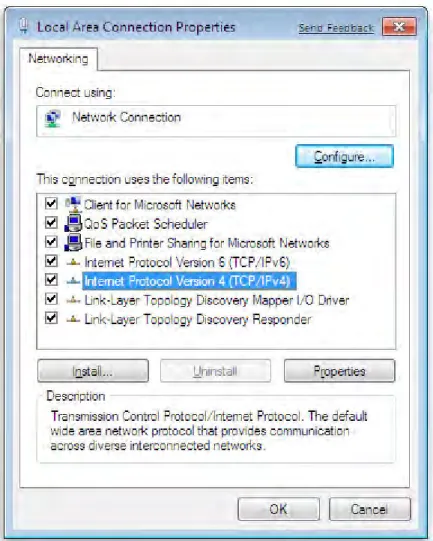
4. Click Continue. The Local Area Connection Properties dialog box appears. 5. In the Local Area Connection Properties dialog box, verify that Internet Protocol
(TCP/IPv4) is checked. Then select Internet Protocol (TCP/IPv4) and click the
Properties button (see Figure 7). The Internet Protocol Version 4 Properties dialog box appears.
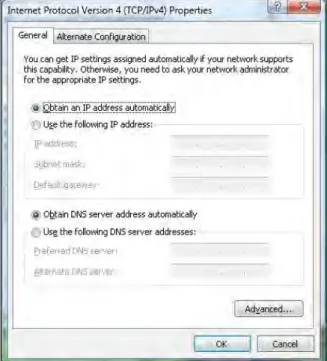
6. In the Internet Protocol Version 4 Properties dialog box, click Obtain an IP address automatically to configure your computer for DHCP (see Figure 8).
Figure 8. Internet Protocol Properties Window 7. Click the OK button to save your changes and close the dialog box. 8. Click the OK button again to save your changes.
Configuring Microsoft Windows 7
Use the following procedure to configure a computer running Microsoft Windows 7. 1. In the Start menu search box, type: ncpa.cpl
Figure 10. Typing ncpa.cpl in the Start Menu Box The Network Connections List appears.
Figure 12. Local Area Network Connection Properties Dialog Box
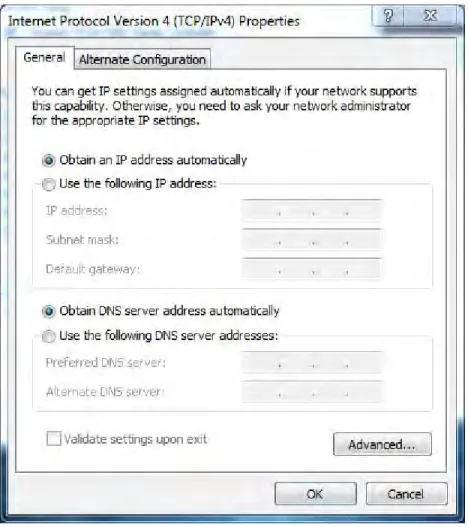
4. In the properties dialog box, click Obtain an IP address automatically to configure your computer for DHCP (see Figure 13).
Figure 13. Properties Window 5. Click the OK button to save your changes and close the dialog box. 6. Click the OK button again to save your changes.
Configuring an Apple
®Macintosh
®Computer
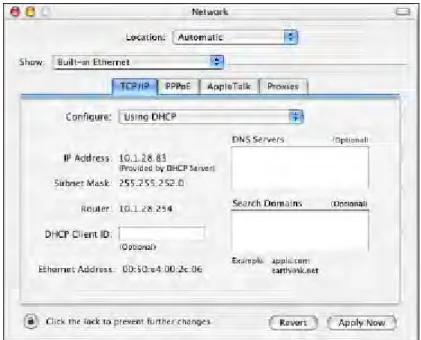
The following procedure describes how to configure TCP/IP on an Apple Macintosh running Mac OS 10.2. If your Apple Macintosh is running Mac OS 7.x or later, the steps you perform and the screens you see may differ slightly from the following. However, you should still be able to use this procedure as a guide to configuring your Apple Macintosh for TCP/IP. 1. Pull down the Apple Menu, click System Preferences, and select Network.
4 Configuring Your Gateway
This chapter describes how to use a Web browser to configure the Gateway. The topics covered in this chapter are:
y Pre-configuration Guidelines (page 28)
y Accessing the Gateway’s Web Management (page 30)
y Understanding the Web Management Interface Screens (page 31)
Pre-configuration Guidelines
Before you configure the Gateway, observe the guidelines in the following sections.
Disabling Proxy Settings
Disable proxy settings in your Web browser. Otherwise, you will not be able to view the Gateway’s Web-based configuration pages.
Disabling Proxy Settings in Internet Explorer
The following procedure describes how to disable proxy settings in Internet Explorer 5 and later.
1. Start Internet Explorer.
2. On your browser’s Tool menu, click Options. The Internet Options dialog box appears. 3. In the Internet Options dialog box, click the Connections tab.
4. In the Connections tab, click the LAN settings button. The Local Area Network (LAN) Settings dialog box appears.
5. In the Local Area Network (LAN) Settings dialog box, uncheck all check boxes. 6. Click OK until the Internet Options window appears.
7. In the Internet Options window, under Temporary Internet Files, click Settings.
8. For the option Check for newer versions of stored pages, select Every time I visit the webpage.
9. Click OK until you close all open browser dialog boxes.
Disabling Proxy Settings in Firefox
The following procedure describes how to disable proxy settings in Firefox. 1. Start Firefox.
2. On your browser’s Tools menu, click Options. The Options dialog box appears. 3. Click the Advanced tab.
4. In the Advanced tab, click the Network tab. 5. Click the Settings button.
6. Click Direct connection to the Internet. 7. Click the OK button to confirm this change.
Disabling Proxy Settings in Safari
The following procedure describes how to disable proxy settings in Safari. 1. Start Safari.
2. Click the Safari menu and select Preferences. 3. Click the Advanced tab.
4. In the Advanced tab, click the Change Settings button.
5. Choose your location from the Location list (this is generally Automatic).
6. Select your connection method. If using a wired connection, select Built-in Ethernet. For wireless, select Airport.
7. Click the Proxies tab.
8. Be sure each proxy in the list is unchecked. 9. Click Apply Now to finish.
Disabling Firewall and Security Software
Disable any firewall or security software that may be running on your computer. For more information, refer to the documentation for your firewall.
Accessing the Gateway’s Web Management
After configuring your computer for TCP/IP and performing the pre-configuration guidelines on the previous page, you can now easily configure the Gateway from the convenient Web-based management interface. From your Web browser (Microsoft Internet Explorer version 5.5 or later), you will log in to the interface to define system parameters, change password settings, view status windows to monitor network conditions, and control the Gateway and its ports.
To access your SMCD3GN2 Wireless Cable Modem Gateway’s web-based management screens, use the following procedure.
1. Launch a Web browser.
Note: The cable modem does not have to be online to configure the Gateway.
2. In the browser address bar, type http://192.168.0.1 and press the Enter key. For example:
The Login User Password screen appears (see Figure 15)
Figure 15. Login User Password Screen
3. In the Login User Password screen, type the default login username cusdamin and the default password password. Your service provider may customize the login, so please check with your services provided for correct login information. Both the username and password are case sensitive.
4. Click the Login button to access the Gateway. The Status page appears, showing connection status information about the Gateway.
Understanding the Web Management Interface Screens
The left side of the management interface contains a menu bar you use to select menus for configuring the Gateway. When you click a menu, information and any configuration settings associated with the menu appear in the main area of the interface (see Figure 16). If the displayed information exceeds what can be shown in the main area, scroll bars appear to the right of the main area so you can scroll up and down through the information.
Figure 16. Main Areas on the Web Management Interface
Some menus have submenus associated with them. If you click a menu that has submenus, the submenus appear below the menu. For example, if you click the System menu, the
submenu Password Settings appears below the System menu (see Figure 17).
Figure 17. Example of System Submenu
The top-right side of the page contains a Home button that displays the Home (Status) page and a Logout button for logging out of the Web management interface.
Main Area Menu bar
Help, Apply, and Cancel Buttons
Home and Logout Buttons
The bottom right side of the screen contains three buttons: y Help displays online help
y Apply click this button to save your configuration changes to the displayed page y Cancel click this button to discard any configuration changes made to the current page
Web Management Interface Menus and Submenus
Table 3 describes the menus and submenus in the Web management interface.
Table 3. Web Management Interface Menus and Submenus
Note: Some menus and submenus described in this chapter may not apply to your Gateway. Please check your Gateway’s GUI to see which items are available.
Menu and Submenus Description See Page
System Lets you enable or disable uPnP and HNAP. The submenu lets you: 34
System > Password Settings • Define the password for logging in to the Gateway’s Web interface. 35
LAN Lets you configure settings for your private LAN. 36
LAN > Ether Switch Control • Specify fixed speed and duplex settings, and disable individual LAN ports. 39 LAN > Ether Access Control • Allow all EtherLAN client stations to access the Internet through the Gateway,
allow certain trusted EtherLAN client stations to access the Internet through the Gateway, or deny certain trusted EtherLAN client stations from accessing the Internet through the Gateway.
41
QoS Lets you enable Quality of Service (QoS) settings. If you enable QoS, the following
submenus become available for: 44
QoS > Port • Prioritizing performance of the four Gateway LAN ports. 45
QoS > COS • Defining four queues to which the Class of Service (CoS) is mapped. 46 QoS > DSCP • Defining the QoS class queue to which the customized DSCP is mapped. 48 QoS > Queue • Specifying whether QoS behavior runs with strict or weighted priority. 50
QoS > DSCP Remarking • Defining the DSCP remarking action and mode. 52
Wireless Lets you configure basic wireless settings, such as enabling or disabling wireless operation, selecting wireless mode, and configuring the Service Set Identifier (SSID) and channel settings. Submenus let you:
54
Wireless > Encryption • Use encryption to protect the data transmitted across your wireless network 56
Wireless > WPS • Enable or disable Wi-Fi Protected Setup (WPS). 60
Wireless > MAC Filtering • Allow all wireless client stations or only trusted PCs to connect over a wireless connection.
63
Table 3. Web Management Interface Menus and Submenus
Note: Some menus and submenus described in this chapter may not apply to your Gateway. Please check your Gateway’s GUI to see which items are available.
Menu and Submenus Description See Page
NAT > Port Forwarding Configure predefined and custom port forwarding settings to let Internet users
access local services such as the Web Server or FTP server at your local site. 67
Firewall Lets you enable or disable the Gateway’s firewall. Submenus let you: 73
Firewall > Access Control • Block traffic at the Gateway's LAN interfaces from accessing the Internet. 74
Firewall > Special Application • Detect port triggers for detect multiple-session applications and allow them to pass the firewall.
87
Firewall > URL Blocking • Block access to certain Web sites from local computers by entering either a full URL address or keywords of the Web site.
90
Firewall > Schedule Rule • Define schedule rules that work with the Gateway’s URL blocking feature. 92 Firewall > Email/Syslog Alert • Send email notifications or add entries to the syslog when traffic is blocked,
attempts are made to intrude onto the network, and local computers try to access block URLs.
93
Firewall > DMZ • Configure a local client computer for unrestricted two-way Internet access by defining it as a Virtual DMZ host.
97
Tools Lets you reset the Gateway and return it to its factory default settings. The submenu
lets you: 98
Tools > Reboot • Reboot the Gateway while keeping all overrides you made to the device’s factory default settings.
99
Status Shows the connection status of the Gateway interfaces, firmware, hardware version numbers, illegal attempts to access your network, and information about DHCP client PCs current connected to the Gateway. The submenu lets you:
100
Status > Cable Status • View cable initialization procedures, and cable downstream and upstream status.
System Settings Menu
The System Settings menu lets you enable or disable Universal Plug and Play (uPnP) and Home Network Administration Protocol (HNAP). To access the System Settings menu, click System in the menu bar. Figure 18 shows an example of the menu and Table 4 describes the setting you can select.
Figure 18. System Settings Menu Table 4. System Settings Menu Option
Option Description
Enable UPnP Configures your Gateway as a uPnP Internet gateway. UPnP allows for dynamic connectivity between devices on a network. A UPnP-enabled device like your Gateway can obtain an IP address, advertise its capabilities, learn about other connected UPnP devices and then communicate directly with those devices. The same device can end its connection cleanly when it wishes to leave the UPnP community. The intent of UPnP is to support zero-configuration, "invisible" networking of devices including intelligent appliances, PCs, printers, and other smart devices using standard protocols.
• Check = uPnP is enabled on the Gateway. (default) • Uncheck = uPnP is disabled on the Gateway.
Enable HNAP Configures your Gateway as a HNAP device. HNAP allows your Gateway to be configured and managed by remote entities, such as Network Magic or any software application that discovers and manages network devices. • Check = HNAP is enabled on the Gateway. . (default)
Password Settings Menu
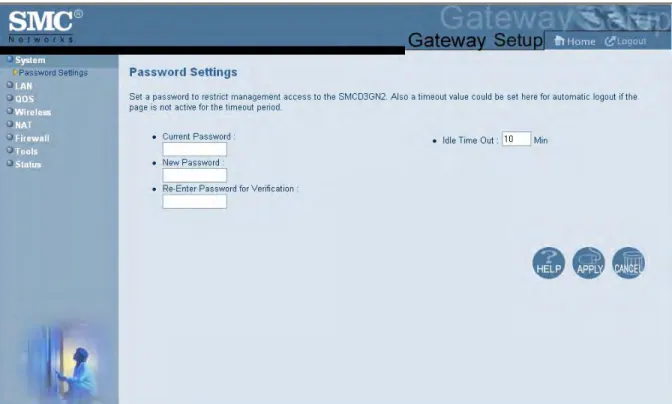
The Password Settings menu lets you change the default username and password used to log in to the Gateway’s Web interface.
The Password Settings menu also lets you change the number of minutes of inactivity that can occur before your Web management session times out automatically. The default setting is 10 minutes.
To access the Password Settings menu, click System in the menu bar and then click the Password Settings submenu. Figure 19 shows an example of the menu and Table 5 describes the settings you can select.
Table 5. Password Settings Menu Options
Option Description
Current Password Enter the current case-sensitive login password. For security purposes, every typed character appears as a dot (y). The default password is not shown for security purposes.
New Password Enter the new case-sensitive login password you want to use. A password can contain up to 32 alphanumeric characters. Spaces count as password characters. For security purposes, every typed character appears as a dot (y).
Re-Enter Password for Verification Enter the same case-sensitive login password you typed in the New Password field. For security purposes, every typed character appears as a dot (y).
Idle Time Out Your Web management interface sessions timeout after 10 minutes of idle time. To change this duration, enter a new timeout value.
LAN Settings Menu
IP addresses are close to being used up and thus very hard to get. One solution to this problem is "private" IP addresses. Private IP addresses are ranges of IP addresses set aside expressly for use by a company or other entity internally. Private IP addresses are non-routable and, therefore, cannot be used to connect directly to the Internet.
Some of the advantages of private IP addresses include:
y Increased security, since private IP addresses are not routable across the Internet
y You conserve the world-wide pool of IP addresses
y You do not have to register or pay for these IP addresses in any way
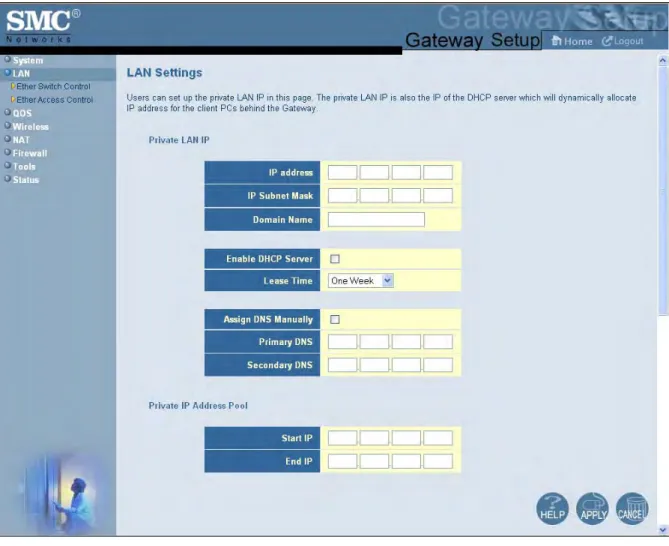
Using the LAN Settings menu, you can define private LAN IP addresses. To access the LAN Settings menu, click LAN in the menu bar. Figure 20 shows an example of the menu and Table 6 describes the settings you can select.
Figure 20. LAN Settings Menu Table 6. LAN Settings Menu Options
Option Description
Private LAN IP
IP Address IP address of the Gateway’s private LAN settings. Default IP address is 192.168.0.1. if you change this setting, the Gateway reboots after displaying a message.
IP Subnet Mask Subnet mask of the Gateway’s private LAN settings. Default subnet mask is 255.255.255.0. Domain Name Domain name of the Gateway’s private LAN settings.
Enable DHCP Server Enables or disables the DHCP server to allow automatic allocation of IP addresses to LAN client PCs. Checked = DHCP server is enabled. (default)
Option Description
Lease Time Amount of time a DHCP network user is allowed connection to the Gateway with their current dynamic IP address. Default is One Week. This option is available when Enable DHCP Server is checked. Assign DNS Manually Enables or disables the DHCP server to allow automatic allocation of primary and secondary IP
addresses for DSN servers on the LAN.
• Checked = use static IP addresses for primary and secondary DNS servers. If checked, enter the IP addresses of the primary and secondary DNS server in the Primary DNS and Secondary DNS fields. • Unchecked = allocate IP addresses for primary and secondary DNS servers automatically. (default) Primary DNS Static IP address of the primary DNS server. This option is available when Assign DNS Manually is
checked.
Secondary DNS Static IP address of the secondary DNS server. This option is available when Assign DNS Manually is checked.
Private IP Address Pool
Start IP Starting IP address range for the pool of allocated for private IP addresses. End IP Ending IP address range for the pool of allocated for private IP addresses.
Private LAN IP
IP Address IP address of the Gateway’s private LAN settings. Default IP address is 192.168.0.1. if you change this setting, the Gateway reboots after displaying a message.
IP Subnet Mask Subnet mask of the Gateway’s private LAN settings. Default subnet mask is 255.255.255.0. Domain Name Domain name of the Gateway’s private LAN settings.
Enable DHCP Server Enables or disables the DHCP server to allow automatic allocation of IP addresses to LAN client PCs. • Checked = DHCP server is enabled. (default)
• Unchecked = DHCP server is disabled.
Lease Time Amount of time a DHCP network user is allowed connection to the Gateway with their current dynamic IP address. Default is One Week. This option is available when Enable DHCP Server is checked. Assign DNS Manually Enables or disables the DHCP server to allow automatic allocation of primary and secondary IP
addresses for DSN servers on the LAN.
• Checked = use static IP addresses for primary and secondary DNS servers. If checked, enter the IP addresses of the primary and secondary DNS server in the Primary DNS and Secondary DNS fields. • Unchecked = allocate IP addresses for primary and secondary DNS servers automatically. (default) Primary DNS Static IP address of the primary DNS server. This option is available when Assign DNS Manually is
checked.
Secondary DNS Static IP address of the secondary DNS server. This option is available when Assign DNS Manually is checked.
Private IP Address Pool
Start IP Starting IP address range for the pool of allocated for private IP addresses. End IP Ending IP address range for the pool of allocated for private IP addresses.
Ether Switch Port Control Menu
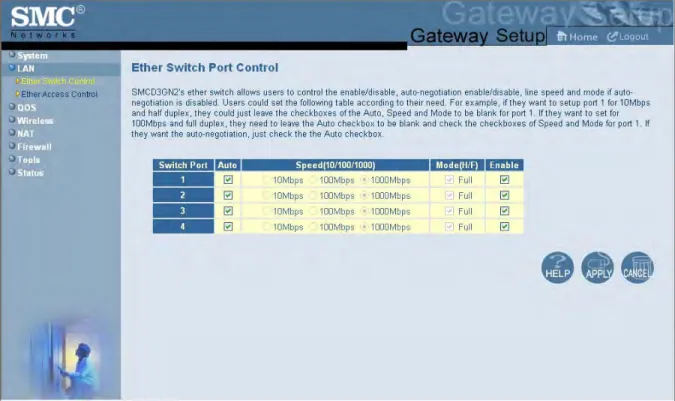
By default, the Gateway LAN ports are enabled to auto-negotiate the highest supported speed and appropriate duplex mode. If these settings prevent the Gateway from
successfully connecting with other devices, you can use the Ether Switch Port Control menu to configure the Gateway to use fixed speed and duplex settings. The Ether Switch Port Control menu also let you disable the individual LAN ports. For your convenience, each port can be configured independently of the other LAN ports on the Gateway.
To access the Ether Switch Control menu, click LAN in the menu bar and then click the Ether Switch Control submenu in the menu bar. Figure 21 shows an example of the menu.
The following procedure describes how to change the settings in the Ether Switch Port Control menu.
1. To change a port from auto-negotiation to a fixed speed and duplex setting: a. Uncheck the Auto check box for the port.
b. Under Speed (10/100/1000), click the radio that corresponds to the fixed speed you want to use for that port.
c. Under the Mode H/F column, leave the check mark for full-duplex mode or uncheck it for half-duplex mode.
2. To disable a port, regardless of the auto-negotiation and duplex settings, uncheck Enable for the port.
LAN Access Control Menu
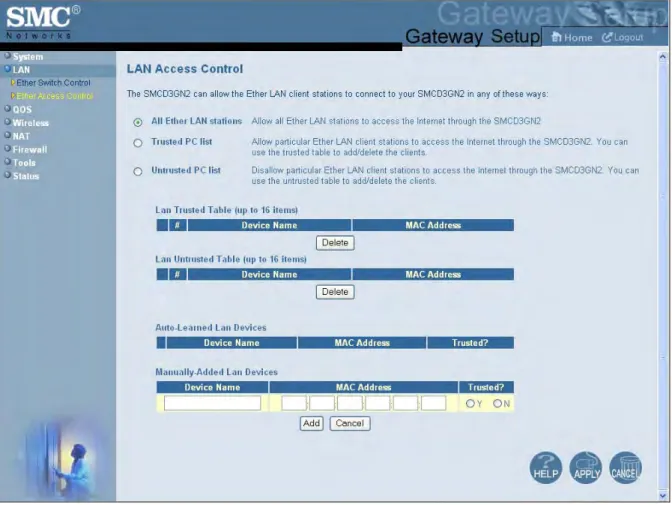
Using the LAN Access Control menu, you can:
y Allow all EtherLAN client stations to access the Internet through the Gateway. This is the default setting.
y Allow certain trusted EtherLAN client stations to access the Internet through the Gateway. You use the add up to 16 trusted clients.
y Deny certain trusted EtherLAN client stations from accessing the Internet through the Gateway. You use the add up to 16 untrusted clients.
To access the LAN Access Control menu, click LAN in the menu bar and then click the Ether Access Control submenu in the menu bar. Figure 22 shows an example of the menu.
Controlling LAN Access
By default, All EtherLAN LAN stations is selected at the top of the menu. This setting allows all client stations to access the Internet through the Gateway. To restrict LAN access, click one of the following radio buttons and click Apply:
y Trusted PC List = restricts Internet access through the Gateway to client stations in the Lan Trusted Table. To add client station to this table, see “Adding and Deleting Trusted Client Stations”, below.
y Untrusted PC list = prevents client stations in the Lan Untrusted Table from accessing the Internet through the Gateway. To add client stations to this table, see “Adding and Deleting Untrusted Client Stations” on page 43.
Adding and Deleting Trusted Client Stations
To restrict Internet access through the Gateway to certain trusted EtherLAN client stations, define the client stations as trusted clients. Using this procedure you can define up to 16 trusted client stations.
1. Click Trusted PC list at the top of the menu.
2. To add client stations that the Gateway automatically learned on the network, perform the following steps under Auto-Learned Lan Devices:
a. Click a client station that the Gateway learned automatically. b. Under Trusted?, click Y.
c. Click Add. The client station is added to the Lan Trusted Table.
d. To add more auto-learned client stations (up to 16), repeat steps 2a through 2c. 3. To manually add trusted client stations, perform the following steps under
Manually-Added Lan Devices:
a. Under Device Name, enter a name for the device.
b. Under MAC Address, enter the MAC address of the device. c. Under Trusted?, click Y.
d. Click Add to add the client station to the Lan Trusted Table.
4. To delete client stations from the Lan Trusted Table, click the radio button corresponding to the client station you want to delete and click the Delete button. A precautionary
message does not appear before deleting a client station.
5. To enforce this policy, click Trusted PC list at the top of the menu. 6. When you finish, click Apply.
Adding and Deleting Untrusted Client Stations
To prevent certain trusted EtherLAN client stations from accessing the Internet through the Gateway, define the client stations as untrusted clients. Using this procedure you can define up to 16 untrusted client stations
1. Click Untrusted PC list at the top of the menu.
2. To add client stations that the Gateway automatically learned on the network, perform the following steps under Auto-Learned Lan Devices:
a. Click a client station that the Gateway learned automatically. b. Under Trusted?, click N.
c. Click Add to add the client station to the Lan Untrusted Table. d. To add more auto-learned client stations, repeat steps 2a through 2c.
3. To manually add client stations, perform the following steps under Manually-Added Lan Devices:
a. Under Device Name, enter the name of the device.
b. Under MAC Address, enter the MAC address of the device. c. Under Trusted?, click N.
d. Click Add to add the client station to the Lan Untrusted Table. e. To add more client stations manually, repeat steps 3a through 3d.
4. To delete client stations from the untrusted list, in the Lan Untrusted Table. click the radio button corresponding to the client station you want to delete and click the Delete button. A precautionary message does not appear before deleting an untrusted client station. 5. To enforce this policy, click Untrusted PC list at the top of the menu.
QoS Settings Menu
Quality of Service (QoS) refers to a collection of techniques for identifying data whose delivery across the network is time sensitive, and managing its delivery through both bandwidth allocation and prioritization schemes
Using the QoS Settings menu, you can enable the Gateway’s QoS module to provide guarantees on the ability of the network to deliver predictable results. To access the QoS menu, click QOS in the menu bar. Figure 23 shows an example of the menu.
By default, QoS is enabled. To disable the Gateway’s QoS module, uncheck Enable QOS
Module and click Apply. To disable the Gateway’s QoS module, uncheck Enable QOS Module and click Apply.
When the Gateway’s QoS module is enabled, the following submenus appear under QOS in
the menu bar:
y Port - lets you configure the priority queue to which the switch port is mapped. See page 45.
y COS - lets you define four queues to which the CoS is mapped. See page 46.
y DSCP - lets you define the QoS class queue to which the customized DSCP is mapped.
See page 48.
y Queue - lets you specify whether QoS behavior runs with strict or weighted priority. See page 50.
y DSCPRemarking - lets you define the DSCP remarking action and mode. See page 52.
Port Based QoS Menu
The Port Based QoS menu lets you enable or disable the Gateway’s port-based QoS setting. To access the Port Based QoS menu, click QOS in the menu bar and then click the Port submenu in the menu bar. Figure 24 shows an example of the menu.
y To enable the Gateway’s port-based QoS setting, check Enable Port Based QoS and
click Apply.
y To disable the Gateway’s port-based QoS setting, uncheck Enable Port Based QoS
and click Apply.
Note: The Port submenu is not available in the menu bar if Enable QOS Module is not checked in the QoS Settings menu (see page 39).
CoS Settings Menu
Given that there will always be points in the network where multiple traffic streams merge or where network links will change speed and capacity, it is important to move traffic on the basis of relative importance. Without CoS prioritization, less important traffic can consume network bandwidth and slow down or halt the delivery of more important traffic. For example, without CoS, most traffic received by the Gateway is forwarded with the same priority it had upon entering the Gateway. In many cases, such traffic is ‘‘normal’’ priority and competes for bandwidth with all other normal-priority traffic, regardless of its relative importance to your requirements. CoS helps to keep the most important network traffic moving at an acceptable speed, regardless of current bandwidth usage. This means you can manage available bandwidth so that the switch transmits the most important traffic first.
The CoS Settings menu lets you configure a CoS priority of 0 through 7 for an outbound packet. When the packet is then sent to a port, the CoS priority determines which outbound queue the packet uses. After configuring CoS priority for outbound packets, use this menu to map the classes of service to the Gateway’s four ports.
To access the CoS Settings menu, click QOS in the menu bar and then click the CoS submenu in the menu bar. Figure 25 shows an example of the menu.
Note: The COS submenu is not available in the menu bar if Enable QOS Module is not checked in the QoS Settings menu (see page 39).
To define CoS settings:
1. Check Enable QoS Class based on CoS.
2. For each class of service, assign a queue number from 0 to 3. Higher priority values are evaluated as being of higher importance than lower priority values.
3. Under Port Default CoS, map the Gateway’s four ports to the classes of service you defined in the previous step.
– CoS setting from 0 to 3 = normal priority. Packets in this queue leave the port after the high-priority queue is emptied.
– CoS setting from 4 to 7 = high priority. Packets in this queue leave the port first. 4. Click Apply.
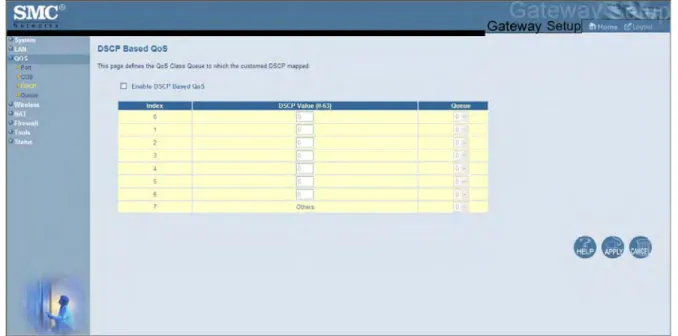
DSCP Based QoS Menu
The DSCP Based QoS menu lets you classify and prioritize traffic using DSCP tags. DSCP allows the Gateway to determine how traffic classes should be prioritized. Using the DSCP Based QoS menu, you can use DSCP to provide different levels of service to conforming and non-conforming traffic by appropriately selecting the DSCP values in this menu. The Gateway uses the Hierarchical Token Bucket queuing algorithm, which divides the 64 possible DSCP code values into 8 queues.
Table 7 shows the actual queuing.
Table 7. Queuing for DSCP-Based QoS
Name Precedence DSCP Range Priority
Routing (default) 000 (0) 000000(0) – 000111 (7) 8 Priority 001 (1) 001000 (8) – 001111 (15) 7 Immediate 010 (2) 010000 (16) – 010111 (23) 6 Flash 011 (3) 011000 (24) – 011111 (31) 5 Flash Override 100 (4) 100000 (32) – 100111 (39) 4 Critical 101 (5) 101000 (40) – 101111 (47) 3 Internetwork Control 110 (6) 111000 (48) – 110111 (55) 2 Network Control 111 (7) 111000 (56) – 111111 (63 1
To access the DSCP Based QoS menu, click QOS in the menu bar and then click the DSCP
submenu in the menu bar. Figure 26 shows an example of the menu.
Note: The DSCP submenu is not available in the menu bar if Enable QOS Module is not checked in the QoS Settings menu (see page 39).
Figure 26. DSCP Based QoS Menu To define DSCP-based QoS settings:
1. Check Enable DHCP Based QoS.
2. For each index, enter a DSCP value from 0 to 63.
3. Under Queue, select a queue (from 0 to 3) you want to map to this DSCP value. Higher priority values are evaluated as being of higher importance than lower priority values. 4. To define DSCP-based QoS values for other queues, repeat steps 2 and 3.
Queue Settings Menu
The Queue Settings menu lets you configure QoS behavior as either strict priority or weighted priority.
y Strict priority – allows delay-sensitive data such as voice to be sent before packets in other queues.
y Weighted priority – lets you assign each queue with a certain weight indicating the amount of guaranteed capacity, with high priority packets served before any low priority packets.
To access the Queue Settings menu, click QOS in the menu bar and then click the Queue submenu in the menu bar. Figure 27 shows an example of the menu.
Note: The Queue submenu is not available in the menu bar if Enable QOS Module is not checked in the QoS Settings menu (see page 39).
By default, the Gateway uses strict priority. To change to weighted priority: 1. For Queue Type, select Weighted Priority. The options in Figure 28 appear.
Figure 28. Weighted Priority Options
2. For Weight Base, select a queue weight to ensure that some sets of queues get higher thresholds than others. Queue weight directs the Gateway to set the queue thresholds proportionately. Choices are 8 or 10. Queues with a weight of 10 are longer than those with a queue weight of 8.
3. For each Gateway queue, enter a weight. Each weight corresponds to a percentage of
consumed bandwidth, as shown in the % of Bandwidth column.
DSCP Remarking Menu
The DSCP Remarking menu lets you configure the Gateway’s DSCP remarking mode and actions.
To access the Queue Settings menu, click QOS in the menu bar and then click the DSCP Remarking submenu in the menu bar. Figure 29 shows an example of the menu.
Note: The DSCP Remarking submenu is not available in the menu bar if Enable QOS Module is not checked in the QoS Settings menu (see page 39).
Figure 29. DSCP Remarking Menu To configure DSCP remarking settings:
1. Check Enable DSCP Remarking.
2. Complete the options in the menu and refer to Table 8. 3. When you finish, click Apply.
Table 8. DSCP Remarking Options
Option Description
Dscp remarking mode Lets you select the DSCP remarking mode that the Gateway is to use. Choices are:
• Map frame priority to AF code points = select this option for Quality of Service configurations that use assured forwarding (AF) code points to mark packets. AF guarantees a certain amount of bandwidth to an AF class and allows access to extra bandwidth, if available. (default)
• Map frame priority to CS code points = select this option for Quality of Service configurations that use class selector (CS) code points to mark packets. CS provides code points that can be used for backward compatibility with IP Precedence. IP Precedence is a legacy technology that the Gateway supports for backwards compatibility.
Request a remarking action when DSCP equals one of the following CPs
Expedited Forwarding
Code Point Expedited forwarding provides a low-loss, low-latency, low-jitter, and assured bandwidth service. Applications such as VoIP, video, and other time sensitive applications require a robust network treatment like expedited forwarding. When checked, the Gateway requests a remarking action if DSCP equals an expedited forwarding code point. By default, this option is not checked.
Assured Forwarding
Code Points Assured forwarding defines a method by which packets can be given different forwarding assurances. Traffic can be divided into different classes and then each class given a certain percentage of bandwidth. For example, one class could have 50% of the available link bandwidth, another class could have 30%, and another 20% of the bandwidth. When checked, the Gateway requests a remarking action if DSCP equals an assured forwarding code point. By default, this option is not checked.
Class Selector Code
Points Class Selector code points are code points that can be used for backward compatibility with IP Precedence models. When checked, lets the Gateway request a remarking action if DSCP equals a class selector code point. By default, this option is checked, but does not take effect until the OSPF Status changes to ENABLE.
Zero When checked, lets the Gateway request a remarking action if DSCP equals zero. By default, this option is checked, but does not take effect until the OSPF Status changes to ENABLE.
Others When checked, lets the Gateway request a remarking action if DSCP equals a non-zero value. By default, this option is checked, but does not take effect until the OSPF Status changes to ENABLE.
Wireless Basic Settings Menu
The Wireless Basic Settings menu lets you configure basic wireless settings, such as: y Enabling or disabling the Gateway’s wireless operation
y Selecting a wireless mode
y Configuring the primary SSID
y Configuring channel settings
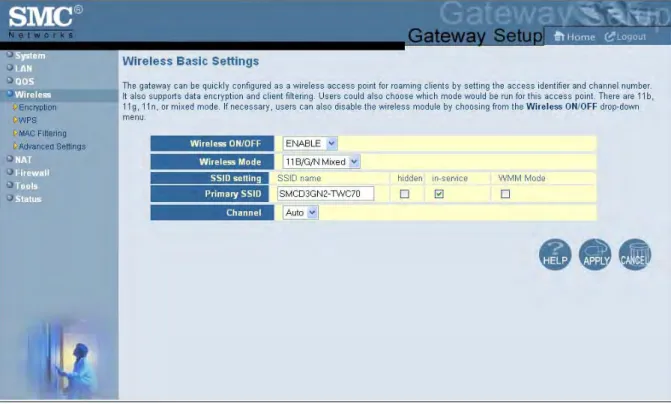
To access the Wireless Basic Settings menu, click Wireless in the menu bar. Figure 30 shows an example of the menu and Table 9 describes the settings you can select.
Table 9. Wireless Basic Settings Menu Options
Option Description
Wireless ON/OFF Enables or disables the Gateway’s wireless operation.
• ENABLE = Gateway’s wireless operation is active. Selecting this option activates the options in this menu. Clicking Apply displays the submenus below the Wireless menu.
• DISABLE = Gateway’s wireless operation is not active. Selecting this option deactivates the options in this menu. Clicking Apply hides the submenus below the Wireless menu. (default)
Wireless Mode If wireless operation is enabled for the Gateway, this option selects the wireless mode used by the Gateway. Choices are:
• 11B/G Mixed = use this setting if you have a combination of IEEE 802.11b and IEEE 802.11g devices on your network.
• 11B Only = use this setting if you have only IEEE 802.11b devices on your network or want to limit your network to IEEE 802.11b devices.
• 11G Only = use this setting if you have only IEEE 802.11g devices on your network or want to limit your network to IEEE 802.11g devices.
• 11N Only = use this setting if you have only IEEE 802.11n devices on your network or want to limit your network to IEEE 802.11n devices.
• 11G/N Mixed = use this setting if you have a combination of IEEE 802.11g and IEEE 802.11n devices on your network.
• 11B/G/N Mixed = use this setting if you have a combination of IEEE 802.11b, IEEE 802.11g, and IEEE 802.11n devices on your network. (default)
SSID setting SSID is the network name shared among all devices in a wireless network. The SSID must be identical for all devices in the wireless network. It is case-sensitive and must not exceed 32 alpha-numeric characters, which may be any keyboard character. Be sure this setting is the same for all devices in your wireless network.
Primary SSID The primary SSID can be hidden or configured for Wi-Fi Multimedia (WMM) mode.
• Hidden = when checked, hides the SSID. Use this setting to block illegal connections. Users cannot reconnect automatically or manually to a wireless network that uses a hidden SSID. The wireless network that uses a hidden SSID does not appear in the Microsoft Windows Wireless Network Connection window.
• In-service = when checked, broadcasts the Gateway’s SSID.
• WMM Mode = when checked, enables WMM. Enabling WMM can help control latency and jitter when transmitting multimedia content over a wireless connection.
Channel Select the appropriate channel from the list provided to correspond with your network settings, between 1 and 11 (in North America). Default is Auto, which selects the appropriate channel automatically. All devices in your wireless network must use the same channel to work properly.
Wireless Encryption Settings Menu
Using the Wireless Encryption Settings menu, you can protect the data transmitted across your wireless network. The same encryption keys you specify here must also be configured on your other wireless client devices on your wireless network.
To access the Wireless Encryption Settings menu, click Wireless in the menu bar and then click the Encryption submenu. Figure 31 shows an example of the menu and Table 10 describes the settings you can select.
Note: The Encryption submenu is not available in the menu bar if wireless operation is disabled in the Wireless Basic Settings menu (see page 54).
Table 10. Wireless Encryption Settings Menu Options
Option Description
SSID Network name of the of the primary wireless carrier. This field can be changed by administrators, but not by users.
Security Mode Selects the security mode used to protect transmissions across the wireless network. • None = no security is used over the wireless network.
• WEP = Wired Equivalency Privacy encryption is used over the wireless network. Select this option if your wireless adapters support WEP but not WPA-Personal. WEP provides basic security, but is not as secure as WPA-Personal. If you select WEP, select the options in Figure 32 and Table 11. • WPA-Personal = select this option if your wireless adapters support WPA-Personal. This
encryption method is superior to WEP and offers two cipher types, TKIP and AES, with dynamic encryption keys. If you select WPA-Personal, select the options in Figure 33 and Table 12. (default)
Figure 32. WEP Options Table 11. WEP Options
Option Description
WEP Key Length Level of WEP encryption applied to all WEP keys. Choices are 64-bit (10 hex digits) and 128-bit (26 hex digits).
WEP Key 1 – WEP Key 4 Fields for entering up to four WEP keys manually. Alternatively, you can click the Generate Keys button to generate these keys automatically.
Default WEP Key Specifies which of the four WEP keys the Gateway is to use as its default. Authentication Authentication used. Choices are:
• Open System = clients can only associate to the wireless access point using Open Option. (default)
• Shared Key = all wireless stations share the same secret key.
• Automatic = clients can associate to the wireless access point using Open System or Shared Key. Passphrase A sequence of words or text that can be used to automatically generate WEP keys. A passphrase
can consist of from 8 to 63 ASCII characters. You can use upper-case, lower-case, and numeric characters to from your passphrase. A Generate Keys button next to this field lets the Gateway generate a passphrase based on the characters typed in this field.
Figure 33. WPA_Personal Options Table 12. WPA_Personal Options
Option Description
WPA Mode Lets you select the WPA mode they want to use. Choices are:
• WPA-PSK = select this setting if your access points and wireless clients support WPA-Pre-Shared Key (PSK) Authentication.
• WPA2-PSK = select this setting if your access points and wireless clients support WPA2-PSK Authentication.
• Auto (WPA-PSK or WPA2-PSK) = select this setting if your access points and wireless clients support either WPA-PSK or WPA2-PSK. (default)
Cipher type Algorithm encryption to be used. Choices are:
• TKIP = automatic encryption with WPA-PSK; requires pre-shared key. • AES = automatic encryption with WPA2-PSK; requires pre-shared key.
• TKIP and AES = uses both TKIP and AES cipher types; requires pre-shared key. (default) Group Key Update Interval Number of seconds that instructs the Gateway how often it should change the encryption keys.
Usually the security level is higher if you set the period shorter to change encryption keys more often. Default value is 3600 seconds (6 minutes). Type 0 to disable group key update interval.
Pre-shared Key Shared secret between the Gateway and access points and wireless clients. Please check whether a default pre-shared key is required.
WPS Setup
Using the WPS Setup menu, you can enable or disable WPS. WPS is a standard for easy and secure wireless network set up and connections.
The advantages of WPS are:
y WPS automatically configures the network name (SSID) and WPA security key for the
Gateway and for the access point and wireless devices that join the network.
y You do not need to know the network name and security keys or passphrases to use
WPS to join a wireless network.
y No one can guess your security keys or passphrase because they are generated
randomly.
y WPS uses the Extensible Authentication Protocol (EAP), which is a strong authentication protocol used in WPA2.
The disadvantages of WPS are:
y Unless all the Wi-Fi devices on the network are WPS-compatible, you cannot take
advantage of the ease of securing the network.
y Not all wireless equipment supports WPS.
y If your wireless devices do not support WPS, it can be hard to join a network that was set up with WPS because the wireless network name and security key are random sequences of letters and numbers.
To access the WPS Setup menu, click Wireless in the menu bar and then click the WPS
submenu. Figure 34 shows an example of the menu. Using the WPS Config drop-down list,
Figure 34. WPS Setup Menu
By default, WPS is disabled. If you select ENABLE and click Apply, the options in Figure 35 are displayed. Table 13 describes the options shown.
Figure 35. WPS Setup Menu with WPS Config Enabled Table 13. WPS Summary and WPS Progress Options
Option Description
WPS Config Enables or disables the Gateway’s WPS setup.
• ENABLE = Gateway’s WPS setup is available. (default) • DISABLE = Gateway’s WPS setup is unavailable.
WPS Summary
WPS Current Status A read-only field that shows whether WPS is currently being used. WPS Configured A read-only field that whether WPS has been configured.
AP PIN A read-only field that shows the personal identification number (PIN) for the access point.
WPS Progress
WPS mode Determines whether WPS can be configured using a PIN or the WPS button on the front panel of the Gateway.
• PIN = requires you to enter a PIN in the WPS Setup menu to configure WPS.
• PBC = Push Button Configuration. Lets you use the WPS button on the front panel of the Gateway to configure WPS.
WPS PIN If PIN was selected for WPS mode, enter the PIN required to enable WPS. The PIN must be 8 alpha-numeric characters long.
MAC Filtering
Using the MAC Filtering menu, you can define up to 16 MAC address filters to prevent PCs from sending outgoing TCP/UDP traffic to the WAN via their MAC addresses. This is useful because a specific NIC’s MAC address never changes, unlike its IP address, which can be assigned by a DHCP server or hard-coded to various addresses over time.
The MAC Filtering menu allows wireless client stations to connect over a wireless connection in two ways:
y By allowing all wireless station access. y By allowing only trusted PCs.
To access the MAC Filtering menu, click Wireless in the menu bar and then click the MAC Filtering submenu. Figure 36 shows an example of the menu and Table 14 describes the settings you can select.
Note: The MAC Filtering submenu is not available in the menu bar if wireless operation is disabled in the Wireless Basic Settings menu (see page 54).